
Tutorials
How to make your own face masks at home
You can even present it to your friends and family


Surgical face masks are in short supply today as medical workers use them to protect against infection from the coronavirus. As such, you will rarely find them in any pharmacies or medical equipment stores. What if you really need a face mask? Luckily, Brother, famous for their printers, has shared these steps to making your own face mask at home.
The face mask you’ll make with these steps is reusable daily. With these steps, you will no longer need to buy a surgical mask that every medical worker direly needs during these times.
You’ll need the following: some spare cloth, a printer, a sewing machine, and sewing tools. The cloth should be divided into two: an outer fabric and an inner fabric both measuring 20cm x 80cm.
After you’ve prepared the necessary equipment, you’re now ready to make your own face mask.
1. Sew the outer fabric together.
For the first step, you must cut two pieces of the outer fabric according to the pattern below. Place these two together right-side-in, then sew with an allowance of a centimeter. Iron-press both edges and do a topstitch. Reinforce the edges at the start and the end.
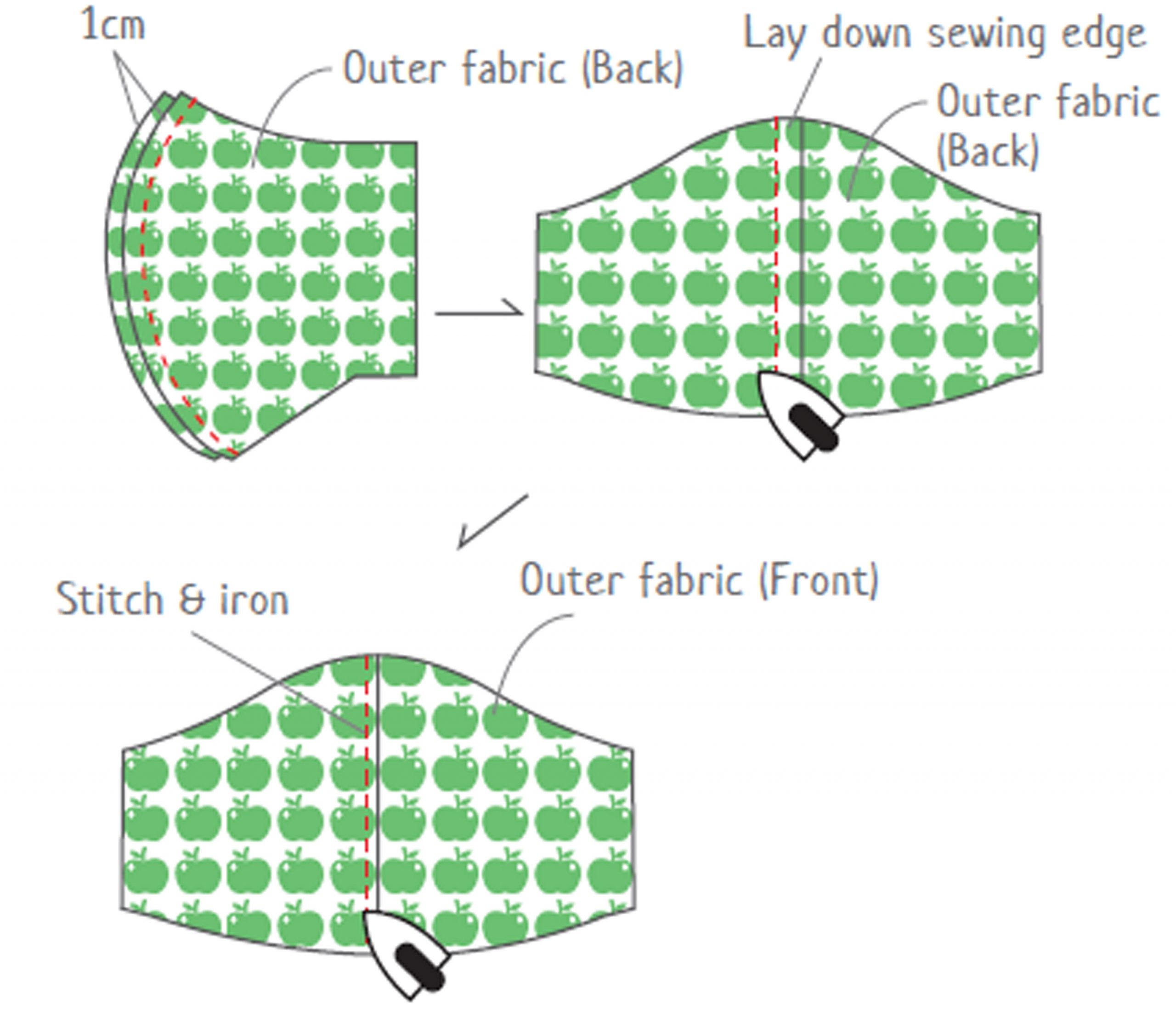
After sewing the outer fabric, you can put various designs into the mask. Be creative when putting the designs.
2. Do the same for the inner fabric.
Repeat what you did in the first step for the outer fabric. The inner fabric will ensure added protection from dust and other pollutants. And if you’re feeling creative, you can also design it too.
3. Sew the inner and outer fabric together.
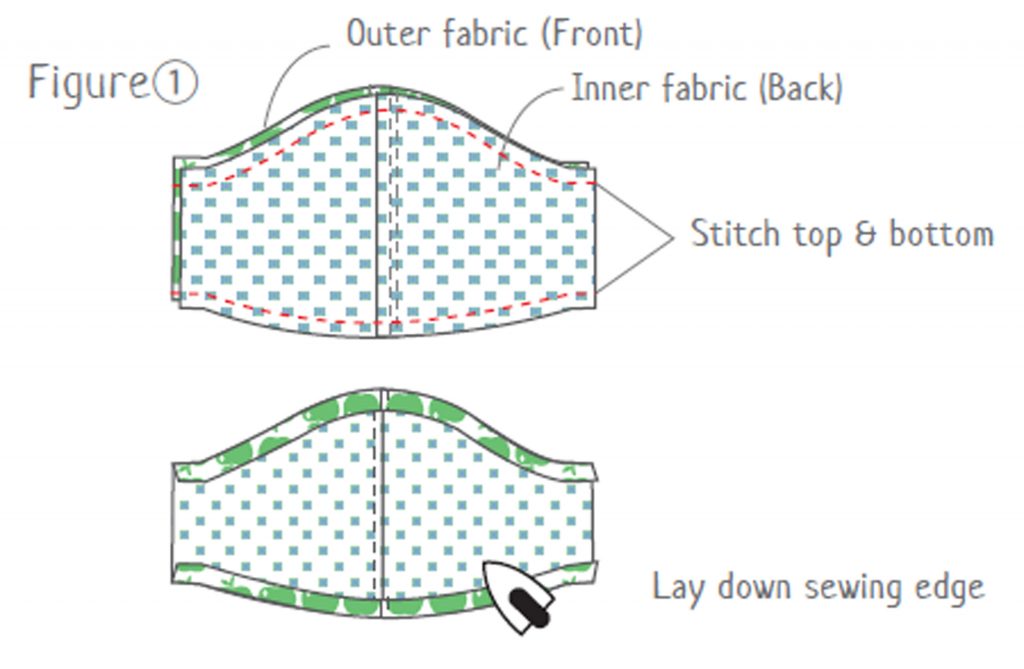
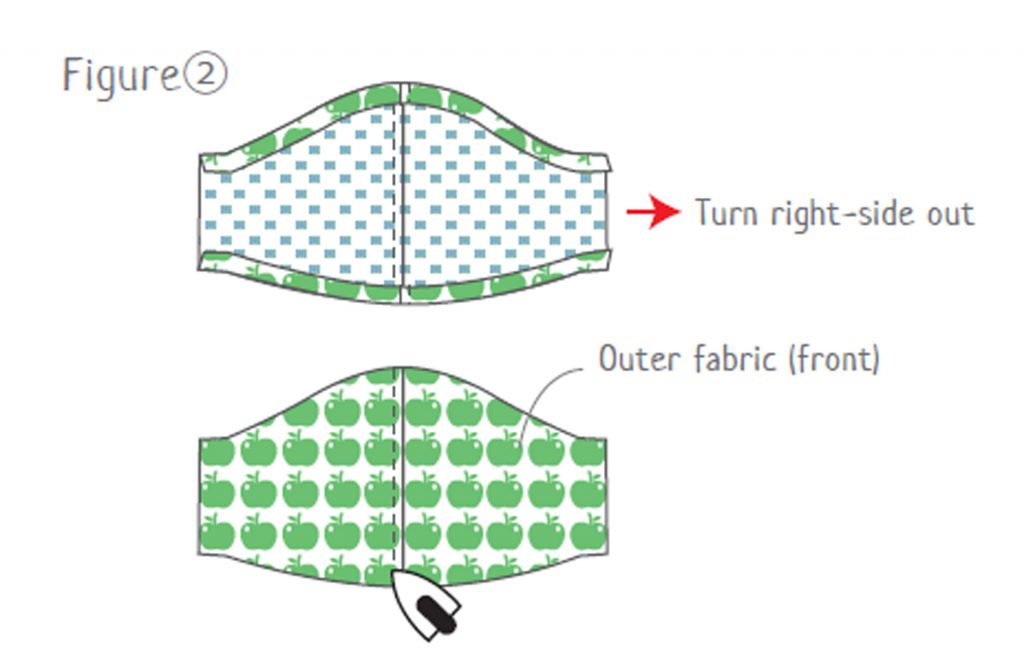
Now, you’re ready to join the two pieces of fabric together. Place them together right-side-in carefully. Sew the top and bottom sides. Iron-press the edges and do a top stitch again. Turn the inner fabric right-side-out, then iron-press and do a top stitch.
4. Make the elastic band.
Sew the layer for the inner mask. Fold one of the edges three times and stitch to its sides. Do the same for the other side.
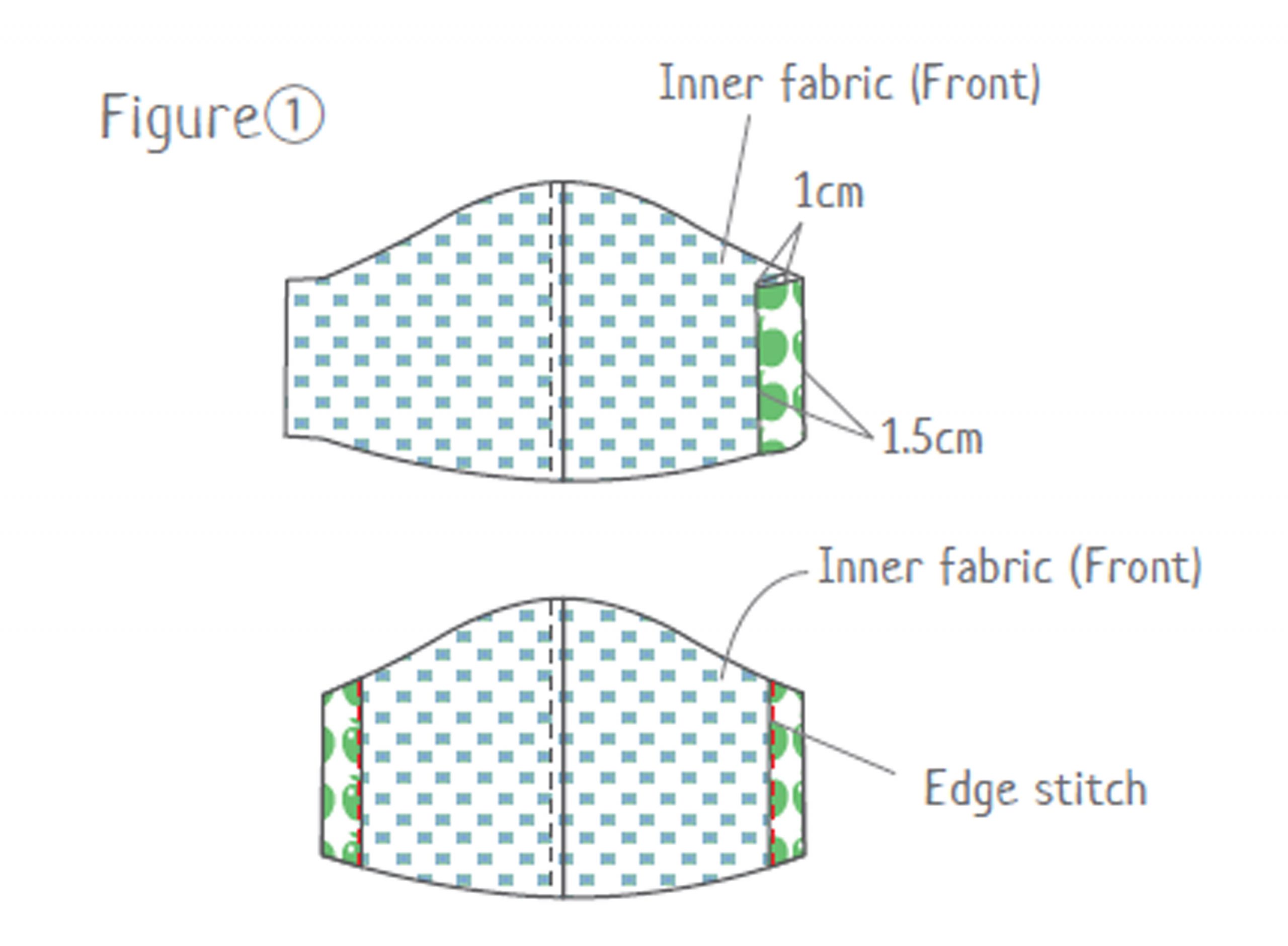
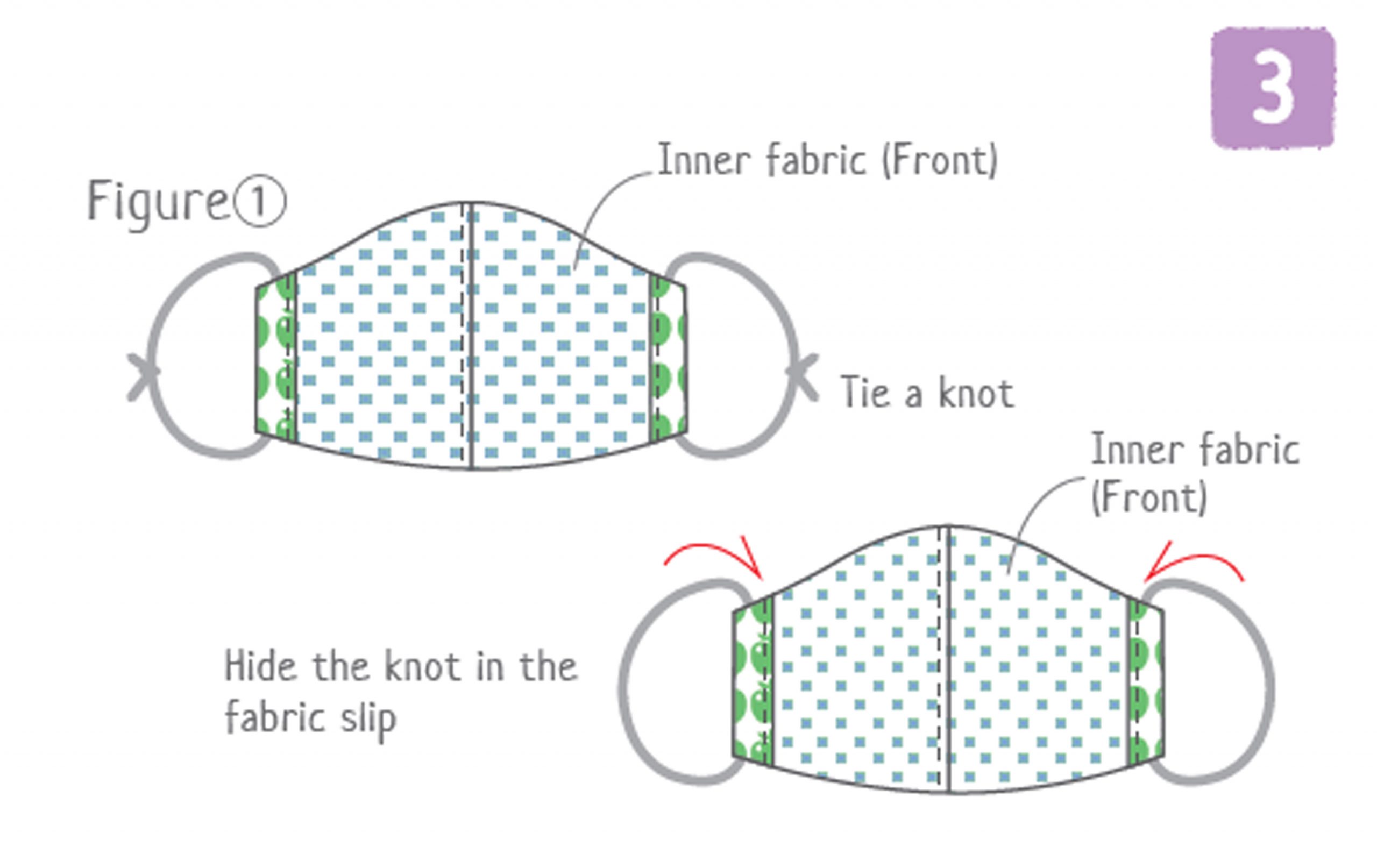
By now, you have a complete face mask. But how do you put them on your face? You’ll need an elastic band to hold the mask and keep it together. Assemble the elastic band first, then cut according to the measurements with a 3cm allowance. Insert the band to the edges of the mask. Finally, tie a knot to secure the bands in place.
5. Iron the mask to finish it.
You may want to post a picture of your own mask on Instagram or TikTok, so why not make it presentable? Ironing the mask removes the creases and makes it as good as a store-bought one.

6. Present it to the world.
Of course, creating your own mask is no small feat. Present it to your friends or family over Zoom or Skype. Tell them that you’ve learned a new skill at home. And above all else, don’t try to sell your creation to anyone — after all, most fabrics aren’t designed to filter out smaller particles that linger in the air.
If you didn’t catch any of the steps above, there’s a Youtube video as well that you can watch over and over again. For more resources on creating a face mask, visit Brother’s website.







Tutorials
How to spot scam emails and messages before they get you
Here are the telltale signs in a potential scam.


The brazenness of scammers often goes through fits and starts. Within the last few weeks, I’ve had three separate people in my immediate circle fall for three separate scams. I’ve received similar emails myself. With the Christmas season approaching, we’re living in a particularly brazen period, and it’s time for a very important PSA. Here’s how to spot a scam email today:
Check the contents of the message
Most scam or phishing attempts today will ask you to submit sensitive information like your log-in details or bank information to a seemingly innocuous platform. Obviously, these platforms are fake, and you’re surrendering your information to a malicious party. Unfortunately, these scams are getting much better with disguising their deception. If you put them side by side with a real email or message, you might find it hard to spot crucial differences. So, how do you clock them before it’s too late?
Start with the actual message. Companies will not ask you to submit your details on an email or on a message. It doesn’t matter if the message is claiming an issue (someone allegedly using your card) or a reward (your points are about to expire). If it’s not your usual way of logging in or submitting this information, then it’s likely fake.
Some might even include a highly suspicious link that leads to a log-in page. If that link is from a link shortener (like bit.ly) or looks nothing like the company’s real site, don’t click it. If you do click, check the URL for anomalies. In the below example, “Maya” claims that someone else tried to change the email on my account. Besides how unofficial the alert looks, the button does not lead to Maya’s website. 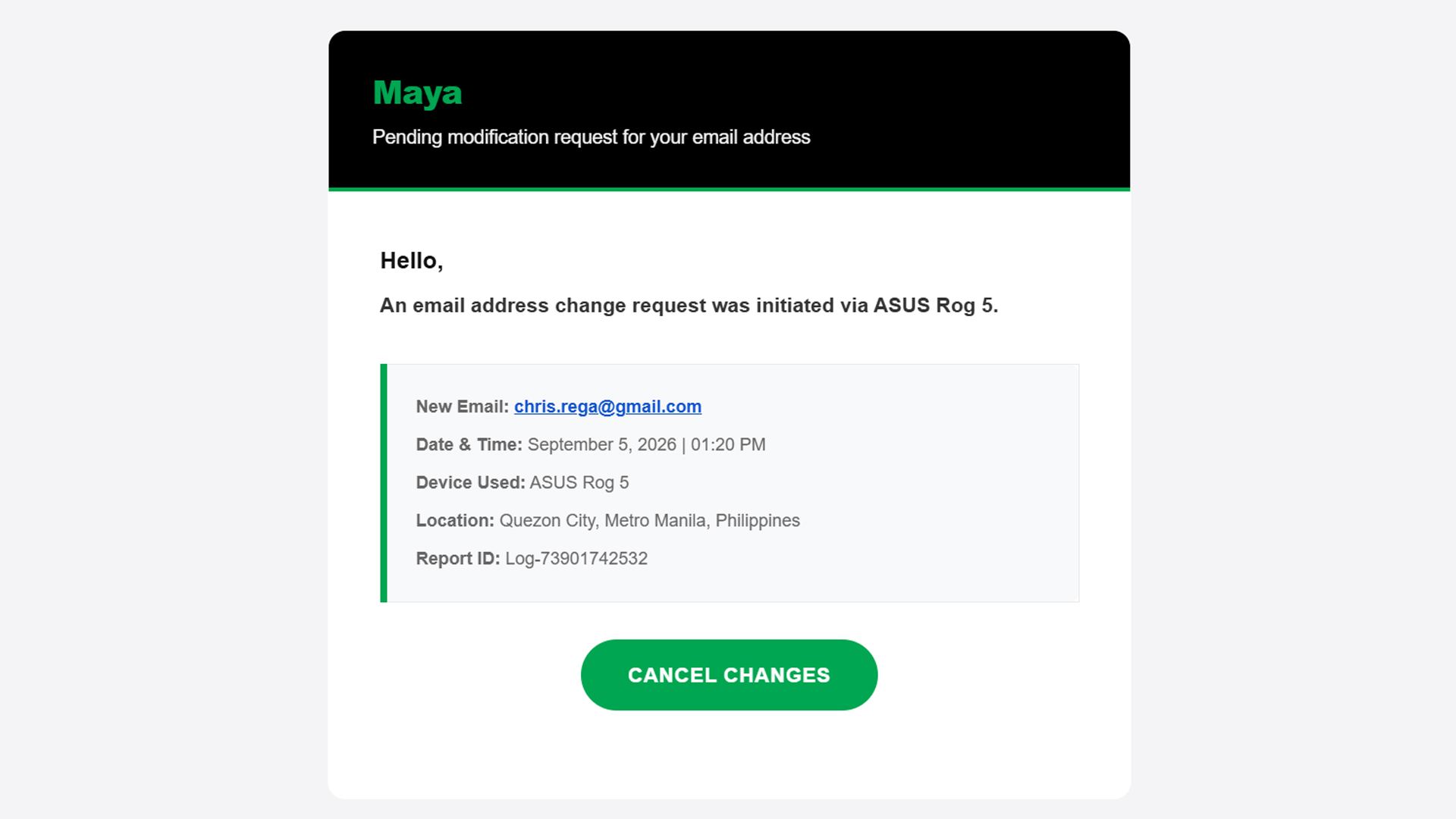
Now, on rarer occasions, the message itself has telltale signs of deception: typographical errors, missing words, extra spaces. A normal message should have already filtered these errors out, so there’s a good chance that it’s a fake message if it has any of these errors.
Basically, if something feels off straight from the get-go, cast doubt immediately and be vigilant.
Check the sender
Ensuring a fake message is clean should be easy stuff for scammers. A simple spell checker can trick a simple user into doing whatever the scammer wants. One aspect that’s way harder to change is the sender.
An email might have the cleanest copy, but one look at the sender dismantles all deception. In three of the four scam emails I’ve seen in the past two weeks, the sender was the ultimate telltale sign.
In the example below (the same one as above), the sender presents itself as “MayaPH.” If you weren’t paying attention, you would have been fooled into thinking that this is actually Maya. But, if you open the sender information, you’ll see that it’s coming from an unknown email, rather than an official Maya email address.

On a PC, this is easy to check because the email address automatically pops up beside the sender’s name when you open the email. On mobile, you’ll have to press the drop-down button below the sender’s name.
Verify the information yourself
Let’s move to the next level. What if the message looks official and seemingly comes from an official sender?
Unfortunately, scammers today can also spoof senders. Meaning, they are able to send official-looking messages and mask themselves as official senders. In the below example, “BPI” sent me an alert saying that someone tried to spend PhP 19,250 from my account. Take note: this is the same thread where I got real messages from the bank, which the scammer managed to hijack.
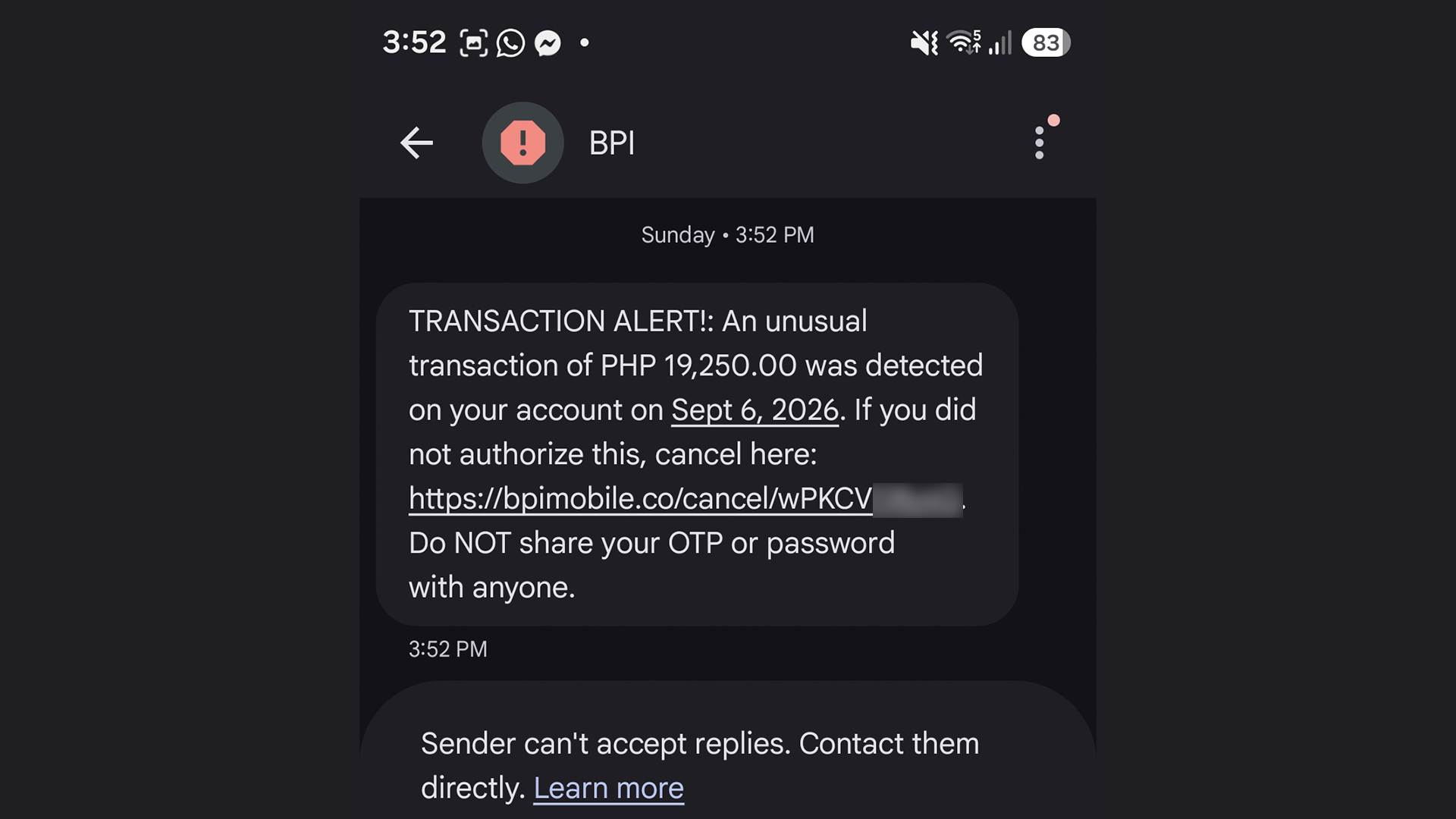
The message looks real. I can’t spot a single typo. Now, if you spotted this and thought it was real, you’d enter a state of panic and click the link out of instinct. The scammer is depending on your instinct to do so. Here’s why you shouldn’t click it: That’s not BPI’s official website. It looks like it, but it’s not.
Of course, you can’t be faulted for not memorizing official company websites. In fact, I had to Google the URL just to confirm that it was fake.
A surefire way to make sure, though, is checking the supposed information yourself. When I got the message, I checked my BPI app immediately. There was no trace of the transaction, so I knew it was fake. You can also call them yourself using their official numbers.
This isn’t limited to banks, either. Another example I’ve seen is one claiming that your Spotify subscription failed to renew. In this case, you can manually check your Spotify app to see if your subscription hasn’t been renewed.
Scammers are hopeful that you panic and run to them, rather than the official channels.
Sometimes, friends cannot be trusted
Though we can avoid falling for traps ourselves, other people still can. After an account is hacked, the hacker’s usual play is to message the account’s contact list to get other people.
Because it’s seemingly coming from a loved one’s account, a user is more likely to follow whatever the hacker wants, including clicking suspicious links.
In my experience, this type of scam is rarer these days, but it’s not completely gone. I’ve had one experience wherein a contact from Discord messaged me and tried getting me to play a game with them. The game itself was non-existent. The goal was to have me click a suspicious link and install malware on my computer. The malware can then give the hacker complete access to my PC and every account it’s logged into.
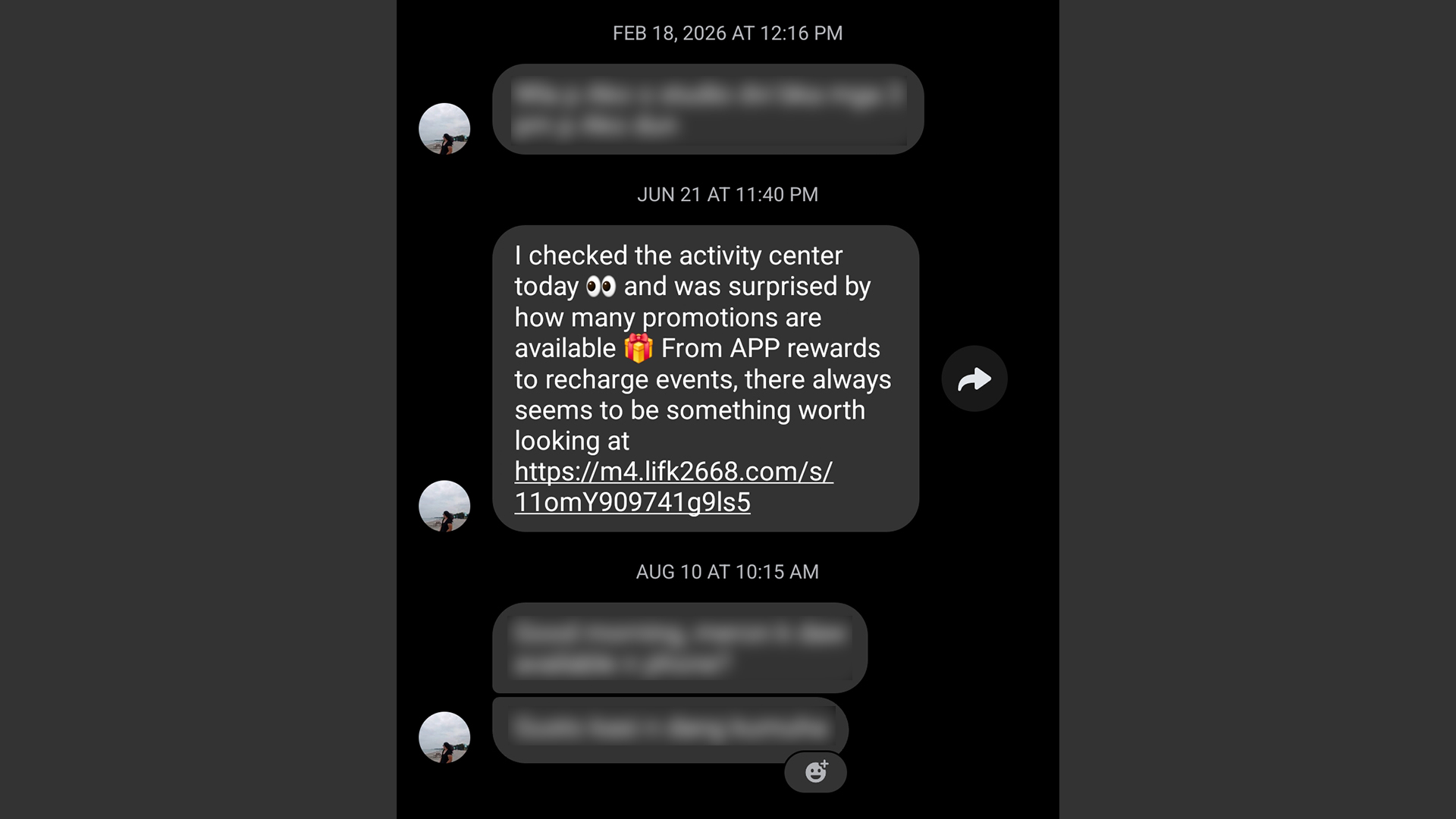
It’s a very nasty malware, but it’s fairly easy to prevent. If you get a message from a friend that isn’t their typical behavior, contact them on a separate platform, preferably on one that doesn’t rely on the net like SMS. If that’s not possible, contact someone near to them.
Address a potential hack immediately
Even with all these precautions, sometimes we can’t prevent ourselves from falling into these scams. If you find yourself victimized by scammers, respond immediately.
First of all, secure the targeted platform first. If it’s an app or a service, change passwords immediately and add two-factor authentication. If it’s a bank, call and appraise them of the situation. You might have to spend some time with a frozen account or without a card, but it beats having all your money sucked dry.
Now, if you suspect that your entire device was compromised, disconnect from the internet immediately. A hacker is toothless if they can’t connect to their prey. Then, using another device, reset every account that the hacker might have access to. If you know how, manually disconnect your accounts from the affected device. Once clear, do a clean install/reset of the device to hopefully weed out the malware.
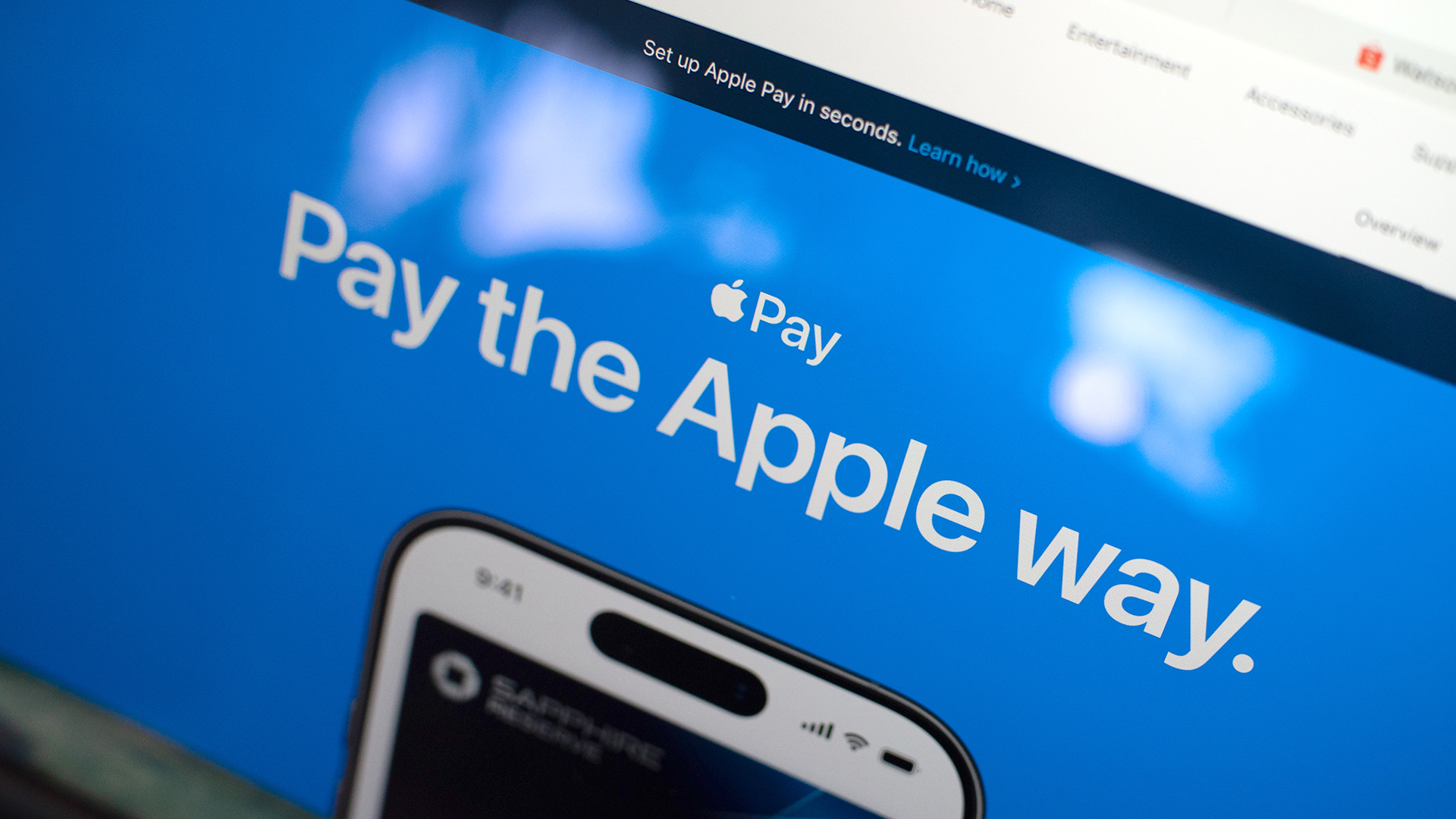
Apple Pay is officially in the Philippines!
Pushing the country forward into a cashless and cardless future, Apple has now brought its contactless payment system to the Philippines. As with other countries, Apply Pay will work seamlessly and easily even for those who have problems with technology.
Now, despite how easy it is, sometimes we need to be pointed in the right direction. Here’s how you can set up Apple Pay on your iPhone:
Everything starts with the Wallet app. First, open your Wallet app. Tap the “+” button on the top and select “Debit or Credit Card.”
Normally, this is where you can input your card details (which you can still do, by the way), but the default method now is to just tap your card on the back of your iPhone. Your phone does the rest. You might need to confirm with your bank, but it’s as easy as a single tap.
Pick which cards to use. Once you have your cards online, you might need to change which one is the default card. Again, it’s easy. Just drag your preferred card to the front.
Afterwards, you can tap to pay in supported stores by priming the Wallet app for use. Tapping to pay is also available for Apple Watch. Meanwhile, online transactions can also work on MacBook.
Secure, all the time. If you’re worried about your security especially with online transactions, Apple keeps your information only between you and the seller. They don’t store your data.
Also, it’s not easy to make a transaction without your consent. You need Face ID, Touch ID, or your password. If you lose your phone, you can easily shut your phone down with the Find My app to prevent malicious parties from making transactions.
Apps
The No-Nonsense guide to mid-year shopping
Let AI do the heavy lifting for you this Lazada 6.6 Super WOW Sale


The mid-year sale season is here, but the days of mindless impulse buying are over.
Shoppers are shifting toward intentional, value-driven decisions, focusing on quality, authenticity, and actual utility over flashy, low-quality gimmicks.
From 8:00 PM on June 5 until 11:59 PM on June 8, 2026, the Lazada 6.6 Super WOW Sale is dropping major discounts. But the real win is using the platform’s tools to maximize your budget.
Lock in the baseline discounts

Before diving into specific items, map out how to stack the core offers.
You can stretch your money by hunting down LazFlash Deals for up to 90% off, collecting up to PhP 3,000 in stackable vouchers, and ensuring every order qualifies for the free shipping offers available throughout the event.
True value comes from combining these three layers of savings on things you already need.

Jisulife: One of the participating, trusted brands you can get from LazMall
Filter for authentic value
Shopping smart means avoiding the trap of “too good to be true” counterfeits that end up in the trash.
Data shows a massive consumer shift toward trusted quality, with LazMall growth vastly outperforming standard listings during major sales.

To ensure your money goes toward genuine products with real warranties, restrict your browsing to official, brand-certified stores.
If you are upgrading your tech, parenting gear, or wardrobe, look to trusted names anchoring the sale like UGREEN, JisuLife, ANTA, Maserati Watches, Momcozy, and O.TWO.O.
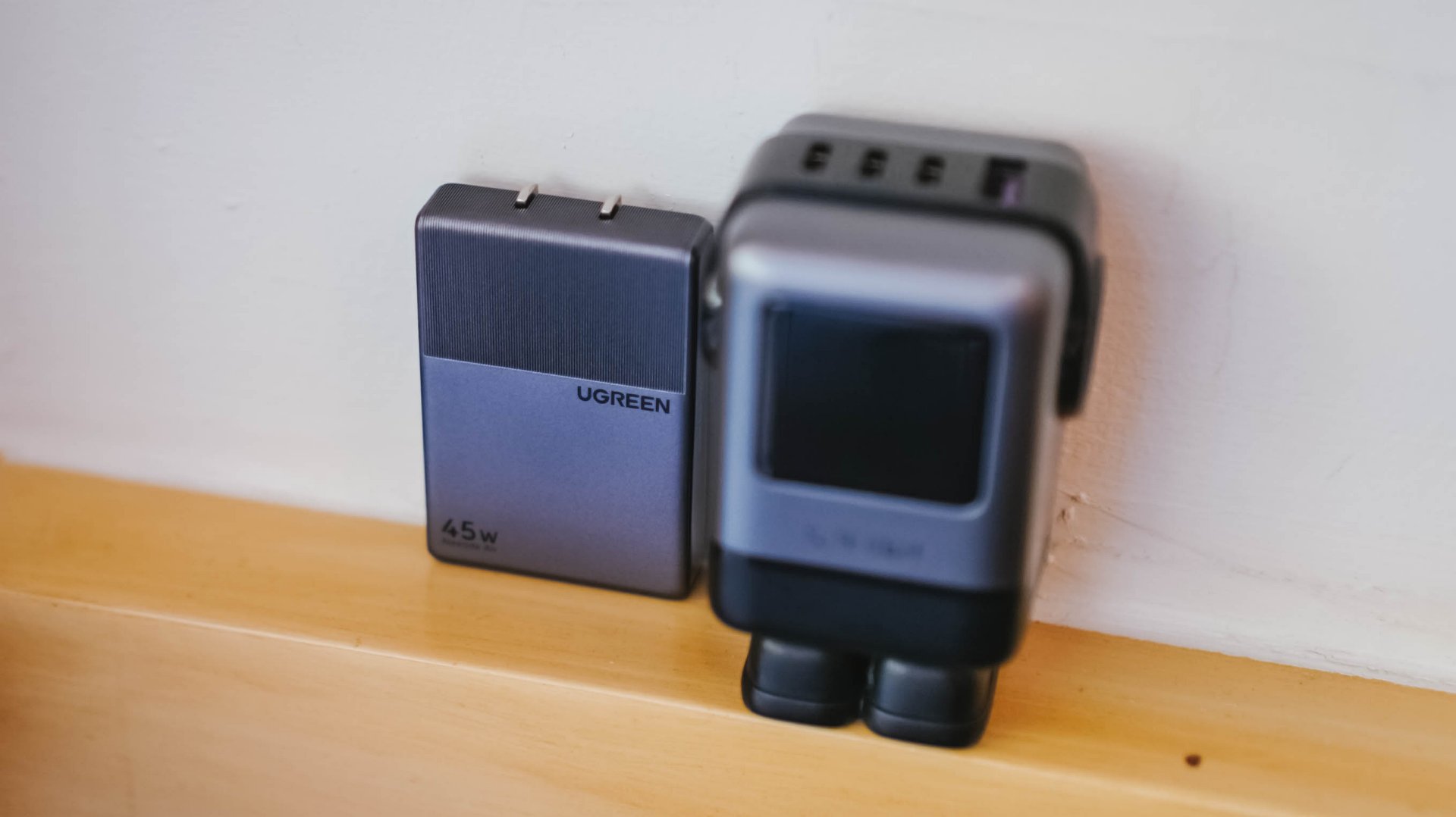
UGREEN: One of the participating, trusted brands you can get from LazMall
Outsmart the noise with built-in tech
Don’t waste hours scrolling through endless listings or guessing which product is better.
The smartest way to navigate a massive mid-year event is to let the platform’s built-in features cut through choice paralysis.

Tools like AI Lazzie and AI Picks allow you to instantly compare similar items, analyze prices, and get personalized recommendations based on actual data rather than generic marketing hype.
Smart Shopper Tip: True value is a mix of the right price, verified authenticity, and a seamless return policy. Use this sale period to stock up on everyday essentials and high-quality upgrades rather than panic-buying items you’ll regret later.


DJI Lito X1 review: Is this the best lightweight drone for creators?
Making a strong case as a travel companion and a capable B-cam!


REDMI Note 17 Pro Max review: A new breed born from AI greed
Welcome to the new normal


Marvel’s Wolverine review: When the claws come out
A brutal, cinematic superhero adventure
DJI Lito X1 review: Is this the best lightweight drone for creators?

Now Playing: Resident Evil

HONOR, Fidesmo partner for contactless payments across Europe, Middle East

Ford revs up Truck Month with extended 5-star care offers
REDMI Note 17 Pro Max review: A new breed born from AI greed

TECNO MEGAPAD 2 review: Eyes on the size

realme 16T 5G with 8000mAh battery, IP69 Pro rating launches in PH

HUAWEI Pura X View is 2026’s first WIDE slab-type smartphone

REDMI reveals the refreshed Note 17 and Note 17 Pro series

REDMI Note 17 Series: Price, availability in Singapore


-
 News2 weeks ago
HUAWEI Pura X View is 2026’s first WIDE slab-type smartphone
-

 News2 weeks ago
The CAMON Slim 5G is TECNO’s latest ultra-slim smartphone
-

 News1 week ago
iPhone 18 Pro series: Price, availability in the Philippines
-

 IFA 20262 weeks ago
TECNO’s POVA 8 Pro gets a stealthy makeover
-

 Automotive2 weeks ago
Ford’s new Everest lineup brings V6 engine to the top, tech down the line
-

 Gaming2 weeks ago
Now Playing: Elden Ring Tarnished Edition
-

 Singapore1 week ago
iPhone 18 Pro series: Price, availability in Singapore
-

 Philippines2 weeks ago
Smart cuts 5G Home WiFi price