
Features
6 new Apple features that Android already had years before
Welcome to the rest of the world, iPhone

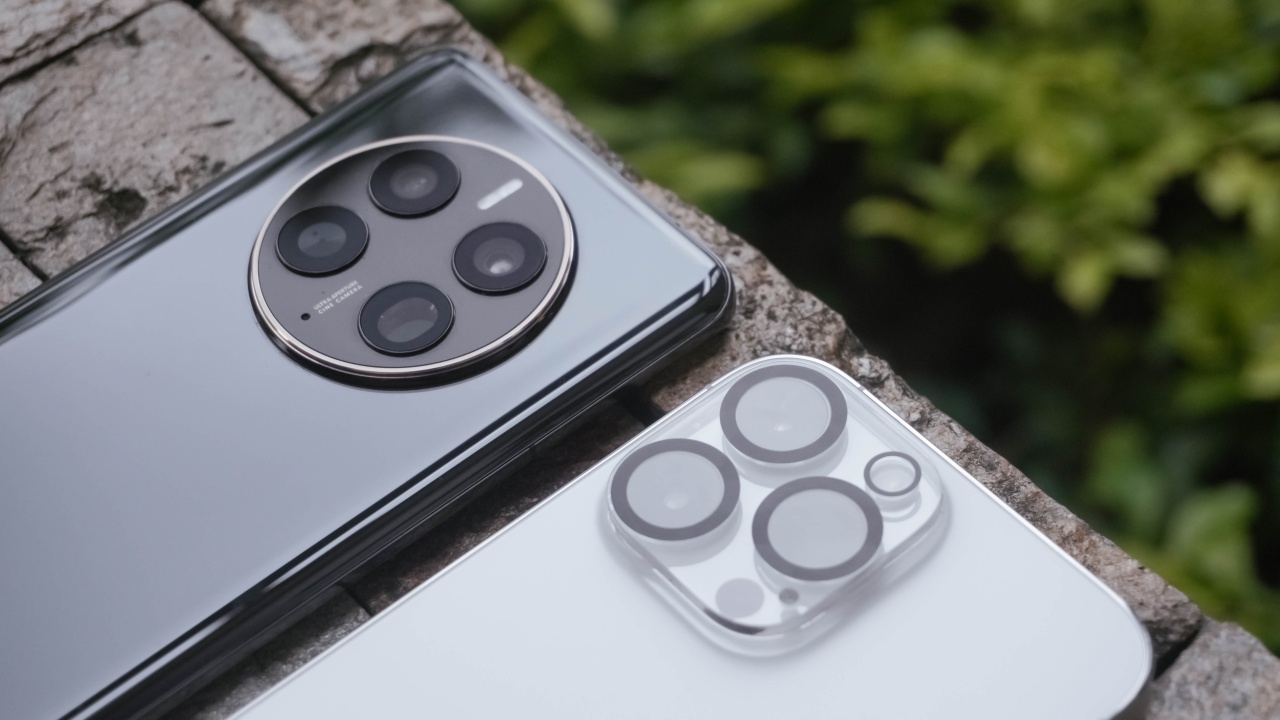
Apple’s events are always a fun time… for Android fans. It’s practically a tradition now for fans of the other side to check out which of Android’s features that Apple decided to adapt this time. The recently concluded WWDC 2024 is no different. There were a lot of new features that Android fans clowned Apple for. Let’s take a look at what they’re talking about.

AI stands for Apple Intelligence
Okay, props to Apple for presenting their new AI with a more creative name than just “AI”. But Apple Intelligence is essentially just AI. Apple is finally joining the trend that’s been ongoing for the past year or so.
Much like other AIs, Apple Intelligence helps users with text inputs. It generates text based on a prompt. It can also proofread and edit your emails and essays for you.
However, the more interesting bit is how it handles images. Genmoji is certainly an odd addition to Apple’s repertoire of tools. Though it does take your contacts’ looks into consideration, it’s basically just generative AI, even down to how it looks.
On the bright side, it’s an on-device AI. Apple promises that it won’t harvest your data, so that’s a plus.
Celebrating the ability to move icons
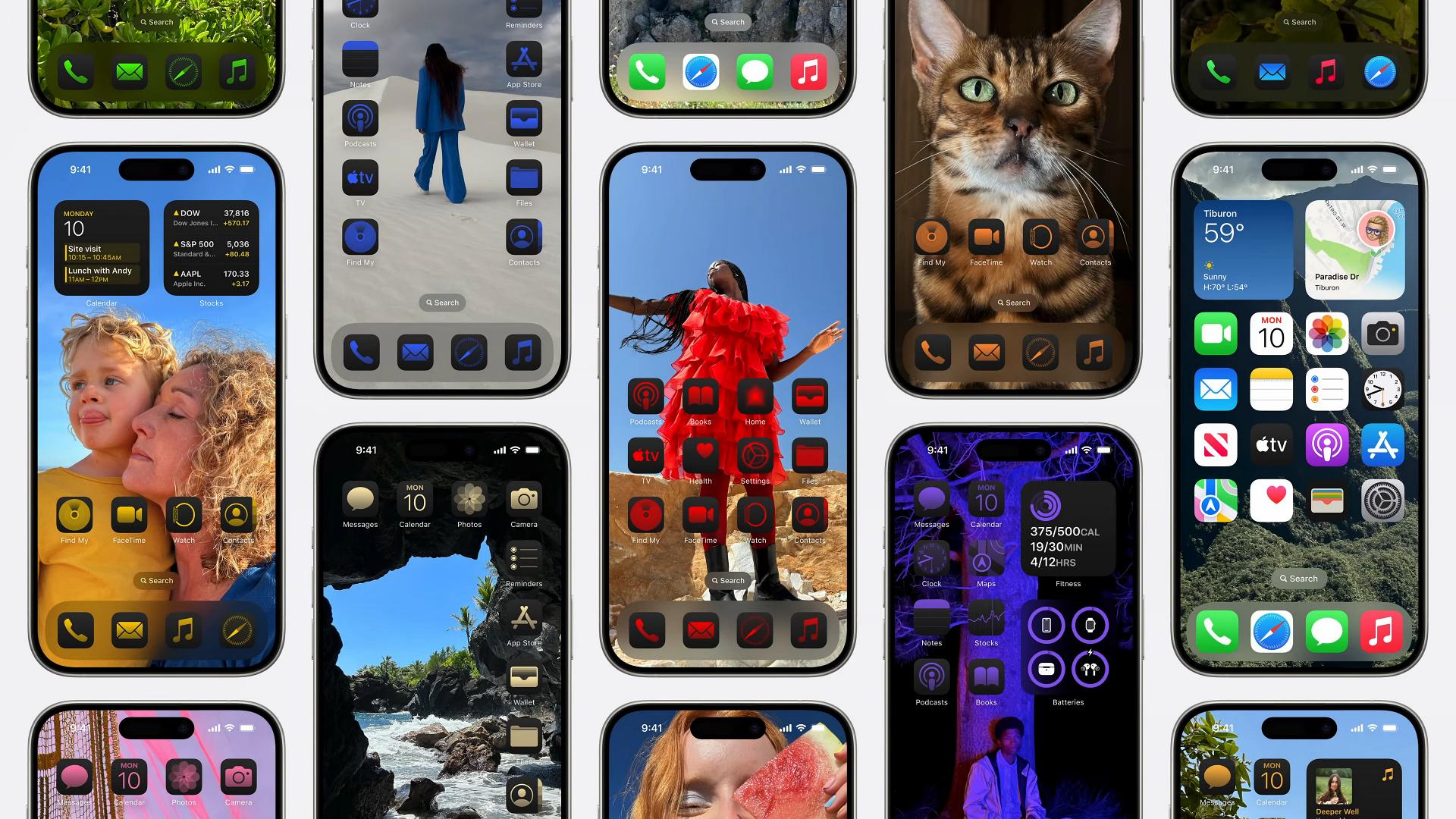
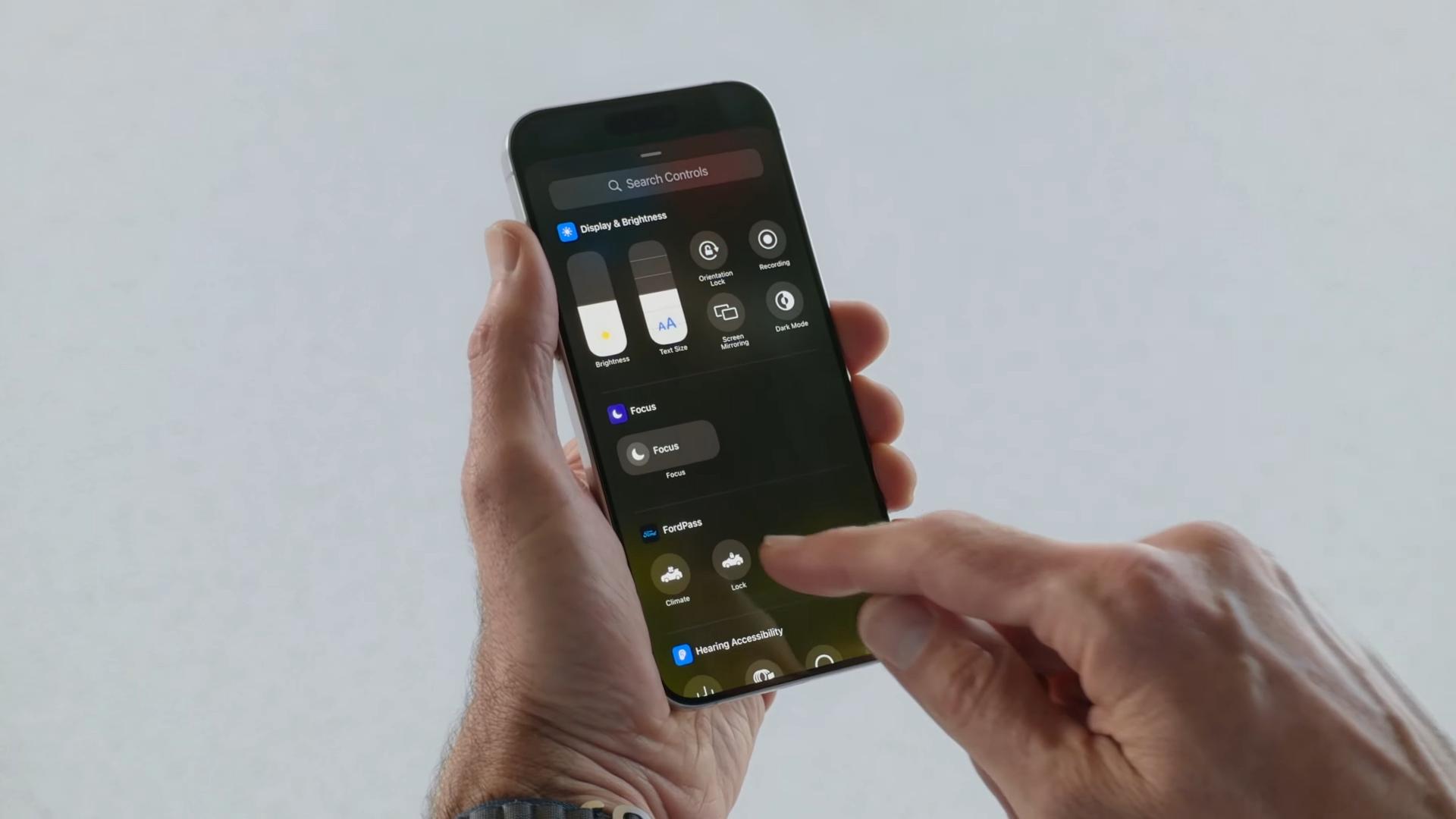
Arguably, the strangest “new” feature that Apple added was the ability to rearrange icons on the Home Screen. Starting with iOS 18, users will no longer need another app just to move icons to wherever they want on the screen.
As much as we try to see things in a favorable light, it’s admittedly difficult to justify why it took Apple this long to add a feature that we don’t even think about anymore. Android — or practically every other smartphone — has had that feature since time immemorial.
Oh, and that goes for the ability to change your icon’s colors, too. Google, especially through the basic Pixel experience, already allows users to customize their colors throughout the system.
Photos gets Collections
As someone who tries to control their notifications, the most persistent alerts I get are from photos apps when they remind me of vacations I had years ago. No, Google Photos, I do not want to reminisce about that time I went to Ilocos with my ex.
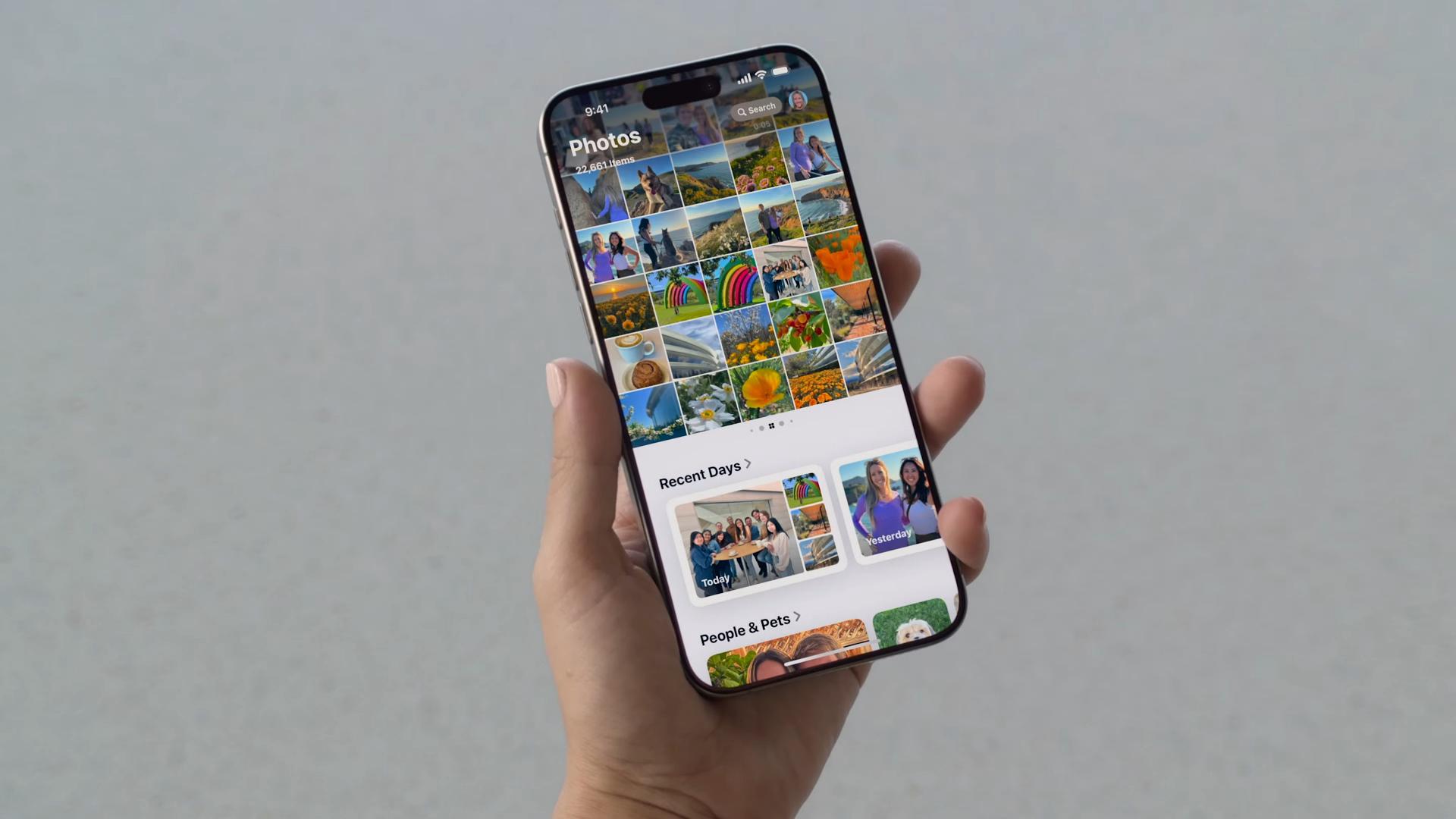
With the new updates, Apple is entering the same territory. The Photos app now has the ability to automatically organize photos into catered collections — just like Google Photos. If you want to look back on cherished moments, your iPhone has you covered. If you want unexpected reminders of traumatic times in your life… well, let’s see if Photos is your best friend for that, too.
A feature to magically erase photobombers
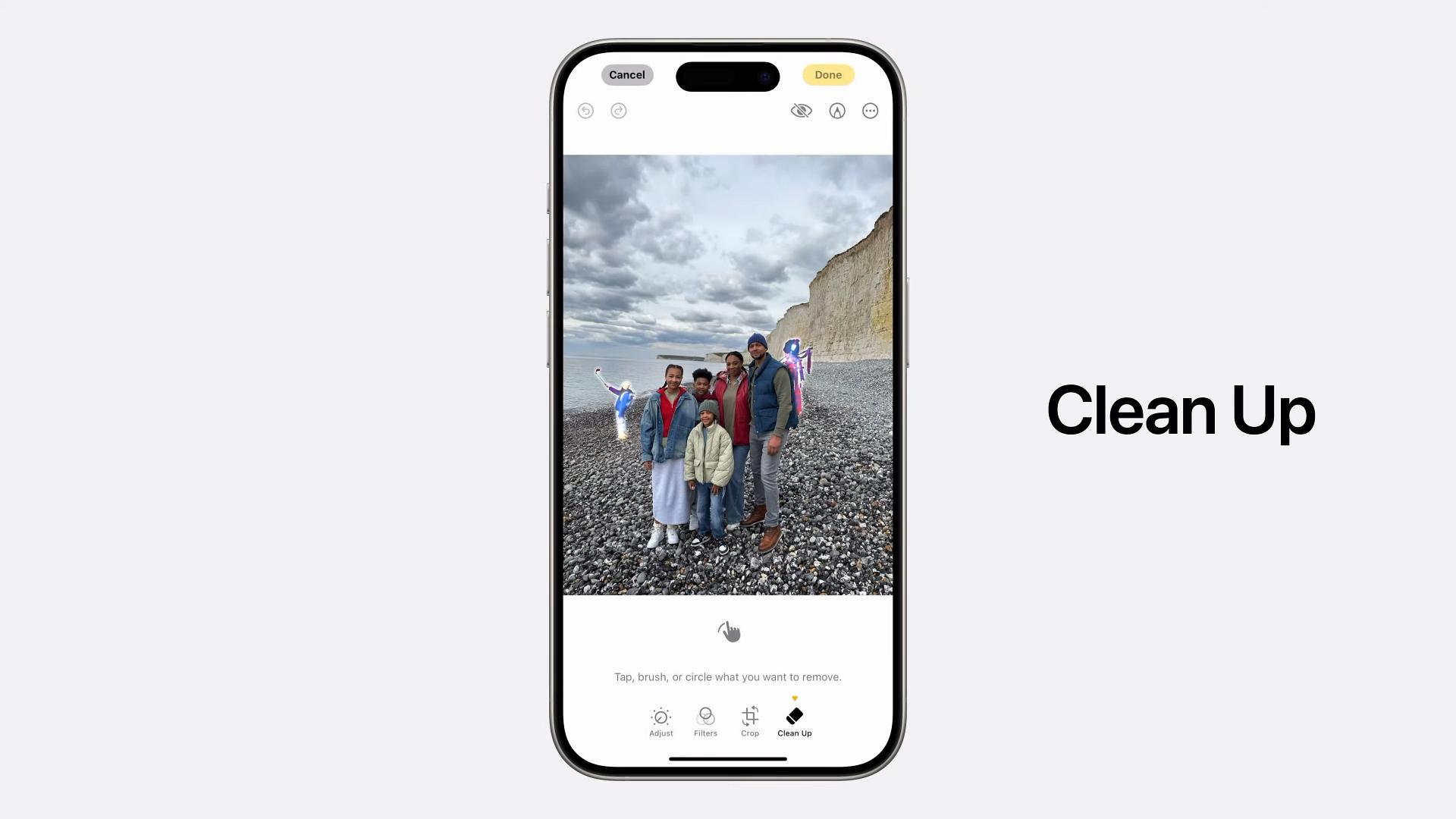
Speaking of Photos, one of the subtler features that Apple didn’t really dwell on was the new Magic Eraser Clean Up tool. For the first time in an Apple device, users can erase unwanted elements from their photos.
Yes, it’s like Google’s Magic Eraser. Well, it’s not called that, but it’s the same thing.
While it’s true that it’s a copy of the Magic Eraser, it’s a welcome addition. Whenever I show off my Pixel’s Magic Eraser to Apple users, they always say how much they want the feature on their iPhones. It’s pretty good that the iPhone now has the feature for itself.
Snapping windows into tiles
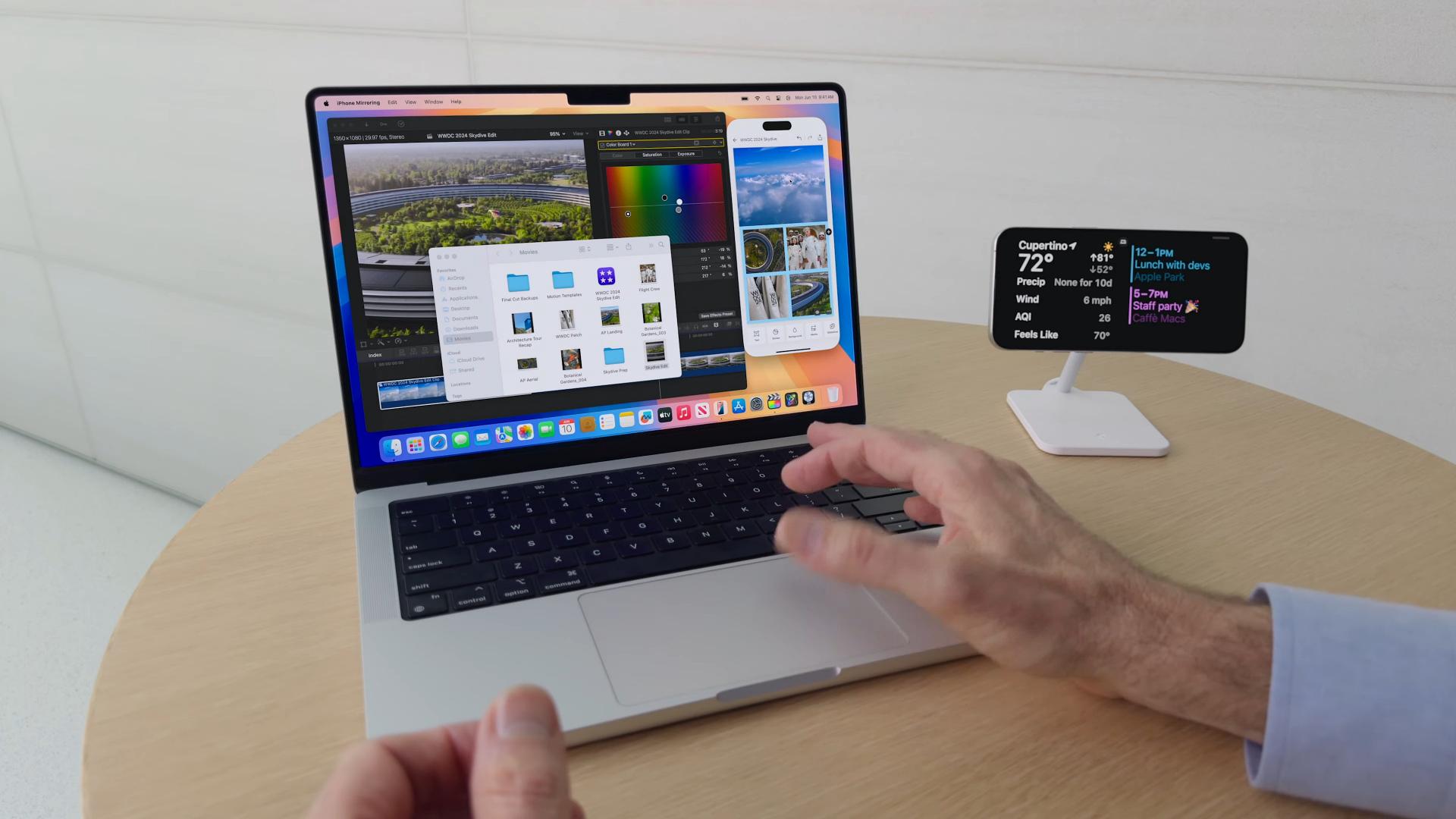
Let’s leave the iPhone for now and look at the MacBook. The upcoming macOS Sequoia now has the ability to arrange windows into convenient tiles on your screen. If you want more than one app running in front of you, the system now supports grids.
The feature is called window tiling. Which is apropos, because Windows has had that feature for quite a while. Like the new Apple feature, Microsoft allows users to automatically snap app windows into equally spaced locations on the screen.
Welcome to a more organized screen, Apple. We hope that the feature will also help out all the indecently messy and unorganized desktops we’ve seen over the years. (We’re kidding. Please don’t judge our also indecently messy Windows desktops.)
RCS finally makes a debut
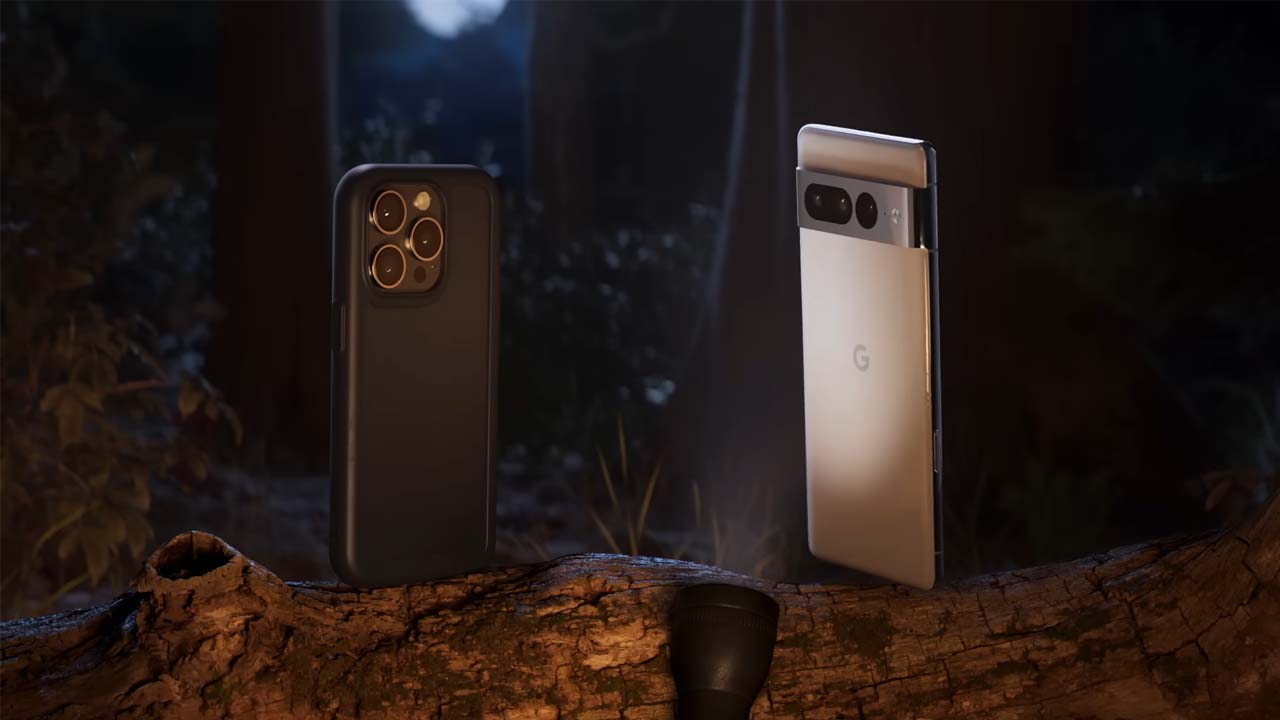
Finally, let’s give a hand to Apple for finally supporting RCS messaging. Instead of sticking to its guns, Apple can now send hi-res images with those who don’t have an iPhone.
While it’s not technically a revolutionary change to Apple’s ecosystem, it’s a welcome extension to those who don’t use Apple’s devices. It’s also a sign of Apple getting with the program. It shouldn’t matter if we’re all on different phones; security and accessibility are more important.
iPhone users often clap back against the Android-led criticism by saying that Apple popularized these features for everyone. While it’s true that iPhone users are a significant chunk of the smartphone-using world, Android is no slouch either. These features aren’t popular for Android, but only because they’re already ubiquitous. No one using an Android is celebrating the ability to arrange icons because they’ve already had it for years.
Besides, these aren’t unwelcome additions. In fact, it should be celebrated that Apple is finally getting features that others have had. Equality is good for competition. Ultimately, it’ll be good for everyone.





Features
How did new CEO John Ternus do for his first Apple event?
Is a new golden age coming for Apple?

For a brief moment, I thought Tim Cook was refusing to step down as Apple’s CEO.
Apple’s “Surprise and shine” event, which heralded the coming of the foldable iPhone Duo, started bombastically with a montage of cinematic moments spanning different genres. The main point was: “what’s the best way to start an opening scene?”
After what felt like an age, the all-too-familiar voice of Tim Cook came on, perhaps for the very last time. But rather than overstaying his exit as the former CEO, he describes that the perfect opener should be classic, as a car that is, quite symbolically, riding off into the sunset. He then explains that he’s not the main character anymore.

Last shot of Tim Cook at the Surprise and Shine event
“That’s your guy,” he said, before pointing to John Ternus, who steps into frame without an introduction or even a name card. It’s hard to image that this guy is the new face of Apple.
It’s the perfect end to Tim Cook’s tenure and as perfect a start for John Ternus’s.
Moving from an age of crisis to a golden age
After a decade and a half of being the face of the brand, Tim Cook stepped down from his tenure as CEO. He leaves the company in a much better state than when he took over. Thanks to him, the iPhone is now a household item. It’s a ubiquitous phone that draws millions of fans every time a new one comes out every year.
But his tenure didn’t start on a bed of roses. When he took over in 2011, it was in response to Steve Jobs’s failing health, who passed away soon after. He inherited a company constantly threatened by competitors trying to eat into Apple’s slice of the pie.
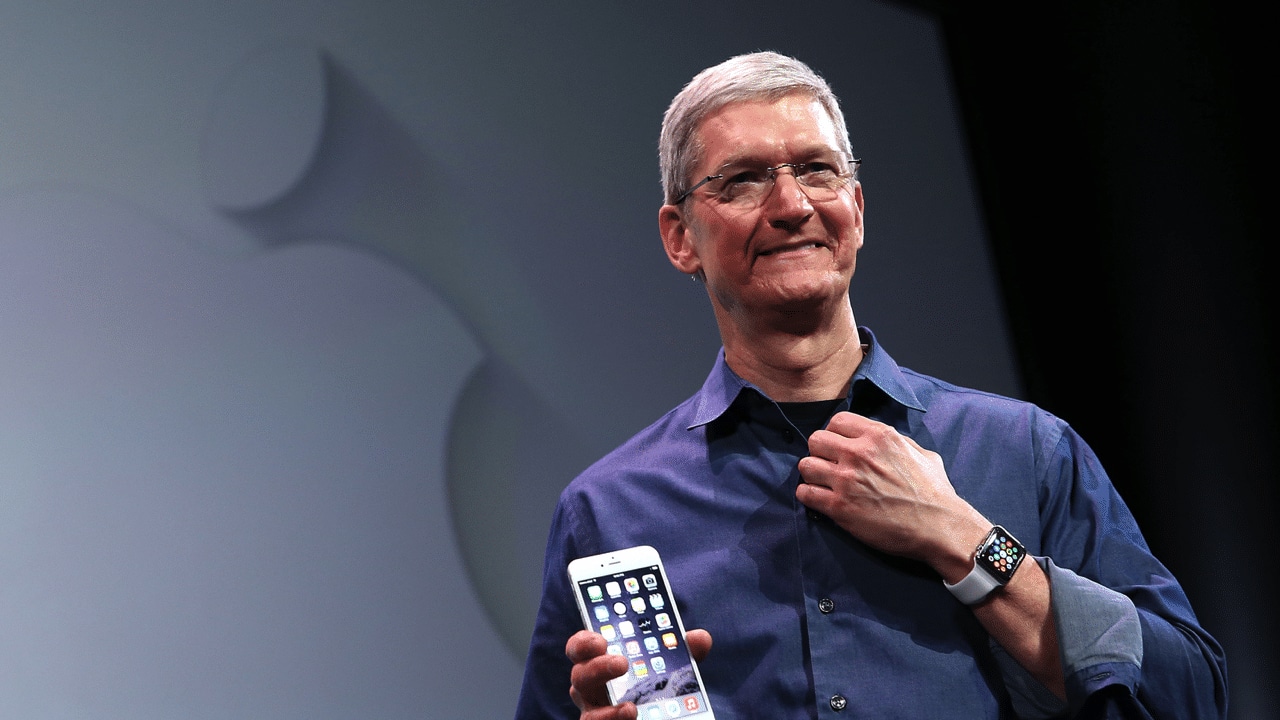
Indeed, Cook’s tenure was peppered with crises. He had to navigate Trump’s first reign, destructive as it was towards relationships in China. He had to figure out survival during the tempestuous pandemic years. Finally, he had to carefully build a strategy for the dawn of AI.
Cook is, first and foremost, a businessman. While the Jobs era was typified by innovation after innovation, Cook built upwards, turning Apple into a trillion-dollar company. Although we didn’t see a lot of new exciting segments introduced, the company built on what it was already good at, delivering a premium and refined experience.
John Ternus comes at an opportune time. Though the brand will always have a healthy share of diehard fans, Apple must now find the next big thing and rediscover the spice of years past.
A time for AI?
After his nonchalant introduction, Ternus immediately goes on the offensive and describes his vision for Apple Intelligence. Rather than dwell on NPUs, TOPS, and other metrics that a regular user can’t make heads or tails of, he described Apple Intelligence and Siri AI as a personal assistant. Usage versus performance, in other words.
If you’re an AI enthusiast, the renewed push towards Apple Intelligence should give you hope that the iPhone won’t just be a receptacle for other AI software. Rather, it’s building its own. Wherever the AI industry is going, Apple looks like it can keep up.
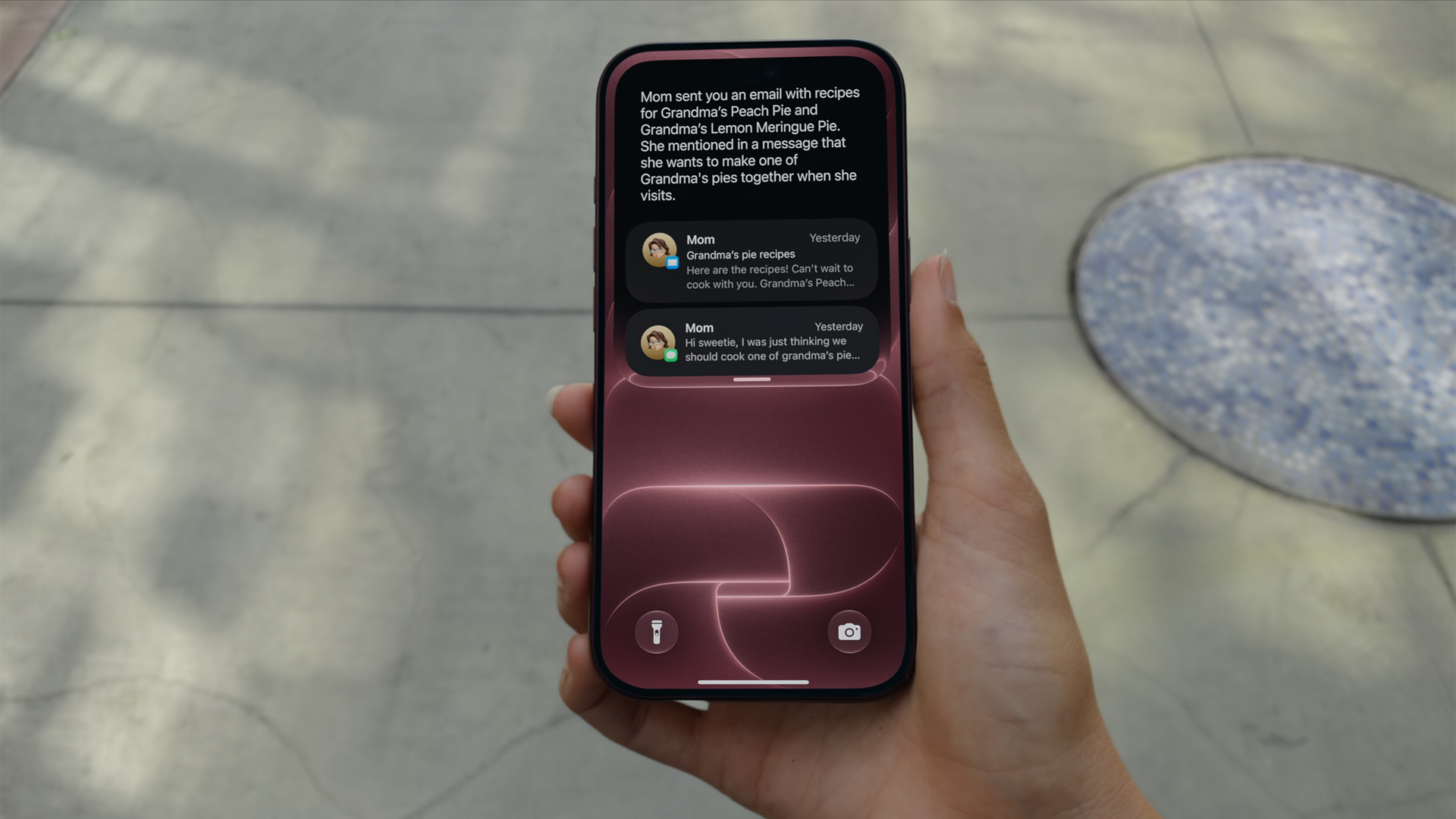
Now, if you don’t like AI at all, that’s fine, too. Ternus isn’t there just for the AI.
Unlike Jobs or Cook, Ternus comes from a strictly engineering background. In today’s world, hardware complements AI. The software must use NPUs after all. But, when the AI bubble finally pops, Ternus isn’t out of a job. In fact, if his track record is any indication, it’s just getting started.
Or a time for new hardware?
This year is absolutely monumental for Apple. Earlier this year, the company launched the MacBook Neo, its first budget-friendly notebook built for everyone. If you were looking to get into the MacBook lifestyle, now is the perfect time to buy in. A lot of users felt a subtle changing of the guard.
From there, you can feel Ternus’s influence already seeping in. And if it wasn’t obvious back then, it’s more than apparent now.
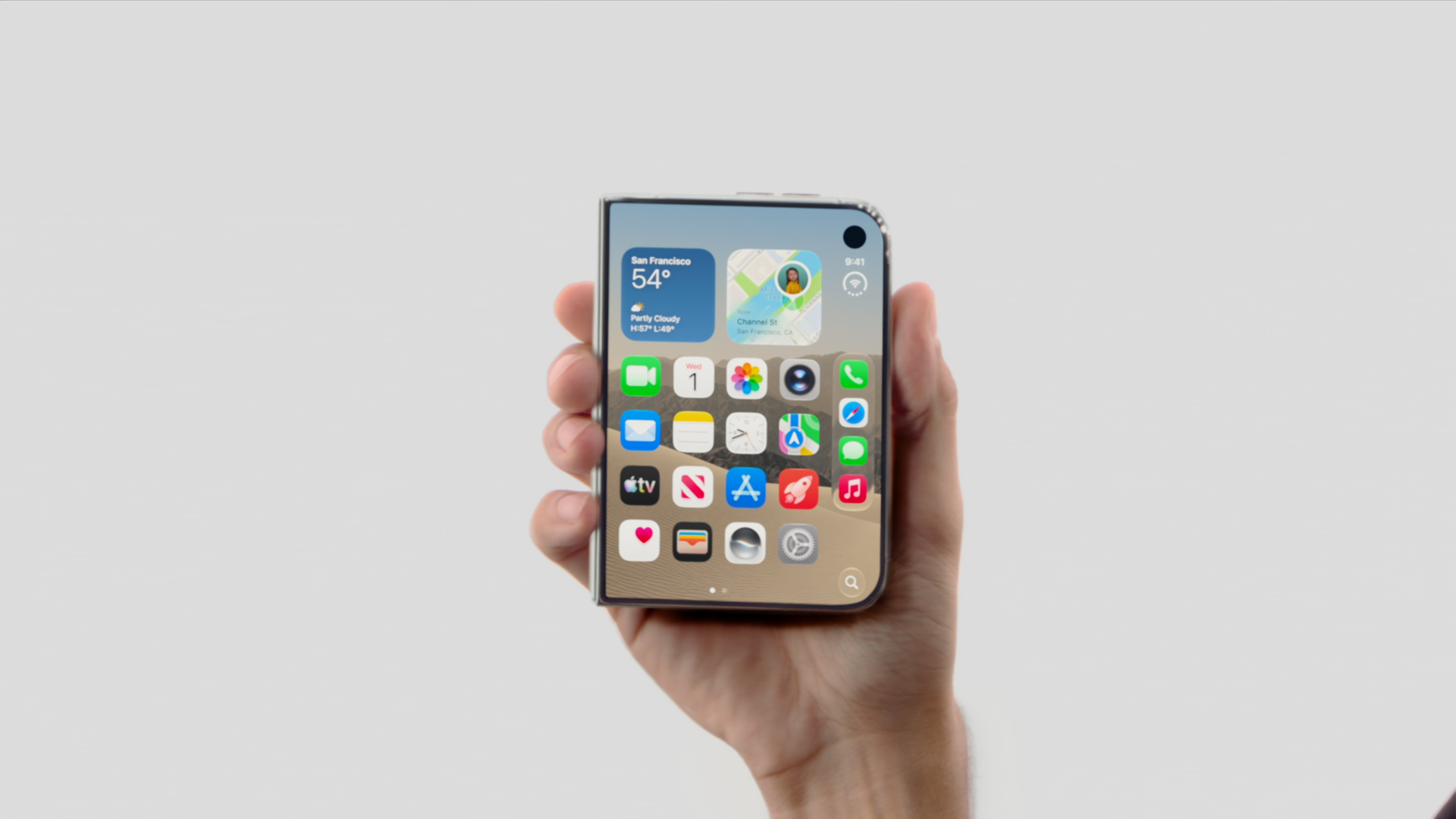
In his first ever “One More Thing,” Ternus started his tenure strong with the introduction of the iPhone Duo. Almost twelve hours since the phone’s announcement, I’ve never seen a more visceral reaction to the launch of a new iPhone.
Whereas most of their annual releases reveled in more incremental improvements that primarily tickled already dedicated fan, the iPhone Duo is something new. Everyone’s talking about it. It’s gotten so crazy that even Samsung, often more nonchalant with its prodding, openly attacked the foldable after teasing the brand to go foldable last year.
Though it’s technically not a new segment, the iPhone Duo is patching up the mistakes of past foldables. Rather than just pasting two screens together, Apple’s take feels like a unified whole, emphasized by an interface that seamlessly changes from folded to unfolded.
Where Tim Cook failed to illicit more than a modest ripple with the Vision Pro, Ternus flew to new heights with the iPhone Duo’s announcement. And the phone isn’t even out yet.
Now, there’s still a chance that the Duo won’t be a hit with sales, especially because of the price. But this is still a strong opener for Ternus.
Who is the main character?
“That’s your guy,” Tim Cook pointed.
I don’t think he was pointing in the right direction. Though the camera cut to Ternus himself, his first outing clearly states that the main character is no longer whoever is handling the reins. His decision to skip an official introduction feels intentional. The main character, after all, is the hardware itself: the iPhone 18 Pro, the iPhone Duo.
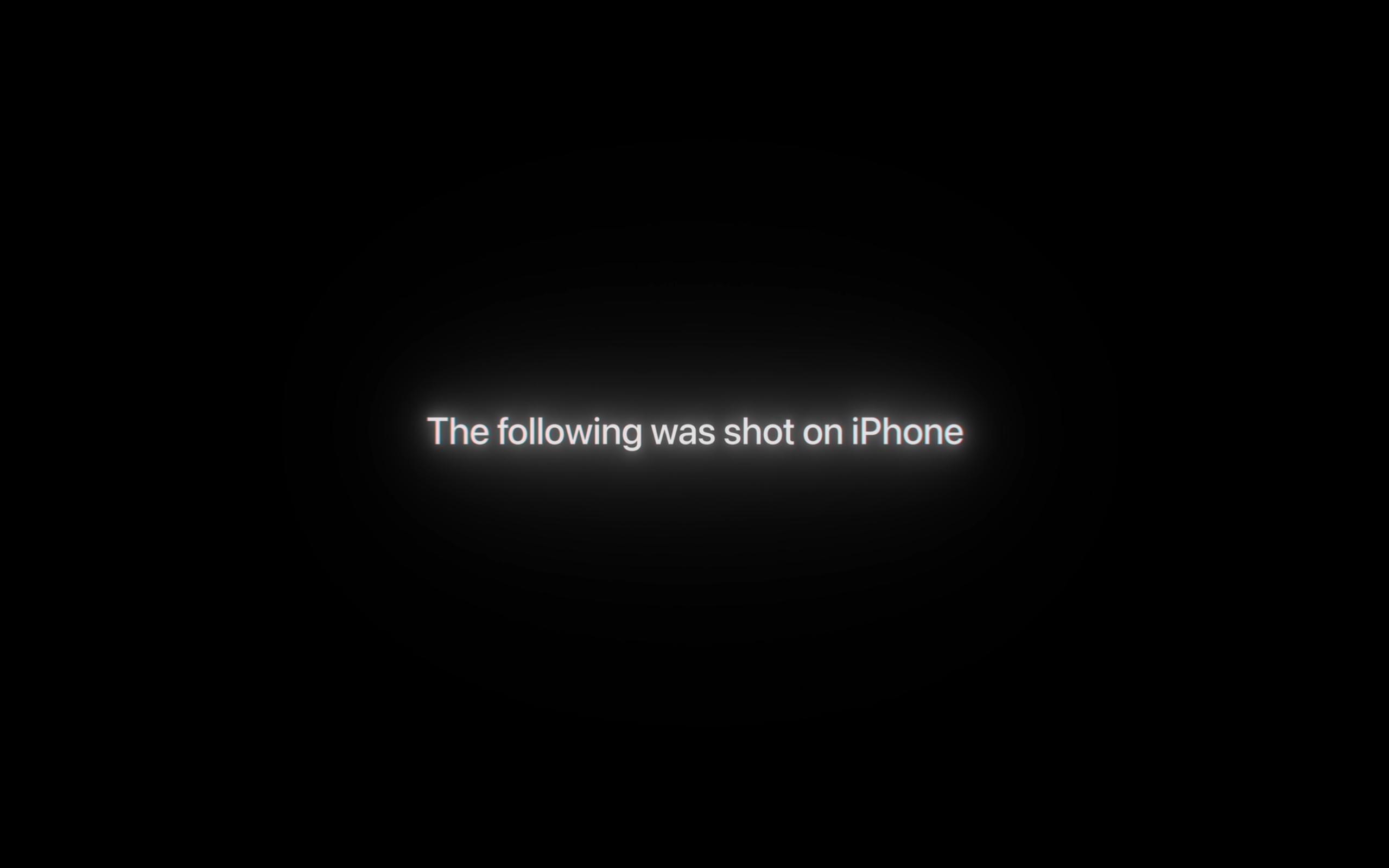
The entire event started with a bold declaration that everything was shot with an iPhone. It ended, in fact, with the same declaration. Channeling their inner Marshall McLuhan, Ternus’s Apple wants you to believe in the iPhone again.
Even as someone who doesn’t use Apple products mainly, I’m stoked to see what the new era will bring to the table. This is an exciting time for Apple. We might be in the first year of a new golden age.
Editors' Choice
GadgetMatch Awards: Best of IFA 2026
Xiaomi 18 Fold, Govee, XGIMI, ARZOPA, Cuktech and more!


We’re back at IFA 2026 in Berlin, checking out some of the coolest and most interesting tech on the show floor.
From smart home lighting and portable displays to projectors, power solutions, foldables, and more, these are some of the products and brands that caught our attention this year.
In this video, we take a look at:
- AI Lighting https://bit.ly/4xmY342
- Z3FC Portable Monitor https://bit.ly/4gRk7wD
- D14 Digital Photo Frame https://bit.ly/4qYlRJ6
- 30 Ultra Desktop Charging Station https://s.whaee.com/tXBornw
- 10 Ultra Charger https://s.whaee.com/UsWT4U2
** Use code CUKTECH09, valid until September 30
XGIMI
ASUS x NVIDIA RTX SPARK
- ProArt P16: https://asus.click/h7607_gm
- ProArt P14: https://asus.click/h7407_gm
- ProArt GR1X
Watch until the end for our favorite finds from IFA 2026!
Tutorials
How to spot scam emails and messages before they get you
Here are the telltale signs in a potential scam.

The brazenness of scammers often goes through fits and starts. Within the last few weeks, I’ve had three separate people in my immediate circle fall for three separate scams. I’ve received similar emails myself. With the Christmas season approaching, we’re living in a particularly brazen period, and it’s time for a very important PSA. Here’s how to spot a scam email today:
Check the contents of the message
Most scam or phishing attempts today will ask you to submit sensitive information like your log-in details or bank information to a seemingly innocuous platform. Obviously, these platforms are fake, and you’re surrendering your information to a malicious party. Unfortunately, these scams are getting much better with disguising their deception. If you put them side by side with a real email or message, you might find it hard to spot crucial differences. So, how do you clock them before it’s too late?
Start with the actual message. Companies will not ask you to submit your details on an email or on a message. It doesn’t matter if the message is claiming an issue (someone allegedly using your card) or a reward (your points are about to expire). If it’s not your usual way of logging in or submitting this information, then it’s likely fake.
Some might even include a highly suspicious link that leads to a log-in page. If that link is from a link shortener (like bit.ly) or looks nothing like the company’s real site, don’t click it. If you do click, check the URL for anomalies. In the below example, “Maya” claims that someone else tried to change the email on my account. Besides how unofficial the alert looks, the button does not lead to Maya’s website. 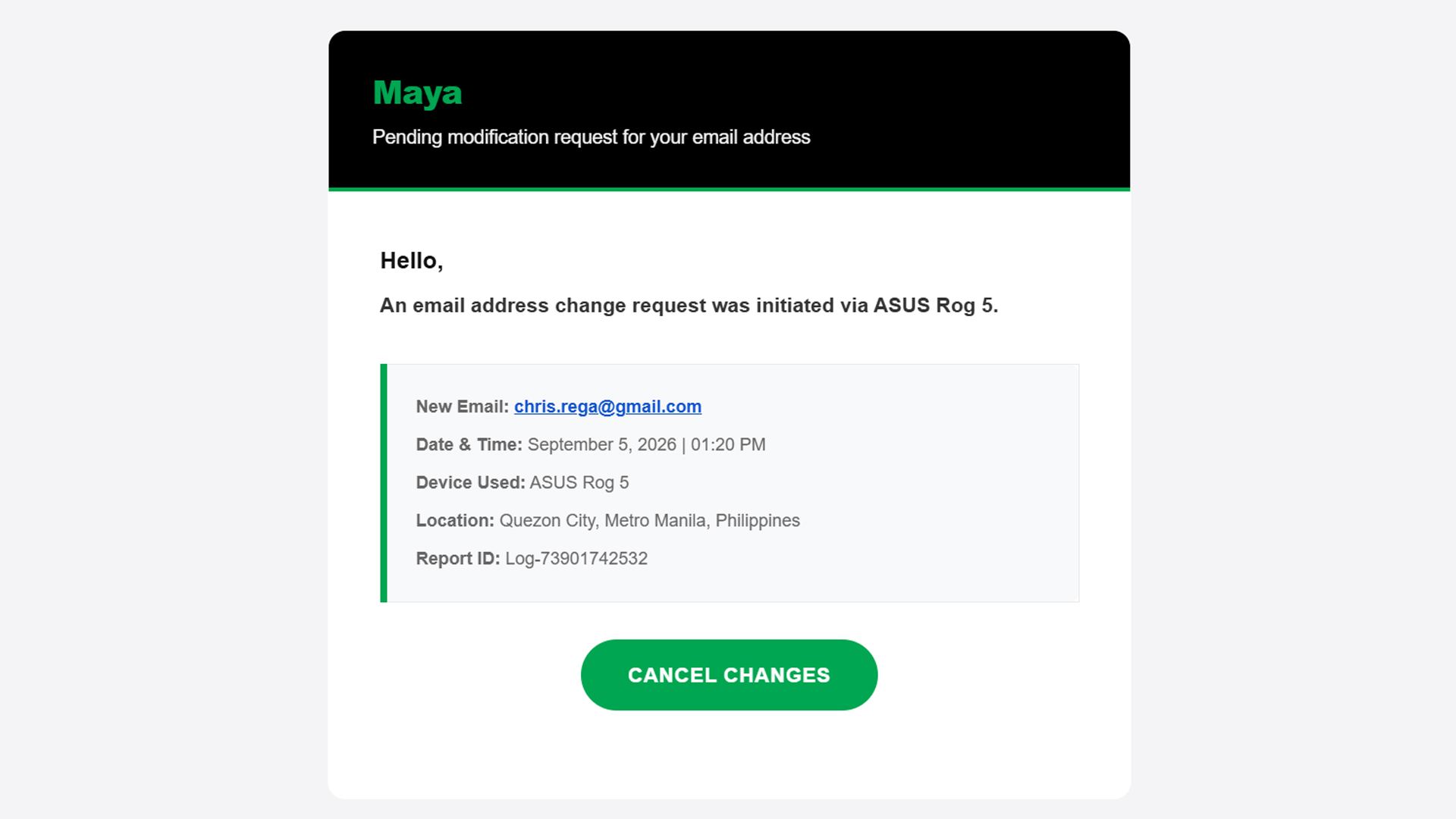
Now, on rarer occasions, the message itself has telltale signs of deception: typographical errors, missing words, extra spaces. A normal message should have already filtered these errors out, so there’s a good chance that it’s a fake message if it has any of these errors.
Basically, if something feels off straight from the get-go, cast doubt immediately and be vigilant.
Check the sender
Ensuring a fake message is clean should be easy stuff for scammers. A simple spell checker can trick a simple user into doing whatever the scammer wants. One aspect that’s way harder to change is the sender.
An email might have the cleanest copy, but one look at the sender dismantles all deception. In three of the four scam emails I’ve seen in the past two weeks, the sender was the ultimate telltale sign.
In the example below (the same one as above), the sender presents itself as “MayaPH.” If you weren’t paying attention, you would have been fooled into thinking that this is actually Maya. But, if you open the sender information, you’ll see that it’s coming from an unknown email, rather than an official Maya email address.

On a PC, this is easy to check because the email address automatically pops up beside the sender’s name when you open the email. On mobile, you’ll have to press the drop-down button below the sender’s name.
Verify the information yourself
Let’s move to the next level. What if the message looks official and seemingly comes from an official sender?
Unfortunately, scammers today can also spoof senders. Meaning, they are able to send official-looking messages and mask themselves as official senders. In the below example, “BPI” sent me an alert saying that someone tried to spend PhP 19,250 from my account. Take note: this is the same thread where I got real messages from the bank, which the scammer managed to hijack.
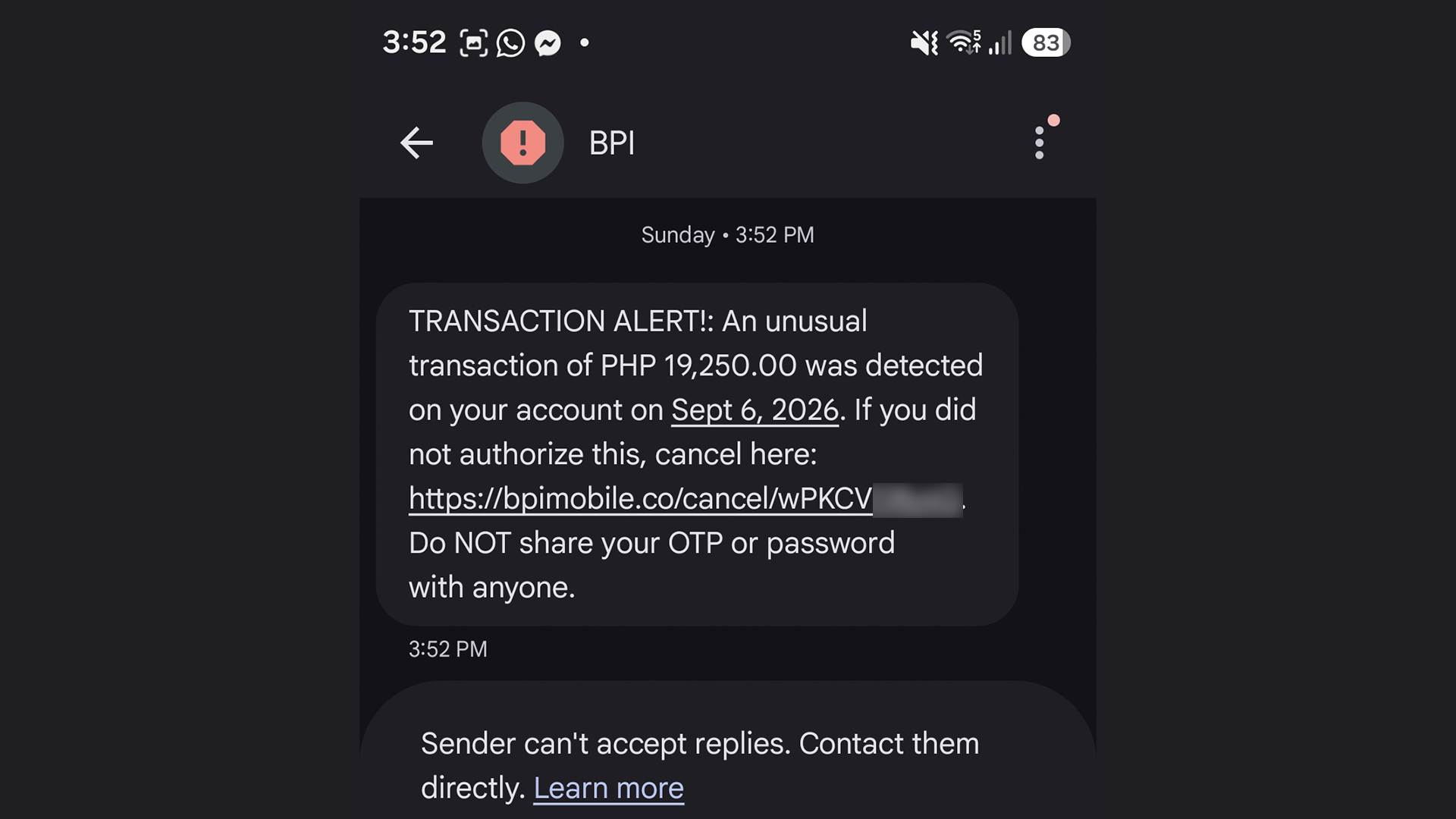
The message looks real. I can’t spot a single typo. Now, if you spotted this and thought it was real, you’d enter a state of panic and click the link out of instinct. The scammer is depending on your instinct to do so. Here’s why you shouldn’t click it: That’s not BPI’s official website. It looks like it, but it’s not.
Of course, you can’t be faulted for not memorizing official company websites. In fact, I had to Google the URL just to confirm that it was fake.
A surefire way to make sure, though, is checking the supposed information yourself. When I got the message, I checked my BPI app immediately. There was no trace of the transaction, so I knew it was fake. You can also call them yourself using their official numbers.
This isn’t limited to banks, either. Another example I’ve seen is one claiming that your Spotify subscription failed to renew. In this case, you can manually check your Spotify app to see if your subscription hasn’t been renewed.
Scammers are hopeful that you panic and run to them, rather than the official channels.
Sometimes, friends cannot be trusted
Though we can avoid falling for traps ourselves, other people still can. After an account is hacked, the hacker’s usual play is to message the account’s contact list to get other people.
Because it’s seemingly coming from a loved one’s account, a user is more likely to follow whatever the hacker wants, including clicking suspicious links.
In my experience, this type of scam is rarer these days, but it’s not completely gone. I’ve had one experience wherein a contact from Discord messaged me and tried getting me to play a game with them. The game itself was non-existent. The goal was to have me click a suspicious link and install malware on my computer. The malware can then give the hacker complete access to my PC and every account it’s logged into.
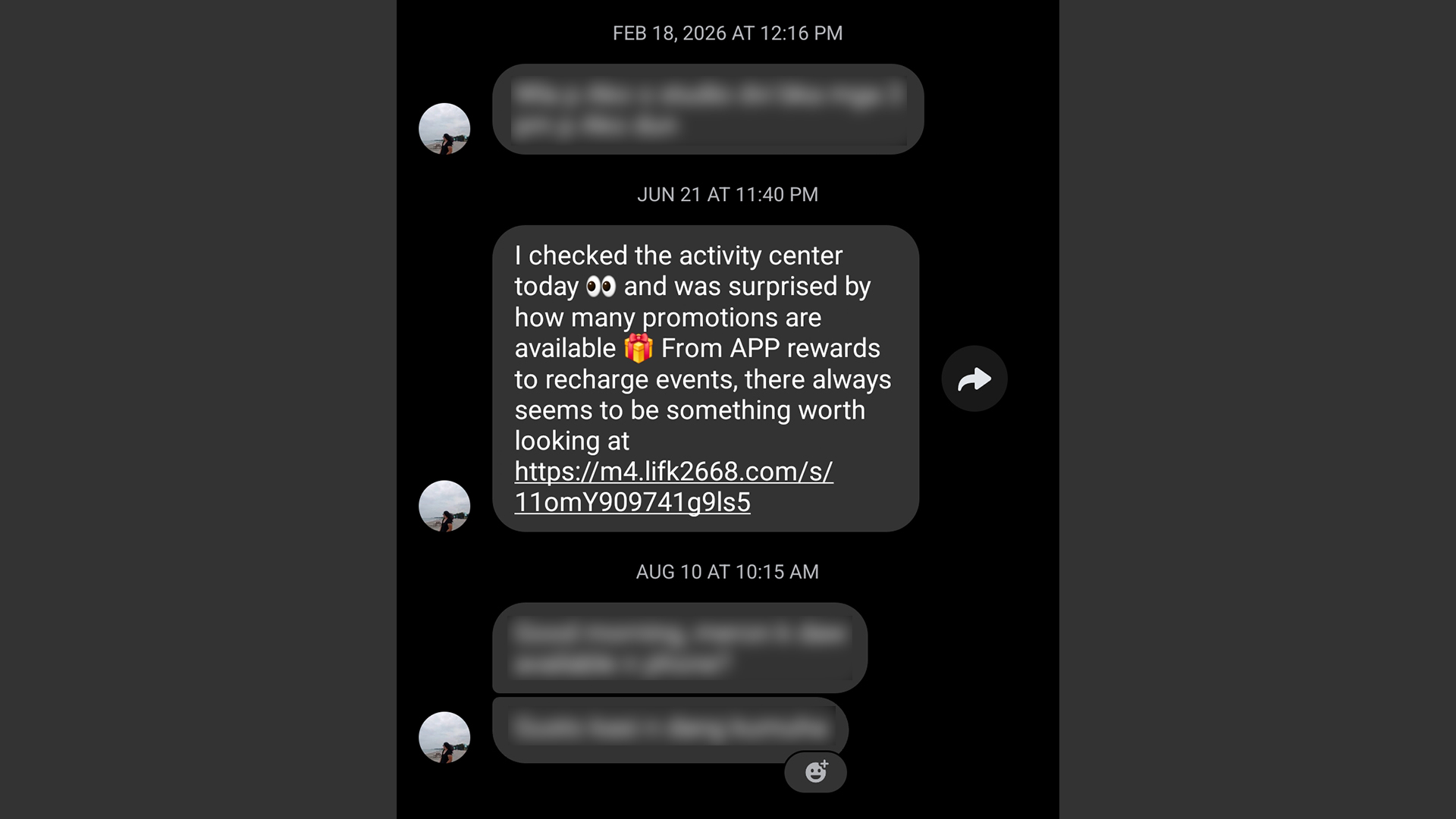
It’s a very nasty malware, but it’s fairly easy to prevent. If you get a message from a friend that isn’t their typical behavior, contact them on a separate platform, preferably on one that doesn’t rely on the net like SMS. If that’s not possible, contact someone near to them.
Address a potential hack immediately
Even with all these precautions, sometimes we can’t prevent ourselves from falling into these scams. If you find yourself victimized by scammers, respond immediately.
First of all, secure the targeted platform first. If it’s an app or a service, change passwords immediately and add two-factor authentication. If it’s a bank, call and appraise them of the situation. You might have to spend some time with a frozen account or without a card, but it beats having all your money sucked dry.
Now, if you suspect that your entire device was compromised, disconnect from the internet immediately. A hacker is toothless if they can’t connect to their prey. Then, using another device, reset every account that the hacker might have access to. If you know how, manually disconnect your accounts from the affected device. Once clear, do a clean install/reset of the device to hopefully weed out the malware.


Marvel’s Wolverine review: When the claws come out
A brutal, cinematic superhero adventure


Setting your bedsheets ablaze with the Lovense Solace Pro
The closest proxy I could find where I'm guilty as sin


Now Playing: Elden Ring Tarnished Edition
Is the Switch 2 port worth the price?

First Look: Apple iPhone Duo

Xbox saves Kojima’s PHYSINT after PlayStation drops support
Marvel’s Wolverine review: When the claws come out

PH to celebrate 1st ever National Cinema Day; movies start at less than $2

New AGON gaming monitor features up to 1000Hz refresh rate

TECNO MEGAPAD 2 review: Eyes on the size

realme 16T 5G with 8000mAh battery, IP69 Pro rating launches in PH

HUAWEI Pura X View is 2026’s first WIDE slab-type smartphone

REDMI Note 17 Series focuses on long-term reliability

REDMI reveals the refreshed Note 17 and Note 17 Pro series


-
 News2 weeks ago
realme 16T 5G with 8000mAh battery, IP69 Pro rating launches in PH
-
 News4 days ago
HUAWEI Pura X View is 2026’s first WIDE slab-type smartphone
-

 Cameras1 week ago
DJI Osmo 360 II review: Going all-in on the ecosystem
-

 Features2 weeks ago
The designated photographer’s new favorite phone: OPPO Reno16 Series 5G
-

 News4 days ago
The CAMON Slim 5G is TECNO’s latest ultra-slim smartphone
-

 IFA 20261 week ago
TECNO MEGABOOK T15 360 unveiled at IFA 2026
-

 Gaming1 week ago
NBA 2K27 review: A two-way All-Star
-

 Reviews1 week ago
Samsung Galaxy Z Fold8 Ultra review: It’s time to get a foldable