
Features
Father’s Day Gift Guide: Give back to our dads!
We made you a list so you won’t have to worry


Father’s Day is just around the corner!
Take the chance to give back and send some love. Here’s a quick list of things you can give your dad:
Give him a smartwatch to track the important things in life

The Fossil Q Commuter is a hybrid smartwatch that doesn’t look like one. It’s classic and stylish, and it uses smart technology to keep your dad updated with all the important things in life.
Fossil Q Commuter (Dark Brown Leather) – US$ 155
A camera to capture all the moments and experiences

The Fujifilm Instax Mini 90 Neo Classic has that timeless retro look that even I really dig. It instantly prints your photos and is perfect for those who treasure every moment.
Fujifilm Instax Mini 90 Neo Classic – US$ 179.99
Give him a smartphone that gets things done

They always give their best for us, so it’s our chance to give back. The OnePlus 8 Pro is one of the best smartphones you can buy today, a match for the dad who’s always aiming to be on top!
A wireless speaker he can bring wherever he goes

If he loves to move and groove, a JBL Flip 4 might be what he needs. It’s loud and it’s waterproof so he’ll have his sounds anytime, anywhere.
Give him a power bank so he’s always charged up

Make sure he’s connected by having his devices charged all the time. The Anker PowerCore Speed 10000 is pocketable and it’s packed with power. He’ll never be disconnected again!
Anker PowerCore Speed 10000 – US$39.99
Get him a wallet that protects his valuables

Give him the SERMAN BRANDS 1.0 wallet, equipped with RFID secure technology that will protect him from any unauthorized scans. It also comes in Texas Brown and is stylishly slim in genuine leather.
SERMAN BRANDS 1.0 (Texas Brown) – US$ 34.99
Give him the gift of adventure

If you’re feeling really generous, give him the Ford F-150 SVT Raptor. It’s a tough vehicle made for adventures. When was the last time your dad went to the great outdoors for some fun? Surely, that was ages ago. Let him enjoy his time!





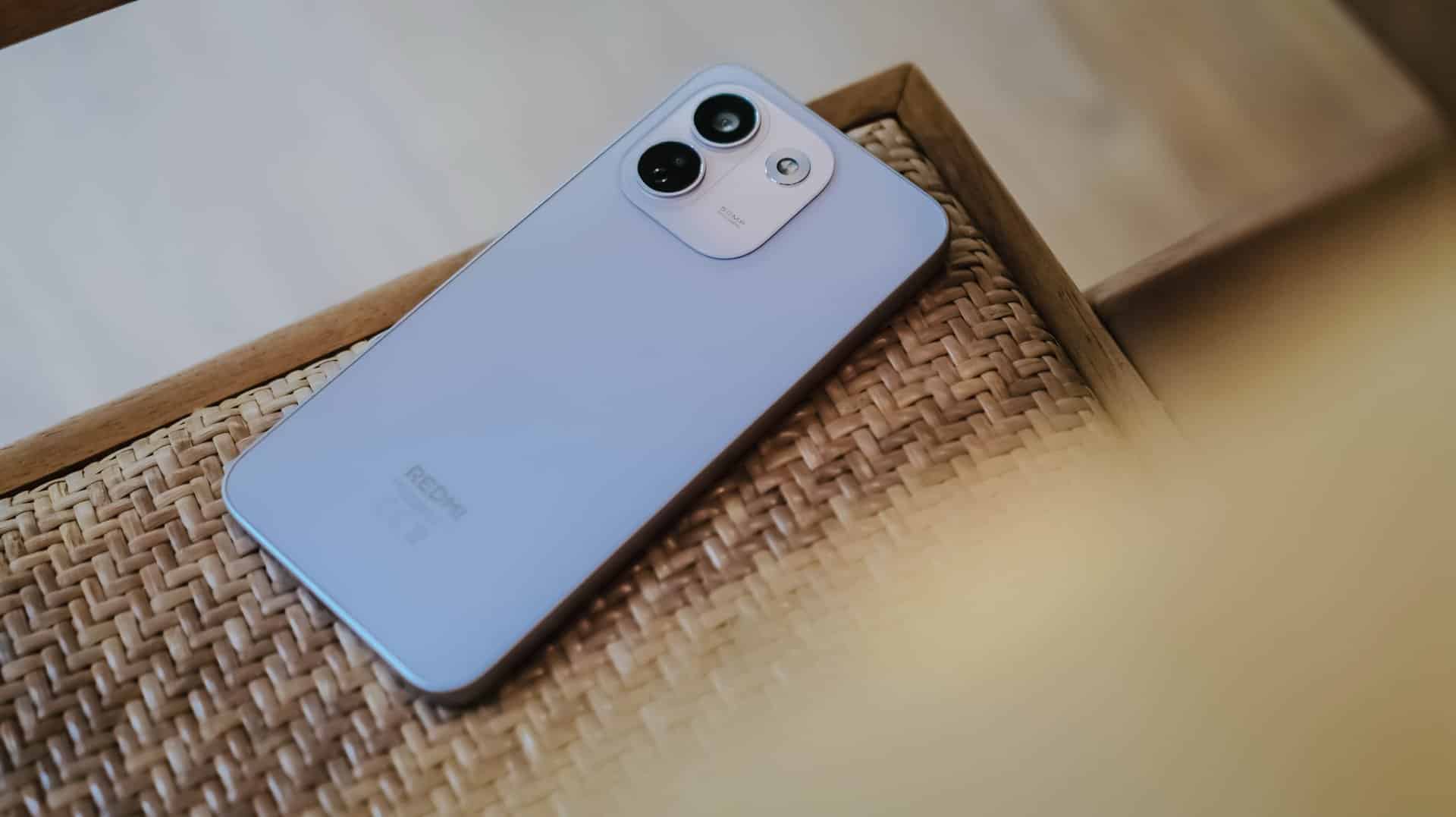
REDMI has summoned a new phone breed under their notable “Note” lineup since 2014.
(Un)officially retiring the Pro+ model, it’s not just the sub-brand’s first “Pro Max” phone, it’s also the Chinese giant’s first ever smartphone to feature a whopping 10,000mAh tank within.
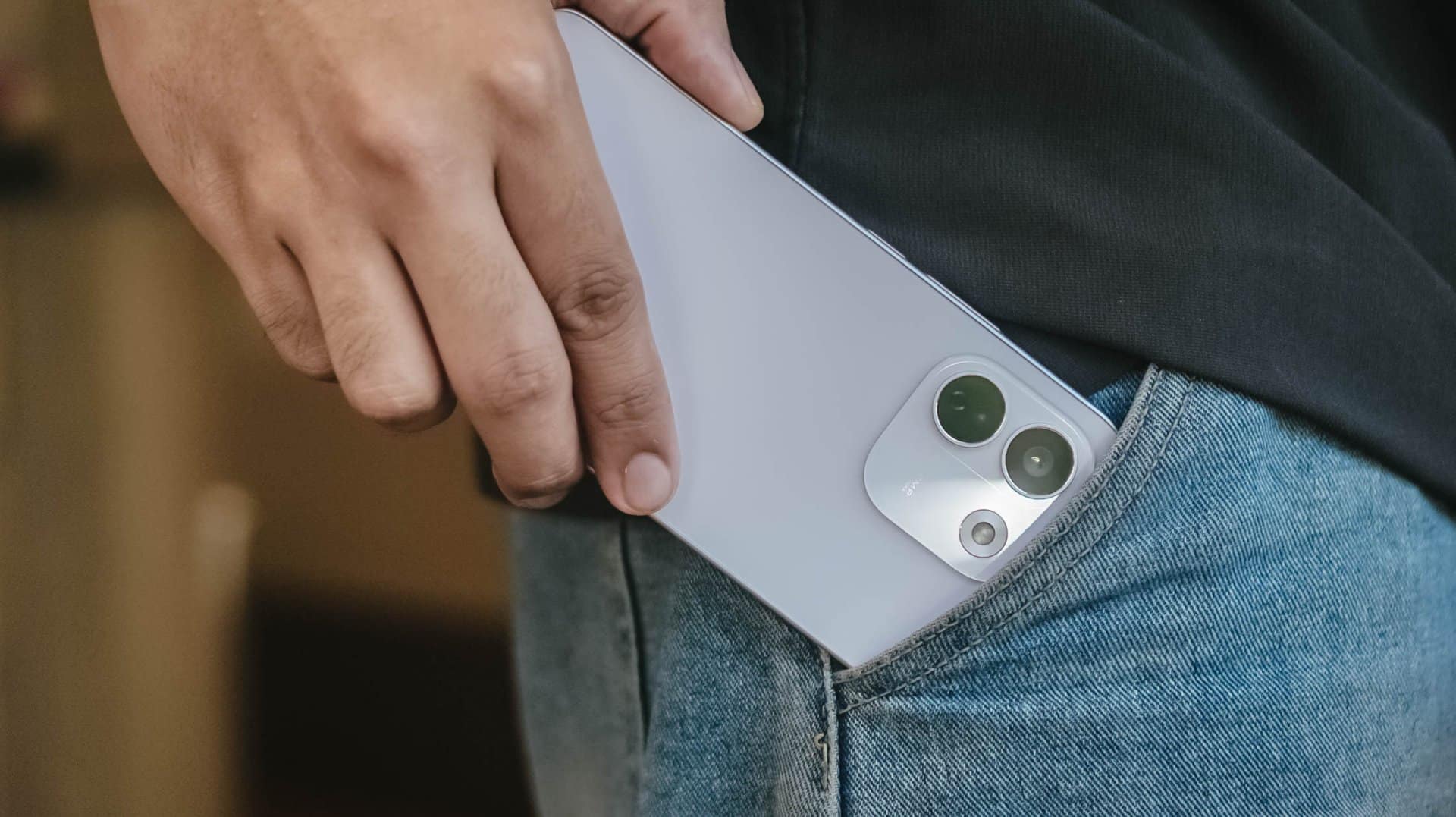
But is that feat alone enough to choose over its Pro sibling?
Here’s my in-depth REDMI Note 17 Pro Max review.
Design that just resigned
The moment you unwrap it from its paper cocoon, the REDMI Note 17 Pro Max greets you with its refined design.
That also meant REDMI has resigned from its premium-like, signature centered camera island just after two generations.
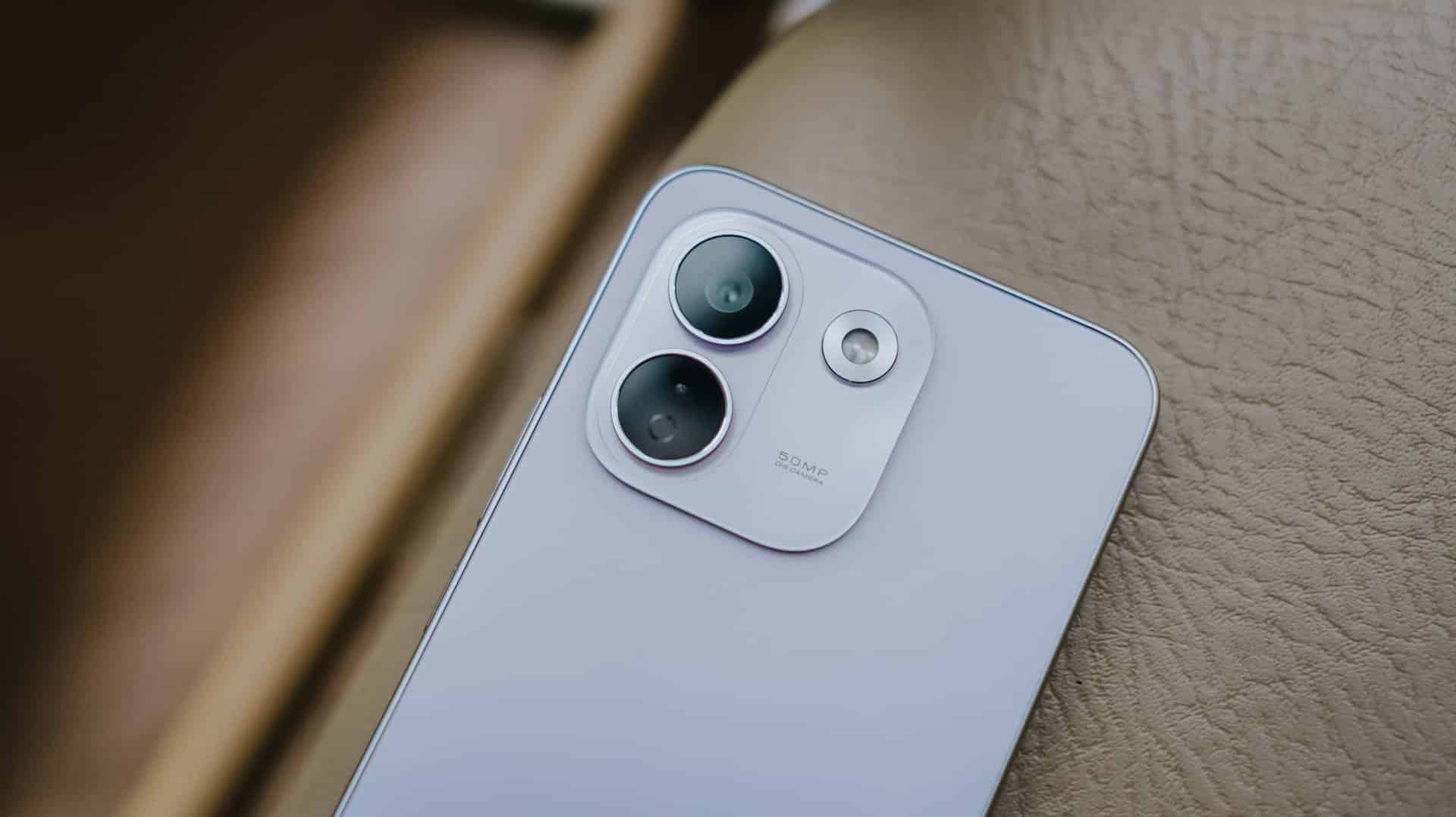
Much like most Android midrangers nowadays, it now features a smaller squircular camera cutout placed at the back’s top-left part.
This made me question and doubt their design team’s decision.
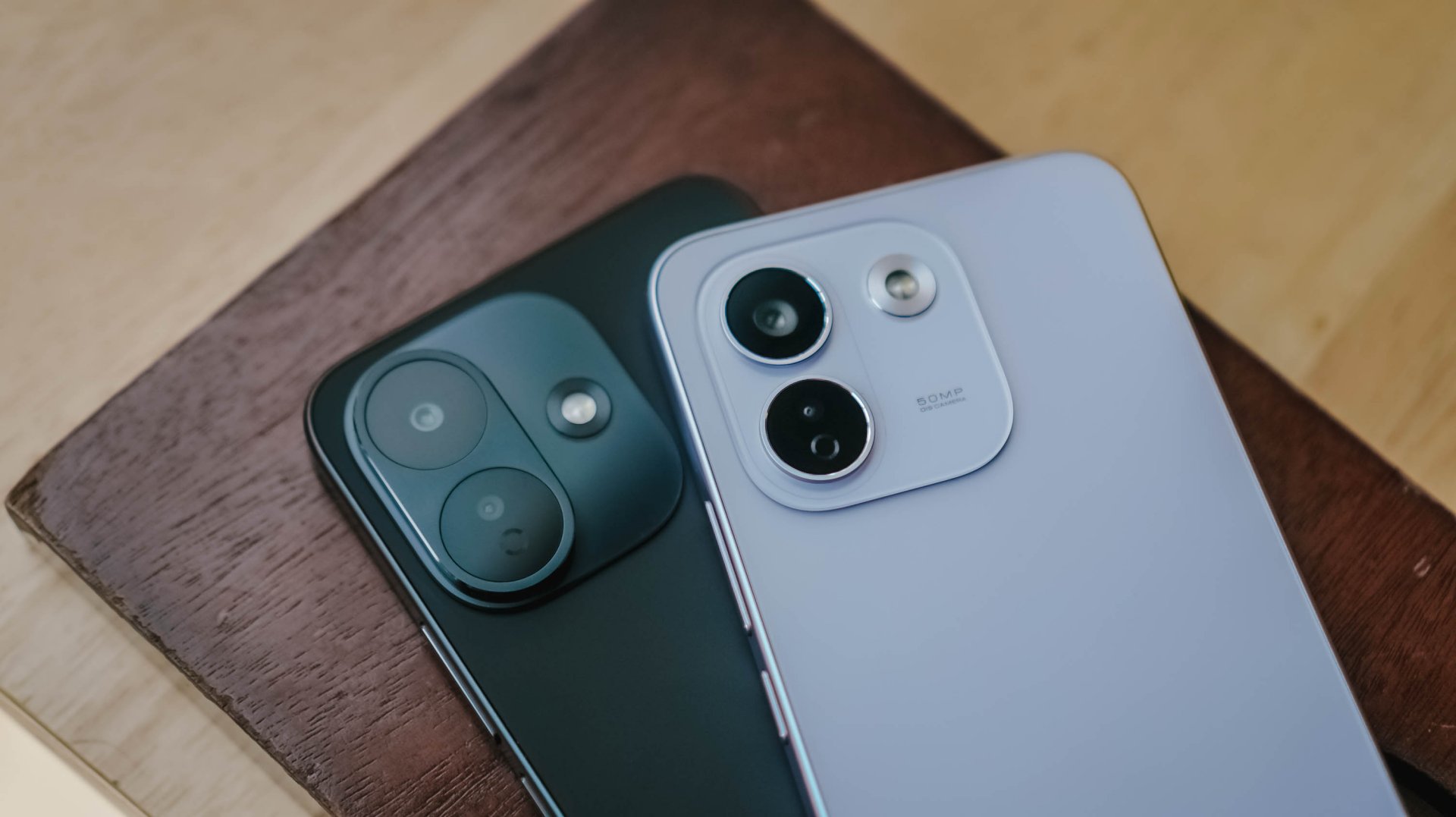
If we’re solely talking about design distinction, the iPhone-esque camera layout of the Note 17 Pro suits more towards the Pro Max variant — and vice versa.
After all, that same oval cutout can be seen with its sister brand’s Pro Max model. But I digress.
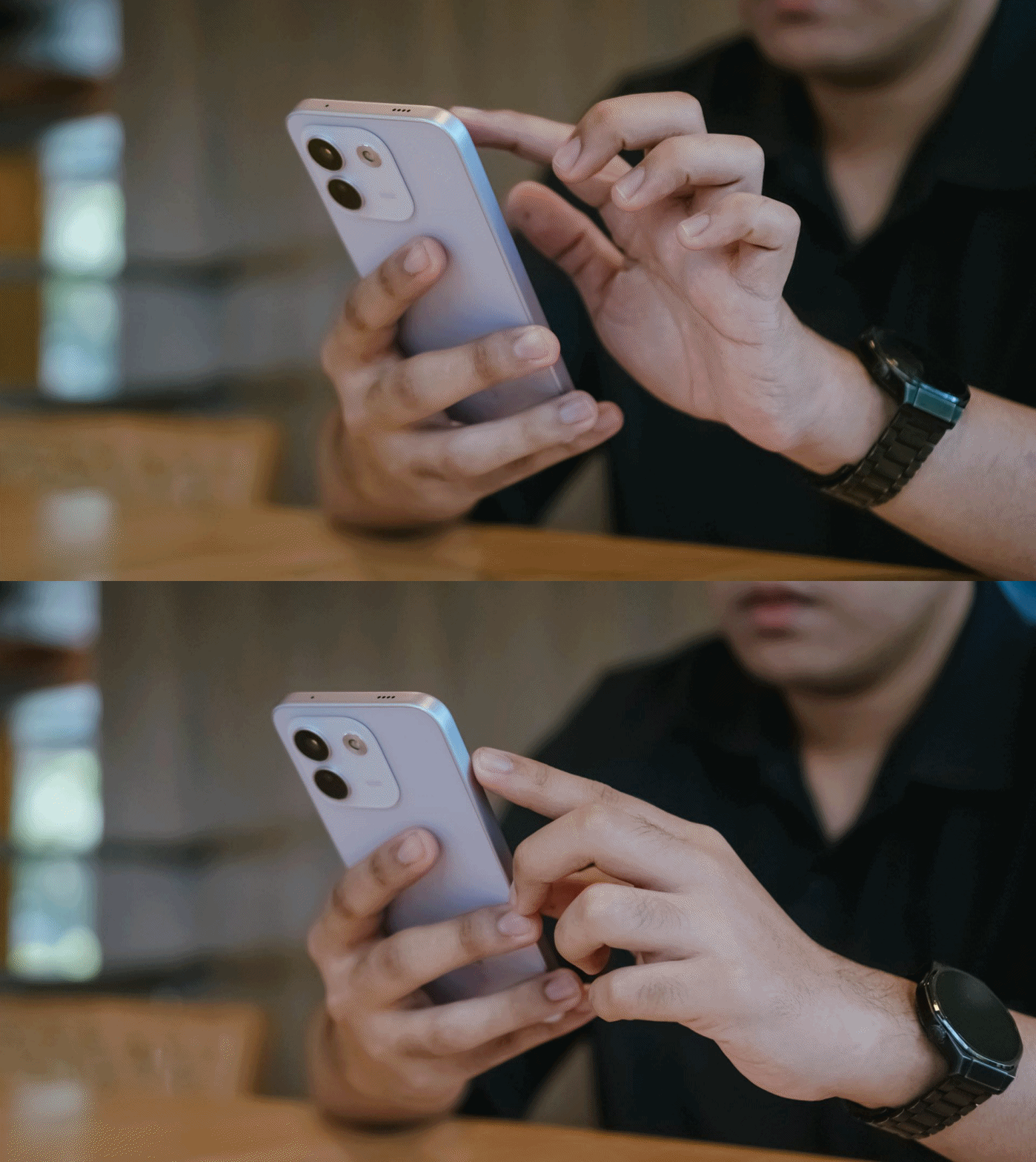
Rants aside, the REDMI Note 17 Pro Max is favorable to hold — at least for a big-handed guy like me.
Still, much like design, the actual feel is preferential.

Although some might argue that the quad-curved display and curved back of the previous Note 15 Pro+ might soothe the palms a little bit better, the flat display and edges of Note 17 Pro Max don’t necessarily mean a sharp and abrupt feel at hand. This honestly feels more secure to hold.
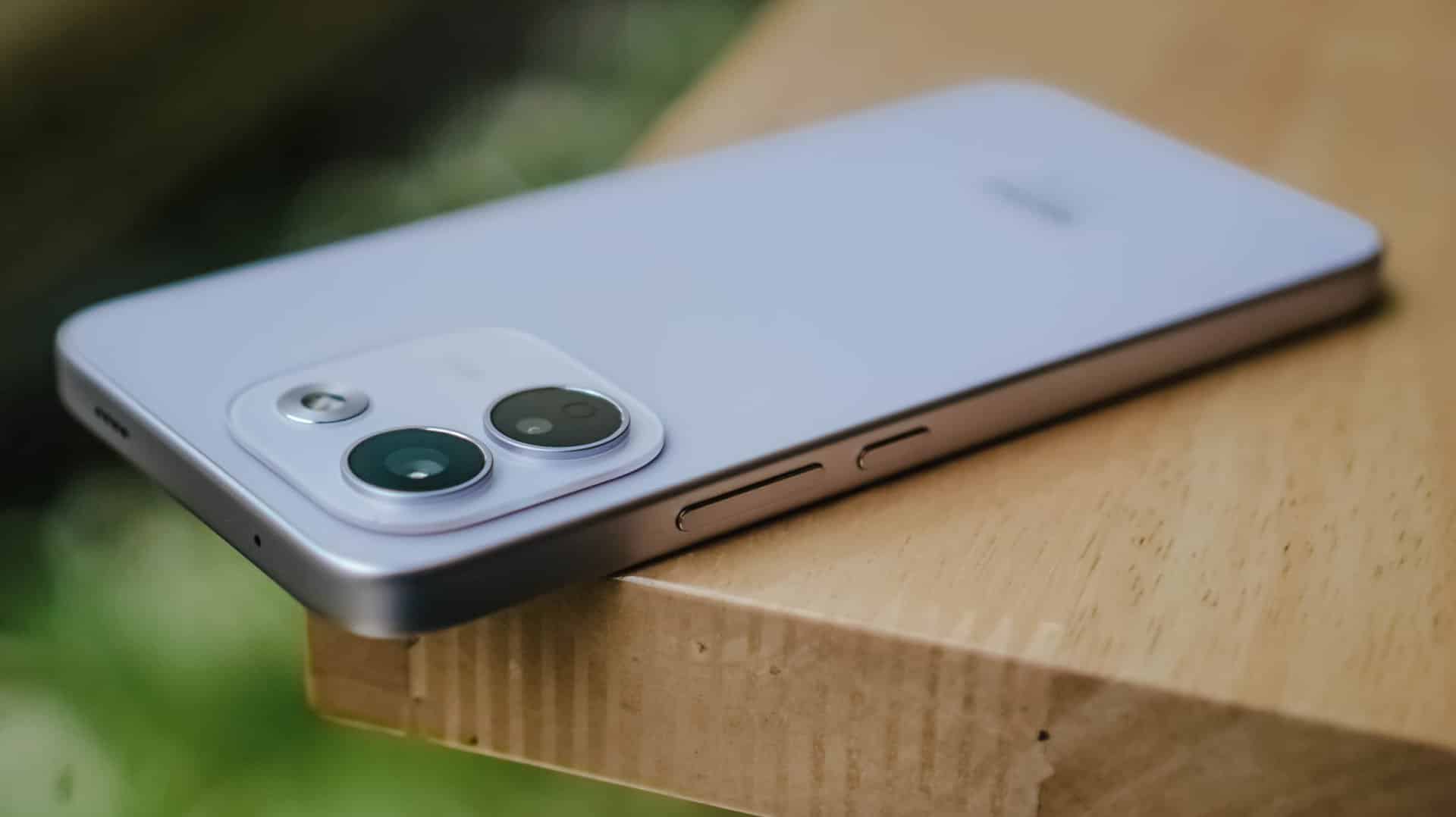
In case you drop it, the Note 17 Pro Max is made to last especially with its reinforced Titan chassis. This structural design makes it withstand drops as high as three meters — or taller than any human being at around 9.84 feet.
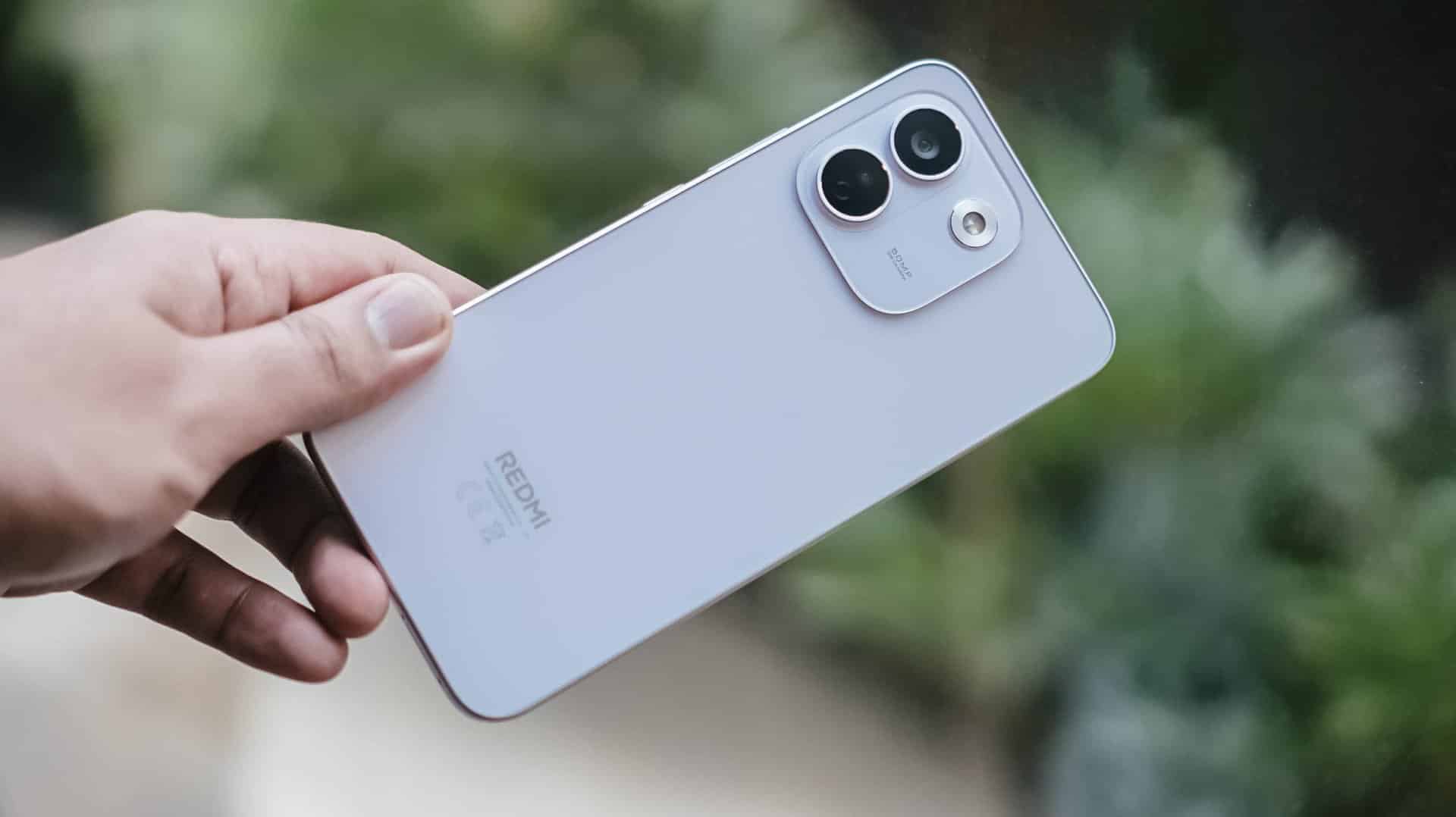
To make it more “future-proof,” this smartphone also has these quintessential IP ratings: IP66, IP68, IP69, and IP69K certifications.
How can I forget that strengthened Corning Gorilla Glass Victus 2 on its front?
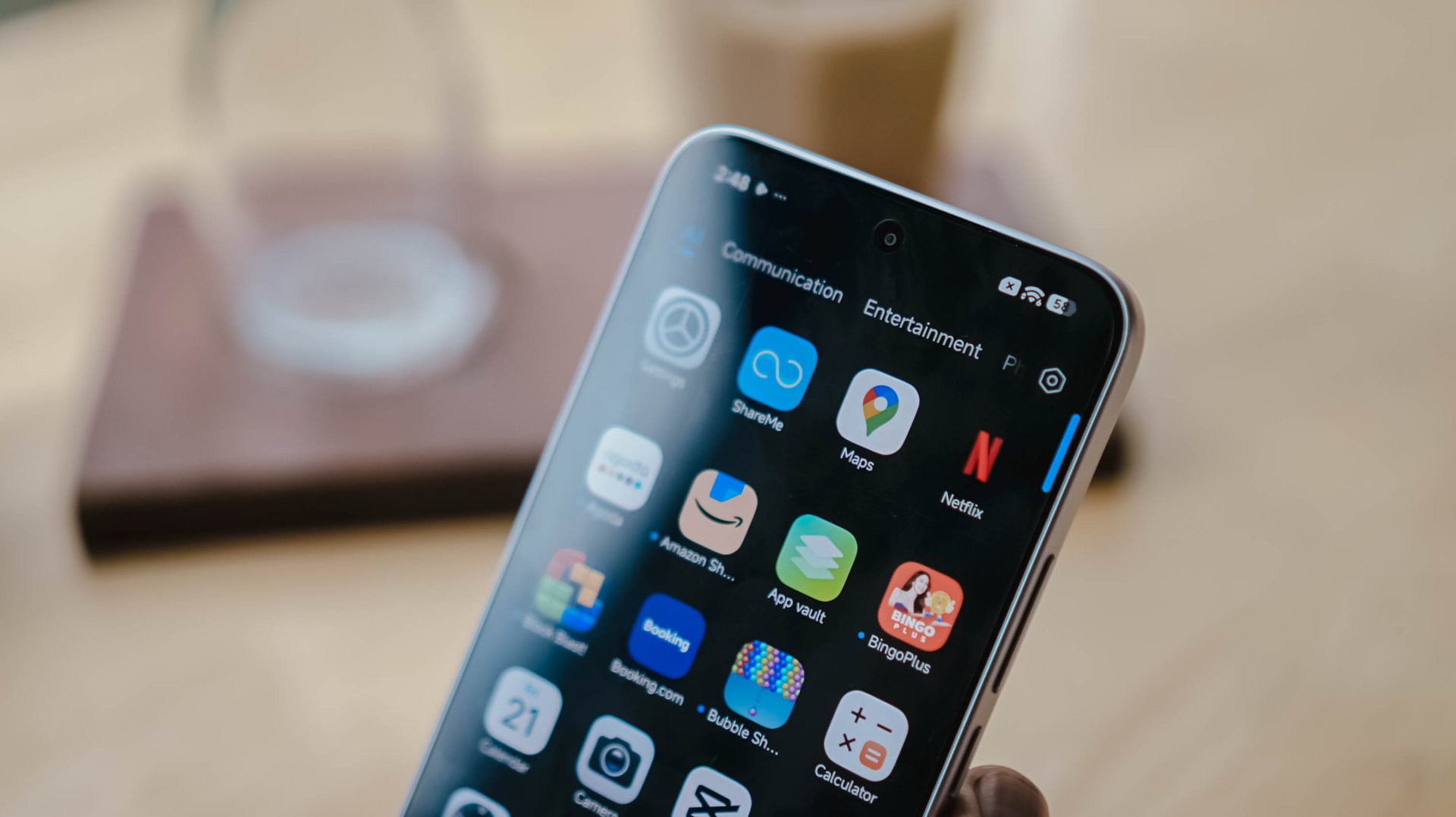
Gorilla Glass Victus2 ft. Xiaomi HyperOS 3 and its usual app bloat
It’s an amazing inclusion considering this type of glass protection is usually limited to flagship models like Samsung’s Galaxy S26 series and Google’s latest Pixel 11 lineup.
#NowPlaying: My Bias, My Boss
With the phone’s front already introduced, let’s now focus on that large 6.83-inch AMOLED display.
At the surface level, both displays are just impossible to differentiate.
Still, there are subtle differences that one might prefer over another.
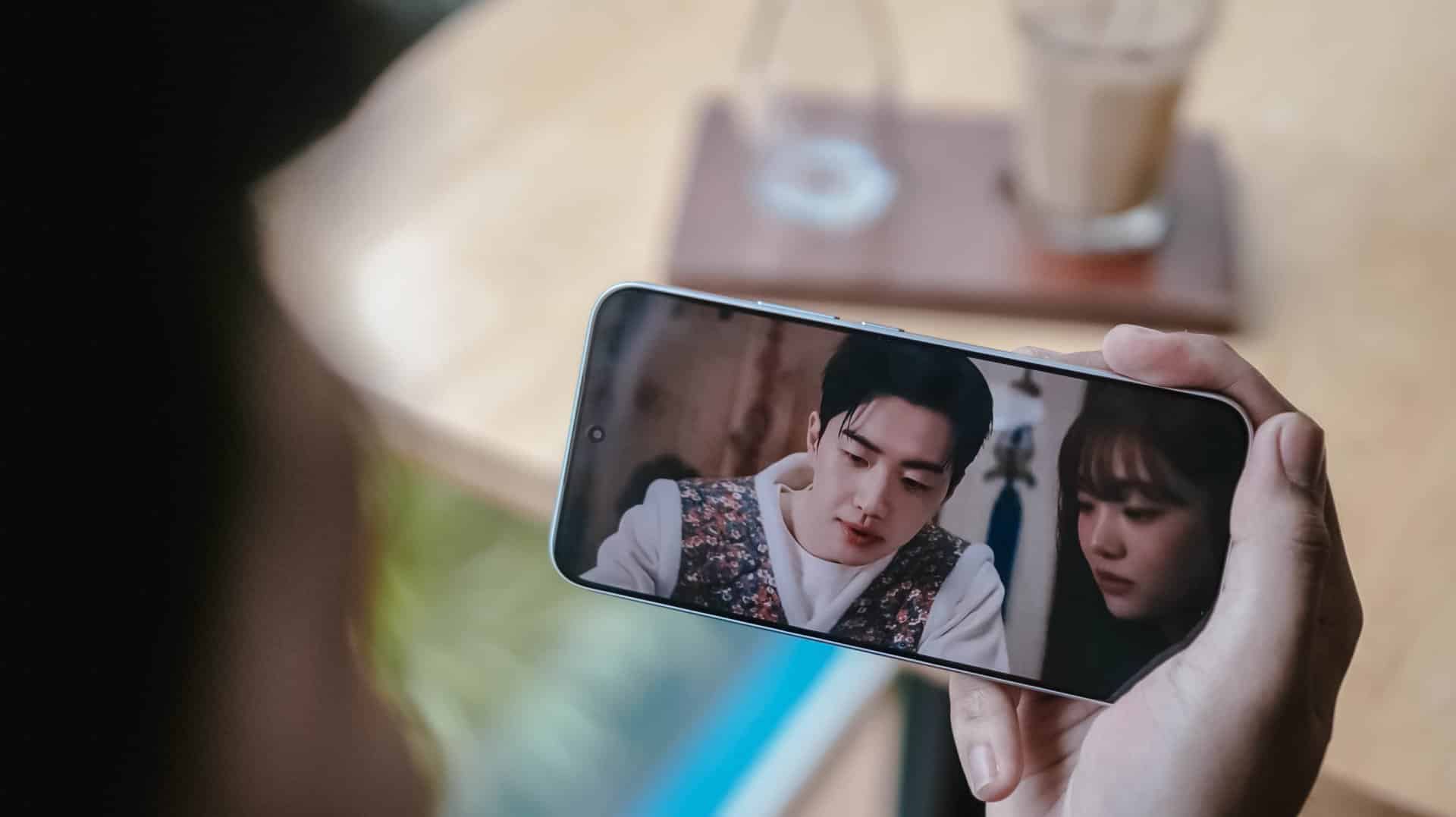
It’s pretty much the same in the latest drama I’ve binged and finished using this smartphone.
Nam Da-reum had her feelings confused both for her office boss (Kang Ha-gi) and her actual, long-time K-Pop bias (Lee Chan) — which both happened to be her work colleagues.
For the most part, this struggle happens to a lot of buyers, too.
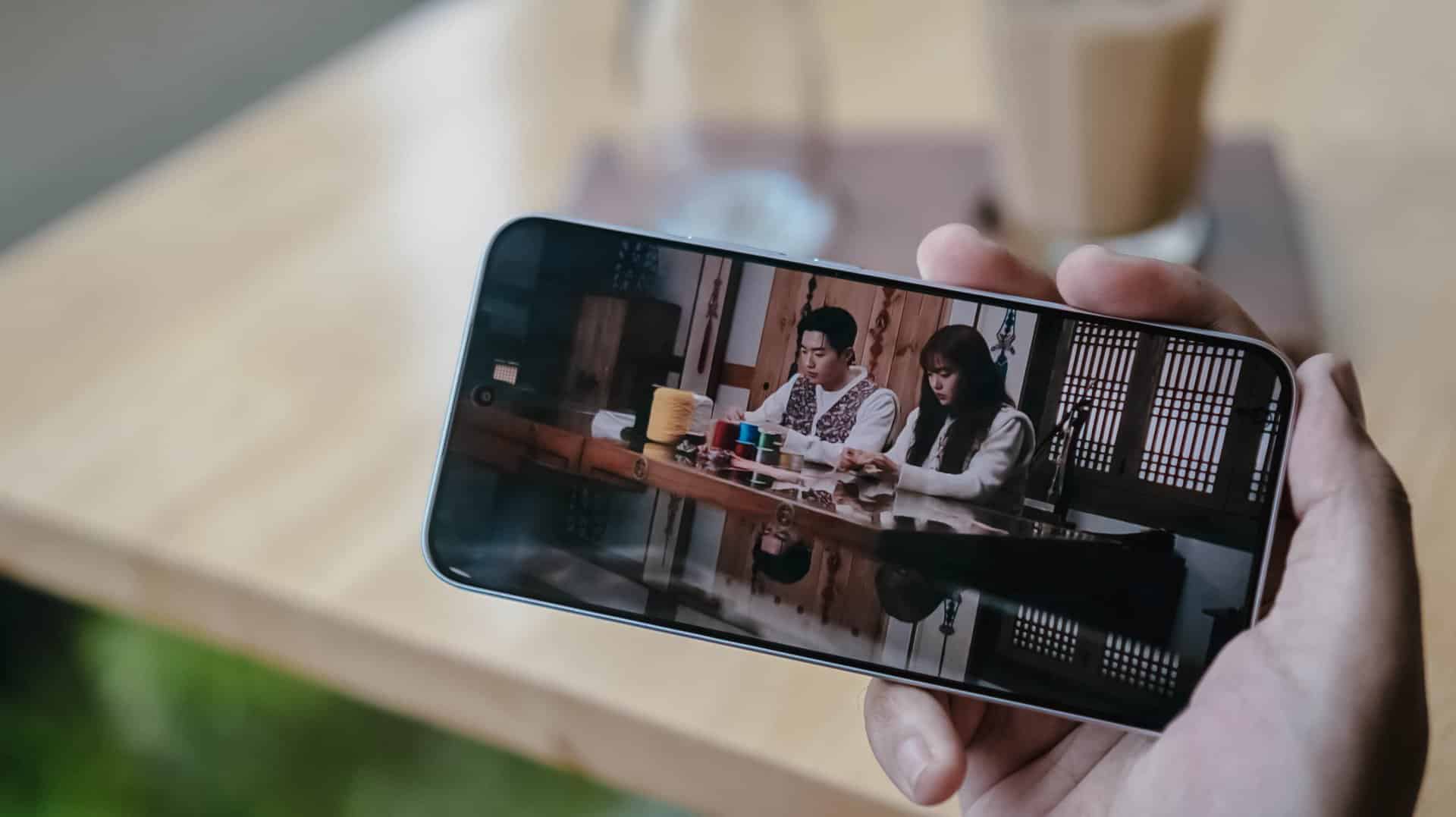
Just like the visual supremacy of both Kang Hoon and Cha Woo-min, both the REDMI Note 17 Pro and Pro Max also share the same attributes. There’s that sharp 1.5K display resolution, 3500 nits of peak brightness, 12-bit color depth, even 240Hz / 3200Hz touch sampling rates.
Well, the Pro Max has the slight upper hand with its HDR10+ and Dolby Vision support that the Pro model lacks.
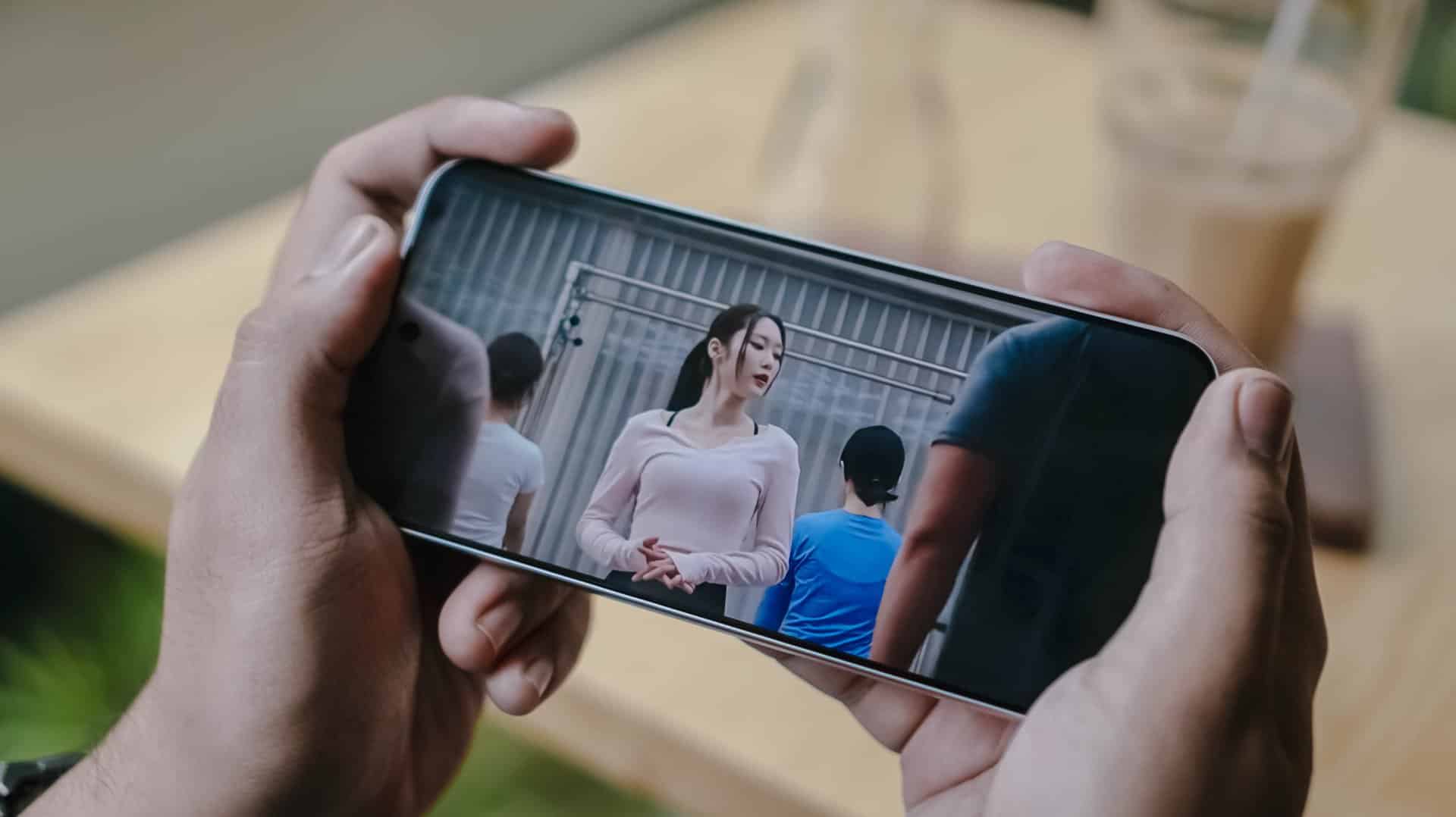
This is such a star-studded drama ft. former OH MY GIRL’s Jiho
This meant that HDR content is livelier and more immersive on the REDMI Note 17 Pro Max.
Regardless if it’s on YouTube, Netflix, Disney+, or HBO Max, one will definitely appreciate the Pro Max’s screen better.
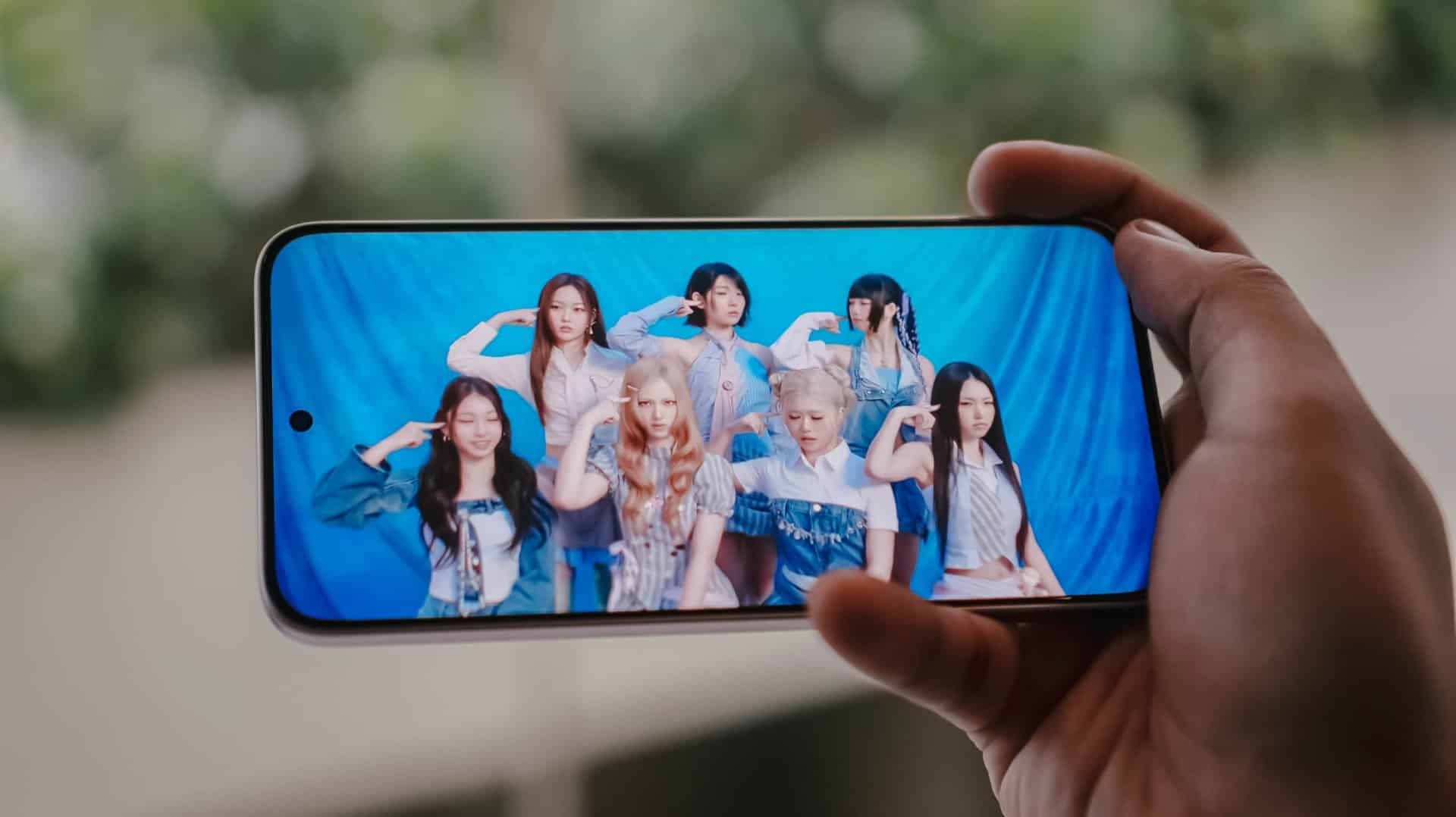
Now, if you’re concerned about eye safety, both phones boast TÜV Rheinland’s Low Blue Light, Flicker Free, Circadian Friendly certifications.
On Queue: TUIDE, OURBIRTHDAY
Much like the dual debut of the REDMI Note 17 Pro series, two septet K-Pop girl groups were also born during this third quarter of 2026.
While both groups share the same member number, these two newly-created groups are also distinct from one another.
The REDMI Note 17 Pro and Pro Max both possess the same stereo speaker setup. Dolby Atmos and Hi-Res Lossless features weren’t forgotten as well.
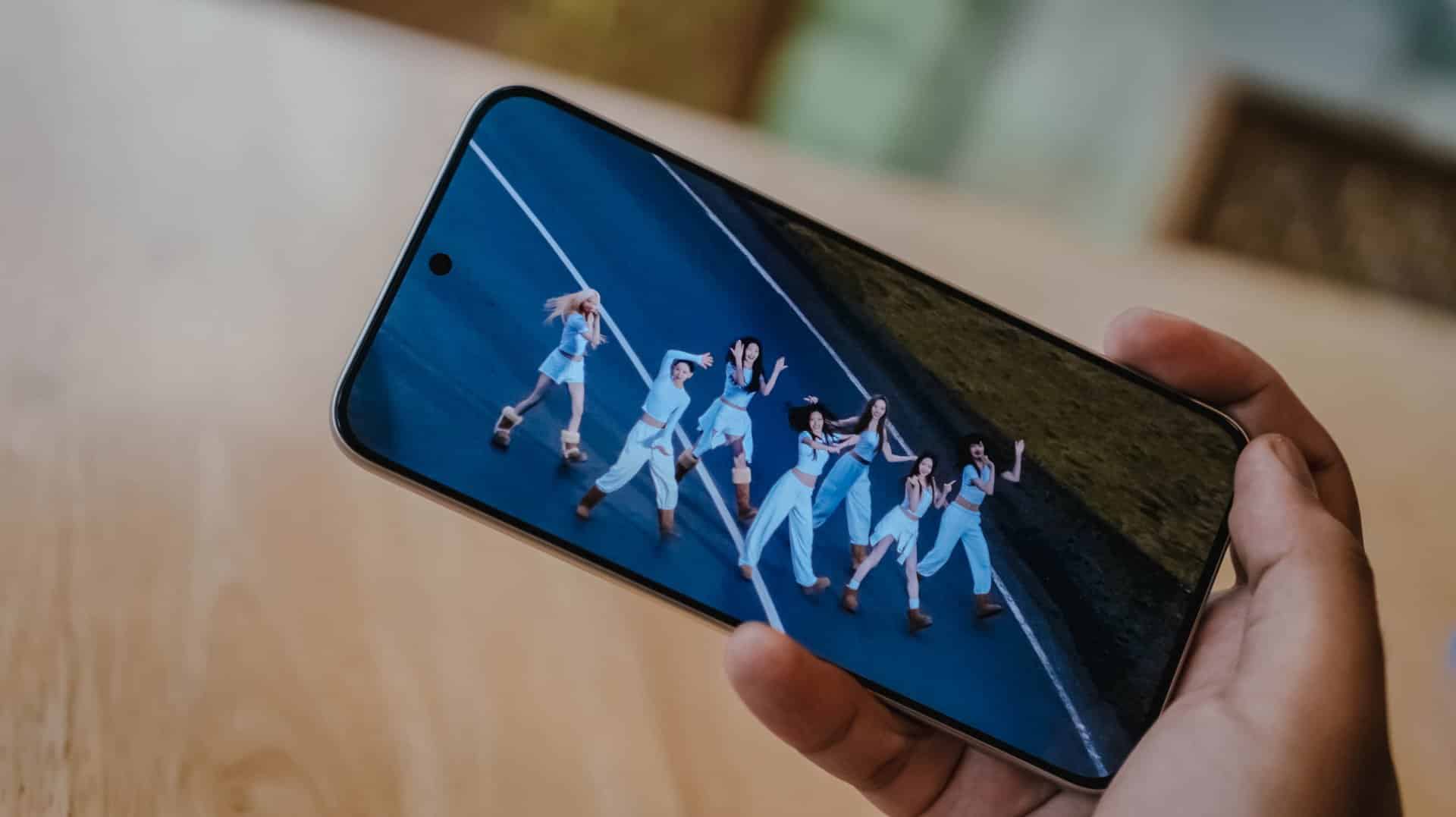
Upon closer inspection though, the Note 17 Pro Max produces an even louder output thanks to its 400% Volume Boost feature. That’s in contrast to the 300% boost of its Pro sib.
At least on my ears, REDMI’s Note 17 Pro Max sounded deeper especially heard with TUIDE’s vocals in their lowkey-addicting “SUN KISS” debut track.
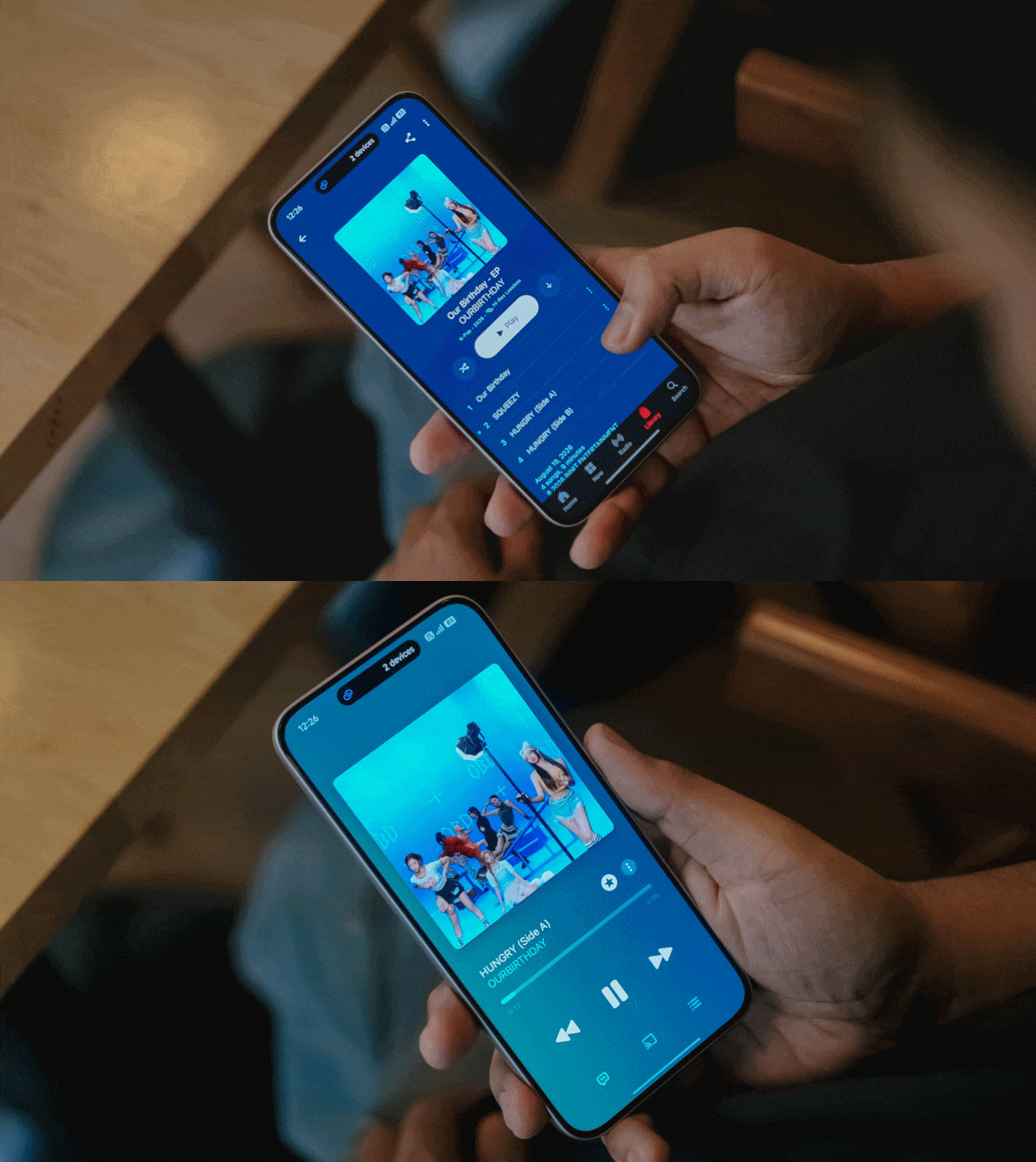
Even more, the steps and thumps in OURBIRTHDAY’s “HUNGRY” also felt and sounded more powerful and impactful as opposed to the Note 17 Pro’s output.
New chip above its hip
Unlike its Max-less sibling running a slower Snapdragon 6s Gen 4, the REDMI Note 17 Pro Max rocks the “faster” Snapdragon 6 Gen 5 SoC.
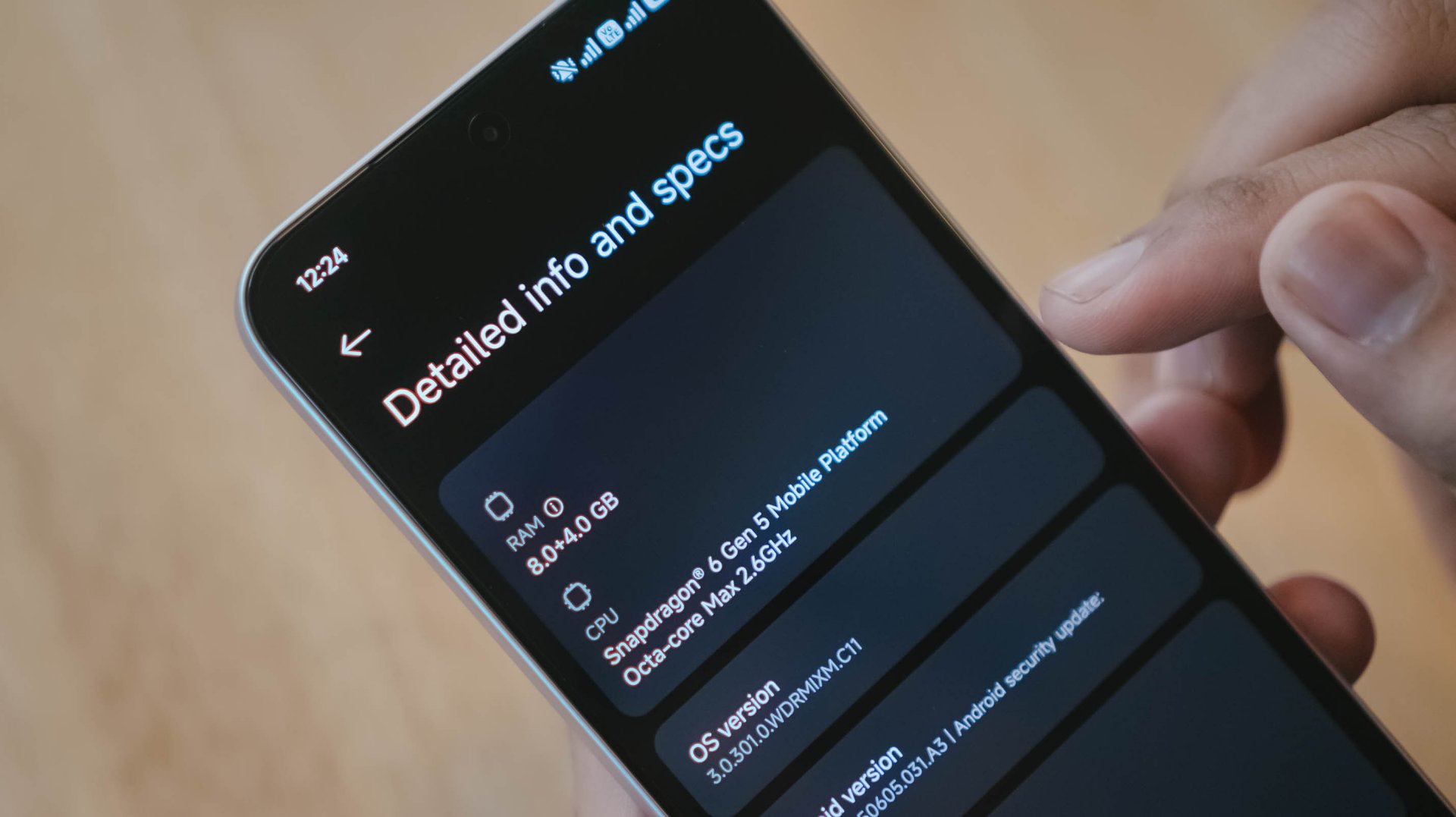
This brand new chip announced by Qualcomm this 2026 piqued my interest to the point that it made me install three games with three varying graphic capabilities.
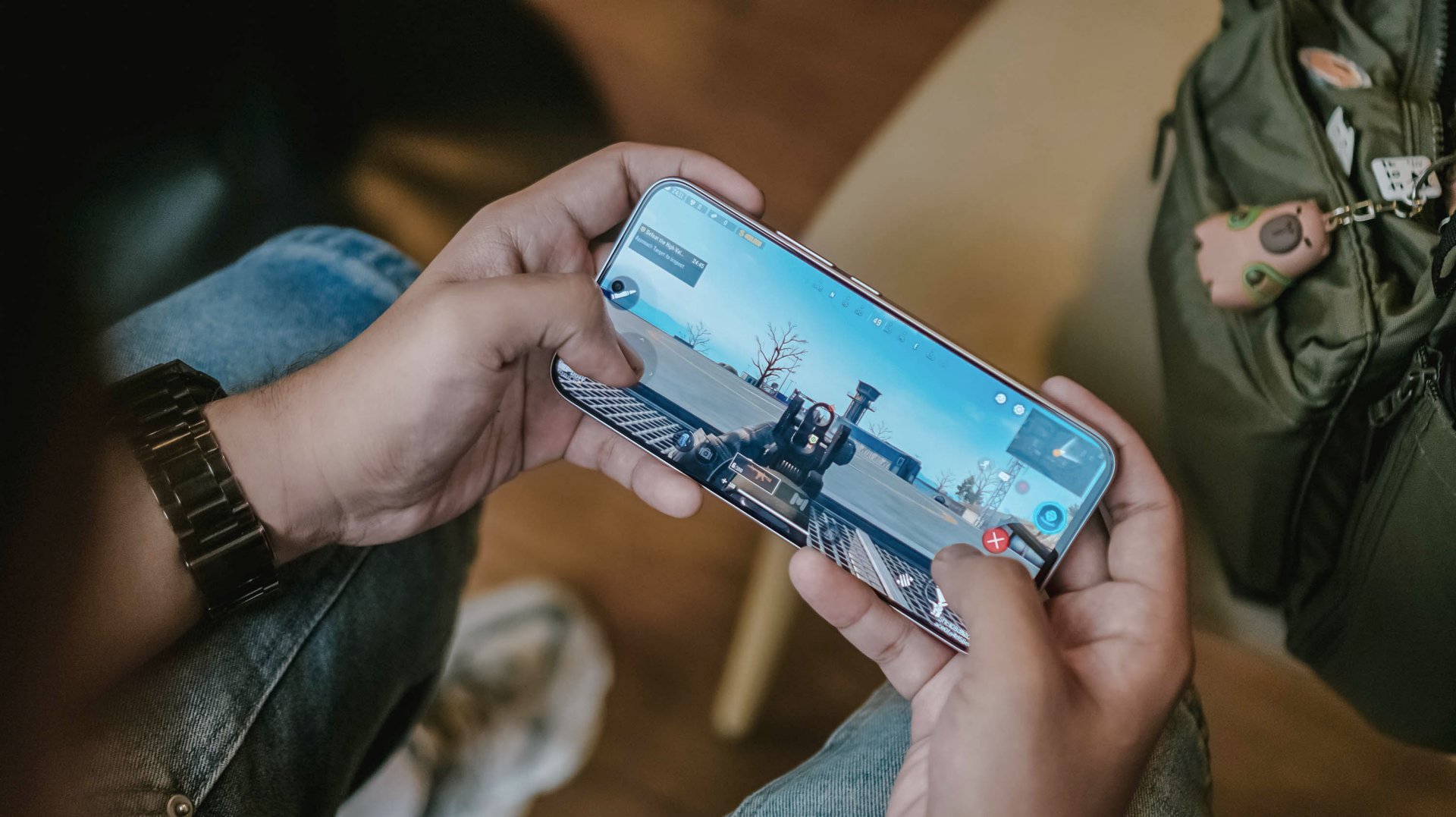
Of course, like any other FPS or MOBA game, the REDMI Note 17 Pro Max handles them with ease. Whether that may be CoDM, MLBB, PUBG, HOK, and countless games in the same league, this phone can and will run ’em.
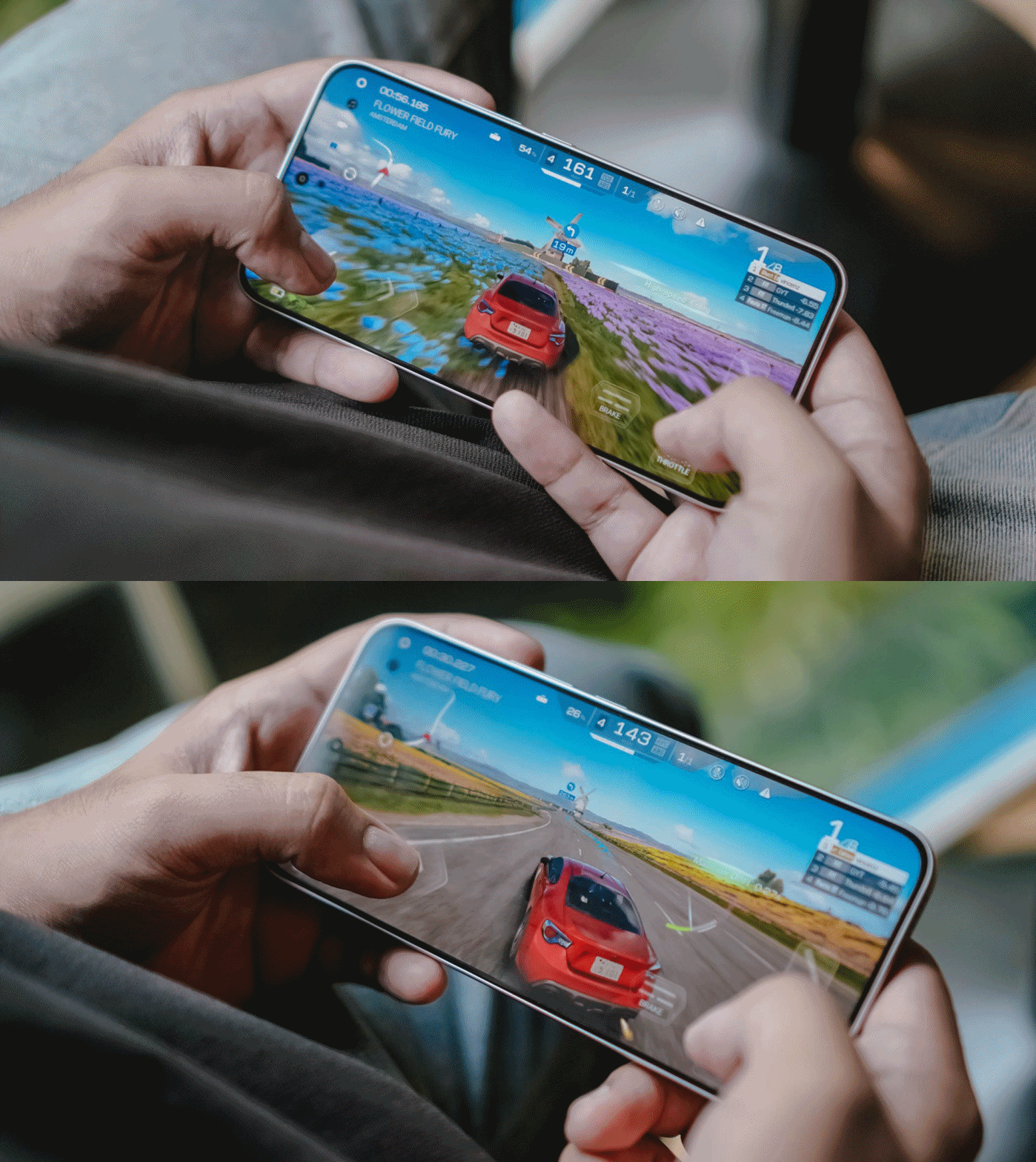
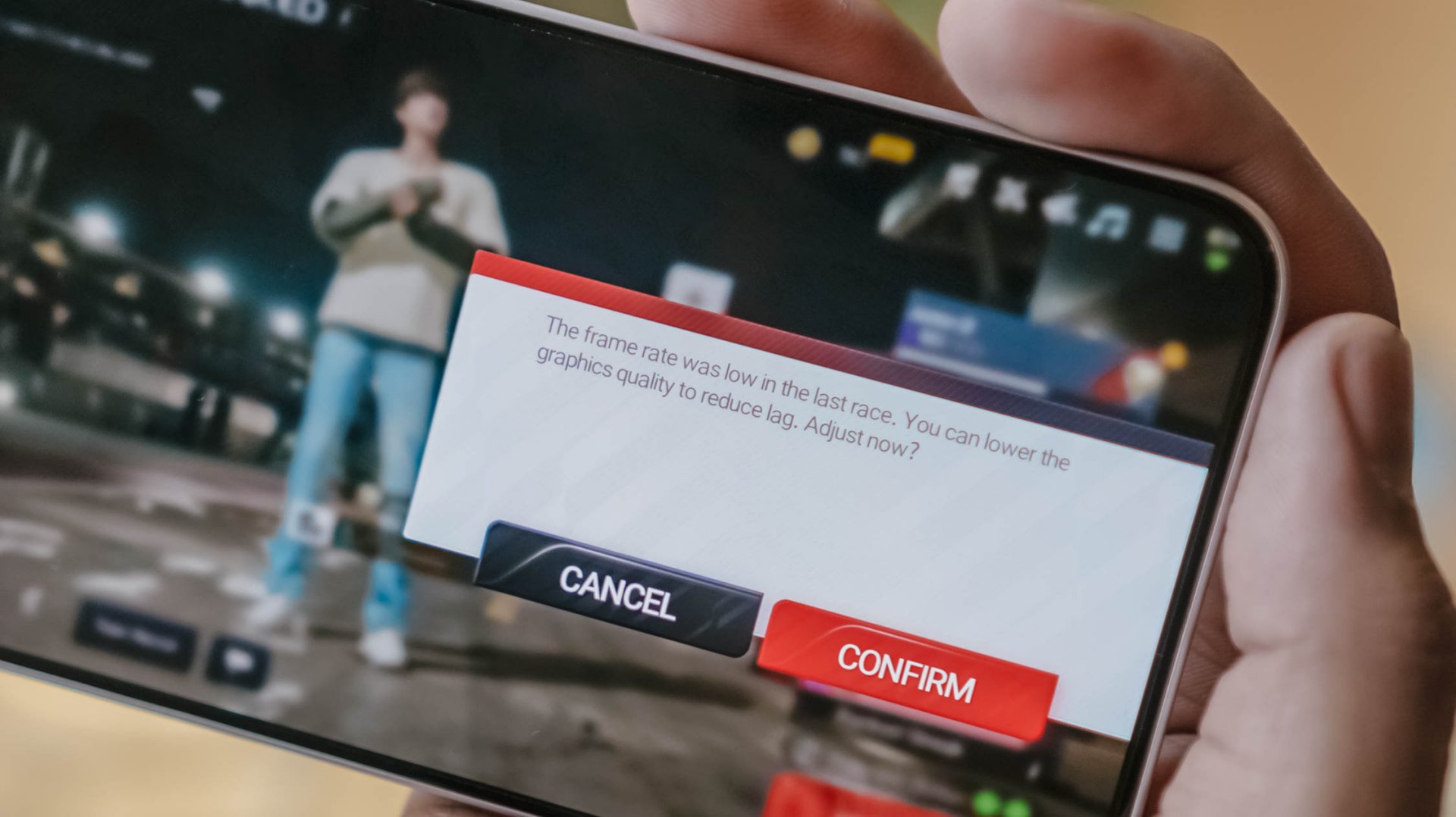
Now, onto a more demanding one: my all-time favorite Racing Master. At first, it was able to run in Ultra HD resolution at 60fps frame rate.
Unfortunately, it didn’t had much superiority over its Pro counterpart. After a 10-minute gameplay, it prompts to a graphic setting warning.
Last but definitely not the least, HoYoverse’s graphics-intensive Zenless Zone Zero.
As expected, the graphics were set to the lowest settings after installing core resources.
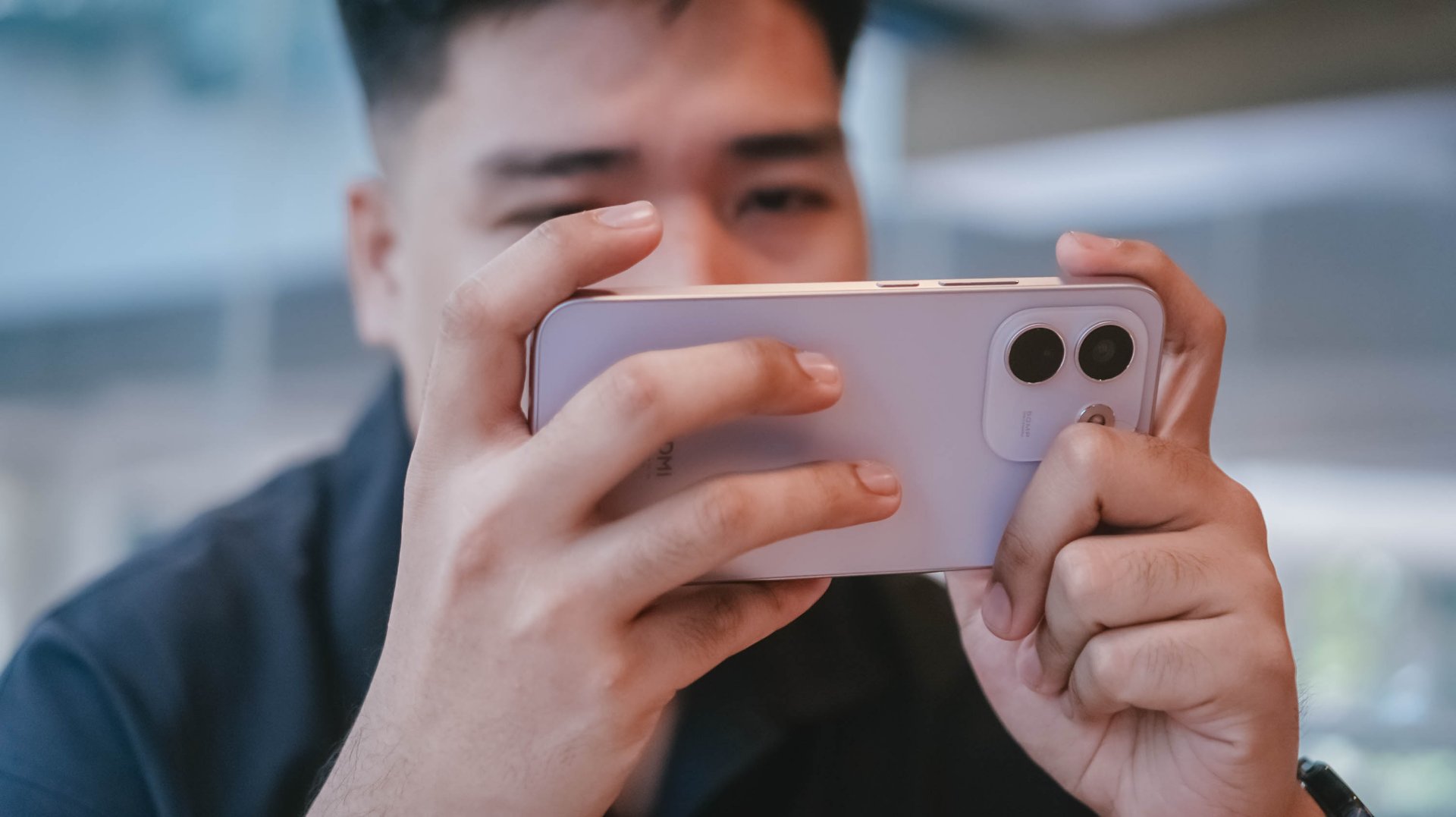
Roaming around New Eridu and Hollow felt just right. The moment you enter combat mode, though, is where things go out of hand.
The frame stutters and jitters are just unstoppable. Even with Performance Mode turned on, it wasn’t enough to salvage the frame rate.
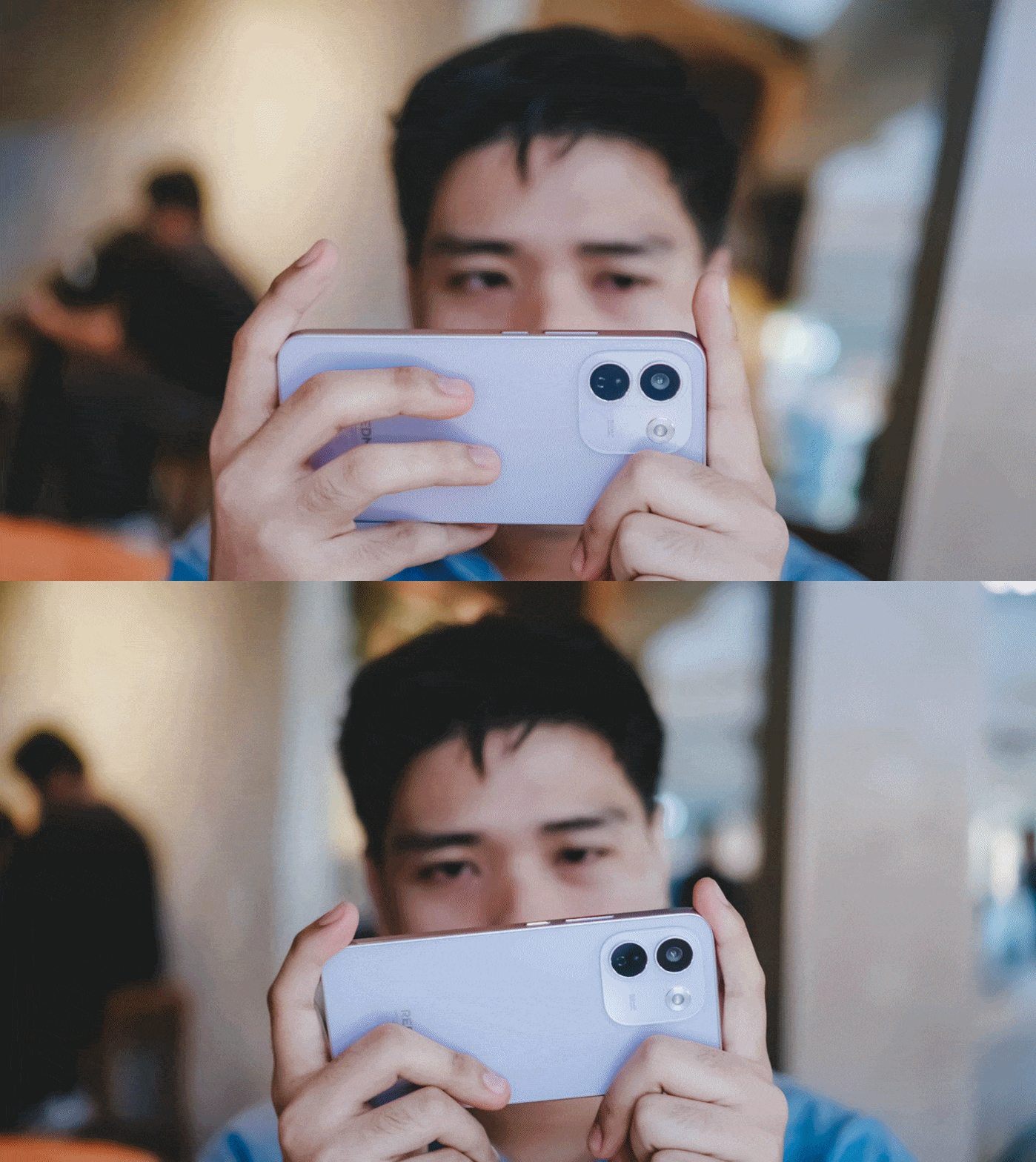
The unwanted lag and lack of effective heat dissipation is already a disappointment as it is.
Even worse, after quickly checking my social media app, the game closed right after I jumped back to it.
I know what some of you might think: This is a midrange phone with a mid-class chipset.
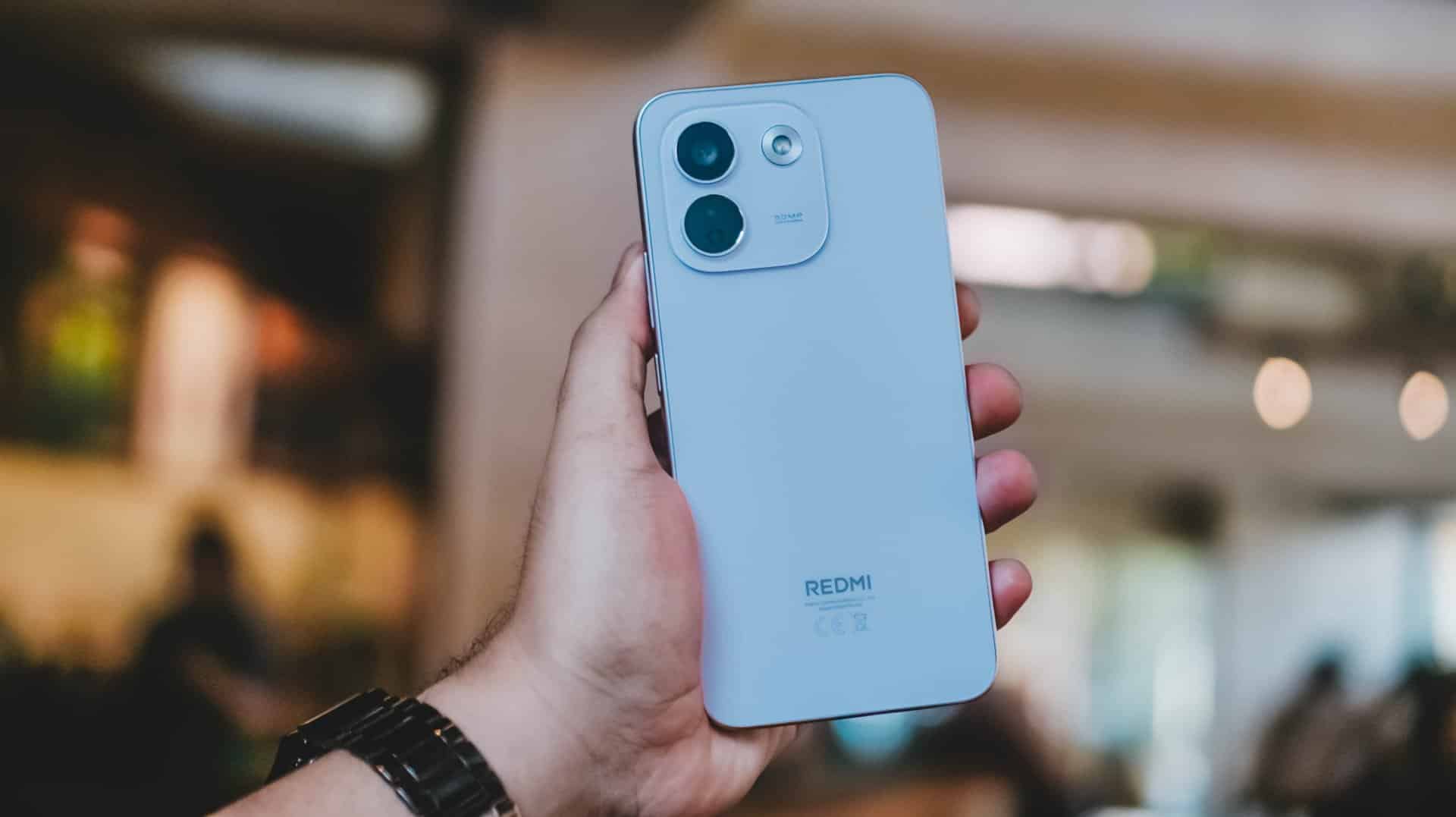
As someone who practices journalistic integrity, it’s my responsibility to share all these observations. No sugarcoating aside, this isn’t any better from REDMI Note 15 Pro+’s Snapdragon 7s Gen 4 chipset.
Still, Xiaomi changing the internals to a faster LPDDR5X memory plus UFS 4.1 storage over the LPDDR4X+ UFS 2.2 combo found in its predecessor is more than a welcome change.
Come for the cameras
The consistency continues with the REDMI Note 17 Pro Max sharing the same camera system as its Pro brother.
ICYMI, it’s a combination of 50MP main (1x wide) and an 8MP f/2.2 UWA (Ultra-Wide Angle) lens.

Admittedly, I was about to make this part short. However, my curiosity dared me to compare it to its Max-less sib.
With a wider aperture of f/1.5 (versus f/1.8), larger 0.8µm sensor (over 0.64µm), and one more lens element at 6P (Pro has 5P), the REDMI Note 17 Pro Max simply has the upper-hand despite those “small” gaps.
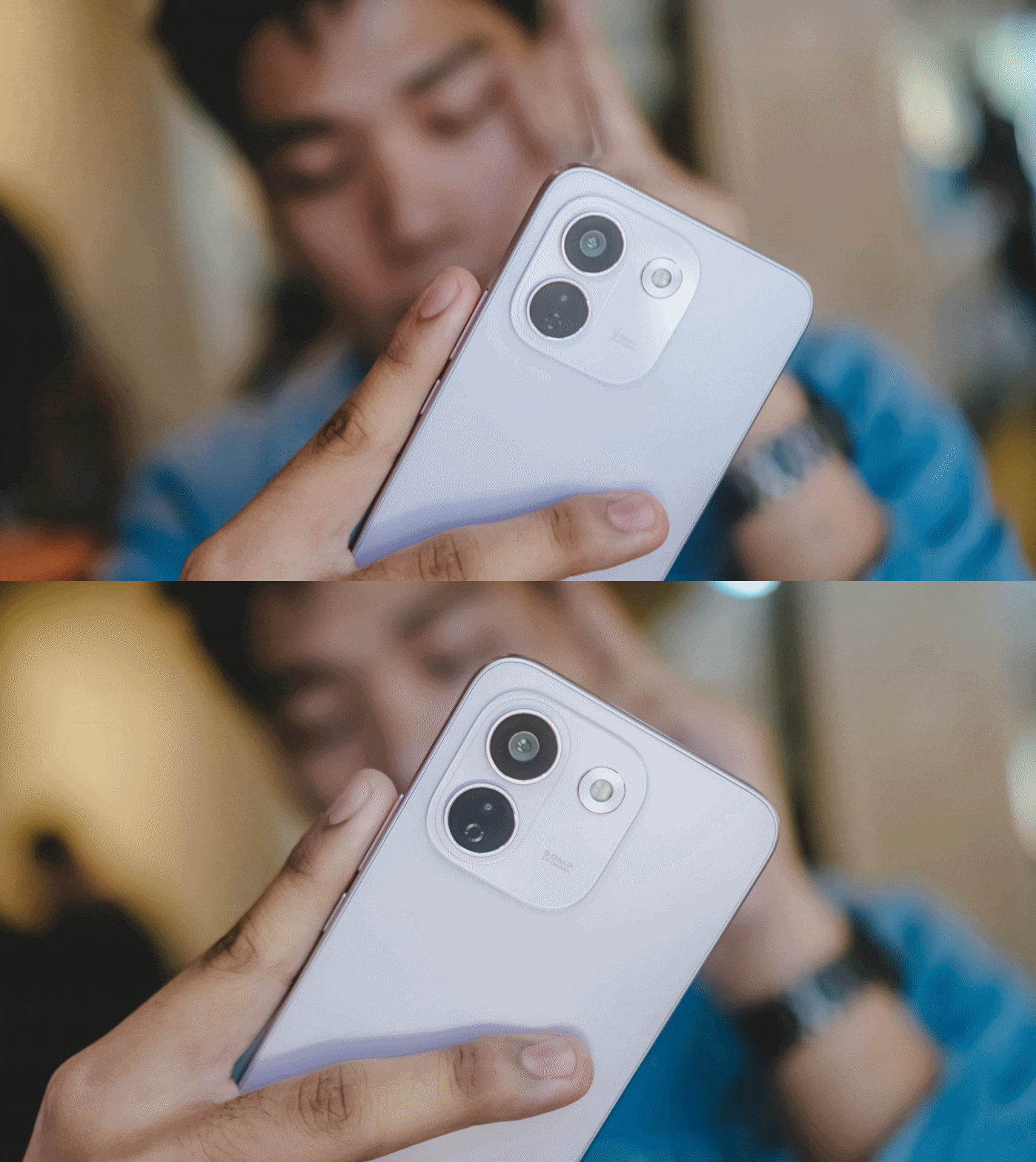
And, as much as how we value camera hardware, the chip equipped within surprisingly matters.
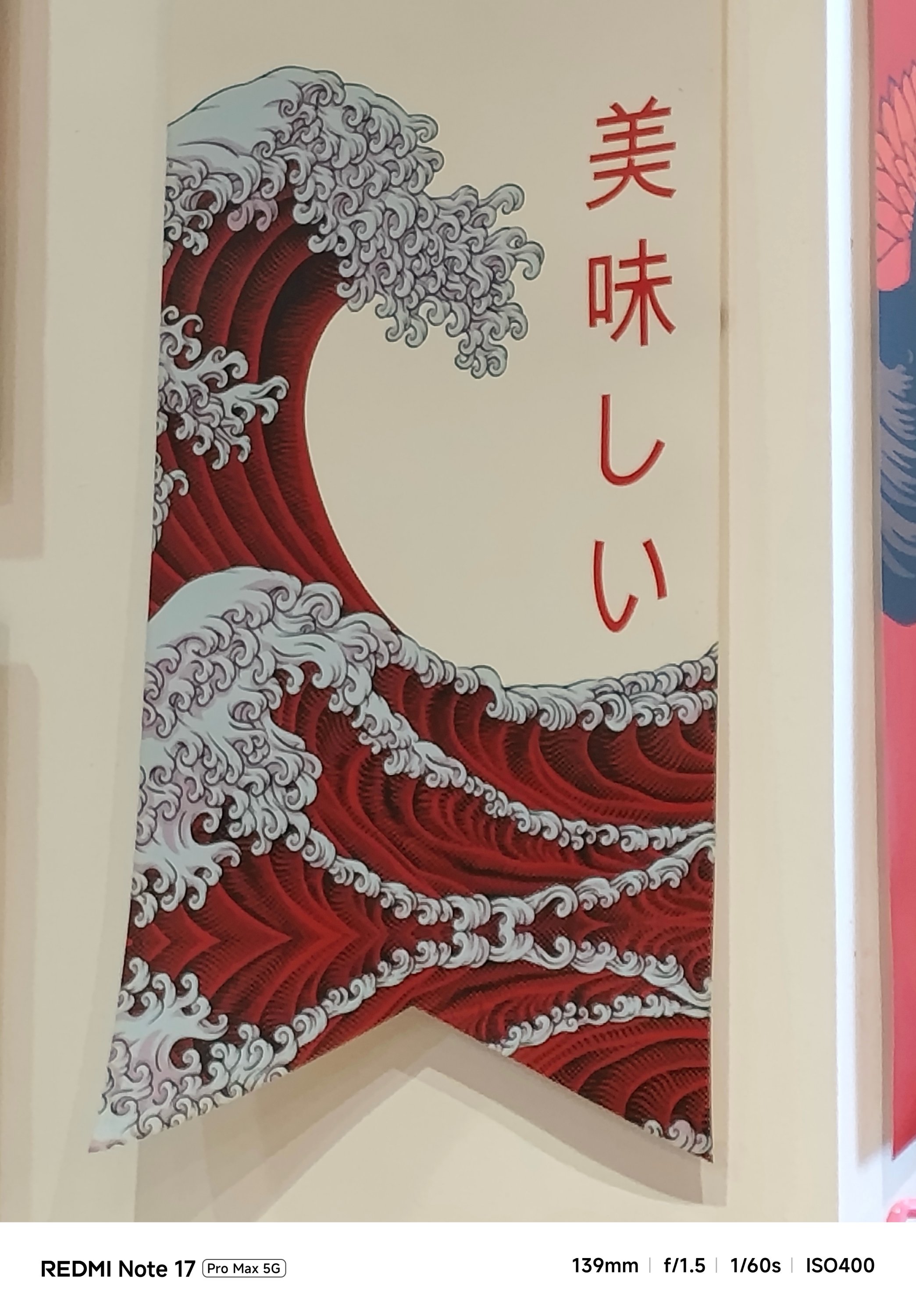
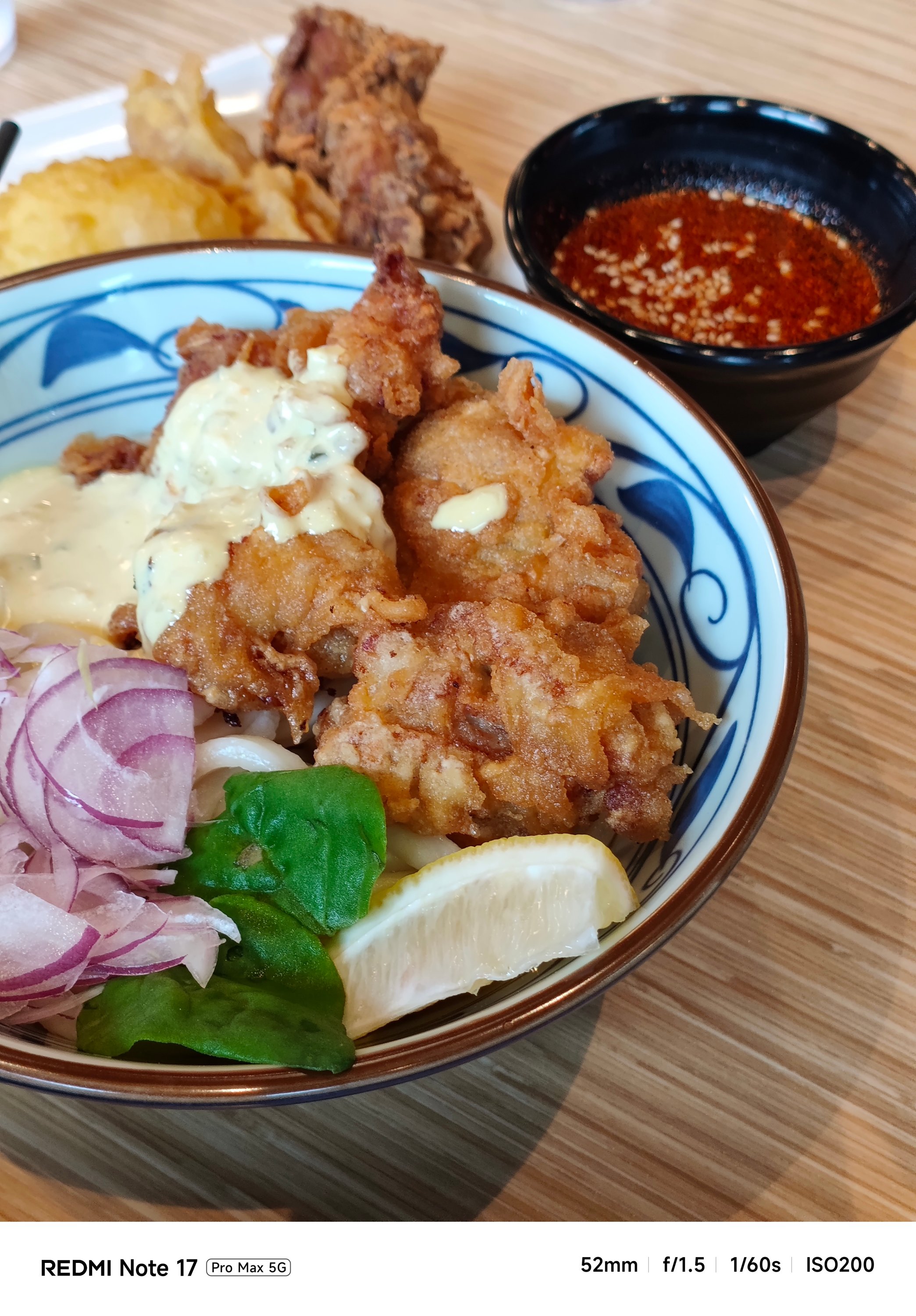
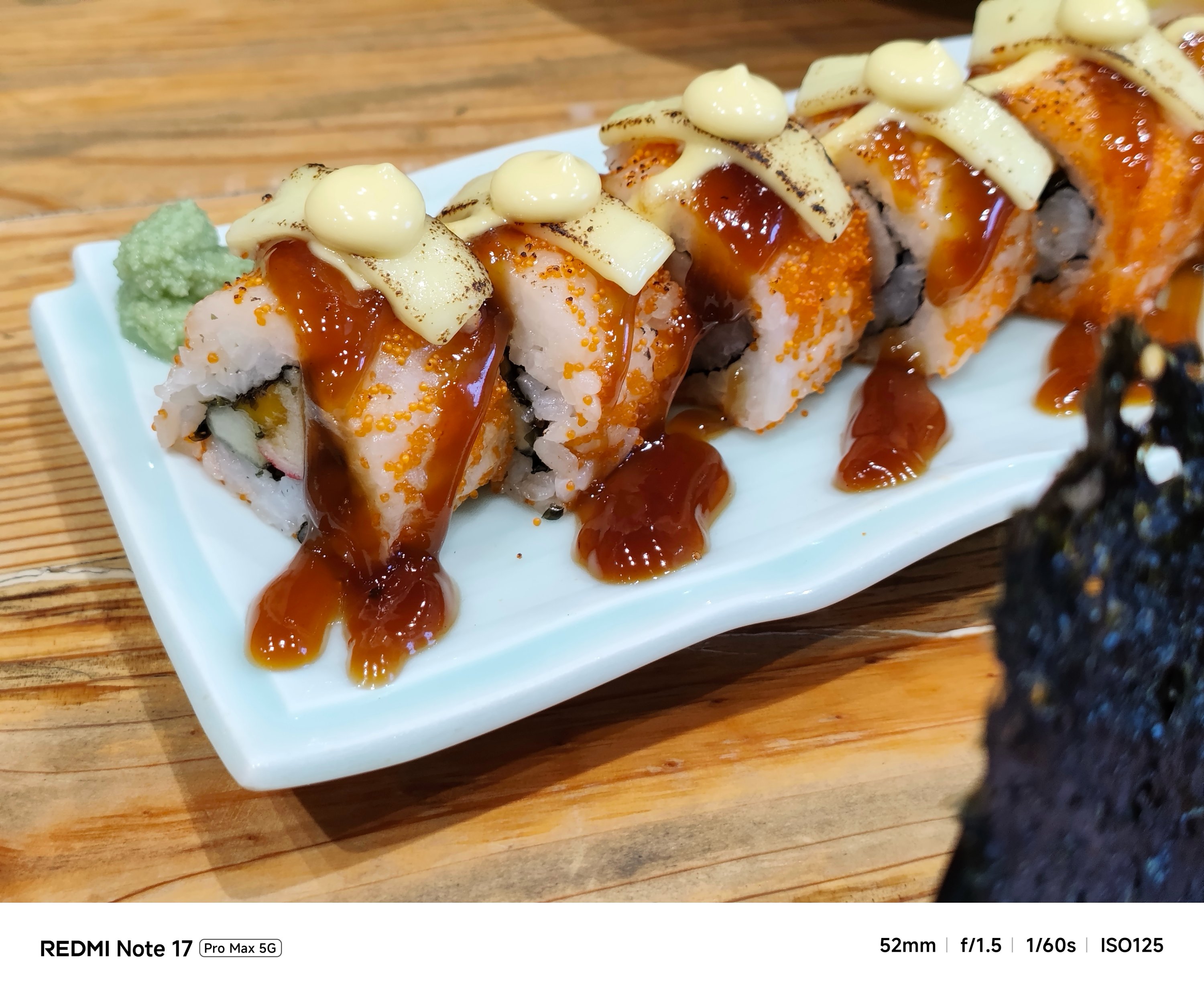
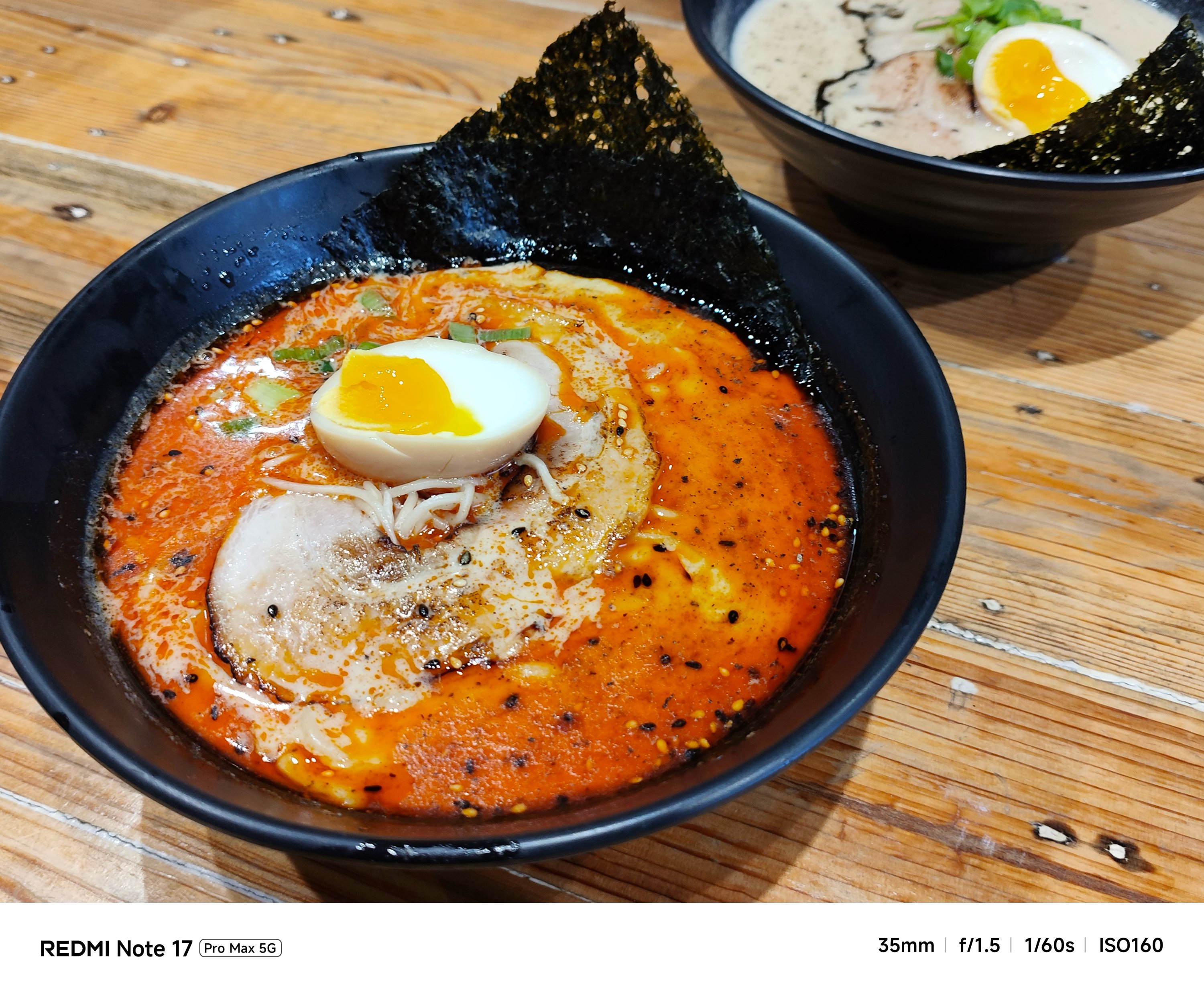
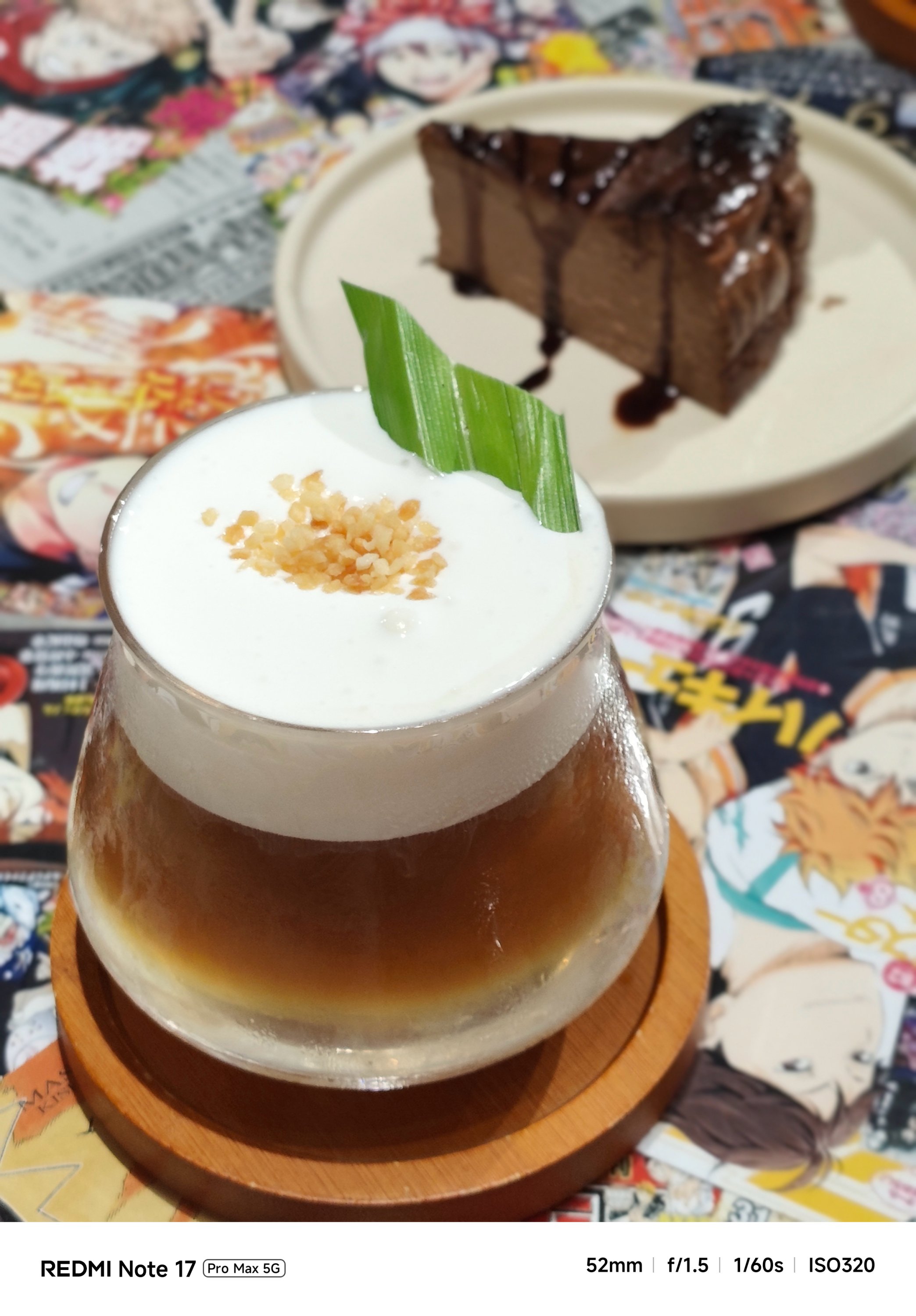
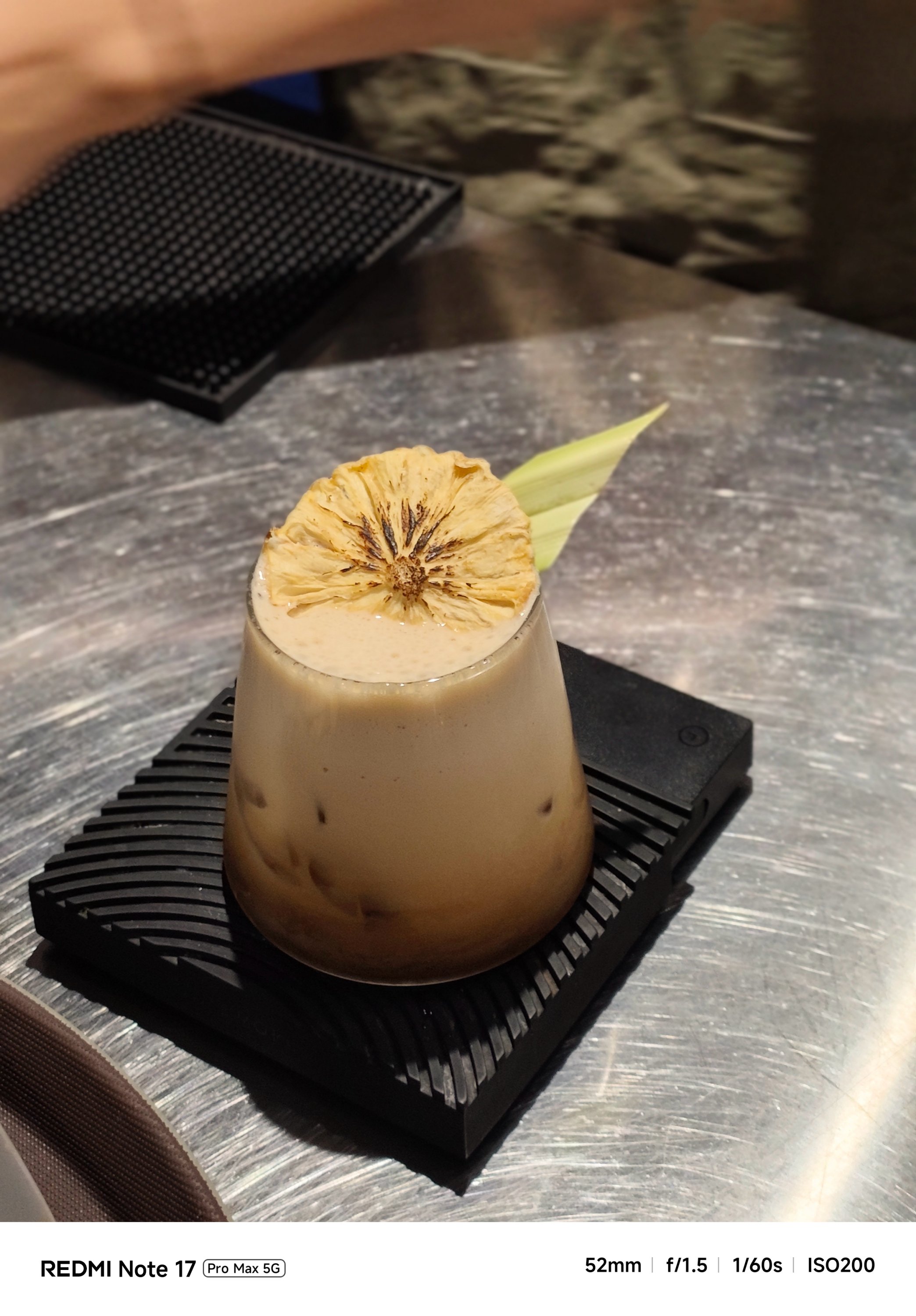
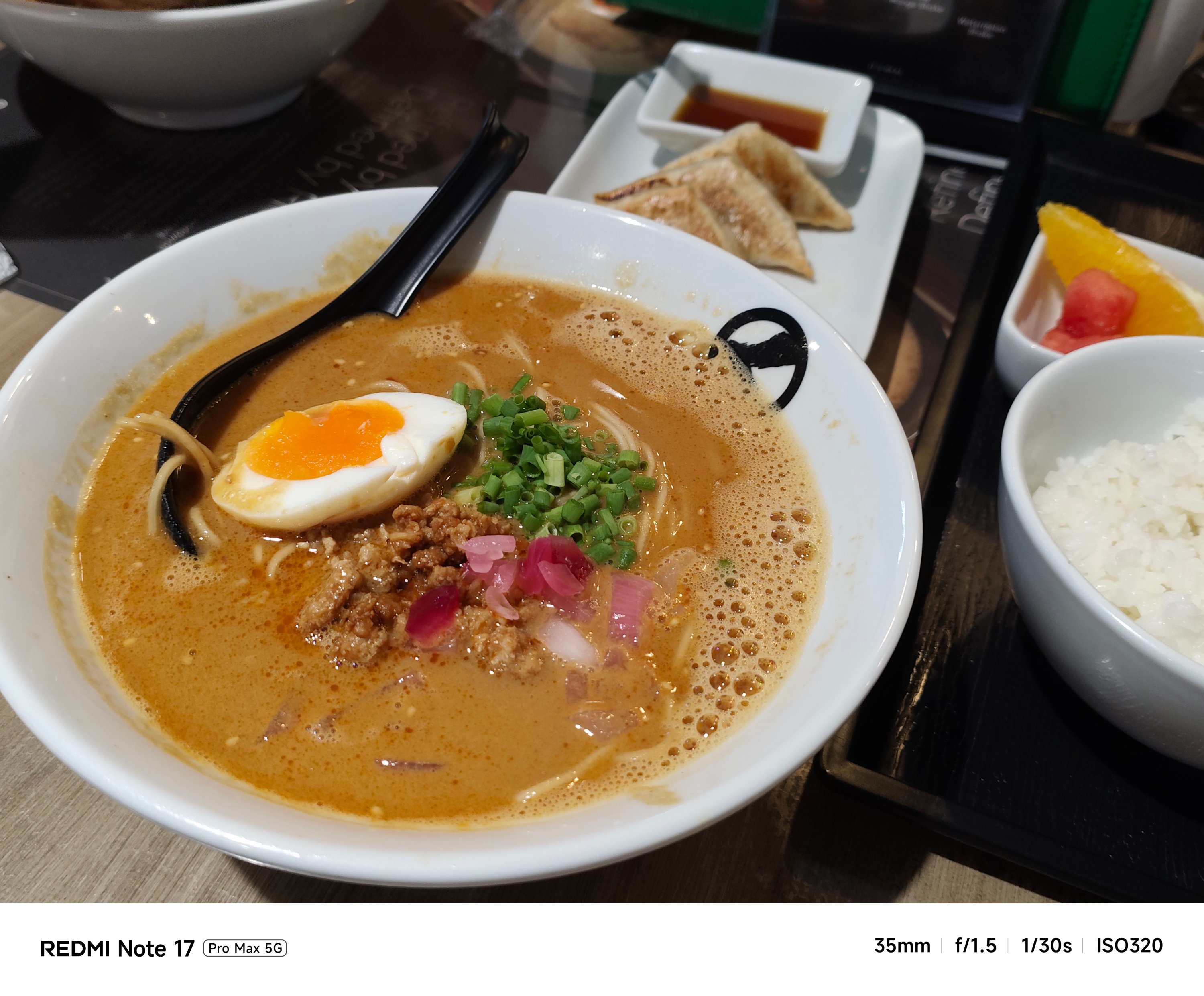

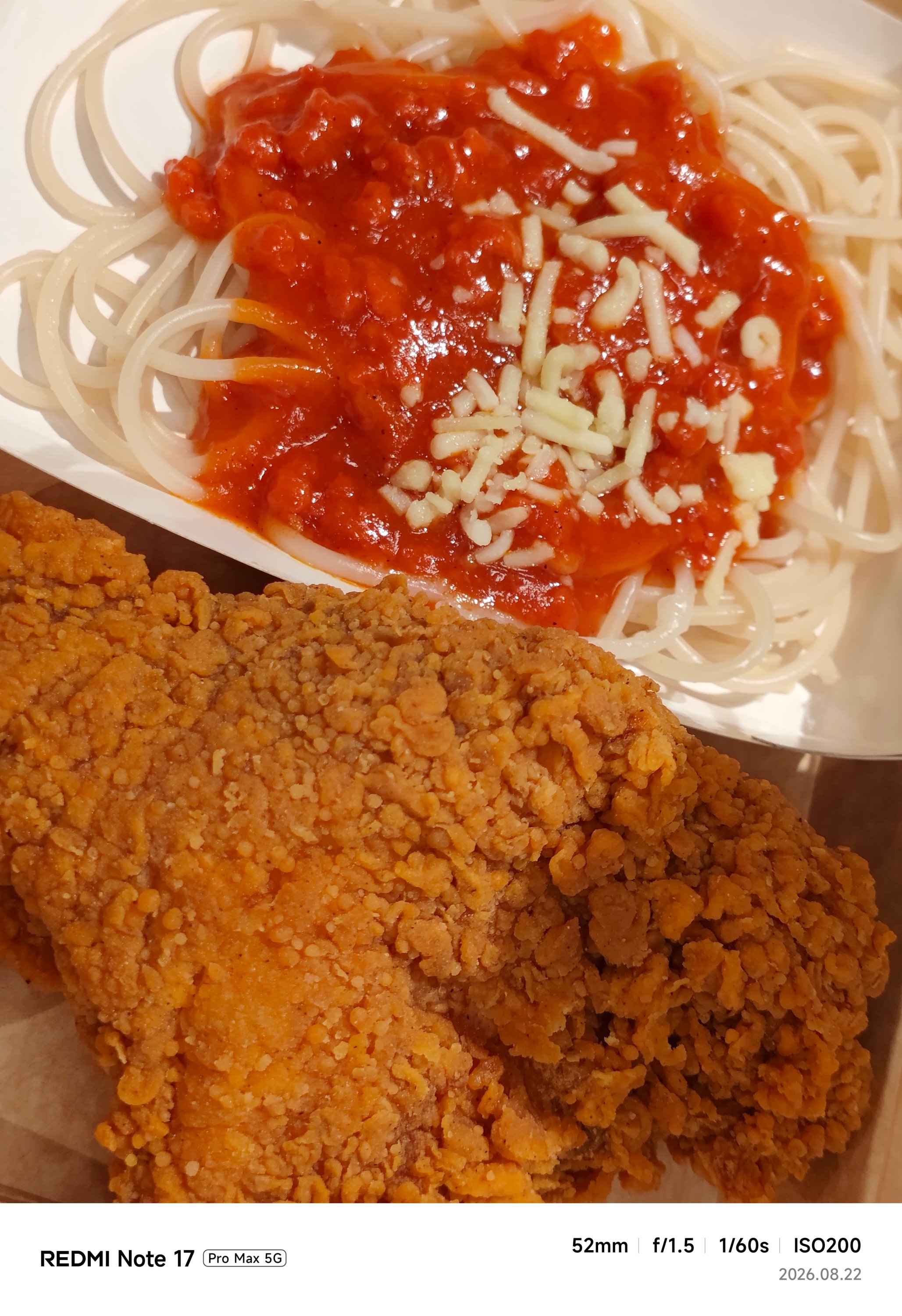



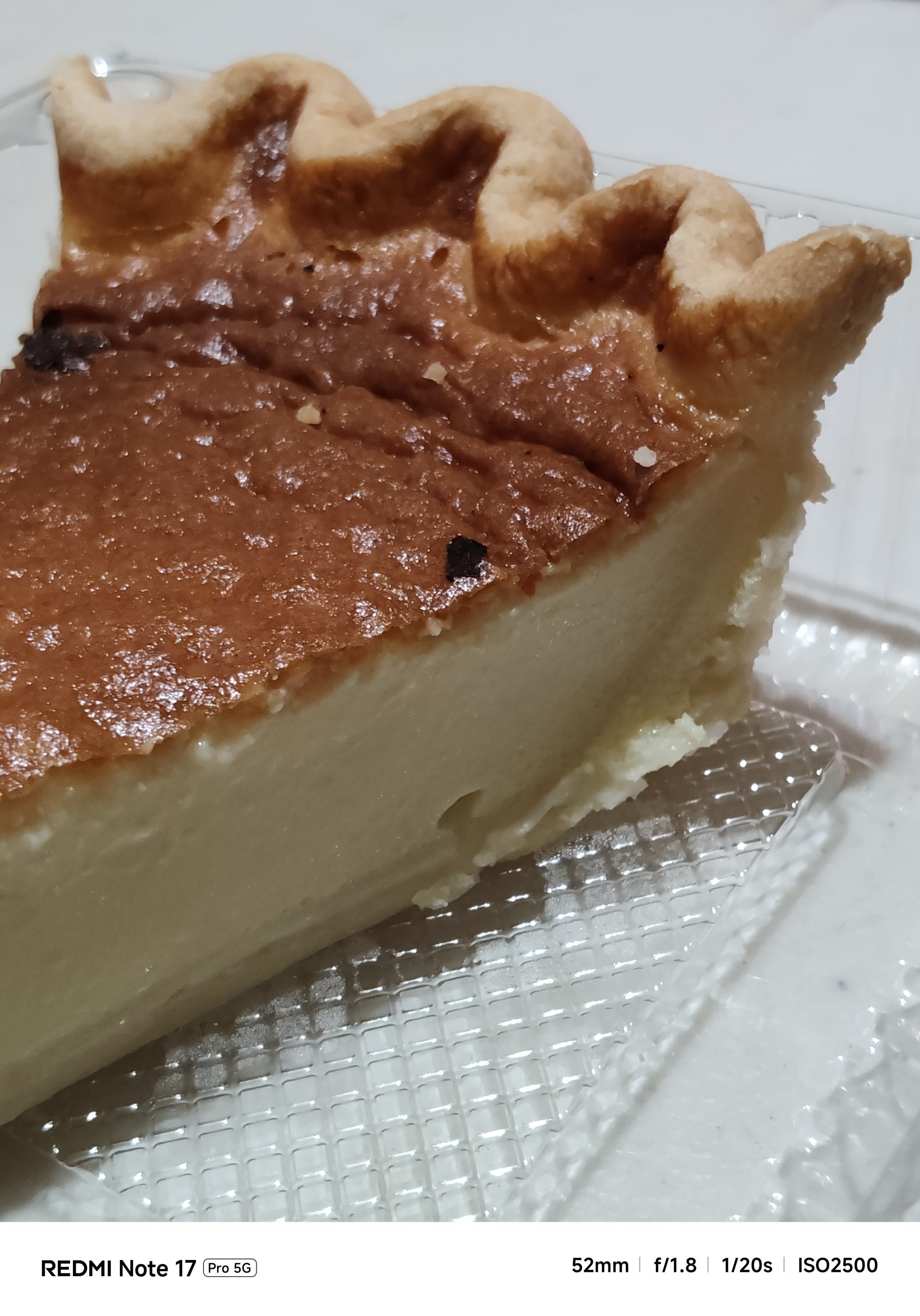
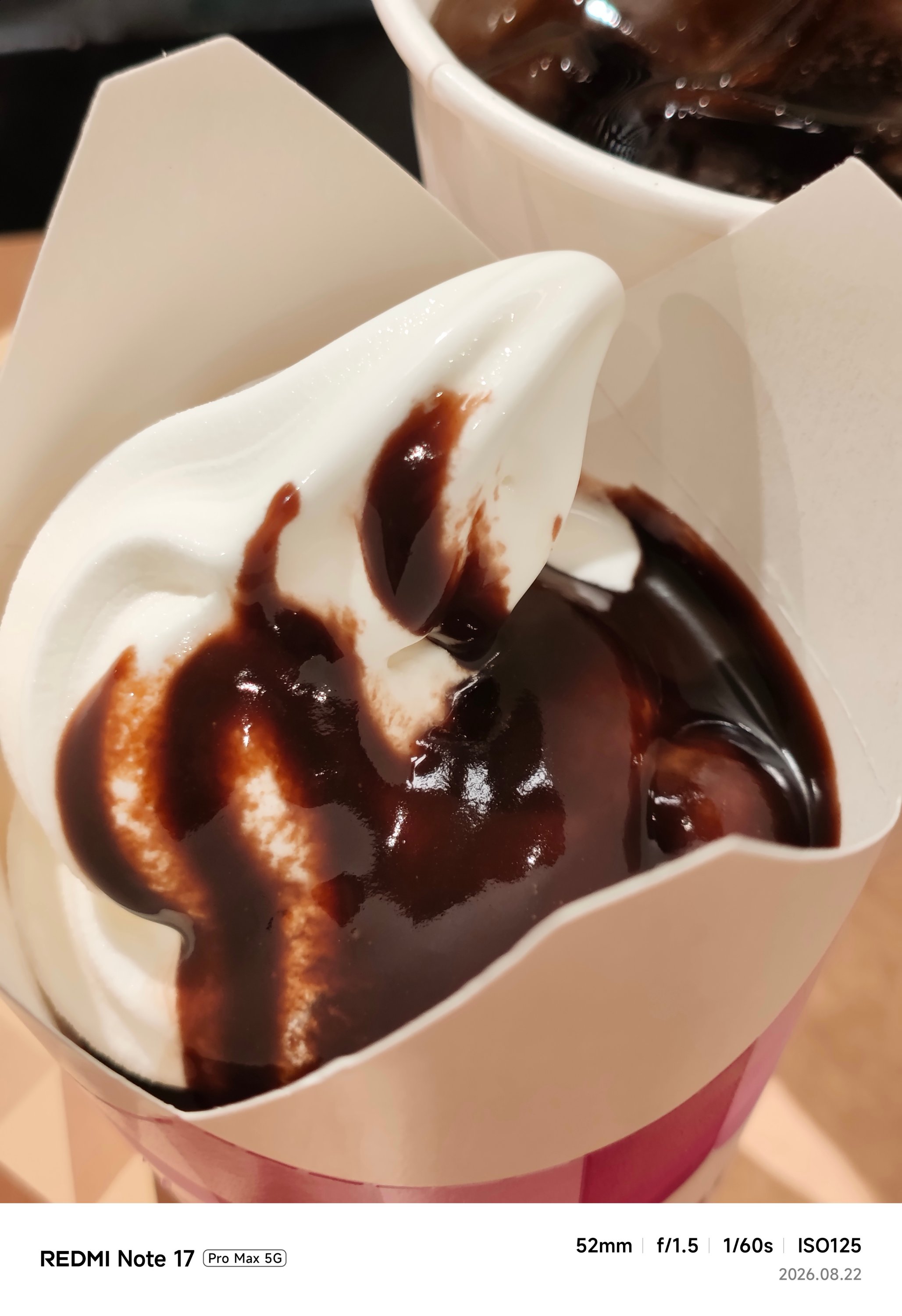
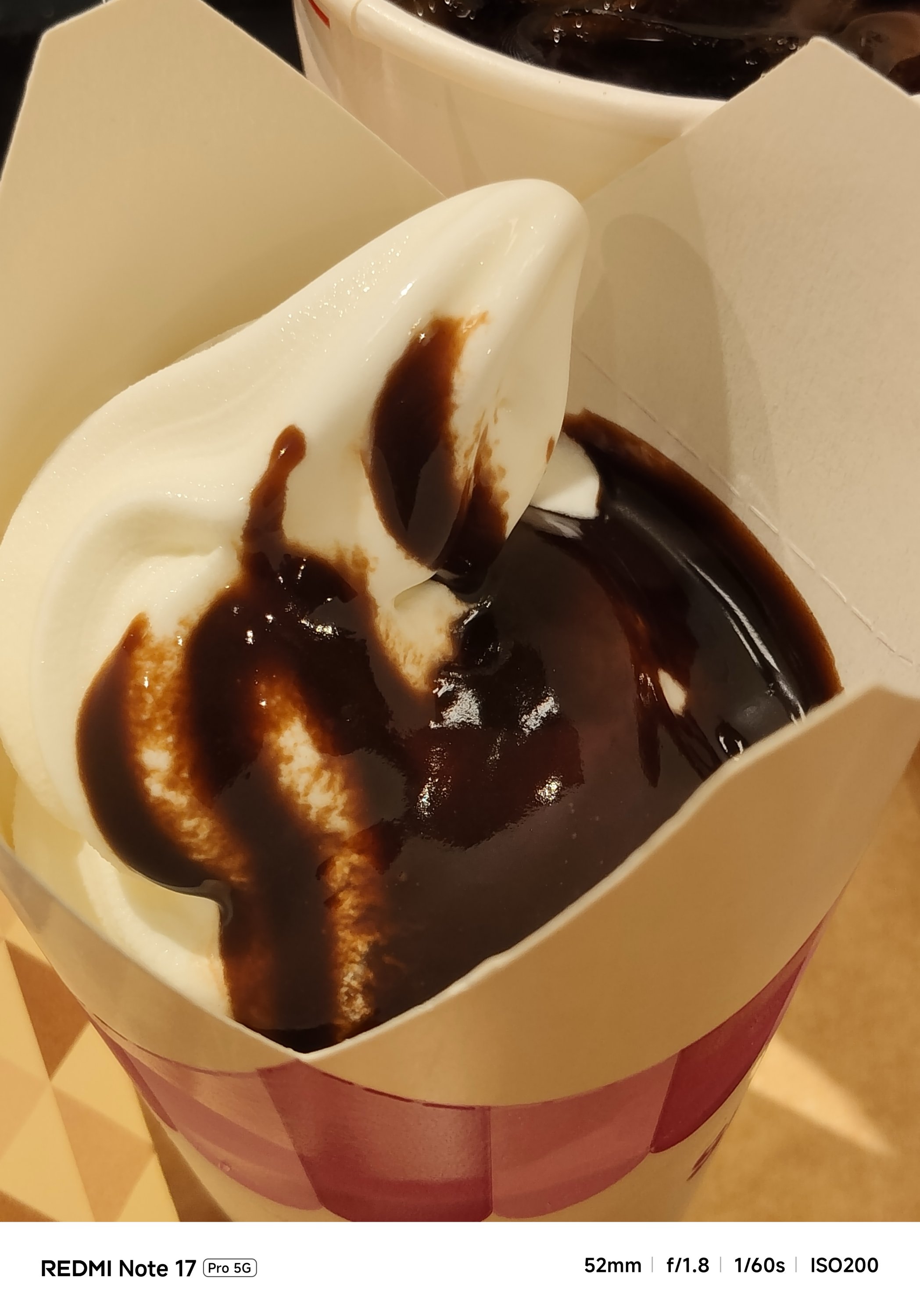
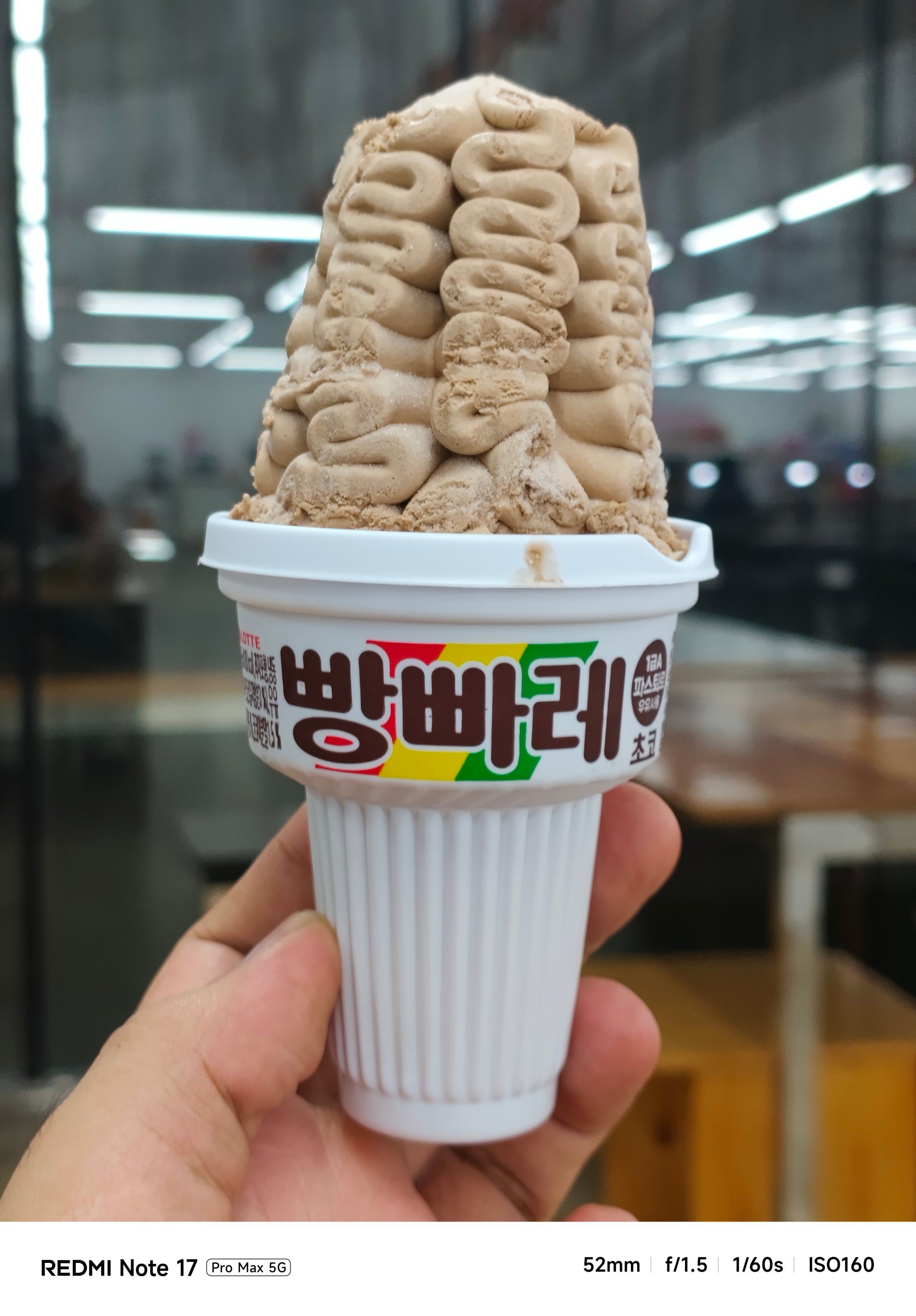
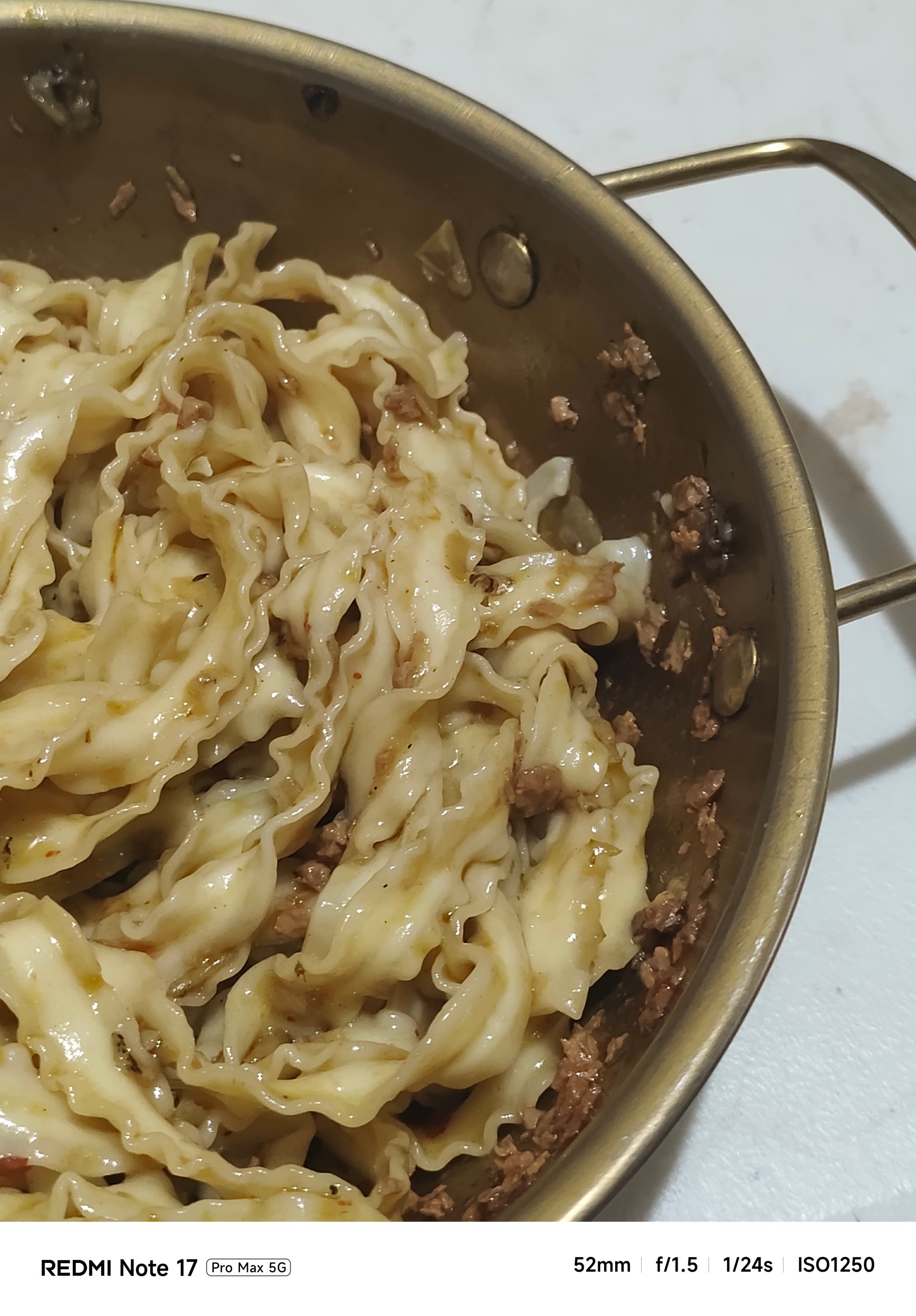
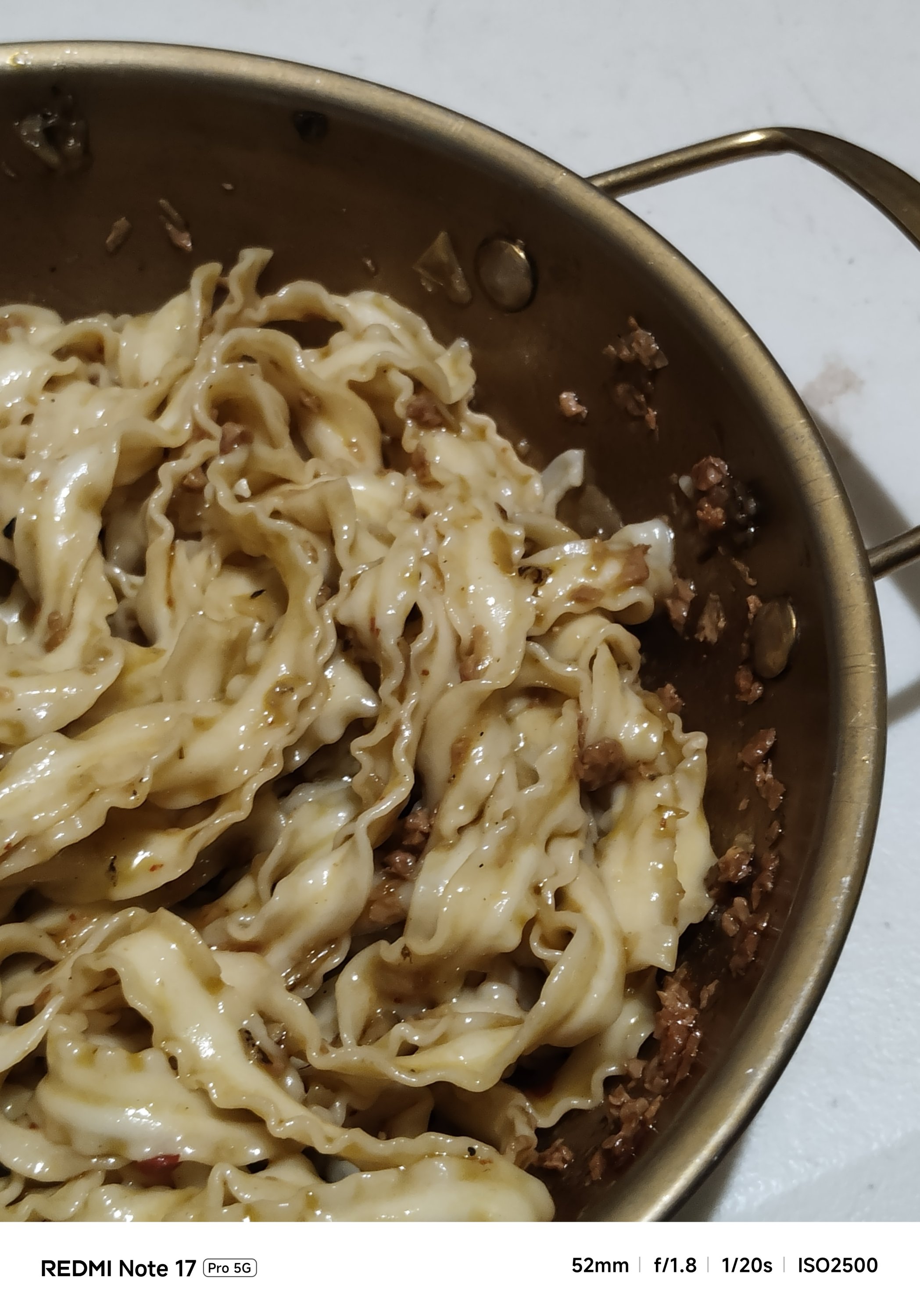
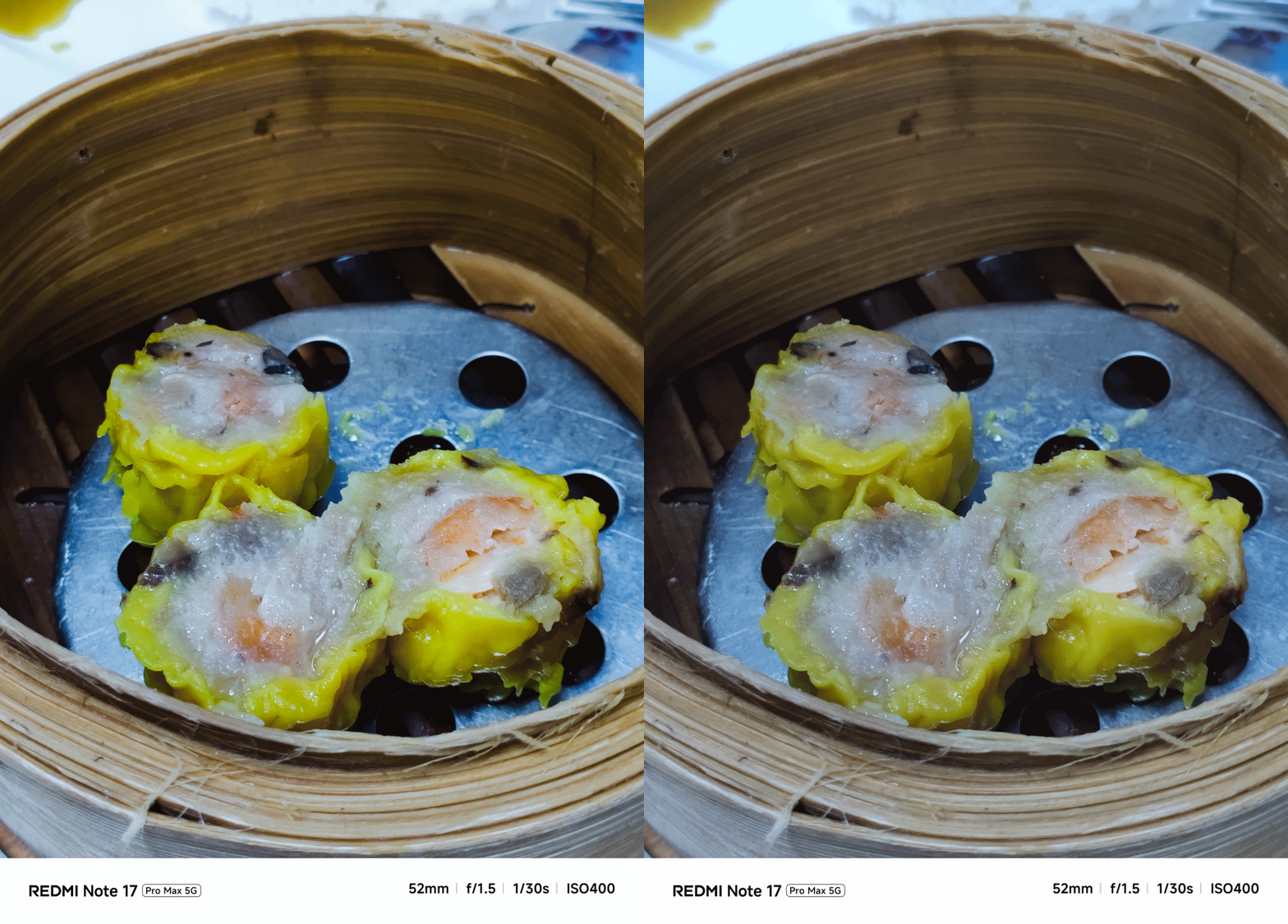
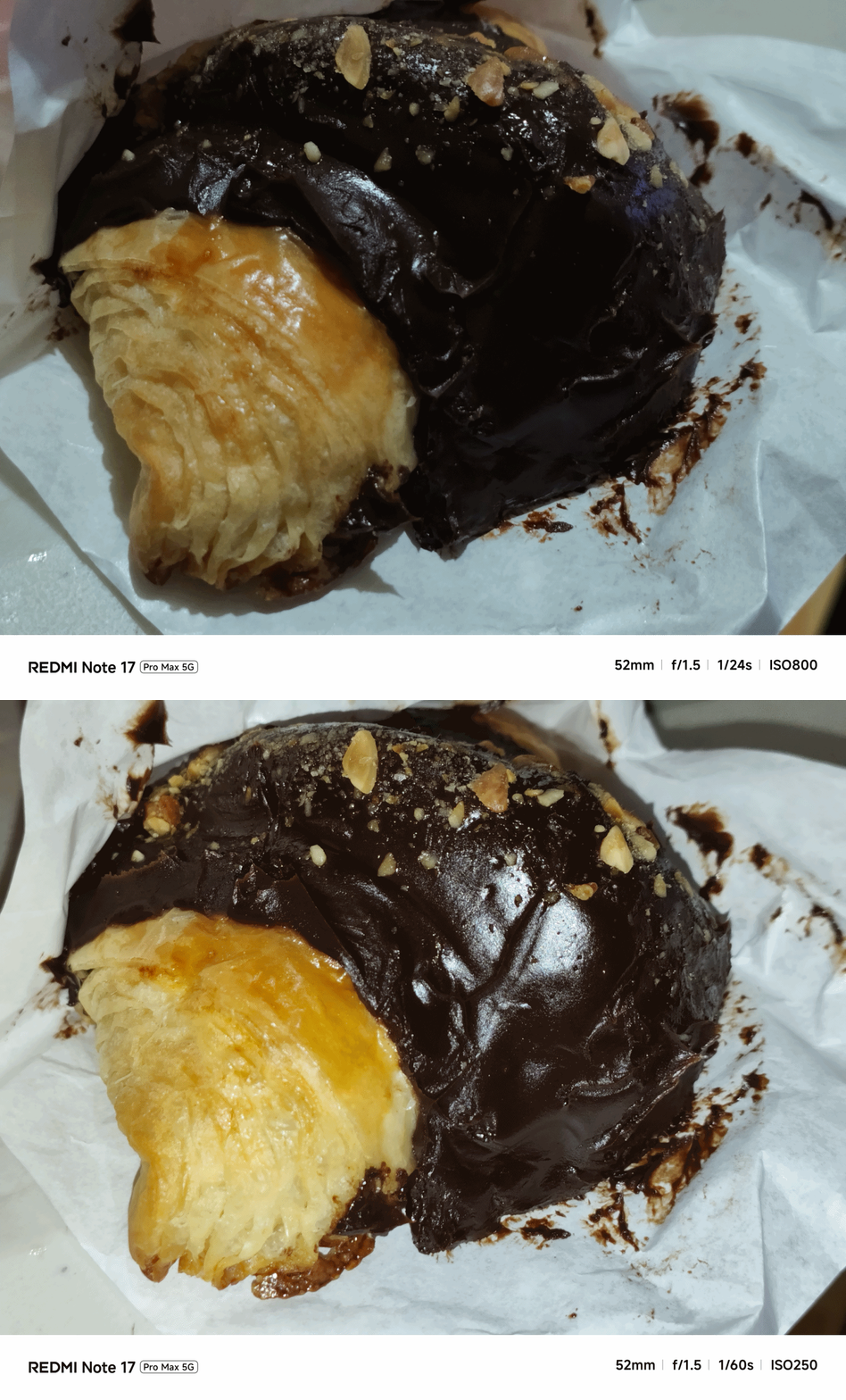
My short camera comparison proves that a different SoC also produces a different image output. This is very apparent when taking food shots.
**
Left – REDMI Note 17 Pro Max
Right – REDMI Note 17 Pro
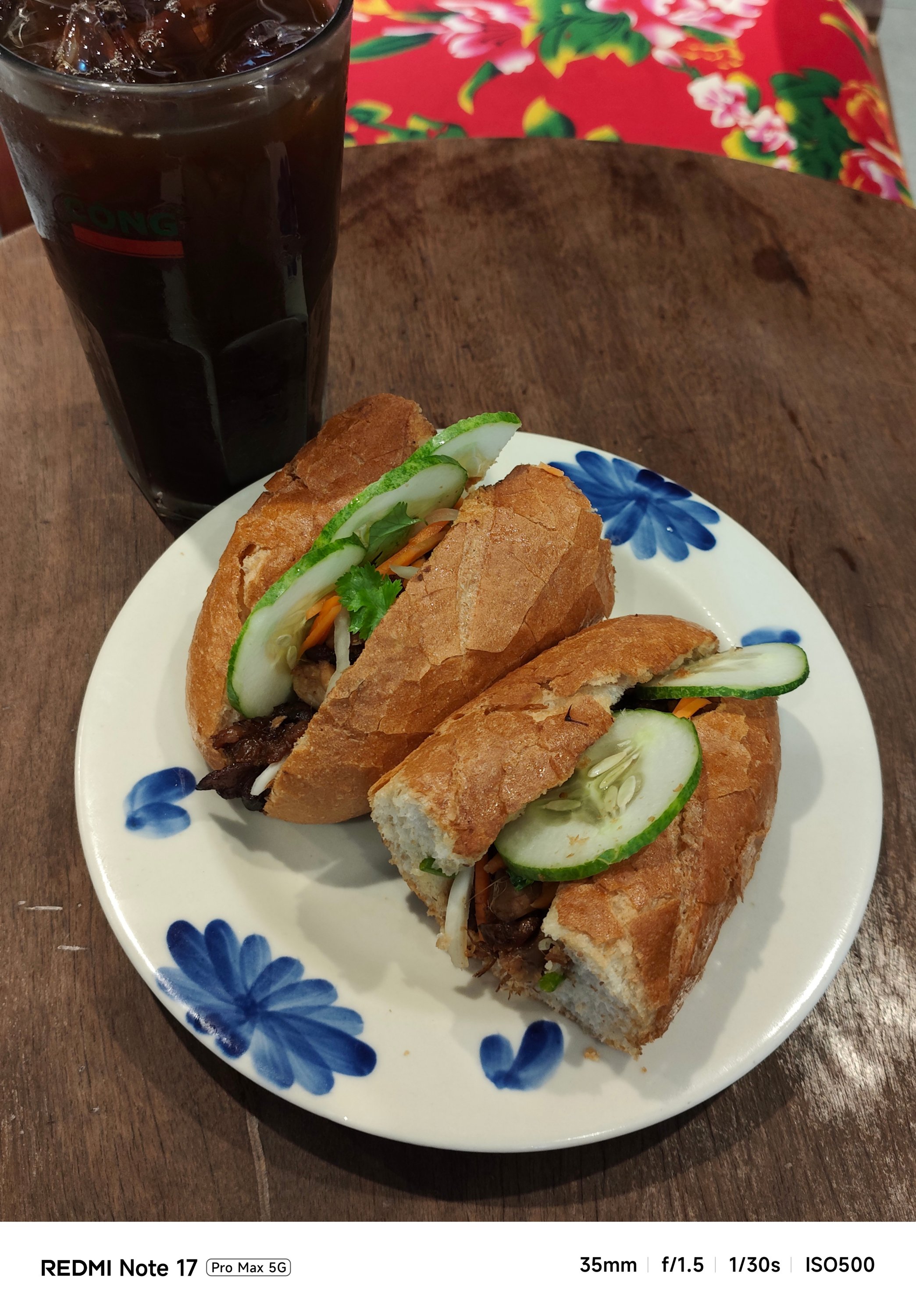
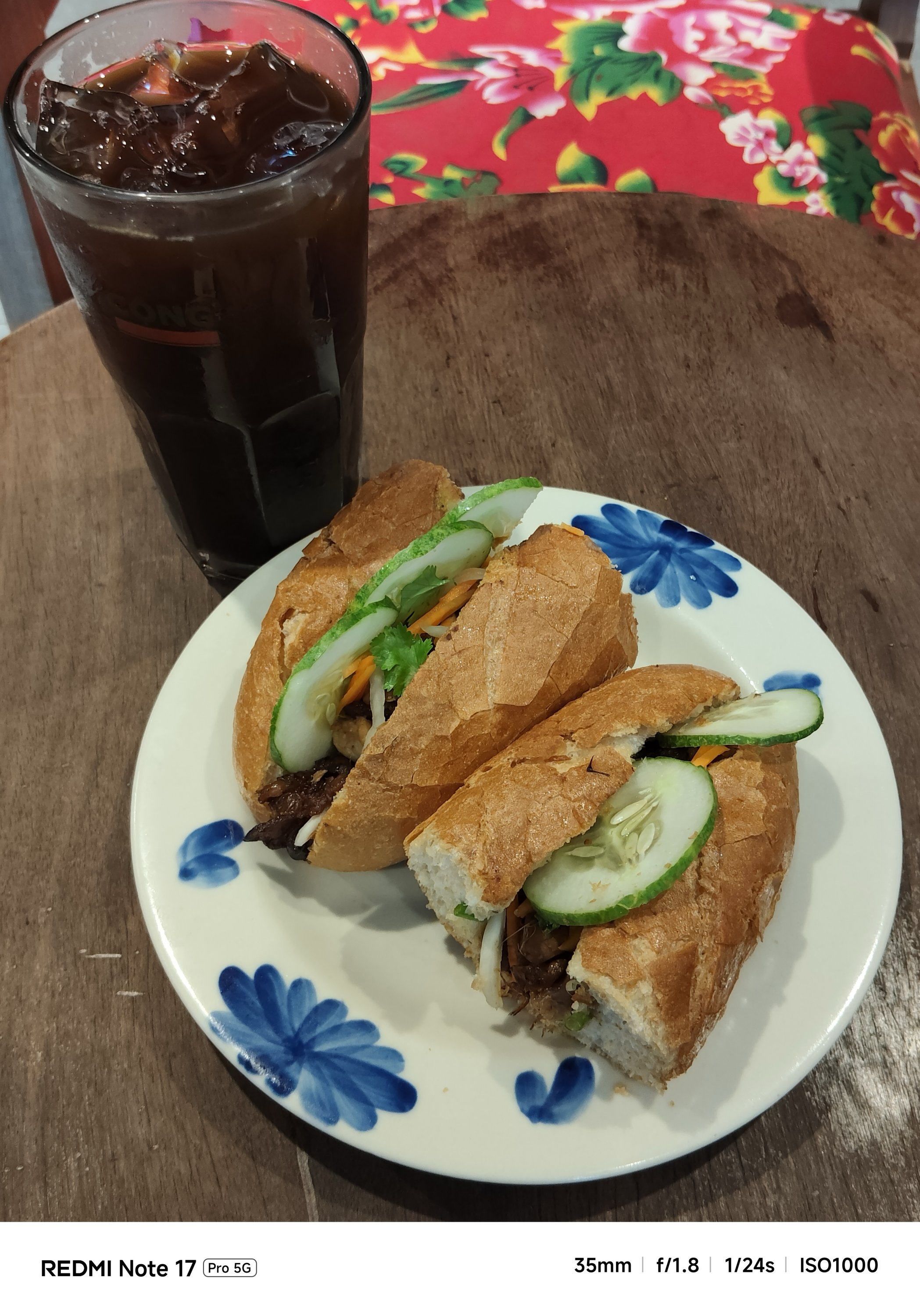
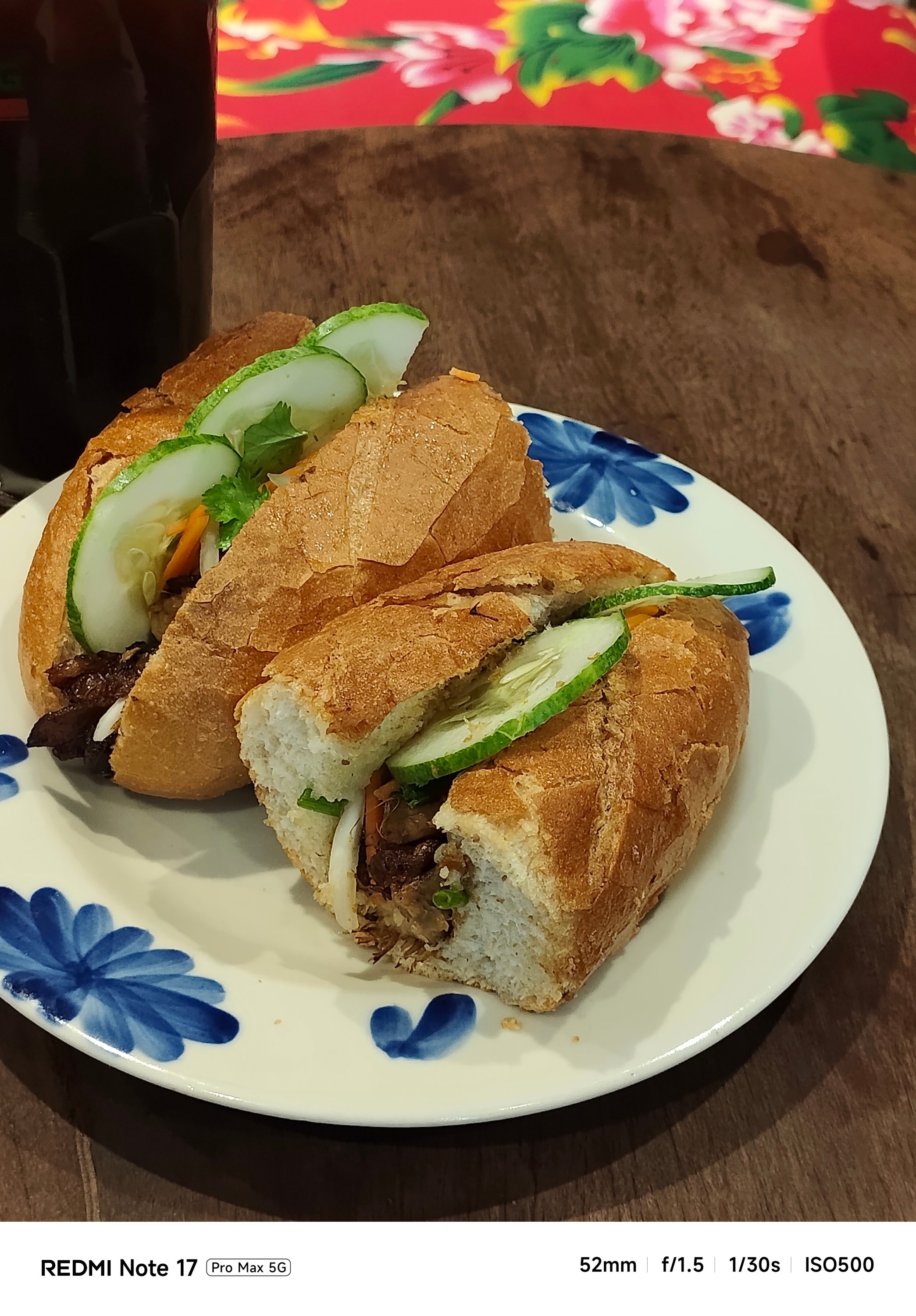
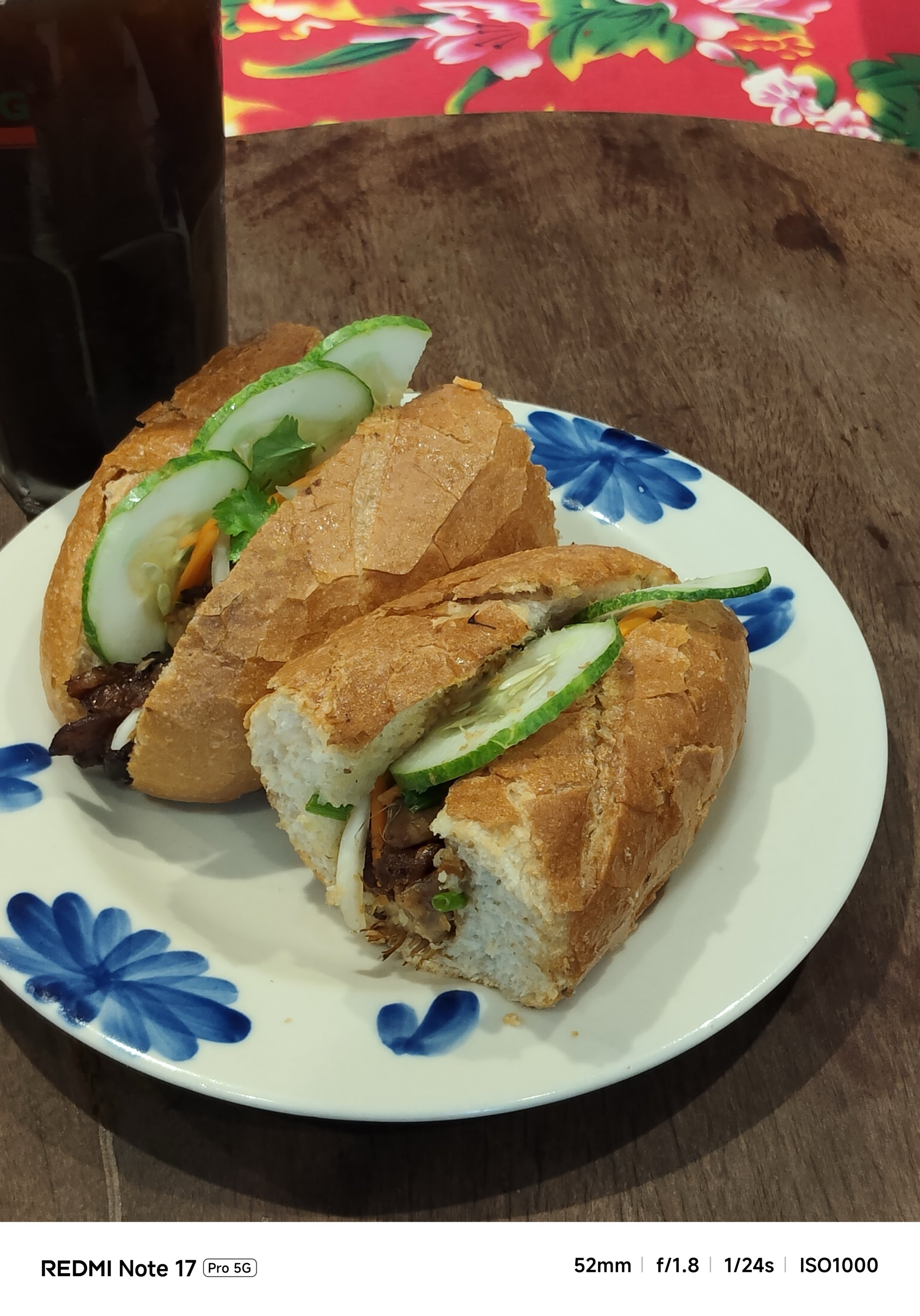
My main complaint about the Note 17 Pro is how some photos looked washed out. The bokeh falloff also looks forced.


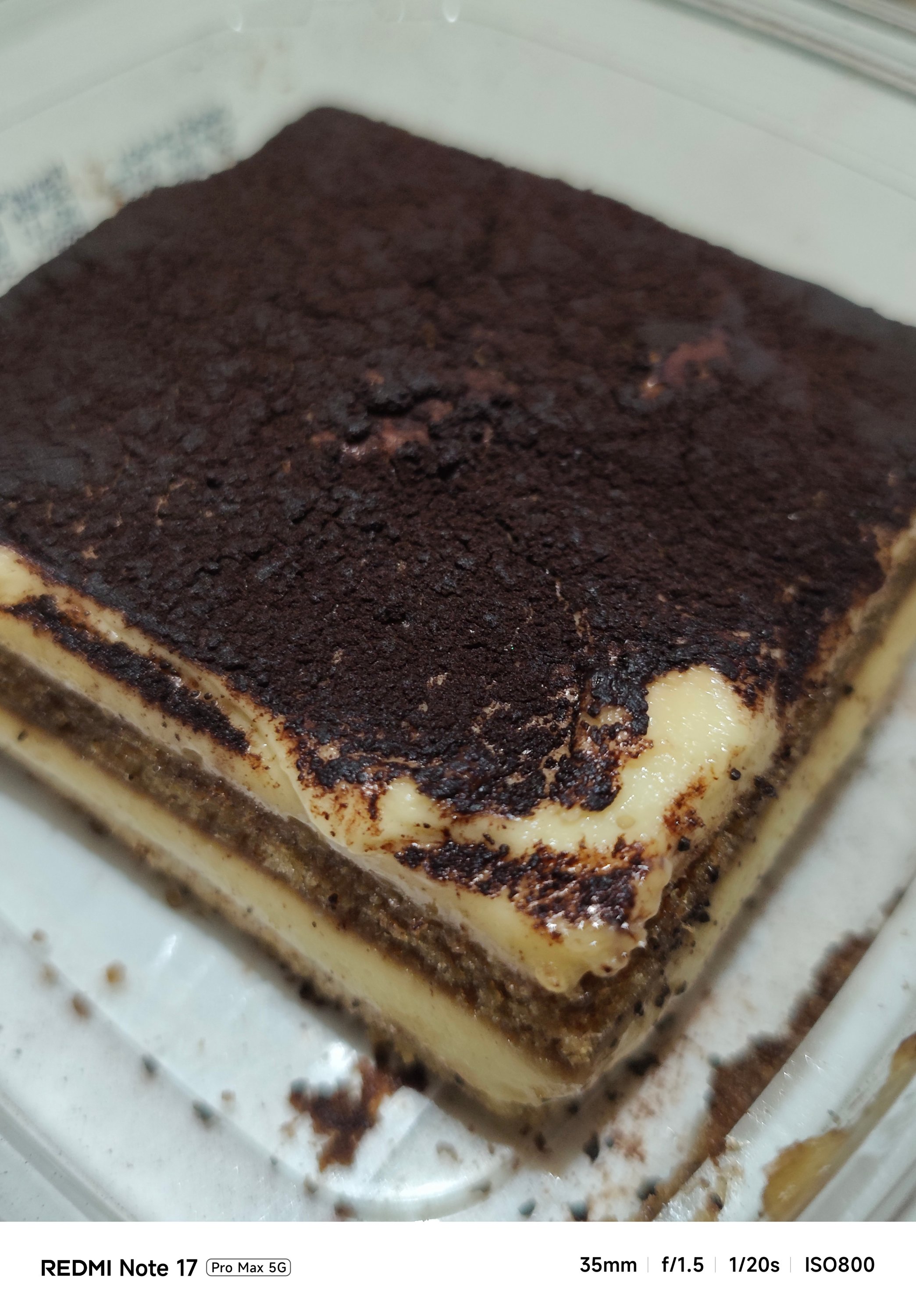


The Note 17 Pro Max also captured shots with an accurate AWB (Auto White Balance) while the latter usually leans on the warmer side.

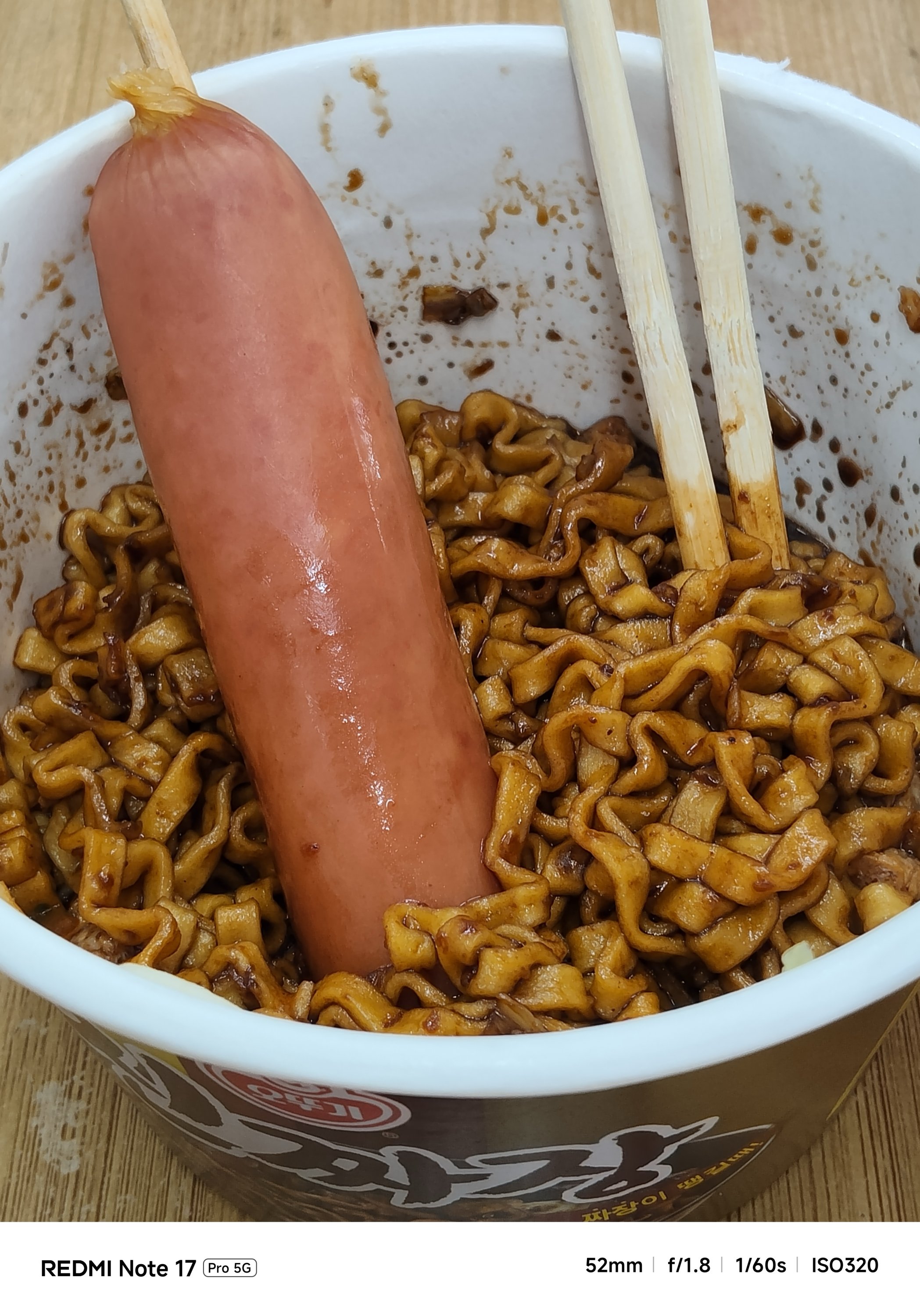
The Pro model even had focusing issues. That’s even after installing the latest software updates for both phones.

If you’re not satisfied with its regular output, there are built-in color filters and always-on flash in the camera app for that added flair.

With the lack of a dedicated telephoto lens (for both), it’s expected to have an AI-improved output.
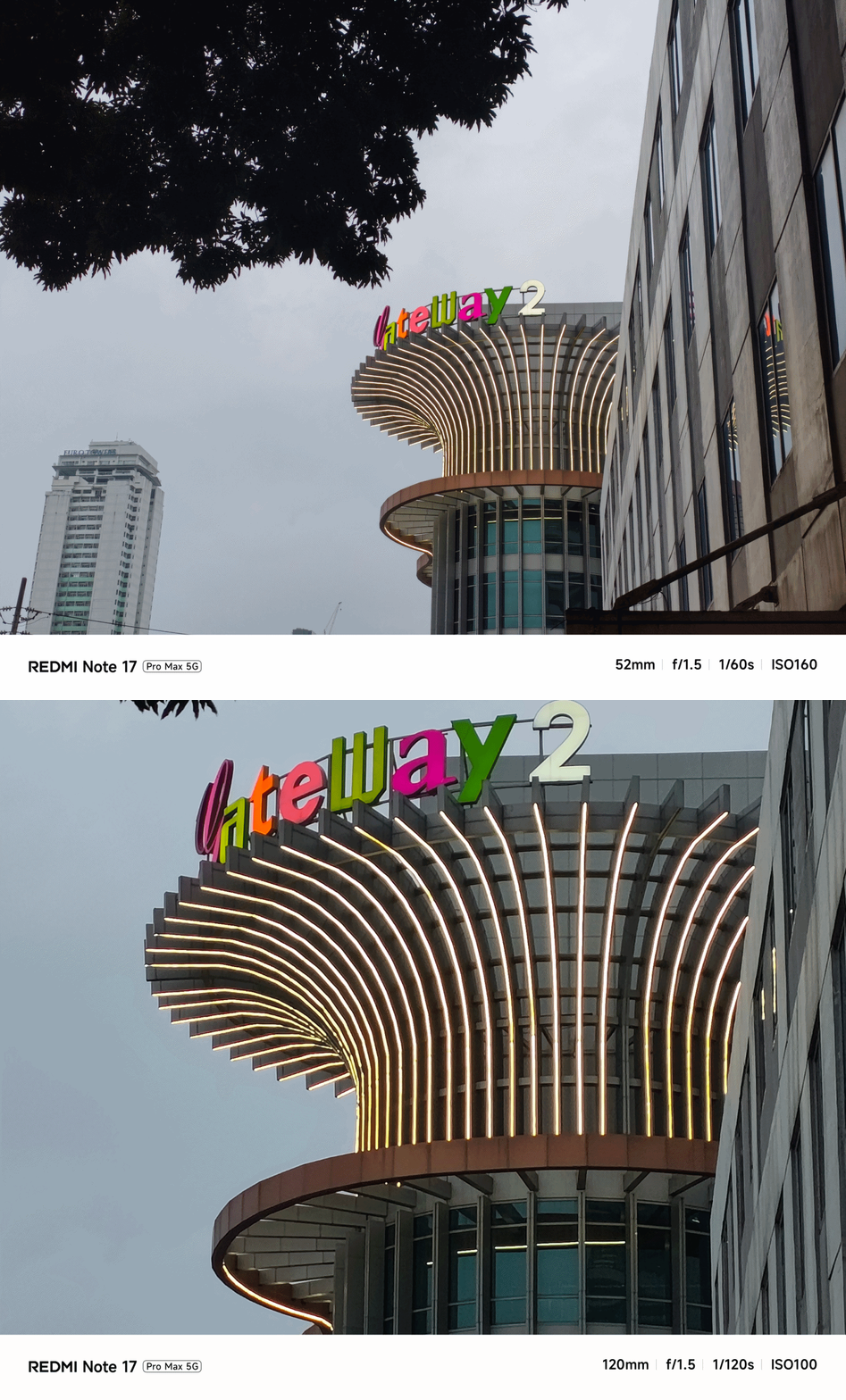
Even its UWA shooter produced better results despite having the same lens module.

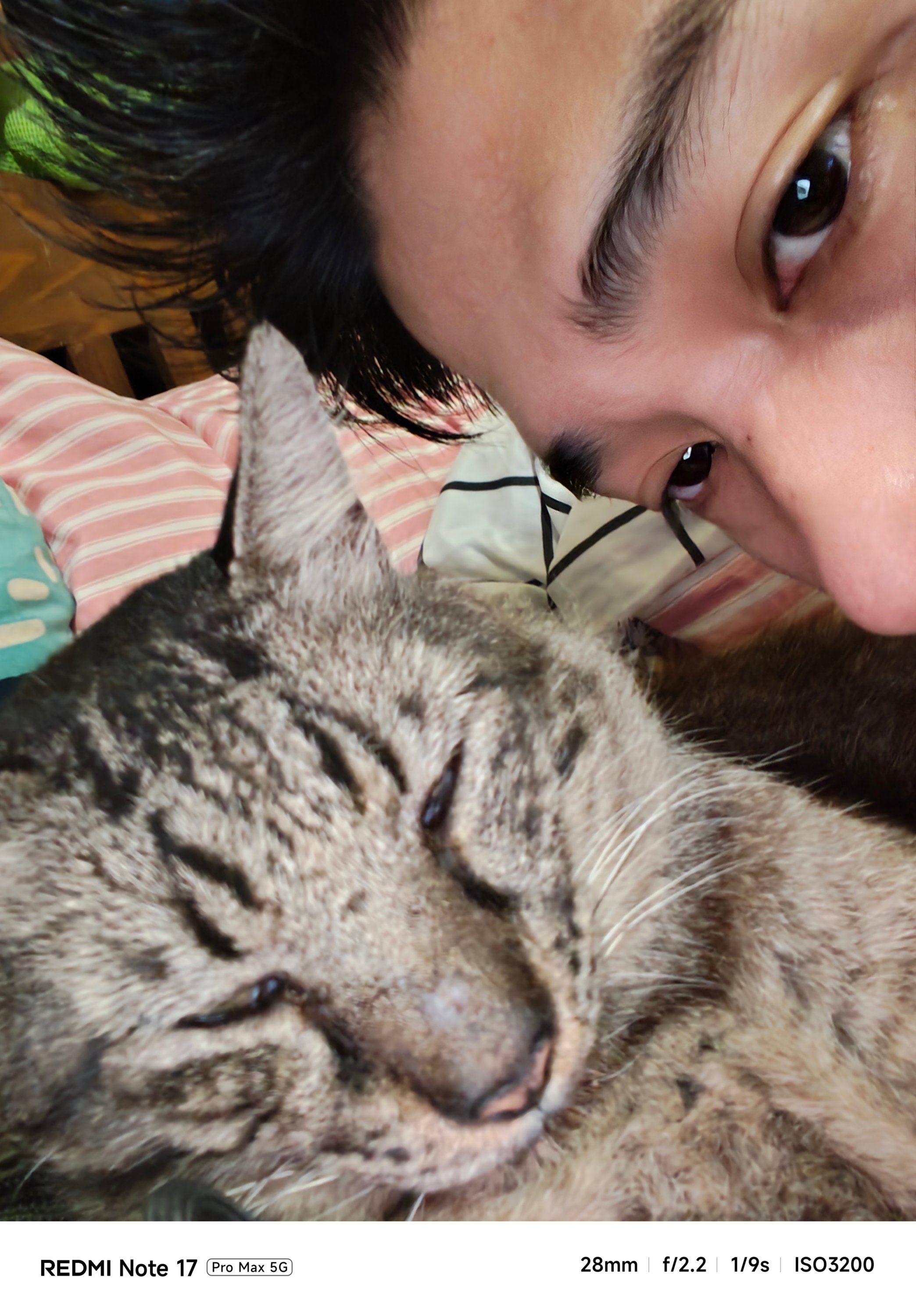
Safe to say, I enjoyed using the cameras of the Pro Max a whole lot more. Whether those are taking mementos of frisky fur friends…

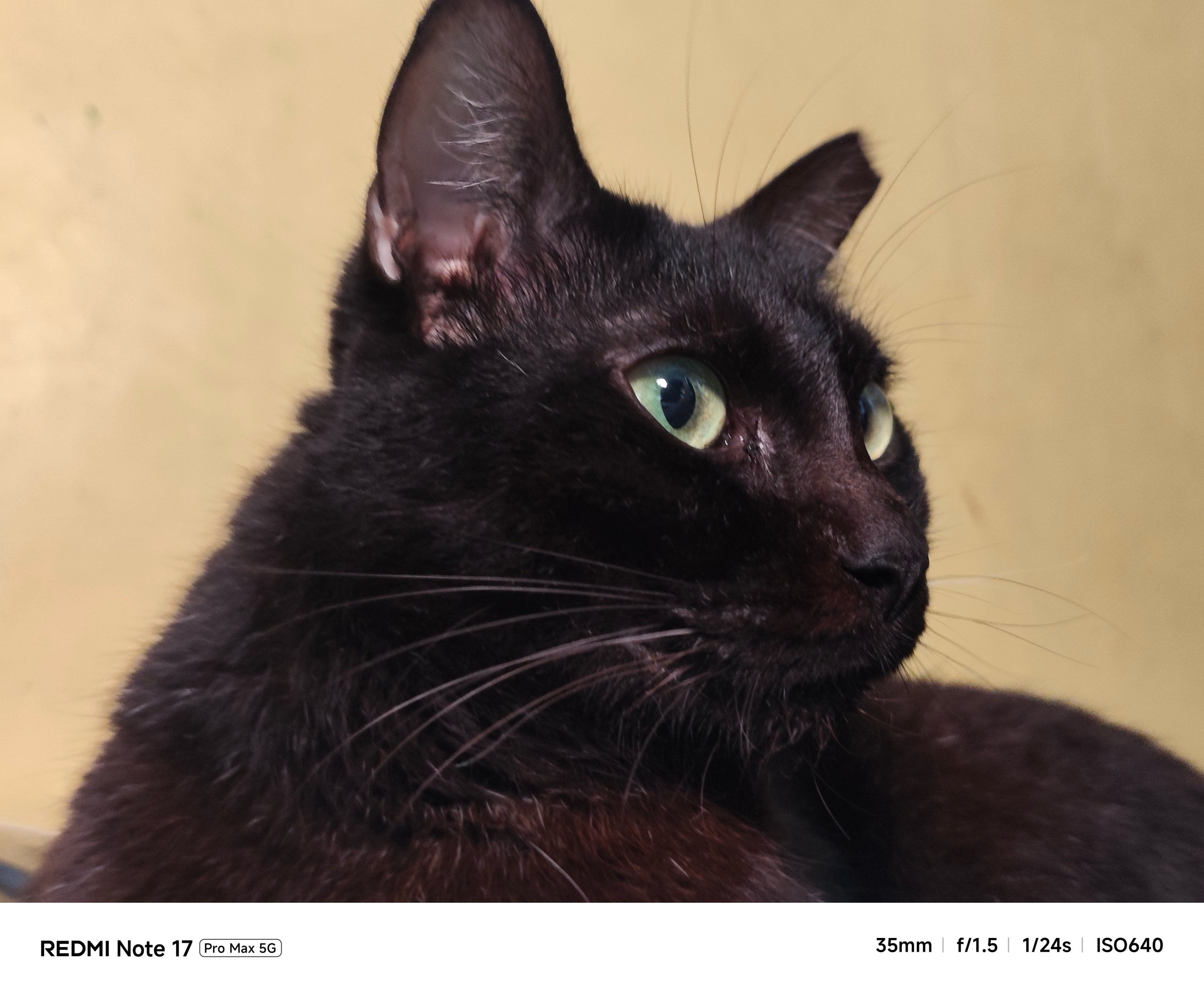


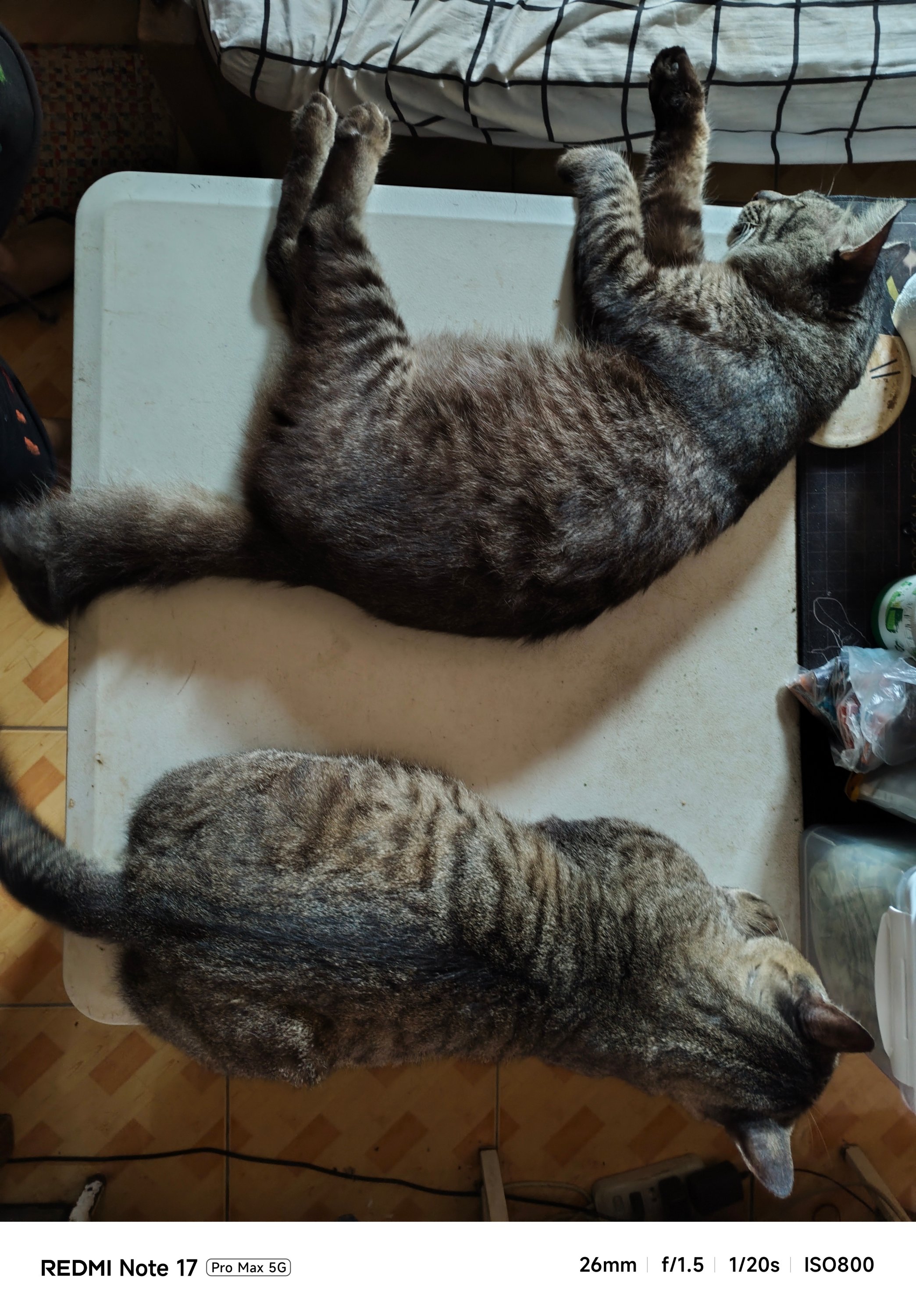
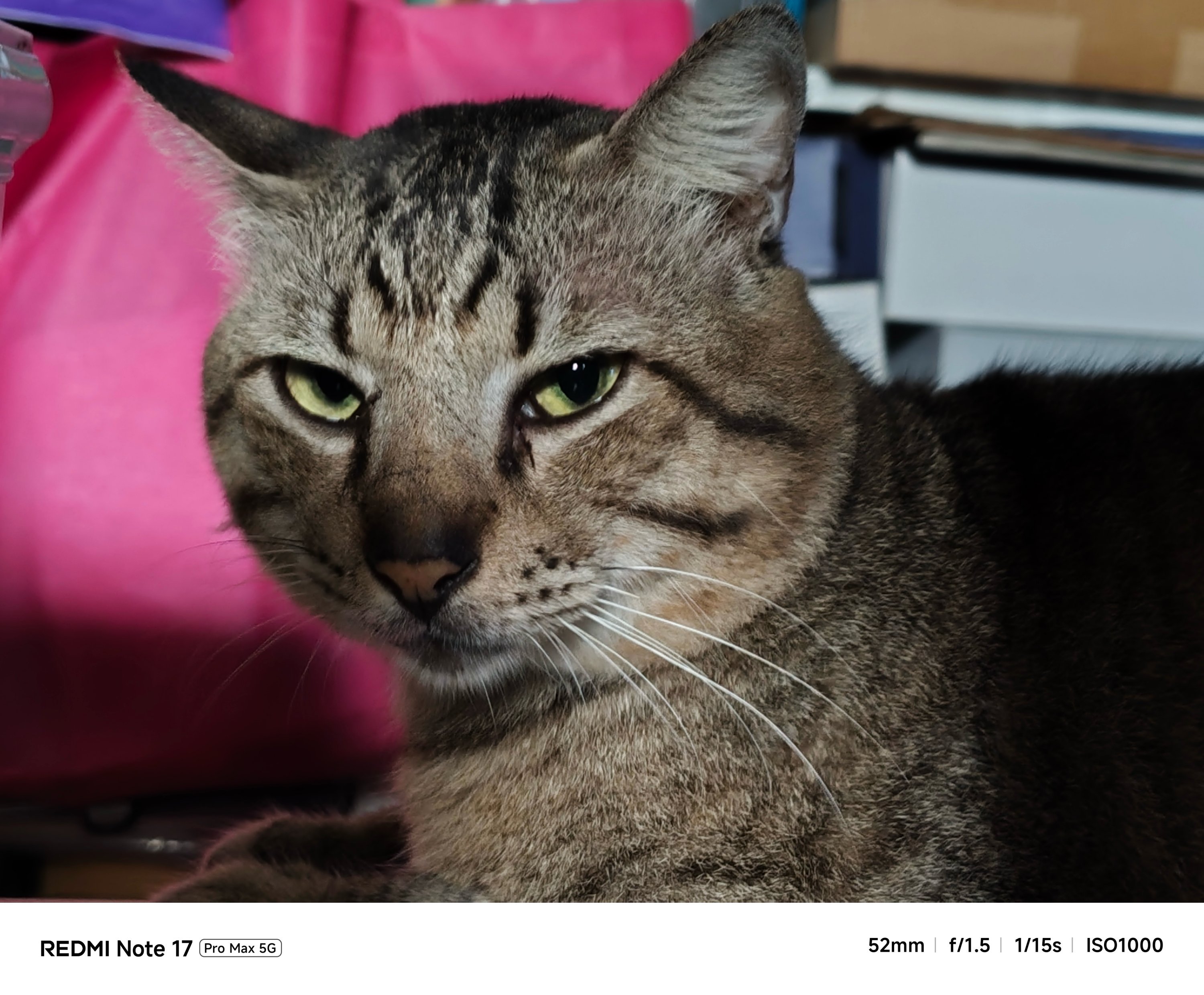
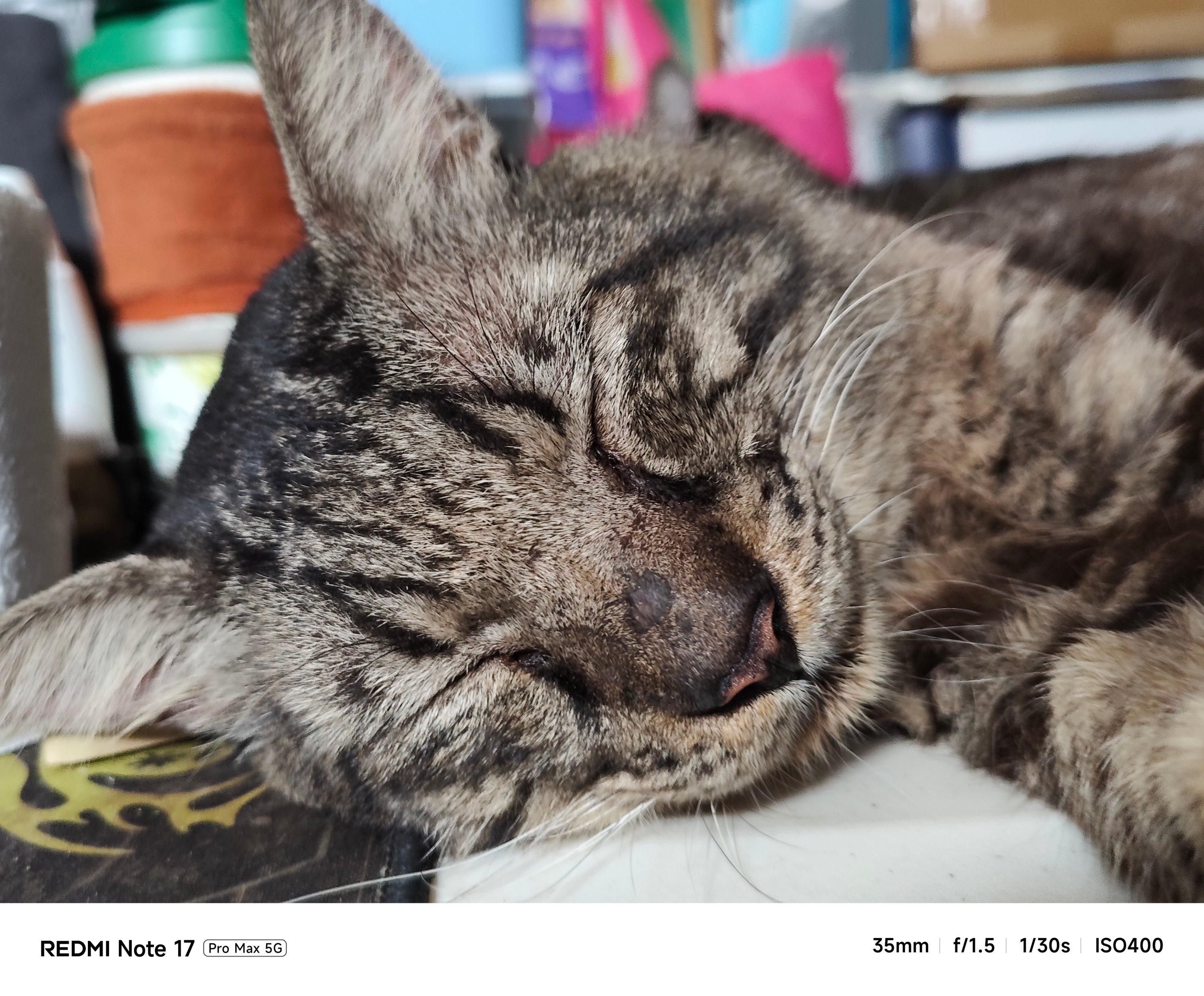
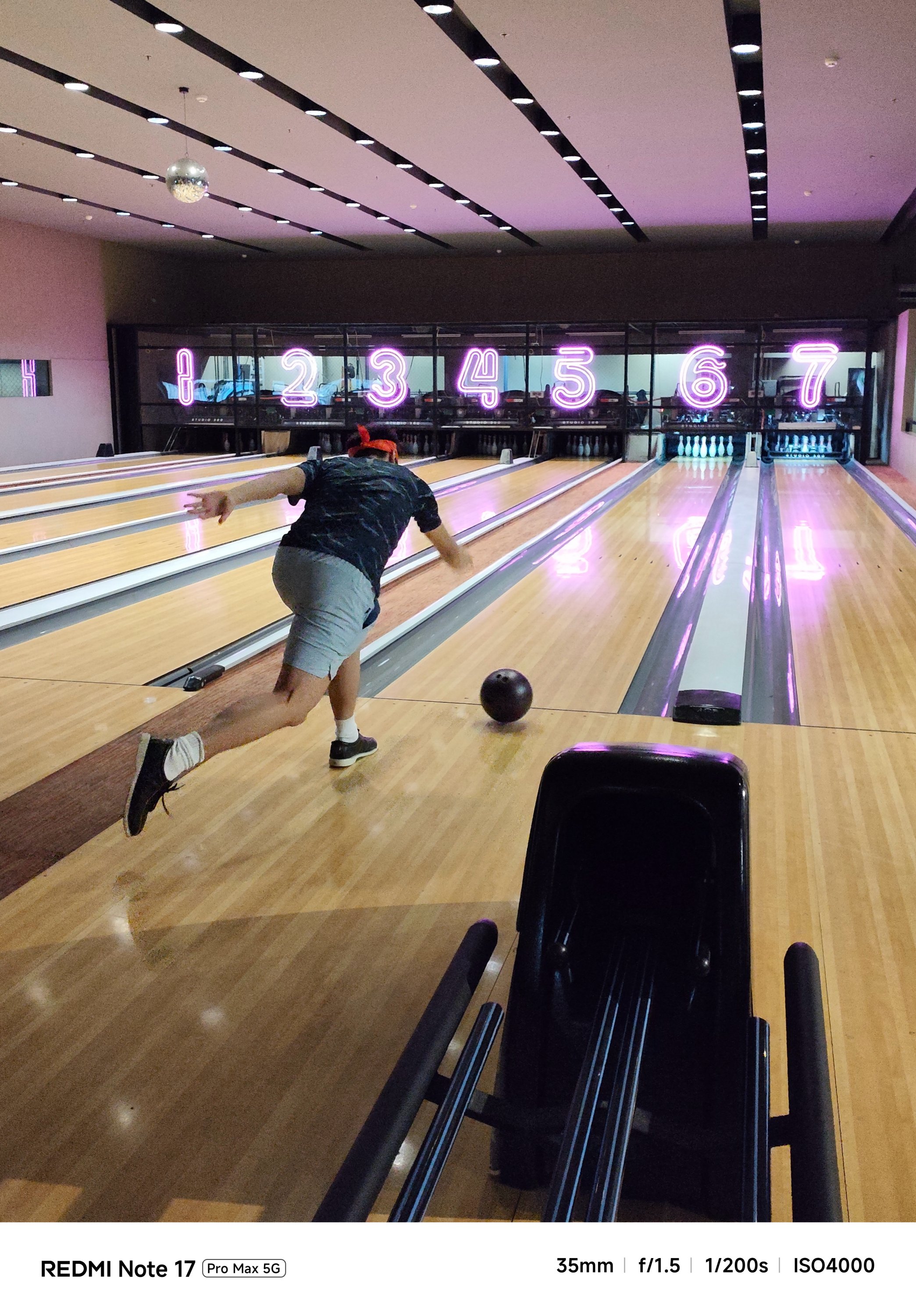
…indoor shots with little to no presence of natural light…

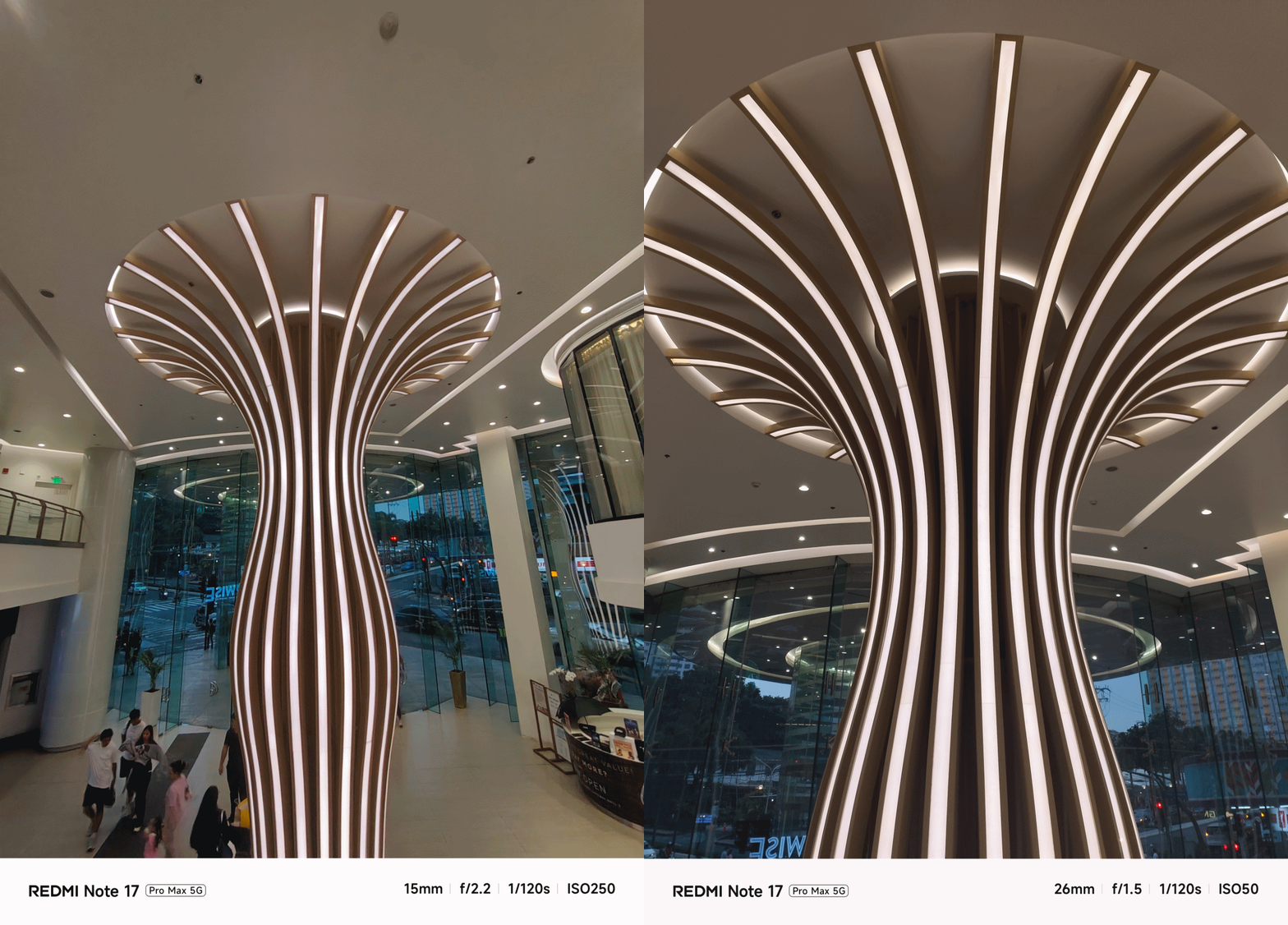
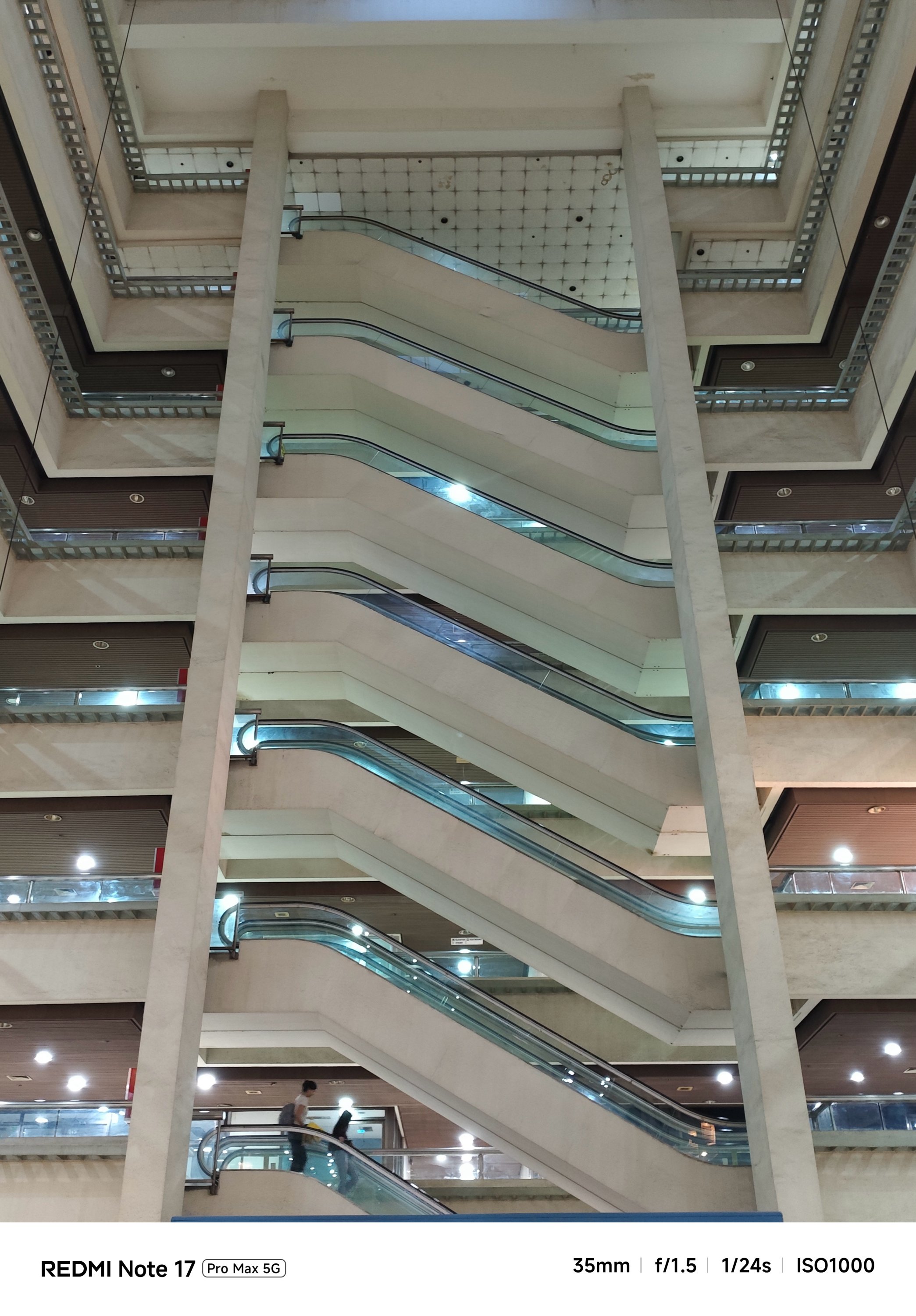

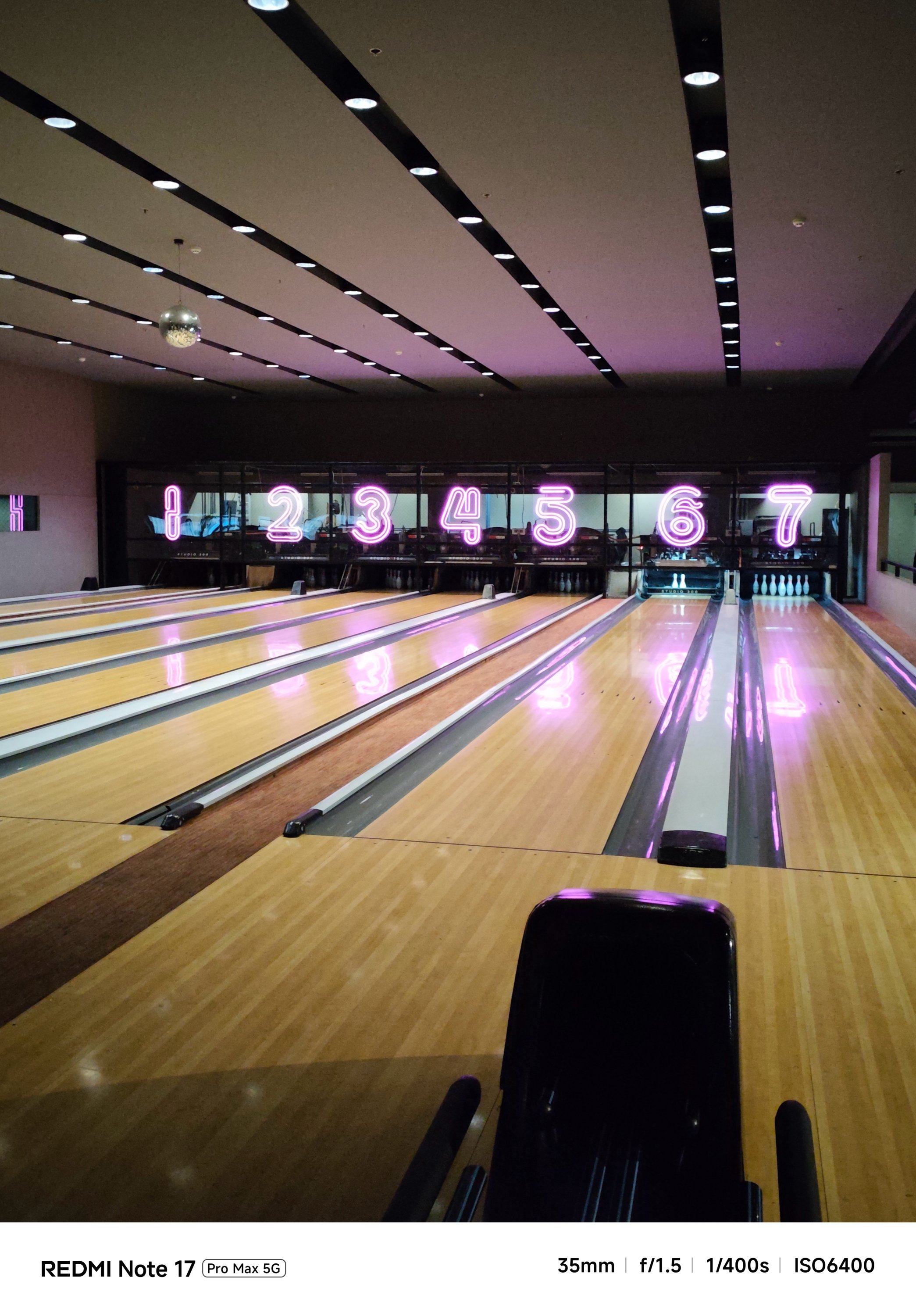

…or even portraits and action-filled snaps, shooting with it was overall smoother and snappier compared to its Pro counterpart.

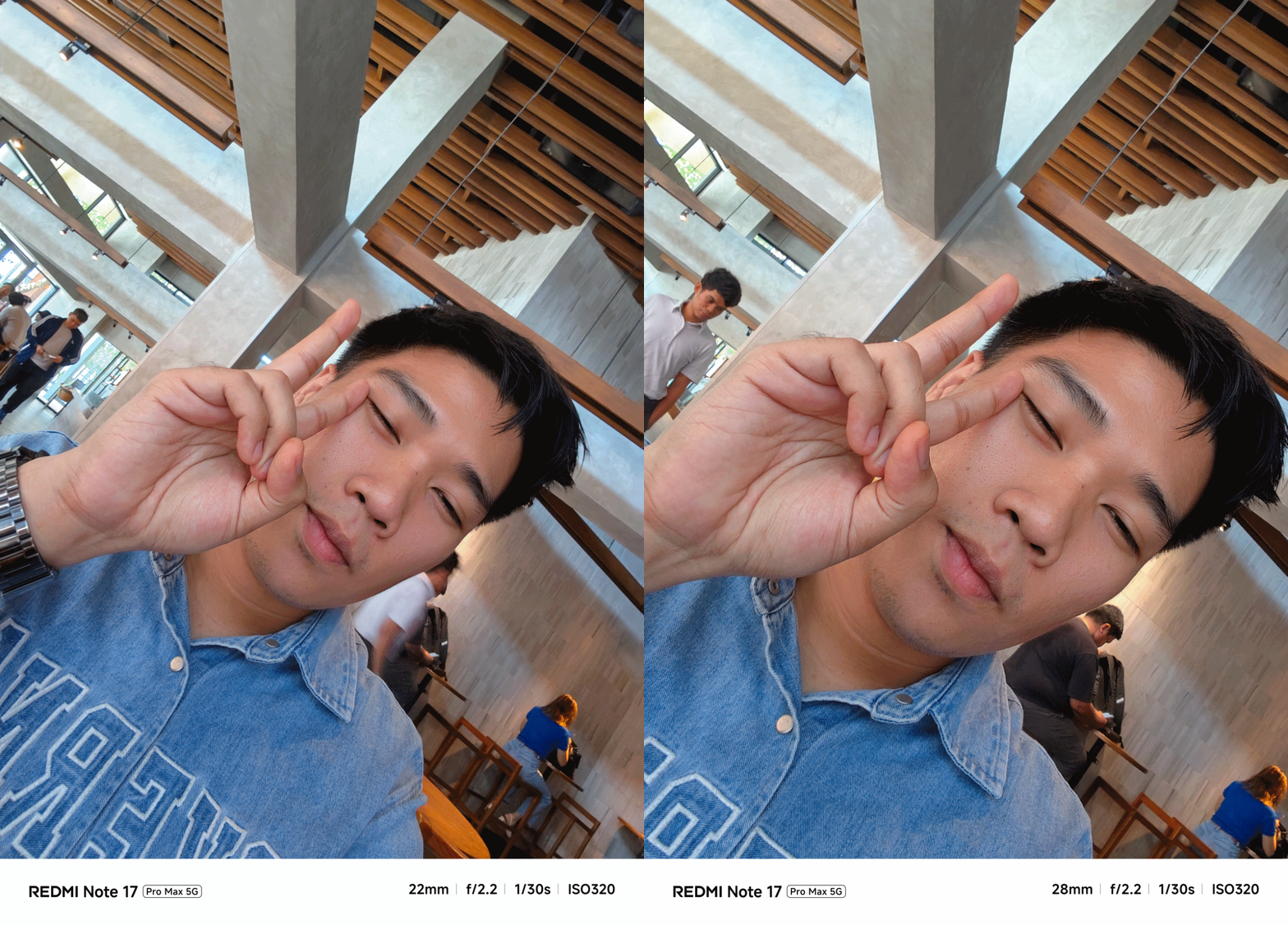
And now that it’s mentioned, the selfie shooter of the Pro Max is indifferent at 32MP f/2.2. That’s against the smaller and darker 16MP f/2.4 module of the Note 17 Pro.
Tasked to the max
As of writing, the REDMI Note 17 Pro Max is the brand’s first smartphone with a 10,000mAh battery. And by that, it boasts the biggest battery in any REDMI and Xiaomi smartphone so far.
One minor caveat: In certain regions, you’ll get the smaller 9210mAh capacity. But even with that 790mAh difference, it’s still heaps larger than the 8340mAh-equipped Note 17 Pro.
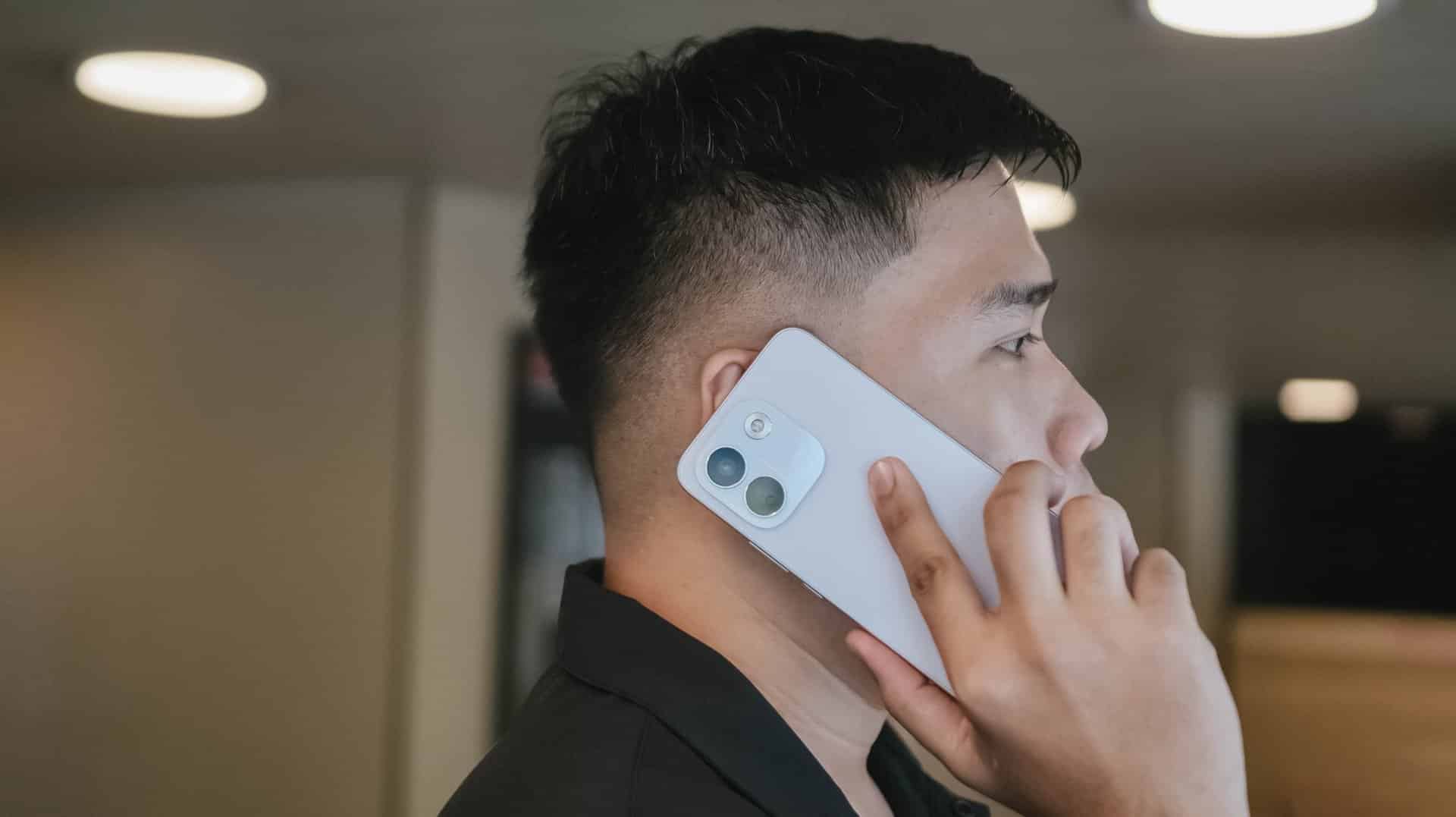
The long-lasting endurance is as amazing as how it looks on paper. Moderate usage can last more than 24 hours. Minimal usage? That’s about two to three days max. Of course, standby time is a lot longer when you don’t use it extensively.
There’s even a reverse wired charging capability just in case your other feeble-powered smartphones lose that precious charge.
For instance, I tried charging my completely dead iPhone 13 Pro Max using the REDMI Note 17 Pro Max for 30 minutes. With that duration, it gave around 29% charge. That is already good especially if one’s out from an outlet and already in a pinch.
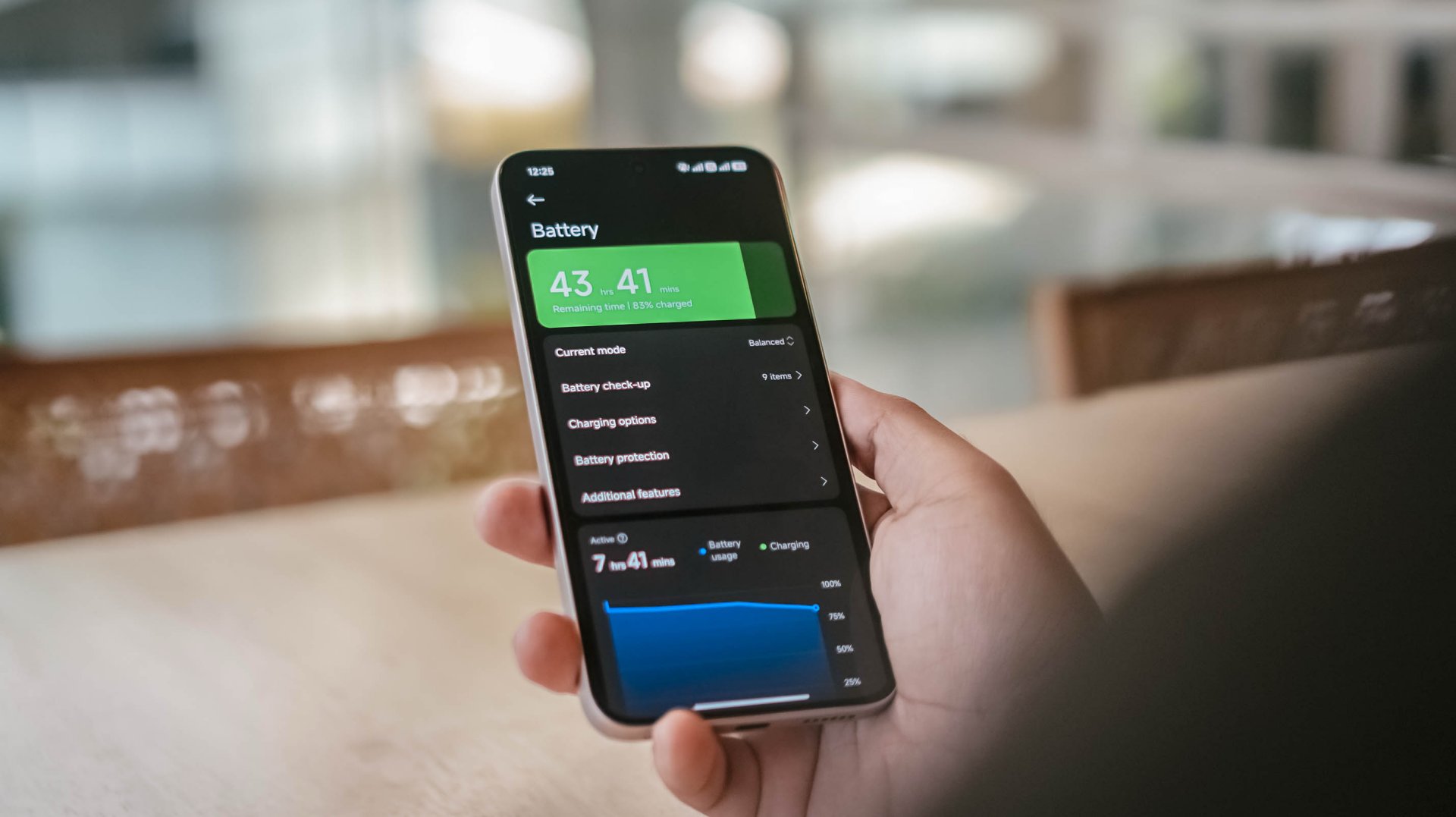
That said, one should still consider the app running in the foreground and background.
With almost two hours worth of installation and gameplay, including ZZZ’s countless character dialogues and a lone yet lengthy combat consumed, the REDMI Note 17 Pro Max consumed 19% charge.
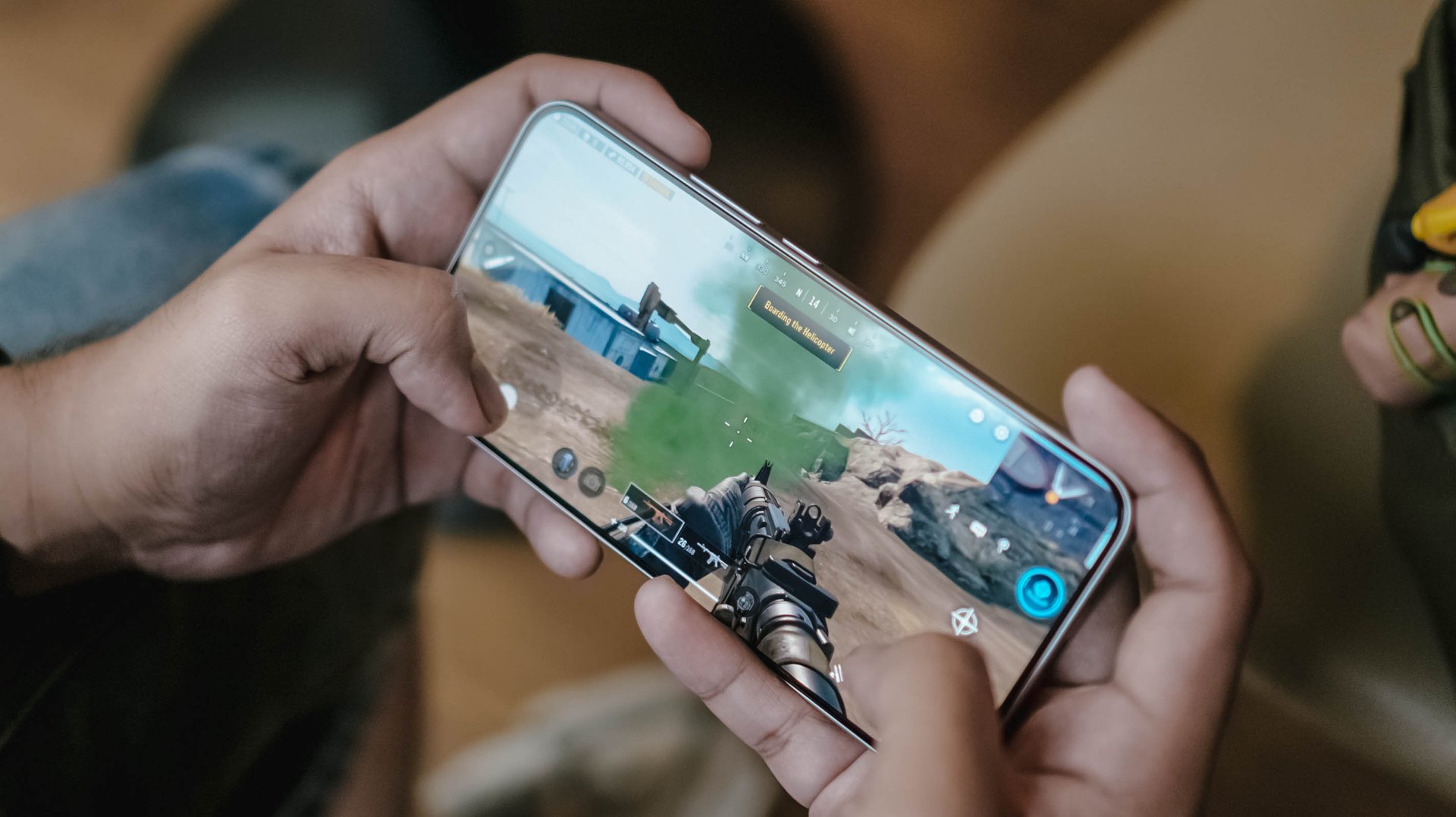
Other than the phone’s actual battery capacity, the inclusion of charging brick and cable is also region-dependent.
In Asia, or at least where I reside, it still comes bundled out of the box.
Now, if you live in European regions, you’d know by now how EU’s strict laws result to the absence of these accessories.
Still, it’s worthy to note that the Note 17 Pro Max supports USB-C PPS protocol.
In my GadgetMatch Charge Test though, that still accounts for 21 minutes of charging time difference.
Xiaomi 100W Charger +
|
UGREEN 100W Uno + ADATA
|
|
START TIME (from 0%) |
6:05PM |
9:54AM |
3 minutes |
5% |
6% |
5 minutes |
9% |
8% |
10 minutes |
16% |
12% |
15 minutes |
21% |
18% |
30 minutes |
38% |
41% |
45 minutes |
55% |
57% |
1 hour |
72% |
75% |
1 hour 15 minutes |
88% |
89% |
1 hour 30 minutes |
– |
95% |
END TIME (100%) |
7:29PM
|
11:39AM
|
With that speedy and reliable 100W HyperCharge speed, it was able to juice up the phone to the very brim under 1 hour 25 minutes.
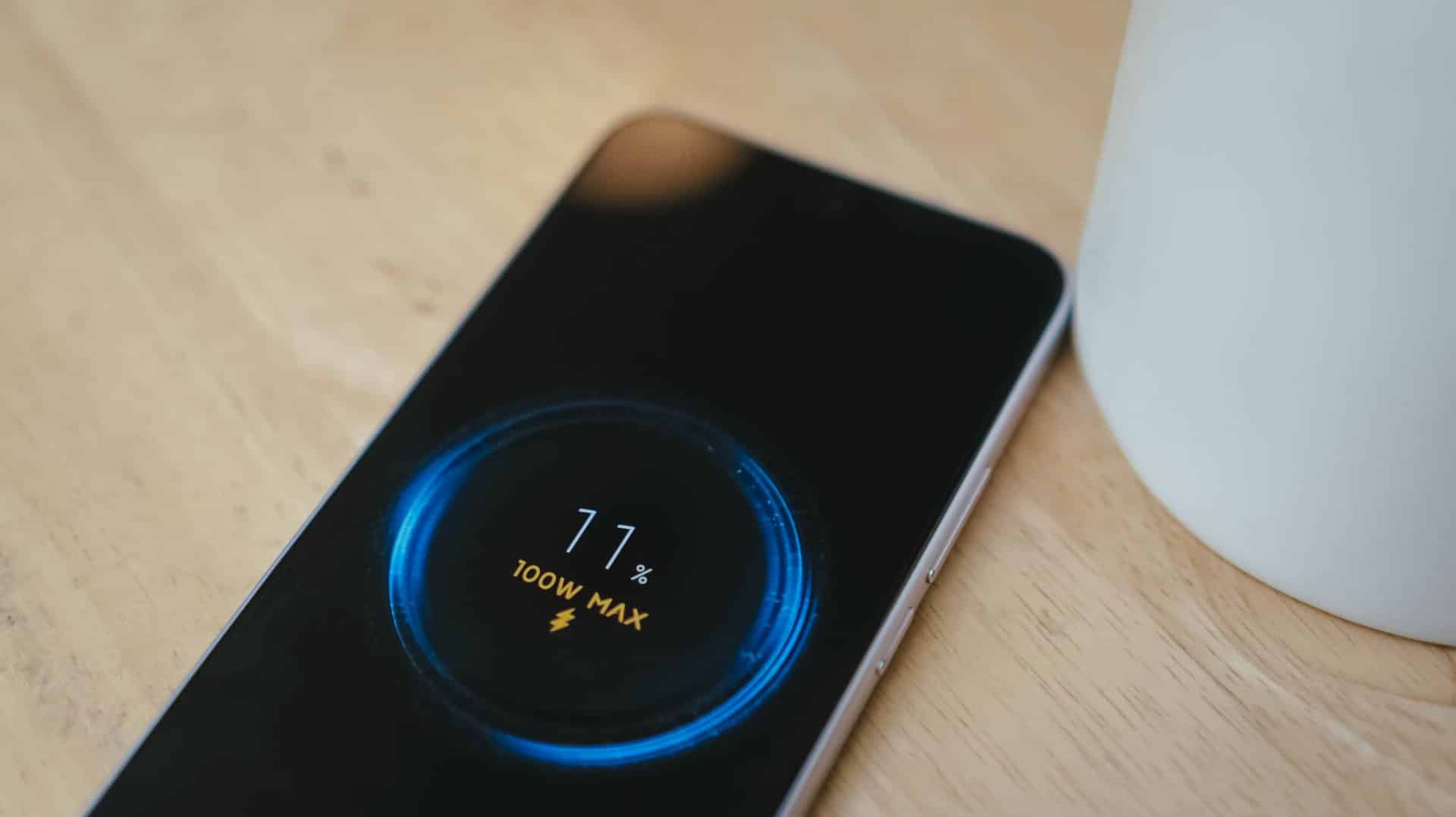
Coincidentally, the Note 17 Pro got fully-filled in 1 hour 25 minutes using Xiaomi’s 100W HyperCharger and cable.
Now this is the part where I can truthfully say the REDMI Note 17 Pro Max reigns.
Is the REDMI Note 17 Pro Max your GadgetMatch?
With a starting price of PhP 30,999 / SG$ 749, the REDMI Note 17 Pro Max isn’t sitting on the same throne as its predecessor and clearest contender, the REDMI Note 15 Pro+.
The ever-immersive audiovisual goodness, utmost Titan durability, and capable cameras are found on both models. Ultimately, it comes down to personal preference when it comes to aesthetics and ergonomics.
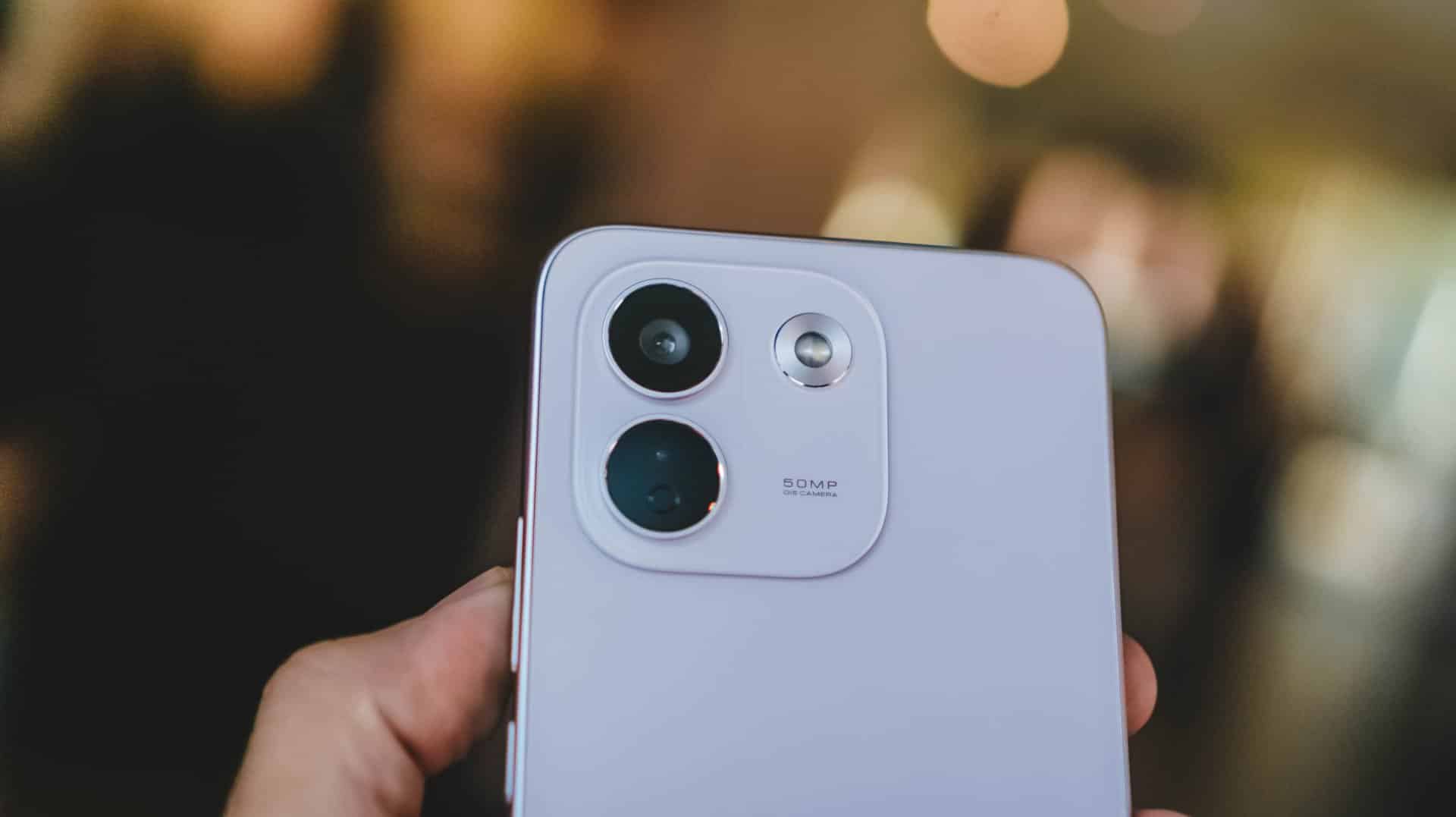
Now, if you favor that beastly battery above all else, the Note 17 Pro Max is worth the Swipe Right.
But, with that PhP 6500 / SG$ 90 price gap between the 512GB variants of both models, the REDMI Note 17 Pro Max is simply a Swipe Left.
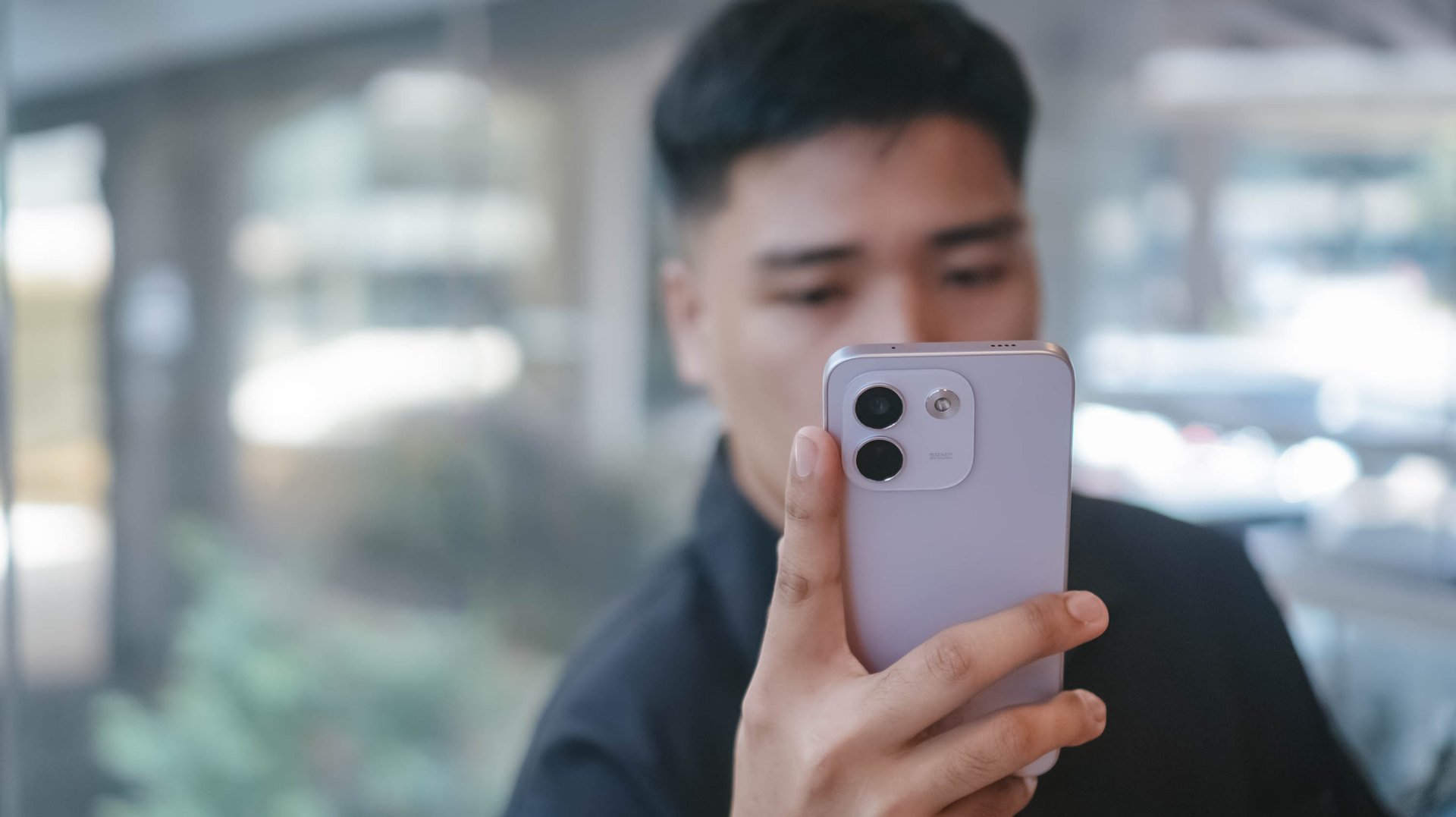
Adding more fuel to the fire, the previous Pro+ model has the better chipset and a more refined 200MP main camera. Not to mention, the base memory starts at 12GB, while the newer one, despite being faster, only comes with 8GB of RAM.
So, unless that bigger battery is a dealbreaker for you, the older Pro+ model remains the better value.
A new breed born from AI greed
Clearly, the continuous components crisis isn’t stopping anytime soon. The culprit is none other than the further use and abuse of AI.
As someone who has seen the early warning signs of AI since 2019, this is one among what I fear and dread the most.
The birth of the REDMI Note 17 Pro Max as a new phone breed was undoubtedly brought by the unnecessary AI greed of both companies and consumers’ demands alike.
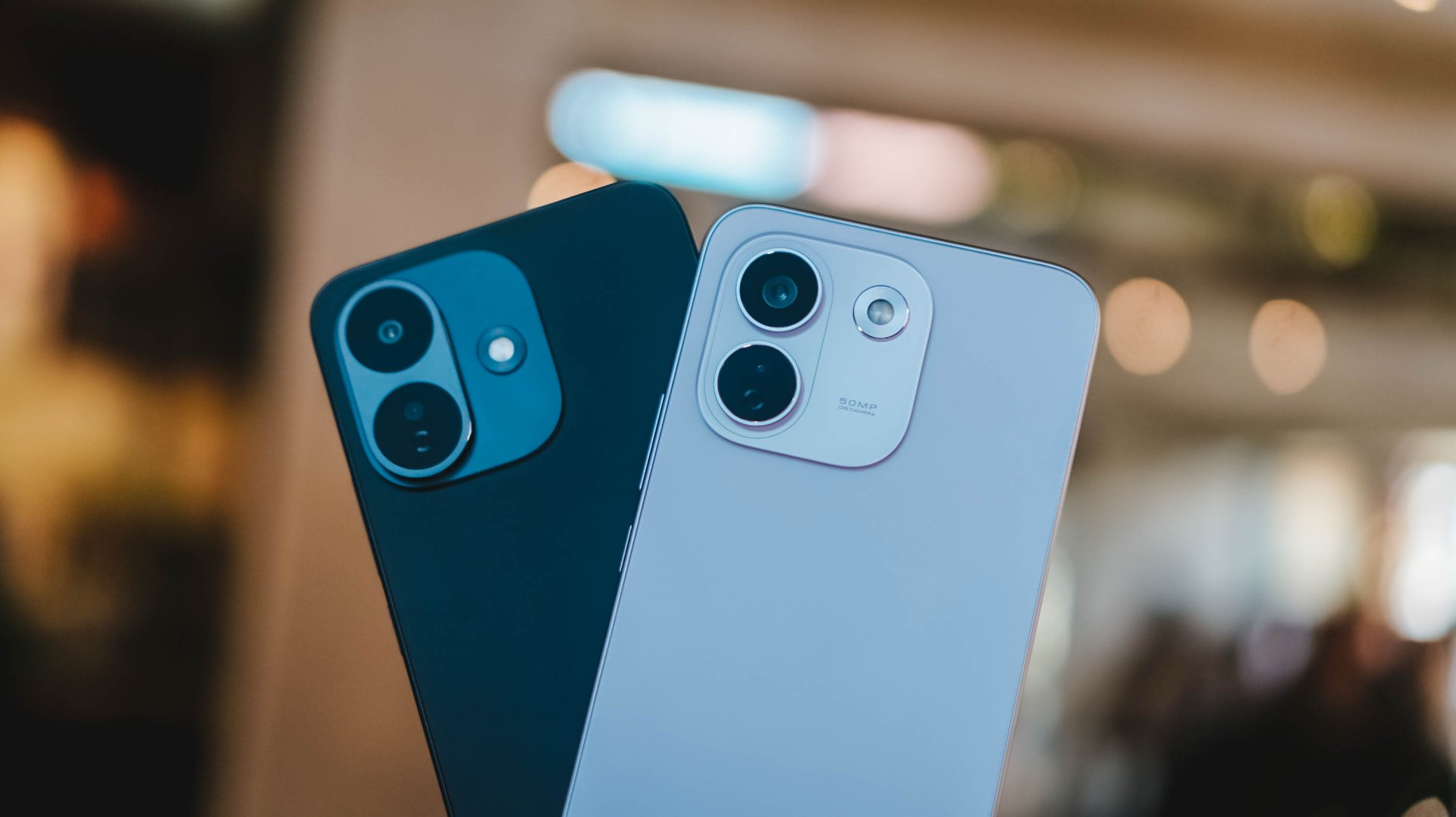
And, as much as I hate to admit it, midrange smartphones with this high price to lower performance ratio might actually be the “new normal.”
The final purchasing power still falls under your hands. However, at the end of the day, these discrepancies and inconsistencies in hardware alongside an even higher launch pricing truly and surely speaks volumes on what to expect with smartphones starting now and the years to come.

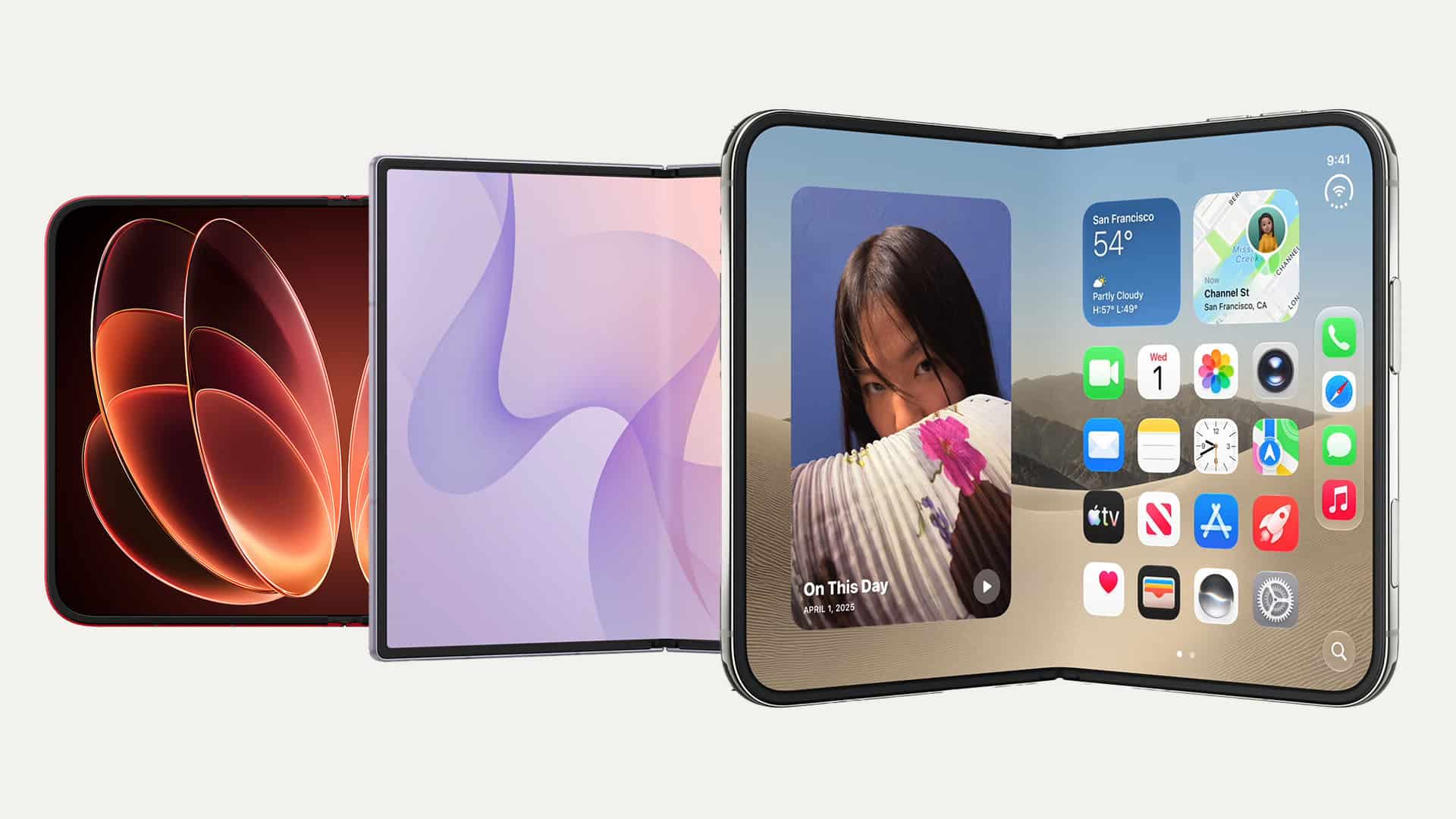
There’s a passport-sized revolution upon us, and we’re here for it.
After the HUAWEI Pura X Max and Samsung Galaxy Z Fold8, September 2026 showed us two more joining the fray: the Xiaomi 18 Fold and the much-awaited and plenty-rumored iPhone Duo.
While all four share a similar form factor, they don’t exactly all share the same approach to it. And while we’ve yet to spend significant time with most of them, we’re gonna go ahead and jump the gun and list what we think each one did right.
Think of this as more of a collective first impression or Match Pulse.
Samsung gets the weight right
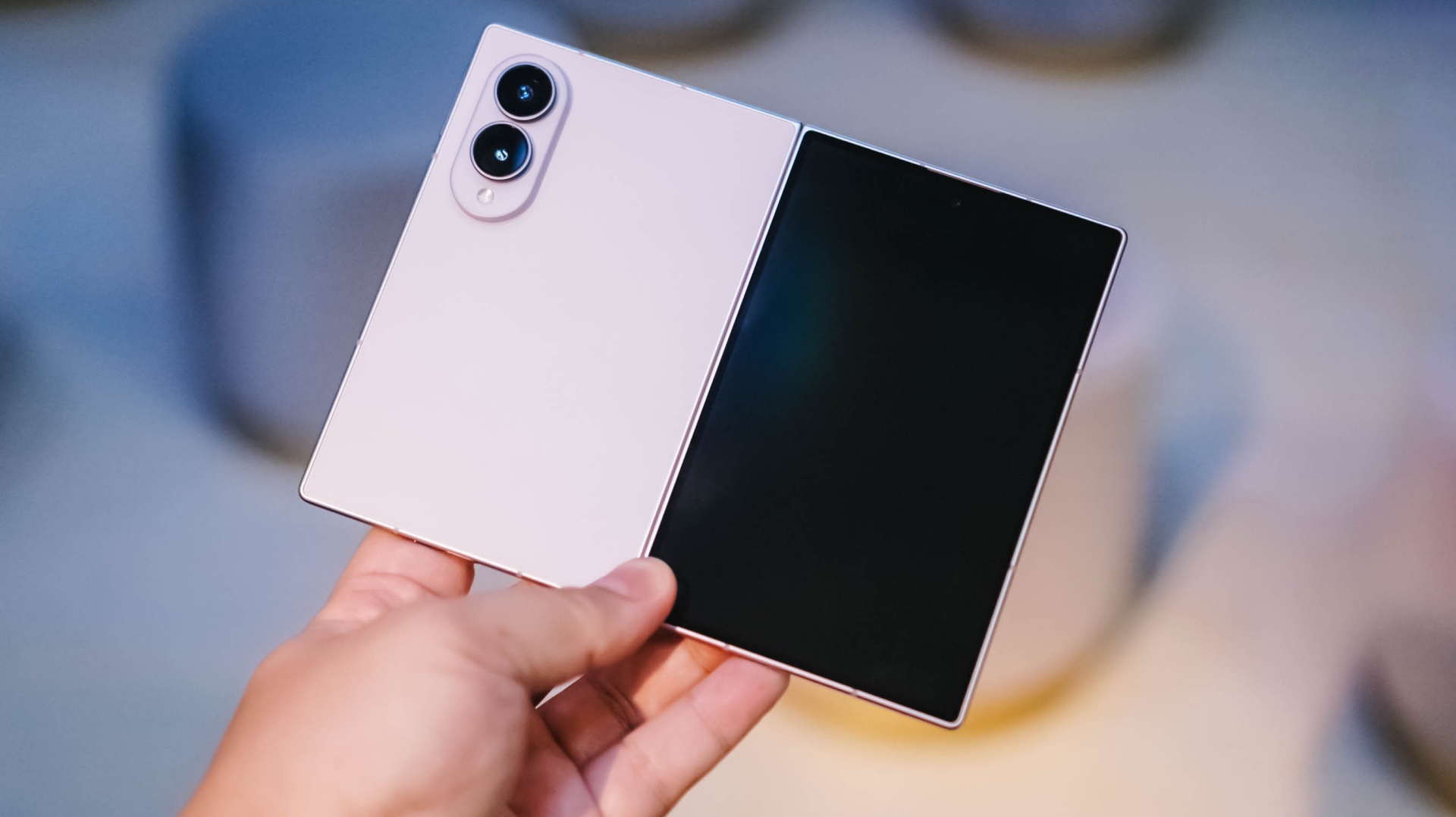
Samsung being a foldie veteran shows up here.
When I first held the Galaxy Z Fold8, I was pleasantly surprised by how light it was. At 201g, it’s the lightest of these four by a pretty significant margin. The Xiaomi 18 Fold comes in at 219g, the HUAWEI Pura X Max at 229g, and the iPhone Duo at 254g.
That’s thoughtful design, and definitely a result of Samsung having at it for years.
This is one of those things that doesn’t necessarily jump out on a spec sheet. But it matters when you actually have the phone in your hand. A passport-sized foldable is supposed to give you more screen without feeling like you’re carrying around a tiny tablet.
Samsung seems to understand that balance particularly well.
Xiaomi gets the cameras right
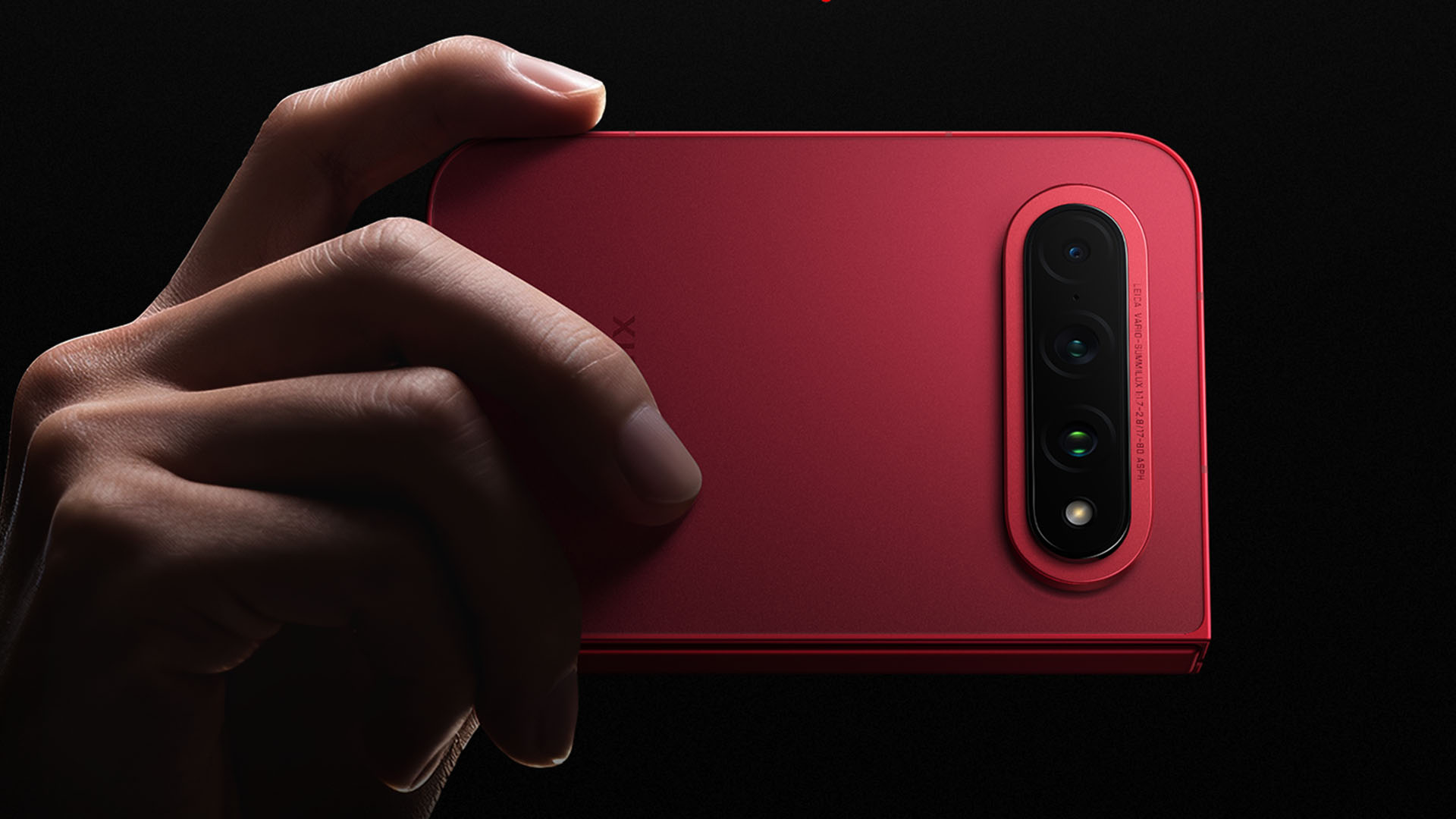
We’re not gonna talk about camera performance here. Just the cameras present and how they’re laid out.
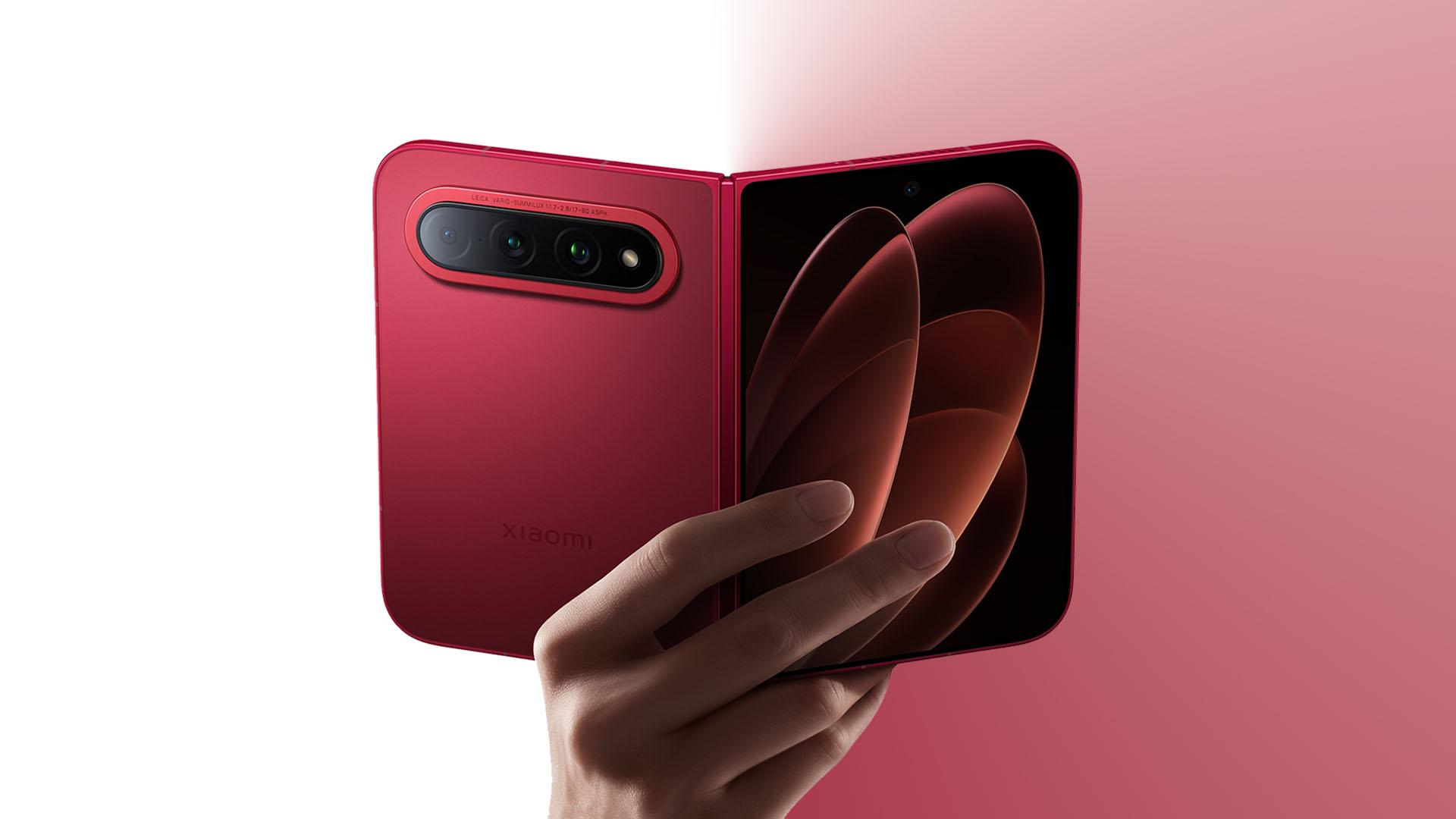
In that regard, the Xiaomi 18 Fold is a runaway winner for me.
It has a 200-megapixel main camera, a 50-megapixel ultrawide, and a 50-megapixel 3.5x periscope telephoto. All three are part of Xiaomi’s Leica camera system.
That telephoto alone makes the setup feel much more complete than what some of the other passport-sized foldables are offering.
Then there’s the physical layout. Xiaomi puts the three cameras in a horizontal arrangement across the upper portion of the rear panel. It looks clean, but more importantly, it should help keep the phone from rocking around as much when you put it down on a flat surface.
That’s the kind of small design decision I appreciate.
You’re not just getting a foldable with cameras slapped onto the back. You’re getting a flagship-style camera system that also happens to fold.
Android gets the big screen right

This is where Android still has Apple beat.
The whole point of opening a passport-sized foldable is getting more screen. Android has spent years figuring out what to actually do with all that extra real estate.
On Samsung, you can run apps side by side, resize windows, use pop-up windows, save app pairs, and take advantage of Samsung’s broader Multi Window and DeX features. Huawei has also built out its own split-screen and floating-window tools.
Apple is finally entering that conversation with the iPhone Duo. Its iOS 27 implementation allows two apps to run side by side (you just can’t resize them like you can on Android), two windows of the same app, quick app swapping, and saved app pairs.
That’s actually a pretty big deal. But Android has been doing this for years.
The passport-sized foldable isn’t just a bigger screen. It should let you do more things at once. Android understands that part of the assignment.
Apple gets the transition right
@gadgetmatchiPhone Duo maxxing 😮💨♬ original sound – GadgetMatch
This might be Apple’s biggest contribution to the passport-sized foldable.
The iPhone Duo doesn’t simply take iOS and stretch it across a bigger display. Apple has reworked the experience around the fact that the phone can physically change shape.
Both displays share the same aspect ratio, which means content can move between the outer and inner screens without feeling like you’re jumping between two completely different phones. iOS 27 also moves controls to the side when the Duo is open, adjusts app layouts for the wider canvas, and introduces Split View for the first time on iPhone.
There’s also the rather clever StandBy implementation. Put the Duo down in a tent orientation and it can turn into a little smart display, even without being plugged in.
Apple Pencil support is coming later this year, too, and it works on both displays.
This is very Apple.
The hardware is new, but the software is doing a lot of the work to make the new thing feel familiar.
Samsung gets the overall shape right
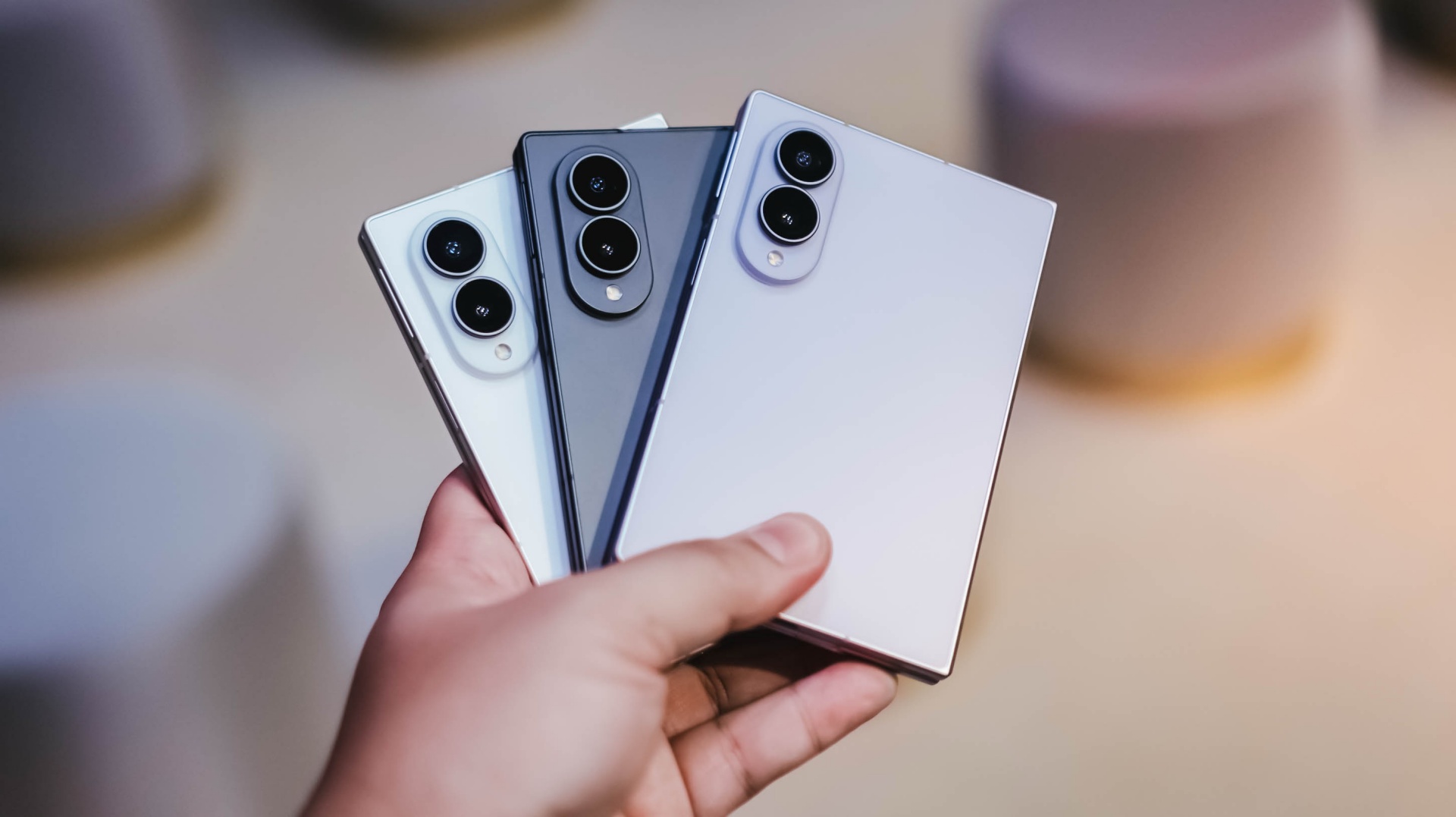
This one is completely subjective.
Personally, I prefer the square-ish, sharp-edge look of the Galaxy Z Fold8. I’ve seen plenty of people praising the D-like shape of the Duo — was that deliberate or just a happy coincidence? — and the more rounded look of the Pura X Max and Xiaomi 18 Fold.
But looks-wise, the Galaxy Z Fold8 just stands out to me.
There’s something about the balance and more symmetrical look of the Fold8 that seems more user-friendly compared to the no-love-for-lefties approach of the Duo, especially software-wise.
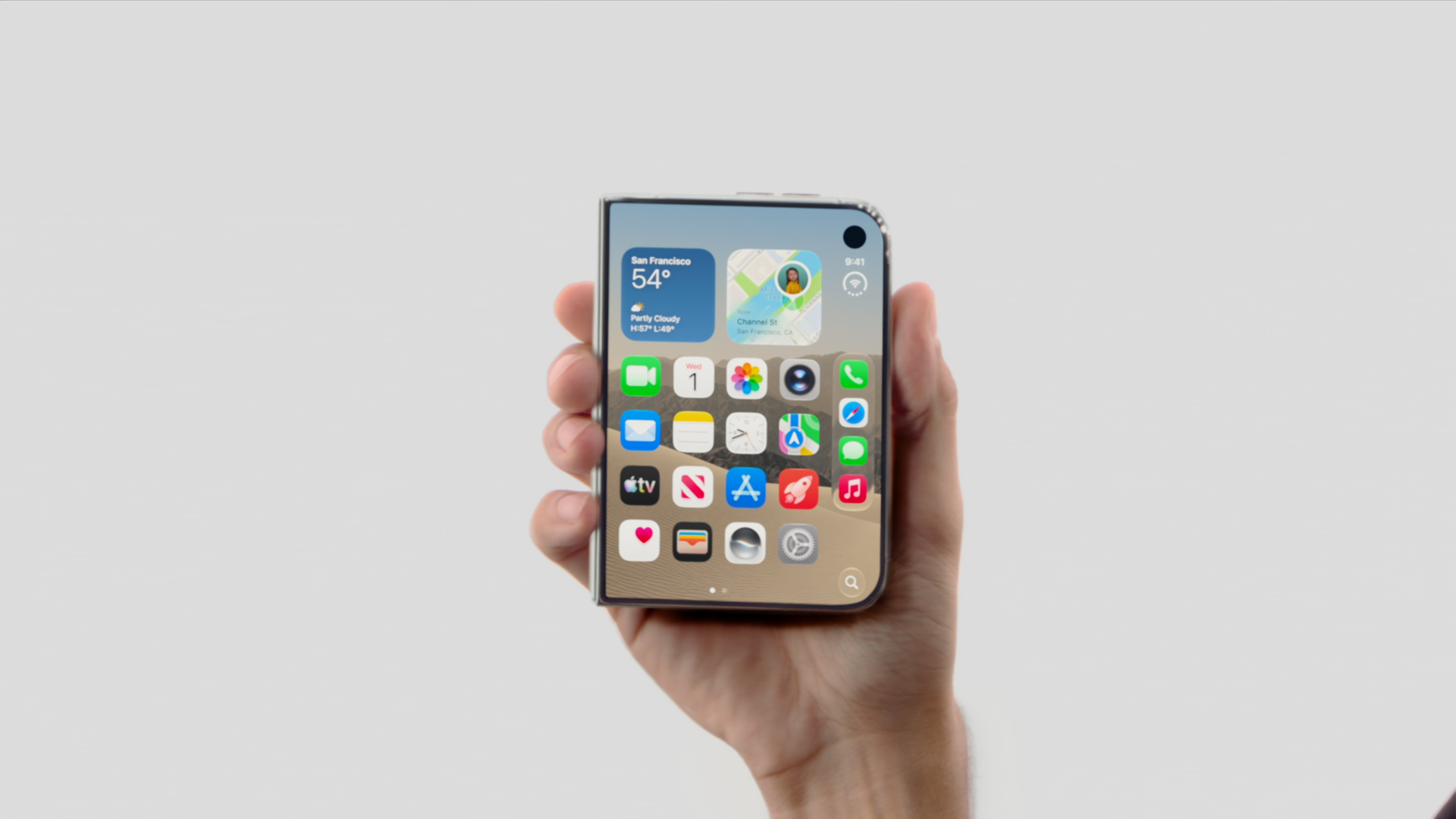
That’s obviously a personal preference. But that’s kind of the point.
We’re now at a stage where these devices aren’t all trying to look like the same thing.
The passport-sized foldable is becoming a design language of its own.
Android gets customization right
@rodneil Galaxy Z Fold8 – 3 different wallpapers: Folded, Landscape unfolded, Portrait unfolded #GalaxyZFold8 ♬ Kitty (MOMO) – MISAMO
Much has been said about the unfolding animation of the iPhone Duo. That’s cool for sure.
But if you’re after making a passport foldie truly feel like yours, Android is still the playground.
With Samsung specifically, Good Lock is your customization best friend.
You can tweak the interface, the lock screen, gestures, multitasking behavior, and plenty of little things that make a Galaxy feel less like the phone Samsung shipped and more like the phone you set up.
It’s not necessarily the sexiest feature to put on a spec sheet.
But after you’ve lived with a foldable for a while, those little things add up.
Samsung dropped the ball on the stylus
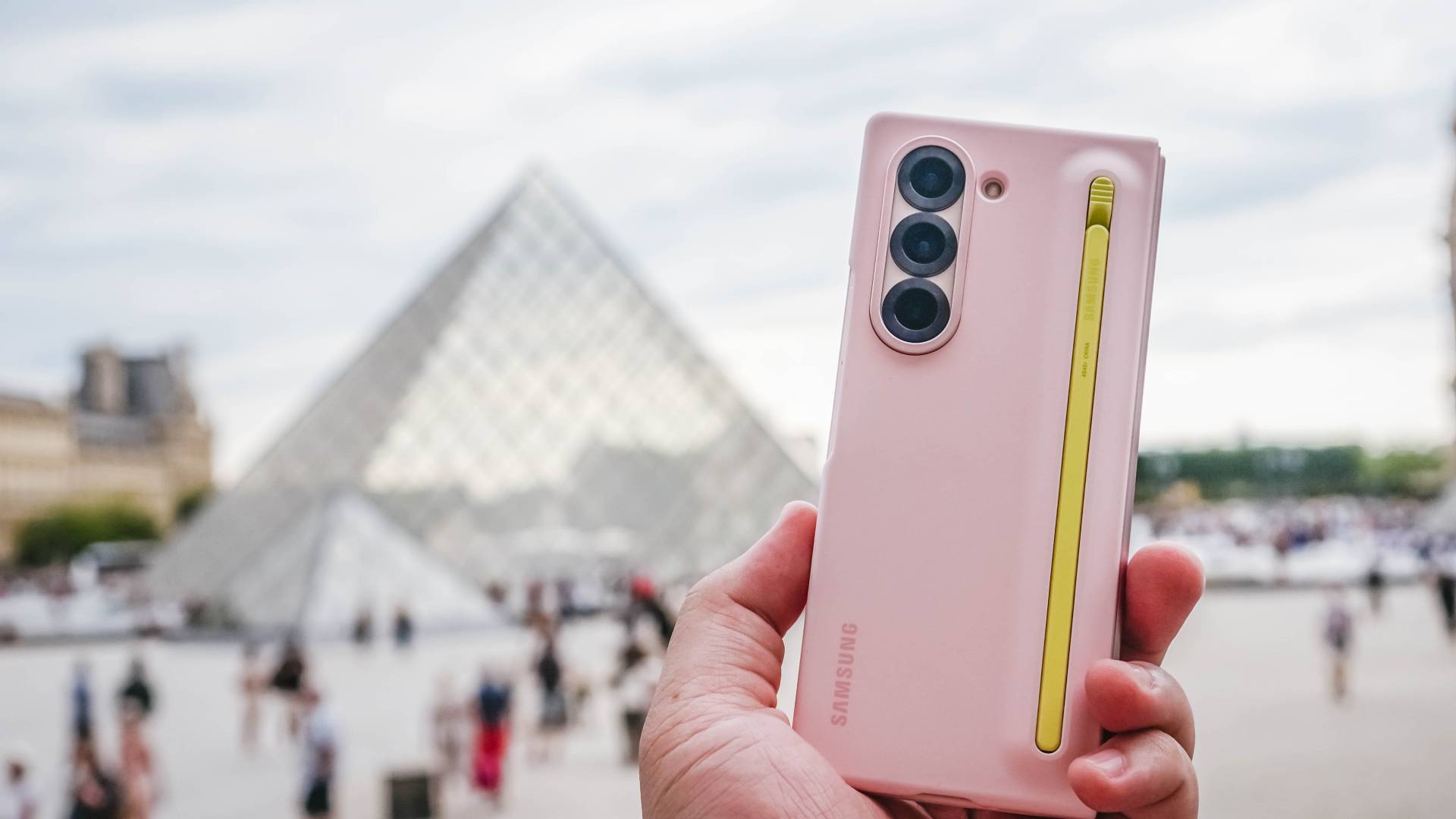
This is a weird one.
Samsung had S Pen support on the Galaxy Z Fold3, Fold4, Fold5, and Fold6. Then it dropped support with the Fold7. The Galaxy Z Fold8 and Galaxy Z Fold8 Ultra doesn’t support the S Pen either.
That’s a pretty significant omission for a device that unfolds into something approaching tablet territory.
The S Pen had plenty of fans. And you can absolutely argue that a stylus makes even more sense on a foldable because you suddenly have a much larger canvas for writing, drawing, editing, and annotating.
Apple, meanwhile, has promised Apple Pencil support for the iPhone Duo later this year.
Now, they’ve broken (or at least delayed) some promises before, so this is still a wait and see.
But it’s funny seeing Apple move toward a feature Samsung had already established on its Fold line.
The battery race is getting interesting
Graphics by Vincenz Lee | GadgetMatch
We still can’t fully compare this usage-wise. We haven’t spent enough time with all four devices to make any meaningful real-world battery call.
So we’re just gonna give you the numbers on paper.
The Xiaomi 18 Fold is the battery monster here with a 6,000mAh cell, alongside 67W wired and 50W wireless charging. Samsung’s Galaxy Z Fold8 has a 4,800mAh battery with 45W wired charging.
Apple doesn’t publish the iPhone Duo’s battery capacity in the same way, so we’ll leave the mAh comparison there rather than pretending the numbers are directly comparable.
This is one area where Xiaomi’s approach is particularly interesting.It has managed to put a 6,000mAh battery into a device that weighs 219g. That’s a pretty compelling combination on paper.
And then there’s performance
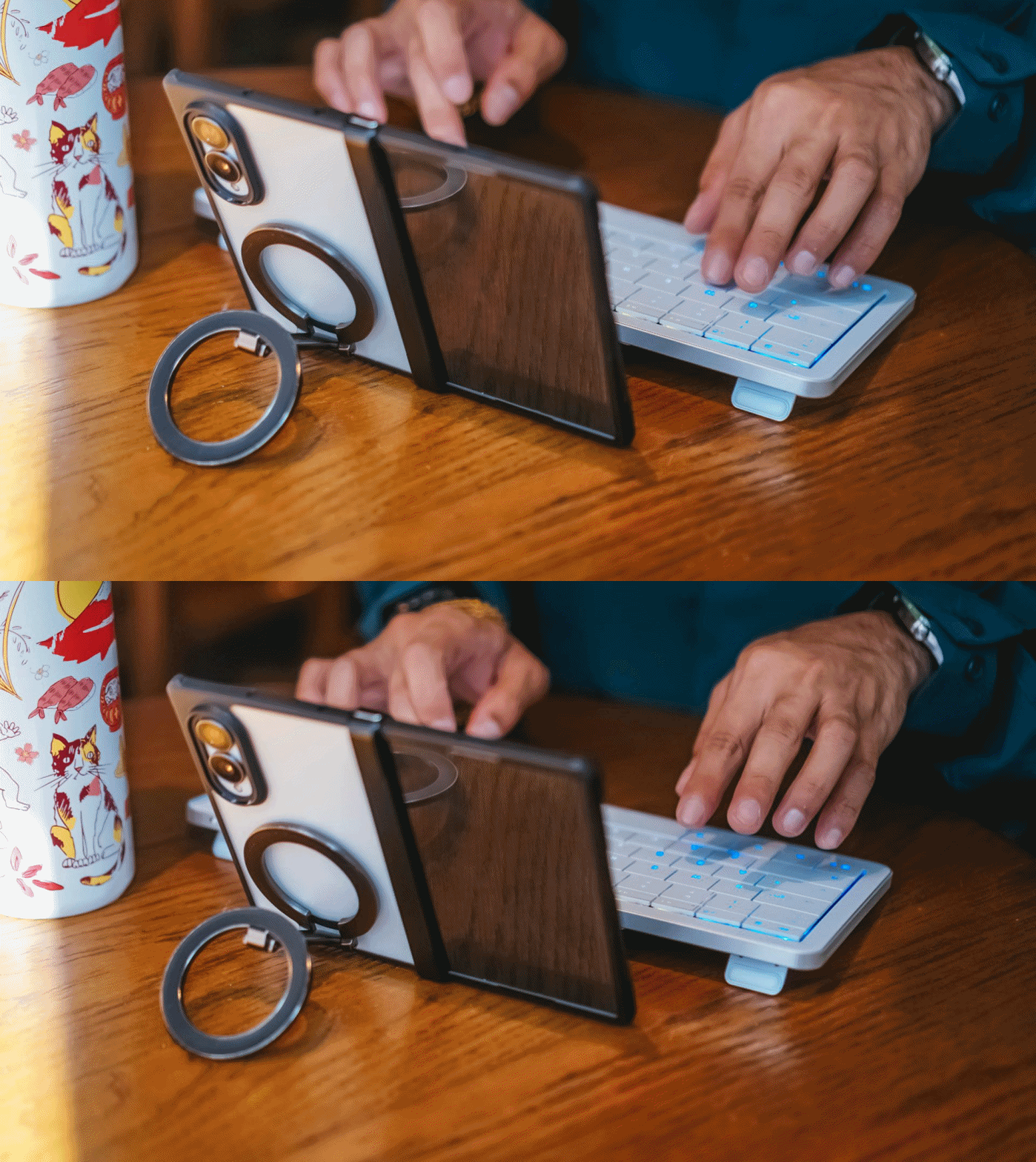
Same refrain as the battery here.
We’re not going to pretend that chipset names alone tell us which phone is going to be faster in actual use. Especially with four different platforms, operating systems, thermal designs, and software stacks involved.
But the hardware underneath is certainly no joke.
The Galaxy Z Fold8 runs on Snapdragon 8 Elite Gen 5 for Galaxy. The Xiaomi 18 Fold introduces Xiaomi’s own XRING O3 processor. And the iPhone Duo gets Apple’s A20 Pro, the same chip family used in the iPhone 18 Pro models.
The interesting part isn’t really which one wins the benchmark race. It’s that none of these companies seem to be treating the passport-sized foldable as a compromise device.
They’re putting flagship-class silicon, serious cameras, big batteries, and increasingly sophisticated software into this format.
And that’s probably the biggest thing to get right.
The passport foldable is becoming a thing
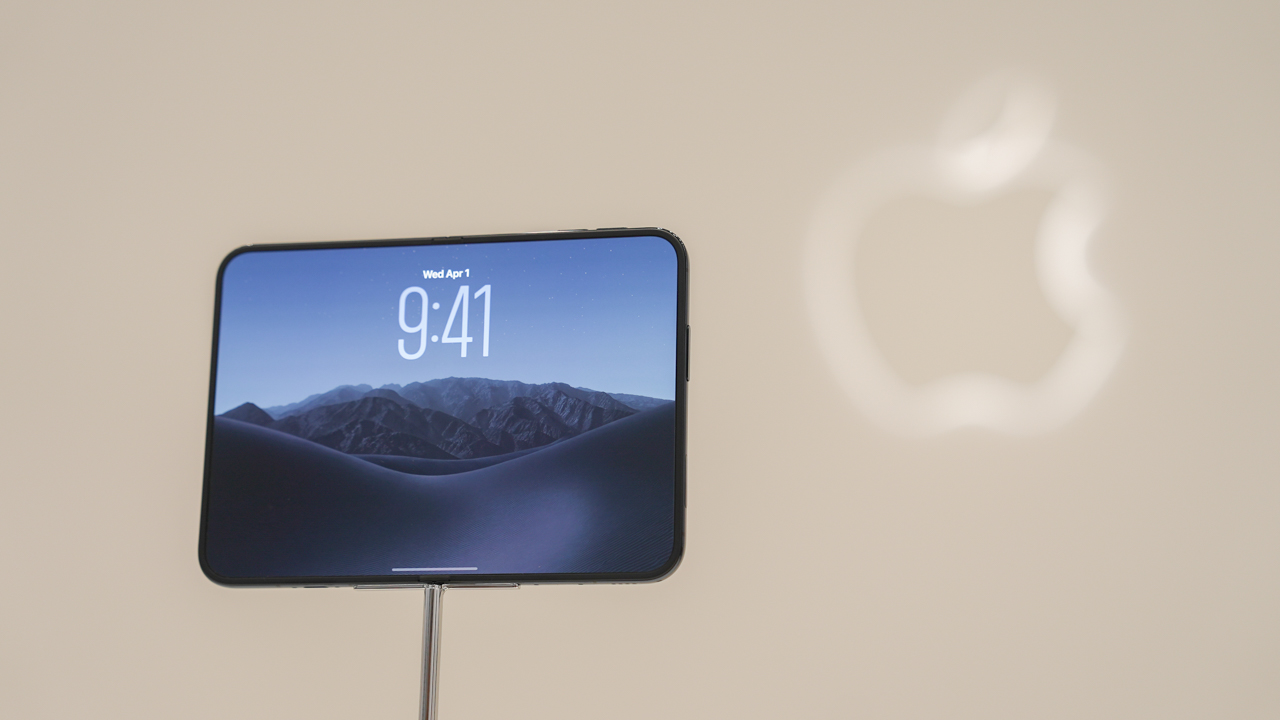
Exciting times are unfolding for the passport-sized foldable.
What’s interesting isn’t that these four phones are similar. It’s that they’re different.
Samsung has spent years figuring out how to make a big foldable thinner and lighter. Xiaomi is going all-in on cameras and battery. Huawei has its own interpretation of the compact, wide form factor. And Apple has arrived with a completely new take on how iOS should behave when the screen itself changes shape.
Between the Galaxy Z Fold8 being a big hit and the buzz generated by the iPhone Duo, it’s not far-fetched to think other brands will throw their own take at the form factor pretty soon.
And we’re totally here for it.
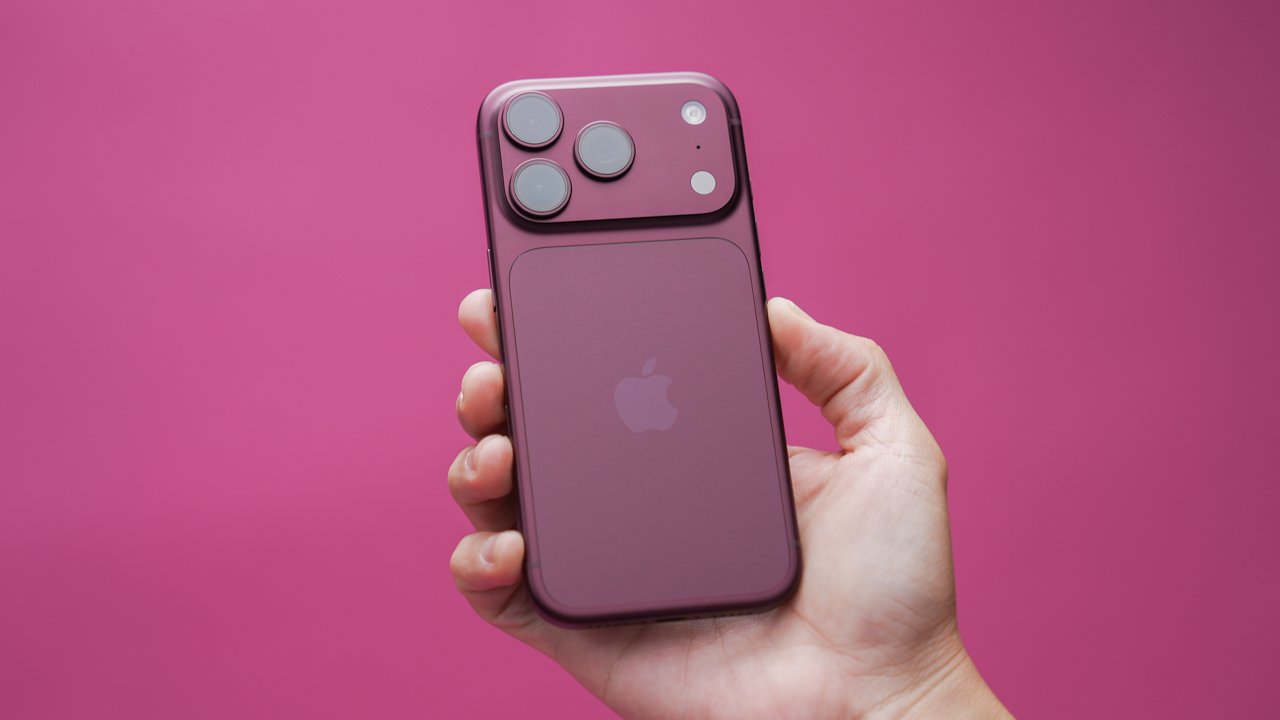
Cosmic Orange had a good run. For one generation, Apple’s “brave” iPhone Pro color turned into the flex color of 2025, and Android brands spent the better part of a year chasing that same citrus glow on everything from budget phones to tablets.
That cycle just repeated itself, except this time the copying started before the original even launched.
Apple made it official recently: the iPhone 18 Pro’s flagship shade is Burgundy, a deep red that leans warm and shifts toward purple depending on the light.
It’s the successor to Cosmic Orange, and Apple’s own language calls it “sophisticated.” Fair enough.
But Burgundy didn’t sneak up on the industry when Apple’s event wrapped. It’s been the worst-kept secret in tech since spring, when the first “dark cherry” and “deep red” leaks started making rounds.
By the time Apple actually confirmed the color on stage, at least four other phone makers had already shipped something wine-toned of their own.
Xiaomi got there first, on purpose
The Xiaomi 18 Fold, the company’s first wide-format foldable, launched with a Cherry Red colorway that multiple outlets pointed out looked a lot like Apple’s rumored shade, months before Apple confirmed anything.
Graphics by Vincenz Lee | GadgetMatch
Xiaomi timed the whole announcement to land just ahead of Apple’s own event, essentially racing to market with the same design language and a matching color story.
Whether that’s coincidence or a very calculated troll depends on how cynical you want to be about the smartphone industry, and honestly, you should be pretty cynical about it.
HUAWEI’s been circling this shade for a while
HUAWEI didn’t need to react quickly because it was already in the neighborhood.
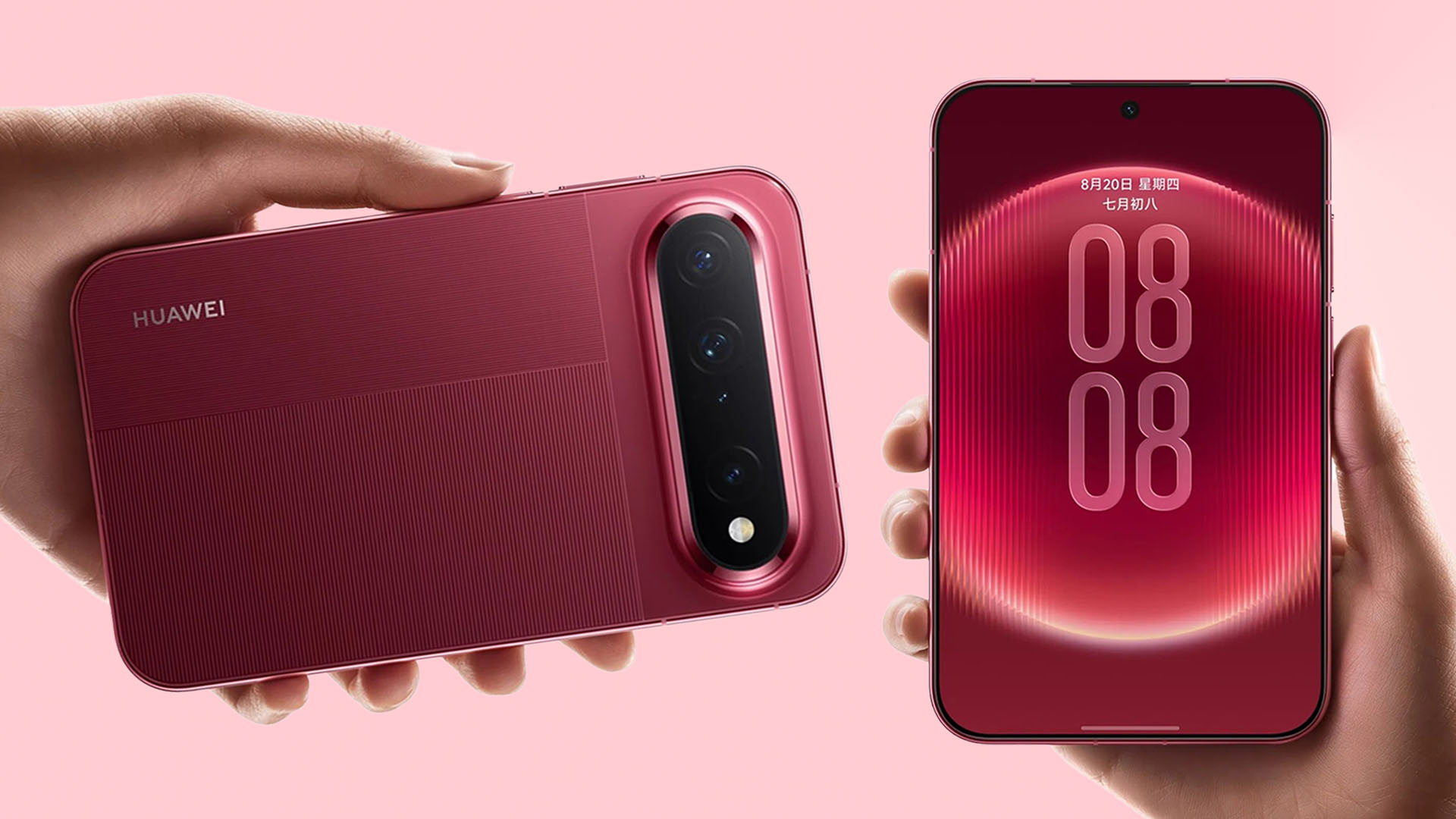
The Pura X Max shipped in a Bordeaux Red, and the newly launched Pura X View came in a Shadow Red variant that sits comfortably in the same wine family.
Graphics by Vincenz Lee | GadgetMatch
HUAWEI has actually been rotating red-adjacent colorways across the Pura X lineup since last year, with Stylish Red and Stylish Orange finishes added as running refreshes rather than one-off marketing stunts.
TECNO didn’t just match the color, it named the reference
The TECNO Camon Slim 5G might be the most self-aware entry in this whole cycle.
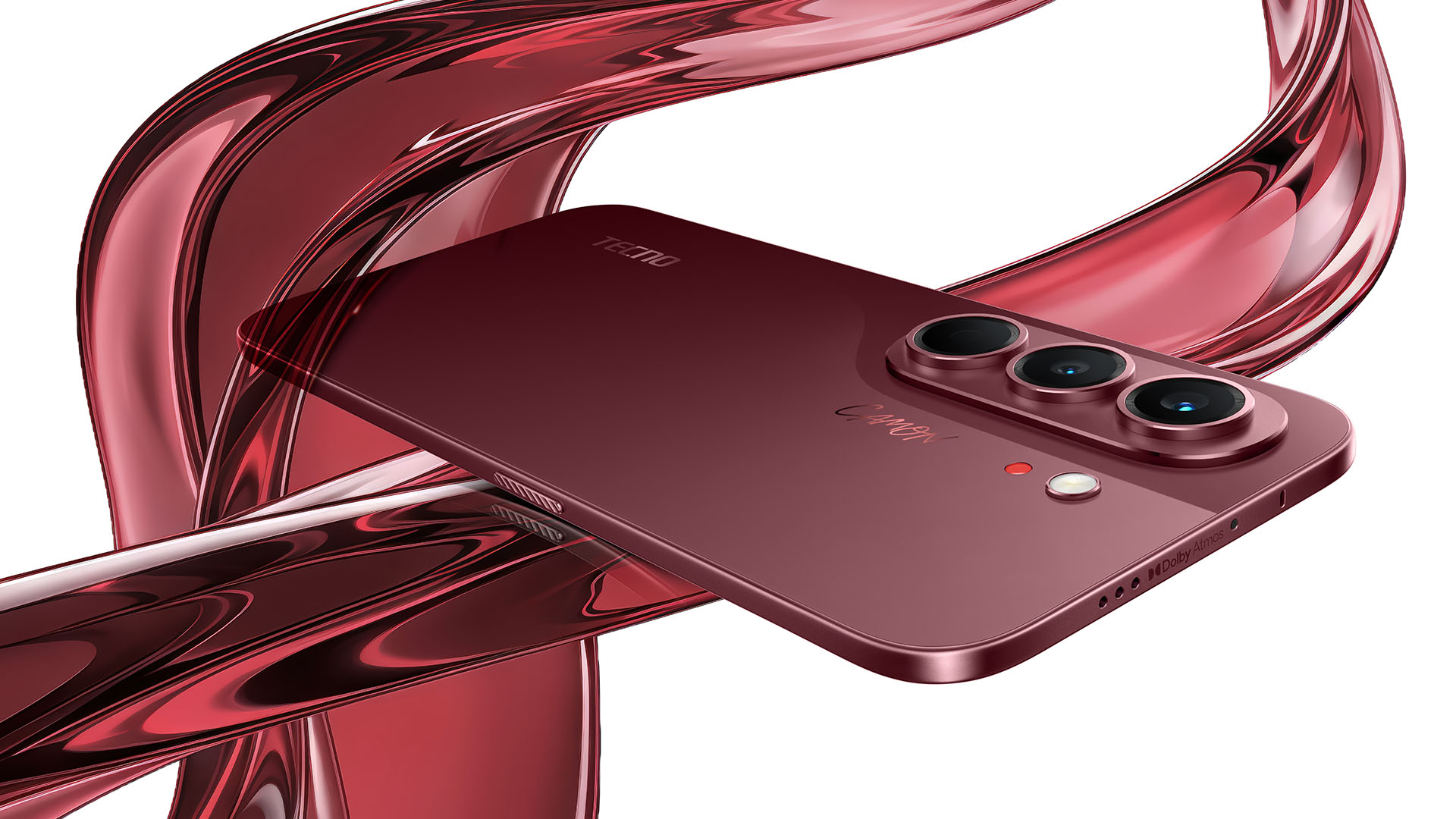
It launched at IFA with a Burgundy Red option sitting alongside artist-inspired finishes like Van Gogh Blue and Neo Mondrian, and GSMArena‘s own unboxing coverage flat out called the color “iPhone 18-anticipatory.”
TECNO wasn’t hiding what it was doing. It saw the leaks, built the phone, and then, shipped it before Apple’s event even happened.
This isn’t Burgundy’s first lap
Wine-colored phones aren’t new, they just don’t usually get a moment like this.
Samsung quietly ran a Burgundy Red Galaxy S8 as a limited South Korea release back in late 2017, then brought the same shade back for the Galaxy S9 and S9+ the following year alongside Sunrise Gold.
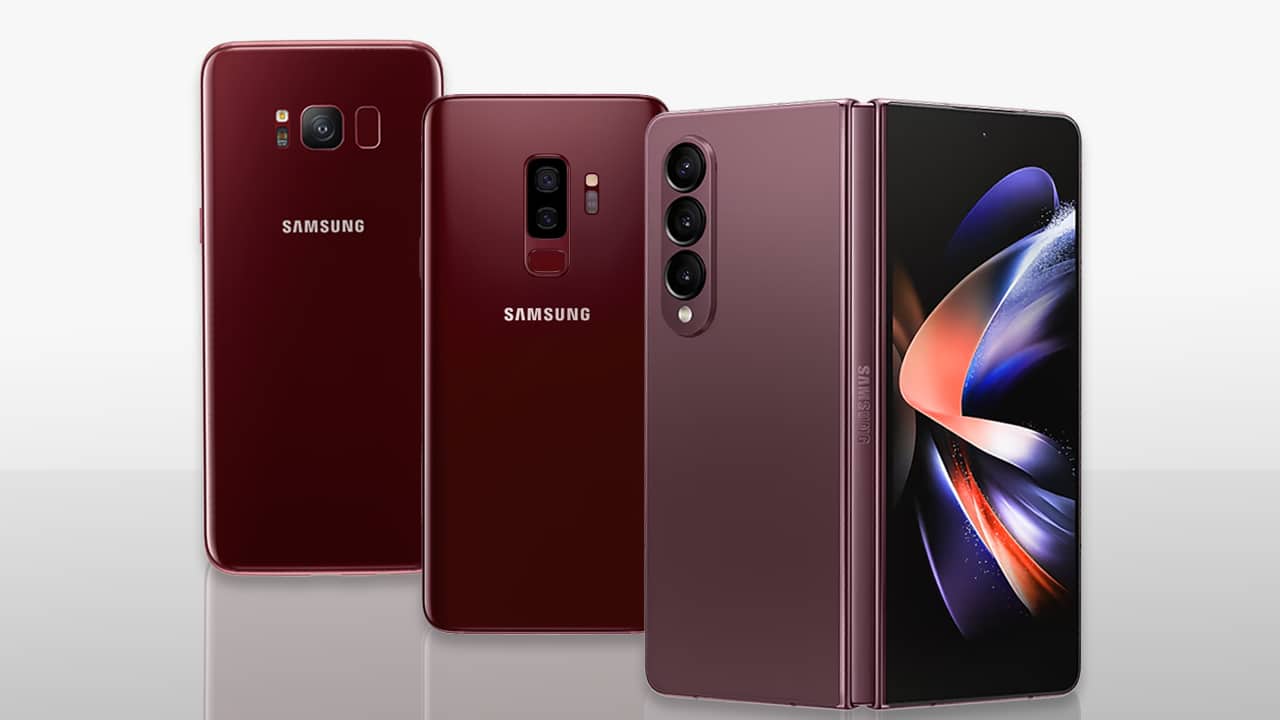
A Burgundy Galaxy Z Fold4 later became an online-exclusive color that didn’t cost extra despite the exclusivity. None of those got the fanfare Apple’s version is getting now, mostly because Samsung treated Burgundy as a nice-to-have rather than the hero shade.
Burgundy used to be the tasteful alternative color buried three options deep in a lineup. Now, it’s the one every brand wants on the box art.
Why burgundy, and why now?
The appeal is pretty straightforward once you look at what came before it. Bright colors like Cosmic Orange photograph well but can feel a little loud on a device you’re carrying around all day.
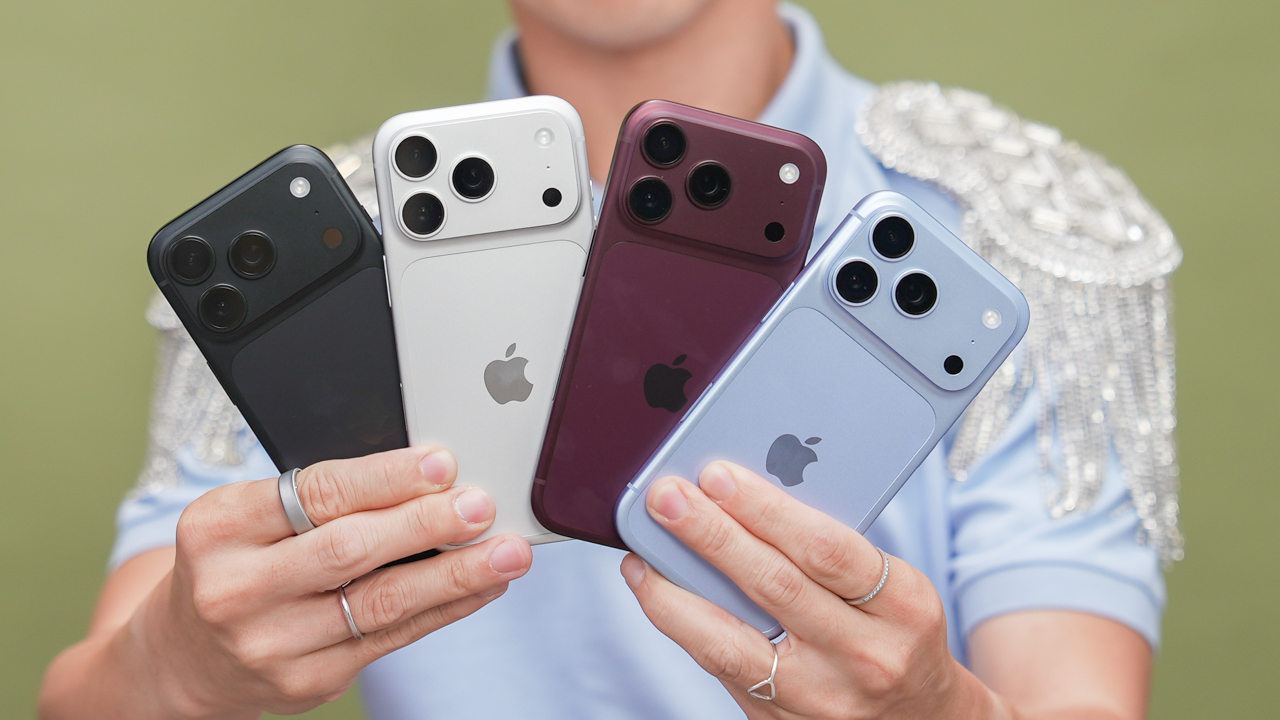
Burgundy splits the difference. It reads as premium in product shots and it doesn’t look like a toy in person. Yet, it still stands out next to a wall of black and silver phones on a shelf.
It’s the color equivalent of a phone trying to look expensive without trying too hard. And after a year of neon everything, that’s clearly what buyers and brands both wanted.
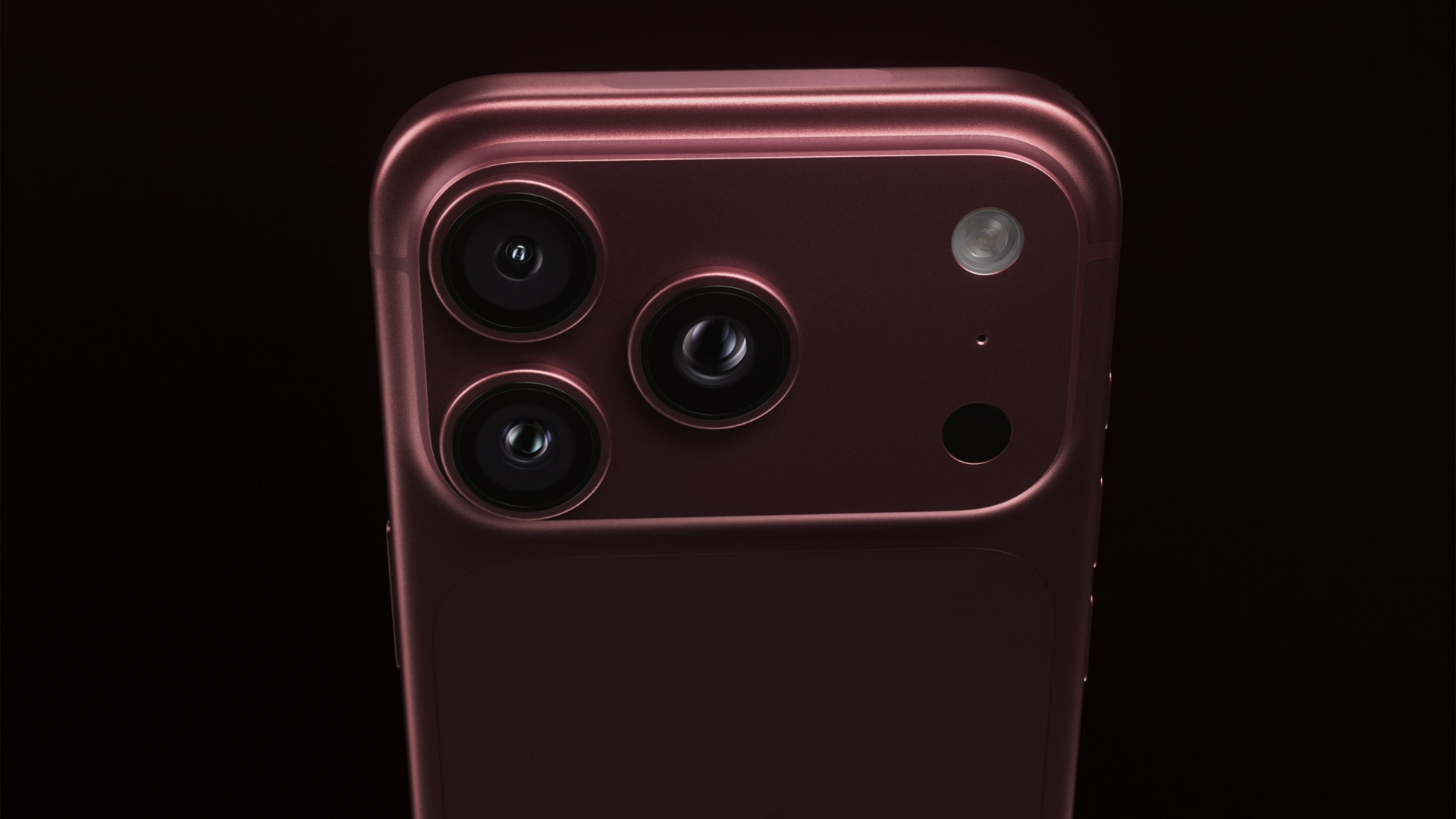
Whether Burgundy becomes as inescapable as Cosmic Orange did remains to be seen. But for a color Apple hadn’t even confirmed until its event, it’s already had one of the busiest years any smartphone shade has had in a while.


DJI Lito X1 review: Is this the best lightweight drone for creators?
Making a strong case as a travel companion and a capable B-cam!

REDMI Note 17 Pro Max review: A new breed born from AI greed
Welcome to the new normal


Marvel’s Wolverine review: When the claws come out
A brutal, cinematic superhero adventure

Manila turns up the volume at COVE

Epson Lifestudio Grand Plus EH-LS970B with 4K projection, more launches

Jackery Explorer 300D: Power and portability in one

Nike’s Alphafly 4 is built for the part of the marathon ~that actually hurts~

SEGA, Netflix announce Crazy Taxi film adaptation

realme 16T 5G with 8000mAh battery, IP69 Pro rating launches in PH

HUAWEI Pura X View is 2026’s first WIDE slab-type smartphone

REDMI reveals the refreshed Note 17 and Note 17 Pro series

REDMI Note 17 Series: Price, availability in Singapore

The CAMON Slim 5G is TECNO’s latest ultra-slim smartphone


-
 News2 weeks ago
iPhone 18 Pro series: Price, availability in the Philippines
-
 Singapore2 weeks ago
iPhone 18 Pro series: Price, availability in Singapore
-
 News2 weeks ago
iPhone Duo: Price, availability in the Philippines
-
 News2 weeks ago
HUAWEI Mate XT 2 tri-fold launches with Kirin 9050 Pro
-
 News2 weeks ago
vivo introduces refurbished versions of X300 FE, X300 Ultra for less
-
 News2 weeks ago
iPhone Duo: Price, availability in Singapore
-

 Accessories2 weeks ago
CASETiFY upgrades iPhone 18 cases, teases iPhone Duo lineup
-

 News2 weeks ago
HONOR teases Magic9 Pro Max at Venice