
Features
Samsung Galaxy Note 7 replacement program for PH: Everything you need to know


Not too long ago, Samsung issued a sweeping recall of the Galaxy Note 7 after reports of exploding batteries set fire to the internet. An internal investigation has since confirmed the reports and blamed faulty battery cells from Samsung subsidiary SDI. Shipments bound for China are reportedly safe for daily use, as they come with batteries outsourced to another supplier.
It is said that “one in every 42,000 units” could catch fire. Those odds appear to be in your favor, but in this case, being cautious is far better than being at the risk of harm and the potential lasting consequences of a dangerously defective phone.
And although we reported earlier that there may be a way to find out if your phone carries the same battery as those of units sold in China, and despite the fact there’s no precedent of a Note 7 explosion in some countries, including the Philippines, we think you should jump on Samsung’s offer while you still can.
If you’re among the early adopters of the premium phablet, and you got yours from a store in the Philippine islands, here’s what you need to know about the Galaxy Note 7 replacement process.
1. Samsung has previously announced it will be replacing all Galaxy Note 7 units bought from authorized online and offline retailers and carriers on or before September 7th, free of charge.
2. The replacement process will run from October 1st until the end of the year (December 31, 2016).
3. Those eligible must have purchased a unit from an authorized retailer (Lazada Philippines included) or from telecom company Globe Telecom or Smart Communications.
4. The process may vary depending on where you bought your phone from, but as a general rule, you should contact the store that sold you your Note 7 or visit one of its retail locations. You can get in touch with a Lazada Philippines customer-service representative by dialing (02) 795-8900.
5. If you can’t visit the store itself, you can head to the nearest authorized Samsung repair center instead. For a complete listing of service locations across the country, visit this official Samsung page.
6. Buyers who now reside in a different country should contact a service rep or visit a nearby Samsung repair center to get a replacement in hand, as opposed to shipping the phone back to the Philippines.
7. Heading to a store or repair center? Good. Here’s what you need to bring:
- The Galaxy Note 7 unit, plus the box with everything inside it. Samsung says it will accept damaged hardware; it even went as far as to cite a phone with a cracked screen. And those freebies that came with your purchase? They are yours to keep. Consider it Samsung’s way of apologizing for the debacle.
- A copy of the proof of purchase. Don’t worry if you lost the receipt; just go to the store where you got your phone from and have someone verify the purchase.
- One government-issued ID, company ID, school ID, or residence ID.
8. Upon surrendering your Note 7, you’ll be given three options:
- Wait for a new (and safe) Note 7 of the same color.
- Exchange your Note 7 for a brand-new Galaxy S7 edge. The price difference will be refunded.
- Get a full reimbursement in the form of cash or a check worth P39,990. The check will be delivered to your address within two weeks. Samsung will offer the reimbursement option beginning September 10th.
9. Those who opt for a Note 7 replacement via a Samsung service location can get a loaner unit for use in the interim. Loaners are subject to availability so act quick.
10. The warranty period of your new Samsung device (Note 7 or S7 edge) will be adjusted to reflect the date of replacement.
Okay, I’ve surrendered my possibly defective phone. What now?
You wait — what else is there to do? A Samsung representative will notify you when your new Note 7 is ready for pick-up.
[irp posts=”9847″ name=”Samsung earned record profits despite Note 7 recall”]
Source: Samsung




Tutorials
How to spot scam emails and messages before they get you
Here are the telltale signs in a potential scam.


The brazenness of scammers often goes through fits and starts. Within the last few weeks, I’ve had three separate people in my immediate circle fall for three separate scams. I’ve received similar emails myself. With the Christmas season approaching, we’re living in a particularly brazen period, and it’s time for a very important PSA. Here’s how to spot a scam email today:
Check the contents of the message
Most scam or phishing attempts today will ask you to submit sensitive information like your log-in details or bank information to a seemingly innocuous platform. Obviously, these platforms are fake, and you’re surrendering your information to a malicious party. Unfortunately, these scams are getting much better with disguising their deception. If you put them side by side with a real email or message, you might find it hard to spot crucial differences. So, how do you clock them before it’s too late?
Start with the actual message. Companies will not ask you to submit your details on an email or on a message. It doesn’t matter if the message is claiming an issue (someone allegedly using your card) or a reward (your points are about to expire). If it’s not your usual way of logging in or submitting this information, then it’s likely fake.
Some might even include a highly suspicious link that leads to a log-in page. If that link is from a link shortener (like bit.ly) or looks nothing like the company’s real site, don’t click it. If you do click, check the URL for anomalies. In the below example, “Maya” claims that someone else tried to change the email on my account. Besides how unofficial the alert looks, the button does not lead to Maya’s website. 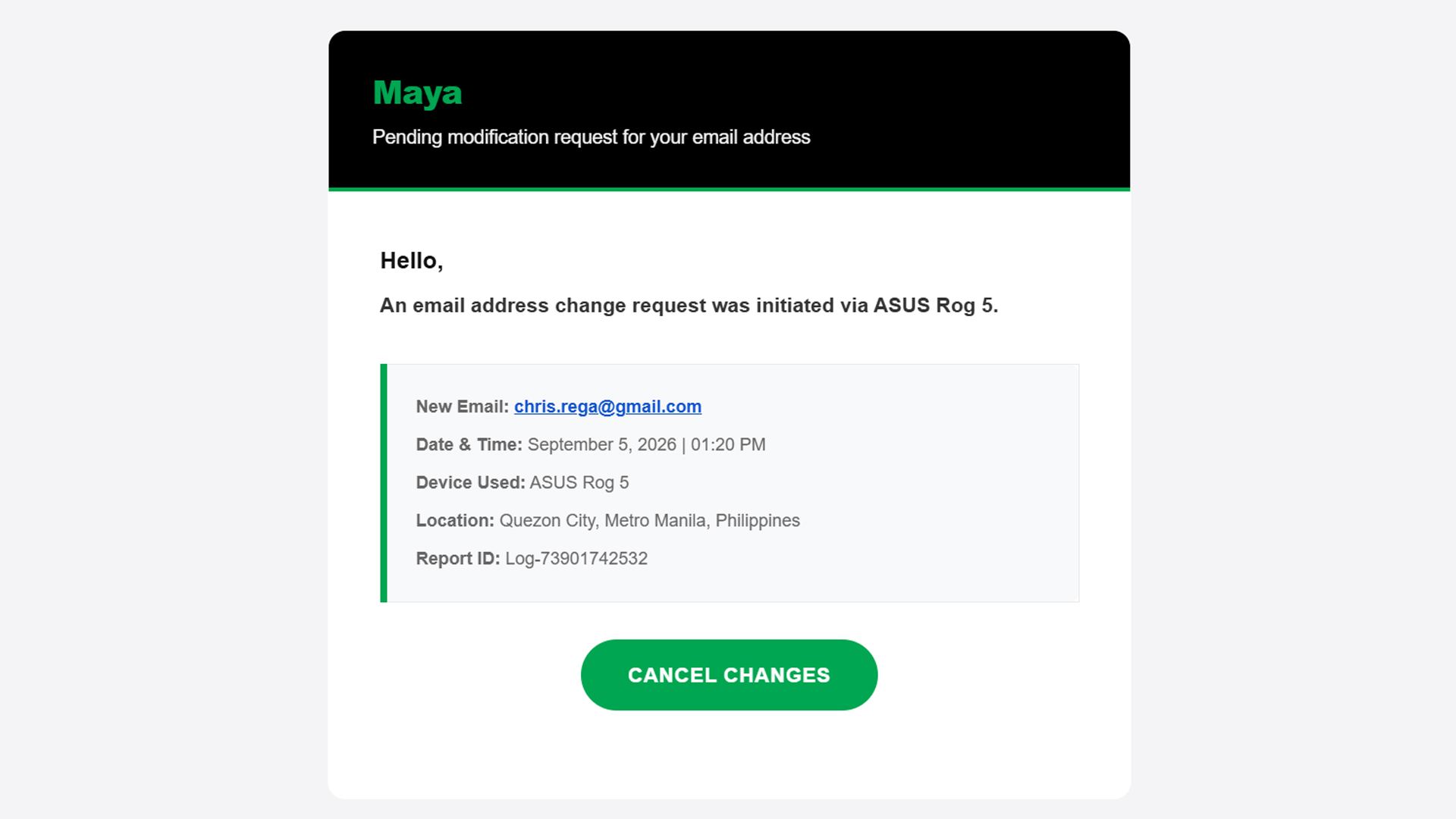
Now, on rarer occasions, the message itself has telltale signs of deception: typographical errors, missing words, extra spaces. A normal message should have already filtered these errors out, so there’s a good chance that it’s a fake message if it has any of these errors.
Basically, if something feels off straight from the get-go, cast doubt immediately and be vigilant.
Check the sender
Ensuring a fake message is clean should be easy stuff for scammers. A simple spell checker can trick a simple user into doing whatever the scammer wants. One aspect that’s way harder to change is the sender.
An email might have the cleanest copy, but one look at the sender dismantles all deception. In three of the four scam emails I’ve seen in the past two weeks, the sender was the ultimate telltale sign.
In the example below (the same one as above), the sender presents itself as “MayaPH.” If you weren’t paying attention, you would have been fooled into thinking that this is actually Maya. But, if you open the sender information, you’ll see that it’s coming from an unknown email, rather than an official Maya email address.

On a PC, this is easy to check because the email address automatically pops up beside the sender’s name when you open the email. On mobile, you’ll have to press the drop-down button below the sender’s name.
Verify the information yourself
Let’s move to the next level. What if the message looks official and seemingly comes from an official sender?
Unfortunately, scammers today can also spoof senders. Meaning, they are able to send official-looking messages and mask themselves as official senders. In the below example, “BPI” sent me an alert saying that someone tried to spend PhP 19,250 from my account. Take note: this is the same thread where I got real messages from the bank, which the scammer managed to hijack.
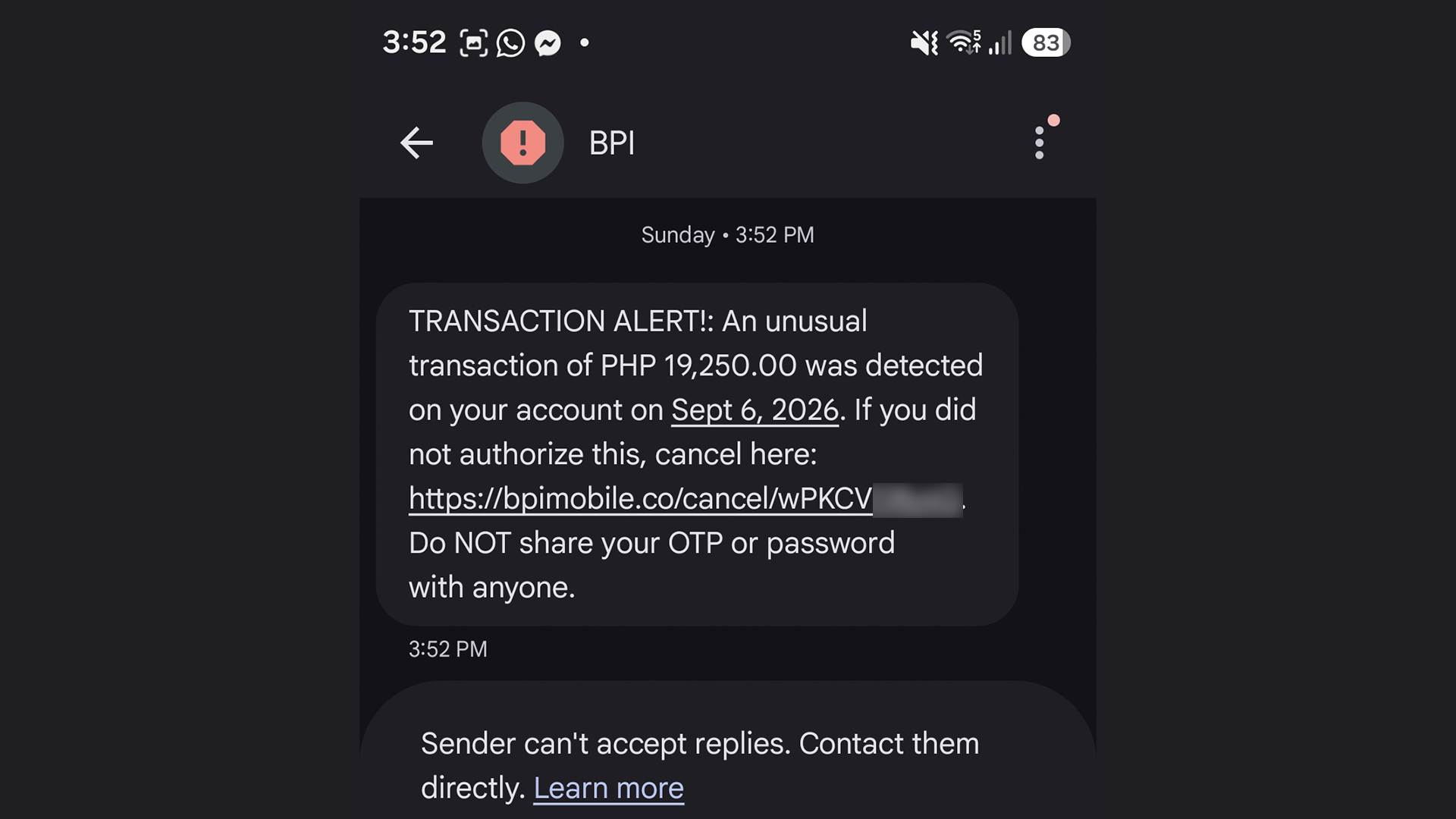
The message looks real. I can’t spot a single typo. Now, if you spotted this and thought it was real, you’d enter a state of panic and click the link out of instinct. The scammer is depending on your instinct to do so. Here’s why you shouldn’t click it: That’s not BPI’s official website. It looks like it, but it’s not.
Of course, you can’t be faulted for not memorizing official company websites. In fact, I had to Google the URL just to confirm that it was fake.
A surefire way to make sure, though, is checking the supposed information yourself. When I got the message, I checked my BPI app immediately. There was no trace of the transaction, so I knew it was fake. You can also call them yourself using their official numbers.
This isn’t limited to banks, either. Another example I’ve seen is one claiming that your Spotify subscription failed to renew. In this case, you can manually check your Spotify app to see if your subscription hasn’t been renewed.
Scammers are hopeful that you panic and run to them, rather than the official channels.
Sometimes, friends cannot be trusted
Though we can avoid falling for traps ourselves, other people still can. After an account is hacked, the hacker’s usual play is to message the account’s contact list to get other people.
Because it’s seemingly coming from a loved one’s account, a user is more likely to follow whatever the hacker wants, including clicking suspicious links.
In my experience, this type of scam is rarer these days, but it’s not completely gone. I’ve had one experience wherein a contact from Discord messaged me and tried getting me to play a game with them. The game itself was non-existent. The goal was to have me click a suspicious link and install malware on my computer. The malware can then give the hacker complete access to my PC and every account it’s logged into.
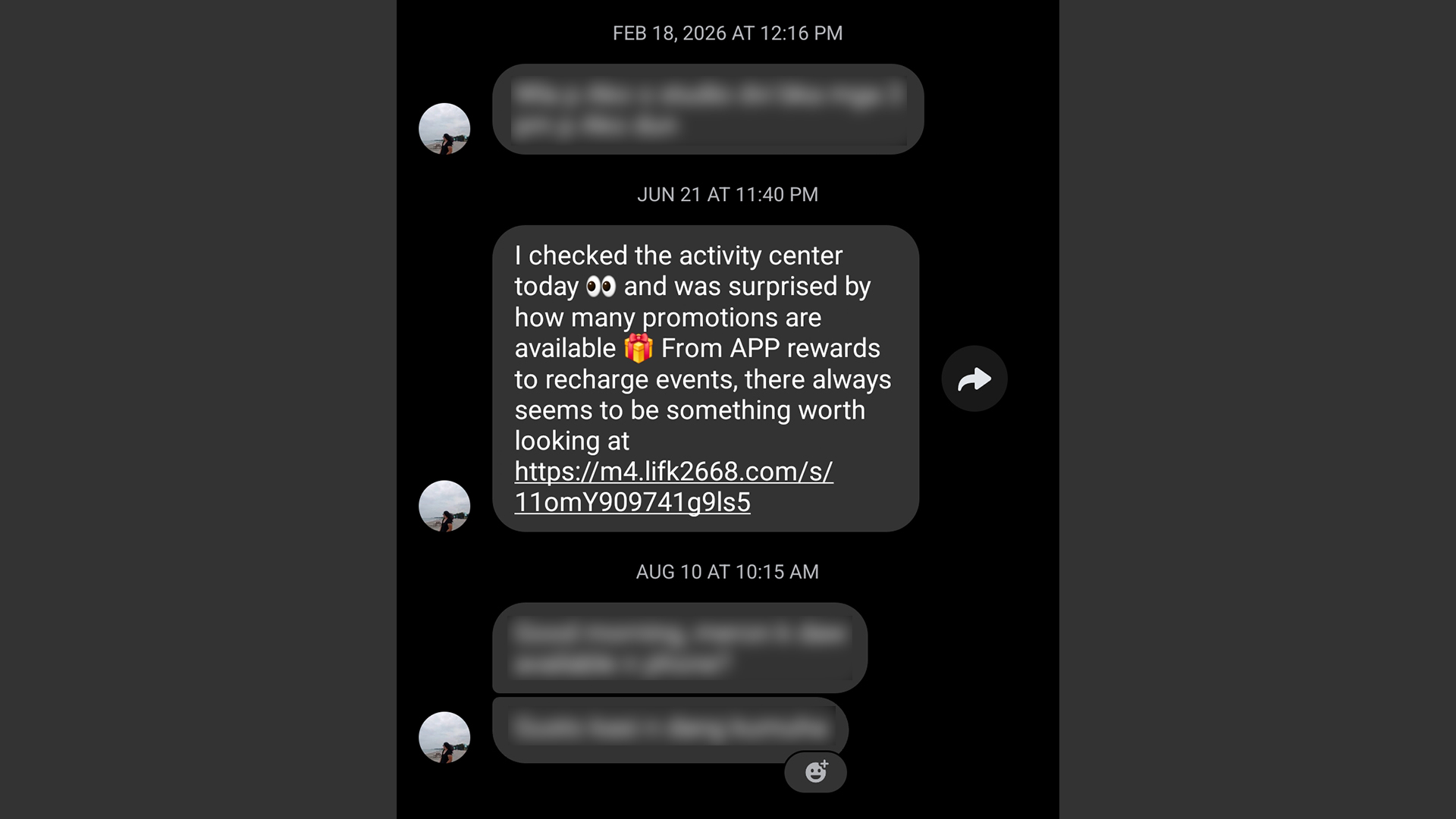
It’s a very nasty malware, but it’s fairly easy to prevent. If you get a message from a friend that isn’t their typical behavior, contact them on a separate platform, preferably on one that doesn’t rely on the net like SMS. If that’s not possible, contact someone near to them.
Address a potential hack immediately
Even with all these precautions, sometimes we can’t prevent ourselves from falling into these scams. If you find yourself victimized by scammers, respond immediately.
First of all, secure the targeted platform first. If it’s an app or a service, change passwords immediately and add two-factor authentication. If it’s a bank, call and appraise them of the situation. You might have to spend some time with a frozen account or without a card, but it beats having all your money sucked dry.
Now, if you suspect that your entire device was compromised, disconnect from the internet immediately. A hacker is toothless if they can’t connect to their prey. Then, using another device, reset every account that the hacker might have access to. If you know how, manually disconnect your accounts from the affected device. Once clear, do a clean install/reset of the device to hopefully weed out the malware.

For years, the pitch for a foldable smartphone was remarkably simple: look, it folds.
That was enough when the category was new. Samsung had to prove that a smartphone could have a hinge, bend in half, and still work like a phone.
Eight years later, that is no longer the interesting part.
The question has shifted from can a smartphone fold? to what does folding actually let people do?
For Samsung, the answer increasingly seems to be about making the phone fit the person, rather than asking the person to adapt to the phone.
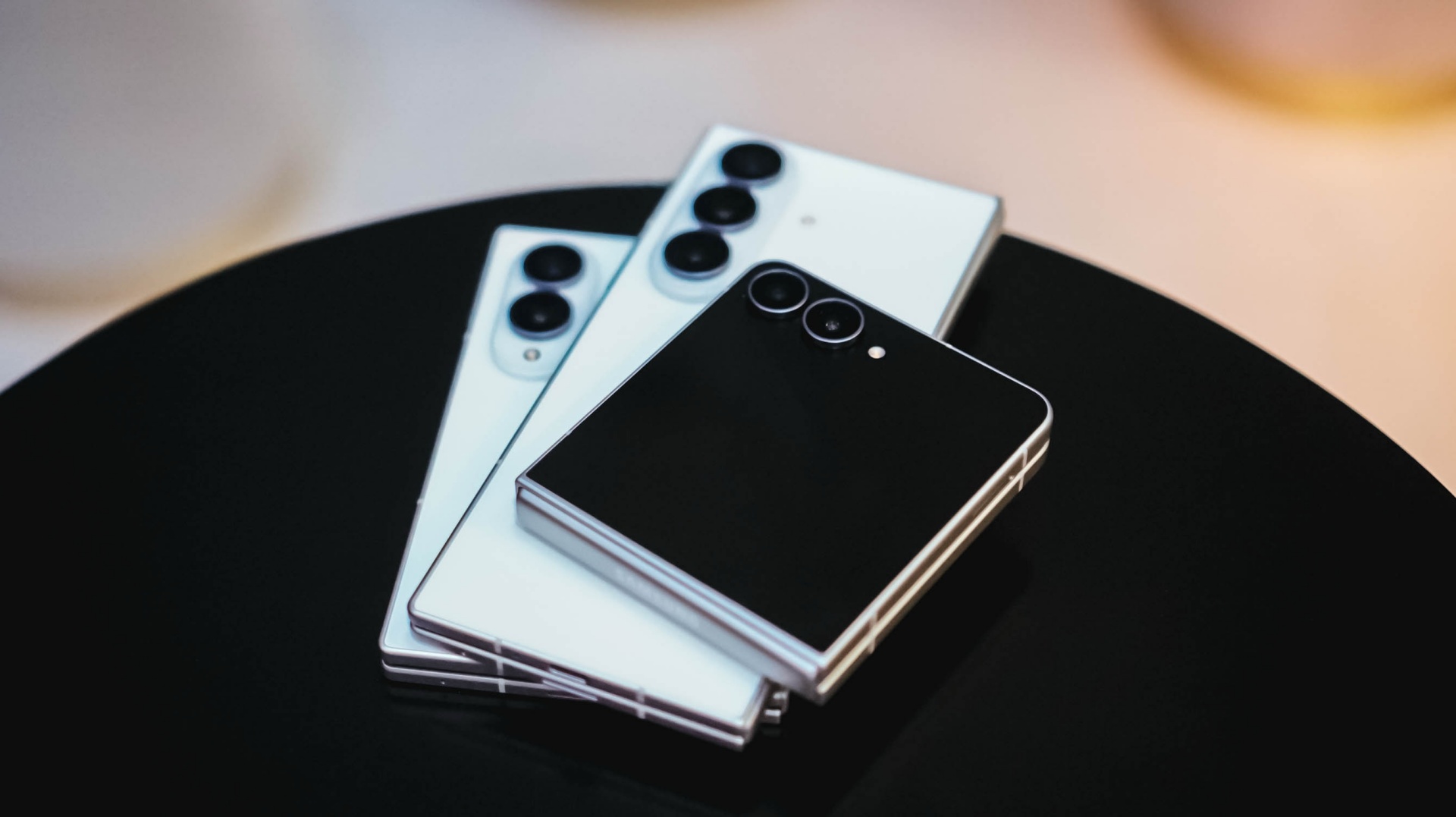
That shift is reflected in the latest Galaxy Z lineup. The Galaxy Z Fold8, Galaxy Z Fold8 Ultra, and Galaxy Z Flip8 don’t simply offer different specifications or screen sizes. Samsung sees them as different expressions of how people use their phones — whether that means watching, working, creating, communicating, or simply carrying the device around.
Jun Guevara, Head of Corporate Marketing at Samsung Philippines, says this reflects a broader change in how people think about smartphones.
“Before, it’s always about the specs — what the camera is like, how big or heavy it is, what’s the process, etc. But now with AI in the picture and it becomes more personal, contextual and action-oriented, people will expect their devices to adapt more closely to what they are trying to do.”
That makes the foldable form factor particularly interesting.
A foldable can be compact when portability matters, then become larger when more space is useful. It can change how you interact with the same device depending on the task at hand.
In other words, the screen doesn’t have to stay the same just because the phone does.
Eight years of listening
Samsung’s foldable journey began with a much more fundamental problem: convincing people that the concept was viable in the first place.
The company says it has spent more than seven years making thousands of engineering decisions across materials, displays, hinges, software, and overall design. But some of its most important lessons didn’t come from the lab.
They came from people actually using foldables.
Durability, in particular, became a major area of focus. Samsung says real-world usage helped inform improvements to display durability, crease visibility, the opening experience, materials, and overall device thickness and weight.
That accumulated experience has also changed what people expect from a foldable.
Consumers now judge them against the same fundamentals they expect from any flagship: can it hold up, can I carry it comfortably, is it powerful enough, and will it remain useful over time?
For Samsung, that means the foldable experience can’t be reduced to the hinge or the display. It has to work as a whole.
That sounds obvious. But it is also a meaningful shift.
The novelty of folding can get someone to try a device once. Making it a daily driver requires everything around the fold to work naturally.
That may be the biggest lesson from Samsung’s years of listening: people don’t use their phones in exactly the same way. So why should every foldable be designed to serve them the same way?
There isn’t one way to fold
Samsung isn’t trying to establish a single “best” foldable. Instead, its latest Galaxy Z lineup is built around different ways people want to use their phones.
The Galaxy Z Fold8 Ultra is positioned as the most capable option of the three. Samsung describes it as a device for people who need to do more, combining expansive multitasking and pro-level creation with its most advanced foldable design.
The Galaxy Z Fold8 takes a slightly different approach. Samsung sees it as the next evolution of the traditional Fold, balancing flagship performance with greater everyday usability and an immersive viewing experience.
Then there’s the Galaxy Z Flip8, which goes in the opposite direction. It is about portability, quick interactions, personal expression, and bringing AI experiences closer to the moments when you actually need them.
The distinction is important because Samsung isn’t arguing that everyone needs the biggest screen or the most powerful foldable.
Instead, it is arguing that there should be a foldable that makes sense for you. Your foldable match, if you will.
“We do not believe a single foldable form factor can meet the needs of every user,” Guevara says.
That idea runs through Samsung’s broader approach to the category. When evaluating new form factors, the company says it starts with real-world user value — whether a design meaningfully improves portability, productivity, content consumption, multitasking, or AI experiences.
The hardware, in that sense, is becoming a means to an end.
The right screen for the right moment
This is where Samsung’s vision for foldables starts to extend beyond simply having more screen.
Guevara describes a future where the mobile experience becomes less about having one fixed screen and more about having the right screen for the right moment.
Need something pocketable? Keep it compact.
Need more room to work? Open it up.
Want a more immersive viewing experience? Give yourself a larger canvas.
Want a quick interaction? Use the screen that’s already available.
The physical flexibility of a foldable gives AI more ways to respond to those situations, too. Samsung sees larger displays enabling deeper multitasking and content experiences, while cover screens can make interactions more glanceable and immediate.
“The mobile experience will become less about one fixed screen and more about giving users the right screen for the right moment.”
That also explains why Samsung isn’t predicting that foldables will replace traditional smartphones altogether.
Bar-type phones will remain important because they’re familiar, powerful, and portable. The point isn’t necessarily to eliminate one form factor in favor of another.
It’s to give people more choice.
And, perhaps more importantly, to make that choice feel right.
Technology in action
Samsung’s partnership with Spider-Man fits into that idea in an interesting way.
Rather than treating the devices purely as technology products, Samsung describes its cultural collaborations as “Technology in Action.” The goal is to place its products inside stories and narratives where their different capabilities can be demonstrated in context.
In the Spider-Man partnership, that means seeing a Galaxy Z Flip used for portability, a Galaxy Z Fold used for seeing the Spider-tracker map bigger, and a Galaxy Watch notifying Ned Leeds that Spider-Man is in the vicinity.
It’s a very literal demonstration of Samsung’s argument: the form factor matters because of what it lets people do.
A Flip can disappear into a pocket. A Fold can give you more room to work. A Watch can help you stay connected without reaching for your phone.
In that sense, Spider-Man becomes more than a backdrop for the latest Galaxy Z devices. It’s a way for Samsung to show its technology in action, inside a story about connection, community, and self-expression.
Making the foldable fit
There is still a perception that foldables are niche products.
Samsung doesn’t see it that way anymore.
Guevara points to repurchase rates for the previous generation — 32 percent for Fold7 and 37 percent for Flip7 — as evidence that once people adopt foldables, many choose to stay with the category. He also points to Fold7 attracting more former Ultra users, suggesting the category is expanding beyond its traditional early adopters.
Whether foldables eventually become the default smartphone remains to be seen.
Samsung isn’t betting on that, either.
Instead, it is betting on something more flexible: that people will choose devices that match how they actually live.
That’s a different proposition from the one Samsung made when the first Galaxy Fold arrived.
Back then, the company had to prove that a smartphone could fold.
Now it has to prove that a foldable can belong in everyday life.
And after eight years of engineering refinement and listening to how people actually use these devices, Samsung believes the next step isn’t making people adapt to the foldable.
“Our goal is not to make users adapt to foldables. It’s to make foldables fit more naturally into how people work, watch, create and communicate.”
It’s making the foldable match them.
Perhaps that’s where the Galaxy foldable story is heading next.
Not toward a phone that can do everything.
But toward a phone that knows when to become what you need.
Features
The designated photographer’s new favorite phone: OPPO Reno16 Series 5G
Built for the moments you’ll want to remember

Every friend group has a designated photographer.
The one who reminds everyone to take a group photo before leaving, asks for one more shot “just in case,” and somehow ends up with a camera roll full of memories while appearing in very few of them.
I’ve been slipping into that role for a while now, and lately, I’ve been doing it without a camera.
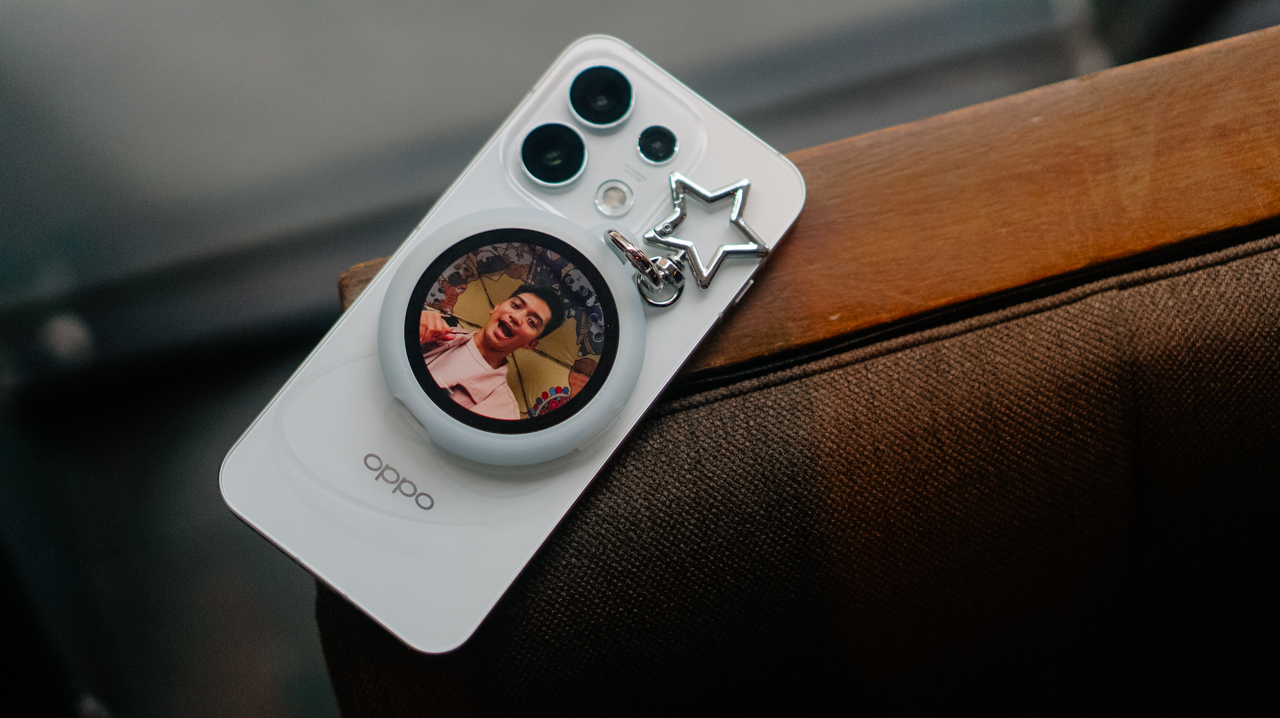
I’ve relied entirely on the OPPO Reno16 Series 5G and its Pocket Studio experience to document coffee runs, hangouts, and everything in between.
Capturing the moments between the milestones
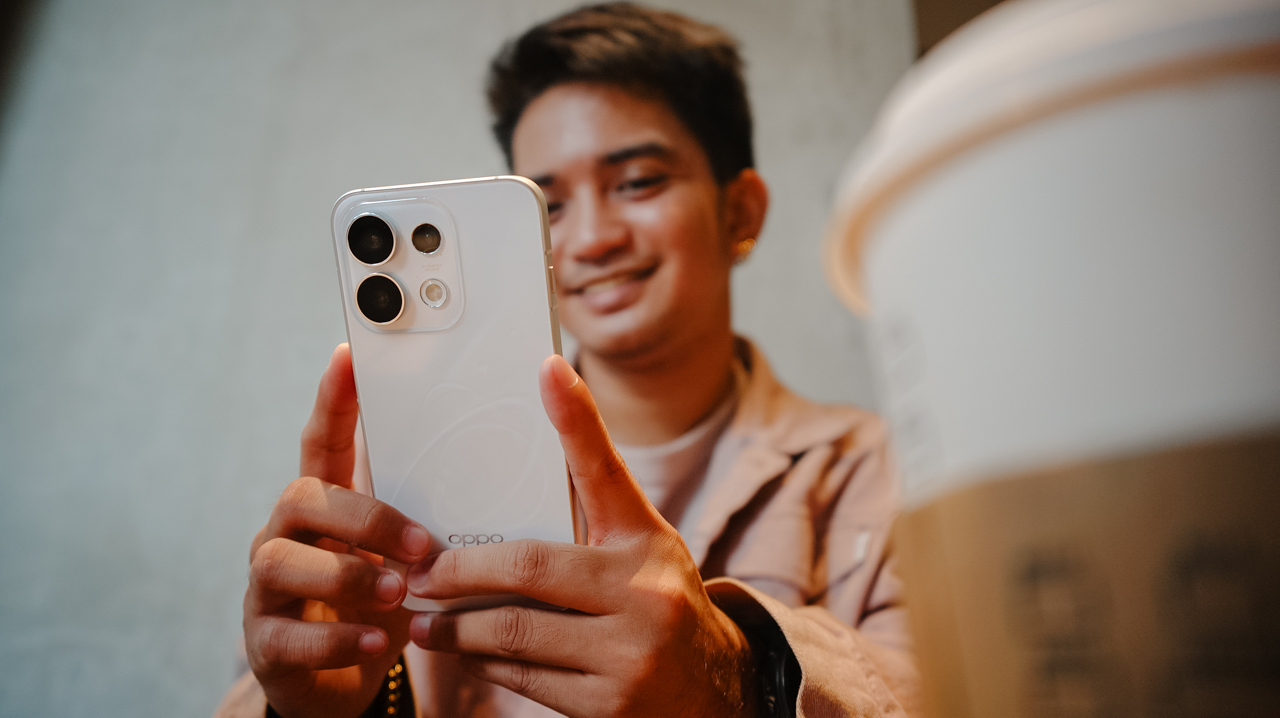
When people think about documenting their lives, they often focus on the headline moments. Like the ones worth posting for the ‘gram.
What often gets overlooked is everything around them, like the early morning coffee run before everyone’s fully awake, or the laughter that breaks out during a random conversation.
So is the roadside stop that turns into an impromptu photo session. These are the moments that tell the real story of an experience.
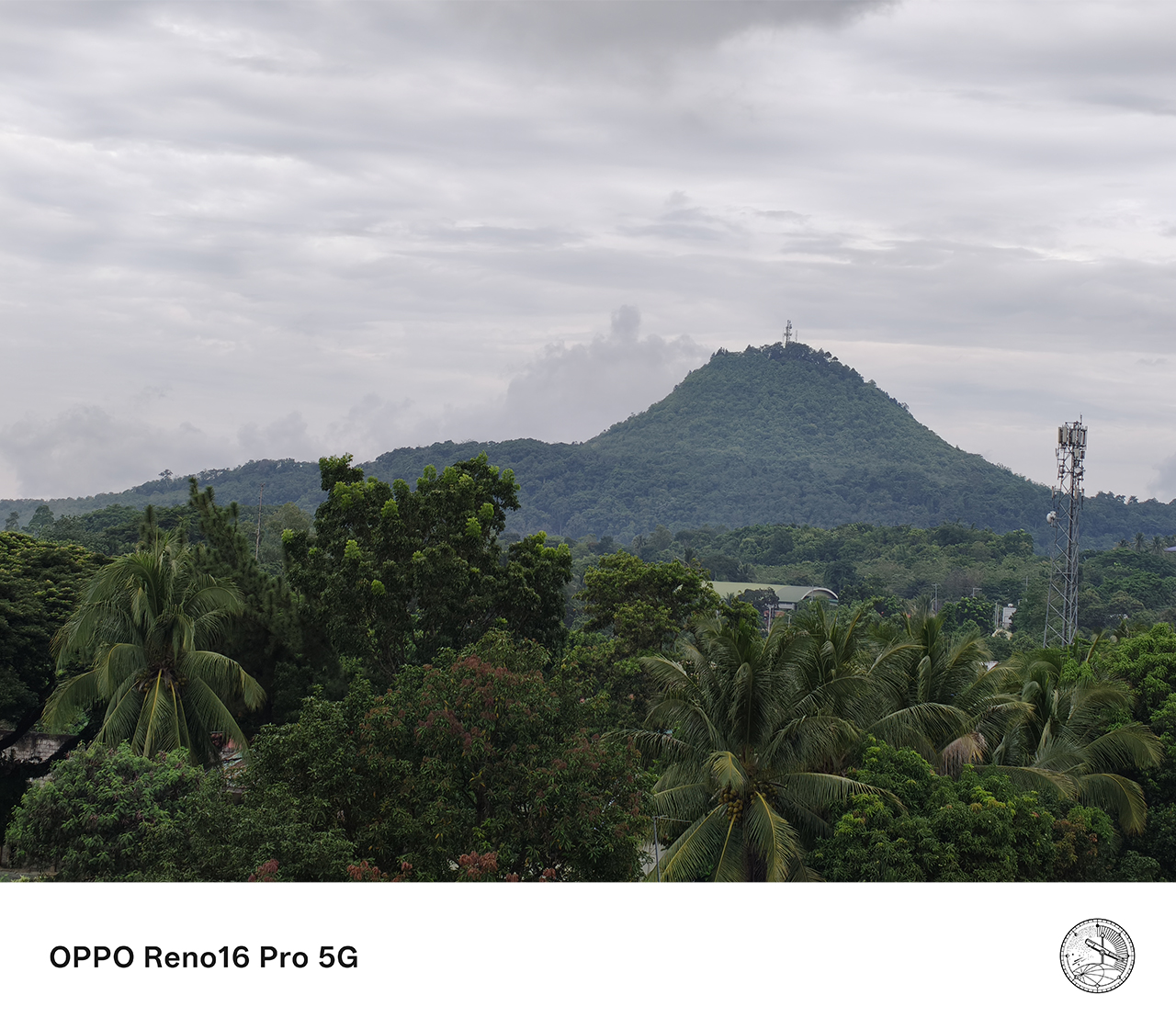
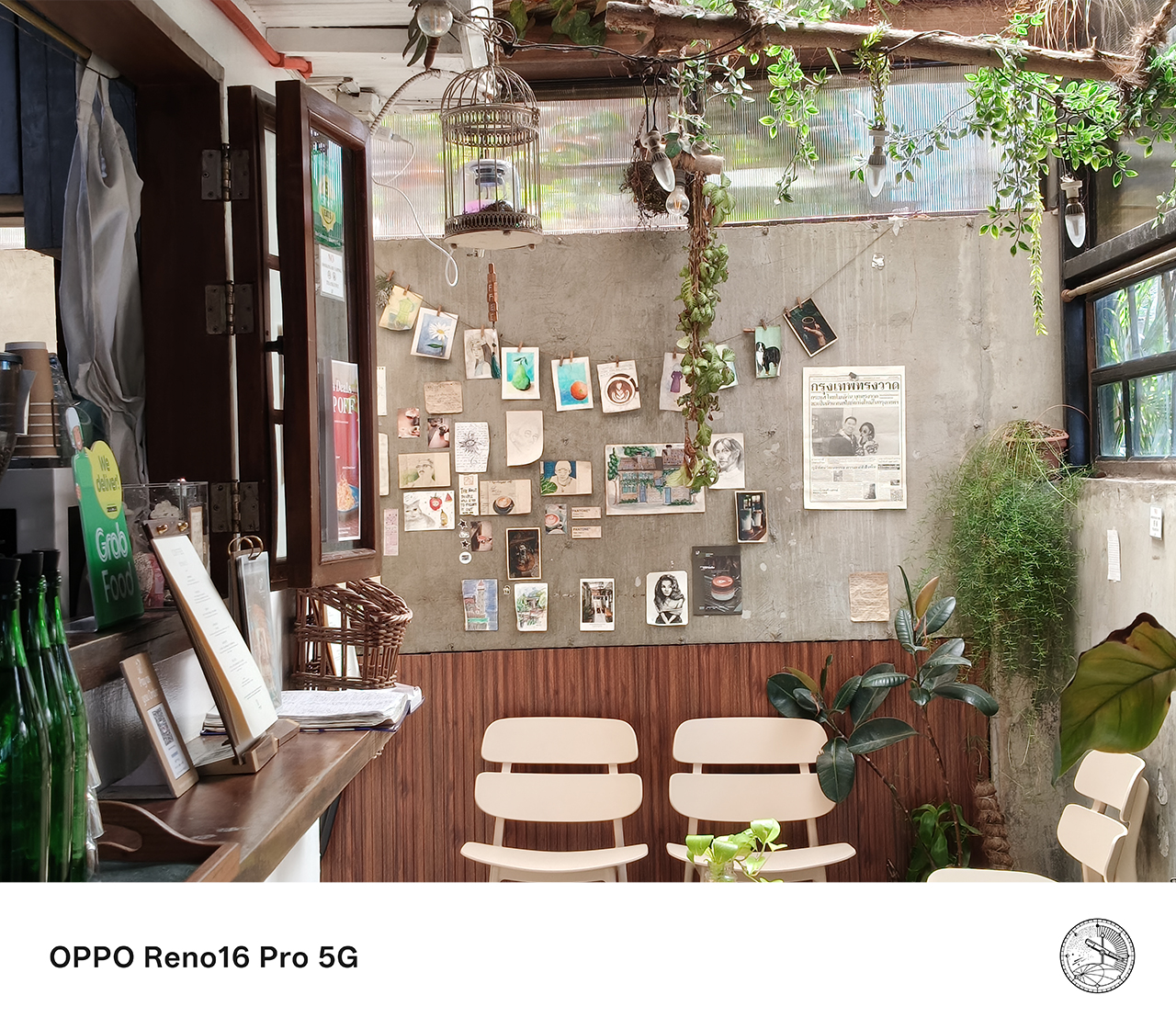


Pocket Studio, the OPPO Reno16 Series 5G’s signature content creation experience, feels built for exactly this kind of moment.
Instead of treating photography and videography as separate tasks, it creates a seamless workflow that lets users capture, create, edit, and share content directly from their smartphone.
The feature makes it easier to preserve moments that matter, even the small, unplanned ones with people who may or may not stay in my life. Either way, I’ve got a memory I can cherish.
Finally, the designated photographer gets to be in the photo
One of the biggest challenges of being the group’s unofficial photographer is that you’re usually the one left out of the shot.
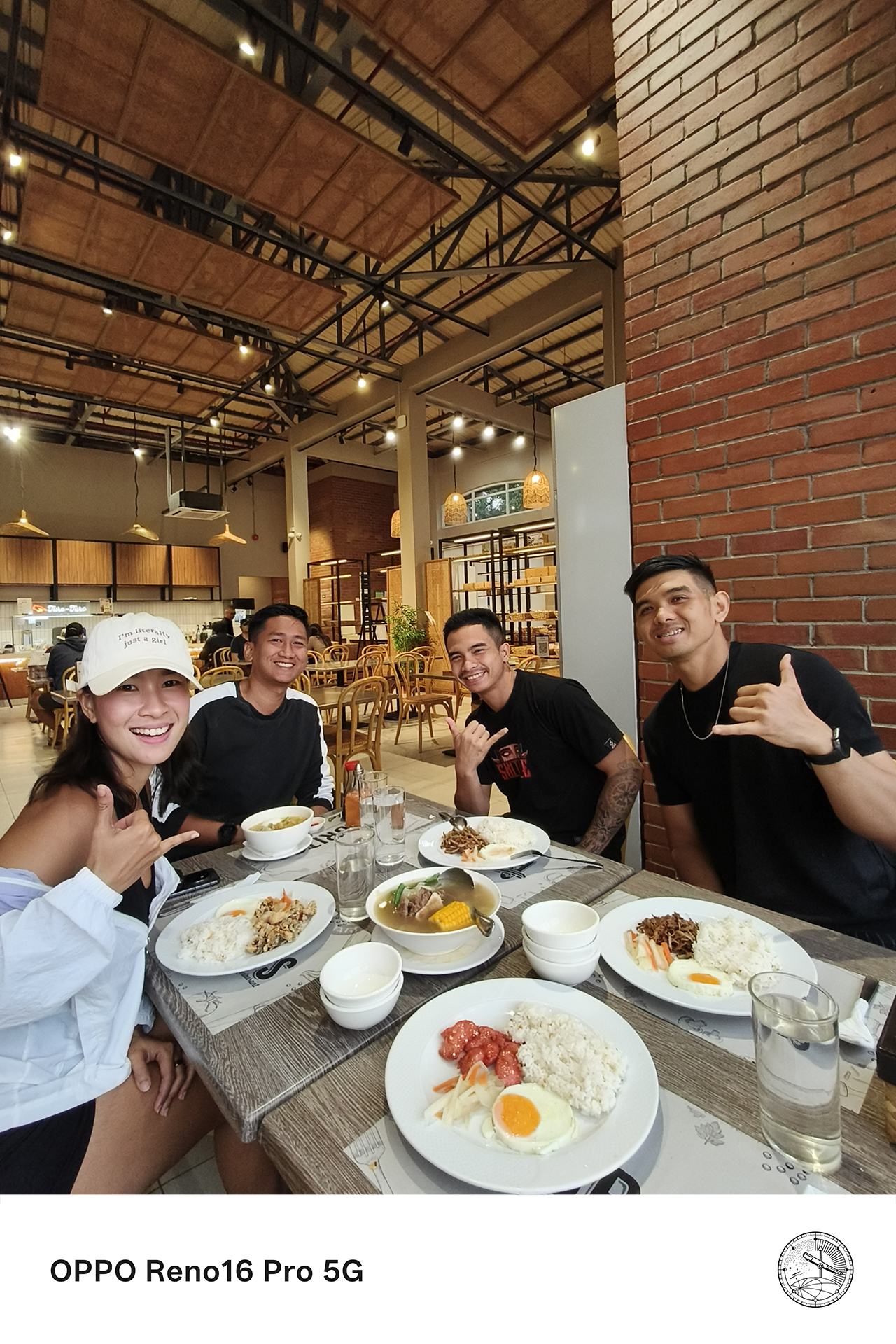
The OPPO Reno16 Series 5G addresses this through its integration with the OPPO Bubble and the Camera Remote View feature.

Instead of relying solely on the front camera, Camera Remote View lets users preview and control shots while using the smartphone’s rear camera system. The result is a sharper, more detailed image, especially for group photos and selfies.
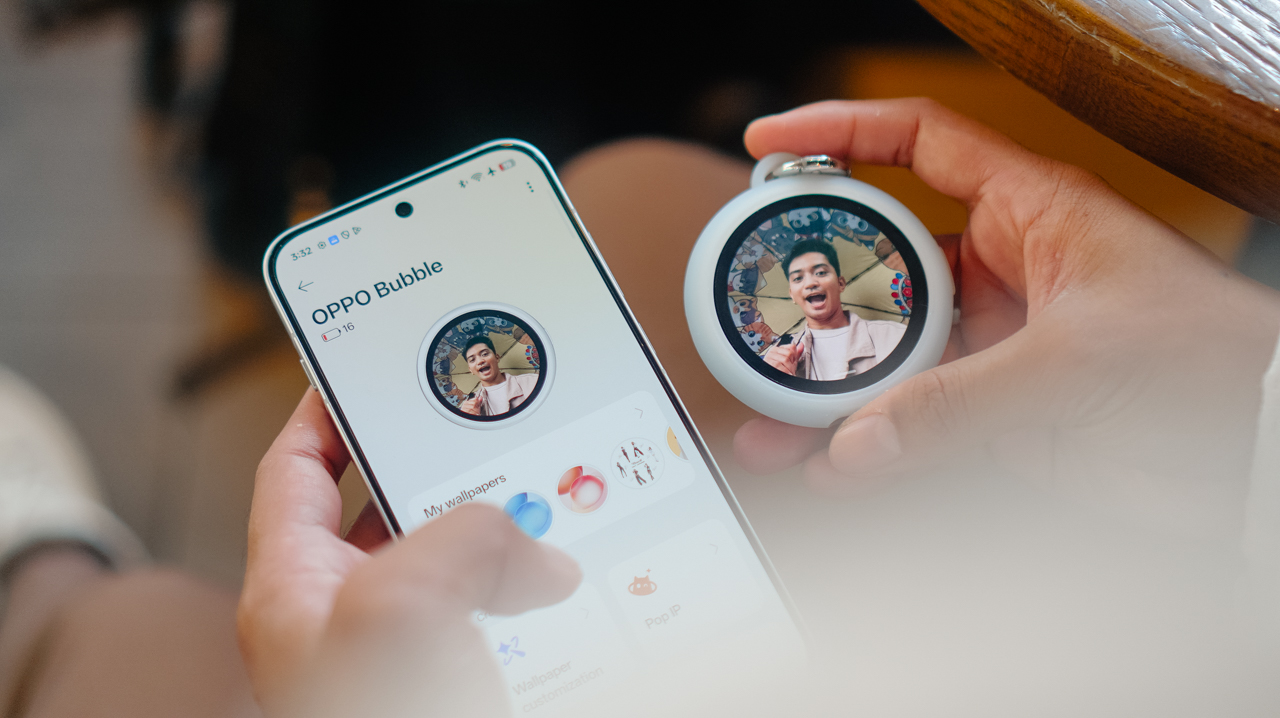
This has become one of the most useful features for gathering everyone together. Camera Remote View made it easy to capture higher-quality photos while making sure nobody had to stay behind the camera.
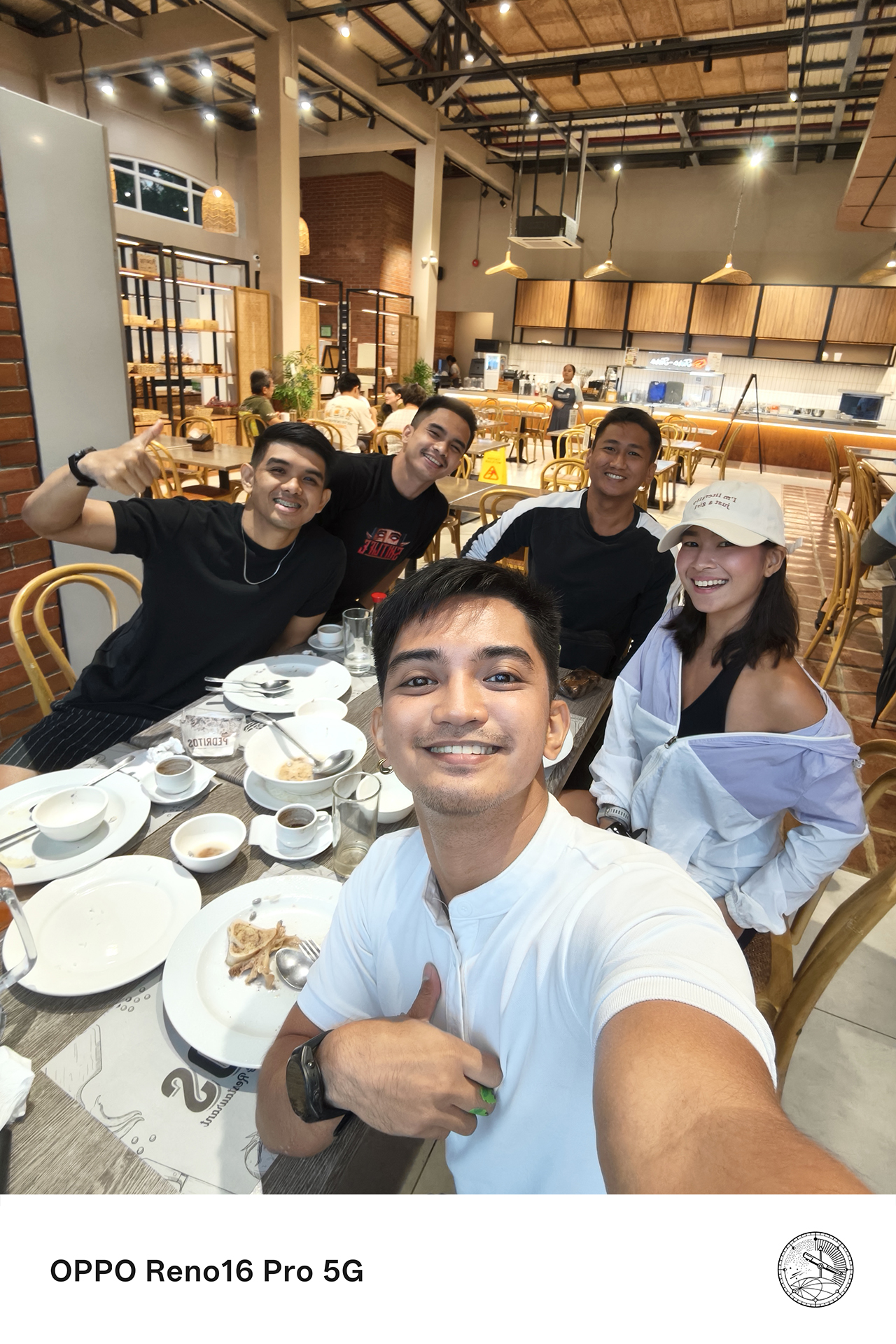


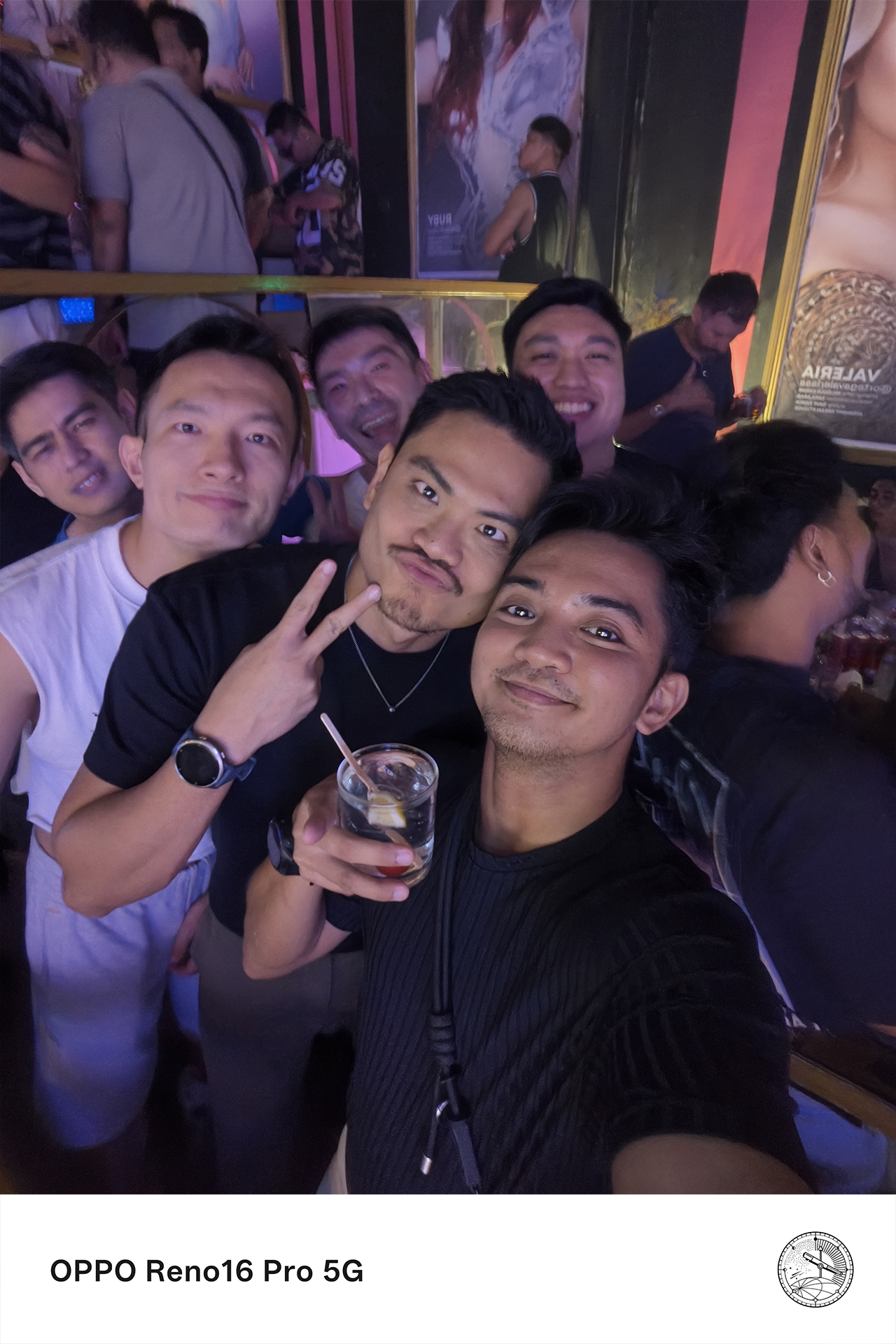
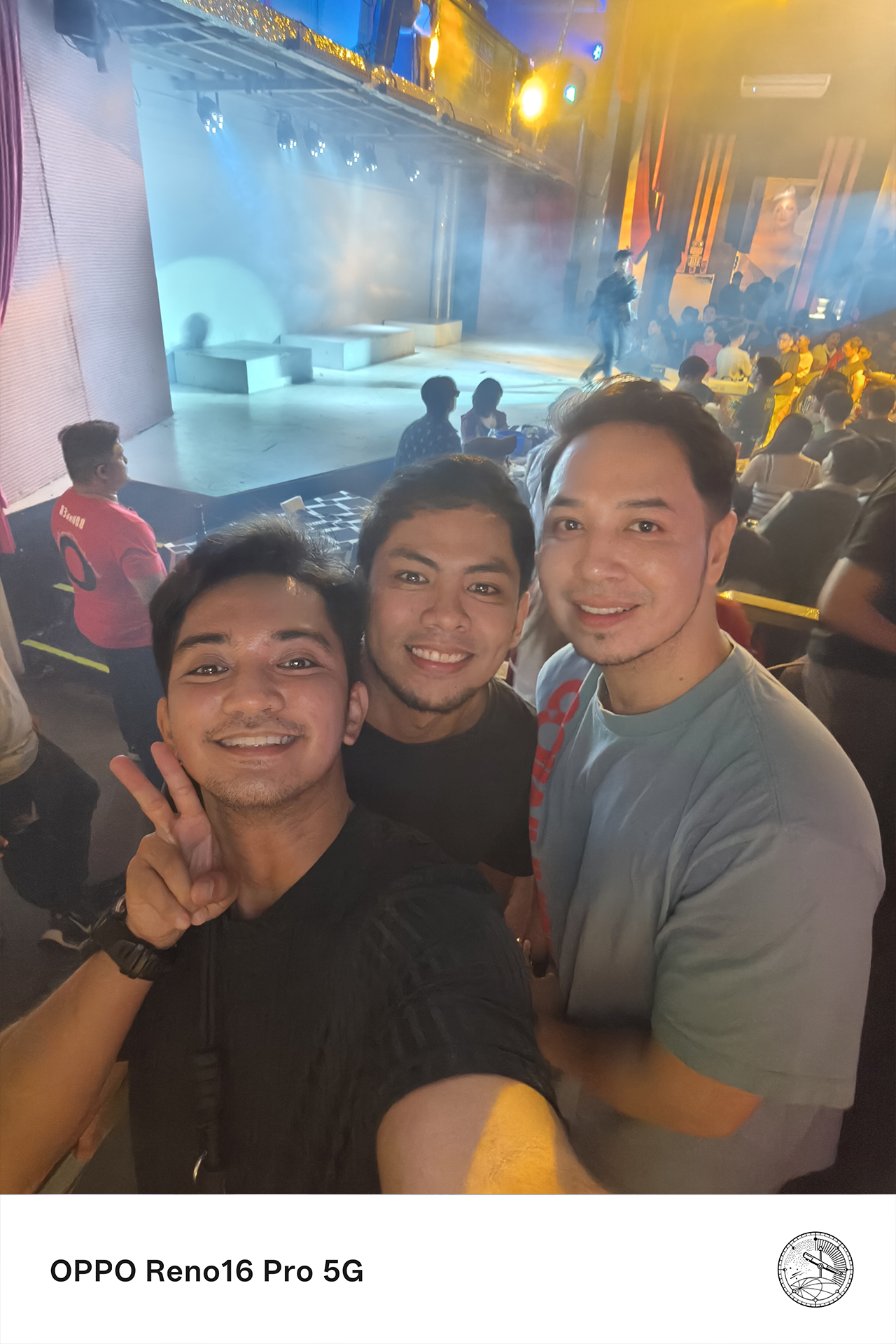

For someone who is usually responsible for documenting everyone else’s memories, that small change makes a surprisingly big difference.
Flagship-quality results without carrying extra gear
There was a time when documenting properly meant bringing multiple devices.
I used to carry a camera for photos and a separate device for video, then edit everything later on a laptop. Now, the experience feels remarkably different.
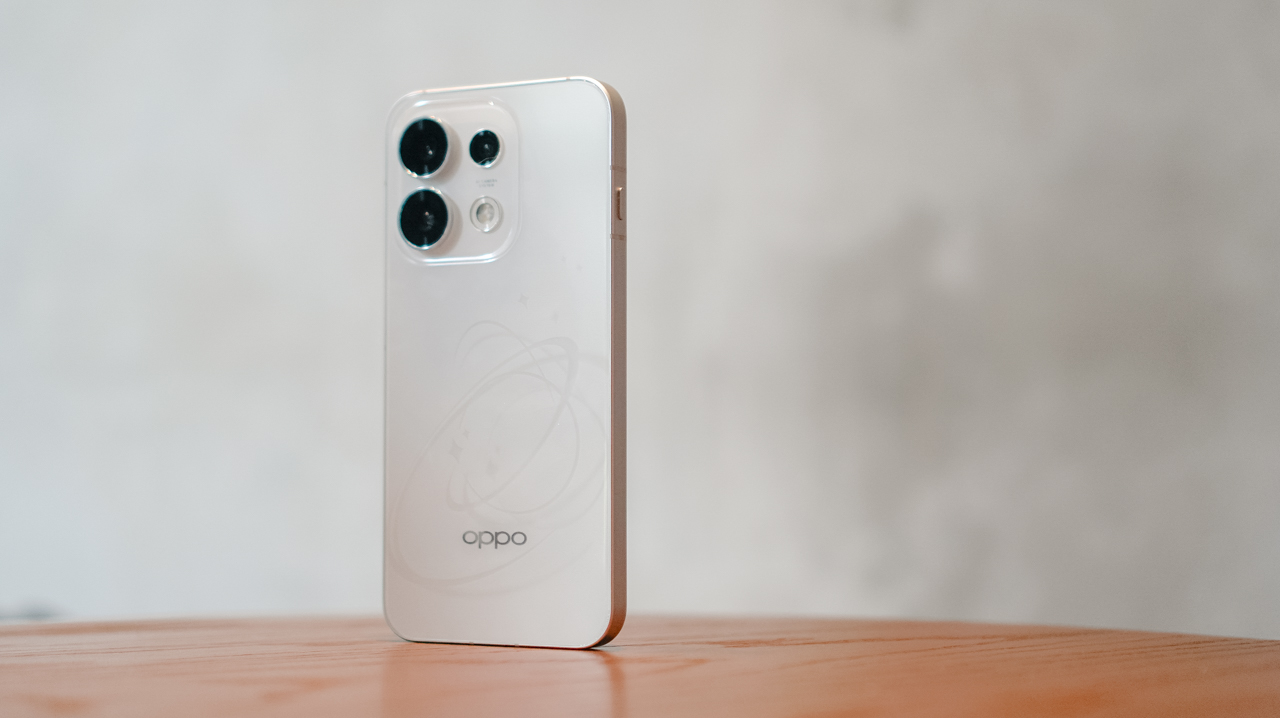
The OPPO Reno16 Series 5G delivers pro-level photo and video quality, good enough to leave the extra gear behind for most everyday moments.
From detailed landscapes and vibrant food photography to candid portraits and dynamic action shots, the Reno16 Series consistently produces content that feels polished and social-ready straight from the device.

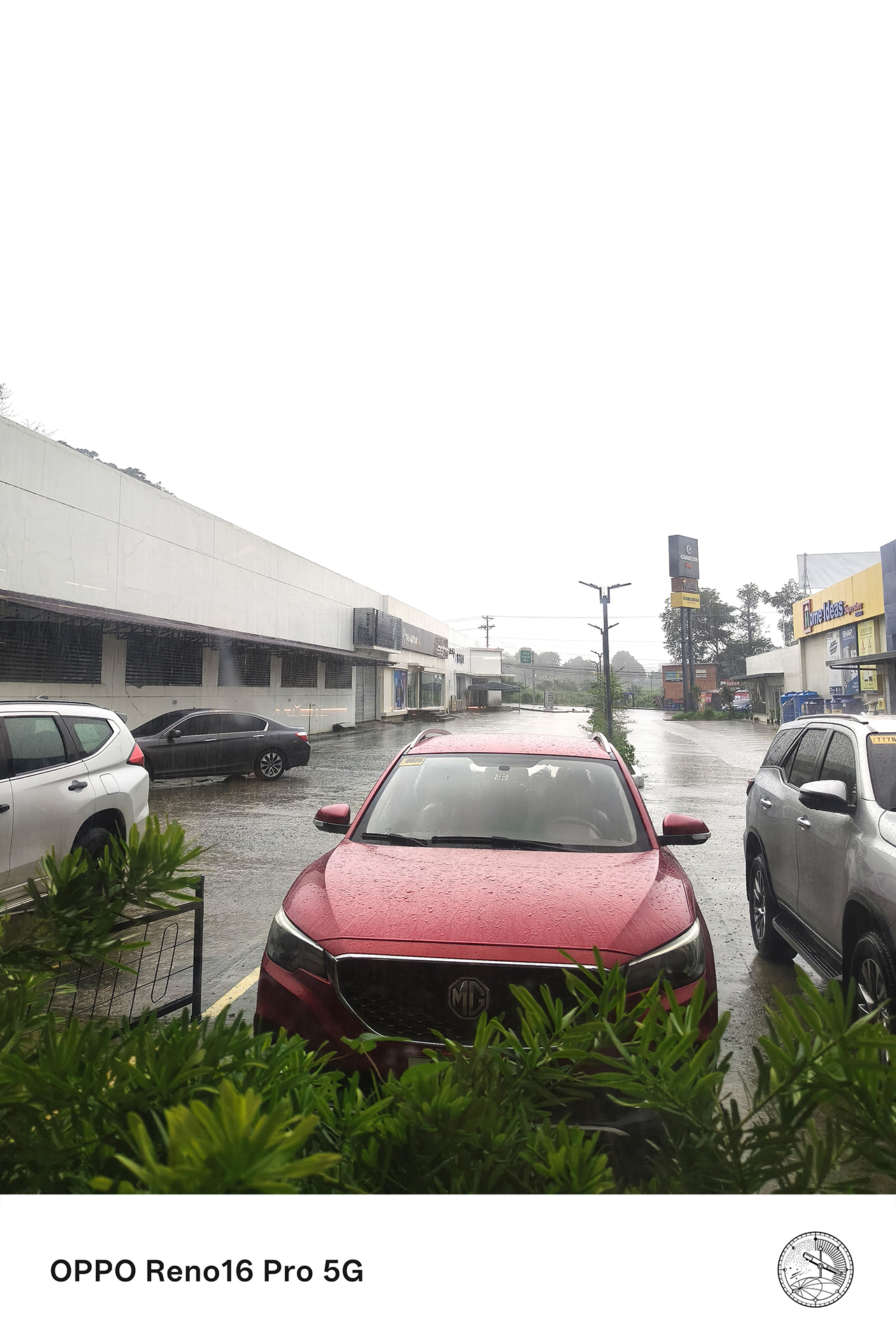

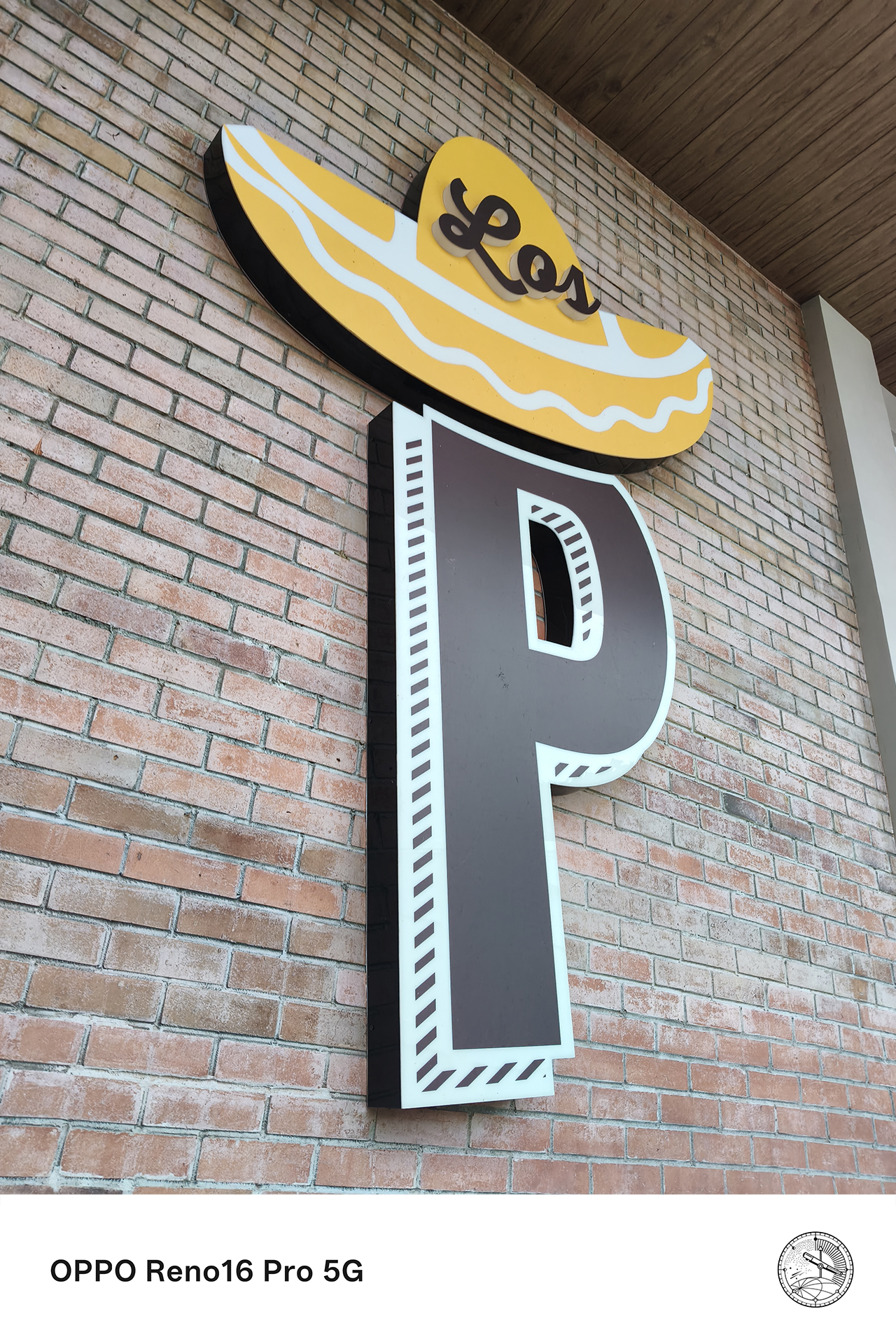
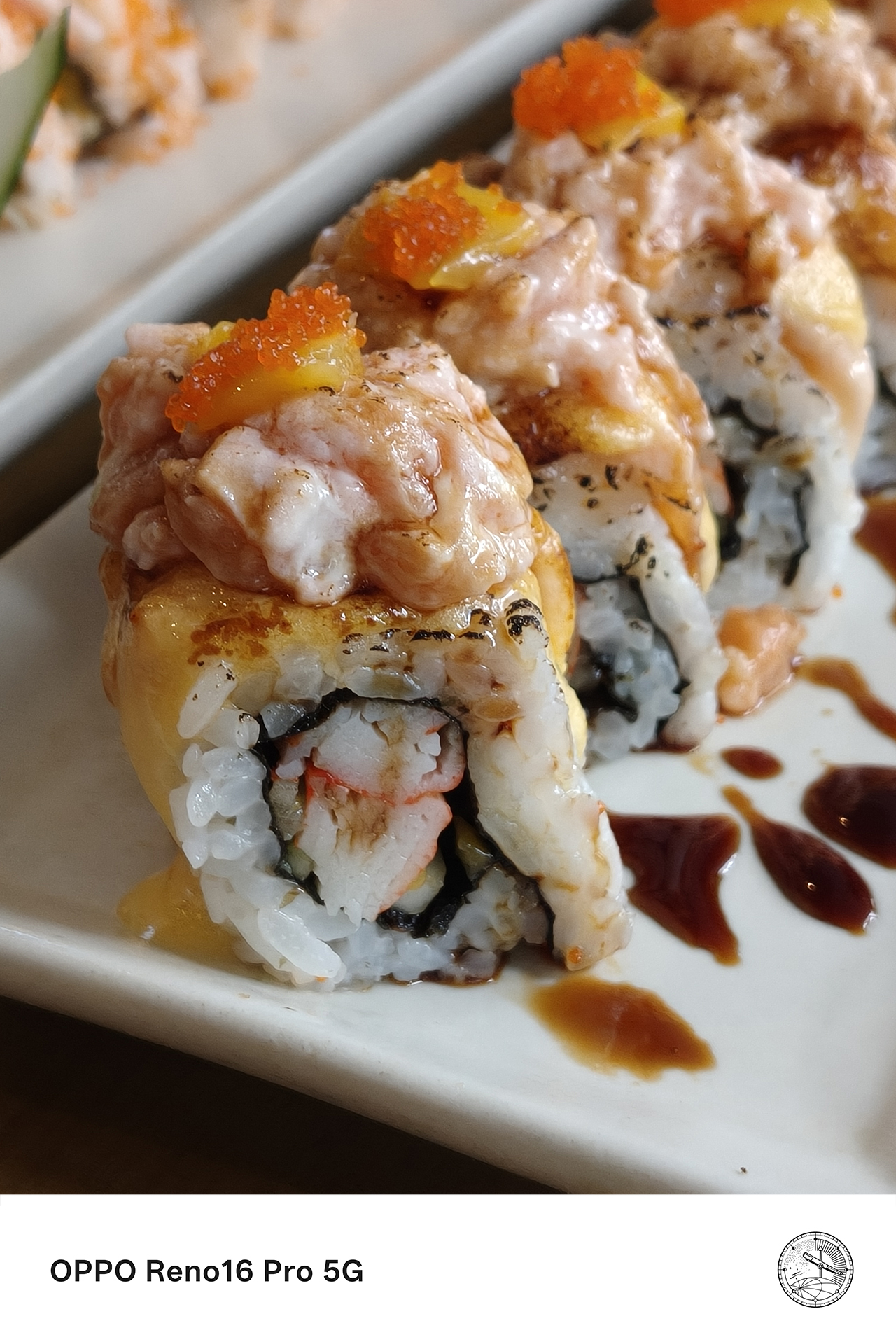
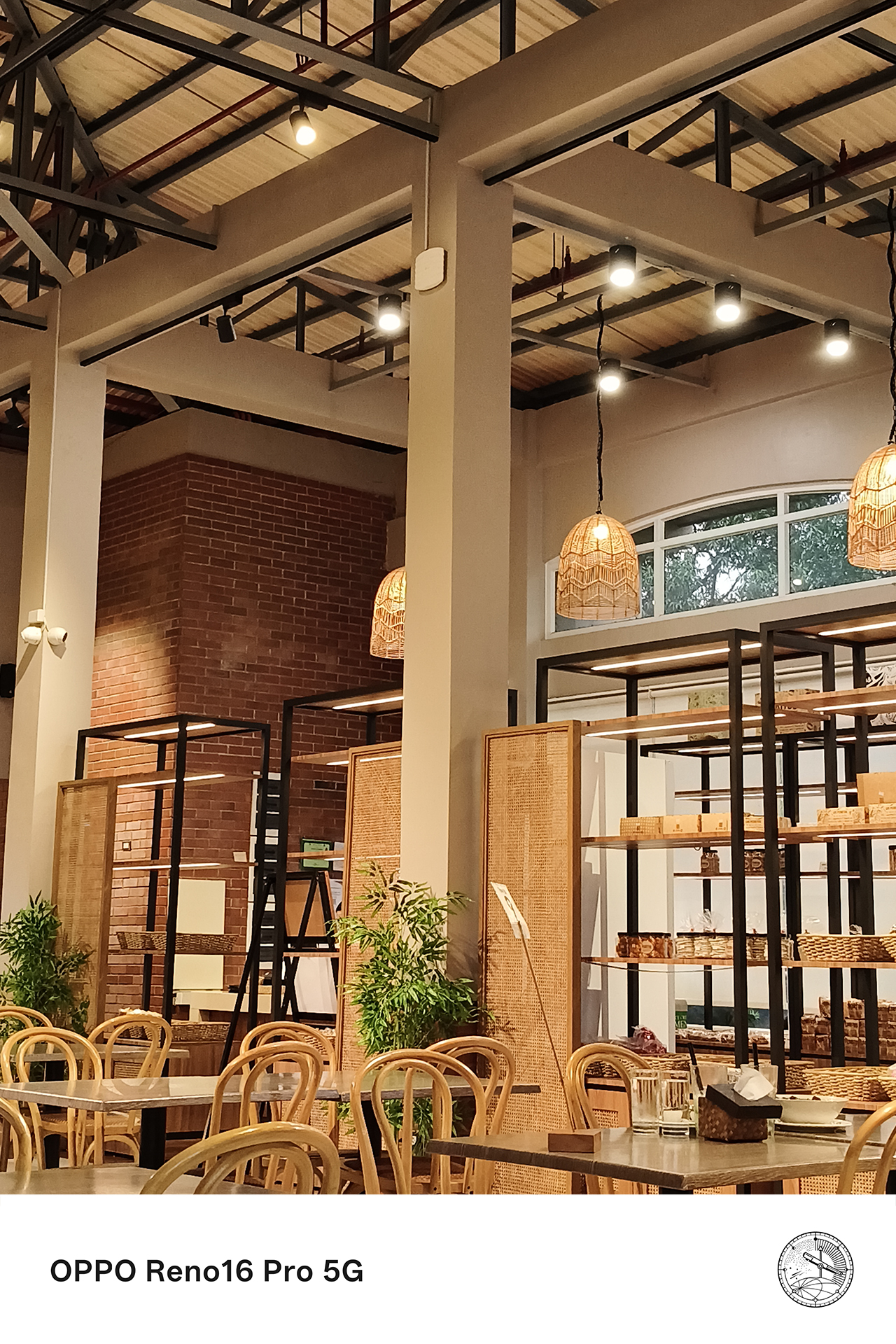
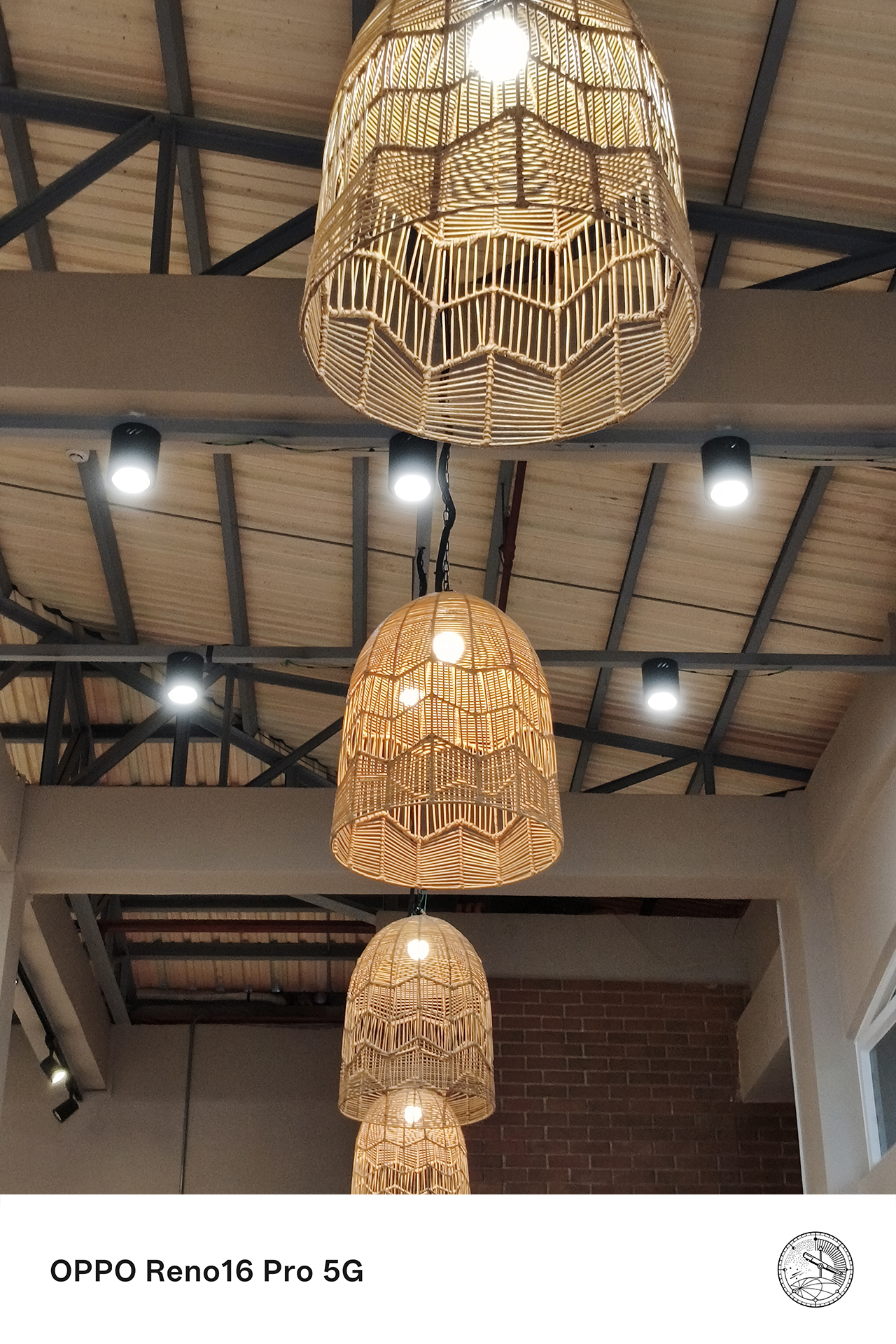

This is particularly valuable for the moments that happen without warning. The ability to instantly capture high-quality content without switching between devices meant fewer missed opportunities and more authentic memories preserved.
Telling richer stories from multiple perspectives
The best content pulls viewers into the experience itself.
This is where the combination of premium camera hardware, multiple shooting perspectives, and AI-powered creative tools like the AI Portrait Glow from the AI Editor improves the Pocket Studio experience.
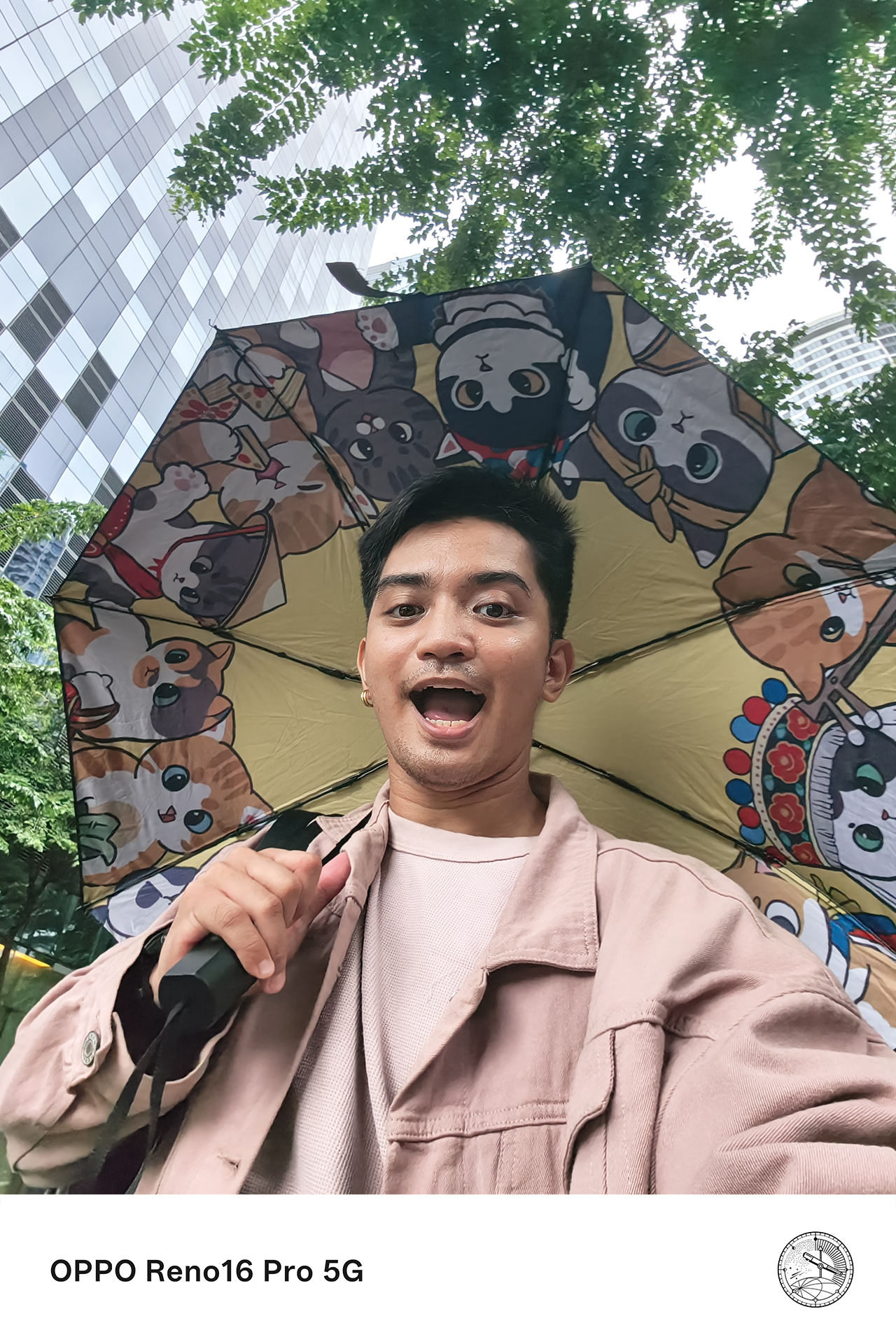
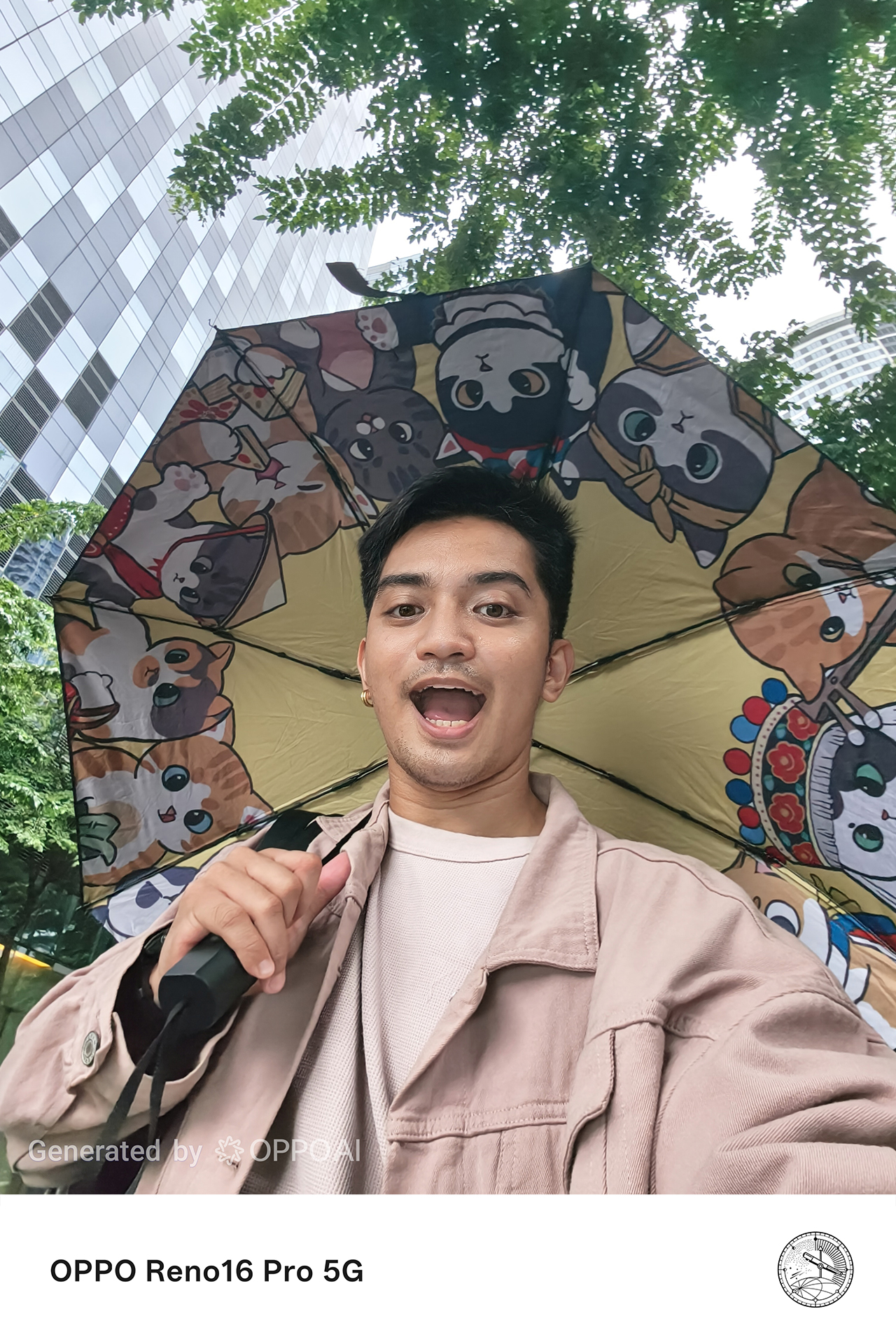
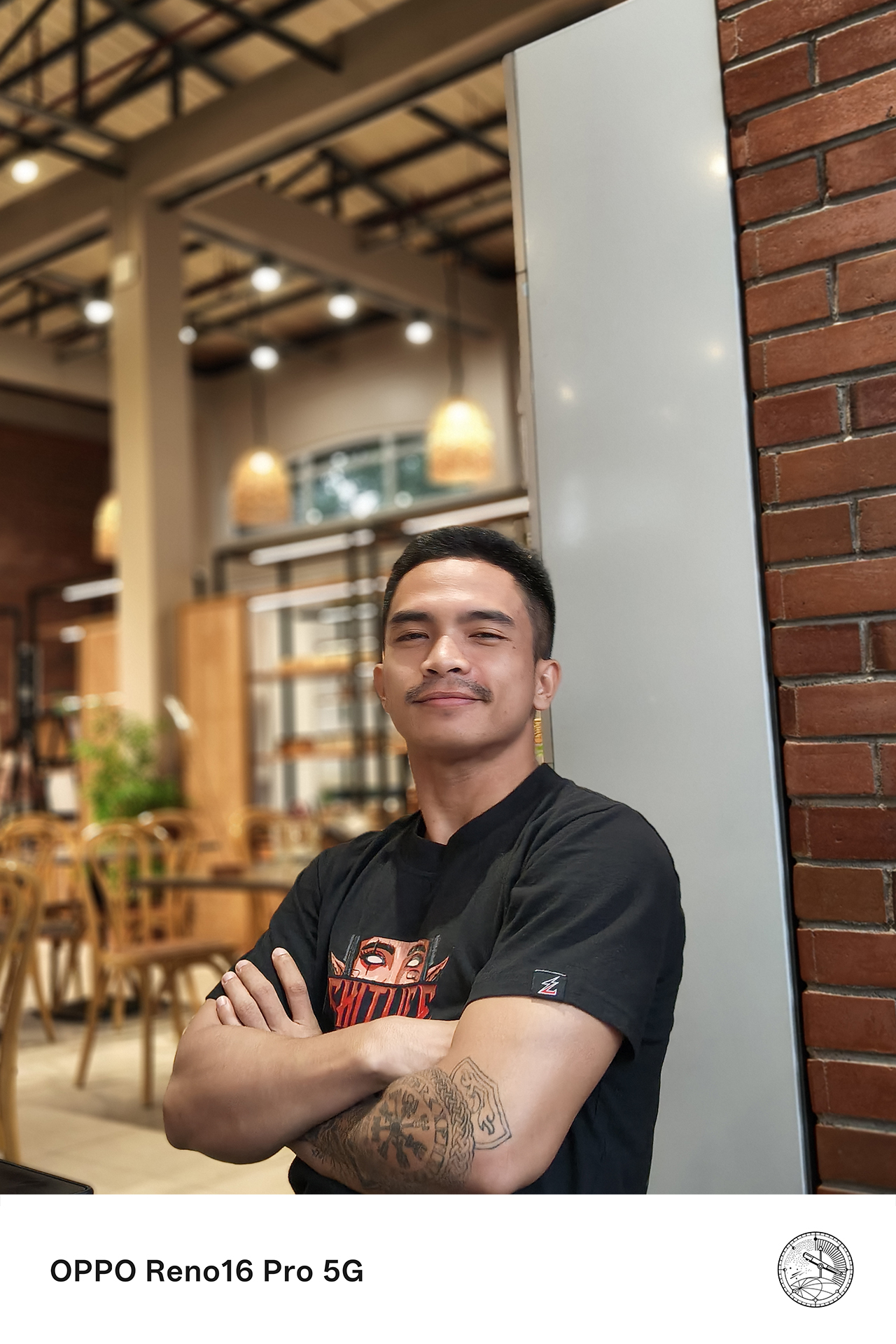

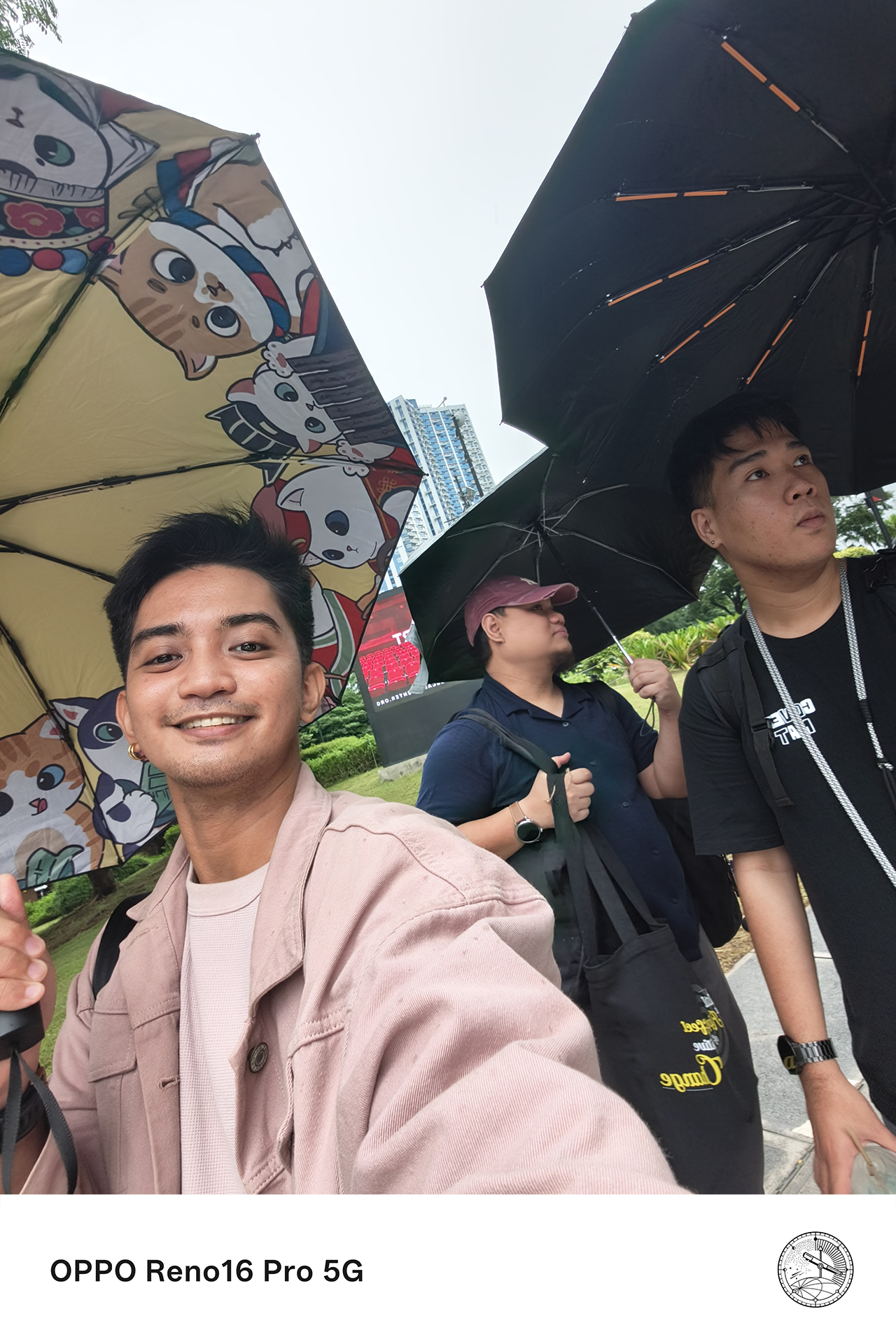

Wide shots help establish the atmosphere of a place. Close-up details bring viewers into the moment. Some video clips add movement and energy, and some portraits capture emotion. Together, these elements create a more complete story.
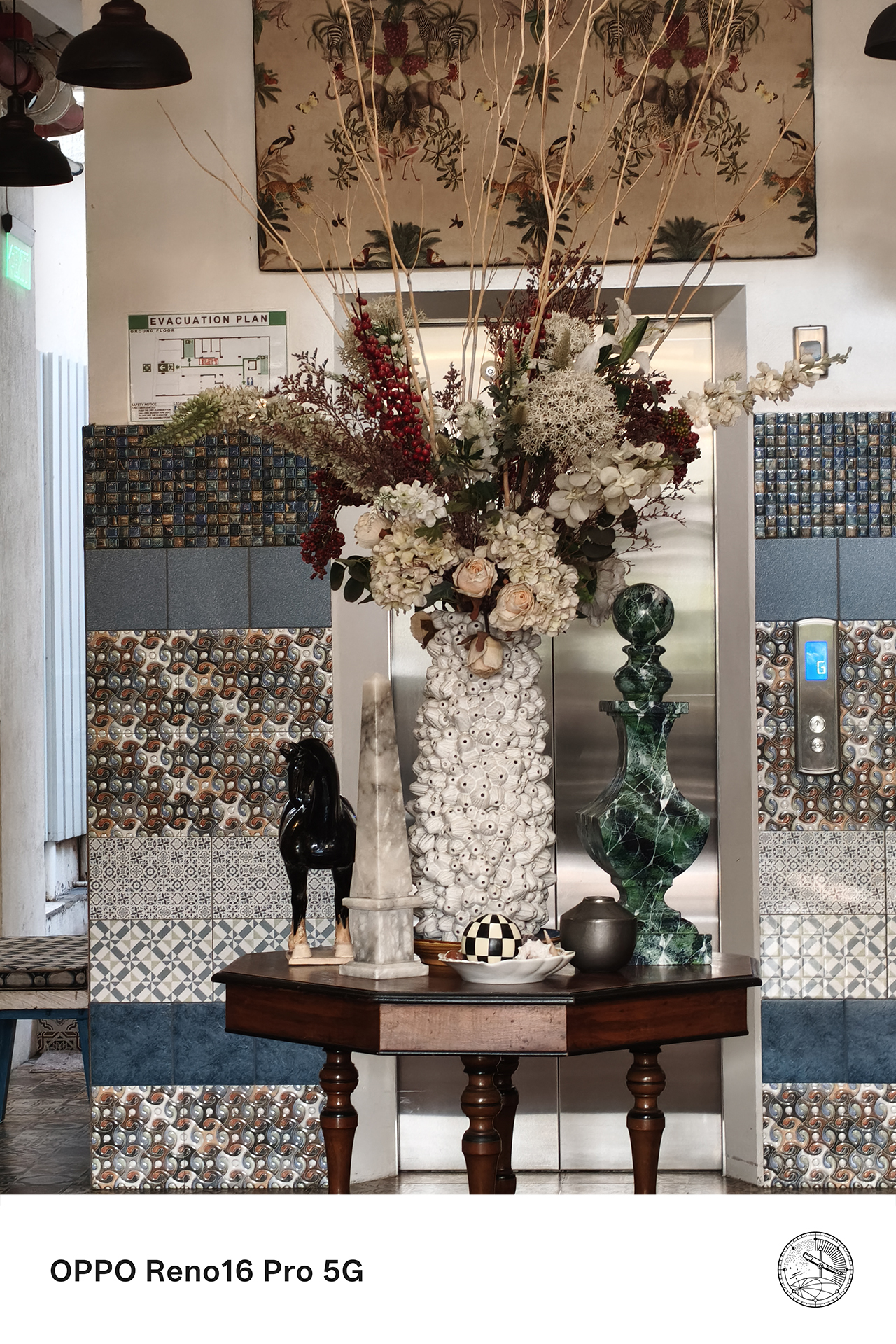
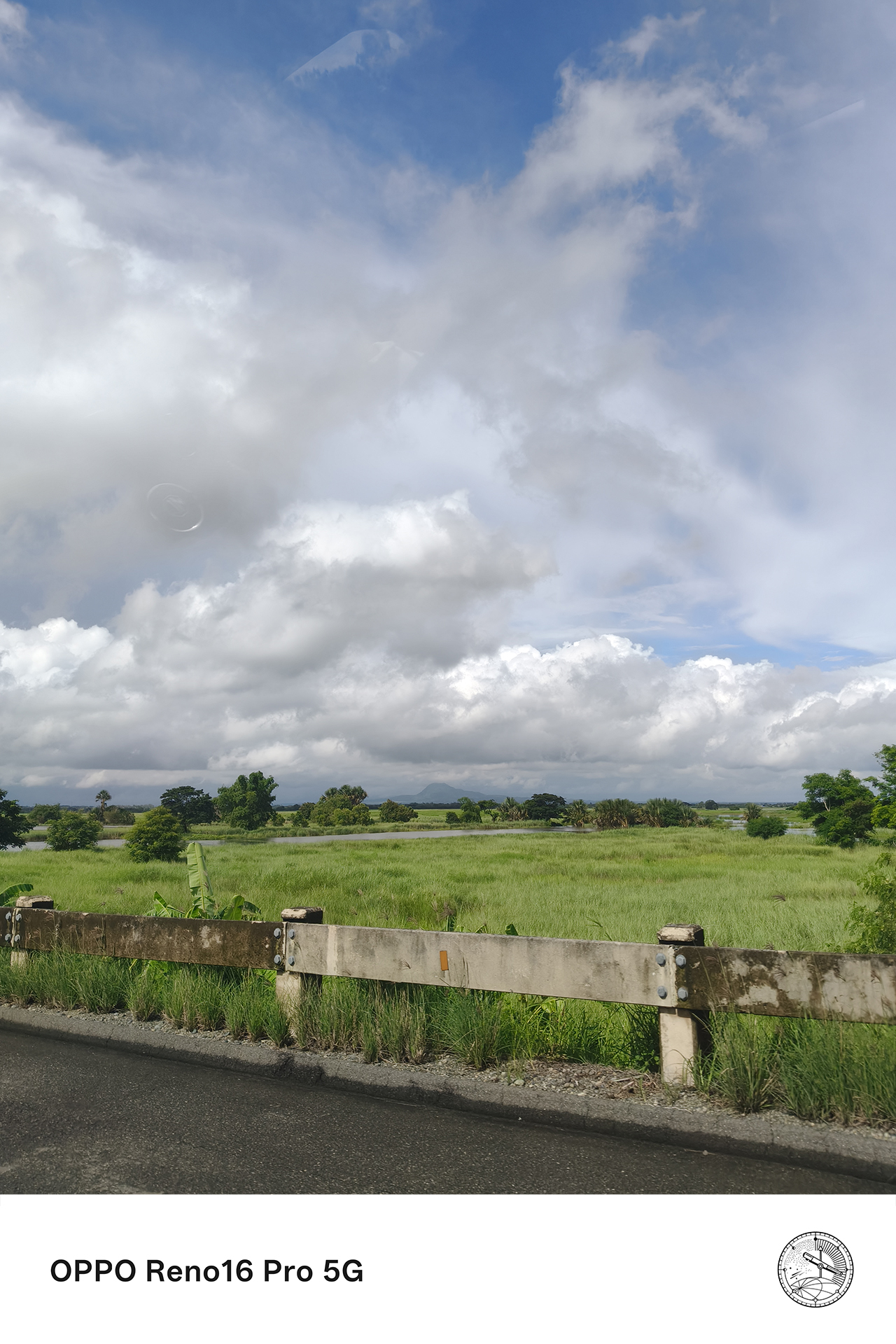
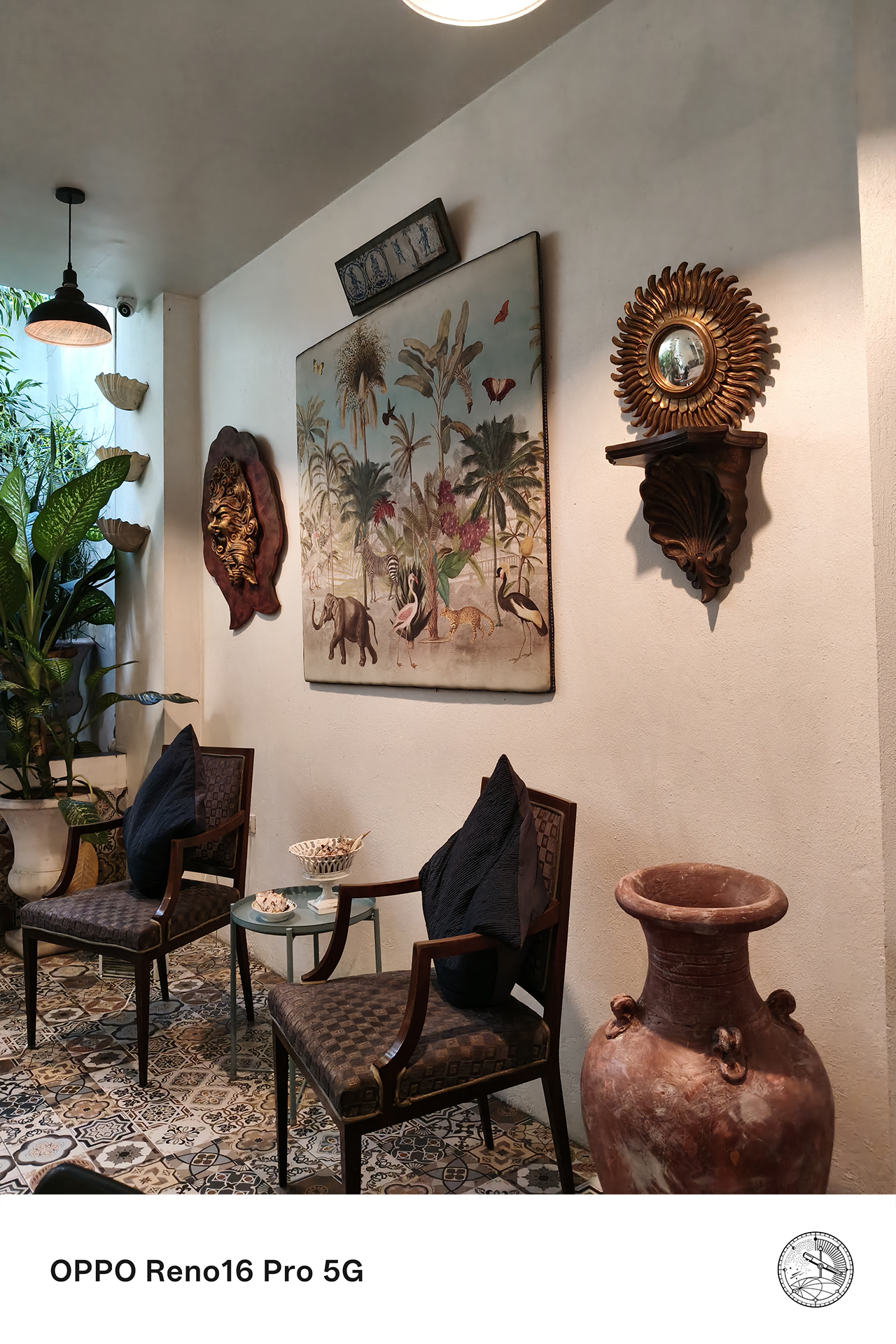

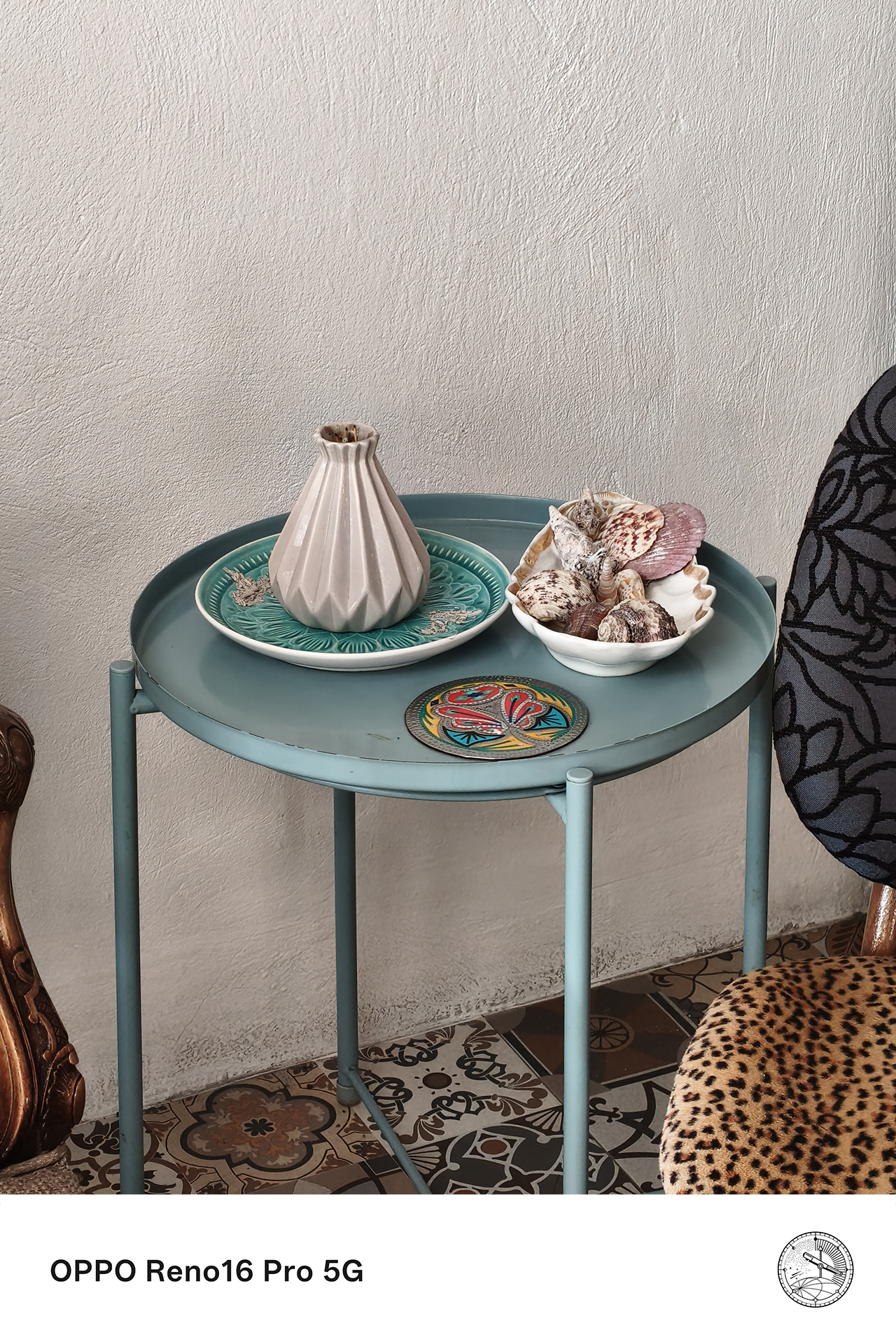
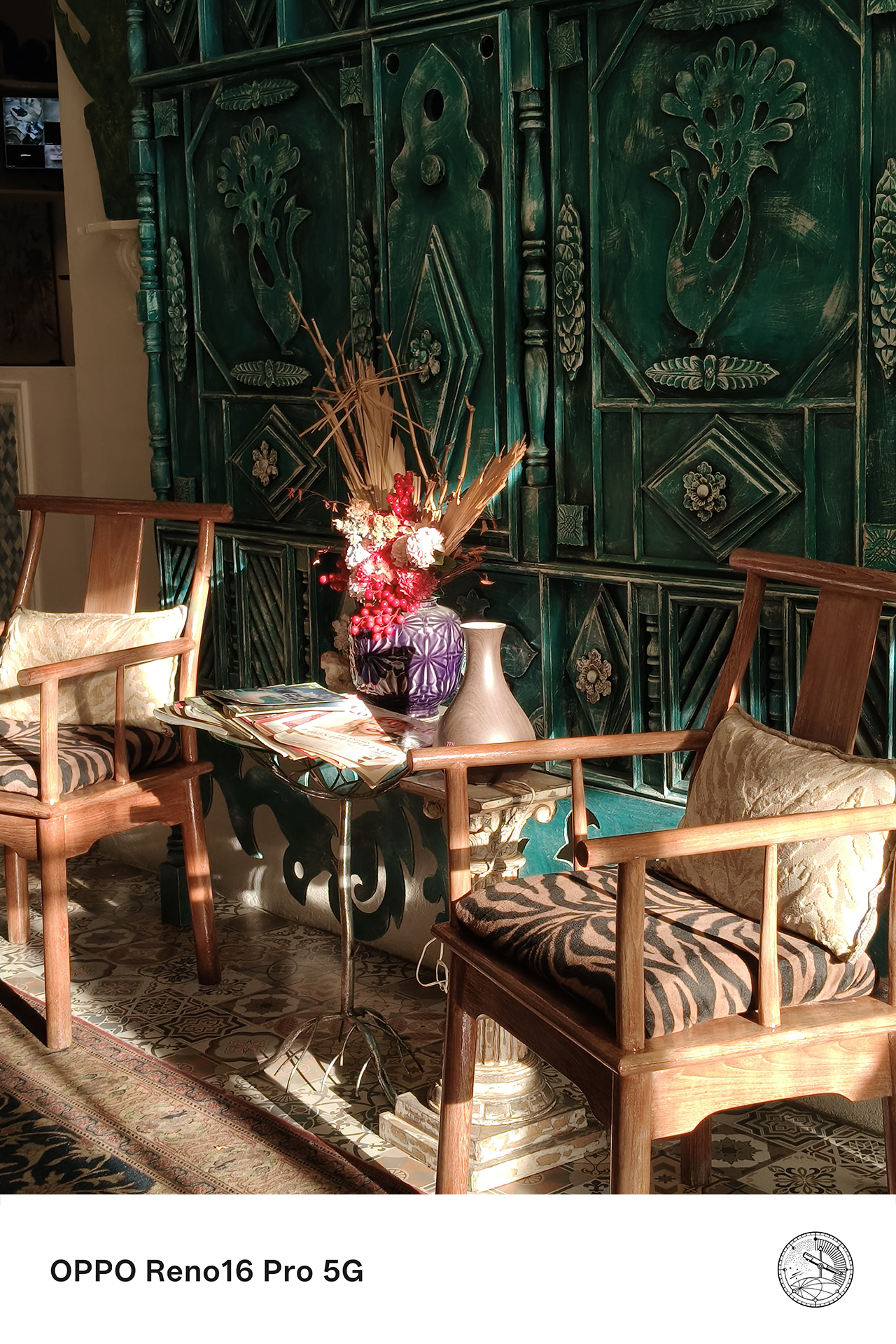
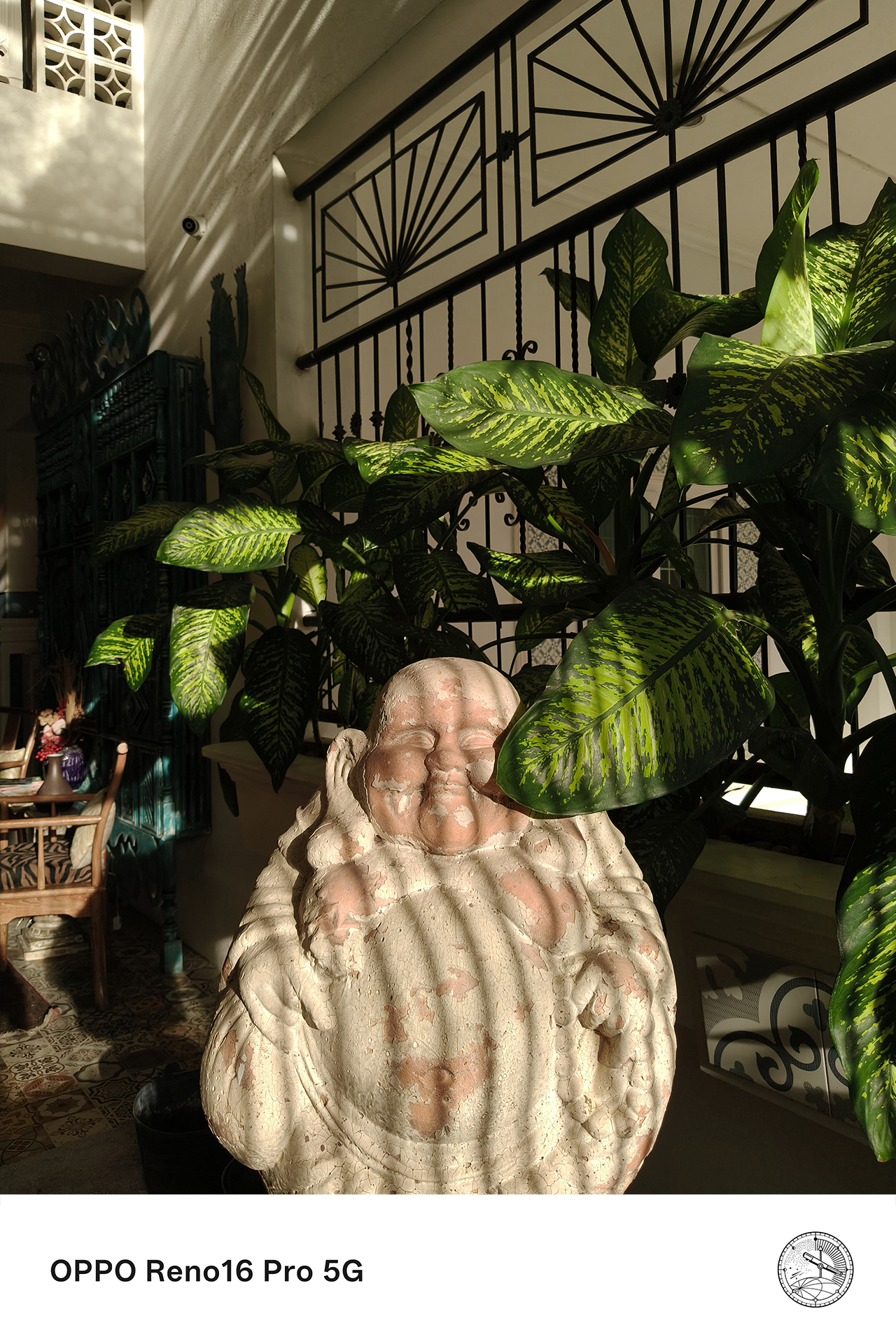
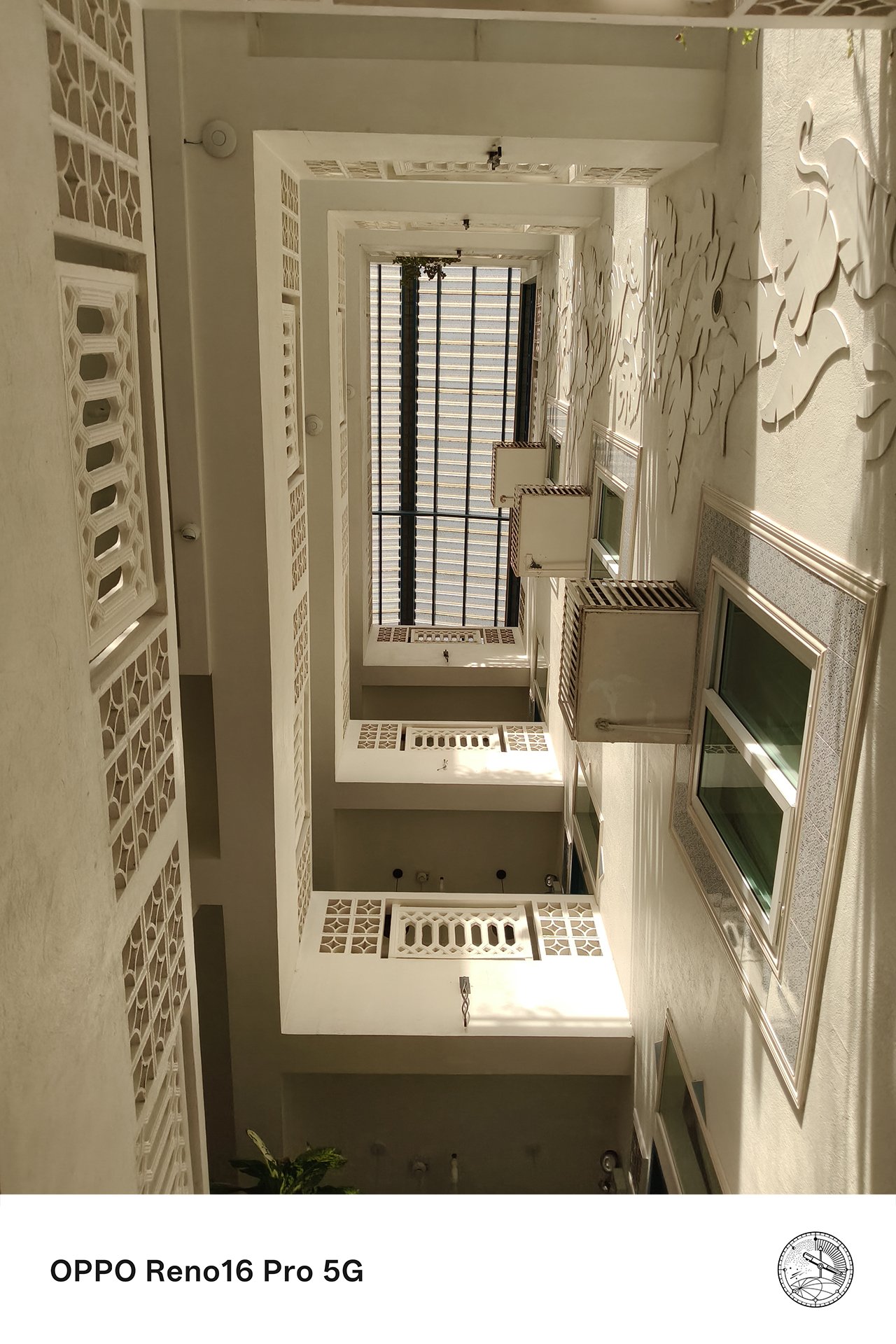
Over the past few weeks, that’s meant capturing everything from scenic views to candid conversations over coffee.
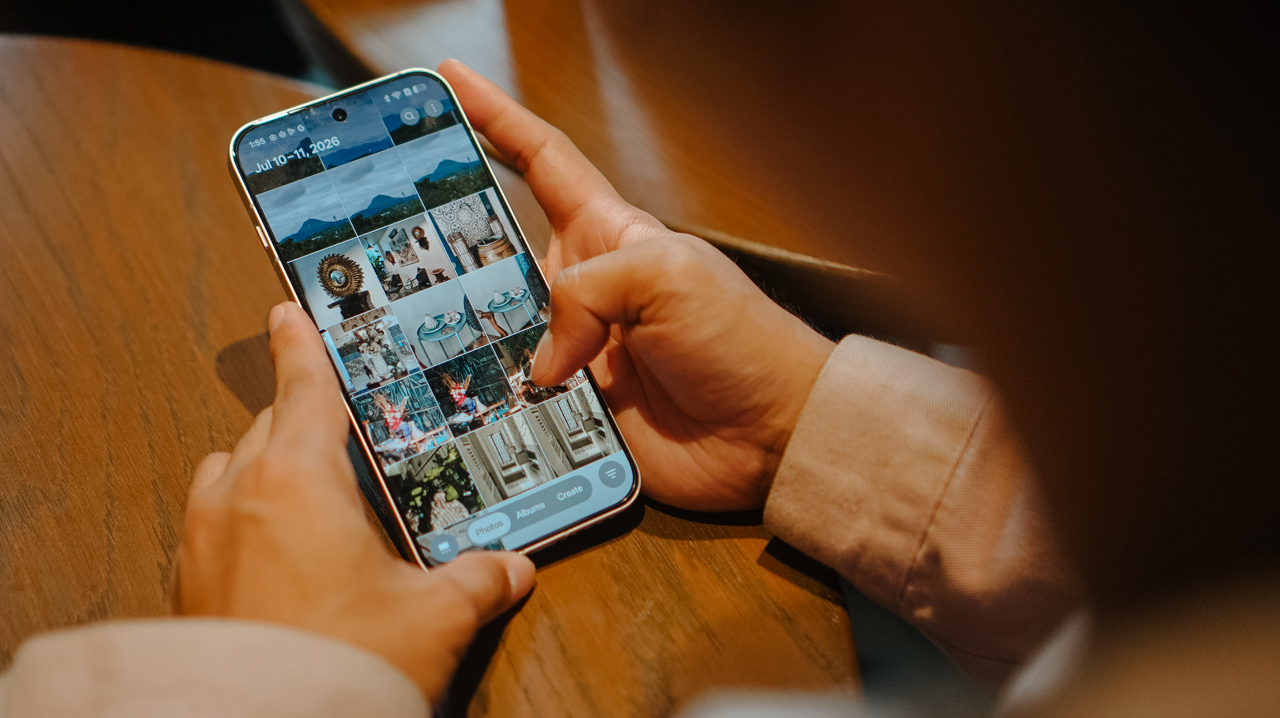
Rather than spending hours moving files between devices or navigating complicated editing workflows, Pocket Studio makes it easy to transform those moments into polished content ready for social media.
For anyone who enjoys documenting life as it happens, that simplicity is part of the appeal.

The moments you’ll actually want to remember
The moments that weren’t planned end up becoming the ones worth keeping. Those are the experiences that stay with us long after they’ve happened.
With Pocket Studio, the OPPO Reno16 Series 5G transforms those moments into memories that look every bit as good as they felt in real life.
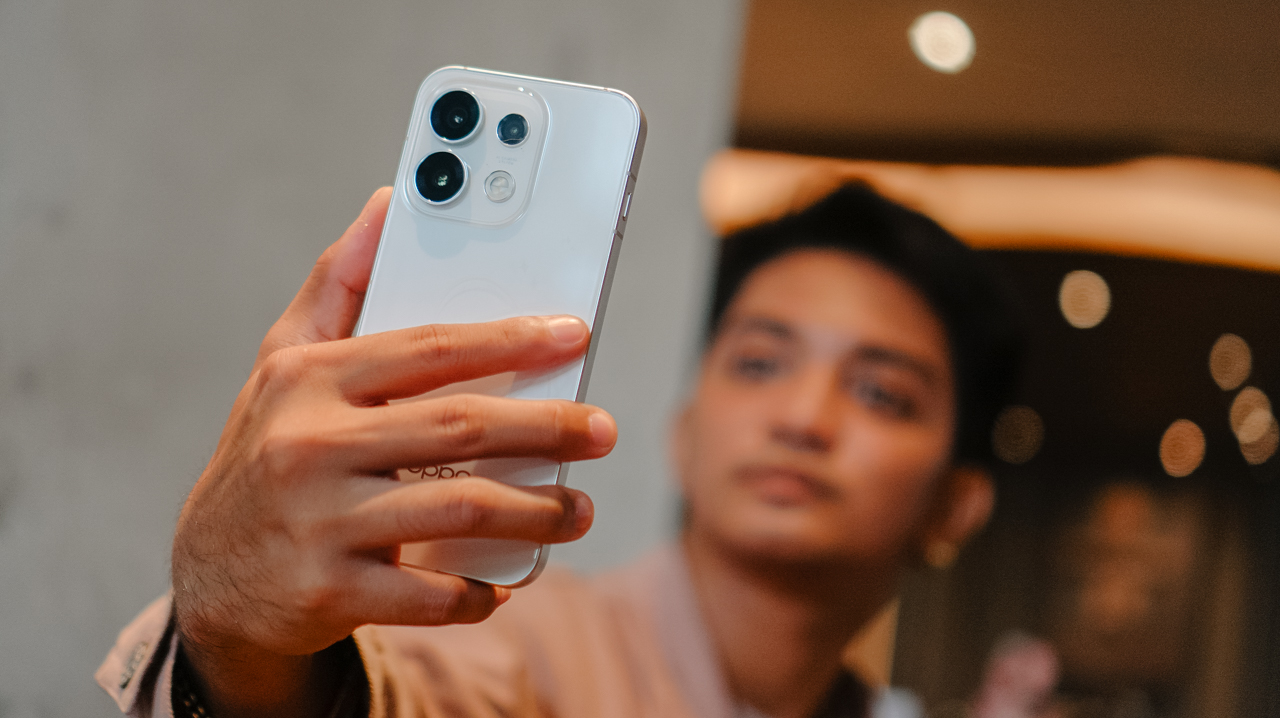
Through flagship-quality photos and videos, AI-powered creative tools, and features like Camera Remote View with the OPPO BUBBLE, the Reno16 Series makes capturing, creating, and sharing life’s most memorable experiences remarkably effortless.
For the designated photographer, it might just be the easiest way yet to make sure every moment, and everyone in it, gets remembered.
Price, availability

The OPPO Reno16 Series 5G is now available nationwide across all OPPO stores, official e-commerce platforms, and partner telco providers:
OPPO Reno16 F 5G
- 8GB+128GB: PhP 44,999
- 8GB+256GB: PhP 49,999
OPPO Reno16 5G
- 12GB+256GB: PhP 59,999
OPPO Reno16 Pro 5G
- 12GB+256GB: PhP 74,999
Flexible payment options at up to 24 months 0% interest are likewise available through Home Credit and select credit cards.
This feature was produced in collaboration between GadgetMatch and OPPO Philippines.

Setting your bedsheets ablaze with the Lovense Solace Pro
The closest proxy I could find where I'm guilty as sin


Now Playing: Elden Ring Tarnished Edition
Is the Switch 2 port worth the price?


NBA 2K27 review: A two-way All-Star
Better ball game, same 2K?

CODE VEIN II launches Mask of Idris DLC with free Version 2.0 update

A casemaker just revealed the foldable iPhone Ultra ahead of time

The Legend of Zelda: Ocarina of Time remake launches November 5

adidas’ hybrid training shoe gets a Solar Turbo makeover

How to spot scam emails and messages before they get you

TECNO MEGAPAD 2 review: Eyes on the size

realme 16T 5G with 8000mAh battery, IP69 Pro rating launches in PH

REDMI Note 17 Series focuses on long-term reliability

HUAWEI Pura X View is 2026’s first WIDE slab-type smartphone

realme 16T to come with 8,000mAh battery, 7-year battery health guarantee


-
 News2 weeks ago
realme 16T 5G with 8000mAh battery, IP69 Pro rating launches in PH
-
 News2 days ago
HUAWEI Pura X View is 2026’s first WIDE slab-type smartphone
-
 News2 weeks ago
REDMI reveals the refreshed Note 17 and Note 17 Pro series
-
 Singapore2 weeks ago
REDMI Note 17 Series: Price, availability in Singapore
-
 Cameras2 weeks ago
Insta360 Luna Ultra review: My new solo coverage camera
-
 Reviews2 weeks ago
REDMI Note 17 Pro review: What a rollercoaster ride!
-

 Features1 week ago
The designated photographer’s new favorite phone: OPPO Reno16 Series 5G
-
 Cameras7 days ago
DJI Osmo 360 II review: Going all-in on the ecosystem