

Editor’s Note: If you can’t preview the rest of the article, click here to see the full list.
Every smartphone user wants to take full advantage of their device. It’s one way of getting the most value for your money. This holds particularly true for an iPhone since it doesn’t come cheap.
If you are an iPhone user, there’s always something you can look forward to. iOS is being refined each year to add new features to your iPhone.
Some features are big changes you might notice quickly. However, there are also other features that you might not know until you come across them. Some of these features are really helpful, while others are just for fun. Here are the 18 things you didn’t know that your iPhone could do:
Search for photos in your Photos album by what’s in the photo
If you always get tired of sorting through photos of your favorite pet, then worry no more. The Photos app automatically detects places, faces, and objects in your pictures. Plus, it can automatically group them for you. You can know more about it here.
Add a dictionary to iOS so it appears in the spotlight search
Do you know that iOS comes with a built-in dictionary? Every iPhone has one, and it supports multiple languages too. Adding a dictionary is as simple as going to Settings > General > Dictionary, then tapping the dictionary you need. Now, you can easily find a word’s definition by swiping down from the home screen and entering the word.
Turn a whole webpage or email into a shareable PDF
You can easily create a PDF of a webpage or an email in iOS. Take a screenshot of a document, tap the thumbnail that appears, and tap “Full Page” on the right.
Use your iPhone as a tape measure
Through the power of augmented reality, you can turn your iPhone into a measuring device. To do this, simply head to the Measure app and follow any setup instructions. After setting up the app, you can now use your iPhone to measure any objects. This should come in handy when you don’t have any measuring tool lying around and you need to measure on the go. To know more about this functionality, visit this website.
Change your WiFi connections in Control Center
You don’t need to go into Settings to change your WiFi connection! You can change it on the fly through the Control Center. To access it, swipe down from the right-hand corner of your iPhone. If you have an iPhone 8 or older model, then swiping up from the screen will reveal the control center. Long-press on the panel that includes airplane mode, cellular data, WiFi and Bluetooth icon. Long-press again on the WiFi icon to show all the connections within your iPhone’s range.
Change your Bluetooth connection in Control Center
You can also change your iPhone’s Bluetooth connection right from the Control Center. After accessing the Control Center, long-press on the Bluetooth icon to show all the available devices within range. This feature is a godsent especially when you love to connect to other multiple peripherals like wireless speakers and earbuds.
Swipe left to quickly open the Camera
There’s a way to quickly access the camera without unlocking your iPhone and searching for the Camera app. Swiping left from the lock screen will take you straight to the camera.
Quickly delete a digit if you make a mistake in the Calculator app
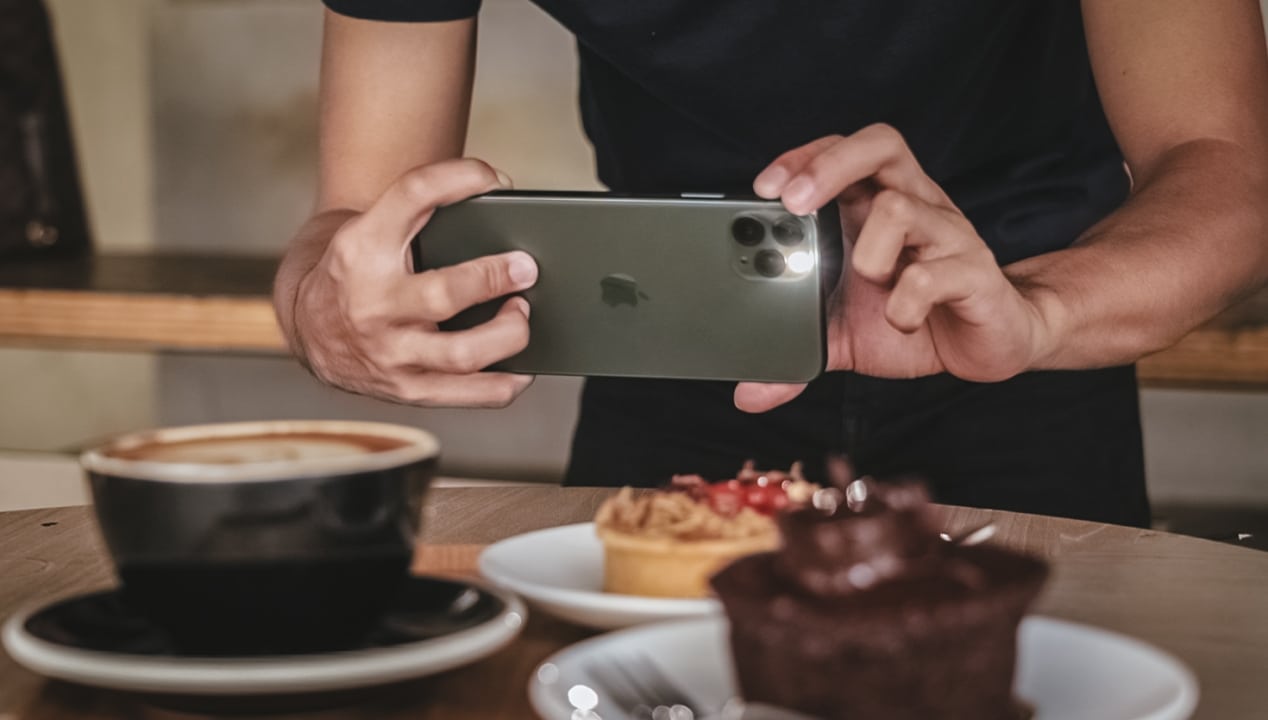
There must be a moment when you accidentally delete a large number because you thought that hitting the “C” button would only delete a single digit. With this tip, those moments will soon be a thing of the past. By swiping to the left or to the right over the numbers, you can now delete a single digit without ever hitting that “C” button by mistake again.
Turn your keyboard into a trackpad
There’s a handy feature in the default iOS keyboard that turns it into a trackpad. To take advantage of this feature, you must long press on the space bar until the keys disappear. You can now drag your fingers on the keyboard to change the position of the cursor.
Swipe with three fingers to undo or redo
Having an undo or redo function is really handy especially on long typing sessions. To undo on an iPhone, swipe left with three fingers. Alternatively, swipe right to redo. Older iPhone models implement a shake-to-undo function, which is a great exercise for the wrist.
Double-tap the space bar to end a sentence with a period
Another handy editing feature built into the default iOS keyboard is double-tapping to insert a period. After finishing a sentence, just double-tap on the space bar to insert a period and save time.
Play games with friends in iMessage
The iMessage app comes with a plethora of features to level up the conversation. One great feature is the ability to play games with your friends right from the app itself. Simply head over to iMessage, select a conversation and tap the App Store icon located on the bottom. Find a game that you want and start playing with your friends.
Express yourself with new Memoji stickers
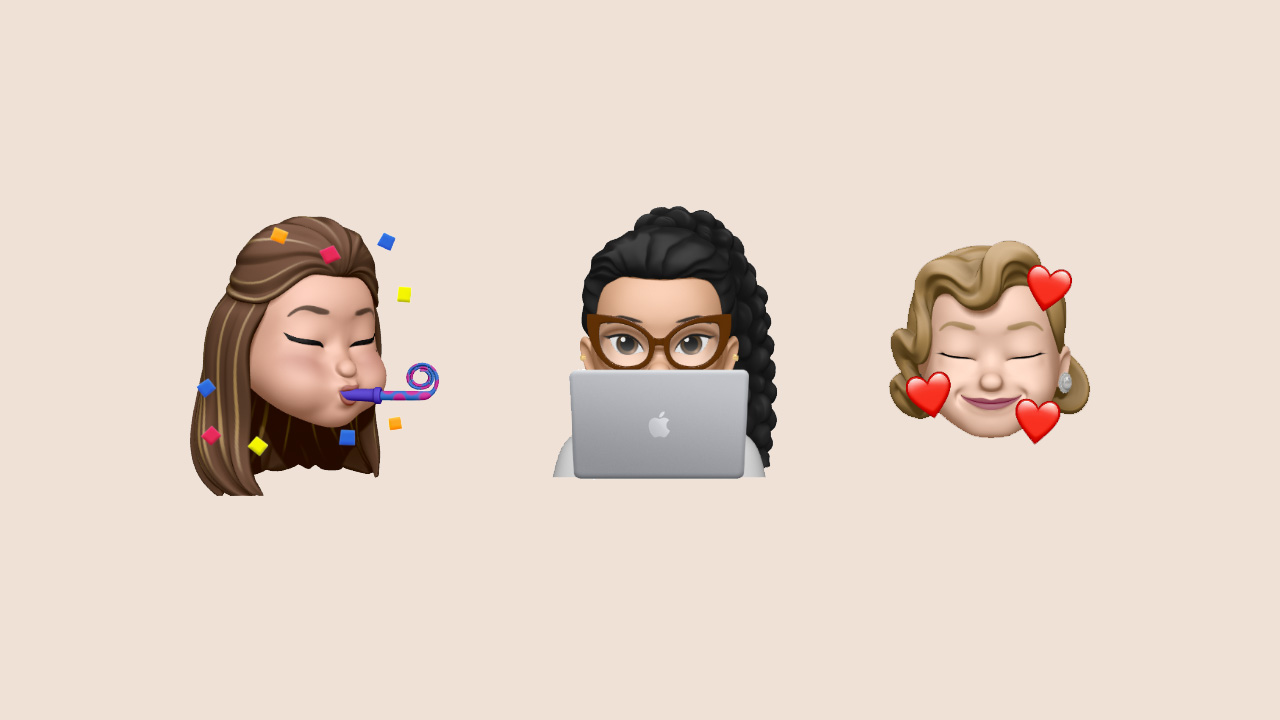
Memoji stickers are a fun way to express your virtual self in a conversation. The latest iOS version — iOS 13.4 — introduces nine new Memoji stickers. Now, you have more ways to express yourself to your friends and family. You can roll your eyes in disgust, scream in fear, or even make it appear that you’re behind a computer to remind your nagging friends that you’re busy working at home. Here is the full list of new Memoji stickers:
- Screaming in fear
- Party horn
- Rolling eyes
- Huffing with anger
- Folded hands
- Gesturing no
- Person with a tipping hand
- Smiling face with three hearts
- Person behind a computer
You can find out more about using Memoji on iPhone and iPad here.
Quickly reply to friends in iMessage
Got no time to reply to your friends? There’s a quick reply function within iMessages. To take advantage of this function, you simply have to touch and hold a conversation from the messages list, then tap on one of the automatic replies.
Filter messages from people you didn’t know
Spams are an annoying part of life, whether as an email or as a text message. Luckily, the Messages app comes with a built-in filtering system for blocking contacts who like to send spam. The filtering system can also be automatically set to block unknown numbers. Just head over to Settings > Messages and turn on “Filter Unknown Senders” to take advantage of this feature.
Never forget where your car is parked with Maps
As you grow older, you tend to be more forgetful. The last thing that you would want to forget is the location of your car in a parking spot. Thankfully, Maps is here to save the day. Your iPhone will actually remember where you last parked your car if you turn it on in the settings. Turn on Location Services for Maps, then toggle Significant Locations, and finally, turn on “Show Parked Locations”. The next time you connect your iPhone to your car’s dashboard, Maps will remember your car’s location after you disconnect.
Video call for up to 32 people with FaceTime
If you really are cautious about Zoom for its privacy and security loophole, then one good alternative is Apple’s own FaceTime. After all, the company promises built-in privacy and security features to the app. The only downside though is that your friends must have an Apple device to take advantage of FaceTime. However, if your friends and family use an Apple device, you can create a group FaceTime call by simply tapping the name of the contact or a group and hitting the call button.
Share folder with friends using iCloud Drive Folder Sharing
Up until iOS 13.4, iPhone users have no way of directly sharing folders through iCloud. However, since the recent update, you can now quickly share files and folders to your friends through iCloud. To do this, go to the Files app and select any folder that you want to share. From the share sheet, you can add people and specify how you want to send the invitation link for sharing. You can read more about the feature here.
Now that you know these, try them out on your iPhone and take advantage of everything iOS has to offer. A new iOS version is also expected this June, along with a new low-cost iPhone. So, this is your time to master these things before delving into a new iOS version for new features.




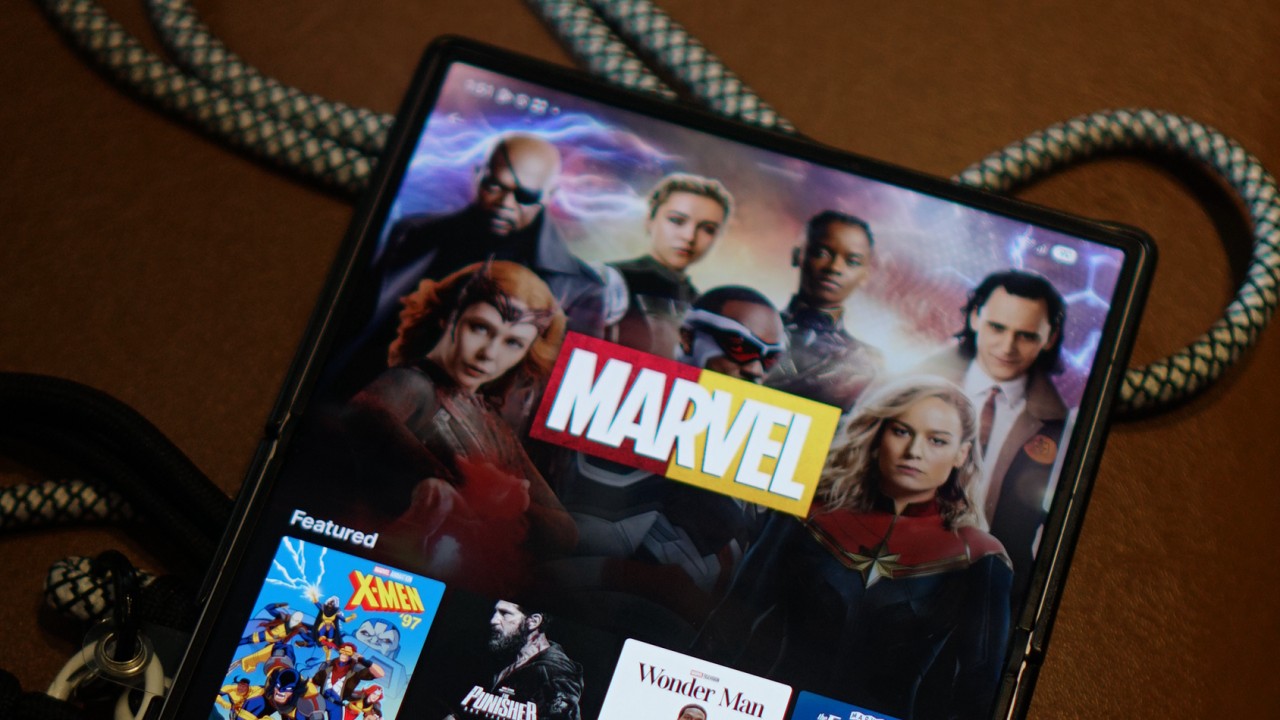
Disney is rolling out its new Disney+ app to markets that have been using a separate, Hotstar-derived version of the service.
The change is already happening across several regions, with Southeast Asia among the markets affected. Disney+ subscribers in the Philippines, Malaysia, Thailand, Indonesia, and other countries will transition to the newer app experience as Disney works toward a more unified global platform.
For Philippine subscribers, Disney+ has confirmed that the migration will happen on October 7, 2026.
The company notified subscribers this week that the existing app will eventually be replaced by a new Disney+ app. No action is required yet, and subscribers can continue using the current app until Disney provides further instructions.
The migration is part of a broader effort to bring Disney+ users onto the same core platform.
From Hotstar to a global Disney+ app
The distinction between the old and new experiences goes back to Disney’s international expansion.
Disney used a Hotstar-derived version of its streaming platform in several markets, including the Philippines, Malaysia, Thailand, Indonesia, South Africa, and markets across the Middle East and North Africa.
That version provided a localized Disney+ experience, but it operated separately from the main Disney+ platform used across many other international markets.
Disney began simplifying its streaming brands in 2025. In Southeast Asia, Disney+ Hotstar was rebranded simply as Disney+, while the Star general-entertainment brand was replaced by Hulu. At the time, Disney said the rebrand would bring a more consistent Disney+ experience, although the available content would remain tailored to each market.
The next step is now happening at the app level.
Egypt began moving to the new Disney+ app on September 2, followed by Indonesia on September 3. South Africa is scheduled for September 9, while Thailand is set to follow on September 16. Malaysia and the Philippines are scheduled for October 7.
This makes the Philippine migration part of a much larger transition rather than an isolated local update.

A more familiar Disney+ experience
The new app brings affected markets closer to the current Disney+ experience elsewhere.
Disney redesigned the global app earlier this year with a new For You homepage, improved personalization, redesigned navigation, more prominent profiles, and additional content hubs. Depending on the market and subscription, the interface can also surface Disney+, Hulu, and ESPN sections.
Disney has also been expanding the platform’s international language support. In July, the company added 17 languages, bringing Disney+ to 58 audio languages, with the user interface available in more than 30 languages and subtitles or closed captions available in as many as 42. The expansion included Thai, Indonesian, Malay, Arabic, Hindi, Tamil, and Telugu.
The company has described these updates as part of its effort to make Disney+ a more accessible and localized service for audiences around the world.
The migration also brings practical changes for subscribers.
In the Philippines, Disney says existing subscribers can continue using their current account and subscription. However, profiles, watchlists, and viewing history will not transfer to the new platform. Philippine subscribers will therefore need to set up their profiles and watchlists again after moving to the new app.
The subscription itself does not require an additional charge because of the migration. Existing billing cycles will also remain in place.
The catalog will still depend on where you are
Moving to the global Disney+ app does not mean every country will suddenly receive the same library.
Disney continues to operate its streaming service according to regional content rights. Its own Help Center notes that content availability can differ by country or region, and that some titles may not be available in a subscriber’s current location.
That means a subscriber in the Philippines, for example, will still see a catalog determined by the rights Disney has for the Philippine market. The same applies to subscribers in Thailand, Indonesia, Malaysia, South Africa, or any other market making the transition.
What is becoming more global is the platform itself.
That brings Disney+ closer to the model used by other major streaming services, where subscribers can use a common app experience across markets while the actual catalog changes depending on where they are.
The distinction is particularly relevant for people who travel. Disney’s global Help Center says subscribers abroad can stream content available in the country or region they are visiting, meaning the service’s location-based availability rules still apply even on the unified platform.
Disney has been signaling this direction for some time. In 2025, the company said its redesigns were leading toward a “fully integrated unified app experience” in 2026. The latest migrations appear to be the next major step toward that goal.
For subscribers in the remaining Hotstar-derived markets, then, the biggest change isn’t necessarily what’s available to watch.
It’s where and how they access Disney+.
Apps
Canva teams up with SB19 to turn A’TIN’s passion into creativity
Campaign lets fans access assets, editable templates, more

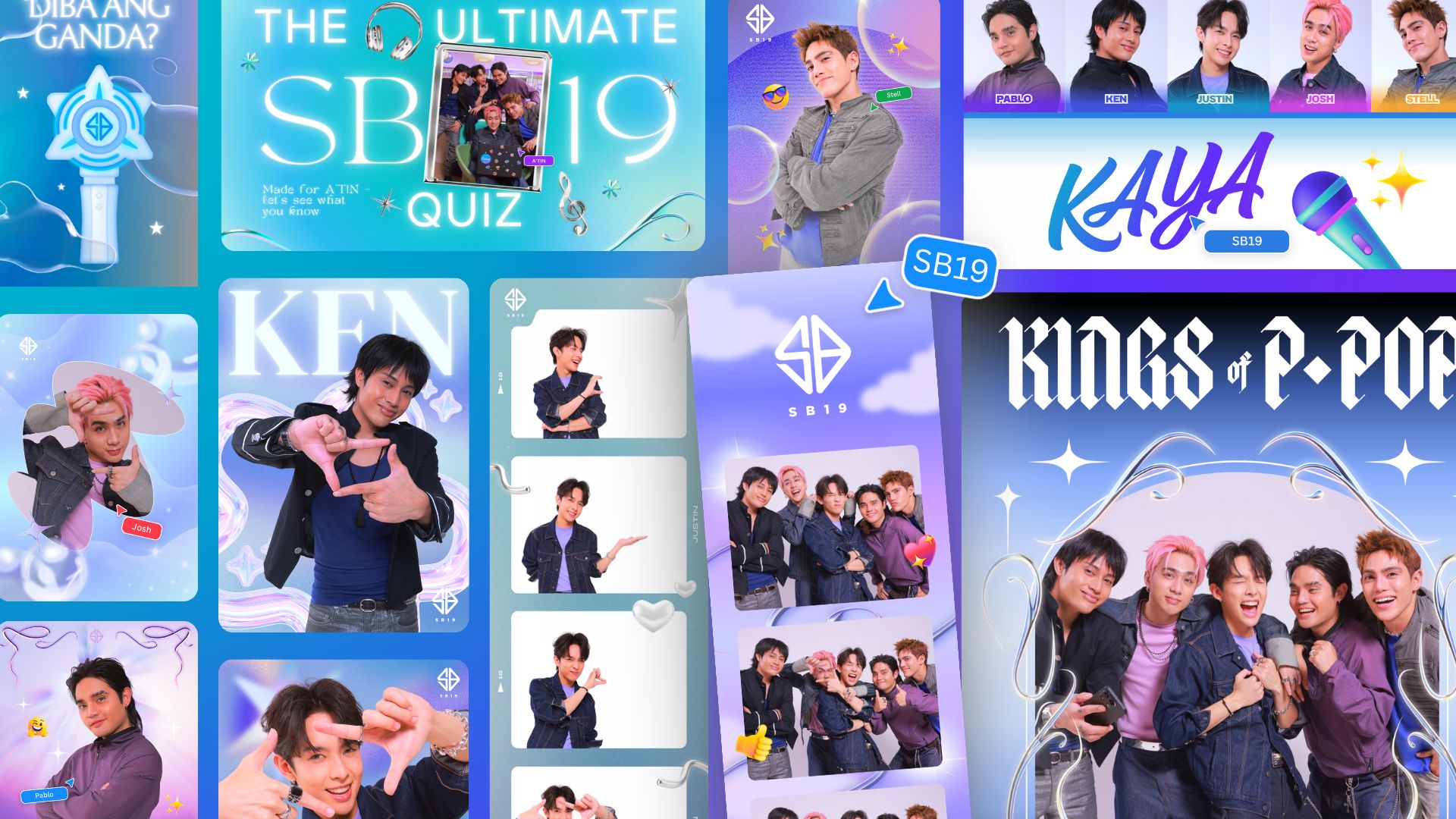
Canva Philippines has joined forces with SB19 and Sony Music Entertainment to launch the “Kaya sa Canva” campaign.
This first-of-its-kind initiative is aimed at transforming the popular Filipino boy band’s fanbase into creators by giving them access to official design assets, exclusive templates, and powerful creative tools.
That’s of course as fans have a way of creating artwork, banners, and more outputs to honor their idols.
As such, the partnership enables the A’TIN (SB19’s fanbase) to access the Canva-exclusive SB19’s Creative Hub.
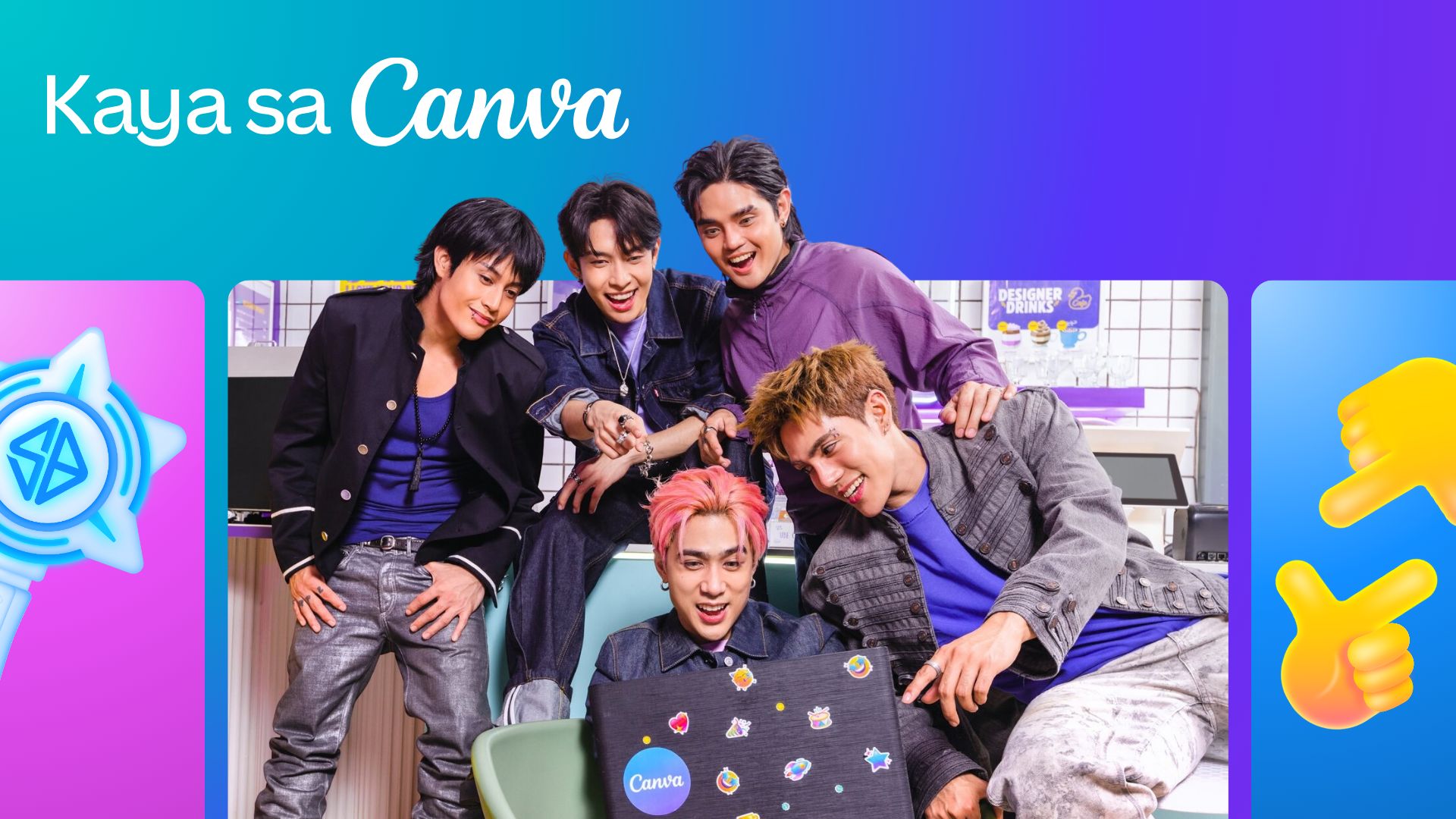
This dedicated space lets fans access assets, including SB19-inspired sticker packs, custom typography, and editable templates inspired by the group.
Fans around the world will initially have access to templates for photo-booth strips, wallpapers, posters, and videos.
The campaign will then expand with Canva-exclusive assets celebrating the group’s New Era, as well as their latest single, “Lawless”.
Meanwhile, the original song “KAYA” is accompanied with an upbeat music video, doubling as a love letter to A’TIN and a masterclass in Canva’s tools.
Every visual and animation is fan-inspired, a celebration of the creativity, passion, and dedication that’s defined in the community from day one.
Apps
Samsung’s bet on the future of connected health: Less data, more action
Inside Samsung’s plan to close the gap between your wearable and your doctor

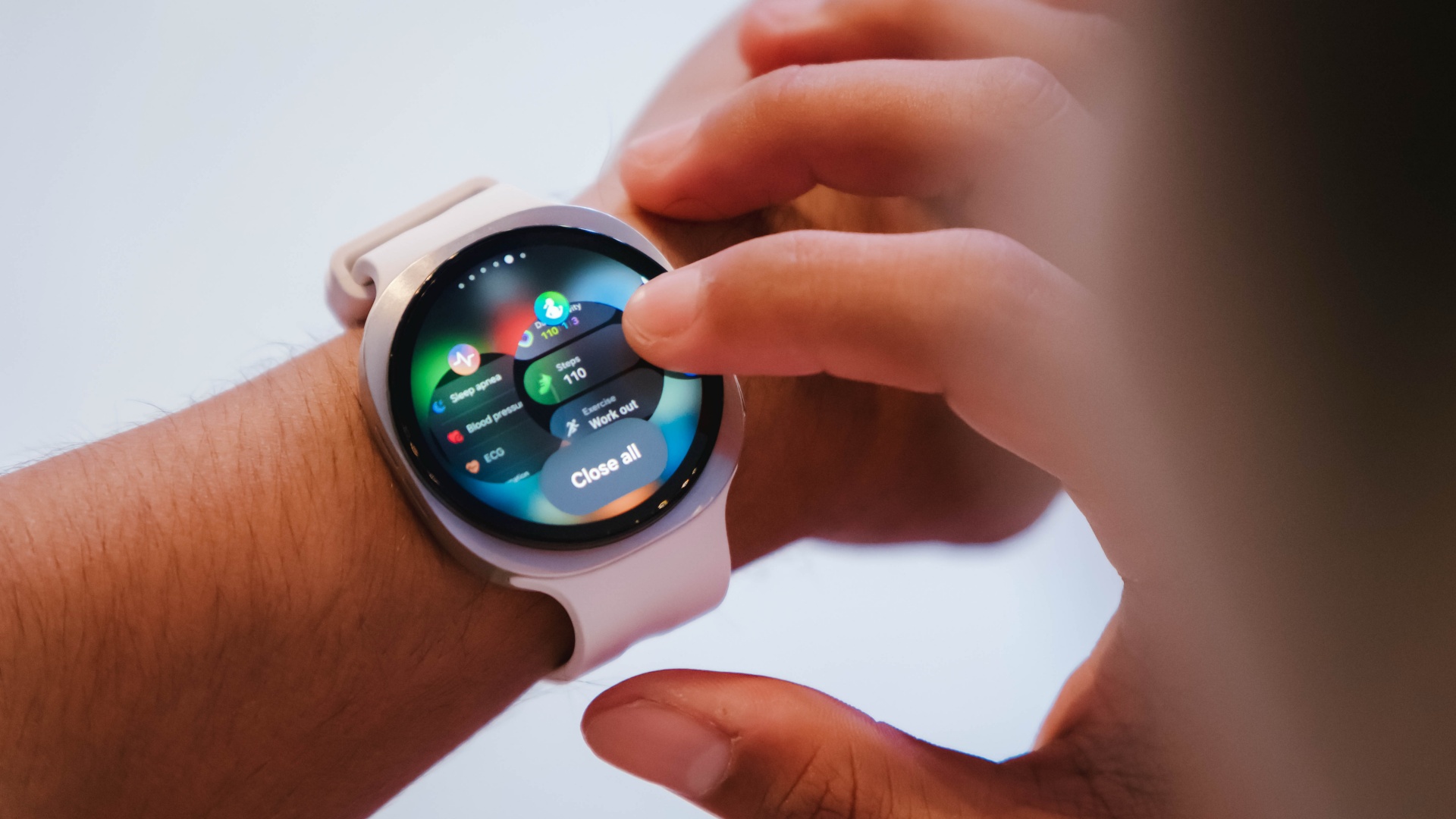
Here’s a paradox worth sitting with: Wearable adoption keeps climbing. A lot of people now walk around with a sensor on their wrist, tracking heart rate, sleep, steps, sometimes ECG. And yet chronic disease rates haven’t moved.
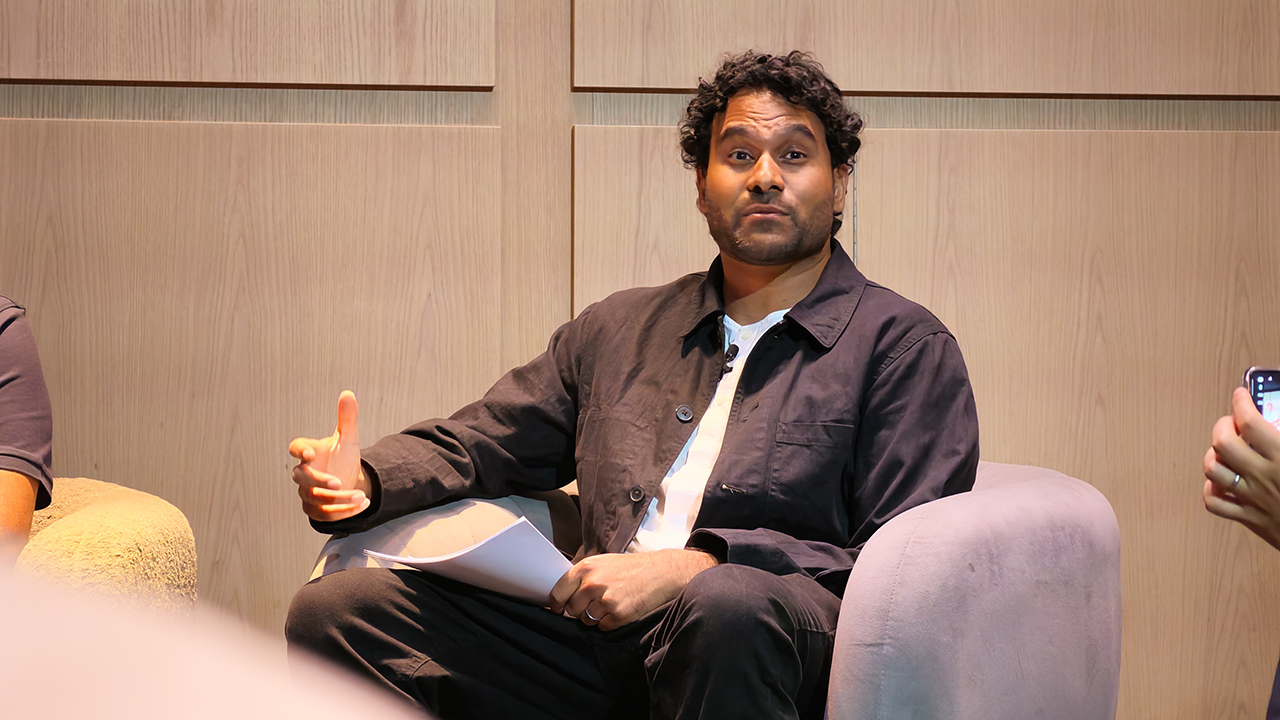
That’s the problem Dr. Hon Pak, Samsung’s Head of Digital Health globally, opened with at a recent panel on the future of connected care. More data hasn’t meant better healthcare. His diagnosis: a first-mile, last-mile issue.
The first mile is that all this wearable data rarely makes it to a doctor in any usable form. The last mile is that even when a doctor says “lose weight, eat better, move more,” that advice tends to dissolve the moment real life takes over.
Picking up kids, caring for parents, getting through a Tuesday, it’s not that people don’t know what to do. It’s that knowing and doing are two different problems.
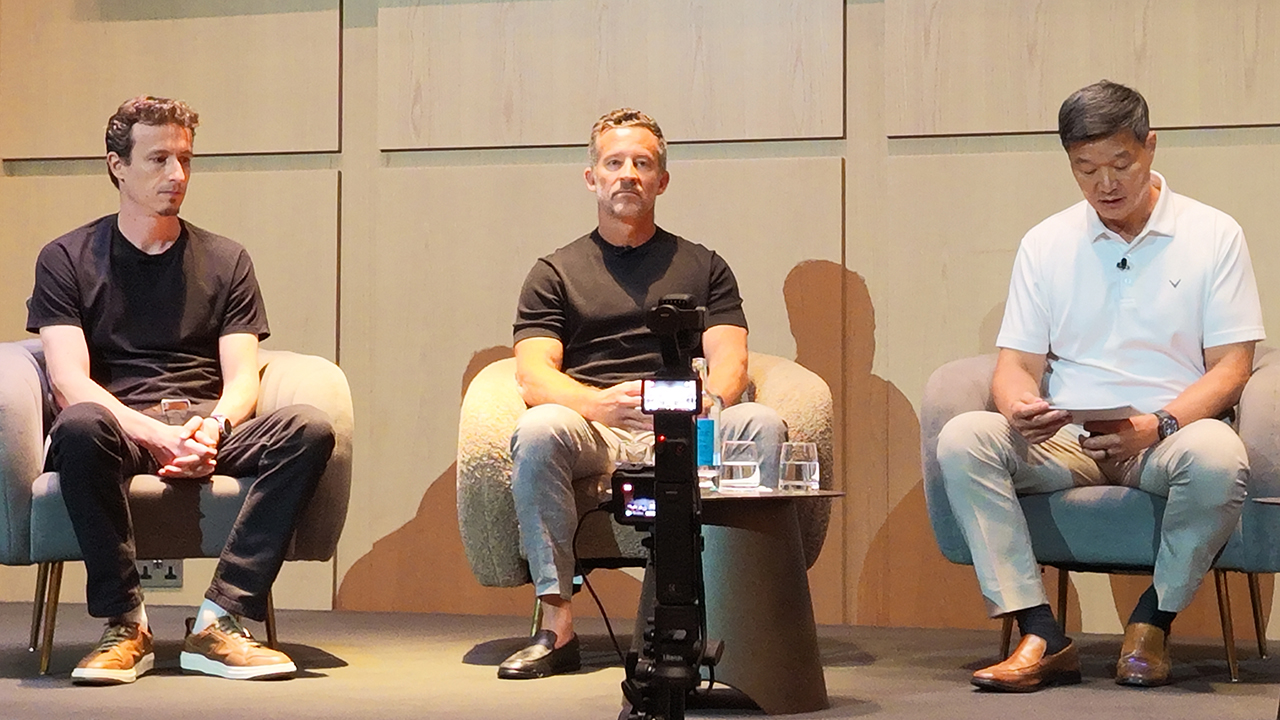
Samsung’s answer involves three things it says connected care needs to mature: meeting people where they actually are, building enough trust that people rely on the data, and using AI to turn that data into something a person can act on rather than just look at.
The Tuesday evening problem
Karthik Poriya, Head of Product at Samsung Food, framed the everyday failure point clearly. Picture it: long day, you’re tired, staring into the fridge. You’re not reaching for the healthiest option in that moment, you’re reaching for whatever’s fastest and most satisfying.
For years, nutrition tracking has focused on logging what already happened. Poriya’s team wants to intervene right at that decision point instead, pairing Samsung Health’s underlying data (BMI, antioxidant index, glycation markers) with Samsung Food’s recipe index of roughly 40,000 dishes mapped across 34 nutrients, so a health number turns into an actual dinner suggestion rather than another stat to check later.
Dr. Pak backed this with a small, concrete example from his own family: moving leftover cheesecake out of eye-level in the fridge and putting washed, sliced carrots there instead.
Kevin Duffy, CEO of connected fitness company iFit, made a similar point about exercise. The most effective tool for sticking to a fitness plan is a personal trainer, he said, citing roughly 80% higher adherence compared to going it alone.
The problem is cost: US$100 an hour or more in a major city puts that out of reach for most people. iFit’s bet is that AI can deliver something closer to a personal trainer’s precision and motivation at a price that isn’t elitist.
Duffy pointed to three reasons his company partners with Samsung specifically: reach (Samsung hardware is already in people’s homes, on their wrists and TVs), access to the biomarker data needed to build an accurate plan, and the fact that fitness goals don’t exist in isolation from sleep and nutrition data.
Trust has to come before any of this works
None of the behavior-change ambitions matter if people don’t trust the data or the company holding it. Rohit R. L., who heads Samsung’s Technology Innovation Lab in the UK, laid out how his team approaches that.
Privacy comes first: Samsung, he said, treats itself as a custodian of user data rather than an owner of it. On top of that sits clinical validation, meaning published, peer-reviewed evidence that a feature actually works in the real world, not just in a lab.
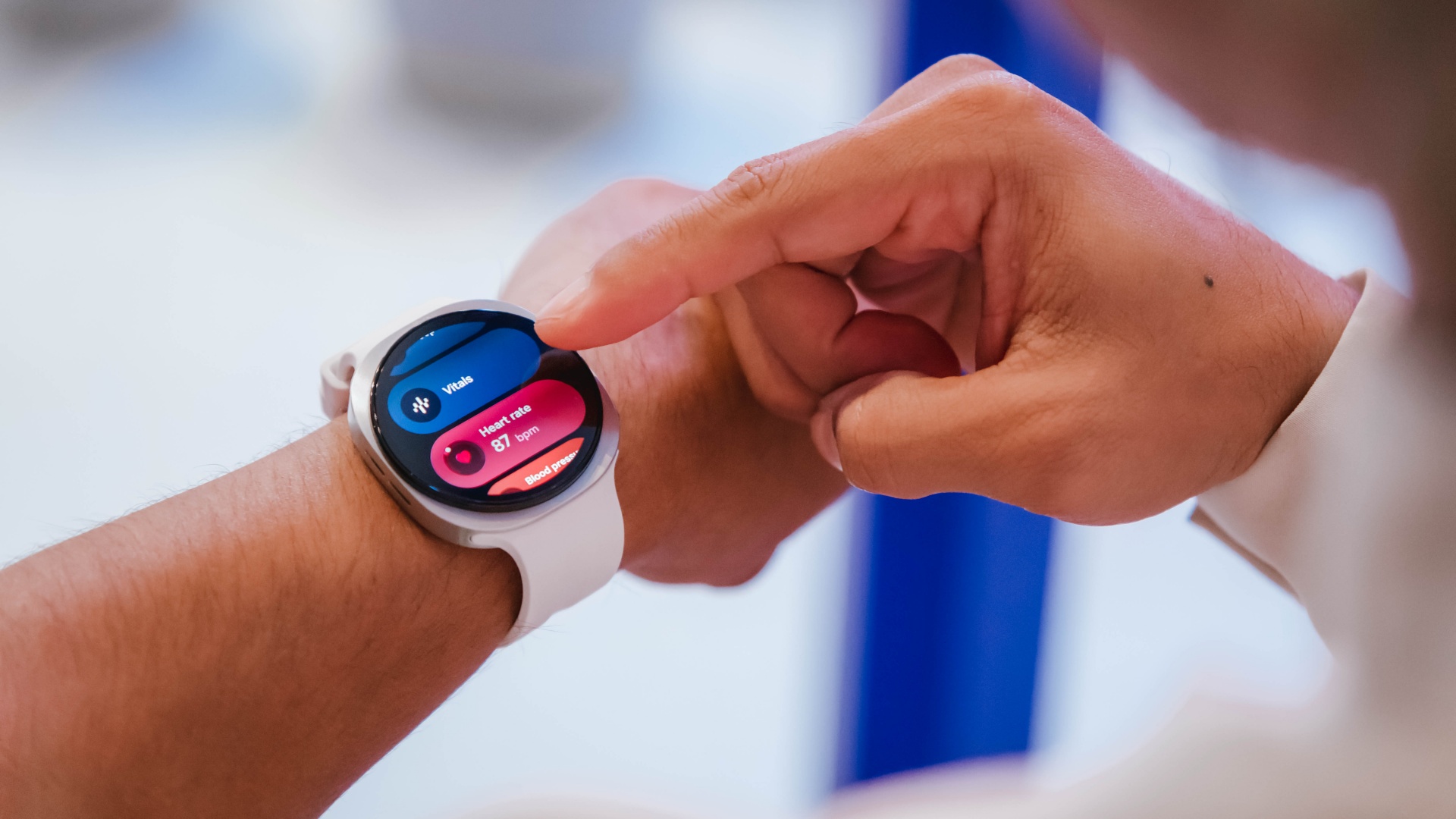
He gave a specific example: Samsung’s ECG and irregular heart rhythm notifications have been clinically validated and cleared by regulators to detect signs of atrial fibrillation. He was careful with the wording there, detect signs of, not diagnose, since that distinction matters both medically and legally.
A separate study on fall detection for elderly users turned up a more human finding. The detection algorithm worked well in testing, but in real life people don’t wear their watches around the clock, and falls don’t happen on a schedule.
Dr. Pak drew a useful comparison: nobody tells their MRI technician they’re going to fidget through the scan, but with a wearable, you don’t get to control how or when someone wears it. Real-world validation has to account for that.
On the infrastructure side, Rohit described a three-layer privacy approach: on-device protection through Samsung’s Knox security framework, GDPR-compliant data handling, and alignment with the European Health Data Space, including a decentralized clinical trial system where patient identity stays with the hospital rather than moving to Samsung’s side.
Where AI actually comes in
The most technically dense part of the discussion came from Otavio Penatti, who leads Samsung’s Health AI R&D team in Brazil.
His team works on foundation models, the same category of large-scale AI models trained on unlabeled data that underpin most of today’s popular AI systems. Trained once on a huge amount of sensor data, these models can then be fine-tuned for many specific health applications, which tends to make them more accurate than models built for a single narrow task.
Penatti’s team is training these models on wearable sensor data (PPG, ECG, accelerometer) with the goal of getting the model to, as he put it, understand the body’s own signals well enough to translate them into something useful. Longer term, he sees potential in correlating that sensor data with clinical records to flag disease risk before symptoms show up.
Dr. Pak added a striking data point from Stanford research: a foundation model trained on sleep study data was able to look at just a 24-hour window of sleep and predict risk across more than 130 different diseases.
His takeaway was that the signals for a lot of future health problems are already sitting in the data being collected today, we just don’t yet know how to read all of them.
He closed this part with a number worth sitting with. A recent American Medical Association survey found that 97% of physicians have looked at wearable data at some point. Only 15 to 16% actually use it in day-to-day practice.
The top reason cited wasn’t distrust of the data, it was that the data doesn’t plug into existing clinical workflows. That’s part of why Samsung acquired health data platform Xealth, to build a pipeline that gets wellness data into the systems doctors already use.
Five years out
Asked to look five years ahead, each panelist’s answer tracked closely to their own corner of the problem. Poriya described a proactive dietitian in your pocket, one that doesn’t wait to be asked.

Rohit pointed to connected care that clinicians actually trust and patients fully control. Penatti envisioned AI that continuously links everyday behavior to clinical outcomes, catching problems before they start. Duffy’s version was a constant personal wellness coach, sifting through the data noise to tell you exactly what to do next.
The throughline across all four answers is the same: less raw data, more action. Samsung’s panel made the case that the wearable industry has spent the last decade solving for collection, more sensors, more metrics, more dashboards, while the harder problem, turning that information into something a tired person actually does on a Tuesday night, has barely been touched.
Whether foundation models and better clinical integration actually close that gap is still an open question. But it’s clearly the one Samsung is choosing to spend its next five years on.


Marvel’s Wolverine review: When the claws come out
A brutal, cinematic superhero adventure

Setting your bedsheets ablaze with the Lovense Solace Pro
The closest proxy I could find where I'm guilty as sin


Now Playing: Elden Ring Tarnished Edition
Is the Switch 2 port worth the price?

Apple is reportedly working on its own gaming controllers

BlizzCon 2026 announces World of Warcraft: Forever and Diablo V

Apple iPhone 18 Pro Series Hands-on

Spotlight: Hisense UR8 + RGB MiniLED Explained

First Look: Apple iPhone Duo

TECNO MEGAPAD 2 review: Eyes on the size

realme 16T 5G with 8000mAh battery, IP69 Pro rating launches in PH

HUAWEI Pura X View is 2026’s first WIDE slab-type smartphone

REDMI reveals the refreshed Note 17 and Note 17 Pro series

REDMI Note 17 Series focuses on long-term reliability


-
 News7 days ago
HUAWEI Pura X View is 2026’s first WIDE slab-type smartphone
-

 News1 week ago
The CAMON Slim 5G is TECNO’s latest ultra-slim smartphone
-
 Cameras2 weeks ago
DJI Osmo 360 II review: Going all-in on the ecosystem
-

 IFA 20262 weeks ago
TECNO MEGABOOK T15 360 unveiled at IFA 2026
-

 Gaming2 weeks ago
NBA 2K27 review: A two-way All-Star
-
 Reviews2 weeks ago
Samsung Galaxy Z Fold8 Ultra review: It’s time to get a foldable
-
 News4 days ago
iPhone 18 Pro series: Price, availability in the Philippines
-

 IFA 20261 week ago
TECNO’s POVA 8 Pro gets a stealthy makeover