
Apps
8 apps to use when working from home
Conquer your to-do list and maintain your productivity!

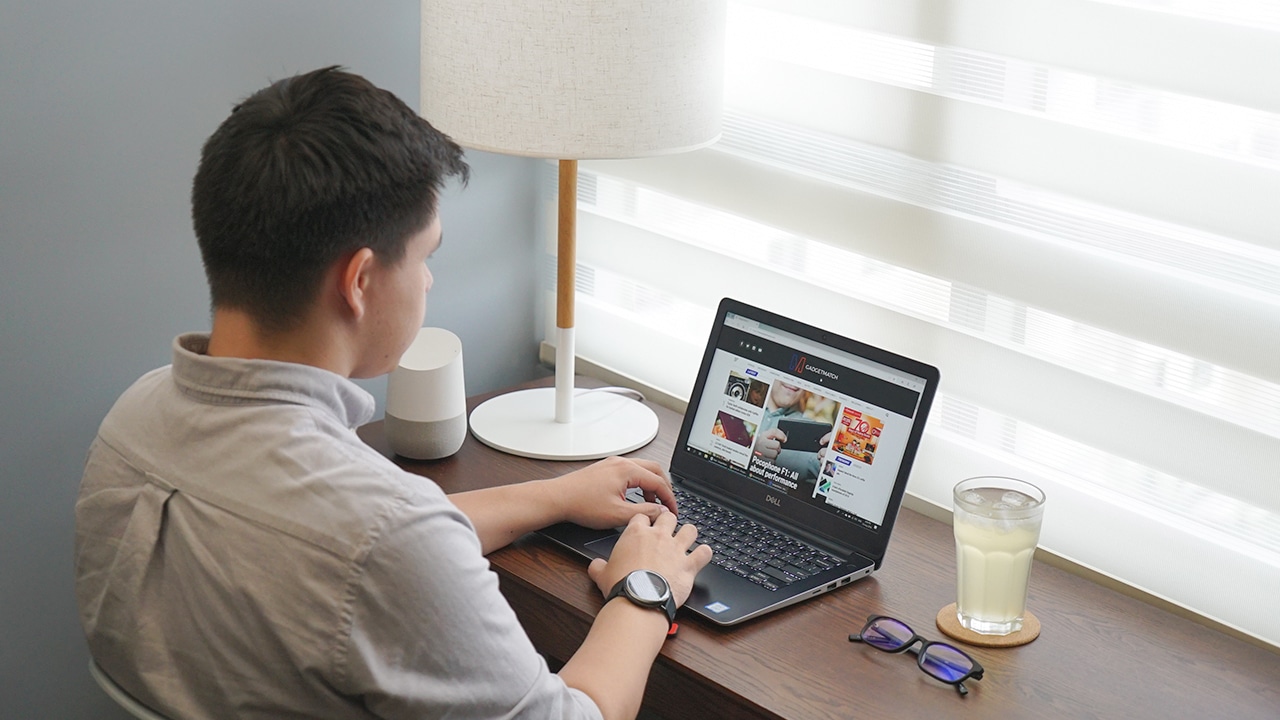
The outbreak of COVID-19 shows no sign of stopping. With no end in sight for the deadly disease, companies are resorting to a remote working environment for their employees. After all, most employees use smartphones and laptops that makes work from home possible.
For employees working at home for the first time, it can be a difficult task on where to start. There are many apps out there that could potentially distract you from reaching your full productivity levels. That’s why we compiled apps which can help you on your daily grind at the comfort of your home.
Tide (meditation and timer app)
Working for hours can be draining. As such, you tend to lose focus and your productivity levels suffer as a result. This is where Tide comes in. The name itself invokes a familiar sight on a calm beach. For the app itself, the combination of meditation and productivity timer in one makes it a great tool for everyone working at home.
You can set different timers for focusing on your work. By default, the app uses the pomodoro technique where tasks are divided into 25-minute sessions with breaks in between. The app’s breathe mode allows you to meditate and focus on your breath. Meanwhile, the sleep and nap timer tracks and helps you achieve that elusive sleep after a long day of grinding at work.
Download on Google Play Store or Apple App Store
Slack (work collaboration app)
Slack is a household name for remote work collaboration. As a matter of fact, we use this app at GadgetMatch for updates and pitching in articles. The app is straightforward to use — it’s comparable to most chat apps on the market, but better. You can reply to someone’s message, which will become a thread in itself where you can also react and reply to keep the conversation going.
Slack shines the most when used as a collaboration tool for work teams. As such, the app may not be useful to you if your company doesn’t have its own Slack workspace. You’ll need an invite to join a workspace and a channel. Once you’re invited, you can say anything to the channel you’re allowed in. Plus, you can also message a fellow user directly and privately.
Download on Google Play Store or Apple App Store
Gmail (email app)
Who doesn’t use Gmail to handle their email inbox? Google’s mail service has been around for a long time, making it a popular tool for sending and receiving emails. To utilize Gmail for best productivity, you can create automatic filters and labels which does the job of sorting out important work emails from personal ones.
Gmail’s smart compose feature is also a plus when typing new emails to your colleagues and bosses. And with the intelligent features baked in, you will see important emails right in front of your inbox. That makes it perfect for dealing with tasks with tight deadlines.
Download on Google Play Store or Apple App Store
Microsoft To-Do (to-do list app)
A day’s work is more exciting if you have a to-do list to conquer. Microsoft To-Do is basically that: a to-do list app, but with added features so you can conquer the day with confidence. By default, the app takes you to the “My Day” tab, where you can add your own to-do for the day. You have the option to create a sub-task within a certain task too, making it a versatile companion for focusing on your daily hustle.
The app’s versatility doesn’t stop there. You can remind yourself of an upcoming to-do, and even set it to repeat daily, weekly, monthly or yearly. Plus, you can even set it to repeat at a custom time. The biggest advantage of this app, however, is the option to set a due date. Setting a deadline for a certain task is very useful especially when working at home where numerous distractions abound.
And unlike other to-do list app, you can add images, notes, and files directly to a certain task.
Download on Google Play Store or Apple App Store
Microsoft Office (document creation app)
If you ever need a mobile companion for editing documents on the go, Microsoft Office app will more than suit your needs. Almost everything that you would expect from the desktop app is on the mobile app too. In the past, Microsoft used to offer three different apps for editing document, spreadsheet, and presentation files just like in the desktop. However, the company recently released a brand-new app which bundles Word, Excel, PowerPoint, and even Lens in one.
From the app, you can open and edit any documents from the local file directory or your OneDrive account. Microsoft Office even supports opening and converting PDFs, so you can view and edit an important document from your email inbox.
Download on Google Play Store or Apple App Store
Google Keep (note-taking app)
Keeping tabs of notes while working on a certain task can be daunting. While some of us may opt for a physical sticky-notes to keep tabs of the important stuff, some prefer a digital solution. After all, it’s much easier to use a digital note-taking app that synchronizes your notes on all devices.
That is what Google Keep does for its users. It’s dead simple to use and you can jot your notes within the app in no time. Additionally, you can change the color and label of your own notes if you’re obsessed with organizing stuffs. The biggest advantage of this app yet over its traditional counterpart is the ability to store and sync your notes from the cloud. Worrying over a sticky-note that you were supposed to pin on a board is now a thing of the past with this app.
Download on Google Play Store or Apple App Store
Toggl (time tracking app)
It can be a struggle to keep track of the time you work on something while at home. Toggl is a timesheet app that simplifies time tracking for you. You can set the app to automatically track the time while you work on a certain task. The time tracked can be displayed on your calendar too.
At the end of the day, the app will nudge you with stats and reports so you can see how productive you are for the day. This is useful if you always struggle completing a task because you had numerous distractions at home.
Download on Google Play Store or Apple App Store
LinkedIn (work social networking app)
LinkedIn is a social networking site just like Facebook. However, it’s more focused on work-related stuff. Here, you can follow a company’s profile for any updates related to work and daily operations. Plus, you can also follow a colleague. Following a colleague allows you to message him/her at any time of the day too. This is useful for getting in touch with a workmate regarding any company announcement that you missed while at home.
You could also search for new jobs on LinkedIn. The job search feature allows you to search for a part-time freelancing gig. More importantly, you could build connections with other people who can vouch you for a job you’re applying. And since this is a social networking site for work, your own profile will serve as a resume where you can post your achievements and boast your real-life skills.
Download on Google Play Store or Apple App Store
Bonus: Forest (productivity gaming app)
Who says that work at home can’t be fun? This app literally gamifies your work session. It works by letting you grow a virtual tree within a 25-minute period. The tree slowly grows as time progresses. However, once you leave the app, the tree dies. You wouldn’t want a tree to die, so you’ll be left with no other choice but to stick to the app and let the timer finish.
As such, you will be forced to focus on your work while the tree grows. It’s relaxing and satisfying to watch your tree grow while you conquer your task within the given time. The app cultivates a habit of productivity too, since any tree you’ve successfully grown will earn you coins that you can use to purchase another tree species. And the best part about this is that you can donate that coin to tree planting and conservation efforts for our planet.
Download on Google Play Store or Apple App Store
SEE ALSO:
How to disinfect your tech from the coronavirus
Apple: Coronavirus might cause iPhone shortage
COVID-19 effect: Facebook, Twitter employees advised to work from home
As general rules, the CDC or The Centers for Disease Control and Prevention listed these to help with preventing the spread of COVID-19:
- Stay home when sick
- Cover coughs and sneezes
- Frequently wash hands with soap and water
- Clean frequently touched surfaces





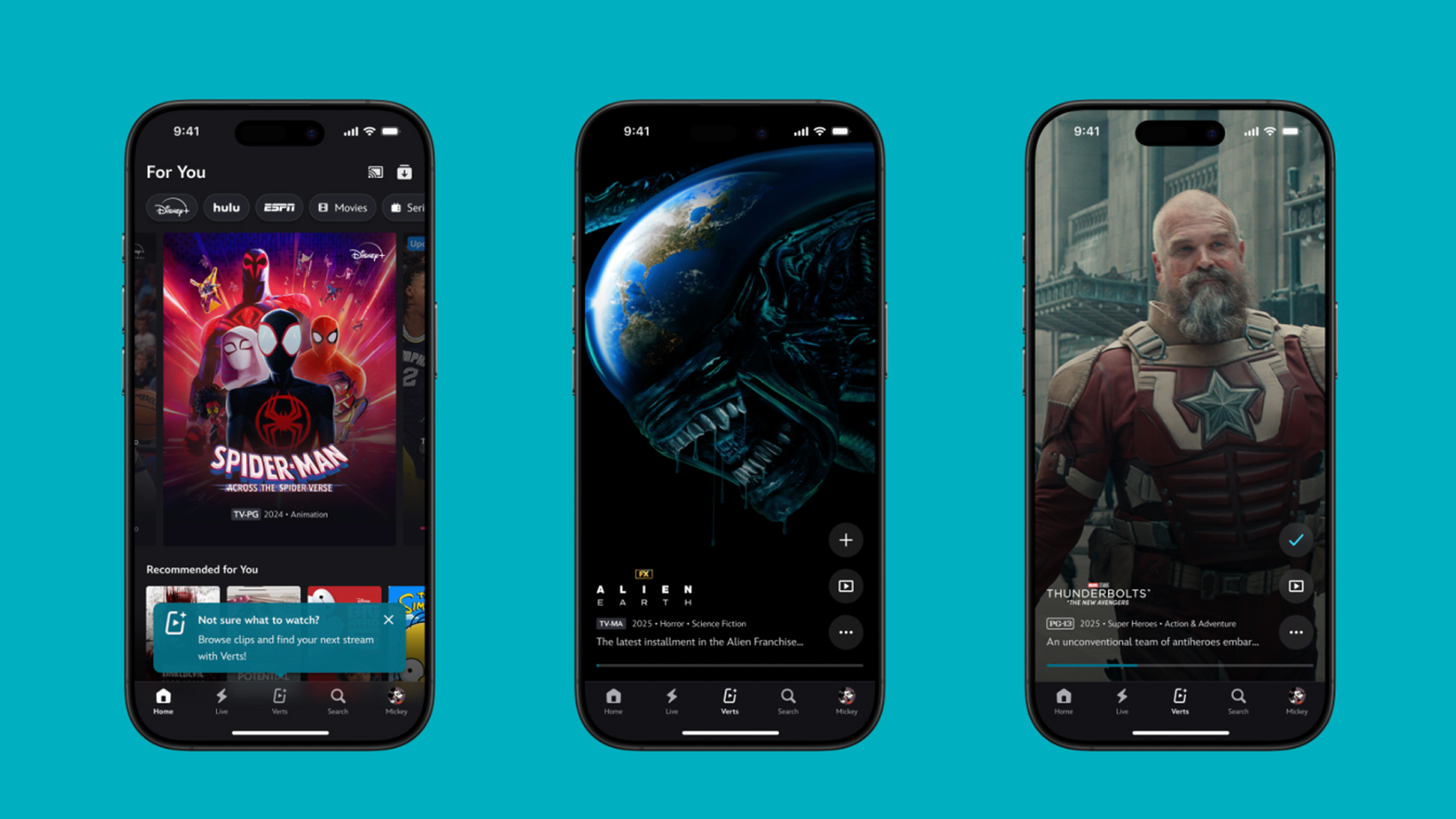
TikTok has changed how we consume media. Everything is now vertical. Even the most established streaming services, often a bastion for traditionally horizontal content, is adopting the different format. Now, Disney+ is getting a vertical feed called Verts.
Like its contemporaries, Verts presents a continuous feed of content but tailored to show the plethora of titles from the Disney+ library. This might include the first scenes of shows or notable highlights. The hope, of course, is to direct users to the longform content.
Directly from the Verts feed, users can easily add the respective title to their watchlist or go straight to the title’s page. In turn, the feed is accessible from the homepage since it has its own tab.
According to Disney, early experiments with the feature have driven engagement to available content. Right now, the feed is mostly for clipping enticing content from shows. However, the platform will experiment further with the format for new ways to tell stories.
Though Verts surely stands for “verticals” in this case, “adverts” might fit better as its full government name. Still, it might be a useful tool if you’re figuring out what to watch for the night.
Currently, Verts is available for Disney+ subscribers in the United States. Disney also has plans to expand the feature to ESPN for sports-related content.
SEE ALSO: Live NBA action on Disney Plus now available in the Philippines
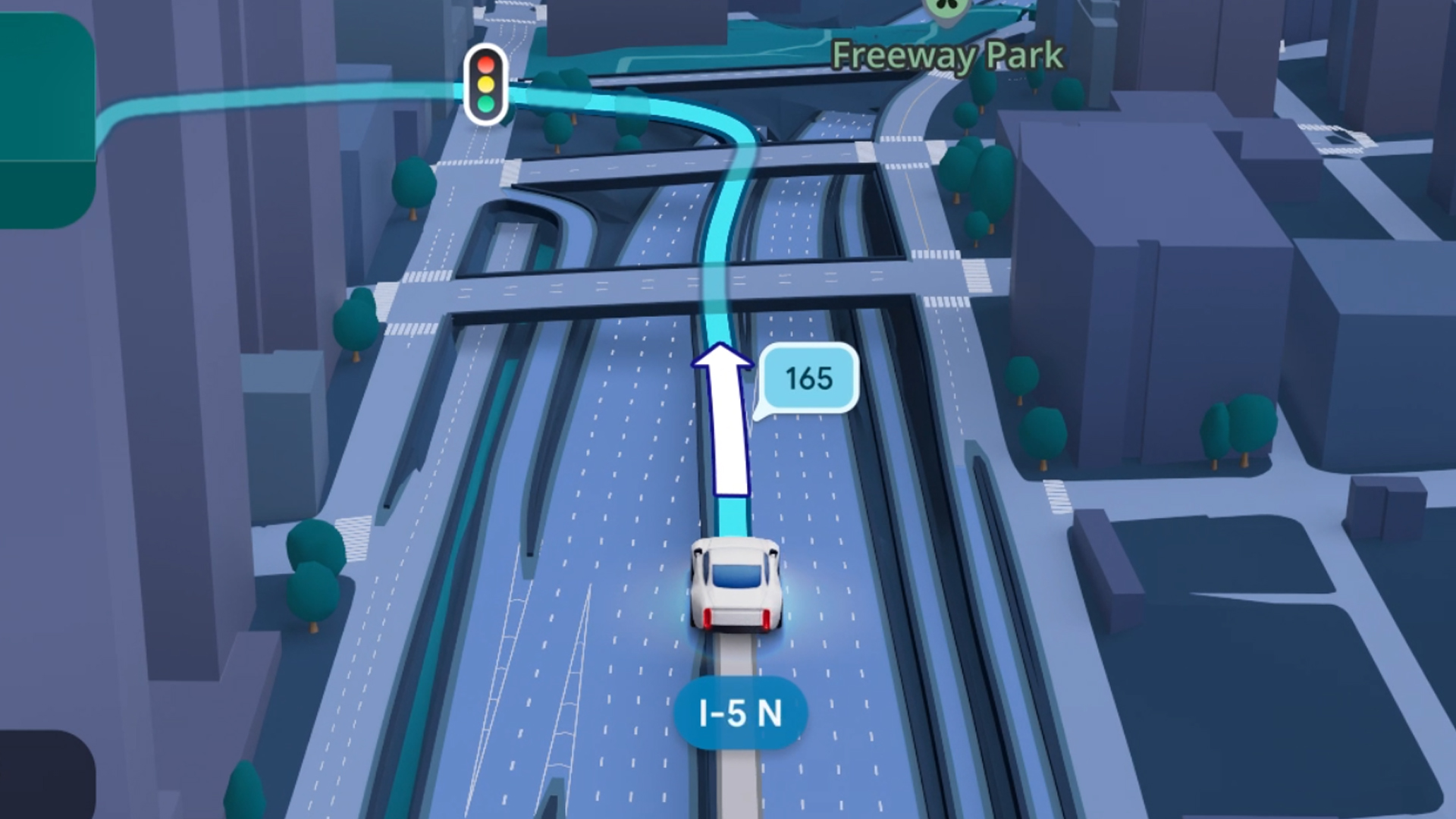
Some of today’s navigation apps are living in the future. Instead of a two-dimensional map, these apps render the user’s surroundings in 3D. It’s a nifty upgrade that helps drivers more accurately visualize directions on the fly. Finally, Google Maps is getting a much-needed upgrade and will take navigation to the third dimension.
In a new update rolling out today, the new Immersive Navigation feature will bring your surroundings to life. The 3D view creates a render of the surrounding buildings, overpasses, and terrain around the car. It takes the guesswork out of navigation by showing precisely where to turn and what landmarks to look out for.
In the same vein, you can now use Street View to preview your destination before you arrive. Google Maps will also highlight your destination’s entrance, side of the street, and nearby parking.
Outside of how the map is visualized, Google Maps is also infusing its service with Gemini. The new Ask Maps feature will let you engage with the app in a conversational manner. For example, if you’re in the middle of a long drive, you can now ask Maps where the best place is to stop over and have a coffee break. Ask Maps will provide directions, a potential itinerary, and even helpful links to book a reservation ahead of time.
Now, availability for both of these features is still a bit limited. Immersive View is rolling out today to compatible devices and vehicles in the United States. Further, availability will expand over the coming months.
Meanwhile, Ask Maps is available now in the United States and India for Android and iOS. A desktop version is coming soon.
SEE ALSO: Google Maps is finally getting a power saving mode
Apps
Apple Music, TikTok launch Play Full Song, a new music discovery experience
Rolling out worldwide exclusively through Apple Music

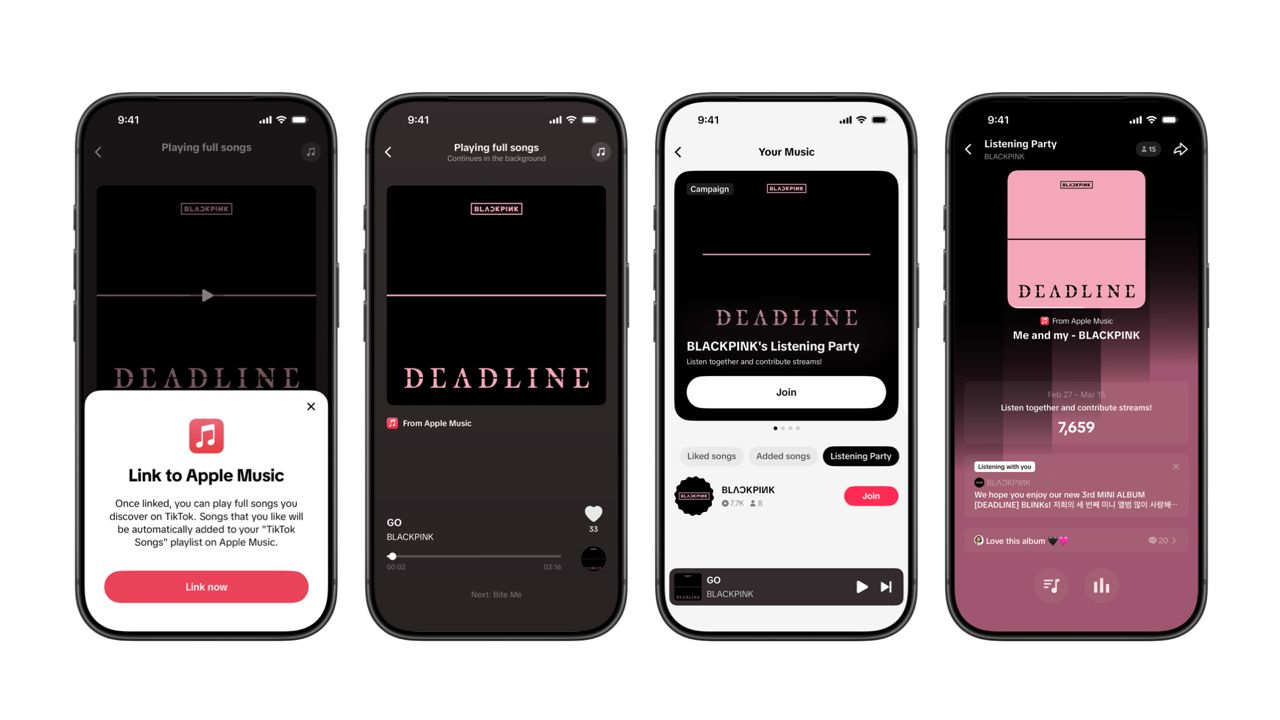
Ever came across a viral 15 or 30-second music snippet on TikTok that instantly became your jam on repeat?
For years, TikTok has been a regular source of songs that have become part of our playlists. And together with Apple Music, listening to the music you discover has just gotten even easier.
That’s through Play Full Song, a new music discovery experience, which launches exclusively though Apple Music.
With the new feature, Apple Music subscribers can now enjoy full-length tracks that they discover on TikTok. That’s without ever leaving that popular streaming app.
Fans who discover a song that they love on their For You or Sound Detail page can simply tap the Play Full Song button to open up an Apple Music player and enjoy the song in its entirety.
From there, subscribers can continue listening to a personalized stream of recommended songs. That means no more need to switch apps and search separately.
The new Play Full Song experience helps music fans move seamlessly from the moment of discovery to deeper listening. It’s also designed to be instant and all within the same environment.
Moreover, users can also save their favorite songs to Your Music and add them directly to their Apple Music playlists.
Built using Apple’s MusicKit, full-length song playback takes place on Apple Music. This way, streams are paid within the Apple Music service, supporting artists and rights holders while giving fans a smooth, uninterrupted experience.
Listening Party also launched
The feature builds on the success of TikTok’s Add to Music App. This was previously launched to help artists and fans convert discovery on TikTok to a playlist save in Apple Music and other streaming services.
To cap the announcement, TikTok and Apple Music are also introducing Listening Party. This new feature is designed to bring artists and fans together around music.
It creates a shared environment where fans can listen to songs from their favorite artists in real time, interact with each her, and engage directly with the artist during the session.




Now Playing: Hoppers

Jackery SolarSaga series: Free power for small devices

UGREEN adds new Nexode Pro power bank, charger to lineup

nubia to launch new Neo 5 series gaming phones on March 28

SHINOBI: Art of Vengeance’s SEGA Villains Stage out on April 3


-

 Reviews5 days ago
POCO X8 Pro Max review: A new beast from the far east
-

 News5 days ago
POCO X8 Pro Series: Price, availability in the Philippines
-

 Laptops2 weeks ago
Apple MacBook Neo Review
-

 Computers2 weeks ago
GIGABYTE collaborates with Capcom for RE Requiem custom PC
-

 Apps1 week ago
Google Maps is finally getting a 3D mode
-

 Entertainment2 weeks ago
The internet is thirsting over the One Piece Season 2 cast
-

 Features1 week ago
Galaxy AI on the Samsung Galaxy S26 Ultra
-

 Automotive2 weeks ago
BYD is reportedly considering an F1 team