
Features
Making TWICE art with the Samsung Galaxy Tab S7+
Best Android tablet for artists?

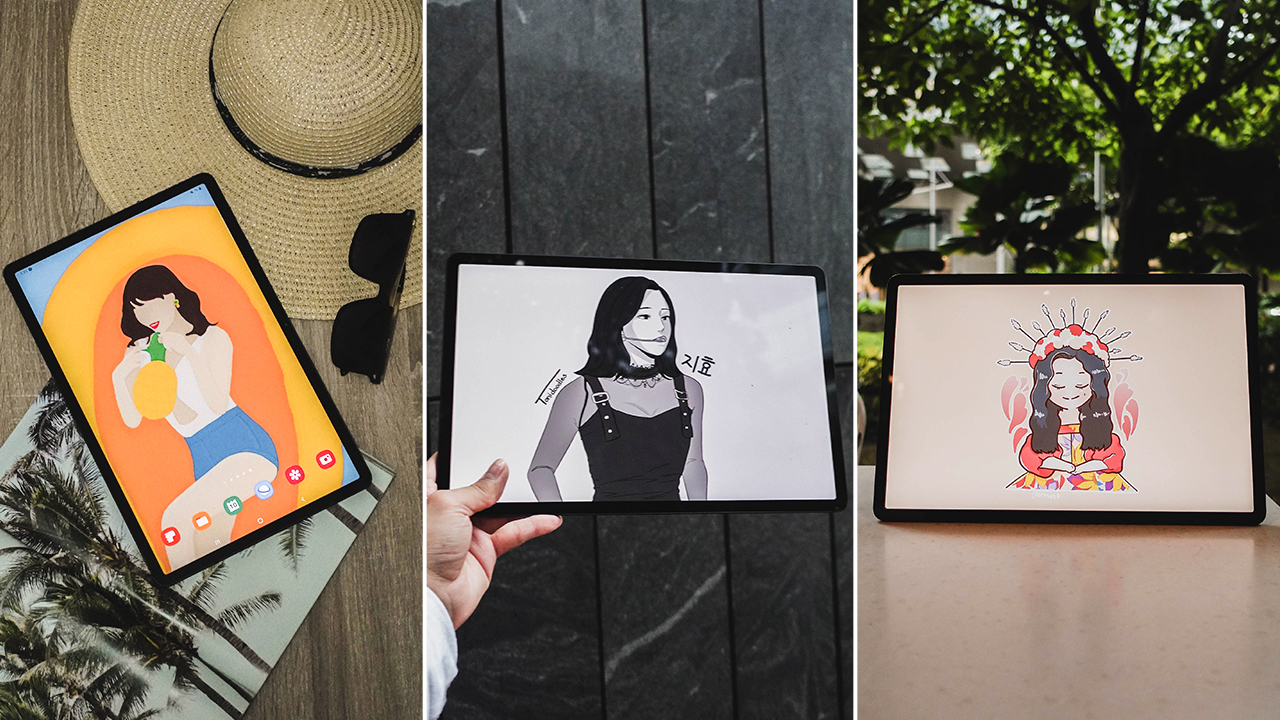
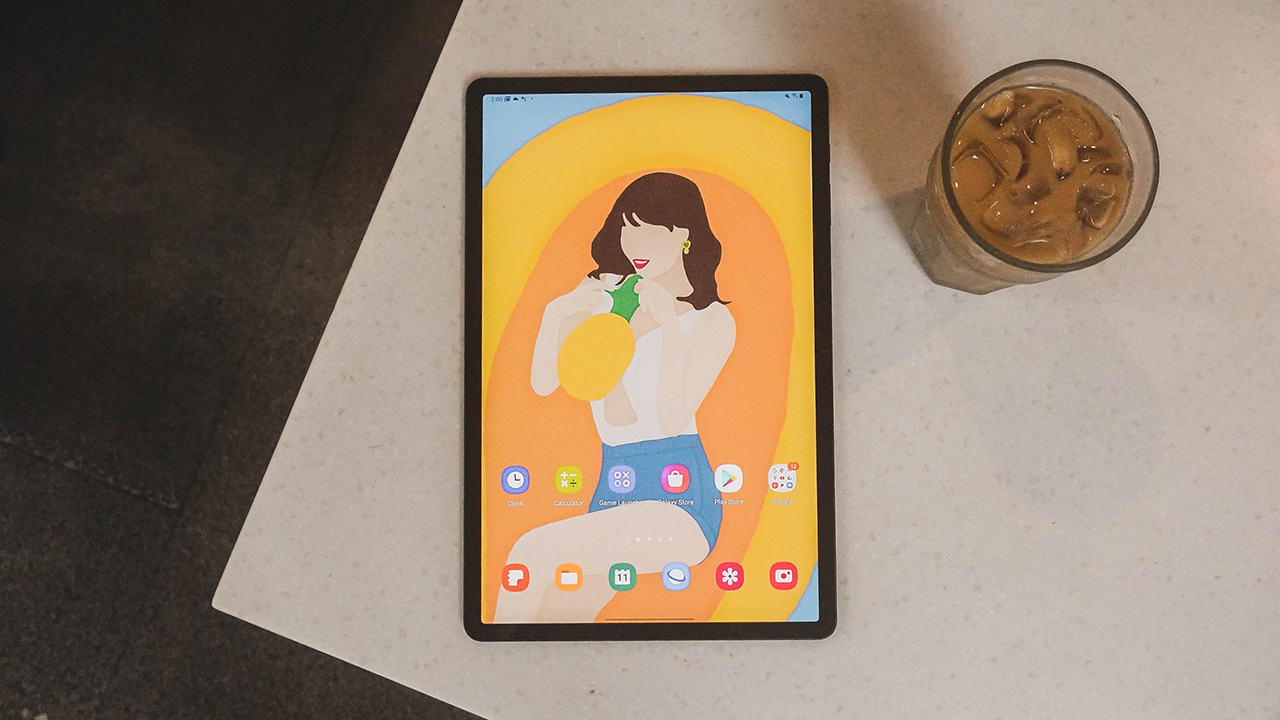
For years, Apple’s iPad has been uncontested as the best tablet in the market especially for artists. But Android — specifically Samsung — has taken steps to close the gap. What better way to demonstrate this than with TWICE art and the Samsung Galaxy Tab S7+.
We tapped three artists for this exercise. The goal is to show that no matter your art style, the Galaxy Tab S7+ is equipped with and has access to the tools to help you create.
The artists: Our very own Associate Creative Director, MJ. The other two have been making TWICE art for a while now with their very distinct styles — Gwen with her chibi art style and Toni who’s made some notable TWICExAnimé crossovers.
Note: Some answers were edited for brevity
TWICE’s Momo by @hemjaye
Was it difficult moving from your usual tools/workflow to the Galaxy Tab S7+? What made it easy/difficult?
MJ: It was both easy and difficult. Easy because I don’t have to be limited to a desk when drawing with my pen tablet while connected to my laptop. Difficult because there’s always a learning curve required regarding a new interface in every app.
Gwen: What made it easy was that I’m familiar with android devices so working with the galaxy tab was fairly easy
Toni: At first it was hard to use it because I’m not used to drawing with big gadgets but as the time goes by, it’s really easy to get used to it. The pen made it easier for me because its size is like an actual pencil or pen, and the screen of the Galaxy Tab S7+ is pretty convenient to use.

TWICE’s Chaeyoung by @gwen.arts423

TWICE’s Mina by @t0nidoodles
What apps did you use to accomplish these images? Were they any different from the ones you regularly use?
MJ: Originally, I wanted to use AutoDesk’s Sketchbook which I recently used on the Huawei MatePad Pro. I already had it installed. But to get out of my comfort zone, I used Clip Studio Paint to do my usual style for editorial illustrations albeit a little bit raw and hand-drawn this time around. I’ve tried the software before on my laptop, but I was a little bit slow in grasping the interface on the tablet. I certainly don’t have the time to tinker a little bit more to experiment.
Gwen: I used Clip Studio Paint which I also purchased for my PC just recently, so it wasn’t any different from what I usually use.
Toni: I downloaded Ibis paint X because I always draw using that app. The app is pretty easy to use and the tablet made it even easier.

TWICE’s Jeongyeon by @gwen.arts423

TWICE’s Dahyun by @t0nidoodles
As vividly as you can, how would you describe the feeling of using the S Pen on the tablet?
MJ: It’s like painting on an actual canvas. The pen’s latency is a bit similar to my experience with the Apple Pencil.
Gwen: In all honesty, I fell in love with the S Pen and how it glides on the screen of the tablet. It has a rubber tip that makes it so comfortable since it’s softer than what I usually use. The pressure sensitivity is good too! The S Pen is quite thin so it’s pretty easy to grab and use though it might depend on your preference and hand size. I think it’s perfect for me overall.
Toni: The pen is really soft and easy to use. It has a smooth edge that makes it easy to draw on the tablet. It also suits my hand.

TWICE’s Tzuyu by @gwen.arts423

TWICE’s Jihyo by @t0nidoodles
In your opinion, do you think the Galaxy Tab S7+ would be a good gadget for artists like yourself to aspire to get? Would you recommend it to other artists? Why or why not?
MJ: Yes. I consider it a great tool for artists since the tablet is powerful enough to handle most apps and even heavy illustrations, presumably. It can also run graphics-intensive games like Genshin Impact. There are also a lot of choices — free and paid apps — on the Galaxy Store and Google’s Play Store. And if you need inspiration, you can easily switch between apps, use a split-screen view, or pop-up mode so you can multitask freely. It’s an all-in-one machine for your art and other needs.
Gwen: I think it’s all based on preference. If you’re an artist, I think you might get frustrated with the palm rejection feature of this tablet. I found ways around it but since the screen is big it’s just impossible not to rest your hand on its edge, possibly ruining your work with lines your palm accidentally made.
Toni: Yes! While using the tablet, I thought that maybe I should get one instead of a regular drawing tablet that we connect to computers. The tablet has a big screen and I think artists like me will really like it too. The specs are so great!

TWICE’s Sana by @gwen.arts423

TWICE’s Nayeon by @t0nidoodles
If money were no object, would you prefer the Galaxy Tab S7+ over other tablets? Why or why not?
MJ: Hell yeah. As much as I want the Apple iPad Pro mostly for Procreate alone, I’m also in love with the Galaxy Tab S7+, maybe because I love Samsung’s ecosystem. Everything’s just easy on the user’s part. I’d even say the Galaxy Tab S7+ can rival the Apple iPad Pro in almost everything, but the choice will really depend on the apps you’re using and the operating system you prefer.
Gwen: The screen is really bright and striking, the art totally looks gorgeous on it, and I fell in love with the S Pen and how comfortable it is to use. If the palm rejection feature improves, I don’t see why not. It’s the only reason that would hold me back from getting this tab. Other than that, it’s perfect for me.
Toni: Yes! I would love to buy a Galaxy Tab S7+. I really like the quality, design and the specs. A college student like me usually brings a few things when going to the campus and I really like to bring stuff that aren’t bulky. If I have a Galaxy Tab S7+, I would opt to bring it with me instead of a laptop.
Follow the artists:
MJ — @hemjaye on IG
Gwen — @gwen.arts423 on IG
Toni — @t0nidoodles on IG, @tonidoodles on Twitter








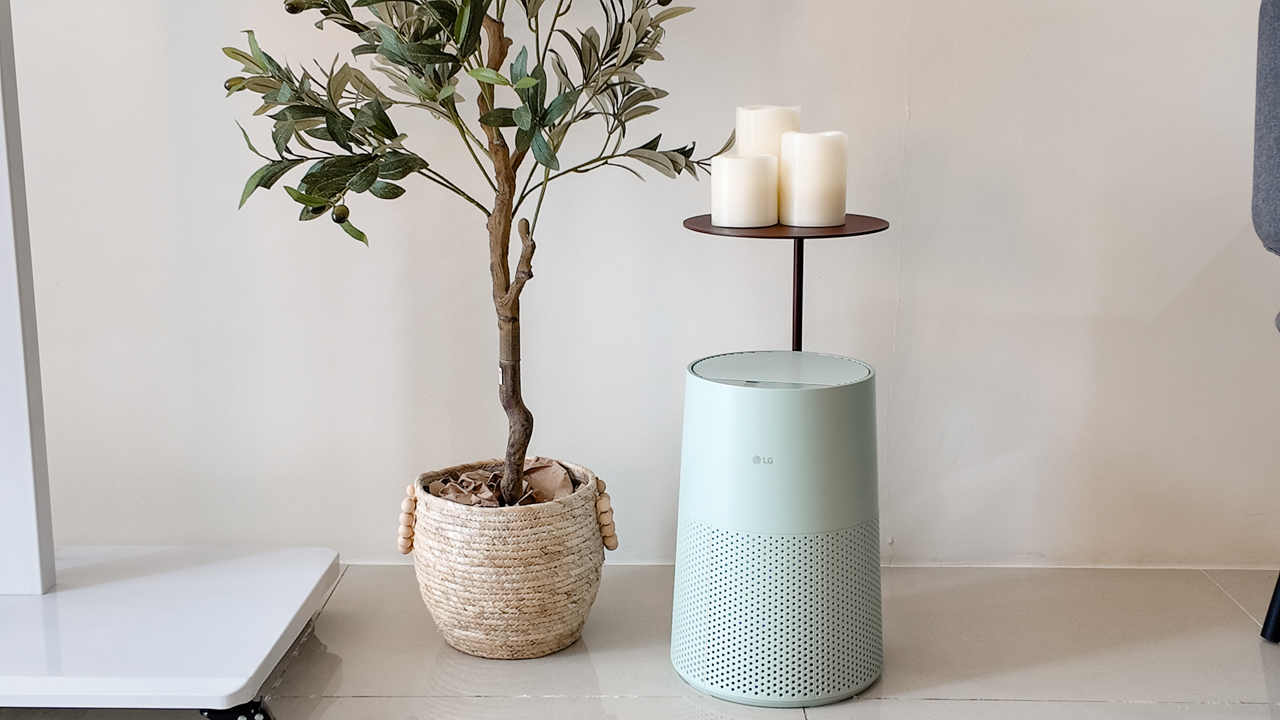
Moving into a new space comes with a long list of things to figure out, and lately, I’ve been paying more attention to something that’s easy to overlook: air quality.
After using the LG AeroMini for about a month, it has become a subtle but welcome addition to my space. It helps make the room feel fresher, while its compact and stylish design fits naturally into my setup. Here are the things that stood out to me most after living with it for a month.
360° purification for a fresher space
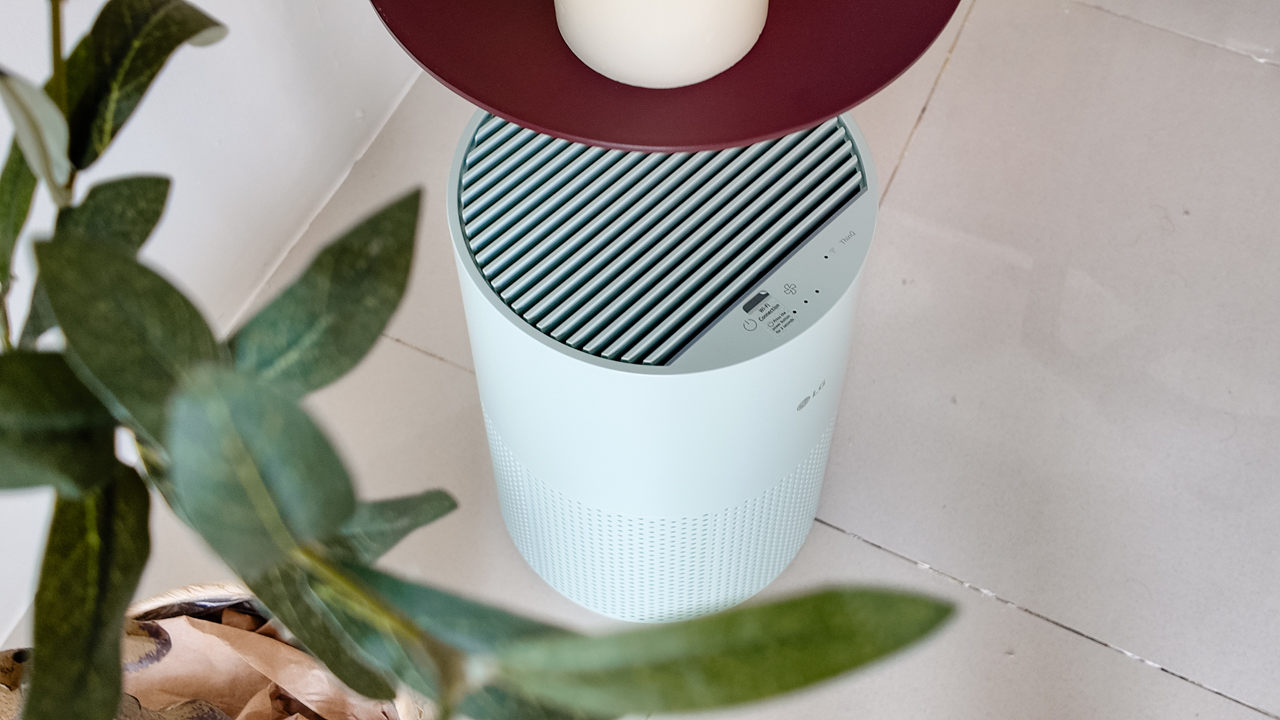
One of the things I appreciate about the AeroMini is its 360° air purification, designed to bring purified air in every direction.
For me, this is particularly useful in a new space where I’m spending a lot of time working, relaxing, and just settling in.
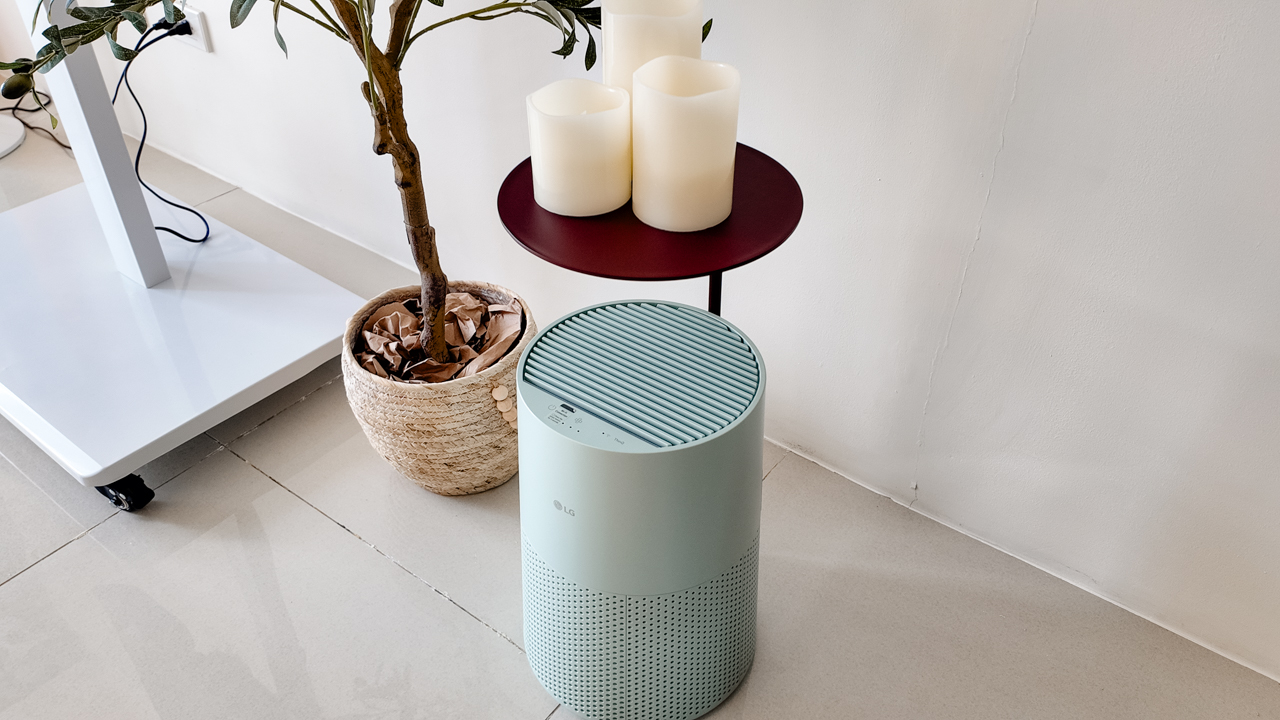
Combined with its True HEPA filter, which is designed to remove 99.999% of 0.01μm fine dust and allergens, it gives me added peace of mind about the air I’m breathing every day.
After a month, I can genuinely say that the space feels fresher with it running.
Surprisingly quiet
This is probably my favorite feature.
The LG AeroMini operates at just 26dB, and after using it for a month, what stands out is how easy it is to forget that it’s even running.

I can have it running while I’m working or sleeping without the noise becoming a distraction. For an appliance that’s designed to continuously improve the air around you, I think that’s a big deal.
Sometimes, the best feature is the one you barely notice.
Design that fits my space
Since I recently moved, I’ve been pretty conscious about what I bring into the space. I want things to be functional, but I also don’t want appliances that feel like they’re taking over the room.
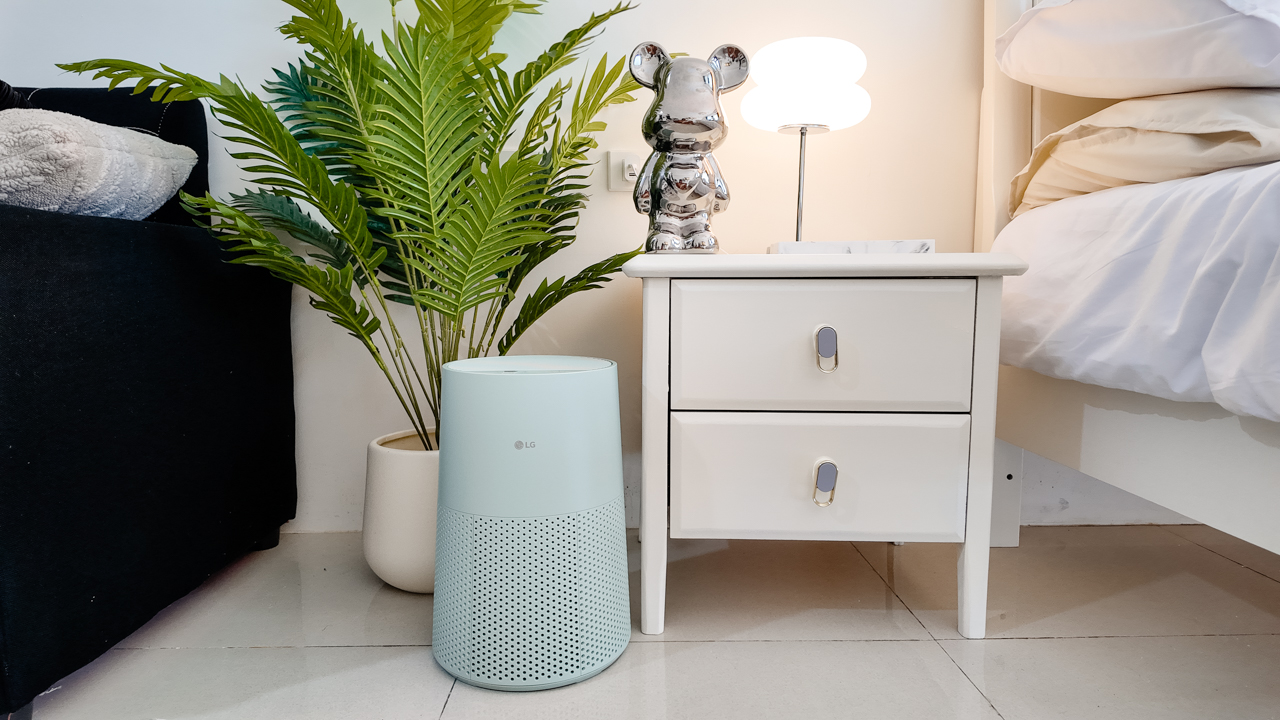
The AeroMini’s slim and compact design makes it easy to incorporate into my setup. It doesn’t feel bulky or industrial, and I like that I can leave it out without feeling like I need to hide it away.
For me, that balance between functionality and aesthetics makes it feel more like part of the space rather than just another appliance.
Air quality at a glance
Another feature I’ve found convenient is its Smart Control. Through the app, I can monitor and control the AeroMini while getting real-time updates on the indoor air quality.
It’s a small convenience, but being able to check the air quality without having to interact with the purifier directly makes it easier to keep track of what’s happening in the room.

Easy to maintain
I also appreciate that the AeroMini is designed with an all-in-one dust and deodorization filter that makes replacement and maintenance easier.
That matters to me because the best home gadgets are the ones that don’t create another complicated chore. I want something I can set up, use regularly, and maintain without too much fuss.

After a month, would I keep it?
Yes, and mainly because it quietly fits into my everyday routine.
The LG AeroMini has helped make my new space feel fresher and more comfortable, while its compact design means it doesn’t compromise the look of the room. But if I had to pick just one thing I appreciate most, it’s still how incredibly quiet it is.

It’s one of those upgrades that doesn’t demand your attention. It simply works in the background.
If you’re also looking to make your home a fresher and more comfortable space for yourself and your family, visit https://www.lg.com/ph/ to learn more about the LG AeroMini and how it can fit into your everyday life.
Features
Nike’s new race-day system, explained
Apex, Alphafly, and Swooshfly are each built around a different goal at the starting line.

Every starting line has a few moods running at once. A runner near the front is thinking about splits, while someone in the middle is calculating whether they trained enough.
Then, someone toward the back is checking their laces for the fourth time and feeling perfectly happy to be there.
Nike’s new race-day system was built around that range, and it also gives you a perfectly good reason to look at new shoes. (Which I’m choosing to treat as research.)
Because if there’s one thing runners understand, it’s that a race is never simply a race. It’s a training plan, a playlist, a breakfast strategy, a weather forecast, and potentially, a completely new pair of shoes.
The big idea
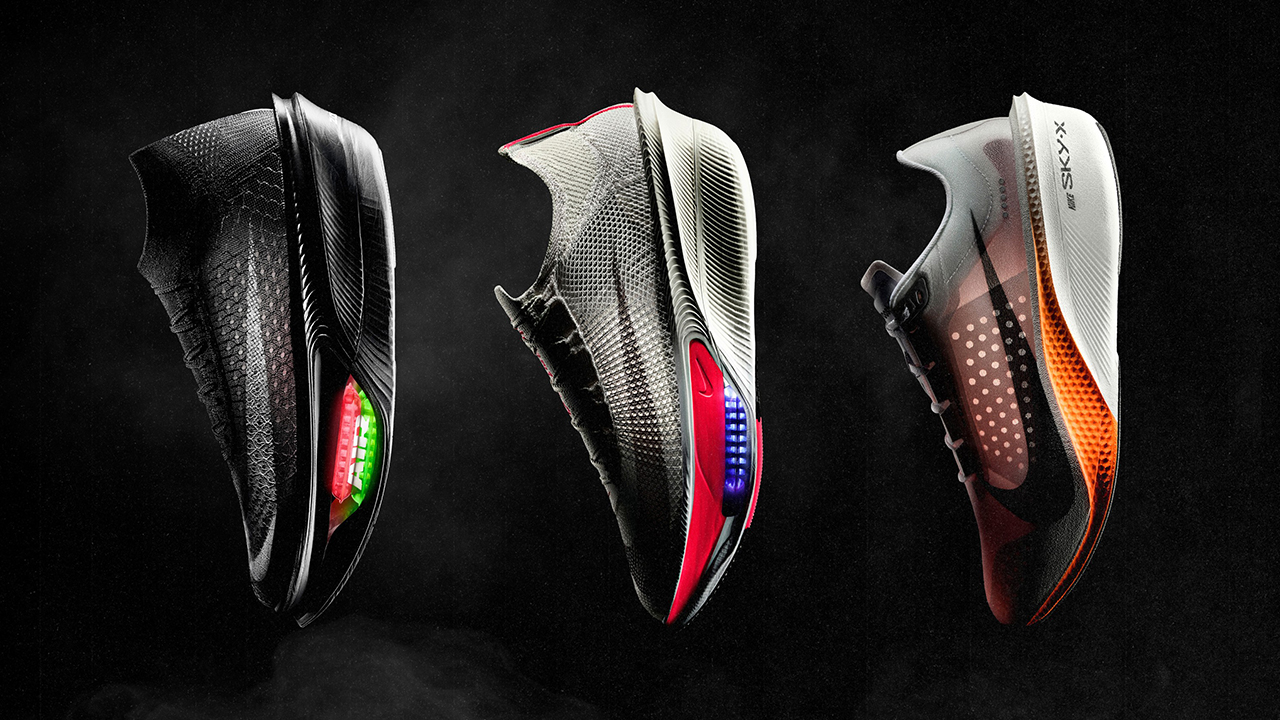
Nike introduced three shoes that work together as one lineup: the Nike Apex, the Alphafly 4, and the Swooshfly.
Nike calls it its most comprehensive race-day offering yet, adding a new structure to the road-running shoes already in its catalog.
The interesting part is how Nike has organized the lineup. Racing footwear is often presented as a hierarchy, with the fastest shoe sitting at the top and everything else somewhere beneath it. That can make the shoe wall feel a little like there is a bouncer deciding whether you have earned the good pair.
Nike’s approach is more welcoming. Each shoe has its own purpose, and runners can choose based on their goals, experience, and the kind of race day they want to have.
It’s an excellent news for anyone who has ever walked into a running store, picked up the most expensive shoe, and immediately started mentally explaining why the purchase was necessary.
Nike Apex
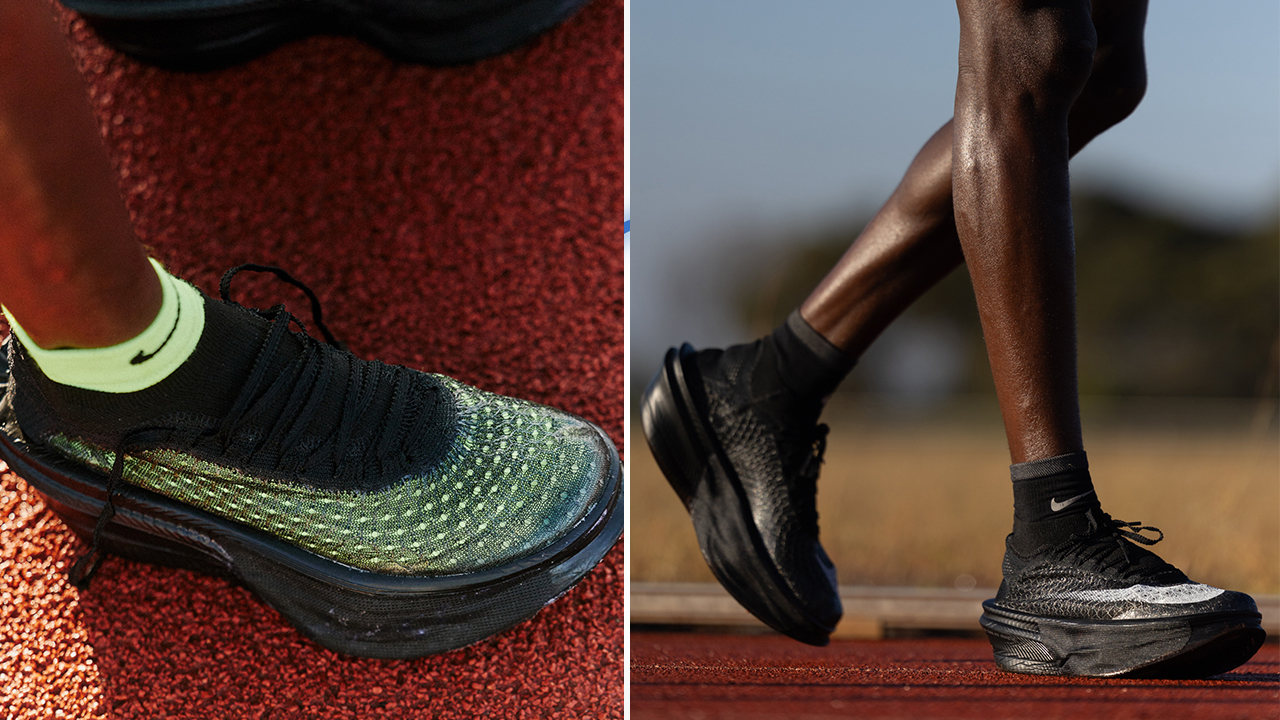
The Apex sits at the top of the range. Nike describes it as its most advanced expression of speed, made for runners chasing the edge of marathon performance.
If you’re training for a breakthrough result and every second counts, this is the shoe Nike is pointing you toward. It’s the serious one; the grown-up one. The shoe that enters the conversation when your race plan contains phrases such as “negative split” and “sub-three.”
It’s also the one most likely to make your current racing shoes suddenly feel very ordinary after you read the spec sheet.
This is how it starts, by the way. You read about the foam. Then, you look at the plate. Then, you watch one review and then, another. Suddenly, you are comparing marathon shoes at 1 o’clock in the morning and explaining to yourself that this is research.
Nike Alphafly 4
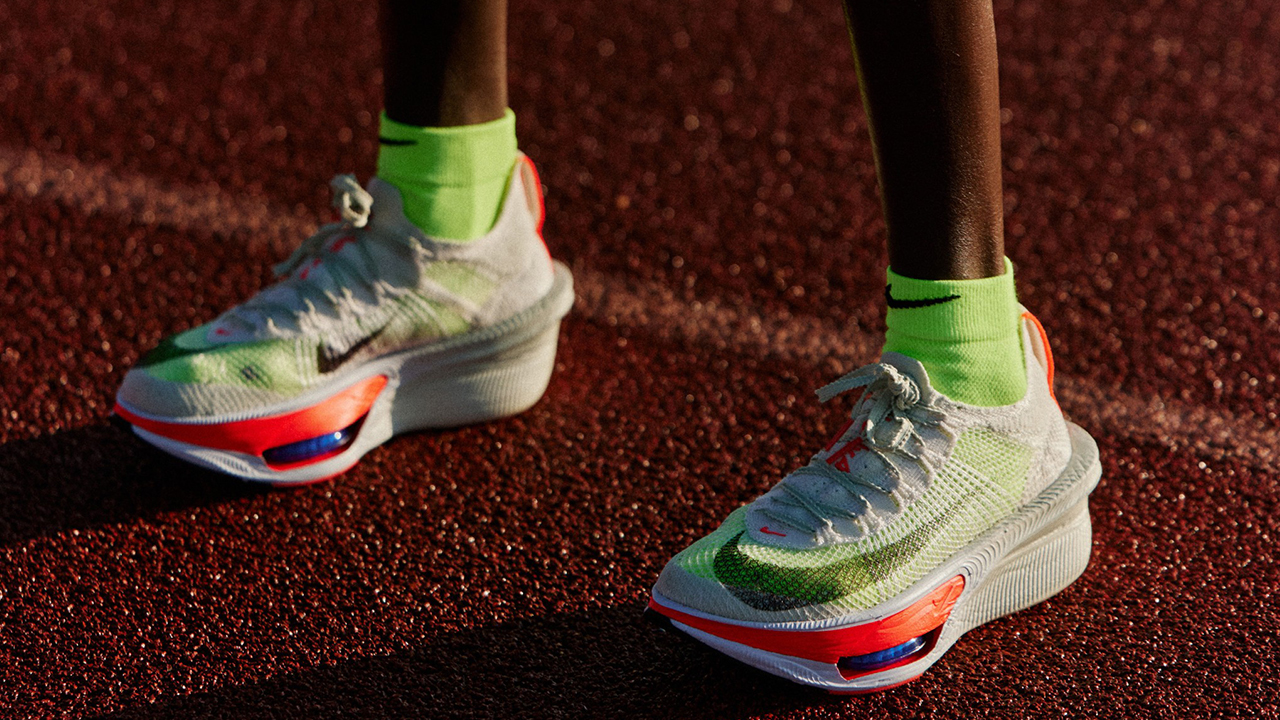
The Alphafly 4 is designed for a wider group of runners. According to Nike, it balances responsiveness, comfort, stability, and efficiency over distance, bringing race-day speed into reach for more athletes.
If you already have a few finish lines behind you and a personal best in your sights, this is where Nike says you fit. It’s the sensible choice, by which I mean the one you can probably explain at checkout without needing a detailed financial presentation afterward.
The beauty of having a race-day system is that you can also stop treating the fastest shoe as the only shoe worth wanting. Your race history, distance, goals, and preferences all get a seat at the table.
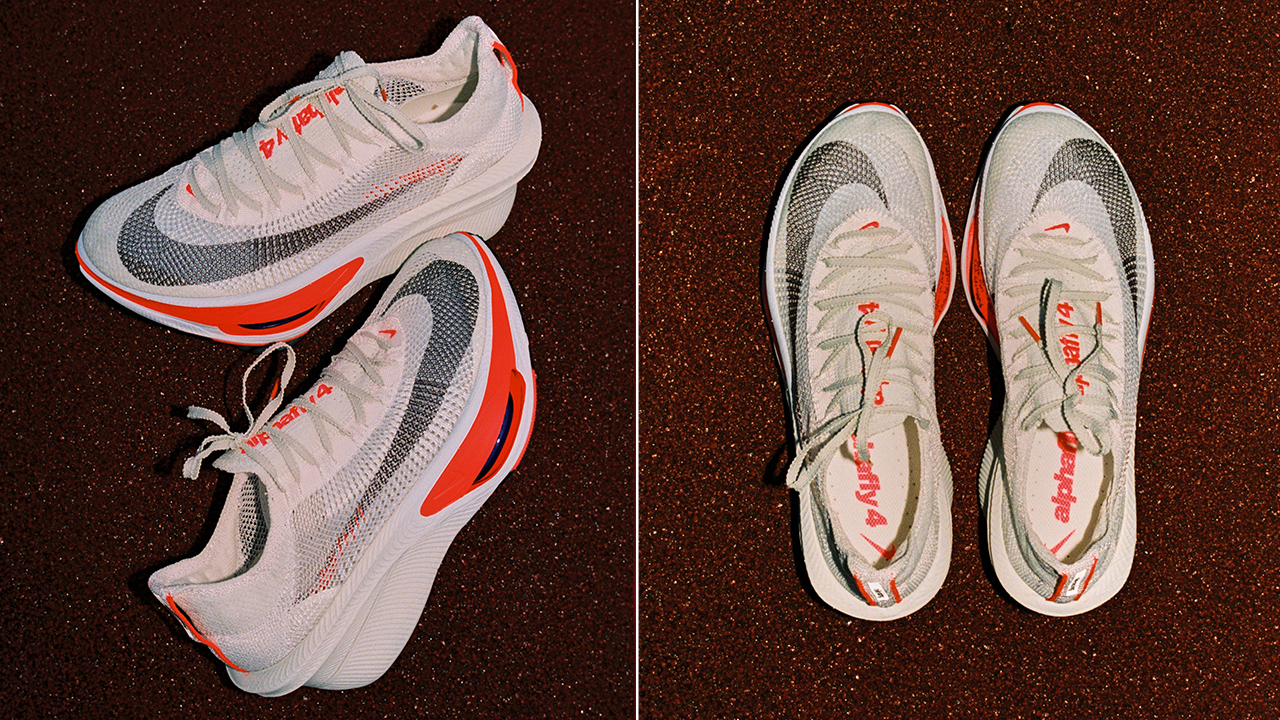
Of course, I still believe every runner deserves at least one shoe that makes them walk around the house for no reason after putting it on.
Nike Swooshfly
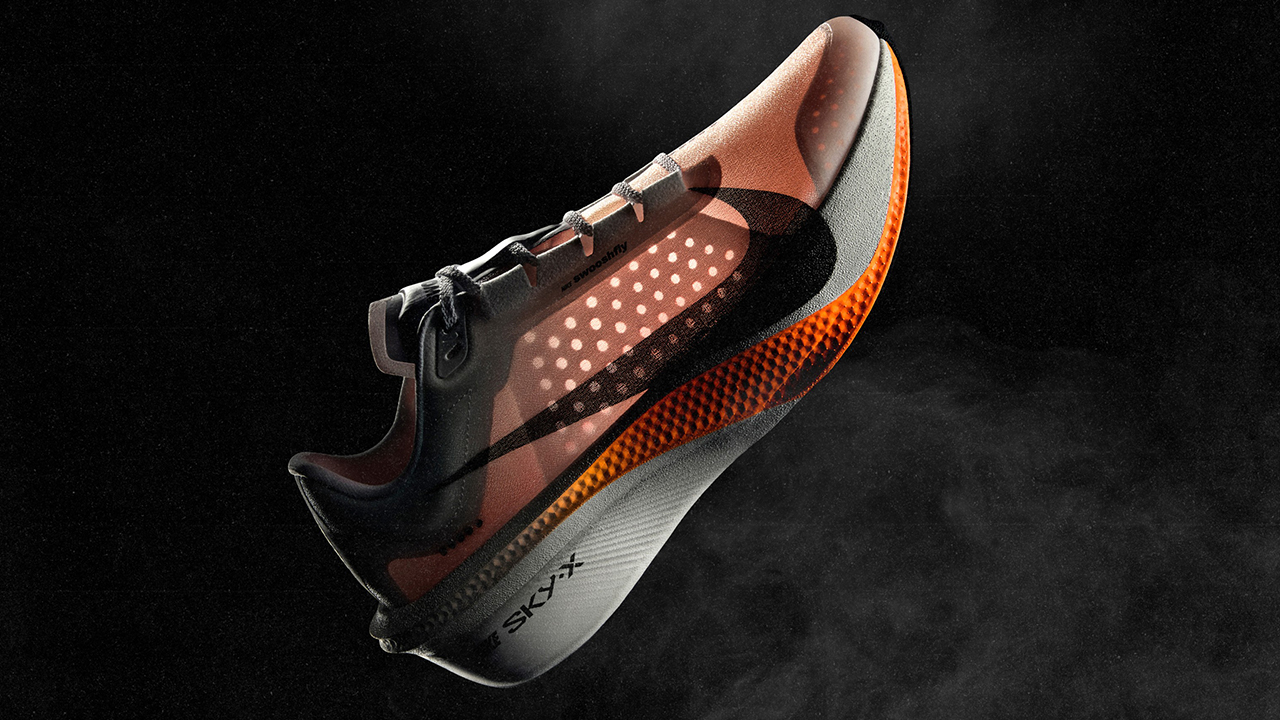
The Swooshfly is the entry point to the system. Nike positions it as an invitation to race day, with cushioning designed to help runners feel confident and ready for a distance they have not raced before.
If your first starting line is coming up, this is the shoe Nike made with you in mind. I like that idea because race-day nerves are very real.
You can have the training plan, the race belt, the gels, the carefully selected playlist, and enough screenshots of the course elevation profile to qualify as cartography, and you can still feel nervous when you get to the start line.
A shoe that feels approachable can be part of making that first race feel less intimidating. And once you finish? Well, congratulations. You are now a ~certified~ runner, which means you can begin looking at shoes for your next race.
Where these shoes came from?
Nike says each shoe began with a runner’s problem. That problem was studied at the Nike Sport Research Lab, translated into product design, and tested with athletes before the shoes reached a starting line.
That’s a lot of homework before anything makes it onto a shelf. It also explains why Nike talks about the three shoes as a system rather than three separate products.
The lineup draws from more than 50 years of Nike’s racing history, beginning with co-founder Bill Bowerman’s earliest handcrafted spikes and continuing through the original super shoes that helped reshape modern racing more than a decade ago.
Today, that history comes together through athlete insight, scientific research, and technology designed to improve running economy.
What’s under the hood?
Behind every glamorous race-day photo is an alarming amount of engineering, testing, data, sweat, and people whose job is apparently to figure out how much faster humans can become when you put the right materials under their feet.
Technically, the system brings together Nike’s proprietary Air Zoom platforms, advanced foams, and engineered plates. Nike says each combination has been developed around the needs of its intended runner, with different approaches to comfort, confidence, efficiency, and speed.
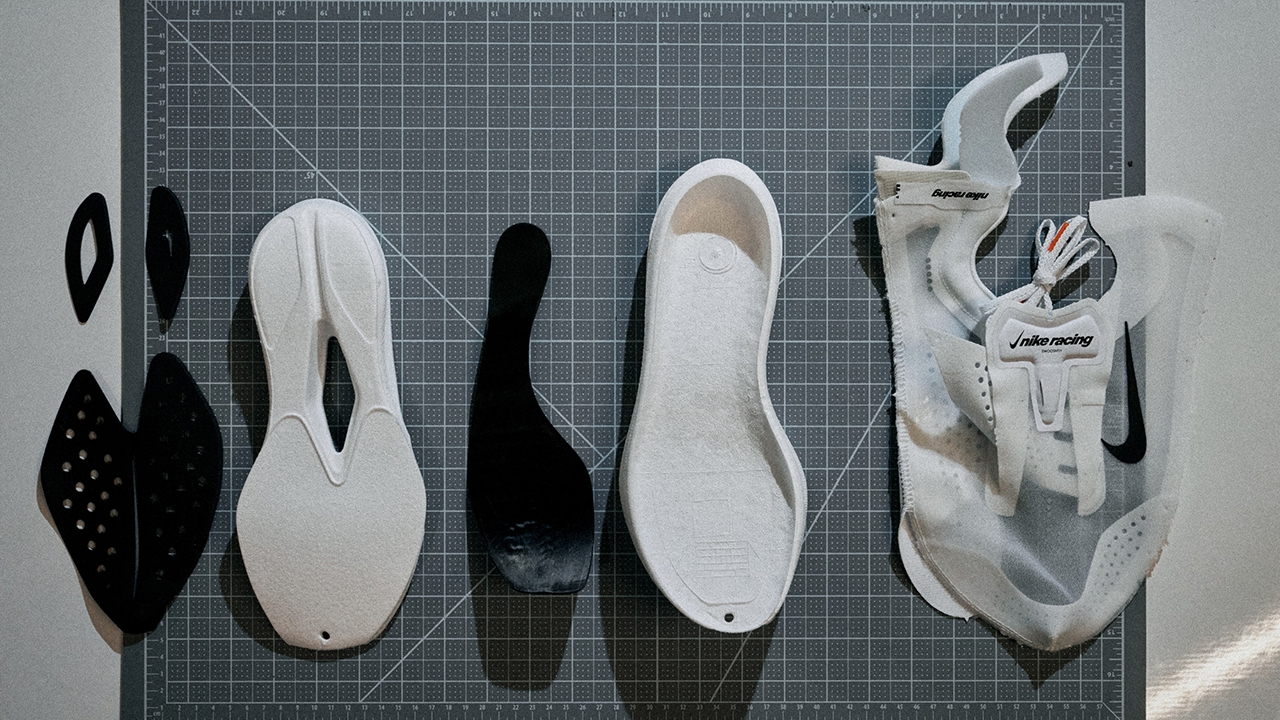
This is where the spreadsheet part of your brain can take over. Foam density. Plate geometry. Cushioning. Responsiveness. Weight. Running economy.
Meanwhile, another part of your brain is saying, “Yes, but does it look good with my race kit?” Both are valid considerations.
The bigger point is that the fastest shoe on paper isn’t automatically the best shoe for every runner. A marathoner chasing a personal record may want something very different from someone standing at their first 10K start line. The event may be the same, but the reason for being there can be completely different.
That’s what makes Nike’s new system interesting. It treats race day as something that belongs to every kind of runner, from the athlete chasing seconds to the person who is still figuring out what racing feels like.

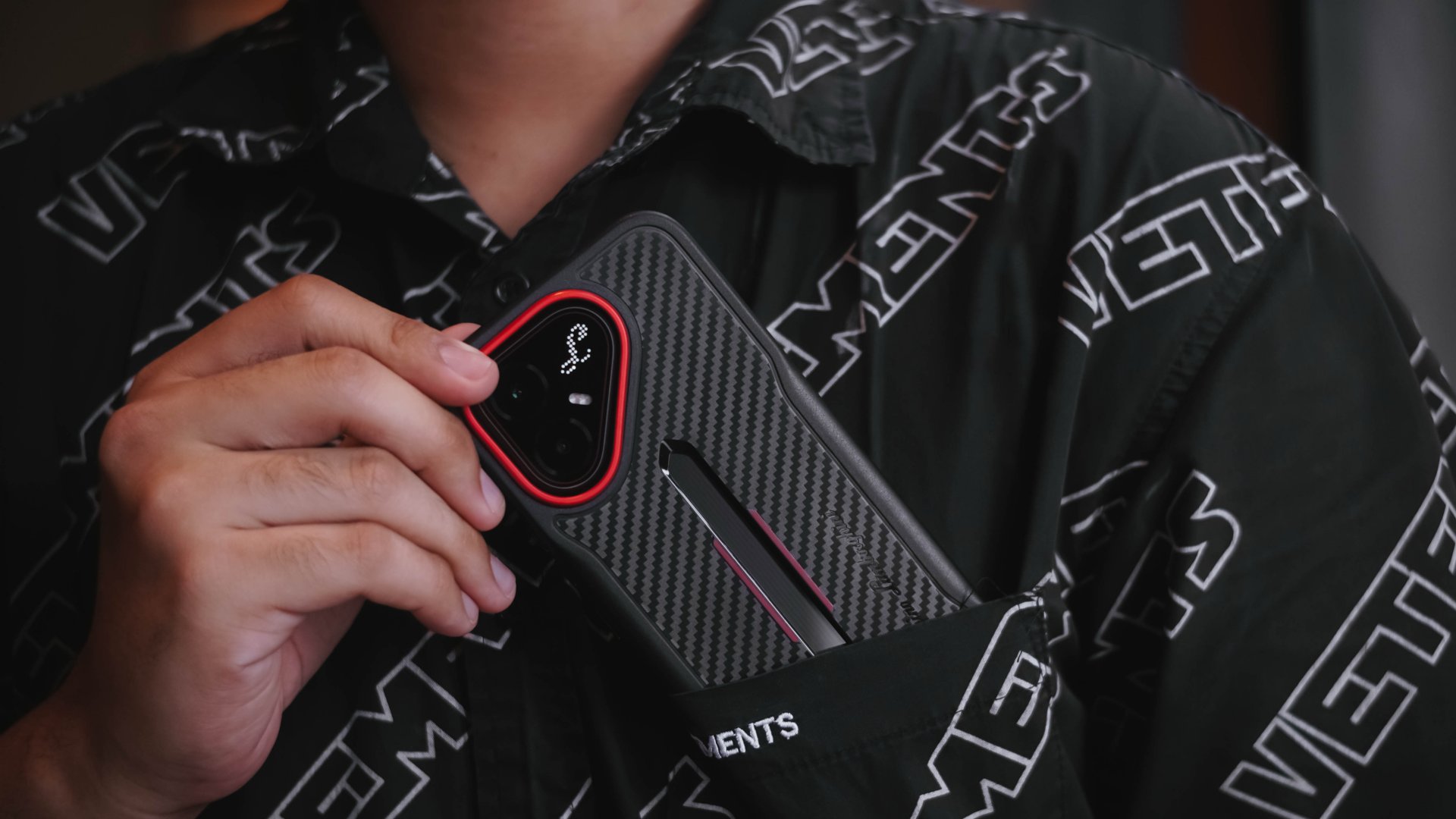
As of publishing, the POVA 8 Pro launched more than a month ago. And, much like the company’s “Stop At Nothing” ethos, nothing is stopping them from announcing another model.

The special Tonino Lamborghini Limited Edition I possess is a living testament that a midrange-grade smartphone, with its exotic yet exquisite aesthetics, can still exist in the 2026 smartphone race track.
Rare, even when bare
From my perspective as a multimedia creative, the very mouthful TECNO POVA 8 Pro Tonino Lamborghini Limited Edition is one hell of a great-looking smartphone.
When bare, this supercar-coded smartphone flaunts its striking design in every millimeter.
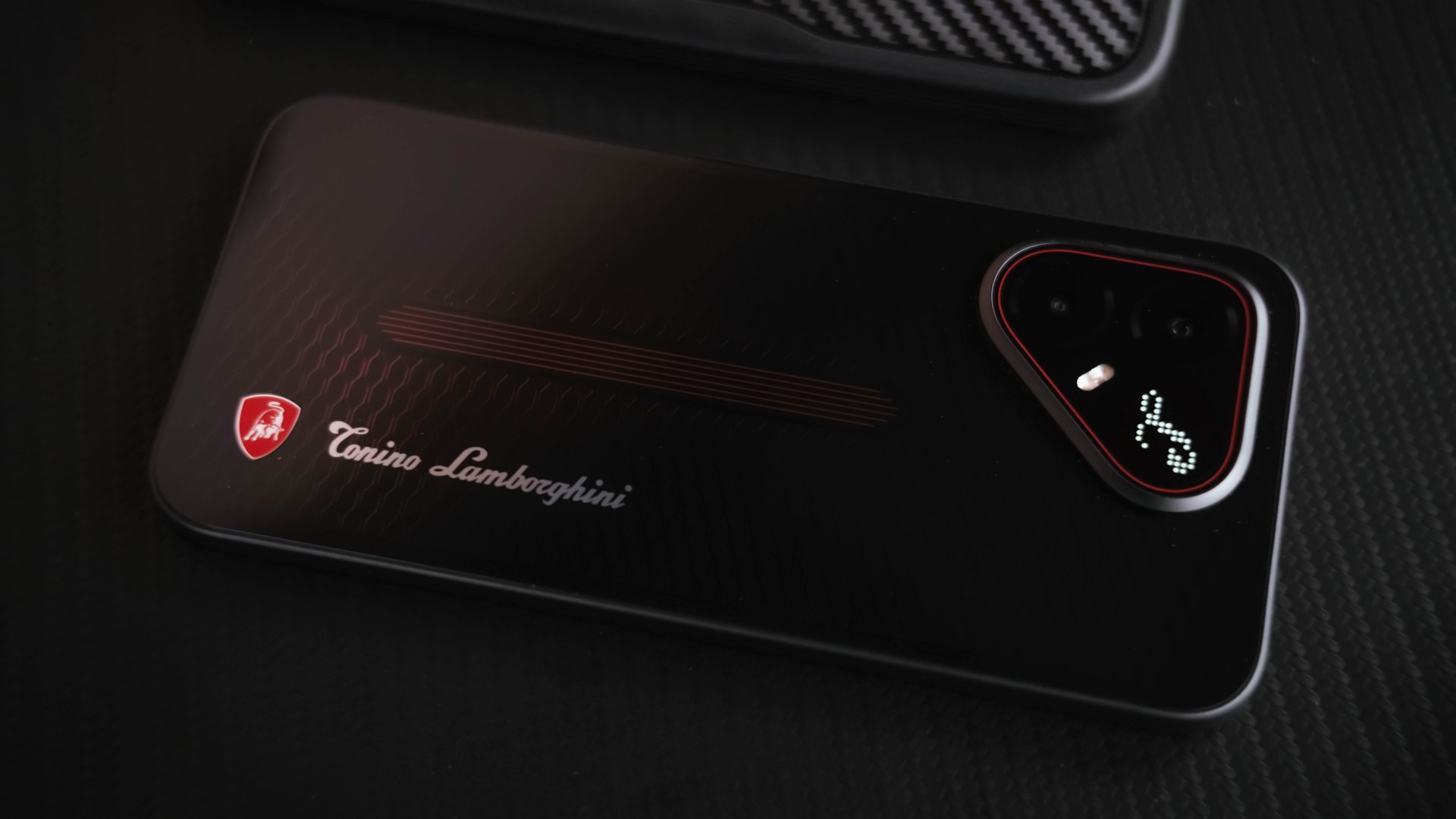
Looking closely, the pattern reminds me of vent grilles found in modern-day supercars.
Its back design elements slowly reveal their deep red hues, even when hit by the faintest of light.
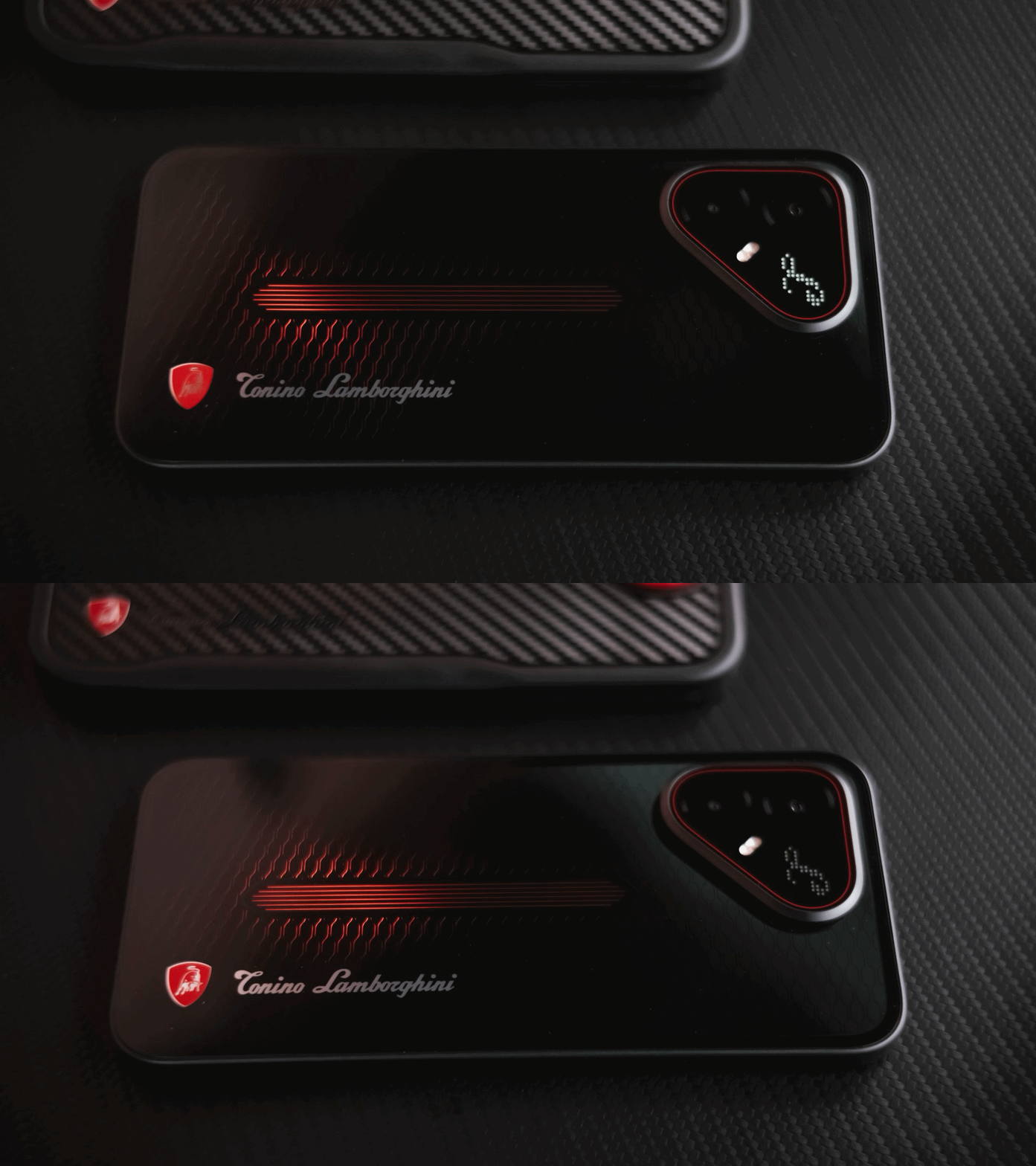
That pulse line in the middle is reminiscent of an engine valve with a flowing fuel in it.
Even the iconic triangular cutout, ever since its existence on the POVA 7 series, wasn’t forgotten at all.
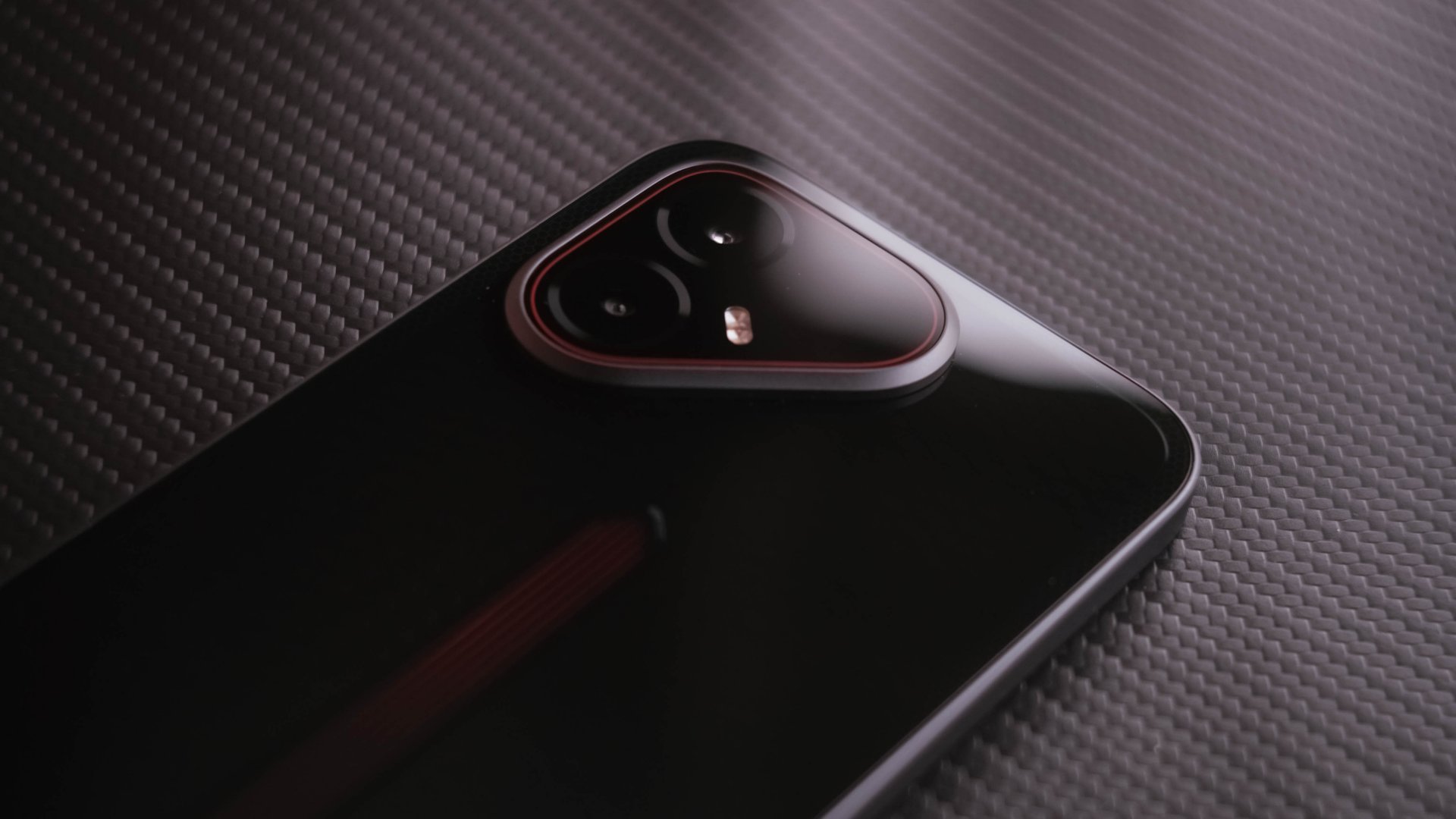
It might sound like I’m exaggerating but, truth be told, this has got to be one of, if not, the best smartphone designs I have ever seen IRL.
Material-wise, it has a plastic back and frame, making it a complete departure from the full-metal unibody build I’ve personally witnessed in MWC 2026.

I don’t have an issue if this was used to keep overall costs down. However, my huge gripe about this is how its back attracts not just smudges, but even dust almost instantly.
That plastic frame might even scratch and chip when exposed wholly.
I then had a full sigh of relief when I found its bundled case in the box.
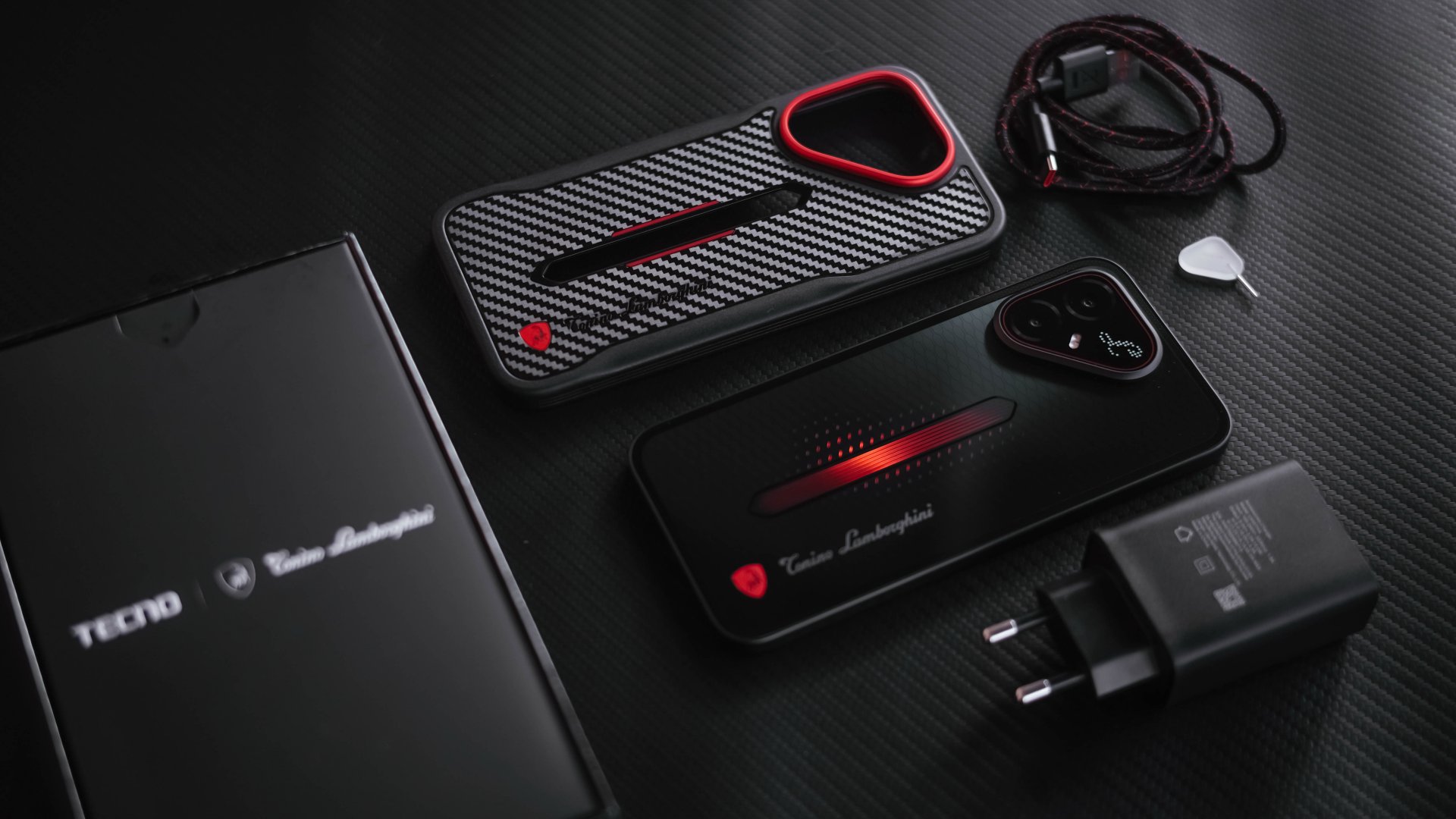
This not only gives utmost protection and adds grip when held, it further shows its premium touch with a finish closely resembling carbon fiber.
While I’m more than grateful if TECNO bundled it with a regular clear case to showcase its true beauty, they didn’t stop just there and stepped it up even further.
And with protection mentioned, it’s one less worry that it boasts IP66, IP68, IP69, and IP69K water and dust resistance ratings.
The Limited Edition ambition
The Tonino Lamborghini partnership doesn’t end there just yet.
From the moment I fired up the phone, it boots up with its Tonino Lamborghini boot animation and immediately shows its stealthy interface.
While Light Mode is activated by default, switching to Dark Mode suits its custom widgets and icons more than ever.
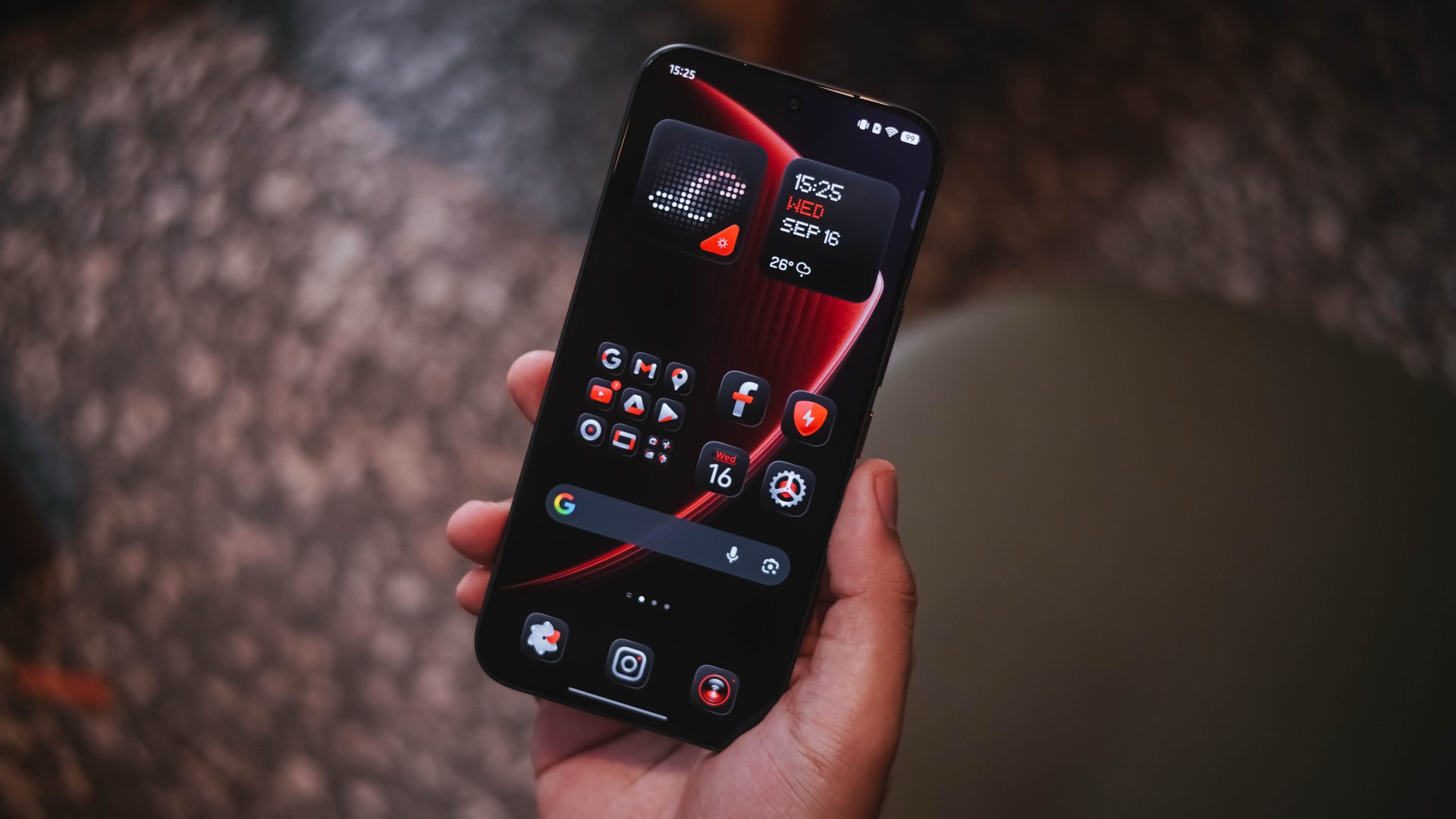
I just wish the icon support was extended to other third-party apps as well. The colorful icons of other apps ruin the overall vibe. This also meant I cannot be fully carefree with my home screen arrangement.
Soft UI rants aside, turning to its right side reveals the POVA branding alongside the usual power and volume buttons.
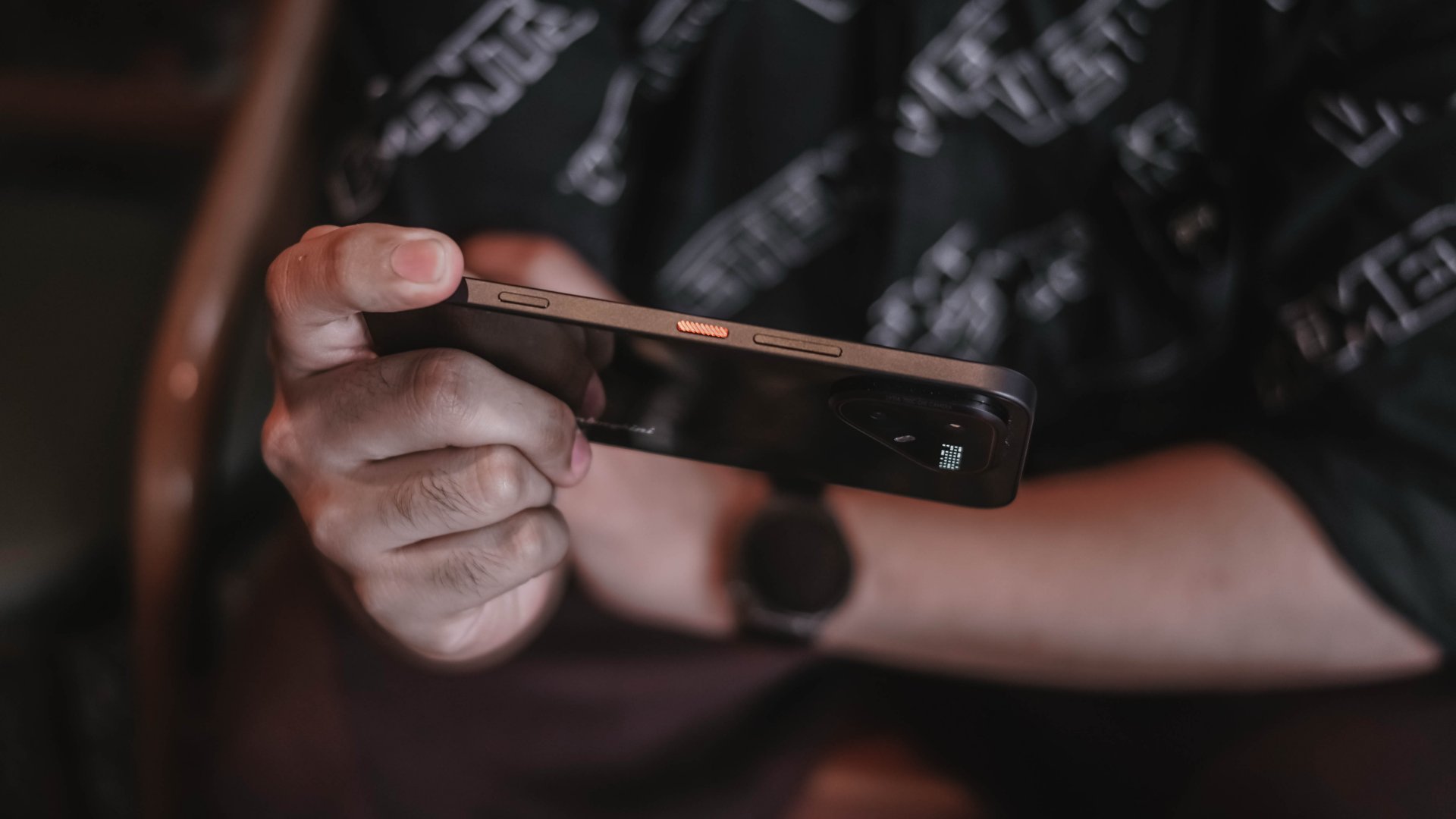
Notice that extra button? That’s TECNO’s One-Tap Button.
As a refresher, that particular button is placed at the left side and mainly acts as a one-stop AI button. Weirdly, it was situated at the lower right side of the POVA 8 Pro.
And the irony of it all? “One tap” is actually disabled.
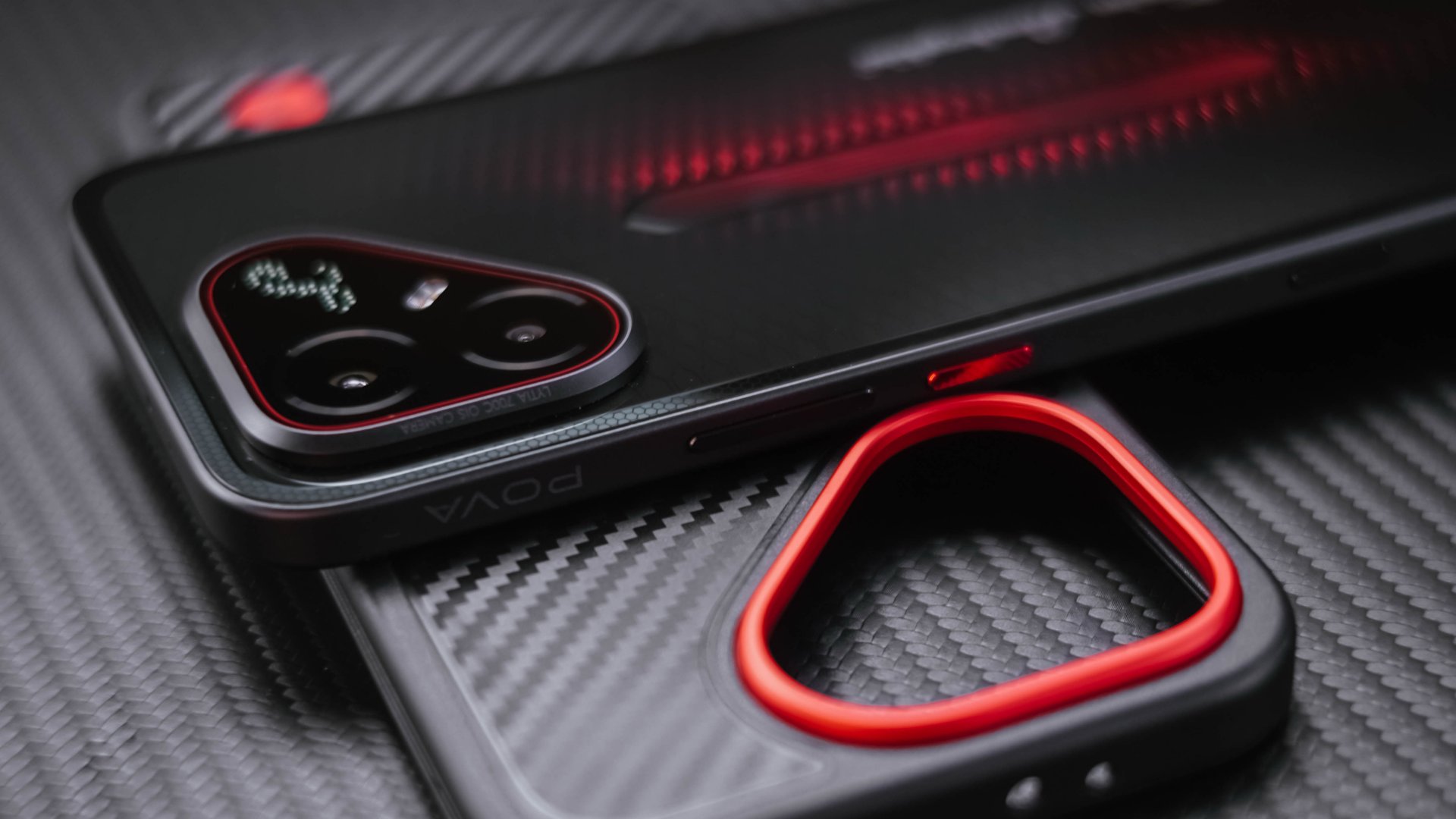
While I believe their decision was right in order to avoid accidental triggers, I wish they would have still kept it as an option for users who want it.
Fortunately, double-pressing that button is user-customizable and not restricted to Ella AI or TECNO’s system apps. Even a game can be launched the moment you trigger it.
On my end, I love how it easily doubles as a fast camera shutter button.
Speaking of cameras, remember that triangle camera cutout at its back? It’s where the Alive Matrix Display also sits.
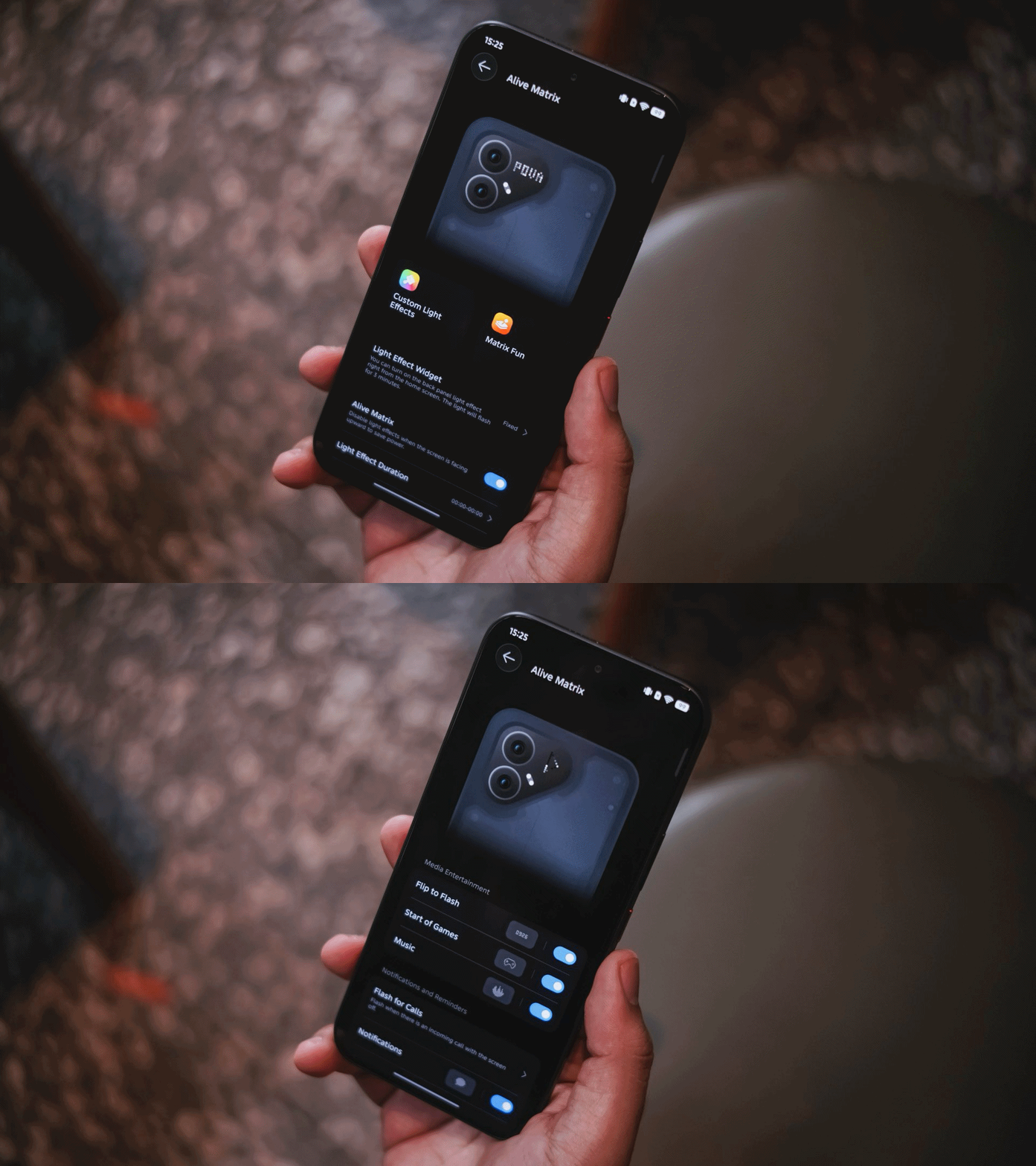
That small circular LED display is both a form and function. Not only it displays current time or timer countdown, it can also show charging percentage, calls and message notifications, even a song visualizer.

Personally, I just love how it displays the signature cursive “L” in the Lamborghini wordmark.
If you’re THAT creative, you can even formulate and draw your own styles.
#NowPlaying: Four Hands, Two Sonatas
One of the hottest K-Dramas right now is none other than Song Kang and Lee Jun-young’s 포핸즈 (po-haen-jeu), or “Four Hands, Two Sonatas“ internationally.

The two piano prodigies grew up in very different backgrounds and had very different upbringings. More so, they share a confusing and undefined relationship.
While it’s hard to say what the director and screenwriter’s goal at the very end of the series, what’s clear is that they both wanted to have fun while playing several piano pieces alongside one another.
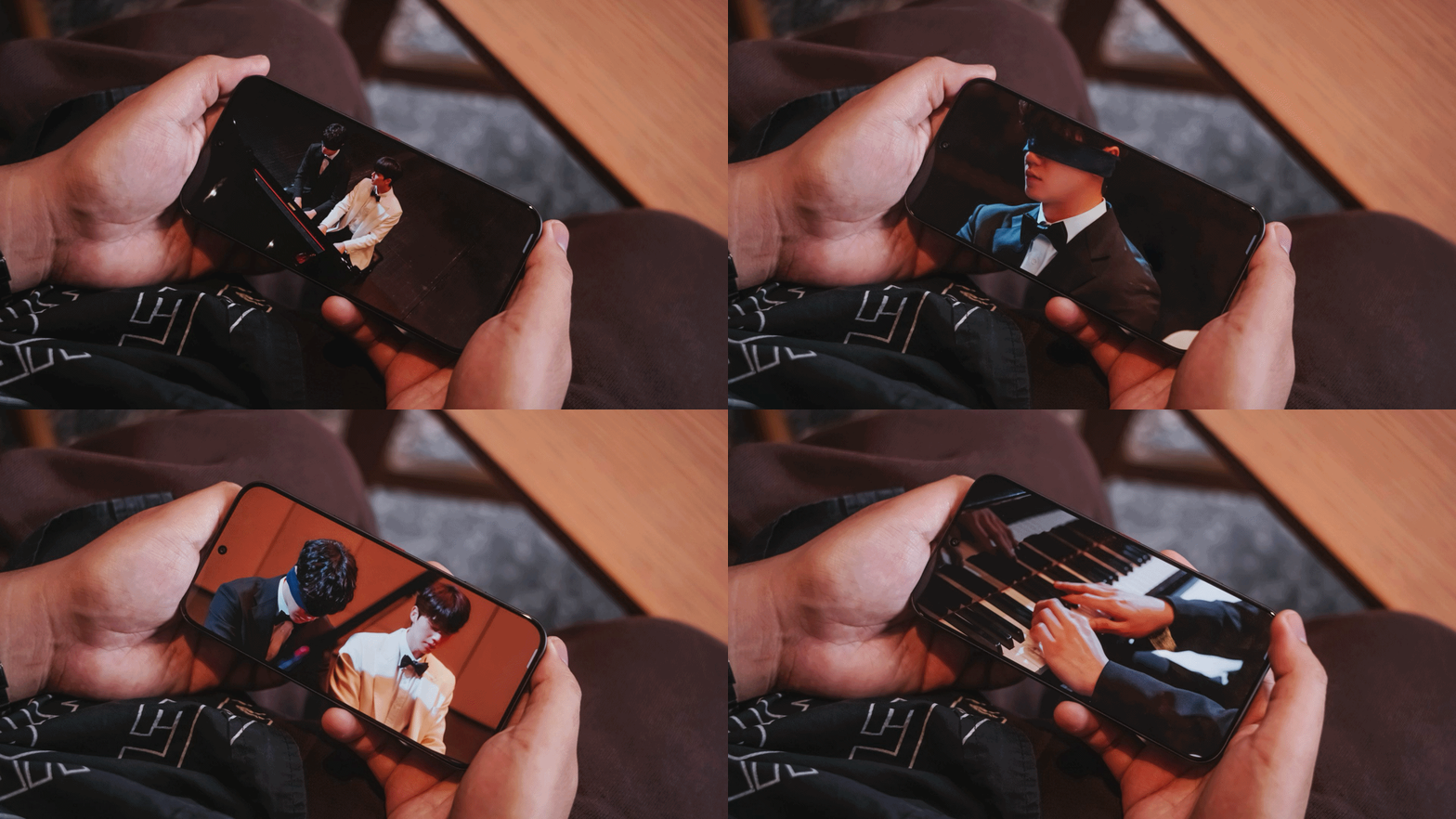
Much comparable to the maestro duo, its 6.78-inch 1.5K HyperLux AMOLED display is bright and immersive, yet still sharp.
Matching their fast-playing fingers, the POVA 8 Pro Tonino Lamborghini also boasts a fast 144Hz refresh rate, very ideal for games that support it (more on that later).
On Queue: H2H, Chungha, D.O
The audiovisual goodness continues when I played these latest K-Pop releases.

H2H’s (Hearts2Hearts) stunning visuals in Moonride is very much equal to the visuals offered by the TECNO POVA 8 Pro.
More so, the diva-tastic performance of Chungha (I.O.I) with her latest titled “México.”
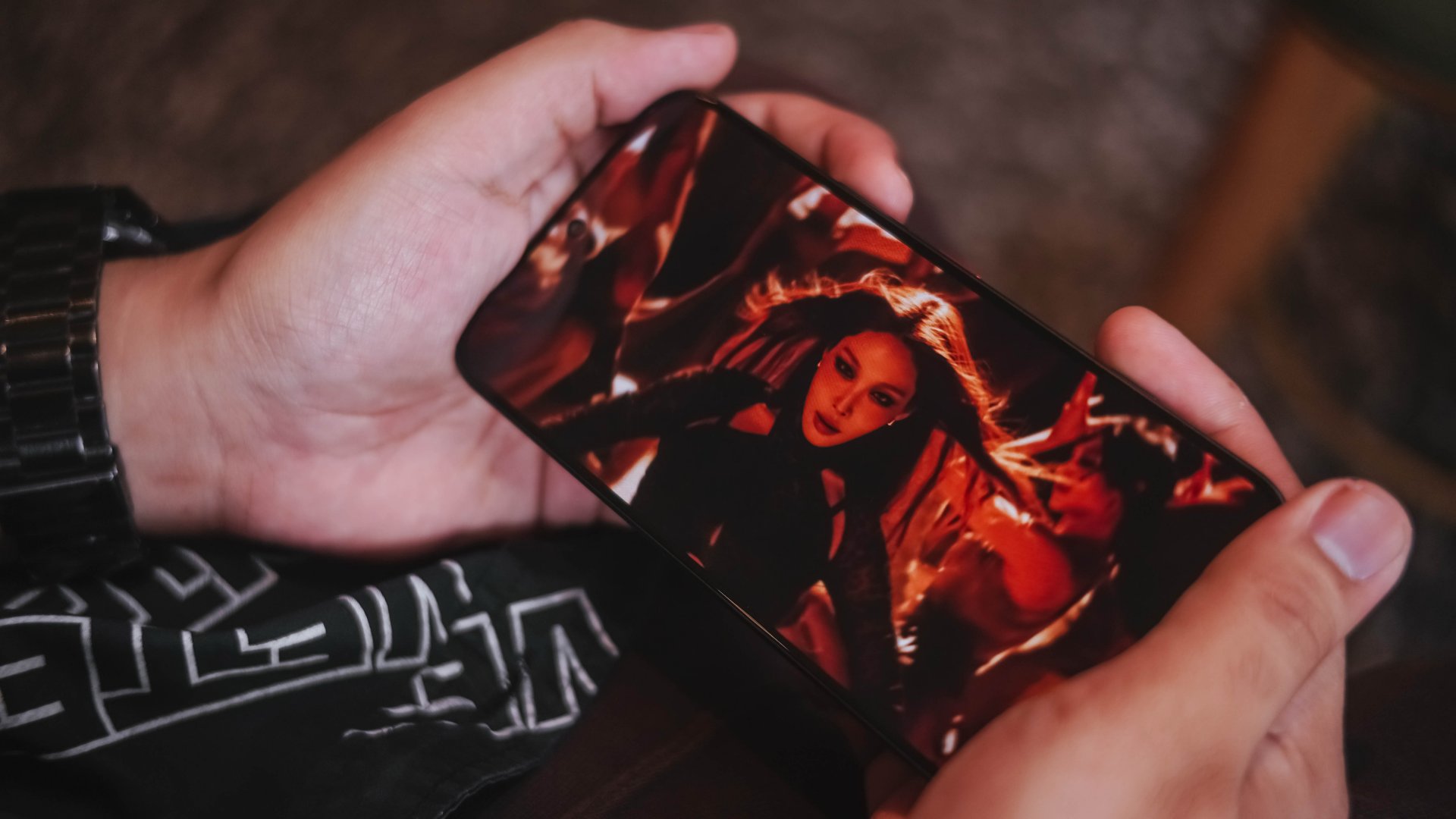
A Korean female idol showing her powerful dance moves alongside her language duality by singing Mexican Spanish and American English in one single song is such a power move. That’s much like the powerful dual speakers of the TECNO POVA 8 Pro.

How can I even forget the rhythmic “Guitarist“ comeback track by my long-time male idol bias since January 30, 2012 a.k.a EXO’s D.O.
This is where I think its sound superiority is purely felt.
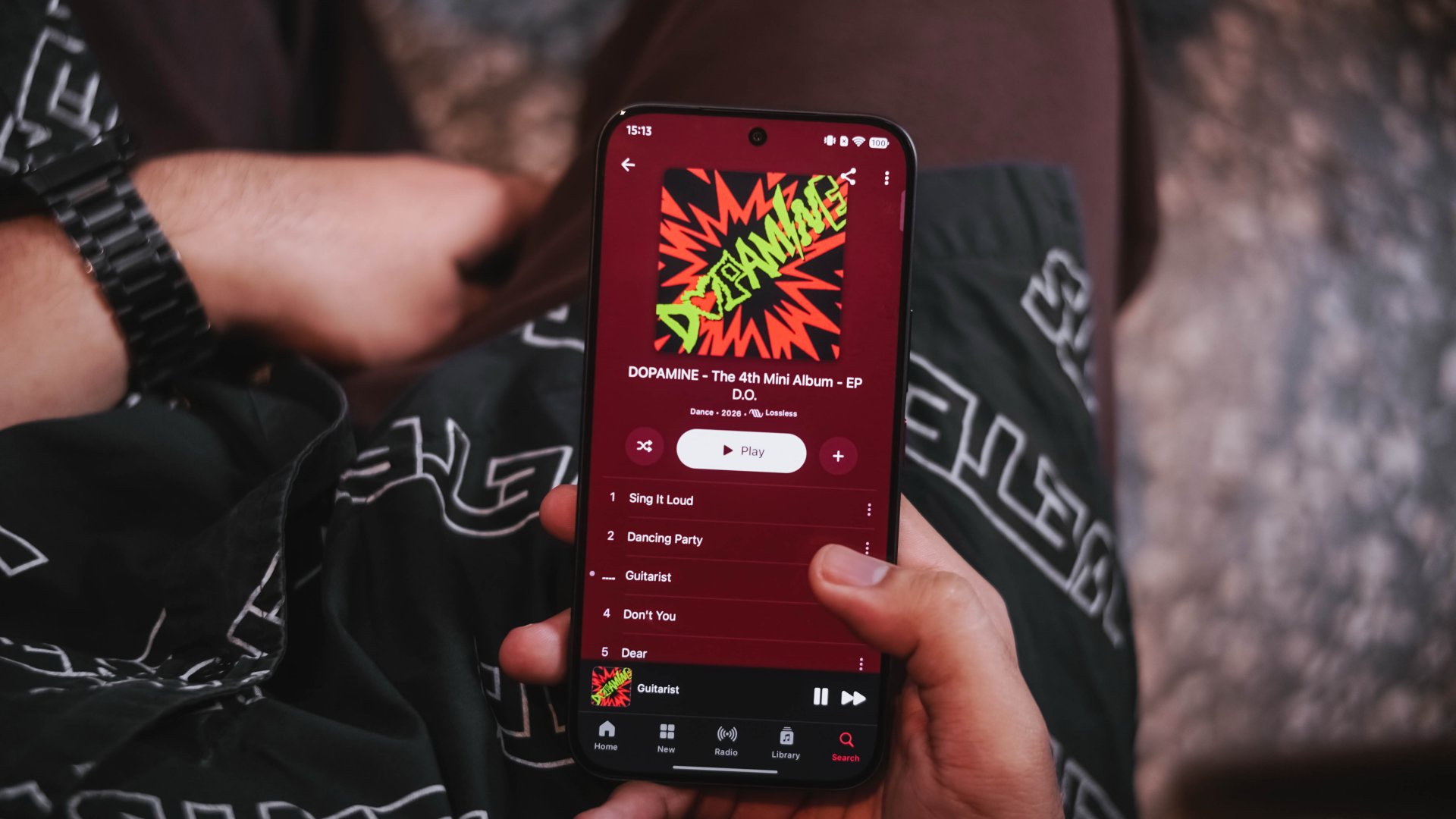
Unlike the CAMON 50 Ultra I held months ago, POVA 8 Pro’s speakers honestly sound fuller and more powerful. And by that, it’s loud without being too flat and has the right amount of deep bass.
The guitar strums in the song can be heard even in a spacious room.
Exotic ain’t chaotic
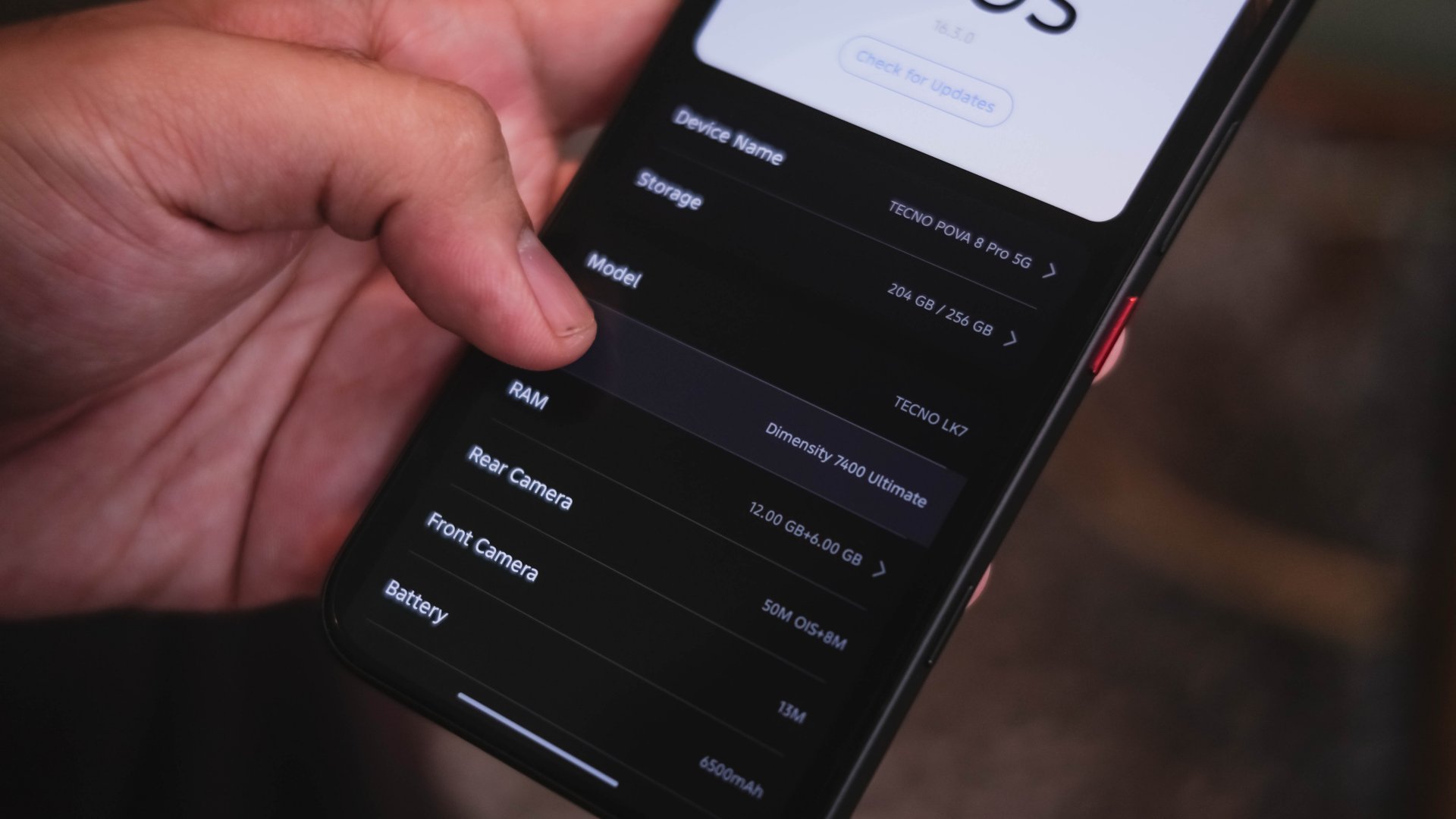
TECNO’s POVA 8 Pro runs Dimensity 7400 Ultimate SoC. While this isn’t the most powerful midrange chip by MediaTek, it’s still a very capable processor in today’s standards.
Right off the bat. I installed the graphics-intensive mobile games I usually play.
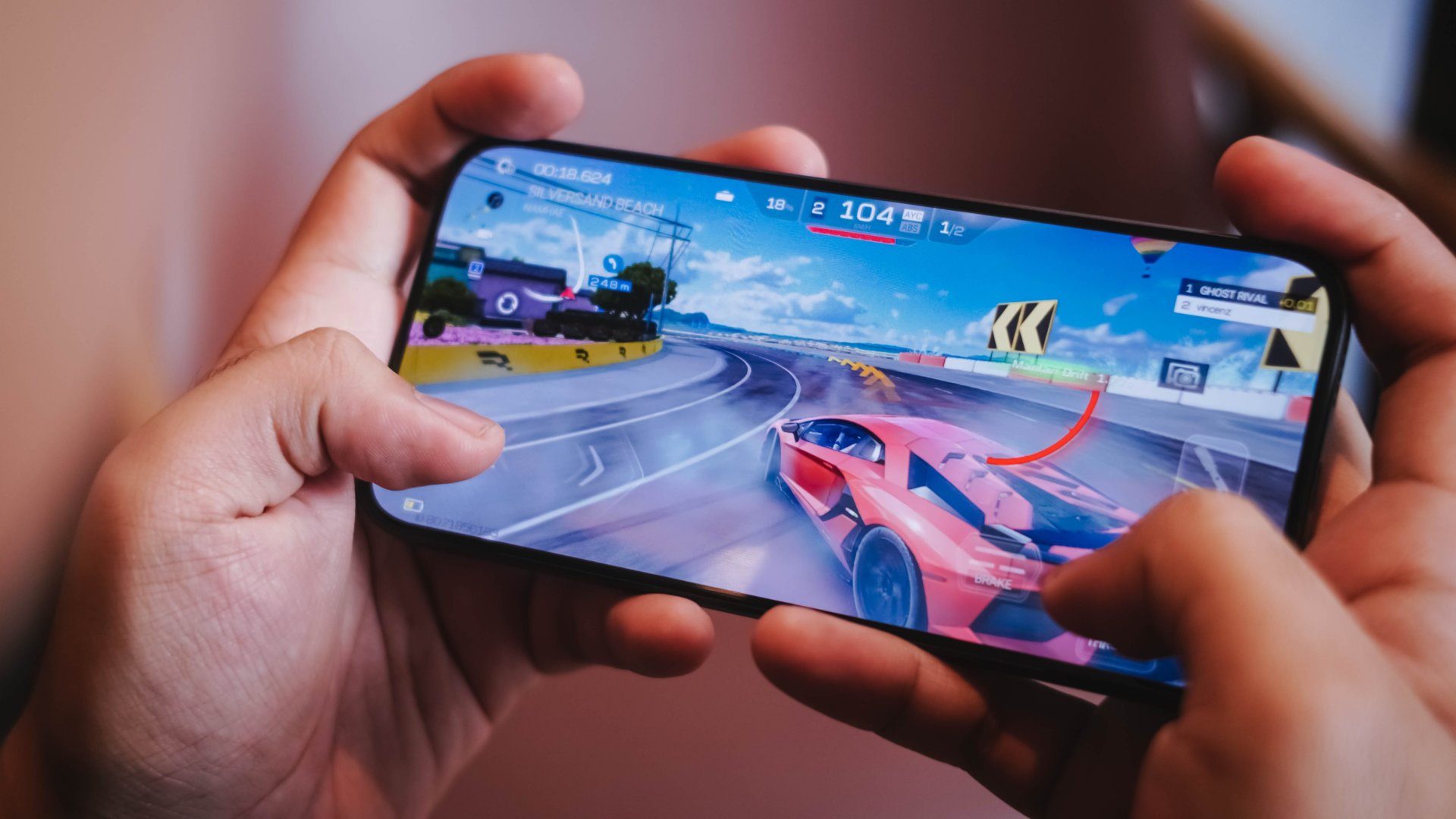
Racing Master plays smoothly. That’s as long as you set the graphics at medium paired with 30fps frame rate and low resolution. Pushing it to its extremes is still playable yet guarantees you unavoidable frame drops.
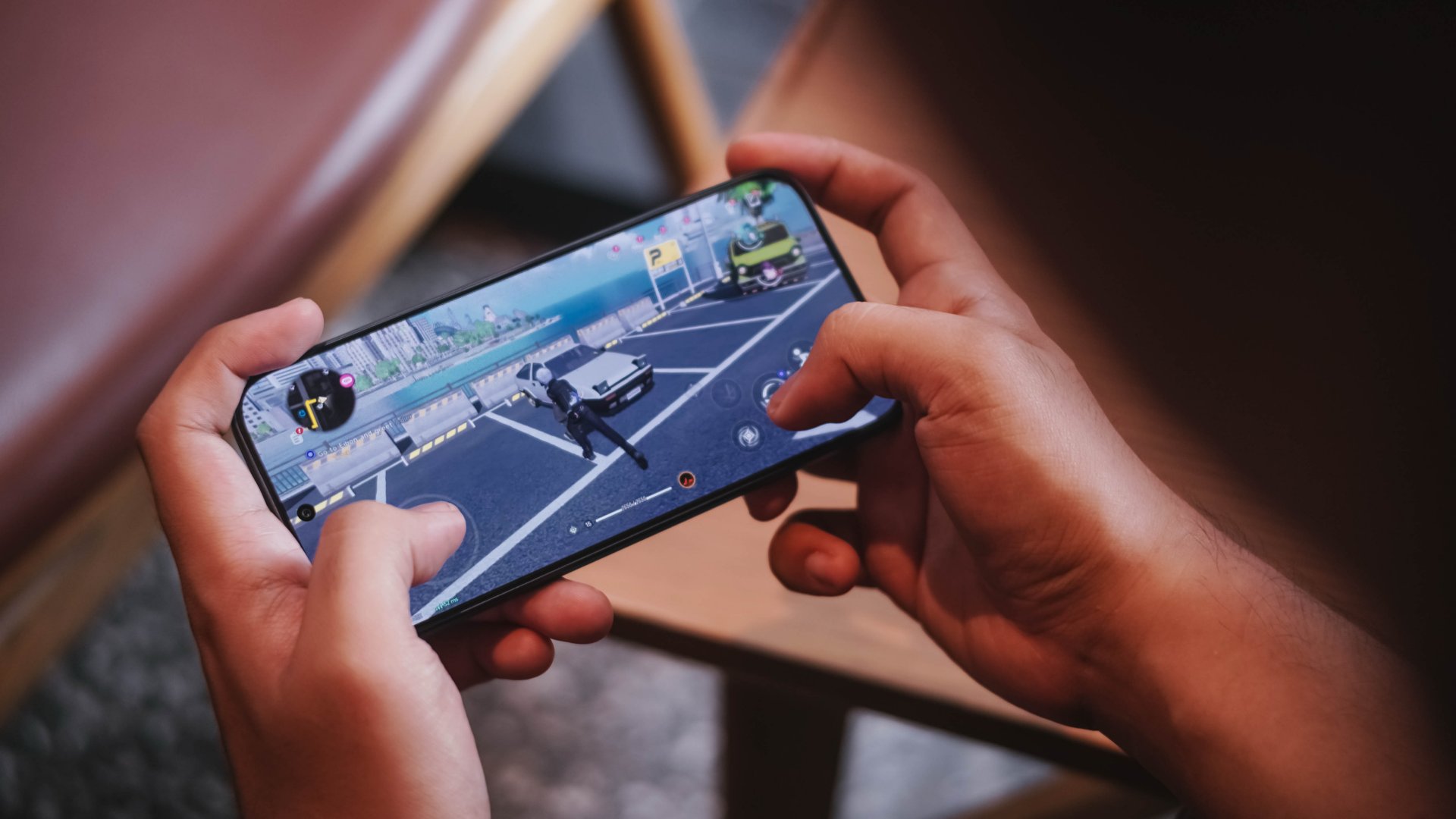
Meanwhile, the smooth graphic settings of NTE (Neverness to Everness) clearly lives up to its name. Roaming around Hethereau and fighting unexpected encounters were a breeze
-
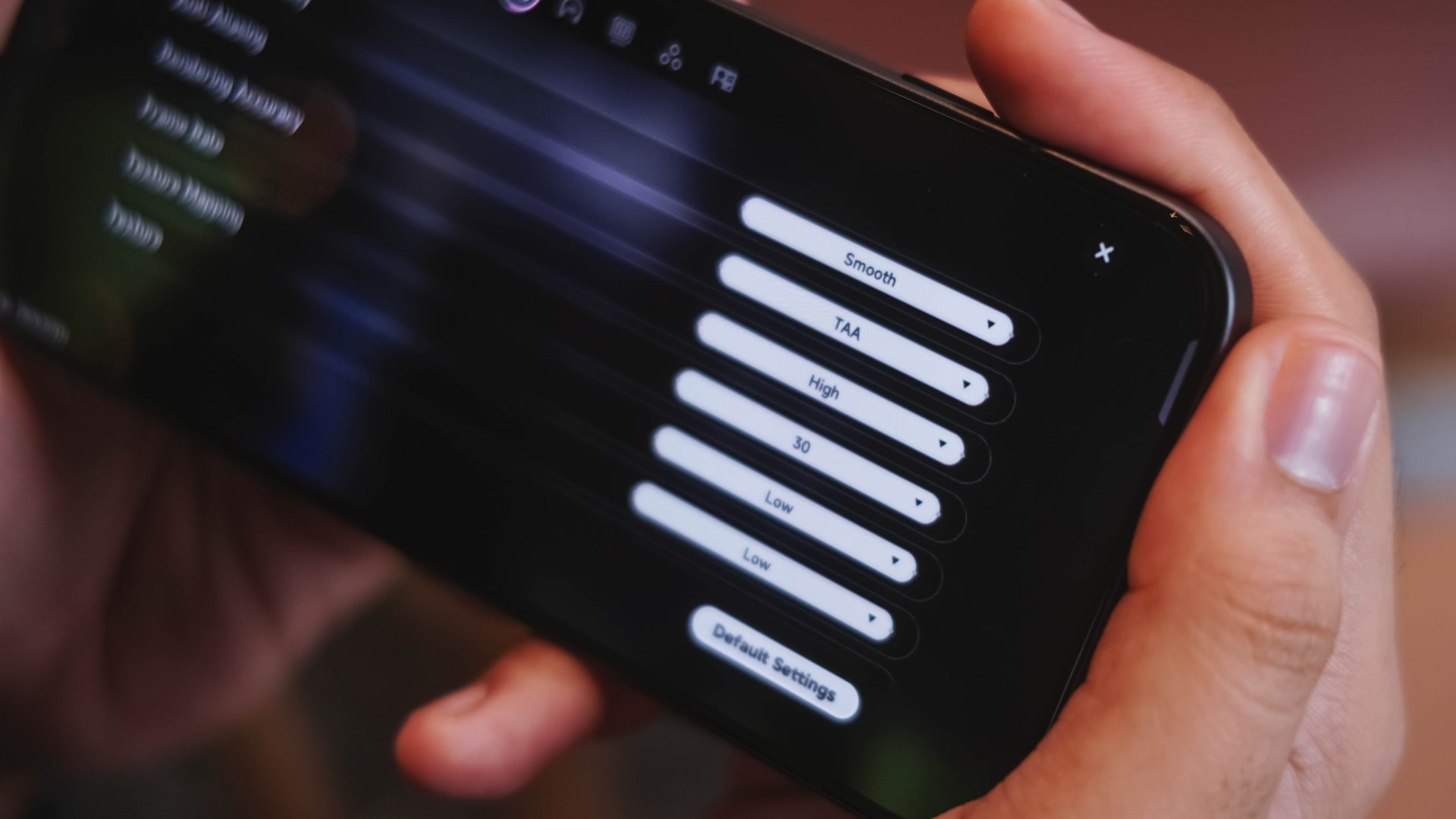
- NTE Graphic Settings by default
-
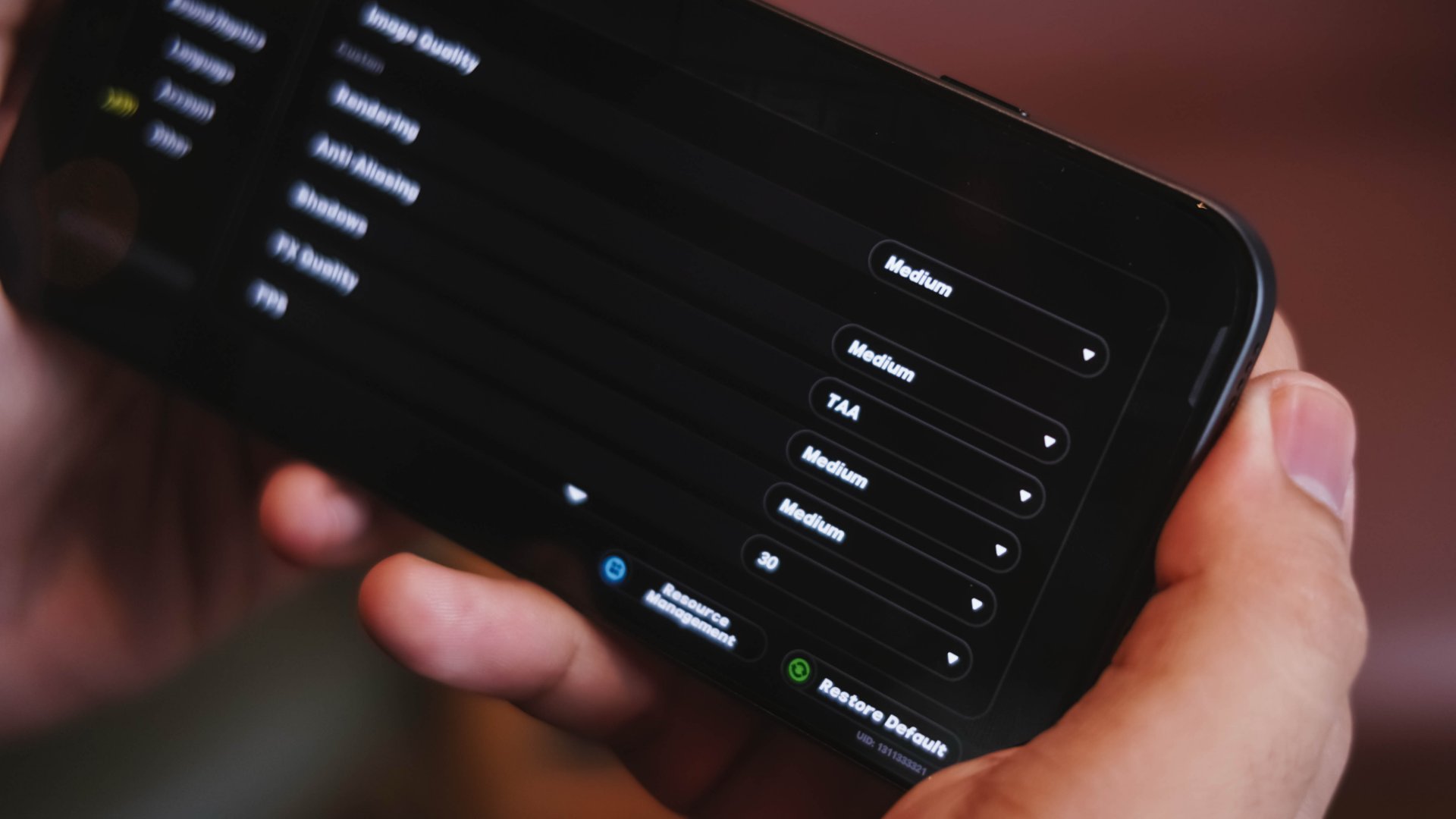
- ZZZ Graphic Settings by default
Surprisingly, Zenless Zone Zero is set to Medium post-installation. Going around New Eridu was desirable.

Albeit, Combat Mode truly tests out every bit of power of this chip — most especially when switching between agents, toggling Assist Counters, and even activating their special attacks.
To be very frank, the POVA 8 Pro performed faster, snappier, and even less laggy in contrast to the Snapdragon 6 Gen 5 phone I’ve reviewed just recently.

Mind you, that Qualcomm SoC is only 4 months old. While it isn’t the direct rival of the aforementioned Dimensity chip, it still proves that real-world experiences matter more than just benchmarks and hearsays.
Clearly, these brand biases and stereotypes should be forgotten for good.
To outlast is a must
Similar to the CAMON 50 Ultra, the TECNO POVA 8 Pro Tonino Lamborghini Limited Edition also packs a 6500mAh battery.

While the vanilla POVA 8 and POVA Curve 2 both rock the biggest battery in any TECNO smartphone so far at 8000mAh, this is still beyond the 5000mAh mark.
My time with it made the phone last until the end of night as long as it’s used moderately.
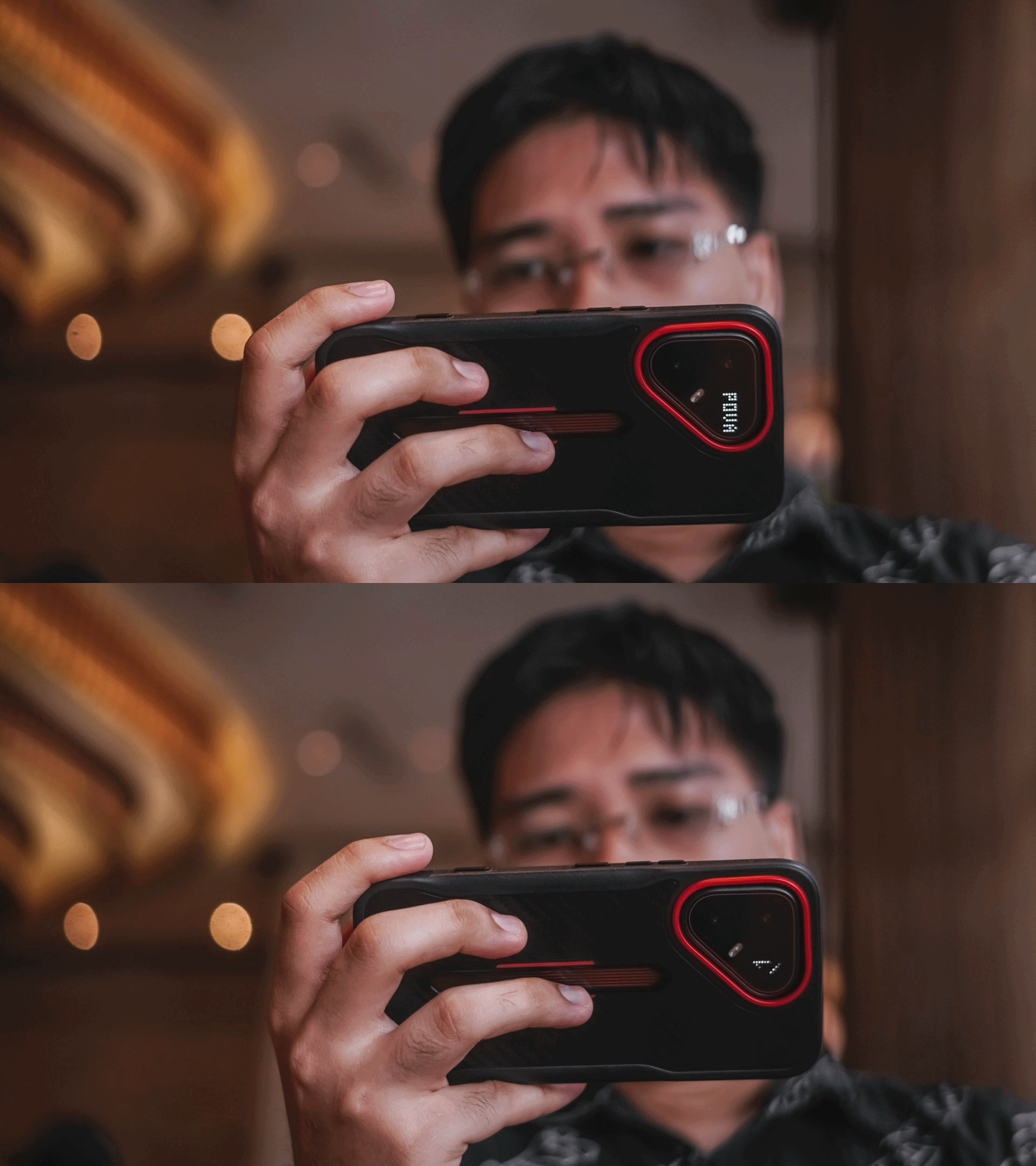
By that, doomscrolling on social media, streaming K-Pop songs, binging K-Dramas, taking some photos.
As expected, severe battery depletion can be felt when playing games for hours. For instance, a 2-hour Racing Master gameplay reduced my battery level from 90% to 74%.
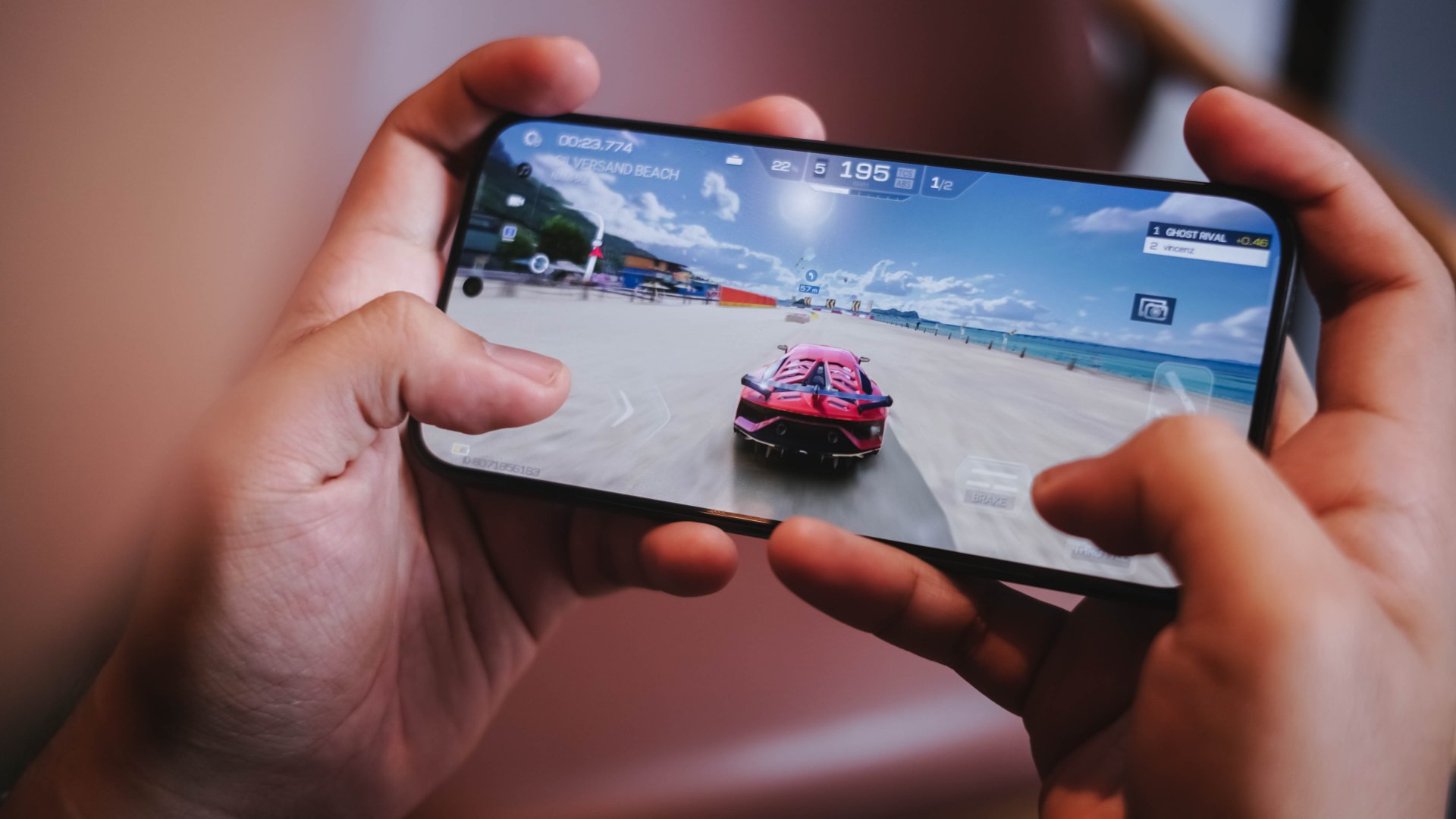
During standby mode where the phone lays flat and untouched (due to a very busy TechTember workload), its battery efficiency shocked me. Even after being unplugged for more than 150 hours, the POVA 8 Pro still has 33% left in its tank.
Now, one of the best battery drain tests in a smartphone is none other than making it as your personal hotspot.

I went out of our house as early as 4AM. When I got back around 11PM, it was still able to preserve 11%. More surprising is that, it kept that same percentage after I slept for 12 hours.
Now, when the tank completely runs out, the POVA 8 Pro comes with its own charger and cable set.
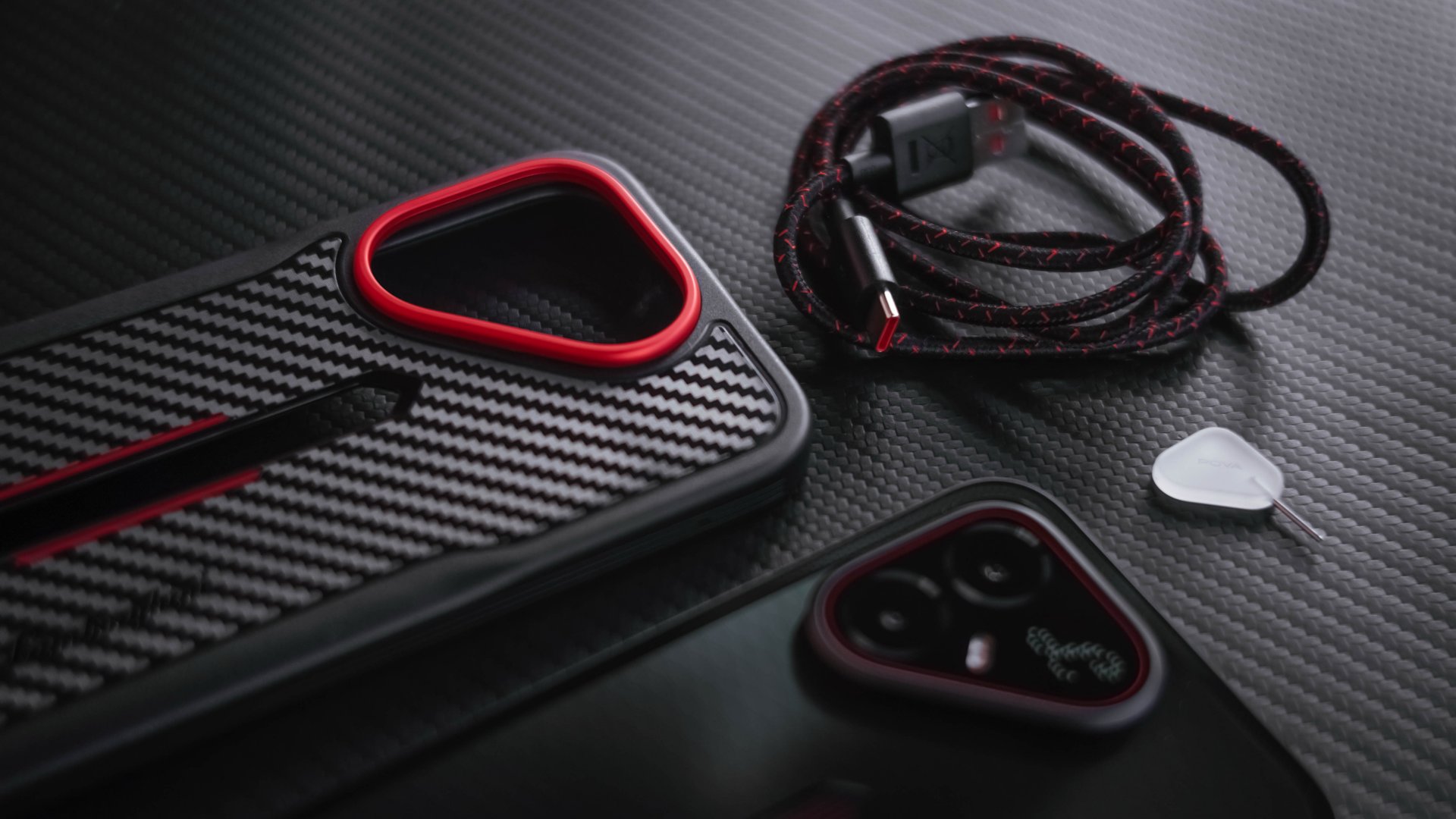
The Tonino Lamborghini Limited Edition I have is quite different though. Instead of the typical white, it has a black charging adapter alongside a braided USB-C to USB-A cable.
View this post on Instagram
That said, here are my GadgetMatch Charge Test results using its bundled accessories:
45W HyperCharge Max |
45W Smart Charge |
|
START TIME (from 0%) |
5:00AM |
7:25PM |
3 minutes |
5% |
3% |
5 minutes |
8% |
5% |
10 minutes |
19% |
13% |
15 minutes |
27% |
17% |
30 minutes |
53% |
45% |
45 minutes |
78% |
56% |
1 hour |
97% |
71% |
1 hour 15 minutes |
– |
88% |
END TIME (100%) |
6:04AM
|
8:51PM
|
Needless to say, activating its HyperCharge Max charging speed can fully fill the phone in around an hour.
Visionary vision
The TECNO POVA 8 Pro (regardless if it’s the regular or Tonino Lamborghini Limited Edition) boasts a 50MP main camera based from Sony’s LYT-700C.
For added context, that’s also the same image sensor placed inside the CAMON 50 Ultra.

If you happened to read that particular review, I praised it a lot for its overall image quality.
Without an ounce of doubt, the same can be said here.
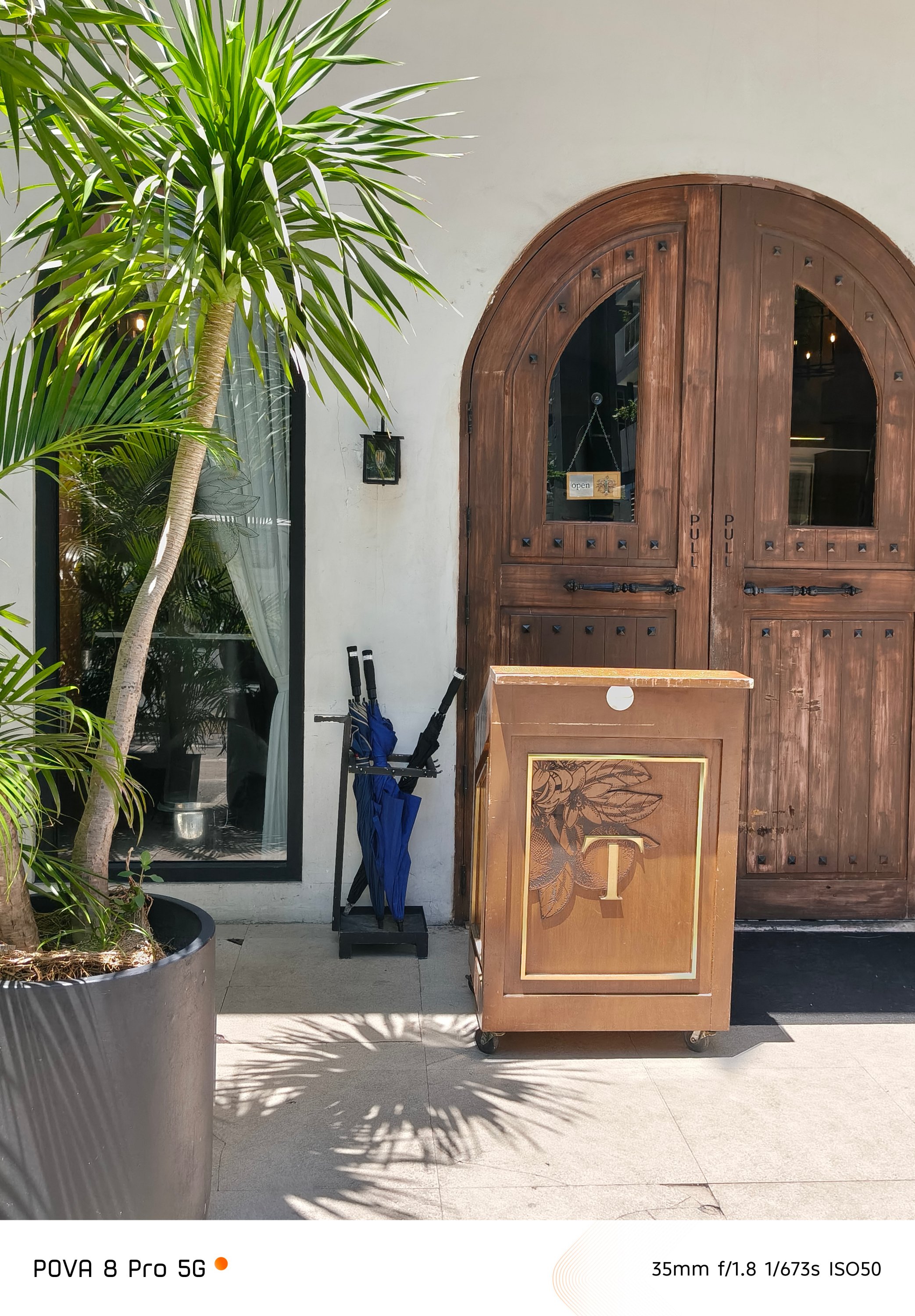
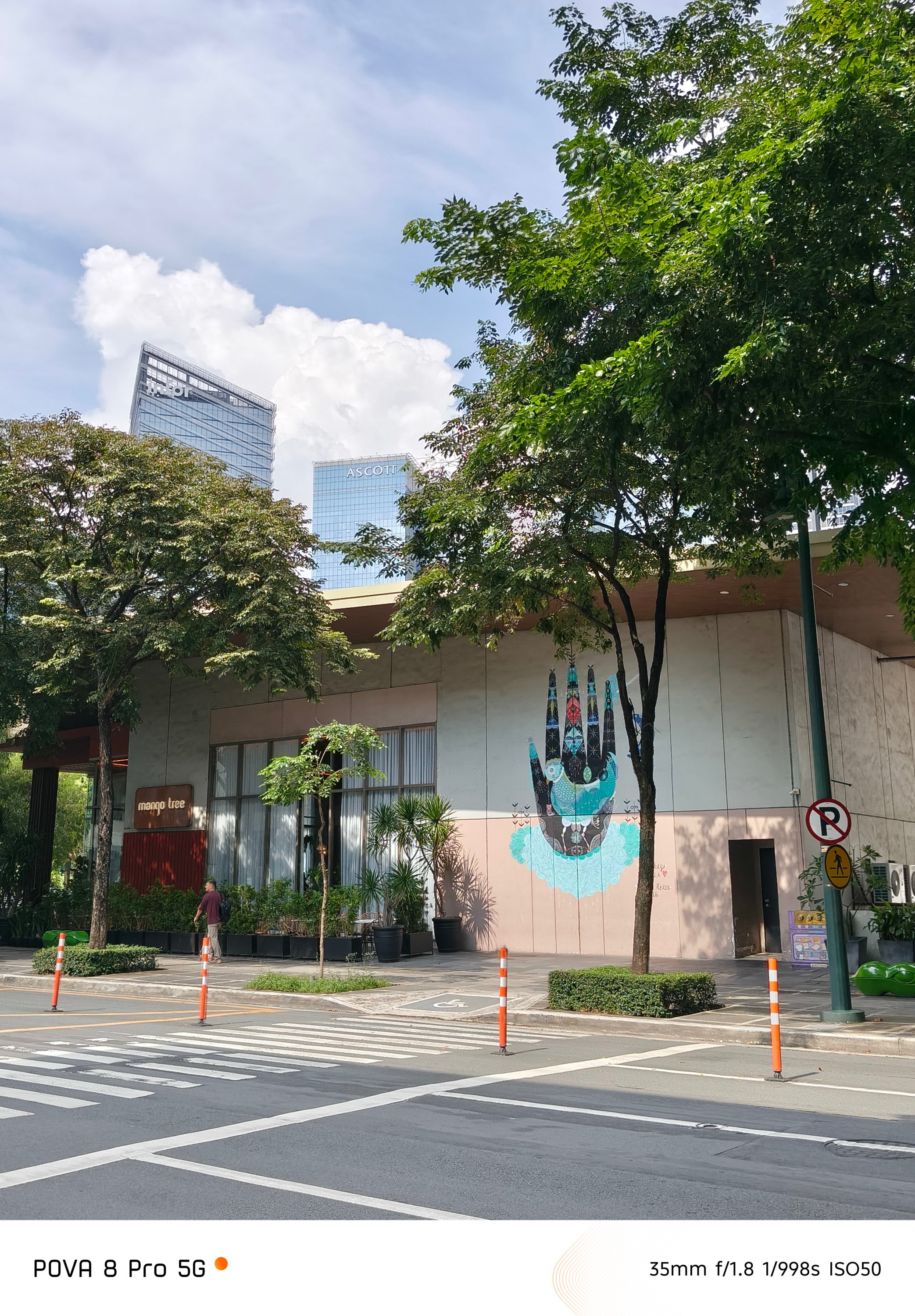
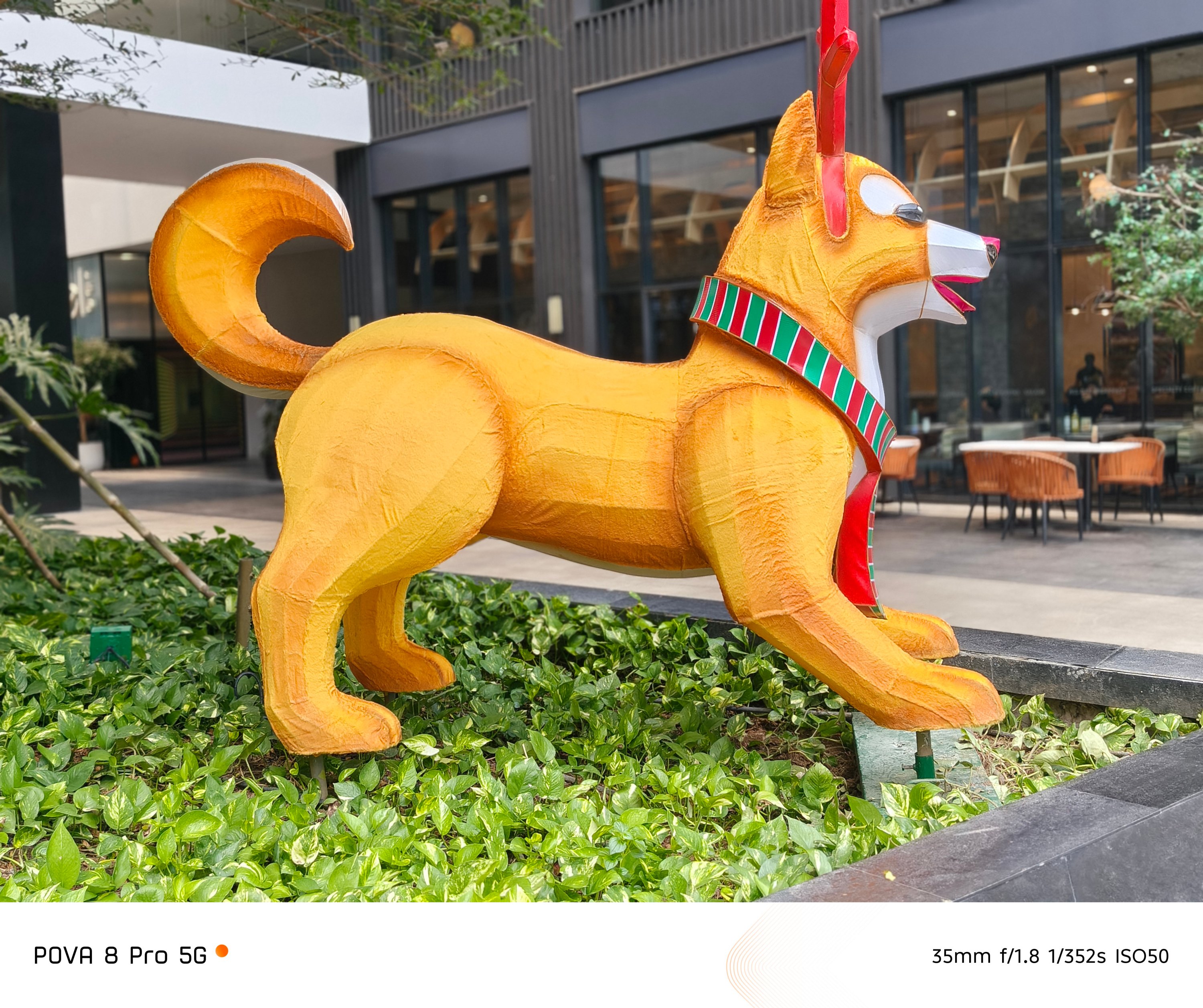
Even if this is a performance-focused smartphone, TECNO didn’t actually compromise its regular 1x main camera.


While its 8MP f/2.2 ultra-wide shooter isn’t anything grand. Still, it gets the job done.

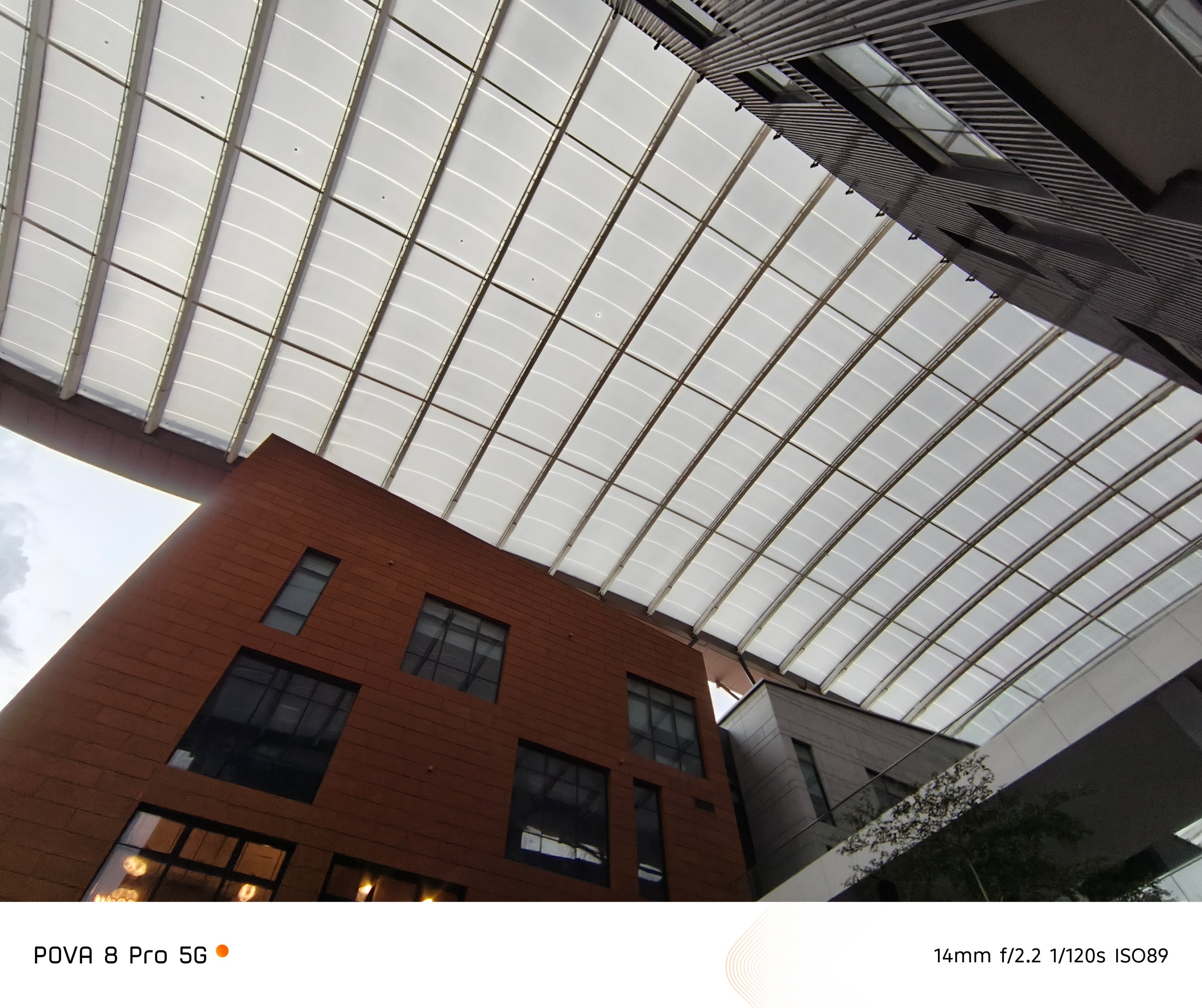
After all, it’s the good ol’ sensor frequently used by TECNO among most (if not all) of their phones.
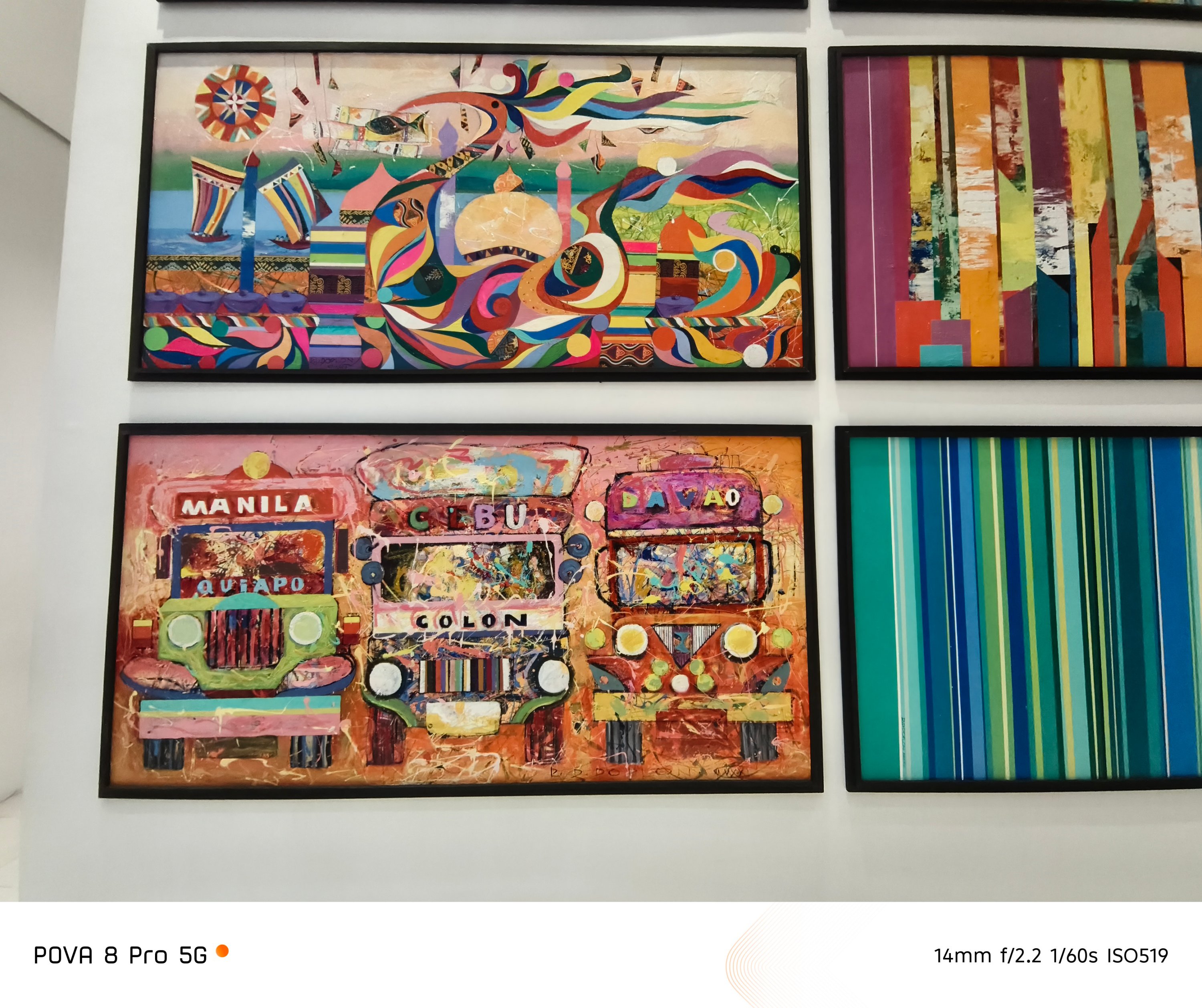
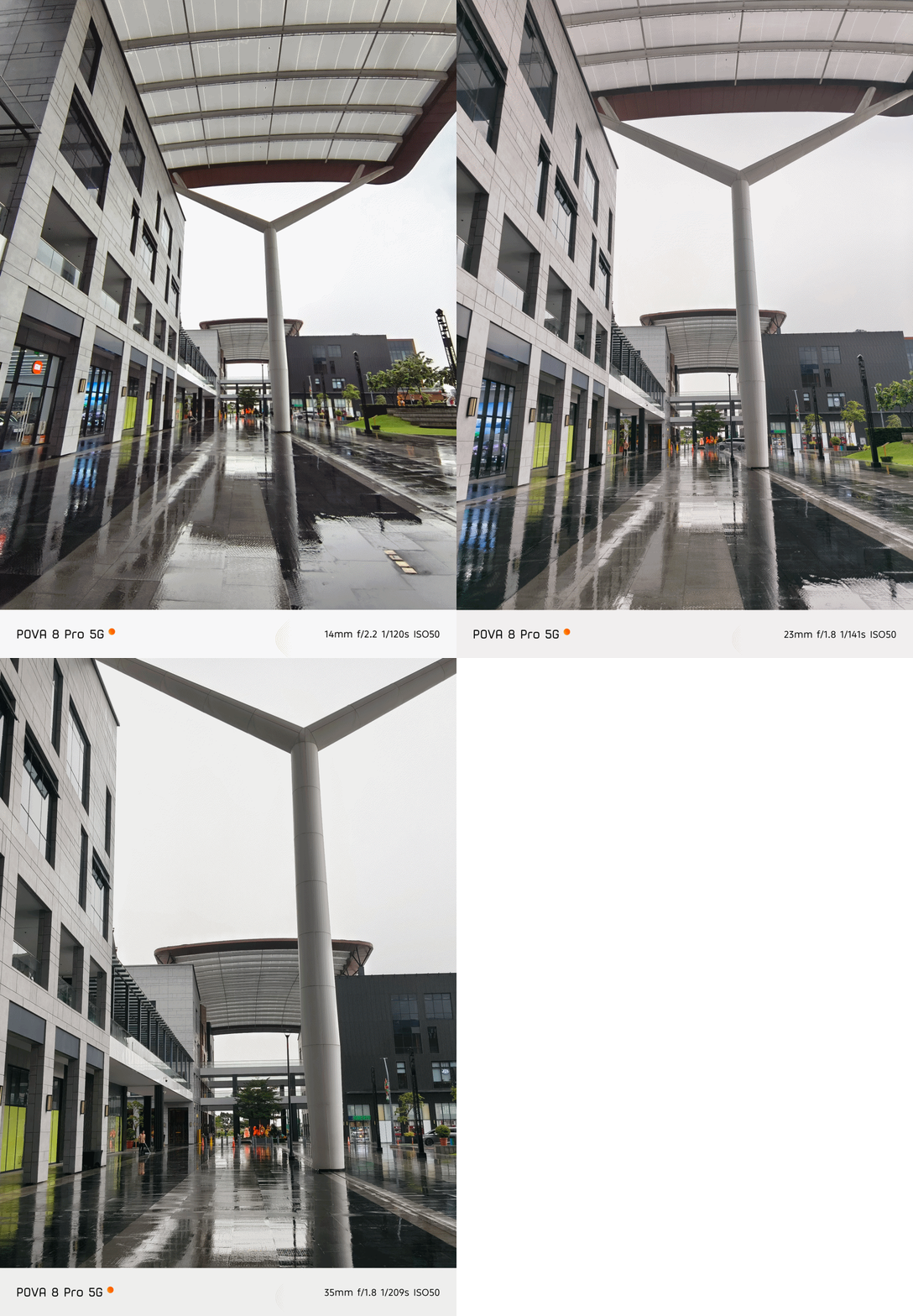
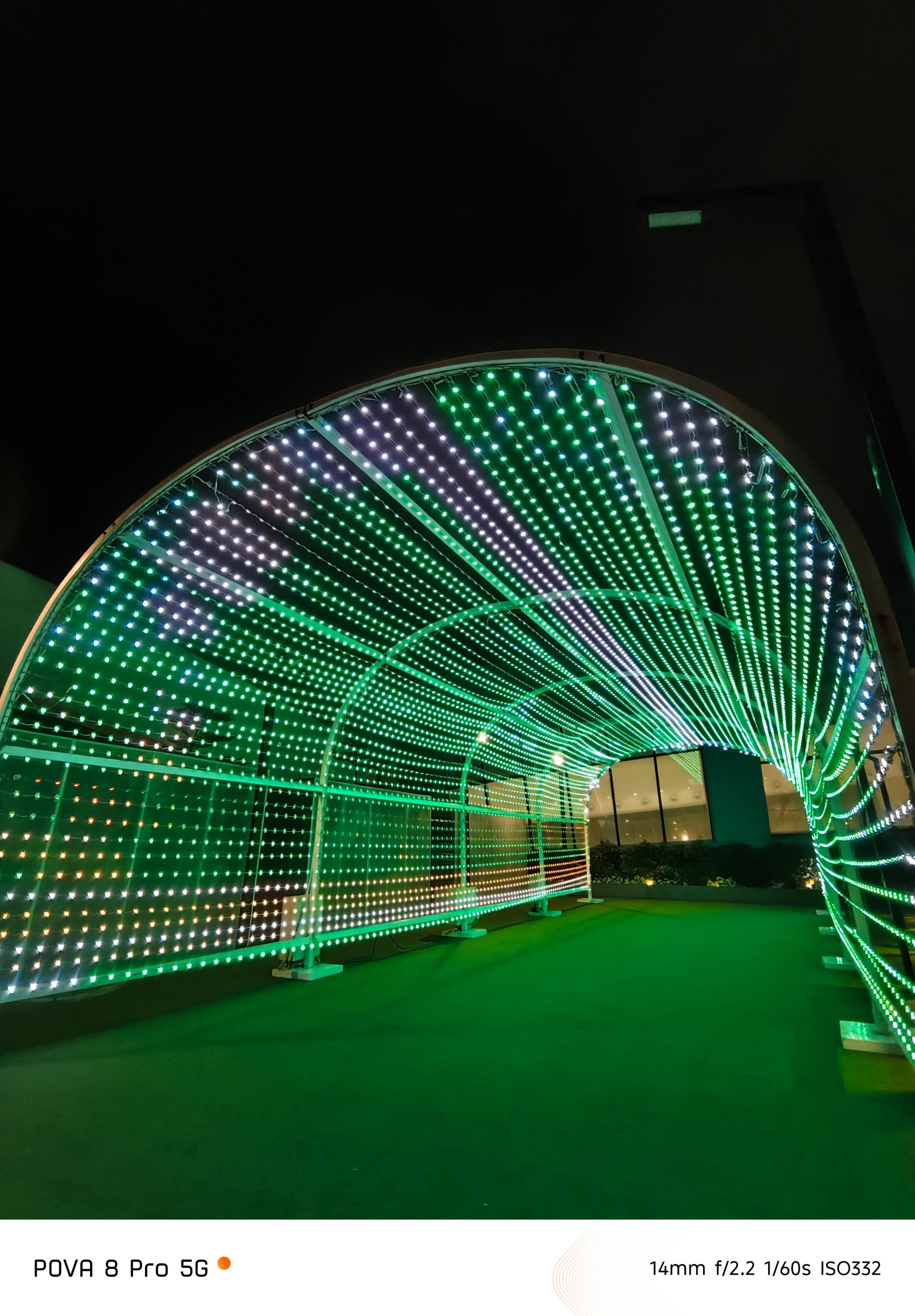
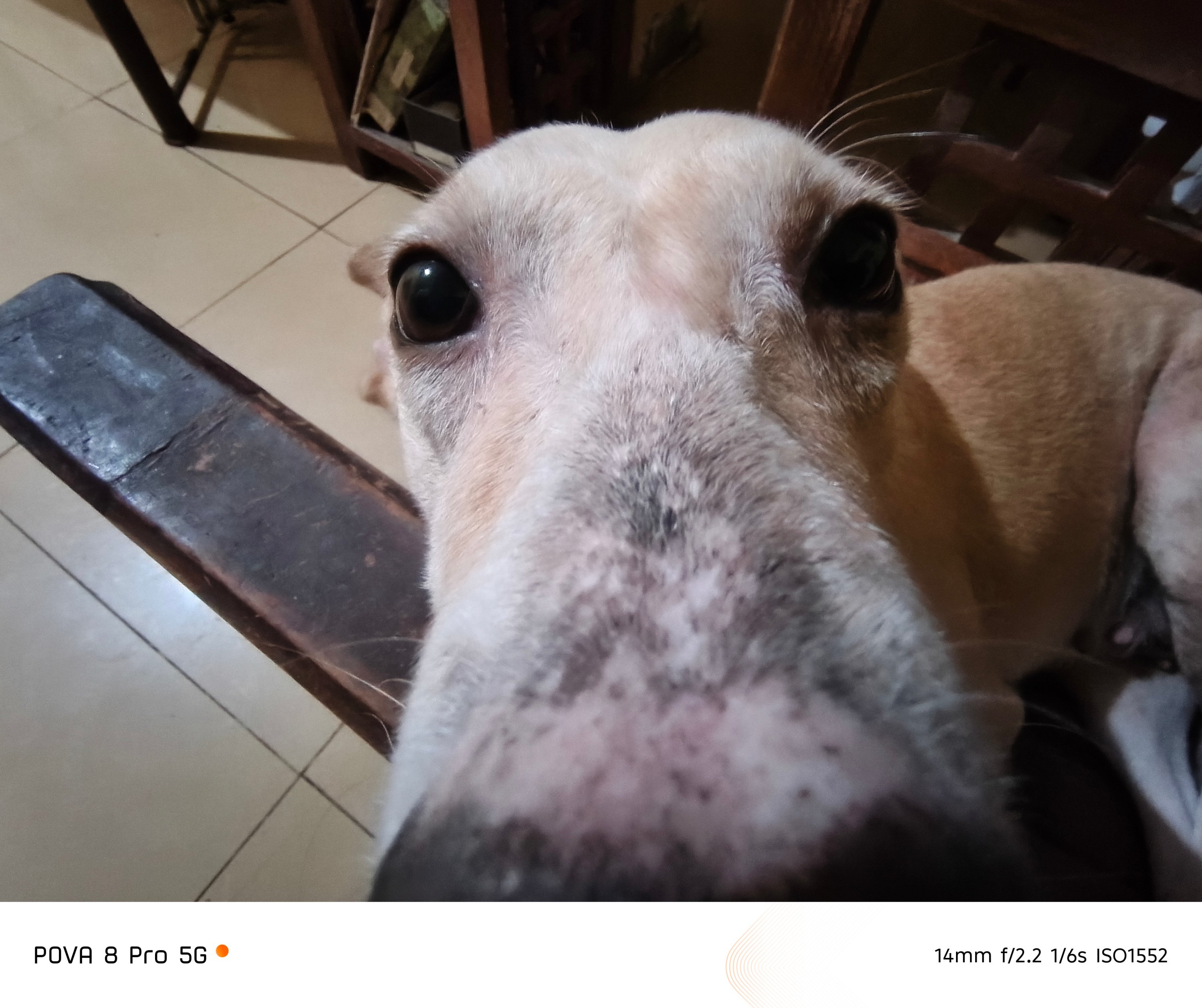 With this price to hardware ratio, caveats are expected.
First and foremost, the lack of a telephoto module found on its CAMON cousin slash contender.

Notice the contrast and saturation shifting when switching between 1x and 2x? The lack of a dedicated telephoto module is the culprit.
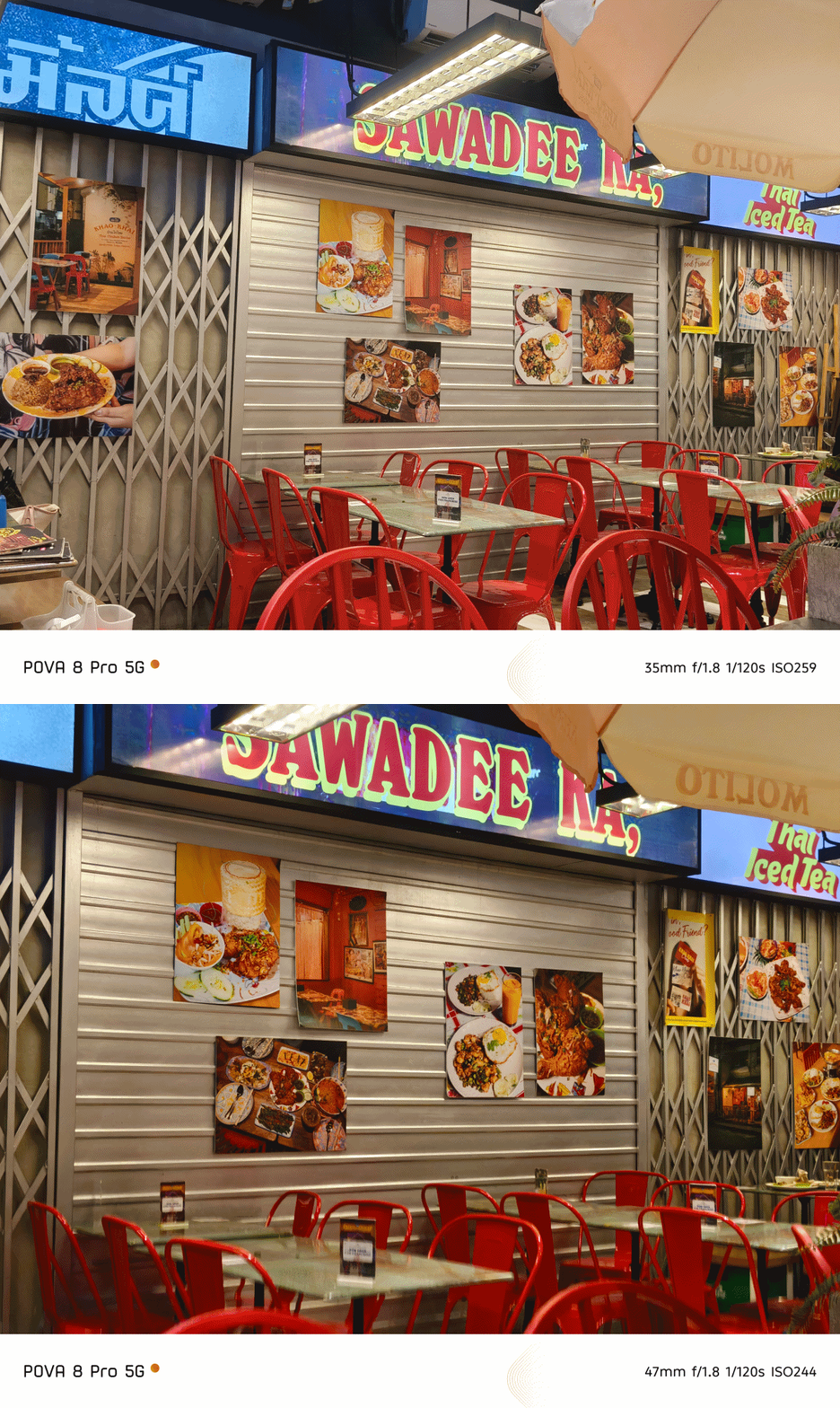
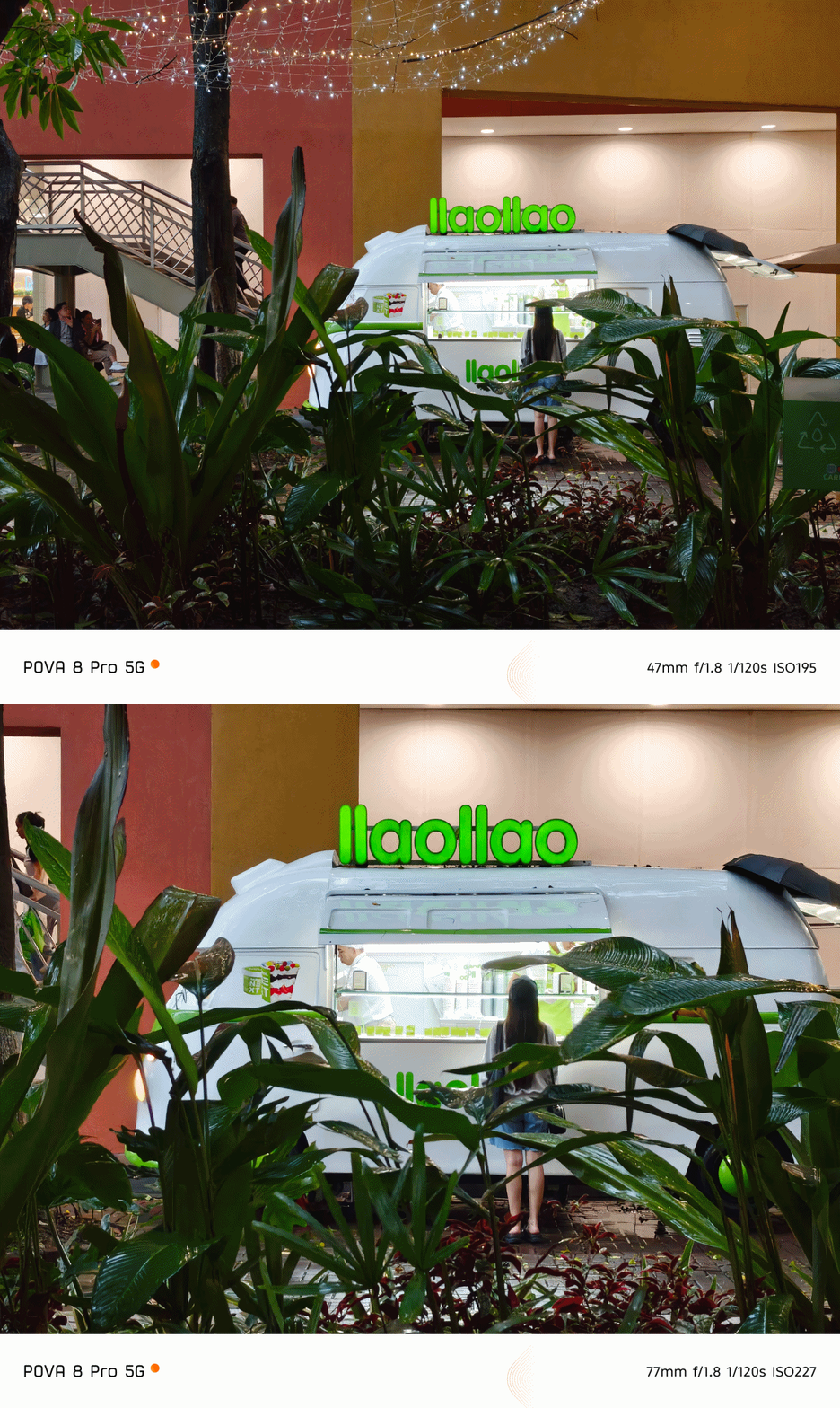
Although to be quite frank, I still liked how well it performed even by just relying on 2x digital zoom — or even way past it!

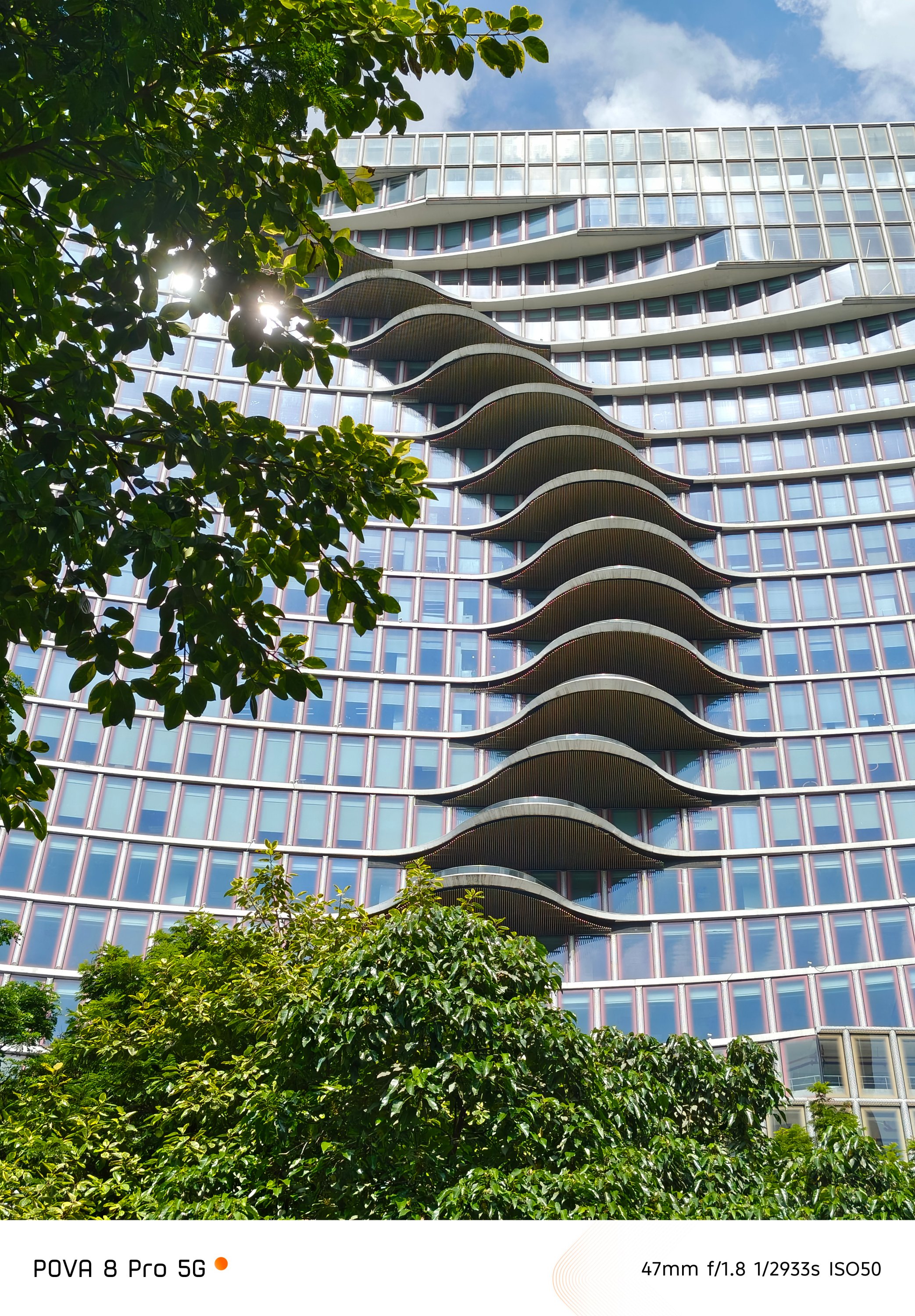



The front camera is smaller too at 13MP (as opposed to 50MP).


Even so, all the nuances such as CAMON’s triple color profiles and the handy-dandy FlashSnap are all missing in this POVA.
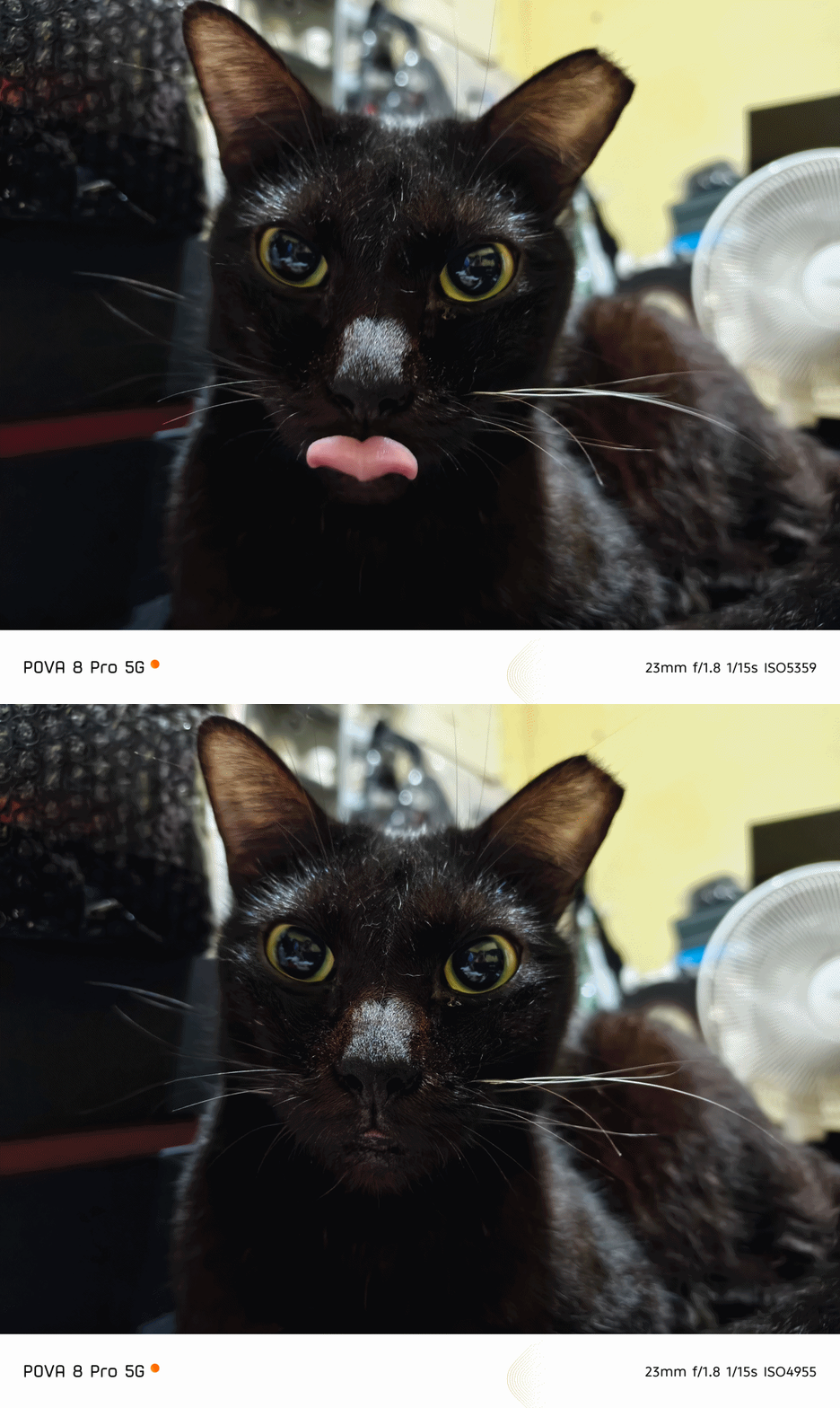
Still, it’s safe to say that the POVA 8 Pro can deliver post-worthy and social media-ready photos whenever, wherever. I mean Just look at how sharp these furry friends look.




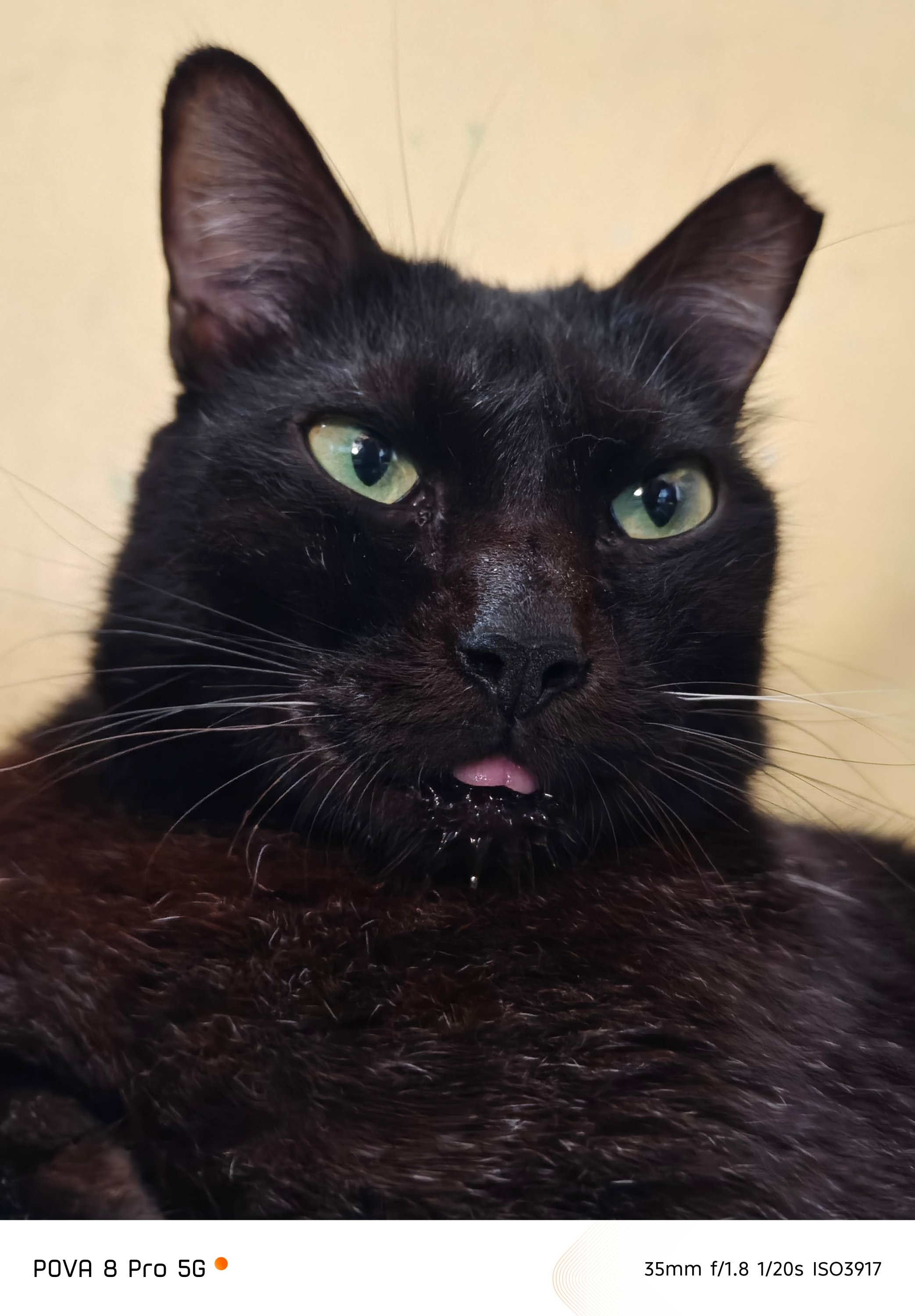
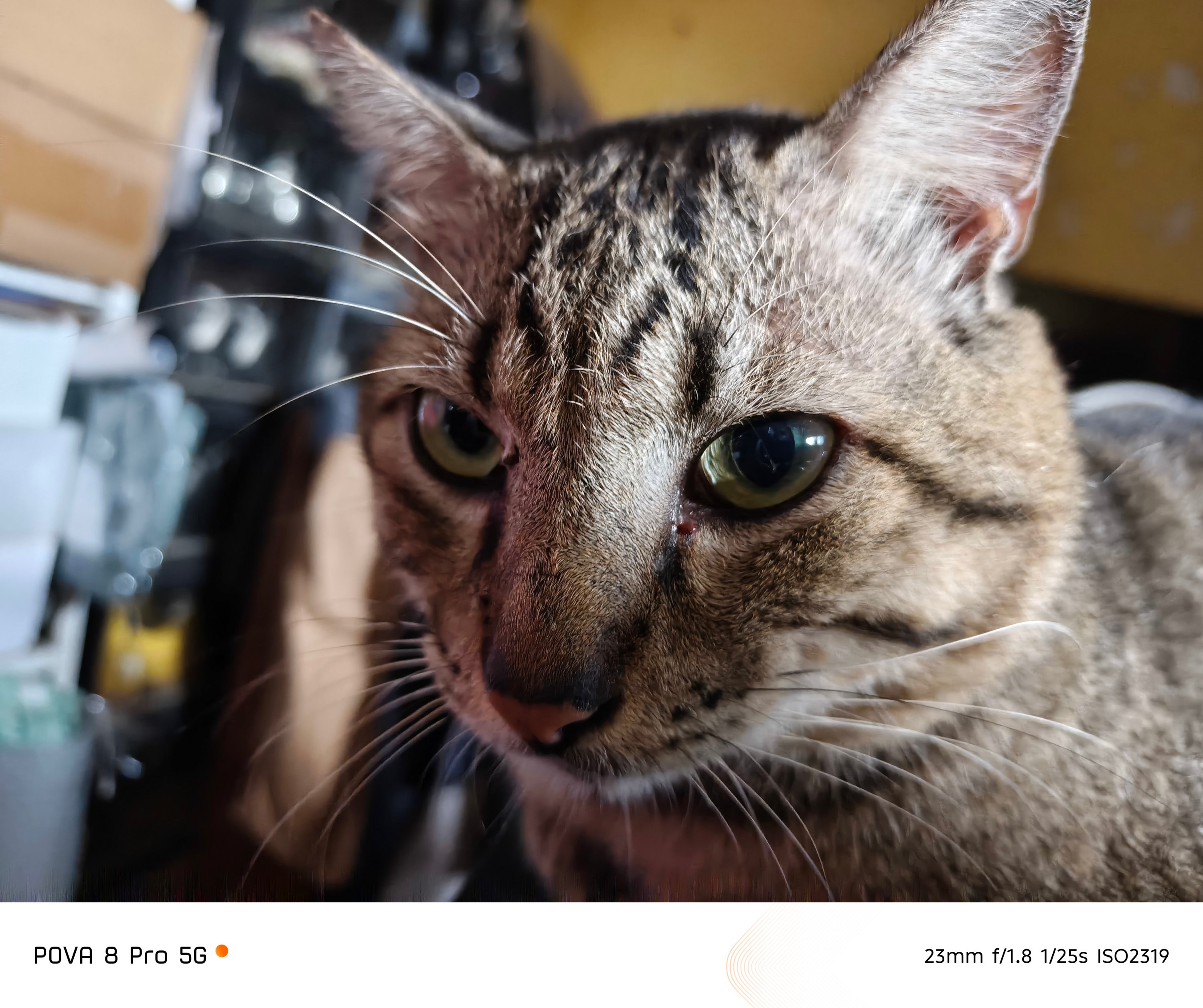
Although there’s no FlashSnap feat, that split-second gap still produced such picture-purrfect moments.


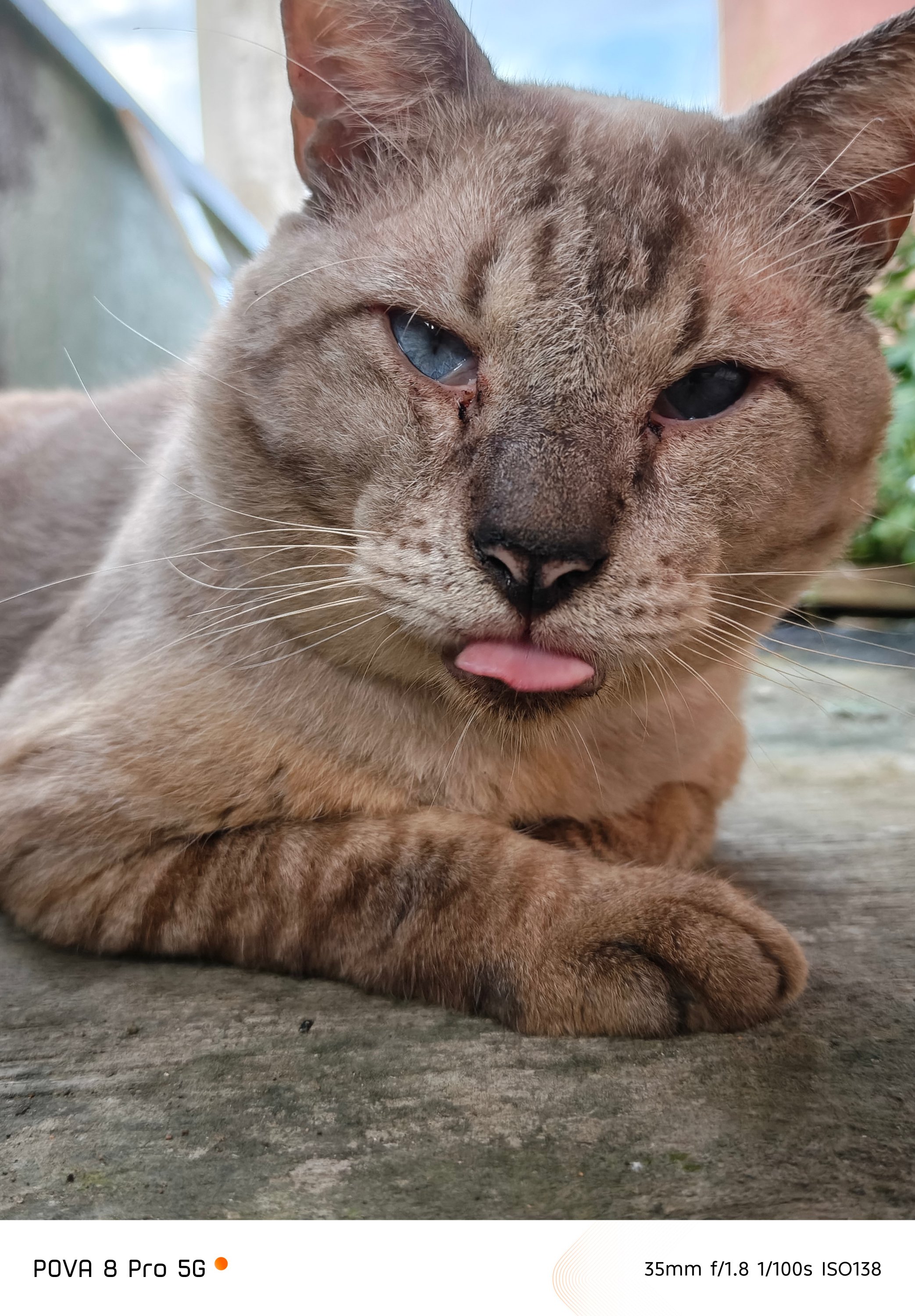


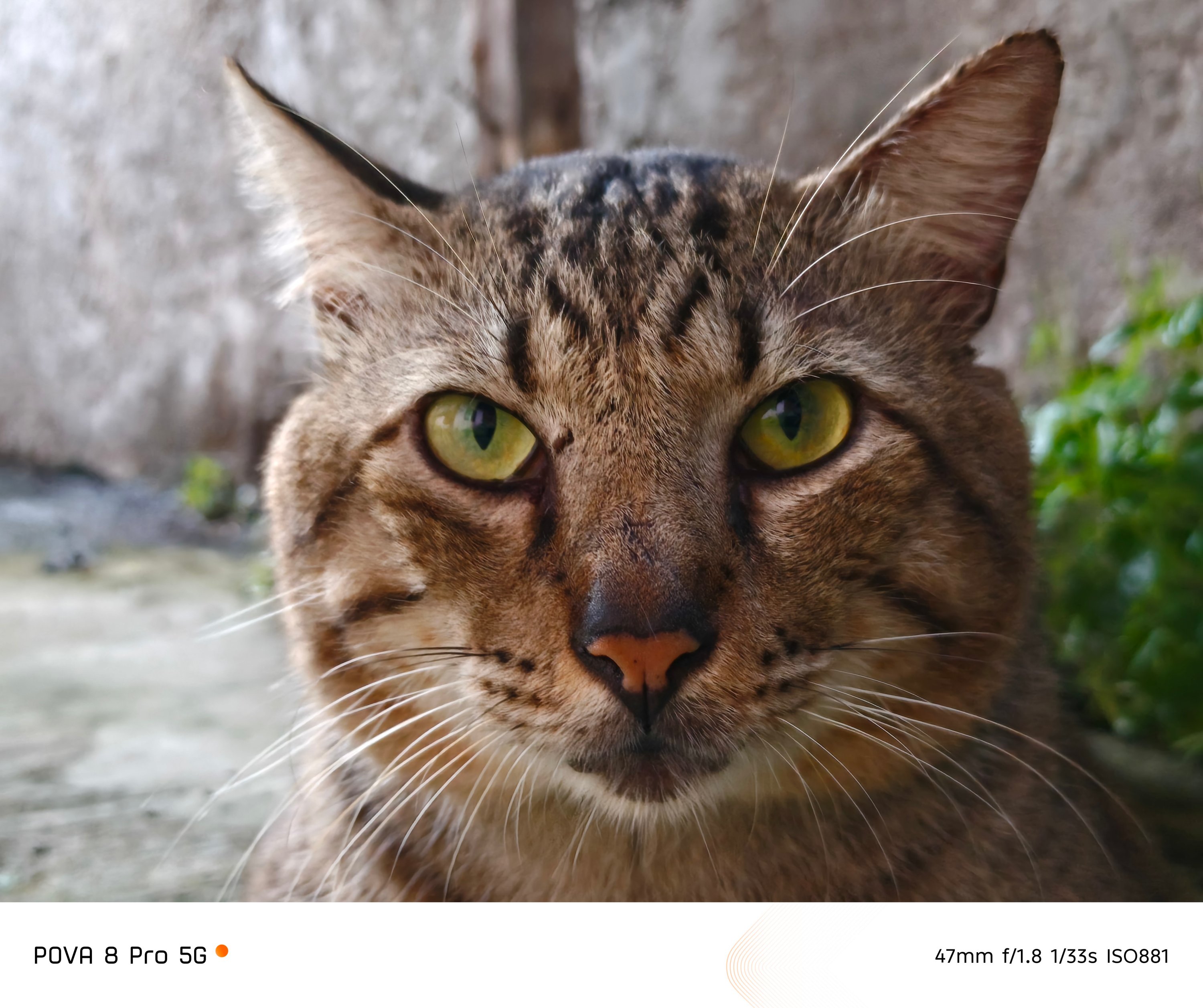
The food you devour with your family, friends, or just yourself (no judgments made) weren’t even spared from that luscious output.
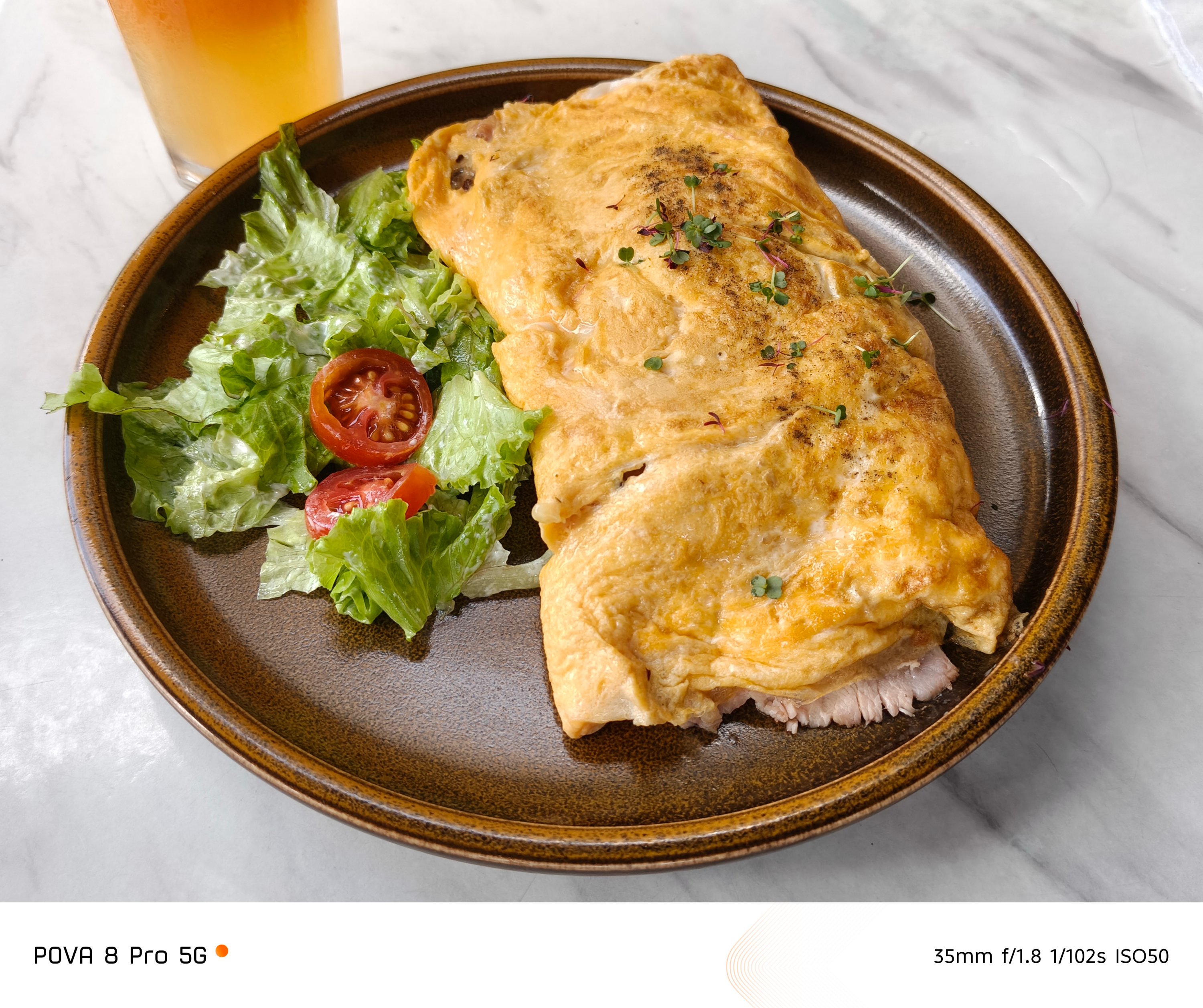




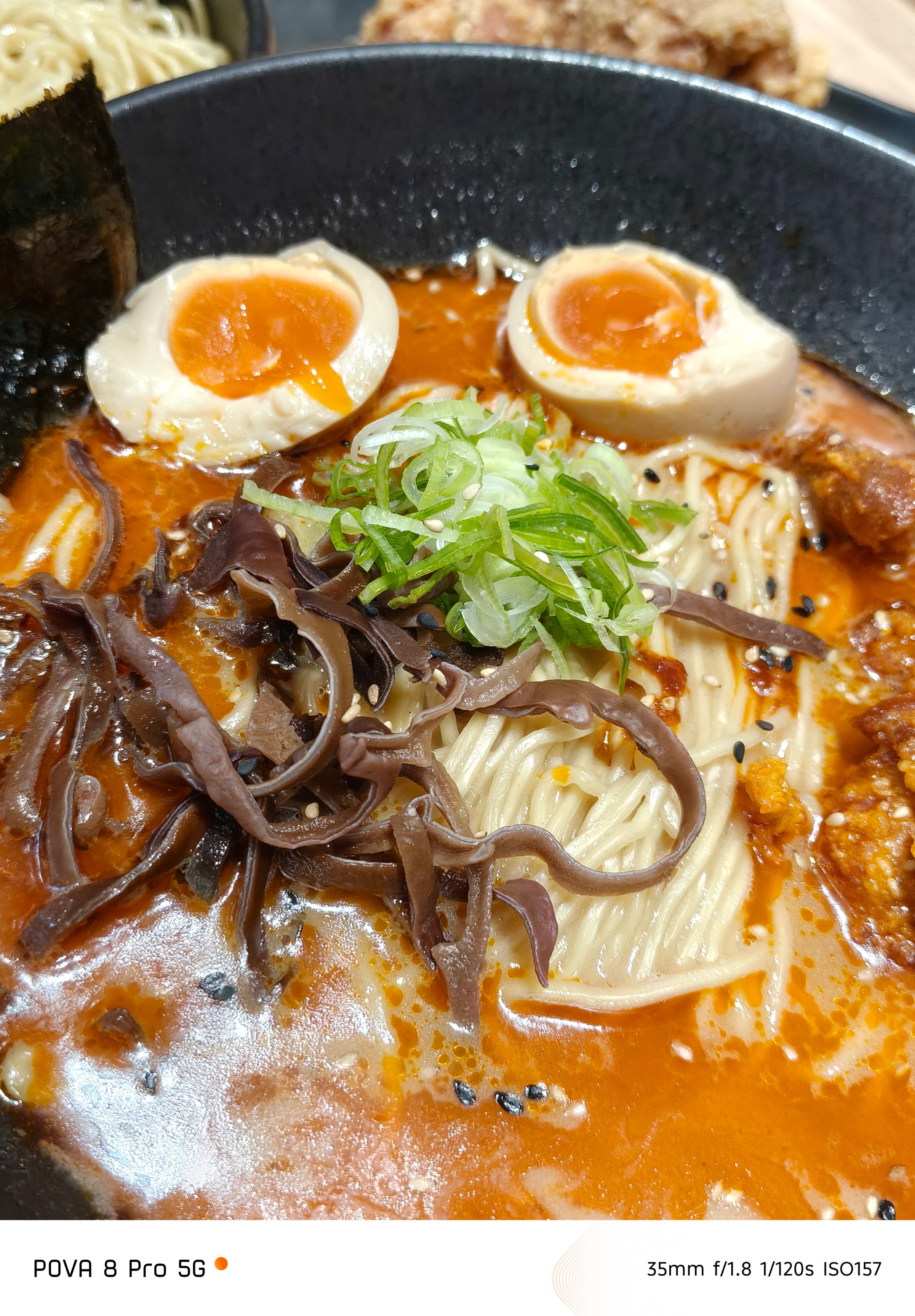






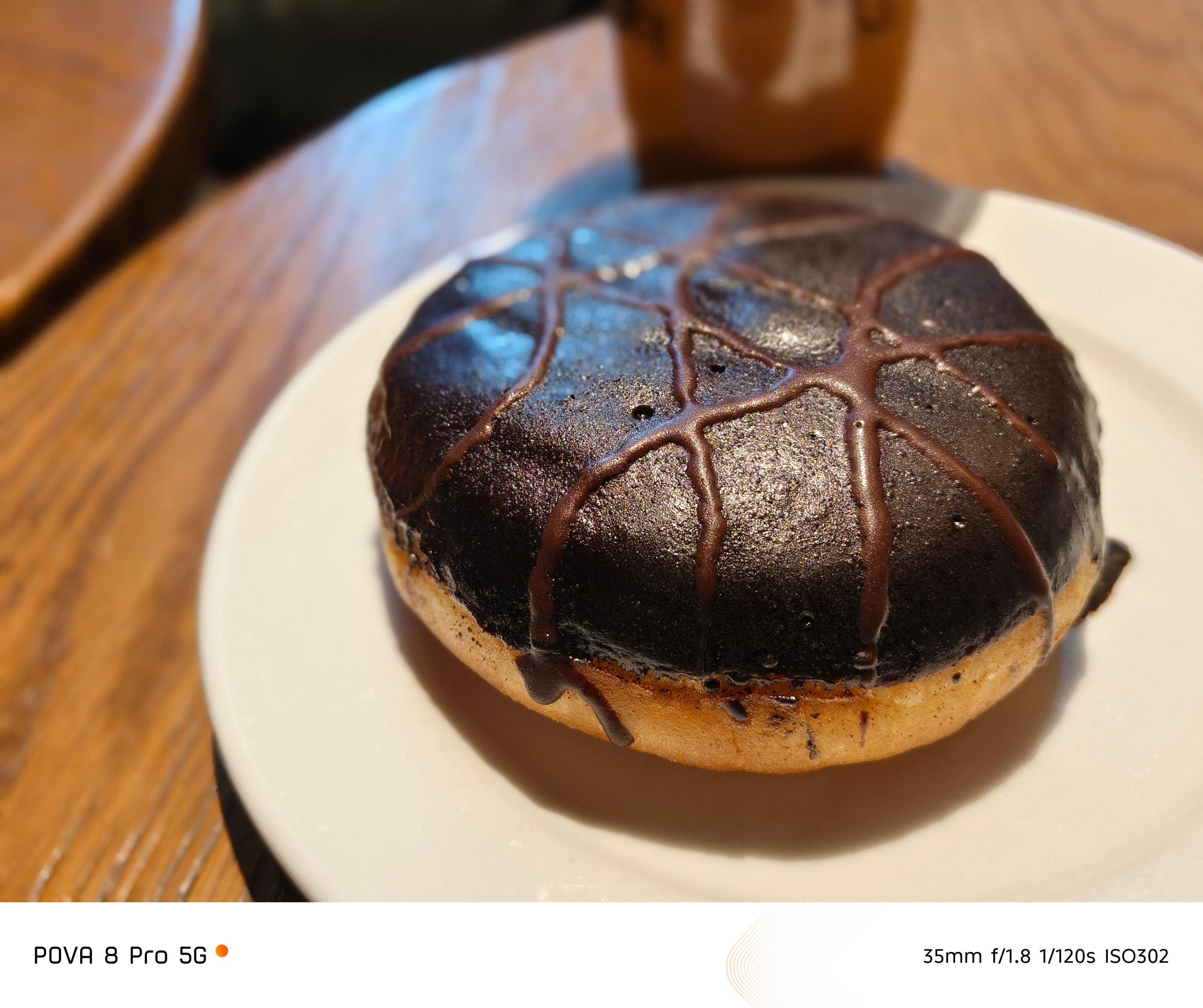
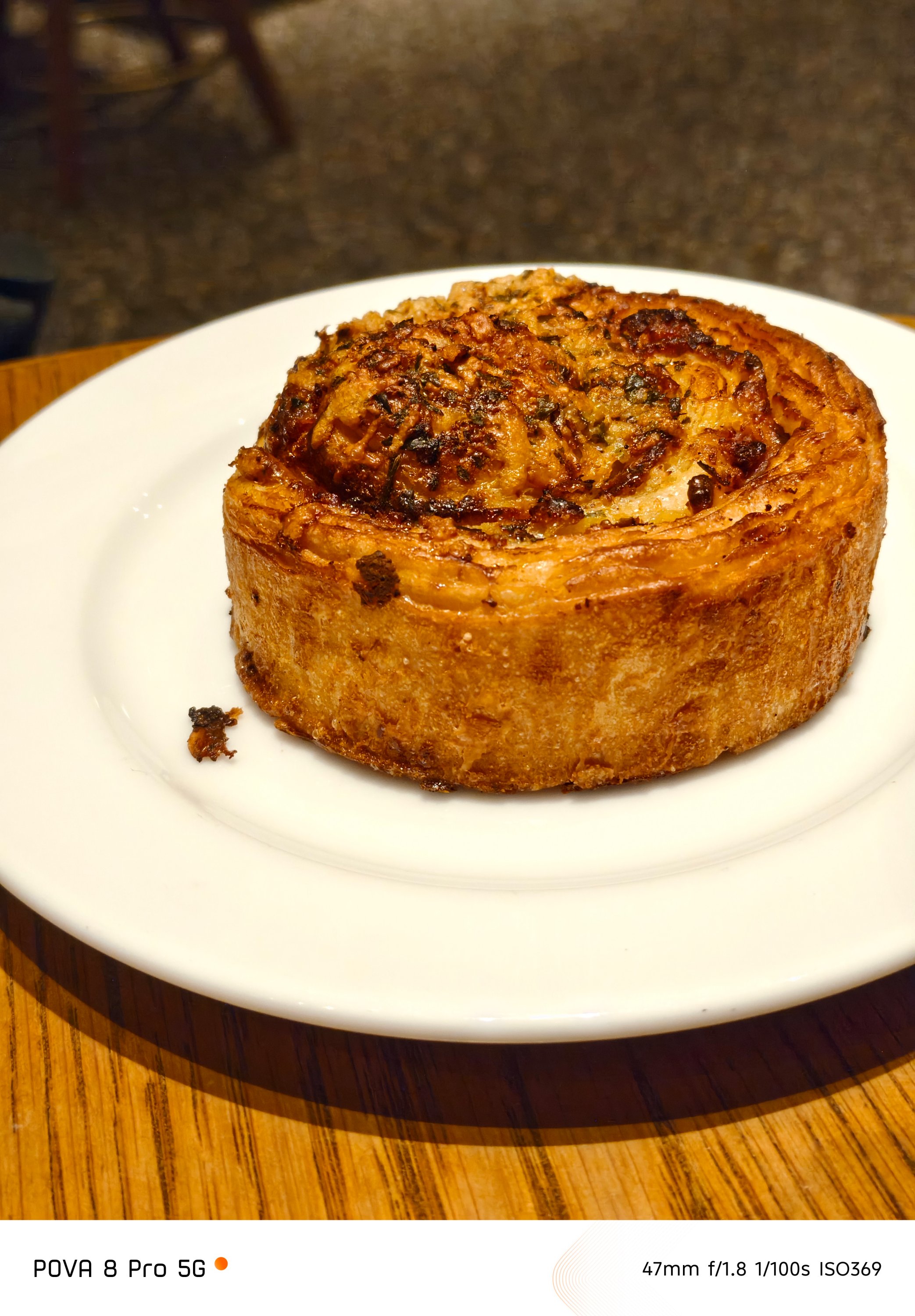



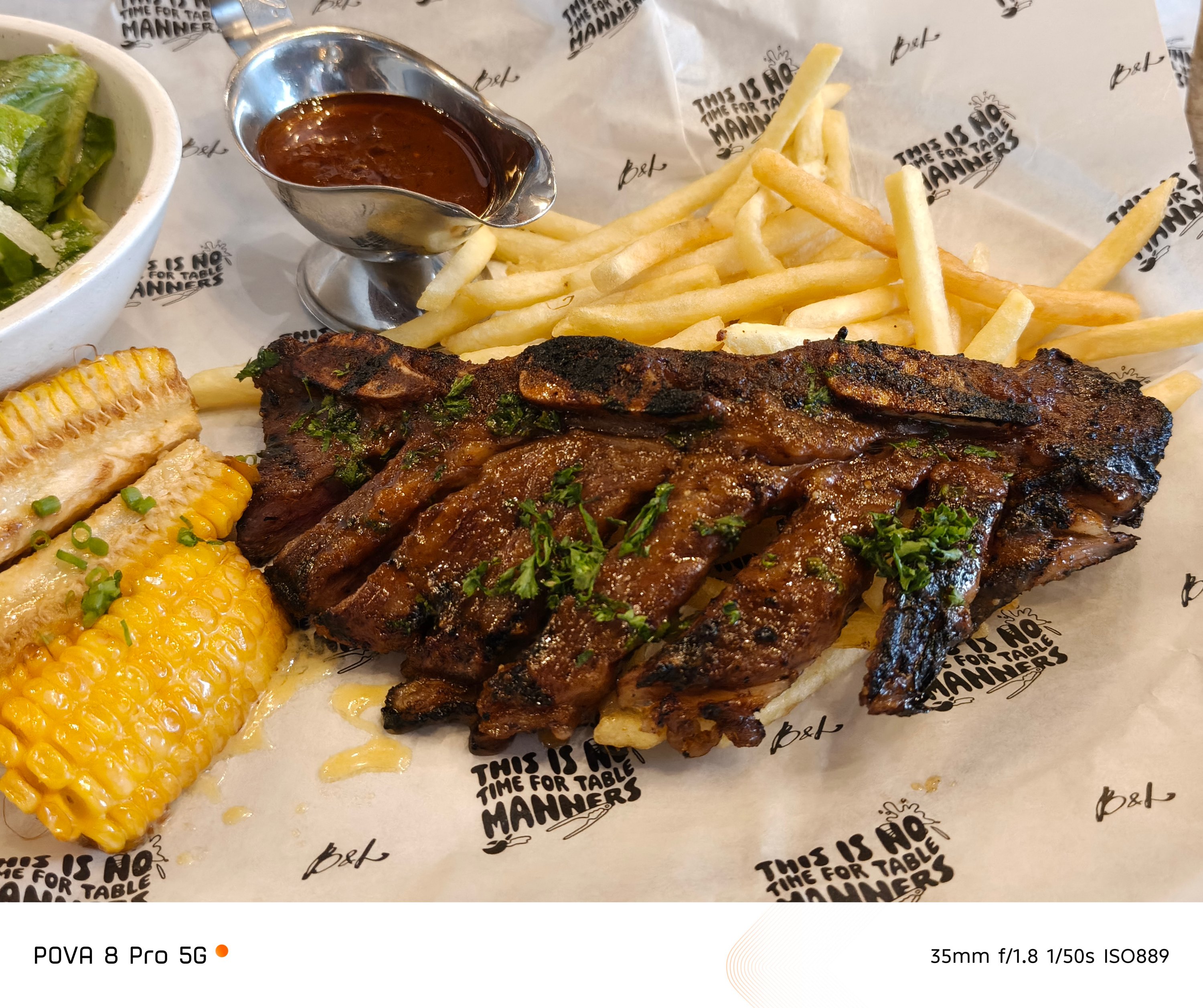
Even the places you go where there’s little to no presence of natural light, the POVA 8 Pro did not disappoint at all.

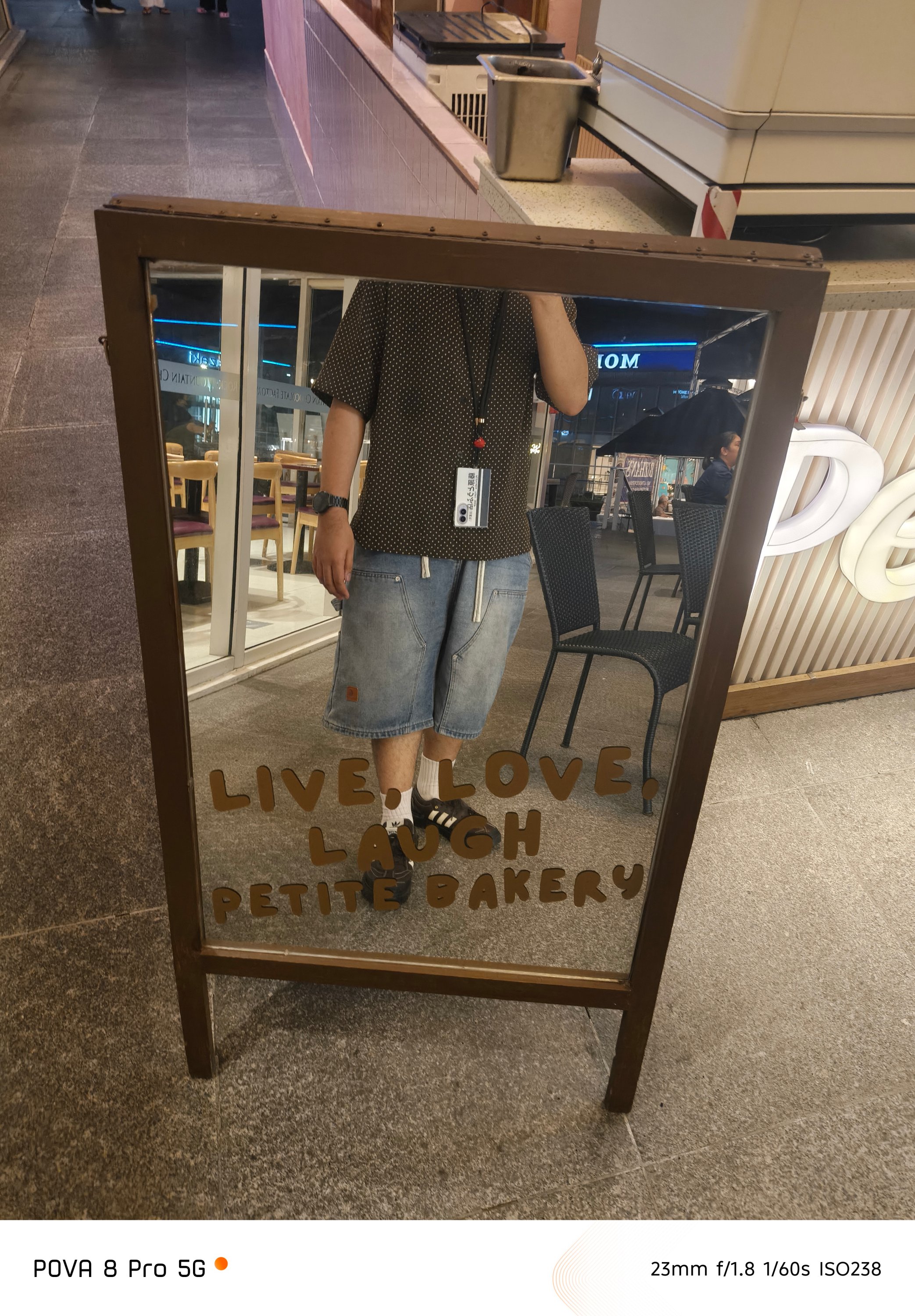
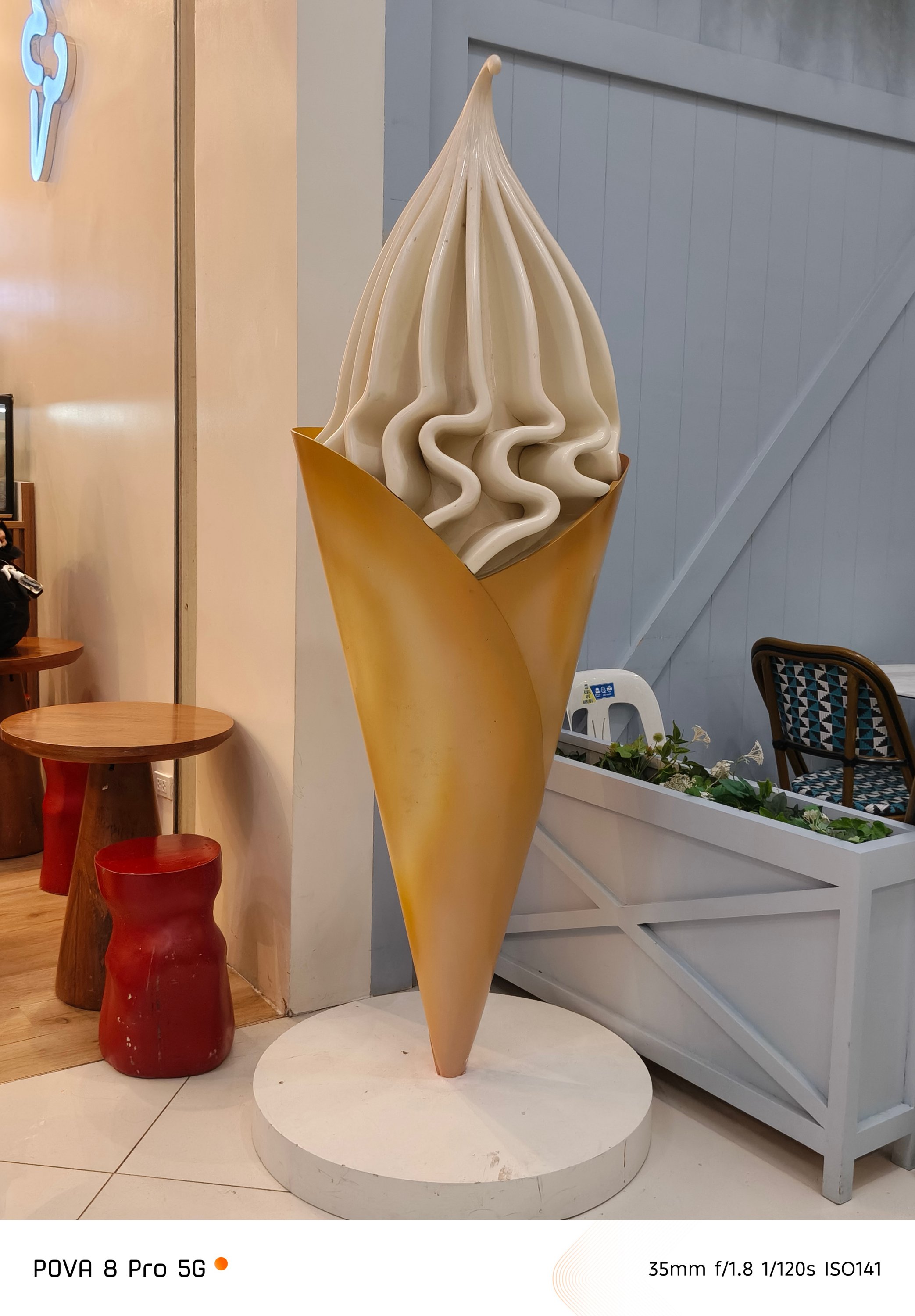
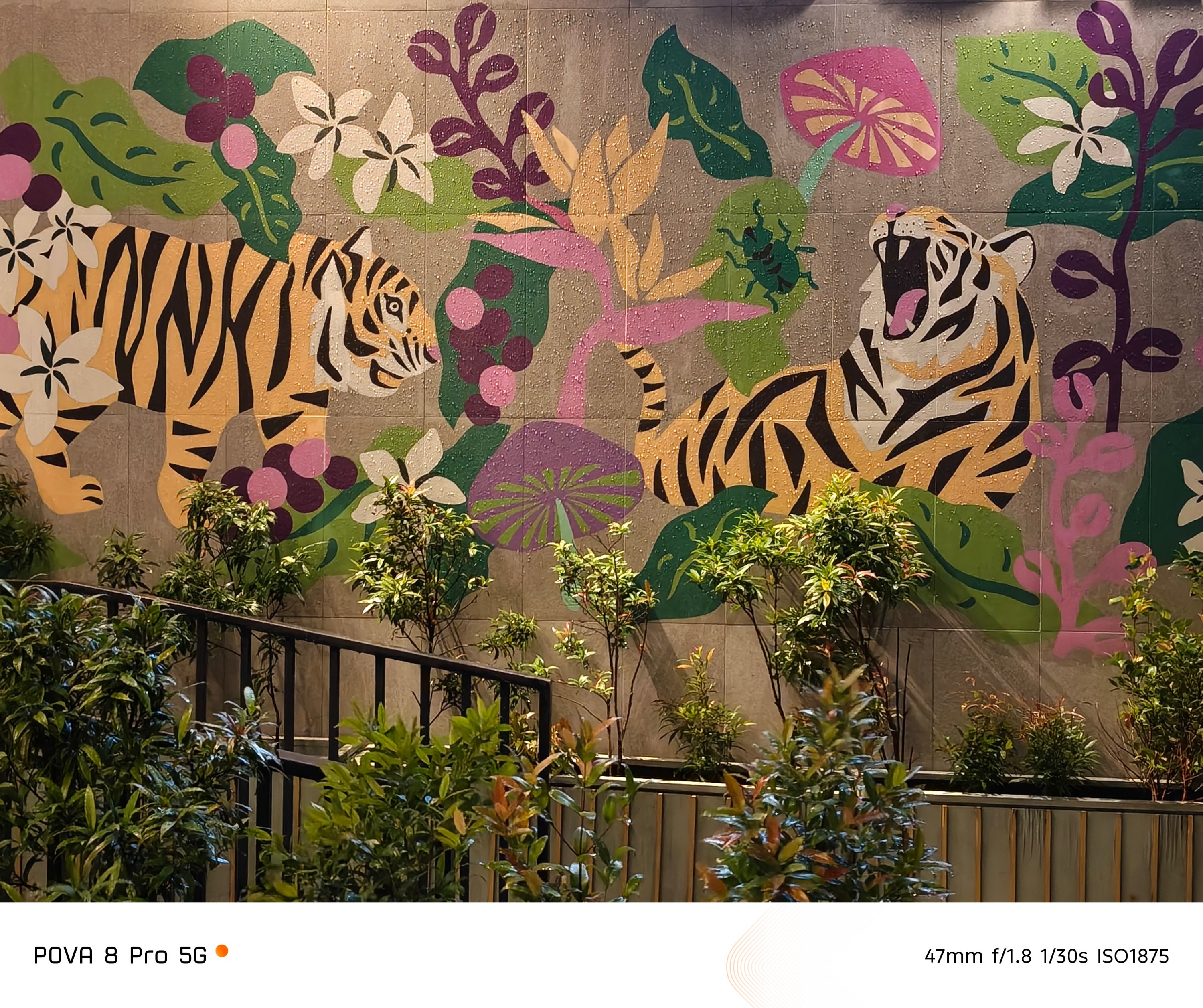
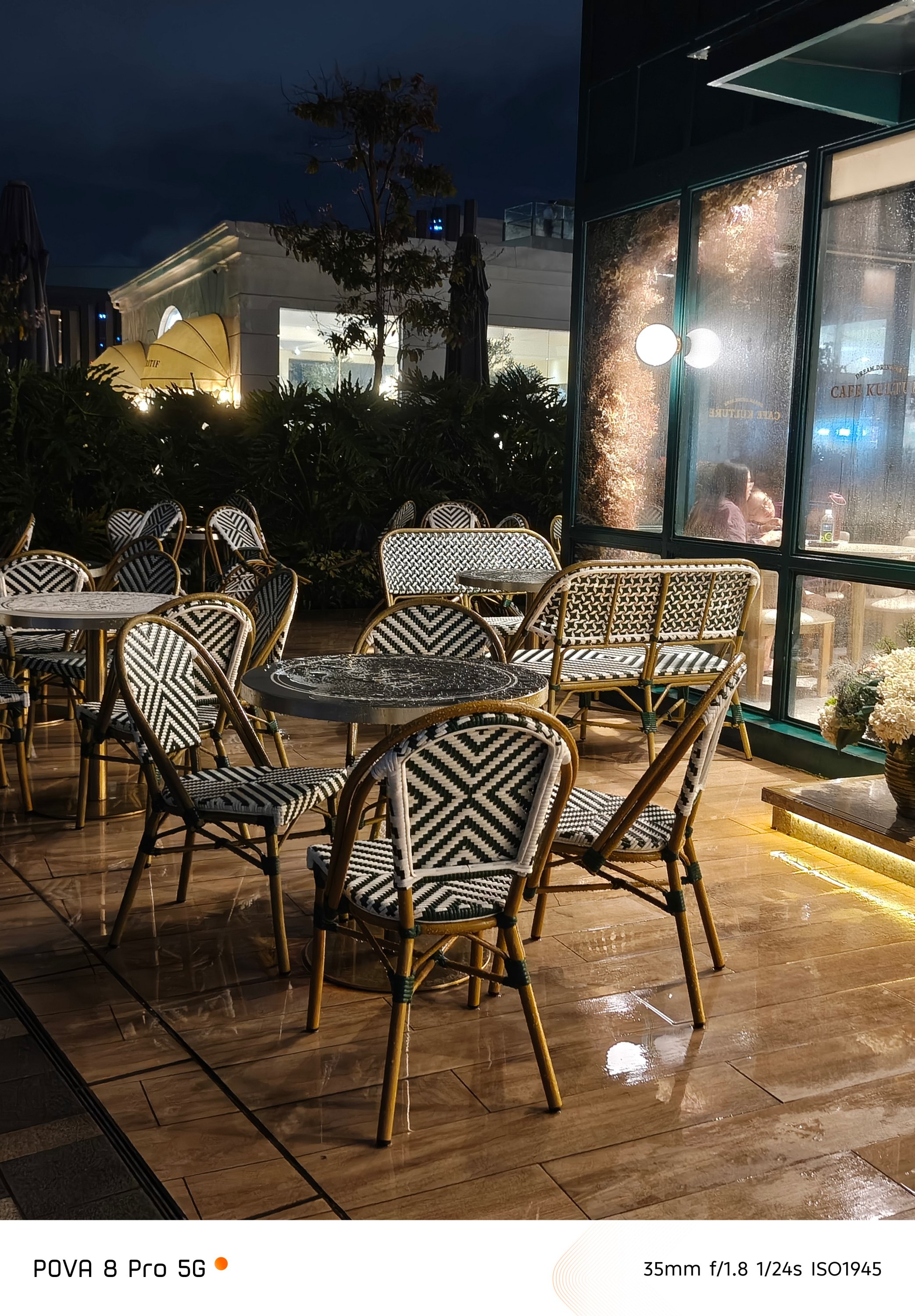
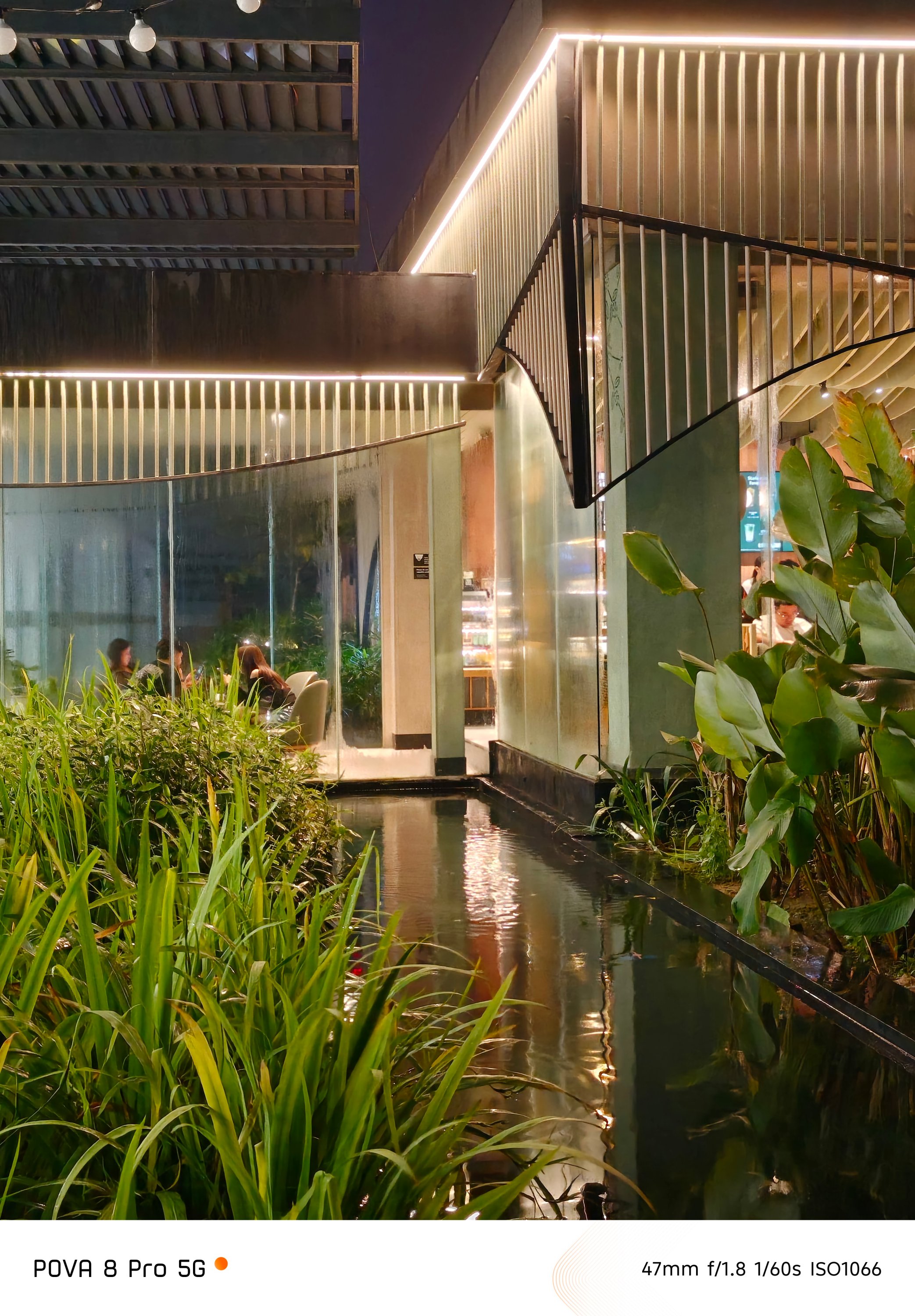
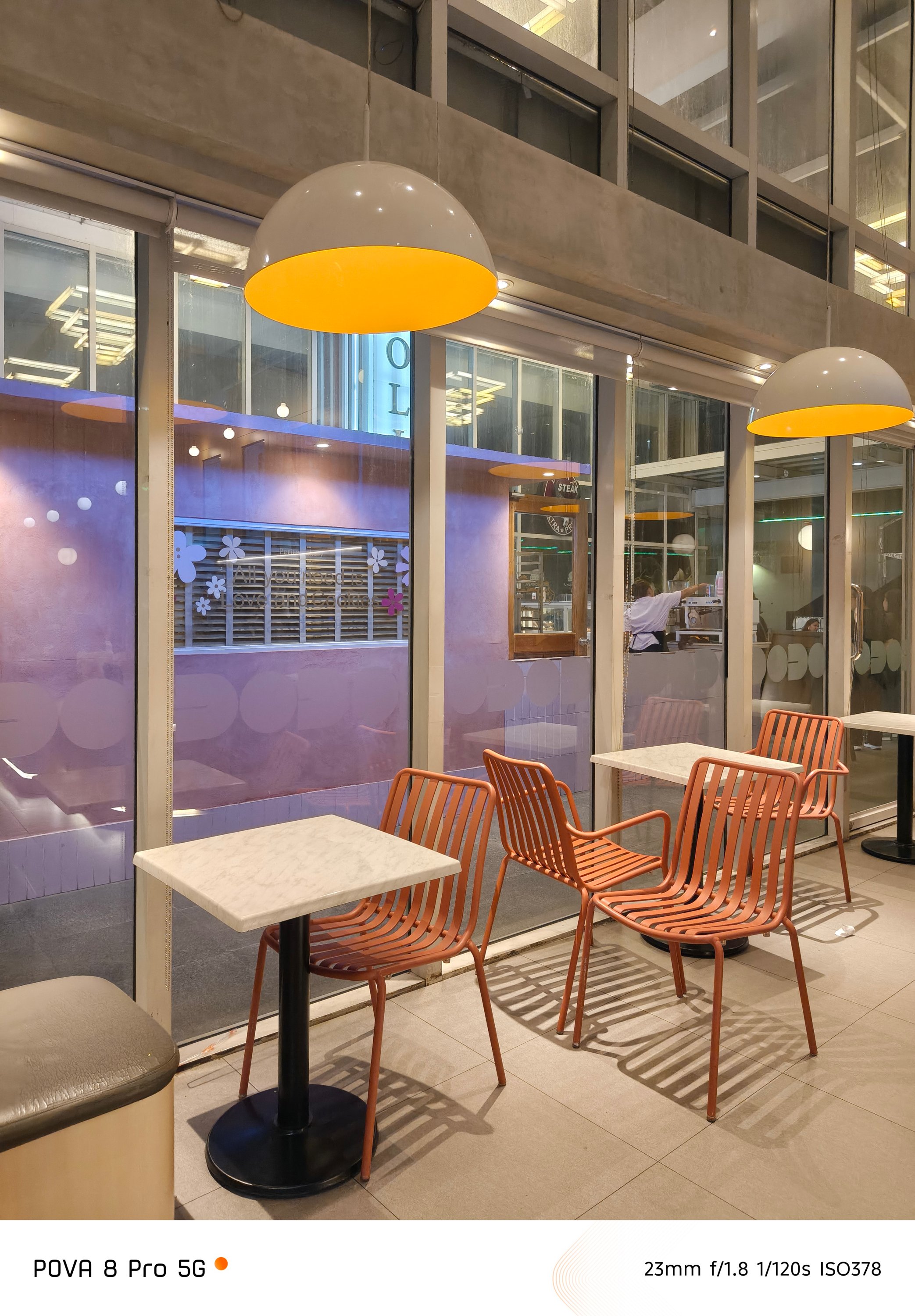
These results look more than just good — especially considering the overall worth of this midranger.
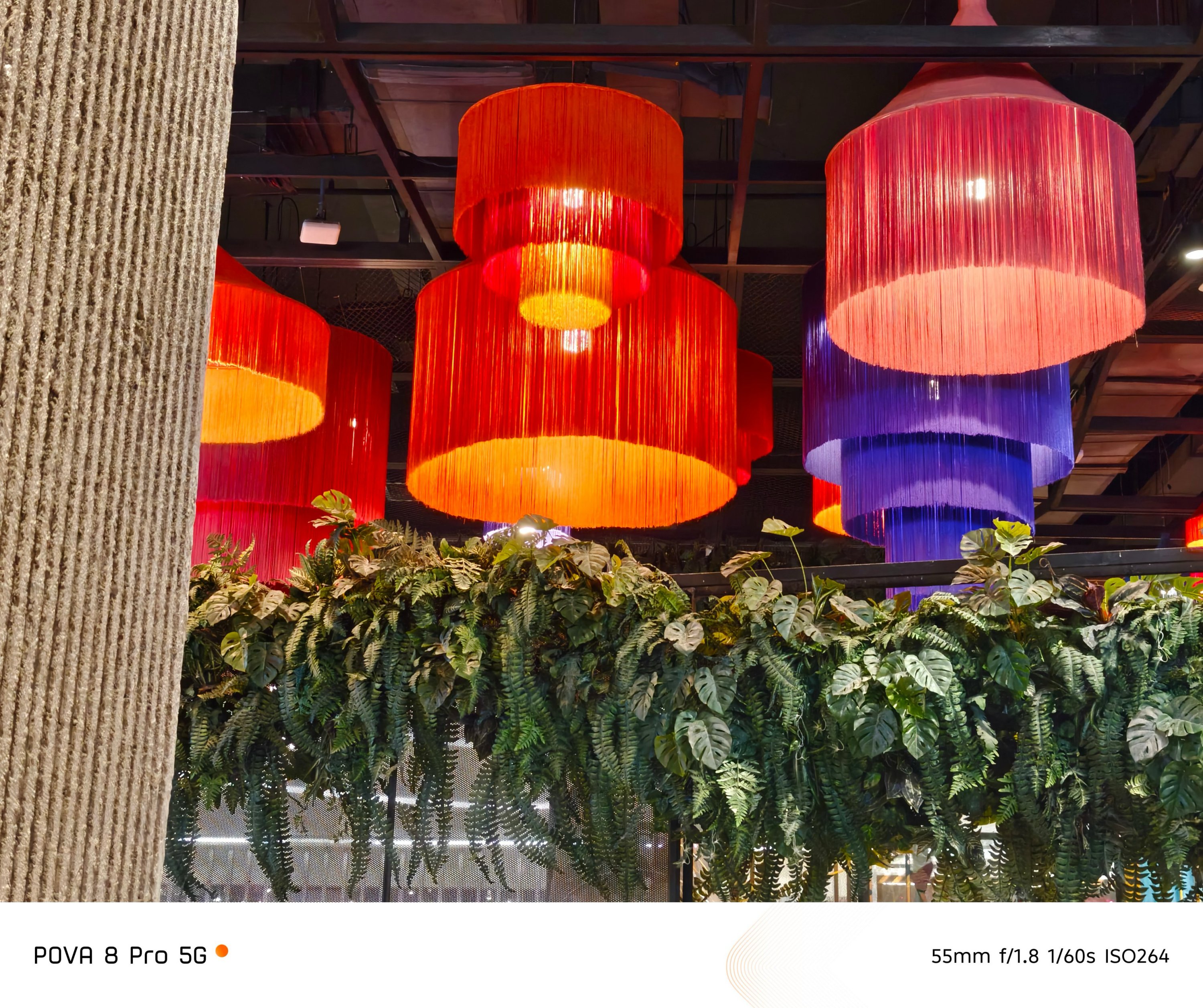
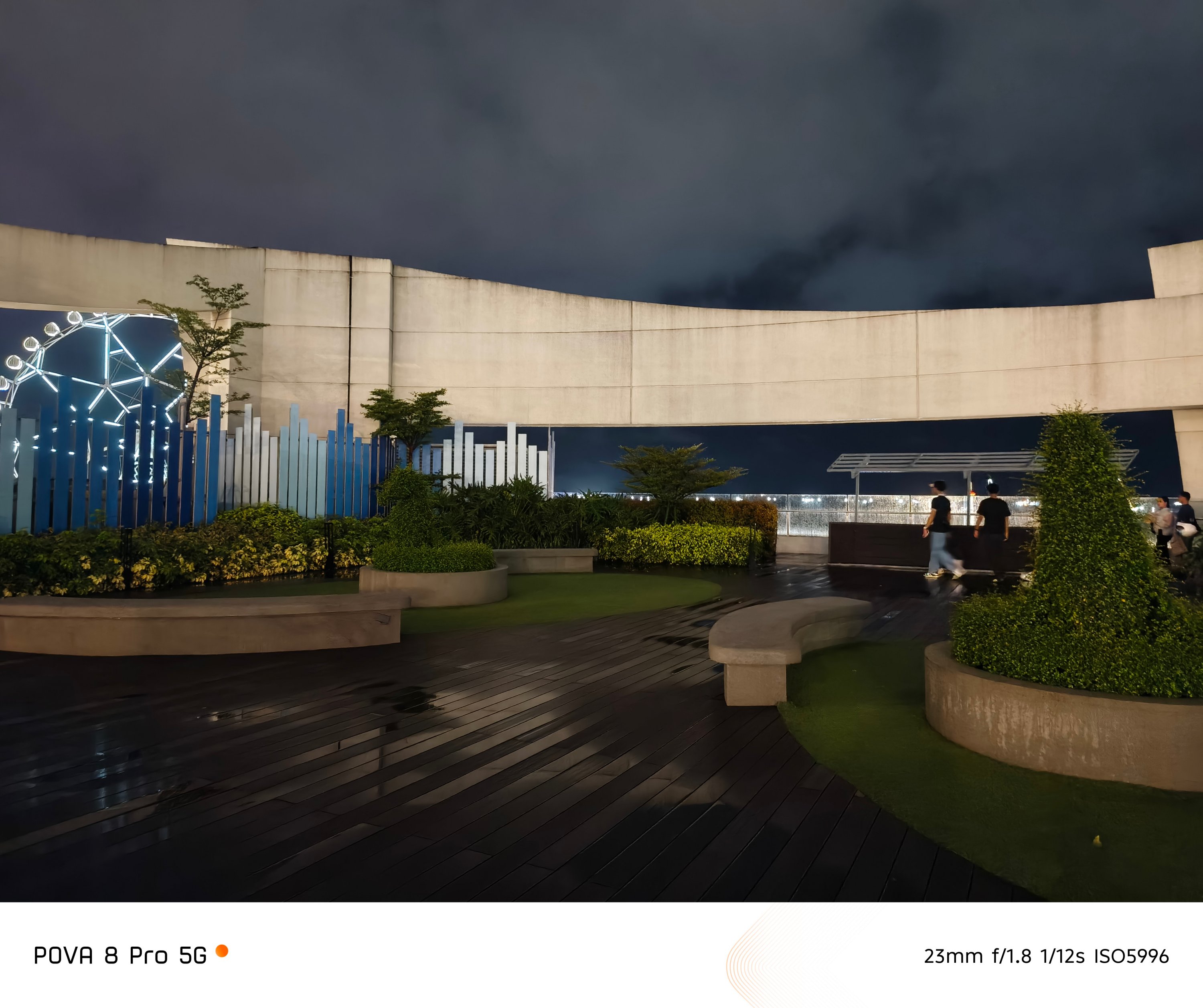

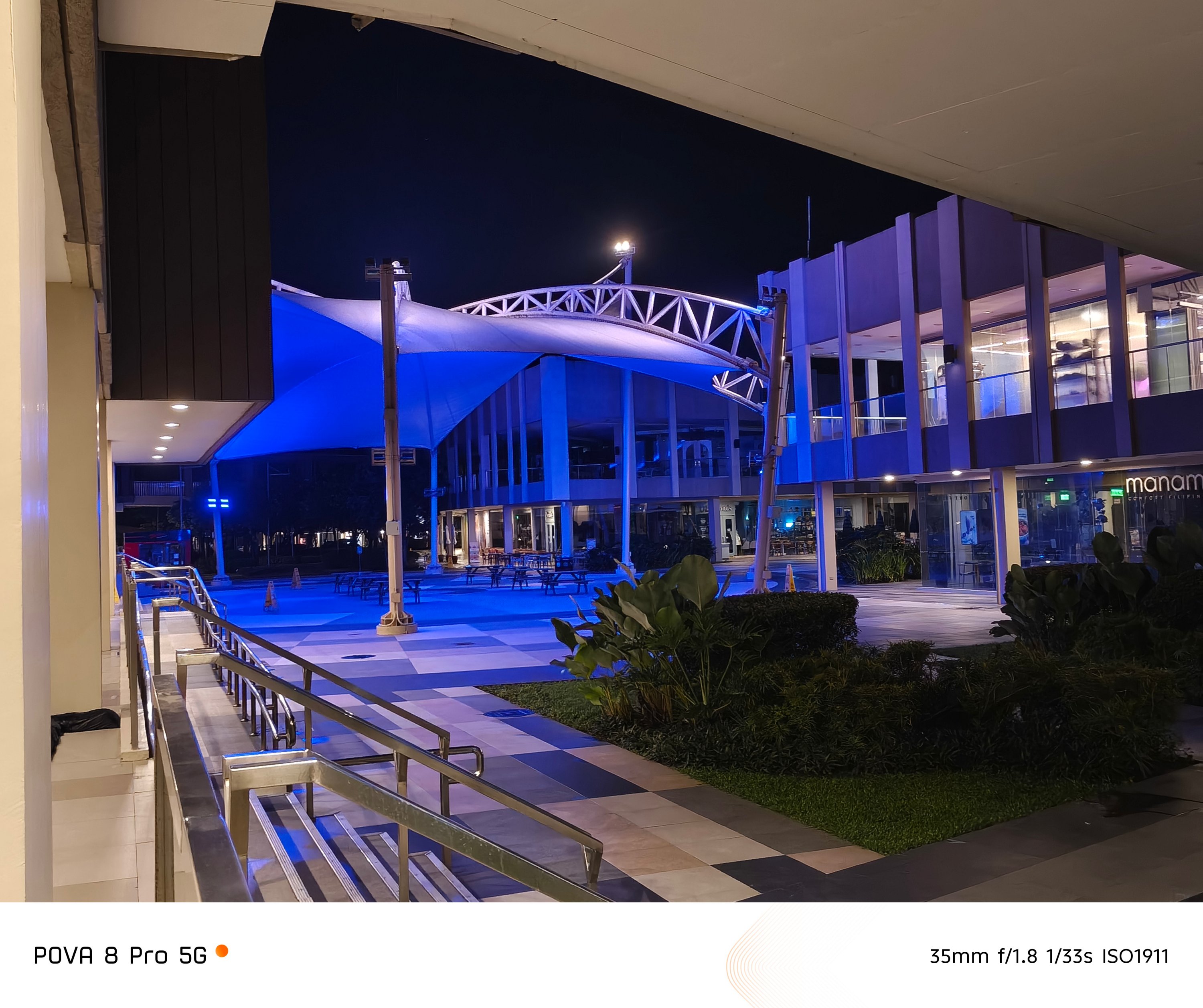
Honestly, I’m not expecting anything extravagant. But, the POVA 8 Pro’s camera snappiness is such a delightful sight.



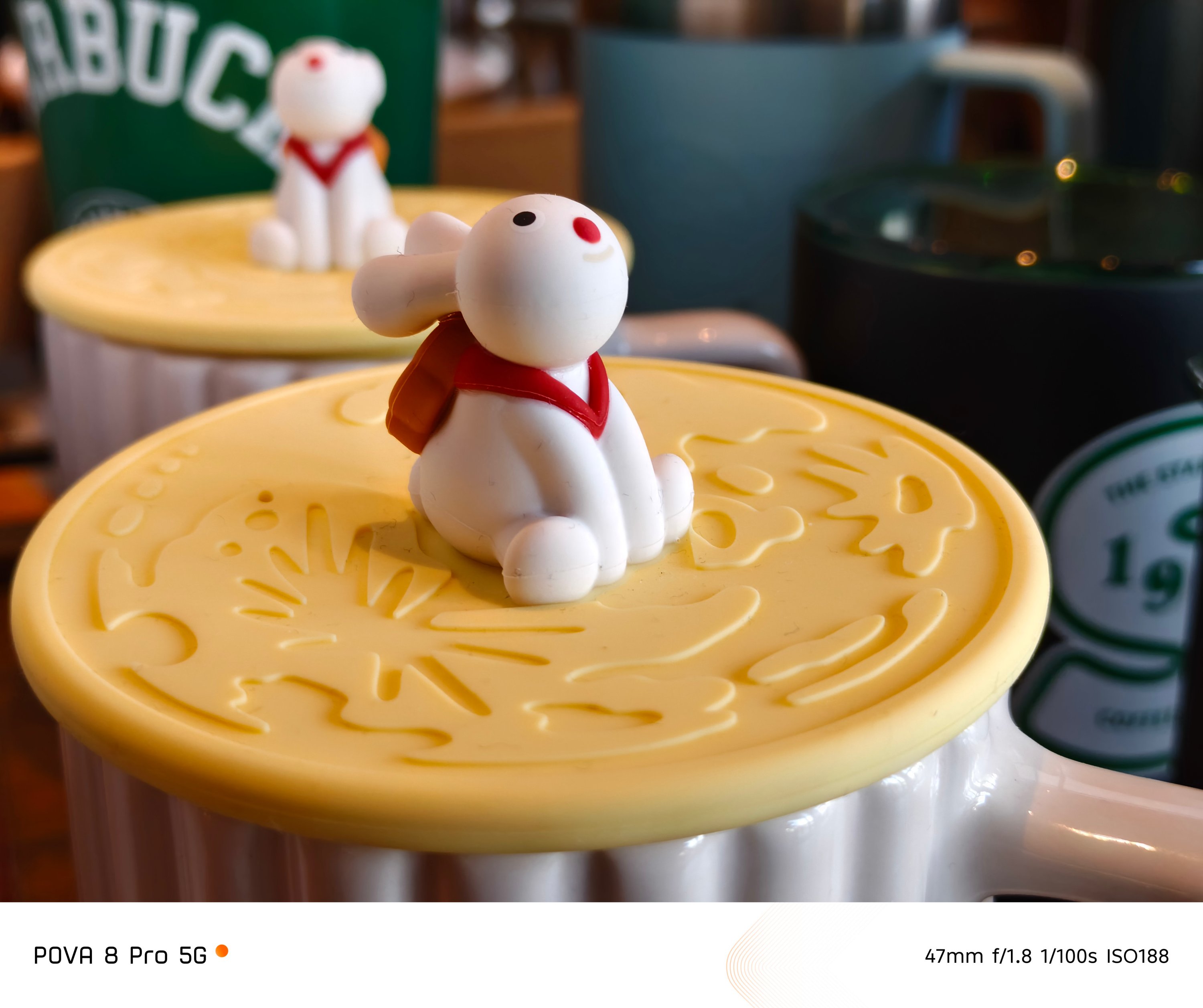
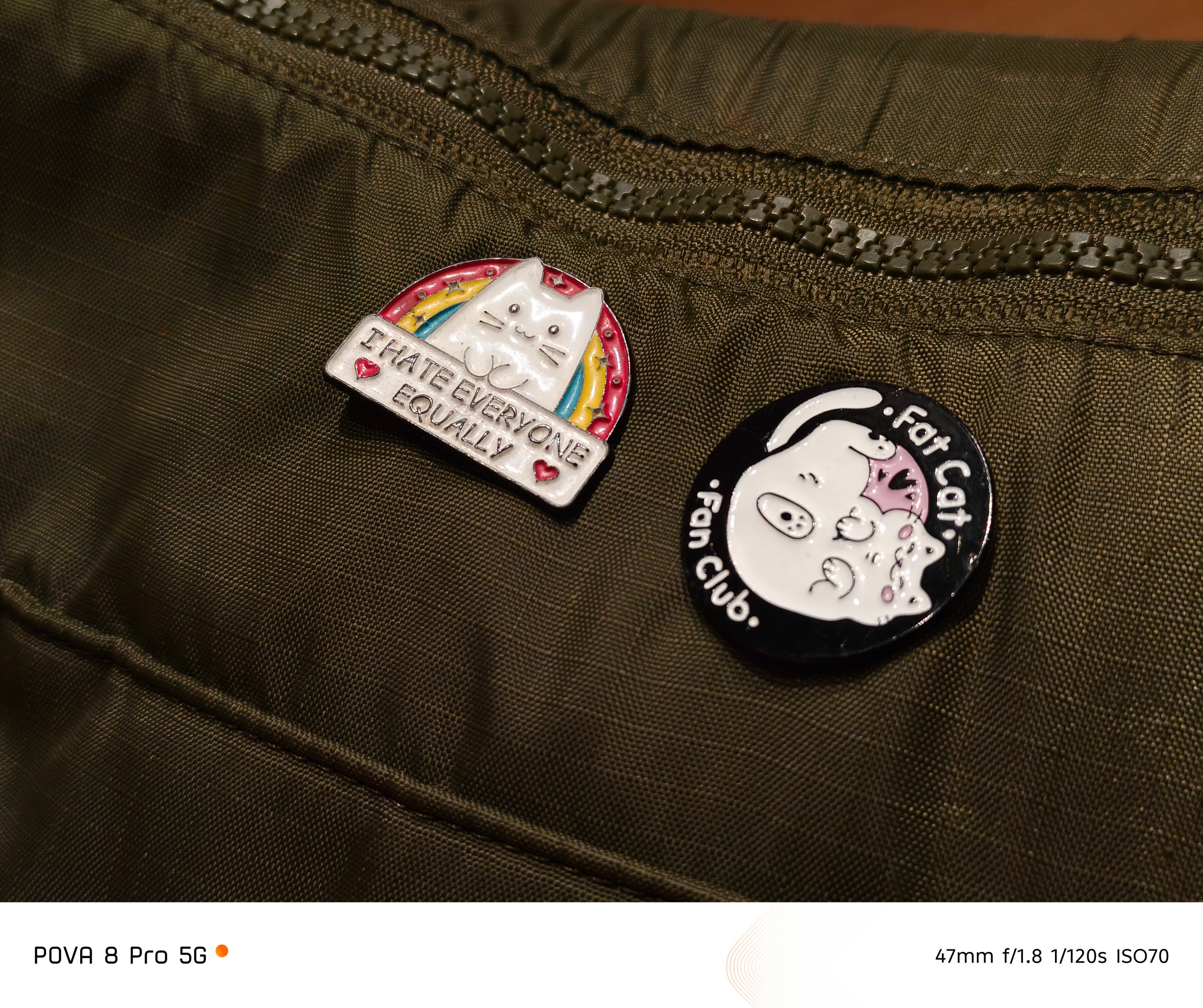
That’s a stark contrast to the most recent REDMI-dranger Pro Max I’ve handled where there were camera stutters and lags when trying to capture subjects in split-second.
Both of them also prove that chipset alone can affect a smartphone’s imaging performance and actual output.
Is the TECNO POVA 8 Pro your GadgetMatch?
In a year where countless slabs are quite indistinguishable from one another, it’s pretty rare to see a smartphone with such impact.
Not only does this phone pack a powerful punch both in core and camera performance, but its added feats, capabilities, and even “gimmicks” are worthier than other smartphones in the same league.
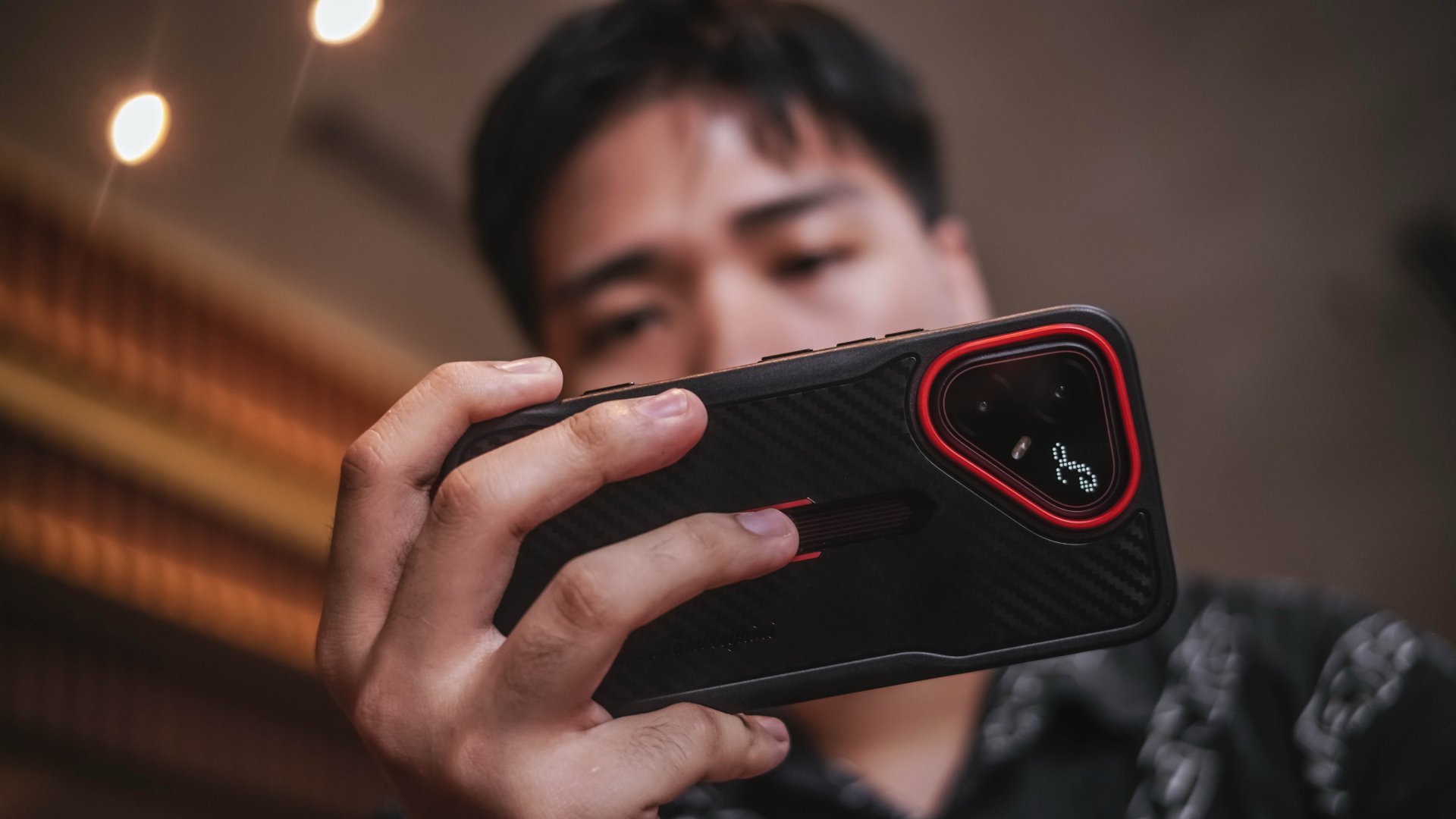
More so, TECNO thoughtfully and carefully executed its design aesthetics with a prestigious designer brand. That’s despite a smartphone belonging in the midrange league.
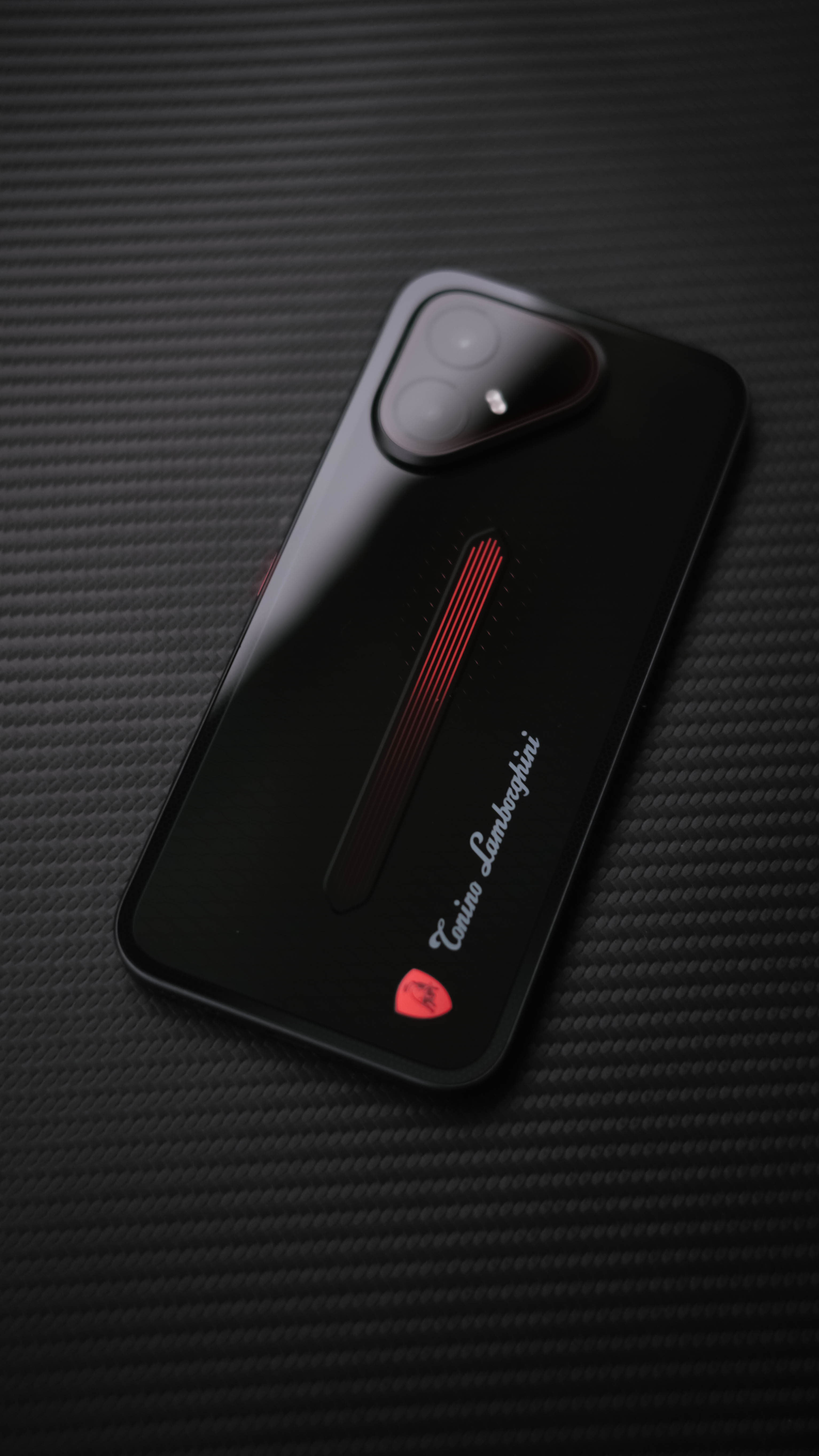
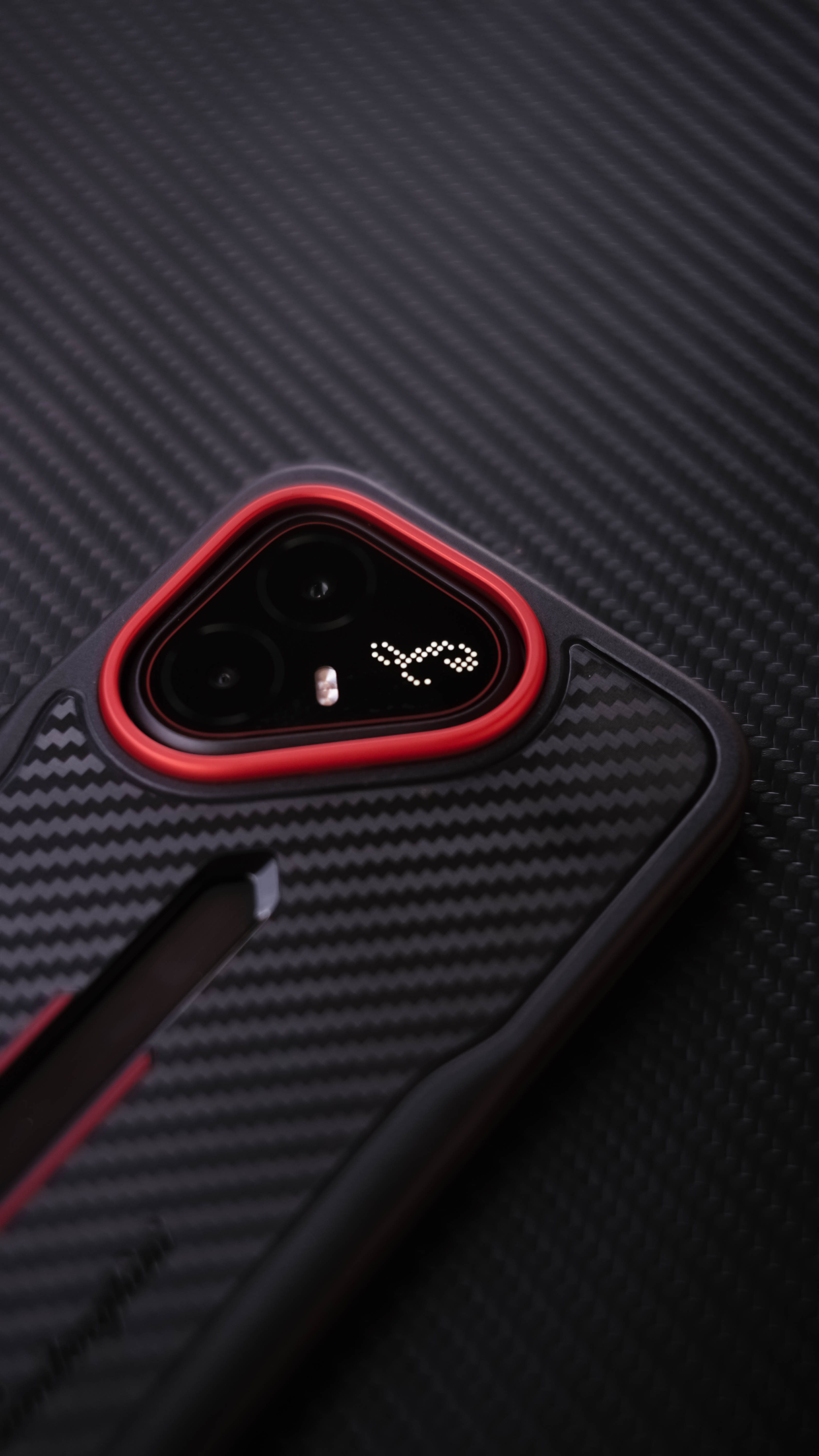
Even if the exact pricing is still not revealed at the time of this writing, the starting price of the regular POVA 8 Pro (INR 49,999) already gives us a glimpse that the phone’s price to performance ratio is justifiable.
As we (try to) embrace the “new normal” with smartphone brands launching higher price tags alongside lower specs due to the continuous components crisis, TECNO focused on what matters more.
While newer mid-class phones focus heavily on battery capacity and utmost durability while compromising hardware and full-on performance, the POVA 8 Pro dared to defy those odds. The unstoppable AI crisis and inevitable price increase don’t stop TECNO from launching and selling a smartphone beyond expectations.
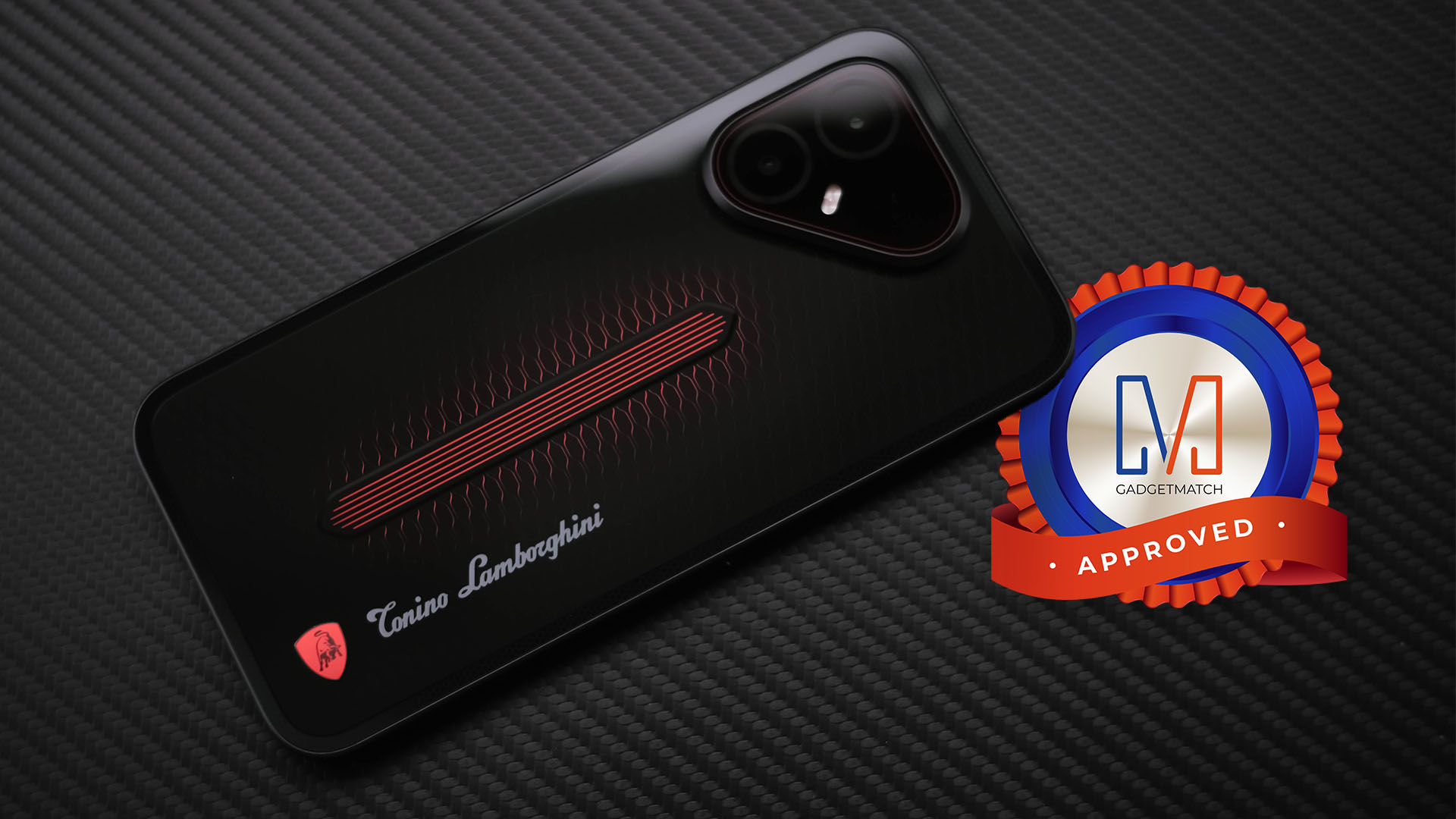
The TECNO POVA 8 Pro Tonino Lamborghini Limited Edition is a solid Swipe Right, a Super Swipe, and a worthy recipient of the GadgetMatch Seal of Approval.
-

 News2 weeks ago
vivo X500 Series launches with major imaging upgrades
-

 News2 weeks ago
OPPO Find X10 Pro Max is the first phone with a triple 200MP camera system
-
 Automotive1 week ago
BYD says that way better EV batteries are coming next year
-

 News2 weeks ago
vivo introduces OriginOS 7 with smarter multitasking and AI features
-

 News7 days ago
HONOR Magic9 Pro Max launches in China with ARRI-powered imaging
-

 Philippines4 days ago
TECNO CAMON Slim 5G: Price, availability in the Philippines
-

 Smartphones1 week ago
TECNO CAMON Slim 5G teases an ultra-slim design ahead of launch
-
 Accessories2 weeks ago
70mai launches the A900 series with 4K front, rear recording