



Despite being a multimedia creative slash tech journalist for years, owning a tablet barely crossed my mind.
I solely rely on my Silicon-powered MacBook Pro for everything. Be that for heavy creative tasks or just writing when asked.

Frustrated Creative Comin’ Thru ✨
Prior to this, I’ve held a tablet for a gadget review — and it was actually my first time using an affordable tablet to such an extent.
Admittedly, my expectations were low due to its underwhelming specs. Moreover, its limitations simply made me realize tablets don’t have a critical use-case in my actual work.
But not too long after that pretty pad, a second one popped up.

Clearly, the Redmi Pad Pro is the answer of Redmi (or Xiaomi) to consumers who want an all-rounder tablet without much burning too big a whole in their pockets.
But is the Redmi Pad Pro the perfect entry to lower-mid level tablet? Scroll over to find out if it’s your GadgetMatch.
Jack in the Box
Aside from the product itself, Xiaomi / Redmi also offers additional accessories to make it a proper “Pro” pad experience.
View this post on Instagram
Standout Sleekness
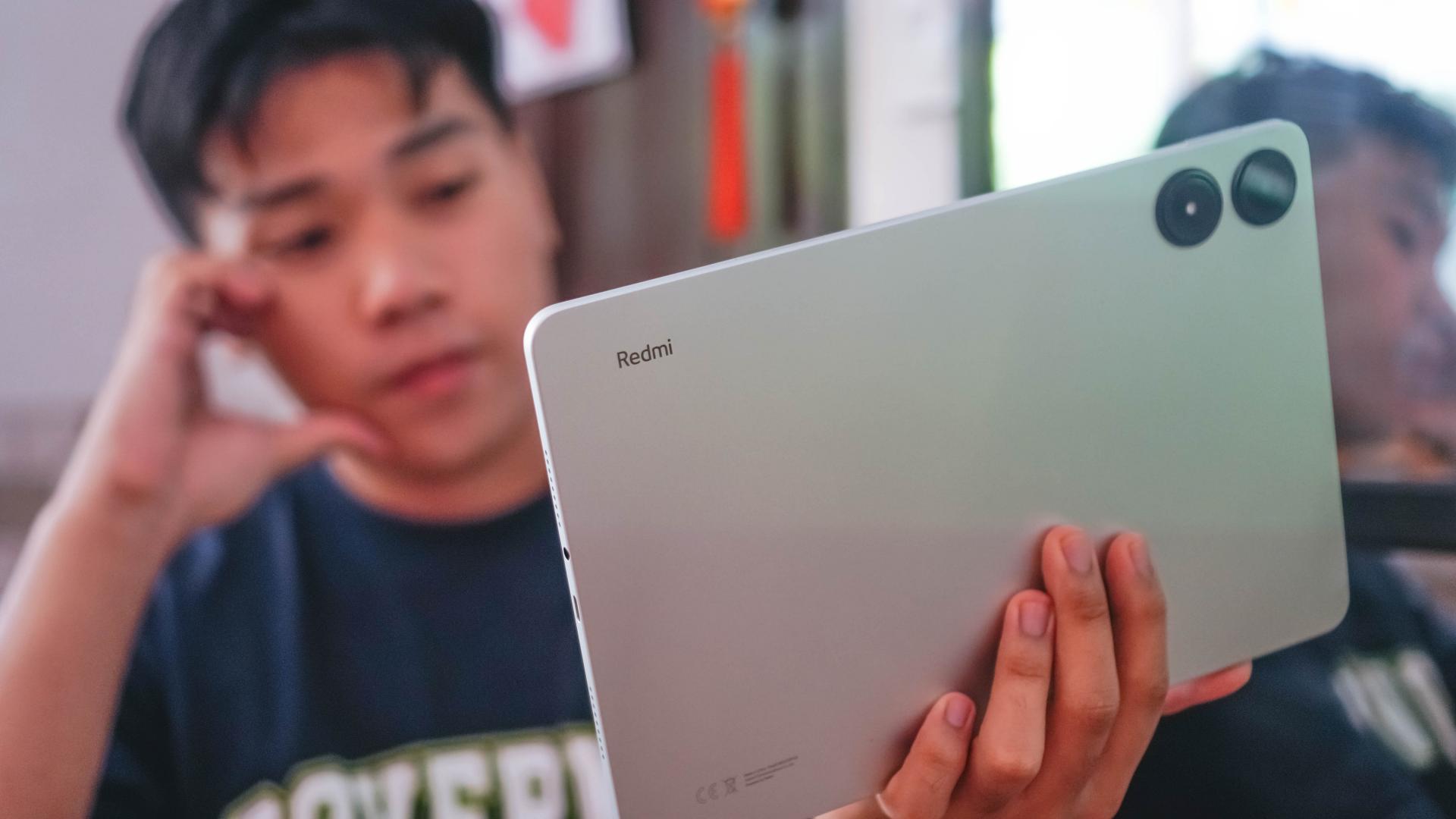
At first glance, the Redmi Pad Pro is a standout tablet on its own.

With its all-metal unibody design and stainless steel sides, it directly stomps the competition with their pseudo-premium build quality — which also affects long-term durability.
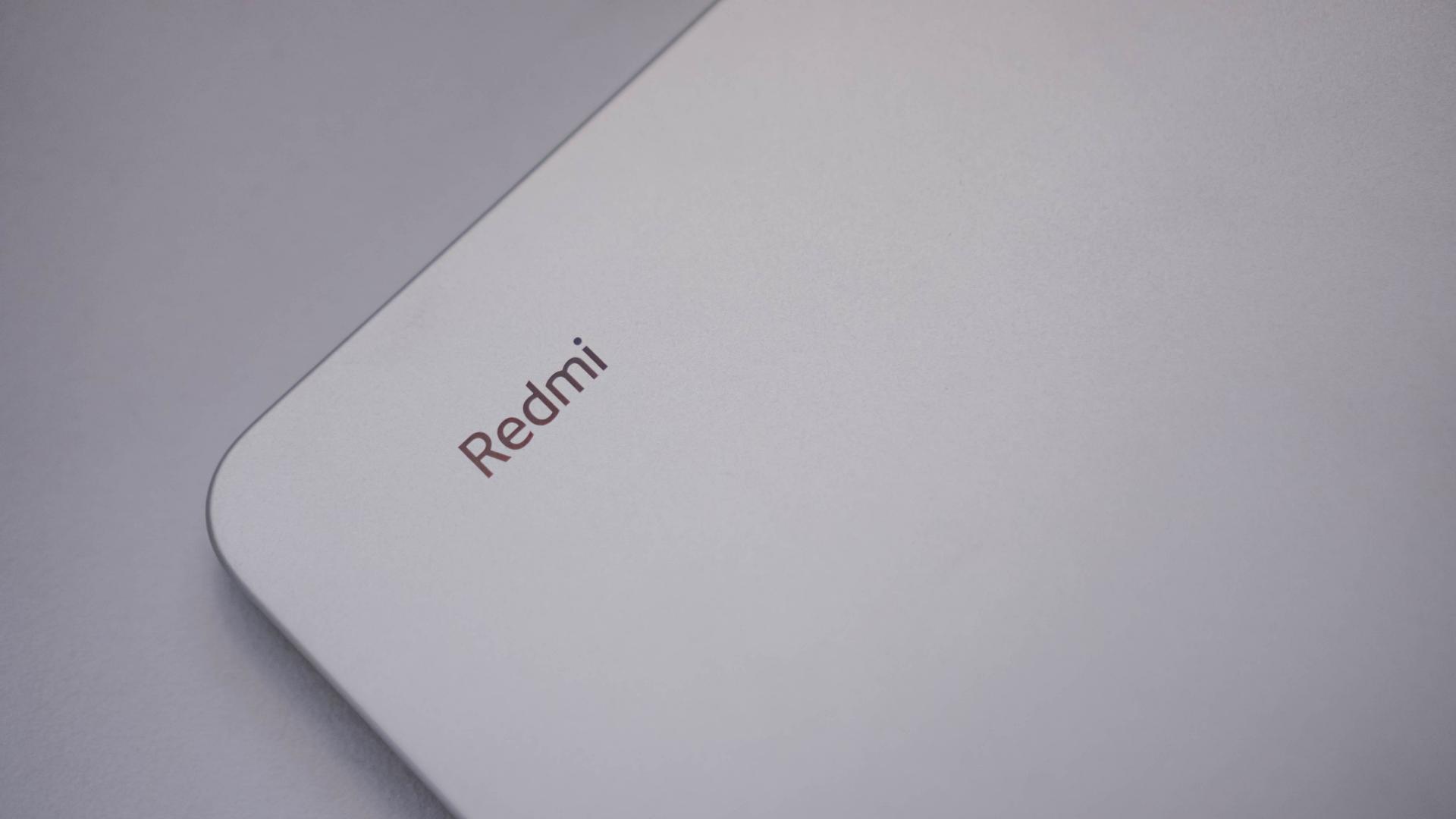
It is an overall fab slab of a tab that’s sturdy compared to its plast-icky counterparts.
While I’m not a fan of anything mint nor matcha, my eyes adore this Mint Green colorway that’s so sleek yet subtle. If this ain’t your cup of tea, there’s the pro-intended Graphite Gray colorway as well as a more refreshing Ocean Blue option waving at ya.
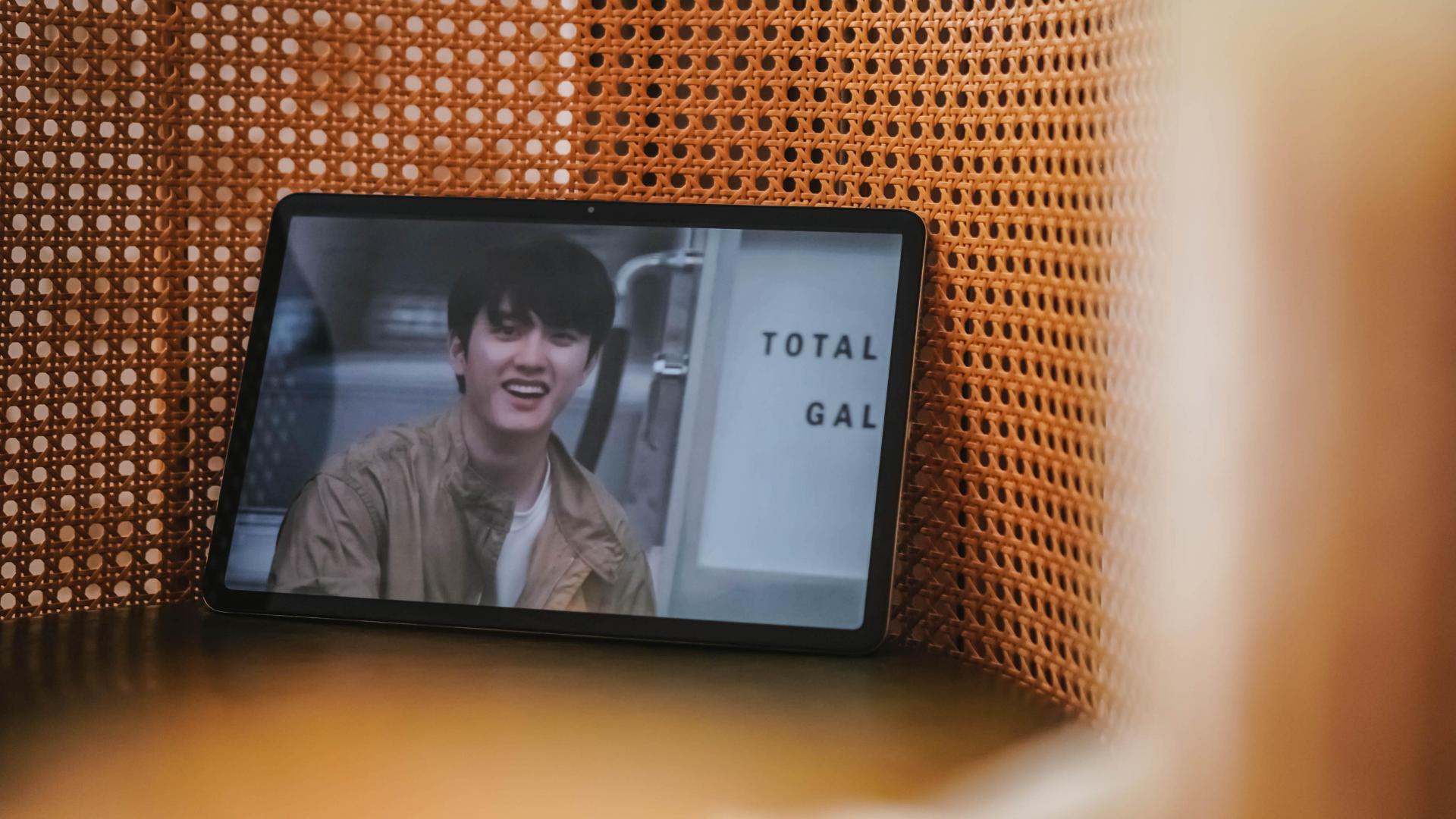
Punching the air rn after that D.O x Youngji cheek kiss 🥲
Speaking of, the Redmi Pad Pro’s front is strengthened by Corning’s Gorilla Glass 3 protection.
While this does not fully guarantee a shatter-free glass, it’s still a nice addition in case you, your kids, pets, or pretty much your anger management issues knock off the gargantuan device on the floor.

Buttons feel tactile when clicked. Even so, I’m not fond of its confusing layout where the power button and volume buttons are separated on different sides — much like Alaska and Russia separated by the Bering Sea, divided into two different continents and time zones 👁️👄👁️
It could have been placed right next to each other just like any other Android device for overall uniformity and familiarity — but I’m just gonna sheesh.

Just like in my previous pad review, my sentiment stays the same: A side-mounted fingerprint scanner would have been a better option instead of solely relying on the classic unlocking PIN, pattern, or the never foolproof face unlock method.
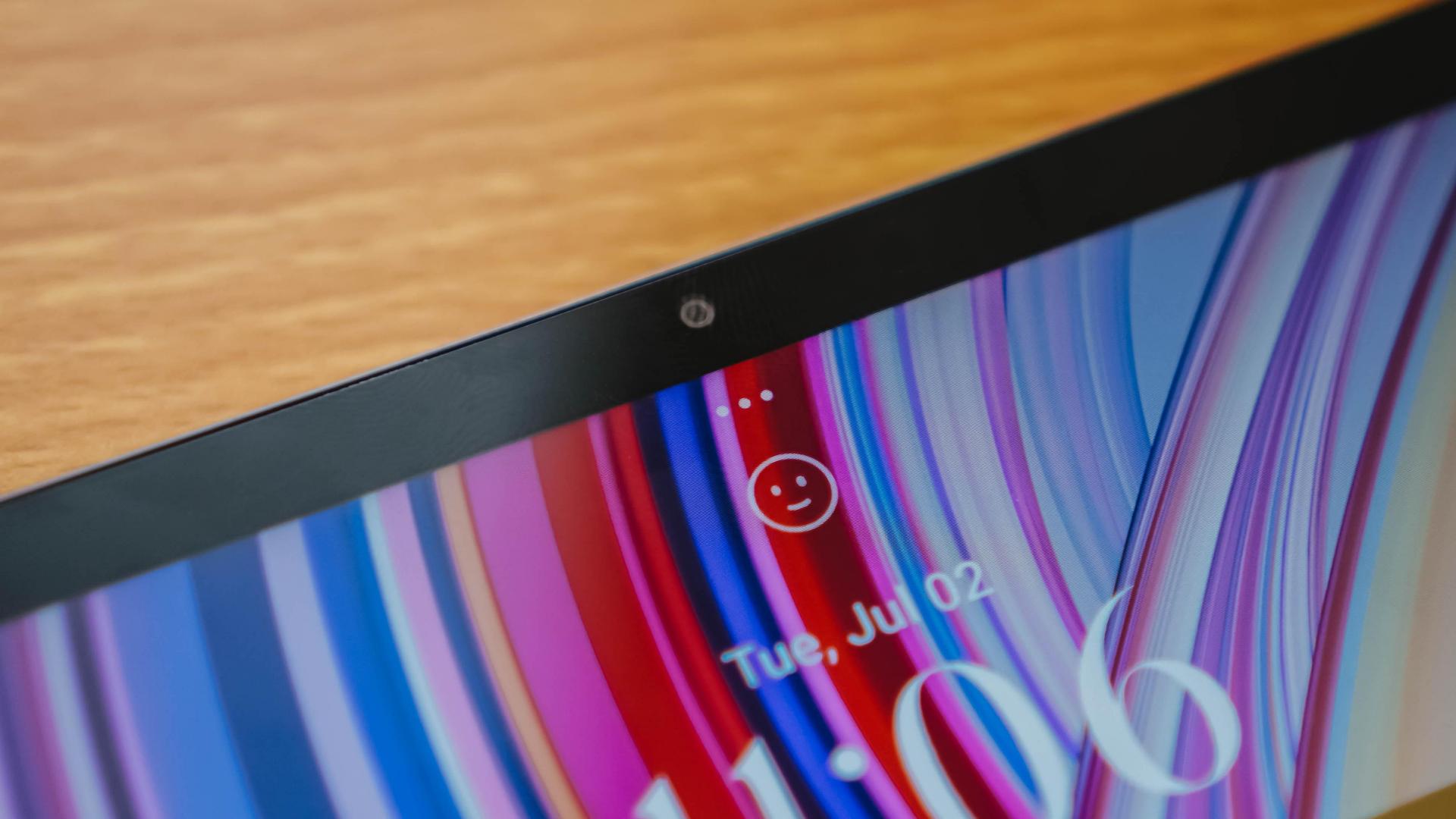
But hey! That 8-megapixel camera is beneficial for video calls — or selfies, if you prefer it that way.
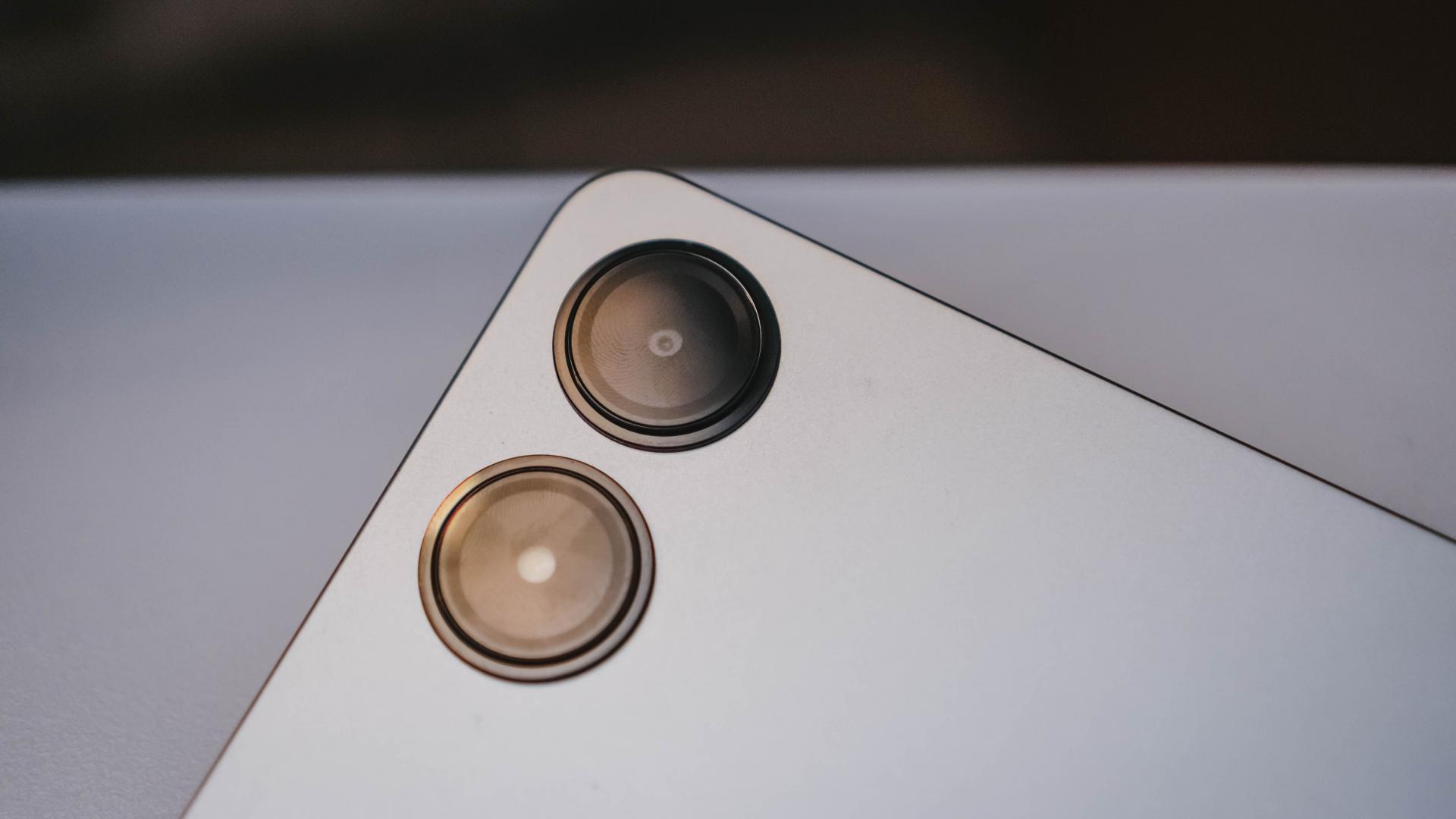
And while already on the topic, it features an 8-megapixel rear shooter as well…

…with a flash unit to amplify awfully dark scenarios.

Visual Glory
One major reason why some people opt to buy tablets over smartphones and laptops are none other than their display sizes in the sweet spot.
The Redmi Pad Pro attests to that with its humongous yet vividly glorious 12.1-inch screen.

Notice those slim bezels? That’s something that we used to dream of in the past — at least for budget-segment tabs.
Still, screen size is just one factor. In this new era, display tech also matters.

Surprisingly, it has a 120Hz refresh rate and 240Hz sampling rate which make the tablet experience a lot better. Whether just for scrolling, simply scribbling and sketching, or being heavily-focused on gaming.

Shenter Xiaoting and their last Kep1er comeback as #OT9 — while I’m silently ~ w e e p i n g ~ in the corner
For all the display nerds, here are the needed nutrients you need to digest: 2.5K display resolution (2560 x 1600), pixel density of 249 ppi (pixels per inch), 500 nits of max brightness (additional 100 nits in HBM), 12-bit color depth, 68.7 billion colors support, 1500:1 contrast ratio, 16:10 aspect ratio.
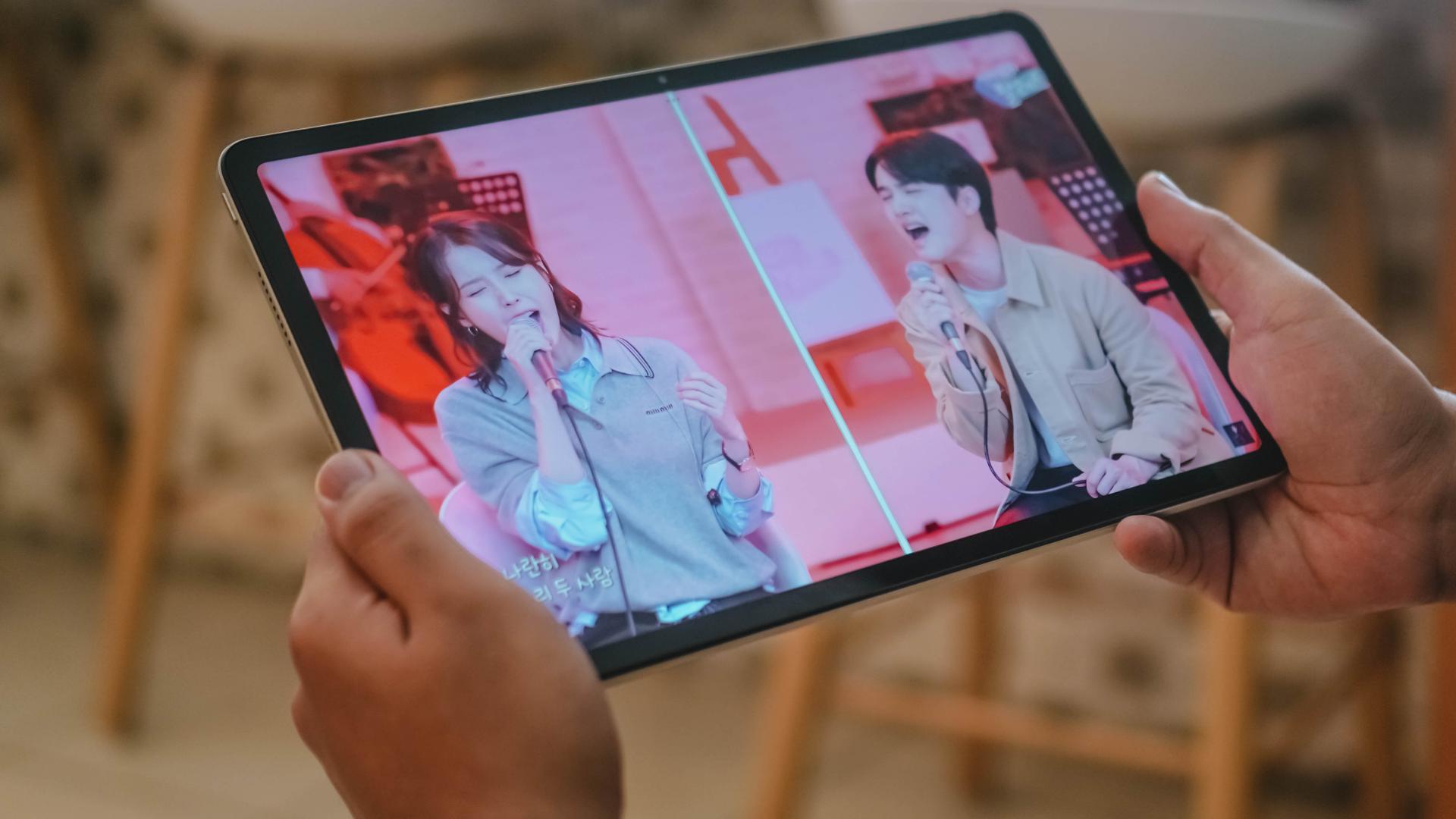
My two ultimate vocal biases in one! Now, we only need a proper IU x D.O collab song real soon
It doesn’t stop there! It even supports Dolby Vision as well as eye-protection features. The tablet also has certain certifications from TÜV Rheinland — flicker-free, circadian-friendly, and most of all, low in blue light.
Superior Sound
Overall look and feel aren’t the only factors to consider when purchasing a shiny slab.
To make multimedia consumption more immersive, the Redmi Pad Pro boasts a quad surround-sound speaker system.

I may not be a full-blown audiophile but those four speakers altogether deliver rich sound with the ideal mix of bass, mids, and treble.

Watch Netflix’s Hierarchy to further pollute your minds 🥰
It’s loud enough to fill that void in you when volume hits around 50~75%. This is ideal not just with your usual Netflix (or Disney+) and chill moments. It’s also very desirable for loud party banging or your solemn sessions in the bathroom. And by that, I mean singing until your hoarse voice gives up on you 😭
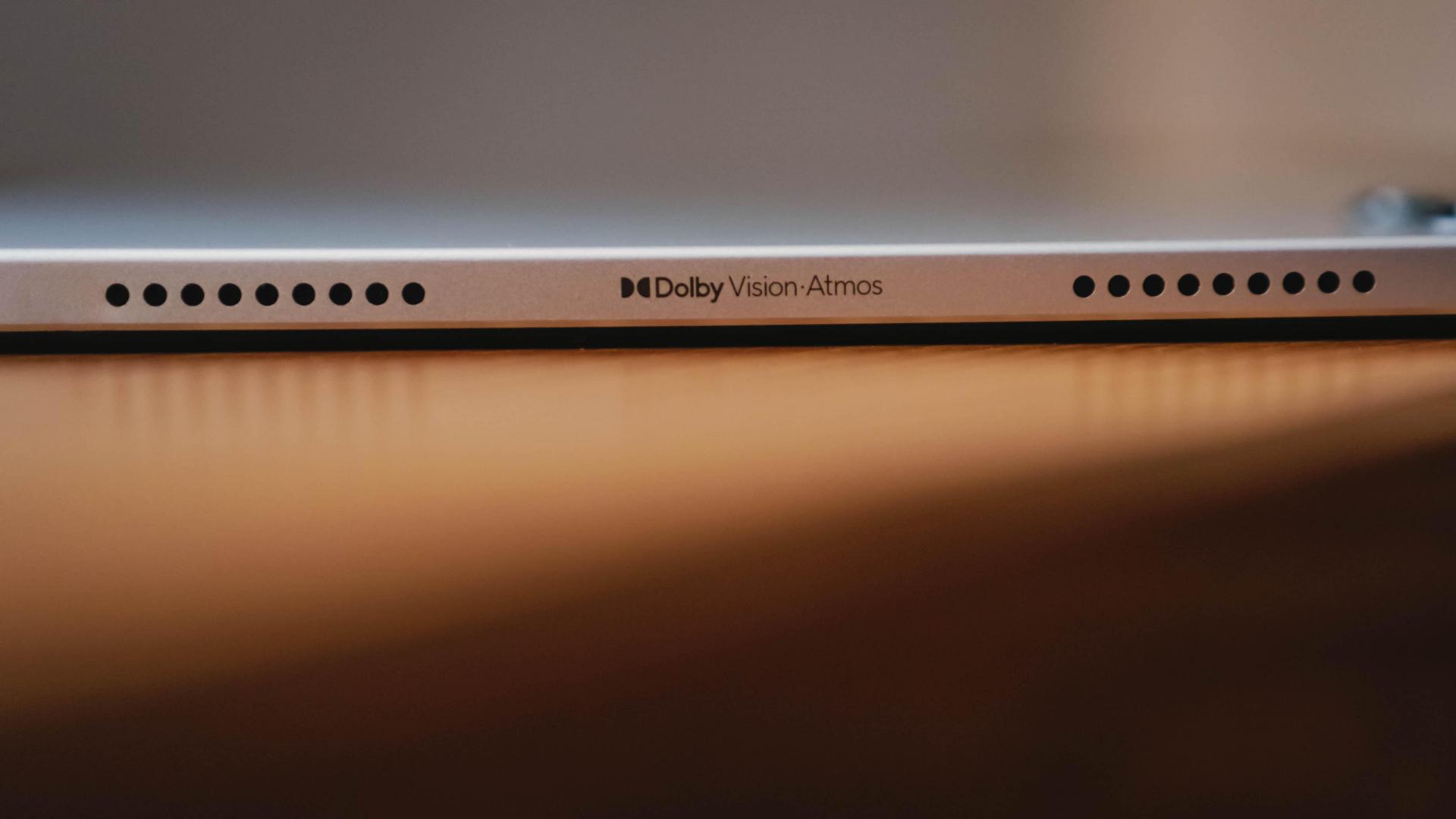
Remember that Dolby Vision display? Well, the speakers are powered by Dolby Atmos as well.

🎵 How long before we 🎶 — give KISS OF LIFE the 1st Win and Coachella performance they deserve?
As someone who’s an Apple Music patron, this special sound feature means a lot.
I can decipher how bad a 128kbps audio sounds compared to the Lossless and Dolby Atmos offerings — which aren’t present in most people’s preferred music platform.

You thought it stops there? Spatial Audio is also in attendance.
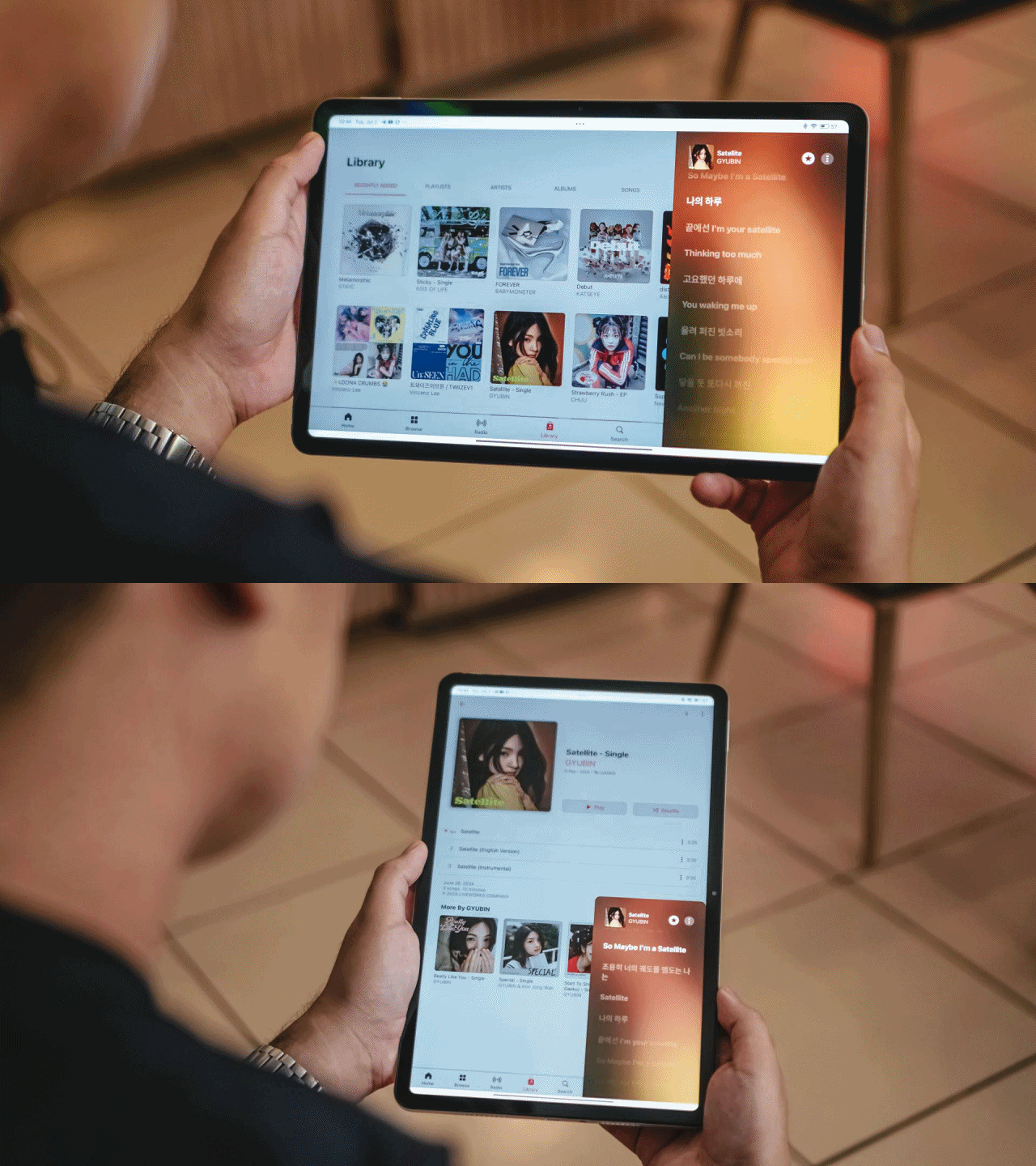
Stream Gyubin’s Satellite to soothe your ears with her ethereal vocals
It’s not limited to Apple devices and other supported audio peripherals. Spatial Audio can be toggled even in speaker mode.
While some barely notice the difference, it gives me that surround sound feeling that other devices fail to provide.
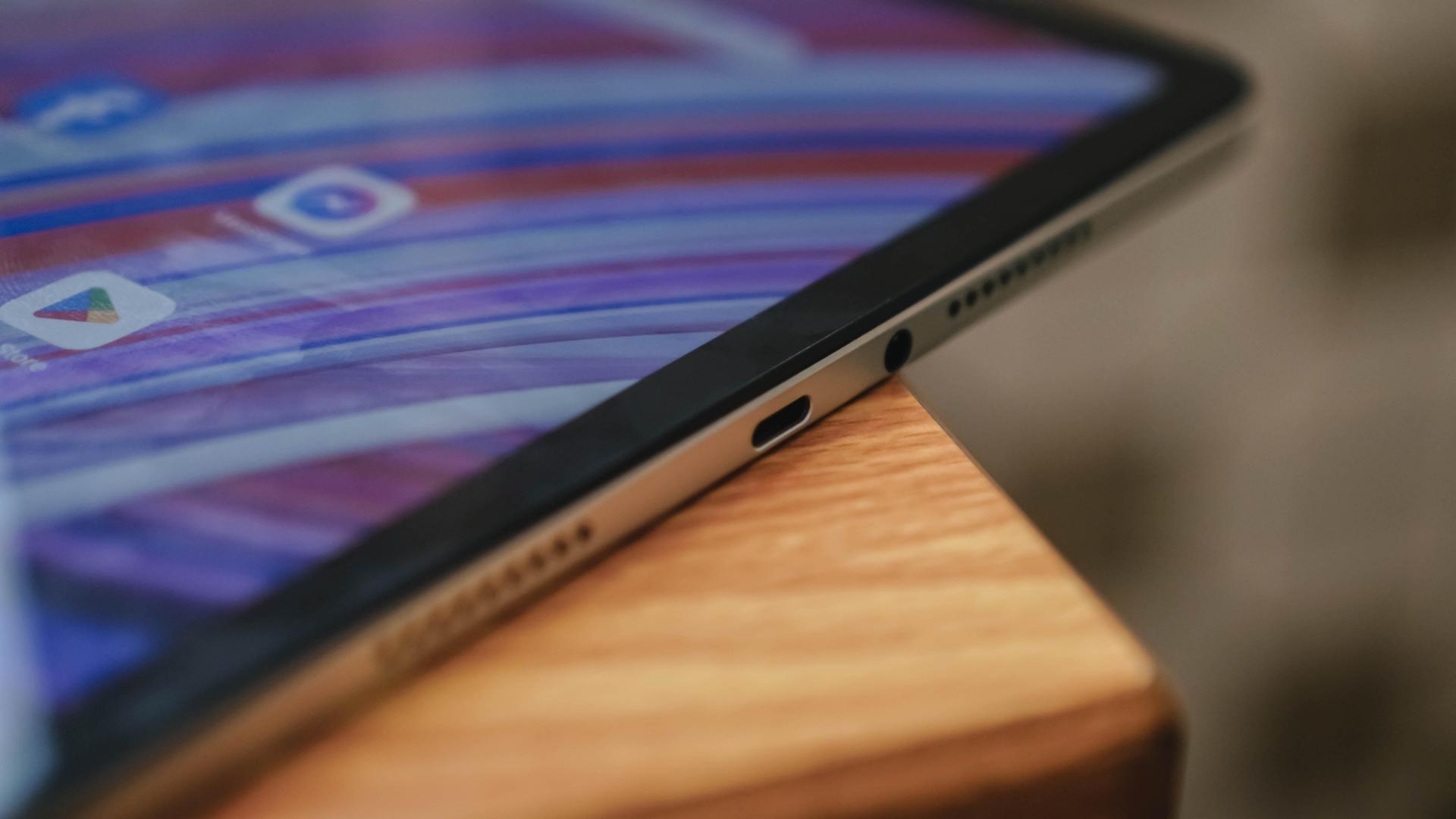
Not free from being wire-free? The 3.5mm audio jack saves the day for those who fully-rely on their LDAC-powered headphones. Audio masters can even plug-in their traditional speakers and profesh amplifiers whenever, wherever.
Decently Speedy
The Redmi Pad Pro is powered by Qualcomm’s Snapdragon 7s Gen 2 chipset based on a 4nm process.

If you’ve held the Redmi Note 13 Pro 5G, it should come as no surprise how quick it performs.
Gliding through socials was a breeze. Although multitasking = momentarily hiccups.

Heejin being the biggest loser trapped in a hot person’s body — and don’t @ me fellow Orbits, it’s an ongoing trend on X/Twitter
That might just be the limited 6GB memory that I have. Even opening just two to three apps simultaneously means other apps need to be sacrificed and stopped for good.
Anyhow, Xiaomi says this is exclusive for media reviewers as retail units should come in a bigger 8GB LPDDR4X RAM — which should also be the ideal memory configuration for this device anyway.

Honestly, 128GB in today’s digital age isn’t enough — at least for my tech needs. Luckily, the Redmi Pad Pro is being offered in a bigger 256GB storage with the same UFS 2.2 standard.
If that still feels insufficient, it has a dedicated microSD slot that can be expanded up to 1.5TB.
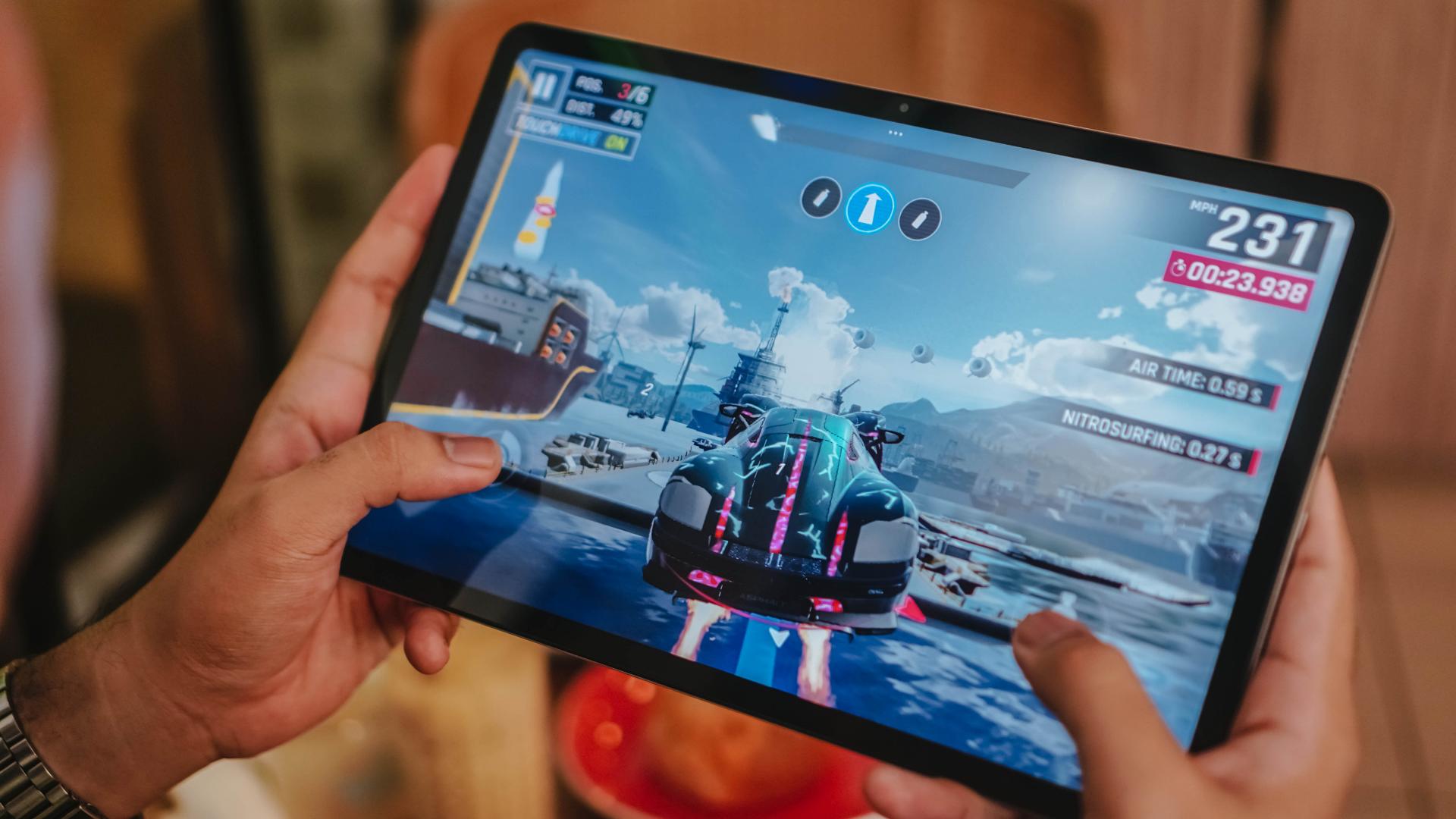
With this chipset, one shouldn’t be shocked that the tablet can run your usual game titles.
With the presence of Xiaomi’s Game Turbo feature, it boosts the already awesome performance when gaming.
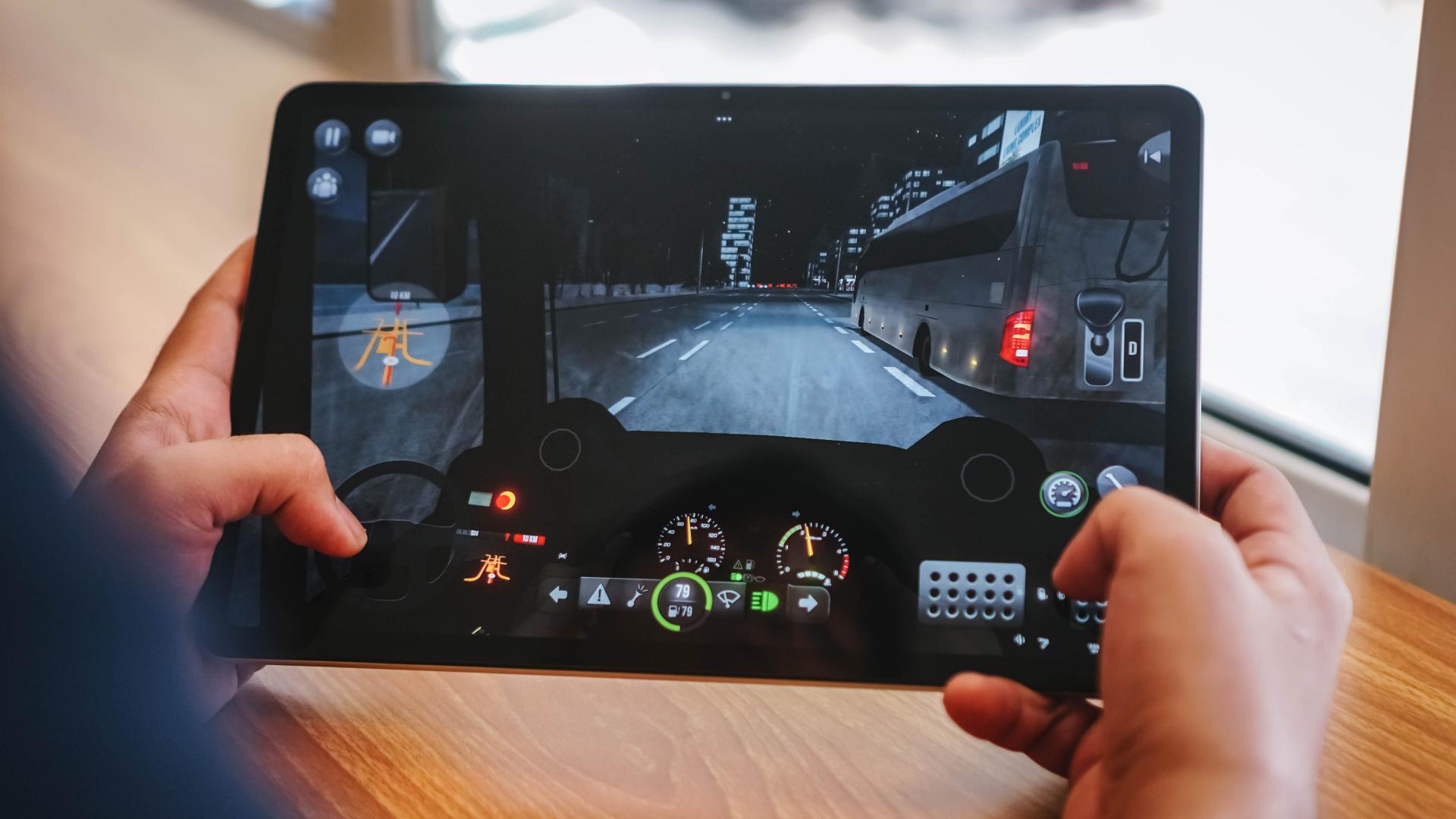
Although for graphics-intensive games like Genshin Impact, expect a decrease in quality because of how heavy it is.
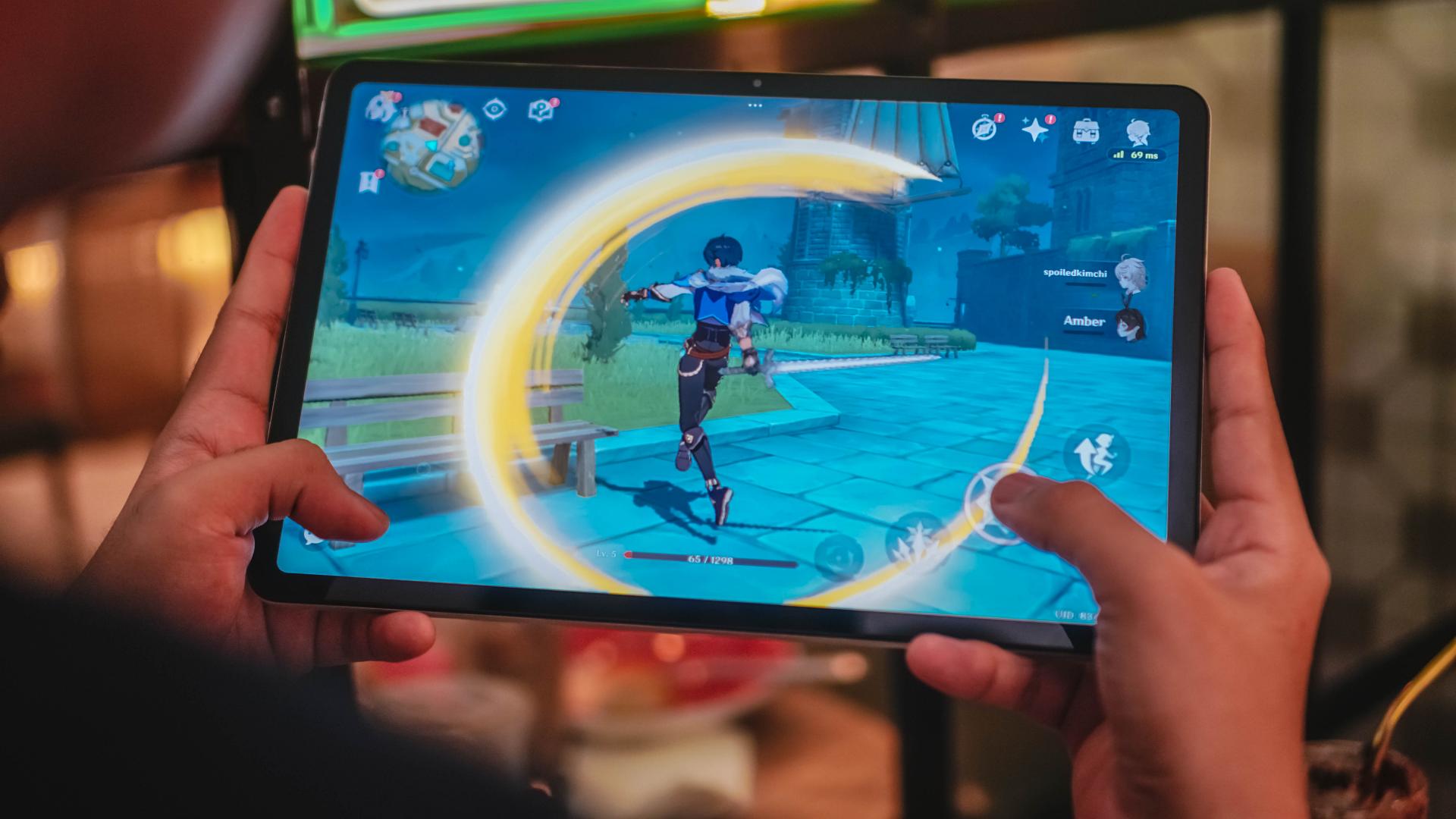
Admittedly, I’ve gotten accustomed to playing games on a foldable rather than the usual smartphone aspect ratio.

And with its behemoth display, I enjoyed gaming more than ever. So much so that I never missed a beat while in the heat of the match.

But despite being thin at just 7.52mm, 571 grams is still pretty hefty. It made my hands and arms sore over around thirty minutes to an hour of gaming.
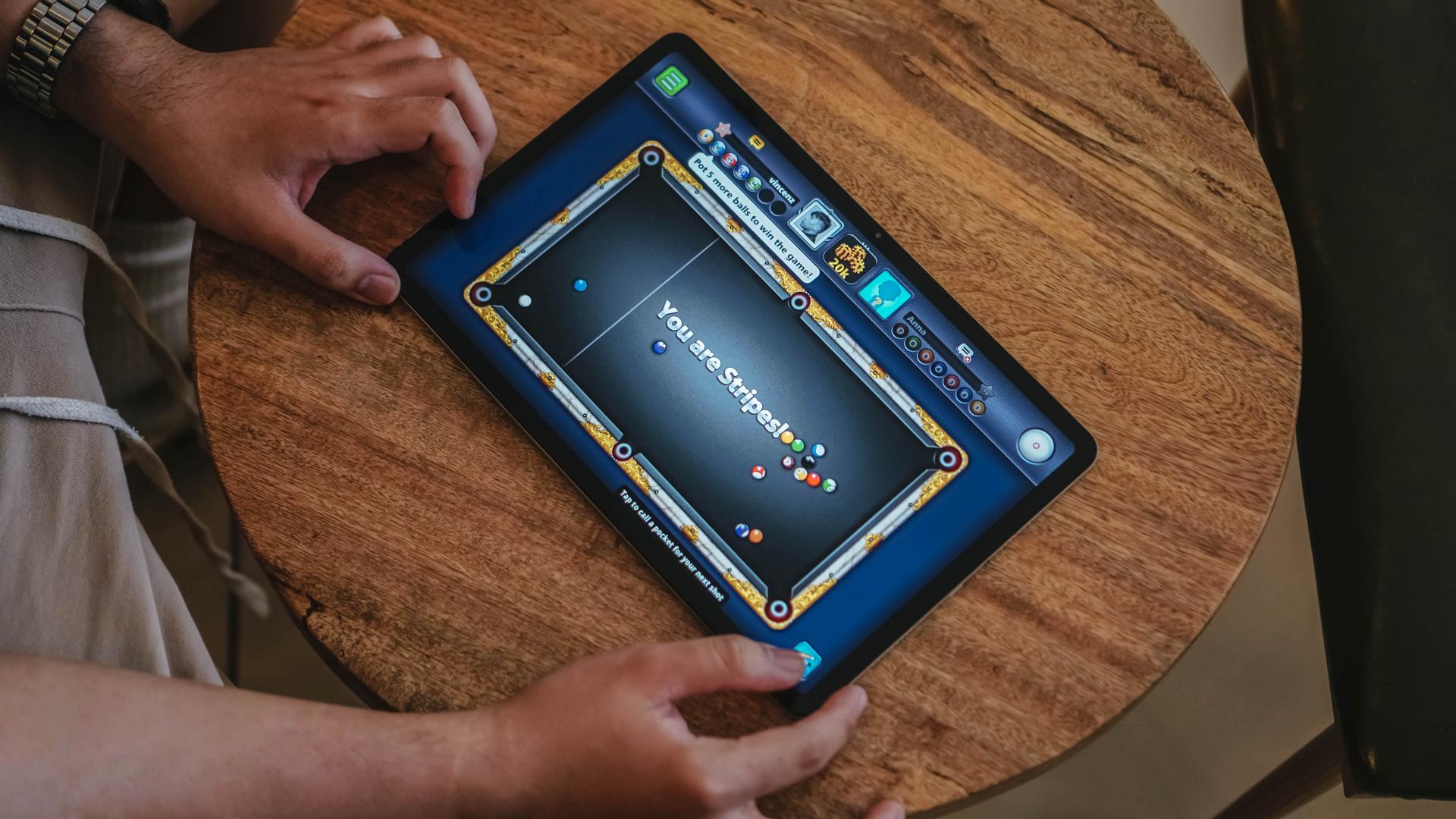
That said, this large slab can still be laid flat on a table — which is suitable for shooting billiard balls in 8 Ball Pool — or duel with a friend in Chess!
Efficiency (with some Deficiency)
The Redmi Pad Pro packs a 10,000mAh battery. For a device such size, it’s sufficient enough to last you within the day — or more when casually used.

With moderate usage, it can last ’til the night light shines outside.
I’ve used it like any tablet user would do: Stream hours-worth of K-Dramarathon and K-Poplaylists. An hour (or two) of gaming. Even some sketching when bored for around thirty minutes.

Standby time is superb. Expect the tablet to last the next day or even longer. On the contrary, overall screen usage lasts as much as six (6) hours — much like regular smartphones these days.
I’m expecting at least a better power efficiency with the chipset used. However, I find the large screen to be the culprit. More so, it’s equipped with an IPS LCD panel. It does NOT turn off black pixels when unused — unlike OLED displays do.

That said, I don’t expect such display tech on a pad in this class anyway. It still is a solid slab for your creative, entertainment, and work needs.
The full unboxing video above already spoiled it. The Redmi Pad Pro does NOT include a charger out of the box. Very uncharacteristic of the sub-brand as they always ship chargers with their devices. IDK, maybe to cut some cost?
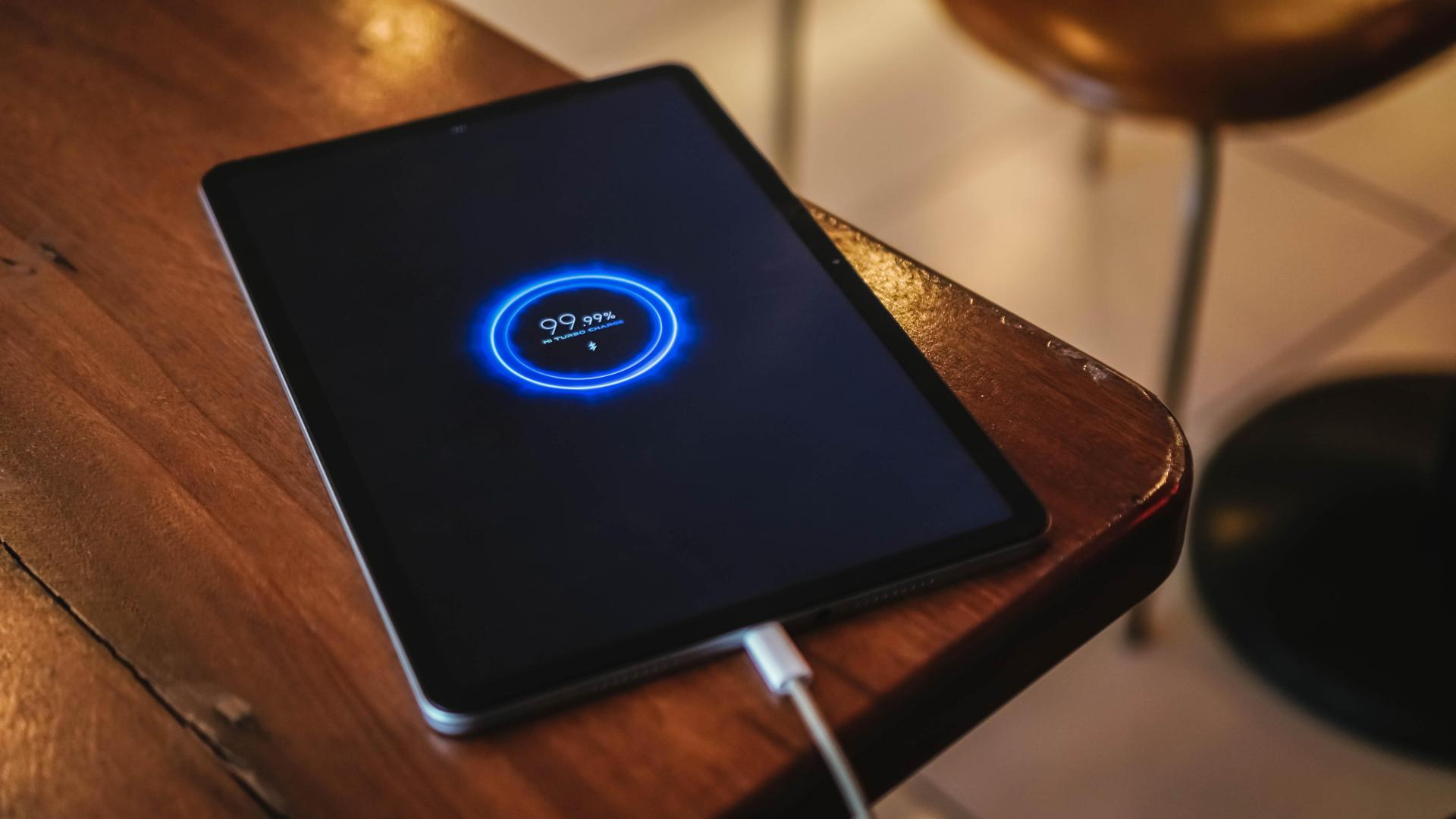
But if you’re in a tight pinch, it supports an adequate 33W Mi Turbo Charge — much like the Xiaomi Mi 10T Pro I held three years ago.
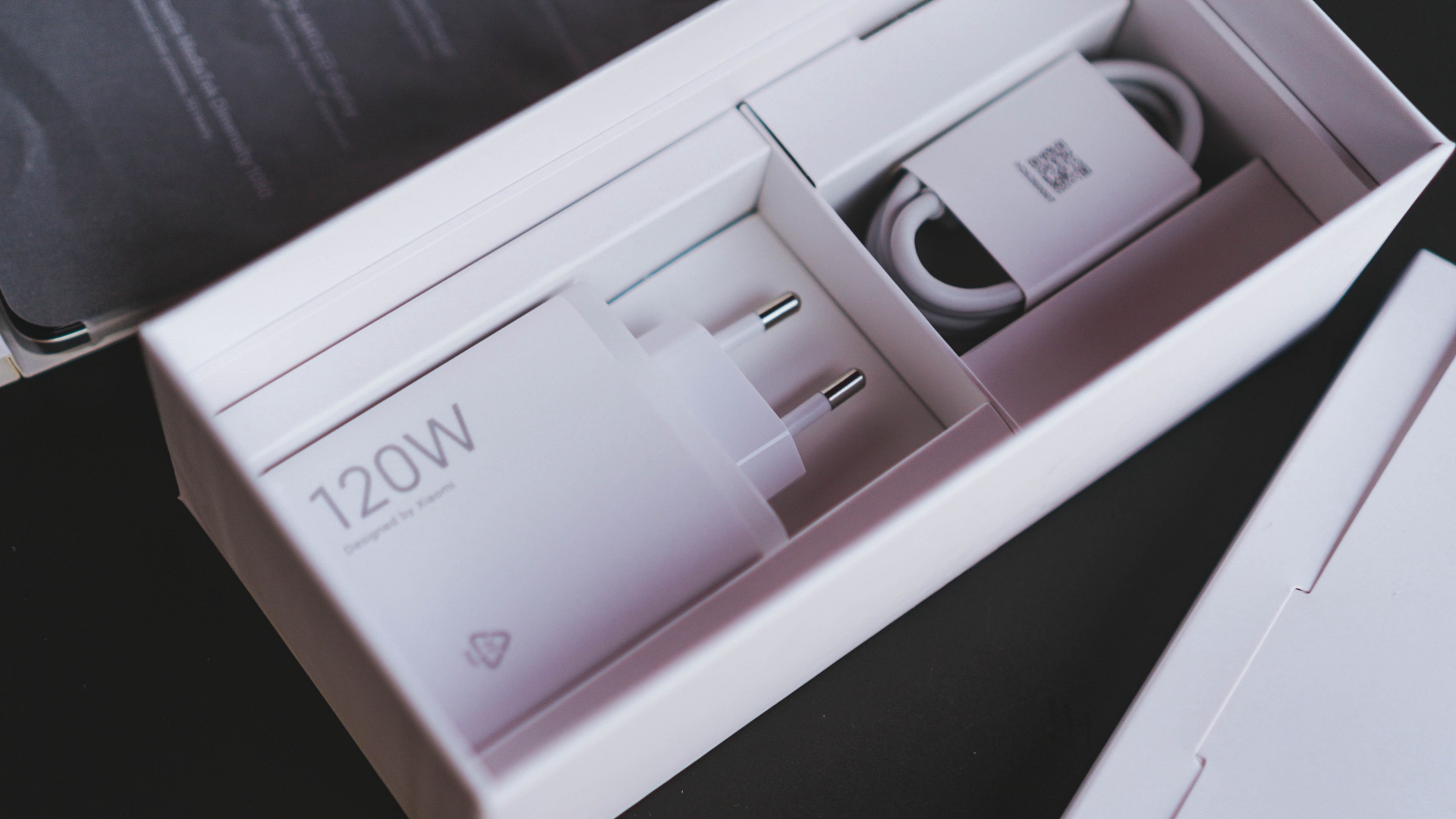
Xiaomi 120W HyperCharge Adapter (Redmi Note 12 Pro+ 5G)
That said, if you own any fast chargers from Xiaomi (or Redmi, even POCO), the Redmi Pad Pro supports them. In my case, I used my Xiaomi 13 Pro’s super-fast 120W Hyper Charger.
While it cannot obviously fully-utilize the charger’s max charging speeds, the Redmi Pad Pro was still able to activate its 33W Turbo Charging feature.
| From 0% | START TIME: 3:23AM |
| 3 minutes | 3% |
| 5 minutes | 5% |
| 10 minutes | 10% |
| 15 minutes | 16% |
| 20 minutes | 21% |
| 30 minutes | 34% |
| 40 minutes | 45% |
| 45 minutes | 50% |
| 1 hour | 69% |
| 1 hour 10 minutes | 79% |
| 1 hour 15 minutes | 84% |
| 1 hour 20 minutes | 89% |
| 1 hour 25 minutes | 94% |
| 1 hour 30 minutes | 99% |
| TOTAL | 1 hour, 32 minutes END TIME: 4:55 AM |
That 33W fast charging protocol helped fill up the Redmi Pad Pro’s massive battery in just around 1.5 hours — a lot better than the painfully sluggish three-hour+ charging time of the last pad I held.
Pro Pad–perience
The Redmi Pad Pro fully functions as a standalone product. However, the overall “Pad Pro” experience feels somewhat limiting without its additional accessories.
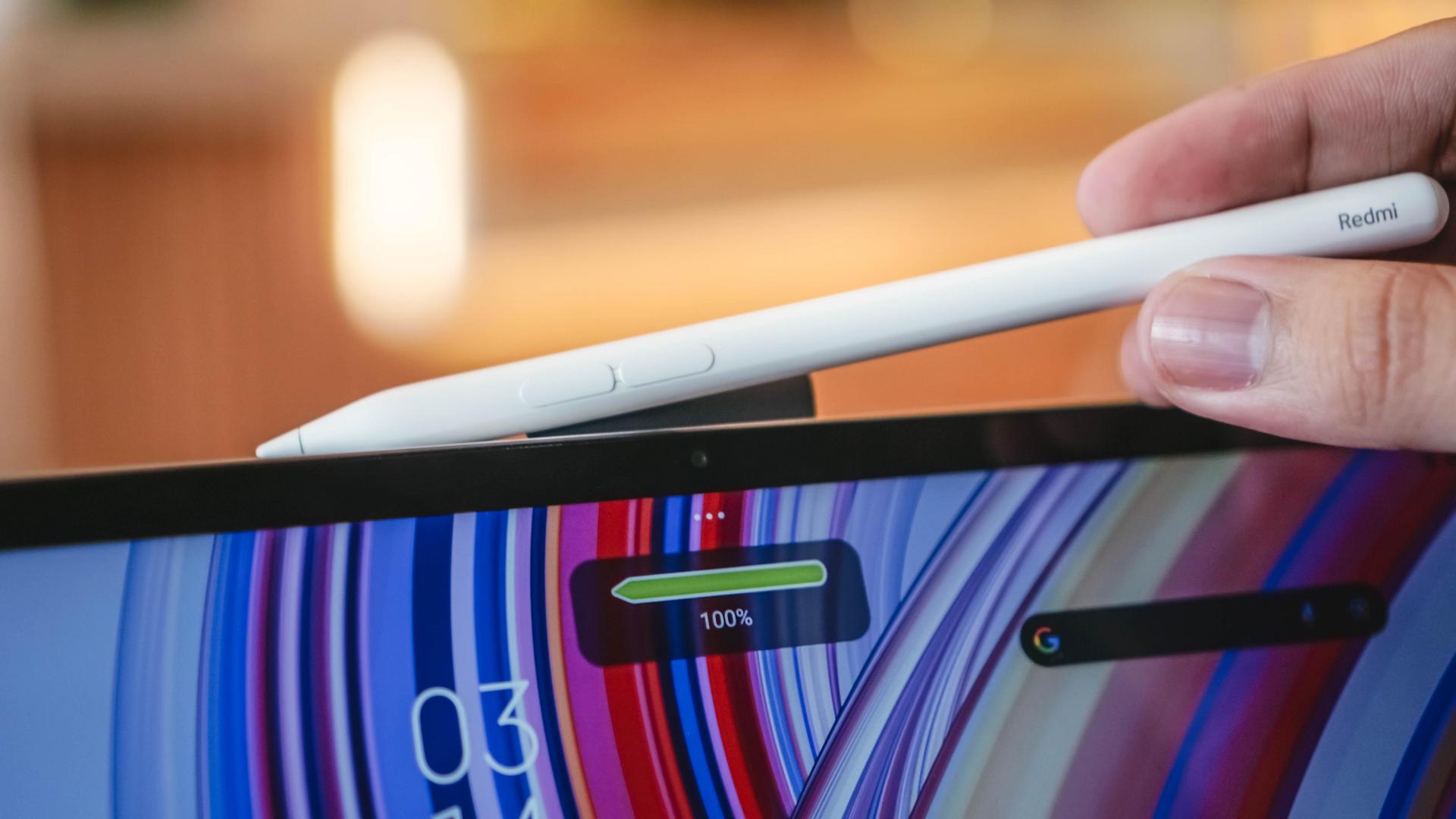
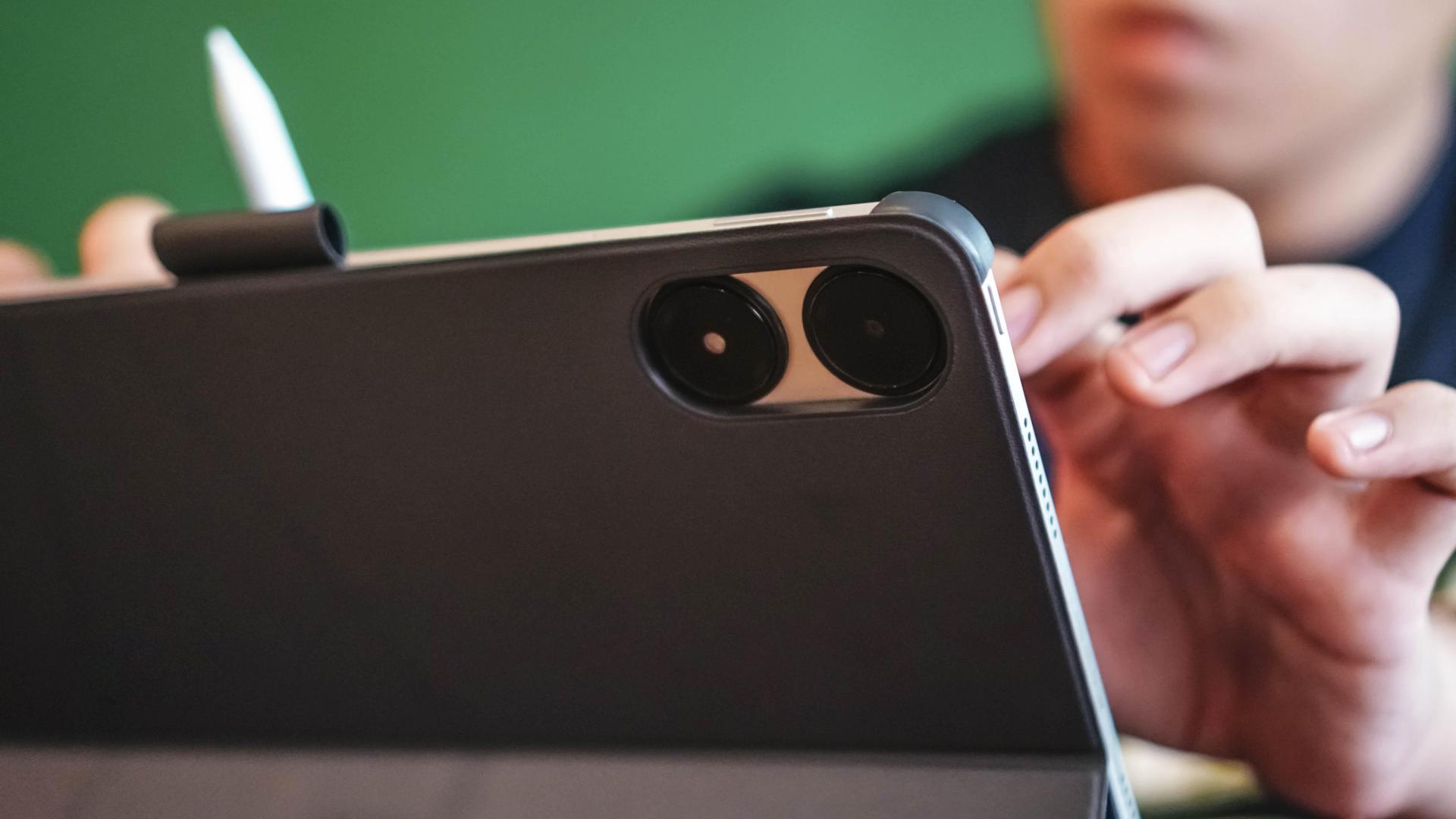
The Redmi Pad Pro offers the additional (and optional) Redmi Smart Keyboard and Redmi Smart Pen — but with some trade-offs.

Both of them aren’t being powered/charged on the device. Instead, they run separately through their own batteries — all while being connected via Bluetooth.
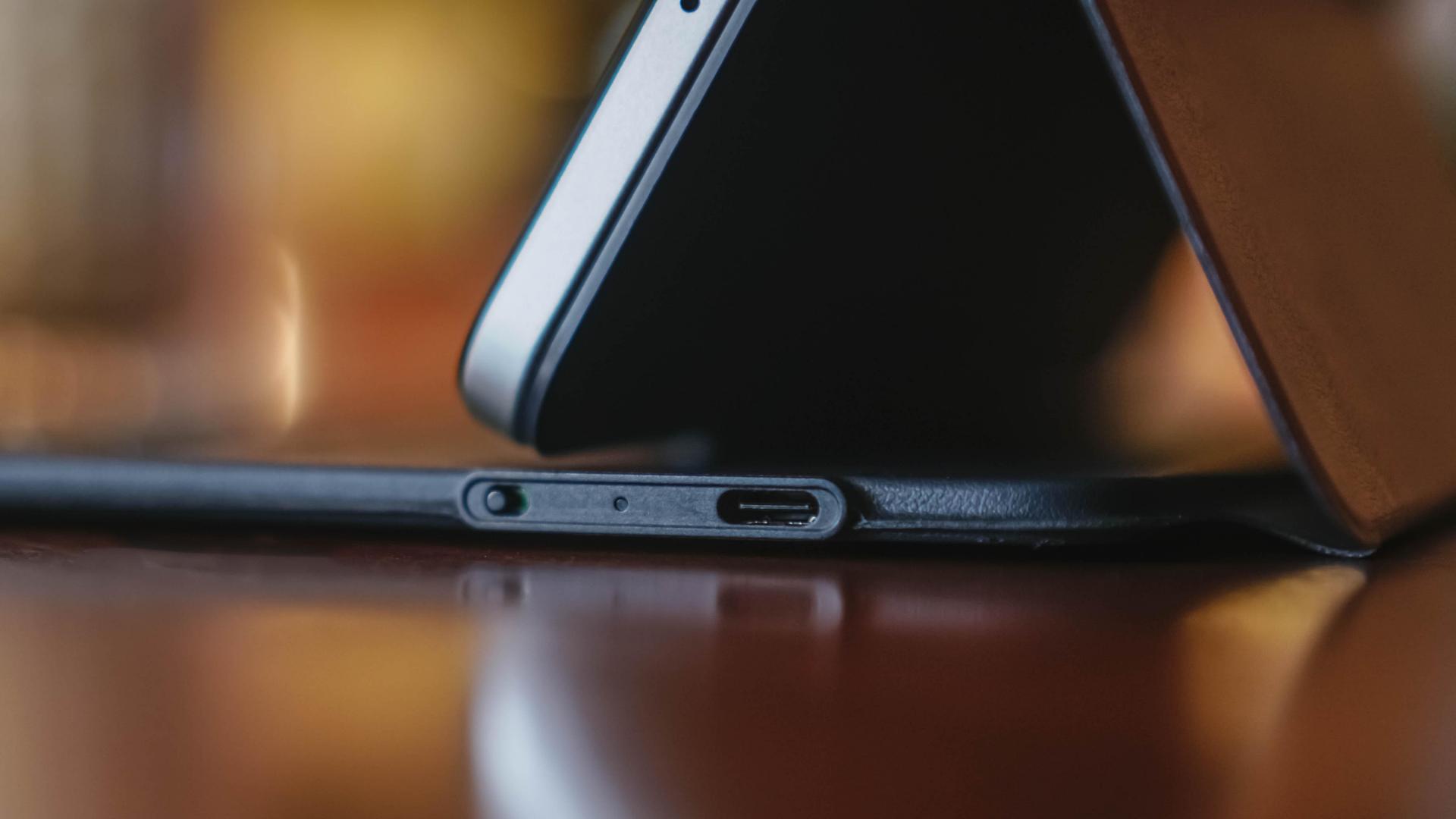
Power Switch is there when not being used
Say goodbye to your clutter-free slash wire-free lifestyle as both products only rely on wired USB-C charging.
The Smart Pen doesn’t support magnetic wireless charging. Furthermore, its Smart Keyboard isn’t powered by magnetic pogo pins.
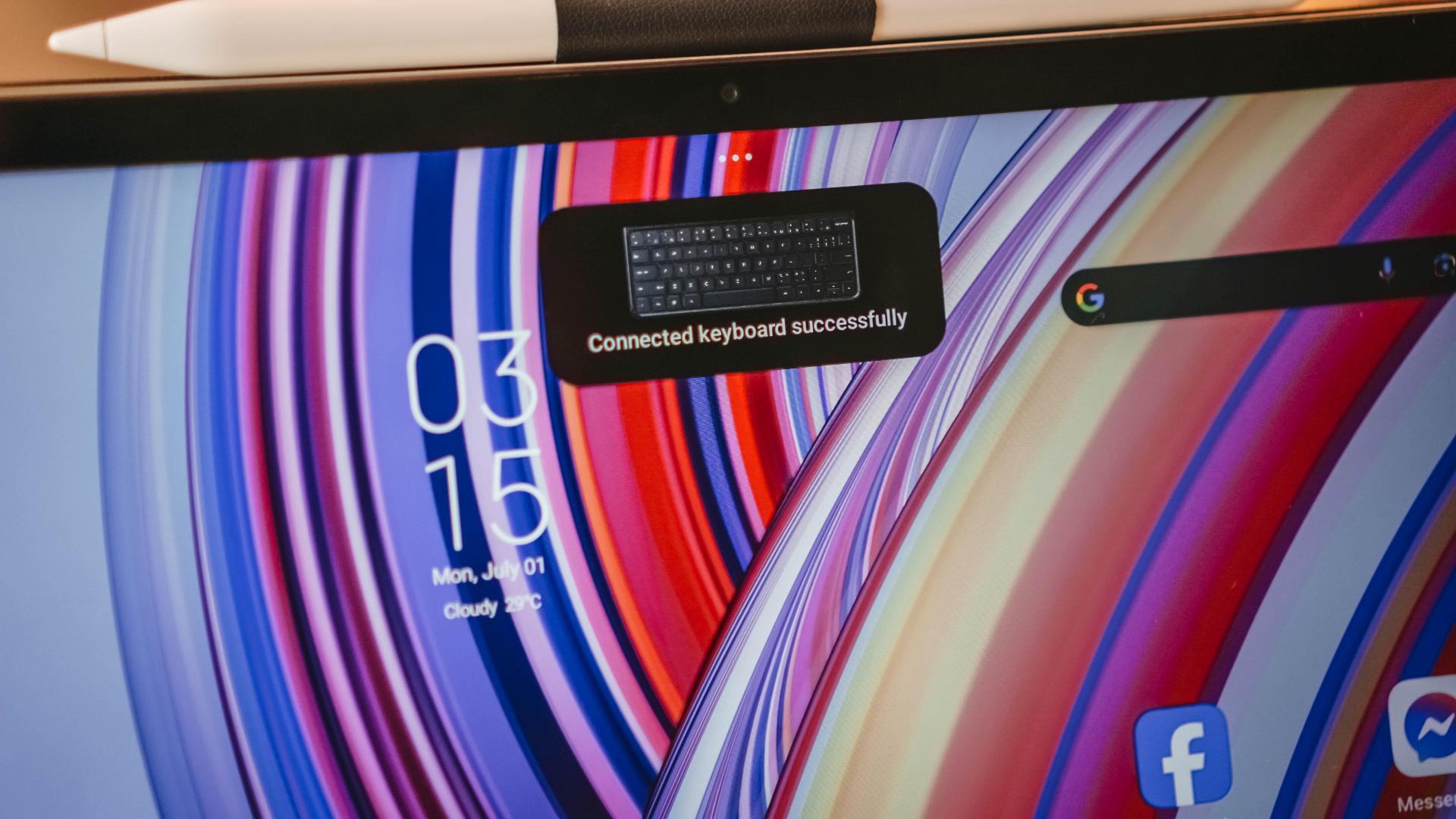
Nonetheless, I don’t mind these caveats as long as these products serve their actual purpose. After all, we get these full-on “Pro” pad accessories for less.
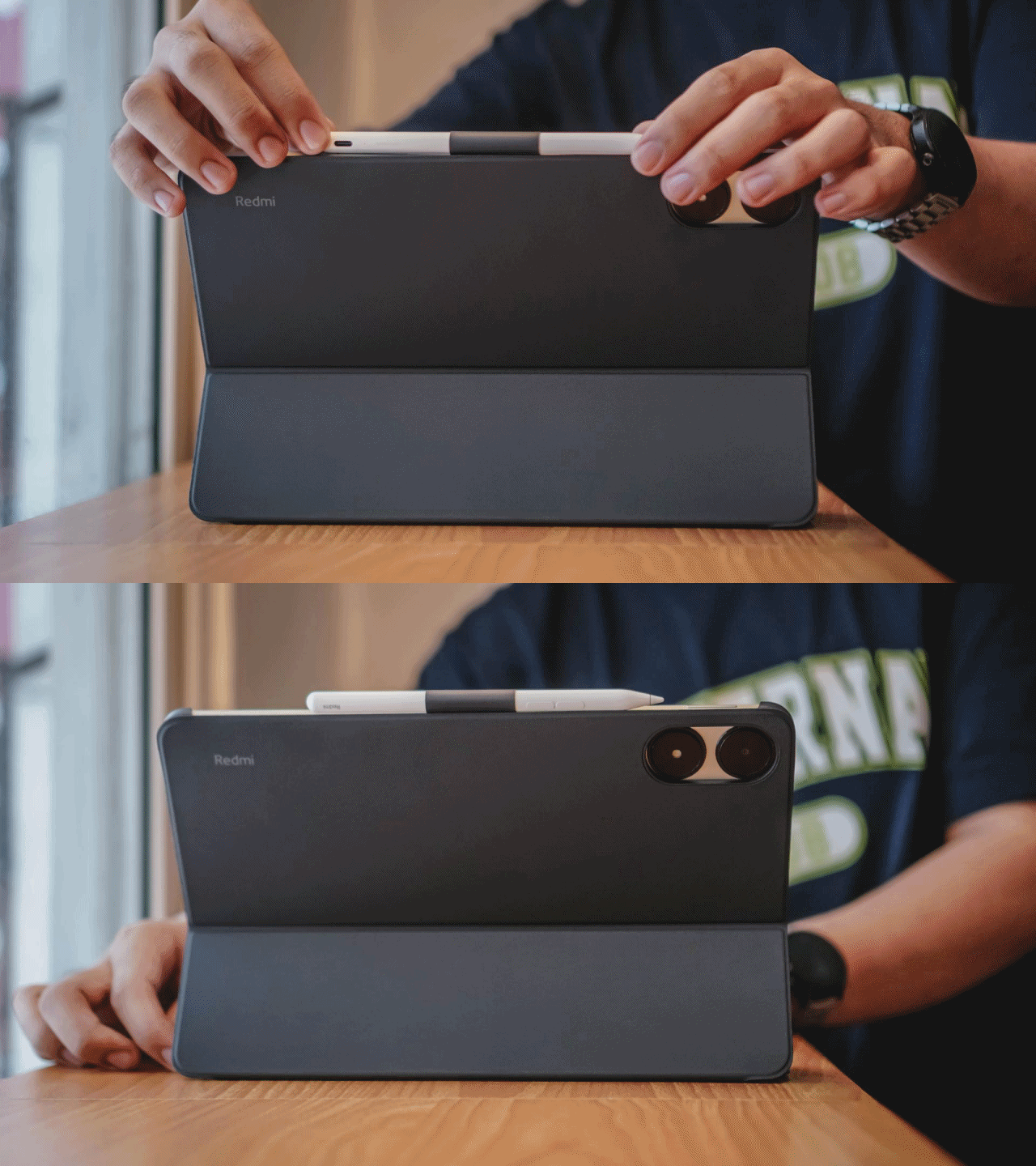
And if you’re worried about the lack of magnets, the Smart Keyboard has a dedicated Smart Pen holder.
As per battery, both accessories manage to last at least a day. It even goes for more than two when you don’t use ’em excessively.
The quick brown fox jumps over the lazy dog
No, that ain’t an error. That’s what I type out when testing and evaluating a new keyboard.

TL;DR: I’ve been typing with a MacBook keyboard for eight years now that I got so used to its layout — from my old 2015 MacBook Pro way back in college ’til the company-issued M2 Max MacBook Pro that I have with me rn.
Now, this is where I can confidently say such familiarity doesn’t require an additional learning curve.

If I explain the feeling, it’s in the middle ground of being mushy and clicky — not that it’s a bad thing. IMHO, it still feels very comfortable to type on.

Believe me or not, this review article was typewritten using the Redmi Pad Pro’s keyboard from the start ’til the very end. Photos and Rodneil all prove that.
If you value shortcuts like I do, those are recognized by the keyboard as well. The improvements in Xiaomi’s HyperOS over its bug-infested MIUI counterpart is its ultimate saving grace.
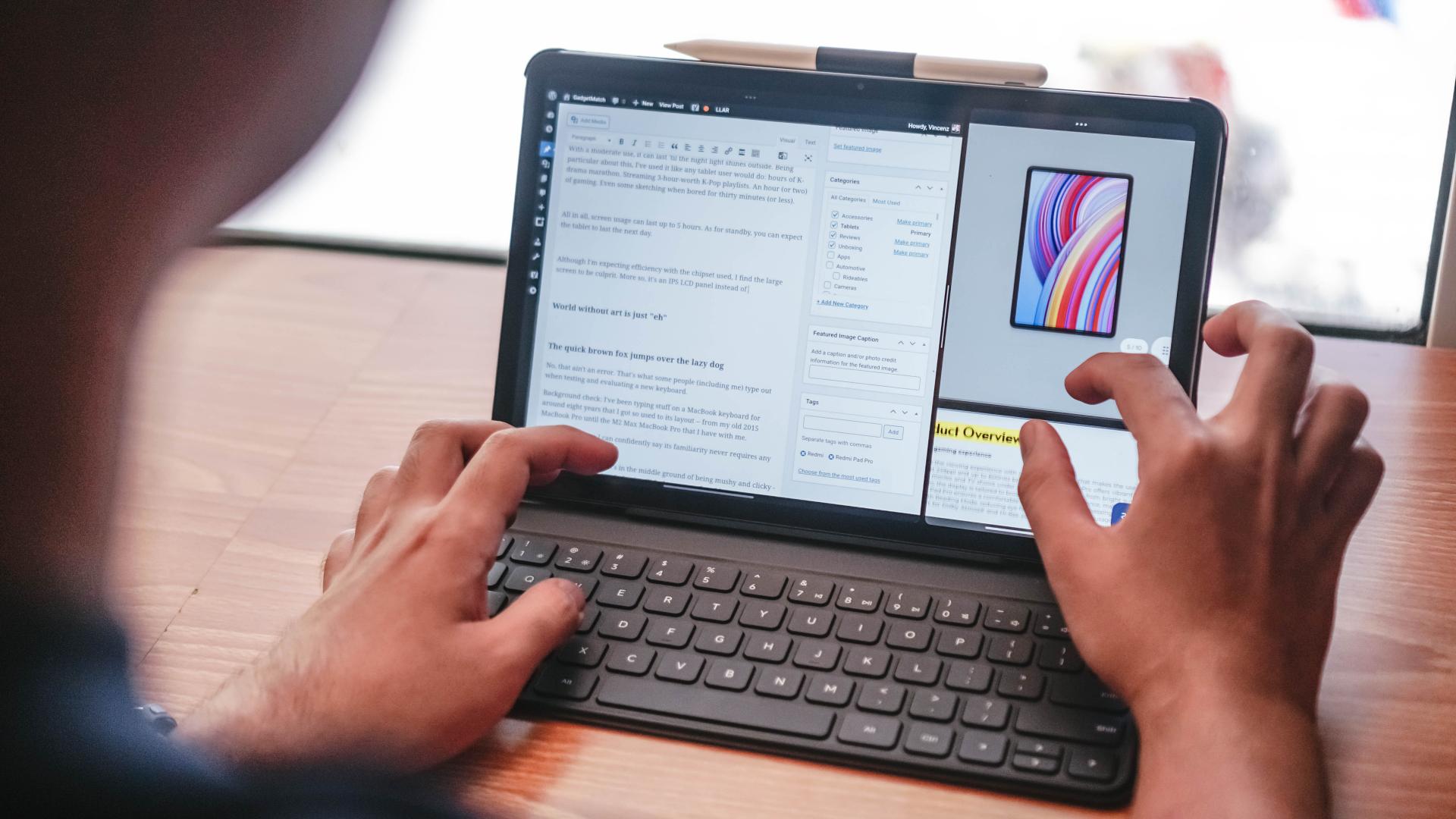
Split-screen multitasking? The Redmi Pad Pro is made for that as well.
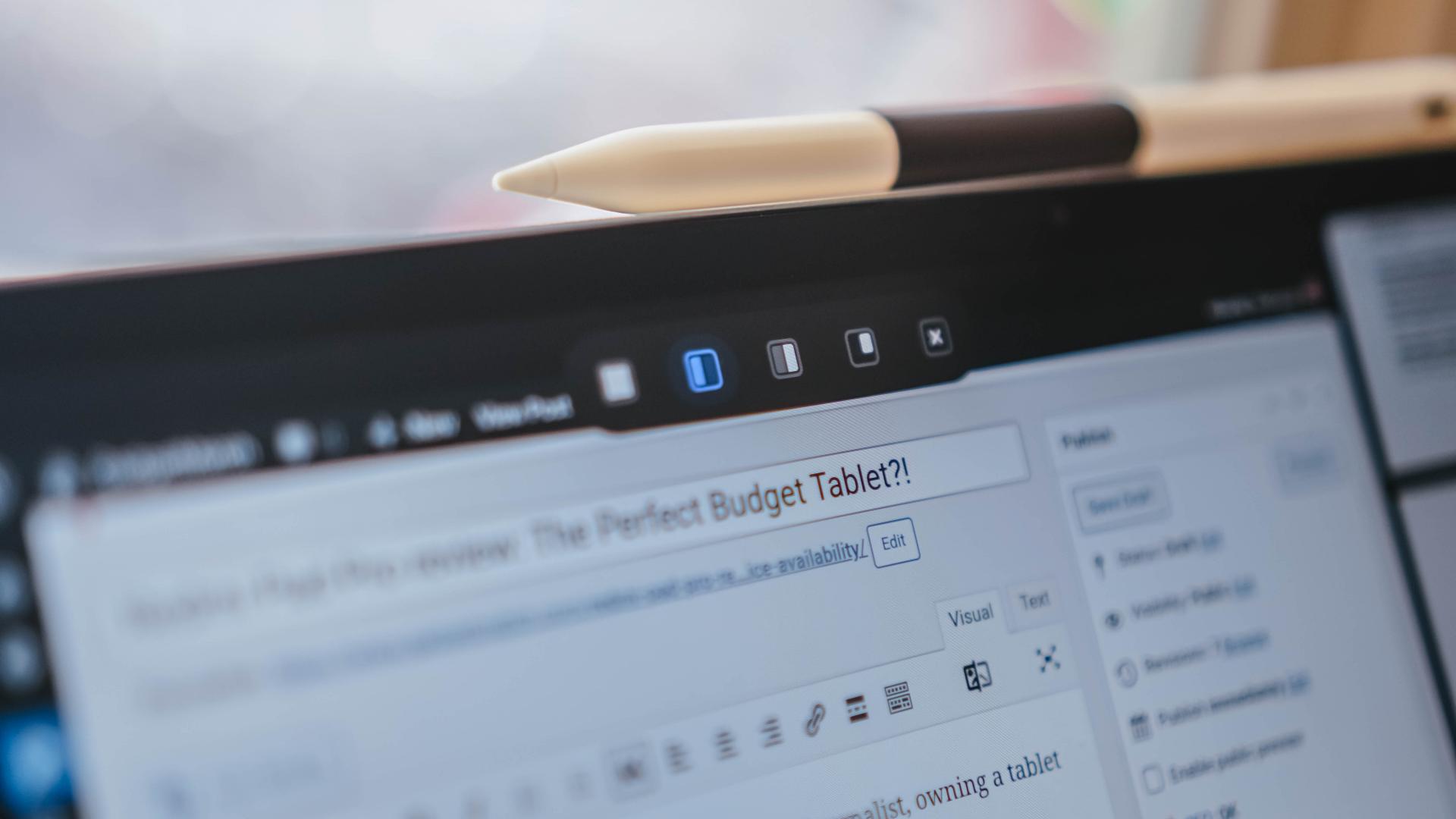
I love its nifty three-dot marker found on the upper part of every app so I can easily select several multi-tasking segments.
It can even add another floating window on top of the two side-by-side apps just so one can maximize its overall display real estate and multitasking capabilities.
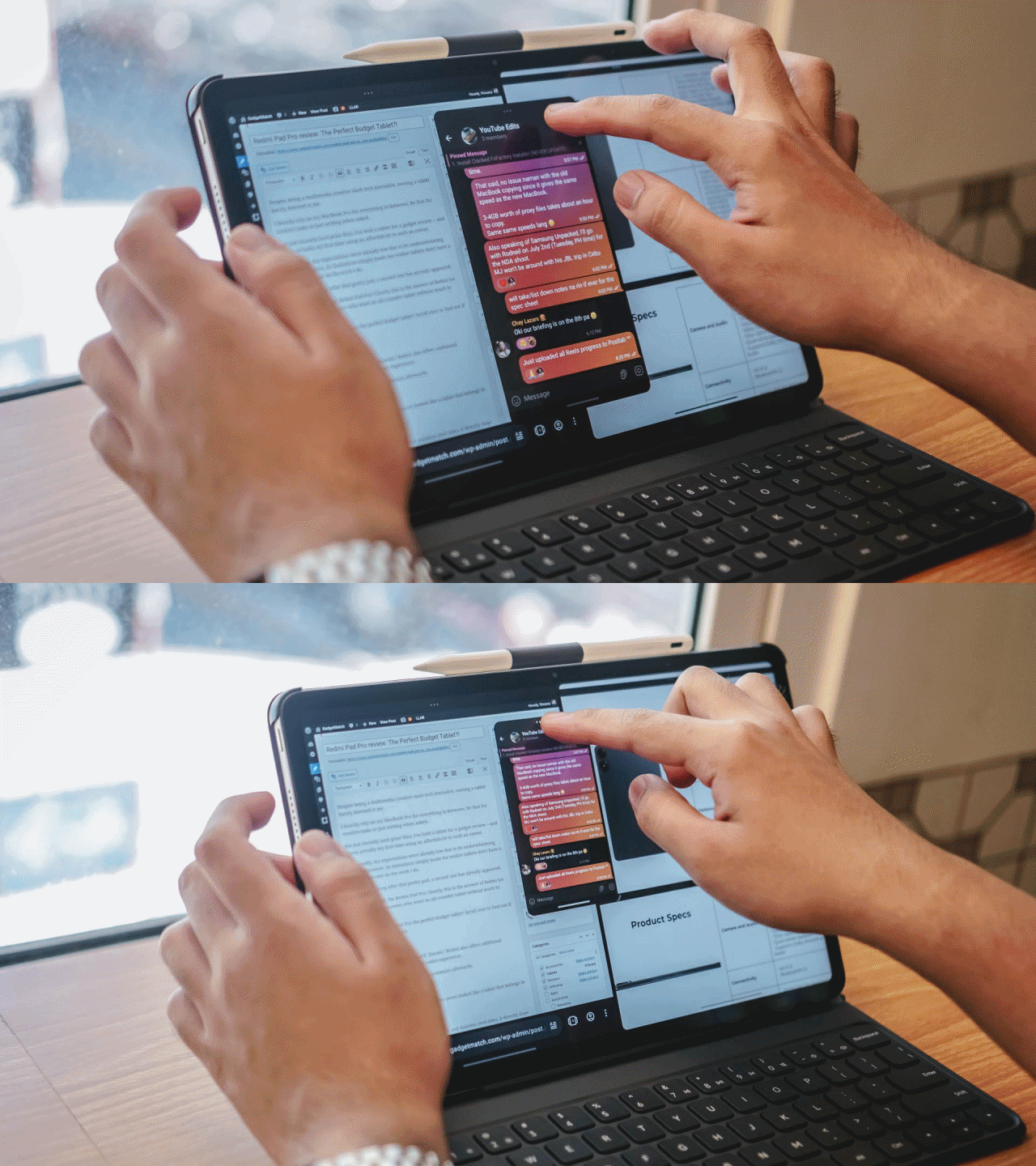
It’s resizeable as well
The possibilities are endless! I even tried several combos such as YouTube + X (formerly Twitter) and Instagram x TikTok on each side with the floating Apple Music window. Thus, multi-tasking of a multifandom K-Pop stan has been fulfilled.
Admittedly, the lack of a trackpad doesn’t feel “lacking” to me. If you want a full PC-like experience without using the touchscreen, you can also connect your mouse (via Bluetooth or USB-C) and the Redmi Pad Pro will easily recognize it without frills. I just experimented on it when I got too tired touching the display while out and about.
Earth without art is just “eh”
I used to sketch and scribble a lot during my prime — ’til it slowly vanished like my talent, passion, and soul.

Still, I tried much of what my slightly creative hands and mind can do by doing some lettering.
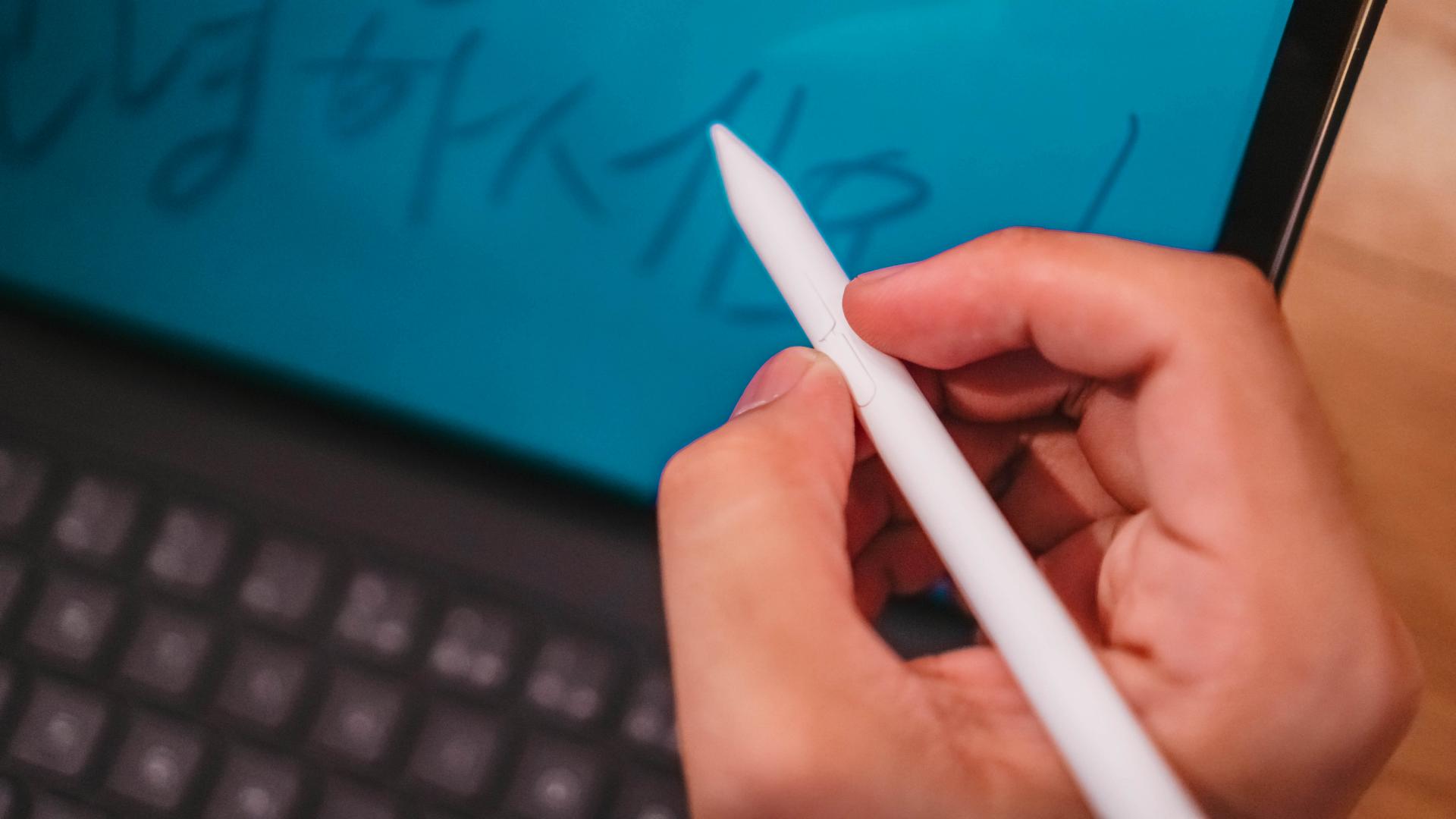
If you look closely, the Redmi Smart Pen has two buttons on its sides. Their purposes? One can be used for taking partial or full screenshots. The other can switch between pens, pencils, or even the eraser — at least in its proprietary Mi Canvas drawing app.

The Redmi Smart Pen delivers a smooth experience all throughout. That’s most especially thanks to its 4096 levels of pressure sensitivity.

You can even see the thick and thin strokes on the multi-Asian Cat Art I did.

Hovering the pen over tools and colors even show cool popping/highlighting animations — which is more likely to appear on pricier flagship Pro counter-pads.

And with the complement of Redmi Pad Pro’s non-laminated display, the overall experience doesn’t feel cheap at all — despite being targeted towards budget-conscious creatives.
Creativity Companion
The utmost use case of Redmi Smart Pen and Smart Keyboard don’t end there.
I even utilized much of the potential of the tablet and its accessories through other commonly used apps by creatives, for creatives.
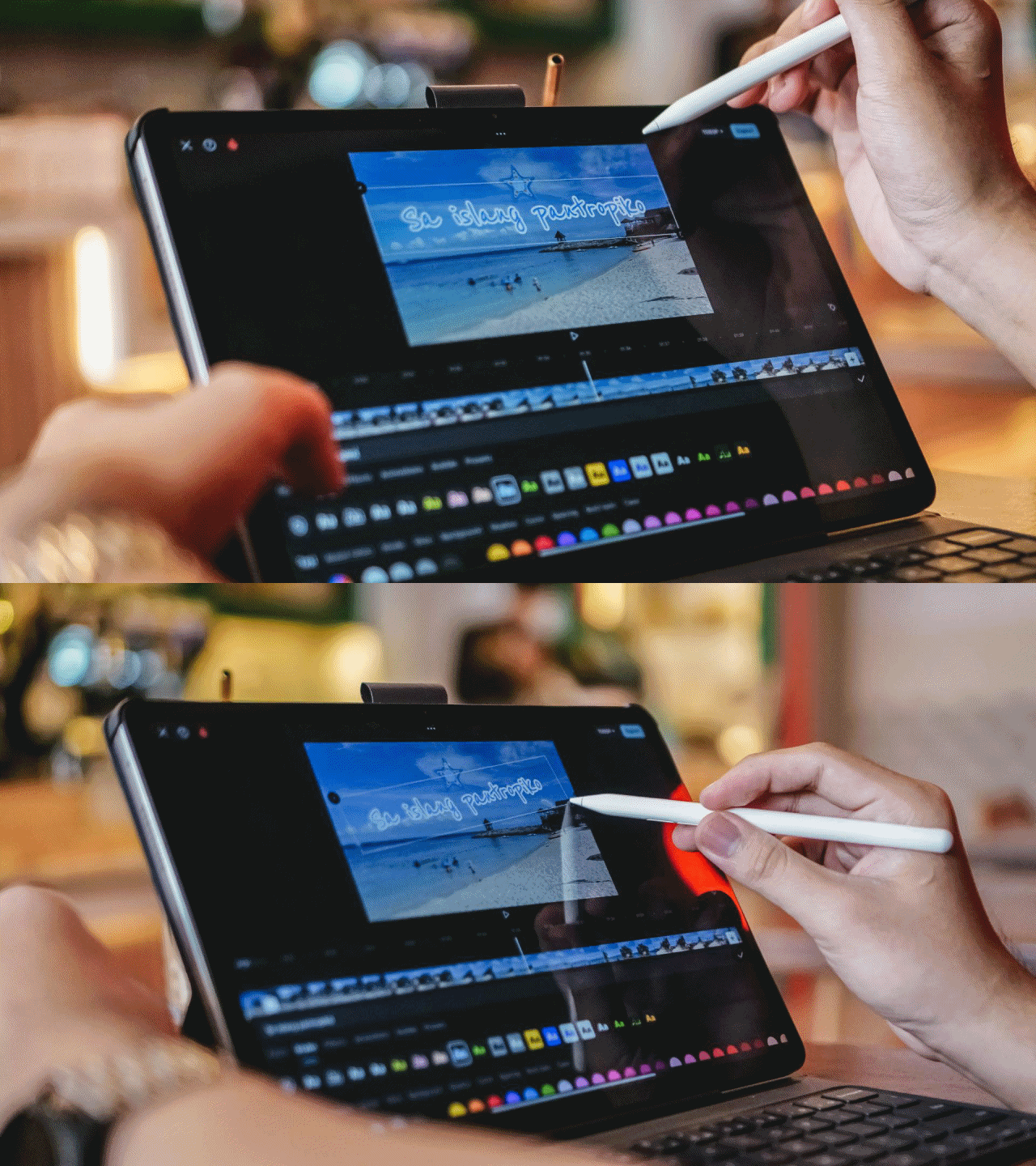
If you’re into quick and easy shorts for TikTok or Instagram Reels, CapCut works well. For Full HD clips, it does the job. For 4K footages, expect some wear and tear out and about especially with its midrange-class SoC.
I assume Filmora, DJI’s LightCut, GoPro’s Quik, and other similar video editing apps work the same way.
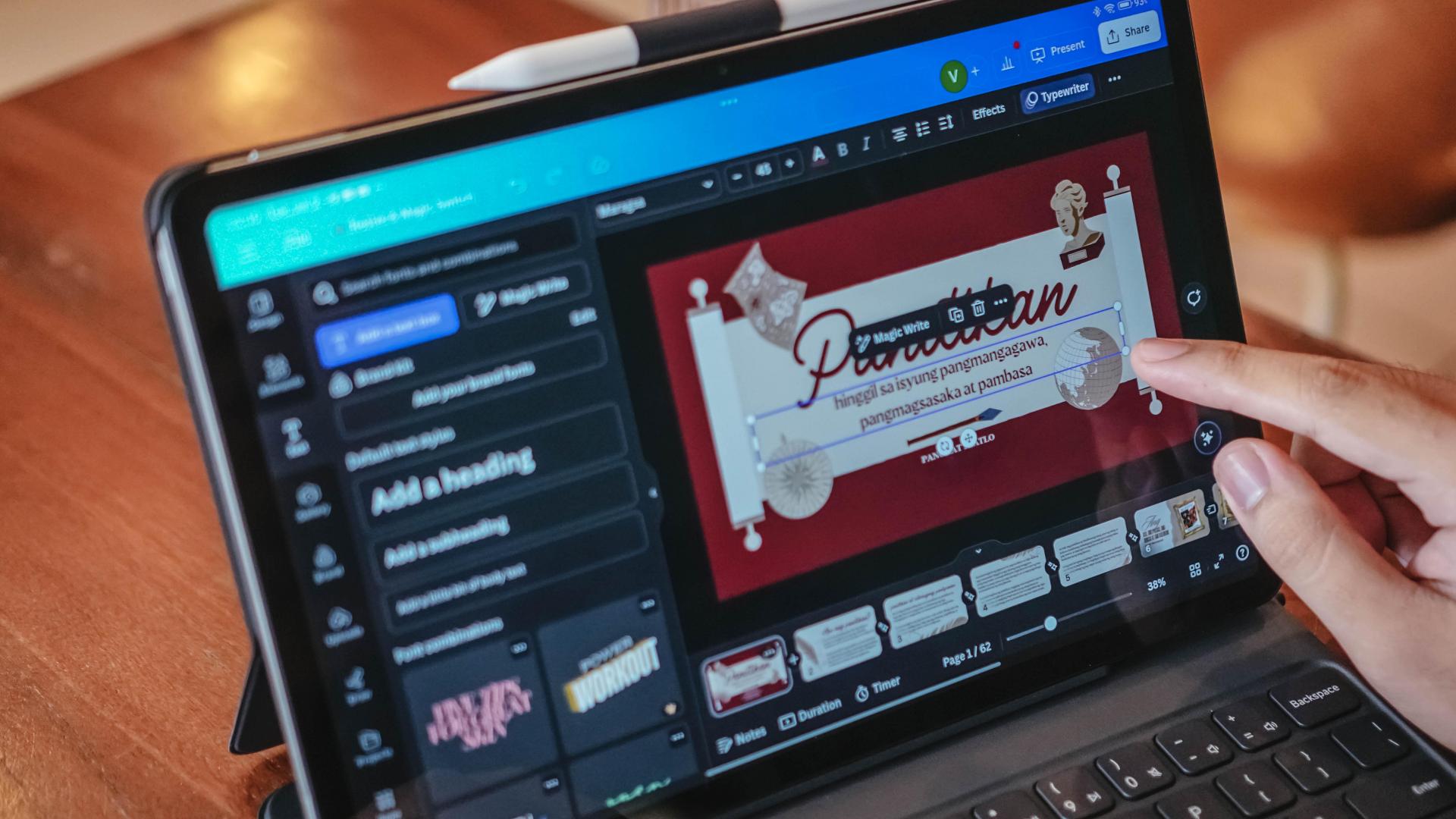
Another would be Canva — the ever-popular presentation slash graphics app. Typing in boxes, selecting and dragging elements were all child’s play with the added feats of the smart pen and keyboard.

Moreover, that pen is also useful for fine-tuning every curve and detail in either Adobe’s Lightroom Mobile or Photoshop Express, Google’s Snapseed, VSCO, or even GoDaddy’s Studio.
Is the Redmi Pad Pro your GadgetMatch?
With a starting price of PhP 13,999 for the 8+128GB variant (and PhP 14,999 with twice the onboard storage), the Redmi Pad Pro is an easy peasy recommendation for those who want to try out a proper pad-perience without having to shell out a lot.
Sure, there are cheaper tablets out there that offer the same look and feel with great audiovisuals altogether. However, the Redmi Pad Pro has an exceptional look, build, display, and audio quality that are unrivaled for its price.
And even if it’s not, in any way, the most powerful pad around, it’s very commendable in the category it belongs to.
For creatives, students, enthusiasts, hobbyists, business-minded peeps, and even frugal professionals who are looking for a pocket-friendly pad that can do a little bit of everything, the Redmi Pad Pro can do just that.
Although add-ons always come at an extra cost, the accessories of the Redmi Pad Pro are still reasonably priced.

Spending PhP 22,000 utmost is still the most viable option than throwing away much of your hard-earned savings for a pricey “Pro” pad priced the same way as high-powered budget laptops.
Their accessories? Cost as much as the Redmi Pad Pro itself. Not everyone can truly afford that.

Some might argue, the Redmi Pad Pro is considered a “midrange” tablet for what it possesses.
I still dare to say it is the perfect “budget” tablet that truly understands the essence of a true tablet — something that has good synergy between hardware, software, support for accessories. Lastly, the product’s overall cost.
Combined altogether, the Redmi Pad Pro creates that perfect harmony that’s also value for money.
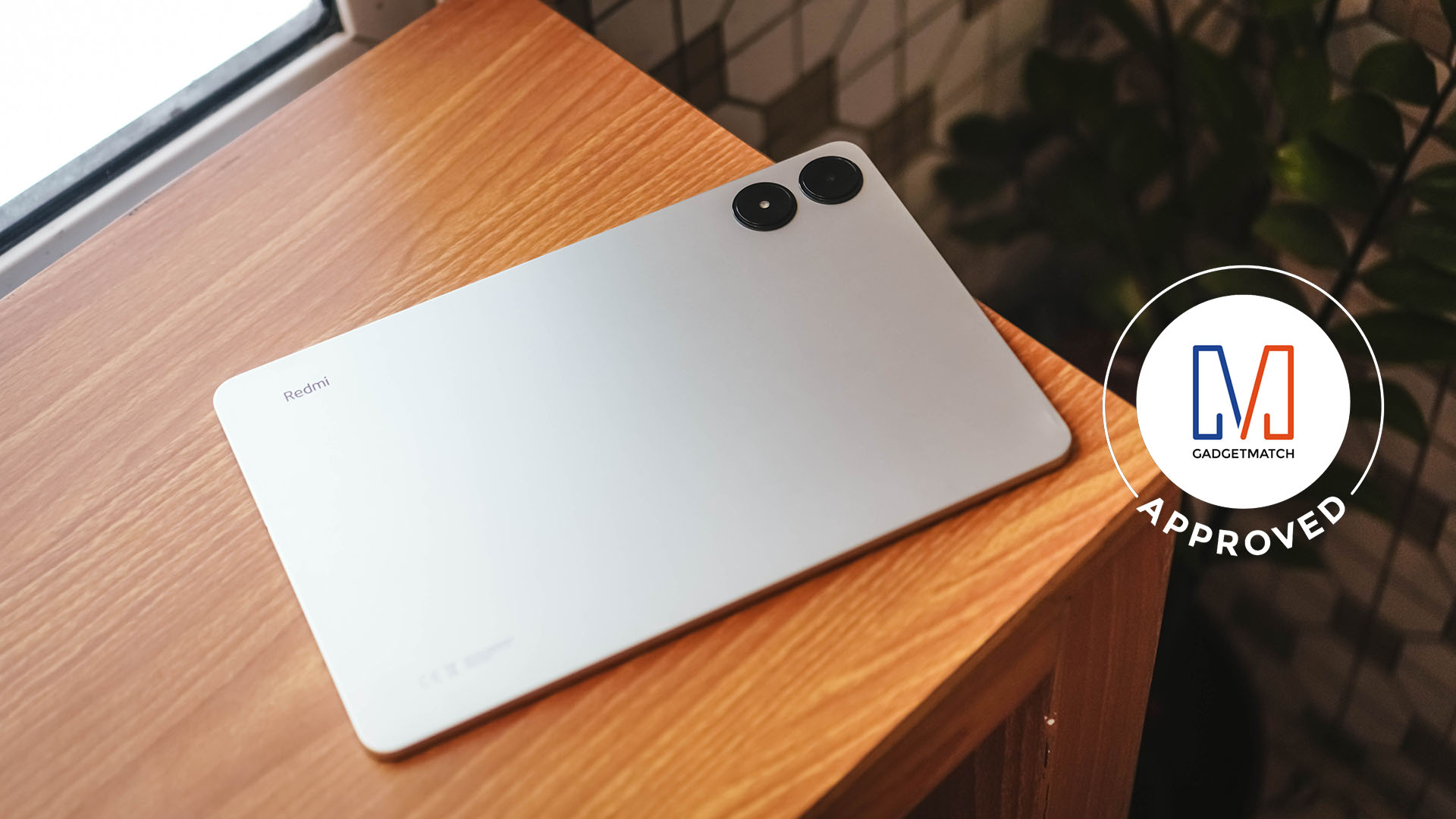
And for its overall worth, the Redmi Pad Pro is overall a worthy recipient of the GadgetMatch Seal of Approval.






Reviews
realme C100: Enduring and durable in spite of entry-level realities
Enough power but needs more agility

Several smartphone brands have successfully balanced cost and capability in the entry-level and midrange segments. realme, on the other hand, appears to still be navigating this refinement process after the realignment in budget handsets.
The brand’s latest mass market offering, the realme C100, highlights an aggressive focus on physical endurance and battery capacity.
These are two welcome additions to give consumers more value for what they purchase. Yet, there are compromises in other areas that ultimately hold the package back from being a worthy everyday utility.
Long battery life

Bannering the realme C100 is its 8,000mAh Titan battery. This substantial boost in capacity translates to better longevity on a day-to-day basis.
For just casual usage patterns, it can easily last even up to four days. When left on standby, it can even stretch to an impressive nine days or so.
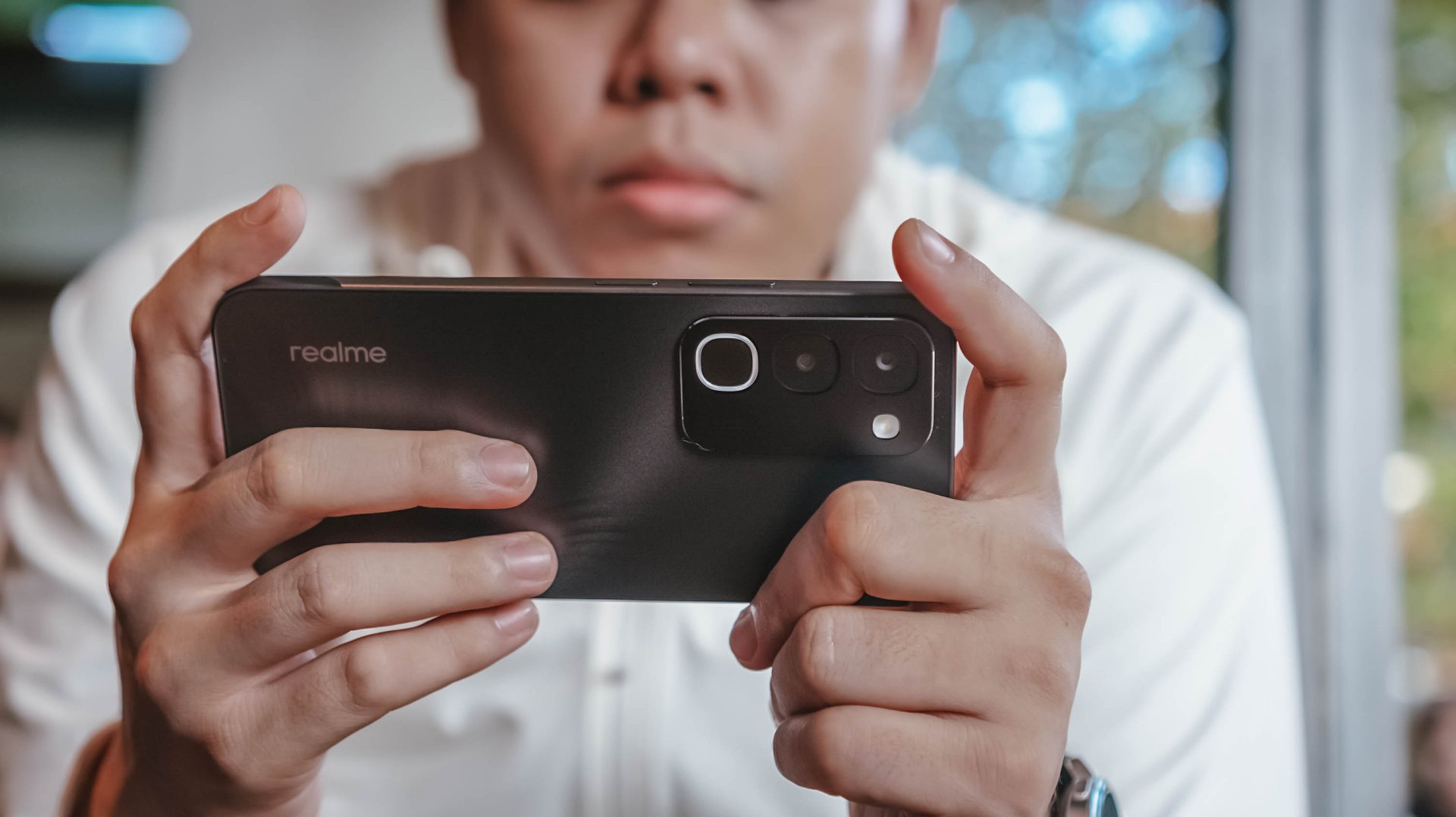
When finally time to recharge, the device supports 45W SUPERVOOC fast charging, which is ample for its segment.
As smartphone brands lean toward offering larger batteries, it’s a positive trade-off for those who don’t plan on purchasing power banks any time soon.
Unoptimized performance
The C100 is powered by a MediaTek Helio G92 Max processor and runs on the Android 16-based realme UI 7.0.
Performance is inconsistent at best. Light social media scrolling and casual streaming aren’t met with hiccups.

But, with gaming, the handset falters a bit, even with the supposedly less demanding titles like Mobile Legends: Bang Bang. There are frame drops, stutters, and a it of lag that disrupts the overall experience.
That’s even with GT Mode turned on.

This would also considerably hamper the workflow of utility workers’ daily routines, should they choose this.
Thankfully, with a long battery life, the C100 is still something you can wield to stay connected throughout the entire day, especially for commuters, students, and young professionals.

However, the lack of 5G connectivity is also a downer, especially if you’ll need a better and faster network.
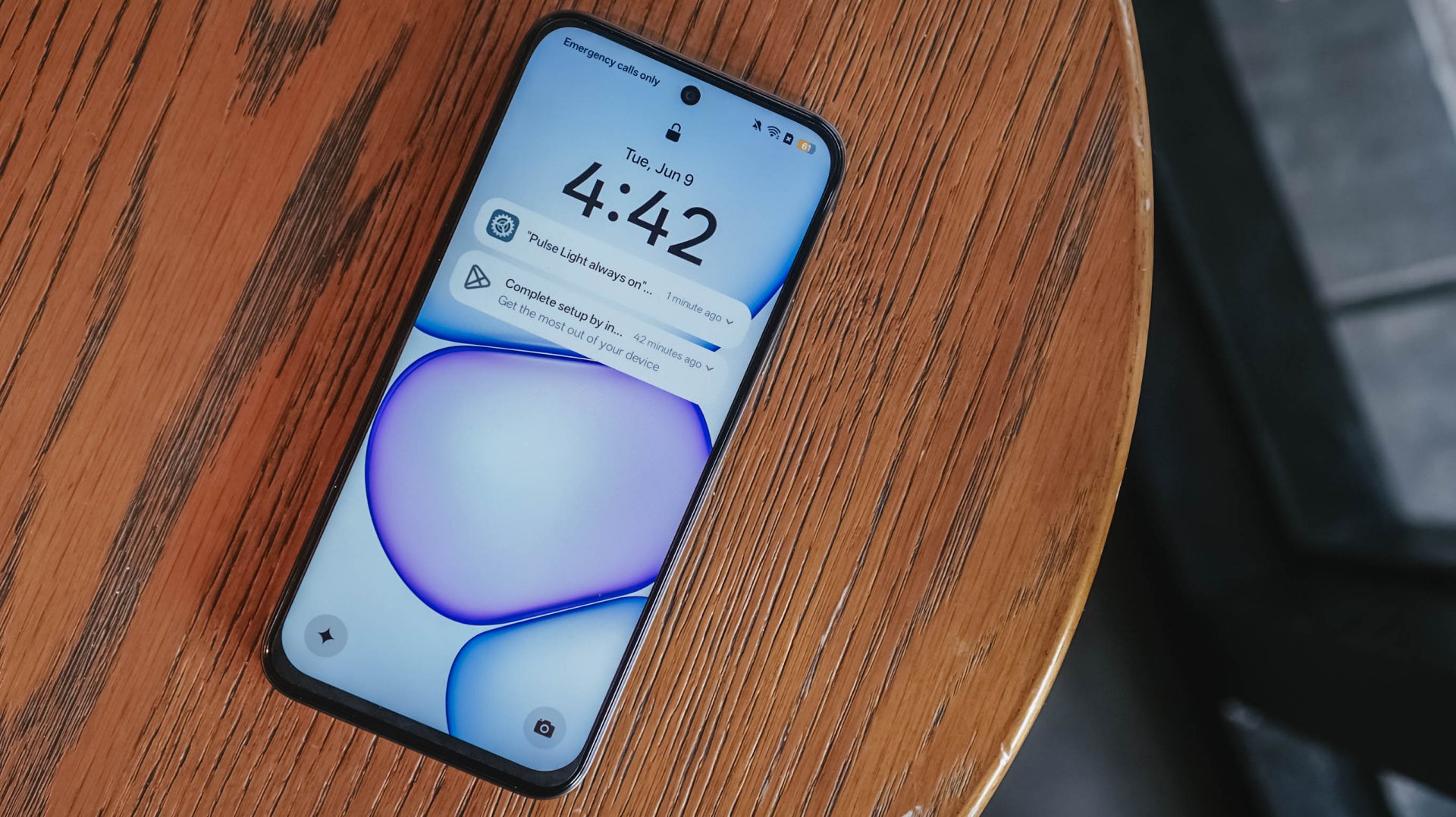
Ideally, I would put it as chiefly just a tool for constant comms and something you’d put on your desk — expecting new messages, emails, and notifications or updates here and there.
Inferior display
In front, the realme C100 sports a 6.8-inch 120Hz display on paper. It has an HD+ resolution but the pixel density sits at just a mere 256ppi.

There’s visible graininess or lack of distinct sharpness, be it streaming YouTube or viewing photos you’ve just taken with the device.
The same hardware limitation reminds me of past compromises in previous C series entries. Photos appear muddy and noticeably soft on screen, so it’s difficult to judge image clarity until files are transferred to another display.

The 1,200 nits of peak brightness helps a bit, although it is still a bit trickier to see things under the bright sunlight.
Cameras: Decent, as usual

For its camera, the realme C100 has quite the standard 50MP main camera. It’s decent for captures in terms of color and detail, but I’ve seen better overall quality from previous C series entries.
It’s tough when its indoors and under low light conditions — as expected. Naturally, you can’t expect the same detail outside of 1x zoom.
Some quick samples:










It’s a you-get-what-you-paid for on the stills department; something you’d use for documentation more rather than artistic captures. I would have hoped for more stability with filming, so you can use it for quick reels or splice them for vlogs.
When I asked my nephew to use the phone for a bit, he didn’t take too many images, which tells a lot about what the camera package can offer.
Look and feel
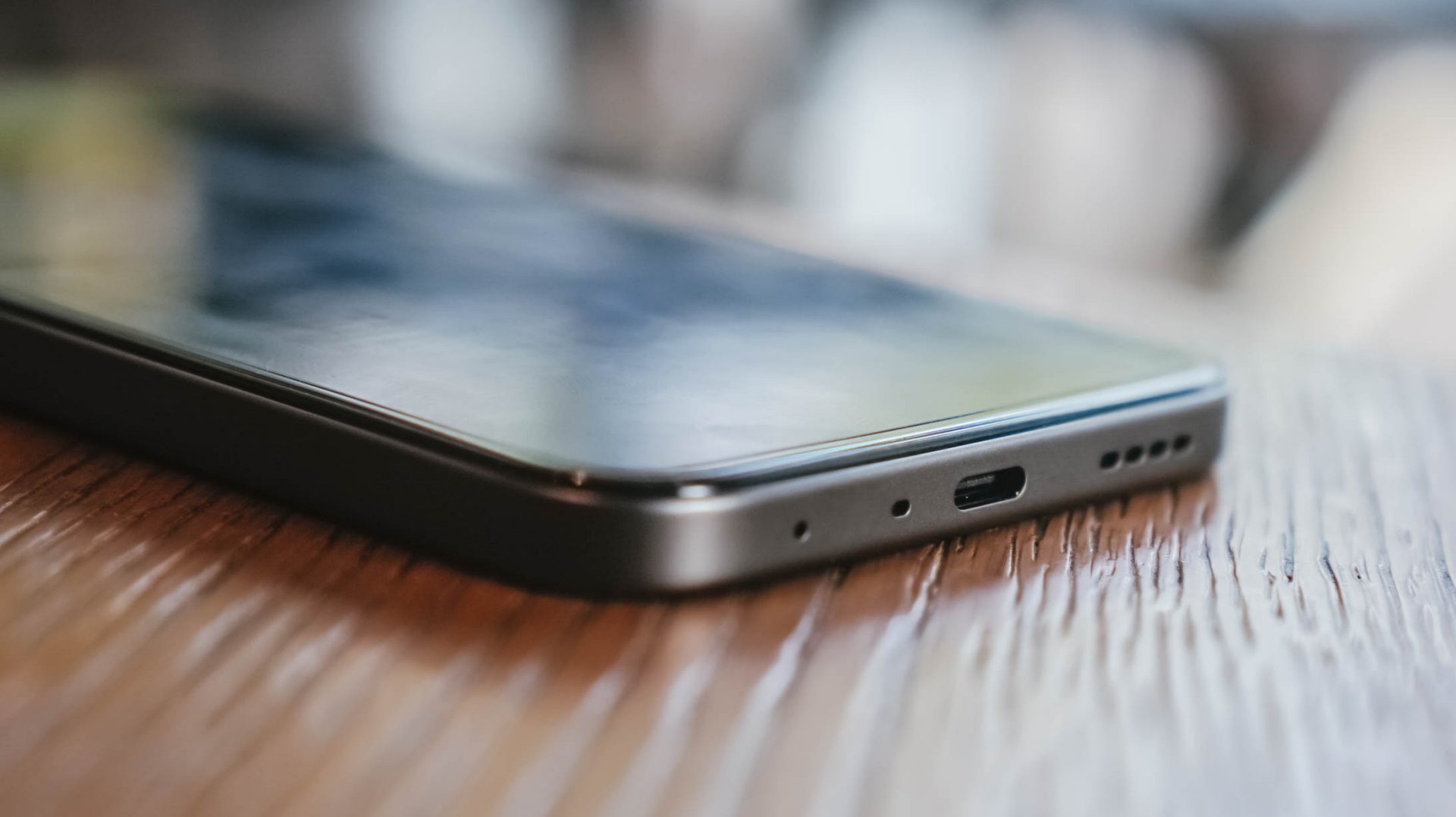
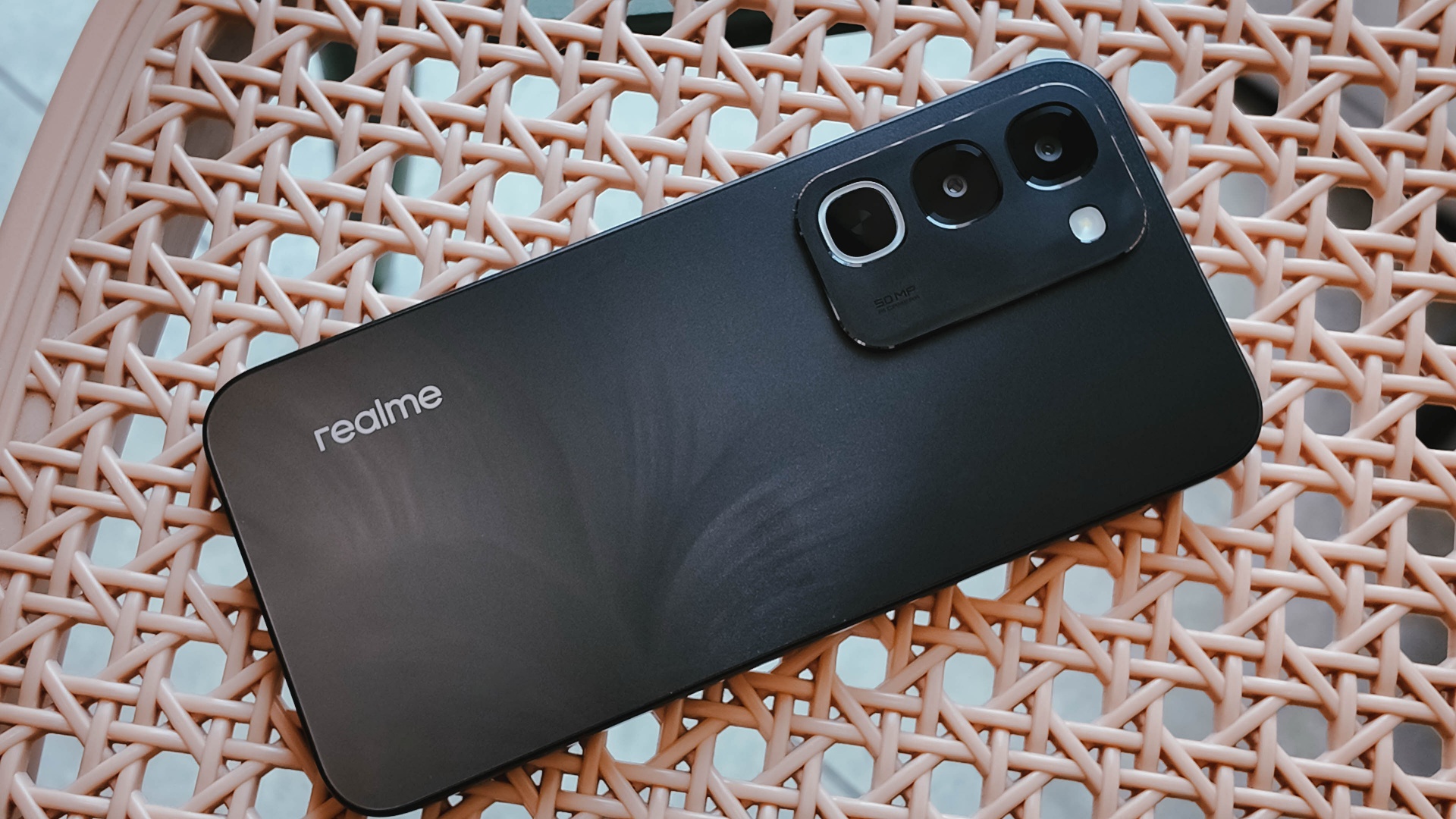
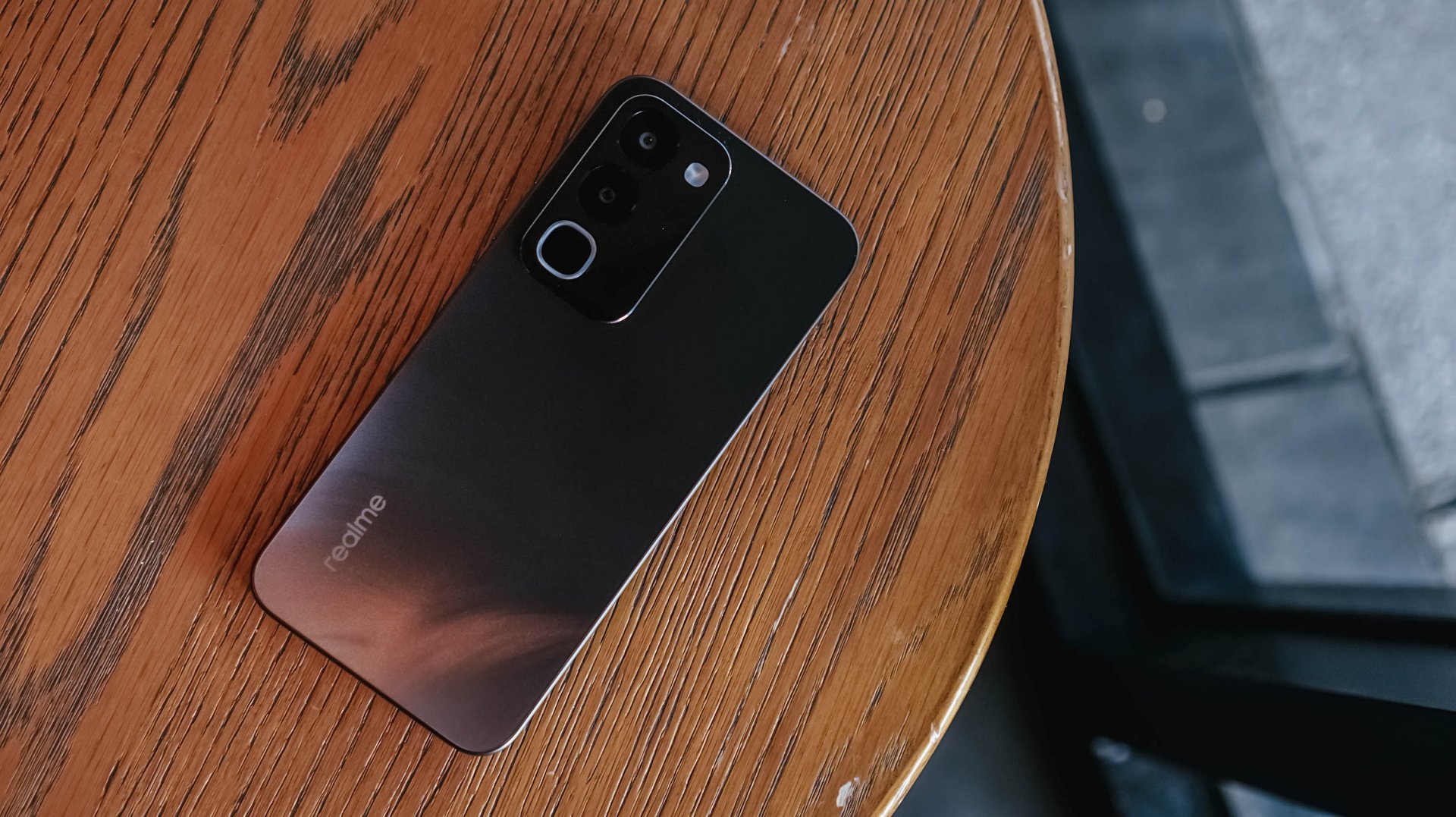
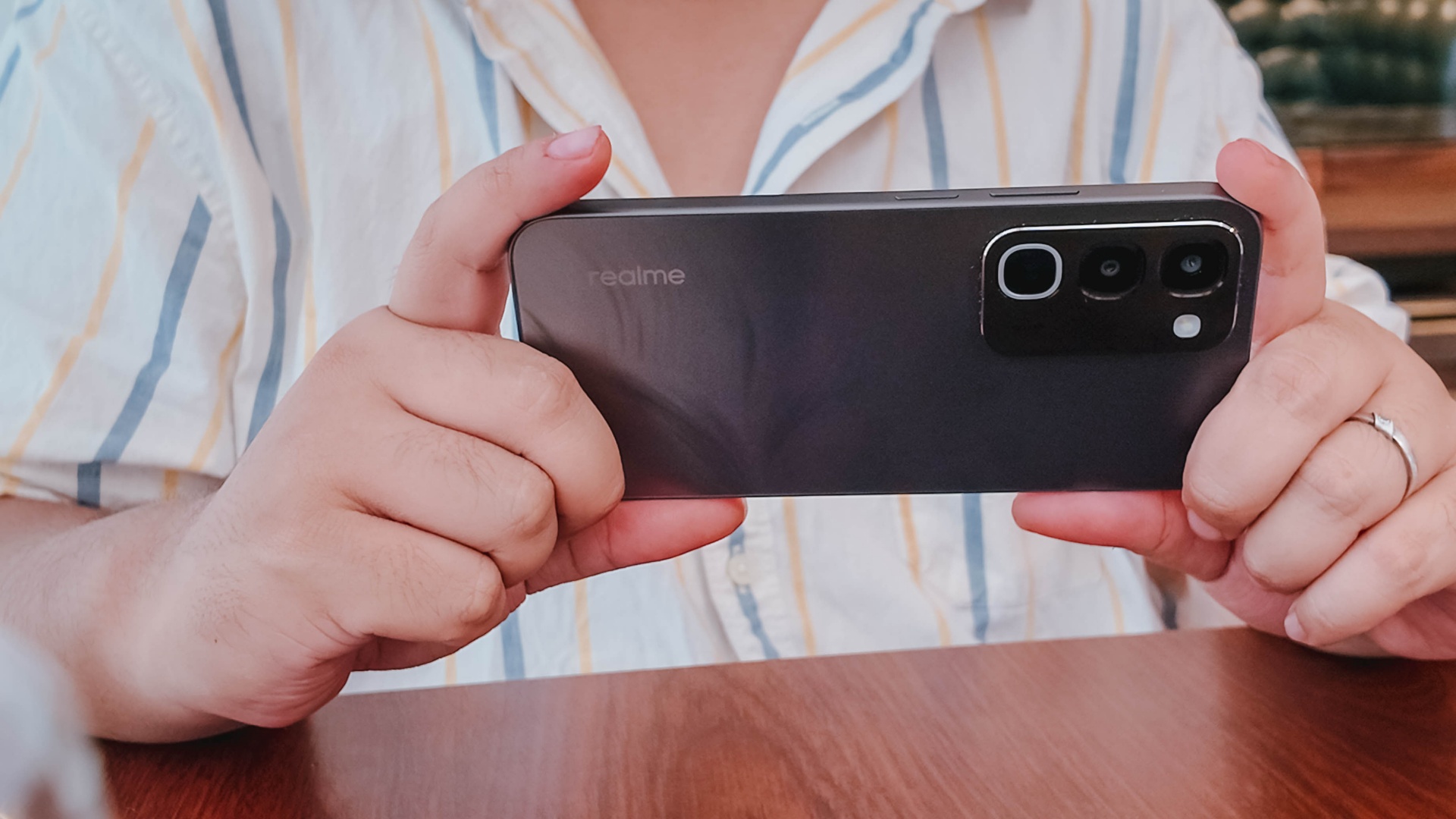
Onto its appearance, the device comes with a simple, squarish build with a faux triple camera island at the back.
It’s nothing we haven’t seen before, though in the place of round cameras, they look more like app icons shape-wise.
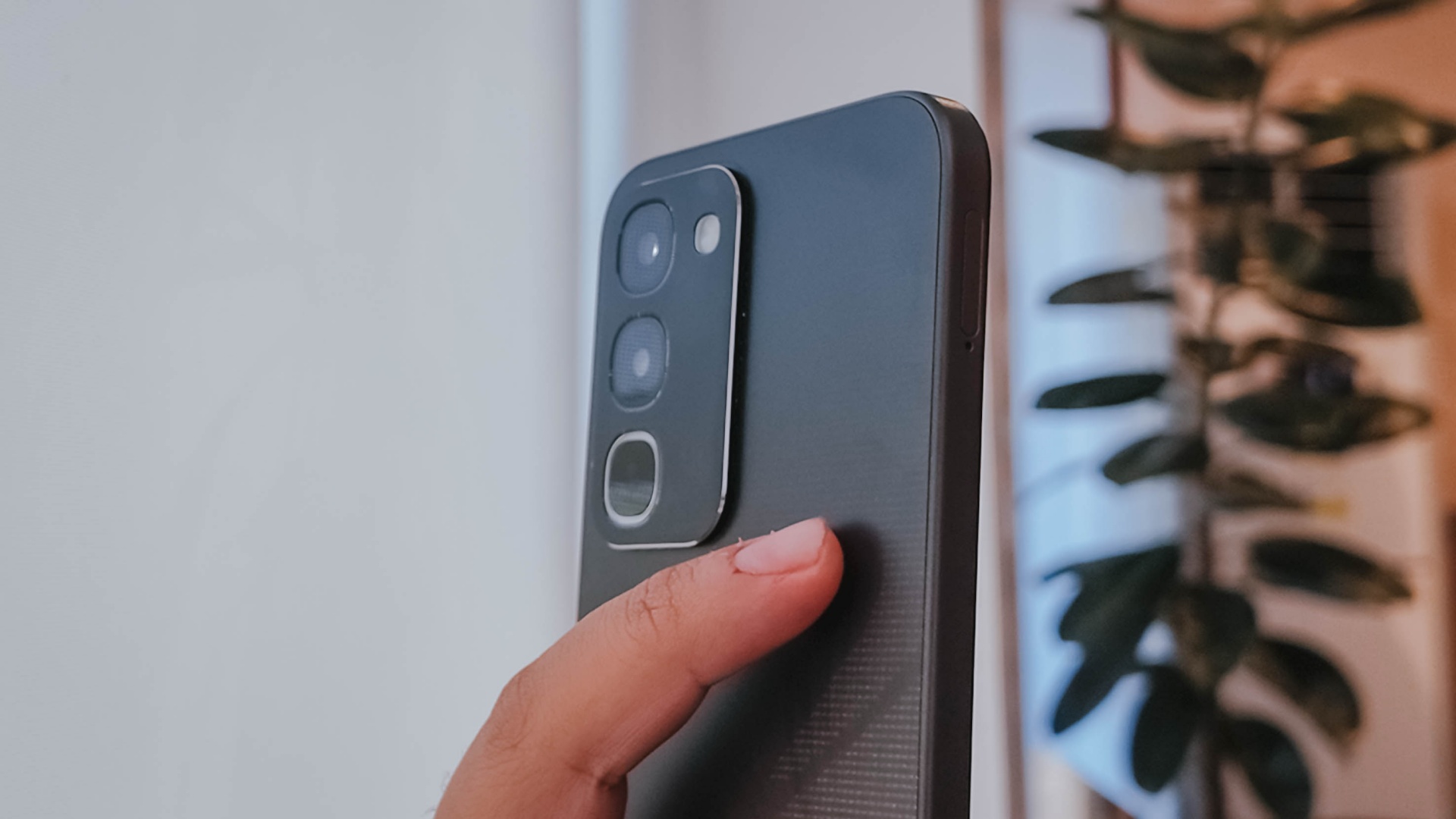
There’s slightly curved corners, just the right amount of thickness, a decent 90.4% screen-to-body ratio, and a bit of weight given the larger battery.
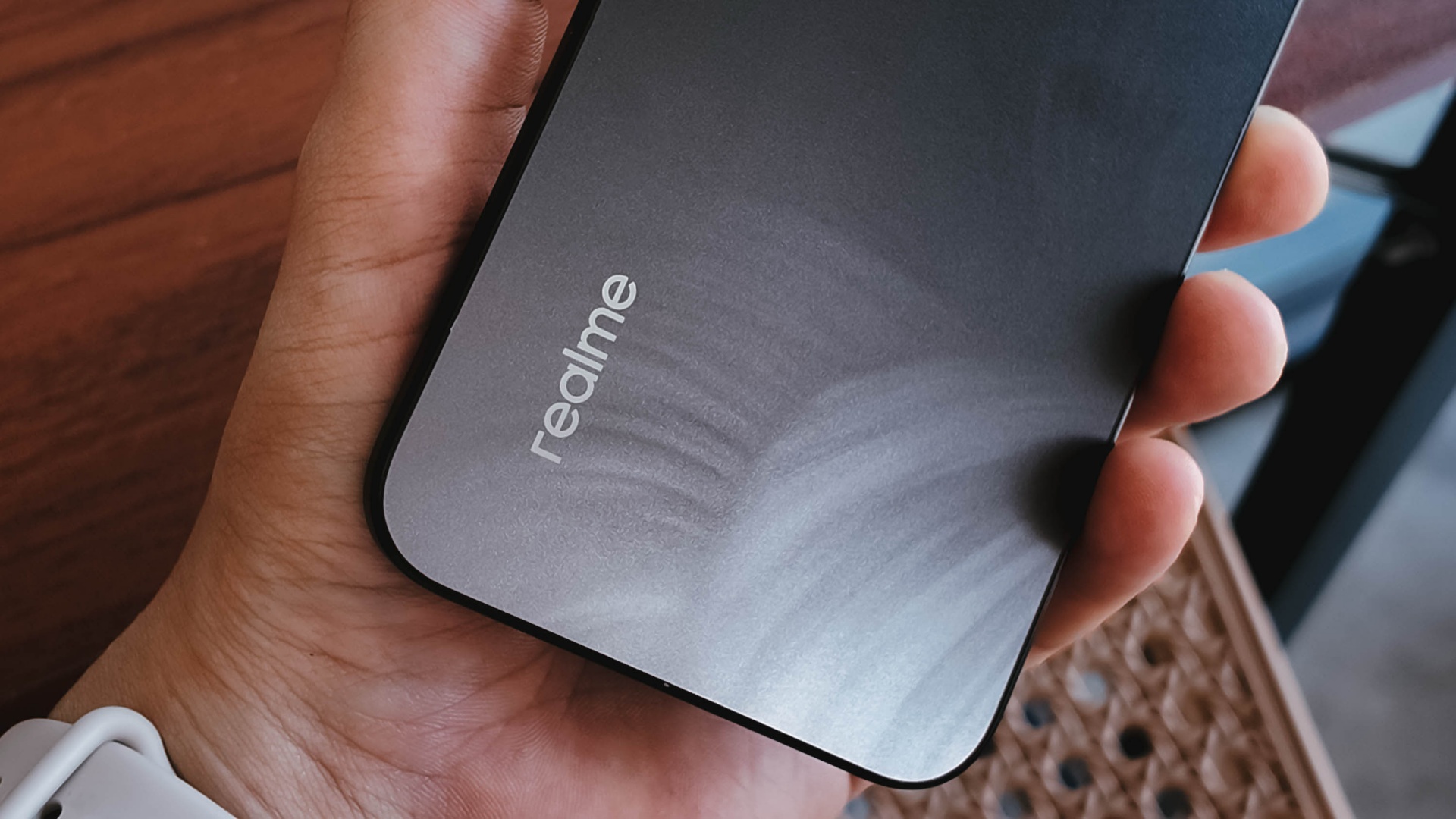
To its credit, the phone has a good grip and a less slippery back, even with its fancy design.
It is obviously great to have ArmorShell Glass protection too, as durability and ruggedness are two non-negotiables in this segment to remain competitive.
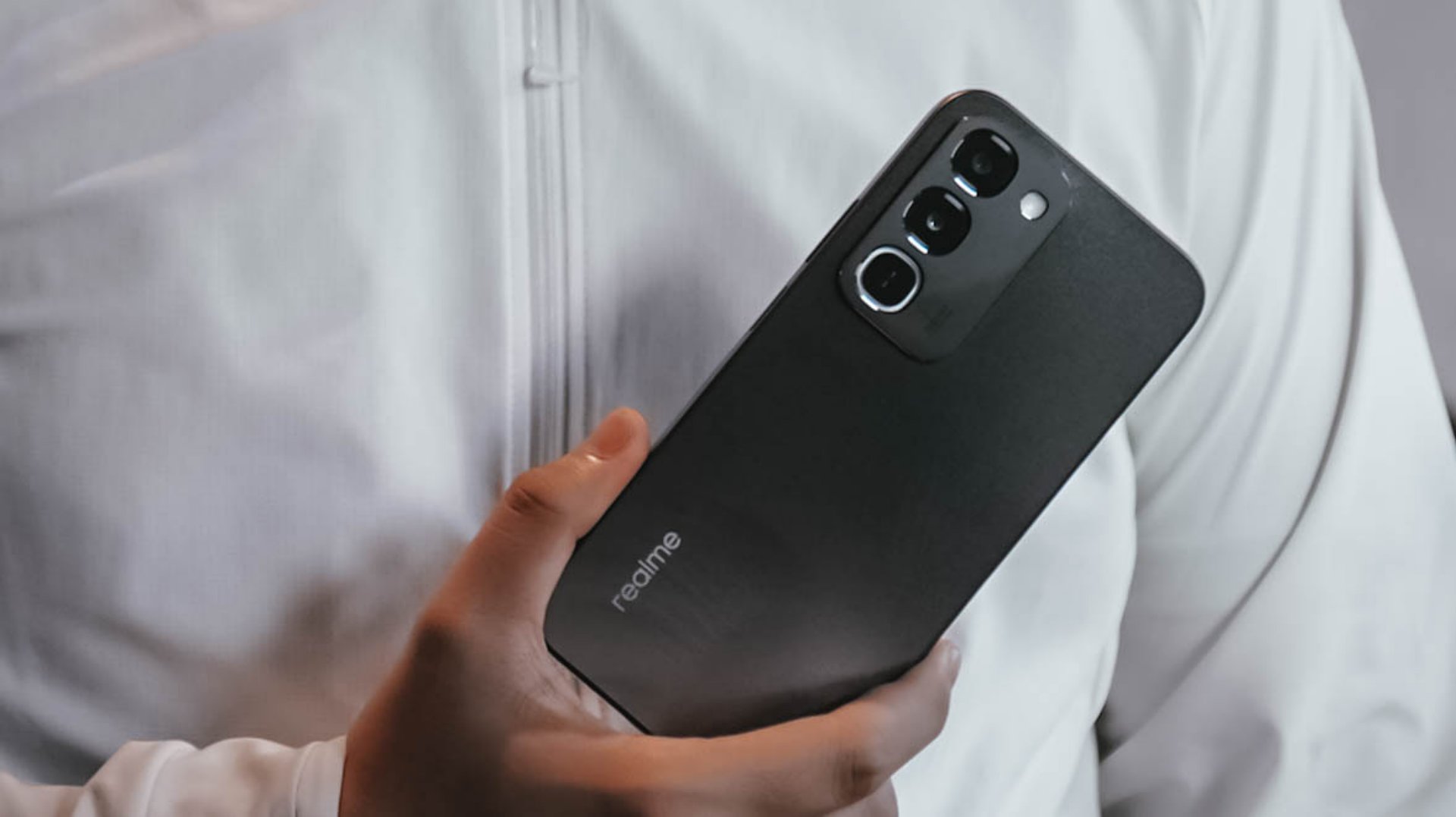
Aside from that, the phone boasts of IP66, IP68, IP69, and IP69K dust and water resistance. The display itself is also optimized for wet touches through Rain Touch Mode.
Is this your BudgetMatch?
For consumers prioritizing raw survival metrics, the final verdict leans toward a Swipe Left. It’s close though.
While the market shift toward military-grade drop resistance, high-tier IP waterproofing, and massive batteries makes sense as they save users from the hidden or unexpected costs of broken screens, liquid damage, and purchasing extra power banks, smartphones still requires a baseline level of operational smoothness.
At this price point, there are multiple cheaper alternatives with a more stable and responsive user experience.
There are also niche options providing a better gaming experience or camera performance, if either one is what you’re after.
There is just too many trade-offs with this particular unit, leaving some critical boxes unchecked.

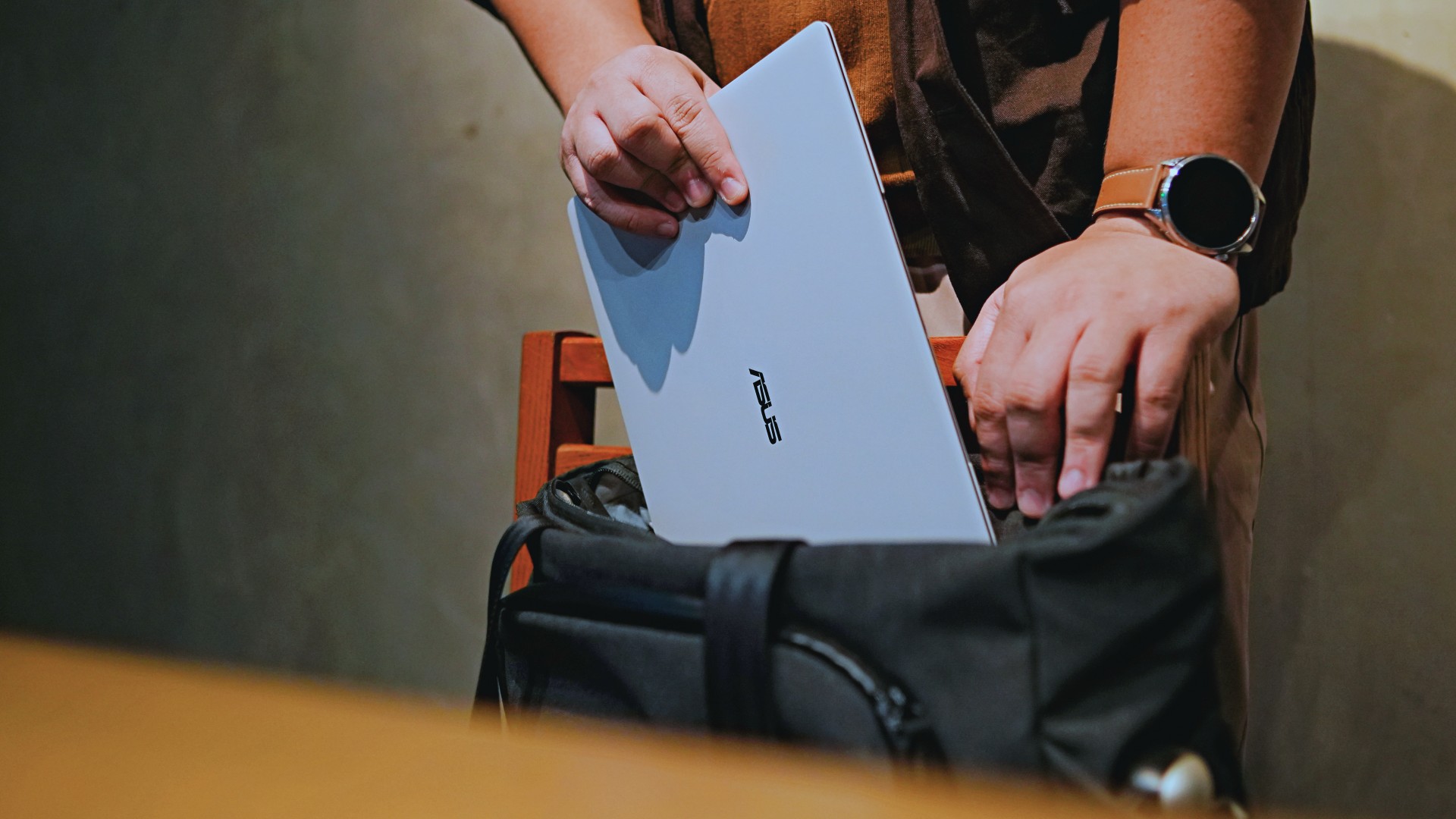
This is coming from someone who has done countless unboxings and has touched a wide variety of devices — the ASUS ExpertBook Ultra was… alright.
My first impression was that it certainly didn’t wow me as much as I expected it to after having read the brief, nor even after attending the tech seminar where ASUS laid out its vision for the laptop.
That’s probably the strangest thing about the ExpertBook Ultra. Because after having spent more time with it, the laptop grew on me.
Put cheekily, the ASUS ExpertBook Ultra wasn’t the laptop that made my head turn. Instead, it was the laptop that kept showing up consistently. Before I realized it, it’s become the one I wanted to keep coming back to.
And I think that’s the best way to describe my experience with ASUS’ flagship business notebook.
The laptop sneaks up on you.
Built to be carried

I got the laptop right after Computex 2026 coverage. That meant my days were closer to how they normally are. That also meant I had to be more intentional about going out and bringing it with me as I tackled my day-to-day duties.
I normally carried it using my trusted EDC — the Alpaka Bravo Tote — and I have to say it definitely felt lighter than my usual laptop, which is the MacBook Pro M4.
The Apple laptop I regularly carry is, I have to admit, chunkier than I would prefer. So having the ExpertBook Ultra for about a week or so literally felt like some load was taken off my shoulders.
Did I ever forget it was there? I wouldn’t go that far.
But if you’re asking me which one I’d rather carry based on build and weight alone, I would, with no hesitation, reach for the ExpertBook Ultra.
That says a lot considering how attached I am to my usual setup.
ASUS likes talking about how light the ExpertBook Ultra is. Normally, that’s the sort of marketing line I acknowledge and quickly move past.
This time, I actually felt it.
The Nano Ceramic effect

One of the first things ASUS will tell you about the ExpertBook Ultra is its Nano Ceramic finish. I’ll admit, it felt like one of those things that sounds good on a slide presentation.
It’s one of those things that look gimmicky at first but actually feels incredible once you come across it on a daily basis.
It’s still early, so you can consider this very much part of the honeymoon phase with the laptop. Even so, the Nano Ceramic finish continues to inspire a bit of awe every time I pick it up.
I do feel like a little weirdo caressing the laptop ever so gently before I begin the day’s work wherever I may be. But that’s just a testament to how good it feels to touch.

And yes, it does reinforce the feeling that, “Hey, I’m working on a pretty fancy piece of machinery.”
It’s easy to underrate the effects of that feeling, but it’s those little intangible things that can sometimes help unlock perspectives and possibilities.
That’s not something you’ll find on a spec sheet. But it’s absolutely part of the experience.
A display that’s difficult to stop staring at

It also helps if STAYC Isa is on screen.
The display is magnificent.
As Captain America would say, “I can look at this all day.” Not the exact phrase, but you’re smart. You get it.
The OLED and matte coating is just a killer combo. Kind of like the Chaewon and Yeji “That’s a No No” challenge collab. Pardon the months-old K-pop reference. I’ve been so busy I haven’t really kept up with what’s new.
Anyway, the combination just comes at you unapologetically and you have no recourse but to bask in it. Maintaining the deep blacks and crisp colors is such a gift to your eyes.
I often sit right next to big windows when I’m out in cafés and the light did nothing to dull the effect of the display.

Two love, two love. I’m falling.
It was so good I often found myself fully diving into STAYC’s 2 LOVE music video in between writing this very review and coordinating with my team.
The matte coating deserves special mention here.
OLED panels already look fantastic. Pairing one with a matte finish that helps cut reflections without sacrificing the strengths of OLED makes for one of my favorite laptop displays in recent memory.
Typing just clicked

This is one of my favorite keyboard experiences. Things just clicked right from the start. No awkward feeling-out phase whatsoever.
I was touch typing like I was Doctor Strange trying to look into over 14 million possible outcomes and still landing on the right key every single time.
The keys feel closer to chiclet-style keyboards than anything else. Even so, the spacing is perfect and the travel satisfying.
Then there’s the haptic touchpad.

I typically don’t like using mice, especially when I’m out and about. With most Windows laptops I’ve used in the past, that eventually becomes a necessity.
That wasn’t the case with the ExpertBook Ultra. It’s easily one of the best-feeling touchpads I’ve used in recent memory.
My standard for touchpads has always been MacBooks. While the software is also doing some heavy lifting in that particular setup, the ExpertBook’s own comes pretty close.
That’s not praise I hand out lightly.
Performance that feels like overkill

Performance is one area where I cannot claim I fully pushed the capabilities of the ExpertBook Ultra.
Most of my tasks are browser-based. Plenty of tabs open, sure, but I don’t think I ever came close to really testing the capabilities of this business notebook. I imagine that would be the case for most of ASUS’ target audience.
Upon seeing the specs, I already knew this was going to be a bit of an overkill for my own use case. My time with it only proved that assessment.
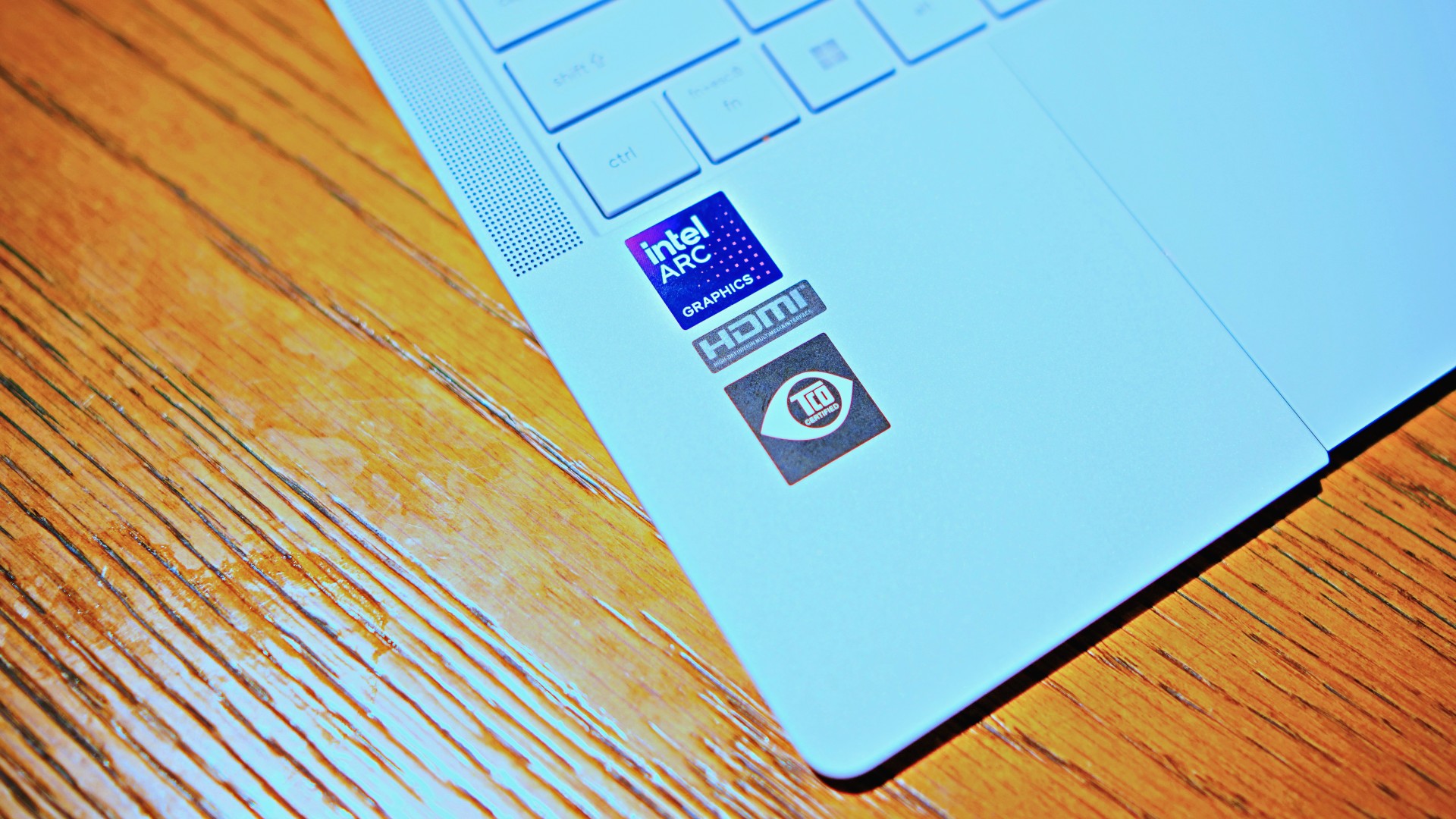
The most I did with it was jump between browser tabs and chat apps, letting ChatGPT help me process unresolved feelings and questionable timing while I dealt with coordinating shoots, writing scripts and reviews, and dealing with external forces that leave me feeling drained.
Never once did the laptop feel slow. Never once did I find myself waiting.
What noise?
Speaking of things I didn’t notice, let’s talk about fan noise.
Again, since I didn’t really push this thing to its absolute limits, the fan never really kicked into high gear at any point during my time with it.
The same goes for thermals.
No task I did ever raised the temperature to uncomfortable levels. The laptop simply went about its business. Which, come to think of it, is probably the most business-laptop thing I can say about it.

Battery life that simply works
I was very impressed with its overall efficiency.
When I go out to work, I typically don’t stay out longer than five to six hours. Most of the time that’s five to six hours of really focused work—with some K-pop loving in between.
Being generally risk-averse, I still always brought my usual charger with me. Not once during my time with the device did I feel the need to plug in while working outside.
I would typically end my café work days somewhere between 30 to 40 percent and only juice the thing up once I got home while it was closed and not in use.
That’s exactly the kind of battery experience I want from a business laptop.
The AI question
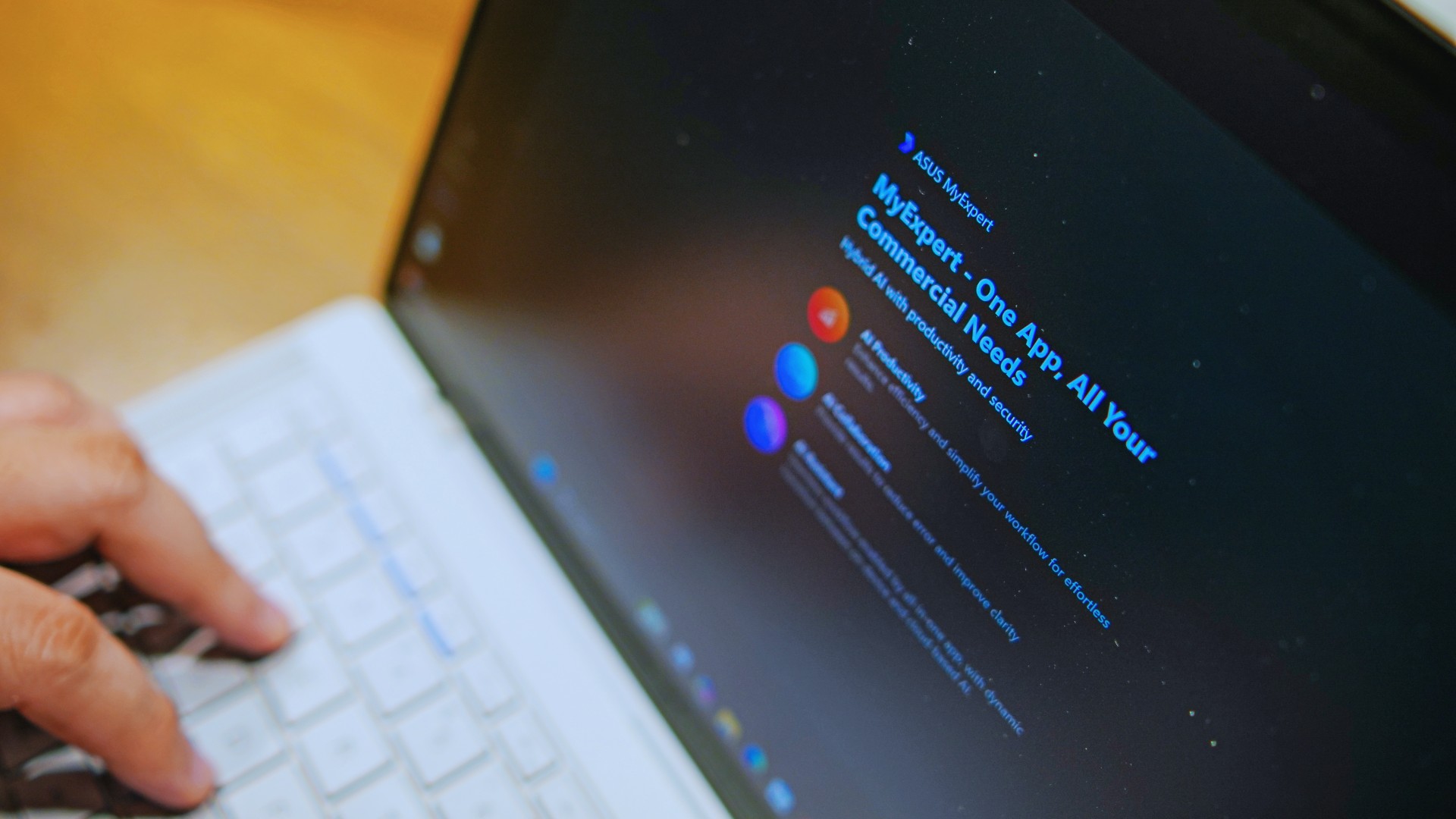
The thing I struggle with when it comes to AI features on this machine is that a lot of them are Windows-based and that’s just not the AI I find reliable.
Right now, many of these features are nice-to-have.
I’m sure one of ASUS’ target users will likely find a use case for them.
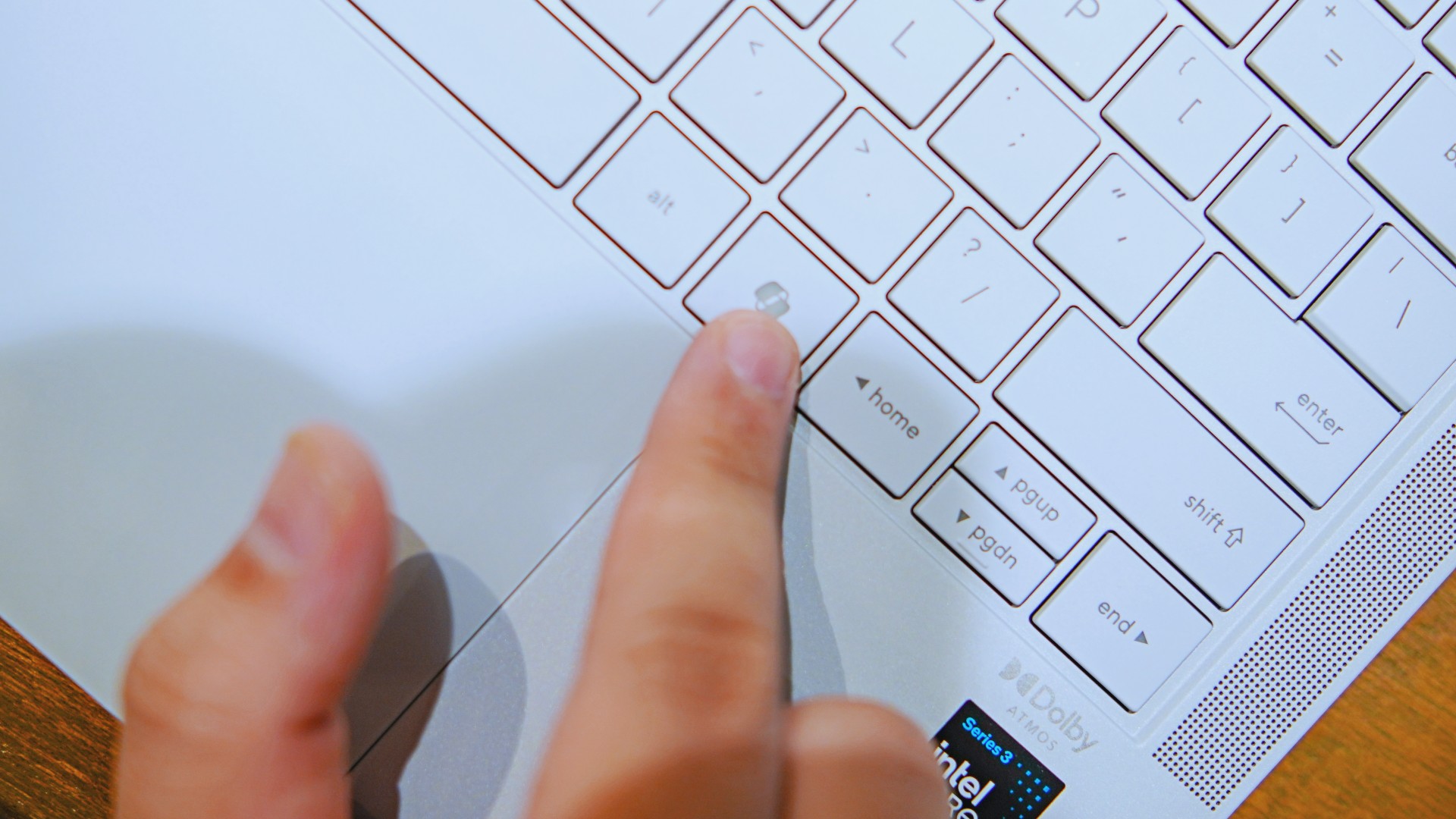
As for me personally, this is one area I’d have to dig deeper into to actually find ways to integrate them into my workflow and general usage.
And honestly, that’s okay. The AI features weren’t the reason I kept reaching for the laptop.
Who is this actually for?

That’s a loaded question. Really, it’s built for anyone who can afford it.
With a starting price of PhP 129,995, this device comfortably sits in aspirational territory.
What I know for sure is that this is a machine for someone who’s already built some momentum in their chosen field and would like to level up.
The ASUS ExpertBook Ultra gives you a machine that can handle your business now and inspire you to dream bigger about your future.
Is the ASUS ExpertBook Ultra your GadgetMatch?
The thing I kept coming back to with the ExpertBook Ultra is that there is no one thing that made me turn to it.
Instead, it’s the combination of everything that it brings to the table. The premium-feeling build, lightweight design, wonderful display, excellent keyboard and touchpad. efficient performance, and the thoughtful extras. Together, they make it a laptop that’s easy to recommend to anyone who’s ready for it.
But what does ready for it actually mean?

It means it’s for people who have leveled up quite a bit in their grind and want a machine that matches their current status and future aspirations.
That’s what the ASUS ExpertBook Ultra represents. A modern classic that’s ready for now and whatever comes next.
That’s why it didn’t wow me. But it certainly won me over.
Reviews
Nexal Watch Sport review: A rugged watch for small budgets
I couldn’t believe that watches this good could come for this cheap.

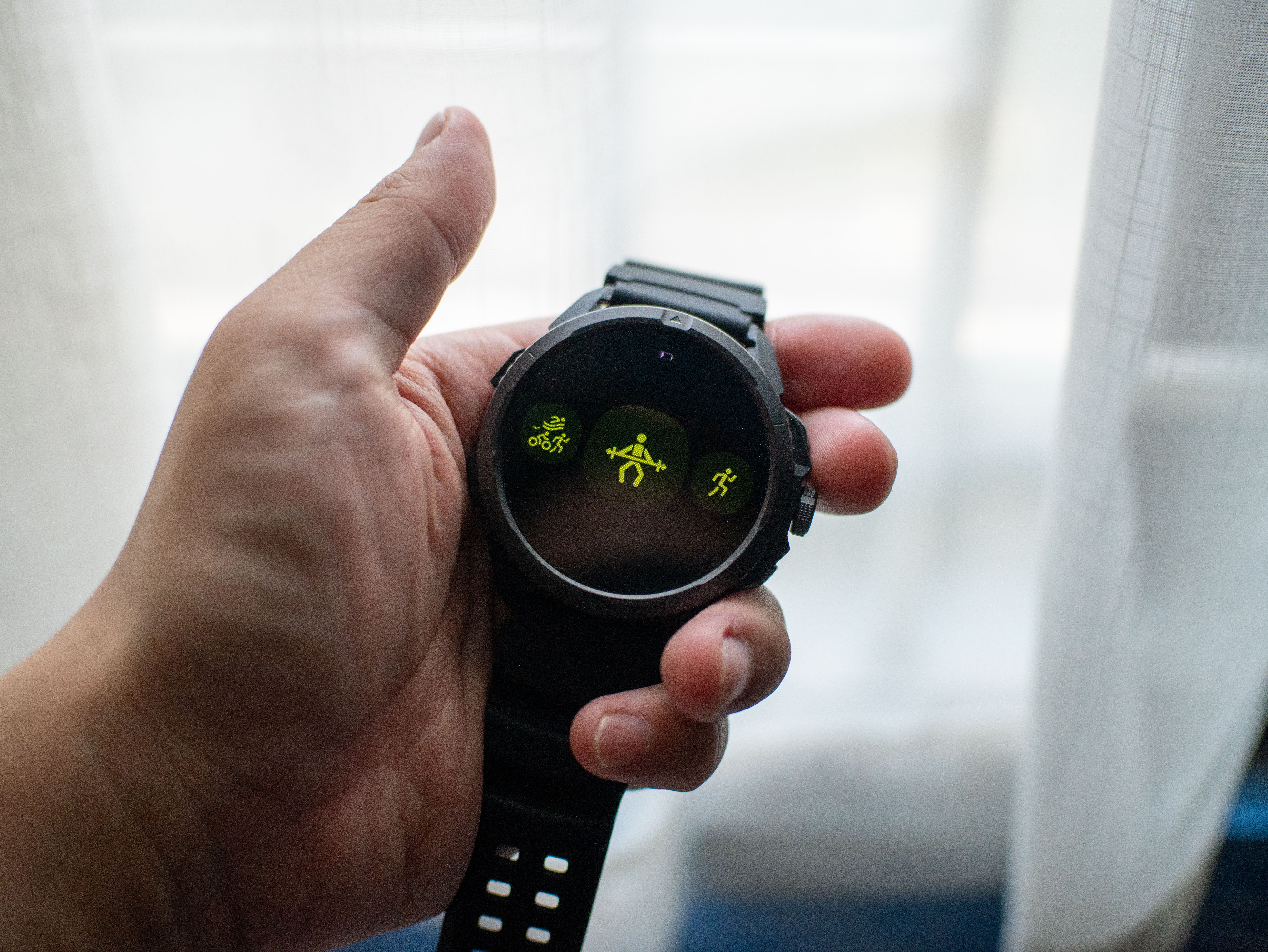
Between run clubs and HYROX training, fitness these days is a luxury. But it doesn’t have to be. When you realize that buying a new Garmin watch or On running shoe eats so much into your monthly budget, you start to discover those little things that make you go, “hey, maybe I don’t need all that expensive gear just to pound the pavement.” After all, humans perfected running before they figured out wearables.
That’s exactly how I felt with the Nexal Watch Sport.
Rugged as they come
I’ve always had a gripe with affordable smartwatches. Whereas budget smartphones are still able to wow users with unique (and durable) designs, affordable smartwatches often lack that polish, sometimes manifesting in flimsy straps or a clear lack of features.
The Nexal Watch Sport doesn’t suffer from that ailment. Housed in a matte black chassis, the wearable can hang with the rest. In spite of the minimalist design, it goes a long way to make me feel like I have an expensive wearable, rather than one that saves my monthly budget.
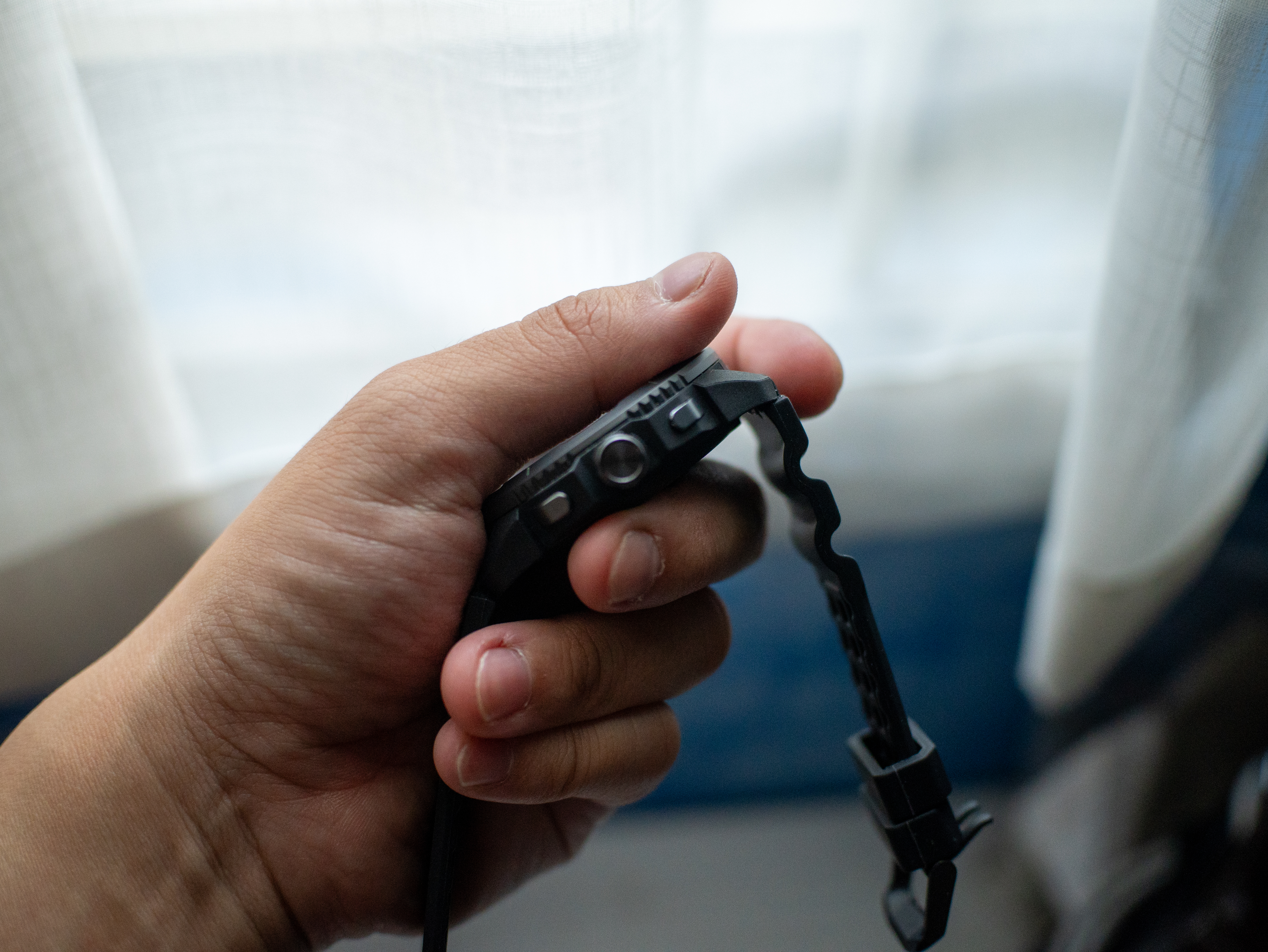
On the side, it comes with two simple buttons, a rotating crown, and a delightful array of flashlights (which I love, by the way). It’s also pleasantly light and doesn’t drag my wrist down, which is perfect for runners. The strap, though very bendy, lets my wrist breathe amid long runs. Finally, the double hooks ensure that the strap remains fixed to my wrist.

No more missed workouts
My favorite part about exploring a new smartwatch is going through its list of available workout modes. Offering over a hundred modes, the Nexal Watch Sport has you covered, no matter what you do to get the blood flowing. While you’re naturally getting the usual array ranging from running to lifting weights to pickleball, you’re also getting some pretty niche ones like parkour, darts, and jazz dancing.
Now, I know that I’ll never go for something like parkour, but it’s still nice to have that option. Plus, I’m sure actual practitioners of these sports will appreciate their inclusion. For me, having a wide array of modes to choose from adds that bit of feeling that maybe I can try one of those someday, and that’s an intangible plus with this feature.
As for performance, the modes I used — weightlifting and running — were accurate enough. I didn’t miss my Garmin Forerunner.
A clean interface
Another thing I look out for is the user interface. To my great surprise, the Nexal Watch Sport looks very clean. In fact, the main watch face looks better than a lot of options I’ve seen on either Fitbit or Garmin.
The main interface itself is simple, but that’s just what you need from a smartwatch. You don’t really want to fiddle around with settings on a small screen when all you want to do is to start running.
That said, the smartwatch isn’t the fastest. There’s a pronounced lag of about half a second when you use the screen. Functionally, it’s not too bad, but again, it’s frustrating when you’re about to start a run.
Now that’s a long battery life
“Rugged” describes this smartwatch to a tee. Nexal promises that a single charge can last up to thirty days on light use. Based on my estimates, this is largely true. The Watch Sport keeps on chugging along.
For regular people like me, this extremely durable battery is a boon for those who don’t want to charge their wearables too often. But it’s a godsend for those who prefer rugged outdoorsy sports. If you’re out in the wild, having a durable way to navigate and connect with the world is a must.
In our case, an extra-long battery life is a big benefit for on-the-go lifestyles. Whether I’m just working or working out, this battery is useful.
Is the Nexal Watch Sport your GadgetMatch?
The Nexal Watch Sport costs only PhP 6,999. It’s a bargain compared to even the cheapest models of the more popular brands.
With that price and its abundance of features you’d expect, this is a worthy purchase that you won’t regret. The only real flaw was the relatively slow interface, but that’s still workable. For that, the Nexal Watch Sport gets a Super Swipe.

realme C100: Enduring and durable in spite of entry-level realities
Enough power but needs more agility


The ASUS ExpertBook Ultra wins you over
The laptop sneaks up on you


Nexal Watch Sport review: A rugged watch for small budgets
I couldn't believe that watches this good could come for this cheap.

SQUARE ENIX STORE Plus expands presence in Asia, Oceania

Maya: Convert purchases to 0% interest Mini Payment plans

Netflix: Kris Aquino makes on-screen comeback with fictional role

Hatsune Miku: Colorful Stage! Exclusive shop, Fair, and Gratte schedule

The iPhone 18 might sell out for an unexpected reason

New York becomes first state to ban smart glasses

Sony launches IER-M500 in-ear monitors

Microsoft dictates that a new Fallout game is coming

HoYo FEST 2026 details announced; tickets on sale from July 16
realme C100: Enduring and durable in spite of entry-level realities


-

 Automotive4 days ago
VinFast debuts two-wheeler models, opens 21 e-motorcycle showrooms
-
 Computers1 week ago
AMD launches Radeon RX 9050 graphics card
-

 Computers2 weeks ago
AORUS MASTER 16 Gen 2 2026 AI gaming laptop launches
-

 Gaming2 weeks ago
God of War Laufey finally confirms its highly anticipated launch date
-

 Automotive7 days ago
Xiaomi debuts SkyNomad Series featuring new Kunlun platform
-

 News3 days ago
OnePlus officially leaves the United States and Canada
-

 Gaming1 week ago
NBA 2K27 gameplay trailer showcases new dunk mechanics, Rucker Park, and more
-

 Gaming6 days ago
Call of Duty: Modern Warfare 4 clip shows Losing Ground 1st look