
Features
4 simple ways to improve battery life on your smartphone
You don’t need a power bank for this one

Owning a smartphone has been a need for a lot of people over the past few years — not just for calling and texting your family and friends, but also helping you book a ride or take pictures. It’s essential that your phone is up and running at all times.
But, let’s say the night is still young and your phone’s battery is close to empty, say, around 25 percent left. You or your friends don’t have an available power bank, and there are no charging outlets in sight. You still need your phone to book an Uber or call your parents to tell them how you’re holding up. Say no more, because here are some tips on how you can make your phone last longer.
Force-close your apps
Let’s say you opened a ton of apps over the course of the day, and you kept them idle while using other apps in the process. Having a ton of idle apps open drains your battery despite just being in the background. Your phone is still using power from the battery to refresh your apps in the background, apart from delivering notifications from these apps.
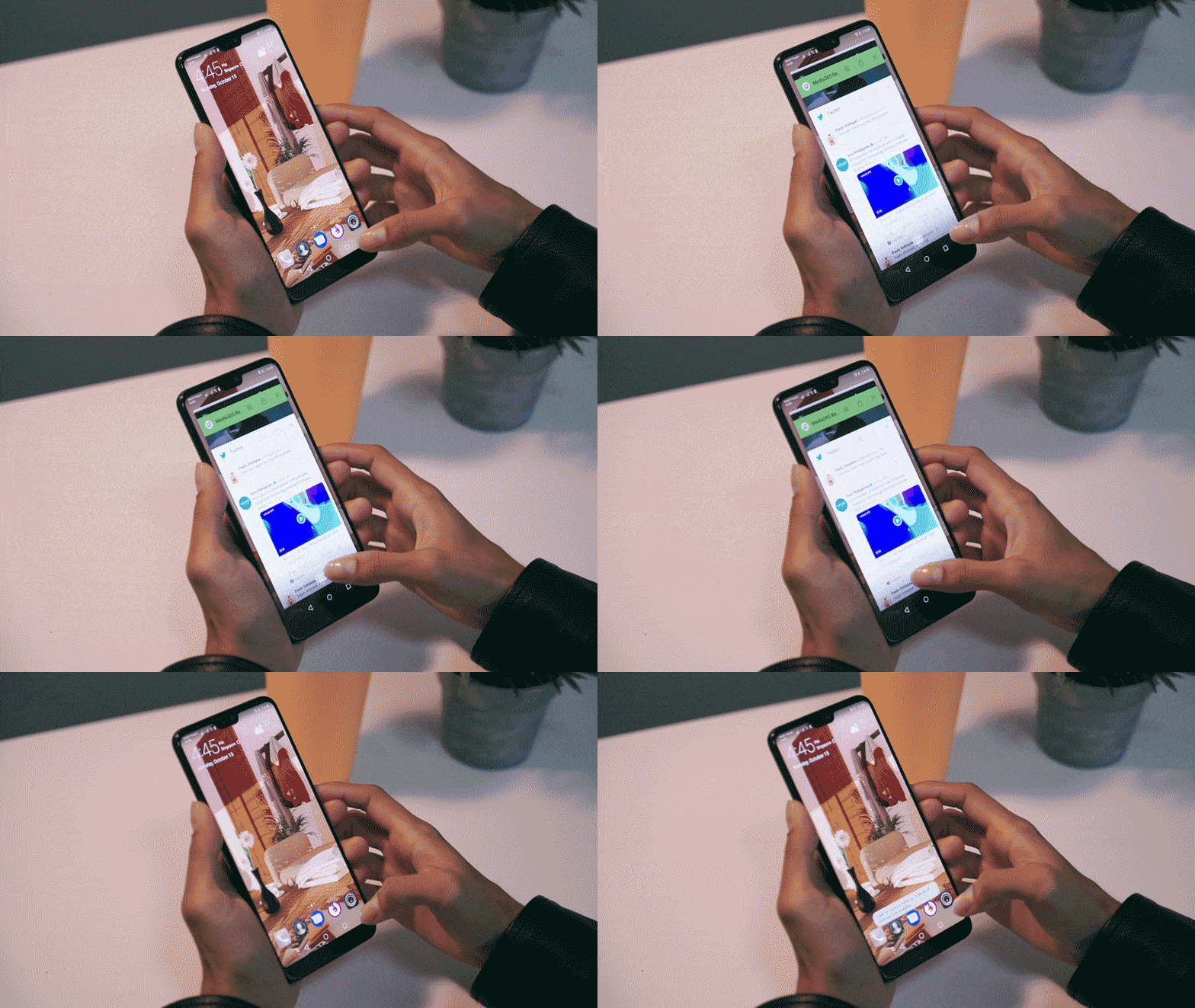
While smartphones have been getting better at managing battery drain from these apps, what you can do is to simply force-close your unused apps. Android smartphones have a built-in feature wherein you can see all the recently accessed apps and regulate their usage. For iPhone users, simply access the Multitasking feature and close your unused apps and turn off the “Background App Refresh” setting.
Turn down your phone’s brightness and screen timeout
Another feature that eats up your phone’s battery is your screen’s brightness. By default, your phone would have the brightness set to automatic, but if you want to see all the colors in full bloom, you would turn the brightness up.

But, for cases wherein your battery is already low, it is advisable to turn it down to conserve energy. Also, you can turn down the screen timeout settings on your phone to the quickest time. The shorter time your phone’s screen is on, paired with low brightness settings, the more your battery conserves energy.
Turn off some phone features when not in use
Apart from idle apps open in the background, your phone also has main processes and features running. Functions such as Wi-Fi and Bluetooth, cellular data, location services, and auto-sync are normally on by default. You would want to keep these running at all times to stay connected, and obviously in case of emergencies.
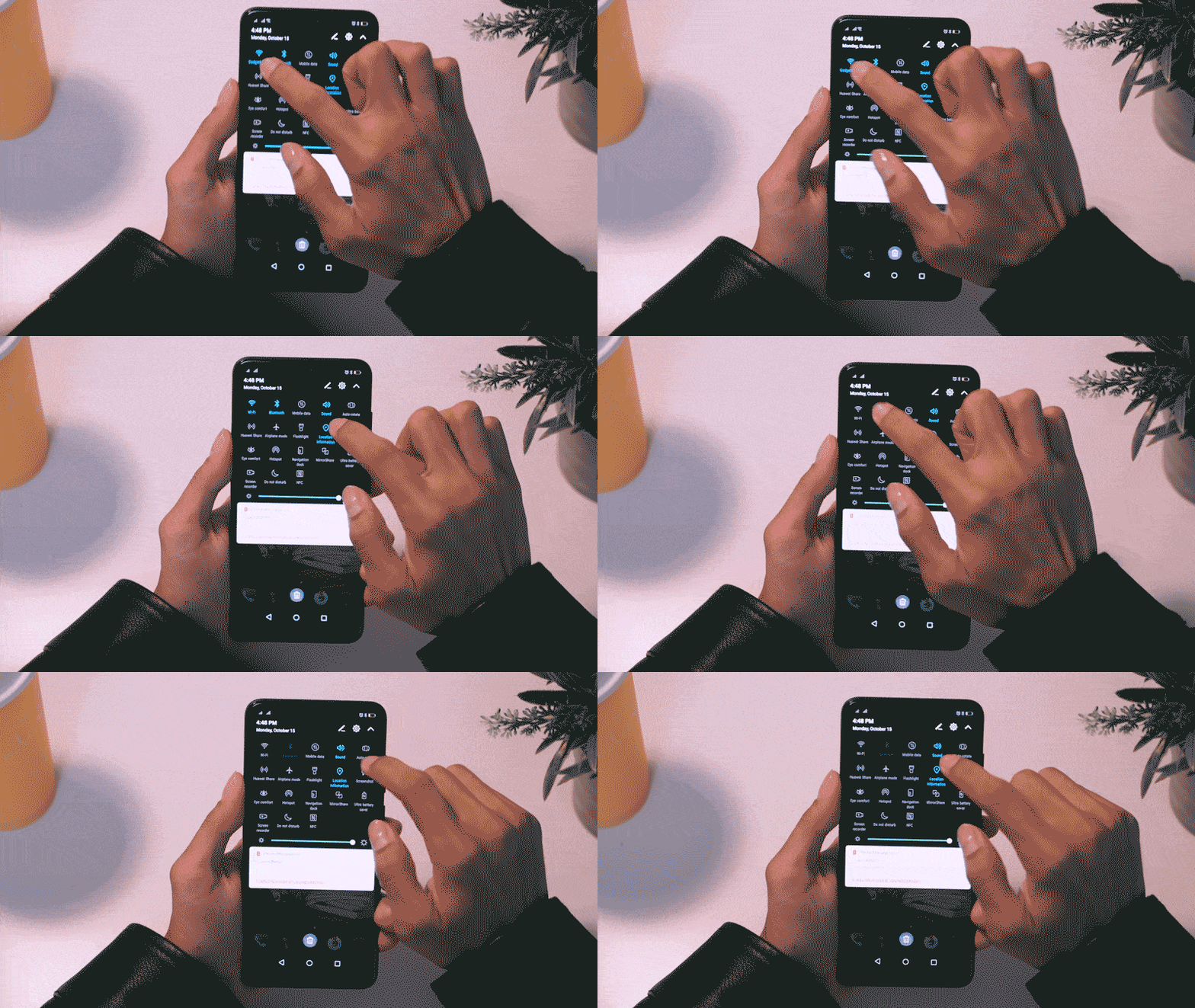
However, it’s best to turn some of these features off, especially if you’re not actively using them. Of course, the easiest way of turning off your Wi-Fi and cellular services is by turning on Airplane Mode. For the rest, you have to turn them off manually through your phone’s action center. Doing so stops the background processes for the time being, saving your battery life for a while longer.
Use ultra power saving mode
Let’s say your phone is now bordering on the 10 to 15 percent mark, and you are desperate to keep your phone alive. You’ve tried all the things above but your phone’s battery is still depleting by the minute. Luckily, your phone also comes with different battery saving options accessible through its settings.
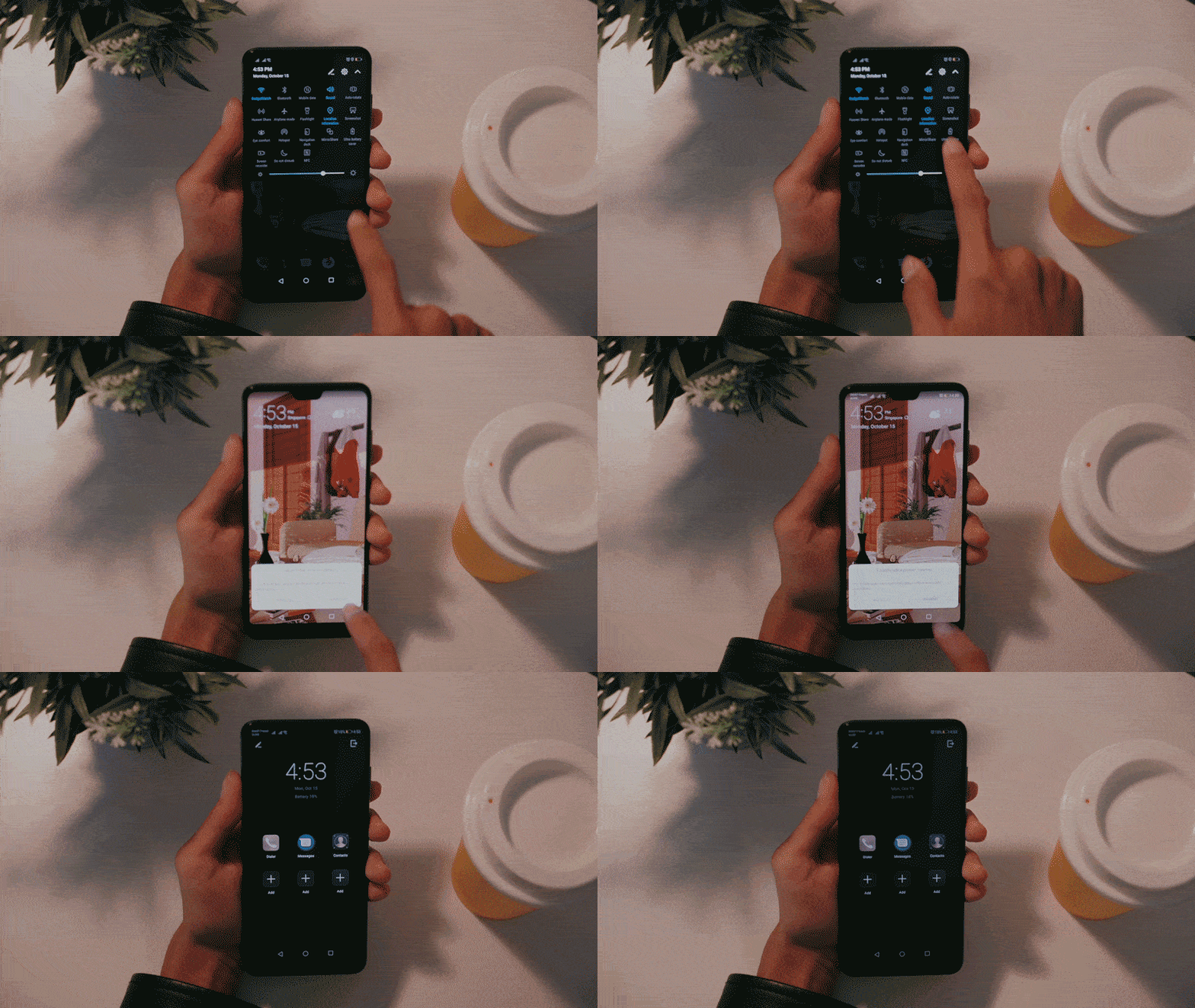
When you go to your Settings menu, enter Battery options and you’ll likely notice that your phone has both a power saving mode and an ultra power saving mode. If you want to keep your phone on for as long as possible, turn ultra power saving mode on for good measure. While on ultra power saving mode, you only have access to your calls, texts, and other necessary apps you prefer.
There are other ways to improve battery life, but these are the easiest, most accessible ways to do so. Let’s hope your phone had enough power left to scroll through this article!






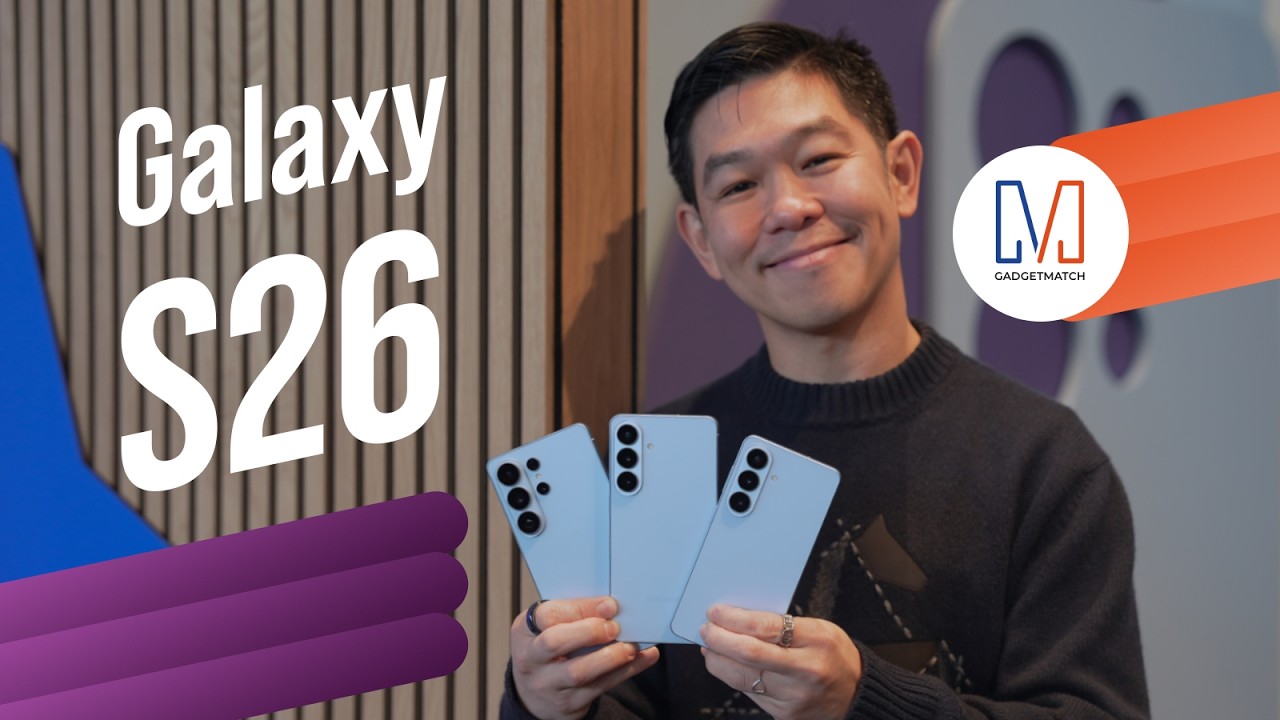
Did Samsung push forward or play it safe with the Samsung Galaxy S26 Series? Well, it’s a little bit of both.
Here’s our Hands-on with the new Samsung Galaxy S26 series to find out.
PRE-ORDER and SAVE up to $900 with enhanced trade-in credit:

“Our philosophy has never been about chasing specs.”
That line from Samsung’s presentation captures the Galaxy S26 Series better than any spec table.
This isn’t a year of radical hardware shifts. Battery capacities remain unchanged. Megapixel counts are familiar. The design language evolves rather than transforms.
But incremental doesn’t automatically mean irrelevant.
The S26 Ultra feels like Samsung refining its priorities — usability, privacy, and AI integration — instead of pursuing headline-grabbing numbers.
Hardware refinement, not reinvention
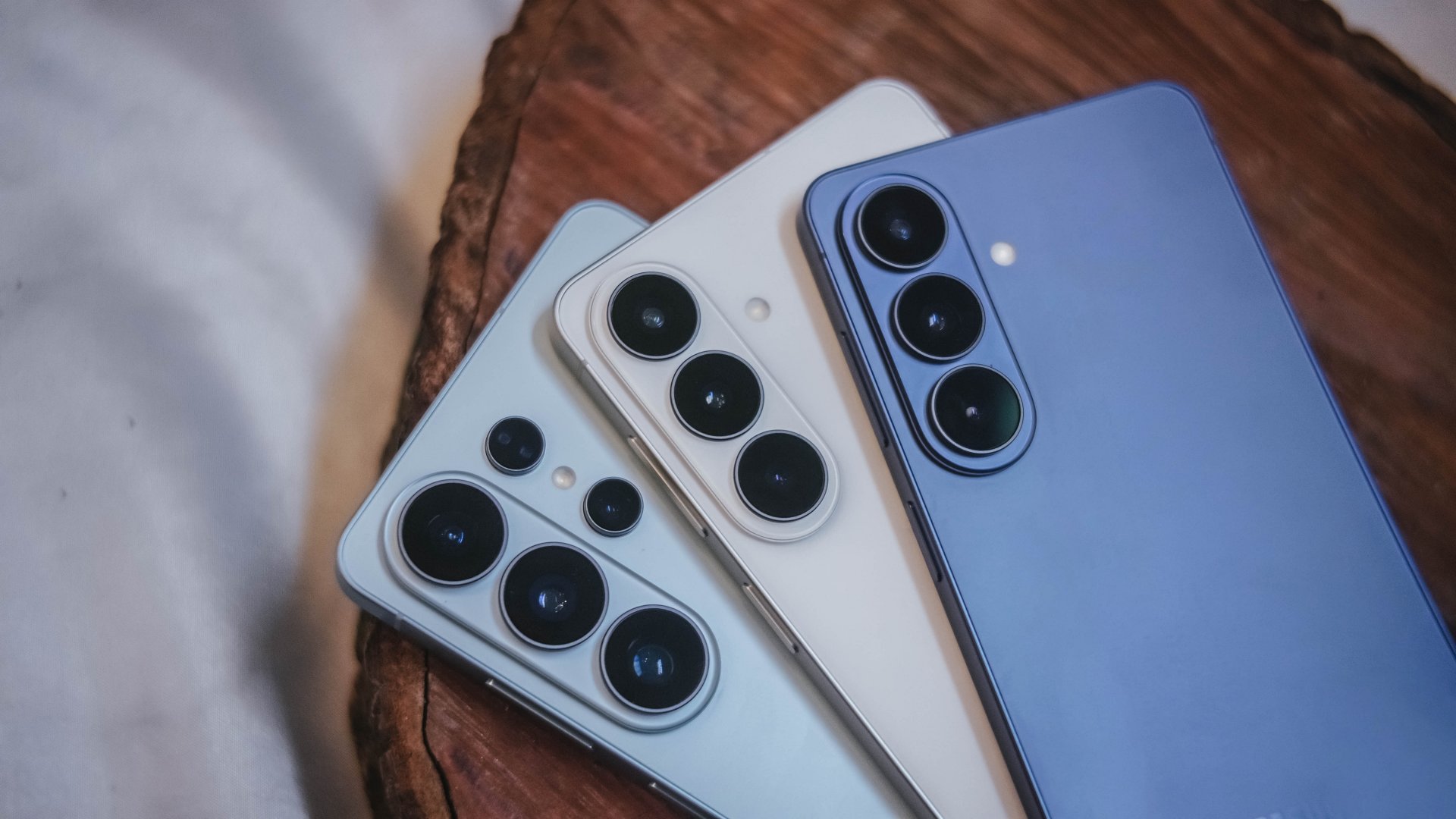
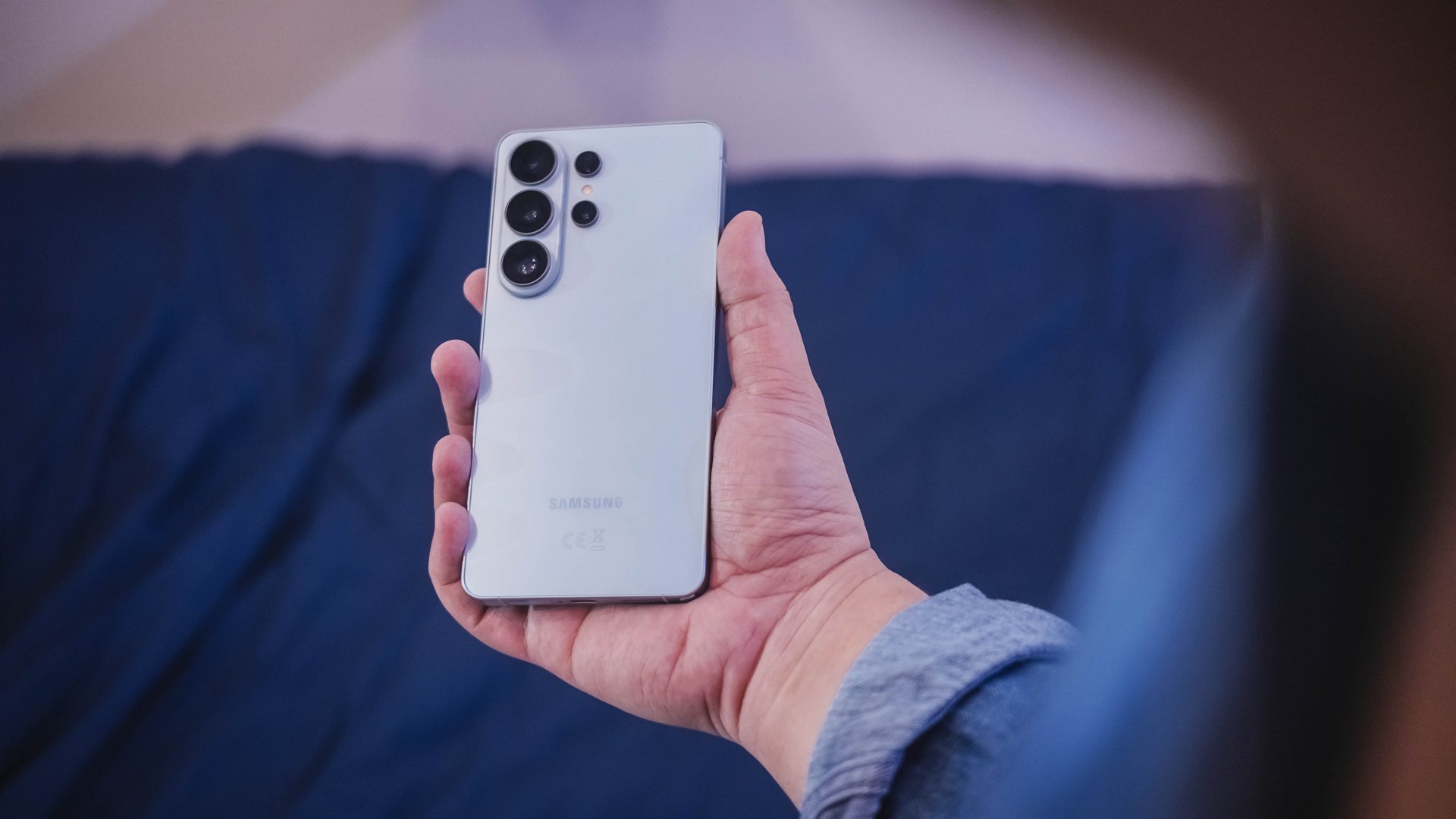
The Galaxy S26 series looks more unified. All three models now share the same corner radius, creating a consistent visual identity. The Ultra no longer stands apart with sharper edges. It’s a small change, but it makes the lineup feel cohesive.
The camera module sits on a more defined island rather than blending into the rear panel. It’s subtle, but noticeable in person.
Samsung also trimmed weight and thickness on the Ultra. At 7.9mm and 214 grams, it handles slightly better than last year’s model. The company switched to Light Armor Aluminum, which it claims improves heat dissipation and weight. The difference in hand isn’t dramatic, but it’s appreciated during extended use.
Charging finally moves forward. The Ultra supports 60W wired charging, up from 45W. Samsung says you can reach 75 percent in around 30 minutes. That’s a meaningful improvement for quick top-ups.
However, 60W isn’t industry-leading in 2026. Competing brands have offered similar or faster speeds for years. This feels less like Samsung setting a new benchmark and more like closing a gap.
Battery capacity remains 5,000mAh. That’s consistent with previous models. While fast charging helps daily convenience, endurance gains will depend on software optimization and real-world usage.
AI and software remain the headline
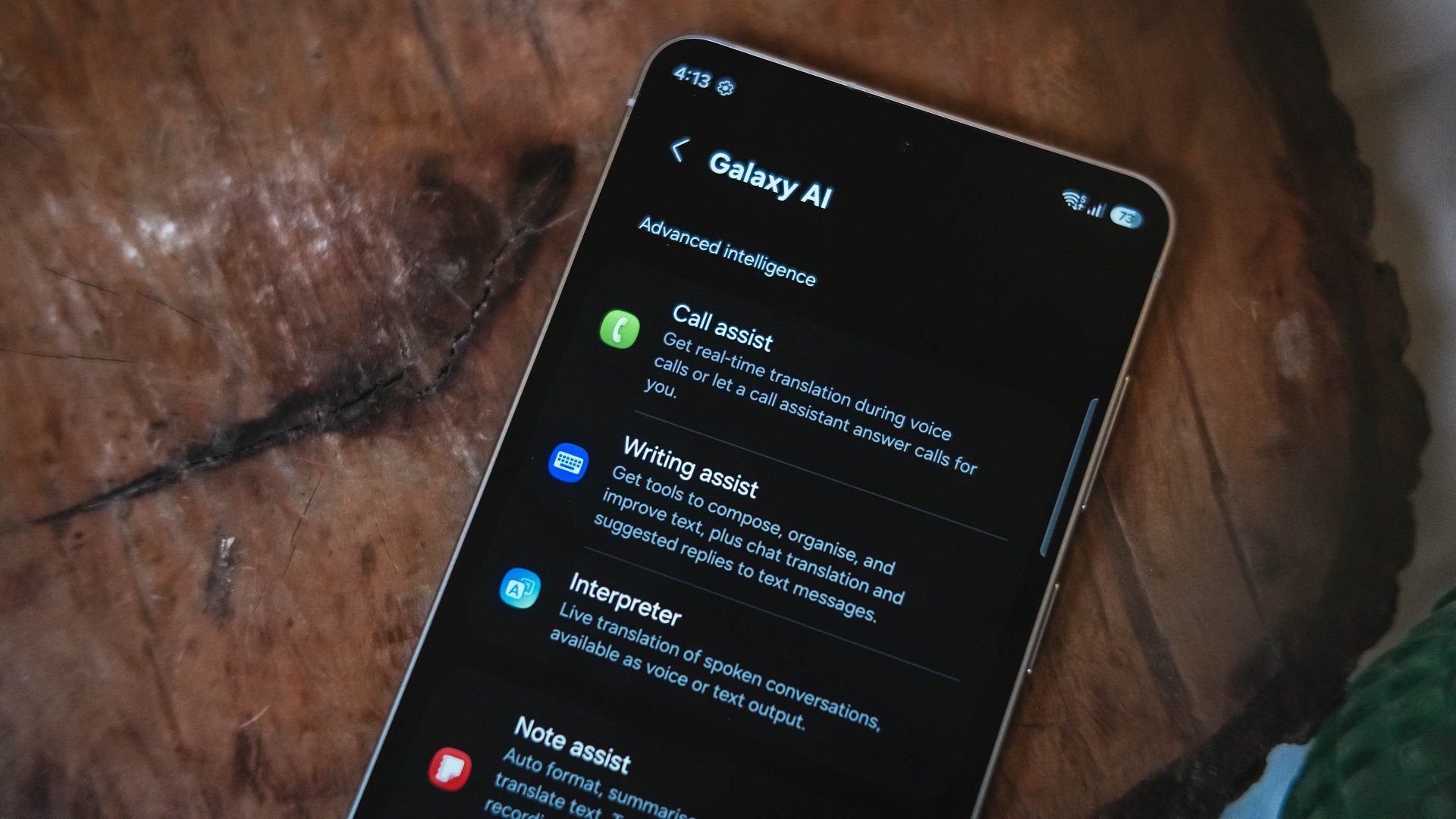
Like recent Galaxy generations, the S26 Series leans heavily on software features.
Privacy Display is one of the more practical additions. It restricts viewing angles at the pixel level, functioning like a built-in privacy filter. If you’re using your phone in public spaces, people nearby will struggle to see what’s on screen.
You can toggle the feature or enable it only for specific apps. That flexibility matters. It allows privacy protection for sensitive apps while keeping general use unaffected.
This addresses a real-world problem. Public screens are inherently visible. Privacy Display doesn’t eliminate that risk, but it reduces casual glances and unwanted observation.
Audio Eraser also gets an upgrade. It now works across third-party apps. We tested it on a noisy K-pop fancam from YouTube, and the background noise reduction was noticeable without destroying audio quality.
It’s not perfect. Overprocessing can occur in extreme cases. But for cleaning up shared videos or reducing ambient noise, it proves useful.
AI Photo Assist introduces text-prompt editing directly inside the Gallery app. Users can describe edits in natural language — remove objects, expand backgrounds, or modify elements — without exporting images to external tools.
This isn’t groundbreaking technology. Similar generative edits exist in other AI platforms. The difference is integration.
By embedding generative tools inside the Gallery, Samsung turns them into part of the default workflow. Photo editing becomes more accessible rather than requiring specialized knowledge or separate apps.
That shift is meaningful. It signals that generative AI editing is becoming a standard smartphone feature rather than an experimental add-on.
Cameras: computational evolution
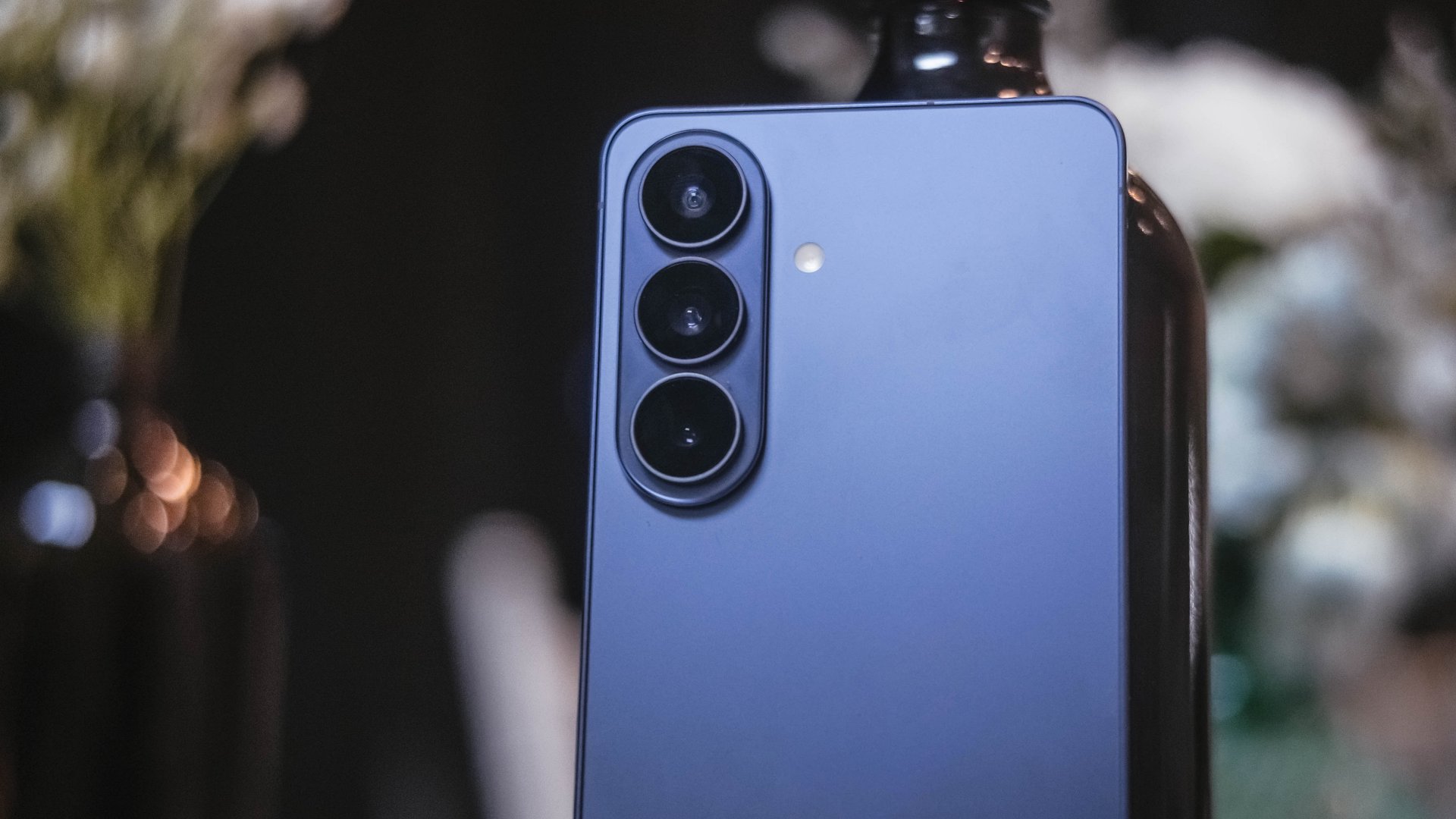
The camera hardware remains familiar. The Ultra continues with a 200MP main sensor and telephoto configurations similar to last year.
Improvements focus on computational photography.
Samsung widened apertures to allow more light. Stabilization has been refined. AI sharpening and Nightography processing aim to produce cleaner images with reduced noise.
From samples shown during the presentation, low-light shots appear brighter and cleaner. However, the processing can feel aggressive. Details sometimes look overly smoothed, and textures can appear artificial.
This reflects Samsung’s long-standing approach — prioritize computational enhancements over megapixel increases. The S26 continues that philosophy.
For video creators, APV (Advanced Professional Video) enables 8K recording with minimal quality degradation during edits. Super Steady Video also improves handheld stabilization.
These features cater to content creation workflows rather than casual snapshots.
Incremental but intentional

The Galaxy S26 Ultra doesn’t try to shock. It doesn’t reinvent Samsung’s design language or introduce dramatic hardware leaps.
Instead, it refines existing ideas.
Privacy Display addresses public visibility concerns. Audio Eraser improves real-world video cleanup. AI Photo Assist integrates generative editing into everyday photo workflows. Charging speeds improve without industry-leading ambitions.
Even the design changes — unified corner radii, a defined camera island, lighter materials — emphasize cohesion.
This strategy resembles the broader shift in the smartphone industry. Hardware innovation has slowed. Software and usability improvements drive differentiation.
Samsung appears comfortable with that reality.
Of course, first impressions only tell part of the story. We still need extended testing for battery life, thermal performance, camera consistency, and AI reliability.
The S26 Ultra may not represent a revolution. But refinement can matter — especially when it targets usability and practical features.
Samsung will have to make significant hardware upgrades eventually. But for now, it feels like the company is doubling down on incremental progress. Not flashy. Not radical. But purposeful.
Whether that strategy resonates will depend on real-world performance.
Samsung Galaxy S26 Series – Specs
| Feature | Galaxy S26 Ultra | Galaxy S26+ | Galaxy S26 |
| Display | 6.9″ Dynamic AMOLED 2X
|
6.7″ Dynamic AMOLED 2X
|
6.3″ Dynamic AMOLED 2X
|
| Rear Camera: Ultra Wide | 50MP, F1.9, 0.7 µm | 12MP, F2.2, 1.4 µm | 12MP, F2.2, 1.4 µm |
| Rear Camera: Wide | 200MP, F1.4, 0.6 µm | 50MP, F1.8, 1.0 µm | 50MP, F1.8, 1.0 µm |
| Optical Quality 2x | |||
| Rear Camera: Telephoto 1 | 10MP, F2.4, 1.12 µm | 10MP, F2.4, 1.0 µm | 10MP, F2.4, 1.0 µm |
| 3x optical zoom | |||
| Rear Camera: Telephoto 2 | 50MP, F2.9, 0.7 µm
|
— | — |
| Front Camera | 12MP, F2.2, 1.12 µm | 12MP, F2.2, 1.12 µm | 12MP, F2.2, 1.12 µm |
| Processor | Snapdragon® 8 Elite Gen 5 for Galaxy (3 nm) | Exynos 2600 (2 nm)* | Exynos 2600 (2 nm)* |
| Memory (RAM) | 12GB / 16GB | 12GB | 12GB |
| Storage | 256GB / 512GB / 1TB | 256GB / 512GB | 128GB / 256GB / 512GB |
| (Micro SD: N/A) | |||
| Battery | 5,000 mAh | 4,900 mAh | 4,300 mAh |
|
|||
| Dimensions | 78.1 x 163.6 x 7.9 mm
214 g (Sub6/mmWave) |
75.8 x 158.4 x 7.3 mm
190 g (Sub6/mmWave) |
71.7 x 149.6 x 7.2 mm
167 g (Sub6) |
| Colors | Standard: Cobalt Violet (Hero), Sky Blue, Black, White
Online: Silver Shadow, Pink Gold |
Standard: Cobalt Violet (Hero), Sky Blue, Black, White
Online: Silver Shadow, Pink Gold |
Standard: Cobalt Violet (Hero), Sky Blue, Black, White
Online: Silver Shadow, Pink Gold |







Paramount wins bid for HBO Max, plans to merge streaming apps

The razr fold enters motorola into the book-style foldable market

The quirky Legion Go Fold stole the show at MWC 2026

Globe extends roaming assistance to customers in the Middle East

CASETiFY relaunches Evangelion collab for 30th anniversary

Xiaomi 17 Ultra is now available outside China

TECNO will showcase the CAMON 50 and POVA 8 series at MWC 2026

PlayStation, LE SSERAFIM Chaewon team for the ‘Love of Play’ campaign

The art of being in and behind the frame

HUAWEI MatePad 11.5 S 2026: The better-than-ever 4-in-1 productivity tablet


-
 News3 days ago
Xiaomi 17 Ultra is now available outside China
-

 Camera Walkthrough1 week ago
OPPO Reno15 Pro: Camera Review
-
 First Look2 weeks ago
Match Pulse: Infinix NOTE 60 Pro
-

 Cameras2 weeks ago
Osmo Pocket 4 makes a surprising appearance in public
-

 Gaming2 weeks ago
LG unveils UltraGear evo, redefines 5K gaming with AI Upscaling
-
 News2 weeks ago
iPhone 17 Pro Max is somehow the most traded-in phone today
-

 News2 weeks ago
HUAWEI launches Mate X7, MatePad 11.5 S 2026, FreeClip 2
-

 Gaming2 weeks ago
PlayStation 6 reportedly delayed to 2029 because of RAM shortage