
Apps
How to downgrade to iOS 9 from iOS 10 on your iPhone or iPad


So iOS 10 is out. And while we do think Apple’s “biggest release ever” is great and works as advertised on newer devices, the software update might not be to your liking, or it simply doesn’t run well on your iPhone or iPad. Which leaves you with one option: downgrade to the previous version of iOS.
Reverting to iOS 9 isn’t complicated and the process itself should only take minutes to complete. But you should do it sooner than later, as there’s only a small window of opportunity before Apple stops signing (read: approving) the last iOS build before a software upgrade. In due time (perhaps when the next update rolls out), downgrading won’t be possible, and you’ll be stuck with your least favorite iOS version.
But before we walk you through the roll-back process, make sure to backup your device first, either via iCloud or iTunes on a Mac or Windows computer. You won’t be able to use the backup on iOS 9 or older, but it’s better to have a fall-back option just in case things don’t go down so well. Your computer should be using the latest version of iTunes as well.
Oh, and one more thing: The downgrade process will install a fresh version of iOS 9.3.5 onto your device. If you don’t have an iOS 9 backup on iCloud or your computer, you’ll be left with a blank device with a few pre-installed applications.
So here’s how to revert to iOS 9 from iOS 10.
1. Download the appropriate iOS 9.3.5 file (ending in .ipsw) for your iPhone, iPad, or iPod model.
2. While the download is in progress, turn off the “Find My iPhone/iPad/iPod” feature on your phone (head to Settings > iCloud > Find My iPhone/iPad/iPod).
3. Connect your device to your Mac or Windows machine using a Lightning cable.
4. Launch iTunes,
5. Put your iOS device into DFU (Device Firmware Upgrade) mode. To do that, hold down both the home and power buttons for at least 10 seconds. When you see the Apple logo, let go of the power button but continue holding down the home button until the device enters DFU mode. iTunes will notify you when it is in recovery mode.
6. Select the device icon in the upper-left side of the iTunes window, then click on the “Summary” tab in the left column.
7. In the iTunes window, hold down the Option key on a Mac or the Shift key on a Windows computer, and choose the “Restore iPhone…” option.
8. A navigation window will appear, prompting you to select the file you downloaded earlier. Navigate to the folder where you saved the file, then select it.
9. iTunes will proceed to install iOS 9.3.5. Do not unplug your device for any reason until it reboots to the “Hello” screen.
10. At this point, you can restore an iOS 9.3.5 or older backup to get all your data and settings back. Again, you can’t use a backup made using iOS 10.
Were you able to roll back to a previous installation? Sound off in the comments section. We’d love to hear from you.
[irp posts=”8256″ name=”How to download Netflix videos on your Android or iOS device”]






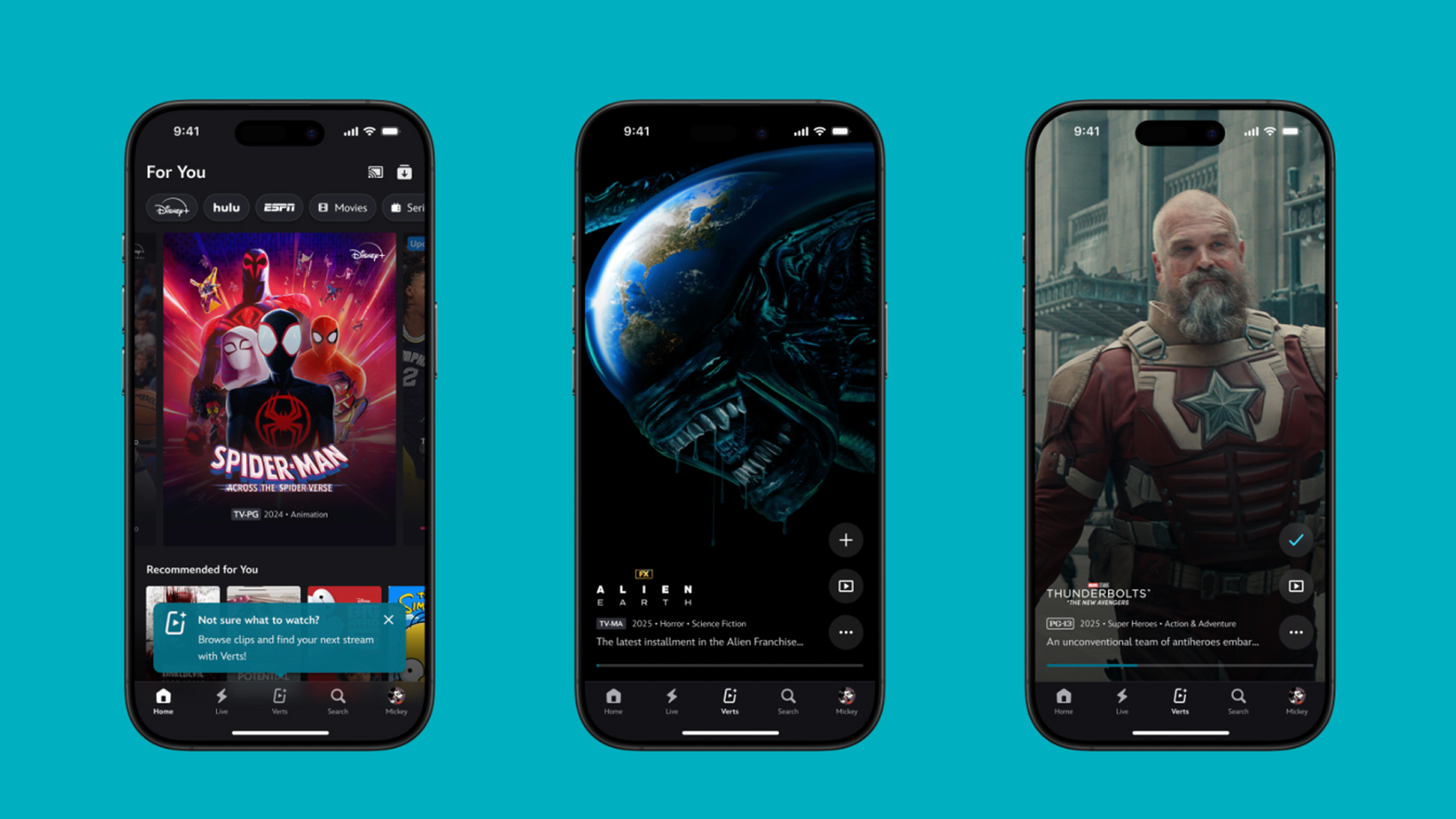
TikTok has changed how we consume media. Everything is now vertical. Even the most established streaming services, often a bastion for traditionally horizontal content, is adopting the different format. Now, Disney+ is getting a vertical feed called Verts.
Like its contemporaries, Verts presents a continuous feed of content but tailored to show the plethora of titles from the Disney+ library. This might include the first scenes of shows or notable highlights. The hope, of course, is to direct users to the longform content.
Directly from the Verts feed, users can easily add the respective title to their watchlist or go straight to the title’s page. In turn, the feed is accessible from the homepage since it has its own tab.
According to Disney, early experiments with the feature have driven engagement to available content. Right now, the feed is mostly for clipping enticing content from shows. However, the platform will experiment further with the format for new ways to tell stories.
Though Verts surely stands for “verticals” in this case, “adverts” might fit better as its full government name. Still, it might be a useful tool if you’re figuring out what to watch for the night.
Currently, Verts is available for Disney+ subscribers in the United States. Disney also has plans to expand the feature to ESPN for sports-related content.
SEE ALSO: Live NBA action on Disney Plus now available in the Philippines
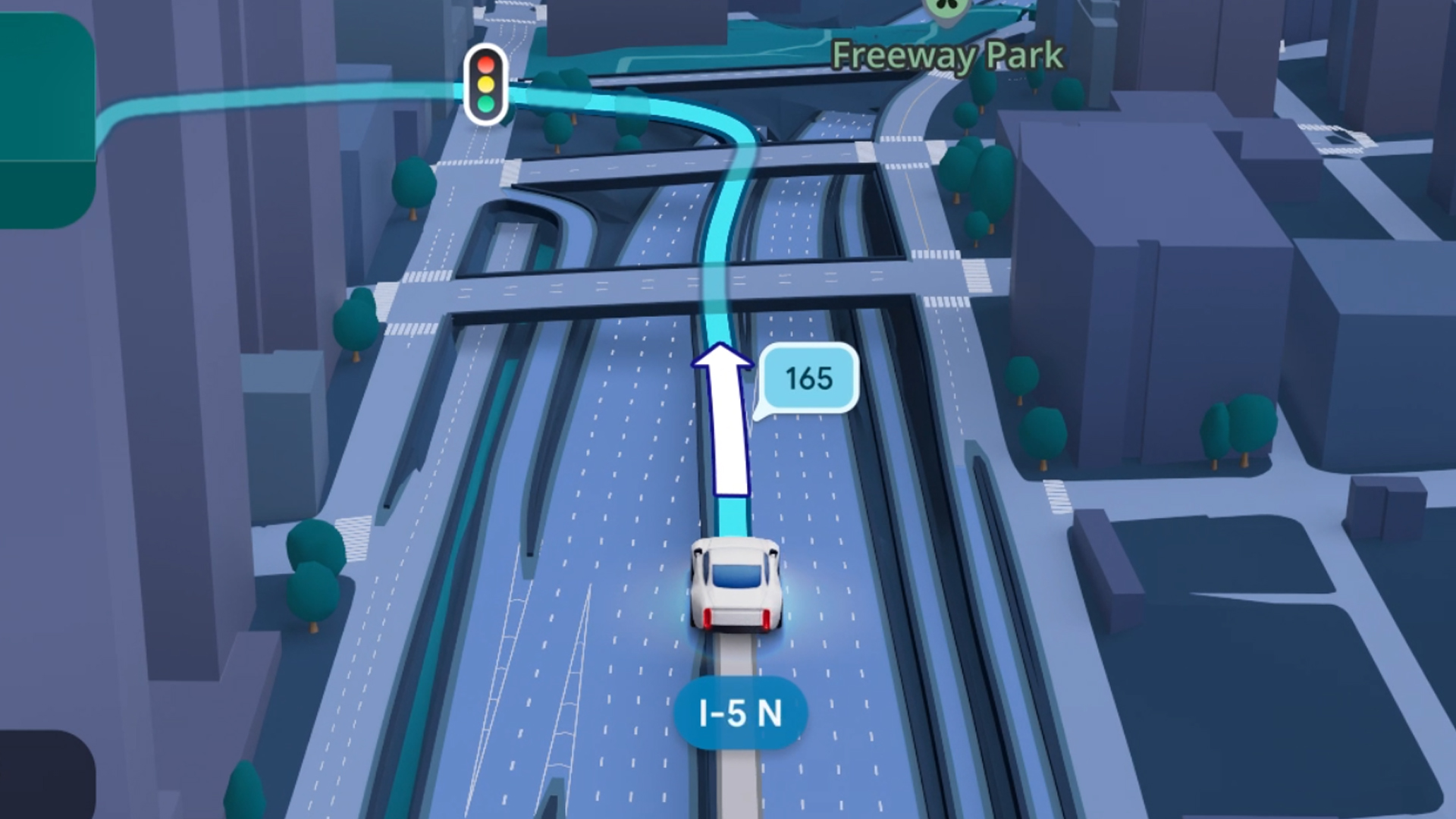
Some of today’s navigation apps are living in the future. Instead of a two-dimensional map, these apps render the user’s surroundings in 3D. It’s a nifty upgrade that helps drivers more accurately visualize directions on the fly. Finally, Google Maps is getting a much-needed upgrade and will take navigation to the third dimension.
In a new update rolling out today, the new Immersive Navigation feature will bring your surroundings to life. The 3D view creates a render of the surrounding buildings, overpasses, and terrain around the car. It takes the guesswork out of navigation by showing precisely where to turn and what landmarks to look out for.
In the same vein, you can now use Street View to preview your destination before you arrive. Google Maps will also highlight your destination’s entrance, side of the street, and nearby parking.
Outside of how the map is visualized, Google Maps is also infusing its service with Gemini. The new Ask Maps feature will let you engage with the app in a conversational manner. For example, if you’re in the middle of a long drive, you can now ask Maps where the best place is to stop over and have a coffee break. Ask Maps will provide directions, a potential itinerary, and even helpful links to book a reservation ahead of time.
Now, availability for both of these features is still a bit limited. Immersive View is rolling out today to compatible devices and vehicles in the United States. Further, availability will expand over the coming months.
Meanwhile, Ask Maps is available now in the United States and India for Android and iOS. A desktop version is coming soon.
SEE ALSO: Google Maps is finally getting a power saving mode
Apps
Apple Music, TikTok launch Play Full Song, a new music discovery experience
Rolling out worldwide exclusively through Apple Music

Ever came across a viral 15 or 30-second music snippet on TikTok that instantly became your jam on repeat?
For years, TikTok has been a regular source of songs that have become part of our playlists. And together with Apple Music, listening to the music you discover has just gotten even easier.
That’s through Play Full Song, a new music discovery experience, which launches exclusively though Apple Music.
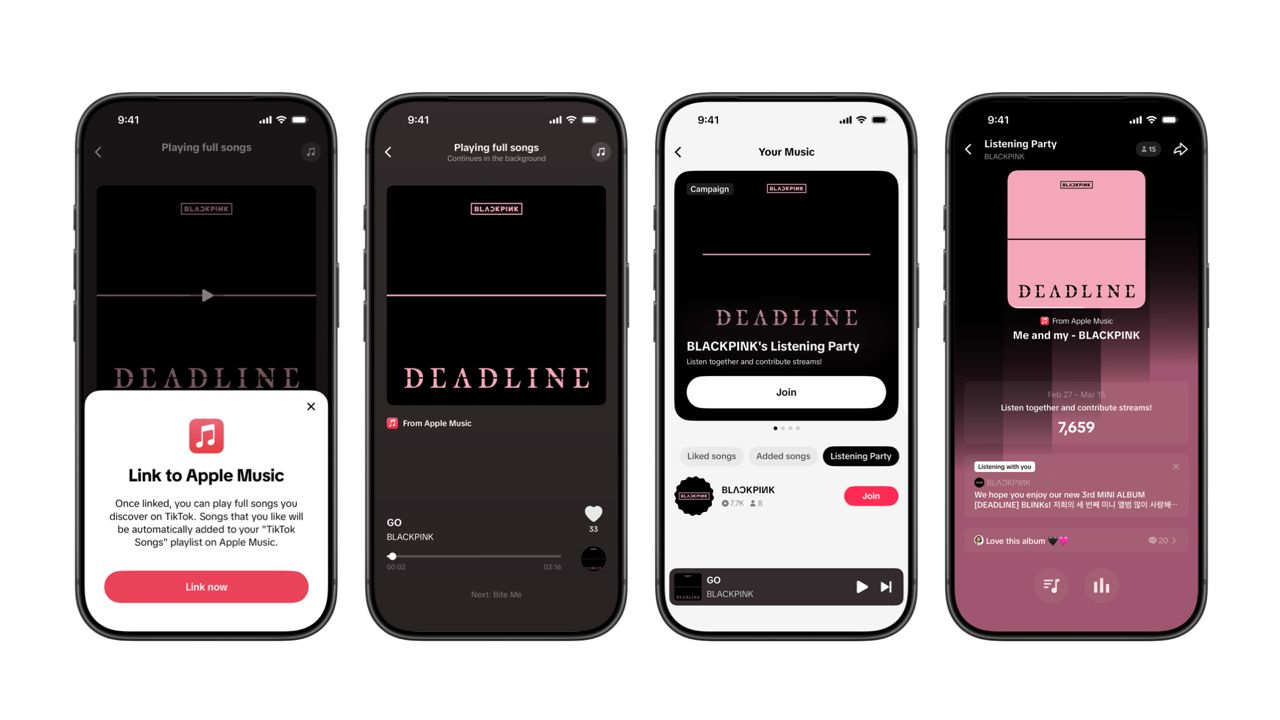
With the new feature, Apple Music subscribers can now enjoy full-length tracks that they discover on TikTok. That’s without ever leaving that popular streaming app.
Fans who discover a song that they love on their For You or Sound Detail page can simply tap the Play Full Song button to open up an Apple Music player and enjoy the song in its entirety.
From there, subscribers can continue listening to a personalized stream of recommended songs. That means no more need to switch apps and search separately.
The new Play Full Song experience helps music fans move seamlessly from the moment of discovery to deeper listening. It’s also designed to be instant and all within the same environment.
Moreover, users can also save their favorite songs to Your Music and add them directly to their Apple Music playlists.
Built using Apple’s MusicKit, full-length song playback takes place on Apple Music. This way, streams are paid within the Apple Music service, supporting artists and rights holders while giving fans a smooth, uninterrupted experience.
Listening Party also launched
The feature builds on the success of TikTok’s Add to Music App. This was previously launched to help artists and fans convert discovery on TikTok to a playlist save in Apple Music and other streaming services.
To cap the announcement, TikTok and Apple Music are also introducing Listening Party. This new feature is designed to bring artists and fans together around music.
It creates a shared environment where fans can listen to songs from their favorite artists in real time, interact with each her, and engage directly with the artist during the session.



Now Playing: Hoppers

Jackery SolarSaga series: Free power for small devices

UGREEN adds new Nexode Pro power bank, charger to lineup

nubia to launch new Neo 5 series gaming phones on March 28

SHINOBI: Art of Vengeance’s SEGA Villains Stage out on April 3


-

 Reviews5 days ago
POCO X8 Pro Max review: A new beast from the far east
-

 News5 days ago
POCO X8 Pro Series: Price, availability in the Philippines
-

 Laptops2 weeks ago
Apple MacBook Neo Review
-

 Computers2 weeks ago
GIGABYTE collaborates with Capcom for RE Requiem custom PC
-

 Apps1 week ago
Google Maps is finally getting a 3D mode
-

 Entertainment2 weeks ago
The internet is thirsting over the One Piece Season 2 cast
-

 Features1 week ago
Galaxy AI on the Samsung Galaxy S26 Ultra
-

 Automotive2 weeks ago
BYD is reportedly considering an F1 team