
Apps
Step-by-step guide: How to install Counter-Strike on your Android device


Since publishing our story about how to make Counter-Strike for PC run on your Android phone or tablet, we’ve received a smorgasbord of messages asking for help on how to install the game.
Well, dear readers and fellow recovering Counter-Strike addicts, ask and you shall receive: Here’s our step-by-step guide — with screenshots and accompanying annotations — on how to get one of the most popular PC games of all time running on your Android device.
1. Use your PC to download the Steam launcher from the gaming platform’s website. Be sure to download the appropriate installation file for your operating system. If you already have Steam installed, you can proceed to step four.

2. Install the Steam launcher, then create a Steam account.

3. Next, run Steam, and then type “counter-strike” in the search bar.
4. Buy and install the game that’s highlighted in the screenshot below. Once the installation is complete, you should find the Steam directory in your computer’s hard drive (drive C:, by default).

5. OK, now on to your Android device. Use your device’s browser to download the latest versions of the CS16Client and Xash3D apps. The link for CS16Client is here, while Xash3D can be found here.


6. Install the CS16Client and Xash3D apps on your device.
7. Use a USB cable to connect your Android device to the computer where Steam is installed.
8. Create a folder called “xash” in your phone’s SD card directory.

9. Transfer the “cstrike” and “valve” folders from your Steam directory (usually under C:\Steam\steamapps\common\Half-Life) to the xash folder in your phone’s SD card.




10. Run the CS16Client app. Untick the box next to “Enable ZBots bots,” then tick “Enable YaPB bots” and tap “LAUNCH CS16-CLIENT!”.
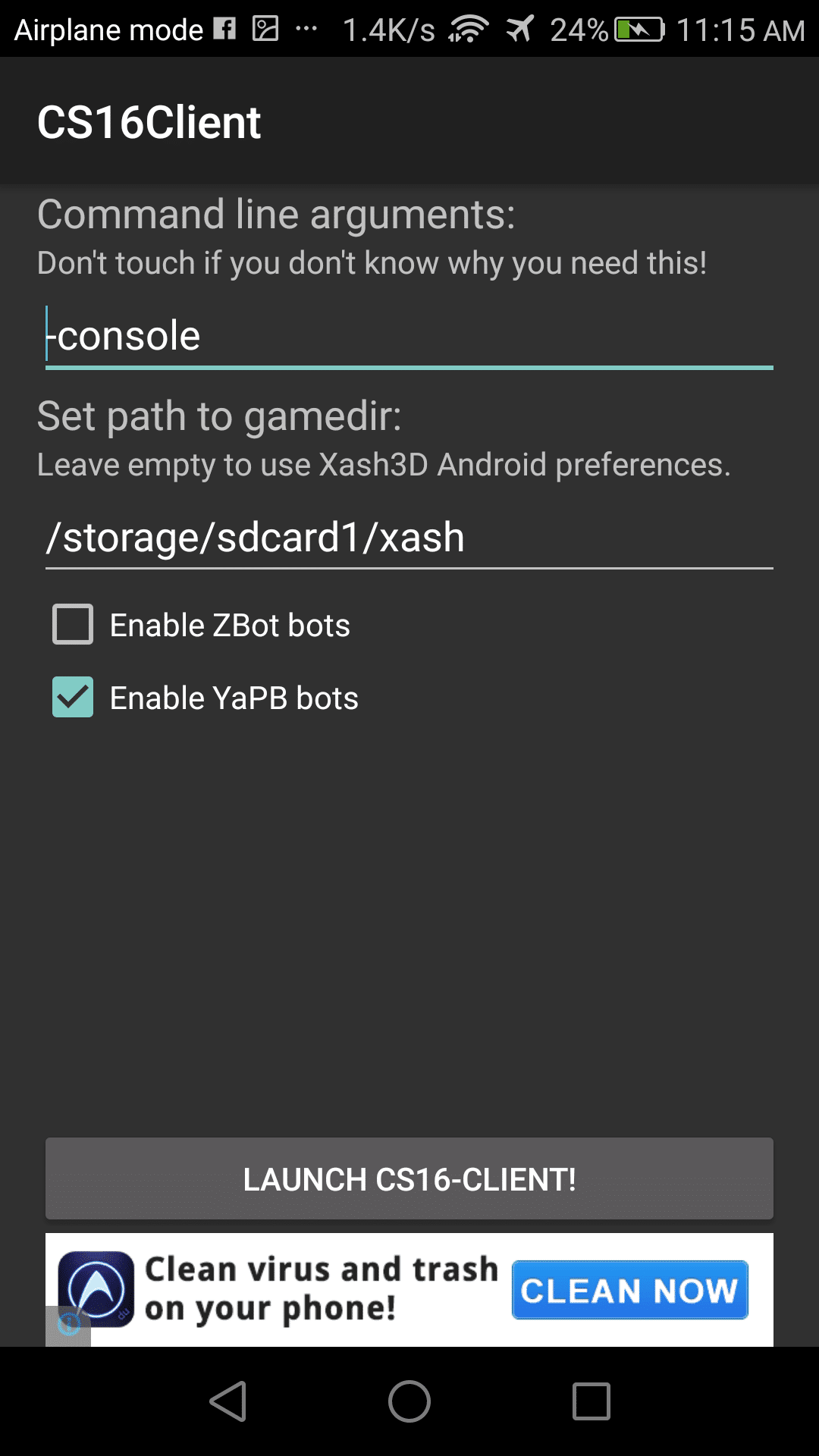
That’s it! Launching the client will bring up a screen that looks like this:

At this point, you might be asking: “Okay, so now what?” Now comes the fun part.
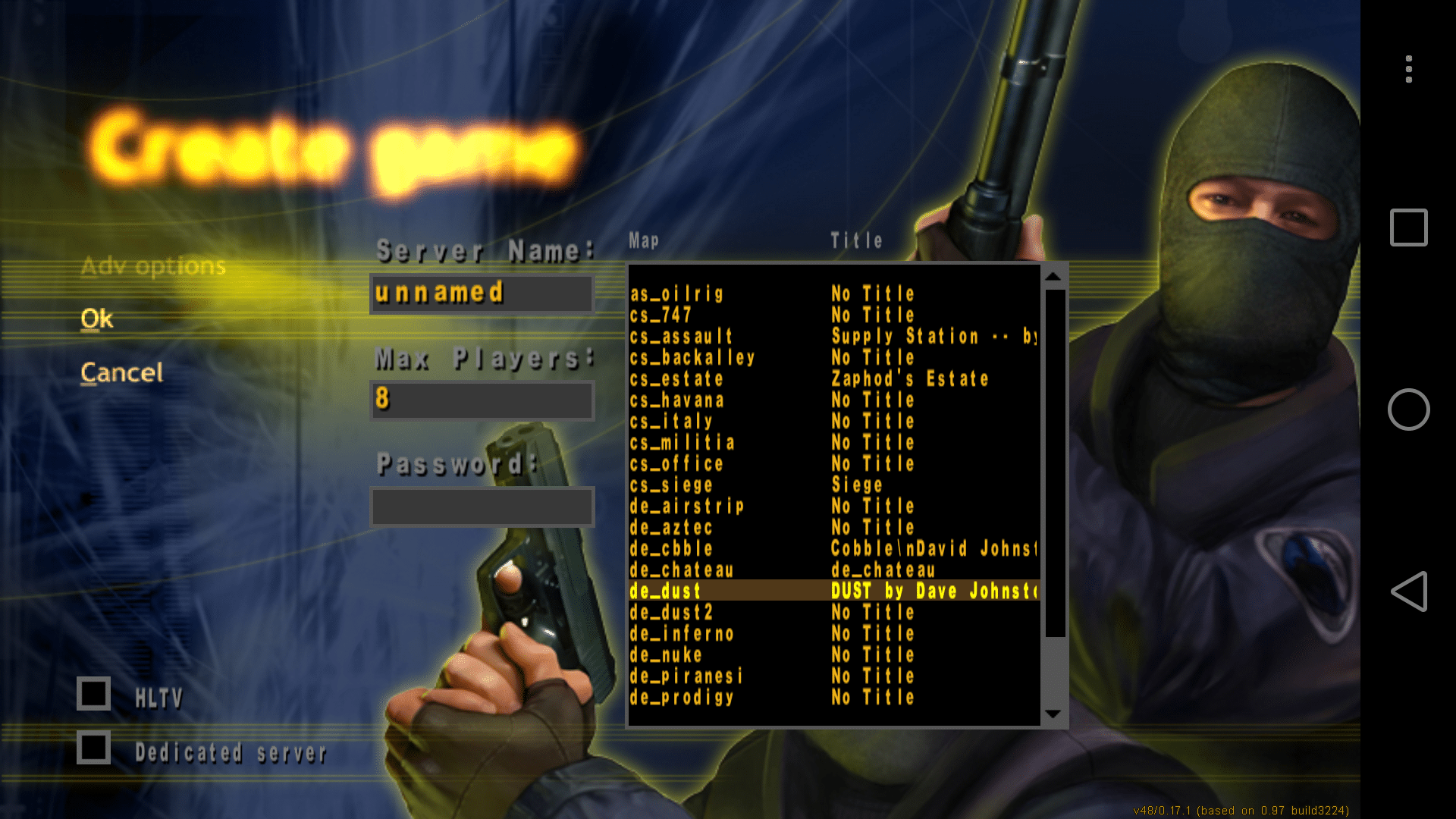
1. To start a multiplayer game against AI opponents (a.k.a. bots), click on “Multiplayer,” then select “LAN game.”

2. Choose “Create game” next and select the map you want to play on.

3. Once everything is in order, hit “Ok” and you’re all set.


Was the guide helpful? How are you liking Counter-Strike on your Android device so far? Let us know in the comments!
[irp posts=”12138″ name=”How to take the perfect selfie”]








Some of today’s navigation apps are living in the future. Instead of a two-dimensional map, these apps render the user’s surroundings in 3D. It’s a nifty upgrade that helps drivers more accurately visualize directions on the fly. Finally, Google Maps is getting a much-needed upgrade and will take navigation to the third dimension.
In a new update rolling out today, the new Immersive Navigation feature will bring your surroundings to life. The 3D view creates a render of the surrounding buildings, overpasses, and terrain around the car. It takes the guesswork out of navigation by showing precisely where to turn and what landmarks to look out for.
In the same vein, you can now use Street View to preview your destination before you arrive. Google Maps will also highlight your destination’s entrance, side of the street, and nearby parking.
Outside of how the map is visualized, Google Maps is also infusing its service with Gemini. The new Ask Maps feature will let you engage with the app in a conversational manner. For example, if you’re in the middle of a long drive, you can now ask Maps where the best place is to stop over and have a coffee break. Ask Maps will provide directions, a potential itinerary, and even helpful links to book a reservation ahead of time.
Now, availability for both of these features is still a bit limited. Immersive View is rolling out today to compatible devices and vehicles in the United States. Further, availability will expand over the coming months.
Meanwhile, Ask Maps is available now in the United States and India for Android and iOS. A desktop version is coming soon.
SEE ALSO: Google Maps is finally getting a power saving mode
Apps
Apple Music, TikTok launch Play Full Song, a new music discovery experience
Rolling out worldwide exclusively through Apple Music

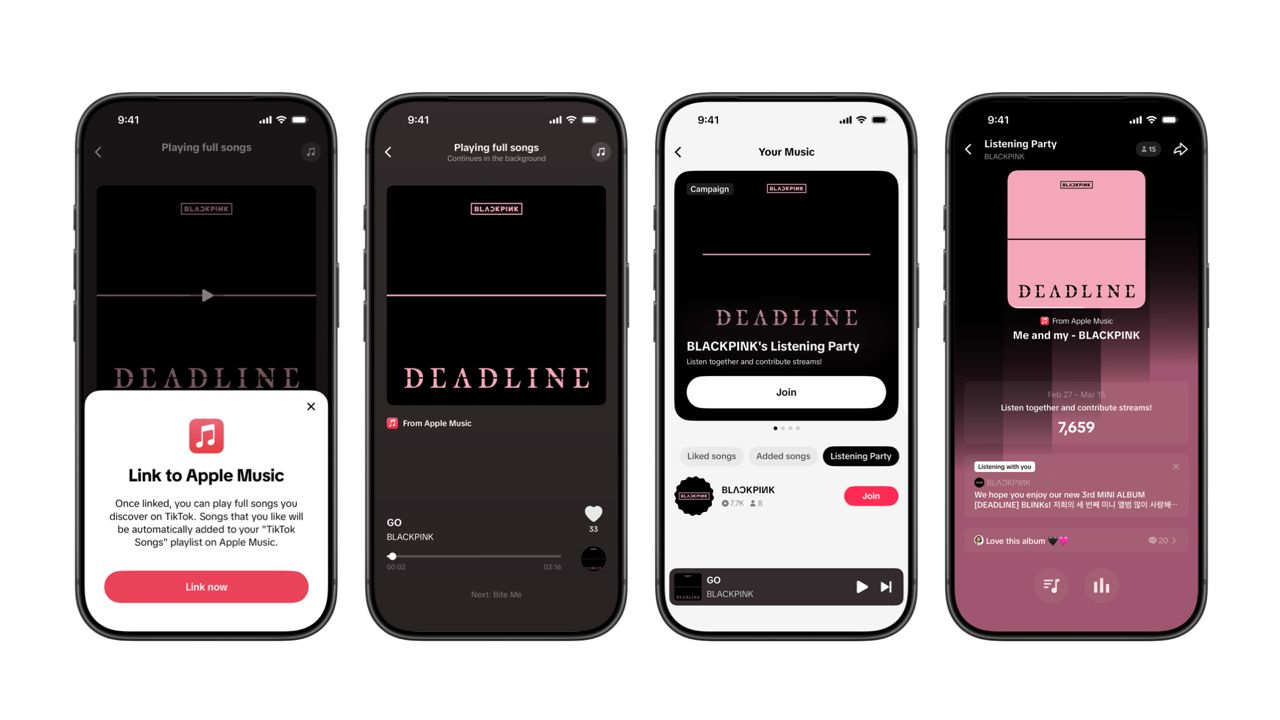
Ever came across a viral 15 or 30-second music snippet on TikTok that instantly became your jam on repeat?
For years, TikTok has been a regular source of songs that have become part of our playlists. And together with Apple Music, listening to the music you discover has just gotten even easier.
That’s through Play Full Song, a new music discovery experience, which launches exclusively though Apple Music.
With the new feature, Apple Music subscribers can now enjoy full-length tracks that they discover on TikTok. That’s without ever leaving that popular streaming app.
Fans who discover a song that they love on their For You or Sound Detail page can simply tap the Play Full Song button to open up an Apple Music player and enjoy the song in its entirety.
From there, subscribers can continue listening to a personalized stream of recommended songs. That means no more need to switch apps and search separately.
The new Play Full Song experience helps music fans move seamlessly from the moment of discovery to deeper listening. It’s also designed to be instant and all within the same environment.
Moreover, users can also save their favorite songs to Your Music and add them directly to their Apple Music playlists.
Built using Apple’s MusicKit, full-length song playback takes place on Apple Music. This way, streams are paid within the Apple Music service, supporting artists and rights holders while giving fans a smooth, uninterrupted experience.
Listening Party also launched
The feature builds on the success of TikTok’s Add to Music App. This was previously launched to help artists and fans convert discovery on TikTok to a playlist save in Apple Music and other streaming services.
To cap the announcement, TikTok and Apple Music are also introducing Listening Party. This new feature is designed to bring artists and fans together around music.
It creates a shared environment where fans can listen to songs from their favorite artists in real time, interact with each her, and engage directly with the artist during the session.
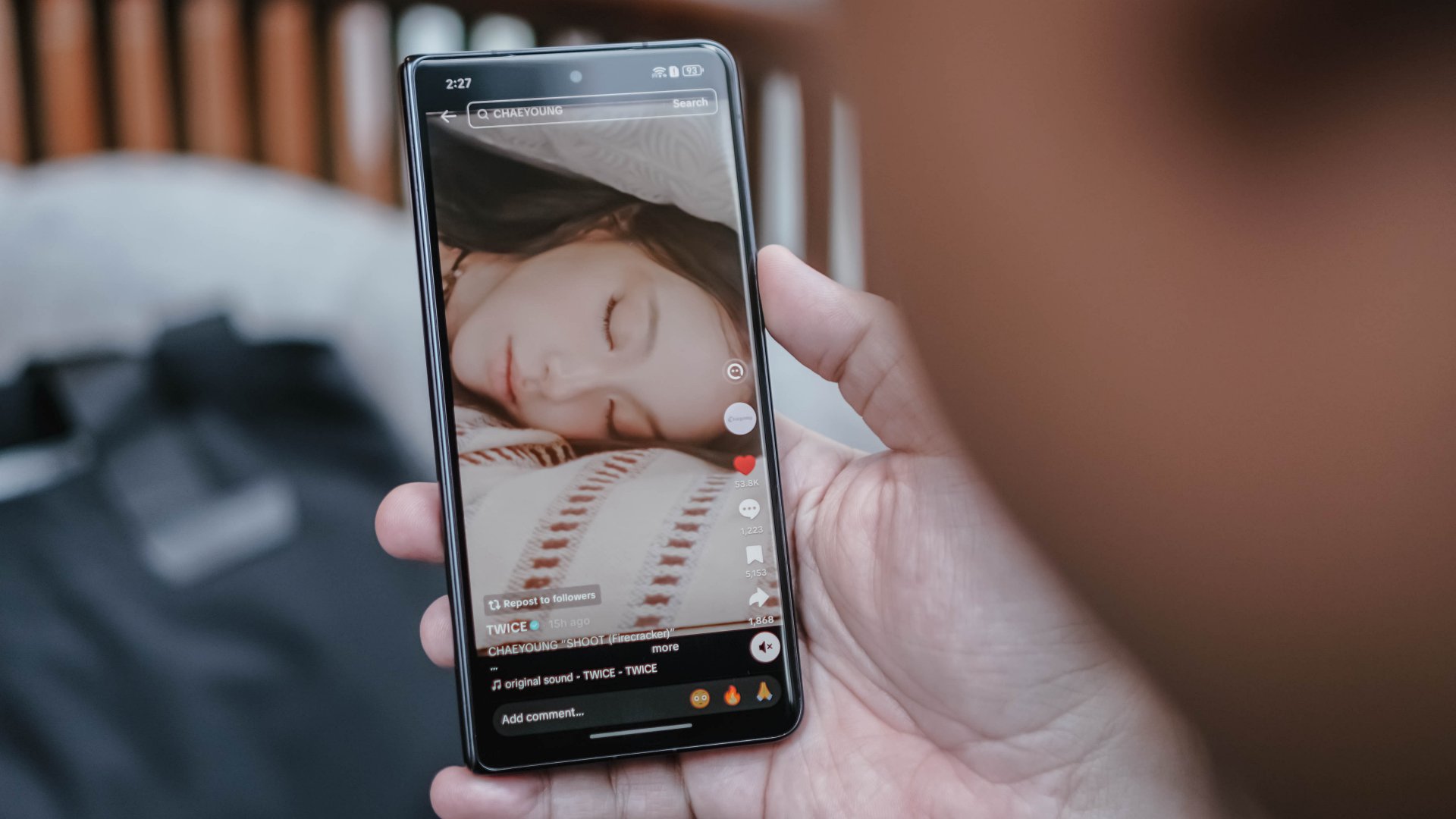
Doomscrolling is the greatest enemy to everyone’s productivity today. The temptation to keep on scrolling for hours is an ever-present temptation. Taking a very strong stance against the phenomenon, the European Commission is now investigating TikTok for having an addictive interface.
Via Politico, Brussels is now prodding TikTok to change its interface. Very technically, the European Commission is not out to get doomscrolling, specifically. However, the major changes that they want to introduce “disabling infinite scrolling, setting strict screen time breaks, and changing its recommender systems.”
App addiction is a persistent problem today. Besides concerned parents, governments around the world have been trying to regulate addiction, especially when it comes to children. The European Commission, as is apparent from this new initiative, is at the forefront of preventing addiction.
Though the target is explicitly TikTok right now, changing addictive interfaces will also affect other social media platforms including Facebook, Instagram, and X. Most platforms nowadays thrive on encouraging users to keep scrolling through more content.
Right now, TikTok isn’t set to change just yet. However, the report states that the European Commission is willing to work with platforms for a better, non-addictive interface. It’s less abrasive than the region’s recent privacy initiatives, which requires users to verify their age before accessing mature content.



Google Maps is finally getting a 3D mode

KPop Demon Hunters is officially getting a sequel

Bringing Care-a-Lot to my daily carry

Galaxy AI on the Samsung Galaxy S26 Ultra

Apple MacBook Neo Review


-

 News2 weeks ago
Xiaomi 17 Ultra is now available outside China
-
 MWC 20262 weeks ago
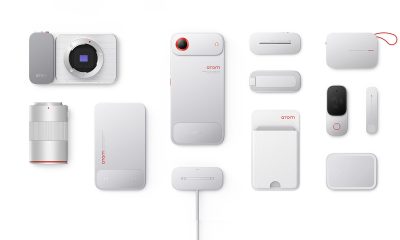
TECNO showcases cool concepts at MWC 2026
-

 MWC 20261 week ago
Infinix NOTE 60 Ultra makes a motorsport-inspired debut
-

 MWC 20261 week ago
TECNO launches the all-new CAMON 50 series
-

 Reviews1 week ago
TECNO CAMON 50 Ultra review: End of an era?
-

 Reviews2 weeks ago
Xiaomi Pad 8 review: Slab that slaps!
-

 Reviews2 weeks ago
Forget the Phone: Xiaomi 17 Ultra Is A CAMERA!
-

 MWC 20261 week ago
TECNO unleashes Tonino Lamborghini collection