
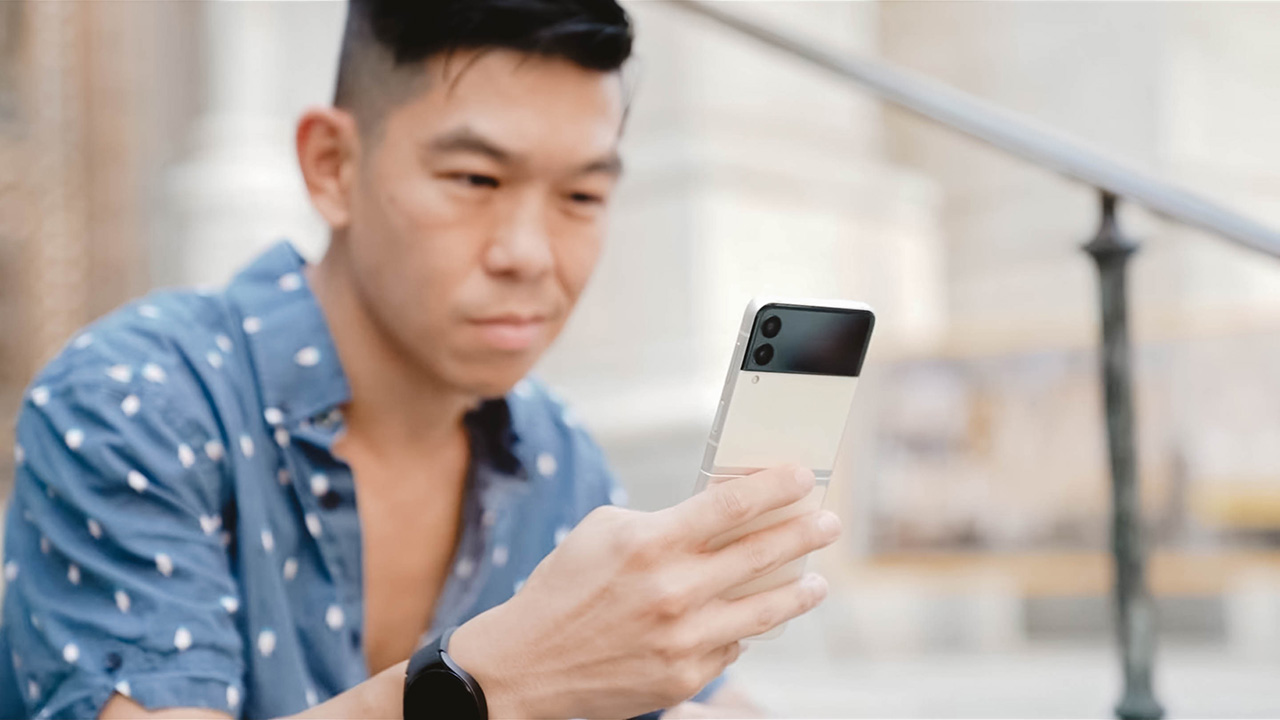


When phones with foldable displays became a thing a few years ago — as could be expected from a bleeding-edge tech of any kind — they came with a hefty price tag.
But it’s been three years and finally, they’re starting to become relatively, more affordable. That’s the story of this year’s new Galaxy Z Flip3 — a foldable phone that more people can afford.
But should you rush out to buy one?
Samsung’s newest and cheaper foldable
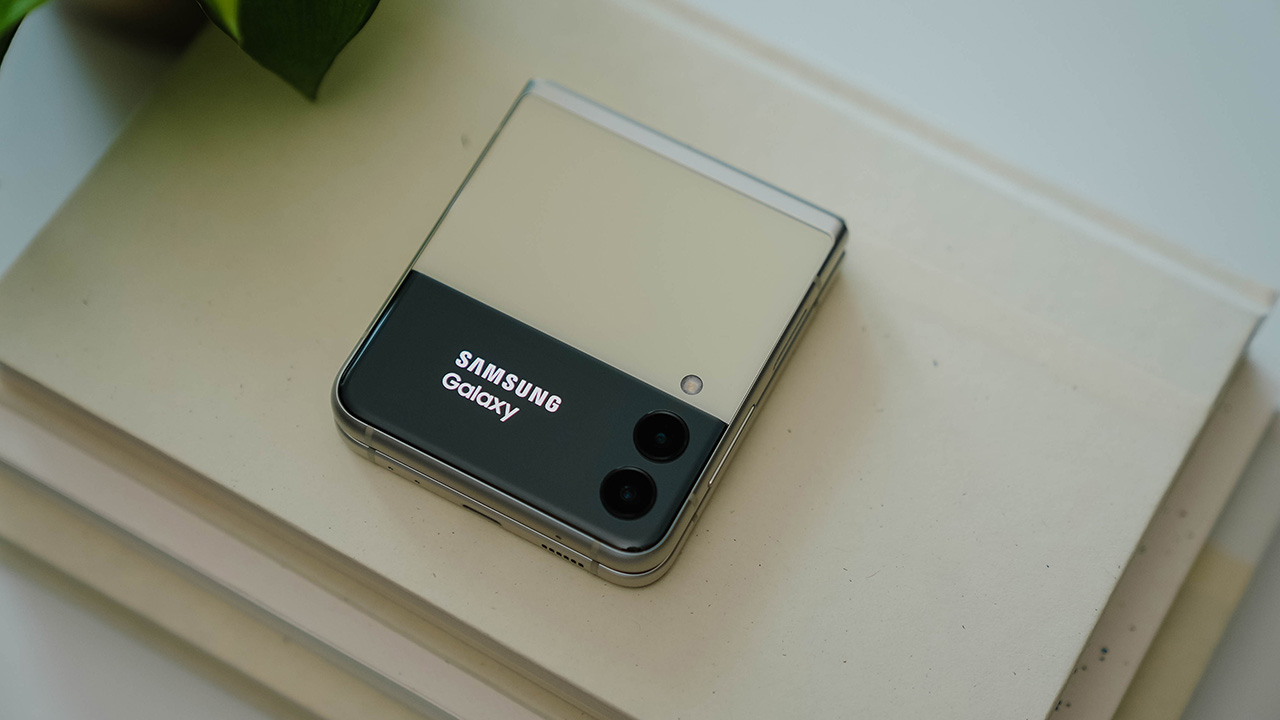
This is the Galaxy Z Flip3. TL;DR for those who don’t have all the time in the world: It’s slightly redesigned, built with more durable materials, has a new fast 120Hz display on its inside, a larger, more usable cover screen on its outside, and it comes with a cheaper price tag.
Of course, these “cliff notes” don’t tell the whole story of the Flip3. And they don’t particularly answer the question: Why should you buy the Flip3?
Design
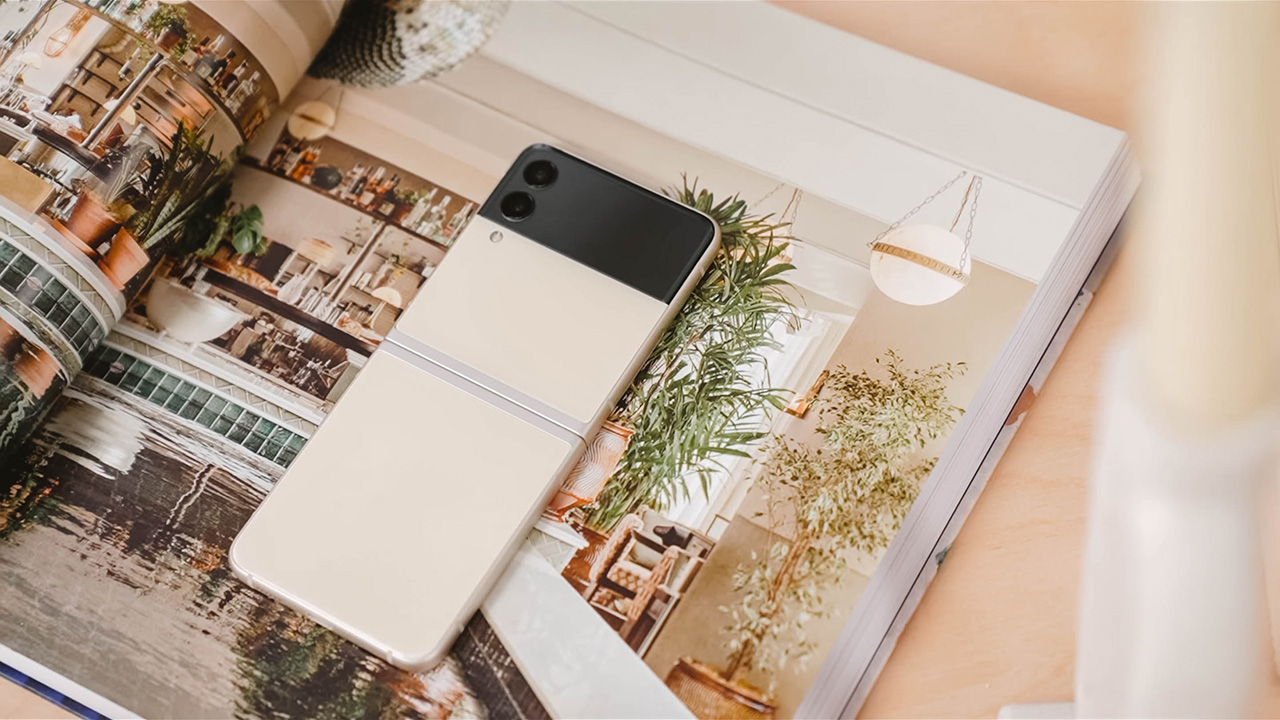
I’ve been using the new Flip3 for about a week now, and I’m really digging this two-tone color scheme.

The black contrasts well against this cream finish, or any of the other colors for that matter.

Be it Green…
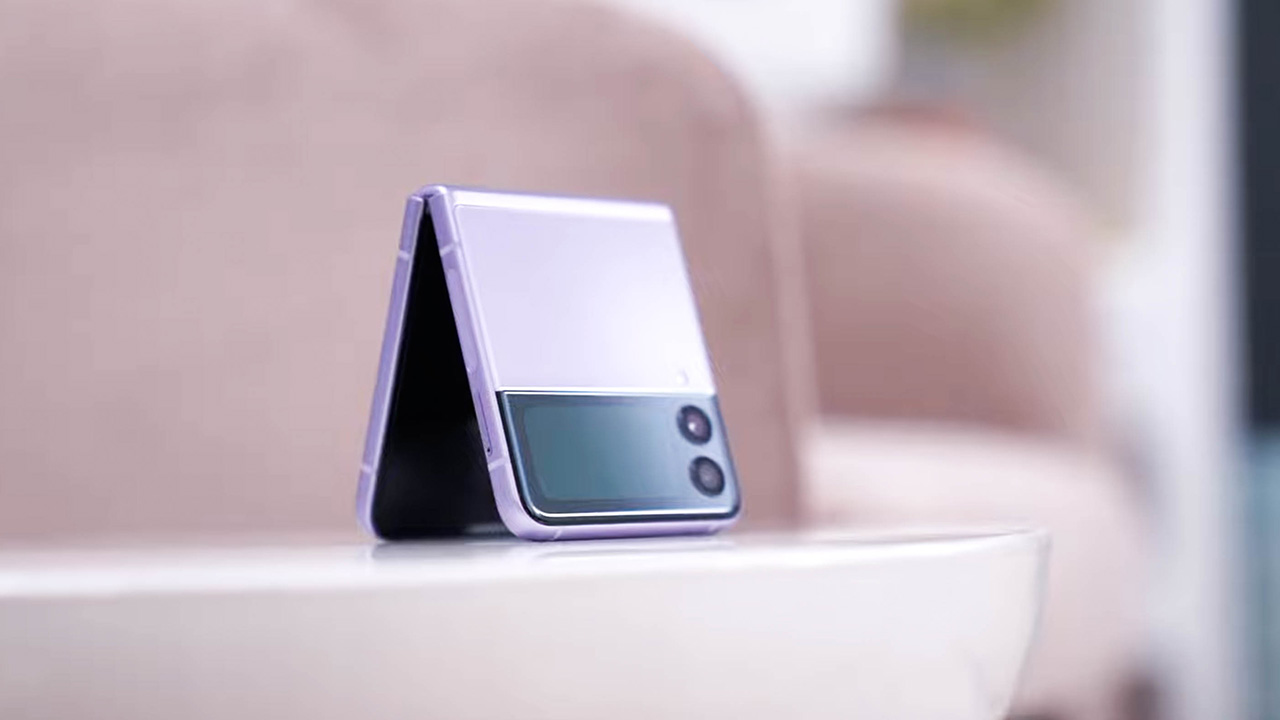
… or Lavender.
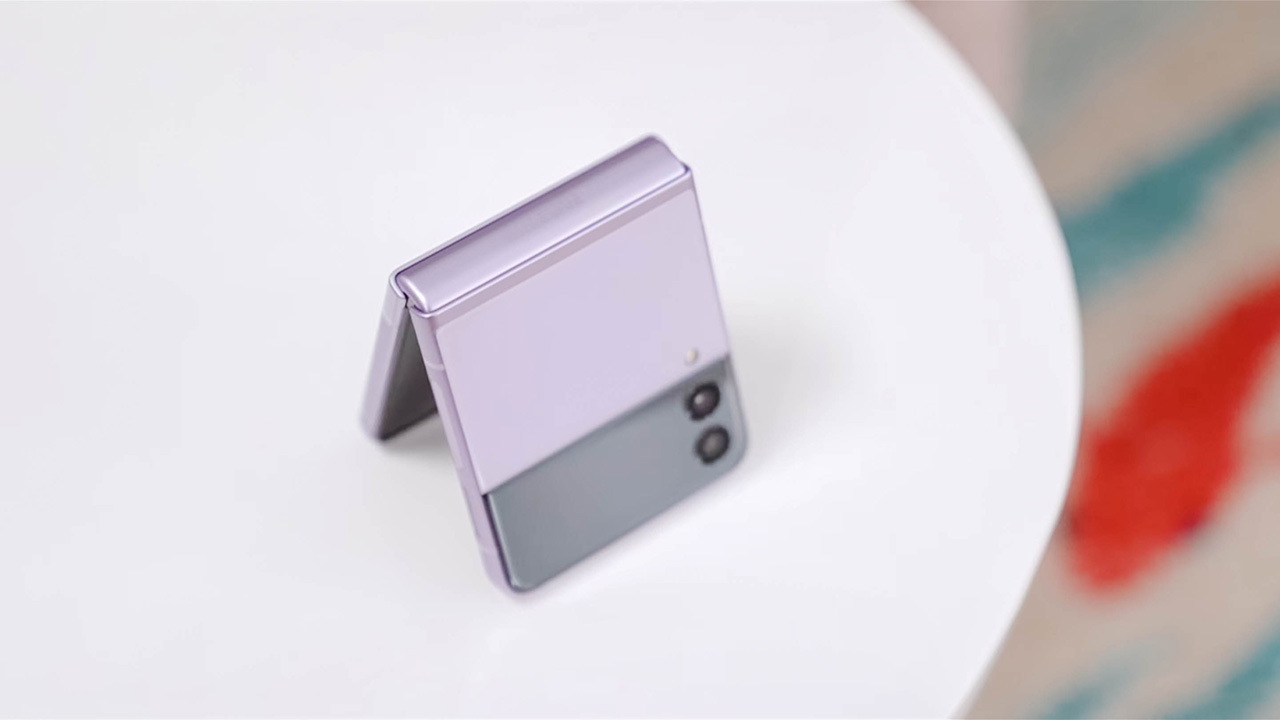
These three color options feature a frame and hinge that have an improved matte finish and color-match the phone. The glass, however, has a glossy finish to it. Very much unlike last year’s mirror finish which was a huge smudge magnet.
If you want a glass with a frosted matte finish, there’s an all-black model also. And if you’re willing to wait three to five weeks, there are special Samsung.com exclusive colors — Grey, White, and Pink. These options are all matte with a black frame and hinge.
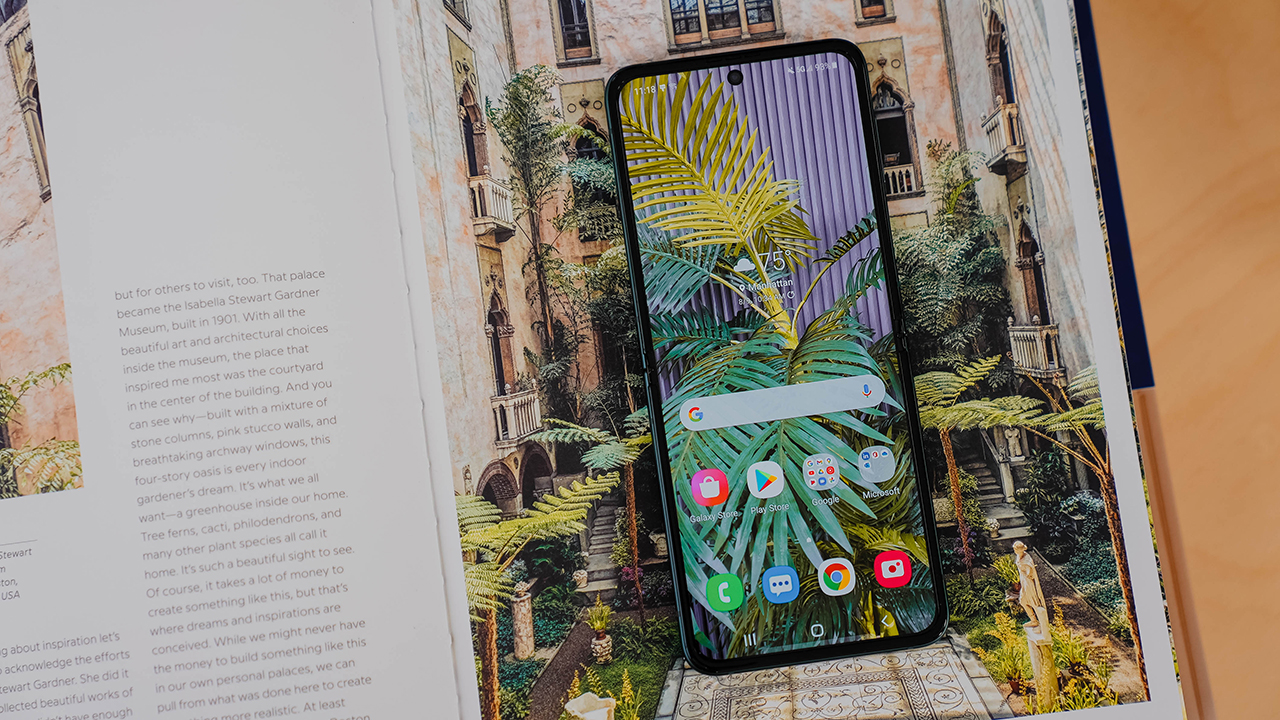
While just about the same size, the new Flip3 looks and feels different. The design features flat lines and edges which reflects the current design trend that favors flat versus curvy. The result is a phone that looks more modern and trendy.
So, why should you buy it?
Across all its iterations, I’ve always enjoyed using the Flip. I love having to open it up and also occasionally slamming it shut. And above all, I think the “coolness factor” is going to be the main reason to buy this phone. It’s a bit retro and futuristic at the same time. Definitely the trendiest phone you can buy today.

Size, of course, is also another consideration. When folded shut, it takes up half the space of your usual candybar phone. Perfect for smaller pockets. Or purses.

For me, that’s never been an issue. But I know lots of girlfriends who struggle with tiny pockets, or only want to carry what can fit inside a small purse. This phone solves that.

And then there’s “perks of the form factor”. When folded at a 90-degree angle, the phone props itself up for say, taking photos sans a tripod. Or being able to lay the Flip3 on a pile of books to take Zoom calls like you would on a laptop.
Challenges of the design
Of course, a foldable phone doesn’t come without its challenges. One of which is durability. While the hinge design is still the same, Samsung is using tougher aluminum. It’s also using a different kind of plastic for one of the layers of the display. One that should be more forgiving to the stress of opening and closing it a lot.
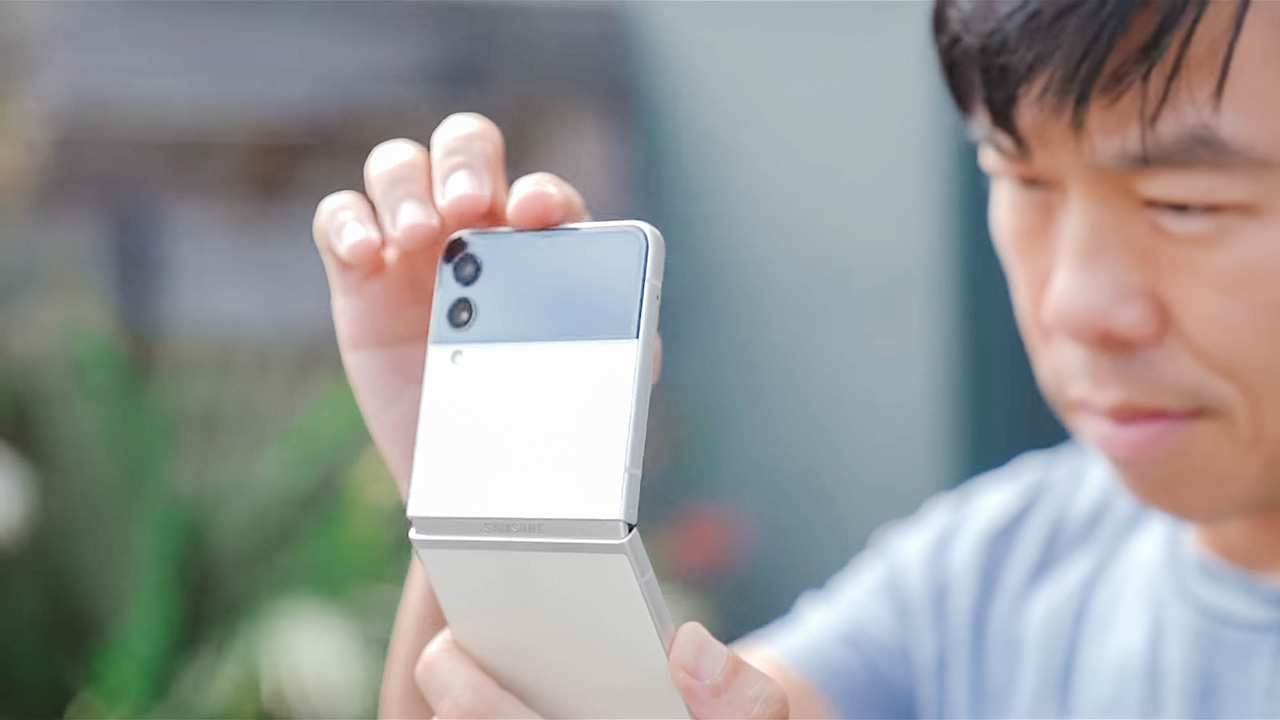
I can’t vouch for this improved durability — only time will tell and I will definitely give you feedback maybe next year in my Flip4 review. But for what it’s worth, Samsung is promising 200,000 cycles which translates to opening and closing it 100 times a day for five years.

On top of that, the phone is also water-resistant with an IPX8 rating. Thanks to the internals being coated with some sort of water-repelling protective film.
Although, I still don’t recommend that you take your Flip3 swimming. Take a look at Samsung’s fine print — water damage is not covered by your warranty.
Not a gimmick anymore
Another challenge is giving the phone purpose while in its folded state so the foldable display becomes more than just a gimmick. In 2021, when you have a folding phone, you want it to be as useful and practical when shut as it is when open.
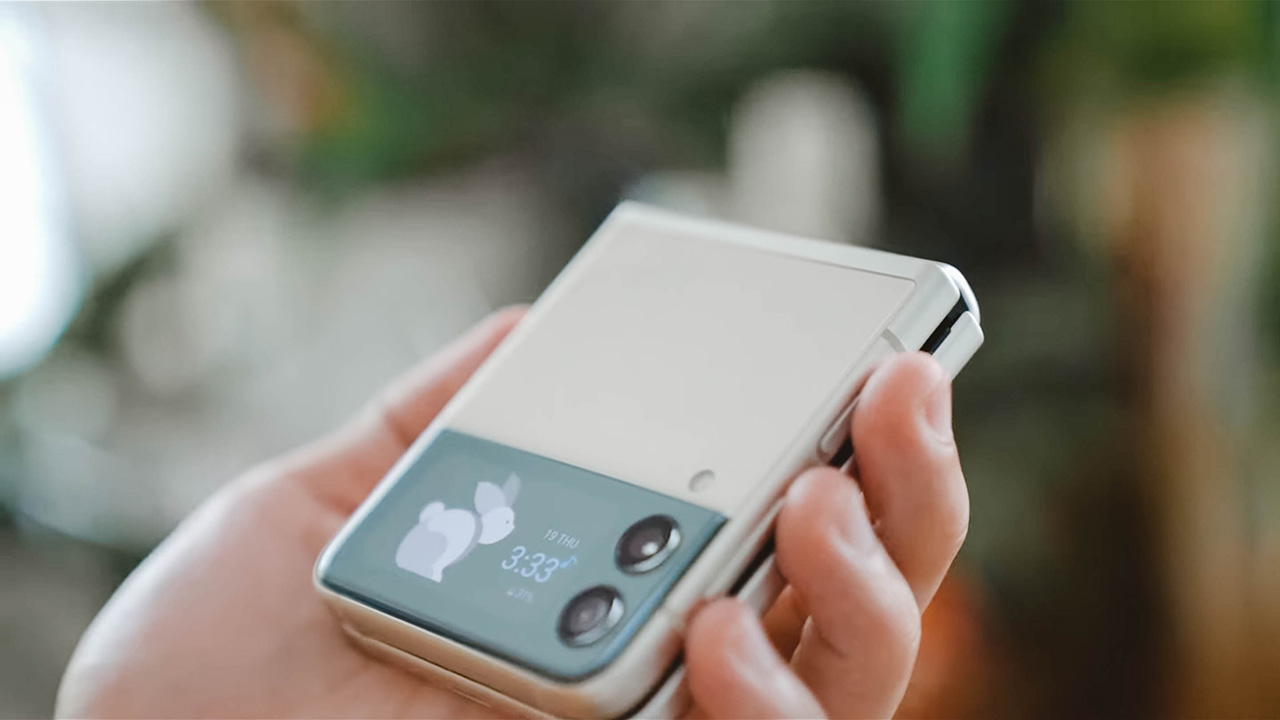
And that’s the biggest improvement to come to the Flip3. Simply put, last year’s front display was too small to be useful. On the Flip3, the cover screen is 1.5 inches diagonally.
That’s enough space for four lines of notifications, and you can also scroll up to read more. That’s also enough space to be able to compose a selfie, and enough to display the time or some other widget.
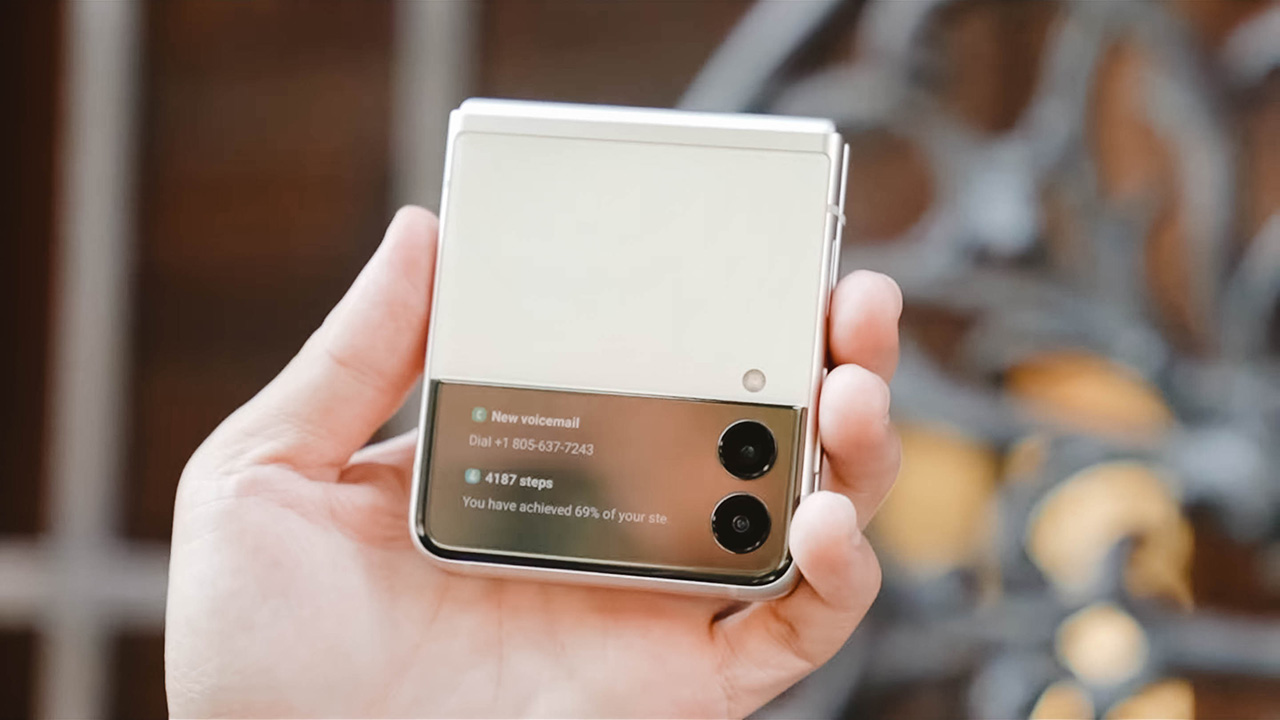
Samsung has also made this Cover Display more usable, too. For example, swipe up and you can use Samsung Pay. Swipe down and you can adjust brightness or volume. Although, I’d argue getting to the volume button is easier.
That Cover Display
Actually, while we’re on the topic, activating the cover screen can be a bit cumbersome. While you can have the always-on display showing you the time and date (and if there’s an orange, it’s a way to let you know that you have a notification), getting to the actual notification or any of the other Cover Display features requires you to double-tap to wake up the display.

Only after you’ve done that can you swipe to the right to read your notifications. Or to the left to access music controls or the weather. I know the purpose is to prevent accidental taps and unnecessary battery drain, but I wish there were an easier way.

I’d go a bit further as to say, I prefer the front screen on the Motorola Razr. It’s larger and even more useful like I can even load apps on the display. I’d like to see even more functionality on the next iteration of this device.

By the way, someone asked on Instagram if you can accept calls when the phone is closed. The answer is yes — the call will show up on the cover screen. And when you swipe to accept, it will activate the Speaker mode.
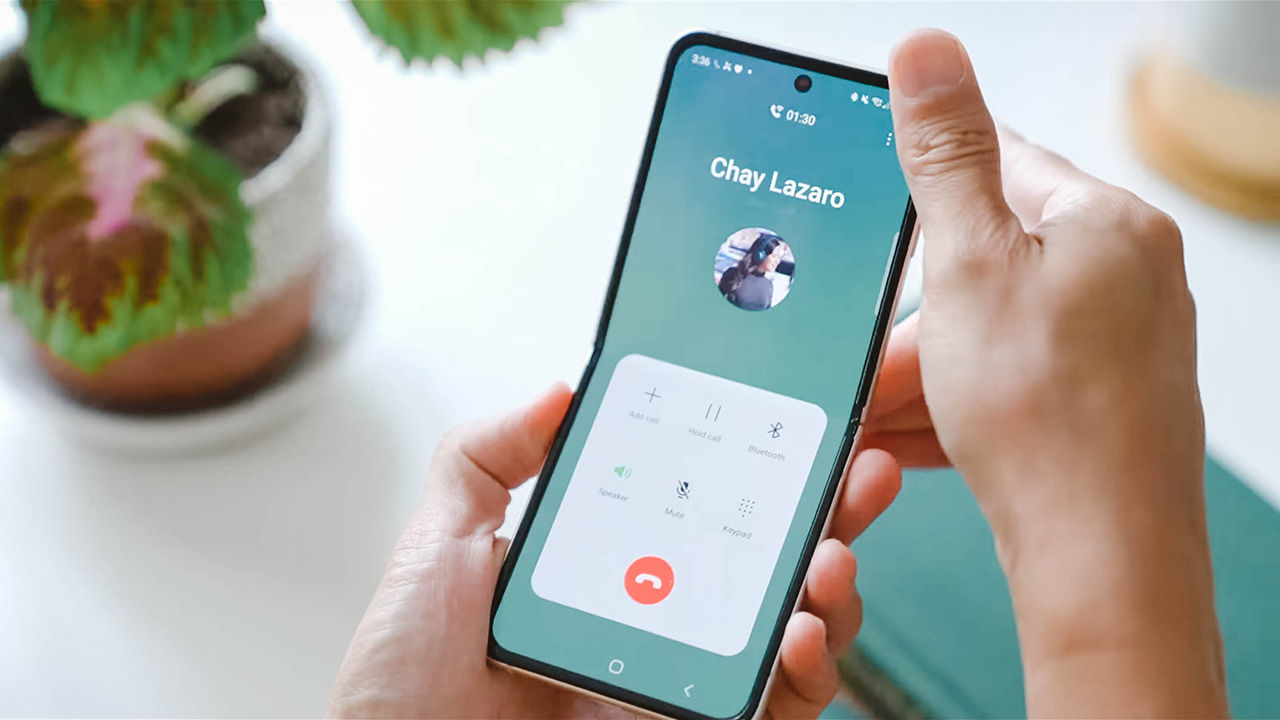
If you open up the phone, it will stay in Speaker mode unless you change it.
Performance and everyday use
With the phone opened, this phone performs just like any high-end Samsung smartphone. With top-of-the-line specs like a Snapdragon 888 processor, performance will be as expected. Powerful!
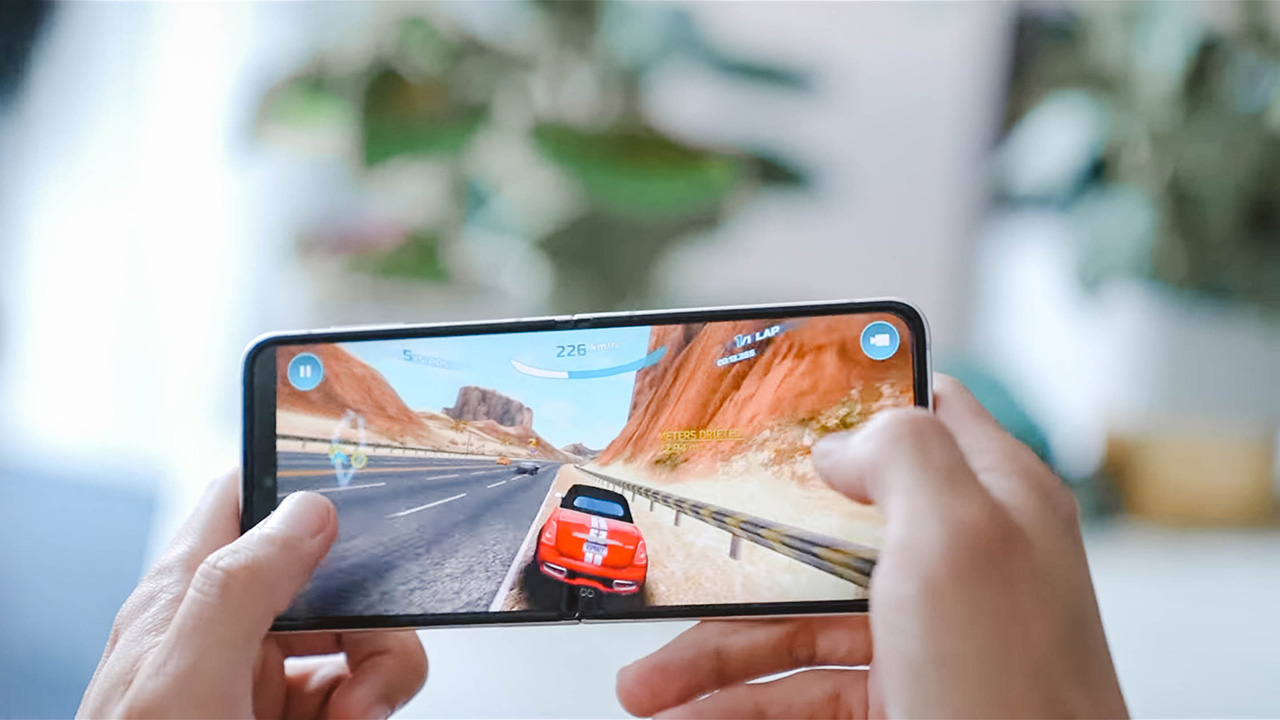
Whether you’re just using it for social or for gaming, even the display is now a top-of-the-line 120Hz OLED panel. And now, unlike last year, you get stereo speakers too. So it’s good for content consumption also.

One question I get asked a lot is about the crease. It’s still there — really that’s just the nature of the material and the hinge design. You can definitely feel it. And see it. But it doesn’t really bother me.
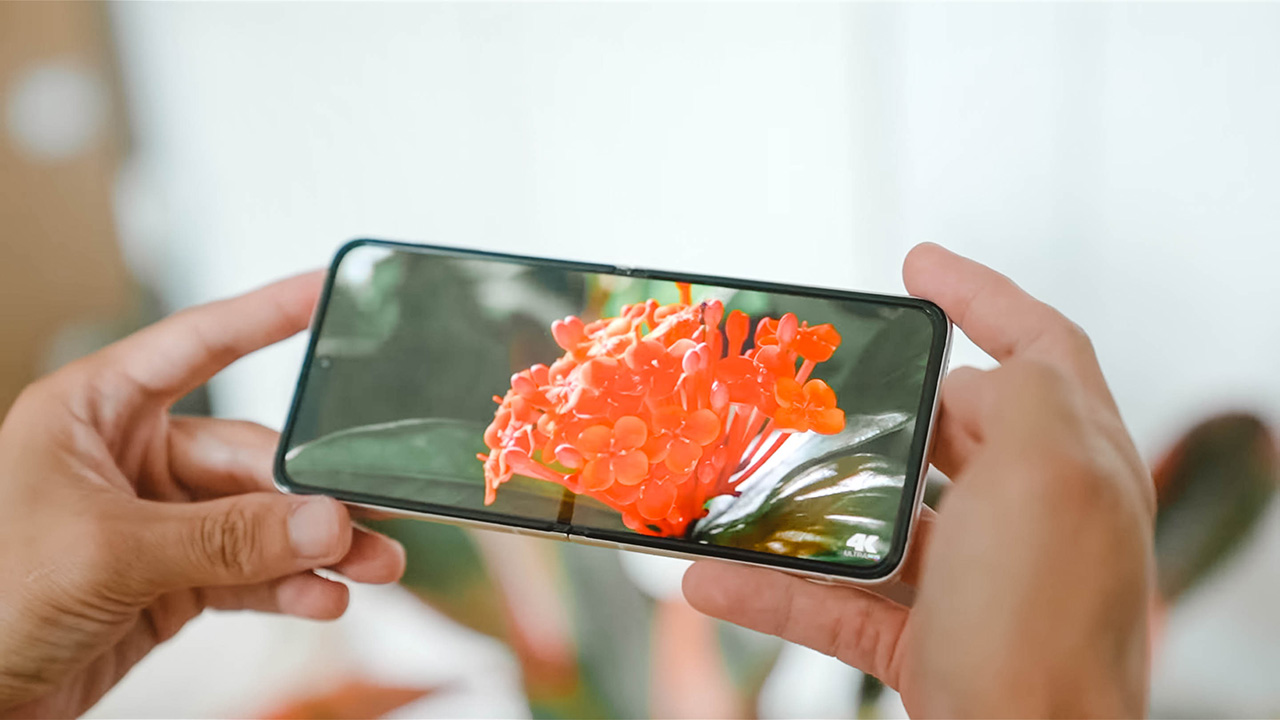
If you’re worried about it being distracting when watching movies, don’t worry. You’ll barely notice it’s there.
Cameras
Now let’s talk cameras. The Galaxy Z Flip3 has two on the outside — 12-megapixel wide and ultra-wide-angle cameras. And one 10-megapixel selfie camera on the inside. On paper, the hardware is the same as last year. Meaning, the same cameras and sensors were just carried over.

That said, software improvements will still get you a better picture overall. Of course, I have samples to prove it. I took tons of photos comparing the last year’s flip with the Flip3, and also for the fun of it — versus the Galaxy S21 Ultra.
Check it out: Galaxy Z Flip3 vs Z Flip 5G vs S21 Ultra: Camera shootout
But whether you’re using the wide or ultra-wide camera during the day, you won’t notice much of a difference. Except for a much better white balance on the Flip3. The original Flip comes with a yellower hue.
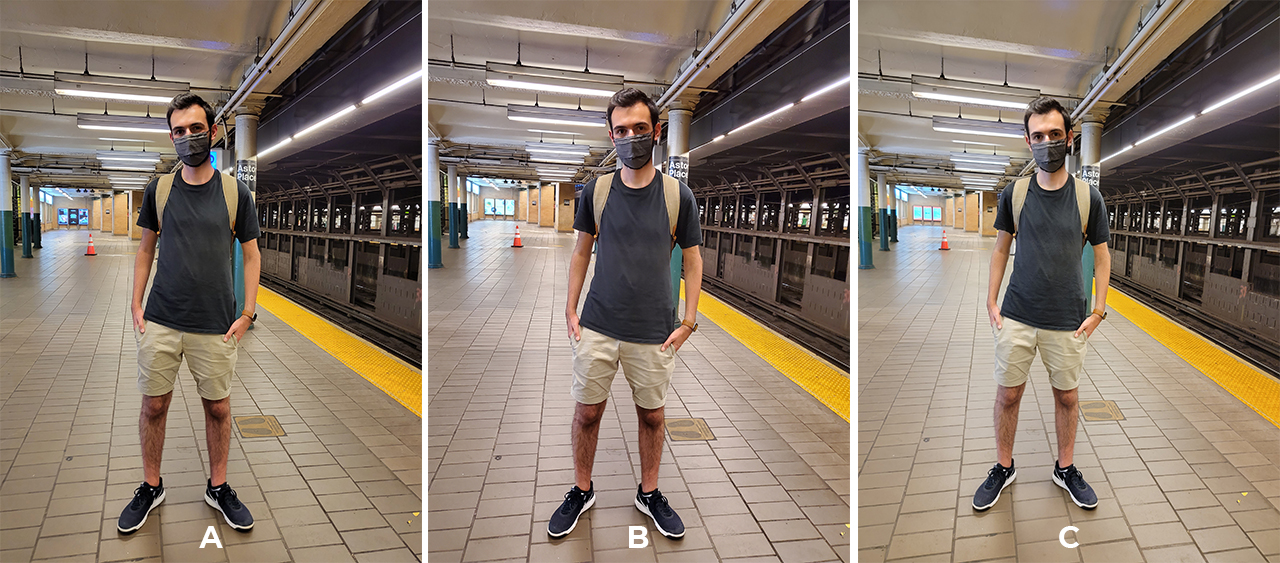
You also get better low-light performance too on the Flip3. And while we’re comparing, this is where the Galaxy S21 Ultra pulls ahead — its camera is still the best on a Samsung phone. On top of that, the S21 Ultra also has a telephoto lens. Meaning, it can take closer shots.
Camera features
Every year, Samsung introduces new camera features too. And the Flip3 gets everything introduced on the S21 series. Portrait Video and Pro Video mode are new.
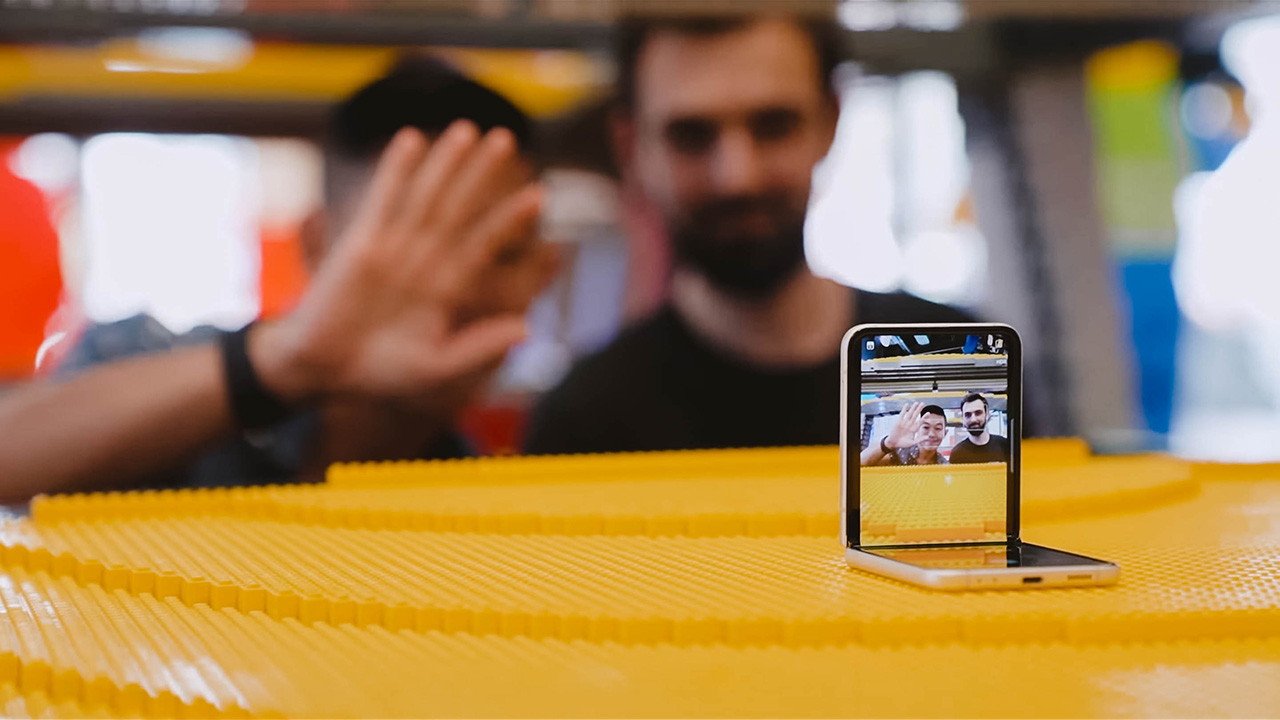
Night Mode comes to the selfie camera too, and then there’s Single Take Mode. Which is great for when you’re alone and want to take a few frames for Instagram. You can just prop up the phone, start posing, and then have artificial intelligence take a series of photos for you. And what’s impressive is that it does a good job.
Selfies
Previously on the original Flip, you could take photos using the tiny cover screen. But because it was so small, you almost had to compose a shot blindly. Now thanks to the bigger screen, you can take photos easily. Just double press the power button to launch the camera.
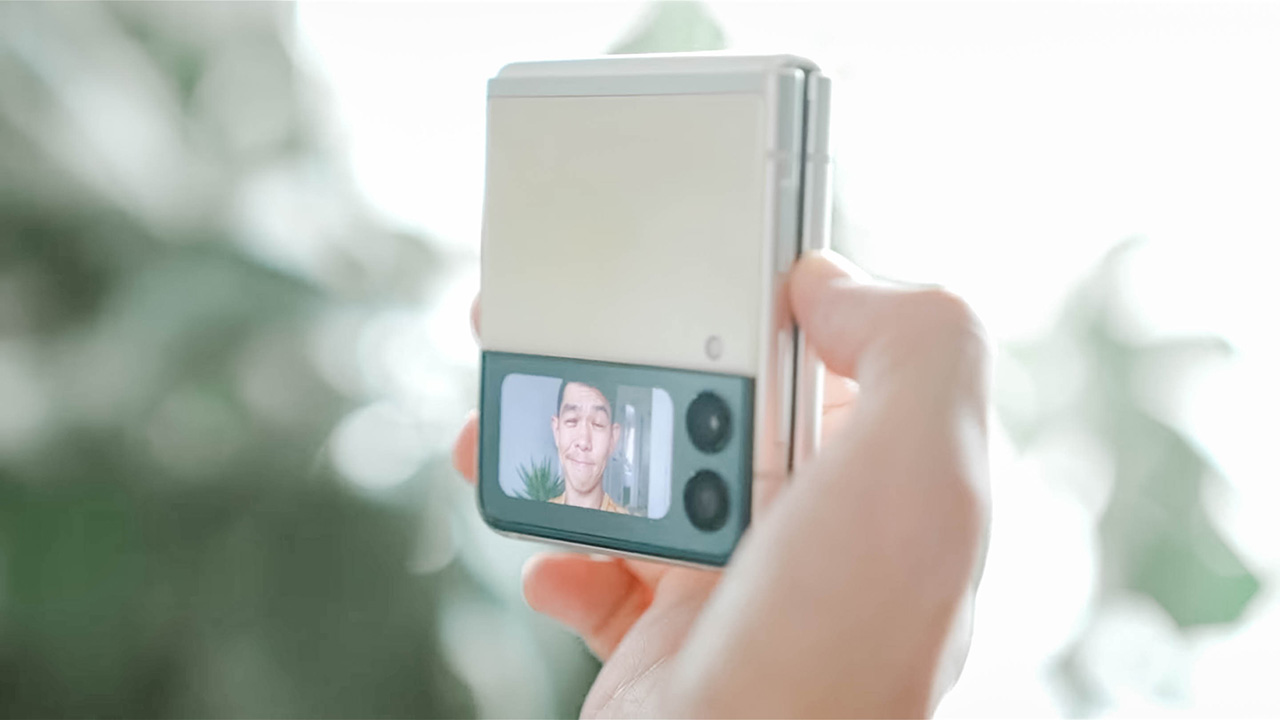
You can swipe down on the screen to switch between wide and ultra-wide-angle cameras. And then, what I like to do is just flash my palm to trigger the shutter. Or you can also use the volume up or down buttons.

New on the Flip3 is the ability to also shoot video while the phone is closed. From photo mode, just swipe to the left to switch to video mode. And press one of the volume buttons to begin a recording.

All of this is great and all but I have a complaint. Photos and videos shot this way all come out square. And there’s no setting that allows you to change that. It doesn’t make sense as using these cameras when the phone is open, you can shoot both photos and videos with standard aspect ratios.
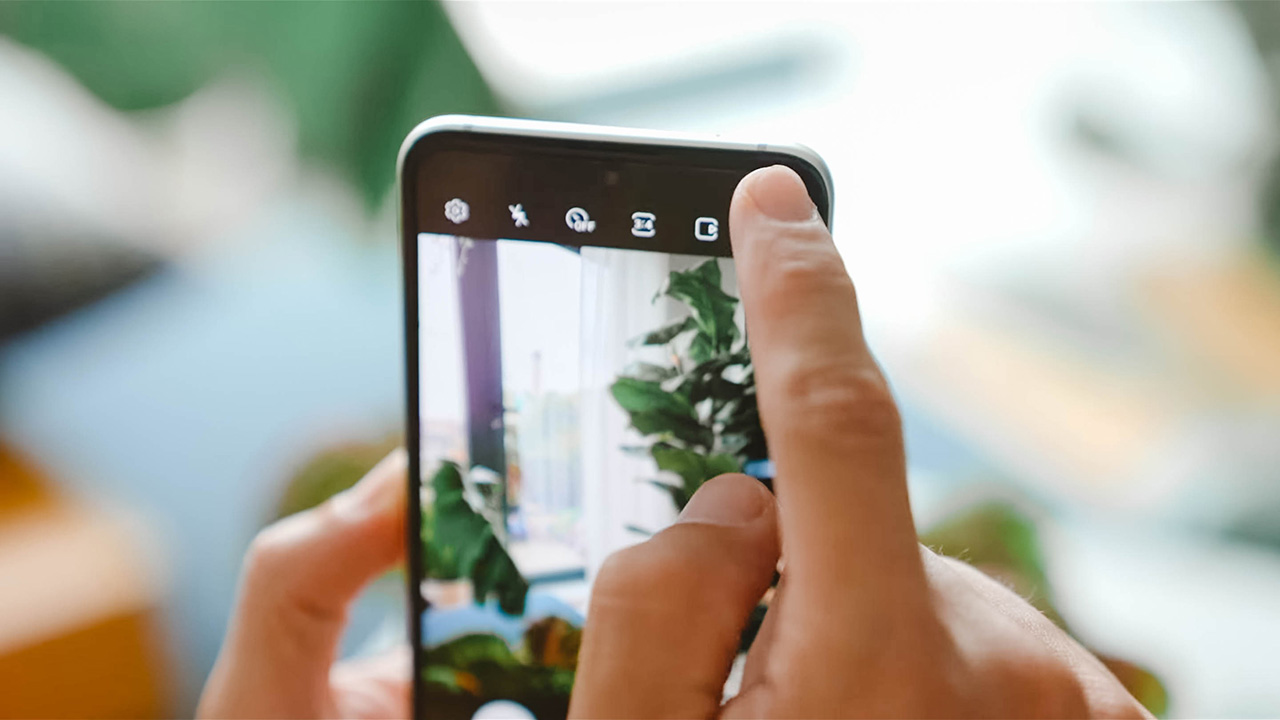
Oh, one more thing. There’s an icon that turns on Cover Preview, which basically lets the person you’re taking photos of preview a shot as you’re composing it.
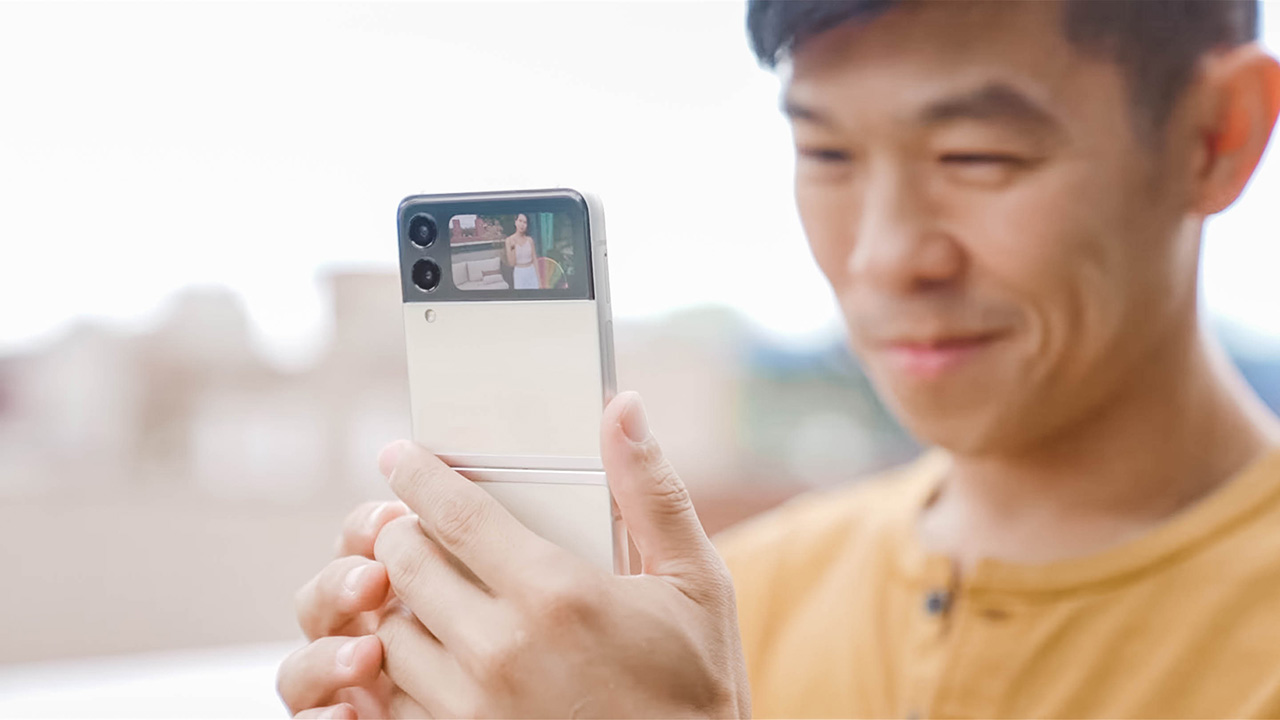
That way, it’s like looking in a mirror to help them find the right pose.
About its battery life…
The Galaxy Z Flip3 lasted about a full day with moderate use. That’s usually two to three hours of screen-on time. I usually charge it in the morning while I’m having breakfast, and the phone lasts till sometime in the middle of the night when I’m sleeping. But it’s usually dead by the time I wake up.

To be honest, that’s NOT enough for a heavy user like me. I understand that it’s an engineering challenge to cram a bigger battery into such limited space. But I would have loved it if the Flip could last much longer. And to call a spade a spade it’s probably the Flip3’s biggest flaw.
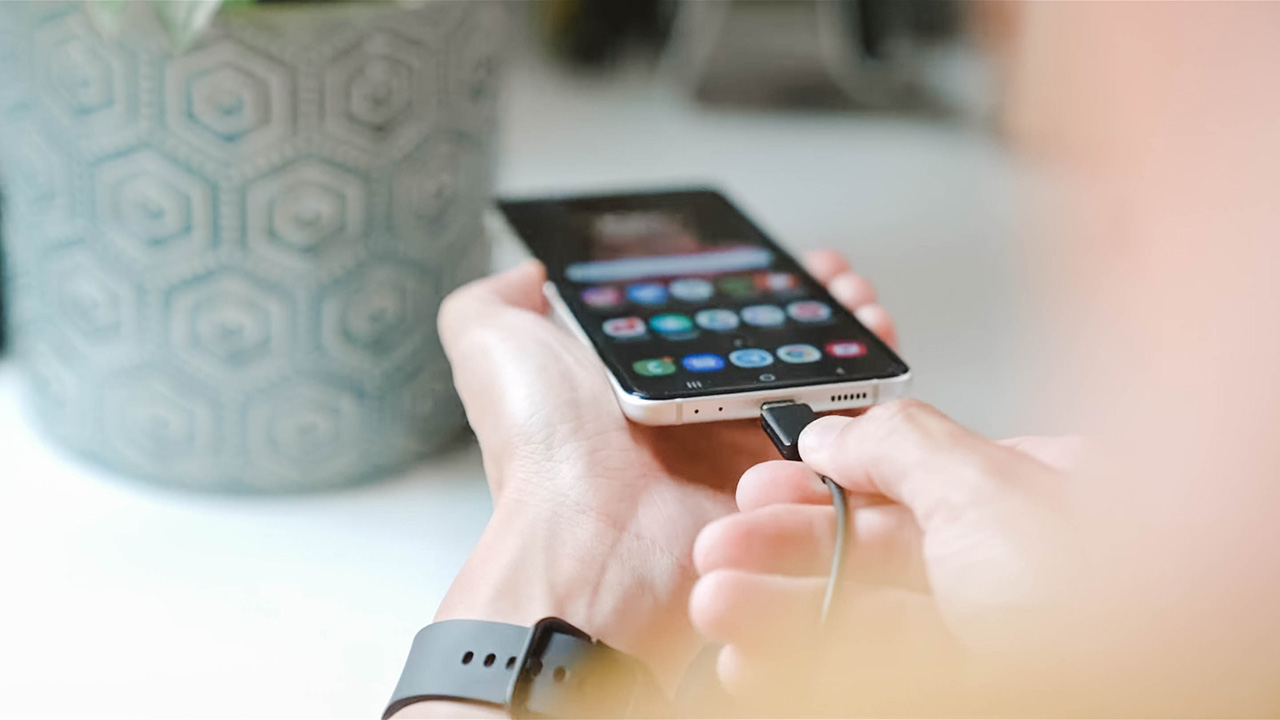
Top-ups aren’t extra speedy either since a full charge takes about an hour and a half on average, using Samsung’s 25W USB-C charger. Wireless charging the device takes even longer.
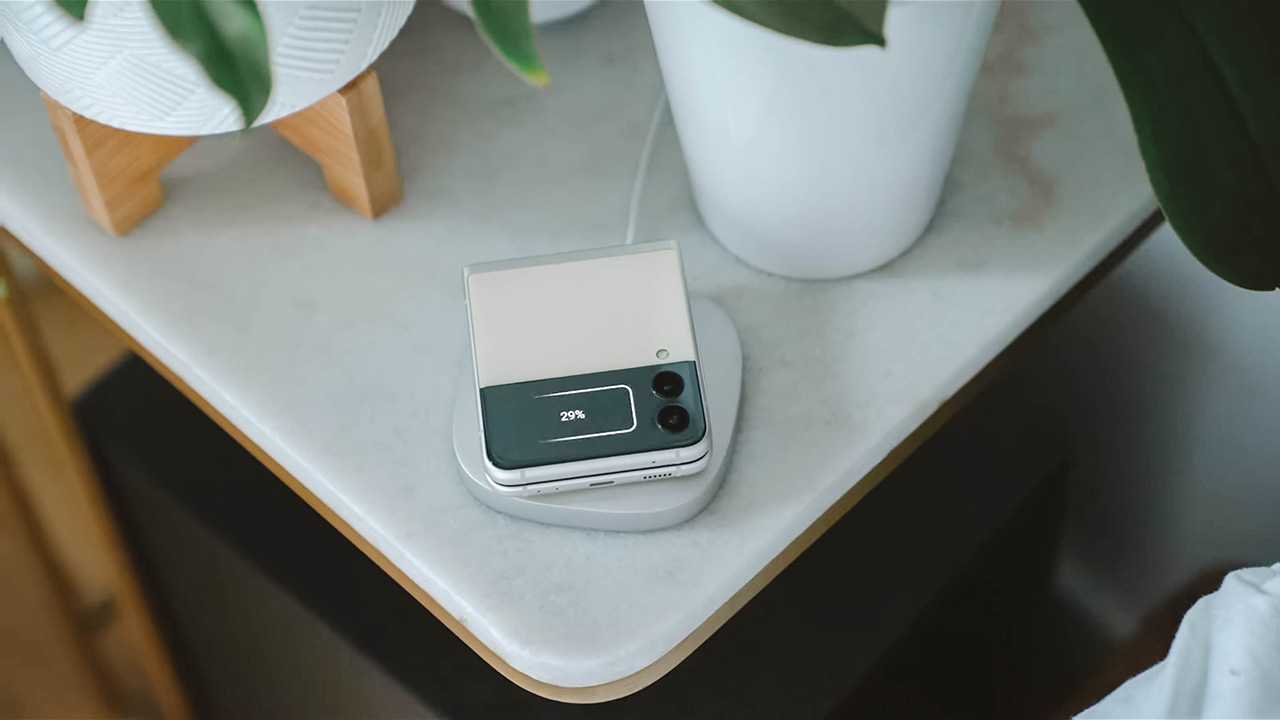
And speaking of wireless charging, if you’ve got the juice to spare, you can also turn on reverse wireless charging. To charge, say your new Galaxy Buds2 or Galaxy Watch4.
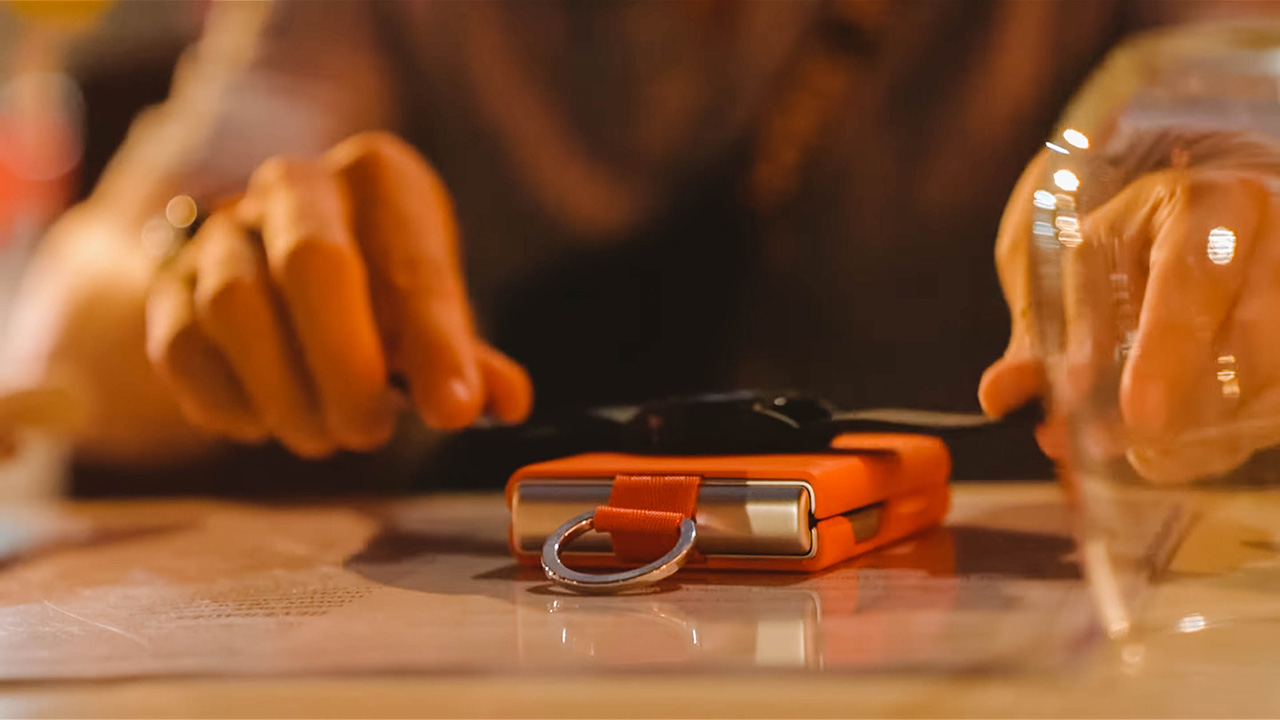
But let’s be honest: With so little battery capacity available, I’m not going to do any of that. Even in a pinch.
Accessories to enjoy
By the way, in case it still needs to be pointed out in 2021, there’s no charger in the box. If you want an unboxing, check this video. But long story short, you basically get a phone and a cable. That’s it.

Guess that’s a good jump-off point to what else you can get for your Flip3. Apart from the 25W charger which comes in white and black and can be had for US$ 19.99, I’m really excited about Samsung’s lineup of cases. There’s a fancy Aramid Cover, a Leather Cover which is what I bought last year, and a Clear Cover.
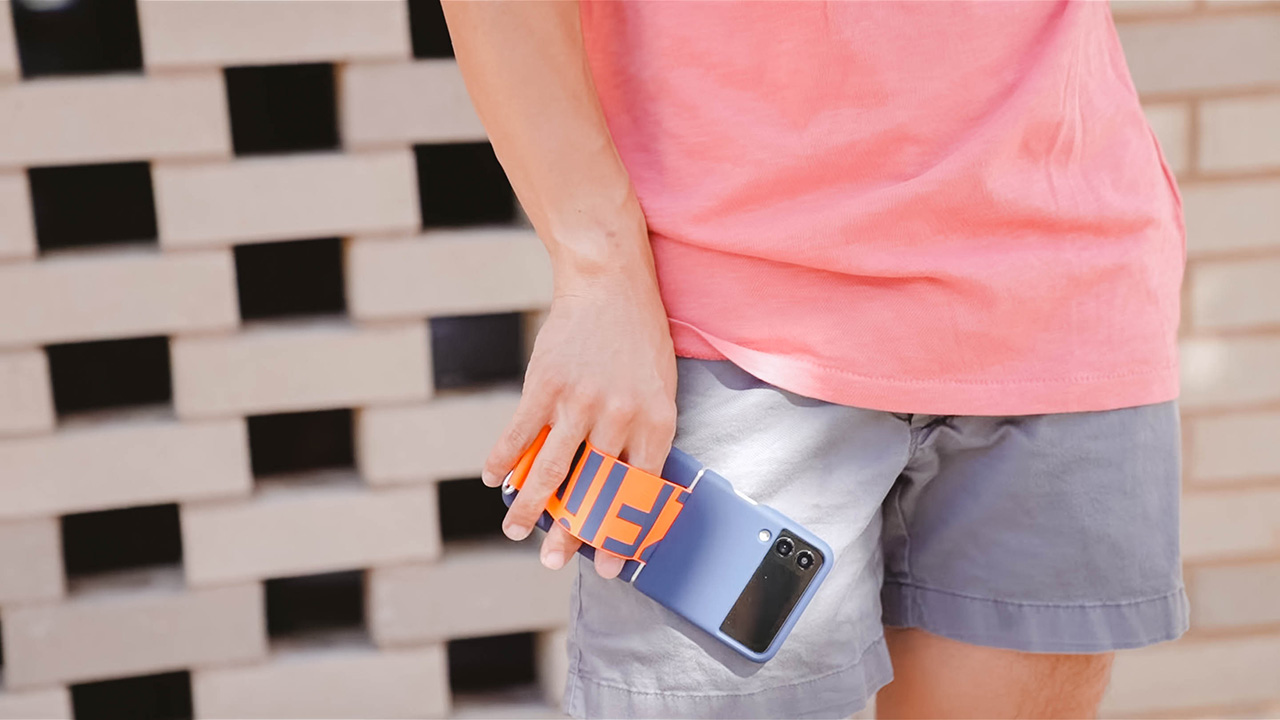
But what I really like are the new Silicone Cover with Ring and Silicone Cover with Strap.
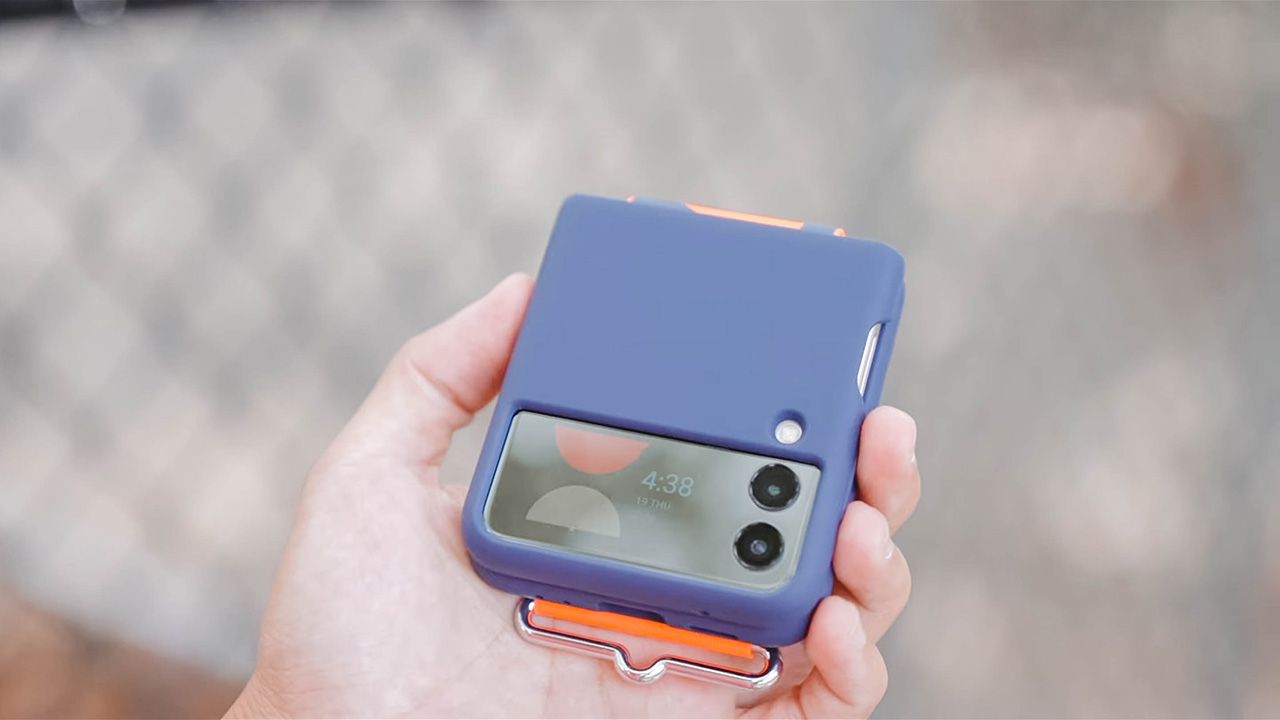
They’re both trendy and stylish and are useful because both give you a way to securely hold on to your phone. These cases are US$ 39.99 per piece.

Is the Galaxy Z Flip3 your GadgetMatch?
As always, if you own last year’s Flip then the most financially responsible thing to do is wait at least another year before you upgrade. But if you’ve been holding off — just waiting for the right time to snag a folding phone. Then now’s a definitely good time, if US$ 999 for you is affordable.
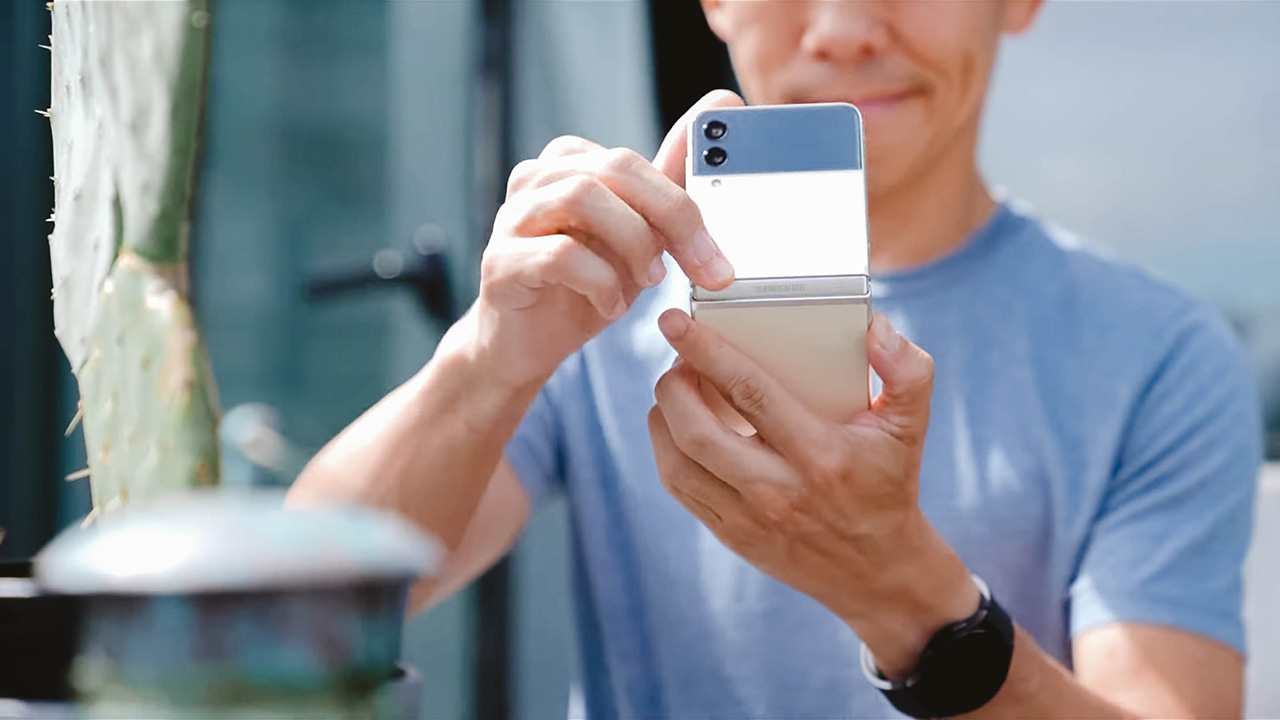
But is the Galaxy Z Flip3 really worth it? I think so. This phone, for me, is many things. A conversation starter. A cool and trendy gadget. A bite out of the future.
As you all know, I carry an iPhone in one pocket and an Android in the other. And for most of last year — the Flip was my Android phone of choice. And this year’s Flip3 will most likely claim that coveted pocket space. It might not be perfect — battery life for one needs some work. And cameras could be even better.
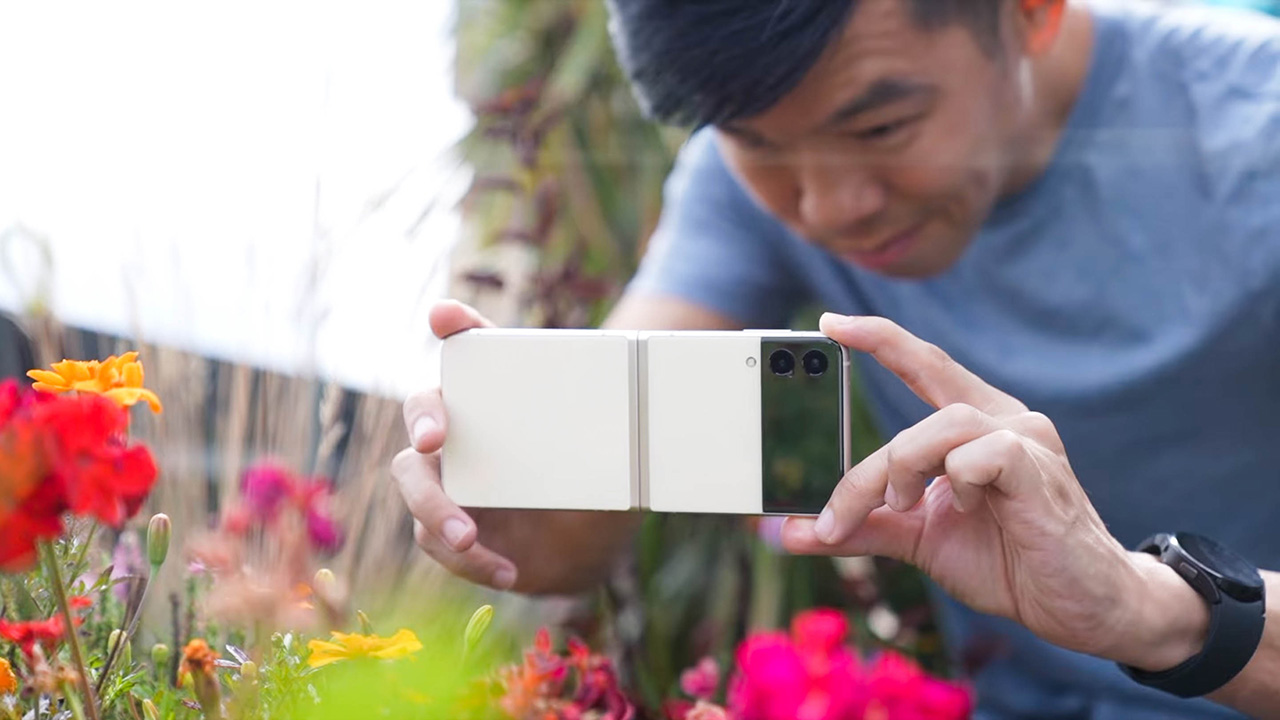
But there’s something about the Flip3 that keeps me coming back for more. And that je ne sais quoi cannot be denied. I have a feeling this is going to be a very popular phone this year. It’s definitely one worthy of the GadgetMatch Seal of Approval.
WATCH: Samsung Galaxy Z Flip3 Review: Flip or Flop?
Galaxy Z Flip3 5G — BUY here
Galaxy Fold3 5G — BUY here
Galaxy Watch4 and Galaxy Watch4 Classic — BUY here
Galaxy Tab S7 FE — BUY here
Galaxy Buds2 — BUY here




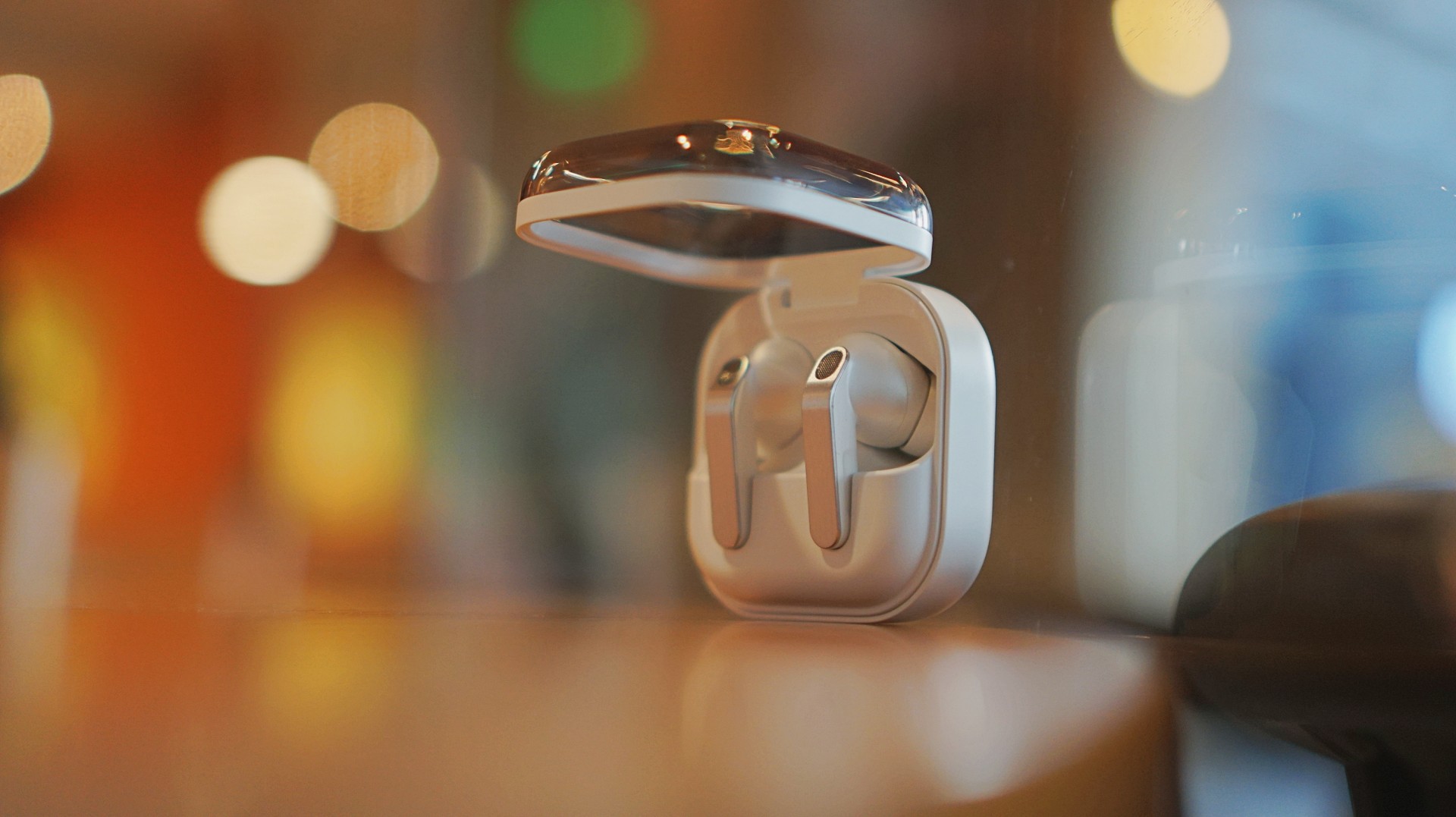
I thought I was done with in-ear headphones. Then the Galaxy Buds4 Pro entered my atmosphere.
I was never truly comfortable with in-ear headphones. That’s why I leaned toward over-ear pairs. But I still wanted something compact for days when I wanted a lighter loadout.
Then came the Shokz OpenDots One. A clip-type, open-ear pair that felt like a game changer. It sounded good enough. It kept me aware of my surroundings. I used it to preview reels while out on coverage, while walking around the neighborhood, and even on quick trips to the barber.
I was ready to write off in-ears completely.
Good thing I didn’t.
A surprise I didn’t expect
I went into the Galaxy Buds4 Pro a little skeptical. I already liked the Galaxy Buds3 Pro, but comfort was never its strongest suit for me.
Then I wore the Buds4 Pro.
Right away, it felt different. More comfortable. More natural. I thought it was just new gadget novelty. But even after a week, that feeling didn’t fade.
That’s when it clicked. These are different. They don’t just sound good. They fit into your day better.
Finally looks like its own thing
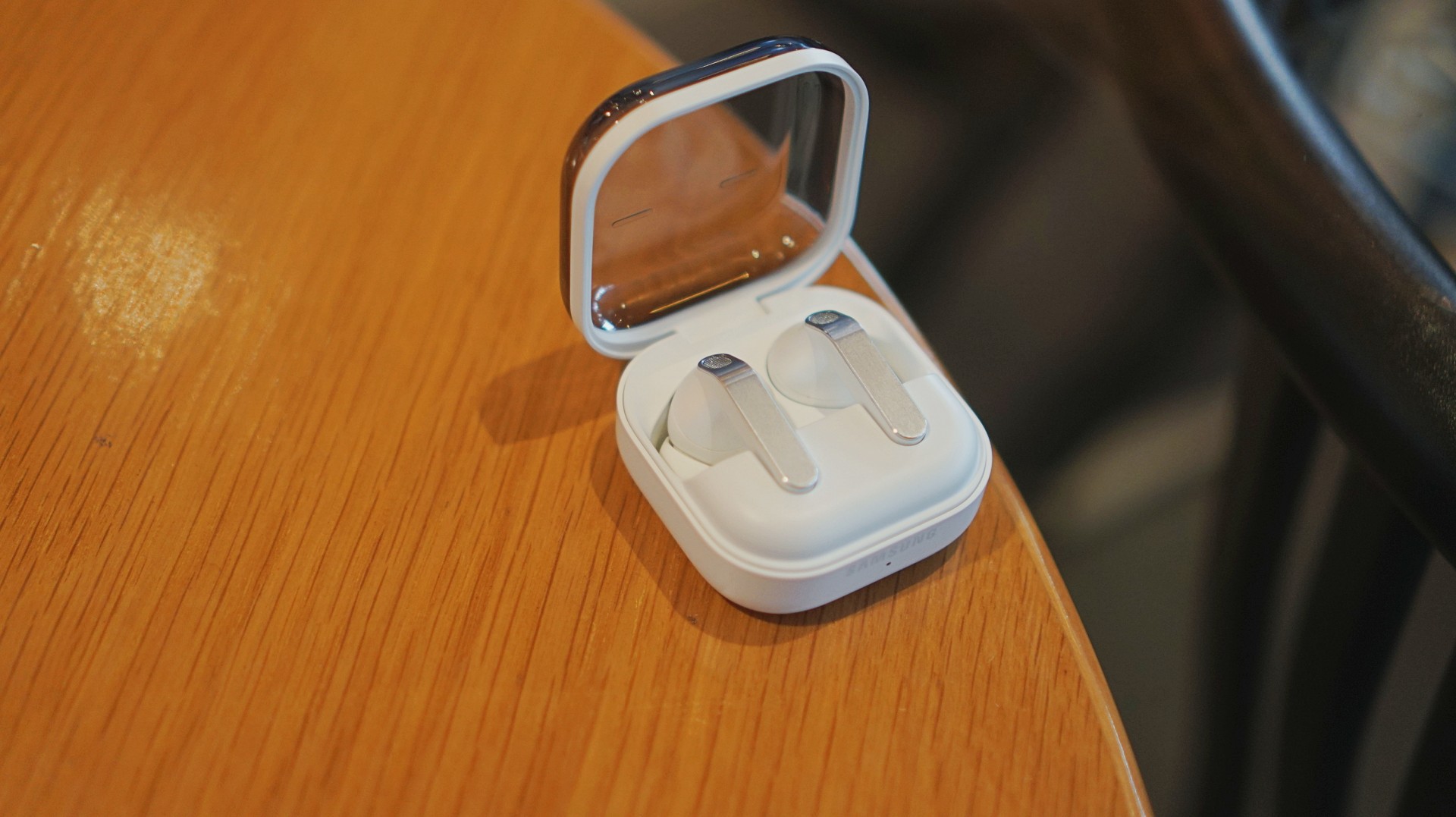
The first thing I loved? It doesn’t look like AirPods anymore.
The Galaxy Buds3 Pro looked a little too familiar. I didn’t hate it, but it didn’t feel like me. I like using tech that reflects a bit of individuality, and that design always felt a little tacky.
The blade design on the Galaxy Buds4 Pro fixes that.
It looks cool. Straight up.
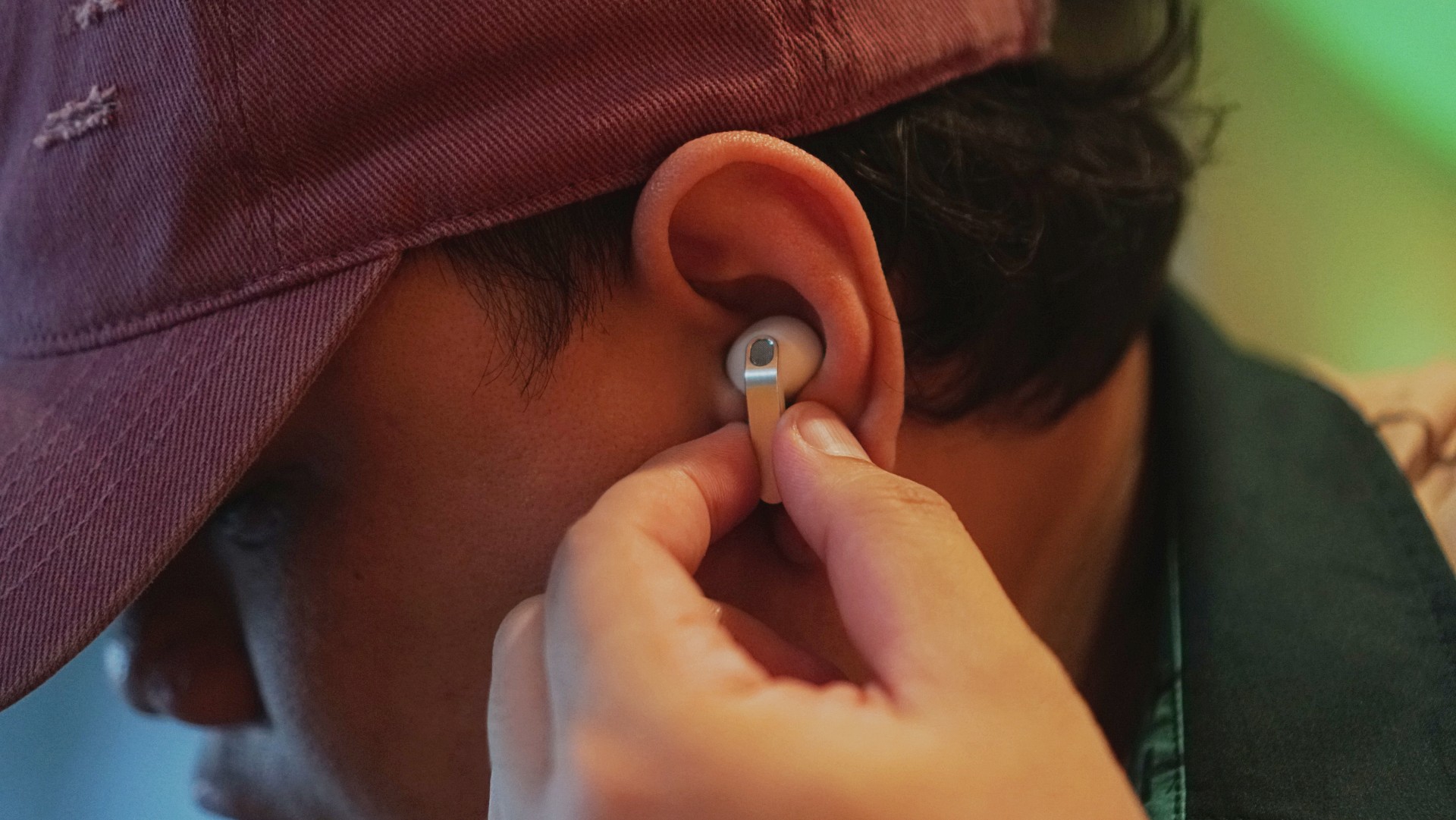
More importantly, it feels more like Samsung finally finding its design language again instead of borrowing from someone else. It’s not just aesthetic either. The shape makes controls easier to find and use.
It’s a small thing on paper. In practice, it changes how you feel about using it every day.
Controls feel easier too. Pinch to pause/play, slide up/down in the same pinching position if you want to adjust volume. It just works.
Comfort changes everything
This is the biggest upgrade for me.
With the Buds3 Pro, I loved the features but didn’t always enjoy having them in my ears. With the Buds4 Pro, that problem is gone.
It’s not that you don’t feel them at all. You do. But not in a way that makes you want to take them out.
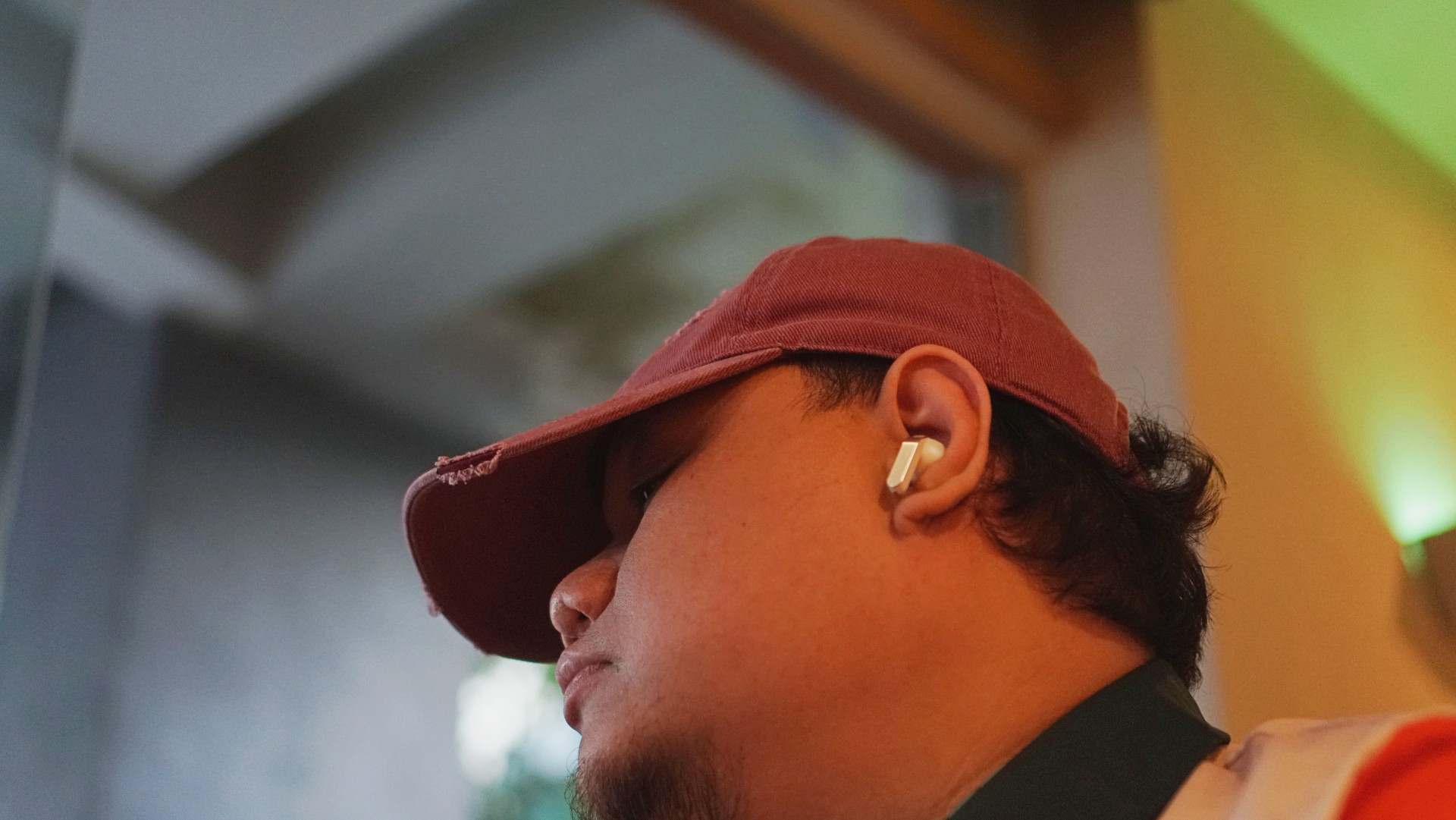
I’ve worn them for four straight hours while working in a café. Writing, replying to emails, just sitting there with music on. No urge to remove them. No fatigue that breaks your flow.
They stay in place, too. Even during brisk walks.
For someone who almost gave up on in-ears entirely, that alone is a massive win.
Rich, full, and now more layered
If you’ve used the Galaxy Buds3 Pro, you already know the sound is good. The Buds4 Pro takes that and pushes it one step higher. Rich, warm, full, and surprisingly layered. The difference hit me immediately.
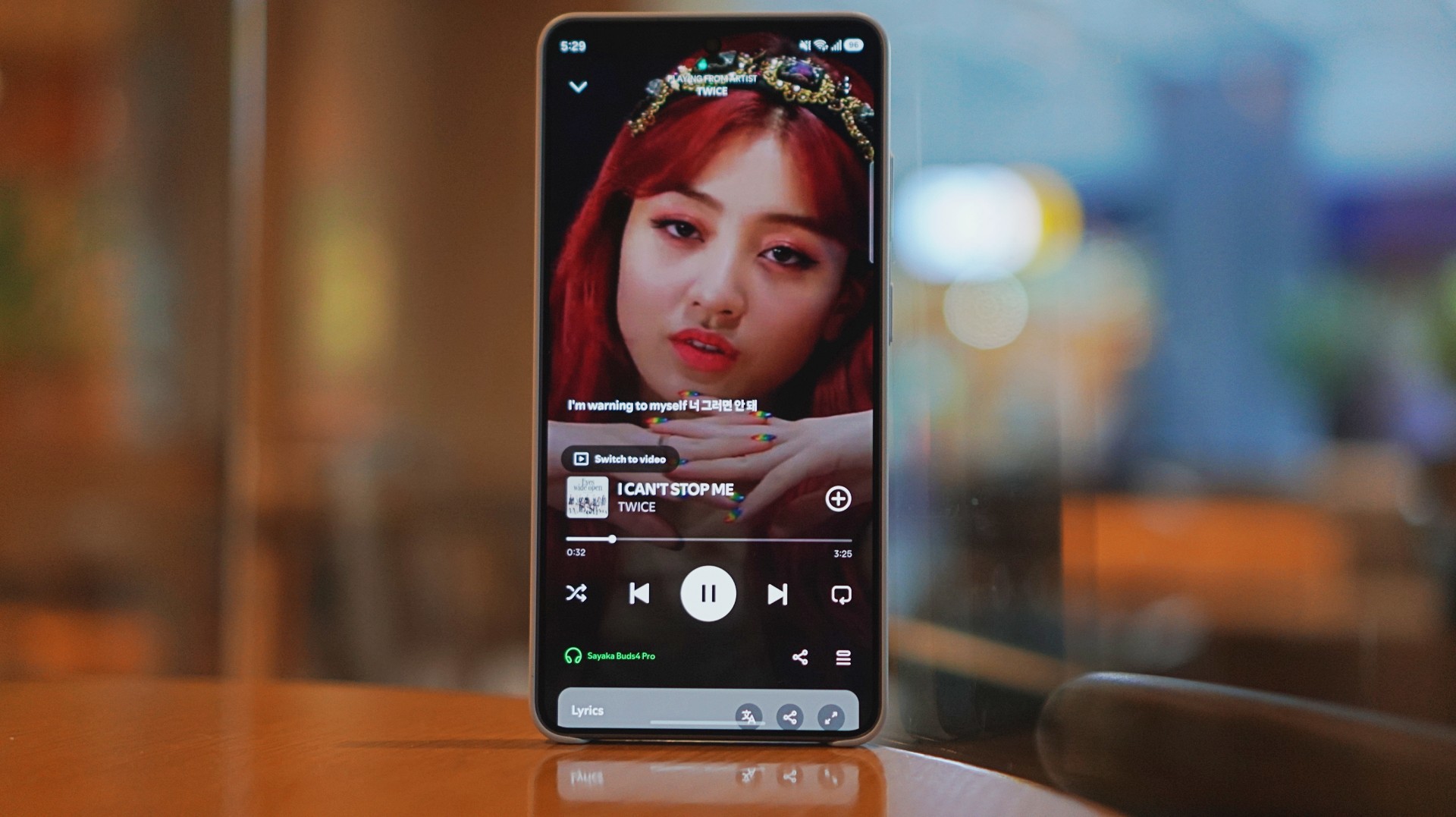
I was listening to Spotify on the Galaxy S26 Ultra and started hearing details I don’t usually notice. It reminded me of the first time I heard lossless tracks on Apple Music with a really good pair of headphones.
And this is just on Spotify. Hell yeah, it makes Spotify feel good enough.
Hearing the little things
I listen to a mix of K-pop, KRNB, OPM, pop rock, and alternative rock. Across all of it, one thing stood out: separation. It’s easier to isolate sounds if you’re into that.
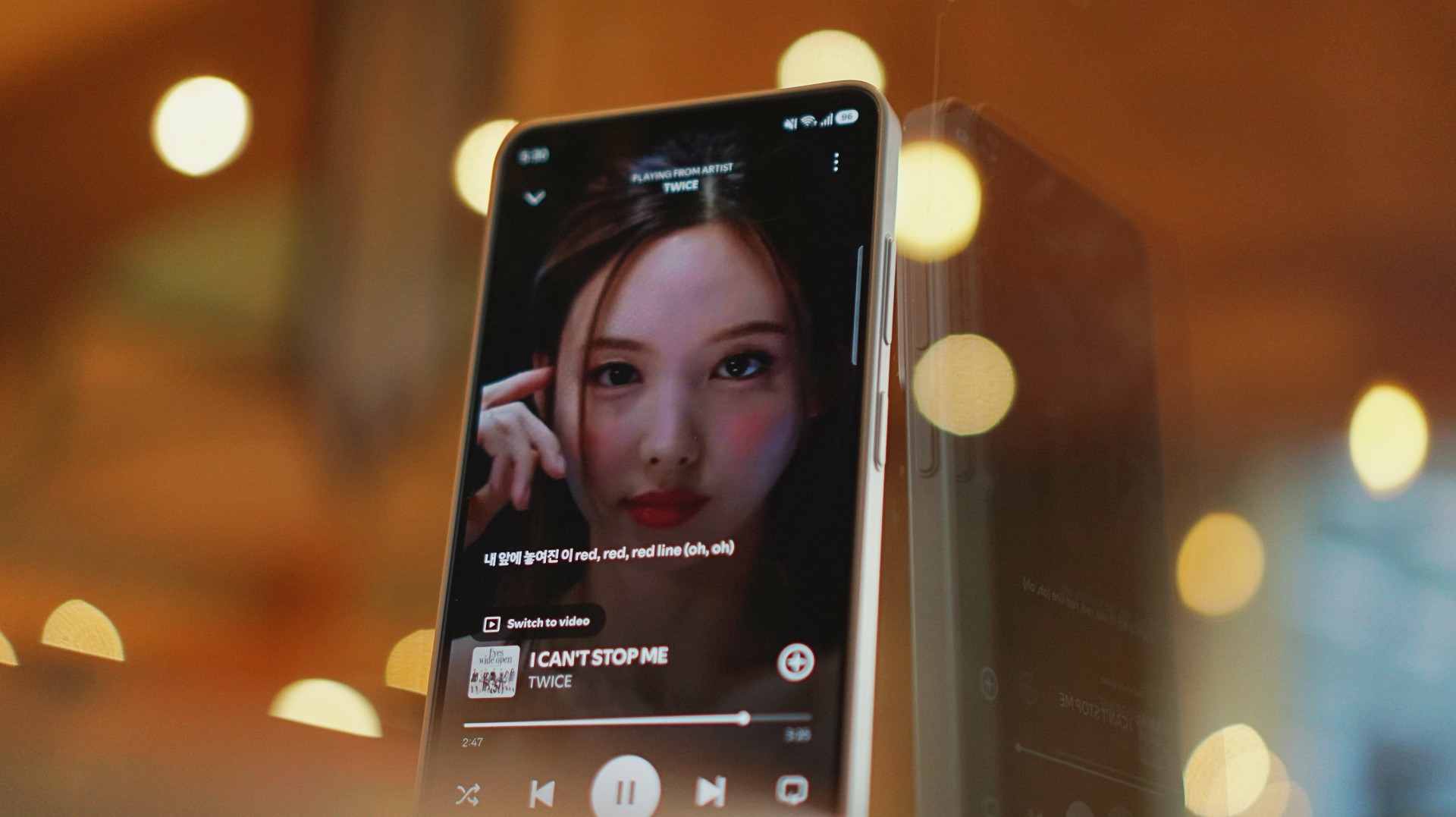
With TWICE tracks, I started picking up vocal riffs and runs from Jihyo and Nayeon that don’t always stand out on other setups. They’re not overpowering. Not distracting. They just sit there, completing the track.
It feels… intentional. Like everything has its place. It doesn’t just sound better. It makes music you already love feel new again.
A quick reality check
At one point, I forgot to charge the Buds4 Pro and switched to the HONOR Earbuds 4. Same track. Same app. Night and day difference.
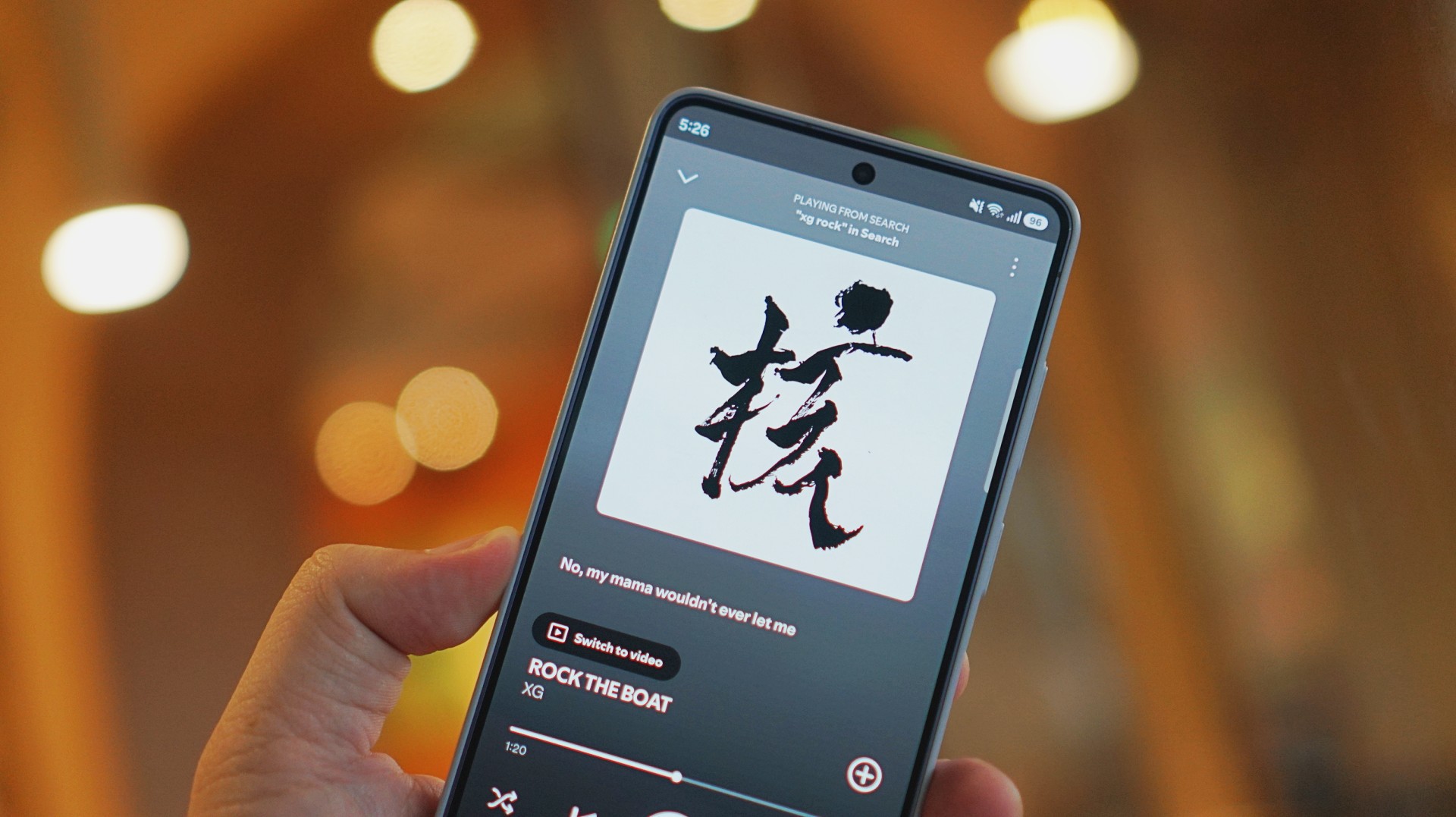
I was listening to “Rock the Boat” by XG when I made this switch.
The Galaxy Buds4 Pro sounded rich, warm, and full. The HONOR Earbuds 4 felt a few steps behind across the board. To be fair, they’re in different price brackets. But that moment still validated everything I was feeling about the Buds4 Pro.
ANC that gets the job done
Let’s set expectations.
The ANC is not Sony WH-1000XM6 level. But nothing is.
If Sony is an 11/10, this sits comfortably at around an 8.5.
And honestly? That’s more than enough.
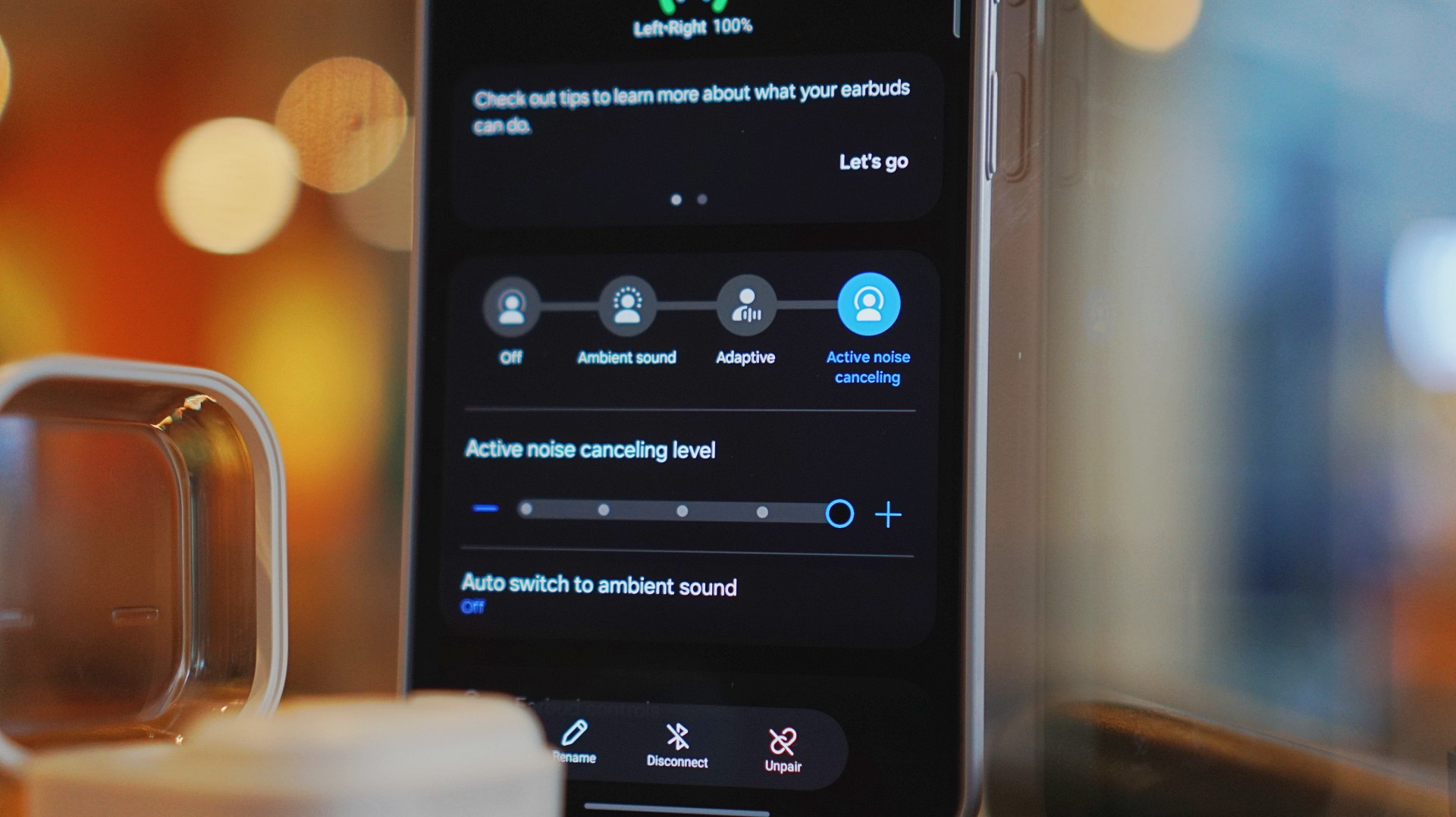
On a 12-hour flight from San Francisco back to the Philippines, I had these on almost the entire time. Engine noise was significantly reduced. There’s still a faint hum if you really listen for it, but it never got distracting.
In cafés, even when seated right next to the speaker, it blocks out enough noise for you to stay locked in.
It locks you in. You feel like the music is inside your head while still giving you elite sound, some spatial awareness, and surprising comfort.
That balance matters more than chasing perfection.
Adaptive ANC still needs patience
I default to turning ANC on manually. Adaptive ANC and EQ are there, but in my experience, they take a bit of time to kick in. Sometimes a minute or two.
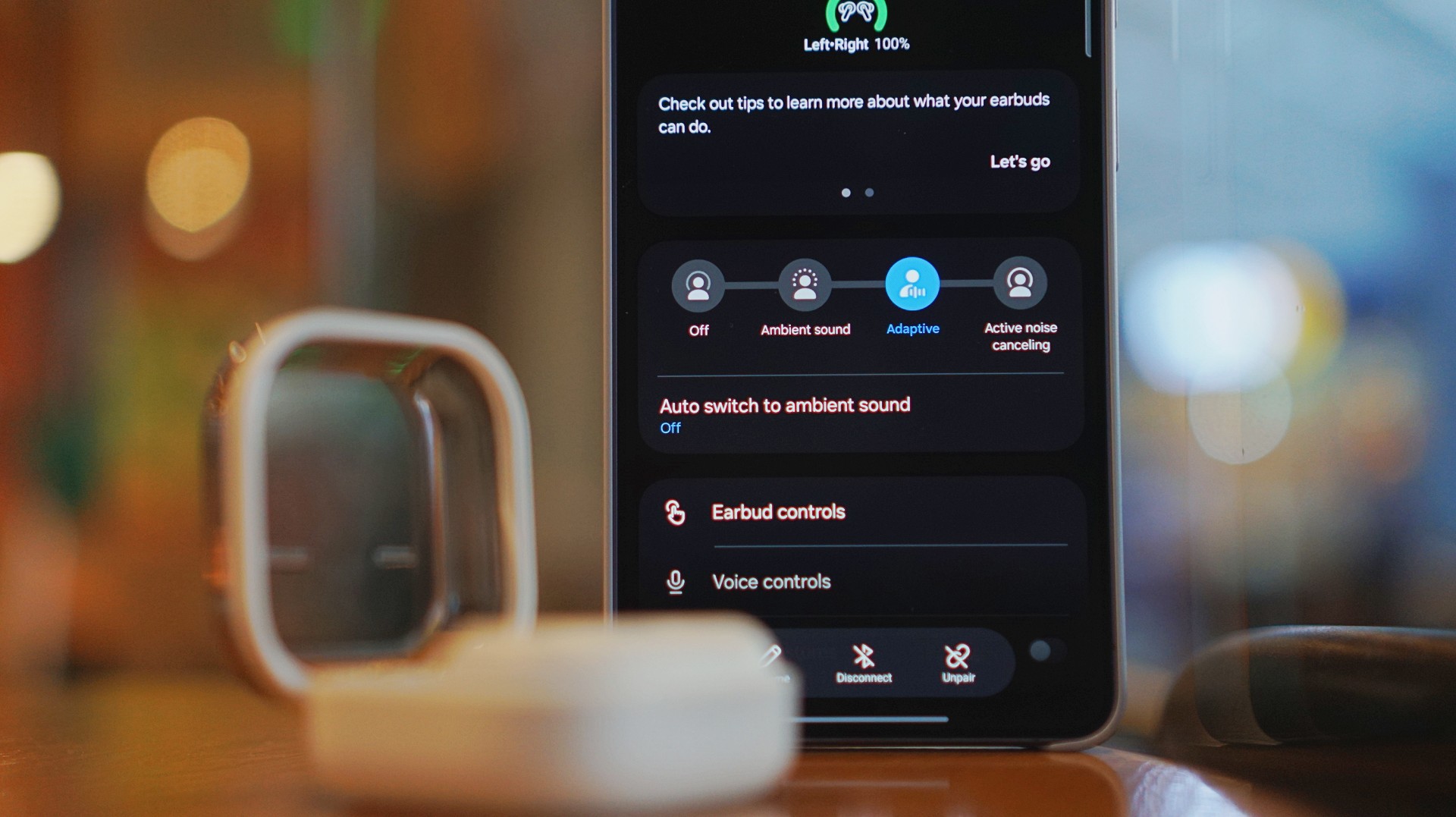
Because of that, I’ve built the habit of switching modes myself depending on where I am.
It works. It’s reliable. But I’d like to see this feel faster and more seamless over time.
Just fits into your day
This is the kind of device you don’t think about. I reach for it every time I step out. Walks, errands, quick food runs.
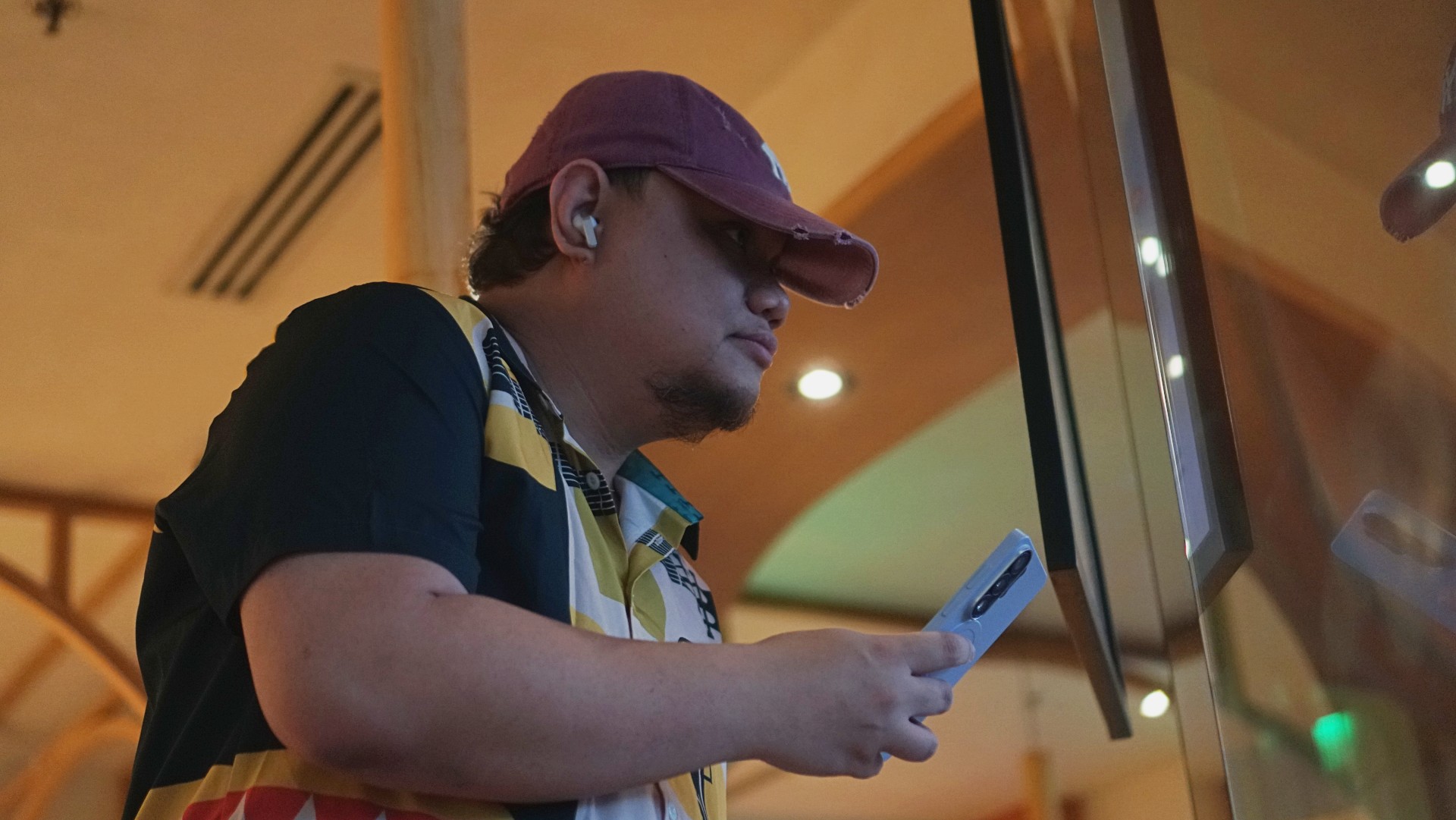
It’s perfect when you’re waiting in line and scrolling through reels. No accidental loud audio. No awkward moments. It just fits. That’s probably the best compliment I can give it.
Galaxy ecosystem still wins
Pairing is seamless. Controls are responsive. Everything works the way you expect it to. If you’re using a Galaxy device, this is a no-brainer.
Even outside the ecosystem, it still holds up. But you definitely get the best experience when you stay within it.
What still doesn’t matter (yet)
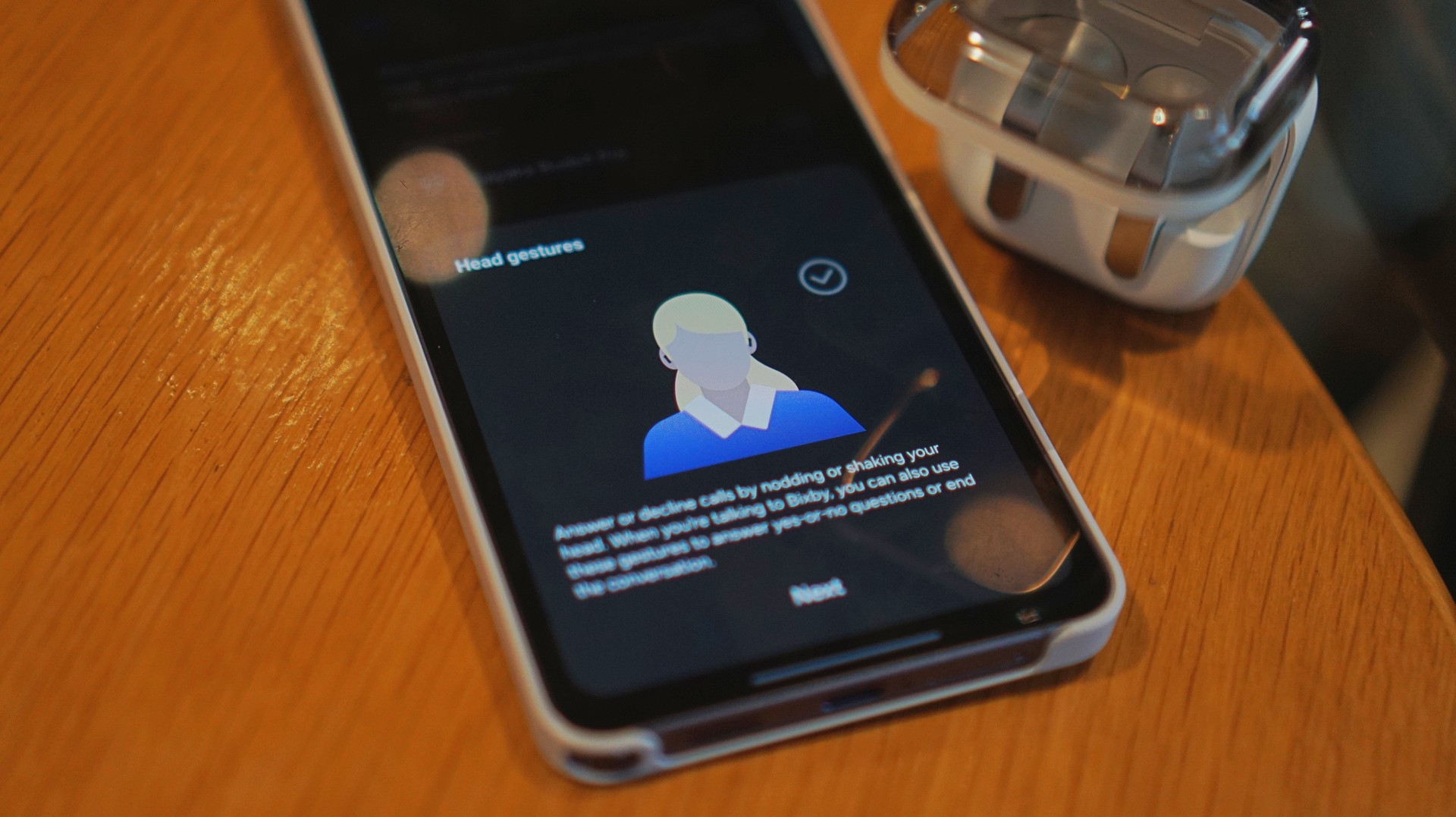
Features like AI Translate are still in that “nice to have” category for me. They’re promising. They’ll probably get better. But they’re not why you buy this.
You buy this for the sound, the comfort, and the everyday usability. And those are already excellent.
Is the Galaxy Buds4 Pro your GadgetMatch?
If the Galaxy Buds3 Pro was Samsung’s best so far, the Galaxy Buds4 Pro is that — made better. A meaningful refinement.
This is my default recommendation now.
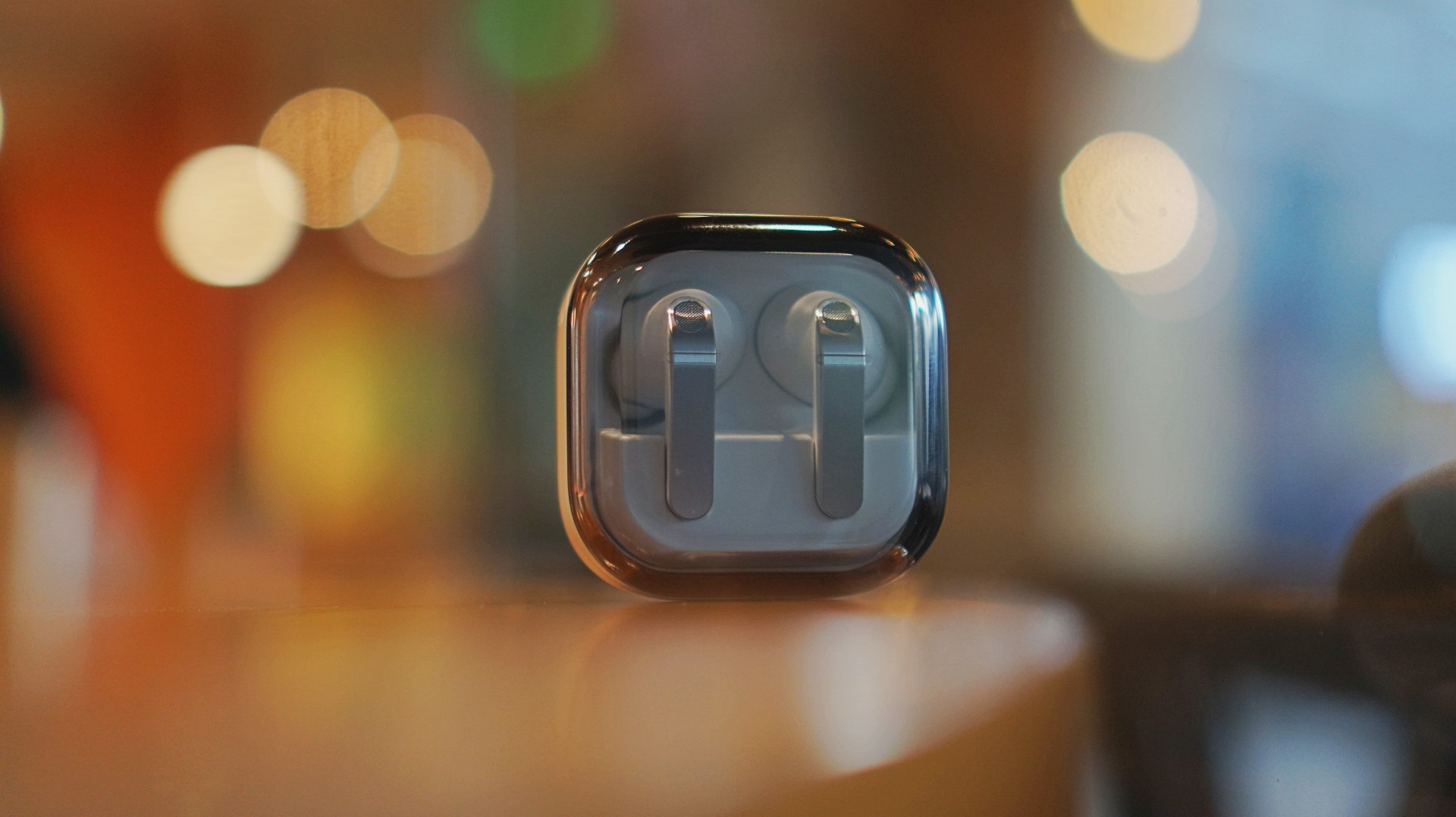
The Galaxy Buds4 Pro is for people who want to get the best sound in a compact, easy-to-carry audio buddy to their smartphones.
If you’re coming from older earbuds, this is an easy upgrade.
If you’re coming from the Buds3 Pro, you can probably hold off — unless comfort and design matter a lot to you.
And if you’re deep in the Galaxy ecosystem?
This Buds4 you. Swipe up. No questions asked.
Gaming
WWE 2K26 lets you live out all the fantasy matches you could want
But you have to play for hours and hours to unlock everyone.

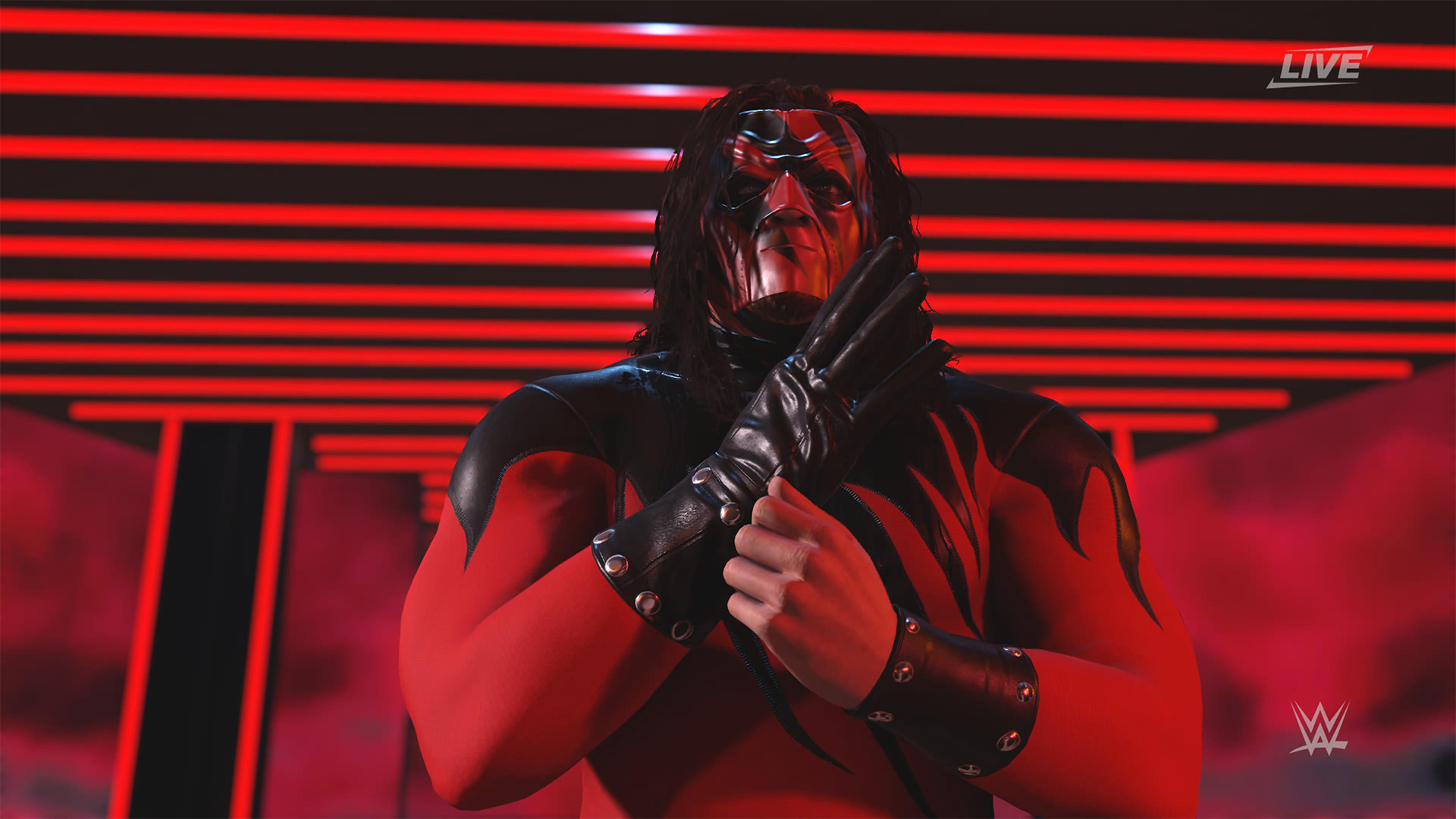
The old SmackDown vs. RAW games were some of the most fun I’ve had as a teenager. Though I didn’t own a PlayStation 2 or 3 then, I had a PlayStation Portable and the series’ corresponding version. Sure, it didn’t have the then-advanced graphics, but the games kept me company for many a day and night. And it all revolved around a simple premise: letting wrestling fans live out their fantasy matches.
Now, with over 400 playable characters on launch, WWE 2K26 hopes to rekindle that magic. Previously, 2K’s take on the wrestling simulator never really captivated me as much as the SvR series did. Though players still had a similarly large roster throughout the years, the series felt too homogenized, too riddled with microtransactions. This year, the series got me thinking again: Can sheer numbers singlehandedly usher a new renaissance for WWE gamers?
The good: Four hundred superstars under one banner
WWE 2K26 touts over four hundred playable characters on launch. With unannounced DLCs still on the horizon, this number will surely balloon further. Even for a dedicated WWE fan, having over four hundred playable characters is insane. Where else can I pit Joe Hendy against Andre the Giant and create my own WrestleMania III moment?

The only catch, however, is that the game did some stat padding to get to this enormous number. Besides having multiple personas for a single wrestler (and CM Punk alone has ten of these), the roster includes a platoon of fictional MyRISE characters, which comes off as distracting if you don’t particularly engage with the MyRISE mode.
Ironically, the game didn’t even need to pad its stats this way. For the first time in the series, the launch roster includes Superstars from the current WWE roster, TNA, AAA, and the Hall of Fame. I could spend hours just feeding a litany of Superstars to TNA legend Abyss. That’s something I could never have done in the old SvR days.
The good: A more fluid fighting system
It also helps that WWE 2K26’s fighting system is the most fluid that the series has been. Wrestlers no longer feel like wooden animatronics skipping from one animation to the next. Each punch flows smoothly into a clothesline, a grapple, a carry, or a finisher.
It is, of course, at the expense of a more complex control scheme where each input combination corresponds to its own move. A stray waggle of the right joystick, for example, can have your wrestler careening towards their opponent in ways you never intended.
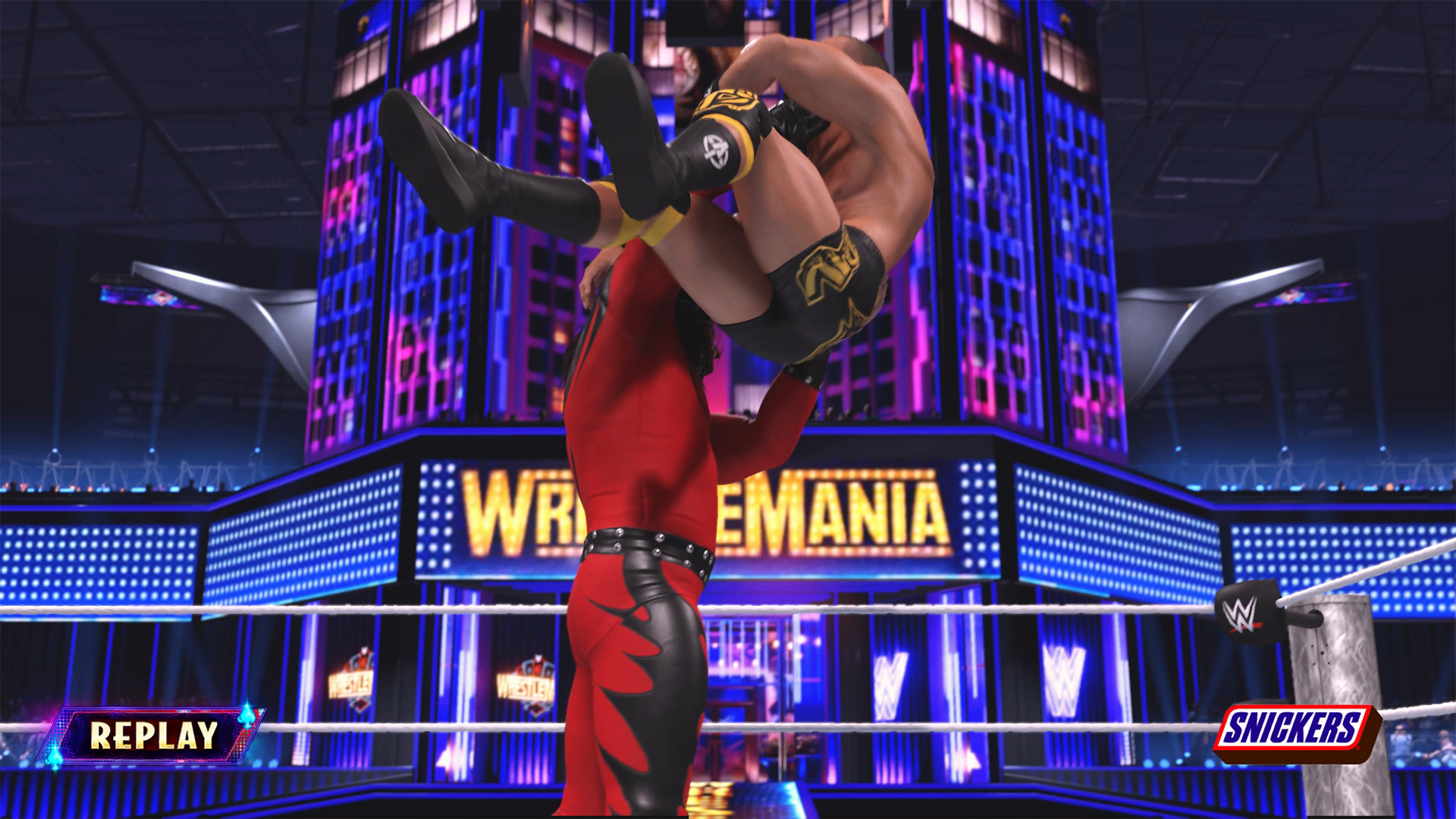
It takes some time to get used to. Every time I get a WWE 2K game, I always need a refresher course for the controls. Plus, each entry introduces something different. This year introduces rushing opponents to the corner and carrying opponents in different ways.
Another new addition is the new third-person camera which follows your character, rather than being locked to the ring. To me, this was a welcome feature. The original camera can often betray you by having various elements (other wrestlers, the ring itself) block your view of the action, thus preventing you from reacting correctly to your opponent. The dynamic third-person camera solves this and makes the fight more immersive.
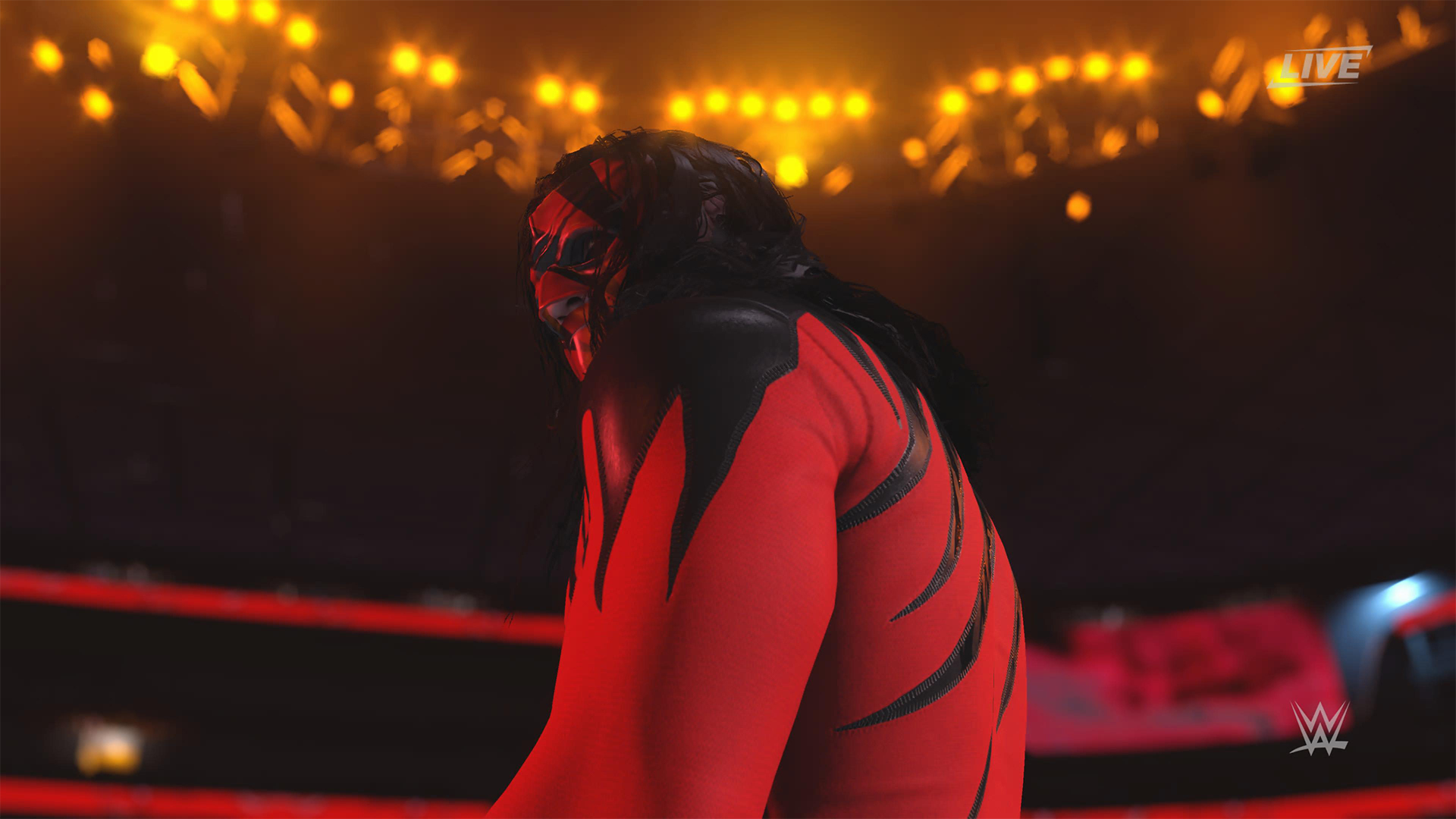
That said, the camera necessarily changes the controls a bit because you need the right joystick to look around. Because of that, I had to revert back to the original camera after a while. Regardless, this is a step in the right direction.
The improved fight scheme is also a step in the right direction. WWE 2K26 is the franchise’s most immersive entry to date because of how fluid the action plays out.
The meh: Iterative game modes
Every yearly sports simulator falls prey to the curse of iteration. Because it’s an annual release, every game needs to add something new for players. At the same time, the same game can’t iterate too much, or it might end up alienating fans of the previous title. Each WWE 2K title has to be the same but also a bit different.
WWE 2K26 goes through the same rigamarole. Most of the game’s different modes don’t offer a lot of improvements from last year. So, if you loved last year’s MyRISE, MyGM, and Universe Mode, you’ll likely find this year’s iteration inoffensive.
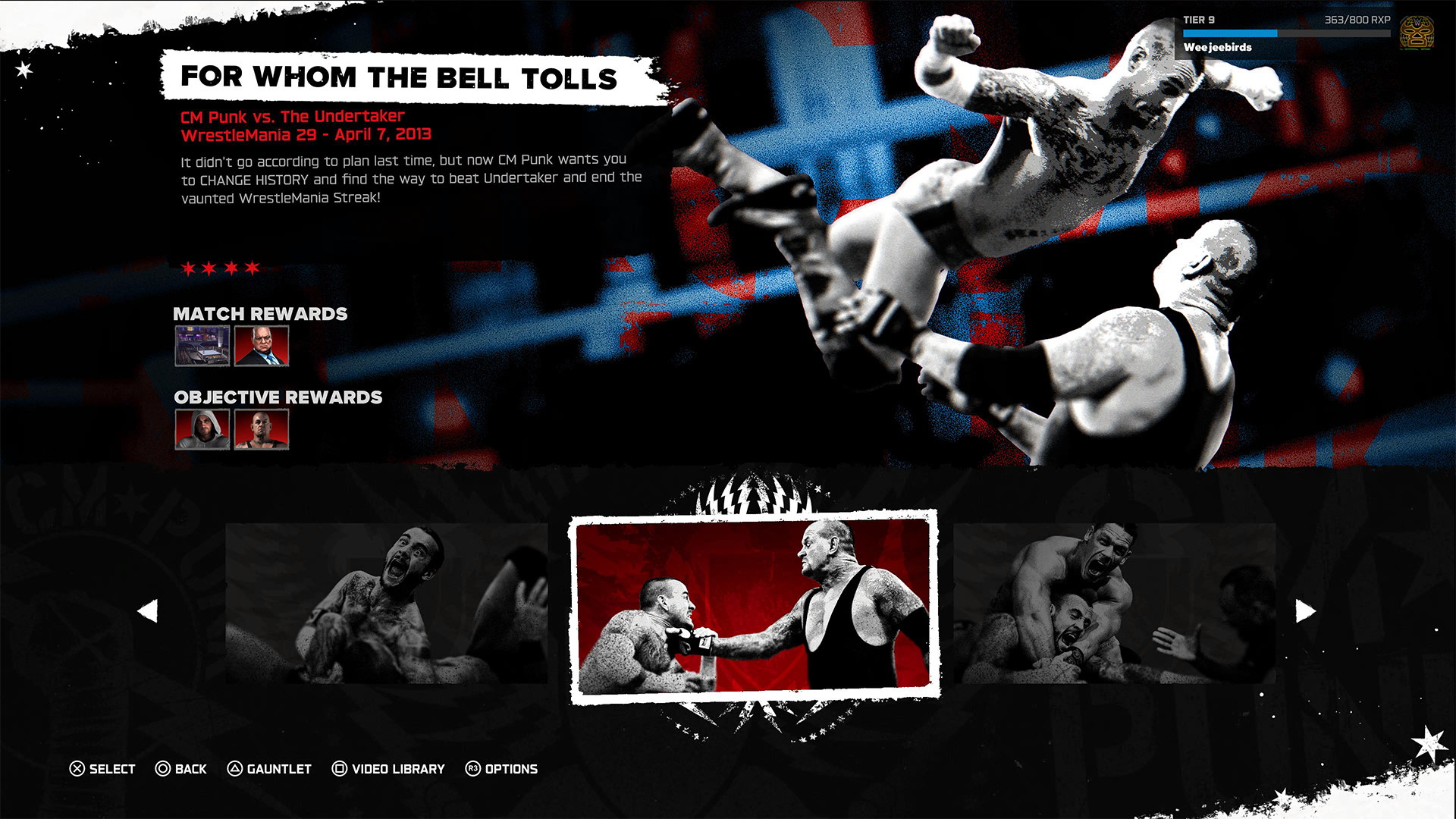
“Inoffensive,” however, isn’t the best way to sell a new game. At the very least, MyFACTION gets interesting improvements. For a mode I historically dislike every year, WWE 2K26’s MyFACTION ended up being the one I loved the most this year.
This year, the layout feels more intentional. Though it still lacks the exciting animations of NBA 2K, opening a pack no longer looks like a PowerPoint presentation. There’s also more ways to fight offline with the addition of a challenging World Tour mode. Plus, with intergender support and team chemistry, this feels like the update that MyFACTION needed.
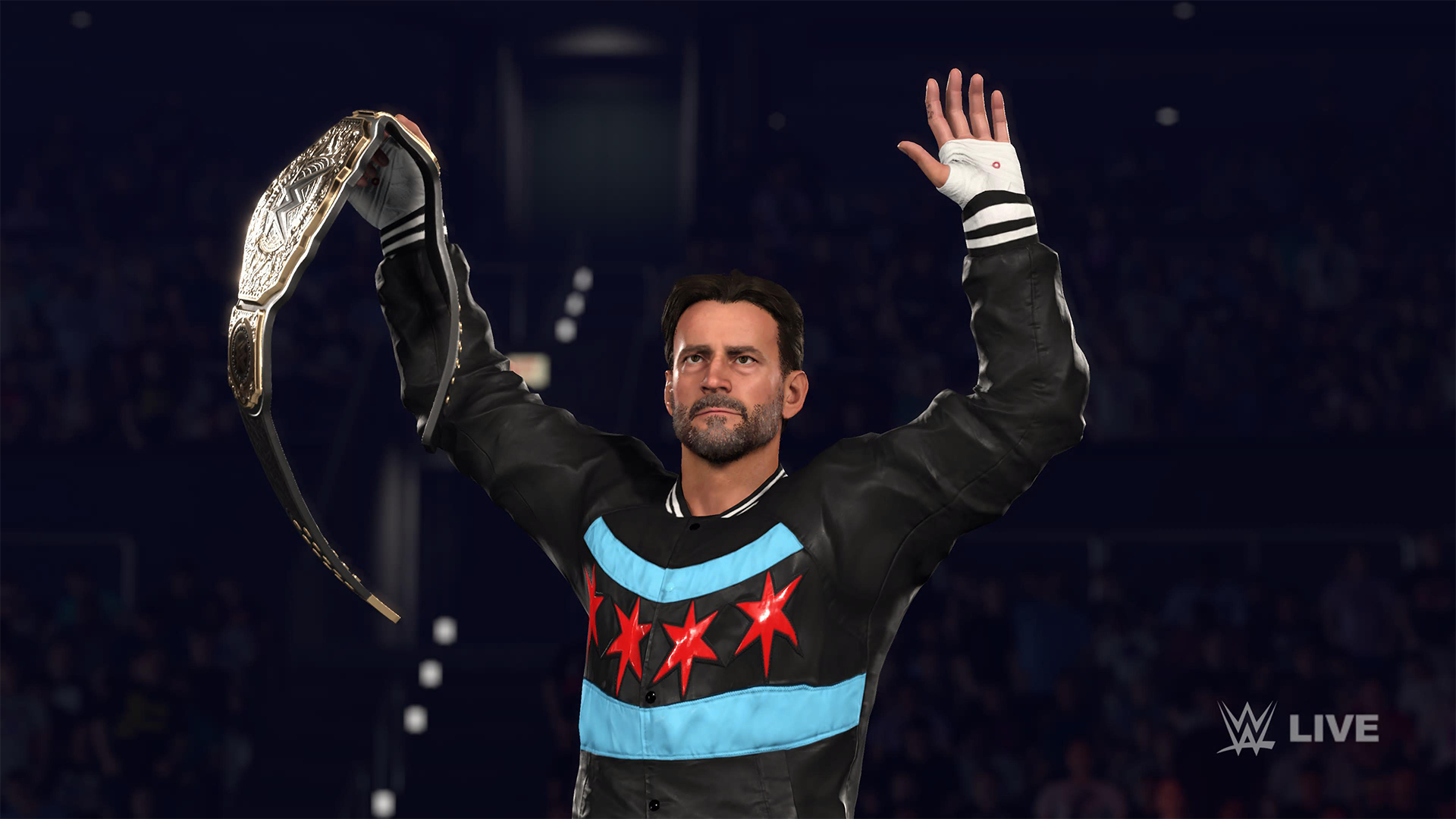
In another twist of fate, Showcase Mode ended up being the loser this year. WWE 2K26 rehashes last year’s schtick of having the star rewrite their history. Last year, this worked with Paul Heyman, a notorious bad guy. It doesn’t really stick with this year’s star, CM Punk, the so-called voice of the voiceless.
Punk could have shined with the traditional style of laying their commentaries over their past matches, especially with his shoot style. Instead, we got a series of what-ifs with practically no commentary. It’s just not what I expected from a firebrand like CM Punk.
The bad: The Ringside Pass
For the first time in the series, WWE 2K26 has a battle pass called the Ringside Pass. Like battle passes in other games, the Ringside Pass unlocks more content as you play through the game. However, unlike today’s standard which revolves mostly on cosmetics, this version locks a treasure trove of playable wrestlers behind an experience gate.
Even if you already paid for the game, WWE 2K26 asks you to play an inordinate number of hours just to unlock the best wrestlers in the game.
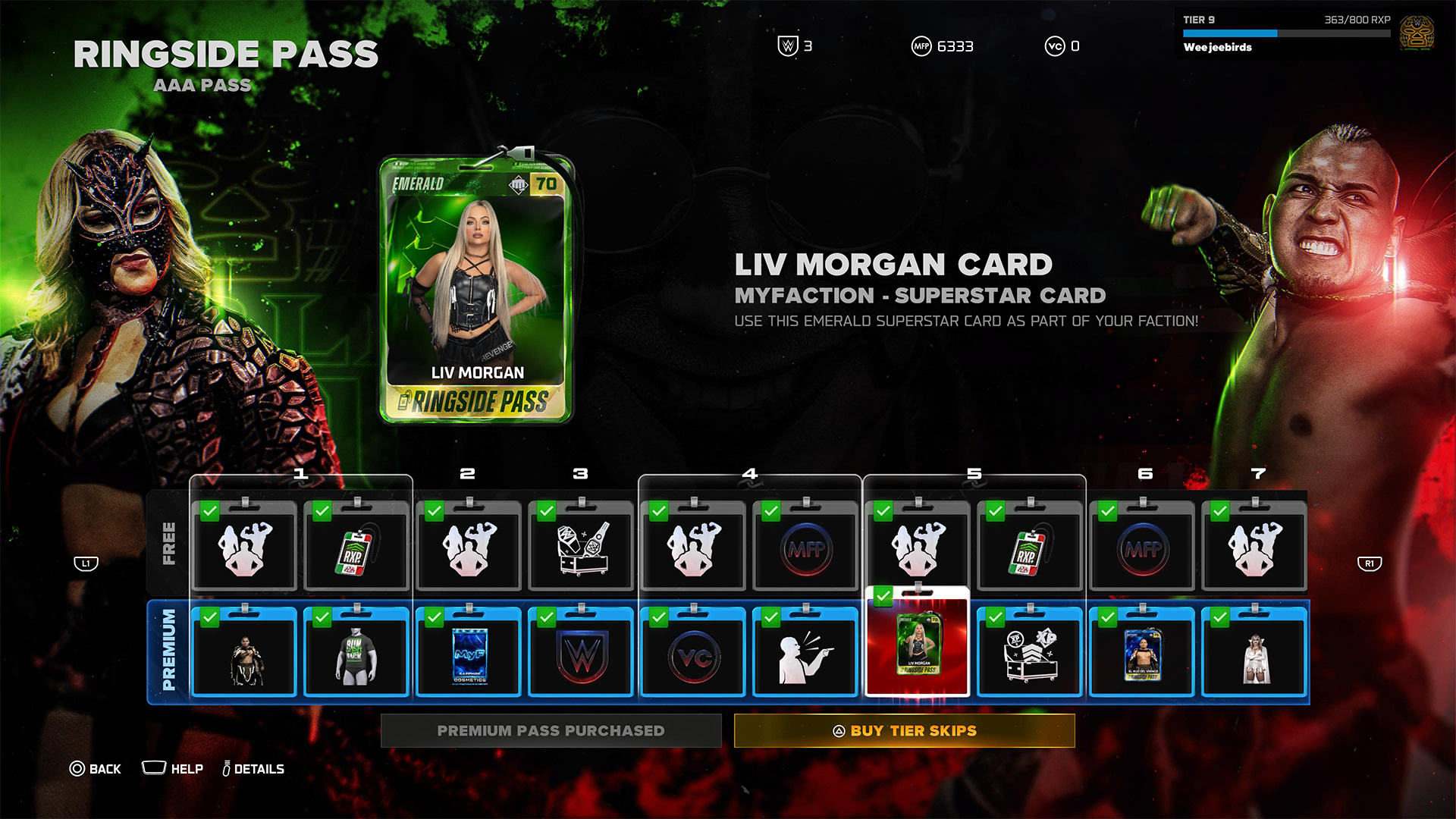
To be fair, it’s not all bad. Right out the gate, the game already gives you access to heavy hitters like CM Punk, Shawn Michaels, and John Cena. However, a lot of favorites are still unplayable including Bret Hart and Kurt Angle. This even includes the strongest version of Bray Wyatt, who’s locked under the last tier of the current pass.
Gaining experience isn’t an easy feat, either. After playing for hours and hours, I still haven’t unlocked more than half of the tiers. At the very least, there is no time limit, so I can play the game at my own pace.
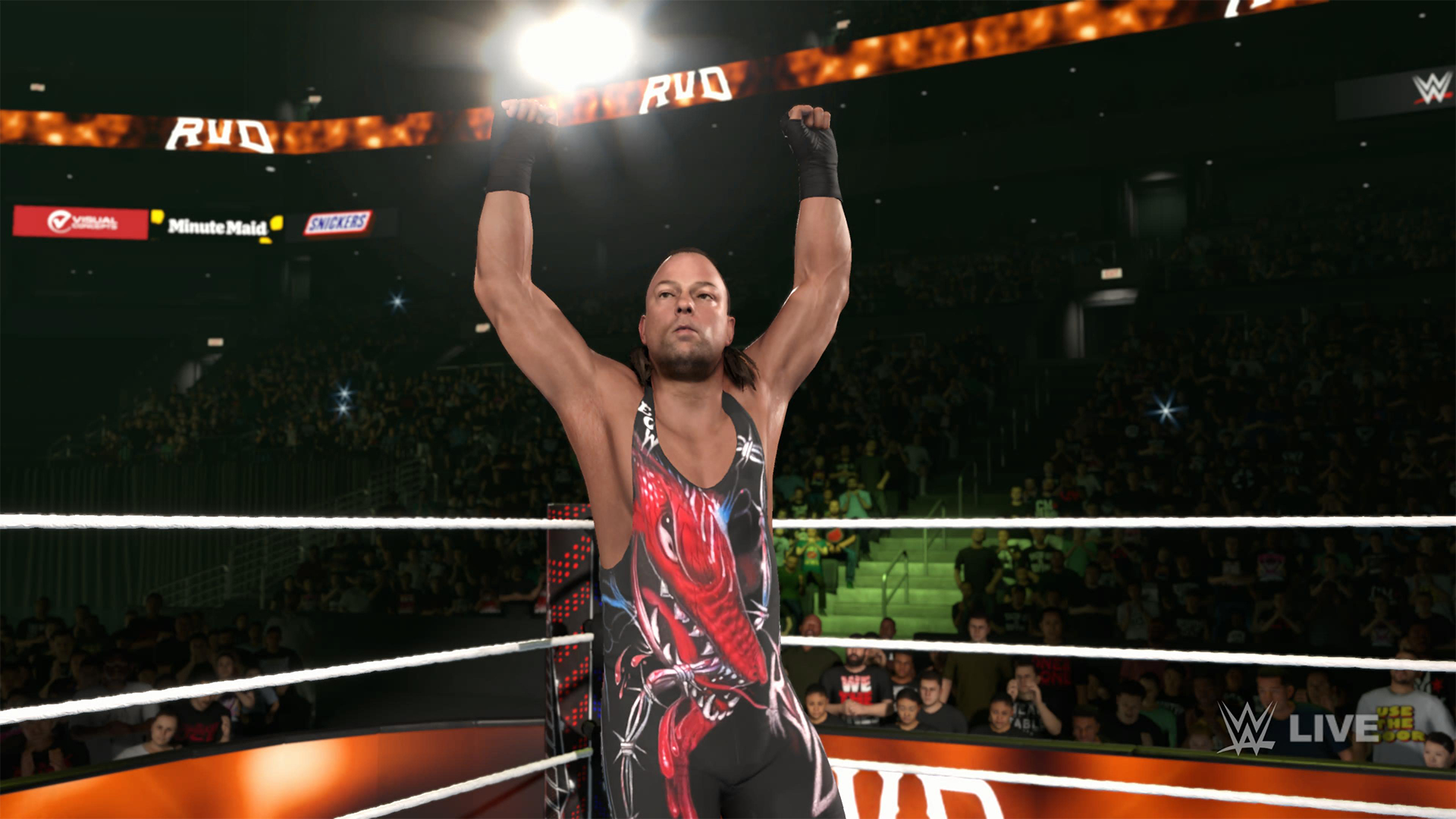
Props to WWE 2K26 for making its battle pass have fulfilling rewards, but it’s still unfortunate that significant elements of the game are locked behind hours and hours of playtime.
The gameplay loop is real and repetitive. And it all circles back to how iterative the game modes are. If only the game modes ended up being as exciting as they were last year, then it would have been exciting to play over and over again. Instead, WWE 2K26 prevents you from engaging in greatest strengths: an exciting roster and a fluid fighting system.
Is WWE 2K26 your PlayMatch?
Last year’s WWE 2K25 was an exciting period for the series. Though this year’s version keeps most of what made the previous game so exciting, WWE 2K26 also adds features, especially the Ringside Pass, that ultimately detract from the entire experience. It’s a small step back, which can hopefully be rectified next year, if not in future updates.

WWE 2K26 is a Swipe Left if you didn’t love last year’s game anyway. The game doesn’t add anything that might change your mind.
However, it’s a Swipe Right if you missed the pure joy of creating dream matches. The game’s massive roster allows for so many impossible matchups to happen, even if only in the digital realm. Just get ready to grind for a long time.
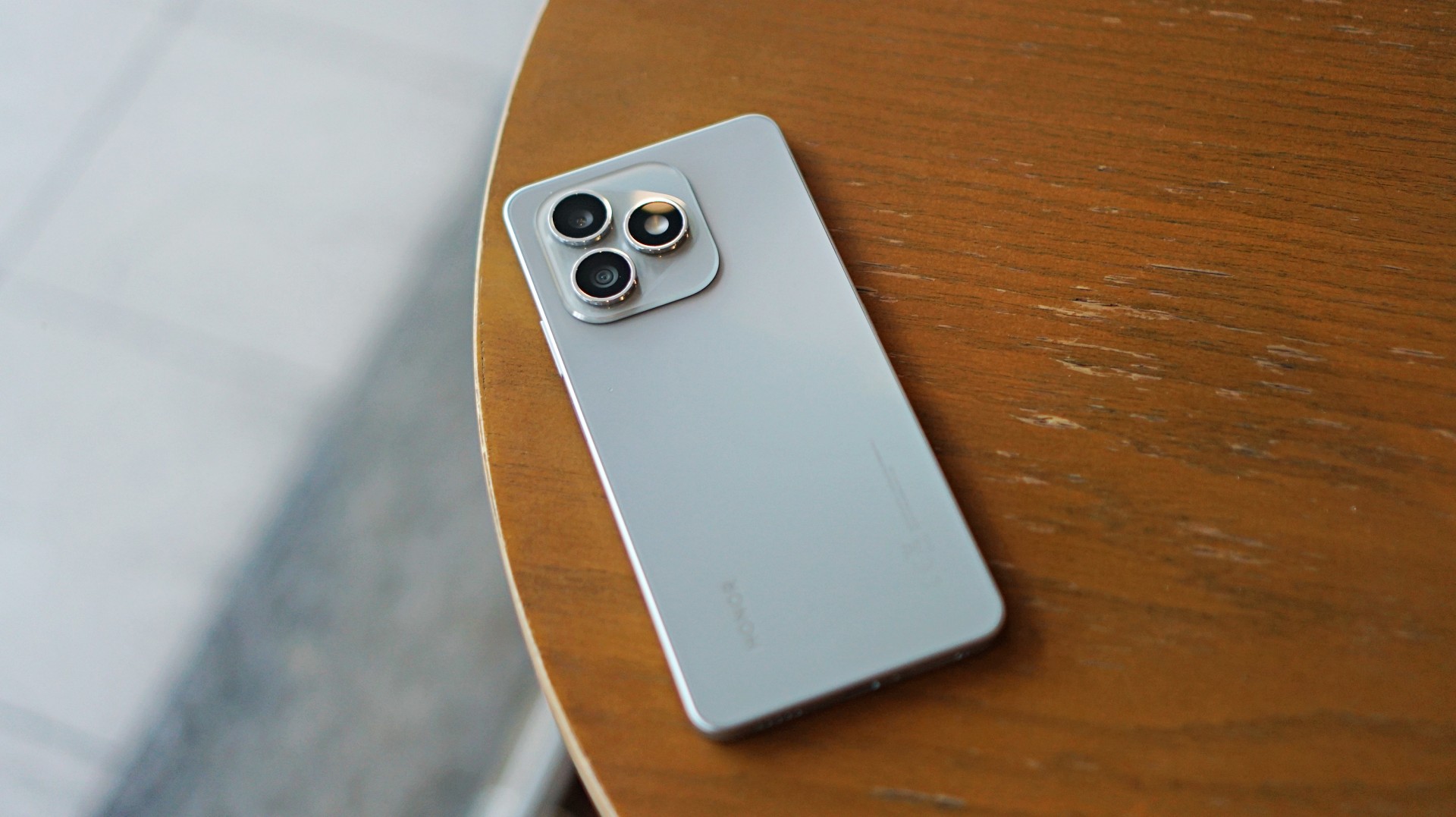
Some smartphones aim to stand out. Others just aim to work. The HONOR X8d falls squarely into the second category.
In day-to-day use, it presents itself as a device that focuses on the essentials. It’s functional, predictable, and easy to understand—but also a reminder of how noticeable the gap can be once performance and responsiveness start to lag behind.
A design-first approach
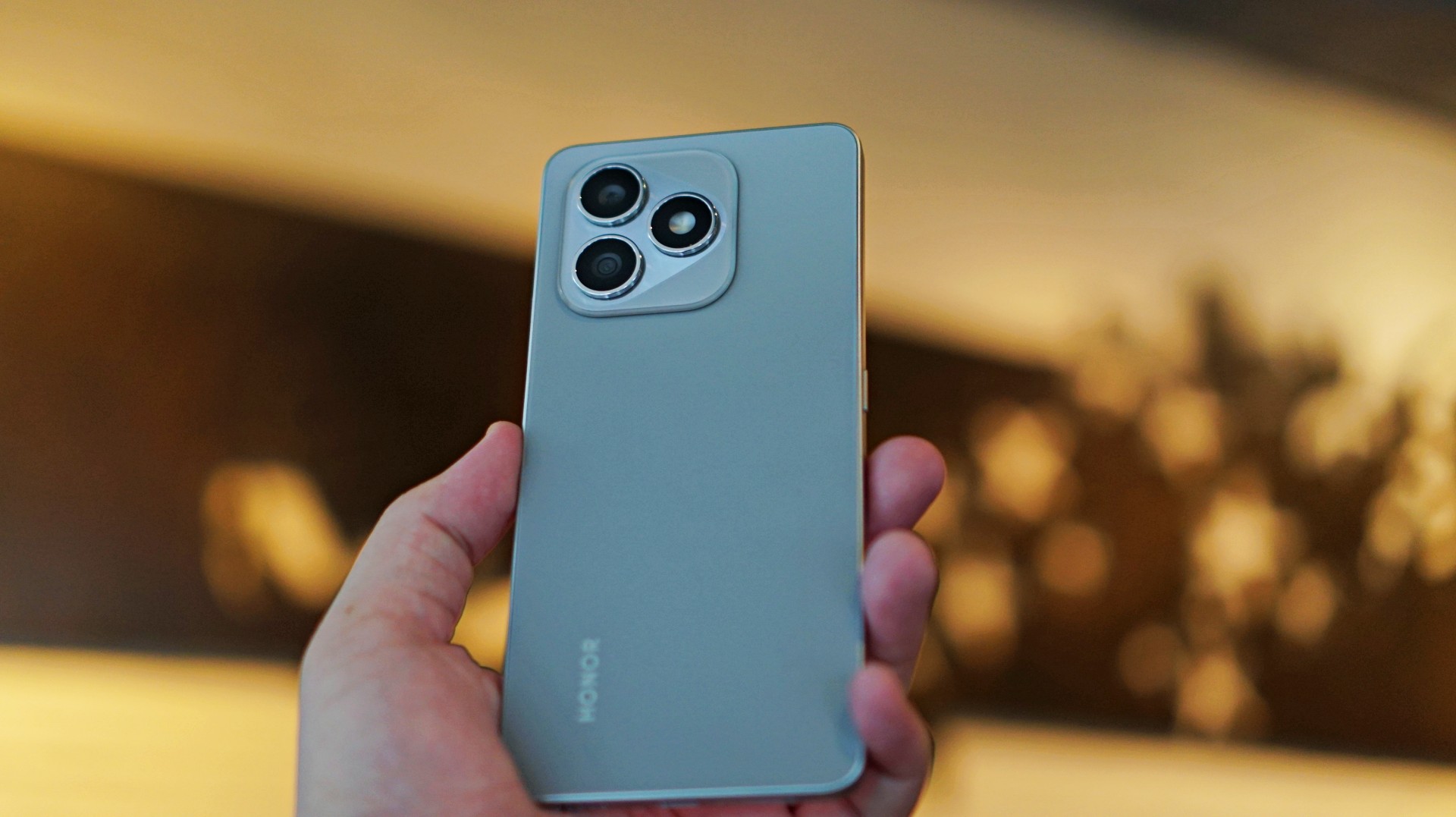
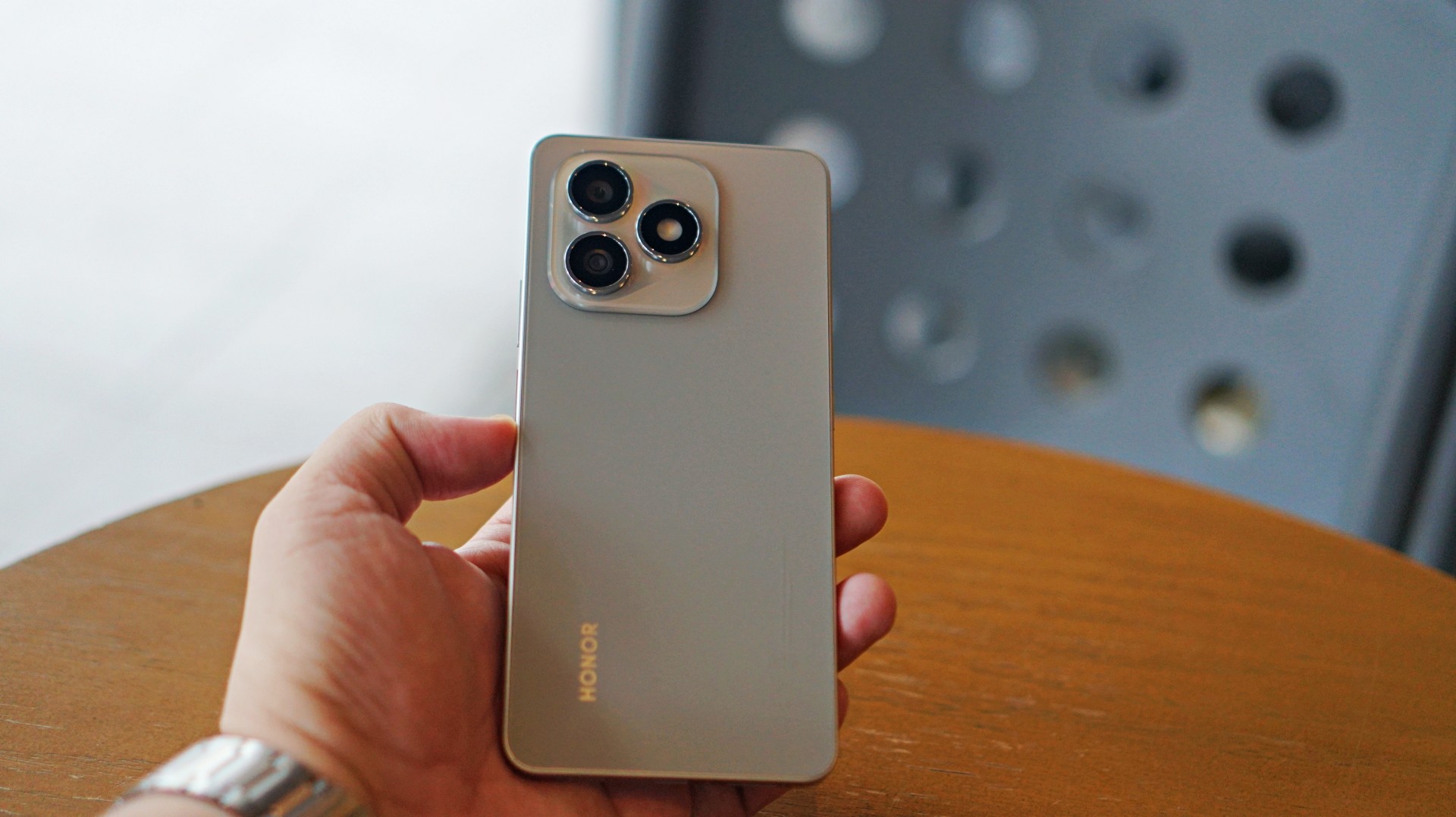
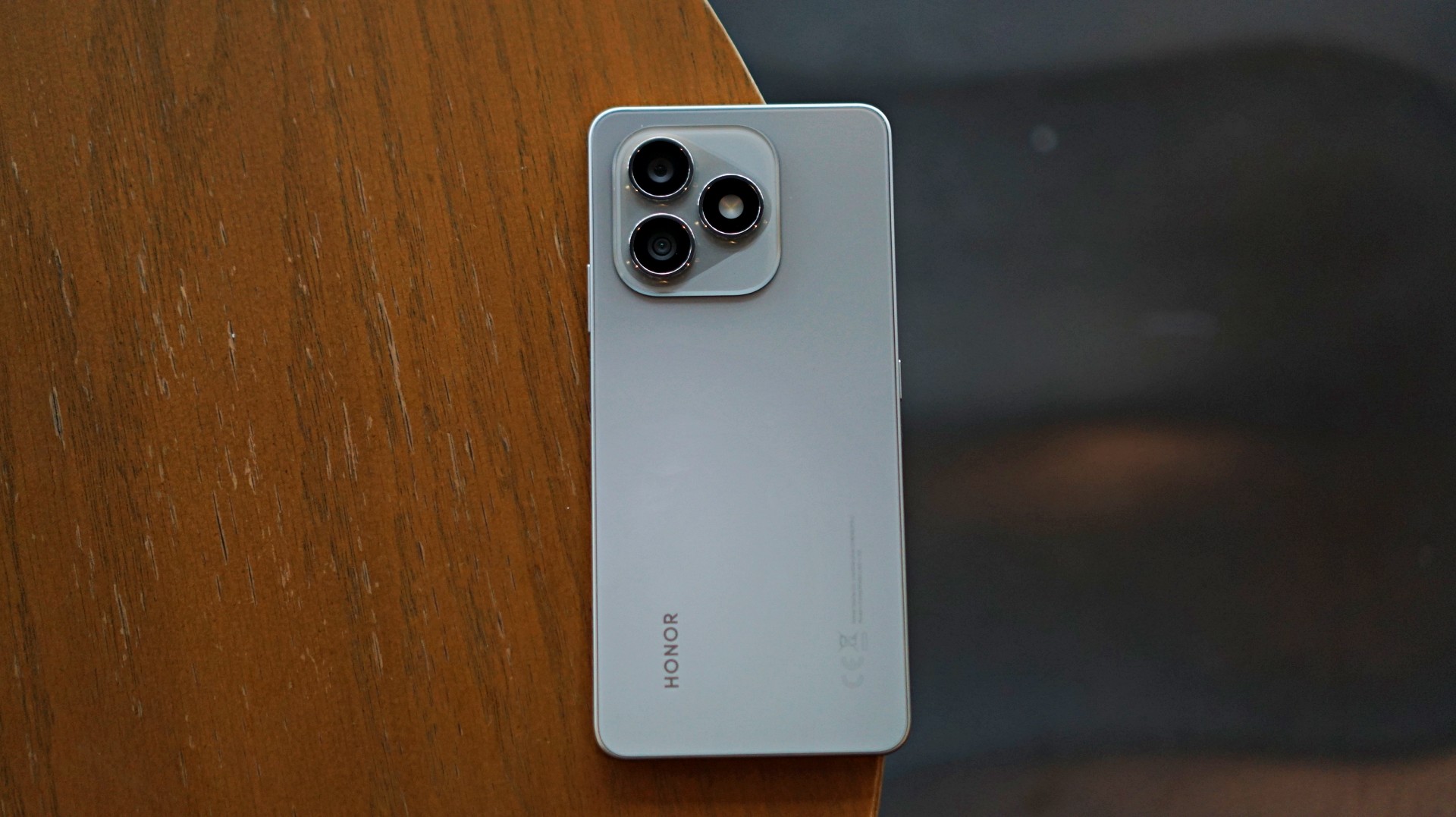
The HONOR X8d makes a decent first impression. It’s slim, relatively lightweight, and easy to hold despite packing a large battery. The flat sides and smooth back give it a clean, modern look, while the camera module adds a bit of visual identity.
It’s available in Light Blue, Velvet Black, and Velvet Grey—options that lean into its youthful positioning. The device also feels sturdy in hand, backed by SGS certification for drop and crush resistance, along with IP65-level protection against dust and splashes.
For a device in this category, the HONOR X8d delivers a build that feels dependable enough for daily use.
Display and media: Bright and usable
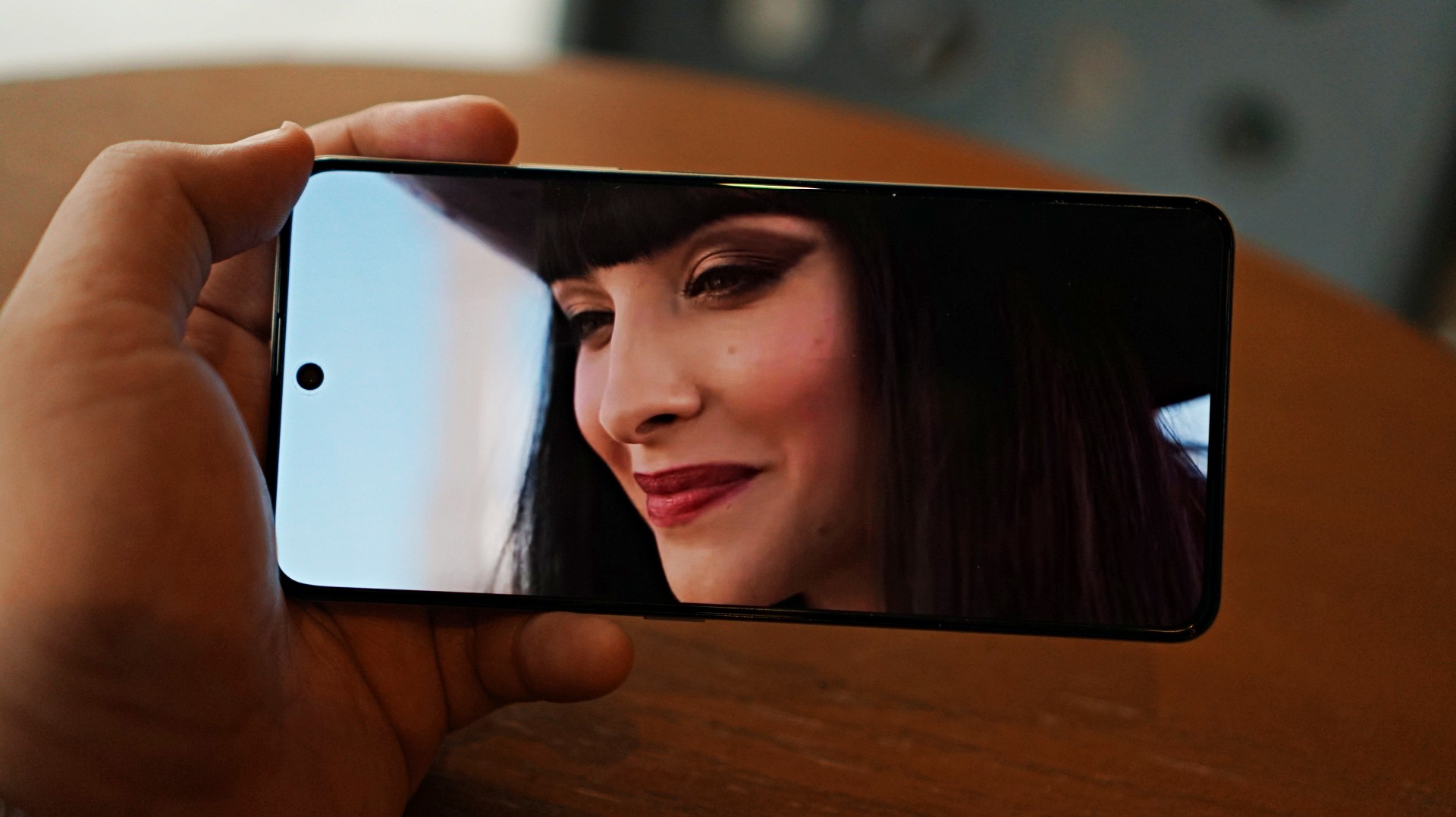
Miss All Sunday makes everything look good
Up front, the HONOR X8d features a 6.77-inch AMOLED display with a 120Hz refresh rate and up to 3000 nits peak brightness. Colors are vibrant, and the panel supports 100% DCI-P3, which helps content look lively.
For casual viewing, the experience is serviceable. Watching shows or videos feels comfortable, and the high brightness ensures visibility even under harsh lighting. Features like 3840Hz PWM dimming and E-Book mode also help reduce eye strain during extended use.
Now Playing: One Piece Season 2
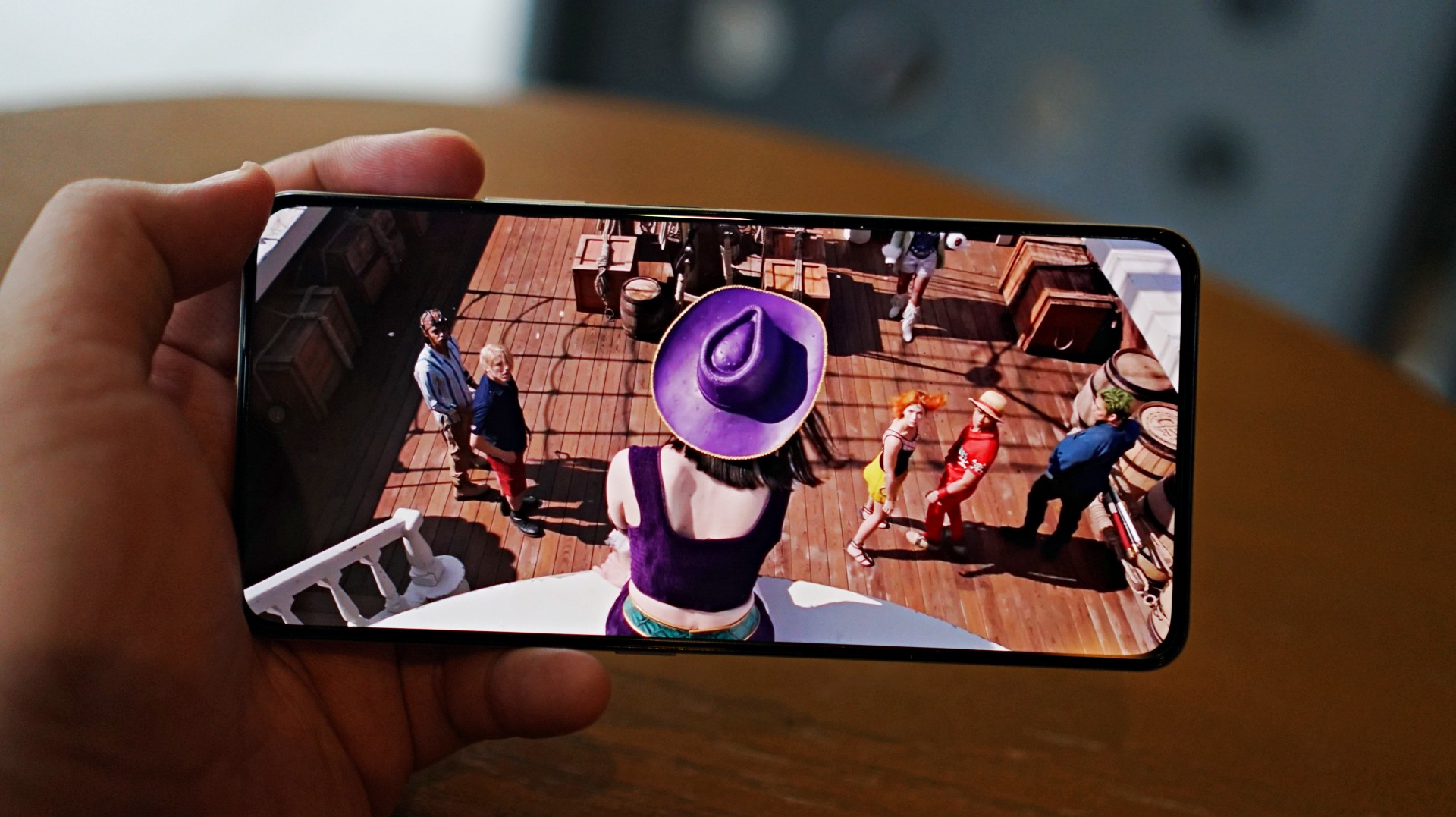
I skimmed through a few episodes of the One Piece Season 2 live action on Netflix and again it was… alright. Nothing here will blow you away but it serves its purpose.
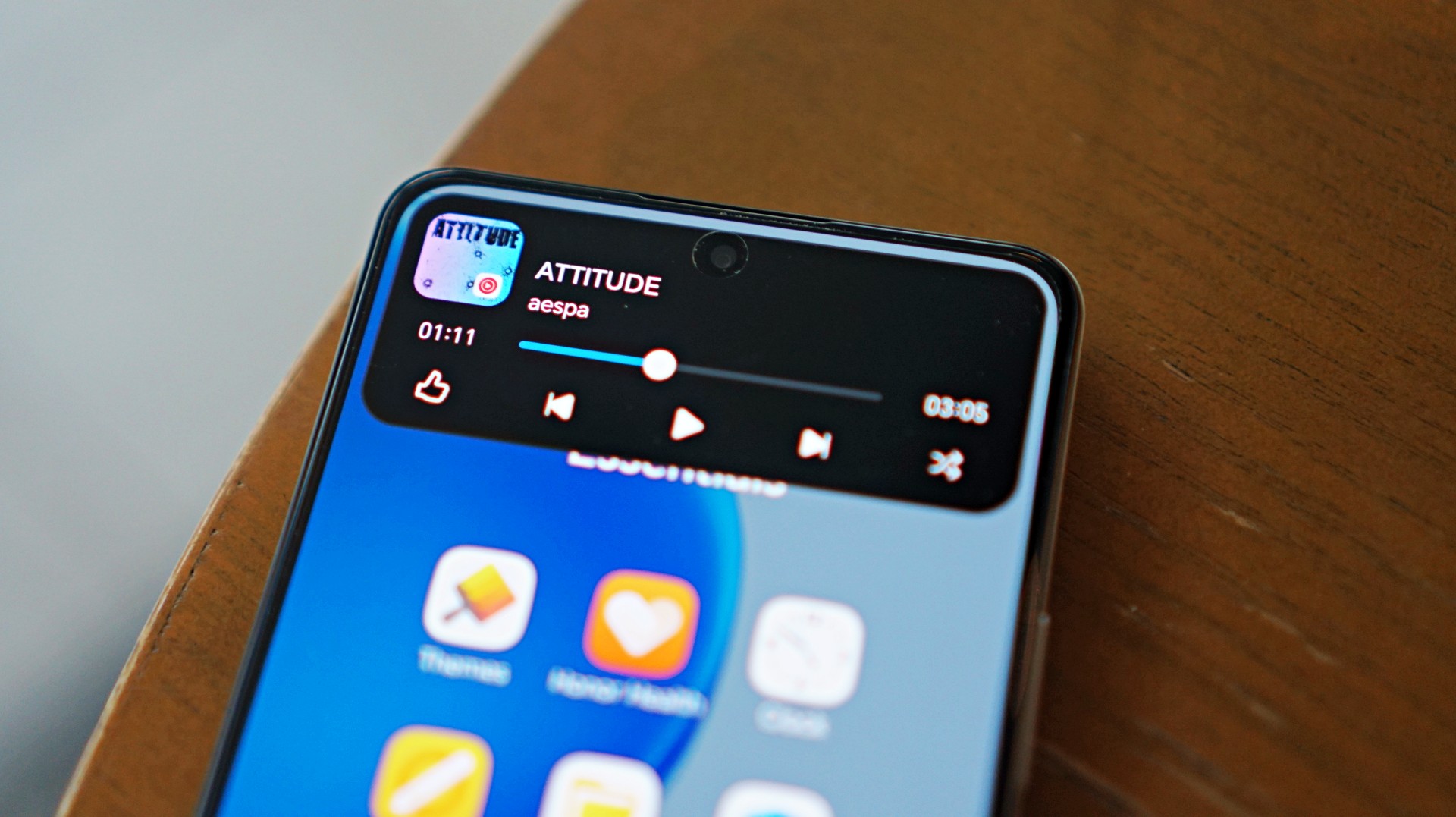
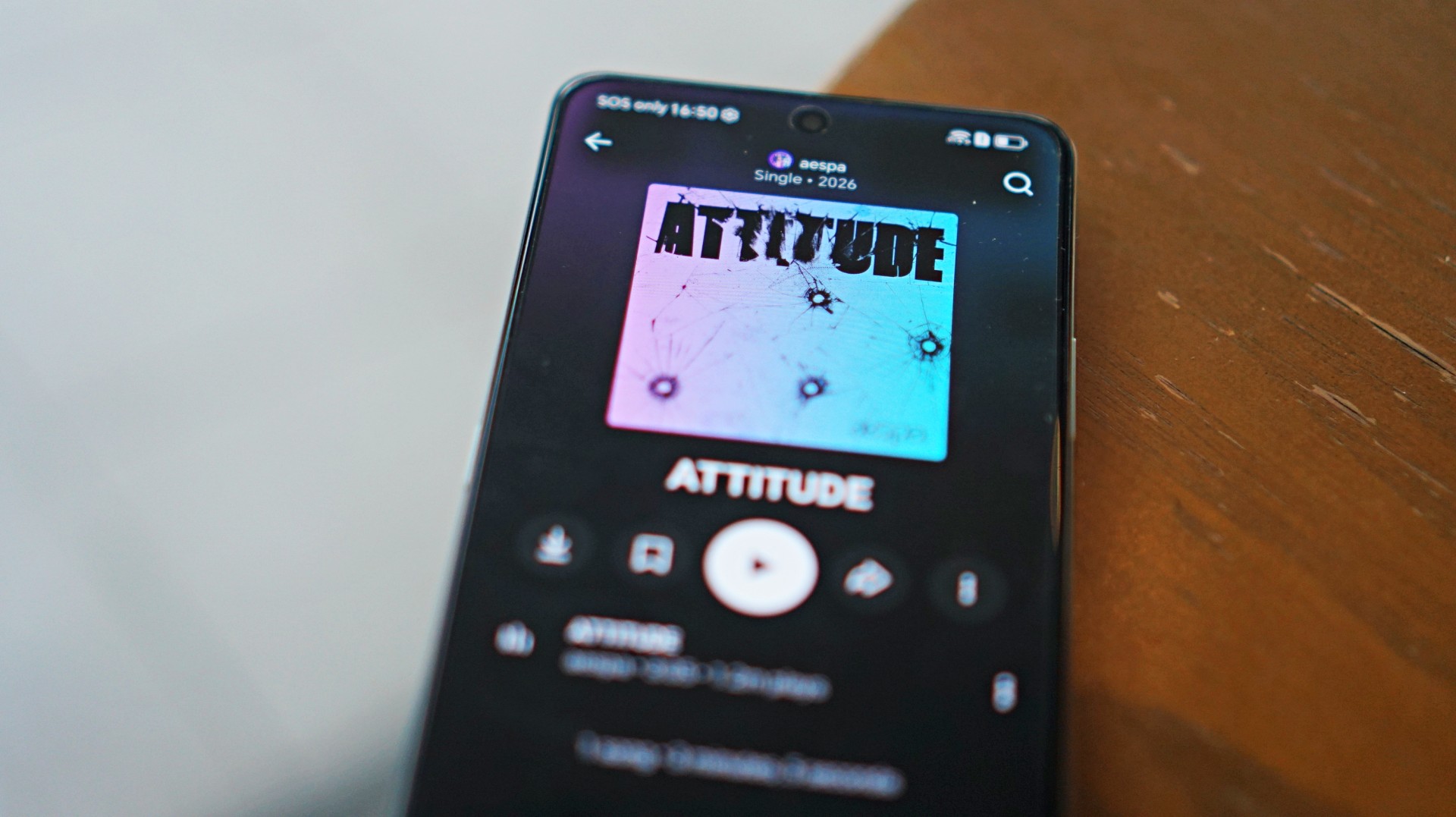 I also listened to “Attitude” by aespa on YouTube music and it just echoes the general feeling of the phone – serviceable.
That said, the overall experience remains straightforward. It delivers what you need for day-to-day media consumption without going much further.
Performance is where compromises show
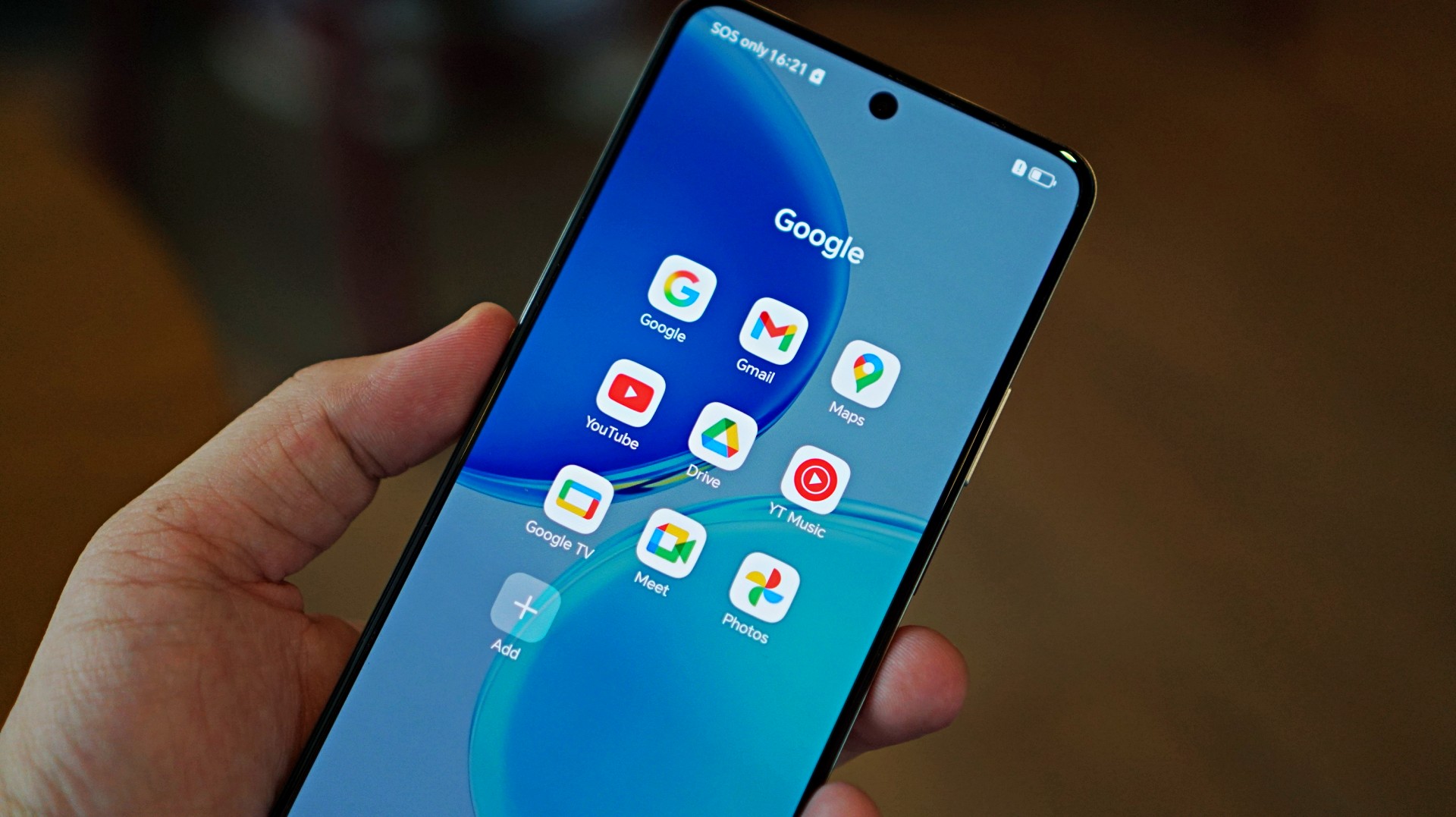
The HONOR X8d runs on the Snapdragon 6s 4G Gen 2 paired with 8GB of RAM. On paper, it’s positioned for everyday tasks, but in practice, performance leans on the modest side.
Basic interactions like switching between apps or scrolling through feeds can feel slower than expected. There’s a noticeable delay at times, even during simple tasks, which affects the overall flow of the experience.
This extends to camera usage as well, where responsiveness can occasionally feel a step behind. The device remains usable, but the pacing may feel dragging depending on what you’re used to.
Cameras are reliable in good light
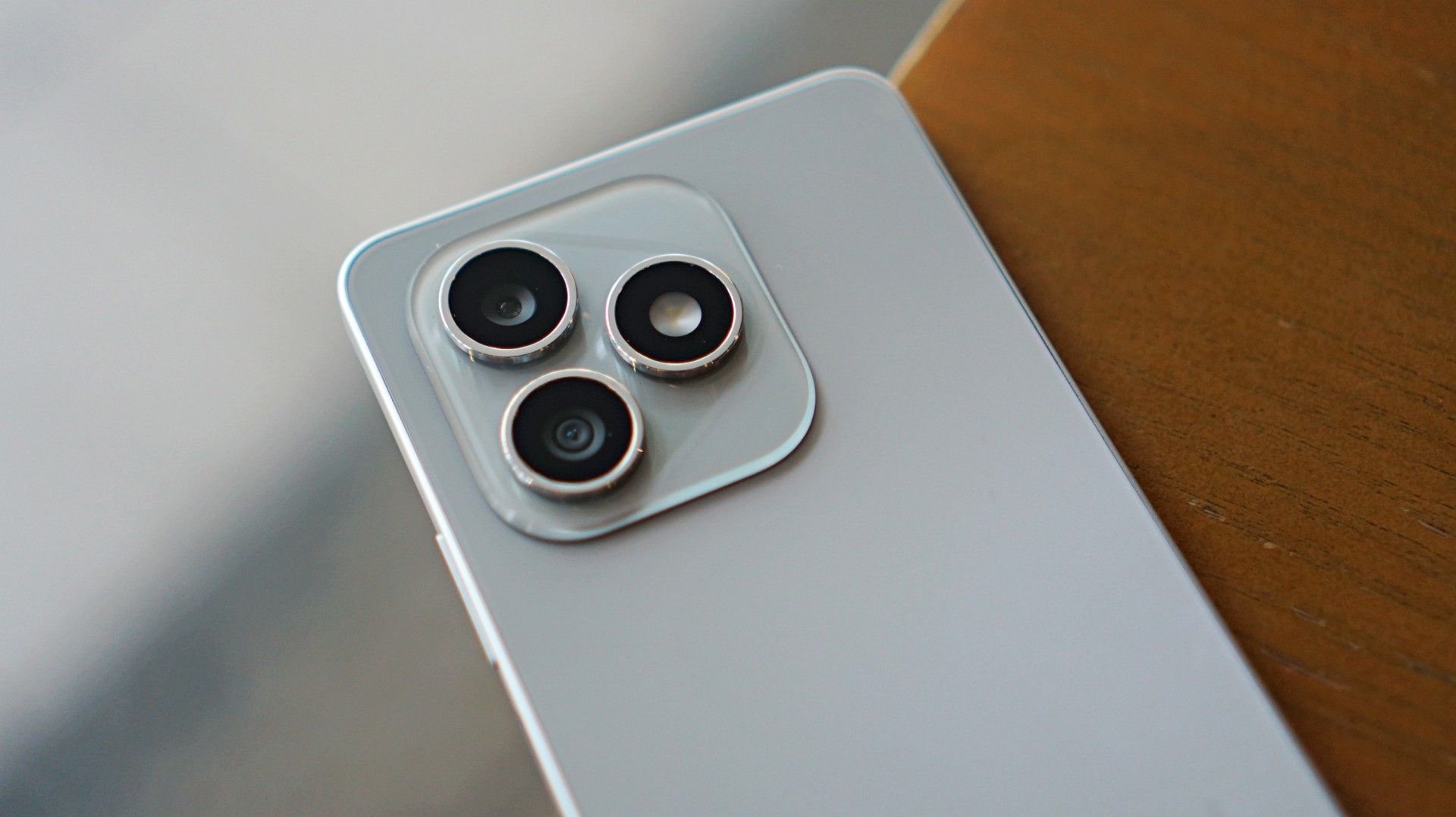
The HONOR X8d is equipped with a 108MP main camera alongside a 5MP wide camera, with a 16MP shooter up front.
In good lighting conditions, the phone produces decent images. Shots are clear enough, with acceptable detail and color for social media sharing. The camera system also benefits from a suite of AI tools such as AI Eraser, AI Cutout, and AI Upscale, which add flexibility when editing photos.
Zoom options at 1x, 2x, and 3x remain usable, though results are best when lighting is favorable. Overall, the camera system is dependable for casual snaps.







Software and AI: familiar, feature-filled
Running on MagicOS 10 based on Android 16, the HONOR X8d comes with a feature-rich software experience. It includes tools like AI Translate, AI Writing, AI Notes, and AI Recorder, alongside features such as Magic Portal and Circle to Search.

Like many Android skins today, MagicOS follows a design approach that will feel immediately familiar. The layout, navigation, and overall structure borrow heavily from the iOS-inspired blueprint that most brands have adopted. It’s easy to get into, even for less experienced users.
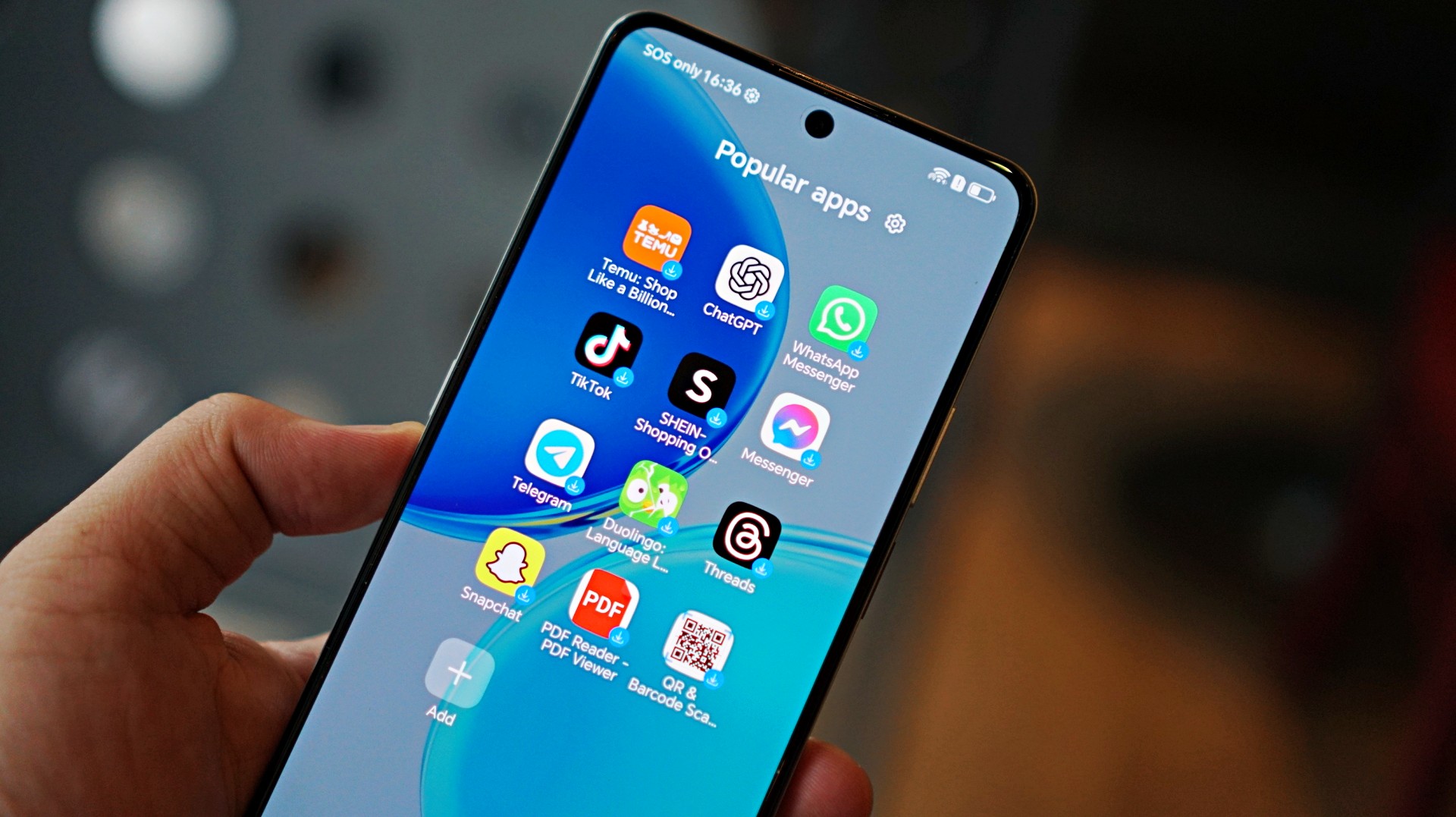
Typical of entry-level smartphones, the device also includes app recommendations out of the box. Thankfully, these aren’t overly intrusive, and many of the suggested apps are ones users would likely install anyway.
The software helps add depth to the overall package, even if the hardware limits how smooth everything feels in actual use.
Battery and everyday use is a clear strength
One of the standout features of the HONOR X8d is its 7000mAh battery. It’s designed to last through extended use, whether for streaming, browsing, or everyday communication.
Paired with 45W HONOR SuperCharge, topping up the device remains relatively quick. For users who prioritize longevity over speed, this is easily one of the more reliable aspects of the phone.
Is the HONOR X8d your GadgetMatch?
When HONOR Philippines was first teasing the phone it was positioned as something for students. But if I were a parent, I’m pretty sure I’d like my kid to have some kind of advantage and not have to deal with a device that might not be able to keep up with them.
After learning that it’s priced at PhP 15,999 my verdict just became much clearer. This is a Swipe Left.
Add a few more to that price and you can get an excellent smartphone at its early bird price.
The HONOR X8d focuses on delivering the basics—design that works, a large battery, and a feature-filled software experience.
However, the overall experience depends heavily on what you prioritize. For users who simply need a phone that can get through daily tasks, the X8d does enough to hold its ground. For those who value speed and responsiveness, it may feel a step behind.
Whether it fits your needs ultimately comes down to how much you’re willing to trade performance for battery life and features.

Galaxy Buds4 Pro review: I thought I was done with in-ears
This Buds4 you


WWE 2K26 lets you live out all the fantasy matches you could want
But you have to play for hours and hours to unlock everyone.

The HONOR X8d is serviceable
Steady but slow?

nubia Neo 5 series launches in the PH, starts below PhP 12K

Life is Strange: Reunion now available on consoles and PC

Why this AI-powered eye health exam is the only reading you need this season

DJI officially launches the Avata 360 with 8K immersive imaging

The Changan Eado Plus officially lands in the Philippines


-
 Reviews2 weeks ago
POCO X8 Pro Max review: A new beast from the far east
-

 News2 weeks ago
POCO X8 Pro Series: Price, availability in the Philippines
-
 Reviews2 weeks ago
POCO X8 Pro Iron Man Edition review: Midrange phone in superhero armor
-

 Automotive2 weeks ago
VinFast extends free unlimited charging in 3 markets amid rising fuel prices
-
Philippines1 week ago
The HONOR X8d is serviceable
-
 News2 weeks ago
POCO introduces X8 Pro Series with Dimensity 9500s
-
 News2 weeks ago
POCO X8 Pro Series launches in Singapore with early bird prices
-
 Reviews2 weeks ago
Samsung Galaxy S26 Ultra review: A phone you live with