

Reviews
TechLife Pad Plus 12″: Basic slate for entertainment, light gaming
Utility tablet with 4G/LTE connectivity, but not your first choice for productivity

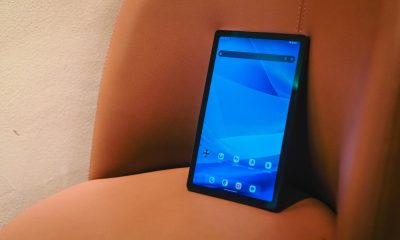
TechLife released the TechLife Pad Plus 12″ earlier this month, its largest tablet yet. It’s billed as primarily as a slate for entertainment, although users can pretty much utilize it for productivity as it has its dedicated Keyboard Case.
TechLife has been expanding its own AIoT devices lineup. The realme sister brand has a wide variety of products, including smartwatches, earbuds, tablets, power banks, headphones, and even a coffee maker.
It’s good to have more alternatives out there when deciding what gadgets to buy. This particular pad and the TechLife Smart Watch P1, were packaged as summer essentials from the brand so users — especially those taking a vacation from school — can enjoy the most out of the season.
However, it’s tough to gauge how the TechLife Pad Plus 12″ performs productivity-wise as we were not able to use it with its own keyboard. So for this review, we’ll focus on what it brings to the table as far as entertainment, gaming, and content consumption are concerned.

TechLife Pad Plus 12″ specs
- 12-inch Full HD+ display
- 1200 x 2000 resolution
- 8GB base RAM
- 8GB expansion
- 256GB internal storage
- 8000mAh battery
- SIM card slot for up to 4G/LTE connectivity
- 7.6mm lightweight design
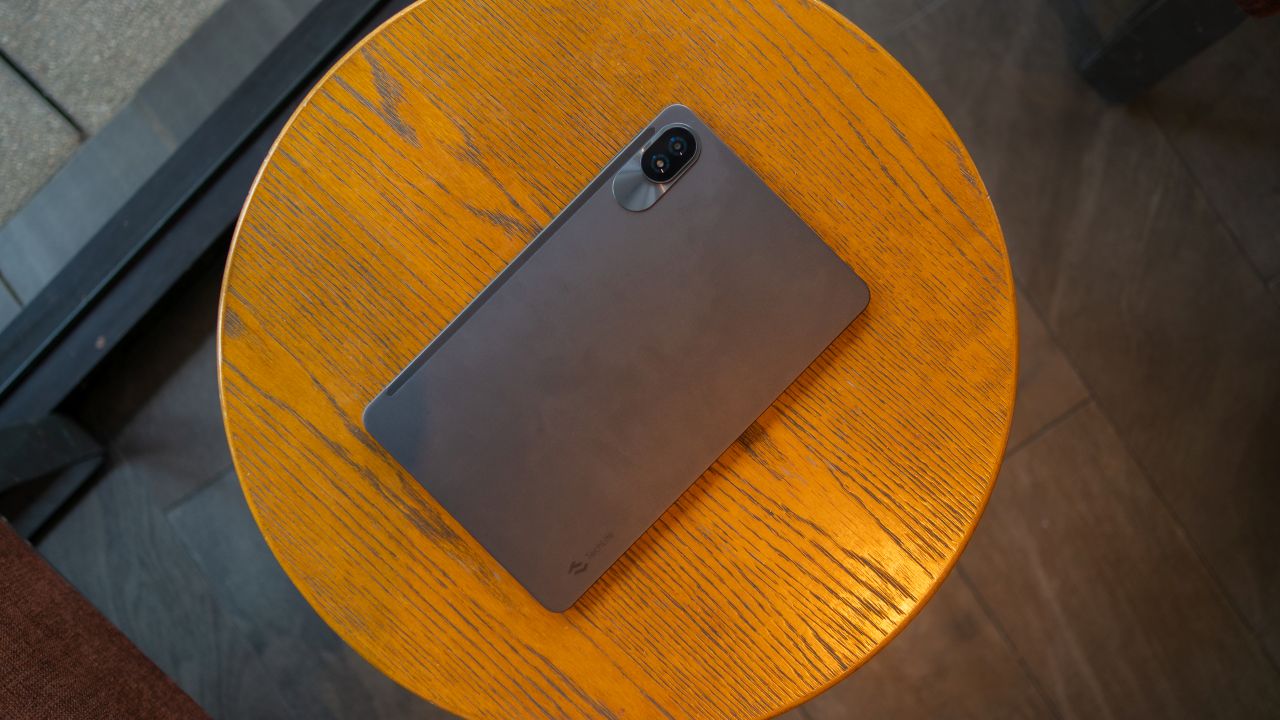
Design wise, the tablet has a grayish finish. It’s a sucker for fingerprints both at the back and in front, but who cares. It’s a basic slate.
One of the major differences from previous TechLife tablets is the absence of a 3.5mm audio jack. That means get a TechLife (or realme) audio wearable stat.
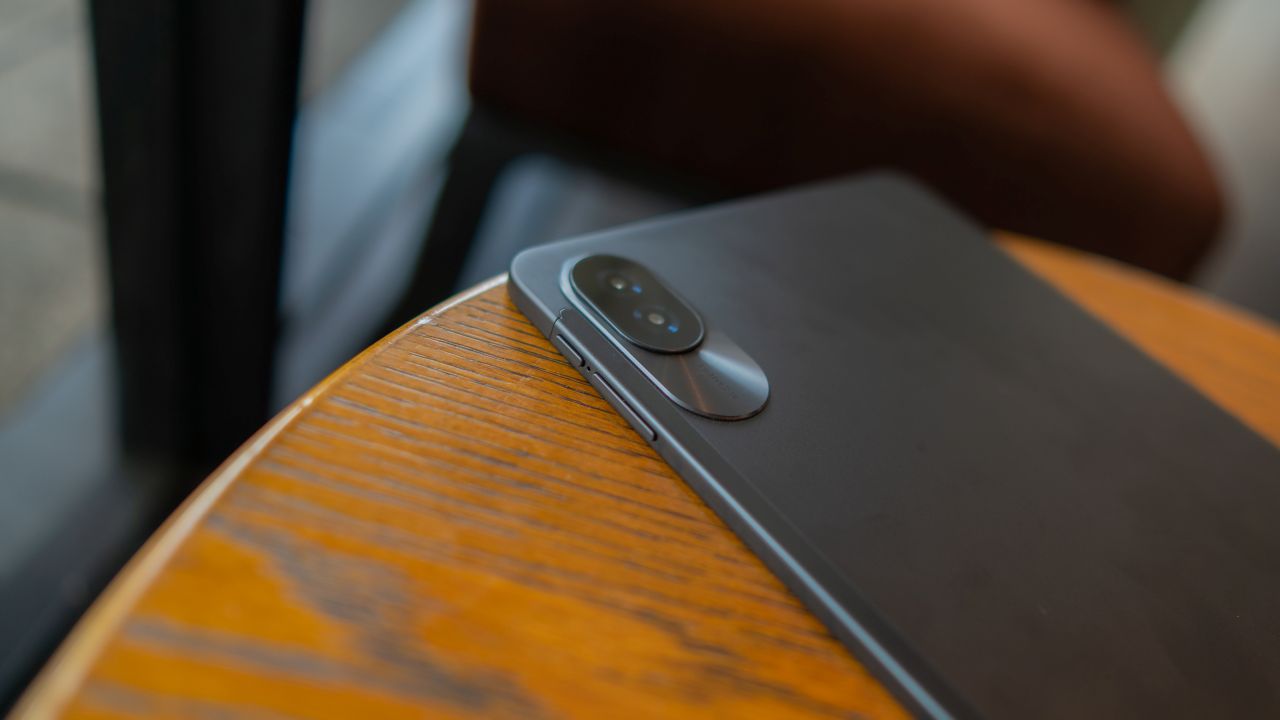
And both the volume and power buttons are on the longer side, instead of the latter button being on the top side (vertical orientation). It’s not a big deal but it’s unusual for a tablet of this size.
For its size, the pad does not feel too heavy. But it also doesn’t feel too light. But it’s a comfortable carry. It has a good grip. Of course, it will fit right into most tote bags. That eliminates the need for backpacks if you’re traveling light.
Size matters, as usual
Right off the bat, the TechLife Pad Plus 12″ does bring a bit more immersion as it has an expansive display.
The viewing experience is adequate, to straightforwardly describe. I utilized this slate to binge watch both live sports and 2025 Philippine Election live coverages on dedicated apps like CignalPlay and Pilipinas Live.

Although, the pixel density is an issue at times. I could notice that preview images on YouTube videos appear noisy. In a way, this might not be the ideal tablet if you’re browsing for products or food, as they appear less detailed or textured.
But it’s a portable TV in a way. I usually had it on for the aforementioned shows but as white noise. I also placed it a little farther than I would view stuff on a phone, so the quality would look decent.
The quad speaker design is what stands out as far as the audiovisual experience is concerned. For its segment, the pad does offer loud and clear sound that is of decent quality.
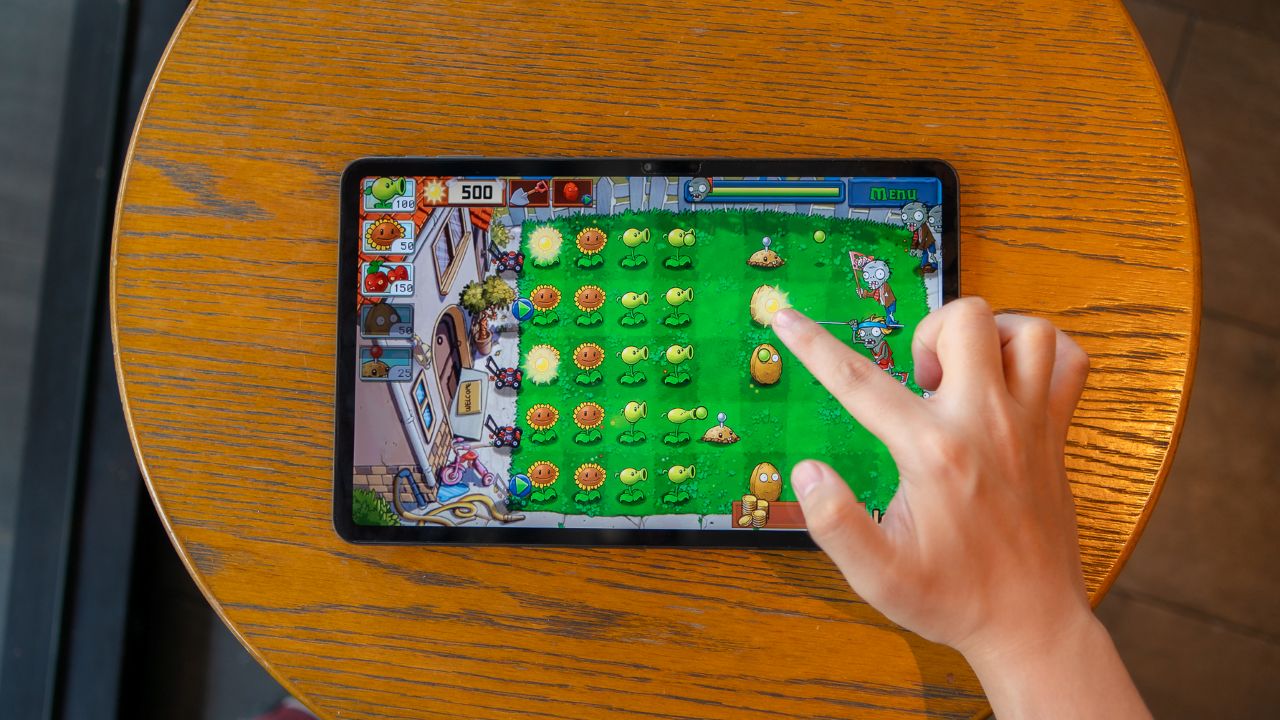
For mobile gaming, the tablet can handle the usual light titles, including the classic Plants vs. Zombies and 8 Ball Pool. Garena Free Fire also worked fine, even in higher graphics settings.
For browsing that needs a larger screen, like booking flights which is normally a PC task for some reason, the tablet is able to support the process.

And of course, for casual reading, the tablet is something you can use for hours, considering its large battery capacity.

4G/LTE connectivity helps
The 4G/LTE connectivity also means you can take it with you anywhere and stay connected. Just don’t expect blazing fast internet speeds.
But I can think of this tablet as something that can be utilized by small businesses having to communicate constantly.
It can be a tool for them to organize sheets and view stats on a bigger display. And as it has its own SIM, you can send text messages or place calls when needed.
The camera can also be used for documentation purposes, like for snaps of receipts, or taking a photo of a delivery rider for proof. And again, with internet, you can instantly send them via online messaging apps.
Unsmooth at times
On the downside, the videos sometimes freezes when watching live streams. I initially thought it was a glitch on the part of the streaming apps themselves, but when I tried on a more capable laptop, the live video worked well.
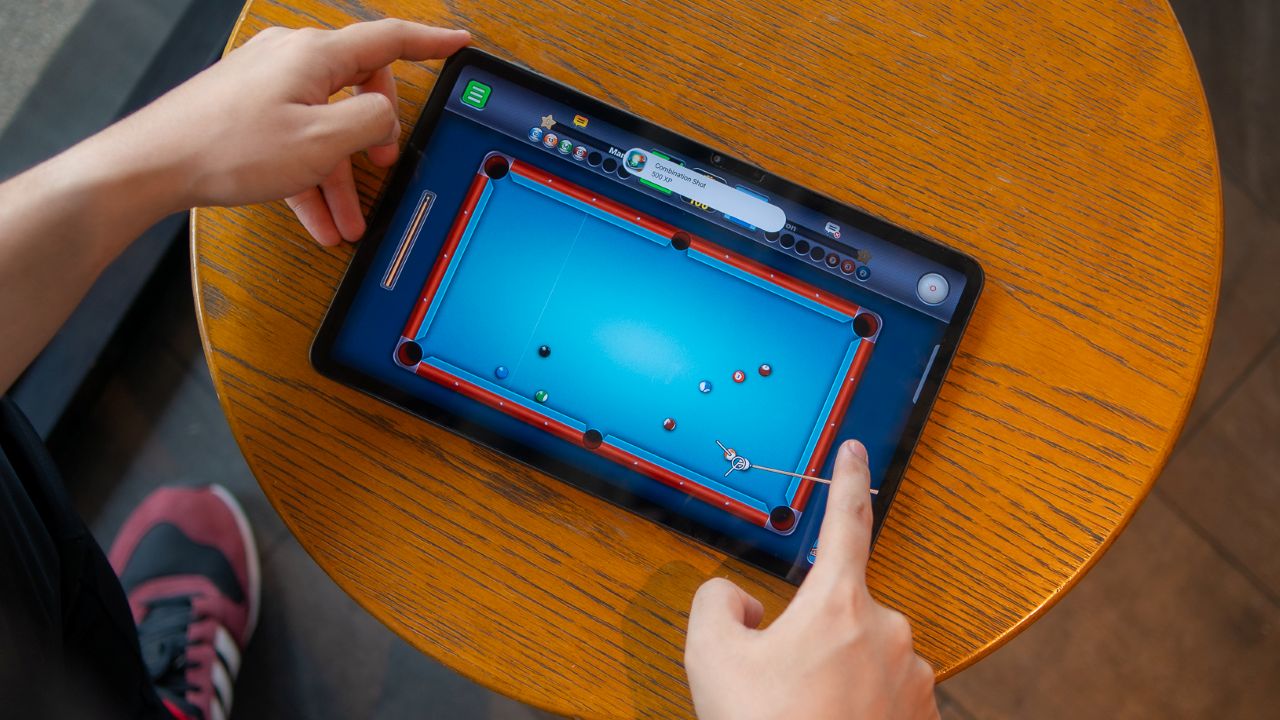
The display itself sometimes also has too much friction when swiping or gliding your fingertips. I experienced this when I was playing 8 Ball Pool, which of course needed me to be accurate with my shots. I needed to “re-swipe” a couple of times as the display wasn’t too responsive.
Of course, the display is also susceptible to reflection when you’re near a window or outdoors.
I don’t know what to make out of it as far as general usage is concerned. It’s not that it doesn’t work well. Perhaps, I didn’t temper my expectations too much. It’s billed as something primarily for entertainment anyway.
You’re free to experiment and try exhausting the tablet for many other various purposes.
UI quirks
Furthermore, there seems to be a handful of quirks when it comes to the tablet’s UI.
First, the keyboard has its own caps button, which isn’t normally present on Android smartphones. It’s a bit of an adjustment when typing as it messes up the entire placement of keys.
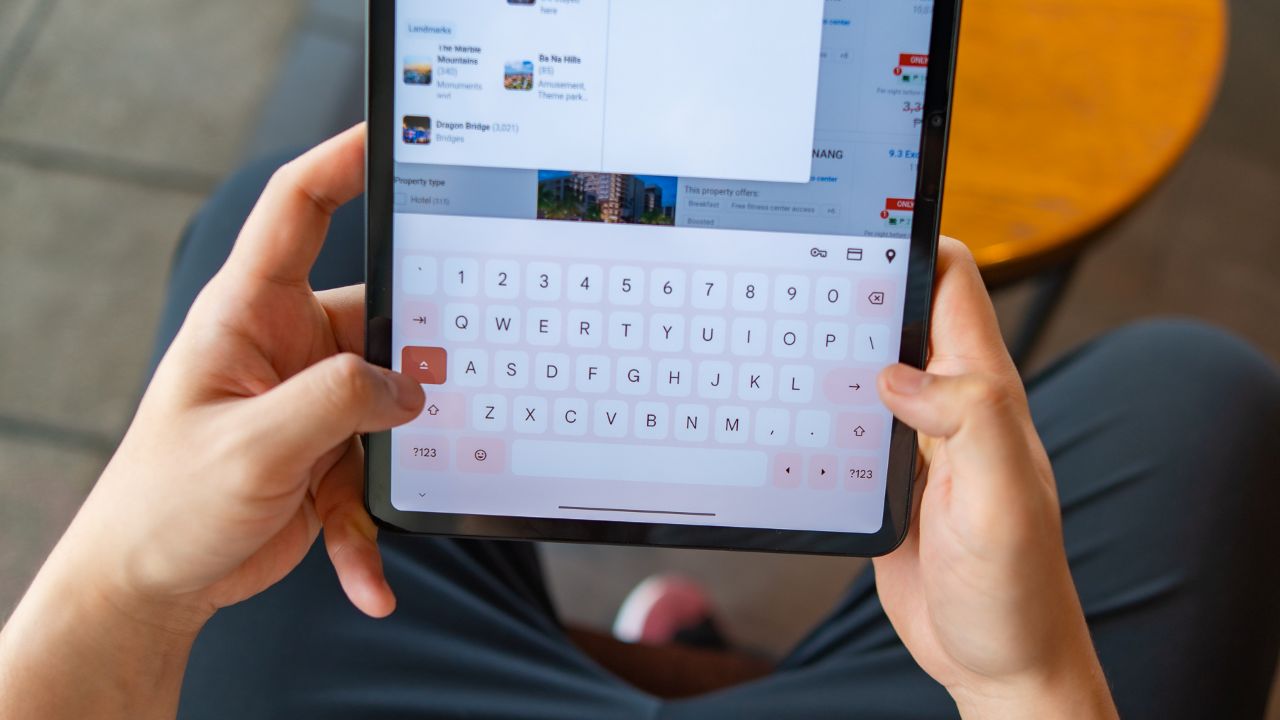
Although, I hardly used the device to write for long periods, anyway.
When swiping from the bottom to check all apps opened, the UI also does not allow you to close all apps as a default app will remain open. It just kind of “triggers OCD” as they say.
For some reason, Night Light mode (or eye comfort or eye care for other devices) make the visuals look to sepia-y. I get that it’s how the function works, but the transition from default to low blue light mode could have been a little better.
Patience goes a long way
As with budget devices in general, be it a smartphone, smartwatch, or tablet, patience goes a long way.
Naturally, the tablet does not have the same “fast charging” support by midrange standards, to say the least.

But it does charge quite faster than its previous generation counterparts, in spite of the larger battery capacity.
You will need about two hours from 0% to full. In return you’ll be able to use it for two days without having to plug it in.
Moreover, it has not been explicitly stated that the tablet is compatible with a stylus either, so if you’re going to use it to have kids draw or doodle, it might not provide the smoothest experience.
That said, it does no stop you from downloading the usual drawing apps like ibis Paint X.

Interestingly, even the Smart Watch P1 charges a lot slower than its counterparts with a similar price point.
TechLife Smart Watch P1
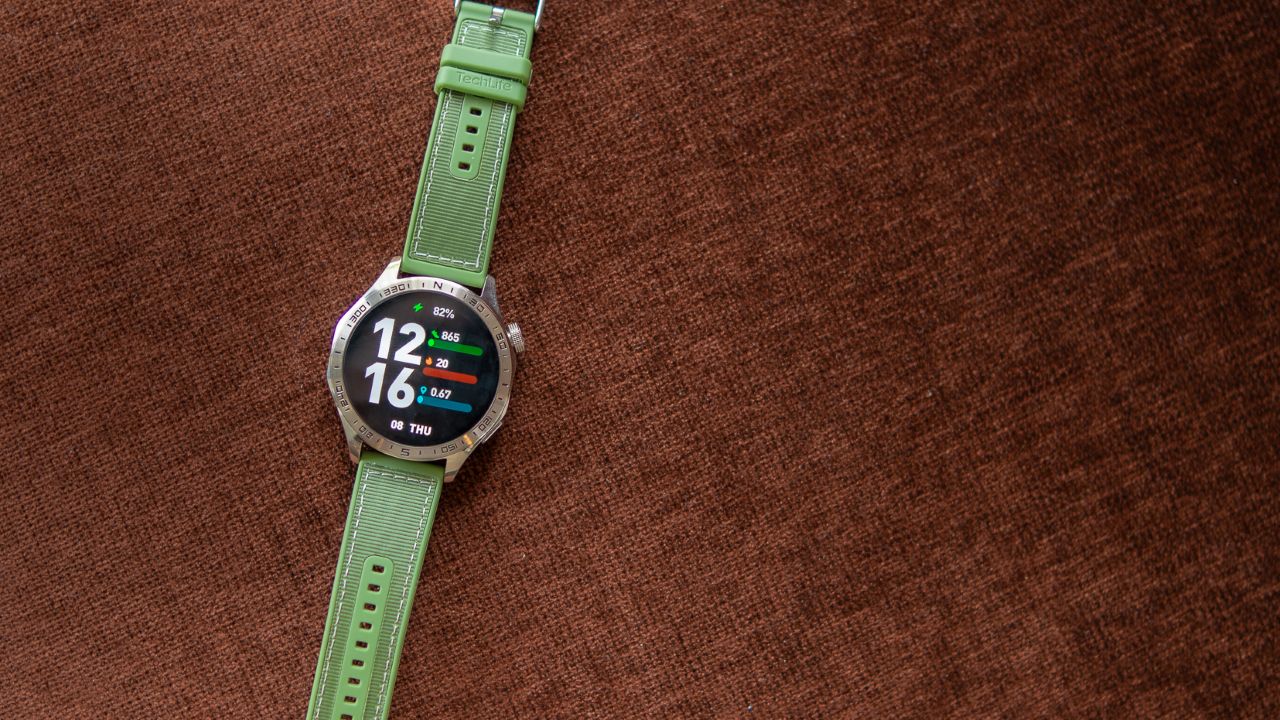
Just a quick side note: the TechLife Smart Watch P1 is likewise a basic wearable. I’ve used it mostly as a time teller and steps counter.
It does have a simple UI. It’s serviceable. There are some watch faces that look fine. Naturally, there will be inaccuracies with tracking for workout, like your run’s total distance.

Everywhere else, it works. You can have it check your heart rate and other health monitoring essentials.
There is also a function that lets you run a quick one-minute test that shows the heart rate, blood oxygen, and stress level.
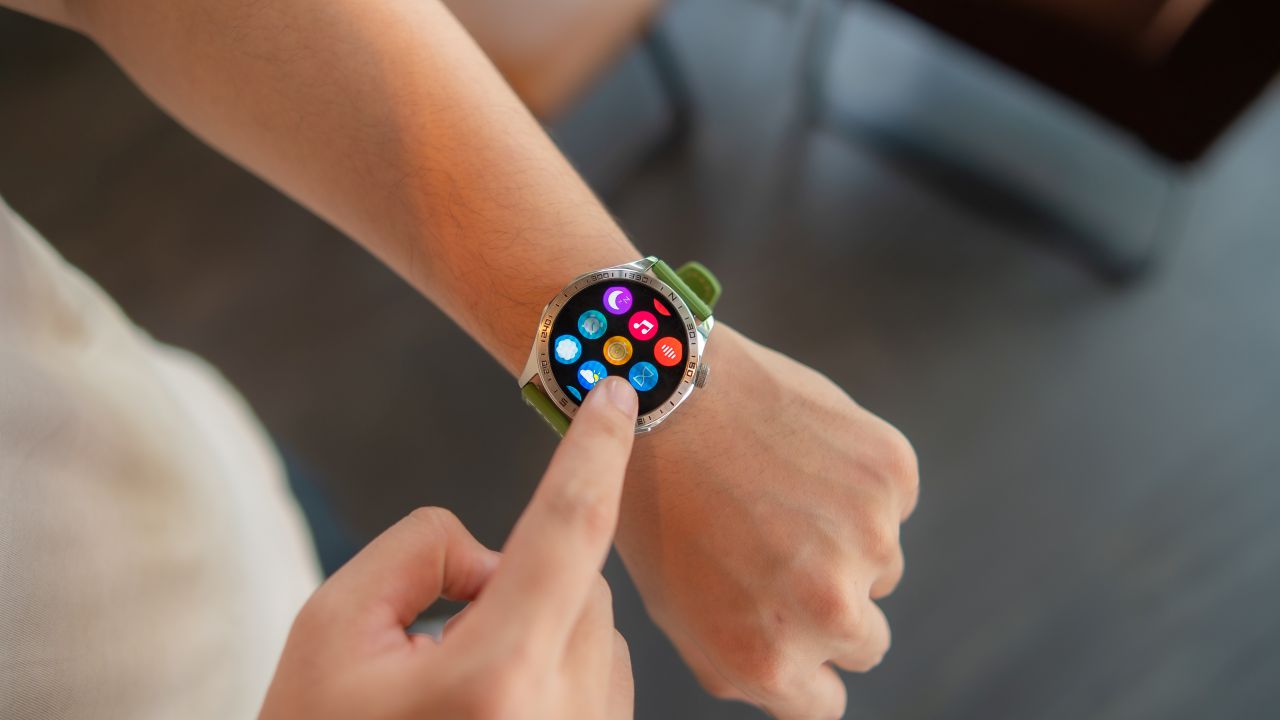
It lasts about up to eight days on a single charge and slightly more when you’re not wearing it every day.
Laptop alternative? Probably not
For someone who writes often, I cannot guarantee that the Pad Plus 12″ can be used for such purposes.
Perhaps, it’s best to leave that to upper segment tablets. You can probably use this for simple edits on Canva or to make presentations on Google Slides, given you can execute functions like drag, drop or resize, as well as type on the fly. But that’s the threshold, basically.
Is this your BudgetMatch?
The TechLife Pad Plus 12″ has a regular price of Php 9,999, although the brand was generous enough to offer it for as low as PhP 7,699 during the first two weeks of sale.
A lot of freebies were also included, like a Keyboard Case, Folio Case, and the TechLife Buds Classic 2.
It’s a considerable Swipe Right for a discounted price, and/or if you were able to secure some freebies.
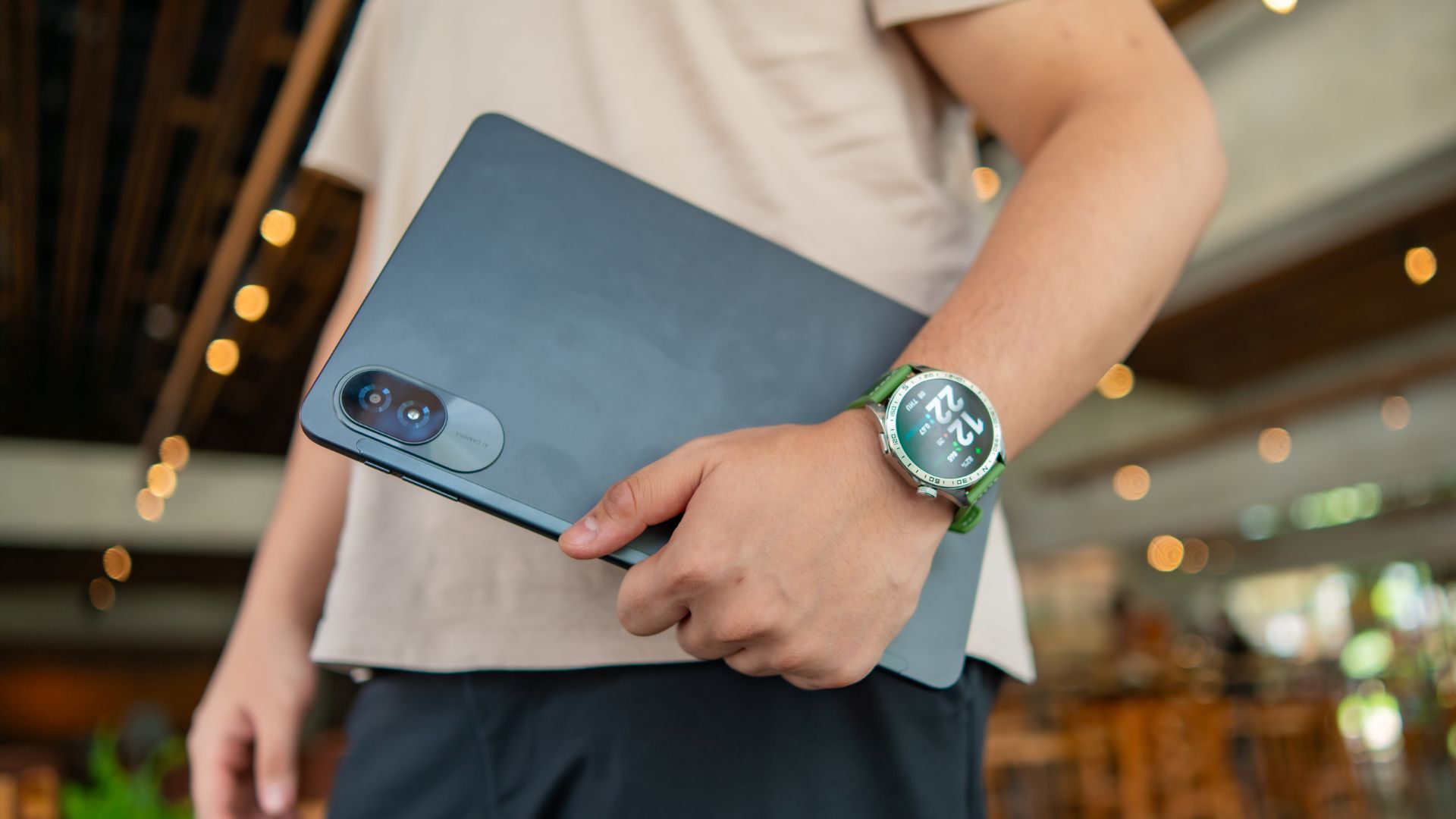
At best, it is a decent budget tablet. It It may not be your first choice in many cases but it is serviceable.
If you’re looking for a more immersive display and laptop-level productivity, as well as being able to carry out creative tasks like drawing and simple animation, there are plenty of options in the PhP 15,000 to PhP 20,000 range.
Conversely, there are tablets with smaller form factors that have a similar asking price. They’re there if you want more portability, or if you’re just going to read and scroll a lot.







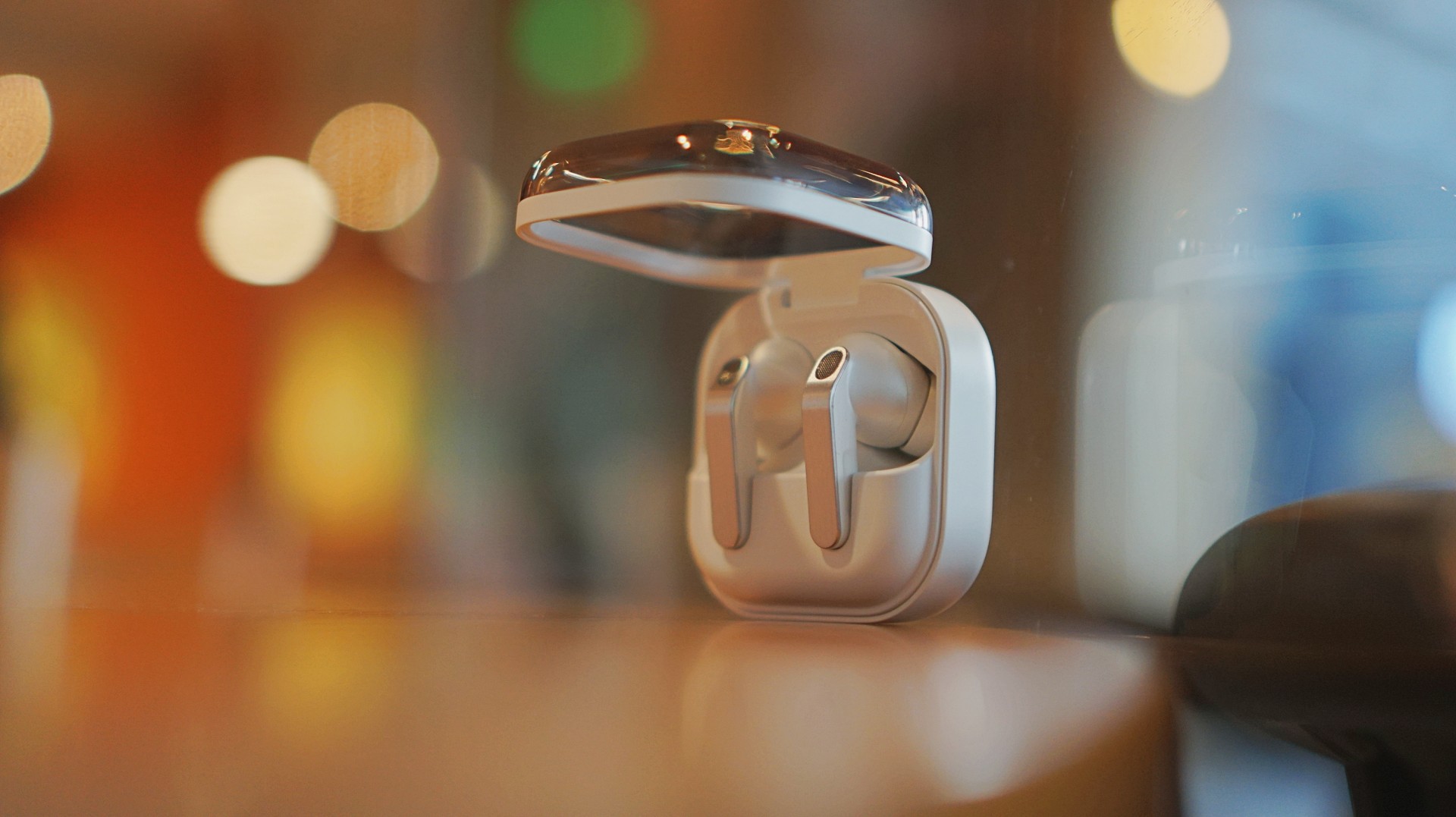
I thought I was done with in-ear headphones. Then the Galaxy Buds4 Pro entered my atmosphere.
I was never truly comfortable with in-ear headphones. That’s why I leaned toward over-ear pairs. But I still wanted something compact for days when I wanted a lighter loadout.
Then came the Shokz OpenDots One. A clip-type, open-ear pair that felt like a game changer. It sounded good enough. It kept me aware of my surroundings. I used it to preview reels while out on coverage, while walking around the neighborhood, and even on quick trips to the barber.
I was ready to write off in-ears completely.
Good thing I didn’t.
A surprise I didn’t expect
I went into the Galaxy Buds4 Pro a little skeptical. I already liked the Galaxy Buds3 Pro, but comfort was never its strongest suit for me.
Then I wore the Buds4 Pro.
Right away, it felt different. More comfortable. More natural. I thought it was just new gadget novelty. But even after a week, that feeling didn’t fade.
That’s when it clicked. These are different. They don’t just sound good. They fit into your day better.
Finally looks like its own thing
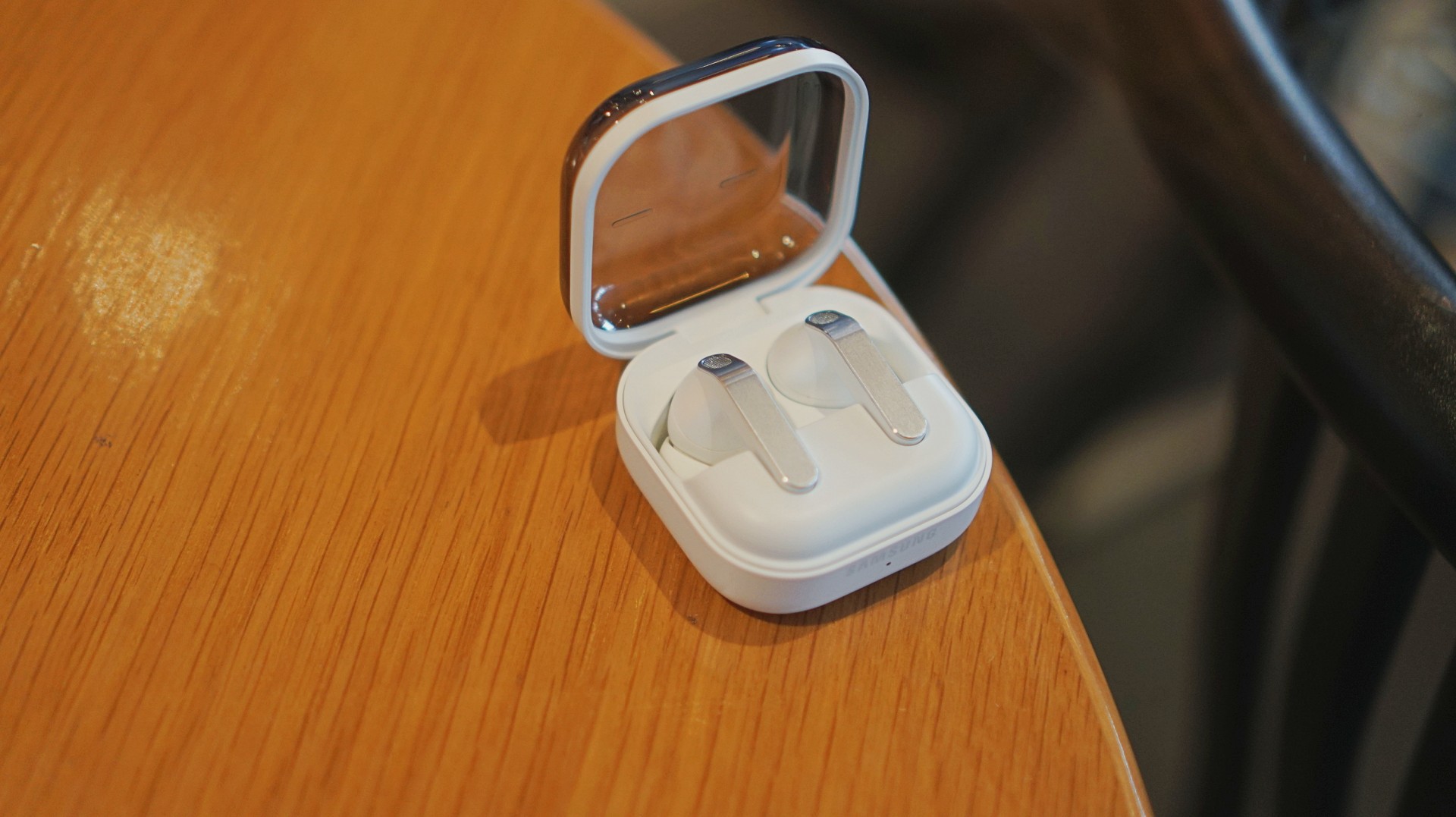
The first thing I loved? It doesn’t look like AirPods anymore.
The Galaxy Buds3 Pro looked a little too familiar. I didn’t hate it, but it didn’t feel like me. I like using tech that reflects a bit of individuality, and that design always felt a little tacky.
The blade design on the Galaxy Buds4 Pro fixes that.
It looks cool. Straight up.
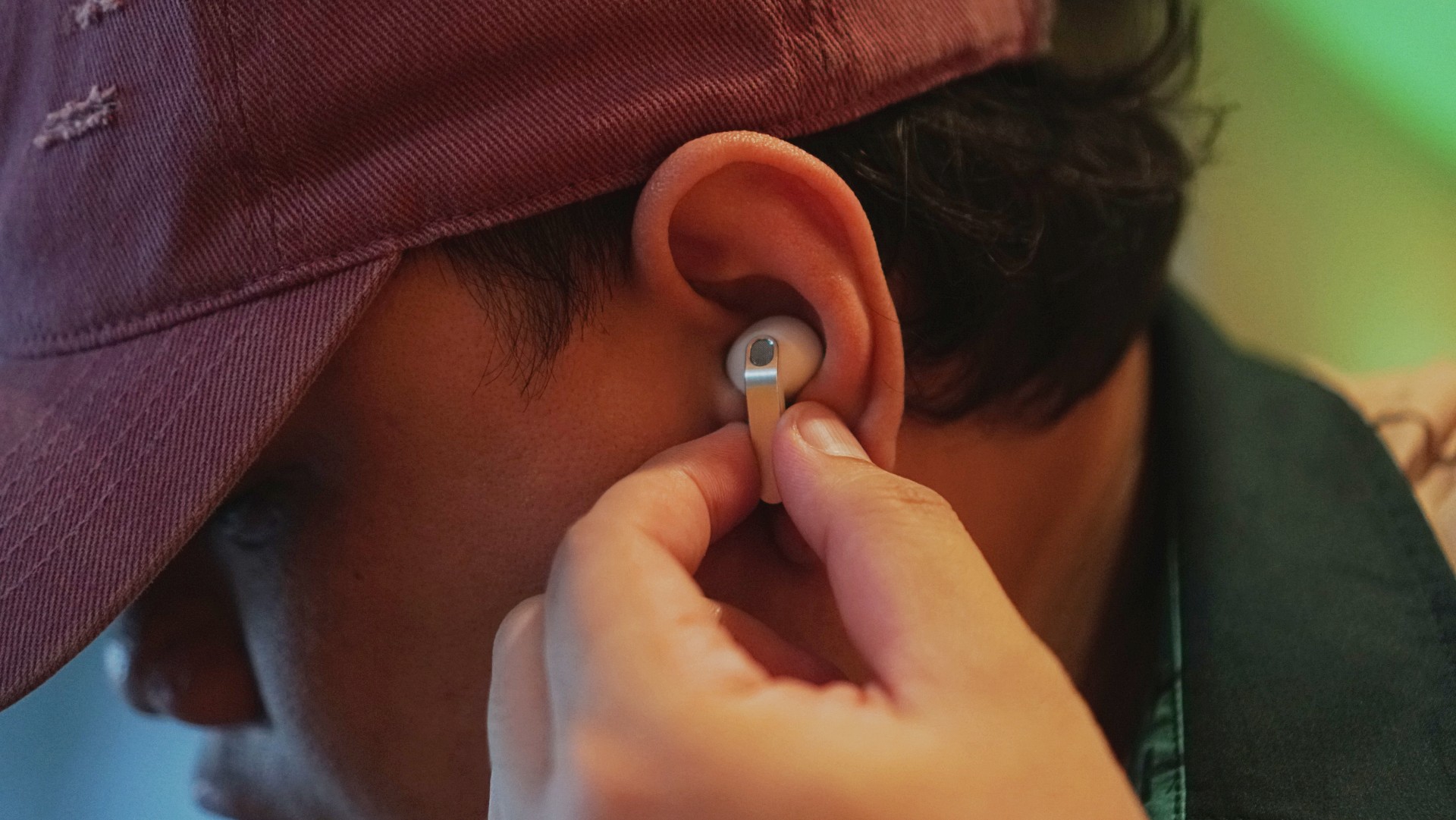
More importantly, it feels more like Samsung finally finding its design language again instead of borrowing from someone else. It’s not just aesthetic either. The shape makes controls easier to find and use.
It’s a small thing on paper. In practice, it changes how you feel about using it every day.
Controls feel easier too. Pinch to pause/play, slide up/down in the same pinching position if you want to adjust volume. It just works.
Comfort changes everything
This is the biggest upgrade for me.
With the Buds3 Pro, I loved the features but didn’t always enjoy having them in my ears. With the Buds4 Pro, that problem is gone.
It’s not that you don’t feel them at all. You do. But not in a way that makes you want to take them out.
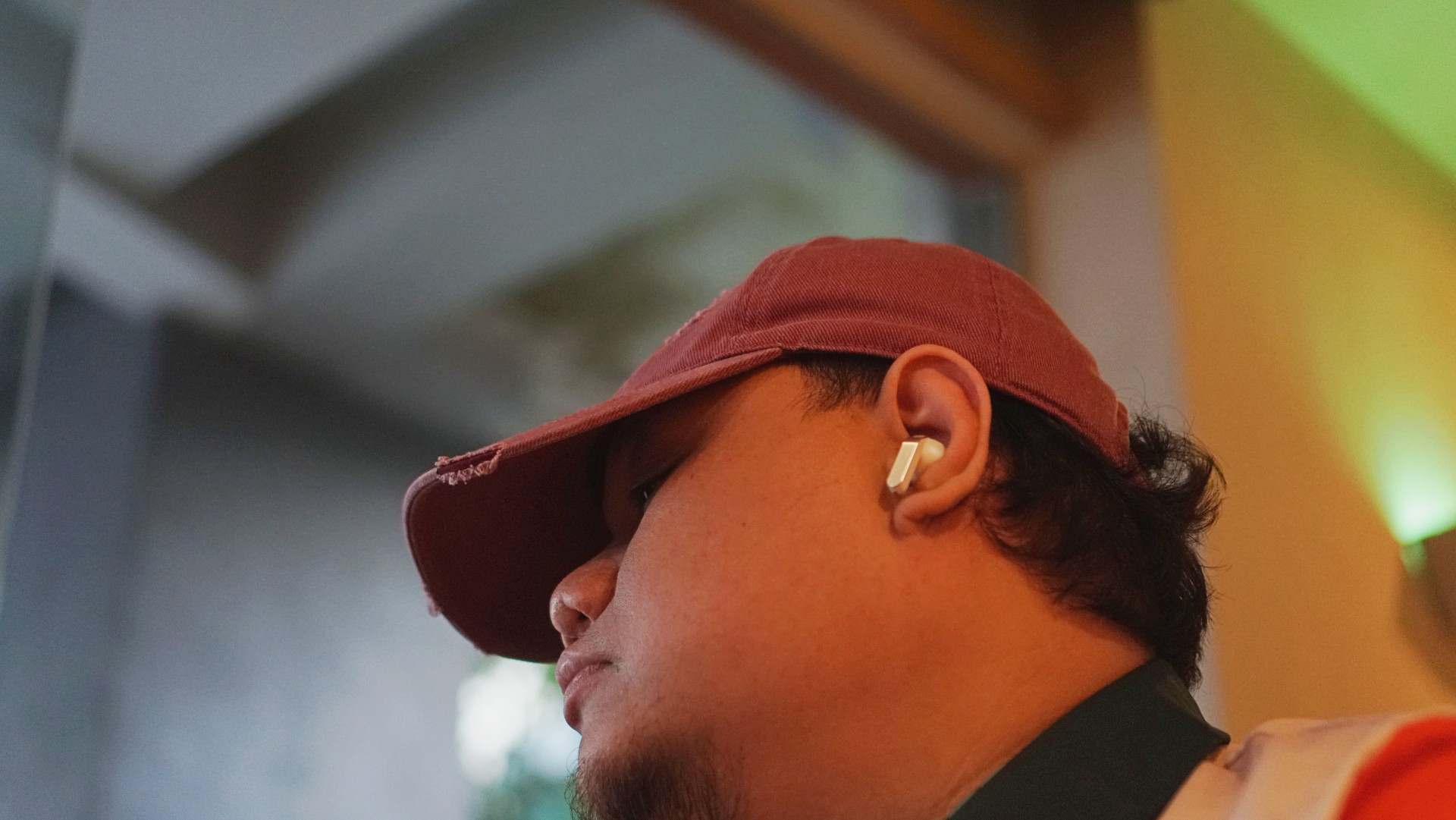
I’ve worn them for four straight hours while working in a café. Writing, replying to emails, just sitting there with music on. No urge to remove them. No fatigue that breaks your flow.
They stay in place, too. Even during brisk walks.
For someone who almost gave up on in-ears entirely, that alone is a massive win.
Rich, full, and now more layered
If you’ve used the Galaxy Buds3 Pro, you already know the sound is good. The Buds4 Pro takes that and pushes it one step higher. Rich, warm, full, and surprisingly layered. The difference hit me immediately.
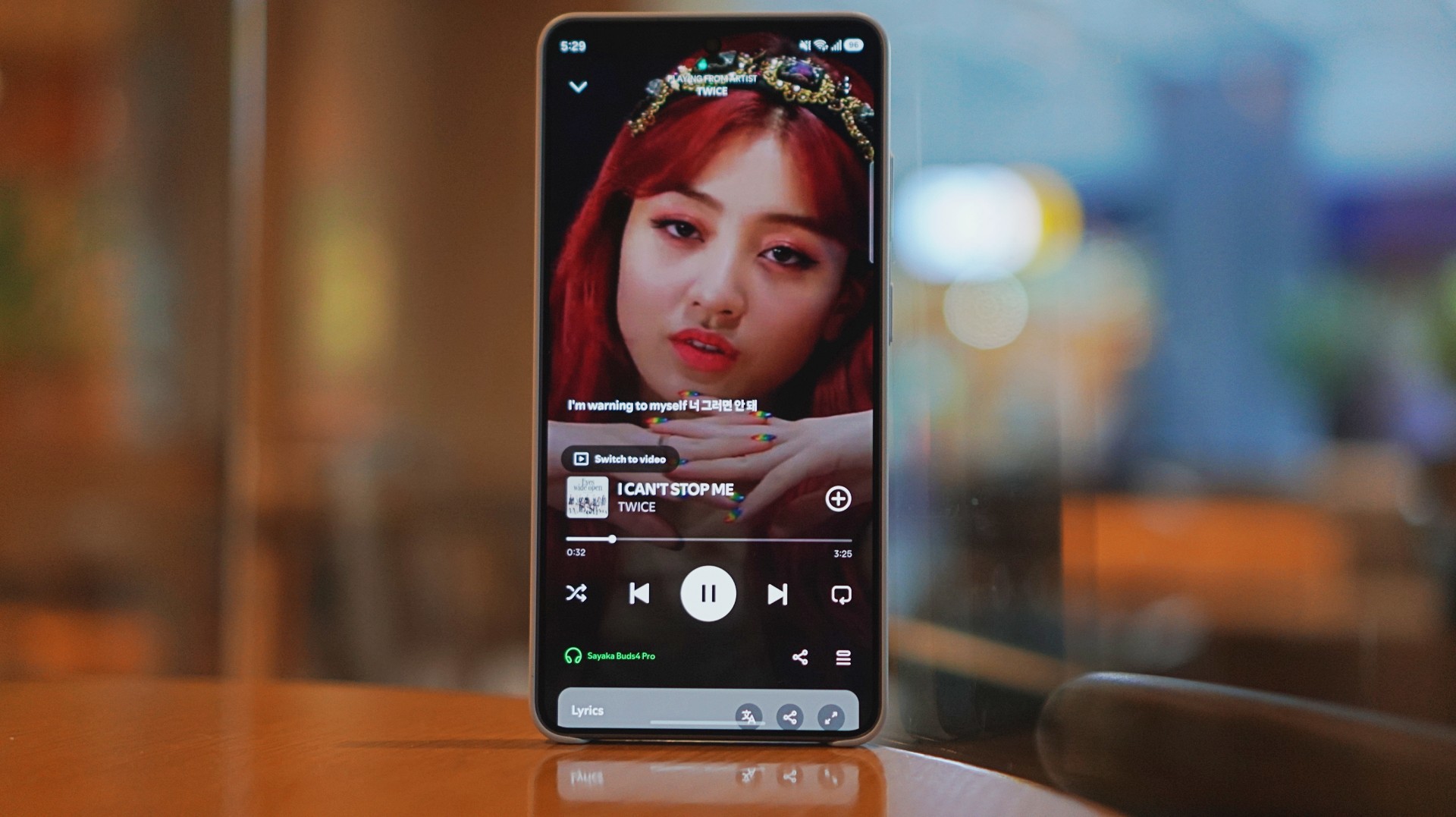
I was listening to Spotify on the Galaxy S26 Ultra and started hearing details I don’t usually notice. It reminded me of the first time I heard lossless tracks on Apple Music with a really good pair of headphones.
And this is just on Spotify. Hell yeah, it makes Spotify feel good enough.
Hearing the little things
I listen to a mix of K-pop, KRNB, OPM, pop rock, and alternative rock. Across all of it, one thing stood out: separation. It’s easier to isolate sounds if you’re into that.
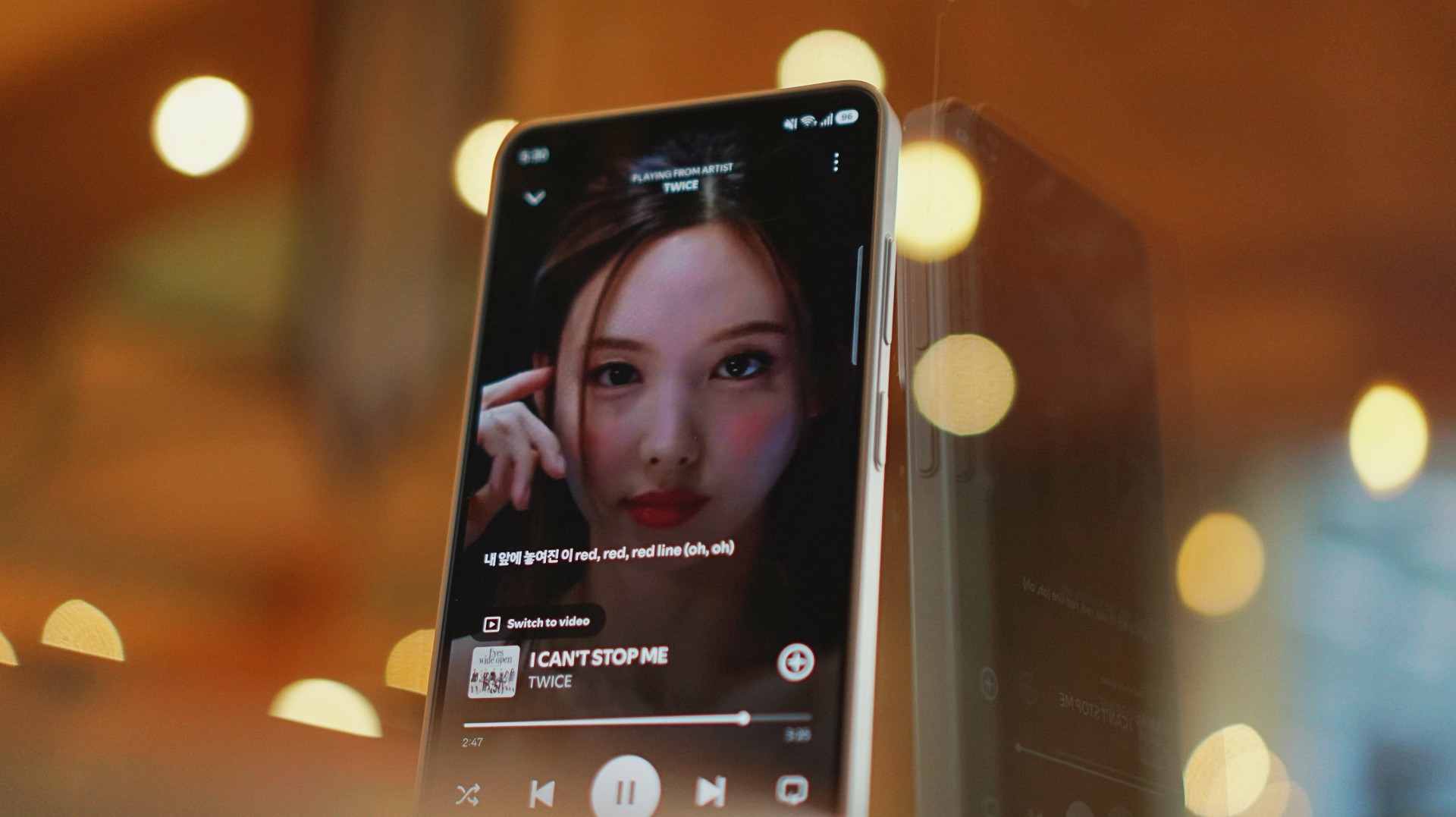
With TWICE tracks, I started picking up vocal riffs and runs from Jihyo and Nayeon that don’t always stand out on other setups. They’re not overpowering. Not distracting. They just sit there, completing the track.
It feels… intentional. Like everything has its place. It doesn’t just sound better. It makes music you already love feel new again.
A quick reality check
At one point, I forgot to charge the Buds4 Pro and switched to the HONOR Earbuds 4. Same track. Same app. Night and day difference.
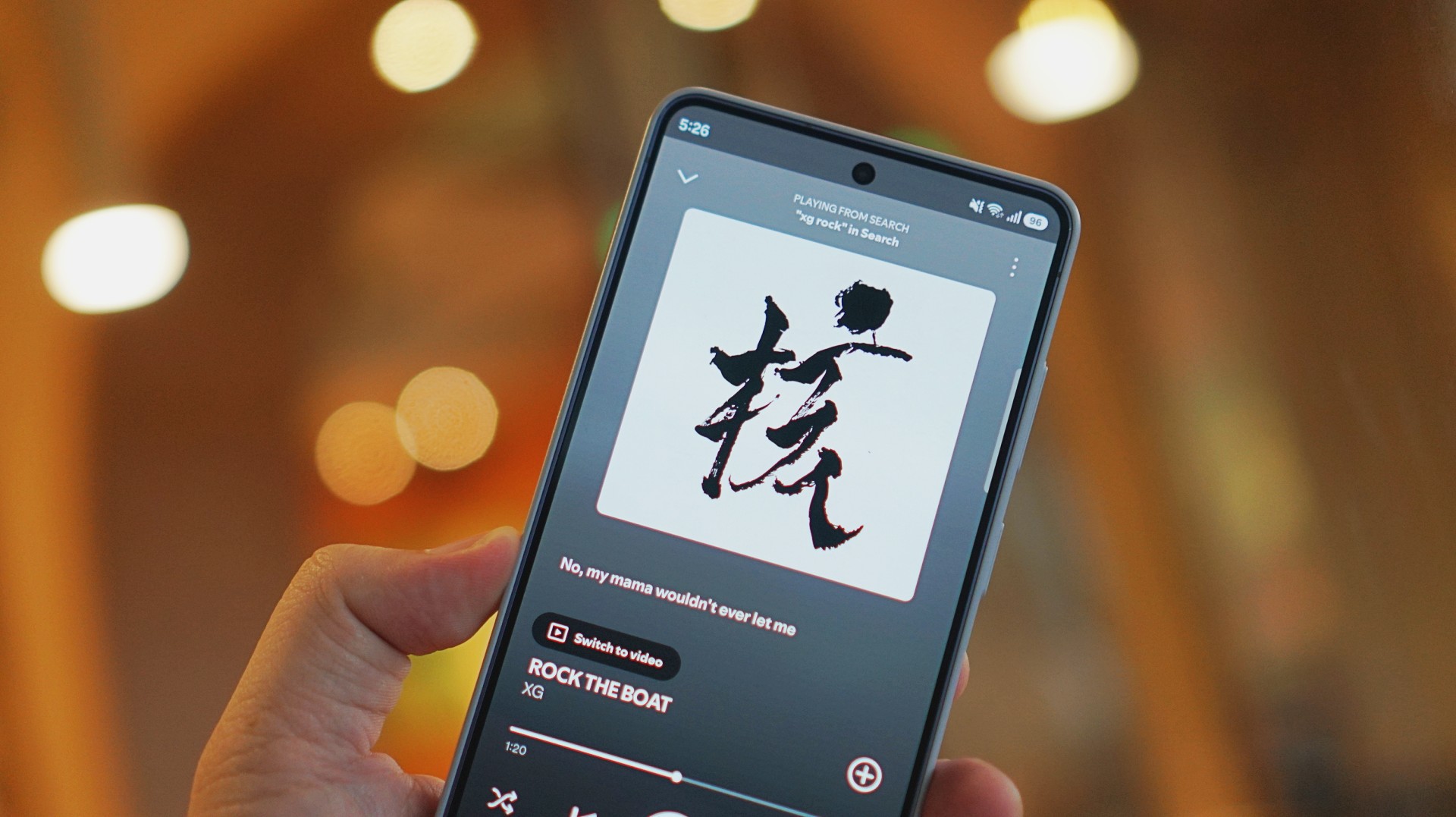
I was listening to “Rock the Boat” by XG when I made this switch.
The Galaxy Buds4 Pro sounded rich, warm, and full. The HONOR Earbuds 4 felt a few steps behind across the board. To be fair, they’re in different price brackets. But that moment still validated everything I was feeling about the Buds4 Pro.
ANC that gets the job done
Let’s set expectations.
The ANC is not Sony WH-1000XM6 level. But nothing is.
If Sony is an 11/10, this sits comfortably at around an 8.5.
And honestly? That’s more than enough.
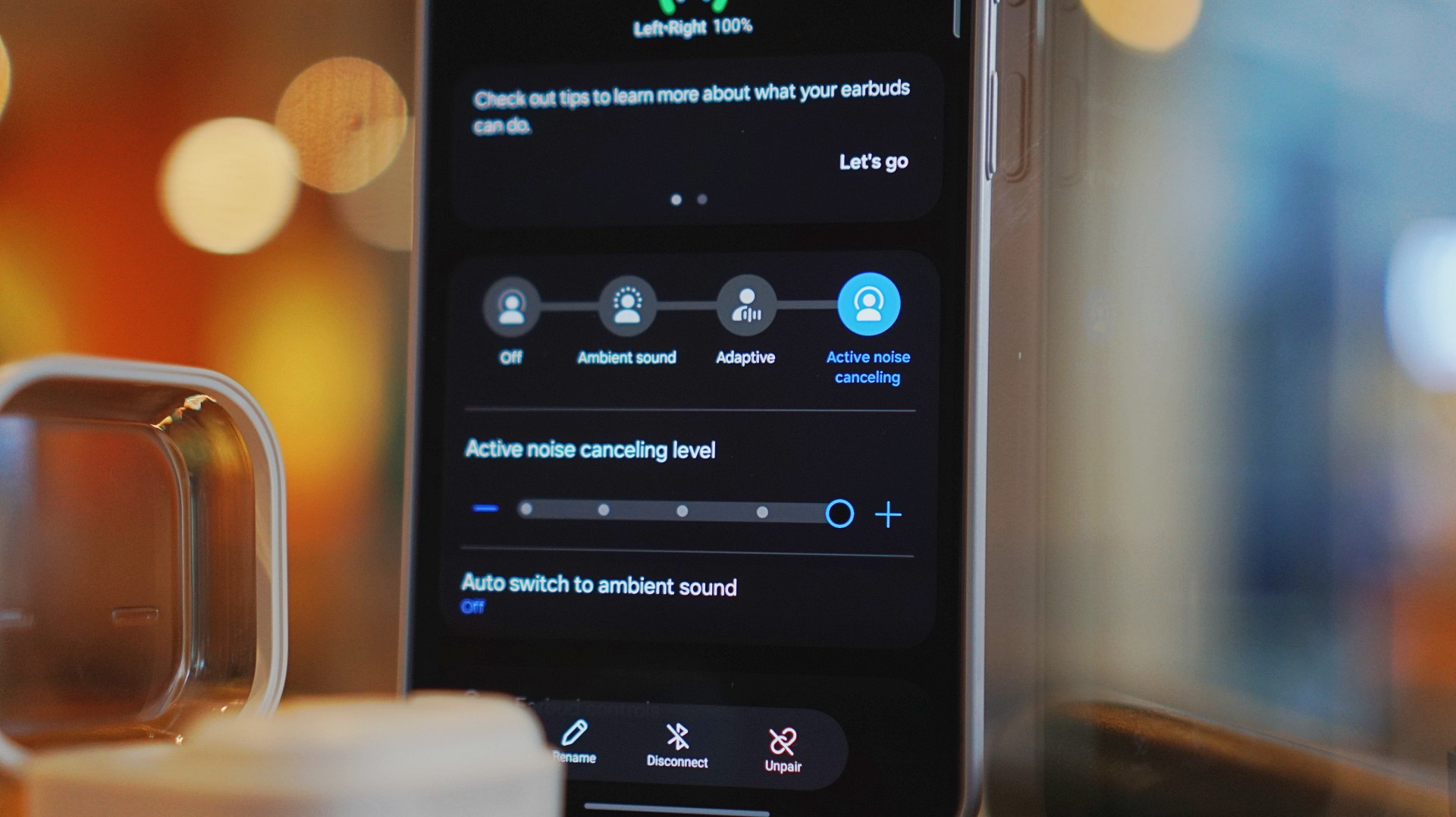
On a 12-hour flight from San Francisco back to the Philippines, I had these on almost the entire time. Engine noise was significantly reduced. There’s still a faint hum if you really listen for it, but it never got distracting.
In cafés, even when seated right next to the speaker, it blocks out enough noise for you to stay locked in.
It locks you in. You feel like the music is inside your head while still giving you elite sound, some spatial awareness, and surprising comfort.
That balance matters more than chasing perfection.
Adaptive ANC still needs patience
I default to turning ANC on manually. Adaptive ANC and EQ are there, but in my experience, they take a bit of time to kick in. Sometimes a minute or two.
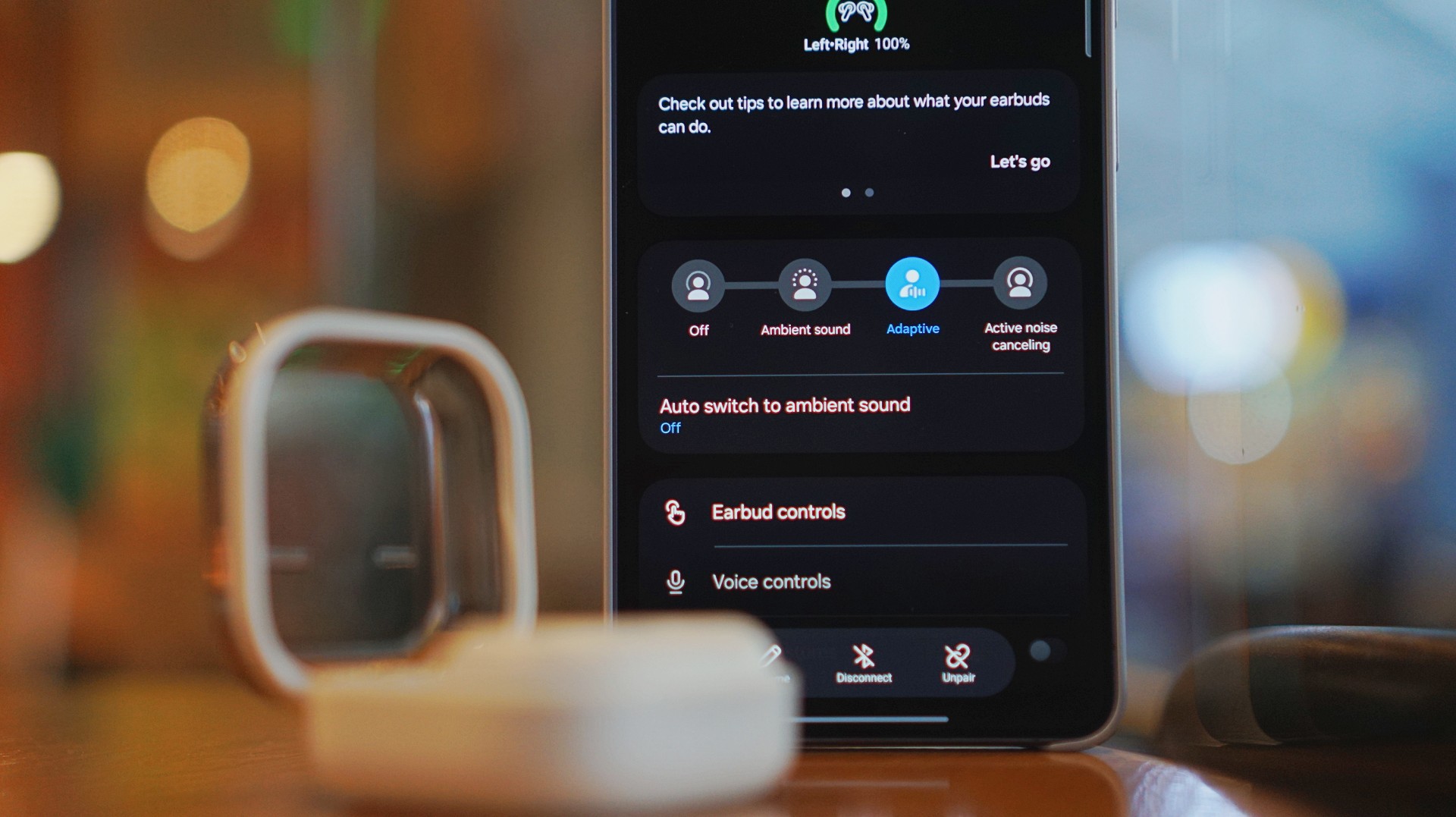
Because of that, I’ve built the habit of switching modes myself depending on where I am.
It works. It’s reliable. But I’d like to see this feel faster and more seamless over time.
Just fits into your day
This is the kind of device you don’t think about. I reach for it every time I step out. Walks, errands, quick food runs.

It’s perfect when you’re waiting in line and scrolling through reels. No accidental loud audio. No awkward moments. It just fits. That’s probably the best compliment I can give it.
Galaxy ecosystem still wins
Pairing is seamless. Controls are responsive. Everything works the way you expect it to. If you’re using a Galaxy device, this is a no-brainer.
Even outside the ecosystem, it still holds up. But you definitely get the best experience when you stay within it.
What still doesn’t matter (yet)
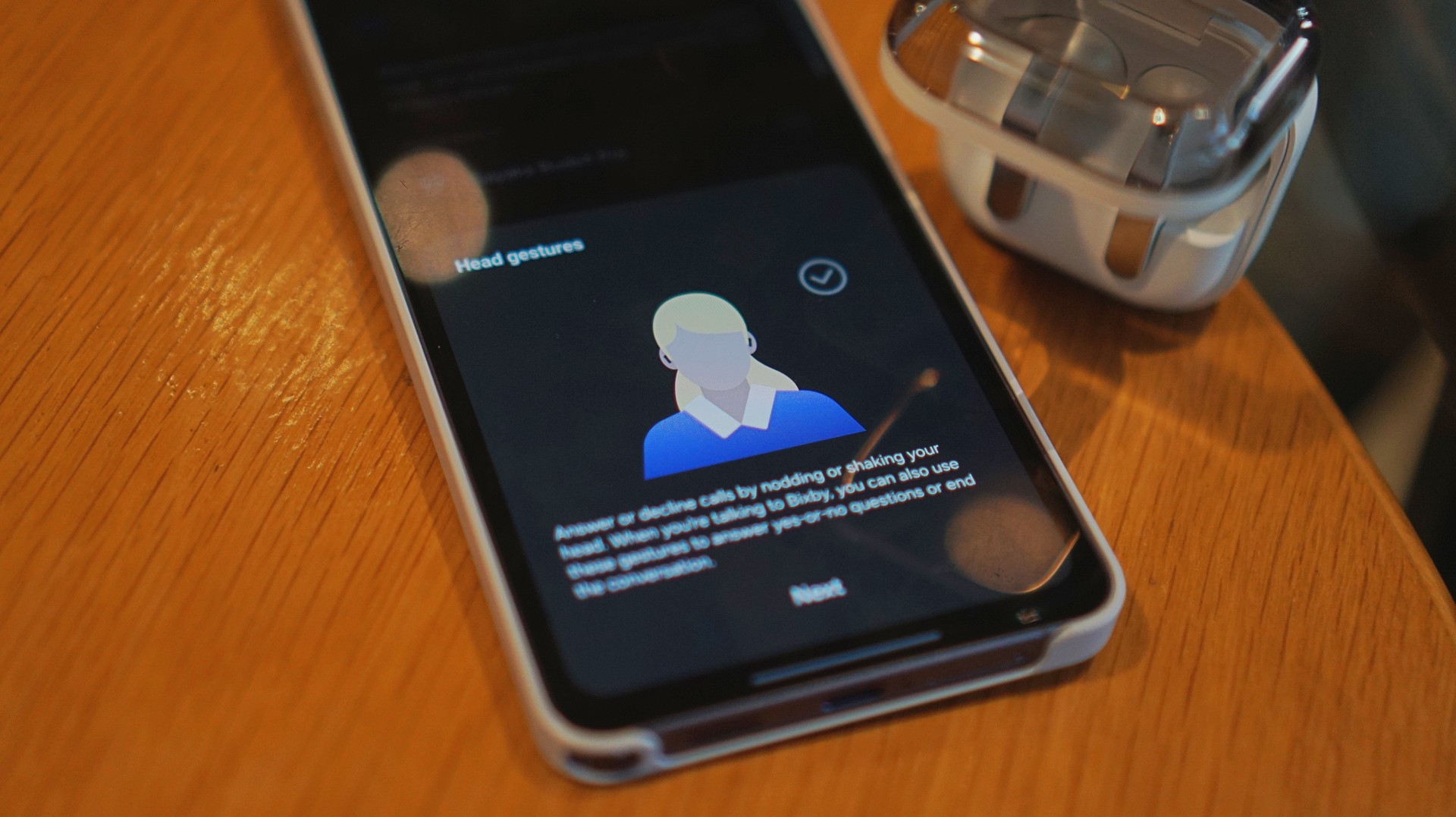
Features like AI Translate are still in that “nice to have” category for me. They’re promising. They’ll probably get better. But they’re not why you buy this.
You buy this for the sound, the comfort, and the everyday usability. And those are already excellent.
Is the Galaxy Buds4 Pro your GadgetMatch?
If the Galaxy Buds3 Pro was Samsung’s best so far, the Galaxy Buds4 Pro is that — made better. A meaningful refinement.
This is my default recommendation now.
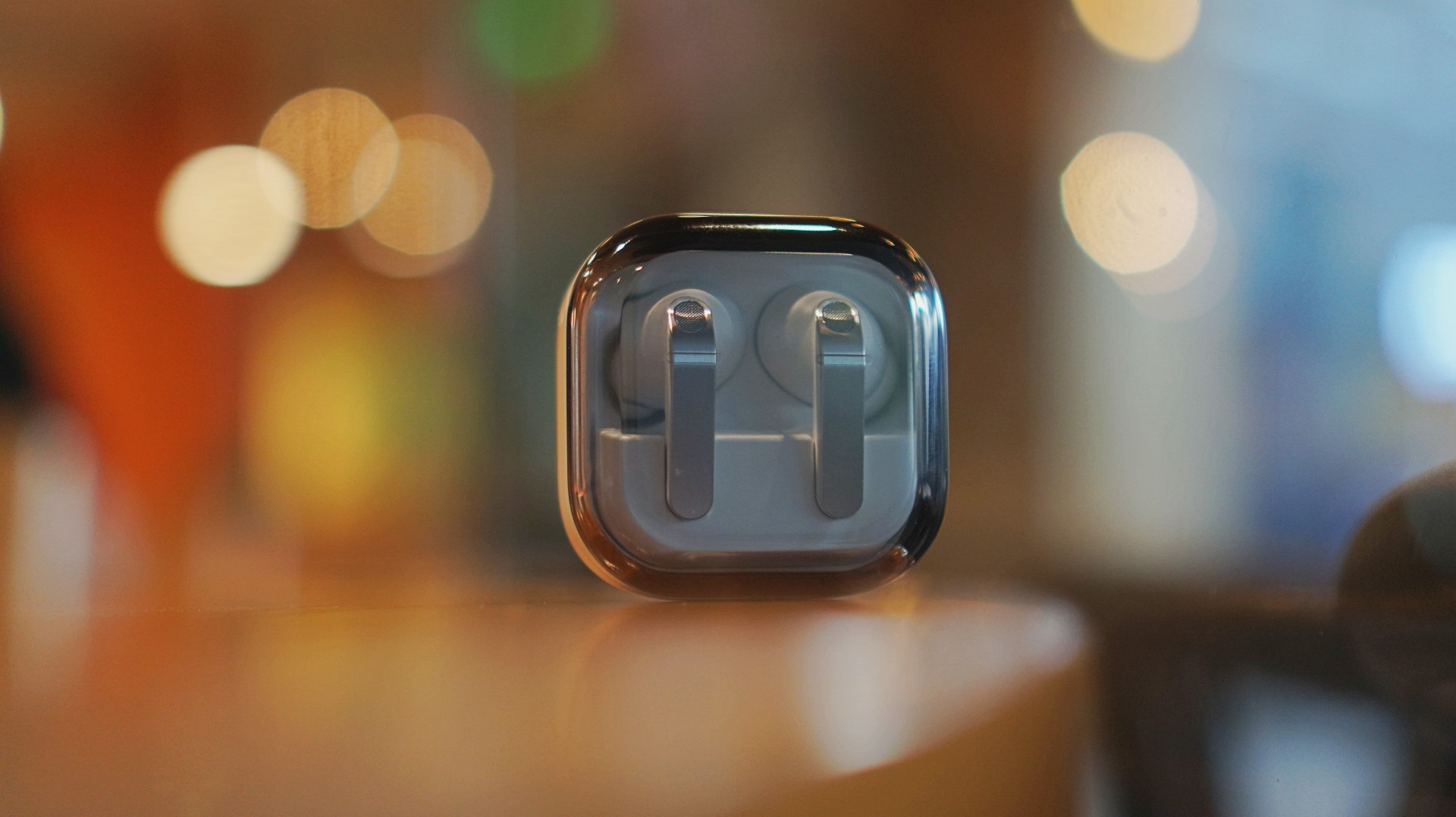
The Galaxy Buds4 Pro is for people who want to get the best sound in a compact, easy-to-carry audio buddy to their smartphones.
If you’re coming from older earbuds, this is an easy upgrade.
If you’re coming from the Buds3 Pro, you can probably hold off — unless comfort and design matter a lot to you.
And if you’re deep in the Galaxy ecosystem?
This Buds4 you. Swipe up. No questions asked.
Gaming
WWE 2K26 lets you live out all the fantasy matches you could want
But you have to play for hours and hours to unlock everyone.

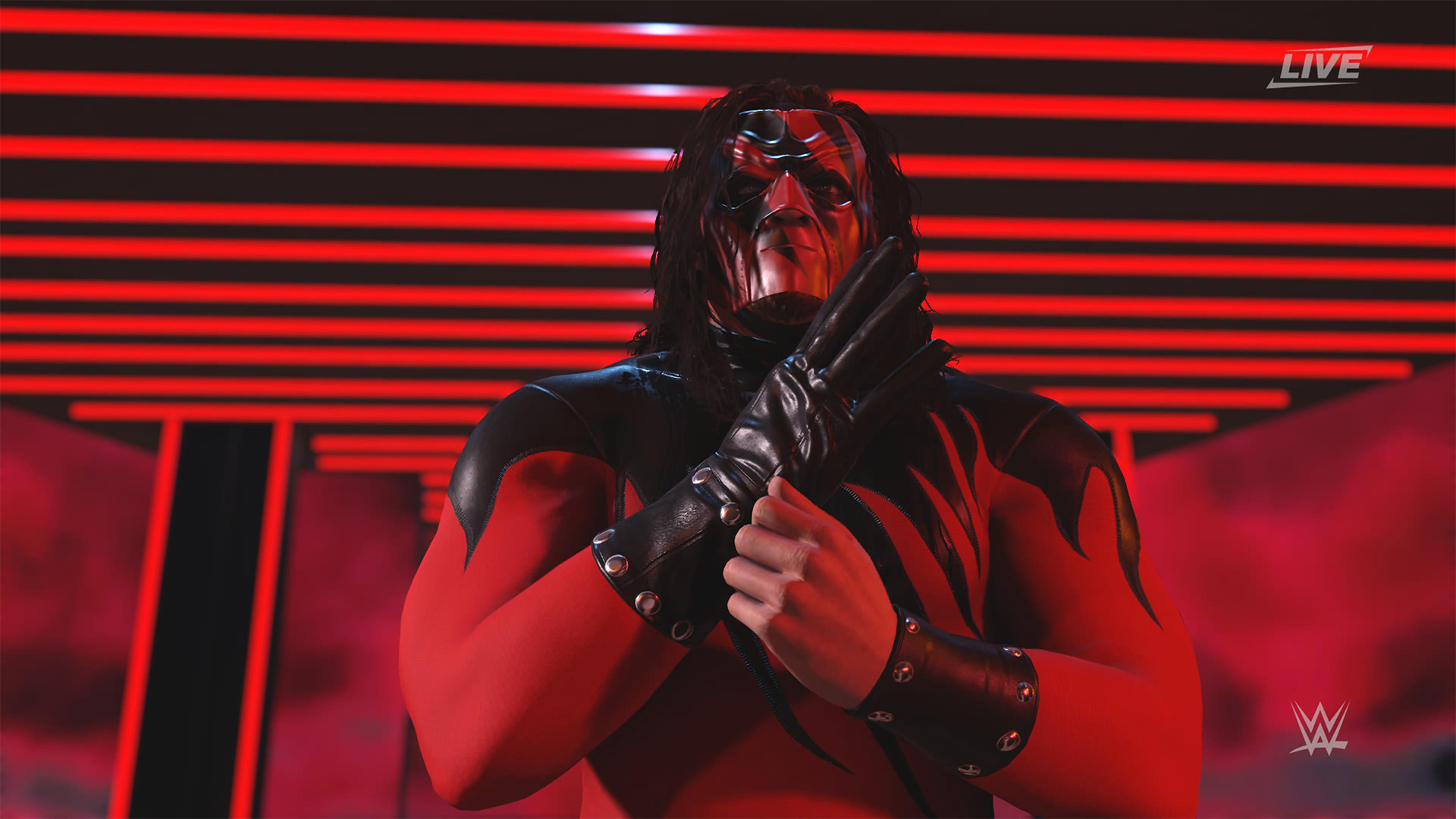
The old SmackDown vs. RAW games were some of the most fun I’ve had as a teenager. Though I didn’t own a PlayStation 2 or 3 then, I had a PlayStation Portable and the series’ corresponding version. Sure, it didn’t have the then-advanced graphics, but the games kept me company for many a day and night. And it all revolved around a simple premise: letting wrestling fans live out their fantasy matches.
Now, with over 400 playable characters on launch, WWE 2K26 hopes to rekindle that magic. Previously, 2K’s take on the wrestling simulator never really captivated me as much as the SvR series did. Though players still had a similarly large roster throughout the years, the series felt too homogenized, too riddled with microtransactions. This year, the series got me thinking again: Can sheer numbers singlehandedly usher a new renaissance for WWE gamers?
The good: Four hundred superstars under one banner
WWE 2K26 touts over four hundred playable characters on launch. With unannounced DLCs still on the horizon, this number will surely balloon further. Even for a dedicated WWE fan, having over four hundred playable characters is insane. Where else can I pit Joe Hendy against Andre the Giant and create my own WrestleMania III moment?

The only catch, however, is that the game did some stat padding to get to this enormous number. Besides having multiple personas for a single wrestler (and CM Punk alone has ten of these), the roster includes a platoon of fictional MyRISE characters, which comes off as distracting if you don’t particularly engage with the MyRISE mode.
Ironically, the game didn’t even need to pad its stats this way. For the first time in the series, the launch roster includes Superstars from the current WWE roster, TNA, AAA, and the Hall of Fame. I could spend hours just feeding a litany of Superstars to TNA legend Abyss. That’s something I could never have done in the old SvR days.
The good: A more fluid fighting system
It also helps that WWE 2K26’s fighting system is the most fluid that the series has been. Wrestlers no longer feel like wooden animatronics skipping from one animation to the next. Each punch flows smoothly into a clothesline, a grapple, a carry, or a finisher.
It is, of course, at the expense of a more complex control scheme where each input combination corresponds to its own move. A stray waggle of the right joystick, for example, can have your wrestler careening towards their opponent in ways you never intended.

It takes some time to get used to. Every time I get a WWE 2K game, I always need a refresher course for the controls. Plus, each entry introduces something different. This year introduces rushing opponents to the corner and carrying opponents in different ways.
Another new addition is the new third-person camera which follows your character, rather than being locked to the ring. To me, this was a welcome feature. The original camera can often betray you by having various elements (other wrestlers, the ring itself) block your view of the action, thus preventing you from reacting correctly to your opponent. The dynamic third-person camera solves this and makes the fight more immersive.

That said, the camera necessarily changes the controls a bit because you need the right joystick to look around. Because of that, I had to revert back to the original camera after a while. Regardless, this is a step in the right direction.
The improved fight scheme is also a step in the right direction. WWE 2K26 is the franchise’s most immersive entry to date because of how fluid the action plays out.
The meh: Iterative game modes
Every yearly sports simulator falls prey to the curse of iteration. Because it’s an annual release, every game needs to add something new for players. At the same time, the same game can’t iterate too much, or it might end up alienating fans of the previous title. Each WWE 2K title has to be the same but also a bit different.
WWE 2K26 goes through the same rigamarole. Most of the game’s different modes don’t offer a lot of improvements from last year. So, if you loved last year’s MyRISE, MyGM, and Universe Mode, you’ll likely find this year’s iteration inoffensive.

“Inoffensive,” however, isn’t the best way to sell a new game. At the very least, MyFACTION gets interesting improvements. For a mode I historically dislike every year, WWE 2K26’s MyFACTION ended up being the one I loved the most this year.
This year, the layout feels more intentional. Though it still lacks the exciting animations of NBA 2K, opening a pack no longer looks like a PowerPoint presentation. There’s also more ways to fight offline with the addition of a challenging World Tour mode. Plus, with intergender support and team chemistry, this feels like the update that MyFACTION needed.

In another twist of fate, Showcase Mode ended up being the loser this year. WWE 2K26 rehashes last year’s schtick of having the star rewrite their history. Last year, this worked with Paul Heyman, a notorious bad guy. It doesn’t really stick with this year’s star, CM Punk, the so-called voice of the voiceless.
Punk could have shined with the traditional style of laying their commentaries over their past matches, especially with his shoot style. Instead, we got a series of what-ifs with practically no commentary. It’s just not what I expected from a firebrand like CM Punk.
The bad: The Ringside Pass
For the first time in the series, WWE 2K26 has a battle pass called the Ringside Pass. Like battle passes in other games, the Ringside Pass unlocks more content as you play through the game. However, unlike today’s standard which revolves mostly on cosmetics, this version locks a treasure trove of playable wrestlers behind an experience gate.
Even if you already paid for the game, WWE 2K26 asks you to play an inordinate number of hours just to unlock the best wrestlers in the game.
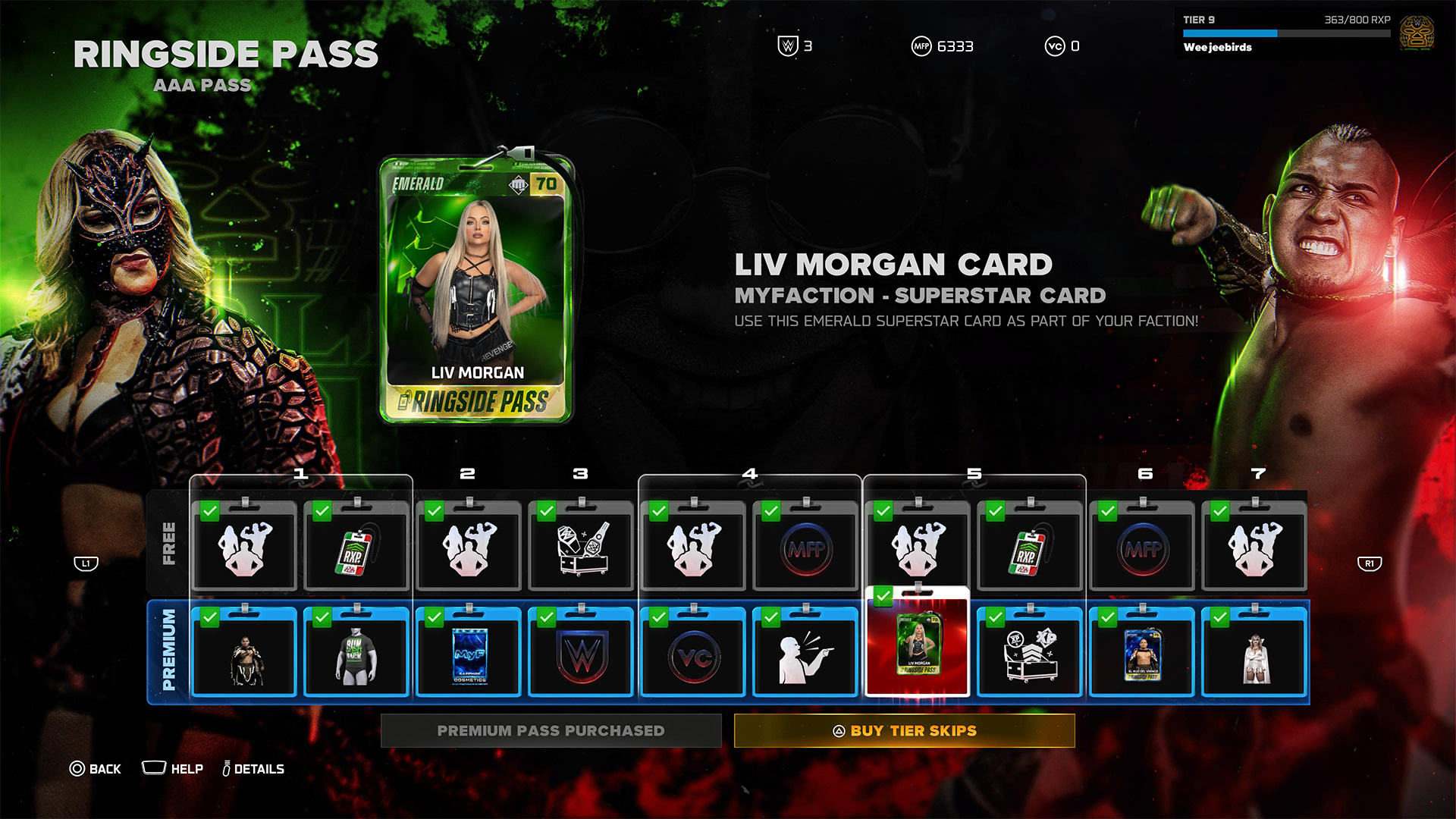
To be fair, it’s not all bad. Right out the gate, the game already gives you access to heavy hitters like CM Punk, Shawn Michaels, and John Cena. However, a lot of favorites are still unplayable including Bret Hart and Kurt Angle. This even includes the strongest version of Bray Wyatt, who’s locked under the last tier of the current pass.
Gaining experience isn’t an easy feat, either. After playing for hours and hours, I still haven’t unlocked more than half of the tiers. At the very least, there is no time limit, so I can play the game at my own pace.
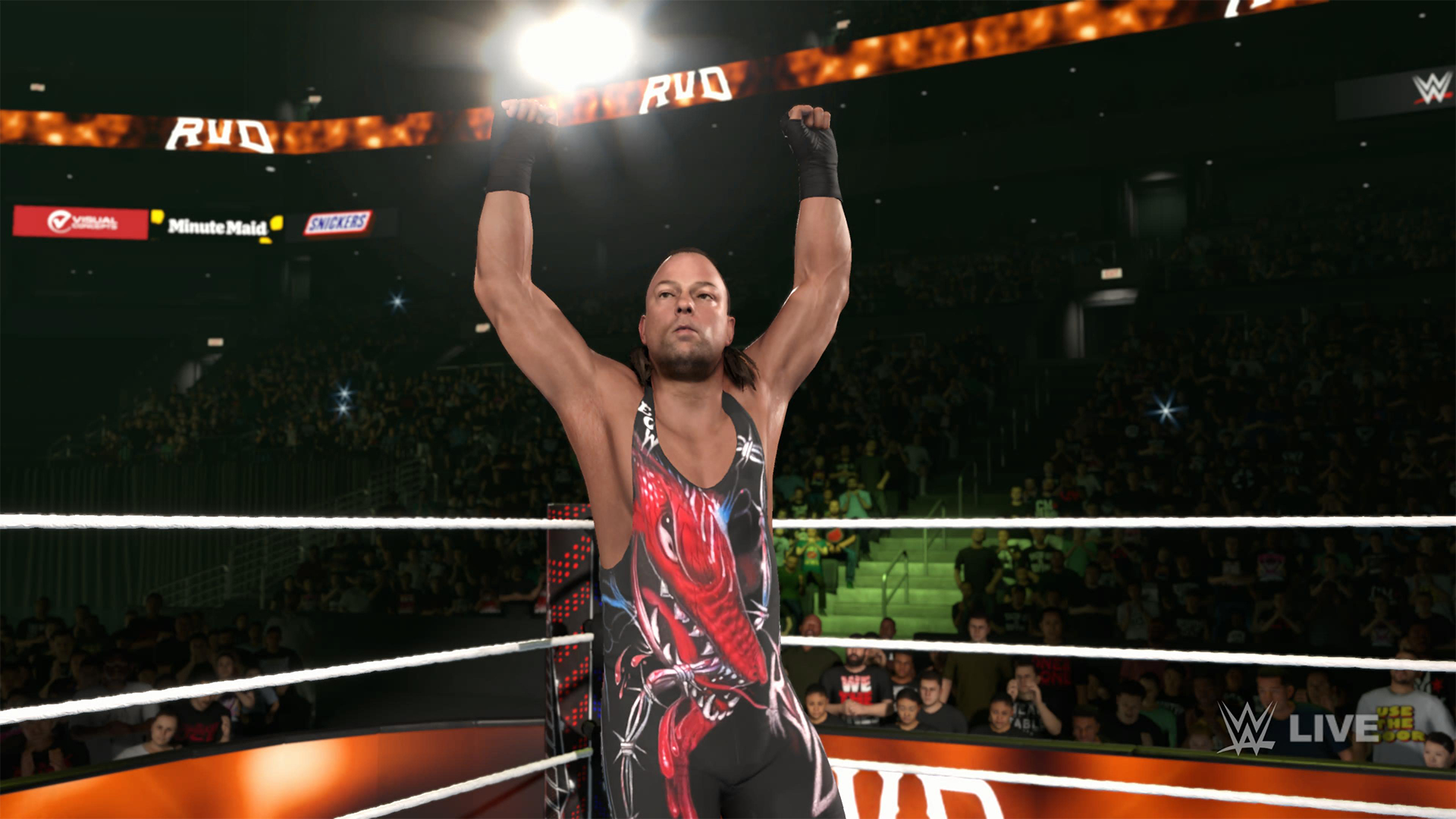
Props to WWE 2K26 for making its battle pass have fulfilling rewards, but it’s still unfortunate that significant elements of the game are locked behind hours and hours of playtime.
The gameplay loop is real and repetitive. And it all circles back to how iterative the game modes are. If only the game modes ended up being as exciting as they were last year, then it would have been exciting to play over and over again. Instead, WWE 2K26 prevents you from engaging in greatest strengths: an exciting roster and a fluid fighting system.
Is WWE 2K26 your PlayMatch?
Last year’s WWE 2K25 was an exciting period for the series. Though this year’s version keeps most of what made the previous game so exciting, WWE 2K26 also adds features, especially the Ringside Pass, that ultimately detract from the entire experience. It’s a small step back, which can hopefully be rectified next year, if not in future updates.

WWE 2K26 is a Swipe Left if you didn’t love last year’s game anyway. The game doesn’t add anything that might change your mind.
However, it’s a Swipe Right if you missed the pure joy of creating dream matches. The game’s massive roster allows for so many impossible matchups to happen, even if only in the digital realm. Just get ready to grind for a long time.
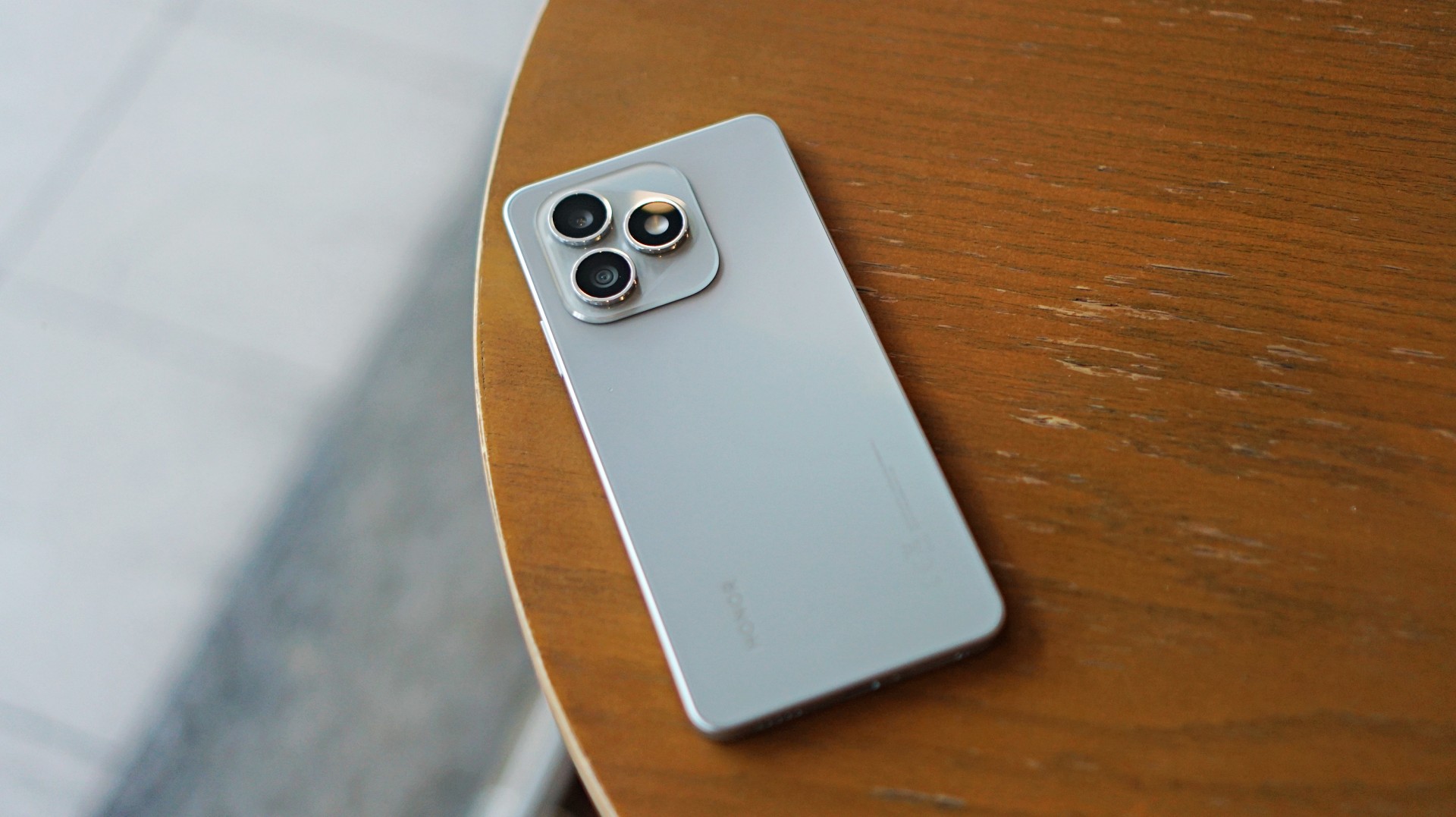
Some smartphones aim to stand out. Others just aim to work. The HONOR X8d falls squarely into the second category.
In day-to-day use, it presents itself as a device that focuses on the essentials. It’s functional, predictable, and easy to understand—but also a reminder of how noticeable the gap can be once performance and responsiveness start to lag behind.
A design-first approach
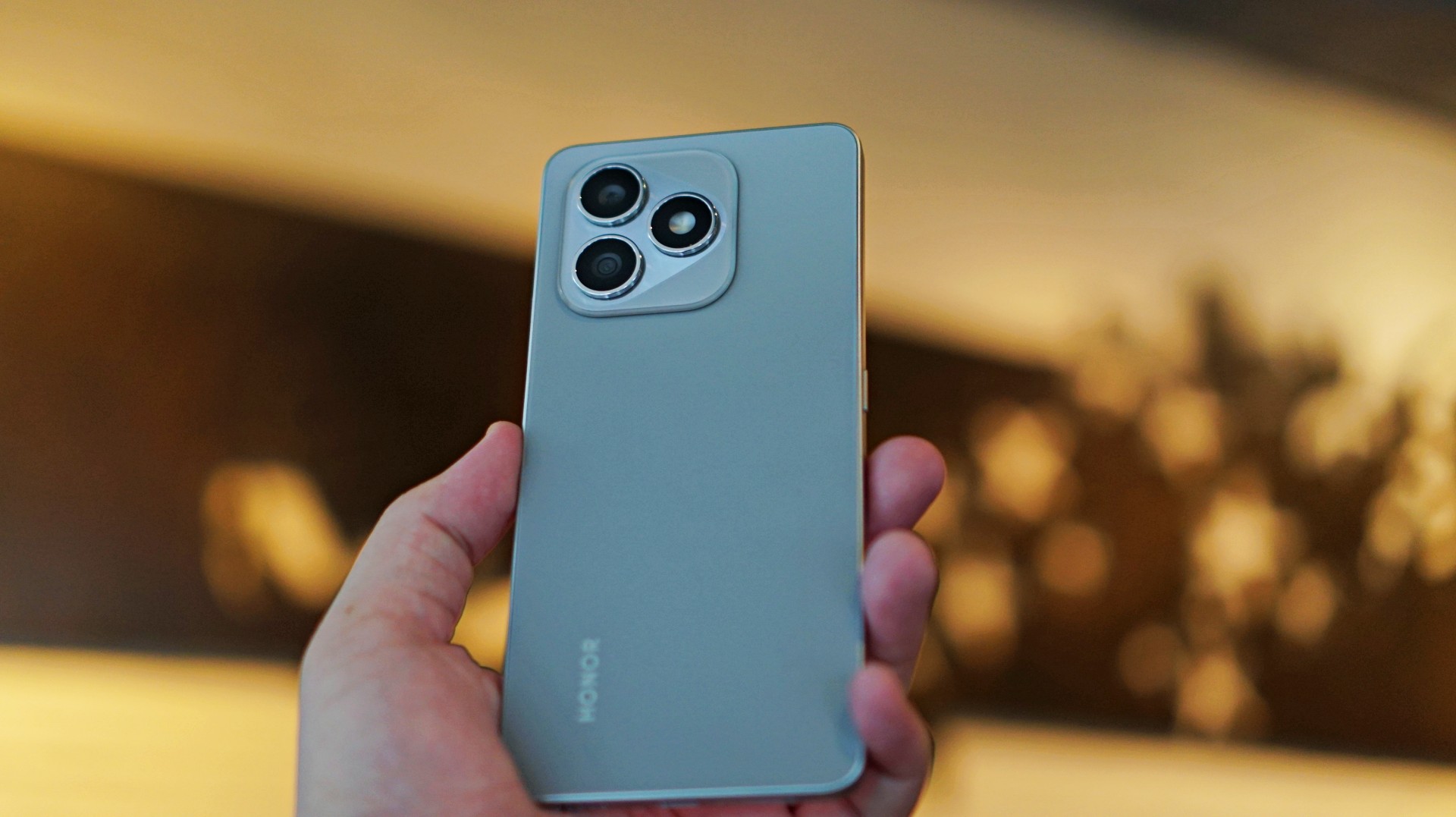
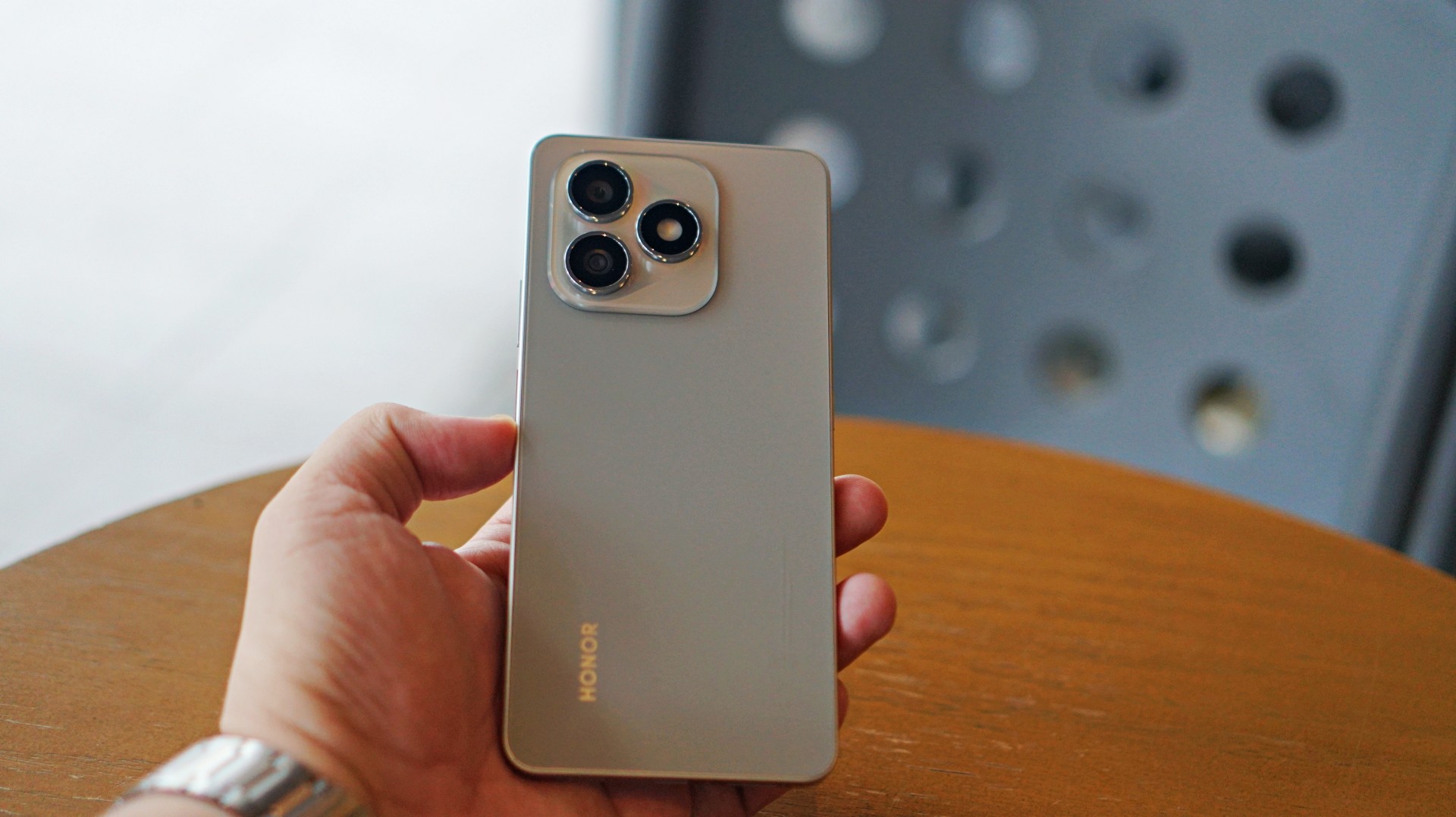
The HONOR X8d makes a decent first impression. It’s slim, relatively lightweight, and easy to hold despite packing a large battery. The flat sides and smooth back give it a clean, modern look, while the camera module adds a bit of visual identity.
It’s available in Light Blue, Velvet Black, and Velvet Grey—options that lean into its youthful positioning. The device also feels sturdy in hand, backed by SGS certification for drop and crush resistance, along with IP65-level protection against dust and splashes.
For a device in this category, the HONOR X8d delivers a build that feels dependable enough for daily use.
Display and media: Bright and usable
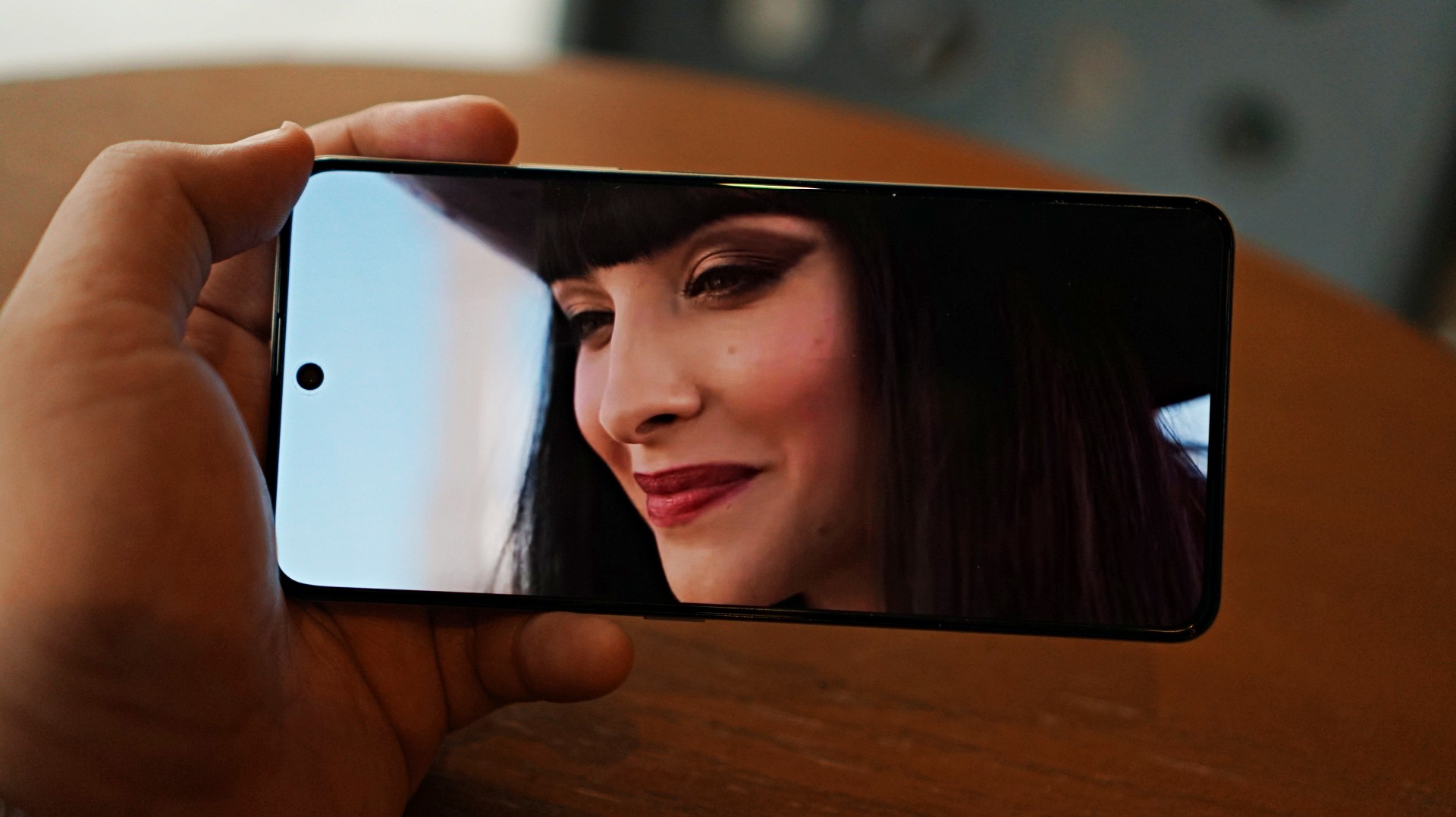
Miss All Sunday makes everything look good
Up front, the HONOR X8d features a 6.77-inch AMOLED display with a 120Hz refresh rate and up to 3000 nits peak brightness. Colors are vibrant, and the panel supports 100% DCI-P3, which helps content look lively.
For casual viewing, the experience is serviceable. Watching shows or videos feels comfortable, and the high brightness ensures visibility even under harsh lighting. Features like 3840Hz PWM dimming and E-Book mode also help reduce eye strain during extended use.
Now Playing: One Piece Season 2
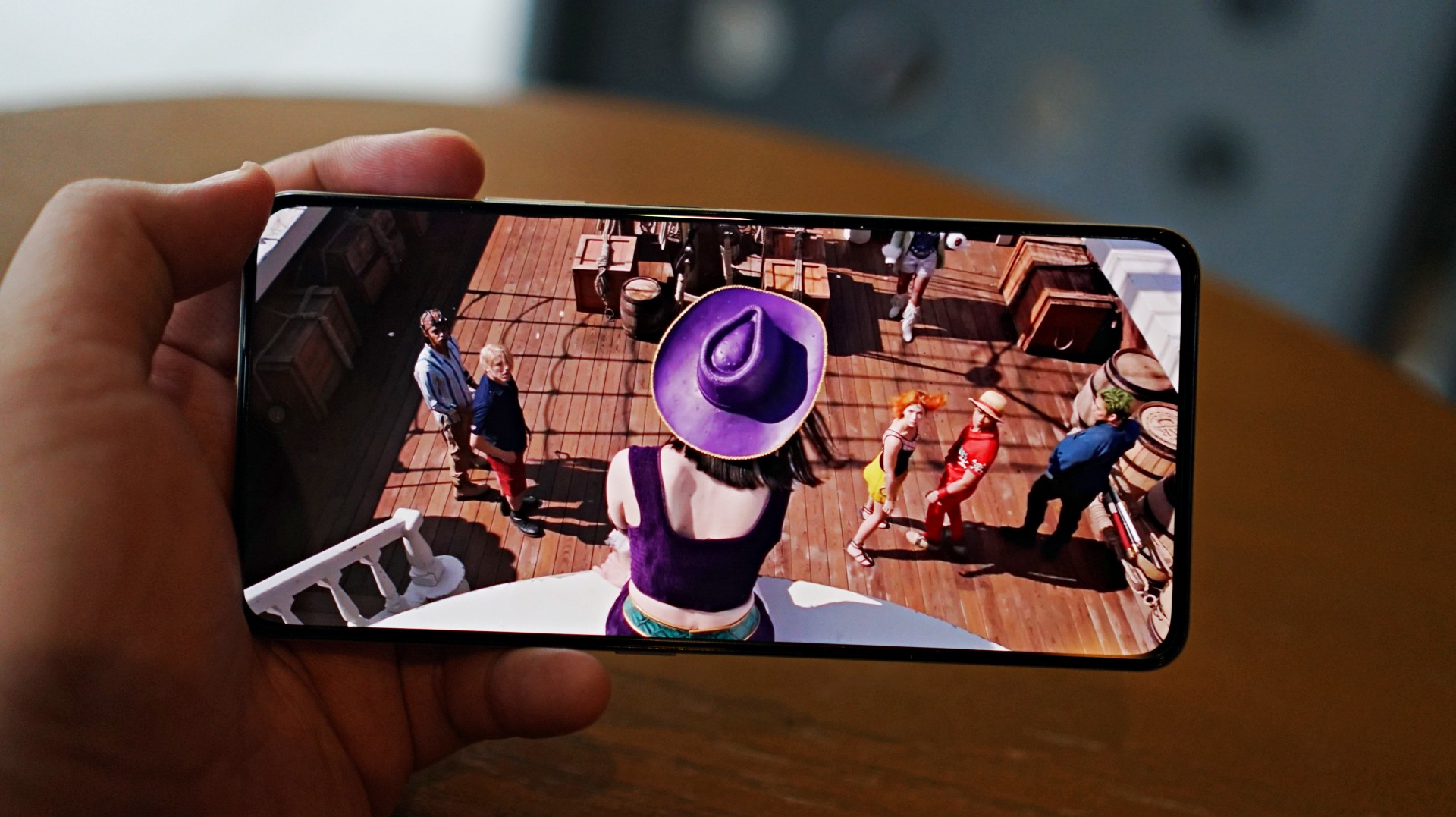
I skimmed through a few episodes of the One Piece Season 2 live action on Netflix and again it was… alright. Nothing here will blow you away but it serves its purpose.
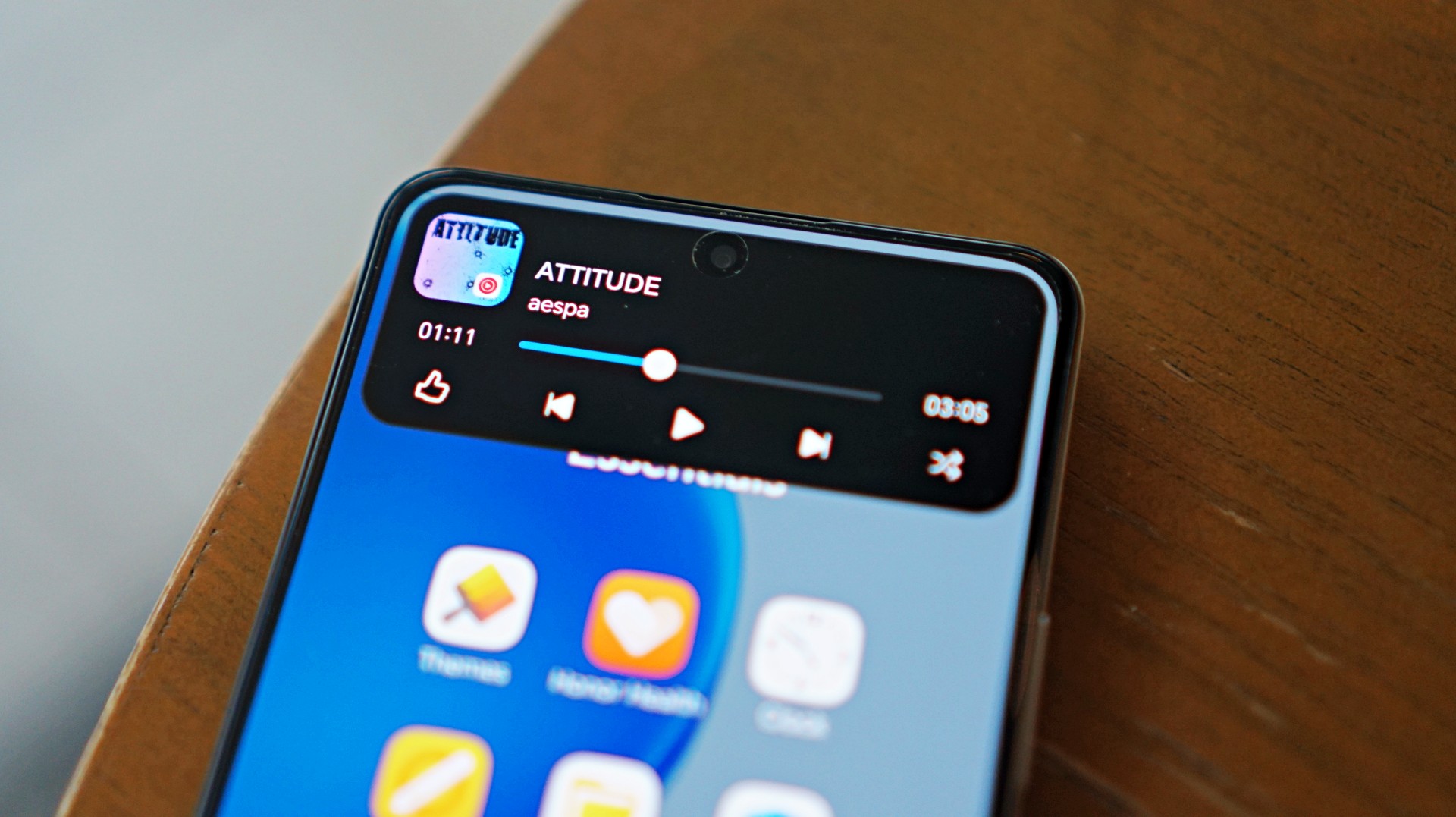
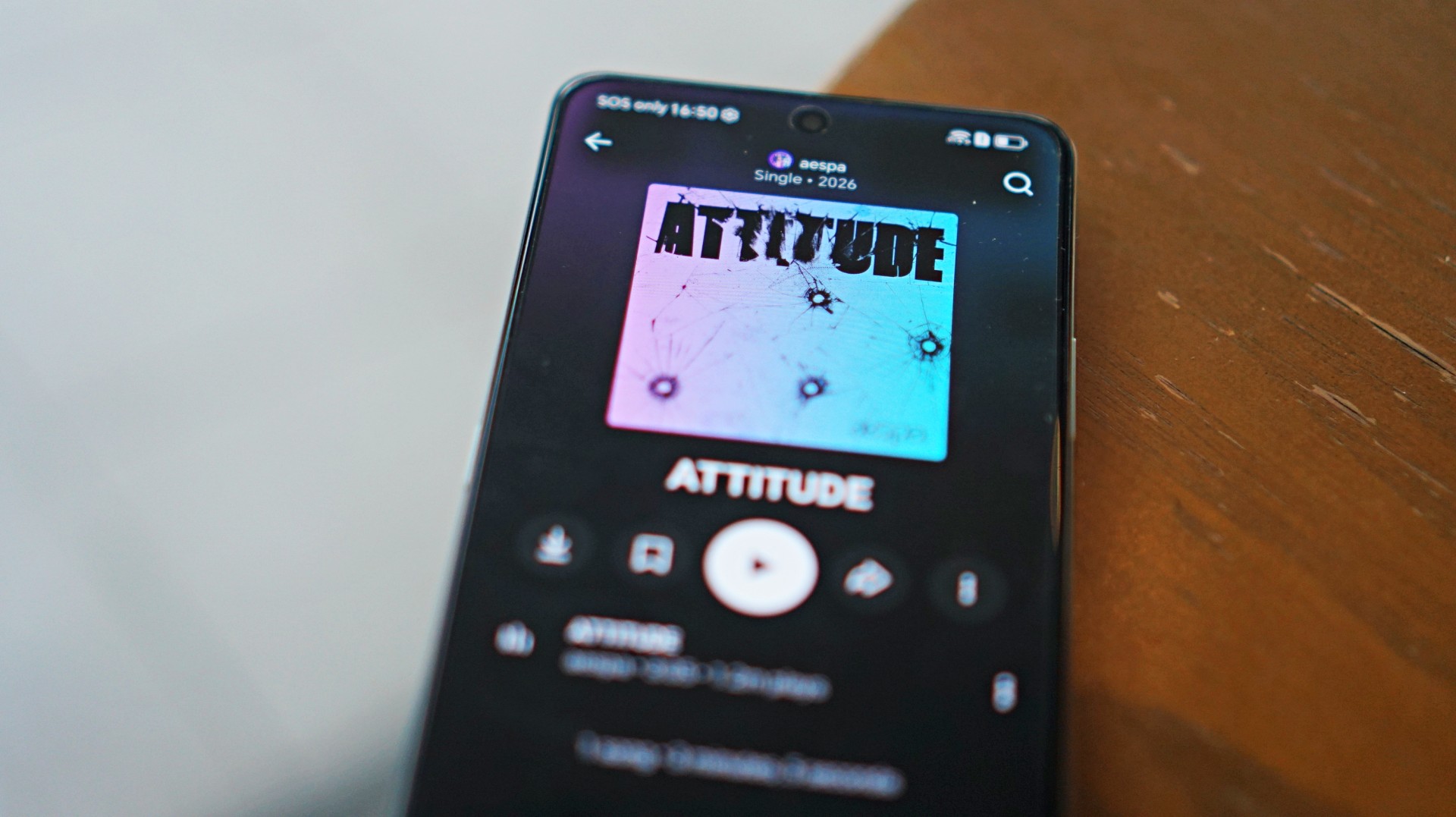 I also listened to “Attitude” by aespa on YouTube music and it just echoes the general feeling of the phone – serviceable.
That said, the overall experience remains straightforward. It delivers what you need for day-to-day media consumption without going much further.
Performance is where compromises show
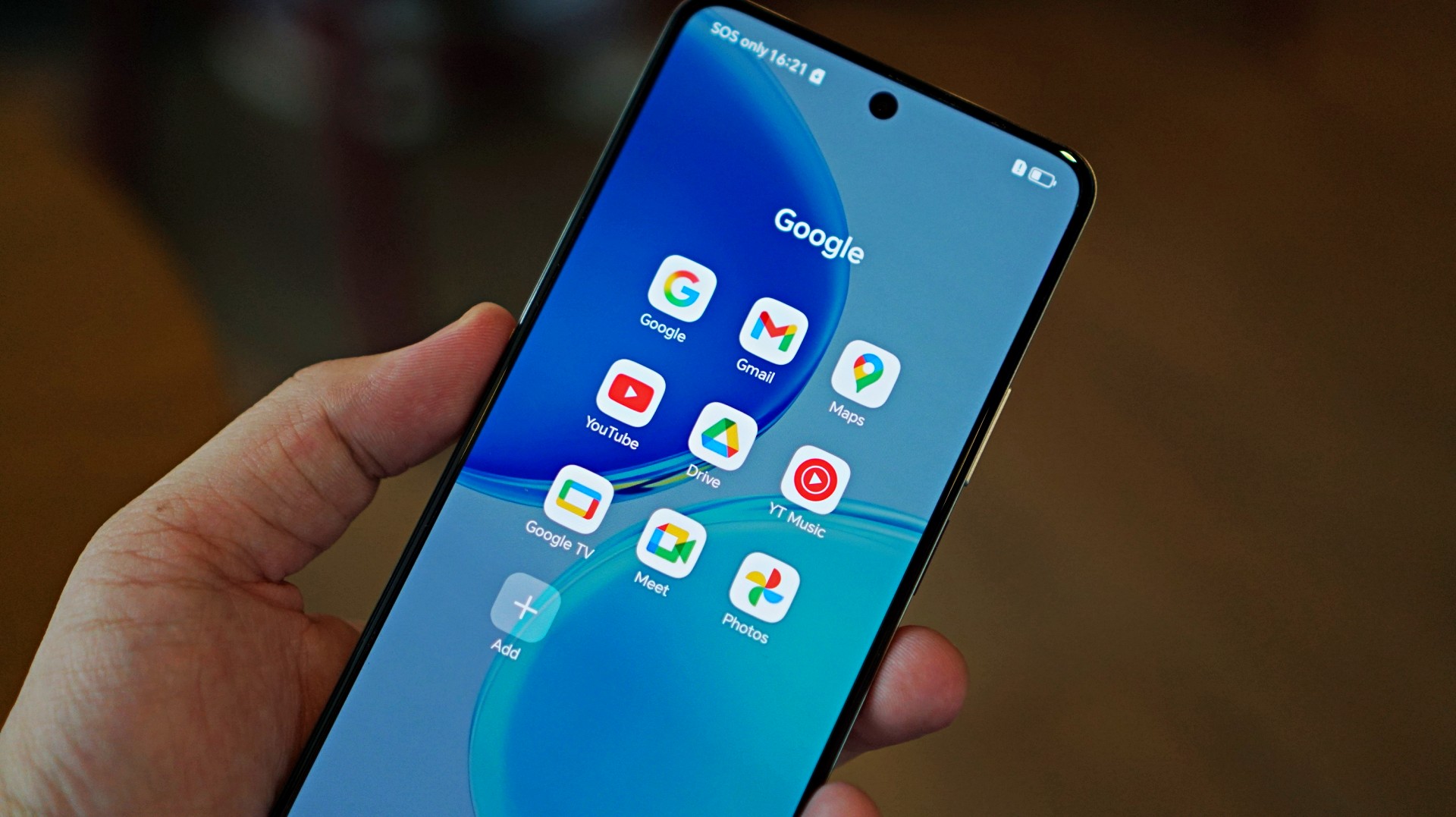
The HONOR X8d runs on the Snapdragon 6s 4G Gen 2 paired with 8GB of RAM. On paper, it’s positioned for everyday tasks, but in practice, performance leans on the modest side.
Basic interactions like switching between apps or scrolling through feeds can feel slower than expected. There’s a noticeable delay at times, even during simple tasks, which affects the overall flow of the experience.
This extends to camera usage as well, where responsiveness can occasionally feel a step behind. The device remains usable, but the pacing may feel dragging depending on what you’re used to.
Cameras are reliable in good light
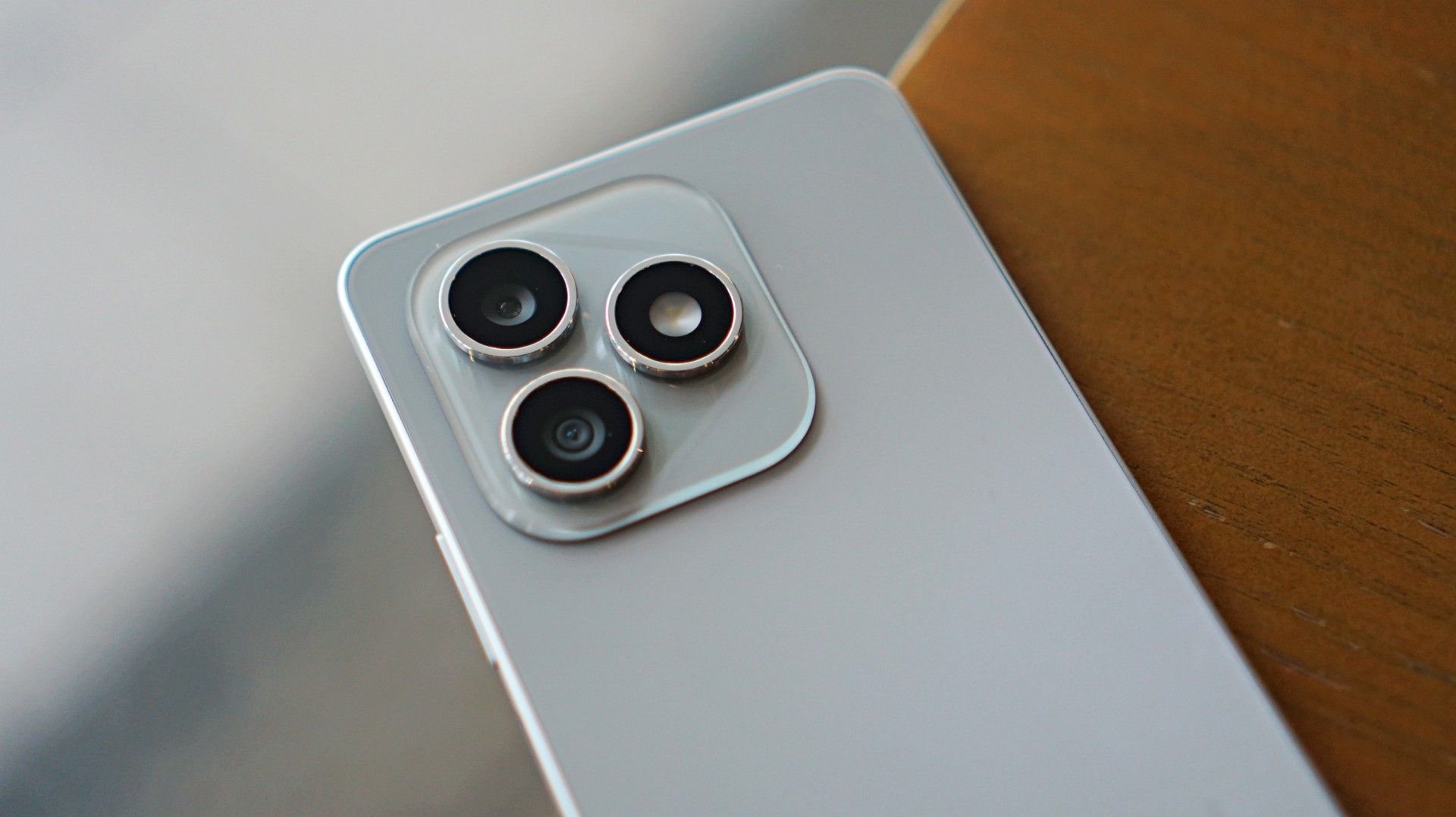
The HONOR X8d is equipped with a 108MP main camera alongside a 5MP wide camera, with a 16MP shooter up front.
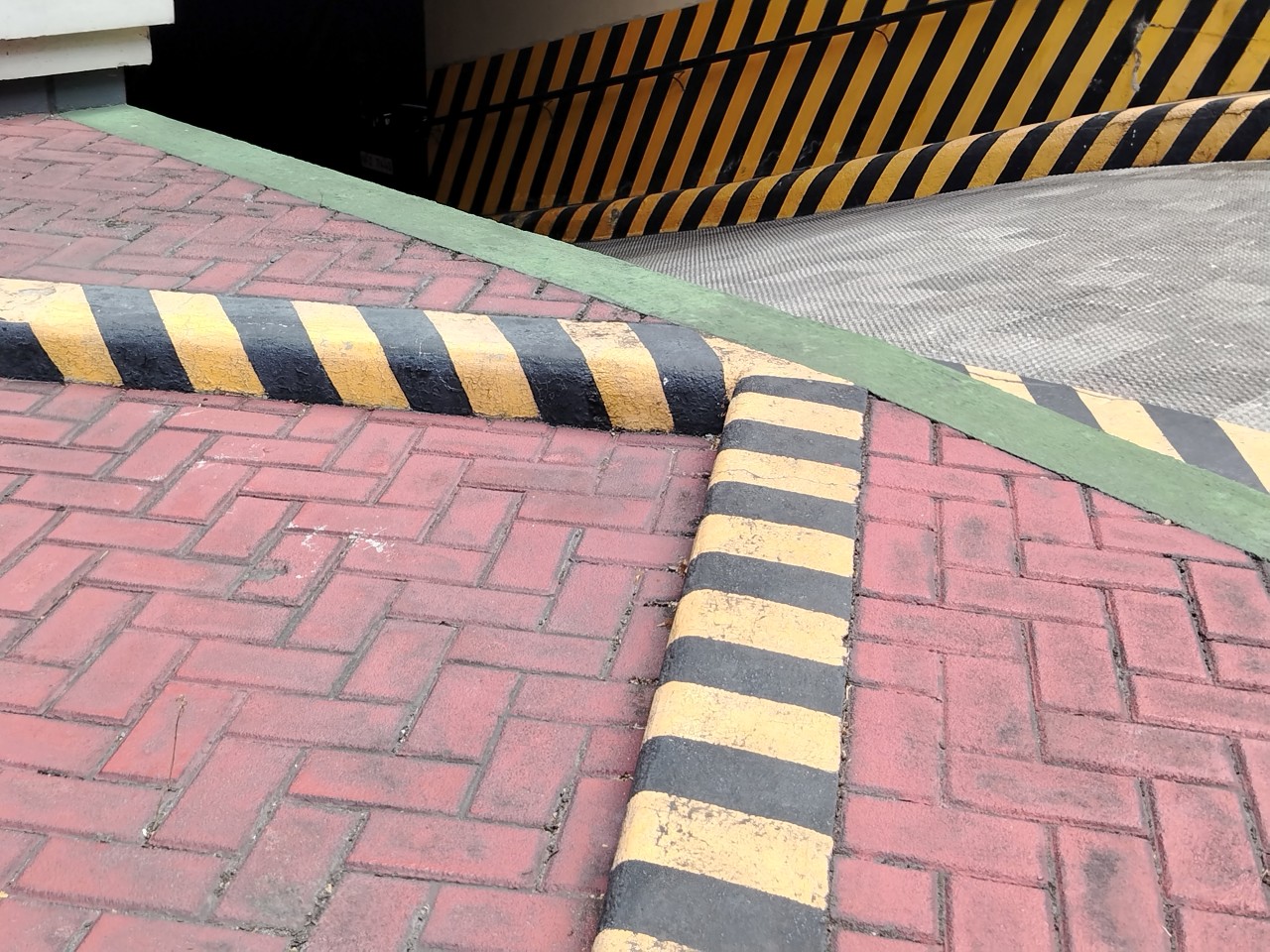
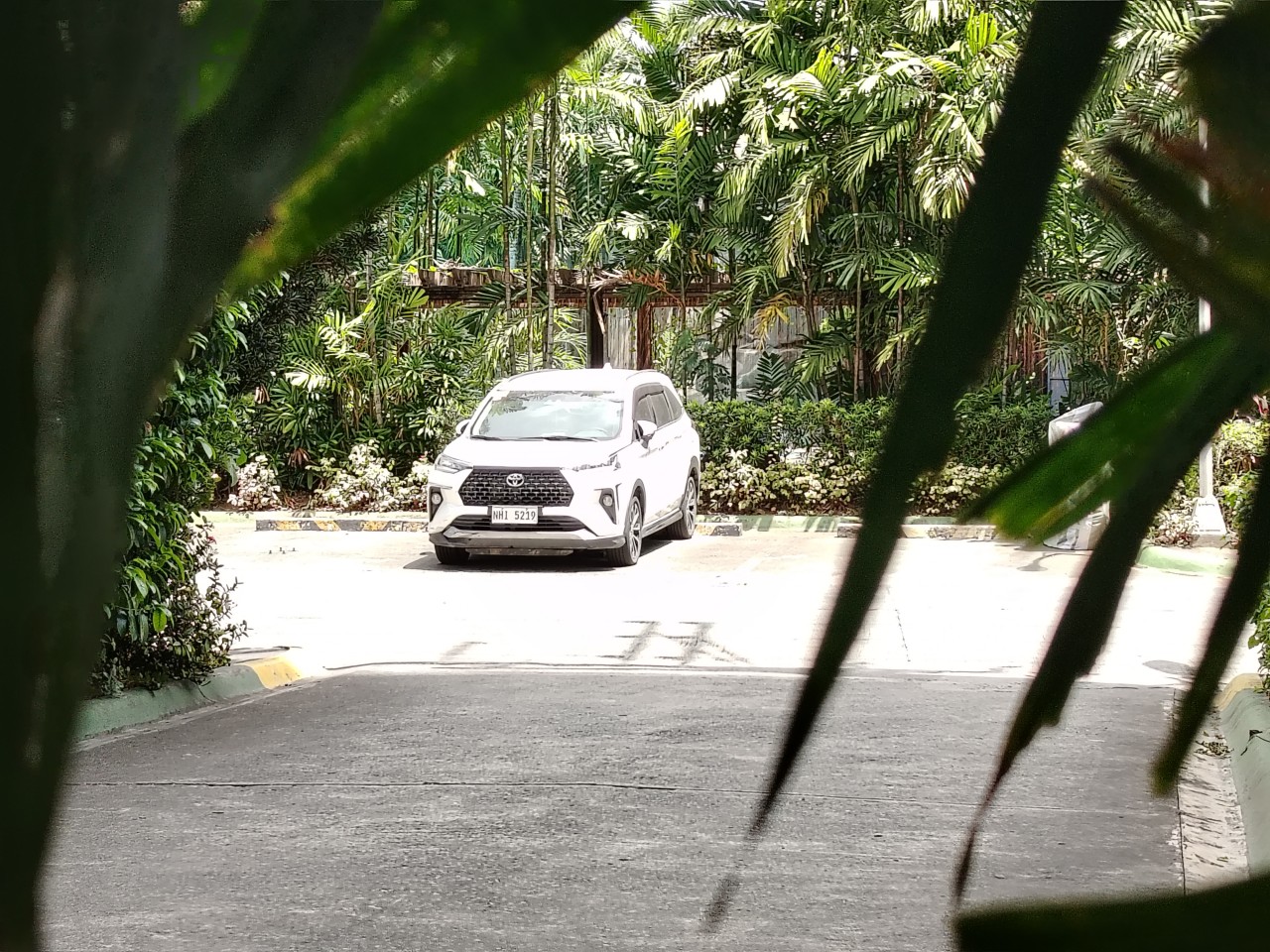
In good lighting conditions, the phone produces decent images. Shots are clear enough, with acceptable detail and color for social media sharing. The camera system also benefits from a suite of AI tools such as AI Eraser, AI Cutout, and AI Upscale, which add flexibility when editing photos.
Zoom options at 1x, 2x, and 3x remain usable, though results are best when lighting is favorable. Overall, the camera system is dependable for casual snaps.











Software and AI: familiar, feature-filled
Running on MagicOS 10 based on Android 16, the HONOR X8d comes with a feature-rich software experience. It includes tools like AI Translate, AI Writing, AI Notes, and AI Recorder, alongside features such as Magic Portal and Circle to Search.

Like many Android skins today, MagicOS follows a design approach that will feel immediately familiar. The layout, navigation, and overall structure borrow heavily from the iOS-inspired blueprint that most brands have adopted. It’s easy to get into, even for less experienced users.
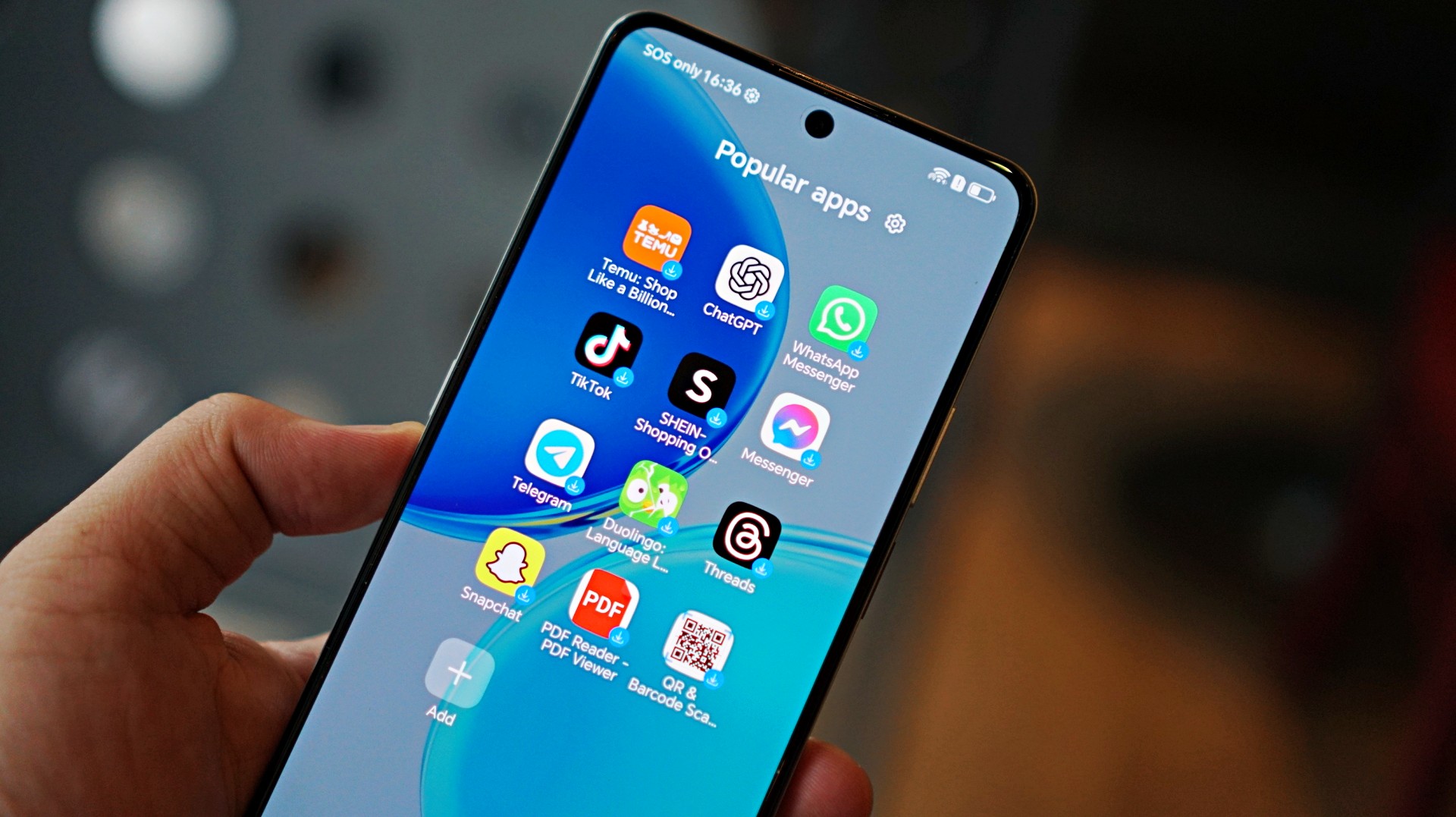
Typical of entry-level smartphones, the device also includes app recommendations out of the box. Thankfully, these aren’t overly intrusive, and many of the suggested apps are ones users would likely install anyway.
The software helps add depth to the overall package, even if the hardware limits how smooth everything feels in actual use.
Battery and everyday use is a clear strength
One of the standout features of the HONOR X8d is its 7000mAh battery. It’s designed to last through extended use, whether for streaming, browsing, or everyday communication.
Paired with 45W HONOR SuperCharge, topping up the device remains relatively quick. For users who prioritize longevity over speed, this is easily one of the more reliable aspects of the phone.
Is the HONOR X8d your GadgetMatch?
When HONOR Philippines was first teasing the phone it was positioned as something for students. But if I were a parent, I’m pretty sure I’d like my kid to have some kind of advantage and not have to deal with a device that might not be able to keep up with them.
After learning that it’s priced at PhP 15,999 my verdict just became much clearer. This is a Swipe Left.
Add a few more to that price and you can get an excellent smartphone at its early bird price.
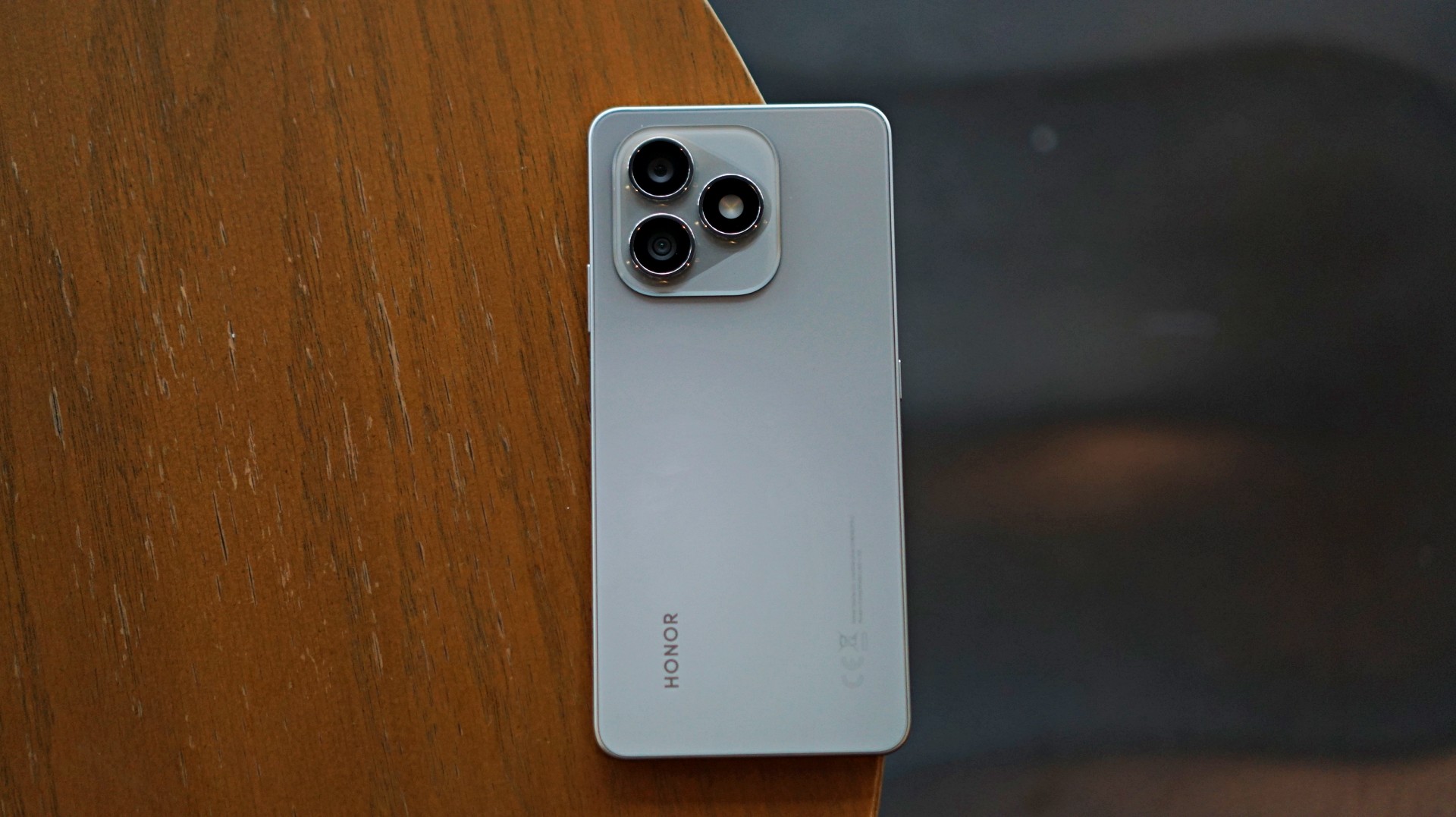
The HONOR X8d focuses on delivering the basics—design that works, a large battery, and a feature-filled software experience.
However, the overall experience depends heavily on what you prioritize. For users who simply need a phone that can get through daily tasks, the X8d does enough to hold its ground. For those who value speed and responsiveness, it may feel a step behind.
Whether it fits your needs ultimately comes down to how much you’re willing to trade performance for battery life and features.


Galaxy Buds4 Pro review: I thought I was done with in-ears
This Buds4 you


WWE 2K26 lets you live out all the fantasy matches you could want
But you have to play for hours and hours to unlock everyone.

The HONOR X8d is serviceable
Steady but slow?

Samsung Galaxy A57, A37 bring Galaxy AI closer to more users

ASUS launches Zenbook DUO and S14 in the Philippines

Logitech G debuts PRO X2 SUPERSTRIKE with faster click tech

More iPhone switchers this year than Android switchers, report says

Marvel’s Wonder Man greenlit for a rare second season


-
 Reviews1 week ago
POCO X8 Pro Max review: A new beast from the far east
-

 News1 week ago
POCO X8 Pro Series: Price, availability in the Philippines
-

 Laptops2 weeks ago
Apple MacBook Neo Review
-
 Features2 weeks ago
Galaxy AI on the Samsung Galaxy S26 Ultra
-

 Apps2 weeks ago
Google Maps is finally getting a 3D mode
-

 Entertainment2 weeks ago
The internet is thirsting over the One Piece Season 2 cast
-

 Reviews1 week ago
POCO X8 Pro Iron Man Edition review: Midrange phone in superhero armor
-
 Reviews1 week ago
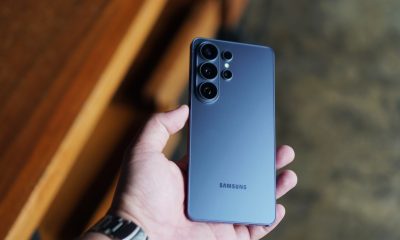
Samsung Galaxy S26 Ultra review: A phone you live with