

Editor’s Note: If you can’t preview the rest of the article, click here to see the full list.
Every smartphone user wants to take full advantage of their device. It’s one way of getting the most value for your money. This holds particularly true for an iPhone since it doesn’t come cheap.
If you are an iPhone user, there’s always something you can look forward to. iOS is being refined each year to add new features to your iPhone.
Some features are big changes you might notice quickly. However, there are also other features that you might not know until you come across them. Some of these features are really helpful, while others are just for fun. Here are the 18 things you didn’t know that your iPhone could do:
Search for photos in your Photos album by what’s in the photo
If you always get tired of sorting through photos of your favorite pet, then worry no more. The Photos app automatically detects places, faces, and objects in your pictures. Plus, it can automatically group them for you. You can know more about it here.
Add a dictionary to iOS so it appears in the spotlight search
Do you know that iOS comes with a built-in dictionary? Every iPhone has one, and it supports multiple languages too. Adding a dictionary is as simple as going to Settings > General > Dictionary, then tapping the dictionary you need. Now, you can easily find a word’s definition by swiping down from the home screen and entering the word.
Turn a whole webpage or email into a shareable PDF
You can easily create a PDF of a webpage or an email in iOS. Take a screenshot of a document, tap the thumbnail that appears, and tap “Full Page” on the right.
Use your iPhone as a tape measure
Through the power of augmented reality, you can turn your iPhone into a measuring device. To do this, simply head to the Measure app and follow any setup instructions. After setting up the app, you can now use your iPhone to measure any objects. This should come in handy when you don’t have any measuring tool lying around and you need to measure on the go. To know more about this functionality, visit this website.
Change your WiFi connections in Control Center
You don’t need to go into Settings to change your WiFi connection! You can change it on the fly through the Control Center. To access it, swipe down from the right-hand corner of your iPhone. If you have an iPhone 8 or older model, then swiping up from the screen will reveal the control center. Long-press on the panel that includes airplane mode, cellular data, WiFi and Bluetooth icon. Long-press again on the WiFi icon to show all the connections within your iPhone’s range.
Change your Bluetooth connection in Control Center
You can also change your iPhone’s Bluetooth connection right from the Control Center. After accessing the Control Center, long-press on the Bluetooth icon to show all the available devices within range. This feature is a godsent especially when you love to connect to other multiple peripherals like wireless speakers and earbuds.
Swipe left to quickly open the Camera
There’s a way to quickly access the camera without unlocking your iPhone and searching for the Camera app. Swiping left from the lock screen will take you straight to the camera.

Quickly delete a digit if you make a mistake in the Calculator app
There must be a moment when you accidentally delete a large number because you thought that hitting the “C” button would only delete a single digit. With this tip, those moments will soon be a thing of the past. By swiping to the left or to the right over the numbers, you can now delete a single digit without ever hitting that “C” button by mistake again.
Turn your keyboard into a trackpad
There’s a handy feature in the default iOS keyboard that turns it into a trackpad. To take advantage of this feature, you must long press on the space bar until the keys disappear. You can now drag your fingers on the keyboard to change the position of the cursor.
Swipe with three fingers to undo or redo
Having an undo or redo function is really handy especially on long typing sessions. To undo on an iPhone, swipe left with three fingers. Alternatively, swipe right to redo. Older iPhone models implement a shake-to-undo function, which is a great exercise for the wrist.
Double-tap the space bar to end a sentence with a period
Another handy editing feature built into the default iOS keyboard is double-tapping to insert a period. After finishing a sentence, just double-tap on the space bar to insert a period and save time.
Play games with friends in iMessage
The iMessage app comes with a plethora of features to level up the conversation. One great feature is the ability to play games with your friends right from the app itself. Simply head over to iMessage, select a conversation and tap the App Store icon located on the bottom. Find a game that you want and start playing with your friends.
Express yourself with new Memoji stickers
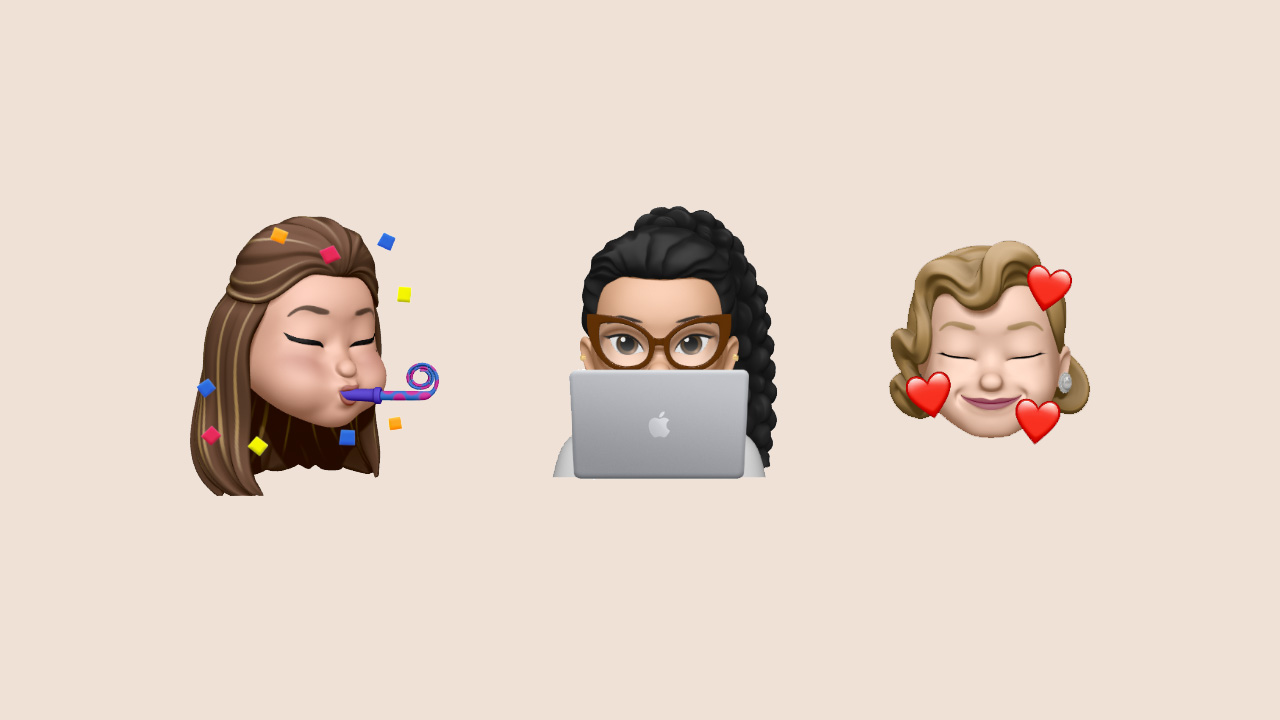
Memoji stickers are a fun way to express your virtual self in a conversation. The latest iOS version — iOS 13.4 — introduces nine new Memoji stickers. Now, you have more ways to express yourself to your friends and family. You can roll your eyes in disgust, scream in fear, or even make it appear that you’re behind a computer to remind your nagging friends that you’re busy working at home. Here is the full list of new Memoji stickers:
- Screaming in fear
- Party horn
- Rolling eyes
- Huffing with anger
- Folded hands
- Gesturing no
- Person with a tipping hand
- Smiling face with three hearts
- Person behind a computer
You can find out more about using Memoji on iPhone and iPad here.
Quickly reply to friends in iMessage
Got no time to reply to your friends? There’s a quick reply function within iMessages. To take advantage of this function, you simply have to touch and hold a conversation from the messages list, then tap on one of the automatic replies.
Filter messages from people you didn’t know
Spams are an annoying part of life, whether as an email or as a text message. Luckily, the Messages app comes with a built-in filtering system for blocking contacts who like to send spam. The filtering system can also be automatically set to block unknown numbers. Just head over to Settings > Messages and turn on “Filter Unknown Senders” to take advantage of this feature.
Never forget where your car is parked with Maps
As you grow older, you tend to be more forgetful. The last thing that you would want to forget is the location of your car in a parking spot. Thankfully, Maps is here to save the day. Your iPhone will actually remember where you last parked your car if you turn it on in the settings. Turn on Location Services for Maps, then toggle Significant Locations, and finally, turn on “Show Parked Locations”. The next time you connect your iPhone to your car’s dashboard, Maps will remember your car’s location after you disconnect.
Video call for up to 32 people with FaceTime
If you really are cautious about Zoom for its privacy and security loophole, then one good alternative is Apple’s own FaceTime. After all, the company promises built-in privacy and security features to the app. The only downside though is that your friends must have an Apple device to take advantage of FaceTime. However, if your friends and family use an Apple device, you can create a group FaceTime call by simply tapping the name of the contact or a group and hitting the call button.
Share folder with friends using iCloud Drive Folder Sharing
Up until iOS 13.4, iPhone users have no way of directly sharing folders through iCloud. However, since the recent update, you can now quickly share files and folders to your friends through iCloud. To do this, go to the Files app and select any folder that you want to share. From the share sheet, you can add people and specify how you want to send the invitation link for sharing. You can read more about the feature here.
Now that you know these, try them out on your iPhone and take advantage of everything iOS has to offer. A new iOS version is also expected this June, along with a new low-cost iPhone. So, this is your time to master these things before delving into a new iOS version for new features.








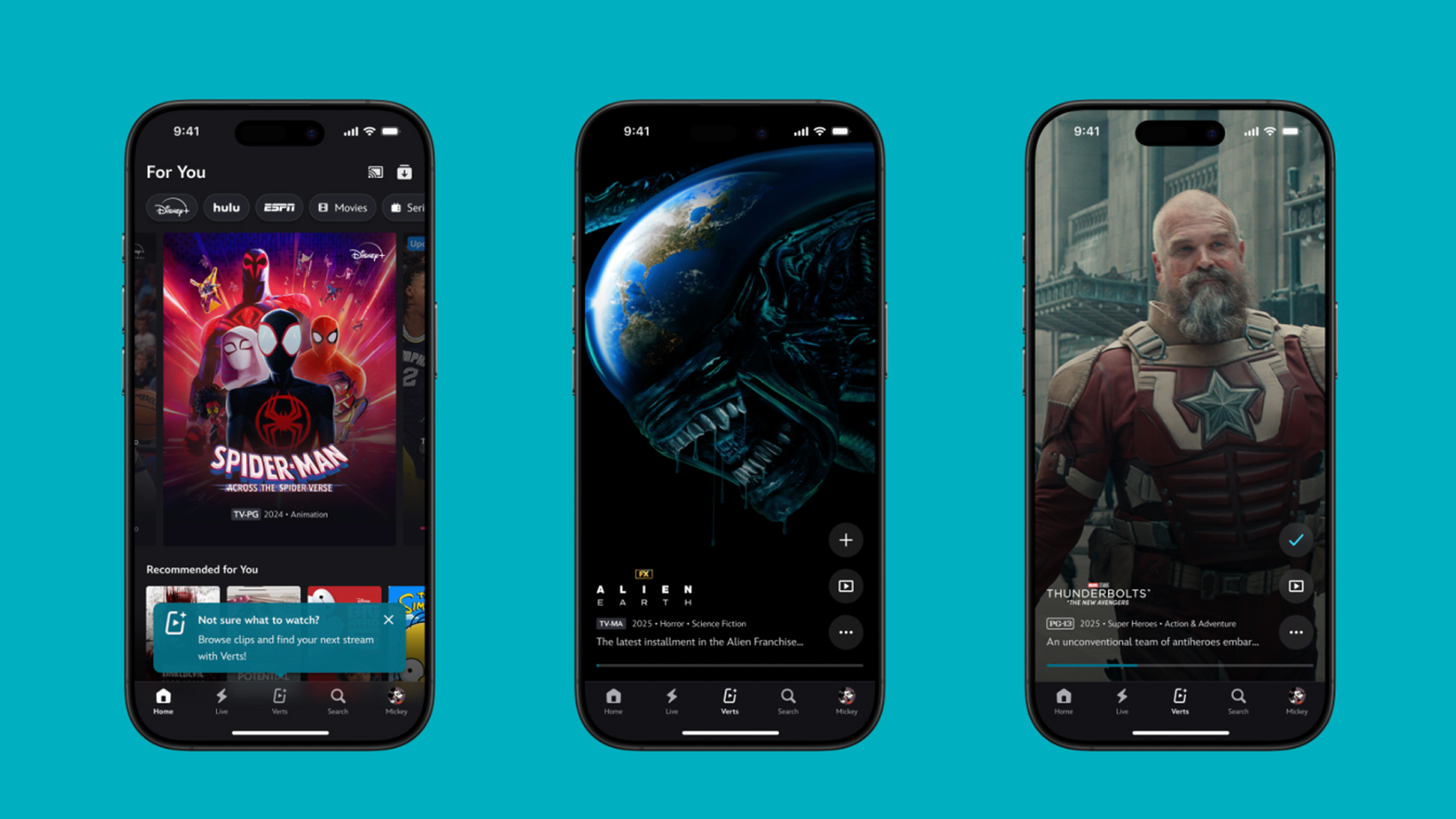
TikTok has changed how we consume media. Everything is now vertical. Even the most established streaming services, often a bastion for traditionally horizontal content, is adopting the different format. Now, Disney+ is getting a vertical feed called Verts.
Like its contemporaries, Verts presents a continuous feed of content but tailored to show the plethora of titles from the Disney+ library. This might include the first scenes of shows or notable highlights. The hope, of course, is to direct users to the longform content.
Directly from the Verts feed, users can easily add the respective title to their watchlist or go straight to the title’s page. In turn, the feed is accessible from the homepage since it has its own tab.
According to Disney, early experiments with the feature have driven engagement to available content. Right now, the feed is mostly for clipping enticing content from shows. However, the platform will experiment further with the format for new ways to tell stories.
Though Verts surely stands for “verticals” in this case, “adverts” might fit better as its full government name. Still, it might be a useful tool if you’re figuring out what to watch for the night.
Currently, Verts is available for Disney+ subscribers in the United States. Disney also has plans to expand the feature to ESPN for sports-related content.
SEE ALSO: Live NBA action on Disney Plus now available in the Philippines

Some of today’s navigation apps are living in the future. Instead of a two-dimensional map, these apps render the user’s surroundings in 3D. It’s a nifty upgrade that helps drivers more accurately visualize directions on the fly. Finally, Google Maps is getting a much-needed upgrade and will take navigation to the third dimension.
In a new update rolling out today, the new Immersive Navigation feature will bring your surroundings to life. The 3D view creates a render of the surrounding buildings, overpasses, and terrain around the car. It takes the guesswork out of navigation by showing precisely where to turn and what landmarks to look out for.
In the same vein, you can now use Street View to preview your destination before you arrive. Google Maps will also highlight your destination’s entrance, side of the street, and nearby parking.
Outside of how the map is visualized, Google Maps is also infusing its service with Gemini. The new Ask Maps feature will let you engage with the app in a conversational manner. For example, if you’re in the middle of a long drive, you can now ask Maps where the best place is to stop over and have a coffee break. Ask Maps will provide directions, a potential itinerary, and even helpful links to book a reservation ahead of time.
Now, availability for both of these features is still a bit limited. Immersive View is rolling out today to compatible devices and vehicles in the United States. Further, availability will expand over the coming months.
Meanwhile, Ask Maps is available now in the United States and India for Android and iOS. A desktop version is coming soon.
SEE ALSO: Google Maps is finally getting a power saving mode
Apps
Apple Music, TikTok launch Play Full Song, a new music discovery experience
Rolling out worldwide exclusively through Apple Music

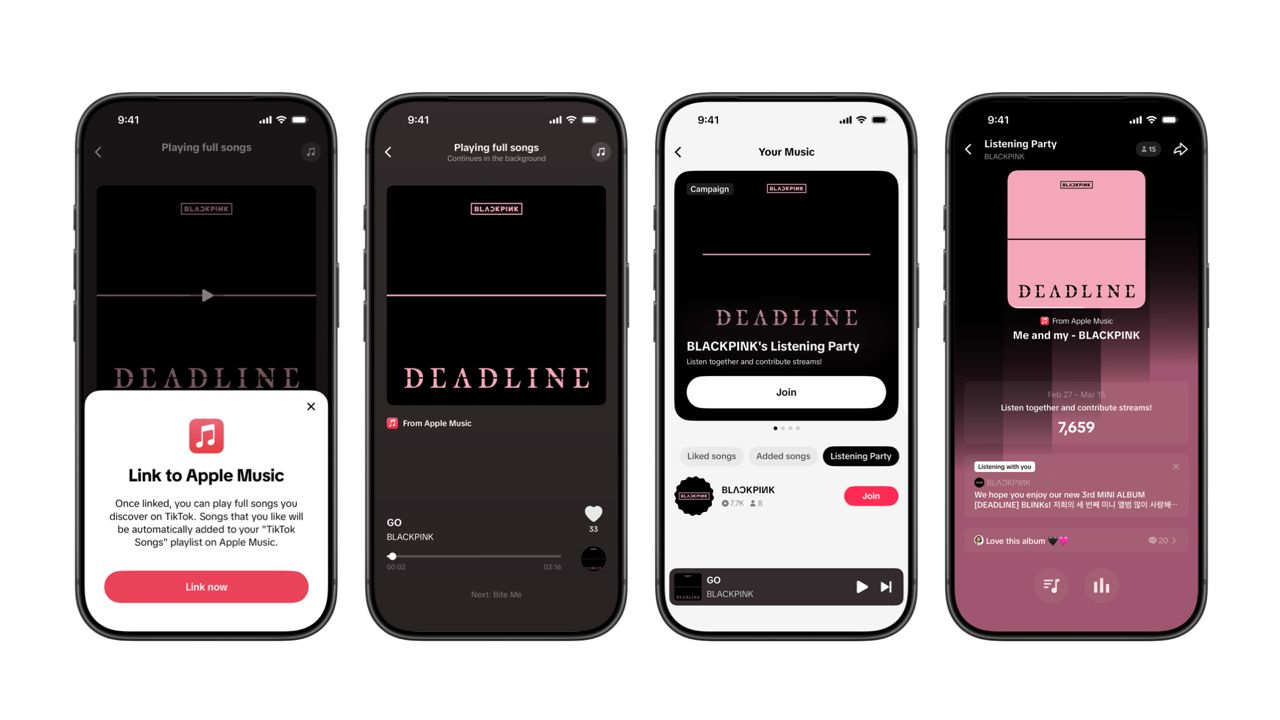
Ever came across a viral 15 or 30-second music snippet on TikTok that instantly became your jam on repeat?
For years, TikTok has been a regular source of songs that have become part of our playlists. And together with Apple Music, listening to the music you discover has just gotten even easier.
That’s through Play Full Song, a new music discovery experience, which launches exclusively though Apple Music.
With the new feature, Apple Music subscribers can now enjoy full-length tracks that they discover on TikTok. That’s without ever leaving that popular streaming app.
Fans who discover a song that they love on their For You or Sound Detail page can simply tap the Play Full Song button to open up an Apple Music player and enjoy the song in its entirety.
From there, subscribers can continue listening to a personalized stream of recommended songs. That means no more need to switch apps and search separately.
The new Play Full Song experience helps music fans move seamlessly from the moment of discovery to deeper listening. It’s also designed to be instant and all within the same environment.
Moreover, users can also save their favorite songs to Your Music and add them directly to their Apple Music playlists.
Built using Apple’s MusicKit, full-length song playback takes place on Apple Music. This way, streams are paid within the Apple Music service, supporting artists and rights holders while giving fans a smooth, uninterrupted experience.
Listening Party also launched
The feature builds on the success of TikTok’s Add to Music App. This was previously launched to help artists and fans convert discovery on TikTok to a playlist save in Apple Music and other streaming services.
To cap the announcement, TikTok and Apple Music are also introducing Listening Party. This new feature is designed to bring artists and fans together around music.
It creates a shared environment where fans can listen to songs from their favorite artists in real time, interact with each her, and engage directly with the artist during the session.



Disney+ launches a TikTok-coded vertical feed called Verts

Google Maps is finally getting a 3D mode

KPop Demon Hunters is officially getting a sequel

Bringing Care-a-Lot to my daily carry

Galaxy AI on the Samsung Galaxy S26 Ultra


-

 Reviews2 weeks ago
TECNO CAMON 50 Ultra review: End of an era?
-

 MWC 20262 weeks ago
Infinix NOTE 60 Ultra makes a motorsport-inspired debut
-

 MWC 20262 weeks ago
TECNO launches the all-new CAMON 50 series
-

 MWC 20262 weeks ago
TECNO showcases cool concepts at MWC 2026
-

 MWC 20262 weeks ago
TECNO unleashes Tonino Lamborghini collection
-

 Computers2 weeks ago
AMD announces Ryzen AI 400, AI 400 PRO series at MWC 2026
-

 MWC 20262 weeks ago
TECNO debuts latest devices, HiOS 16, upgraded Ella at MWC 2026
-

 Automotive2 weeks ago
Xiaomi Vision Gran Turismo makes global debut at MWC 2026