
Features
5 things you need to know about the new MacBook Pro

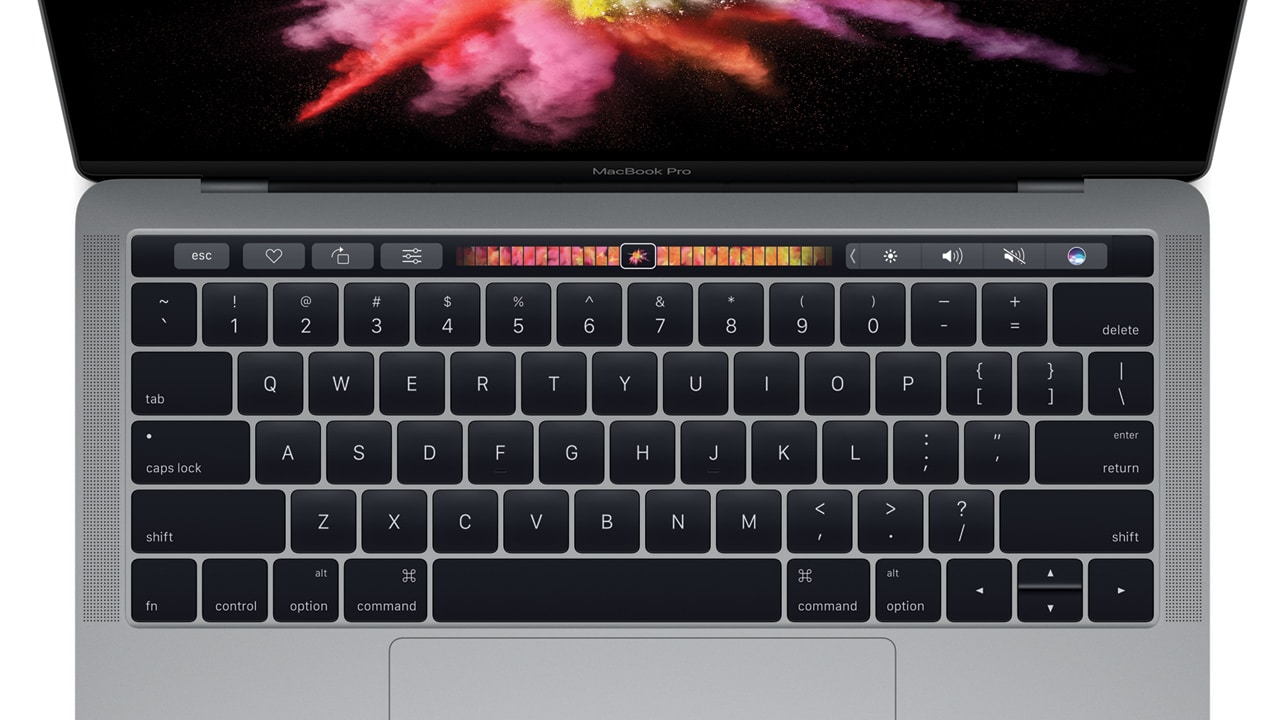
Apple’s got a new MacBook Pro.
That in and of itself isn’t really big news. Almost every year their iconic notebook computer gets a speed boost, minor cosmetic changes, and a nip and tuck here and there.
But this year, Apple is making BIG, newsworthy changes.
There’s plenty to rave about, but before you scream, “take my money”, here’s what’s new, what’s changed, and how these changes will affect you.
The Apple logo glows no more
From now till I upgrade, I’m going to use my now obsolete MacBook Pro facing a mirror; that way I can occasionally glance at the glowing Apple on the back of my machine. I recognize that all these years, I’ve hardly ever looked at it, and it has no effect whatsoever on productivity, but I’m pretty sure I won’t be the only one who’ll be sad to see the glowing Apple go.

The new MacBook Pros that ship in two weeks will have a shiny black Apple logo on their lids instead of the iconic illuminated one.
There are more significant design changes too. These new MacBook Pros are not just thinner and lighter, but smaller as well. The screen sizes stay the same – 13 and 15 inches – but take up 20% less space.
They’re still formed from a single slab of aluminum, but now come in two colors: the original silver and space gray.

Despite the reduction in size, these new portable Macs are still as powerful as ever, with the latest Intel processors and graphics improvements. Apple says the new MacBook Pros have a Retina display that is 67% brighter, speakers that are 52% louder, and a trackpad that is twice the size of the original.
You’ll either love or hate the new keyboard
To get everything thinner, sacrifices must be made. One way Apple saves space is with a new keyboard, similar to the one found on the impossibly thin MacBook. This second-generation “butterfly switch” keyboard isn’t going to be as clickety as that on the older MacBook Pro – which arguably has the best keyboard experience on a laptop in the world.
 Expect this new keyboard to be a bit polarizing. You’ll either love it or hate it. But like all things Apple, we’ll get used to it, maybe even love it.
There’s a new game-changing touch bar
Nope, the Mac is still not getting a touchscreen. Instead, depending on how you see it, Apple gives you the next best thing, or something even better.
The Touch Bar is a multi-touch OLED glass strip on top of the new MacBook Pro’s keyboard. It works just like any touchscreen; you can tap and slide your fingers on the color display just as you would on your smartphone.
The Touch Bar works with open apps, providing you with a set of tools and new ways to do things. For example: If you’re chatting with friends, you can use the Touch Bar to find the perfect emoji. If you’re editing a photo, you can use the Touch Bar to preview and swipe through filters. And if you’re watching a video, the playback controls on the Touch Bar let you play, pause, and scrub through the video.

You will only be able to make the most out of the Touch Bar when your favorite apps support the new feature. But apps like Final Cut Pro, Photoshop, and Microsoft Office have already been updated to work with it.
To make room for it, Apple is taking away the top-most row of your keyboard where the function keys, escape, and power buttons used to be. Those buttons are still available as touch buttons.

Just like on the iPhone, you can now log in to your MacBook Pro using your fingerprint. Located on the right-most edge of the Touch Bar, Touch ID on the new Mac laptops lets you power on and sign into your device with a quick tap. You can also use your fingerprint to authenticate website logins or online payments.
The headphone jack survived the cut, but other ports weren’t as lucky
No other tech company is a fan of killing off ports more than Apple.
Not too long ago, they decided to take away the headphone jack from iPhones, and we were almost certain the MacBook Pro would lose it too.
Thankfully, the new MacBook Pros got to keep their headphone jack.

There are four Thunderbolt 3 ports and a headphone jack
Sadly though, everything else has been removed. There are no standard-sized USB ports, no SD card reader, and not even the MagSafe adapter that saves your laptop from falls when someone trips on your power brick.
Instead, users get four Thunderbolt 3 ports. They’re USB Type-C-shaped and support USB, HDMI, VGA, and even power, meaning you can charge using any of the four ports.
Some day in the not-too-distant future, you won’t even miss any of these ports, but in the interim, the transition will be painful and expensive. For now, you’ll need new flash drives, new cables, and new adapters to get your other accessories to work with your new Mac.
The new features cost more $$$ than usual
Normally when Apple refreshes its MacBook Pro line, Apple retains the previous year’s pricing – if not dropping them altogether. This year’s 13-inch and 15-inch base models are $500 and $400 more expensive compared to previous models, respectively.
While there are many possible build combinations. Apple is selling 3 main models – a 13-inch MacBook Pro without the new Touch Bar which starts at $1499; a 13-inch MacBook Pro with the Touch Bar starting at $1799; and a 15-inch MacBook Pro with the Touch Bar starting at $2399.
Apart from all the new improvements, the new base models now have twice the amount of storage space (256GB solid state drives up from 128GB from a year ago), so that could also be a reason behind the price increase.

[irp posts=”7194″ name=”Happy birthday: Apple’s iPod turns 15″]







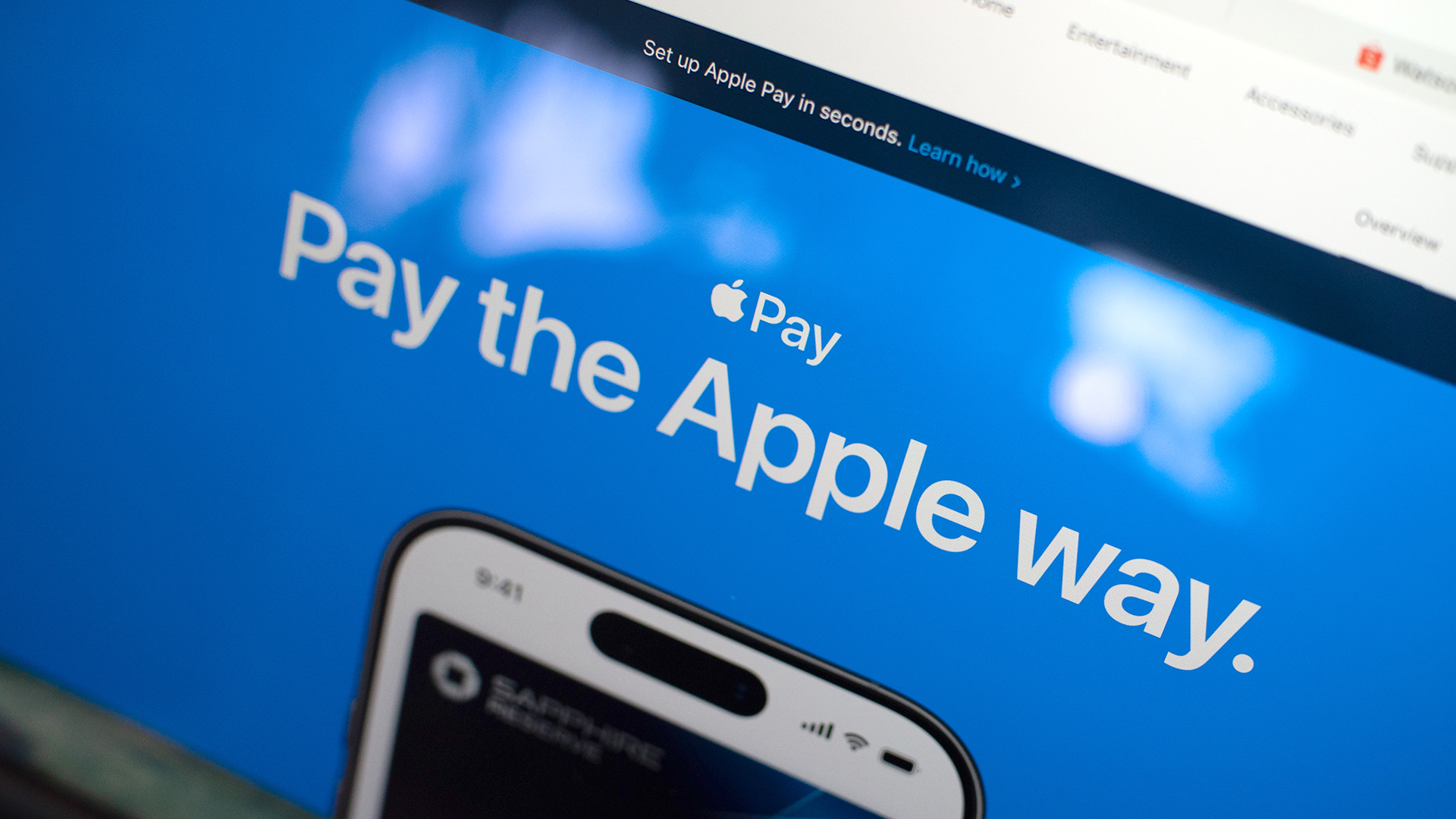
Apple Pay is officially in the Philippines!
Pushing the country forward into a cashless and cardless future, Apple has now brought its contactless payment system to the Philippines. As with other countries, Apply Pay will work seamlessly and easily even for those who have problems with technology.
Now, despite how easy it is, sometimes we need to be pointed in the right direction. Here’s how you can set up Apple Pay on your iPhone:
Everything starts with the Wallet app. First, open your Wallet app. Tap the “+” button on the top and select “Debit or Credit Card.”
Normally, this is where you can input your card details (which you can still do, by the way), but the default method now is to just tap your card on the back of your iPhone. Your phone does the rest. You might need to confirm with your bank, but it’s as easy as a single tap.
Pick which cards to use. Once you have your cards online, you might need to change which one is the default card. Again, it’s easy. Just drag your preferred card to the front.
Afterwards, you can tap to pay in supported stores by priming the Wallet app for use. Tapping to pay is also available for Apple Watch. Meanwhile, online transactions can also work on MacBook.
Secure, all the time. If you’re worried about your security especially with online transactions, Apple keeps your information only between you and the seller. They don’t store your data.
Also, it’s not easy to make a transaction without your consent. You need Face ID, Touch ID, or your password. If you lose your phone, you can easily shut your phone down with the Find My app to prevent malicious parties from making transactions.

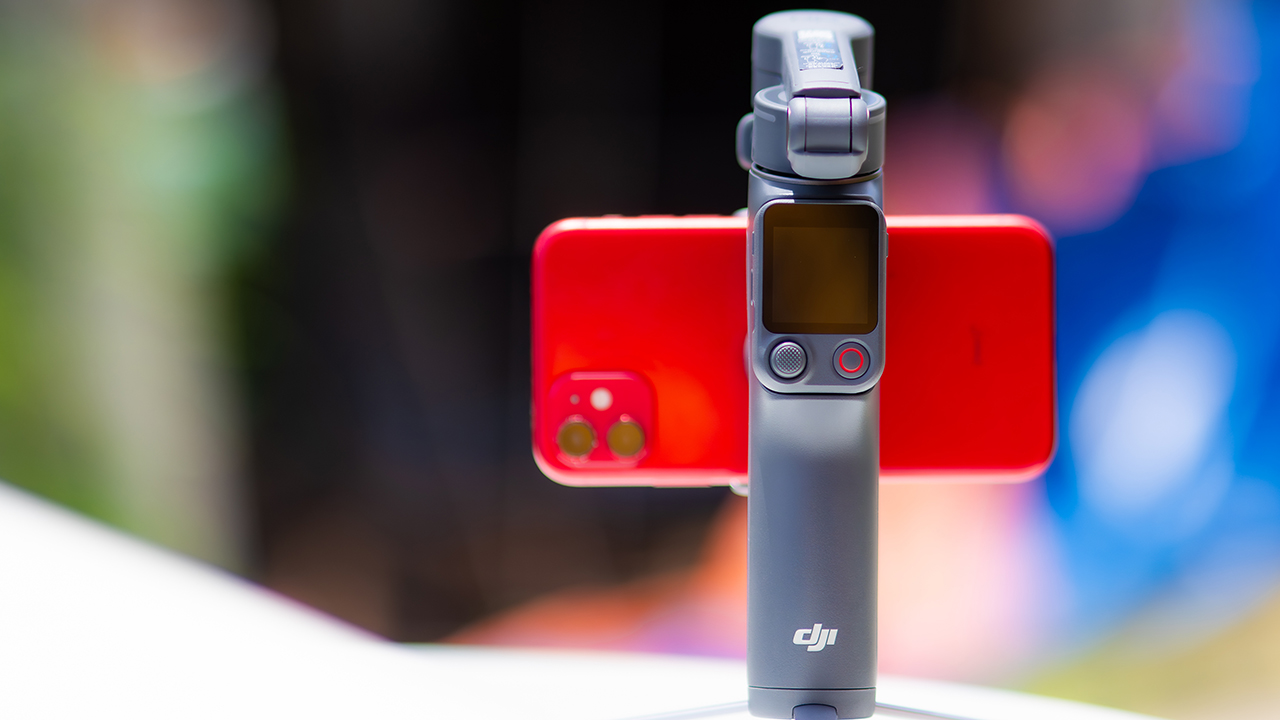
DJI’s smartphone gimbals have always chased one goal: delivering cinema-smooth footage without forcing you to carry a heavy rig.
The Osmo Mobile 8P (OM 8P) makes its priorities clear right out of the box. This is not a simple refresh. DJI rebuilt how you control the gimbal, and that decision shapes the entire shooting experience.
Freedom behind the lens
The biggest change is the FrameTap remote, and it’s the kind of upgrade that fixes a problem you didn’t realize was slowing you down until it’s gone.
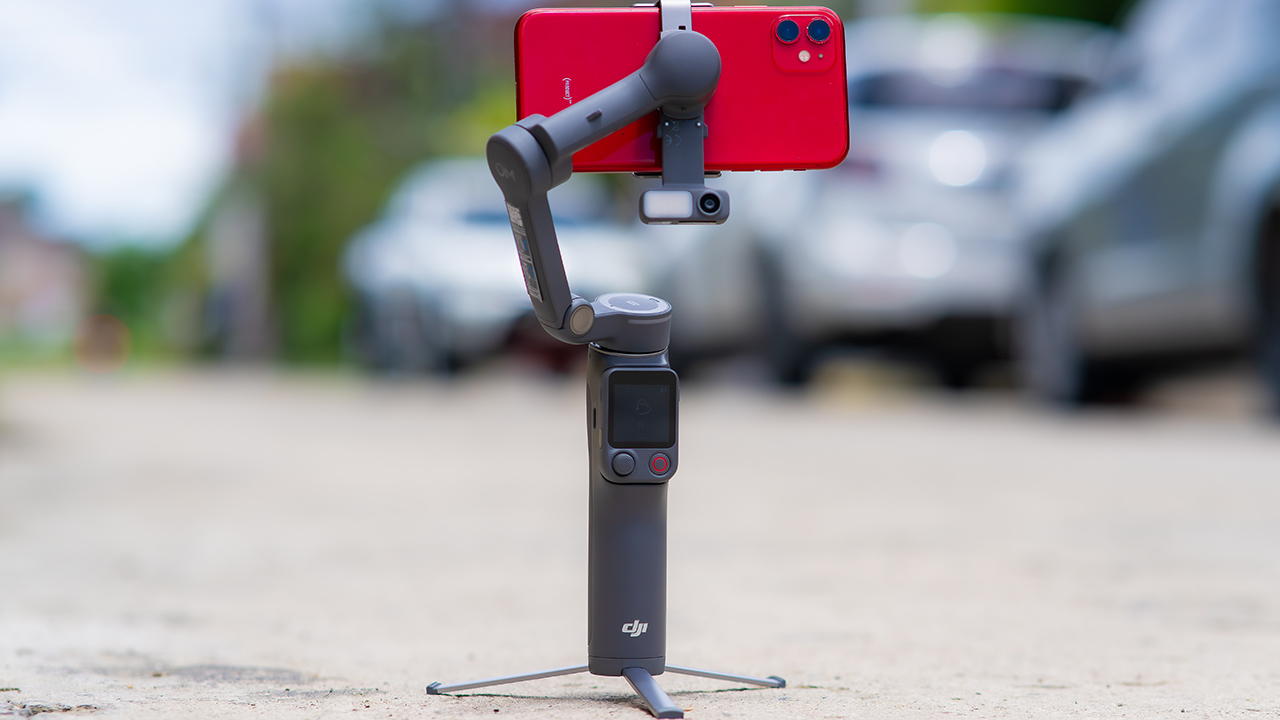
On the standard OM 8, adjusting your framing meant reaching for your phone every time, which broke the flow of shooting and pulled you out of the moment.
FrameTap puts that control back in your hand. You can reframe shots and manage the gimbal without touching your phone at all, and for anyone shooting solo, that alone changes how usable the whole setup feels. Tracking has taken a real step forward too.
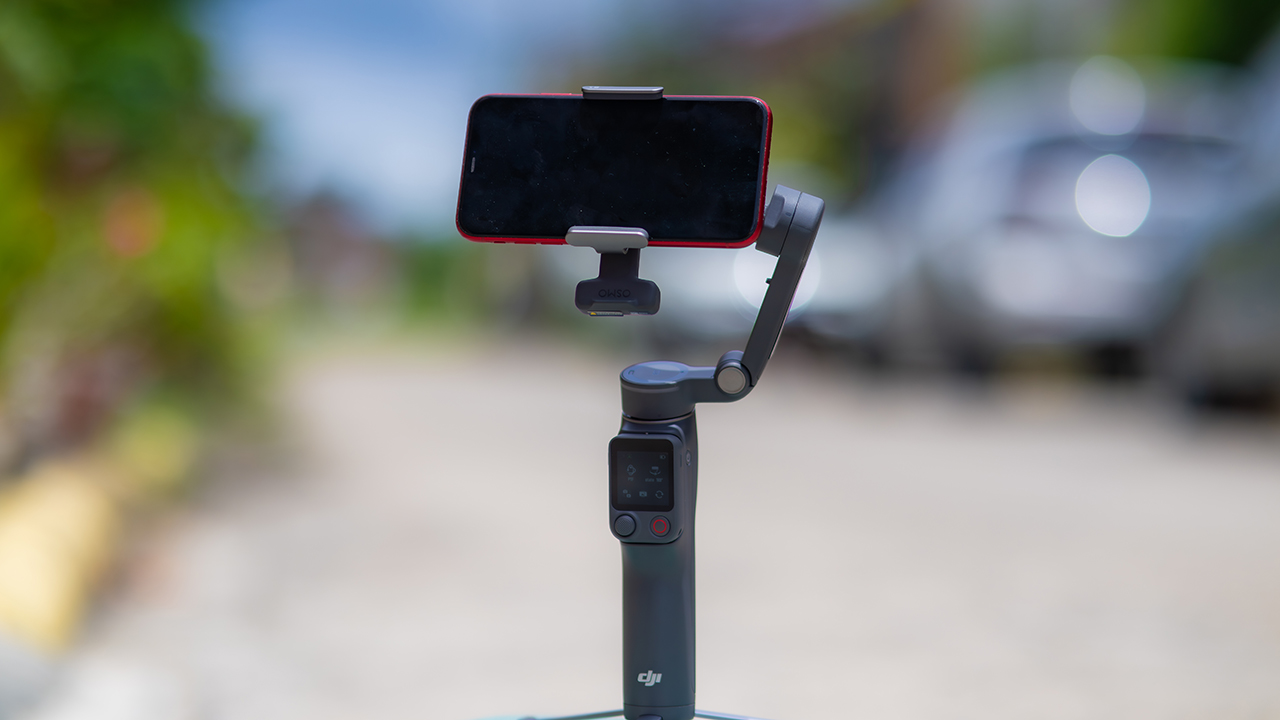
ActiveTrack 8.0, paired with Module 2, held onto its subject even after they stepped out of frame for a moment, then picked them back up without much fuss.
It also lets you sit off-center in the shot instead of forcing you into the middle every time, which gives you more room to compose something that doesn’t look like every other gimbal video.
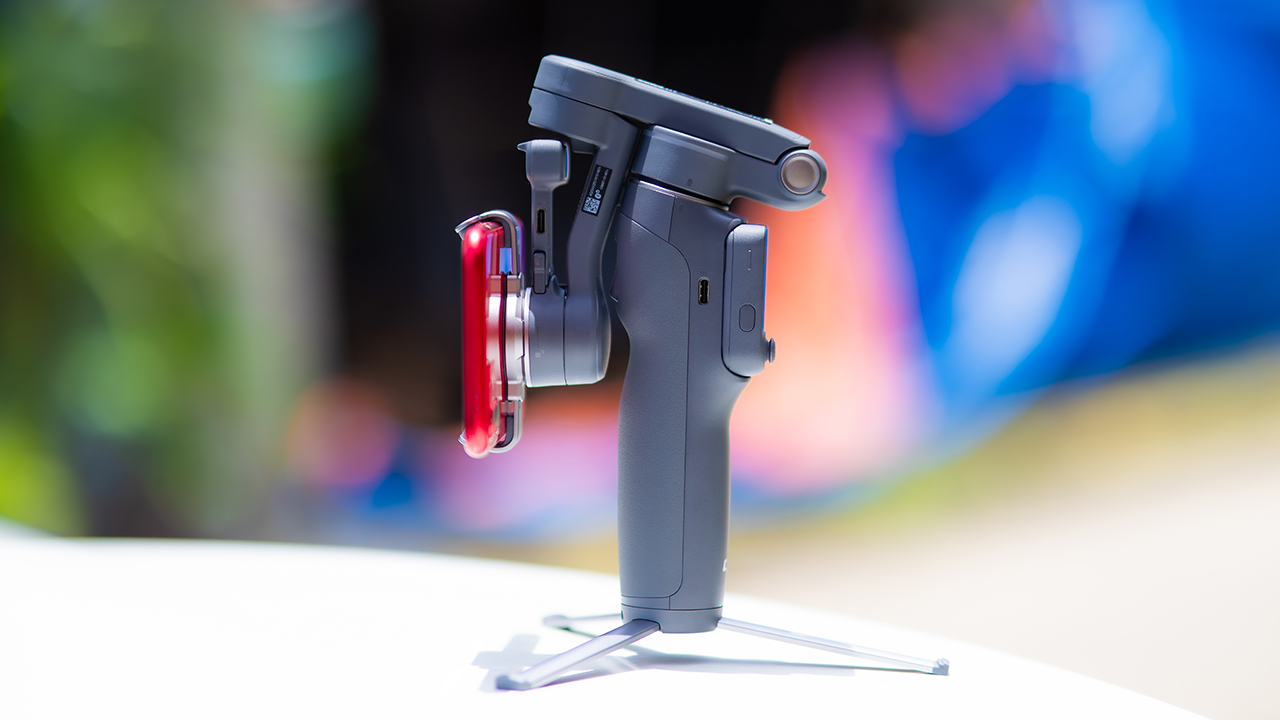
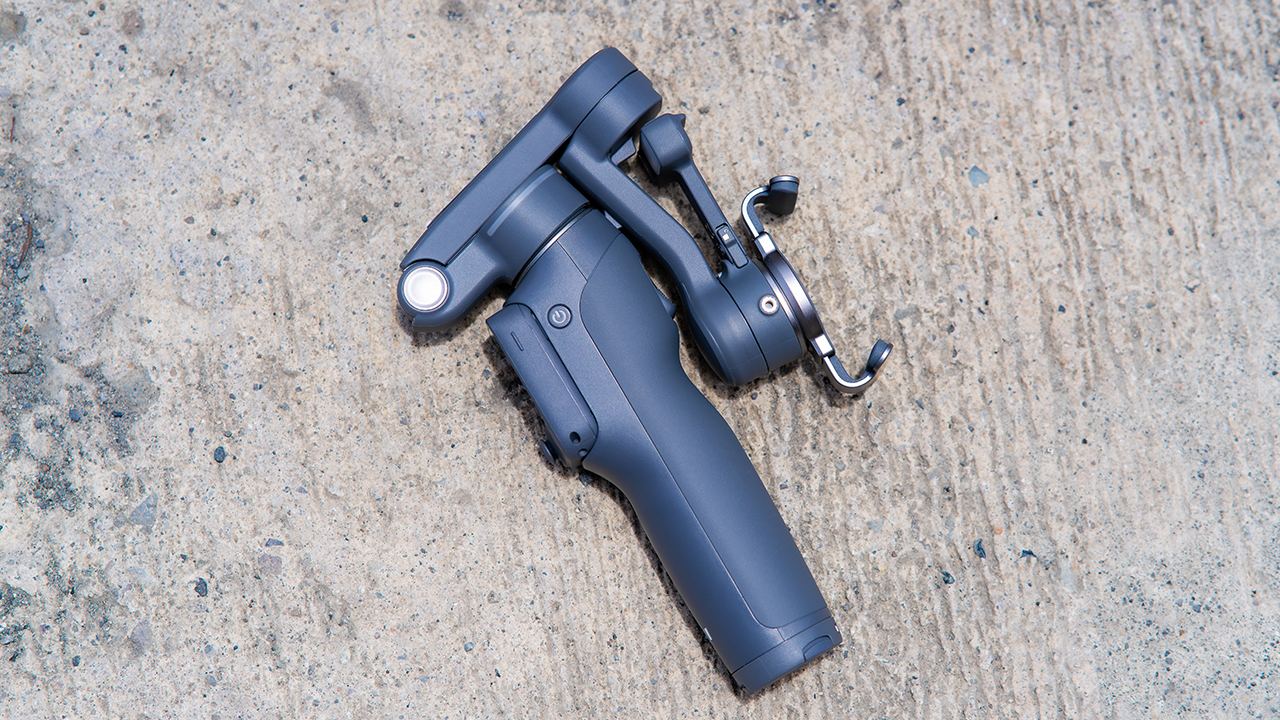
None of that would matter much if the gimbal itself wasn’t solid, and it still is. The OM 8P holds onto the same foldable design, magnetic phone clamp, and built-in tripod that made the OM 8 easy to live with.
And it remains one of the better compact options for stabilization, tracking, and portability in one package.
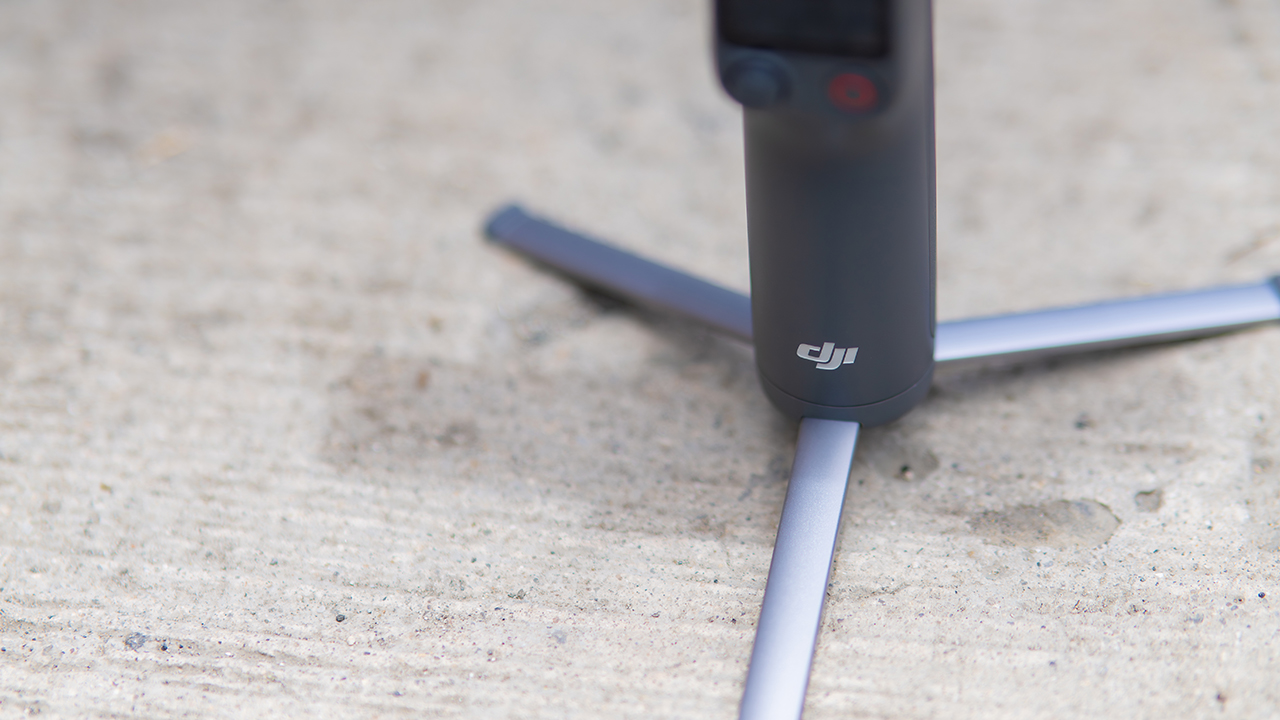
The tripod legs are a touch wider this time, and that extra width does make a noticeable difference on uneven ground.
The trade-offs in touch
The trade-off for all that new remote functionality is a control scheme that takes more getting used to. More of the gimbal’s functions now live on the FrameTap touchscreen, the joystick is smaller, and switching between shooting modes takes a few extra taps compared to the OM 8. It’s not a dealbreaker, but it’s a learning curve you’ll need to budget time for.
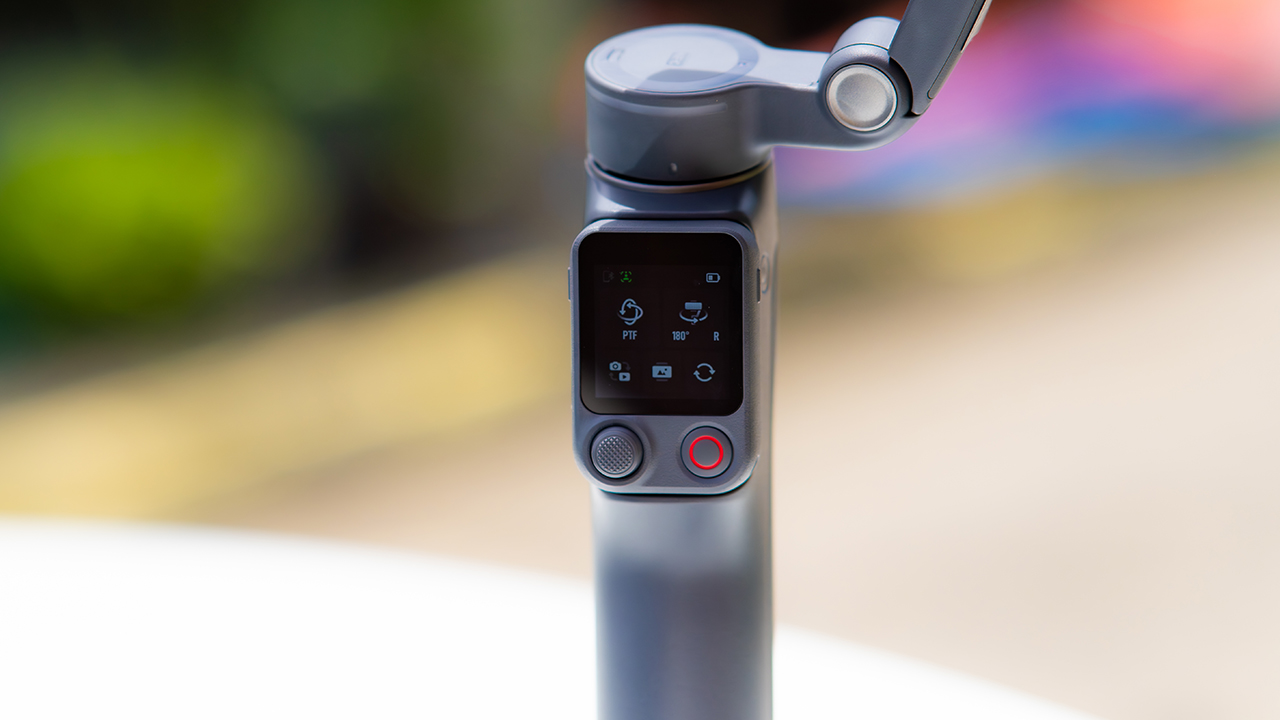
DJI also removed the zoom and focus wheel, so if you leaned on that dial for quick adjustments, you’ll feel its absence here. Module 2 no longer lets you plug a DJI wireless mic in directly either.
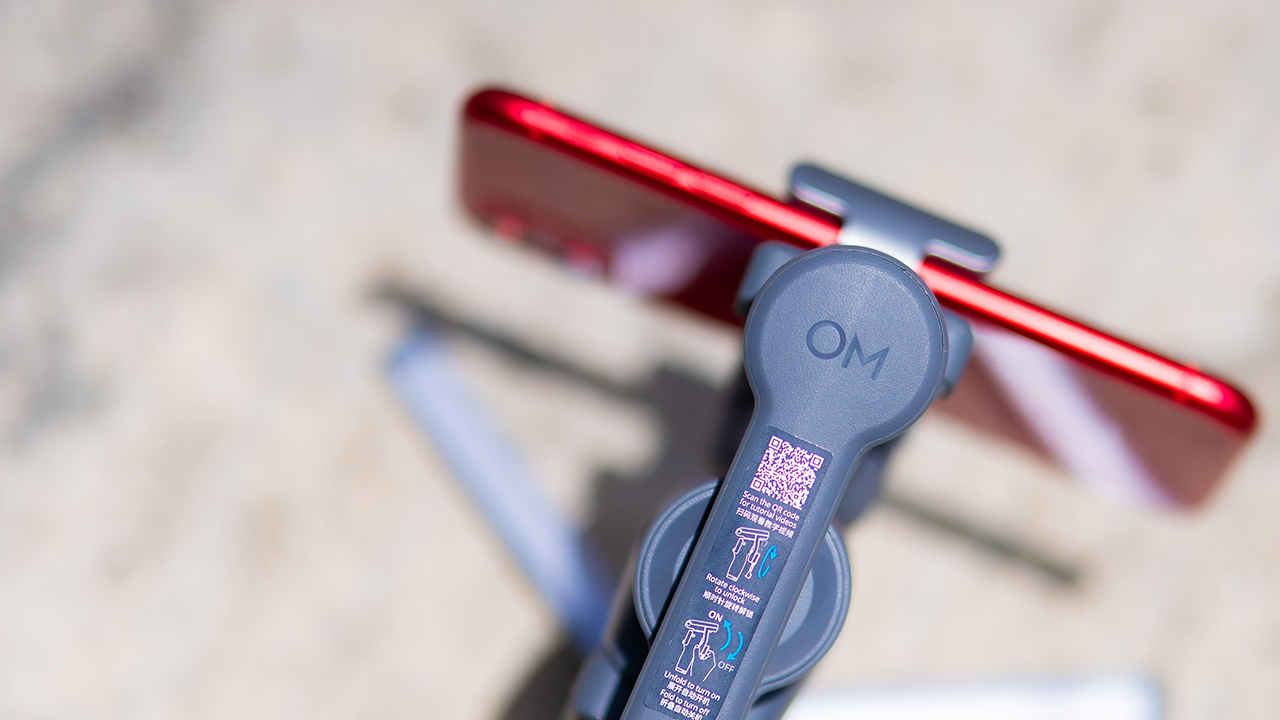
You’ll need to connect it to your phone instead, which adds a step to a setup that used to be simpler. Phone compatibility is still a limiting factor as well. DJI lists support for phones up to around 300g and 11mm thick, so bigger phones or ones in chunky cases may not clamp in properly.
Finding your ideal workflow
The OM 8P makes the most sense for solo creators who want dependable tracking and the freedom of remote framing without stepping up to a dedicated camera like the DJI Osmo Pocket.
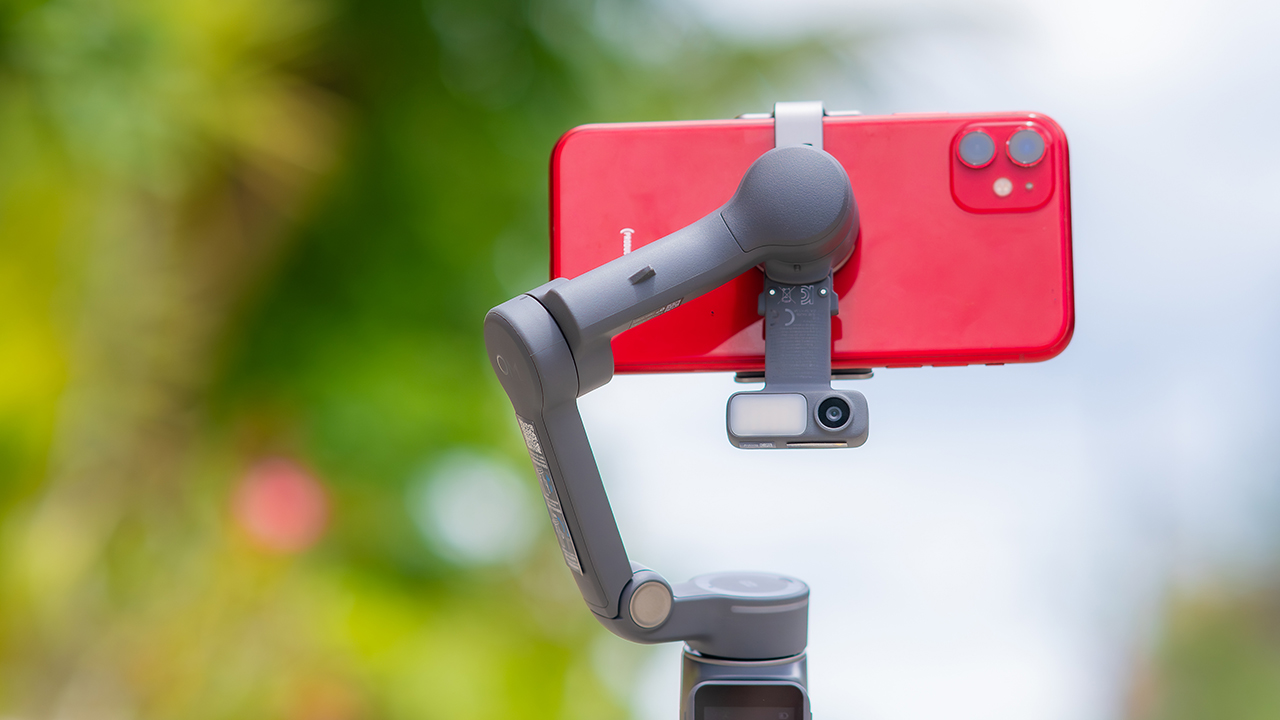
If you’re already shooting on a phone with a solid camera, this fills the gap nicely. It’s a tougher sell if you prefer physical buttons over touchscreen menus, or if your phone runs on the larger and heavier side, since fitting it onto the clamp might be a problem before you even get to shooting.
Price, availability
DJI is offering the OM 8P in three combos, so how much you pay depends on how much of the ecosystem you actually need.
- Standard Combo (PhP 7,499): the gimbal itself, with 8th-gen stabilization and the detachable FrameTap remote included.
- Advanced Tracking Combo (PhP 9,199): adds the Multifunctional Module 2 for the improved subject tracking we tested.
- Creator Combo (PhP 11,099): the full kit, built for creators who want everything DJI bundles in from the start.
Is the DJI Osmo Mobile 8P your GadgetMatch?
The DJI Osmo Mobile 8P asks you to relearn a few habits in exchange for a gimbal that finally lets go of your phone. If hands-free framing and steadier tracking matter more to you than a dedicated zoom dial, this is worth the adjustment.
If you’d rather keep things exactly as they were on the OM 8, that learning curve might be the deciding factor.
Swipe right if you shoot alone often and have been waiting for a gimbal remote that actually works. The FrameTap remote alone justifies the upgrade if reaching for your phone mid-shot has been slowing you down.
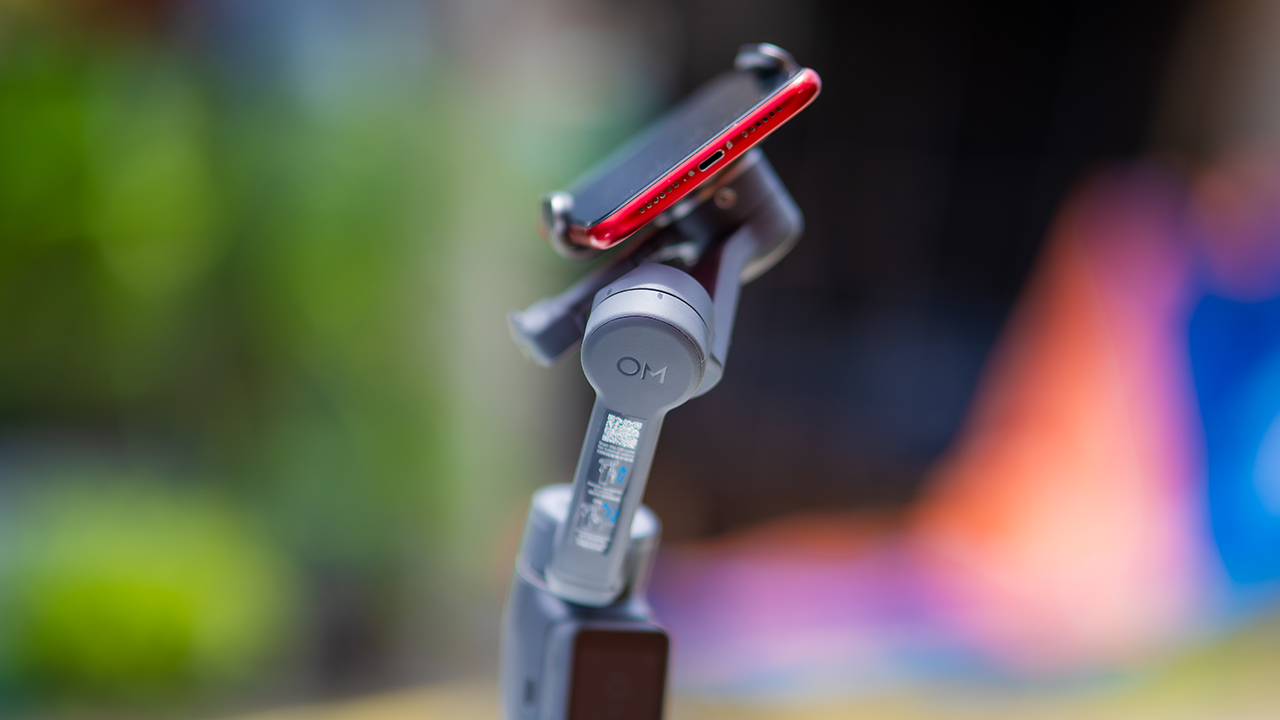
Consider this if reliable tracking matters to you, especially if you’ve had a subject wander out of frame and stay lost on older gimbals.
And of course, get this if you already own a capable phone under the weight and thickness limits, and you’d rather invest in a smartphone rig than jump to a dedicated camera like the Osmo Pocket.
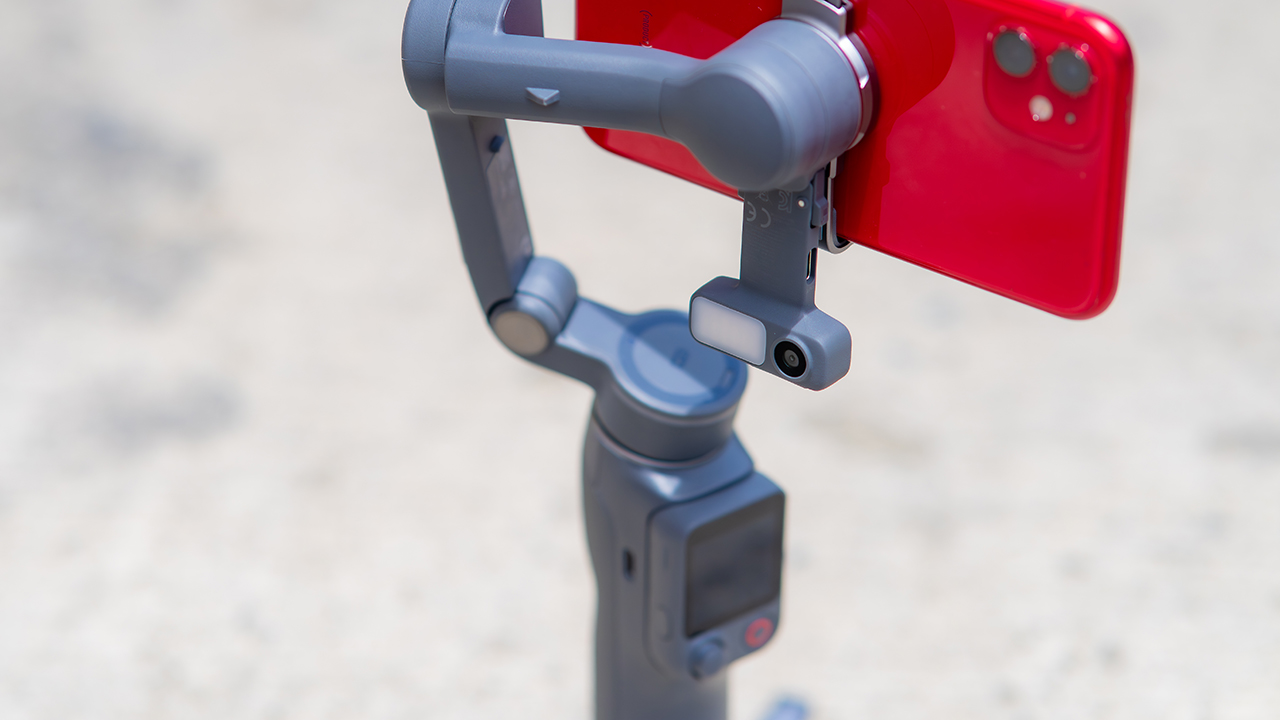
Swipe left if you lean on physical dials for zoom and focus, and moving those functions to a touchscreen sounds like a downgrade rather than an upgrade.
This is not for you if you use a DJI wireless mic and want it plugged directly into the module without routing through your phone first. Or, your phone runs heavier or bulkier than DJI’s limits allow, since no amount of enthusiasm fixes a clamp that won’t close.
Features
GadgetSnaps: Westminster Abbey
A thousand years of history, unfolded with the Samsung Galaxy Z Fold8 Ultra

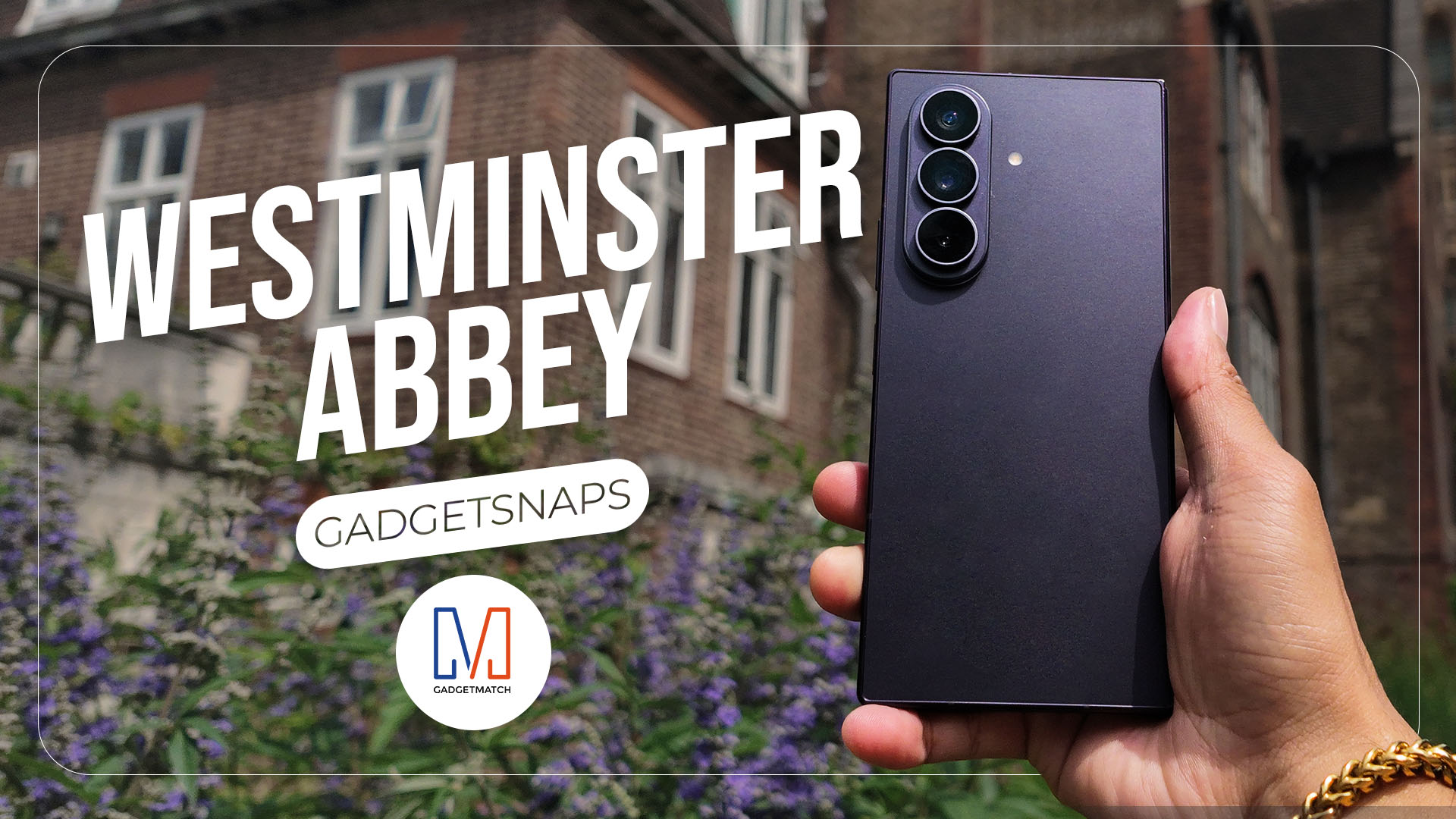
Westminster Abbey isn’t just another stop on the London tourist trail.
It’s the stage for coronations, royal weddings, and burials that span nearly a thousand years, all still playing out under the same vaulted ceilings that have been standing since before most countries had names.
Once you get past the crowds and the audio guides, a quieter version of the abbey starts to show itself: worn stone steps, poets resting a few feet from kings, light that shifts across the nave like it’s in on the performance too.
While losing track of time in Poets’ Corner (yes, me, playing amateur historian for an afternoon), I unfolded the Samsung Galaxy Z Fold8 Ultra and decided the abbey deserved more than a quick tourist snap.




































All photos captured using the Samsung Galaxy Z Fold8 Ultra.

ROG STRIX G16 Review: Building for the moment
Setting it up however you want to make the most out of it

realme C100: Enduring and durable in spite of entry-level realities
Enough power but needs more agility


The ASUS ExpertBook Ultra wins you over
The laptop sneaks up on you

TCL expands mobile lineup with latest NXTPAPER series
ROG STRIX G16 Review: Building for the moment

Smart opens HUAWEI Pura 90s Series pre-orders with exclusive freebies

Apple Watch, AirPods get exclusive offers via Beyond the Box

Canva teams up with SB19 to turn A’TIN’s passion into creativity

Hands-on: Samsung Galaxy Z Fold8, Flip8, Ultra

Garmin launches its first screenless fitness band

VinFast debuts two-wheeler models, opens 21 e-motorcycle showrooms

Most of the world’s PlayStations will be officially useless by 2028

Samsung releases teaser with Spider-Man: Brand New Day Easter eggs


-
 Automotive7 days ago
VinFast debuts two-wheeler models, opens 21 e-motorcycle showrooms
-

 Computers2 weeks ago
AMD launches Radeon RX 9050 graphics card
-

 Automotive1 week ago
Xiaomi debuts SkyNomad Series featuring new Kunlun platform
-

 News5 days ago
OnePlus officially leaves the United States and Canada
-

 Gaming2 weeks ago
NBA 2K27 gameplay trailer showcases new dunk mechanics, Rucker Park, and more
-

 Gaming1 week ago
Call of Duty: Modern Warfare 4 clip shows Losing Ground 1st look
-
 Automotive2 weeks ago
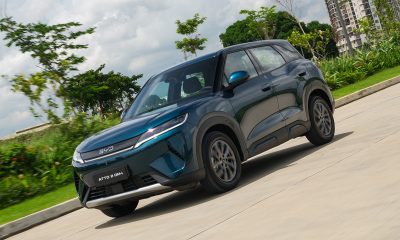
BYD Atto 2 launches with EV, plug-in hybrid options
-

 Automotive1 week ago
GAC launches new trio of MPVs