

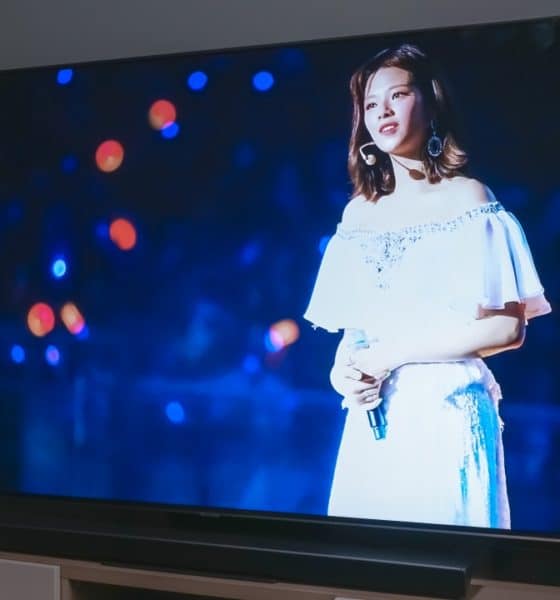

K-Pop girl group TWICE is currently on their first world tour called TWICELIGHTS and due to schedule conflicts as well as an inability to camp out for tickets, I missed all possible chances to see this nine-member group live.
I was devastated after being told that the tickets had already been sold out. This, despite me waking up much, much earlier than I usually do on a weekend and lining up for hours.
So I did the next best thing — watch fancams on the 75” Q90R Flagship QLED 4K HDR 2000 Smart TV.
4K in all its glory
My advice in watching 4K fancams is to select the ones that focus on a certain member. This will give you a better and closer look and really feel that 4K goodness.
That said, the 4K footage will vary depending on the device it was shot at. Some 4K footage don’t do well in concert lighting conditions and when zoomed in which is the case for most fancams.

Despite this, the Samsung Q90R more than delivered. It didn’t matter if I was sitting on the couch directly in front of the TV or over to the side at our dining area. I was getting the same quality no matter the viewing angle.
TWICELIGHTS on the 75” Samsung 4K QLED TV is an absolute joy to watch. Instead of being stuck with a single view, you get to experience the concert from a multitude of perspectives thanks to the various fansites that cover TWICE.
I put together a playlist on YouTube which you can find towards the end of this article. If you see an abundance of Momo and Chaeyoung fancams, this is because those two are my biases.
After watching (and *ehem rewatching) the concert, I had to test what else this TV can do.
4K upscaling
The girls already look good in HD, and they look even better when upscaled to 4K. You see, this is what the TV is capable of. Much like its 8K counterpart, the Q90R is equipped with a chip that upscales footage to 4K.
The music videos, which are mostly just in 1080p, look stunning on the 75-inch 4K QLED display. This is especially true for K-Pop videos that are known to be colorful.
Something we quickly noticed though is that some of the upscaled videos appear a little more saturated than usual. Personally, this didn’t really bother me but it might be important to note for those considering to purchase this TV.
Gaming and watching movies
The saturation doesn’t stop at upscaling. When you switch to game mode, the colors tend to switch to colors that some people might find too aggressive.
 We played NBA 2K19 on the monitor and some courts almost hurt your eye because of how strong they appear. This wasn’t the case for other games though.
Try playing God of War or even Sekiro: Shadows Die Twice on this thing and you’ll be exposed to some of the best video game visuals you will ever lay your eyes on.
The same is true when watching movies built for 4K machines. It’s a perfect blend of “damn this looks like I’m actually seeing them in real life” while maintaining that cinematic feel. Words aren’t enough, you truly need to see this in person.

With Netflix, Apple TV, and Amazon Prime Video pre-installed, you won’t run out of 4K content to go through. My only gripe is that the TV doesn’t support the NBA App. Basketball is one of the few things I actually try to watch live but that’s not possible unless I have a cable subscription which I have no plans of getting any time soon.

At first I thought this was just a glitch on the particular unit we were lent but Samsung confirmed that they currently do not support the NBA app. However, they added that they are “looking to find ways to improve customer experience by expanding our content services and apps available in our smart TVs.”
Casting issues
There weren’t a lot but I did experience some casting issues on the Q90R. YouTube worked perfectly but other apps like VLive struggled to connect right away unlike when I’m just using a chromecast.
There’s also this little hiccup when you want to watch Facebook videos. The TV will force you to use the Facebook Watch app and have to connect a single user’s account to the TV versus anyone just being able to cast a video as long as they are connected to the same wifi network.
It’s a minor inconvenience although it could be an issue if you have to have more than one person connect their Facebook account to the TV just so they have easy access to the Facebook videos they prefer watching. That said, I don’t imagine a lot of people need to use Facebook Watch to begin with.
Truly a Smart TV
One of the things I truly appreciate about the Q90R is how seamless you interact with it. The remote and the TV’s interface is well thought-out.
The Q90R foregoes the usual remote in favor of what looks like a circular directional pad which works perfectly on the TV’s interface. The other buttons can also be easily located by feeling your way on the remote. Adjusting the volume is as simple as pushing up or down on a button.

You can, of course, use the mic and ask Bixby to do things on the TV for you but personally that’s not my thing. I don’t want to have to speak when interacting with my TV but I find that this can be a useful way for other people.
Is this your GadgetMatch?
The 75” Q90R Flagship QLED 4K HDR 2000 Smart TV is an entertainment powerhouse. It’s perfect for family gatherings and inviting a large group of friends for some Netflix and chilling. It’ll set you back at PhP 359,999 (roughly around US$ 7010).
 However, if you have an extra PhP 240,000 lying around, you might want to opt for the 8K version which retails for PhP 599,999 (roughly around US$ 11,700) which puts you in better position to be ready for the future. If not, the 4K isn’t shabby at all.





Phones flip and fold. Now webcams do too.
Foldable screens have found their way into phones, tablets, and laptops in recent years. Now, OBSBOT is taking that idea in a considerably smaller direction: the webcam.
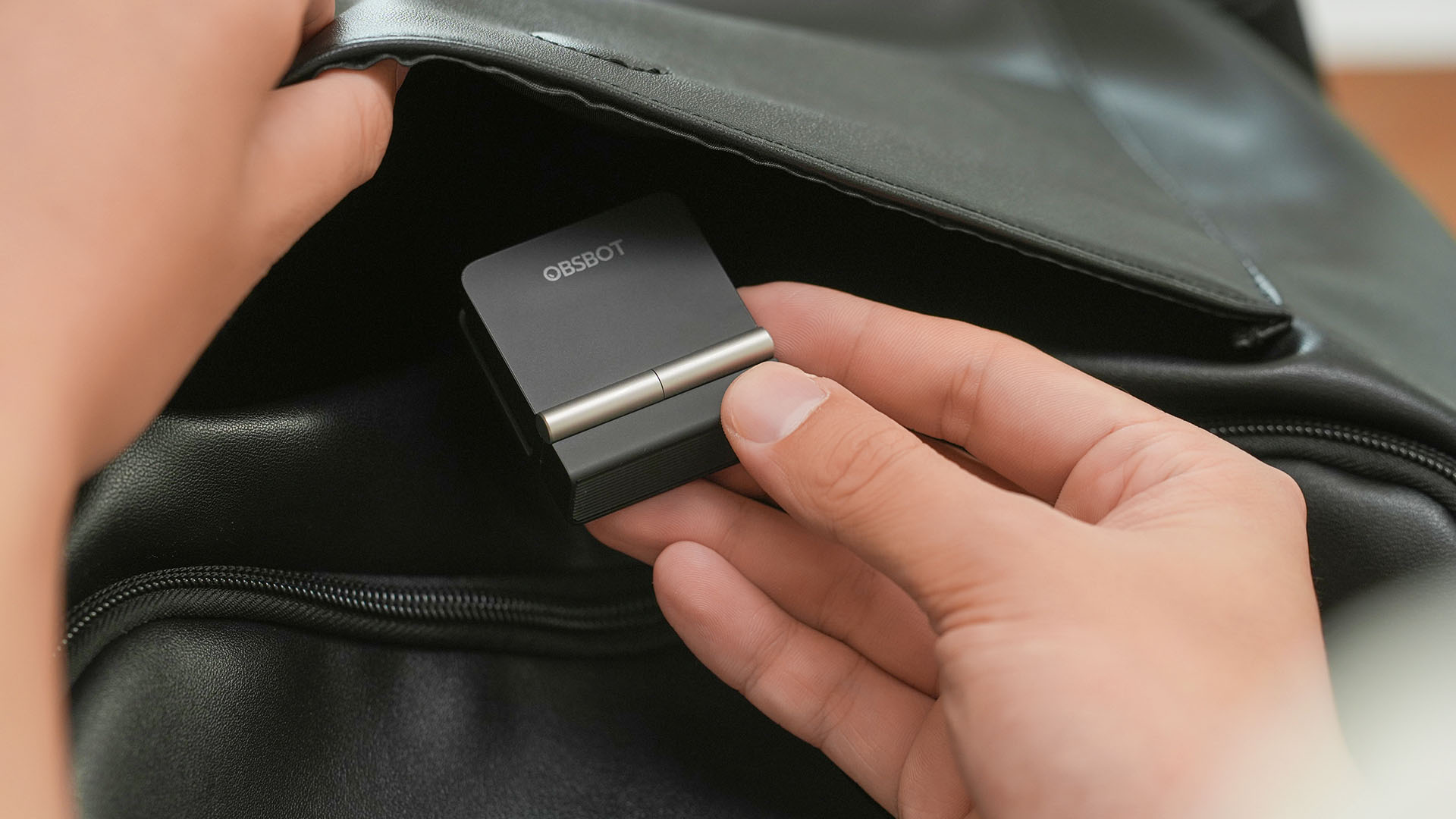
The OBSBOT Meet Flip is the company’s first foldable 4K webcam packing:
- 1/2-inch stacked CMOS sensor
- intelligent audio
- a collection of AI-powered meeting tools
All of these inside a body weighing just 37.7 grams.
A fold that does something, not just a gimmick
The OBSBOT Meet Flip isn’t foldable just to make it easier to throw into a bag.
Closing the webcam physically blocks the lens and puts the device into sleep mode. Open it when you want to be seen, flip it shut when you don’t.
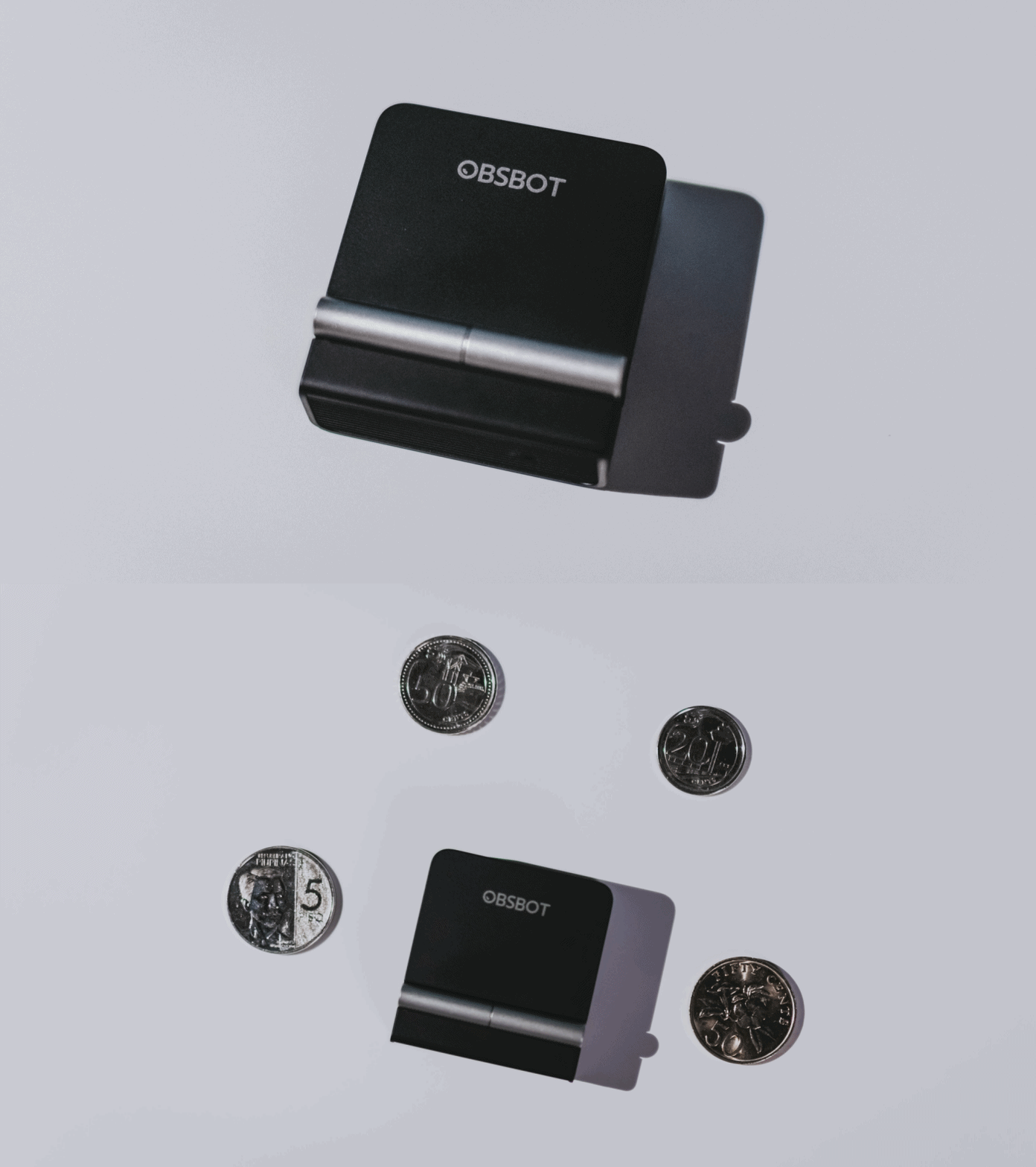
A physical privacy cover isn’t novel in itself. What’s clever here is how it’s part of the folding design.
As someone with a love-hate relationship with data privacy, I almost always keep some physical barrier over my laptop webcam. And if I can avoid having a webcam there entirely, even better.
Serious camera hardware in a pocket-sized webcam
Despite its size, OBSBOT hasn’t treated the Meet Flip like a basic laptop-camera replacement.
Inside is a 1/2-inch Exmor RS stacked CMOS sensor with Quad Bayer technology, capable of recording 4K UHD at 30 fps or 1080p at 60 fps. It also packs an f/1.8 aperture, HDR, PDAF autofocus, ISO 100–6400, and up to 4x digital zoom.
At its core is a 1/2-inch Exmor RS stacked CMOS sensor with Quad Bayer technology.
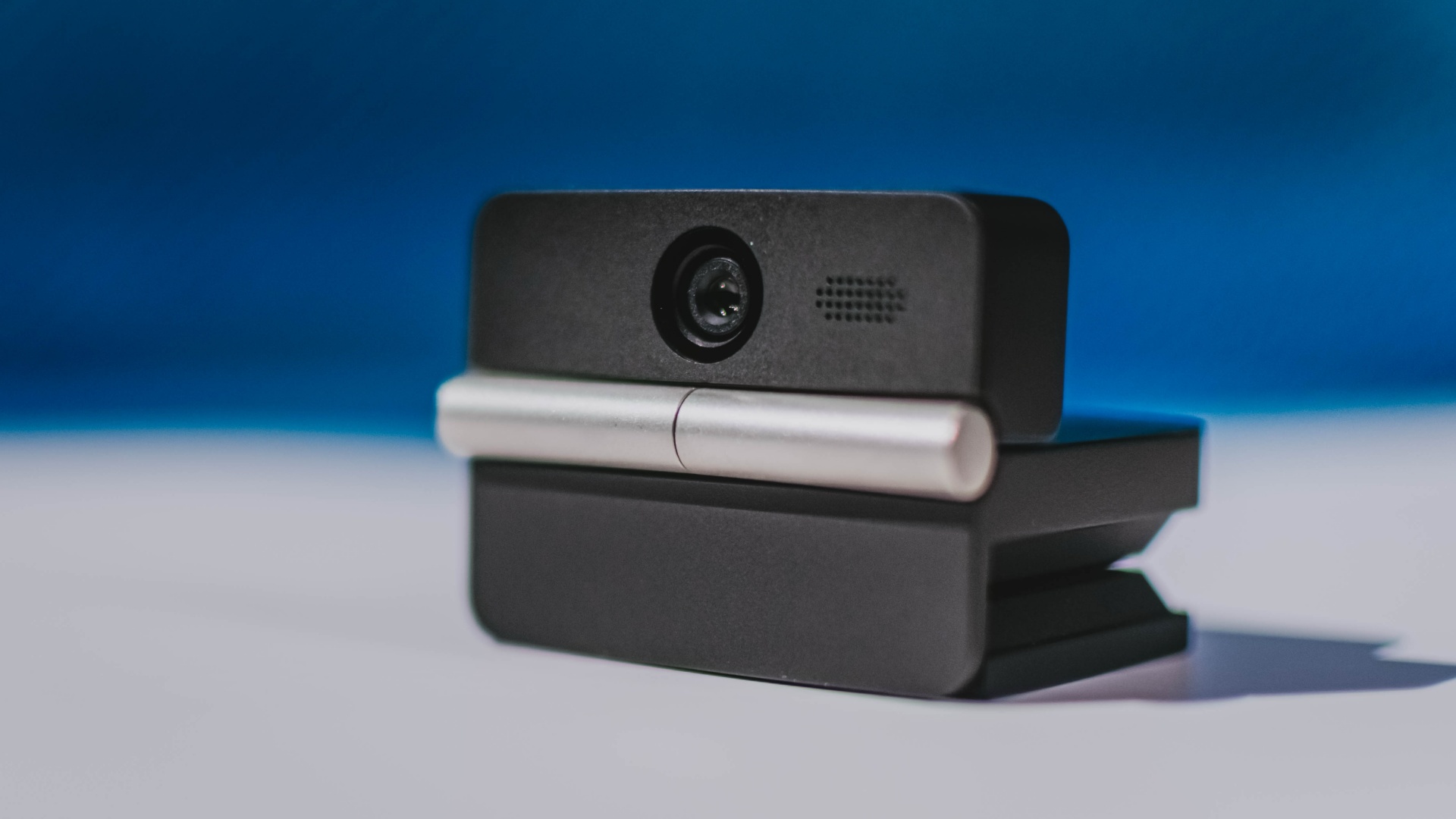
It can record:
- 4K UHD at 30fps
- 1080p at 60fps
You also get:
- f/1.8 aperture
- HDR
- PDAF autofocus
- ISO 100–6400
- up to 4x digital zoom
On paper, that gives the Meet Flip a better shot at handling the situations built-in laptop webcams often struggle with: dim rooms, harsh backlighting, changing lighting conditions, or simply moving around in front of the camera.
HDR helps keep faces visible against bright backgrounds, while PDAF autofocus continuously adjusts focus as you move closer to or farther from the lens.
The wider f/1.8 aperture should also help in less-than-ideal lighting.
The point is that once the Meet Flip is set up, you shouldn’t have to spend much time thinking about the camera itself.
It listens differently depending on the room setup
The Meet Flip also uses an intelligent dual-microphone system combining omnidirectional and directional microphones.
Instead of relying on one pickup pattern for every situation, it offers four audio modes for different setups:
Directional Mode focuses on sound coming from the front, making it the obvious choice for solo calls.
Dual-Directional Mode listens to both the front and rear of the webcam, which could be useful for interviews or conversations between two people sitting across from each other.
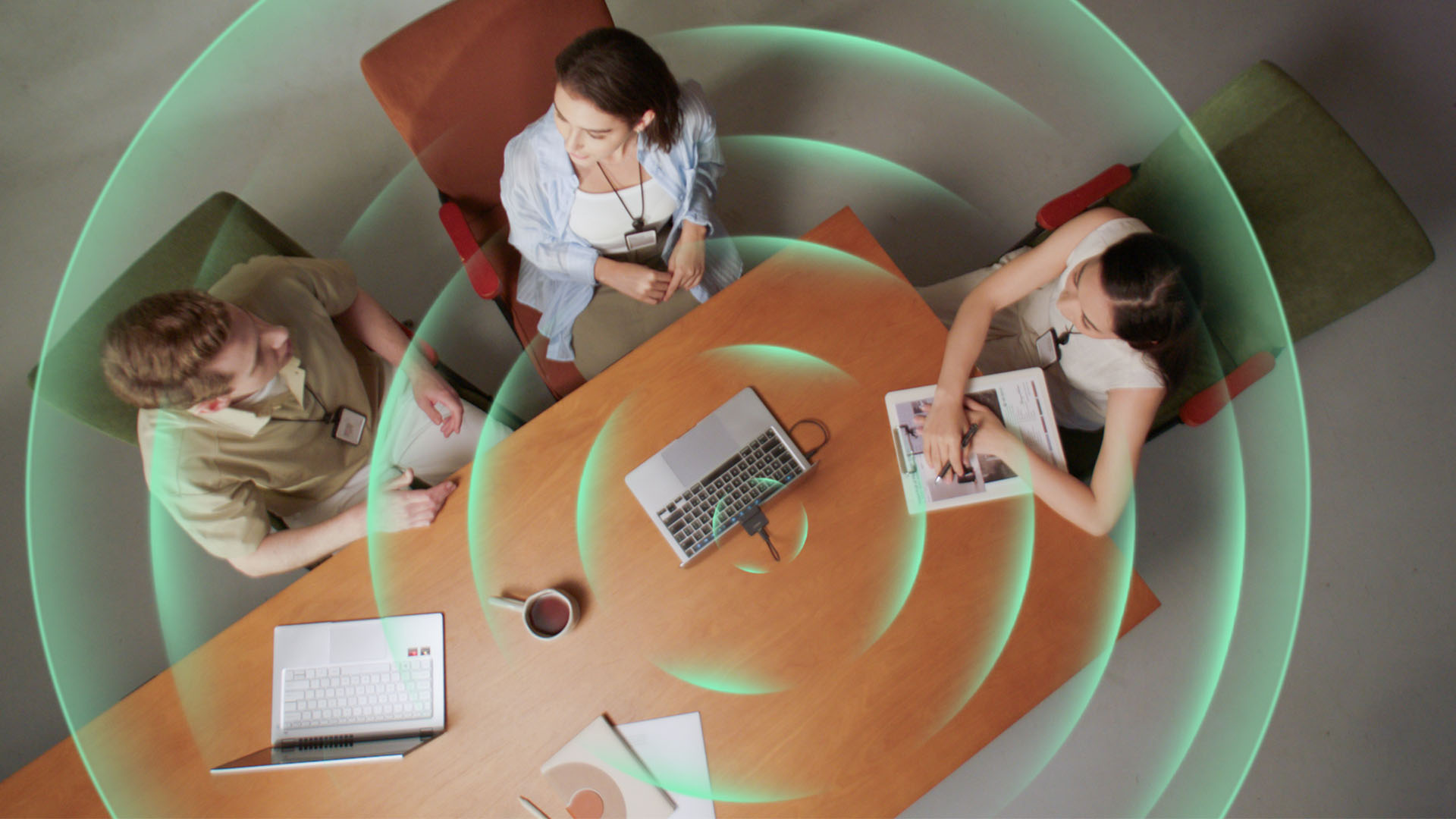
Smart Omni Mode is designed for group meetings, picking up voices from around the room.
And Pure Audio Mode provides unprocessed left and right stereo channels for users who would rather handle the audio themselves in post-production.
Auto Gain and AI Noise Reduction also work across the first three modes, helping clean up audio without requiring much manual adjustment.
It gives the Meet Flip more flexibility than a typical webcam microphone, especially if you regularly switch between solo calls, interviews, and group meetings.
AI that doesn’t intrude
AI has become an almost obligatory addition to new hardware in 2026, but several of the Meet Flip’s features put it to work on real-world meeting annoyances.
AI Auto Framing keeps you in frame, with options for:
- Group
- Single Close-up
- Upper Body
- Full Body
Gesture controls can also toggle Auto Framing or adjust the zoom without reaching for a keyboard or mouse.
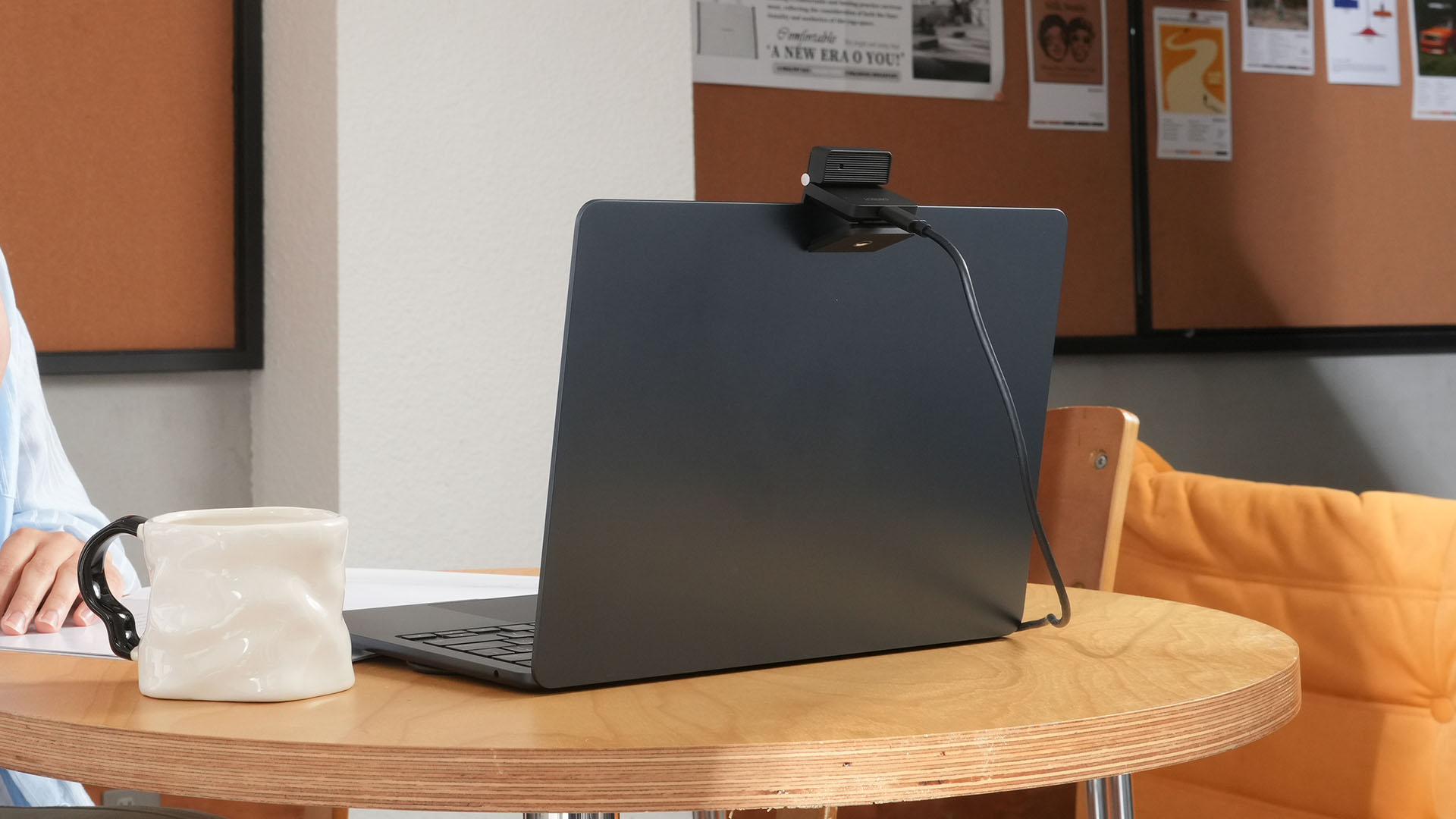
More interesting is AI Magic Notes.
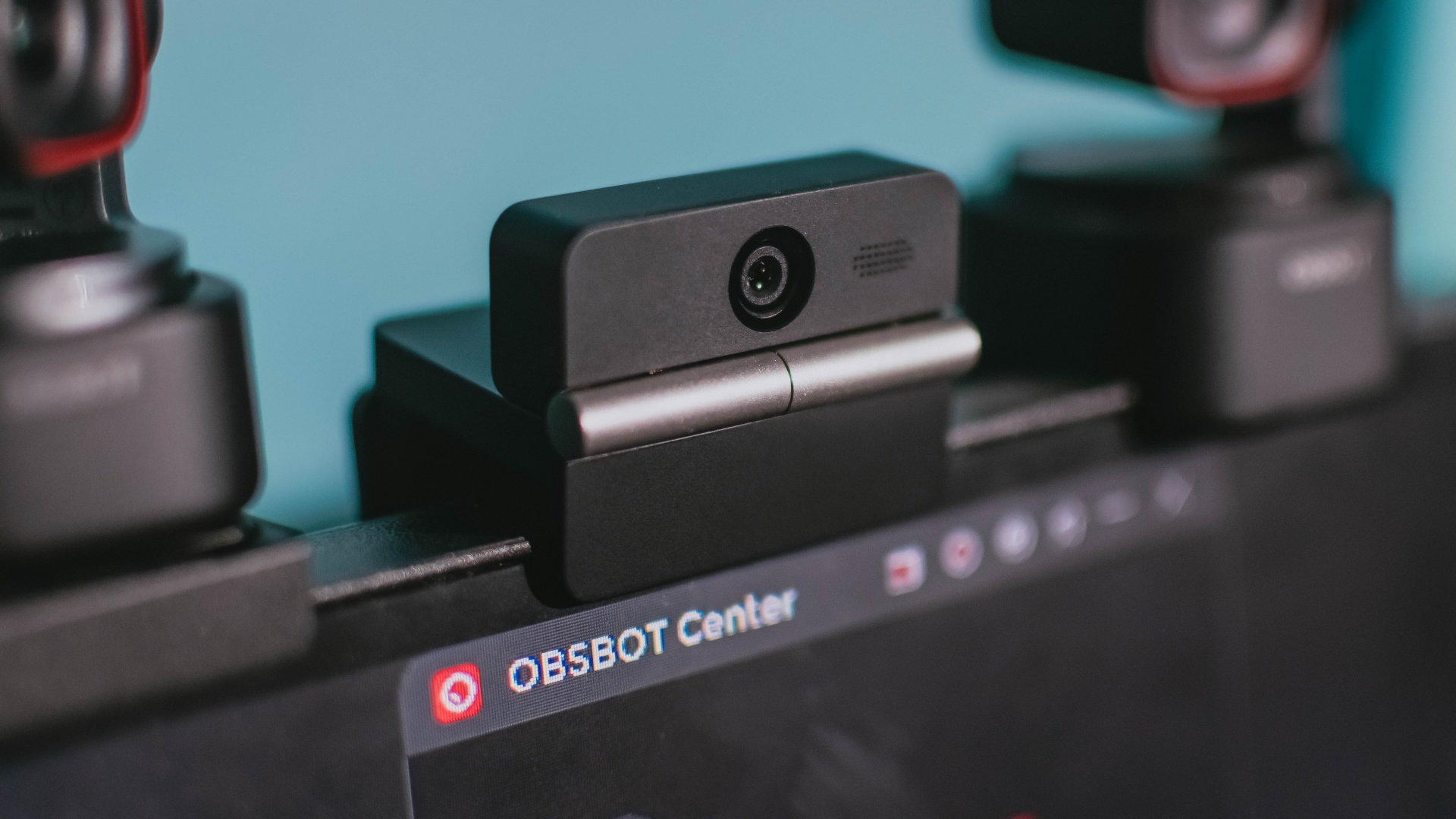
Through OBSBOT Center, it provides real-time transcription and can automatically generate meeting summaries with key points, decisions, and action items. It works across Google Meet, Zoom, and Microsoft Teams.
Although AI Magic Notes is offered as a subscription service, every Meet Flip includes 120 complimentary minutes to get started.
MORE with OBSBOT Center & OBSBOT Live
There are plenty of other software features as well. OBSBOT Center includes:
- Background Blur and Background Replacement
- Real-Time Beauty Mode
- Picture-in-Picture overlays
- Smart Eye Tracking
- Teleprompter support
- Detailed image adjustments
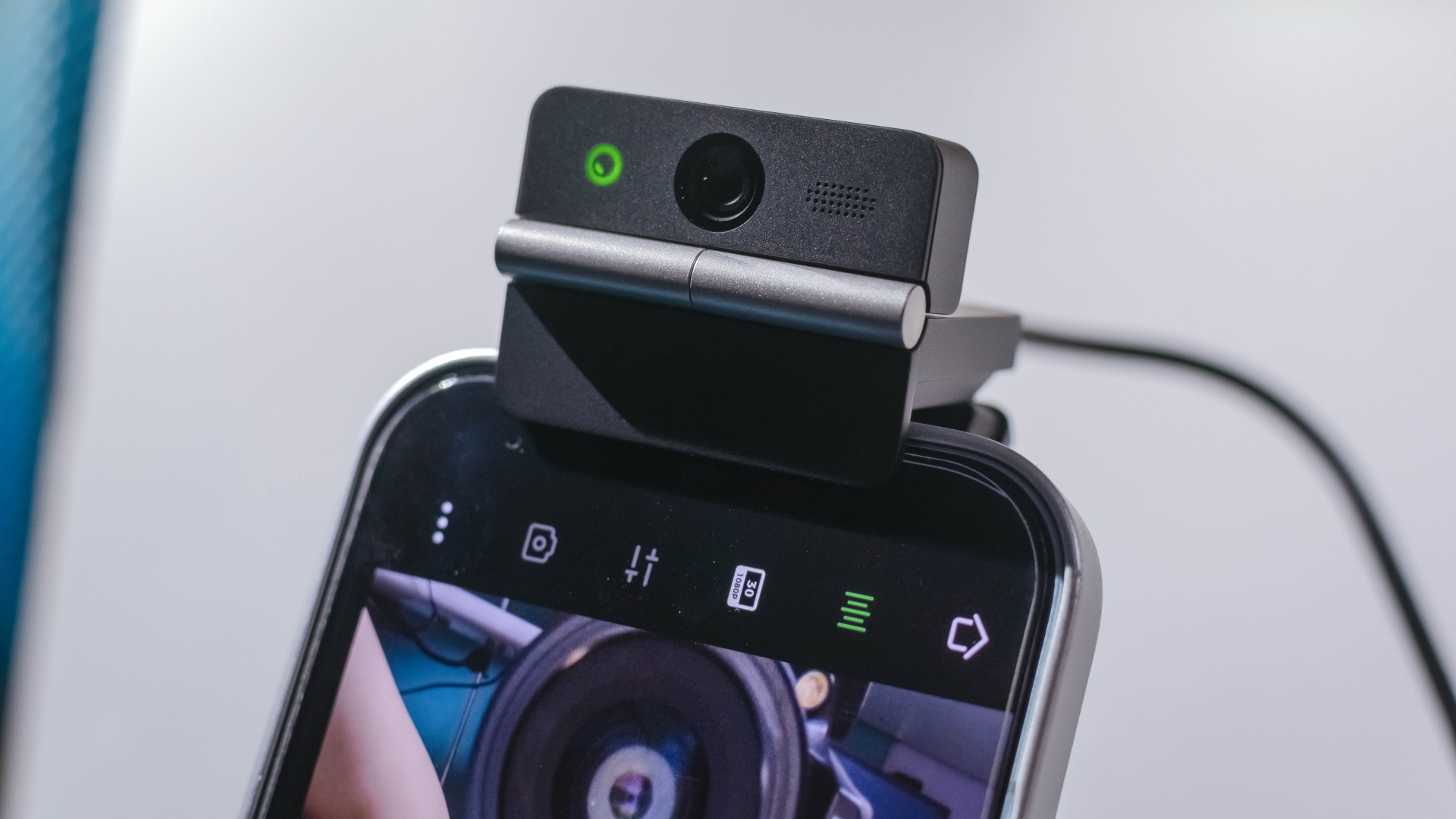
The Meet Flip isn’t limited to laptops or desktops either. Through OBSBOT Live, it can connect directly to smartphones and tablets over USB-C for mobile streaming and content creation.
Flip it open. Fold it away.
None of those features reinvent the webcam on their own.
Taken together, though, they make the Meet Flip a more thoughtful take on a piece of hardware whose basic design and features have barely changed.
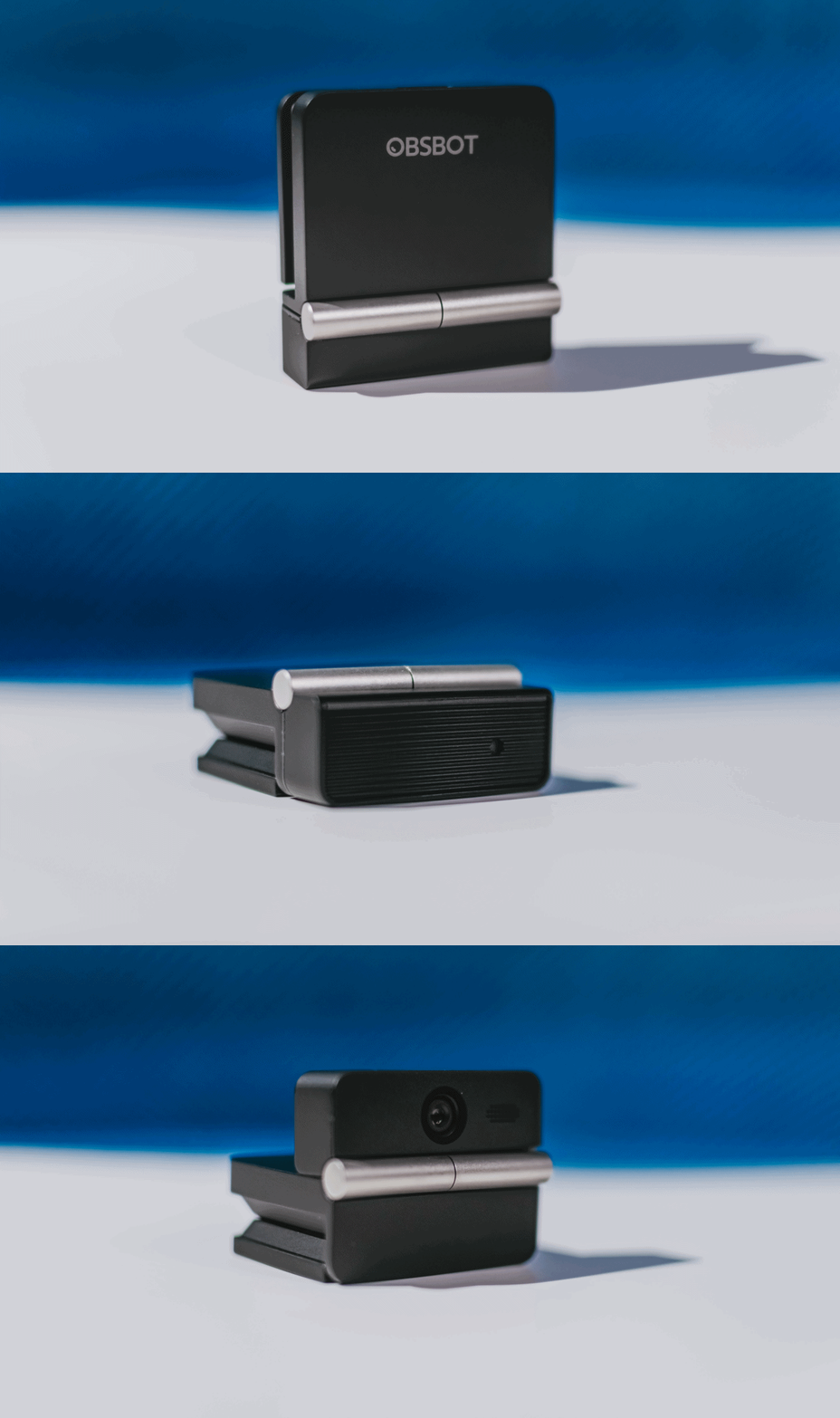
The flip may grab your attention first, but it’s how OBSBOT uses that design alongside its camera, audio, and software features that makes the Meet Flip interesting.
The OBSBOT Meet Flip is now available at US$ 119 and is currently available through OBSBOT’s official store, Amazon US, and select retailers.
Features
Getting the latest Samsung Galaxy Z Flip8 at 0% Interest with Maya Mini Payments
What convinced me to upgrade and how Maya Mini Payments made paying for it easier~

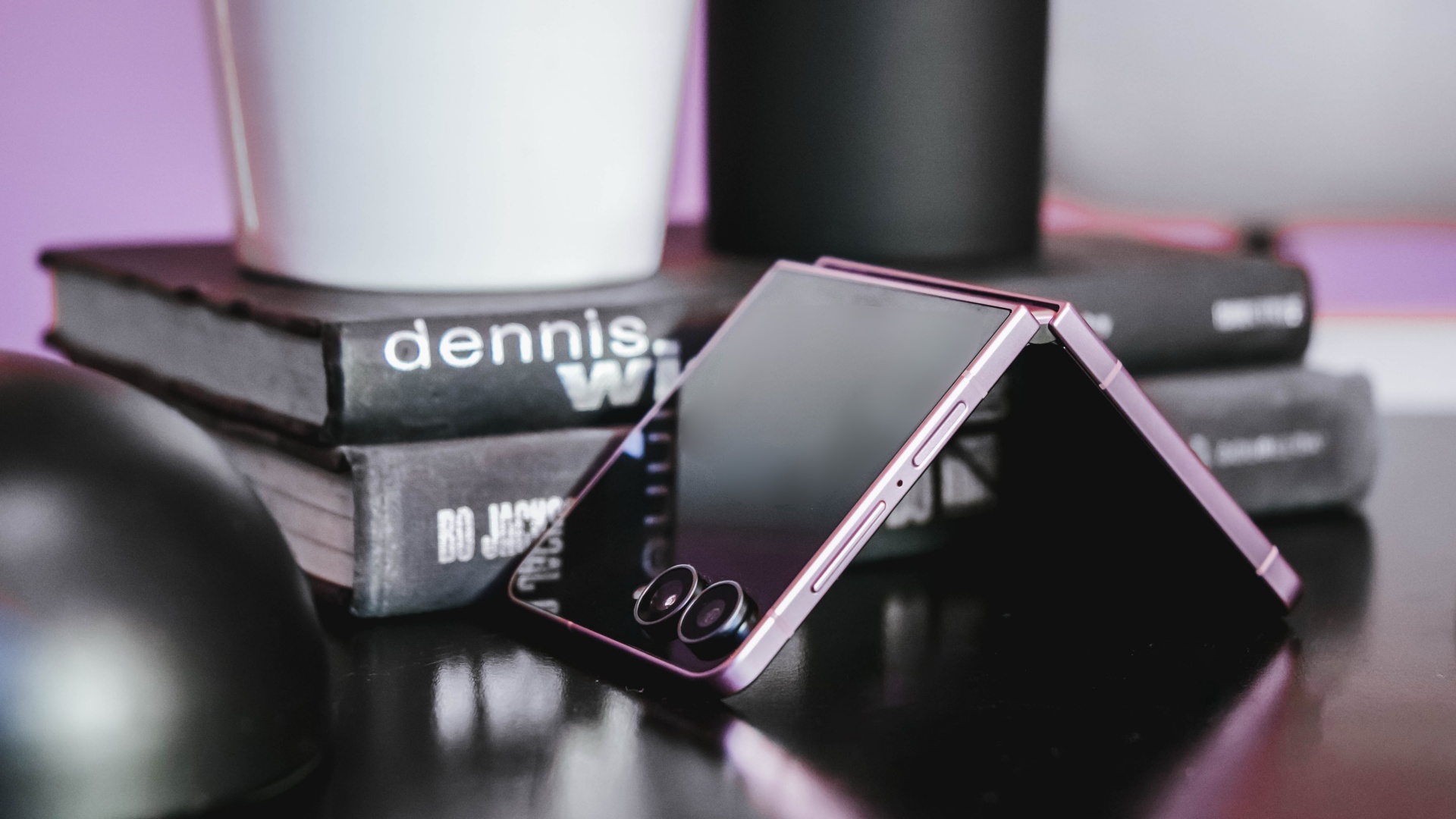
I don’t upgrade simply because there’s a newer model on the shelf.
Last year, I upgraded to the Samsung Galaxy Z Flip7 after spending three years with the iPhone 13 as my daily driver.
Even then, the decision wasn’t about chasing the latest release. It was about finding a device that better matched how I work.
I’m a firm believer that every upgrade has to earn its place in my pocket, especially when there are already perfectly capable phones sitting on my desk.
So when I decided to pre-order the Samsung Galaxy Z Flip8, the decision wasn’t simply about getting the newest device.
It came down to two questions: It came down to two questions: Is this a smart upgrade? And if it is, what’s the smartest way to own it?
The first question was answered by the device itself. The second is where Maya Mini Payments entered the conversation.
For me, the Flip8 addresses the reasons to upgrade. Maya Mini Payments addresses one of the biggest reasons people hesitate: big purchases that could be paid in 3, 6, 9 or 12 monthly payments.
Changing how I shoot and use my phone
I spend most of my day switching between shooting, editing, and posting, sometimes all within the same hour.
One of the biggest reasons the Galaxy Z Flip8 caught my attention is the cover screen. It’s finally useful enough that I can shoot, preview, and interact with content without constantly opening the device.
That may sound like a small change, but it makes a difference when you’re trying to capture candid moments before people notice a camera pointed at them.
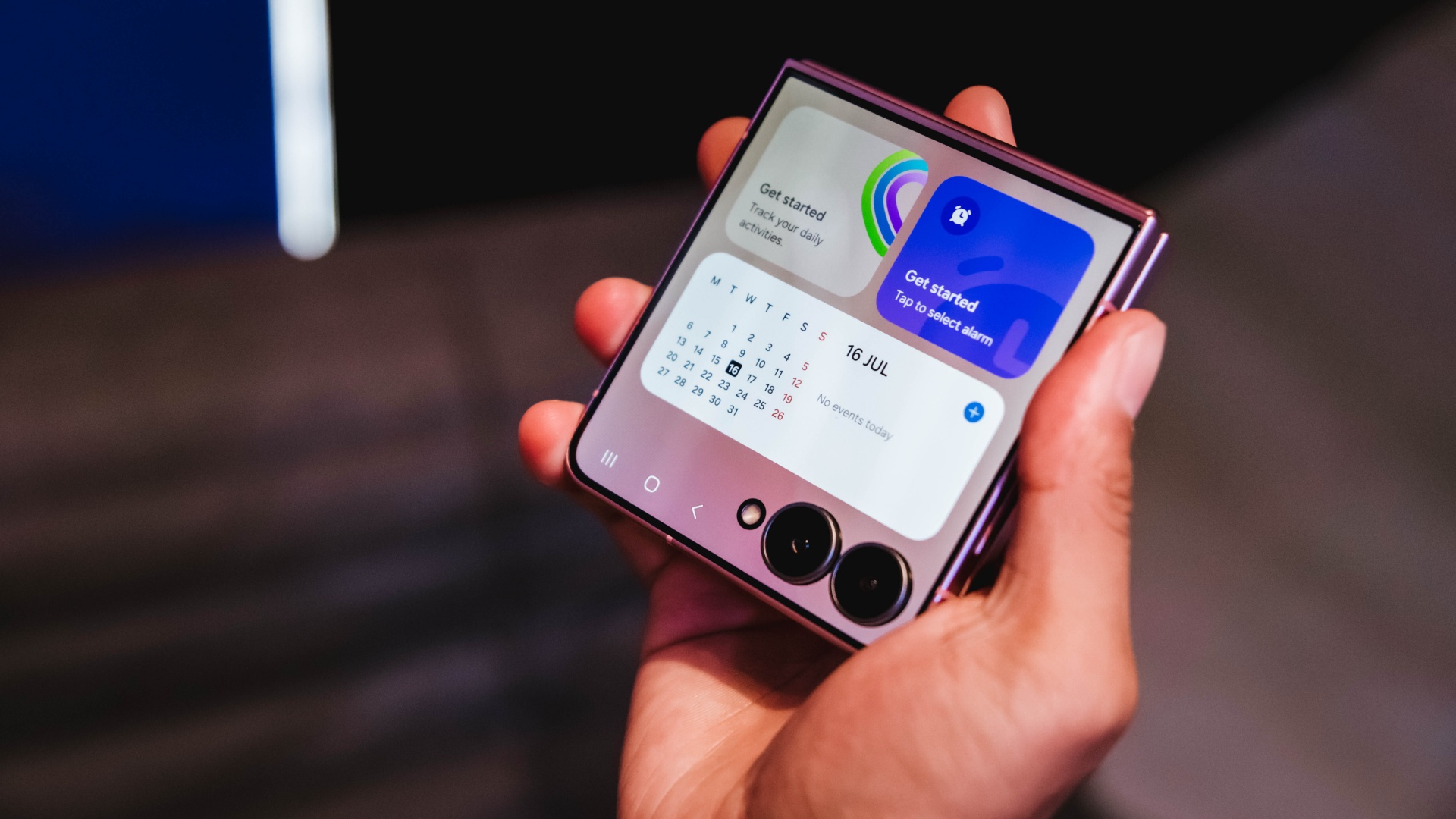
It also makes everyday tasks easier. I can check a script, review a shotlist, reply to messages, or glance at notifications without unfolding the phone every few minutes.
For years, foldables often felt like they required some compromise. You gained a unique form factor and flexibility, but sometimes gave up a little on the camera experience. The Flip8 feels like it’s closing that gap.
Samsung’s improvements in low-light performance and stabilization are especially noticeable for the kind of run-and-gun content I create.
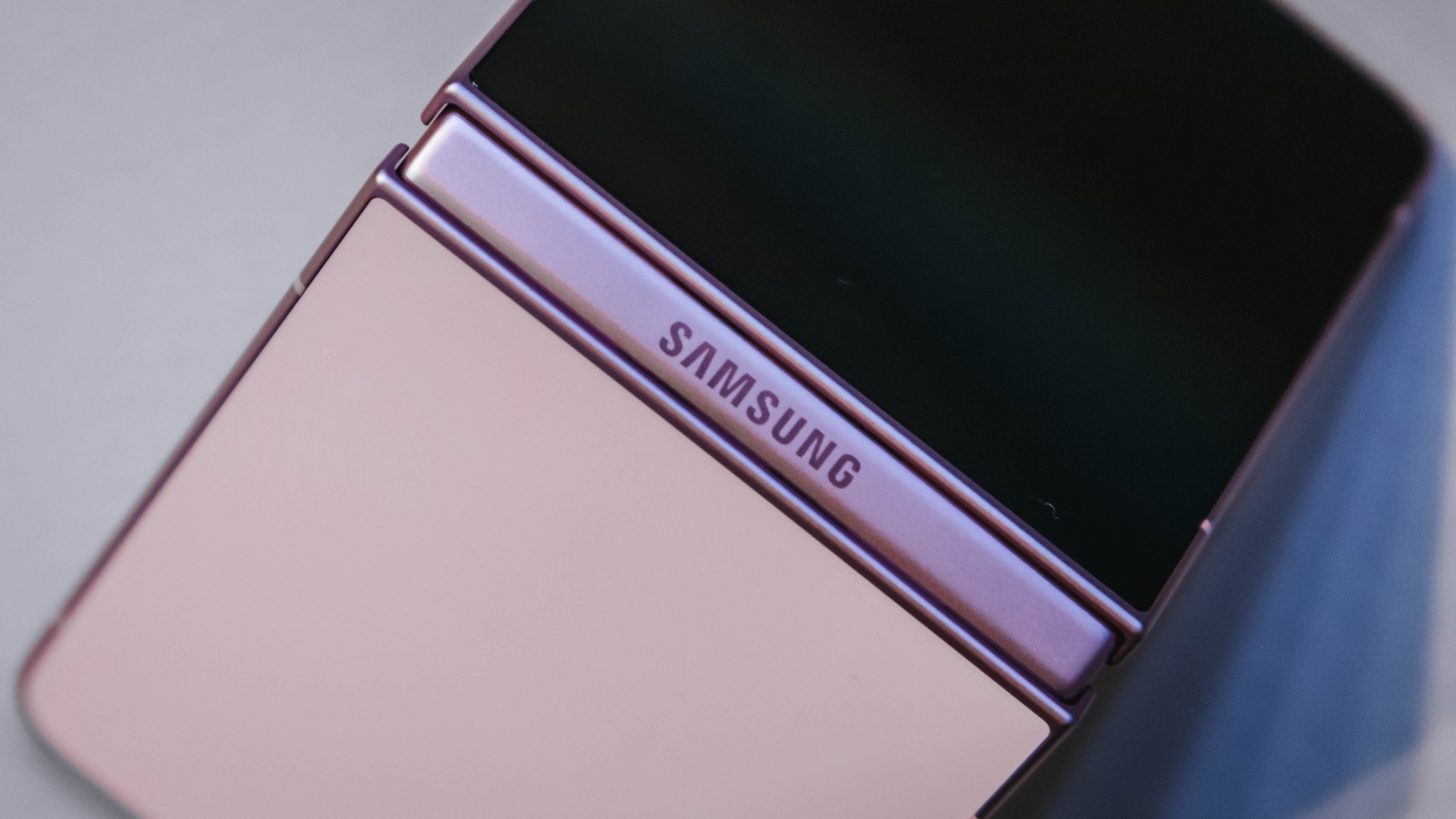
I haven’t spent enough time with it to call this a full review yet, but my first impressions have been positive. The experience feels more refined and more dependable than previous generations.
Features alone don’t convince me to upgrade. They have to solve a real problem. The more useful cover screen, the improved camera experience, and the overall refinement were the first signs that the Flip8 was offering something I’d actually use every day rather than another feature to add to a spec sheet.
The battery and multitasking finally match my day
The less exciting reason I’m upgrading is also the one that affects me the most.
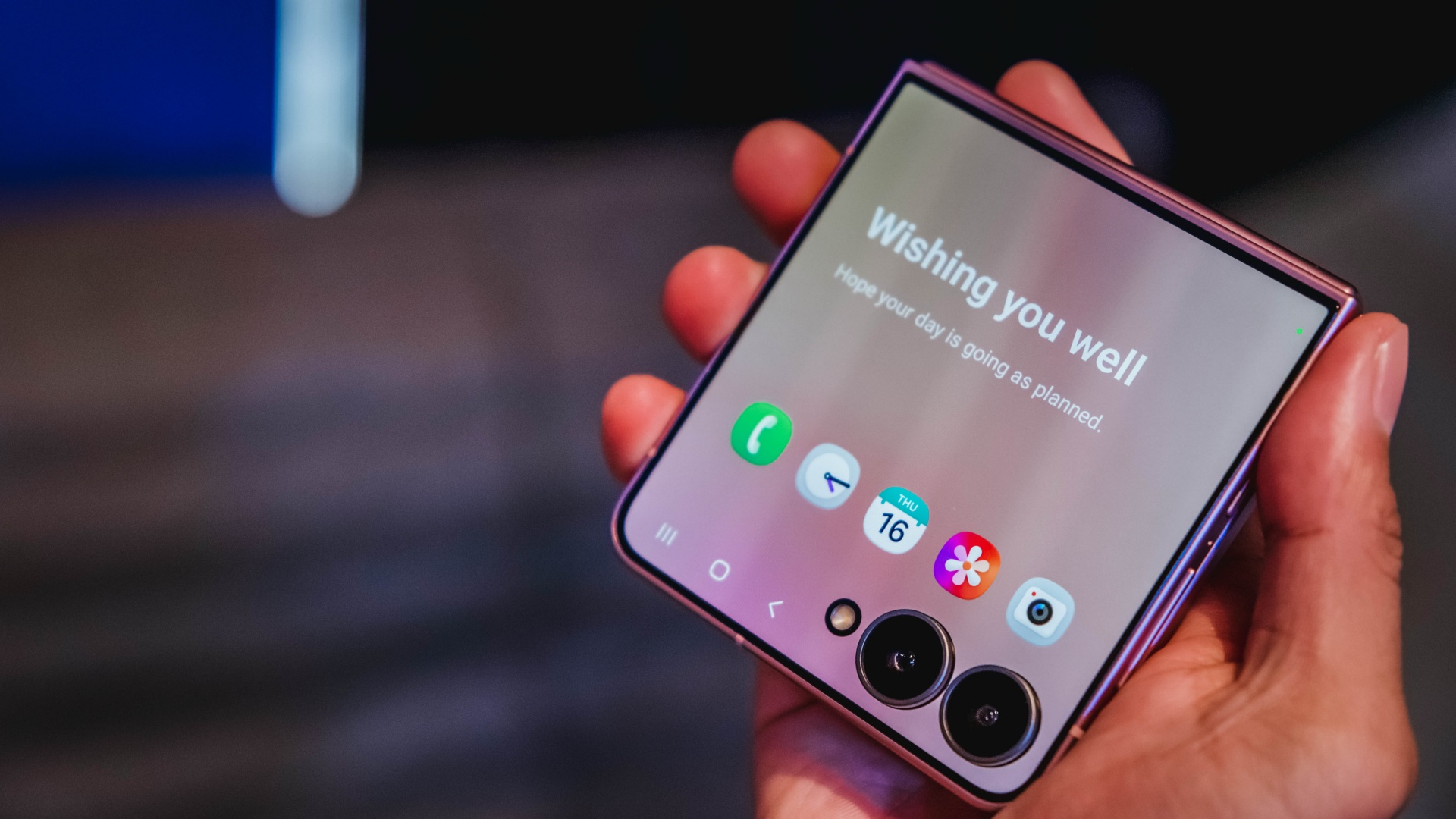
Between filming, reviewing footage, answering emails, coordinating campaigns, and managing social media, my phone is constantly working.
My old device usually drops into battery-saving territory before dinner. It gets the job done, but I spend too much time thinking about charging instead of working.
The Galaxy Z Flip8 feels better equipped for that reality. The battery efficiency is improved, and multitasking feels more natural when juggling multiple apps throughout the day.
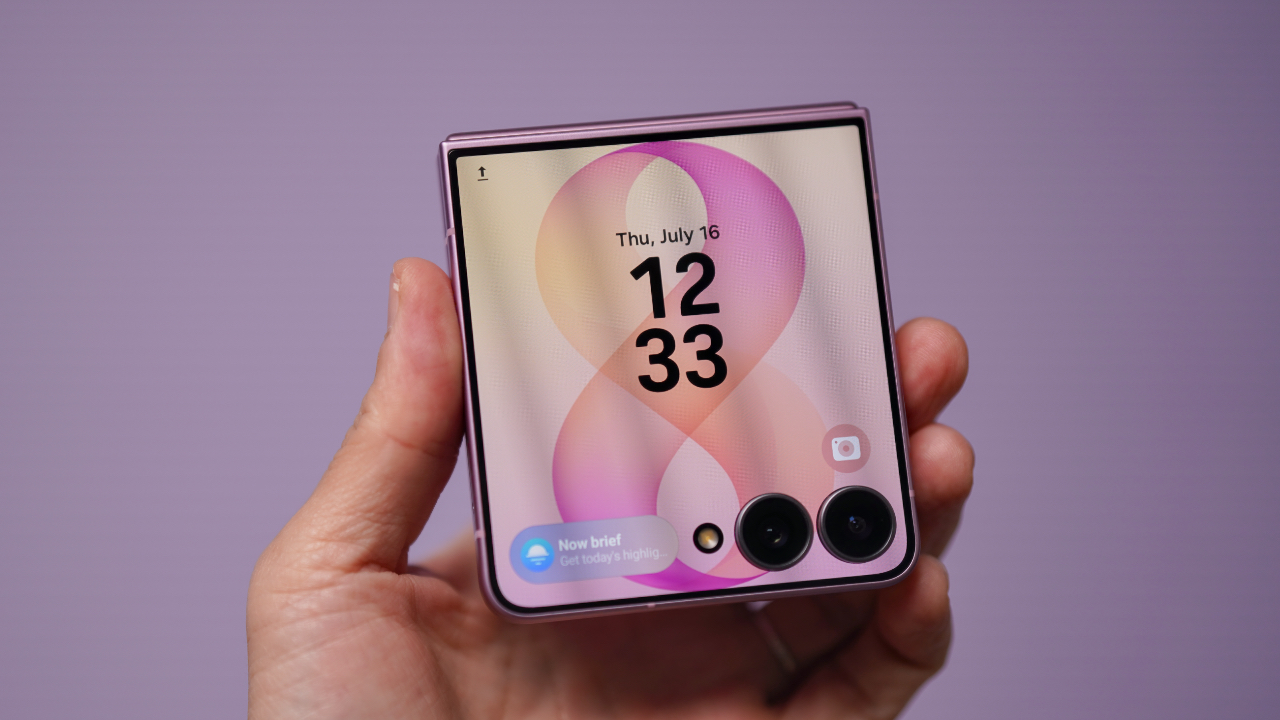
Those aren’t flashy features, but they’re the kinds of upgrades that quietly improve everyday productivity. They’re also the features that convinced me this wasn’t simply a want. It was an upgrade I could actually justify.
Once I was convinced the Flip8 was worth upgrading to, I realized the decision wasn’t really over. A smart upgrade also deserves a smart way to pay for it.
Making a big upgrade more manageable
Of course, deciding a device is worth upgrading to is only half the equation. The other half is figuring out how to pay for it.
The Galaxy Z Flip8 is a premium device, and for most people, the upfront cost is what gives them pause. That’s often where upgrade decisions get delayed, even when the device itself makes sense.
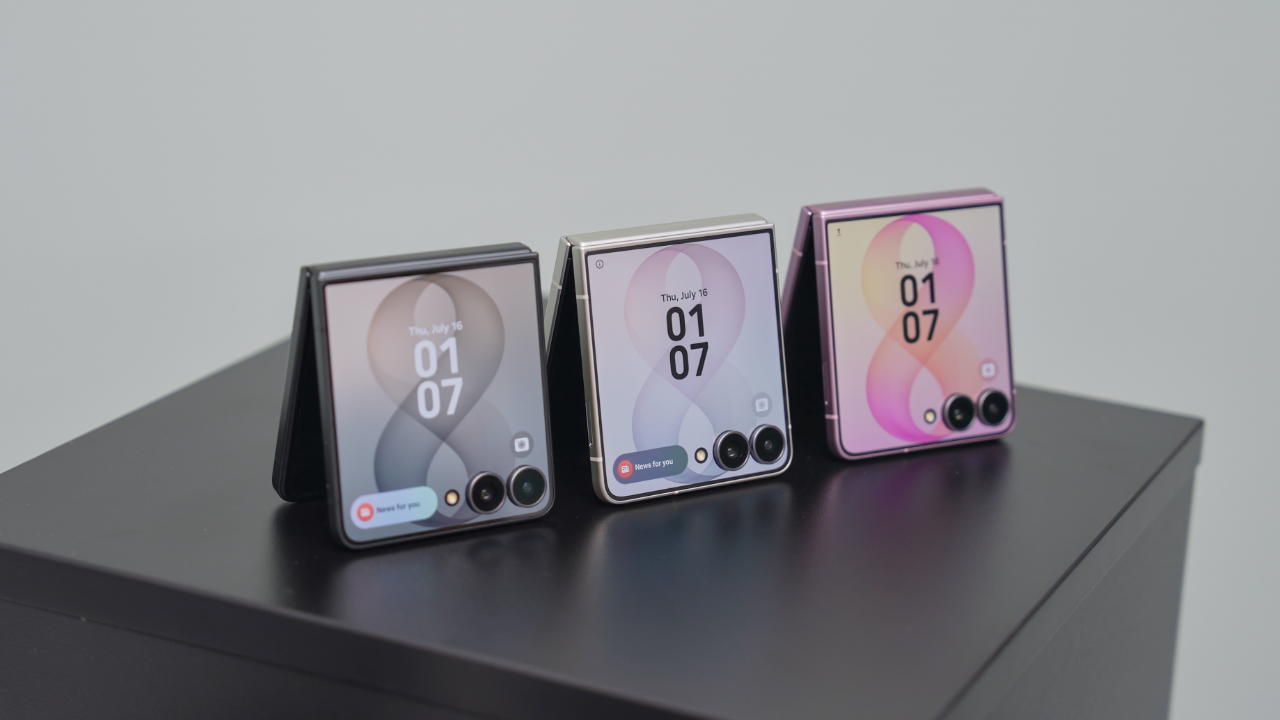
That’s why Maya Mini Payments stood out to me. Any Samsung purchase paid with a Maya Credit Card can be converted into Mini Payments directly through the Maya app, making it easier to spread the cost into monthly installments instead of paying for everything upfront in one go.
You can choose installment plans of up to 12 months at a fixed monthly add-on interest rate of 1%.
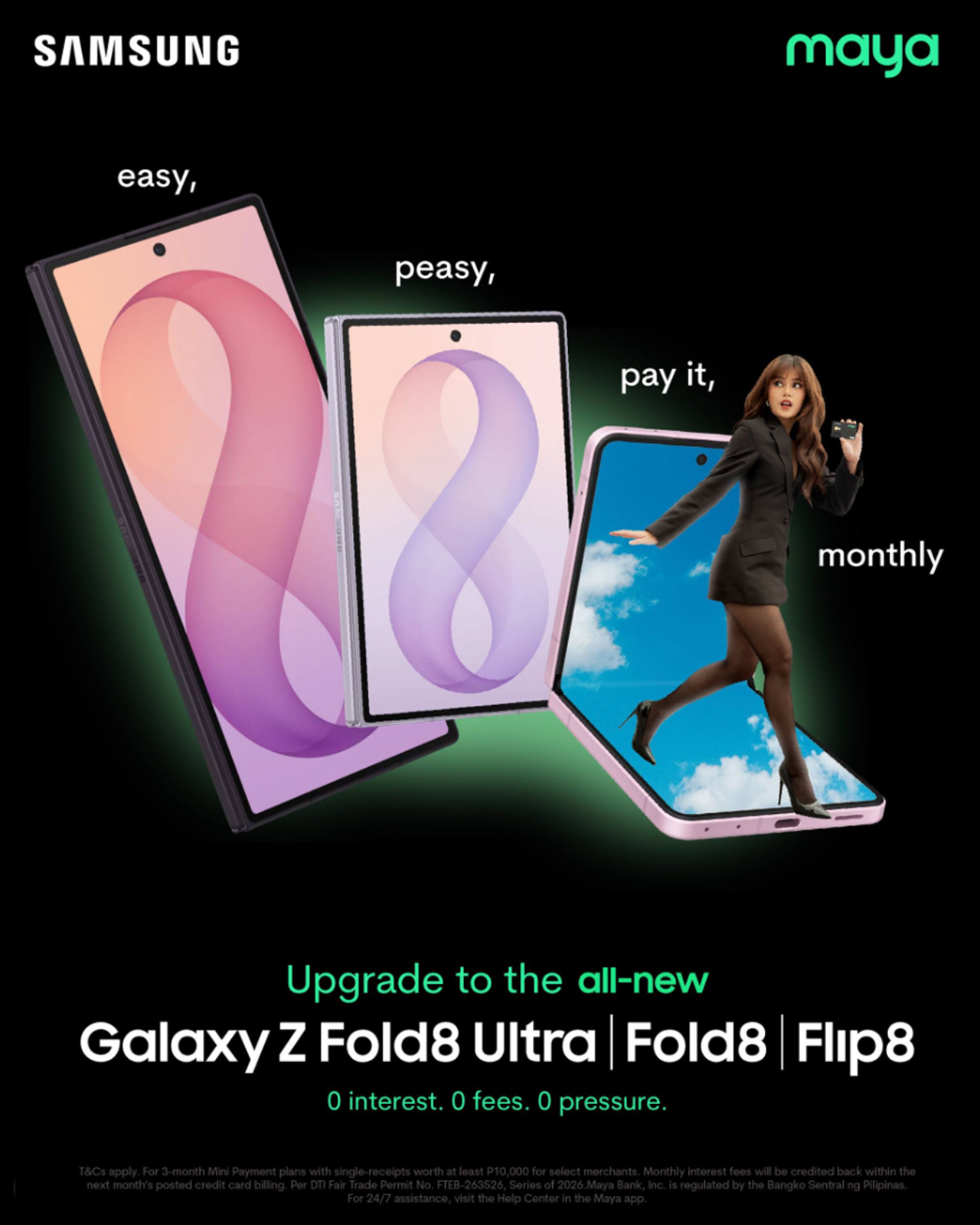
For Samsung Galaxy Z Fold8 and Galaxy Z Flip8 purchases, cardholders can enjoy a 3-month Mini Payment plan at 0% interest, making the upgrade more manageable without additional interest costs on the installment plan.
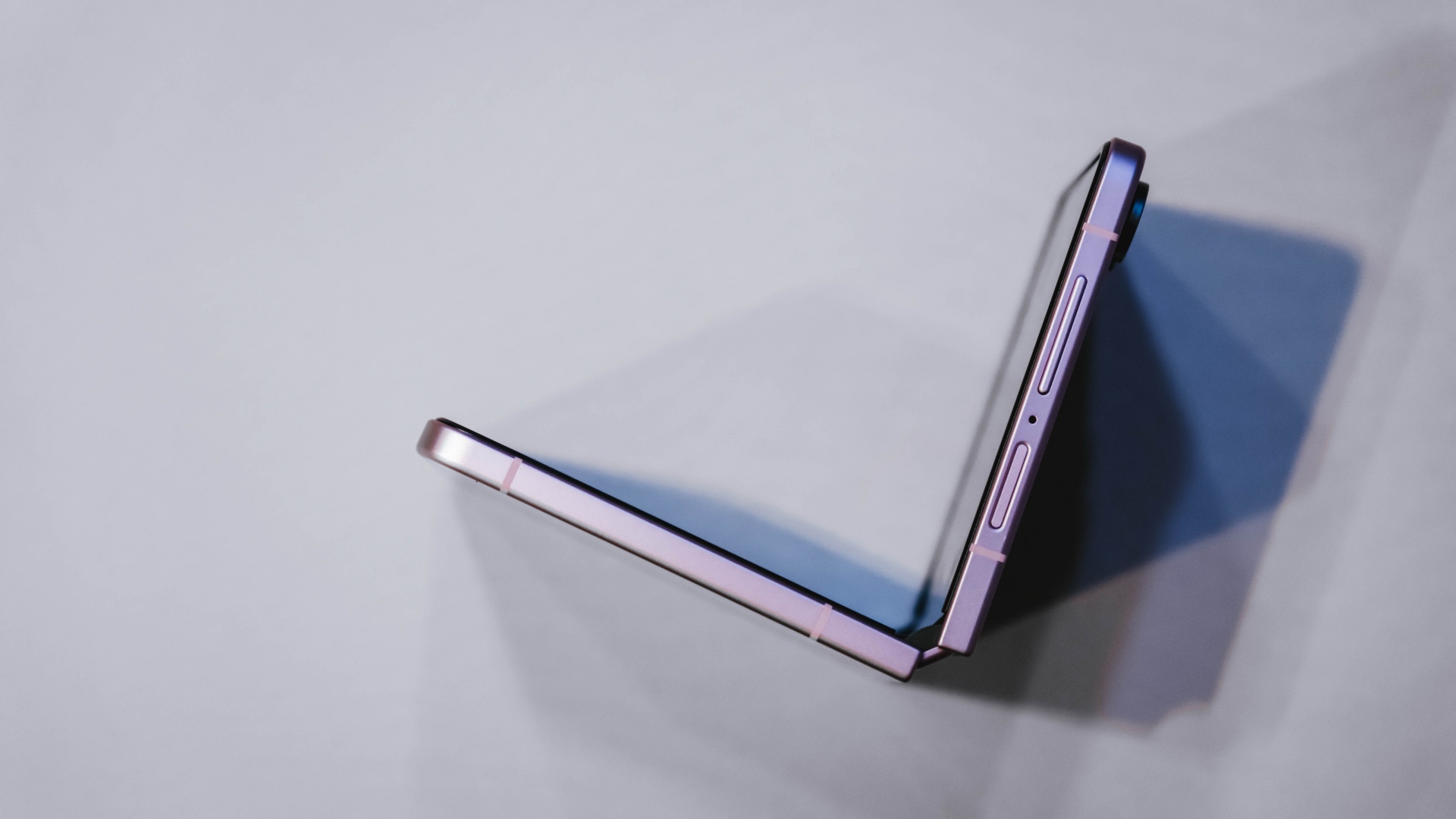
What I like about the concept is that it mirrors the reason I like the Flip8 itself.
The Flip8 makes it easy for me to shoot, edit, communicate, and multitask throughout the day. Maya Mini Payments makes it easy to purchase by turning one large expense into a payment plan that fits more naturally into a monthly budget.
Both are practical solutions to real-world problems. Also, the entire process can be managed directly within the Maya app, making it easy to track and manage installment conversions without additional paperwork.
View this post on Instagram
Still on the fence?
The Samsung Galaxy Z Flip8 feels like one of the strongest cases yet for upgrading to a foldable.
For me, the cover screen is more useful, the camera experience feels more capable, and the battery and multitasking improvements better match how I actually work every day.
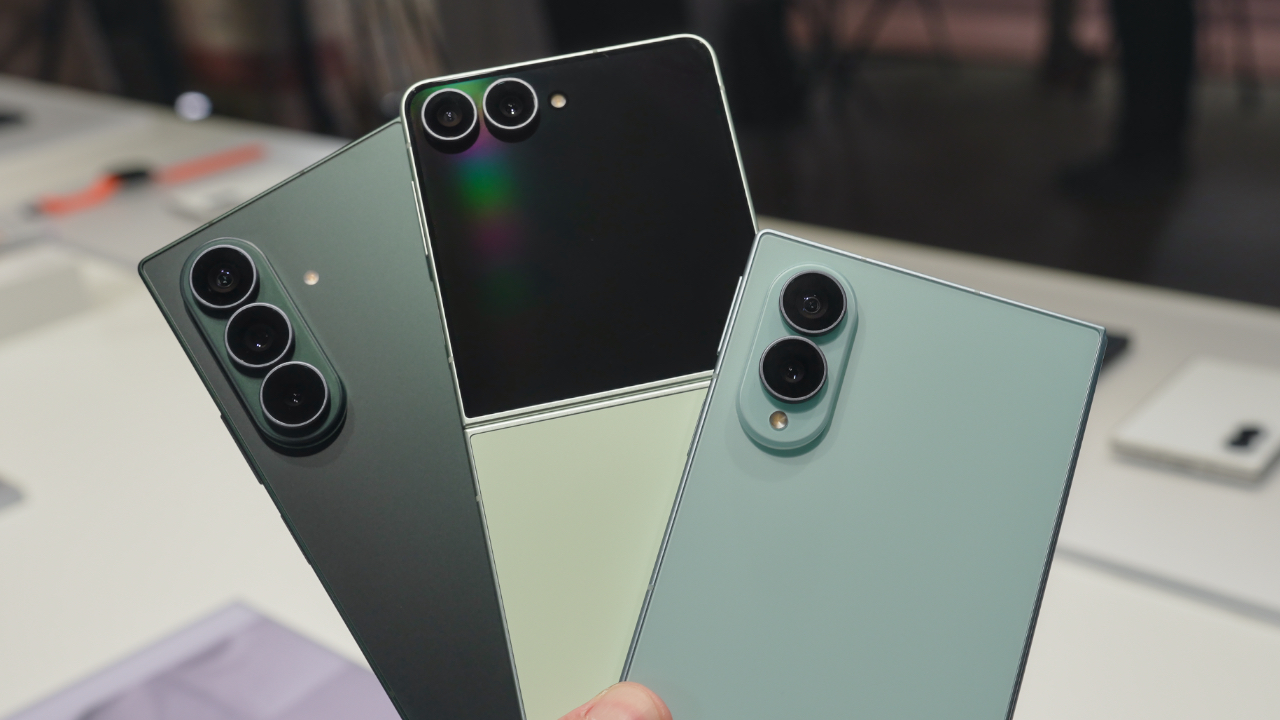
If you prefer a larger screen for productivity, the Samsung Galaxy Z Fold8 follows the same philosophy while giving users even more room to multitask and create.
If you’ve already decided Samsung’s latest foldables are your next devices, there’s also a smarter way to make that upgrade happen.
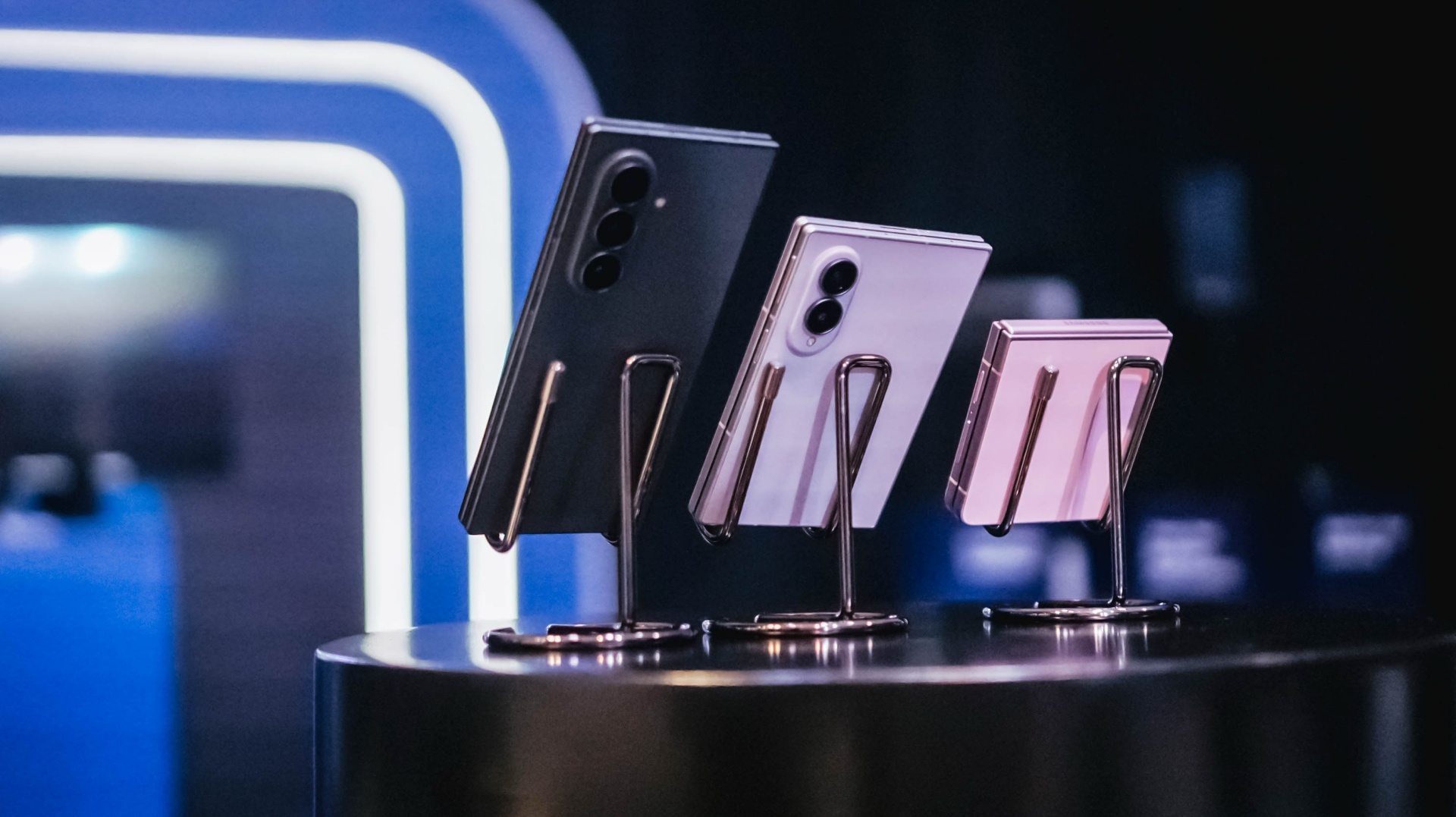
All your Samsung purchases made using a Maya Credit Card can be converted into a 3-month Mini Payment plan at 0% interest, with zero processing fees until September 30, making it easier to enjoy Samsung’s latest innovations without one big upfront payment.
Pre-orders run until August 13, with devices available in-store beginning August 14.

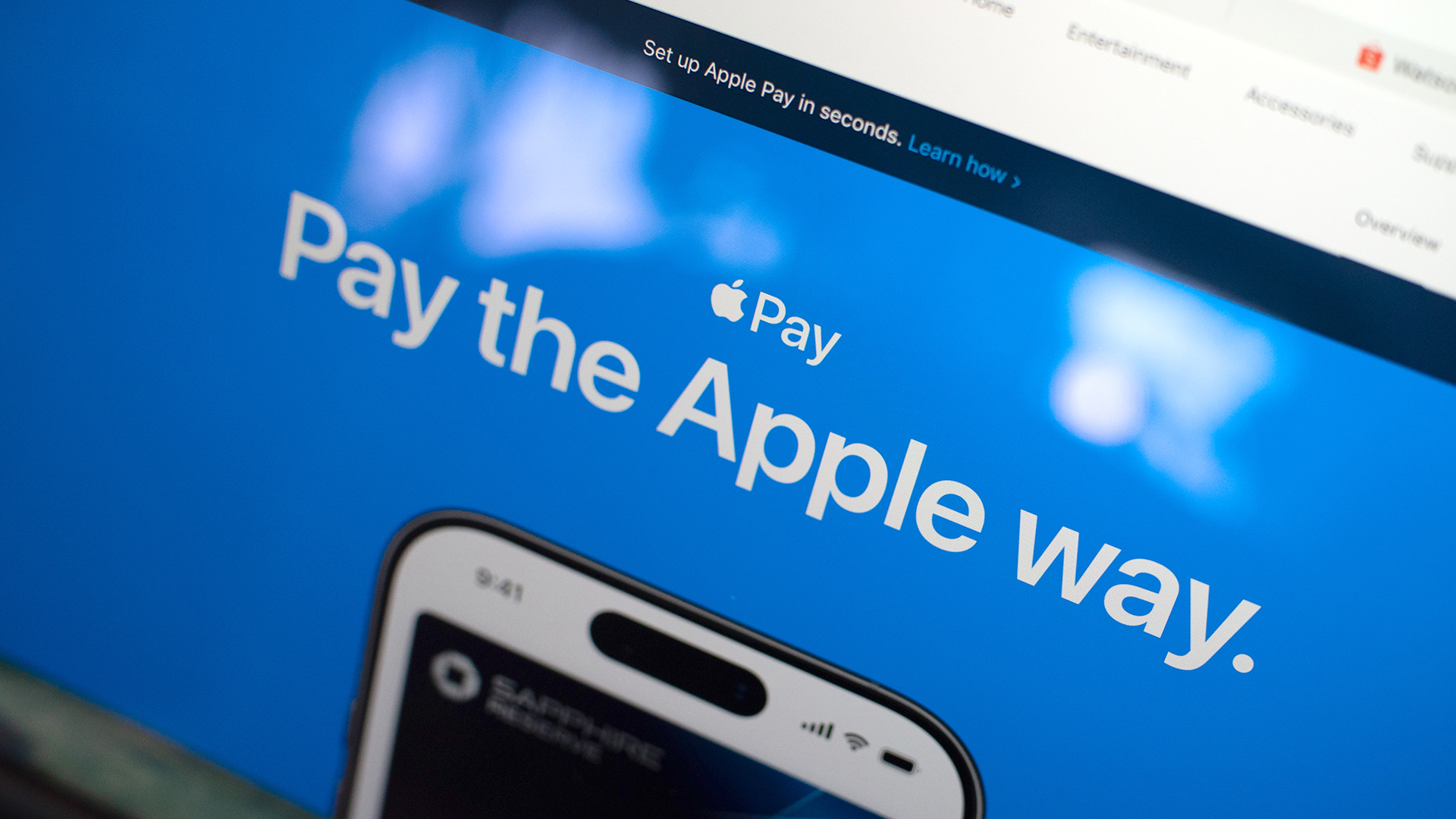
Apple Pay is officially in the Philippines!
Pushing the country forward into a cashless and cardless future, Apple has now brought its contactless payment system to the Philippines. As with other countries, Apply Pay will work seamlessly and easily even for those who have problems with technology.
Now, despite how easy it is, sometimes we need to be pointed in the right direction. Here’s how you can set up Apple Pay on your iPhone:
Everything starts with the Wallet app. First, open your Wallet app. Tap the “+” button on the top and select “Debit or Credit Card.”
Normally, this is where you can input your card details (which you can still do, by the way), but the default method now is to just tap your card on the back of your iPhone. Your phone does the rest. You might need to confirm with your bank, but it’s as easy as a single tap.
Pick which cards to use. Once you have your cards online, you might need to change which one is the default card. Again, it’s easy. Just drag your preferred card to the front.
Afterwards, you can tap to pay in supported stores by priming the Wallet app for use. Tapping to pay is also available for Apple Watch. Meanwhile, online transactions can also work on MacBook.
Secure, all the time. If you’re worried about your security especially with online transactions, Apple keeps your information only between you and the seller. They don’t store your data.
Also, it’s not easy to make a transaction without your consent. You need Face ID, Touch ID, or your password. If you lose your phone, you can easily shut your phone down with the Find My app to prevent malicious parties from making transactions.

Samsung Galaxy Z Fold8 Review
8 Galaxy Folds later, Samsung finally nailed It!


30 days later with the ASUS ExpertBook Ultra: Like seeing an ex
Felt exactly as I remembered.

ROG STRIX G16 Review: Building for the moment
Setting it up however you want to make the most out of it

OBSBOT Meet Flip Hands-on
Samsung Galaxy Z Fold8 Review

Smart showcases cloud gaming platform in partnership with Blacknut

What your smartphone color choice reveals about you

New EV player XPENG to launch in the Philippines in September

Hands-on: Samsung Galaxy Z Fold8, Flip8, Ultra

VinFast debuts two-wheeler models, opens 21 e-motorcycle showrooms

Garmin launches its first screenless fitness band

Sony announces new FX5 full-frame camera

Mercedes-Benz celebrates 140th anniversary at the Presidential Car Museum


-
 Automotive2 weeks ago
VinFast debuts two-wheeler models, opens 21 e-motorcycle showrooms
-

 News2 weeks ago
OnePlus officially leaves the United States and Canada
-

 Gaming2 weeks ago
Call of Duty: Modern Warfare 4 clip shows Losing Ground 1st look
-

 Gaming2 weeks ago
Genshin Impact opens Snezhnaya in Version 7.0 this August 12
-
Laptops6 days ago
ROG STRIX G16 Review: Building for the moment
-
 News1 week ago
Google will force Android users to use Gemini next month
-

 Gaming1 week ago
Tides of Annihilation opens first public demo at Gamescom 2026
-

 Gaming1 week ago
Street Fighter 6 adds first Filipino fighter Yasmine to its roster