
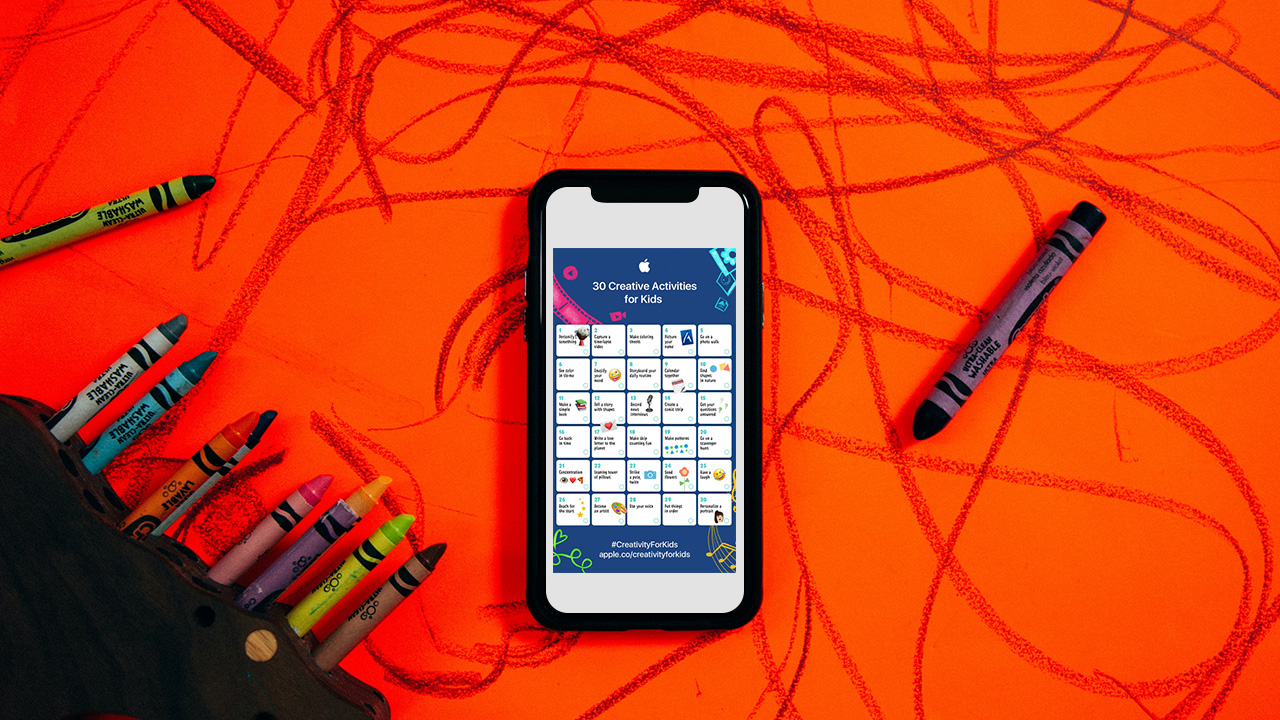

Being a parent with young kids can be tough and overwhelming, especially at a time like this when kids can’t go to school. Coming up with ideas to not only entertain them but also to keep them engaged and curious is a challenge so Apple’s team of educators wants to help.
Here is a set of 30 fun, constructive, and creative activities for younger kids (4-8+) to do with the built-in features of iPad and iPhone. These activities are age appropriate and your kiddo can work on them independently. They can also be tailored even for those who are young at heart.
1. Personify something
Take a photo of an everyday object at home or outside, and draw on it using Markup to transform it into a character.
Get started: Open your photo, tap Edit, then tap the three dots in the top-right to use Markup.
2. Capture a time-lapse video
Set up your iPad to capture a time-lapse video while you build a fort, make your favorite snack, clean up your toys, or watch an ice cube melt.
Get started: Choose Time-Lapse mode in your Camera app. Tap the Record button to start recording; tap it again when you’re done.
3. Make coloring sheets
Take a few fun photos, then change them to black and white to create your own coloring sheets. Use Markup to add color.
Get started: Open each photo, tap Edit, and apply one of the black-and-white filters. Go further by creating a book using a template in the Pages app.
4. Picture your name

Take a photo of each letter of your name by finding them in books or signs. Put them together to spell out your name in a colorful collage.
Get started: Crop the letters in the Photos app, then add each photo to a Keynote file in the right order.
5. Go on a photo walk
Pick a color or letter of the day and take photos of things that are that color or start with that letter. Then put them together in a collage or video. Try to make a rainbow or complete the alphabet!
Get started: Add the photos of each color or letter to a slide in the Keynote app. Or add each photo to Clips and record your voice saying the colors or letters.
6. See color in slo-mo
Record a video in slow-motion of drops of food coloring falling in water. Do primary colors first, then mix them together to create secondary colors.
Get started: Choose Slo-mo mode in your Camera app, then record.
7. Emojify your mood
Draw a circle, then add silly eyes, a happy face, or eyebrows that show the mood you’re in. You can also add shapes and images, then share it with your friends!
Get started: Add the images to a Keynote slide, then tap the plus sign to use the drawing tools. Or use shapes to get started, then decorate with emoji.
8. Storyboard your daily routine
Take a photo of something that represents each of your regular activities. Combine the photos and add a title, time, and checkbox for each activity. Mark it up daily!
Get started: In the Keynote app, tap the plus sign to use the drawing tools. Draw your emoji, then add shapes or images to decorate your picture.
9. Calendar together
Download this fun template to identify the days, months, seasons, weather, temperature—and even your mood!
Get started: Open the document using the Keynote app. Copy the labels and paste them to the right spot on the calendar.
10. Find shapes in nature
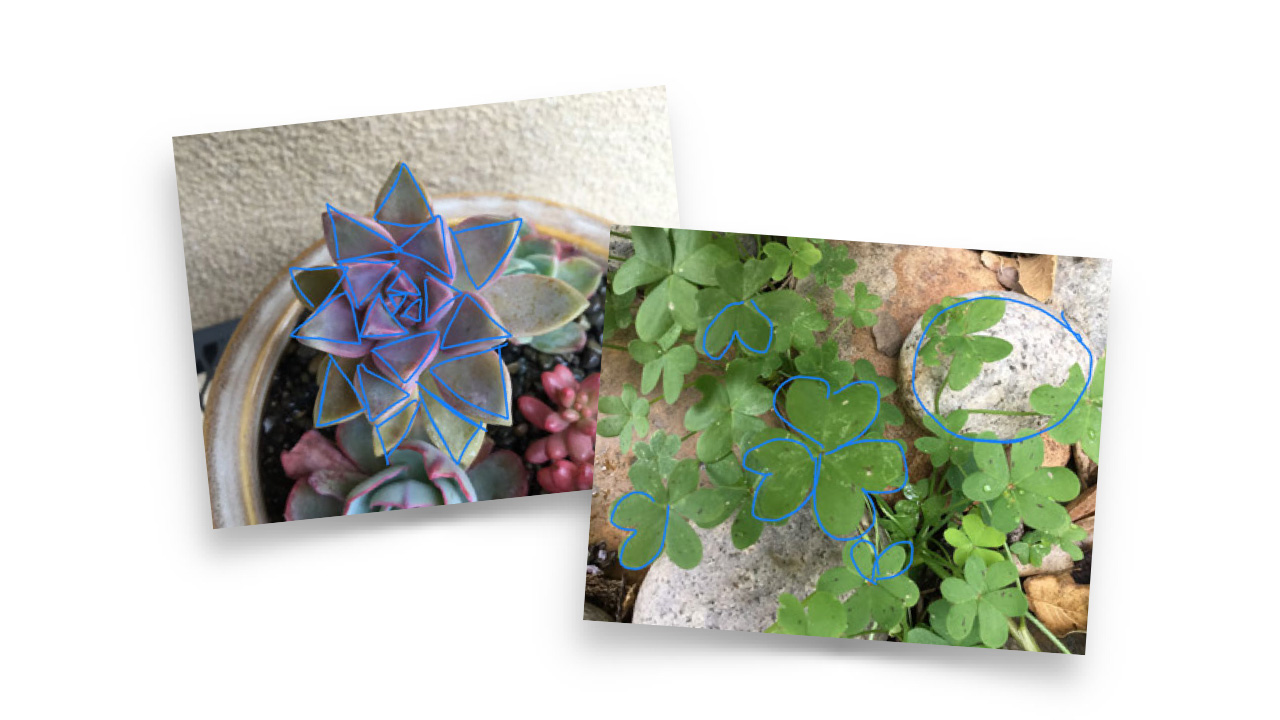
Take a photo outdoors, then use Markup to trace all the shapes you can find in the photo.
Get started: Open your photo, tap Edit, then tap the three dots in the top-right to use Markup.
11. Make a simple book
Think of an imaginary story. Take photos or videos acting out different parts. Create a book with each photo or video scene, along with story captions. Then decorate it with drawings, shapes, or emoji images.
Get started: Add your photos and videos to a book template using the Pages app.
12. Tell a story with shapes
Add a variety of shapes from the Shapes menu to a blank page, and rearrange them to create a story. Try rearranging the same shapes to create three different stories.
Get started: In the Pages app, tap the plus sign in the top-right to open the Shapes menu. Drag the shapes to rearrange them.
13. Record news interviews
Have fun recording yourself asking and answering questions. Use different sounds and voices, becoming an alien giving the weather in outer space or a squirrel covering nut collections outdoors.
Get started: Use the Audio Recorder in the GarageBand app.
14. Create a comic strip
Take a picture of yourself and each of your favorite toys
as the characters. Combine the photos in a video, transform them using the comic book filter, and record yourself telling a story.
Get started: Touch and hold the Record button in the Clips app to import each character’s photo from Photos. Tap each clip to use the comic book filter effect.
15. Concentration

Write phrases or sentences using only emoji or shapes with a friend or sibling. Share your clues with each other and take turns solving them.
Get started: Open a document in the Pages app and tap the globe in the bottom-left of the keyboard to see the emoji. Tap the person icon in the top-right to collaborate with a friend.
16. Go back in time
Find an old photo. Re-create the scene, take a picture, then use a black-and-white filter to make it look like it was from the past.
Get started: Open your photo, tap Edit, then tap the three circles at the bottom to use filters.
17. Write a love letter to the planet
Take, find, or draw a picture of your favorite place. Add text boxes or a voice recording of why you love it and how you’ll take care of it.
Get started: Add your photo to the Pages or Keynote app. Tap the plus sign to choose Record Audio, or choose Shapes and add a text box.
18. Make skip counting fun
Record yourself skip counting by 2s, 5s, or 10s. Use the fun voice effects to give yourself a monster or robot voice.
Get started: Use the Audio Recorder in the GarageBand app.
19. Make patterns
Add a series of two or three shapes to a blank page to create a pattern. Repeat the pattern with a new set of shapes, then practice identifying and tracing each shape.
Get started: In the Pages app, tap the plus sign to use the Shapes menu to add shapes. Drag the shapes to arrange them in a pattern. Tap the plus sign again to use the drawing tool to trace on top of the shapes.
20. Go on a scavenger hunt
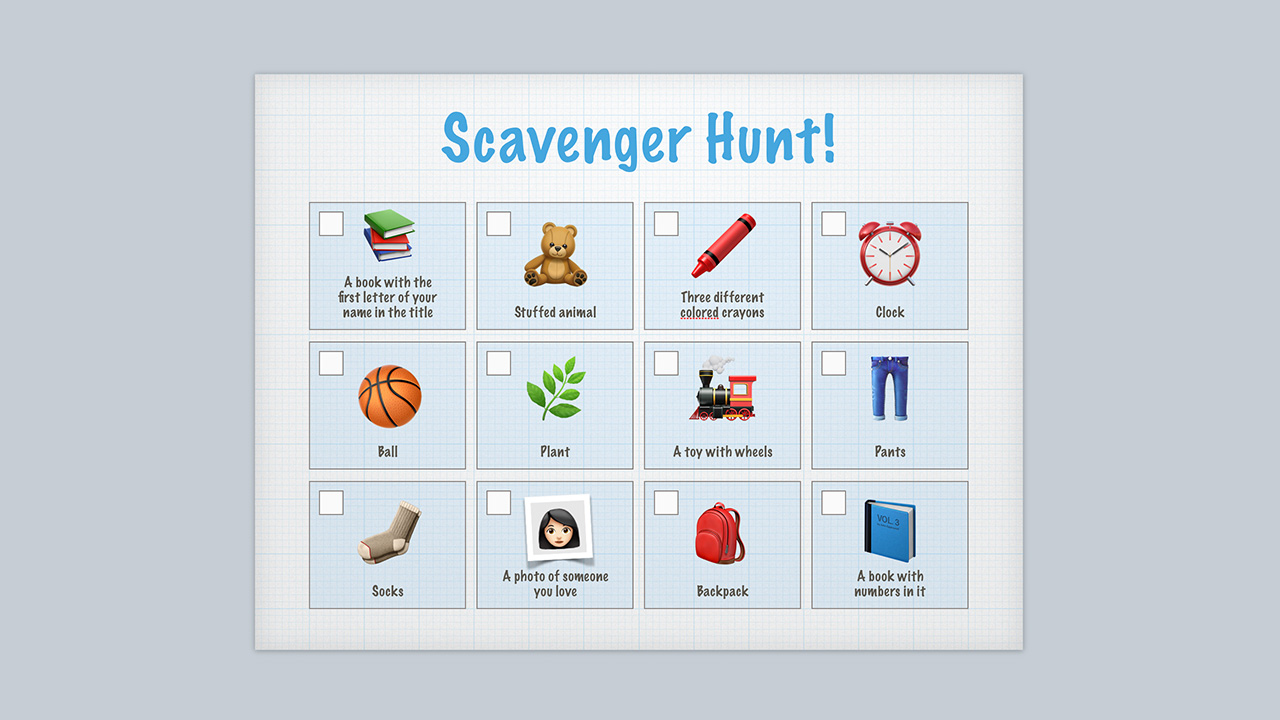
Use this template to create your own scavenger hunt by replacing the items in each square with different shapes or images.
Get started: Open the template in the Keynote app. Tap the plus sign in the top-right to open the Shapes menu, and replace the items in each box with shapes of your choice. You can also replace them with emoji.
21. Leaning tower of pillows
Build a tower of pillows, and record a slo-mo video of the tower tumbling to the ground.
Get started: Choose Slo-mo mode in your Camera app, then record.
22. Strike a pose, twice
Have a family member take a pano photo with you in the first frame. Run to the end so you appear in the photo twice.
Get started: Start on the left side of the camera frame, then run behind the photographer to pop into the frame from the right side.
23. Send flowers
Use shapes to make a bouquet of flowers. Add some text, and send it as a postcard to someone special.
Get started: Tap the plus sign in the top-right of the Keynote app to open the Shapes menu. Export as an image to share.
24. Have a laugh
Ask Siri to tell you a joke.
Get started: Say “Hey Siri, tell me a joke” into your iPad.
25. Reach for the stars
Lay on the ground, and looking up, take burst photos of a family member jumping and reaching for the stars. The upward angle will make it look like they’re touching the sky.
Get started: Touch and hold the shutter button to take a burst of multiple photos. Tap Edit to select the frame when the person jumping is highest in the air.
26. Become an artist
Take a photo of yourself or your favorite toy. Trace the lines on top of the photo, then delete the photo to reveal your work of art.
Get started: Add your photo to a blank slide in Keynote. Tap the plus sign to use the drawing tool for tracing on top of your photo. Save it as an image when you’re done.
27. Put things in order
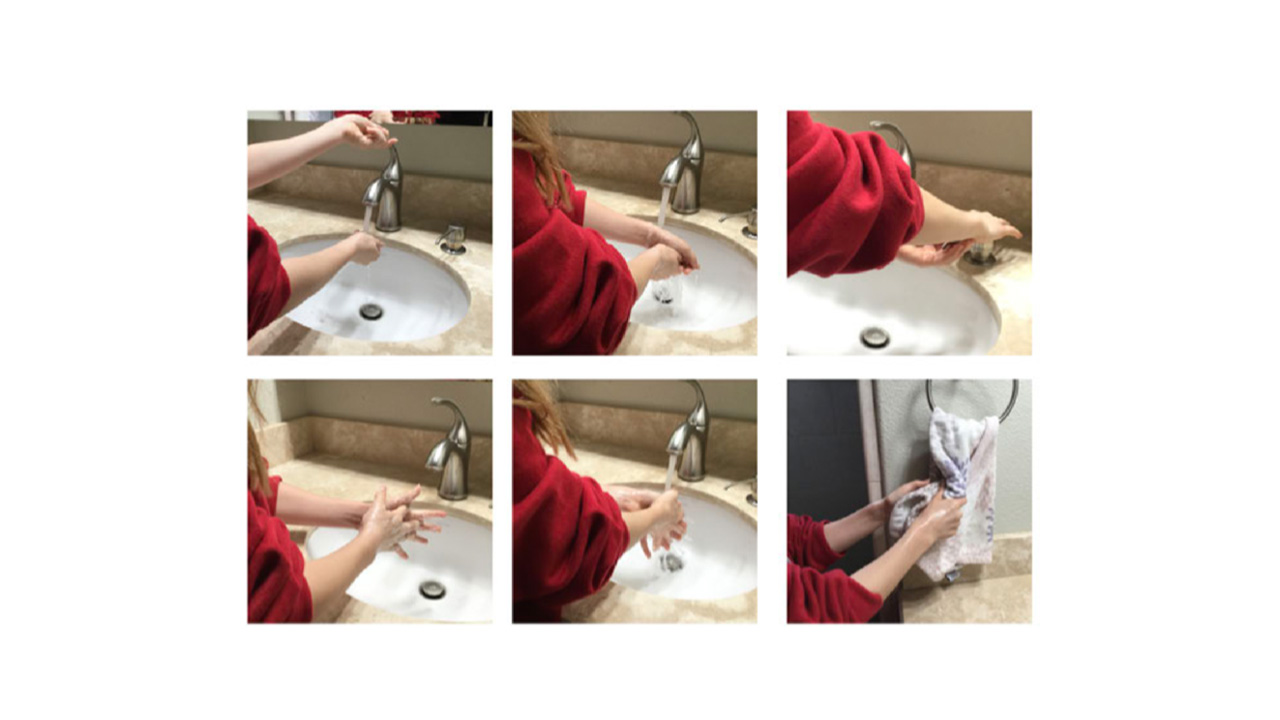
Take a picture of each step of an everyday activity, like washing your hands: turn on the water, soap your hands, scrub, rinse, and dry. Put the photos in order to create a sequence. You just learned your first coding concept!
Get started: Add your photos to the Keynote or Clips app, and sort them in the correct order. In Clips, you can make a short movie that includes music, titles, and stickers.
28. Get your questions answered
Have a question? Like, why is the sky blue? Or, how much does an elephant weigh? Let Siri find the answer.
Get started: Say “Hey Siri” into your iPad.
29. Use your voice
Use Voice Memos to create an audio message to share a funny joke with a friend, send an invitation for a virtual play date, or just say hi!
Get started: Record a message in the Voice Memos app, then share it using Messages or Mail.
30. Personalize a portrait
Take a self-portrait and use Markup to draw on it and let your personality shine. Do you have a cape or wings? Maybe a unicorn horn? Green highlights in your hair?
Get started: Open your photo, tap Edit, then tap the three dots in the top-right to use Markup.
SEE ALSO: 9 gifts to enhance your kid’s multiple intelligence






Apps
Canva teams up with SB19 to turn A’TIN’s passion into creativity
Campaign lets fans access assets, editable templates, more


Canva Philippines has joined forces with SB19 and Sony Music Entertainment to launch the “Kaya sa Canva” campaign.
This first-of-its-kind initiative is aimed at transforming the popular Filipino boy band’s fanbase into creators by giving them access to official design assets, exclusive templates, and powerful creative tools.
That’s of course as fans have a way of creating artwork, banners, and more outputs to honor their idols.
As such, the partnership enables the A’TIN (SB19’s fanbase) to access the Canva-exclusive SB19’s Creative Hub.

This dedicated space lets fans access assets, including SB19-inspired sticker packs, custom typography, and editable templates inspired by the group.
Fans around the world will initially have access to templates for photo-booth strips, wallpapers, posters, and videos.
The campaign will then expand with Canva-exclusive assets celebrating the group’s New Era, as well as their latest single, “Lawless”.
Meanwhile, the original song “KAYA” is accompanied with an upbeat music video, doubling as a love letter to A’TIN and a masterclass in Canva’s tools.
Every visual and animation is fan-inspired, a celebration of the creativity, passion, and dedication that’s defined in the community from day one.
Apps
Samsung’s bet on the future of connected health: Less data, more action
Inside Samsung’s plan to close the gap between your wearable and your doctor

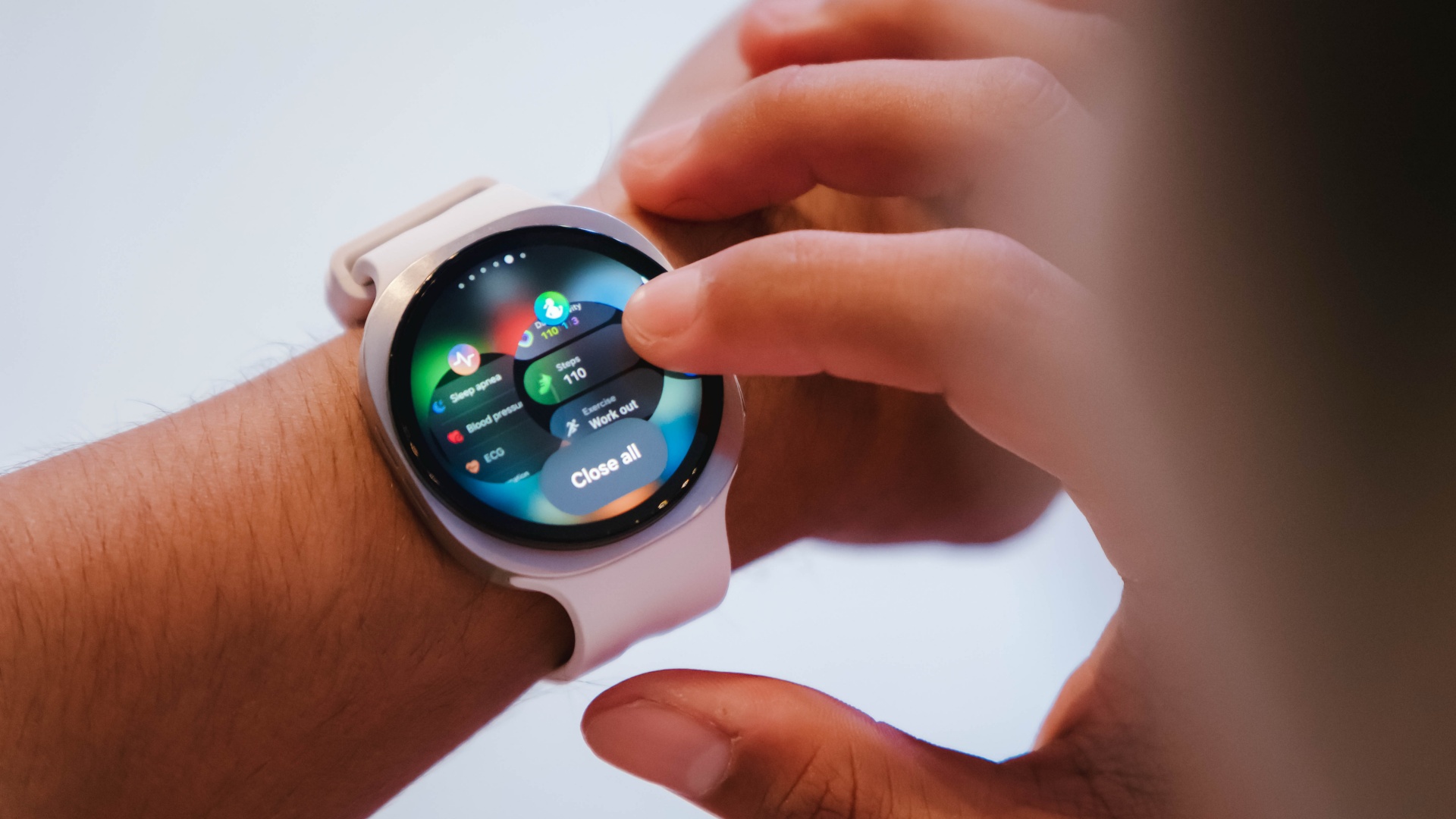
Here’s a paradox worth sitting with: Wearable adoption keeps climbing. A lot of people now walk around with a sensor on their wrist, tracking heart rate, sleep, steps, sometimes ECG. And yet chronic disease rates haven’t moved.
That’s the problem Dr. Hon Pak, Samsung’s Head of Digital Health globally, opened with at a recent panel on the future of connected care. More data hasn’t meant better healthcare. His diagnosis: a first-mile, last-mile issue.
The first mile is that all this wearable data rarely makes it to a doctor in any usable form. The last mile is that even when a doctor says “lose weight, eat better, move more,” that advice tends to dissolve the moment real life takes over.
Picking up kids, caring for parents, getting through a Tuesday, it’s not that people don’t know what to do. It’s that knowing and doing are two different problems.
Samsung’s answer involves three things it says connected care needs to mature: meeting people where they actually are, building enough trust that people rely on the data, and using AI to turn that data into something a person can act on rather than just look at.
The Tuesday evening problem
Karthik Poriya, Head of Product at Samsung Food, framed the everyday failure point clearly. Picture it: long day, you’re tired, staring into the fridge. You’re not reaching for the healthiest option in that moment, you’re reaching for whatever’s fastest and most satisfying.
For years, nutrition tracking has focused on logging what already happened. Poriya’s team wants to intervene right at that decision point instead, pairing Samsung Health’s underlying data (BMI, antioxidant index, glycation markers) with Samsung Food’s recipe index of roughly 40,000 dishes mapped across 34 nutrients, so a health number turns into an actual dinner suggestion rather than another stat to check later.
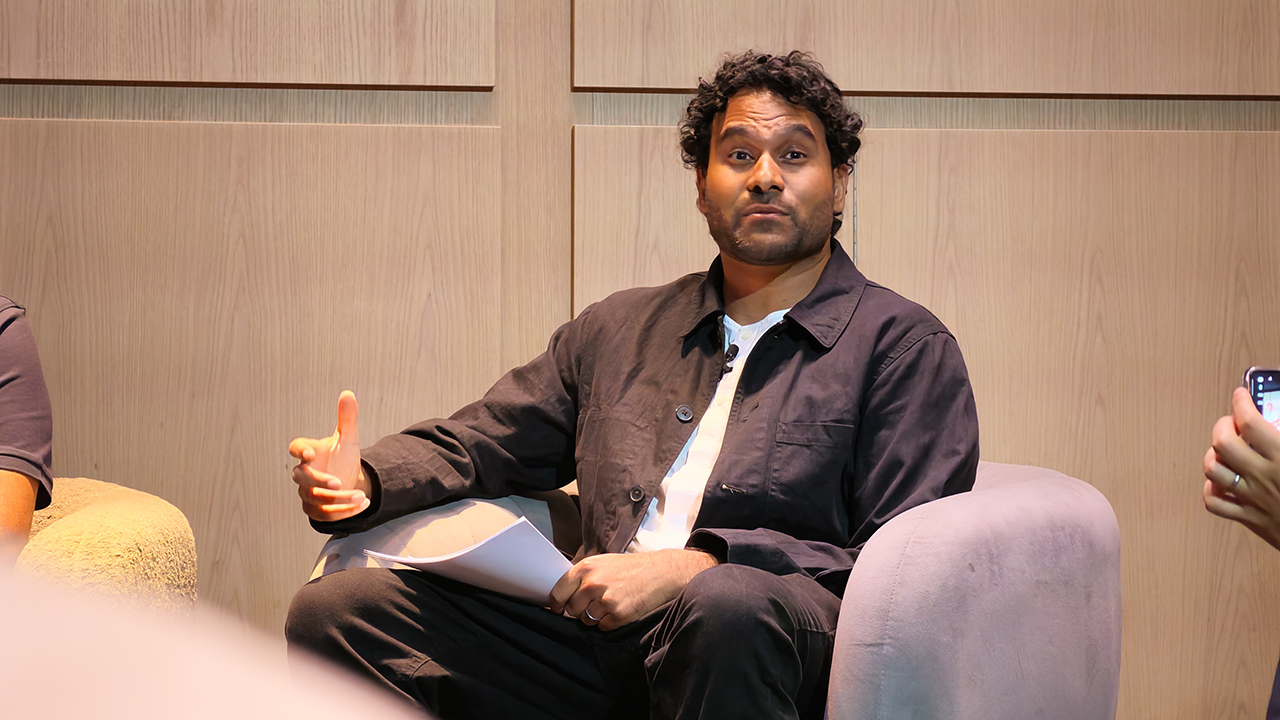
Dr. Pak backed this with a small, concrete example from his own family: moving leftover cheesecake out of eye-level in the fridge and putting washed, sliced carrots there instead.
Kevin Duffy, CEO of connected fitness company iFit, made a similar point about exercise. The most effective tool for sticking to a fitness plan is a personal trainer, he said, citing roughly 80% higher adherence compared to going it alone.
The problem is cost: US$100 an hour or more in a major city puts that out of reach for most people. iFit’s bet is that AI can deliver something closer to a personal trainer’s precision and motivation at a price that isn’t elitist.
Duffy pointed to three reasons his company partners with Samsung specifically: reach (Samsung hardware is already in people’s homes, on their wrists and TVs), access to the biomarker data needed to build an accurate plan, and the fact that fitness goals don’t exist in isolation from sleep and nutrition data.
Trust has to come before any of this works
None of the behavior-change ambitions matter if people don’t trust the data or the company holding it. Rohit R. L., who heads Samsung’s Technology Innovation Lab in the UK, laid out how his team approaches that.
Privacy comes first: Samsung, he said, treats itself as a custodian of user data rather than an owner of it. On top of that sits clinical validation, meaning published, peer-reviewed evidence that a feature actually works in the real world, not just in a lab.
He gave a specific example: Samsung’s ECG and irregular heart rhythm notifications have been clinically validated and cleared by regulators to detect signs of atrial fibrillation. He was careful with the wording there, detect signs of, not diagnose, since that distinction matters both medically and legally.
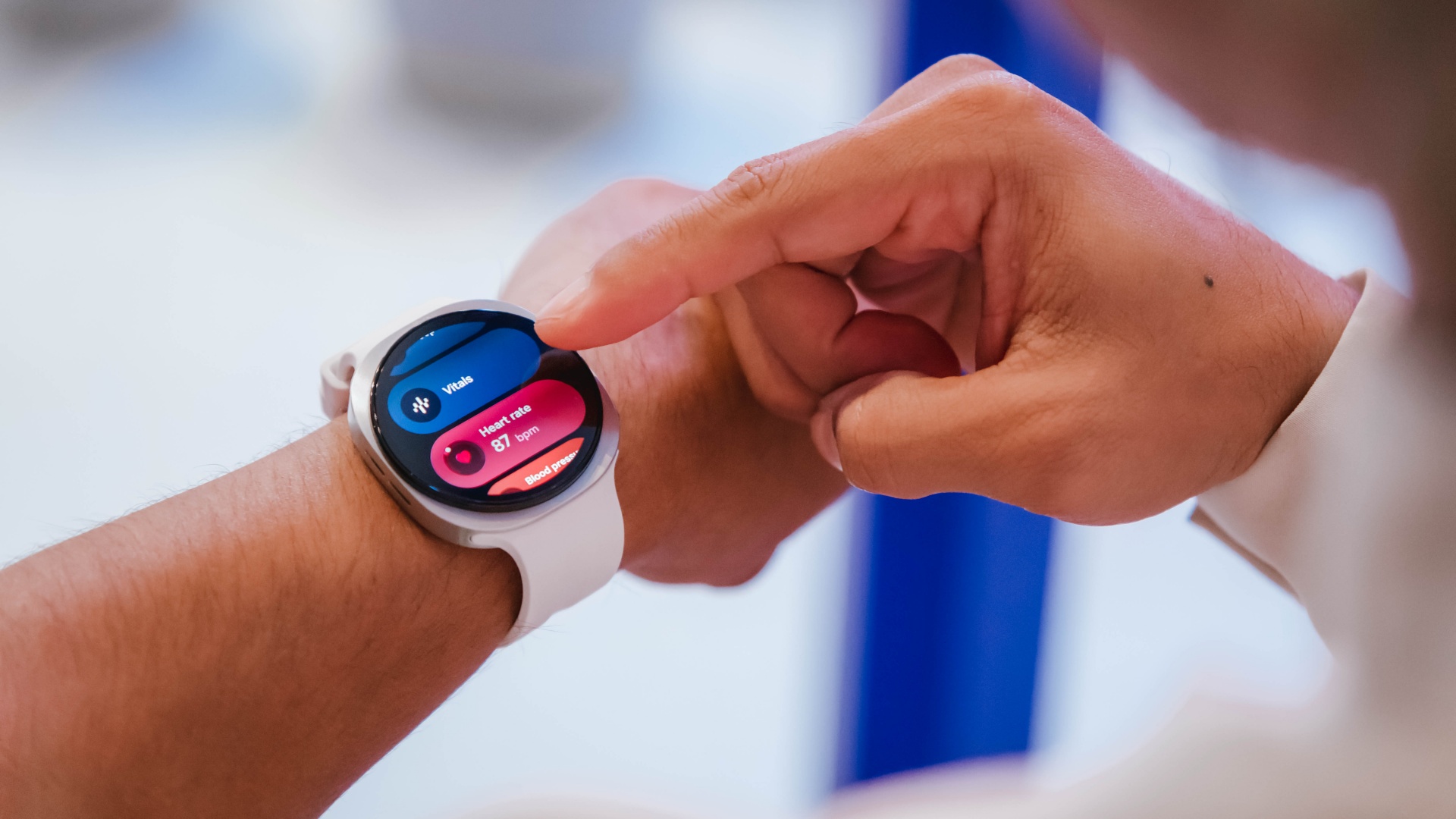
A separate study on fall detection for elderly users turned up a more human finding. The detection algorithm worked well in testing, but in real life people don’t wear their watches around the clock, and falls don’t happen on a schedule.
Dr. Pak drew a useful comparison: nobody tells their MRI technician they’re going to fidget through the scan, but with a wearable, you don’t get to control how or when someone wears it. Real-world validation has to account for that.
On the infrastructure side, Rohit described a three-layer privacy approach: on-device protection through Samsung’s Knox security framework, GDPR-compliant data handling, and alignment with the European Health Data Space, including a decentralized clinical trial system where patient identity stays with the hospital rather than moving to Samsung’s side.
Where AI actually comes in
The most technically dense part of the discussion came from Otavio Penatti, who leads Samsung’s Health AI R&D team in Brazil.
His team works on foundation models, the same category of large-scale AI models trained on unlabeled data that underpin most of today’s popular AI systems. Trained once on a huge amount of sensor data, these models can then be fine-tuned for many specific health applications, which tends to make them more accurate than models built for a single narrow task.
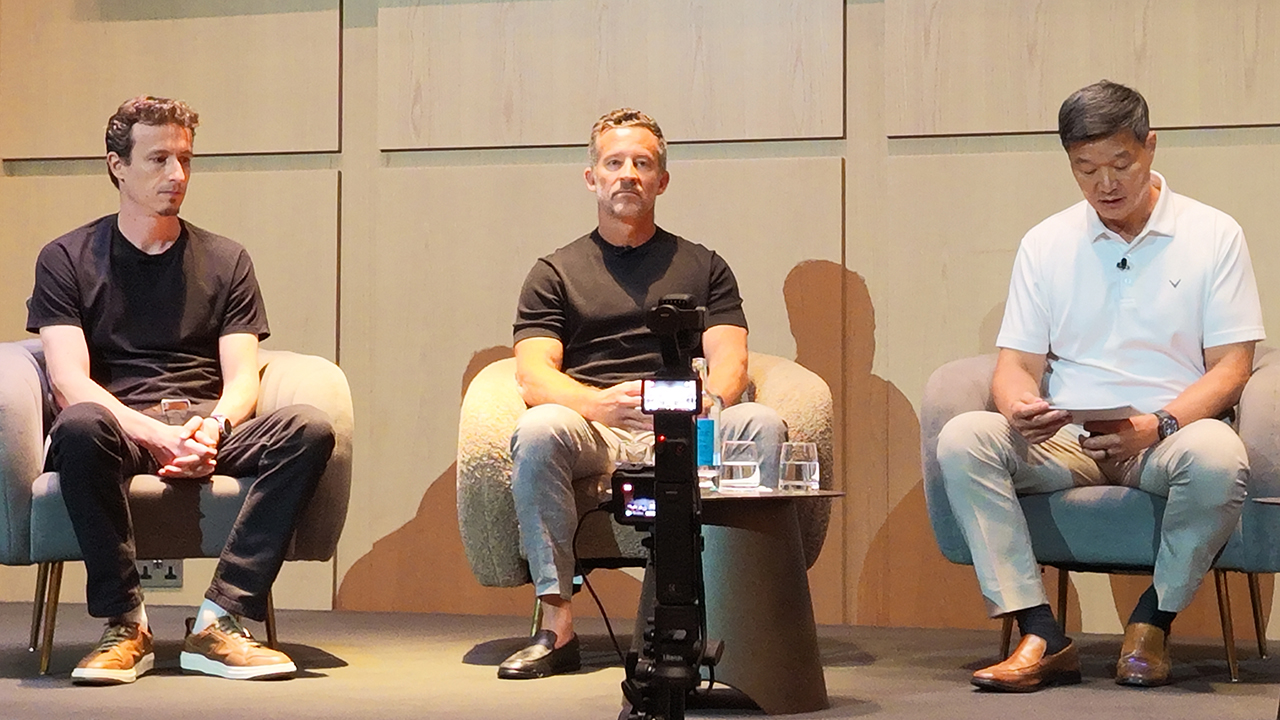
Penatti’s team is training these models on wearable sensor data (PPG, ECG, accelerometer) with the goal of getting the model to, as he put it, understand the body’s own signals well enough to translate them into something useful. Longer term, he sees potential in correlating that sensor data with clinical records to flag disease risk before symptoms show up.
Dr. Pak added a striking data point from Stanford research: a foundation model trained on sleep study data was able to look at just a 24-hour window of sleep and predict risk across more than 130 different diseases.
His takeaway was that the signals for a lot of future health problems are already sitting in the data being collected today, we just don’t yet know how to read all of them.
He closed this part with a number worth sitting with. A recent American Medical Association survey found that 97% of physicians have looked at wearable data at some point. Only 15 to 16% actually use it in day-to-day practice.
The top reason cited wasn’t distrust of the data, it was that the data doesn’t plug into existing clinical workflows. That’s part of why Samsung acquired health data platform Xealth, to build a pipeline that gets wellness data into the systems doctors already use.
Five years out
Asked to look five years ahead, each panelist’s answer tracked closely to their own corner of the problem. Poriya described a proactive dietitian in your pocket, one that doesn’t wait to be asked.

Rohit pointed to connected care that clinicians actually trust and patients fully control. Penatti envisioned AI that continuously links everyday behavior to clinical outcomes, catching problems before they start. Duffy’s version was a constant personal wellness coach, sifting through the data noise to tell you exactly what to do next.
The throughline across all four answers is the same: less raw data, more action. Samsung’s panel made the case that the wearable industry has spent the last decade solving for collection, more sensors, more metrics, more dashboards, while the harder problem, turning that information into something a tired person actually does on a Tuesday night, has barely been touched.
Whether foundation models and better clinical integration actually close that gap is still an open question. But it’s clearly the one Samsung is choosing to spend its next five years on.
Manila weather is notoriously unpredictable during the rainy season. Clear 7 AM skies easily turn into 5 PM downpours. For motorcycle-taxi commuters, arriving at work dry is a total coin flip.
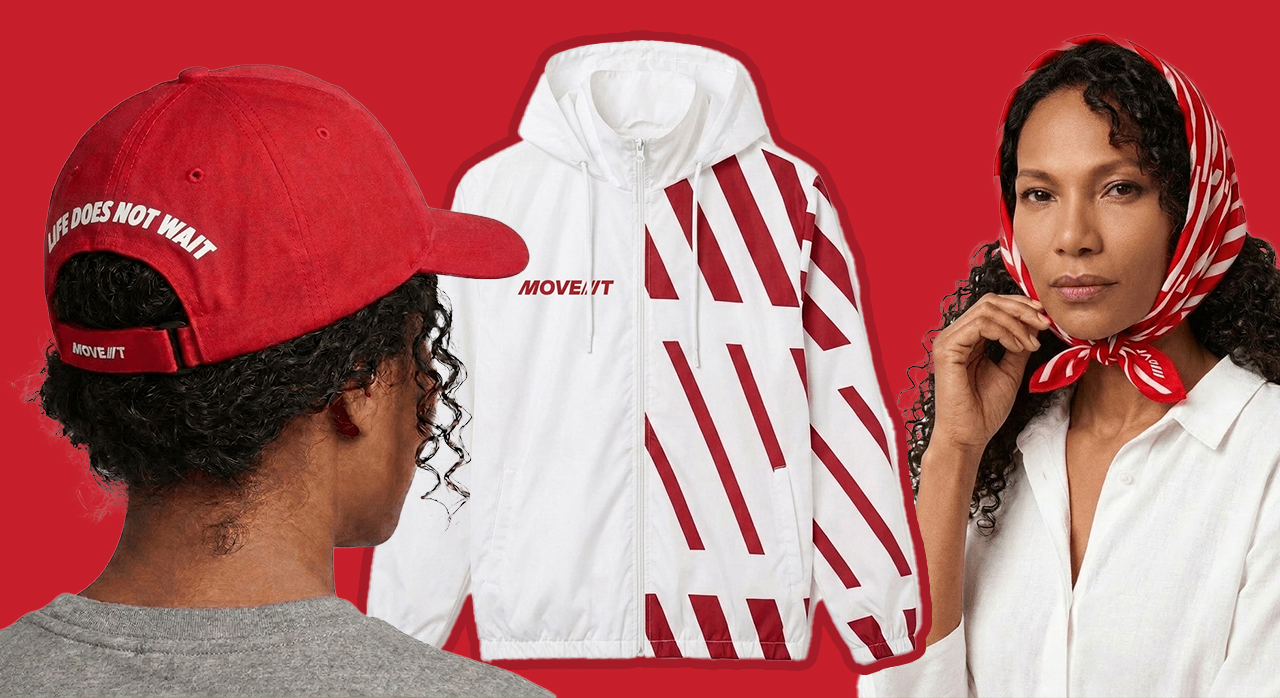
MOVE IT aims to fix this with Ride-Ready, a line of commuter essentials sold exclusively on GrabMart.
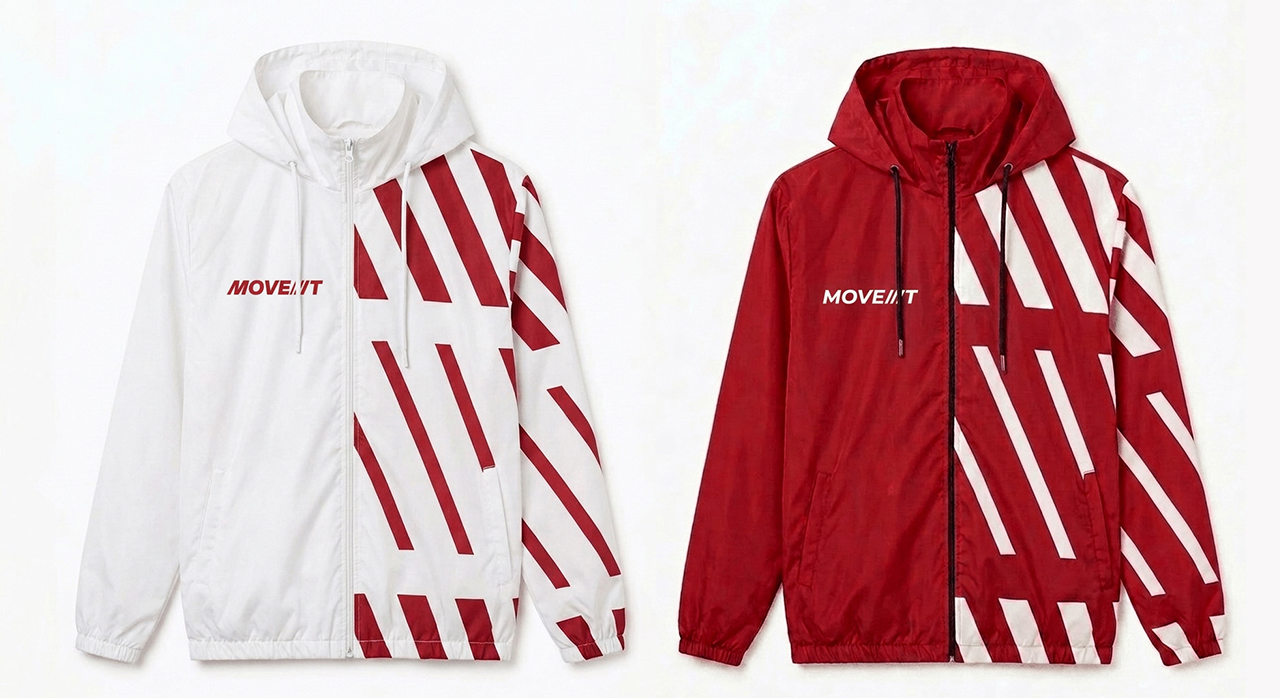
The collection features a packable rain jacket, a helmet liner scarf or cap, and a refresh kit with alcohol spray, cooling wipes, and tissues.
Addressing rider concerns
Motorcycle-taxis are now central to daily commutes. MOVE IT reported a 20% year-over-year jump in monthly active users during the first half of the year. Still, riders consistently voice the same worries: sudden rain, punishing heat, and shared helmet hygiene.
“Filipino commuters have become extraordinarily good at adapting to city life. What they should not have to accept is arriving at a meeting soaked, or starting the afternoon already behind,” says MOVE IT General Manager Wayne Jacinto.
Jacinto calls Ride-Ready a practical fix to help passengers end their ride looking as fresh as when they left home.
Price, availability
MOVE IT didn’t just launch online. From June to July, interactive booths popped up in major business hubs: Makati, BGC, Ortigas, and Cebu City. Commuters could claim items and book rides on-site.
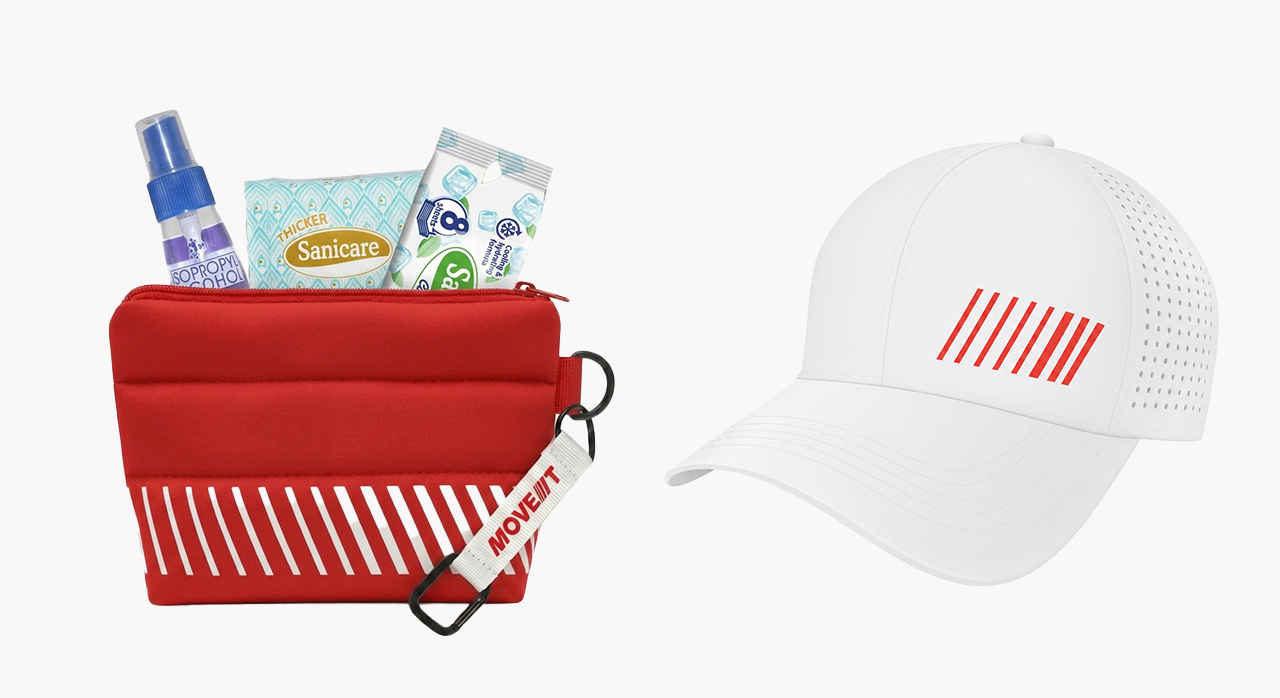
With traffic and bad weather showing no signs of stopping, Ride-Ready offers a simple buffer so riders show up fresh instead of frazzled.
The lineup launched on GrabMart on July 13. Prices start at PhP 275, with mix-and-match savings bundles available. Check MOVE IT’s official social media channels for more details.


30 days later with the ASUS ExpertBook Ultra: Like seeing an ex
Felt exactly as I remembered.


ROG STRIX G16 Review: Building for the moment
Setting it up however you want to make the most out of it
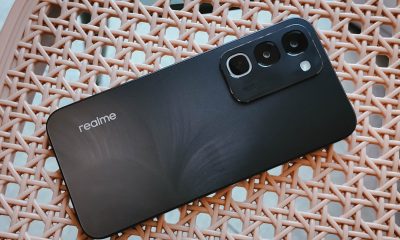

realme C100: Enduring and durable in spite of entry-level realities
Enough power but needs more agility
30 days later with the ASUS ExpertBook Ultra: Like seeing an ex

TCL expands mobile lineup with latest NXTPAPER series
ROG STRIX G16 Review: Building for the moment

Smart opens HUAWEI Pura 90s Series pre-orders with exclusive freebies

Apple Watch, AirPods get exclusive offers via Beyond the Box

Hands-on: Samsung Galaxy Z Fold8, Flip8, Ultra

Garmin launches its first screenless fitness band

VinFast debuts two-wheeler models, opens 21 e-motorcycle showrooms

Samsung releases teaser with Spider-Man: Brand New Day Easter eggs

Most of the world’s PlayStations will be officially useless by 2028


-
 Automotive1 week ago
VinFast debuts two-wheeler models, opens 21 e-motorcycle showrooms
-

 Computers2 weeks ago
AMD launches Radeon RX 9050 graphics card
-

 Automotive1 week ago
Xiaomi debuts SkyNomad Series featuring new Kunlun platform
-

 News5 days ago
OnePlus officially leaves the United States and Canada
-

 Gaming2 weeks ago
NBA 2K27 gameplay trailer showcases new dunk mechanics, Rucker Park, and more
-

 Gaming1 week ago
Call of Duty: Modern Warfare 4 clip shows Losing Ground 1st look
-

 Automotive2 weeks ago
BYD Atto 2 launches with EV, plug-in hybrid options
-

 Automotive1 week ago
GAC launches new trio of MPVs