

When you’re an adult, coffee isn’t just a power-up drink helping you get through the day. It becomes an avenue for conversation, an invitation to meet people, a kick you need to fuel your creativity and productivity.
While there are several ways to brew coffee and there are different local neighborhood cafés to explore, Starbucks has always been within reach. And it has ingrained itself as an important part of my working life. A staple of the modern workforce’s culture. A lifestyle — tradition to an extent — that seeped in through the interstices of friendships and family.
When the pandemic struck, I started learning how to brew my own coffee. Occasionally, I order my caffeine fix through Grab or Foodpanda. But the experience isn’t the same.
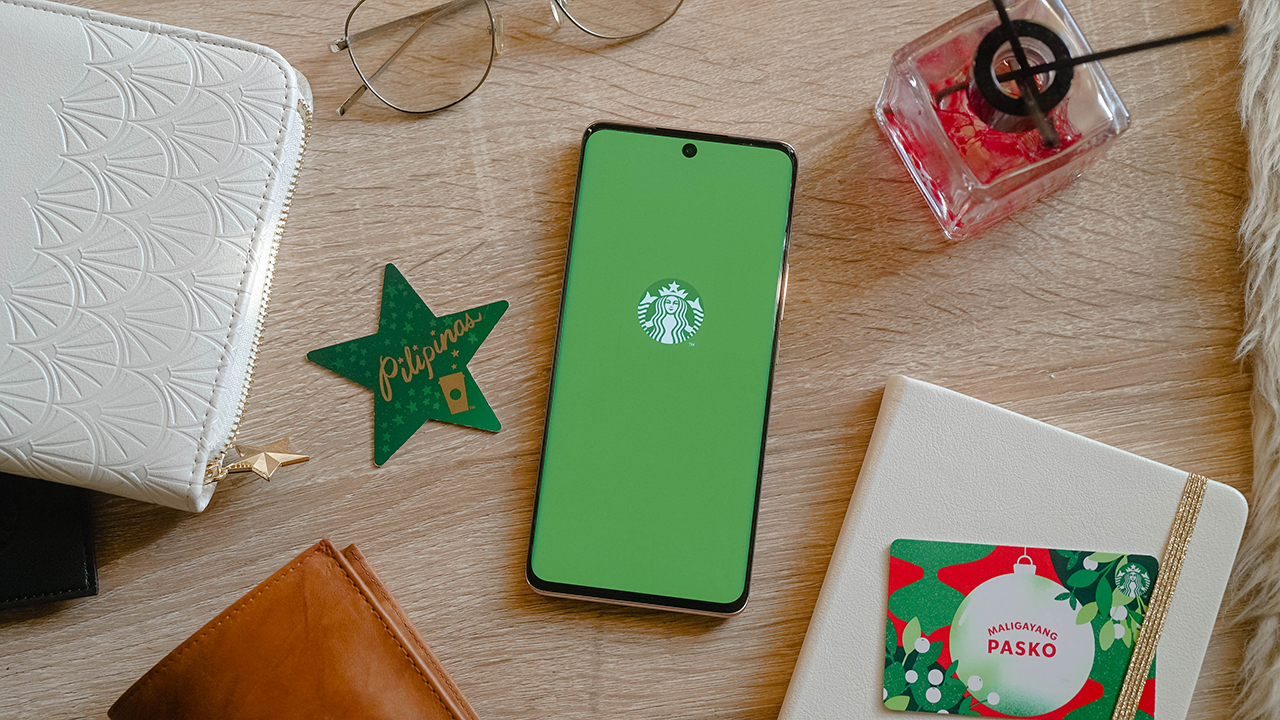
Keyword: Experience. That’s precisely what Starbucks offers. So when Starbucks Philippines sent me a holiday card to try the new Mobile Order & Pay, a feature they had for a while that was rehashed, I decided it’s time to go out and try again.
Exploring the app
The Mobile Order & Pay 2.0 is available through the Starbucks app. If you’re a Starbucks lover, you probably have an account registered to Starbucks Rewards. The app is easy to use, particularly because of its clean user interface (UI) design.
Through the Starbucks app, you can check your account’s transaction history, monitor the stars collected via the Rewards program, and make some changes to your personal profile and payment methods. The app also has a lot of promotional materials, parading their latest drinks and treats that you can avail yourself of in-store or online.
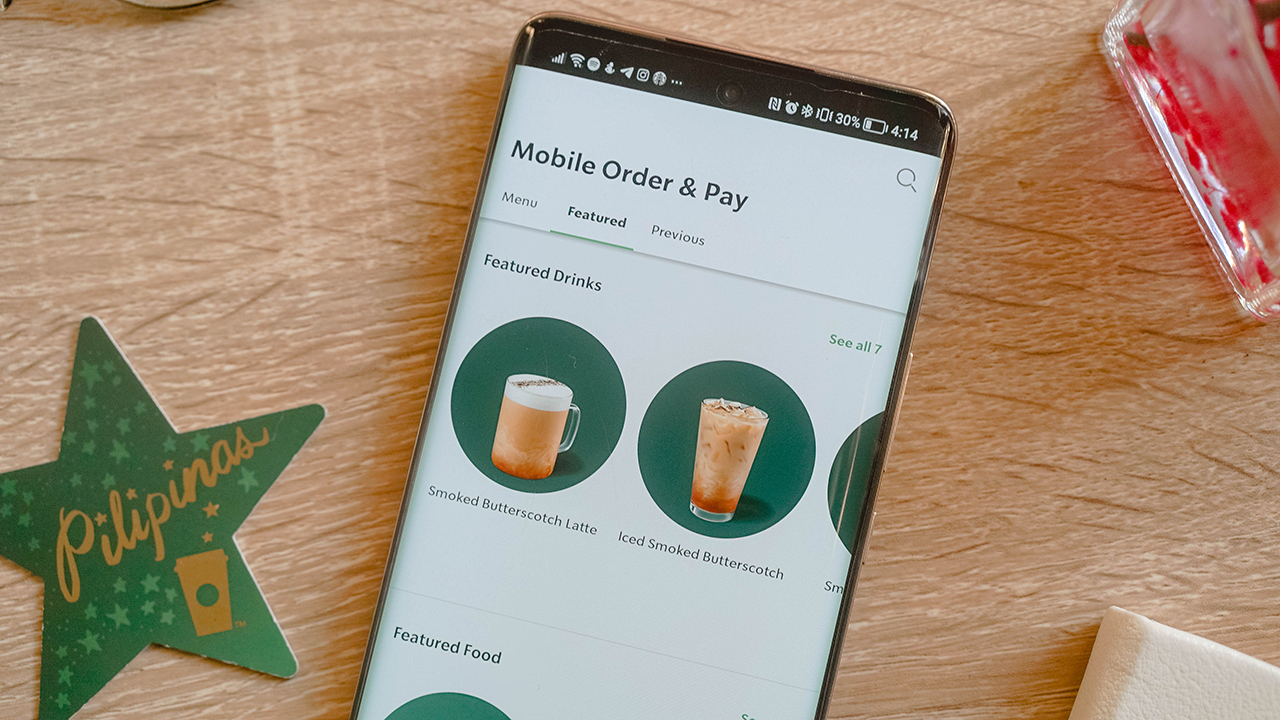
And more importantly, you can reload your account, register your cards, and of course, get ahead of your day and order your favorite beverages.
Cut through the line
Once I got my cards settled in, I ordered my go-to drink: Cold brew topped with four pumps of white mocha sauce. I placed my order through the Mobile Order & Pay 2.0 feature, which gave me four options to pick up my order. Although, the options vary depending on the closest branch near you.
There’s the usual In-store pickup where you head straight to the pickup counter for your order. Yes, you won’t get in line anymore. When I tried this pickup option, everyone gave me looks when I went past the queue and headed straight to ask the Barista about my order. I had the audacity to ask about my drink because the app notified me when the order was ready.
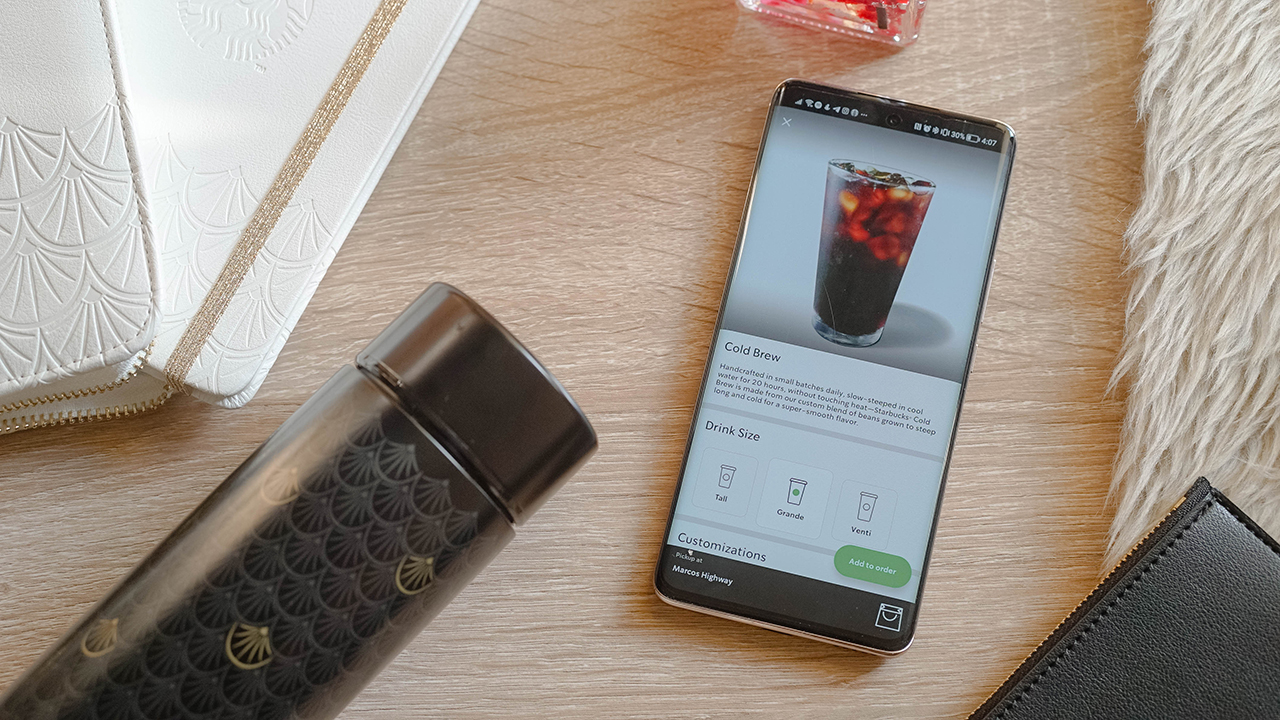
When I got my drink, I walked out of the store feeling ravished. It felt like I was in a slow-mo montage of a coming-of-age film where the protagonist suddenly did something extraordinary. Frankly, this is my favorite pickup option. It makes so much sense to just get your orders if you can walk inside. And that gives you extra steps for your smartwatch to count. Get moving, people!
But if you don’t like the hassle of scanning your QR codes and getting your temperature checked, or the usual mumbo-jumbo you encounter inside a store, there are other pickup options outside.
Just wait outside
My other favorite option was the Outdoor pickup, which I chose when I was passing by Starbucks The Grove — my favorite branch in Pasig. I was dead-tired from a weekend night-out with my friends at Okada Manila, and the all-night casino adventure bled through a Monday morning.
I was on my way home, ready for work. Then, I realized I badly need the good ol’ Barista Drink. Nothing can beat an americano topped with white mocha sauce splashed with sub-breve (and no water!). Especially when it comes to waking you and your senses up. More importantly, you can have it served iced or hot depending on your preferences.

I placed my order when I was already in Arcovia City, a kilometer away from The Grove by Rockwell. Apparently, you can’t order ahead for an Outdoor pickup if you’re 3 kilometers away, which I tried to do when I was still in Taguig. So you have to be close to the branch if you want to place your order.
I tried to do the math in my head, calculating if I can pull over for a minute while I wait for my order. But I’m bad at numbers so I went ahead. The app said the order will be ready in five to six minutes anyway.
I pulled over when I arrived at the branch, and I didn’t wait long enough for one of my favorite baristas to come out to my chosen pickup point and hand me my order.
Stay in your car
I hate parking. Or wasting the time spent trying to park properly in between enormous SUVs. Or finding a spot to park your vehicle. This is why I don’t understand the Curbside pickup option, where the barista locates your designated parking slot and gives your order while practicing social and safe distancing.
I tried the pickup option in Starbucks Sierra Valley — a humongous, stand-alone branch with a massive parking space and drive-thru option found east of Metro Manila.
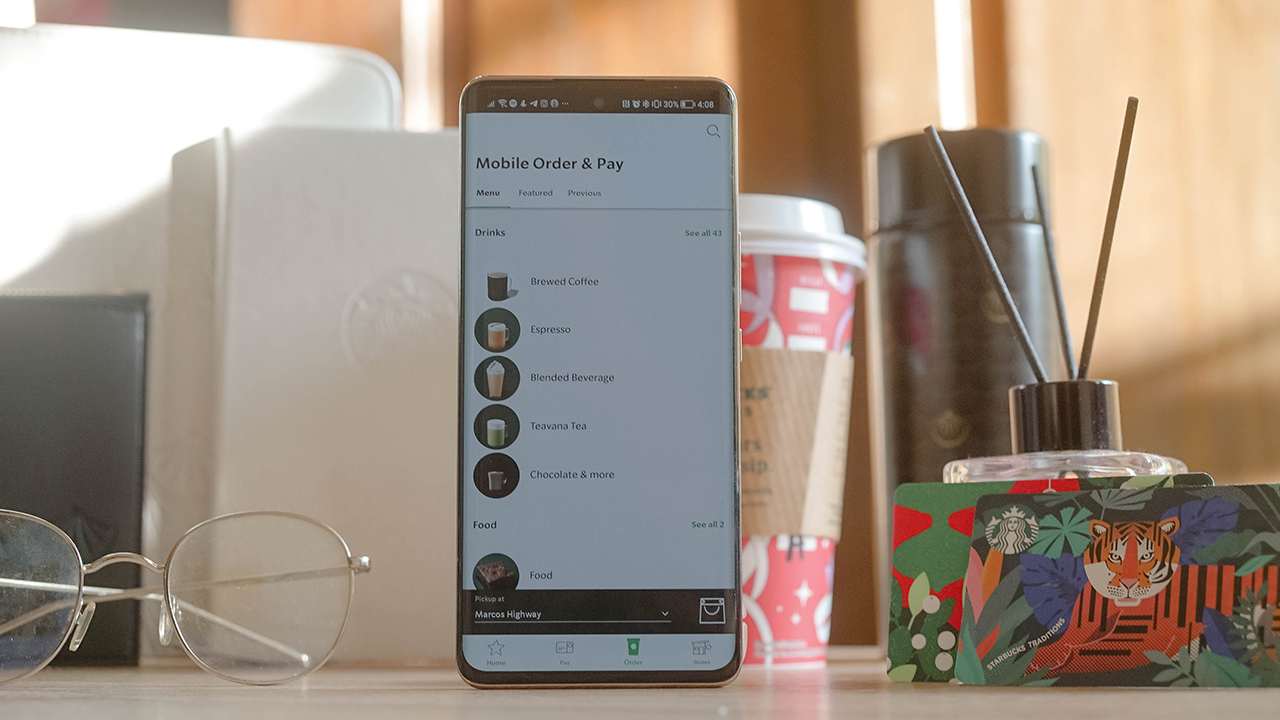
If you’re in a time crunch, this option really doesn’t make sense. But if you have a few moments to spare and you don’t want to get out of your vehicle for safety measures against the COVID-19 (and its variants), then the Curbside pickup is the way to go.
Frankly speaking, it doesn’t work for me. I know having your order brought to you is part of the experience, but I value my time. And it was against my morals to just sit inside my car and wait for the barista to come out and bring my order. In my head, they could be doing more valuable things than going outside the store, when I can pick up my order at their counter.
The In-store pickup is the fastest option in my experience, and I feel good doing the task instead of sitting and waiting around. I guess it’s my can-do attitude speaking, but that’s how I’m really built.
Drive through it
Now, there’s another option to get your order: Drive-thru pickup. You just have to line up in a queue of cars and wait for your turn. Like the Curbside pickup option, I didn’t like the Drive-thru pickup for one reason: It takes too long to get through the drive-thru window.
People are afraid to get out of their vehicles because of the COVID-19 pandemic, and that’s valid. That’s why there are plenty of cars lining up to get their caffeine fix. I spent roughly 30 minutes waiting for my turn, which annoyed me since it would’ve been faster if I chose the In-store or Outdoor pickup.

Making life less hectic
Regardless of my rants and experience, the Mobile Order & Pay 2.0 lets you get your favorite treats and beverages conveniently. In the way you like it.
While I’ve loved the In-store and Outdoor pick-up because they work well with my personality and lifestyle, I know some people (read: friends) would enjoy the Curbside and Drive-thru pickup. Especially since they’re cautious about the pandemic.
Not that I’m not wary of the virus being out there, I just value my time because every second counts. If I wanted to waste my time waiting, I would’ve lined up inside.
Nevertheless, the rehashed feature is worth giving a try. Through the Starbucks app, you can customize your orders. Just like your baristas, the app can modify the size, the number of espresso shots, dairy selection, and various options for your order. All done with just a single tap on your smartphone.
Frankly speaking, the Mobile Pay & Order 2.0 made my life easier especially when I’m in a hurry to get a caffeine fix. Not all days can be spent brewing your coffee, living in a slowed-down lifestyle. Some days, we just need to get through it, and Starbucks knows how to accompany me through those days.
The Starbucks PH app is available on The App Store and Google’s Play Store.





Apps
Smart launches LiveSmart App for exclusive deals
Exclusive deals, cashback, and bill payments in one app.

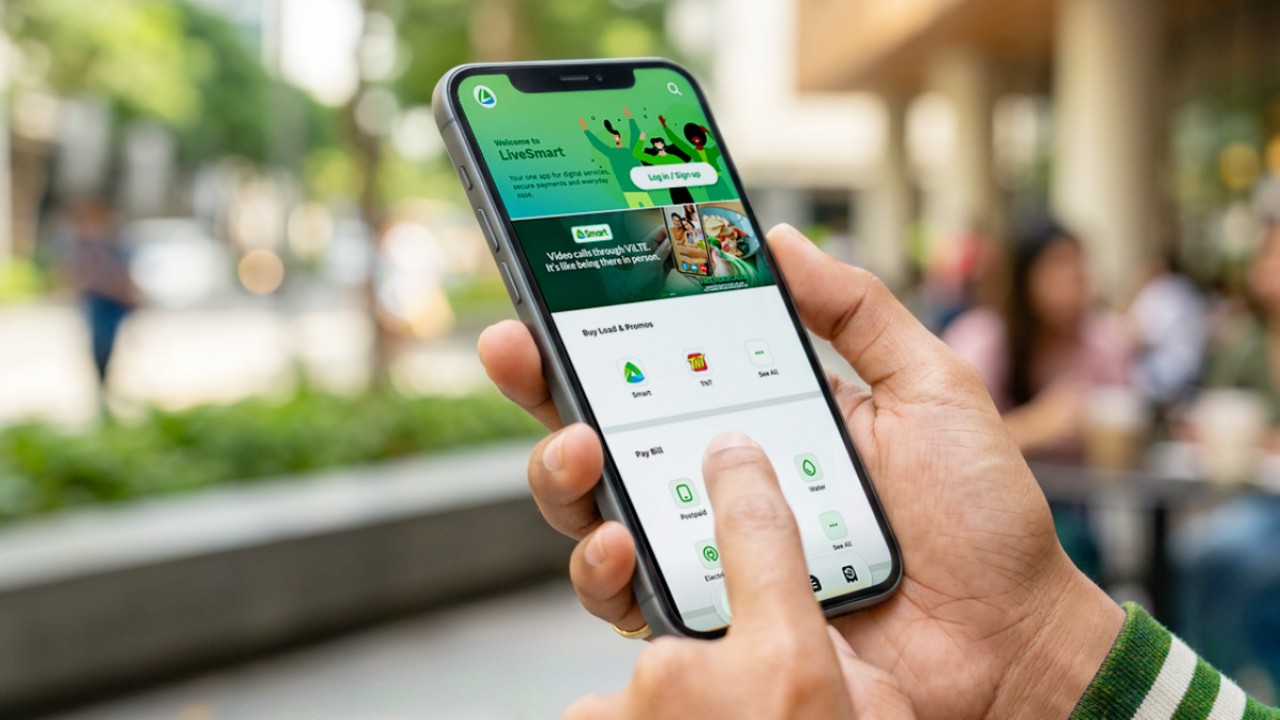
Smart Communications, Inc. (Smart) and TNT have launched the LiveSmart App, a new platform that combines loading, bill payments, exclusive offers, and other everyday transactions in one app.
The app is available on the Google Play Store and Apple App Store. It is open to Smart, TNT, and subscribers of other mobile networks.
The LiveSmart App gives users access to exclusive deals and savings. These include cashback offers, discounted Smart and TNT data packages, and limited-time access to AI.Smart.
“Filipinos are becoming more deliberate about where they spend and how they can get more value from every peso,” said Lloyd R. Manaloto, FVP and OIC for Smart. “The LiveSmart App is designed to help make those everyday decisions a little smarter, by giving users convenient ways to load, pay bills, and access exclusive savings and offers in one place.”
Exclusive deals and perks
Smart and TNT are rolling out several offers on the LiveSmart App starting September 18.
Smart and TNT subscribers can get 5% cashback when they purchase load or pay their Smart Postpaid bill through the app.
The app also offers data packages at exclusive prices. Smart Prepaid subscribers can get Power All 109 for PHP 105, while TNT subscribers can get Saya All 109 for PHP 105.
Users who download the LiveSmart App may also receive limited-time free access to AI.Smart.
AI.Smart combines multiple AI models, including AWS Nova, ChatGPT, Claude, Google Gemini, and Thinking Machines, in one workspace. Users can use it to generate images, create presentations, draft documents and spreadsheets, and get help with schoolwork, content creation, and other projects.
To claim the free AI.Smart credits, users need to tap the AI.Smart banner in the LiveSmart App. They then need to create an AI.Smart account using their Smart or TNT number.
Smart says users can also expect more exclusive deals and perks from lifestyle partners as it expands the LiveSmart App.
Powered by Smart 5G
The LiveSmart App runs on Smart’s network. Smart 5G supports activities such as video streaming, gaming, and real-time social media sharing.
The company said Ookla recently recognized its network for the Best Mobile Video Experience in the Philippines for the first half of 2026. Smart recorded a Video Score of 72.82, which it said was the highest among mobile operators in the country.
The LiveSmart App is now available on the Google Play Store and Apple App Store. Users can learn more about the app through Smart’s website.
Apps
Apple’s best feature to cure motion sickness is finally on Android
Google copies a good page from Apple’s playbook.

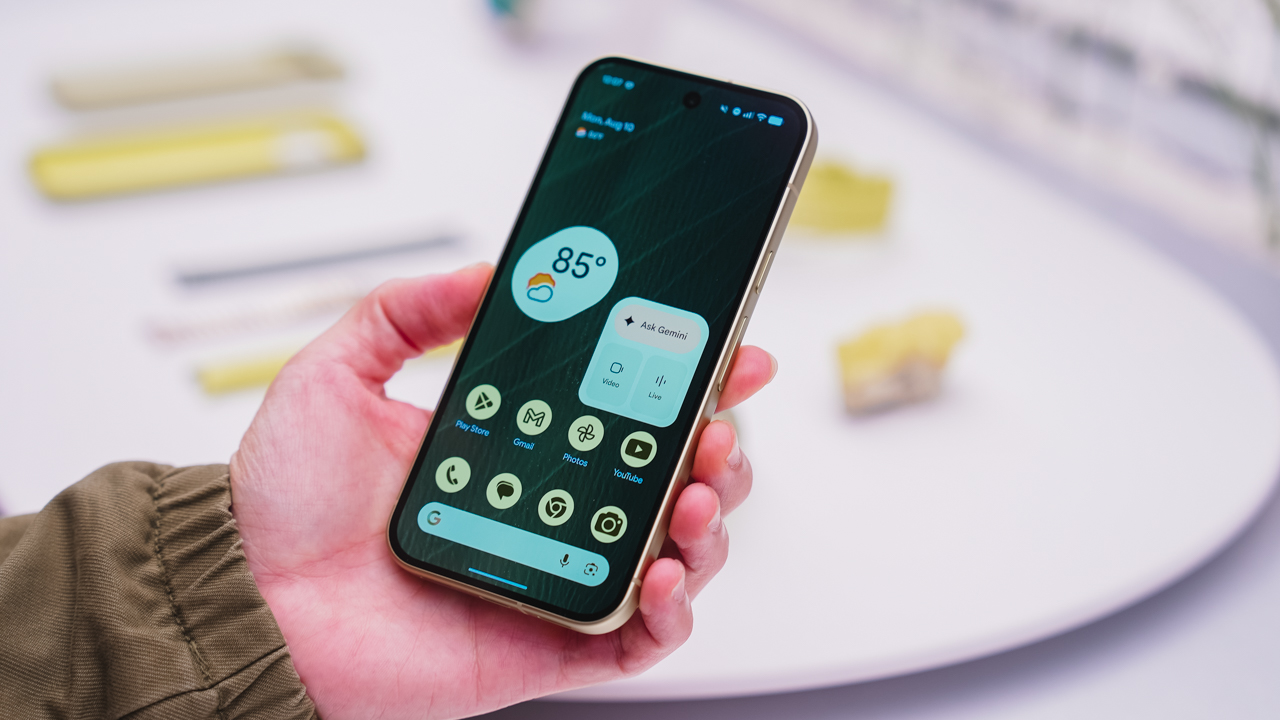
As an Android user, I’ve been jealous of iPhone users for a while now, but it’s not for the reason you might think. See, I’m ridiculously prone to motion sickness when I’m not driving. So, when I discovered that Apple has a software-based cure called Vehicle Motion Cues, I wanted it immediately. Now, Android does have third-party apps that do the same thing, but they’re not as good as a fully native version. Well, those dark, nauseating days are about to come to an end. Android 17 is finally getting a similar tool called Motion assist.
Before that, let’s rewind for a bit. What do these features do? How can they cure motion sickness?
Whenever you open Vehicle Motion Cues or Motion assist, the interface spawns a series of dots on the screen. These dots respond to movement. For example, if the vehicle turns to the left, the dots also go to the left, mimicking the movement. Without cues like this, the stationary nature of the screen clashes with our brain’s perception of movement. The disparity creates that feeling of nausea. Basically, our eyes are desperately trying to focus on the static screen, but our brains are telling us that we should be seeing motion. Having moving dots reorients our brain and places the phone inside our perception of movement.
Now, you can enable the same feature on your Android 17 device through Settings > All services > Motion assist under Personal & device safety. You can also set it so that the feature turns on automatically when the phone detects that you’re in a moving vehicle. Finally, you can also tweak the shape, color, and opacity of these dots.
Android 17’s Motion assist is rolling out now to compatible devices.
SEE ALSO: These are the best Android 17 features (if you hate AI)

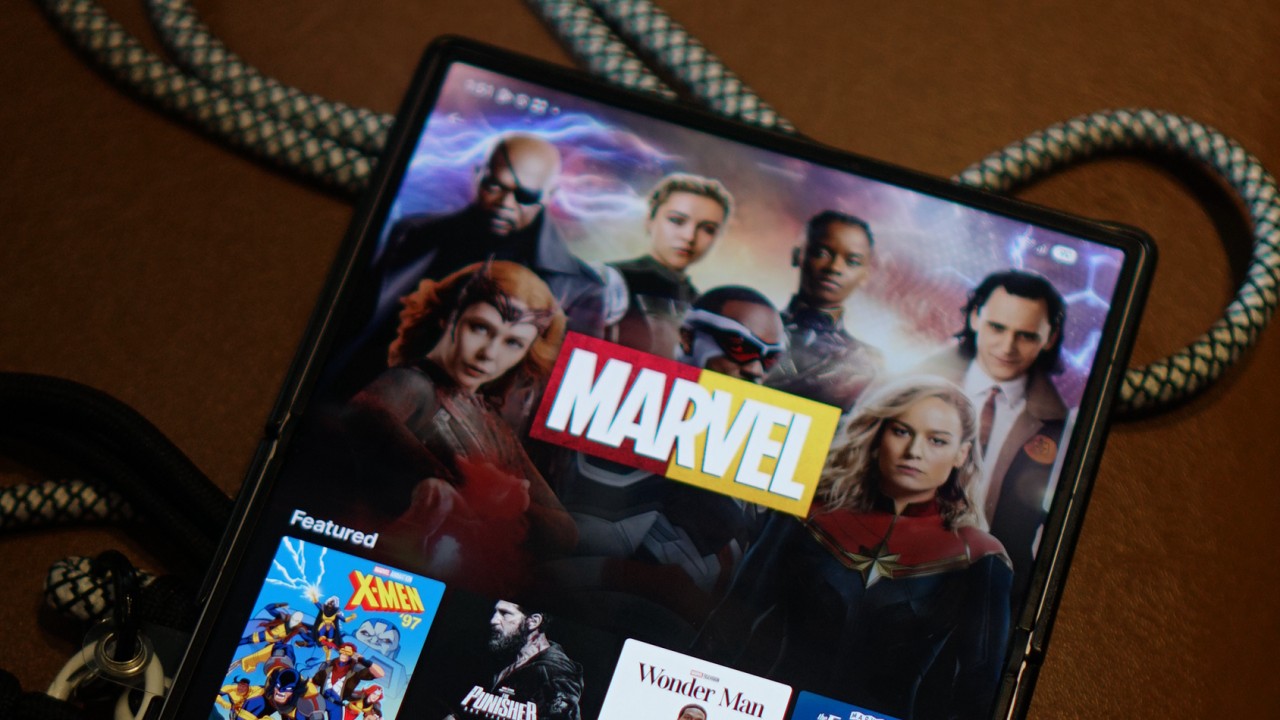
Disney is rolling out its new Disney+ app to markets that have been using a separate, Hotstar-derived version of the service.
The change is already happening across several regions, with Southeast Asia among the markets affected. Disney+ subscribers in the Philippines, Malaysia, Thailand, Indonesia, and other countries will transition to the newer app experience as Disney works toward a more unified global platform.
For Philippine subscribers, Disney+ has confirmed that the migration will happen on October 7, 2026.
The company notified subscribers this week that the existing app will eventually be replaced by a new Disney+ app. No action is required yet, and subscribers can continue using the current app until Disney provides further instructions.
The migration is part of a broader effort to bring Disney+ users onto the same core platform.
From Hotstar to a global Disney+ app
The distinction between the old and new experiences goes back to Disney’s international expansion.
Disney used a Hotstar-derived version of its streaming platform in several markets, including the Philippines, Malaysia, Thailand, Indonesia, South Africa, and markets across the Middle East and North Africa.
That version provided a localized Disney+ experience, but it operated separately from the main Disney+ platform used across many other international markets.
Disney began simplifying its streaming brands in 2025. In Southeast Asia, Disney+ Hotstar was rebranded simply as Disney+, while the Star general-entertainment brand was replaced by Hulu. At the time, Disney said the rebrand would bring a more consistent Disney+ experience, although the available content would remain tailored to each market.
The next step is now happening at the app level.
Egypt began moving to the new Disney+ app on September 2, followed by Indonesia on September 3. South Africa is scheduled for September 9, while Thailand is set to follow on September 16. Malaysia and the Philippines are scheduled for October 7.
This makes the Philippine migration part of a much larger transition rather than an isolated local update.

A more familiar Disney+ experience
The new app brings affected markets closer to the current Disney+ experience elsewhere.
Disney redesigned the global app earlier this year with a new For You homepage, improved personalization, redesigned navigation, more prominent profiles, and additional content hubs. Depending on the market and subscription, the interface can also surface Disney+, Hulu, and ESPN sections.
Disney has also been expanding the platform’s international language support. In July, the company added 17 languages, bringing Disney+ to 58 audio languages, with the user interface available in more than 30 languages and subtitles or closed captions available in as many as 42. The expansion included Thai, Indonesian, Malay, Arabic, Hindi, Tamil, and Telugu.
The company has described these updates as part of its effort to make Disney+ a more accessible and localized service for audiences around the world.
The migration also brings practical changes for subscribers.
In the Philippines, Disney says existing subscribers can continue using their current account and subscription. However, profiles, watchlists, and viewing history will not transfer to the new platform. Philippine subscribers will therefore need to set up their profiles and watchlists again after moving to the new app.
The subscription itself does not require an additional charge because of the migration. Existing billing cycles will also remain in place.
The catalog will still depend on where you are
Moving to the global Disney+ app does not mean every country will suddenly receive the same library.
Disney continues to operate its streaming service according to regional content rights. Its own Help Center notes that content availability can differ by country or region, and that some titles may not be available in a subscriber’s current location.
That means a subscriber in the Philippines, for example, will still see a catalog determined by the rights Disney has for the Philippine market. The same applies to subscribers in Thailand, Indonesia, Malaysia, South Africa, or any other market making the transition.
What is becoming more global is the platform itself.
That brings Disney+ closer to the model used by other major streaming services, where subscribers can use a common app experience across markets while the actual catalog changes depending on where they are.
The distinction is particularly relevant for people who travel. Disney’s global Help Center says subscribers abroad can stream content available in the country or region they are visiting, meaning the service’s location-based availability rules still apply even on the unified platform.
Disney has been signaling this direction for some time. In 2025, the company said its redesigns were leading toward a “fully integrated unified app experience” in 2026. The latest migrations appear to be the next major step toward that goal.
For subscribers in the remaining Hotstar-derived markets, then, the biggest change isn’t necessarily what’s available to watch.
It’s where and how they access Disney+.


DJI Lito X1 review: Is this the best lightweight drone for creators?
Making a strong case as a travel companion and a capable B-cam!

REDMI Note 17 Pro Max review: A new breed born from AI greed
Welcome to the new normal


Marvel’s Wolverine review: When the claws come out
A brutal, cinematic superhero adventure

vivo introduces OriginOS 7 with smarter multitasking and AI features

vivo X500 Series launches with major imaging upgrades

Manila turns up the volume at COVE

Epson Lifestudio Grand Plus EH-LS970B with 4K projection, more launches

Jackery Explorer 300D: Power and portability in one

realme 16T 5G with 8000mAh battery, IP69 Pro rating launches in PH

HUAWEI Pura X View is 2026’s first WIDE slab-type smartphone

REDMI reveals the refreshed Note 17 and Note 17 Pro series

REDMI Note 17 Series: Price, availability in Singapore

The CAMON Slim 5G is TECNO’s latest ultra-slim smartphone


-
 News2 weeks ago
iPhone 18 Pro series: Price, availability in the Philippines
-
 Singapore2 weeks ago
iPhone 18 Pro series: Price, availability in Singapore
-
 News2 weeks ago
iPhone Duo: Price, availability in the Philippines
-
 News2 weeks ago
vivo introduces refurbished versions of X300 FE, X300 Ultra for less
-
 News2 weeks ago
iPhone Duo: Price, availability in Singapore
-

 Accessories2 weeks ago
CASETiFY upgrades iPhone 18 cases, teases iPhone Duo lineup
-

 News2 weeks ago
HONOR teases Magic9 Pro Max at Venice
-

 Editors' Choice2 weeks ago
GadgetMatch Awards: Best of IFA 2026