
Tutorials
How to make your own face masks at home
You can even present it to your friends and family

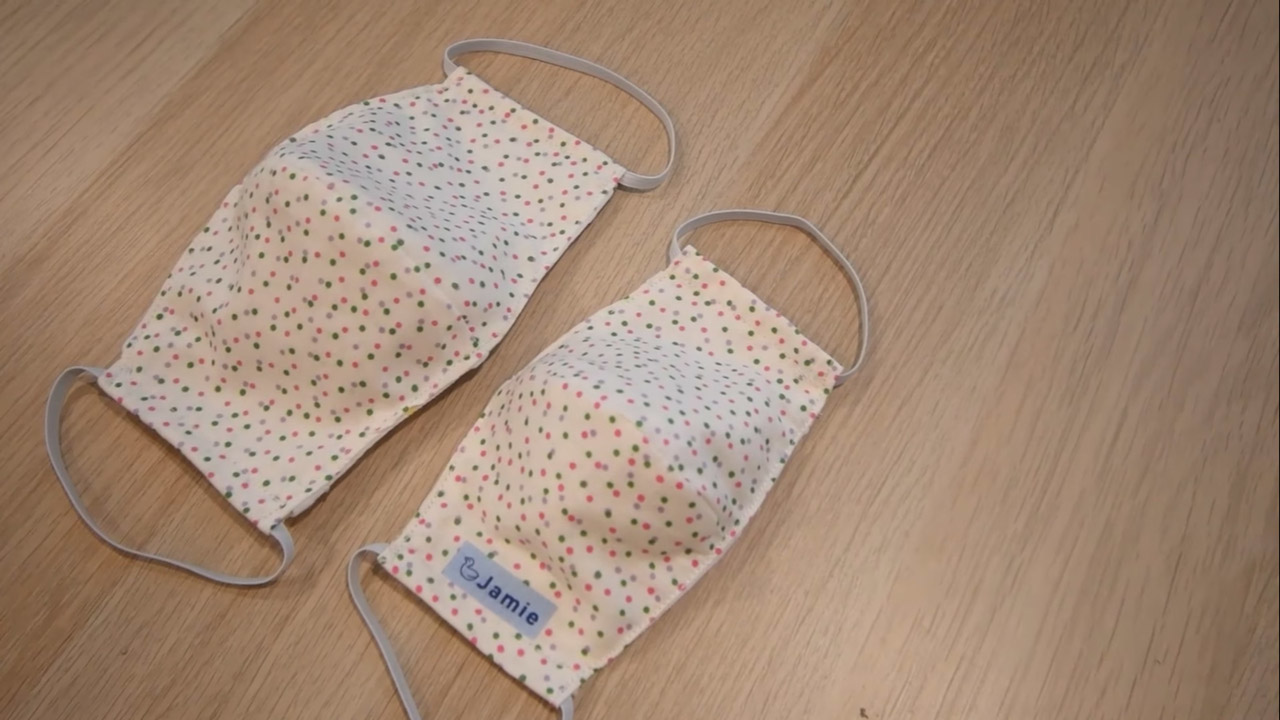
Surgical face masks are in short supply today as medical workers use them to protect against infection from the coronavirus. As such, you will rarely find them in any pharmacies or medical equipment stores. What if you really need a face mask? Luckily, Brother, famous for their printers, has shared these steps to making your own face mask at home.
The face mask you’ll make with these steps is reusable daily. With these steps, you will no longer need to buy a surgical mask that every medical worker direly needs during these times.
You’ll need the following: some spare cloth, a printer, a sewing machine, and sewing tools. The cloth should be divided into two: an outer fabric and an inner fabric both measuring 20cm x 80cm.
After you’ve prepared the necessary equipment, you’re now ready to make your own face mask.
1. Sew the outer fabric together.
For the first step, you must cut two pieces of the outer fabric according to the pattern below. Place these two together right-side-in, then sew with an allowance of a centimeter. Iron-press both edges and do a topstitch. Reinforce the edges at the start and the end.
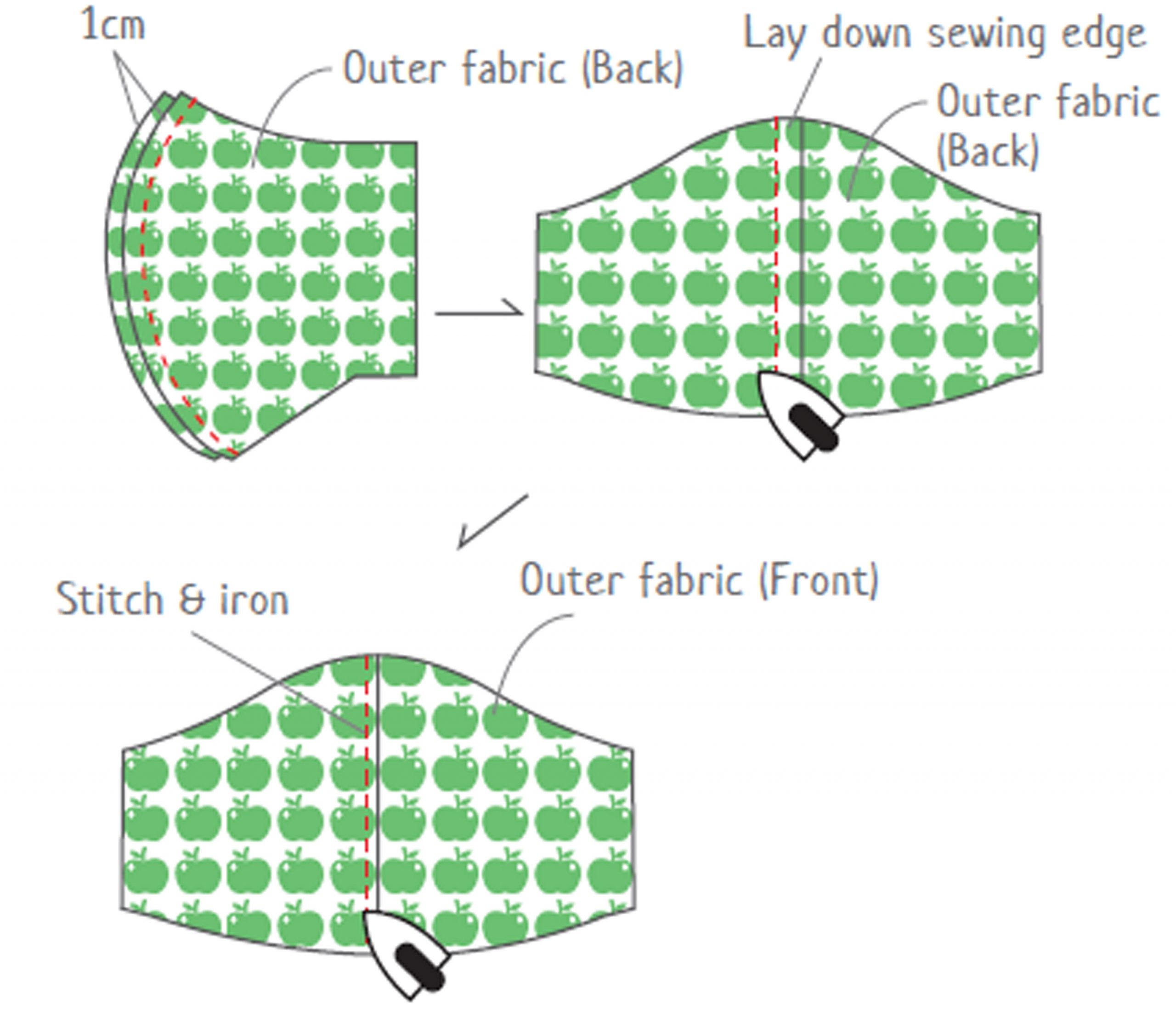
After sewing the outer fabric, you can put various designs into the mask. Be creative when putting the designs.
2. Do the same for the inner fabric.
Repeat what you did in the first step for the outer fabric. The inner fabric will ensure added protection from dust and other pollutants. And if you’re feeling creative, you can also design it too.
3. Sew the inner and outer fabric together.
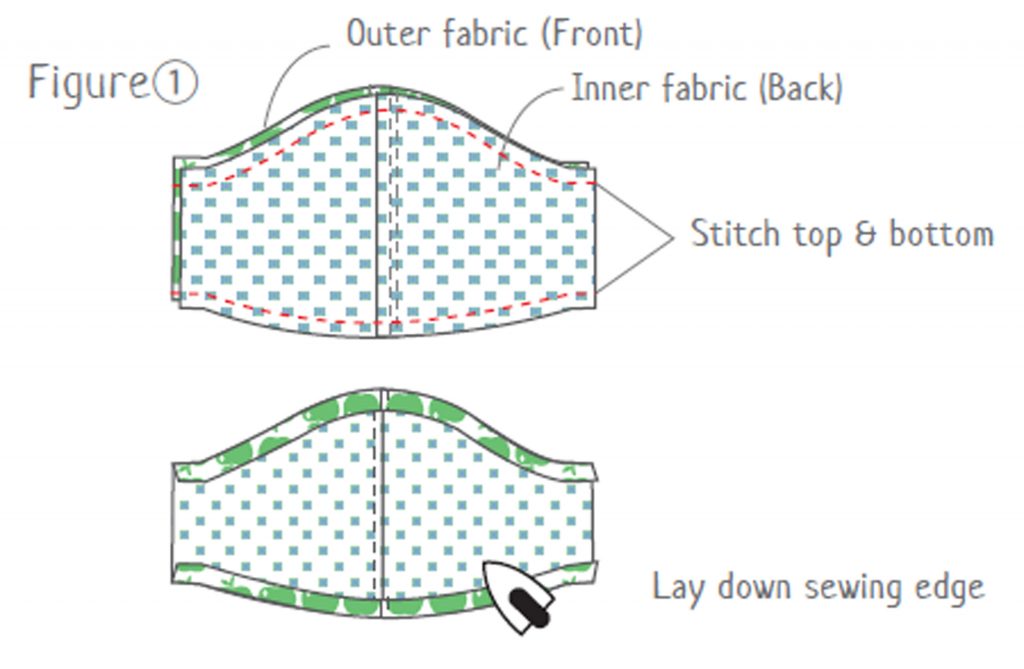
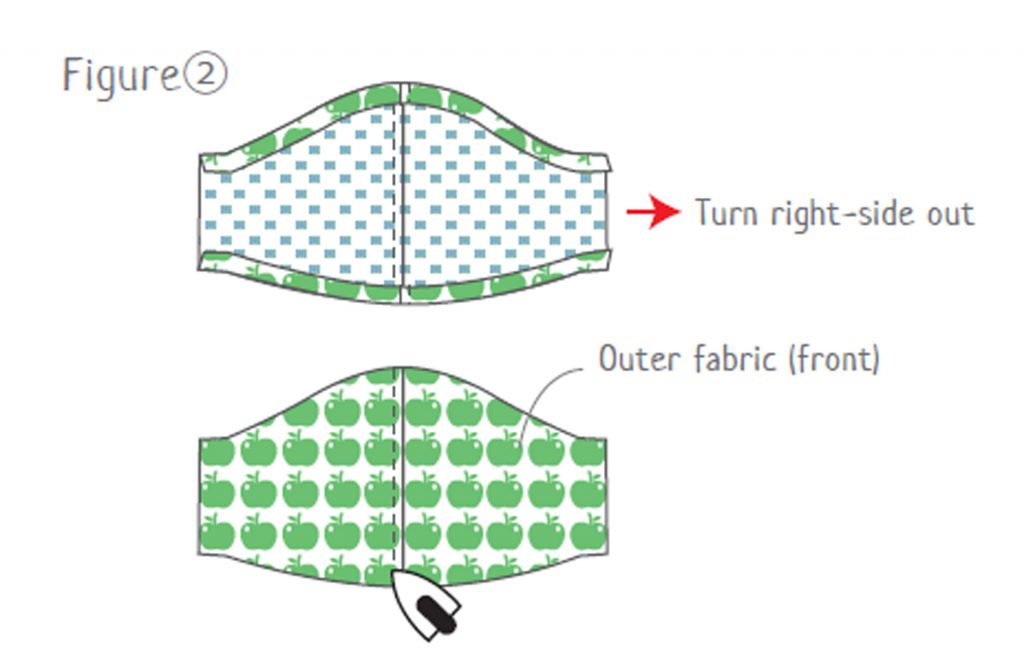
Now, you’re ready to join the two pieces of fabric together. Place them together right-side-in carefully. Sew the top and bottom sides. Iron-press the edges and do a top stitch again. Turn the inner fabric right-side-out, then iron-press and do a top stitch.
4. Make the elastic band.
Sew the layer for the inner mask. Fold one of the edges three times and stitch to its sides. Do the same for the other side.
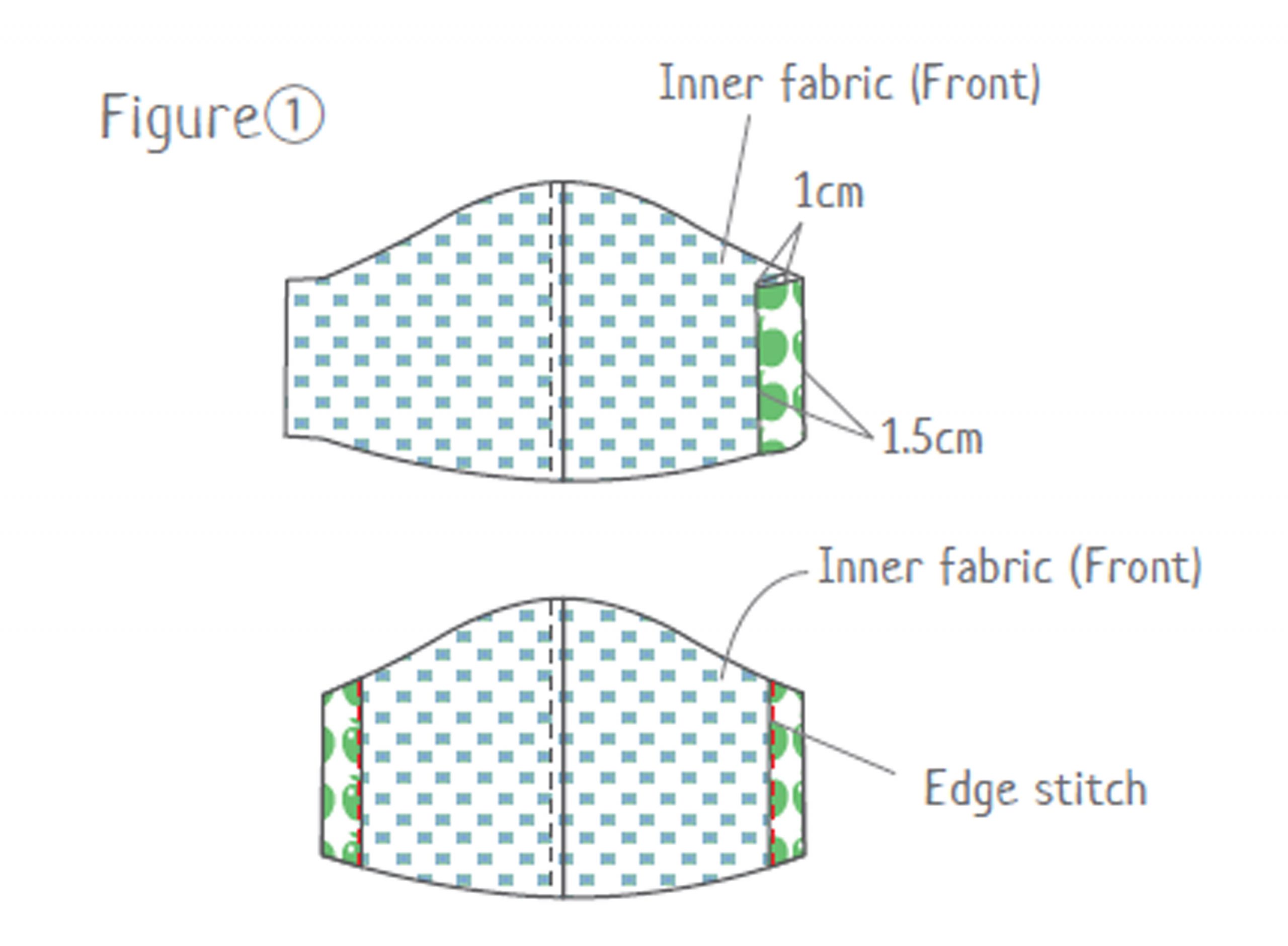
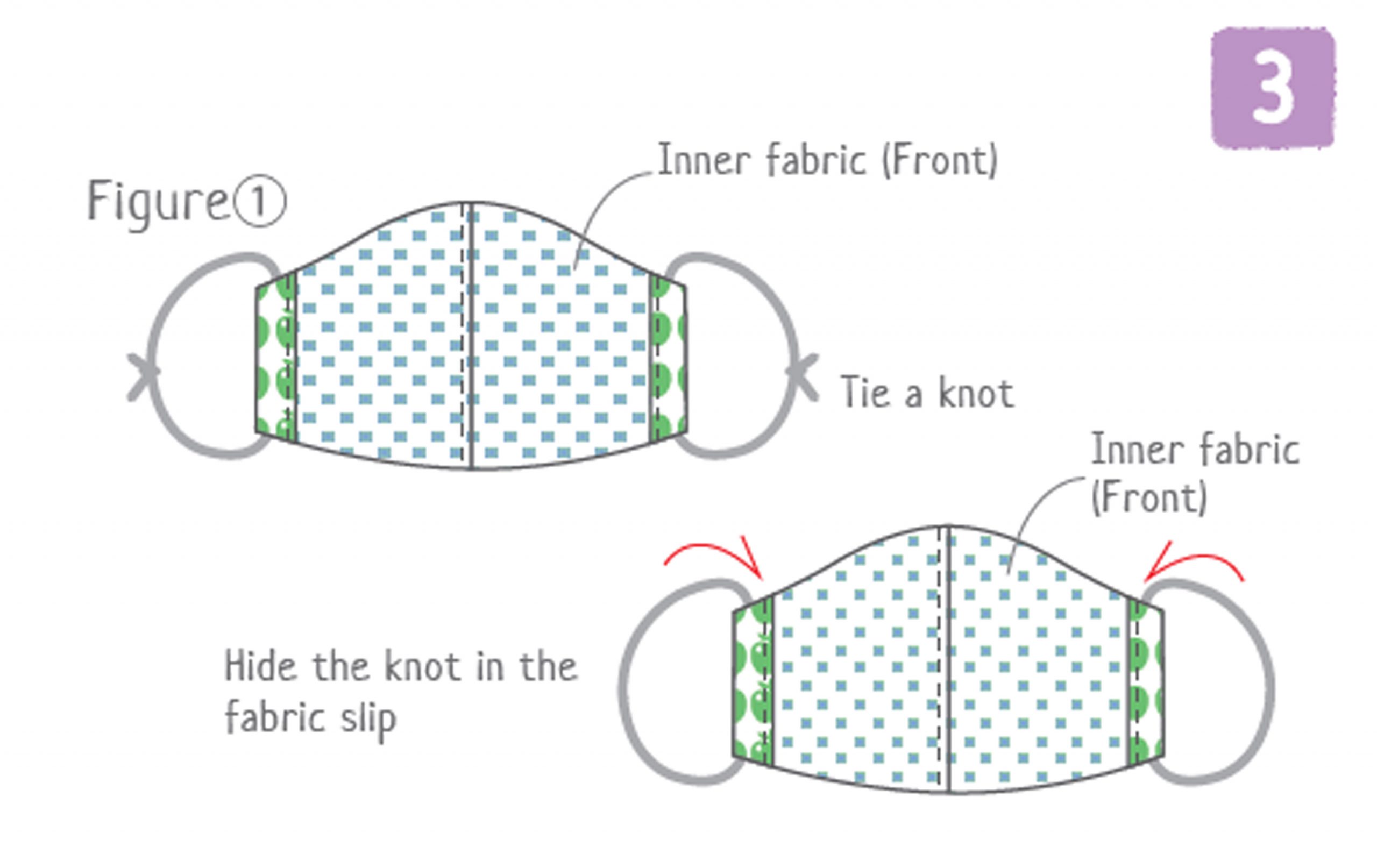
By now, you have a complete face mask. But how do you put them on your face? You’ll need an elastic band to hold the mask and keep it together. Assemble the elastic band first, then cut according to the measurements with a 3cm allowance. Insert the band to the edges of the mask. Finally, tie a knot to secure the bands in place.
5. Iron the mask to finish it.
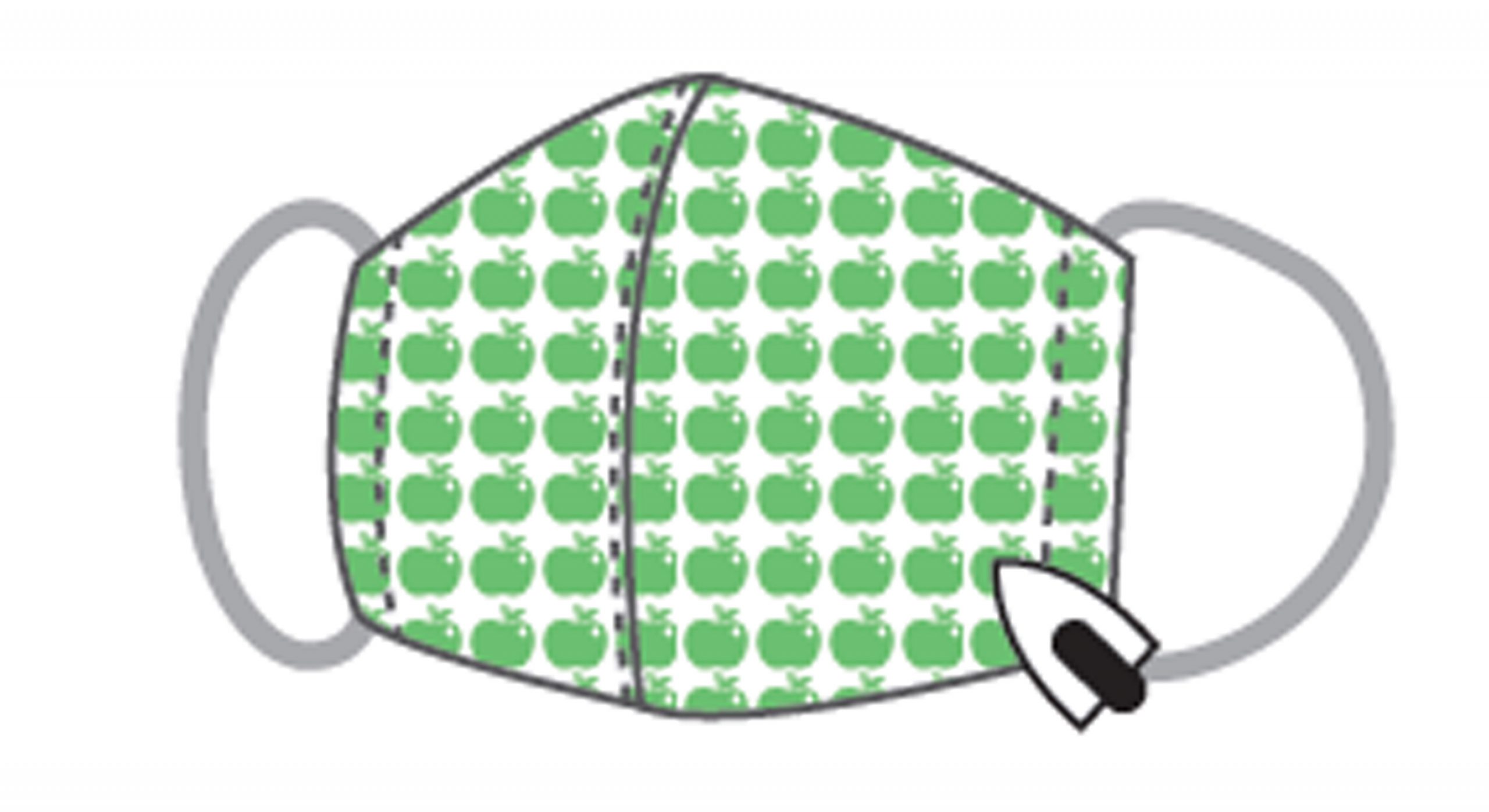
You may want to post a picture of your own mask on Instagram or TikTok, so why not make it presentable? Ironing the mask removes the creases and makes it as good as a store-bought one.
6. Present it to the world.
Of course, creating your own mask is no small feat. Present it to your friends or family over Zoom or Skype. Tell them that you’ve learned a new skill at home. And above all else, don’t try to sell your creation to anyone — after all, most fabrics aren’t designed to filter out smaller particles that linger in the air.
If you didn’t catch any of the steps above, there’s a Youtube video as well that you can watch over and over again. For more resources on creating a face mask, visit Brother’s website.






Apps
The No-Nonsense guide to mid-year shopping
Let AI do the heavy lifting for you this Lazada 6.6 Super WOW Sale


The mid-year sale season is here, but the days of mindless impulse buying are over.
Shoppers are shifting toward intentional, value-driven decisions, focusing on quality, authenticity, and actual utility over flashy, low-quality gimmicks.
From 8:00 PM on June 5 until 11:59 PM on June 8, 2026, the Lazada 6.6 Super WOW Sale is dropping major discounts. But the real win is using the platform’s tools to maximize your budget.
Lock in the baseline discounts

Before diving into specific items, map out how to stack the core offers.
You can stretch your money by hunting down LazFlash Deals for up to 90% off, collecting up to PhP 3,000 in stackable vouchers, and ensuring every order qualifies for the free shipping offers available throughout the event.
True value comes from combining these three layers of savings on things you already need.

Jisulife: One of the participating, trusted brands you can get from LazMall
Filter for authentic value
Shopping smart means avoiding the trap of “too good to be true” counterfeits that end up in the trash.
Data shows a massive consumer shift toward trusted quality, with LazMall growth vastly outperforming standard listings during major sales.

To ensure your money goes toward genuine products with real warranties, restrict your browsing to official, brand-certified stores.
If you are upgrading your tech, parenting gear, or wardrobe, look to trusted names anchoring the sale like UGREEN, JisuLife, ANTA, Maserati Watches, Momcozy, and O.TWO.O.
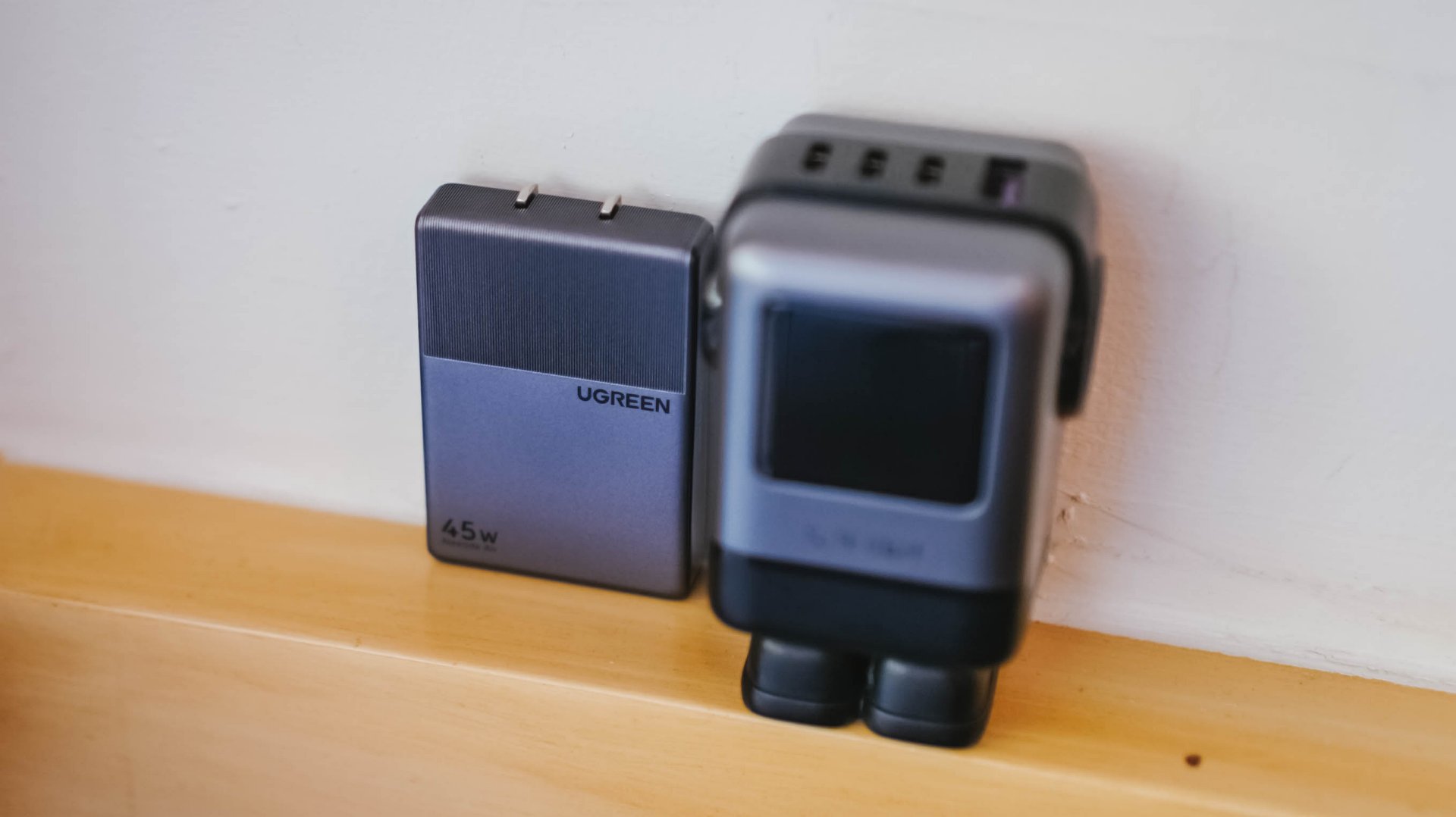
UGREEN: One of the participating, trusted brands you can get from LazMall
Outsmart the noise with built-in tech
Don’t waste hours scrolling through endless listings or guessing which product is better.
The smartest way to navigate a massive mid-year event is to let the platform’s built-in features cut through choice paralysis.

Tools like AI Lazzie and AI Picks allow you to instantly compare similar items, analyze prices, and get personalized recommendations based on actual data rather than generic marketing hype.
Smart Shopper Tip: True value is a mix of the right price, verified authenticity, and a seamless return policy. Use this sale period to stock up on everyday essentials and high-quality upgrades rather than panic-buying items you’ll regret later.
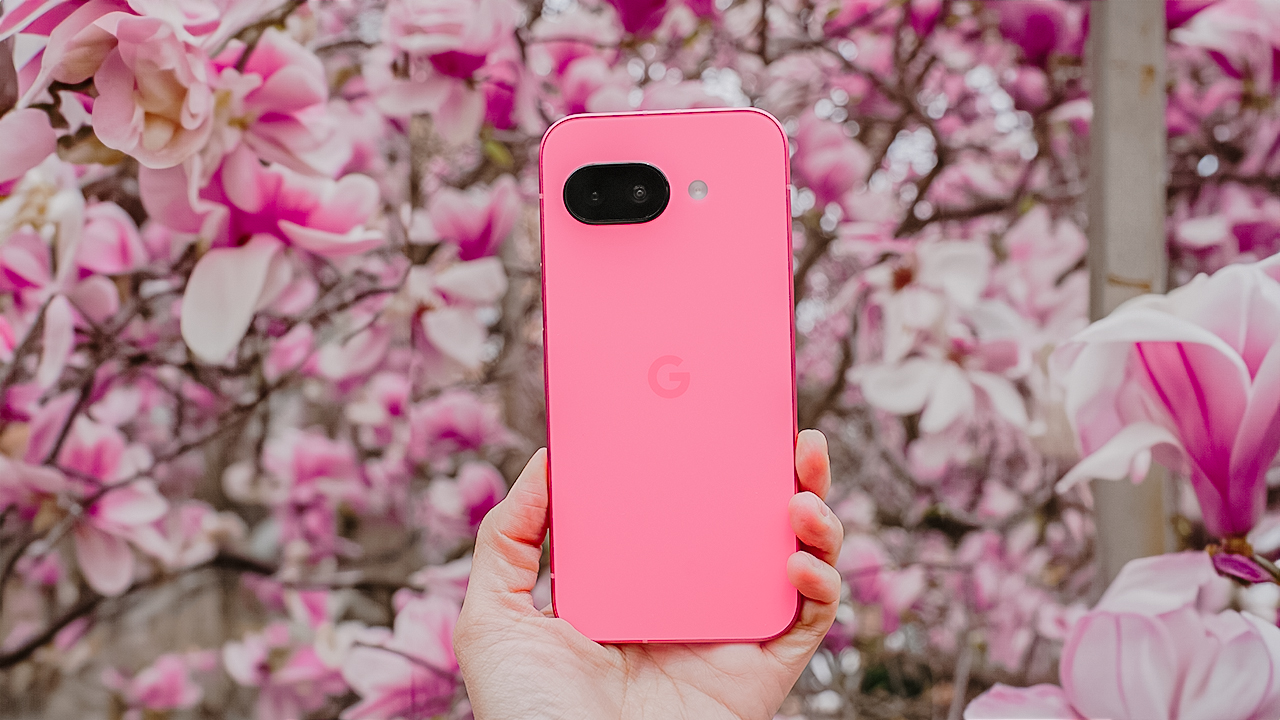
Spring is a fleeting masterpiece. Petals burst into bloom, golden sunlight paints the landscape, and the air hums with renewal.
It’s a spectacle that demands to be captured, and with the Google Pixel 9a, you have the perfect tool to freeze these vibrant moments in time.
Make the most of this smartphone and capture the essence of spring in all its glory. Here’s a guide on getting the best out of your smartphone and this season.
Get up close with Macro Focus
For the first time on a Pixel A-series, the Google Pixel 9a comes with Macro Focus for extreme close ups. This feature lets you explore the tiny wonders of spring, like flowers in full bloom.
You can also use the zoom lens to capture the intricate textures, colors, and patterns in petals and leaves. This way, you have stunning close-up shots with exceptional detail.

Pro Tip: Shoot during the golden hour (sunrise or sunset) for a warm, natural glow. Midday sun can be harsh, washing out details and colors.
The 13-megapixel ultra-wide camera is everything
Spring landscapes deserve to be seen in full view, and the Google Pixel 9a’s ultra-wide lens ensures you capture the vastness of blooming fields, tree-lined paths, and endless blue skies in one stunning frame.

Pro Tip: Use leading lines — like roads, fences, or flower beds — to guide the viewer’s eye and add depth to your shot.
2x zoom is your friend
Sometimes, getting closer doesn’t mean physically moving forward. It means using the right zoom.
The 2x zoom on the Google Pixel 9a lets you frame sharp, undistorted compositions while adding a natural foreground element to give your shot more dimension.

Pro Tip: Frame your scene with tree branches or flowers in the foreground for extra depth and an immersive effect.
Utilize that Portrait Mode for softer, dreamier backgrounds
Spring is the season of soft light, blooming backdrops, and golden-hour portraits.
Use the Google Pixel 9a’s Portrait Mode to ensure your subject stays sharp while the background melts into a beautiful blur whether it’s a candid shot of a loved one or a moment of stillness in nature.

Pro Tip: Overcast days are your best friend. Clouds act as a natural softbox, creating even lighting that brings out true-to-life colors in your portraits.
Shoot in HDR
Spring photography often means bright skies and deep shadows. High Dynamic Range (HDR) ensures your shots capture the best of both worlds: rich colors, crisp details, and perfect exposure.

Pro Tip: Clean your lens before shooting! Spring means pollen, dust, and mist. Even the best camera settings won’t work if your lens is dirty.
Let AI do some heavy lifting
The Google Pixel 9a’s AI-powered tools help take your shots from good to breathtaking.
Whether you need to erase distractions (hello, Magic Eraser!) or subtly enhance details, these smart tools make it effortless.

Pro Tip: Don’t overdo it! Keep edits natural so your photos stay vibrant and authentic.
Make colors pop
Spring is a festival of color, and the Google Pixel 9a gives you the tools to enhance it effortlessly.
Use “Vivid” or “Boosted” in Camera Settings to bring out natural hues, or slightly underexpose bright scenes to preserve highlights and retain depth.

Pro Tip: Learn to contrast warm and cool colors. For example, a yellow flower against a blue sky creates a striking and balanced composition.
Spring won’t last forever
The beauty of spring is in its impermanence. Blossoms fade, the golden hues shift, and the season quietly gives way to summer.

But with the Google Pixel 9a in your hands, you can make these fleeting moments last forever.
So, go outside. Chase the light. Frame the beauty. Capture the color. Spring is waiting.


From smartphones to laptops, AI has pervaded everything we know about technology these days. Even our search engines aren’t safe. Naturally, there are times when we can do without the extra helping of AI. If you’re tired of seeing AI-filtered results on the search engine, Google has a secret tip for you.
A few days ago, Google launched a way for users to rewind time and access the engine without AI or any of the new features introduced over the years. Naturally, because it disregards Google’s additions, it’s not an easy mode to enable.
Currently, the search engine says that you can access it by selecting Web in the toolbar after every search. It’s also hidden under More, the option beside News. If you don’t know that it’s there, you won’t even know that it exists.
How to access a cleaner version of Google
Thankfully, there’s an easier way to access this no-frills mode. Shared by Ernie Smith on Tedium, the method does take a bit of know-how, but it’s not too difficult to set up.
The simpler (but more tedious) way is to add “&udm=14” after the search URL. For example, if you’re searching for boats, the URL should look like “https://www.google.com/search?q=boats”.
To access the mode, delete everything after “boats” and add “&udm=14.” It should look like ““https://www.google.com/search?q=boats&udm=14”.

Google with AI enabled
Now, to do this more efficiently, go into your browser’s settings, specifically the search engine used for the address bar. This will vary depending on the browser. Edge, for example, has it under Address bar and search.

Google without AI enabled
Once there, add a new search engine. Name it “Google Web Only” and add “gw” as a shortcut. For the URL, put in “https://www.google.com/search?q=%s&udm=14” (without quotation marks). Finally, make it default. Each search done with the search bar should default to the basic version of the search engine.


HONOR Magic V6 review: The best version of a book-style foldable?
Little left to sacrifice


Close without crossing: A Xiaomi 17T Pro photo essay
Distance and closeness are not always opposites.


Spring reset: Growing more at home with Auk Mini
From kitchen counter experiment to everyday habit

Kingdom Hearts IV gets new trailer, confirms Switch 2 release

Final Fantasy fans have two big reasons to look forward to 2026

TECNO’s POVA 8 5G is both futuristic and future-ready

Upcoming realme C100 series to feature 8,000mAh battery

What HYROX Hong Kong looks like up close

The Infinix GT 50 Pro has the most inspired design for a gaming phone

UGREEN MagFlow Air review: Airy Yet Mighty

The UGREEN Nexode Air 65W is the only charger I travel with now
Spring reset: Growing more at home with Auk Mini

Xiaomi is making it easier for customers in the PH to shop


-

 News1 week ago
realme launches P4 Series 5G, including Power with 10,001mAh battery
-
 India4 days ago
TECNO’s POVA 8 5G is both futuristic and future-ready
-
 Hands-On2 weeks ago
The Xiaomi Watch S5 proves you don’t have to take it off
-

 Computex 20262 weeks ago
ASUS ROG XBOX Ally X20 debuts at COMPUTEX 2026
-

 Computex 20262 weeks ago
Acer introduces new e-bikers, e-scooters at COMPUTEX 2026
-

 Gaming2 weeks ago
God of War Laufey puts Faye in the spotlight
-

 Buyer's Guide7 days ago
Buyer’s Guide: Xiaomi Pad 8 Series
-

 Gaming2 weeks ago
Marvel’s Wolverine showcases brutal combat, confirms Jean Grey