
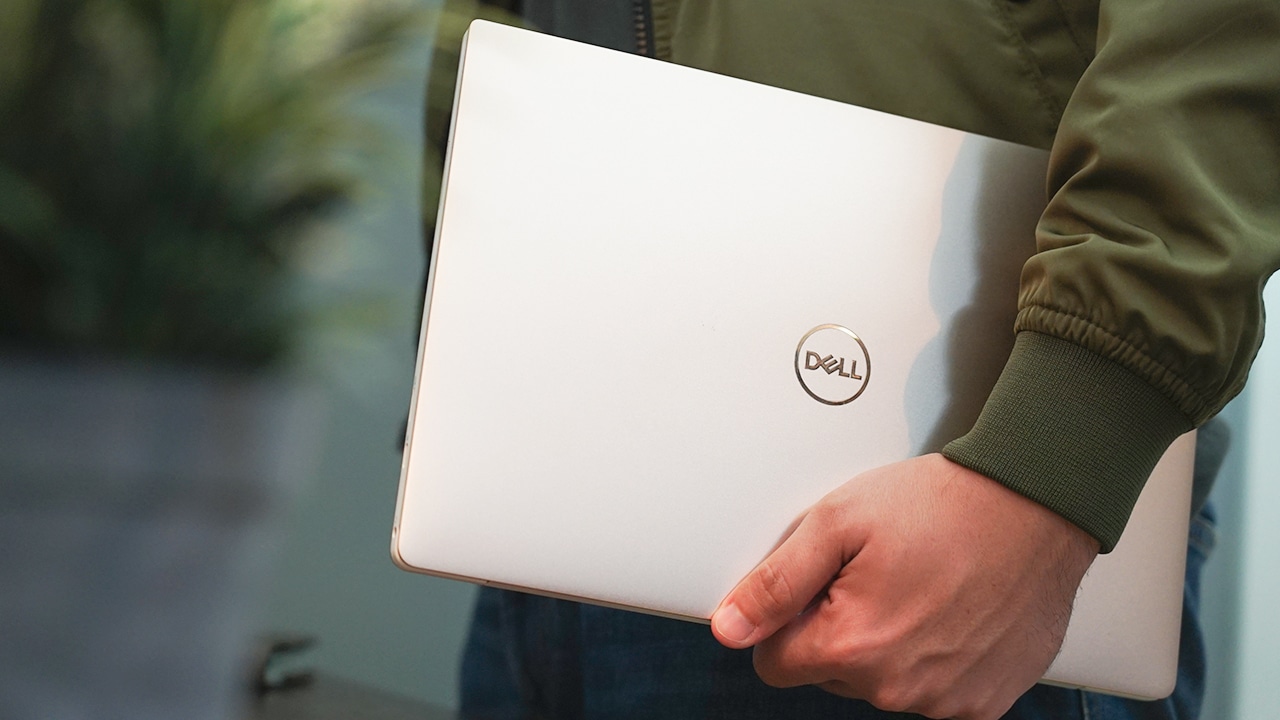


When talking about premium laptops, the flagship models of PC manufacturers are automatically part of the list. You’ve probably already heard of Dell’s XPS line of notebooks. If you haven’t, maybe you’ve seen it before in a cafe or at a store because it’s pretty distinct. Just look for the notebook with an incredibly thin display bezel, and that’s most likely the Dell XPS 13.
Since its introduction in 2012, the design of the XPS 13 hasn’t changed much. It was in 2015 that the Ultrabook (the name of premium Windows notebooks before) got its recognizable bezel-less display. Dell is not yet ready to give the XPS 13 a major makeover, so the 2018 version only has slight changes. Is it still the XPS 13 we know and love? Here’s my review.
The edge-to-edge design lives on
Let’s first talk about the display because it’s the first thing one would notice about this notebook. Since the introduction of the InfinityEdge display on the XPS line, we’ve been wanting other laptops to have the same design. Dell is able to achieve an 80.7 percent screen-to-body ratio with the XPS 13.
My particular XPS 13 comes with a 4K Ultra HD IPS panel with touch input, but it also comes in Full HD with the base configuration. Dell already claims to have covered 100 percent of the sRGB color space with a 1500:1 contrast ratio. Not only that, it’s got a Corning Gorilla 4 with an anti-reflective coating and it can reach 400-nits of brightness which guarantees optimum screen visibility outdoors.

Watching Final Space on Netflix is way more fun with this notebook
Basically, there’s nothing to complain about the XPS 13’s display: It’s color accurate, bright, and immersive. I can’t say the same for the side stereo speakers, though. While the display excels, the speakers do fall a bit behind. They do sound quite pleasant but distort a bit at max volume.
As with smartphones, there’s a catch to borderless designs. Thankfully, nobody has tried releasing a notebook with a notched display, but the webcam has to go somewhere, and here it’s at the bottom of the display. I’ve been using the Xiaomi Mi Mix 2S as my daily driver which also has its selfie camera in an unusual position, so this camera placement isn’t weird for me.

It could be also be called the knuckles cam since fingers get in the view when typing
To be frank, I don’t use the webcam that much. Most of the time, I open it to act as a mirror. When I do need to call someone on Skype or any video-calling service, the camera is looking right up my nose and the quality is so-so.
Good thing it’s not a plain webcam. It has an additional infrared sensor that’s fully compatible with Windows Hello. I never had to type my password or PIN to unlock the XPS 13 because the facial recognition unlock is nearly instant.

Windows Hello works great with the infrared camera
Aside from face recognition, there’s also a fingerprint reader embedded into the power button. So when I wake the notebook from sleep by pressing the power button, it already authenticates and automatically unlocks the device. Pretty neat!

The power key and fingerprint sensor in one button
Moving on to the left side, there’s a couple of USB-C ports with support for Thunderbolt 3 and four lanes of PCI Express Gen 3. So, an external GPU (eGPU) will be able to turn the XPS 13 into a graphics powerhouse.
This will make the XPS 13 both a great laptop on the go and a workhorse when docked. There’s also a 5-LED battery indicator and a Noble lock slot beside these ports.

The battery indicator is a small feature but useful when on the go
On the other side, there’s another USB-C port. This one doesn’t support Thunderbolt 3, but it’s DisplayPort-compatible for external monitors. Thankfully, there’s also a 3.5mm port for headphones and microphones but I’m disappointed about the microSD card reader.

It would have been 100 percent better as a full-size SD card reader
The bottom of the laptop hides the unsightly grilles for ventilation and maintenance screws. There are two long rubber feet to keep the laptop in place when on a surface. The back foot is raised a bit higher, making the XPS 13 slightly inclined. You don’t notice this but it actually gives you a better angle when typing.

The heat dissipates away from the user
Speaking of typing, it’s easy to adjust to the layout of the XPS 13’s keyboard. Every key is where I like it to be with a good amount of spacing, and the travel of each key is just right. Overall, the whole keyboard never felt cramped.
What I like more is the touchpad. Despite being a bit constrained due to the size of the notebook, it’s smooth, responsive, and has full Windows Precision Touchpad support. Windows 10 now has many useful gestures and they’re a breeze to flip through.

This notebook has one of the best touchpads on a Windows notebook
The new rose gold exterior with white interior variant is also new on the 2018 version of the XPS 13, and it’s more than a new tint. We’re looking at an “alpine white woven glass fiber palm rest” which claims to be UV- and stain-resistant to prevent yellowing over time and staining. Just like last year’s XPS 13, it’s body is cut from a single block of aluminum.
A powerful yet compact notebook
Now onto the specs, the XPS 13 (2018) is powered by the latest eighth-gen Intel Core processors. The model I have has a quad-core Intel Core i7-8550U processor paired with 8GB DDR4 RAM and Intel UHD Graphics 620. The base clock speed of the new ultra-low power processor is 1.8GHz with a turbo boost to 4GHz when needed.
It’s a specced-out notebook for everyday use and it can handle Adobe Photoshop and some video editing with Adobe Premiere Pro. Gaming is also not an issue for the XPS 13, but don’t expect it to play AAA titles at high frame rates. The likes of CS:GO and League of Legends on low to medium settings is what it can handle.

The XPS 13 boots fast and is zippy. There are some minor hiccups from time to time but that’s pretty normal when Windows 10 is under stress. What grabbed my attention though is how fast apps load. This is probably due to the fast read times of the notebook’s 256GB M.2 SSD storage.
Moreover, the base of the XPS 13 feels pretty cool when on my lap, yet it does get really warm while being charged. Its fans are relatively quiet unless I’m running a game or benchmarking software. Overall, I have nothing to complain about the laptop’s fan noise even when it’s under heavy load.
Long-lasting on a single charge
We buy 13-inch notebooks for portability, but that normally comes at the cost of battery life. Fortunately, the XPS 13 is able to last long on a single charge.
I consider my use of the laptop as moderate, which includes constant Wi-Fi and Bluetooth connectivity, Chrome with multiple tabs, and brightness levels staying around 50 percent most of the time. On average, I get about seven and a half hours of power. The longest I got was around nine hours when I mainly used the notebook to binge-watch the whole day.

When it’s time to fill up, the XPS 13 charges through any of the USB-C ports. Ain’t that convenient? It takes about two hours to fully charge the notebook using the included small 45W charger. Maybe a bigger charger with a 65W output can charge the notebook faster.
Is this your GadgetMatch?
If you’re looking for the best 13-inch Windows laptops out there, the Dell XPS 13 (2018) should top your list. Why? I have three reasons.
First, the display and design alone will make you want an XPS 13. Second, it’s a portable powerhouse because it can also be an editing and gaming machine with the help of an eGPU. Ideally, I’d use the XPS 13 when I’m on the road, then plug it in at home to a bigger monitor and eGPU to transform it into a capable desktop PC. Lastly, after my more than two weeks of use, I didn’t have any negative experience that left a bad impression.

The lack of full-size ports might turn off some, but living the dongle life is pretty unavoidable with new laptops, especially when they’re this small. As long as it’s got Thunderbolt 3, you’re safe and there are a number of quality and useful adapters already available in the market.
The Dell XPS 13 (2018) starts around US$ 999 in some markets with the base configuration. The particular variant I have here retails for US$ 1,450 in the US, SG$ 2,399 in Singapore, and PhP 99,990 in the Philippines. It’s quite pricey, but you’re getting a premium notebook and not just another Windows 10-powered laptop.
SEE ALSO: Dell Latitude 7390 2-in-1 Review: The complete business laptop





Laptops
Alienware celebrates 30th anniversary with new Area-51 laptops
The series features Alienware 30, an all-new design language.

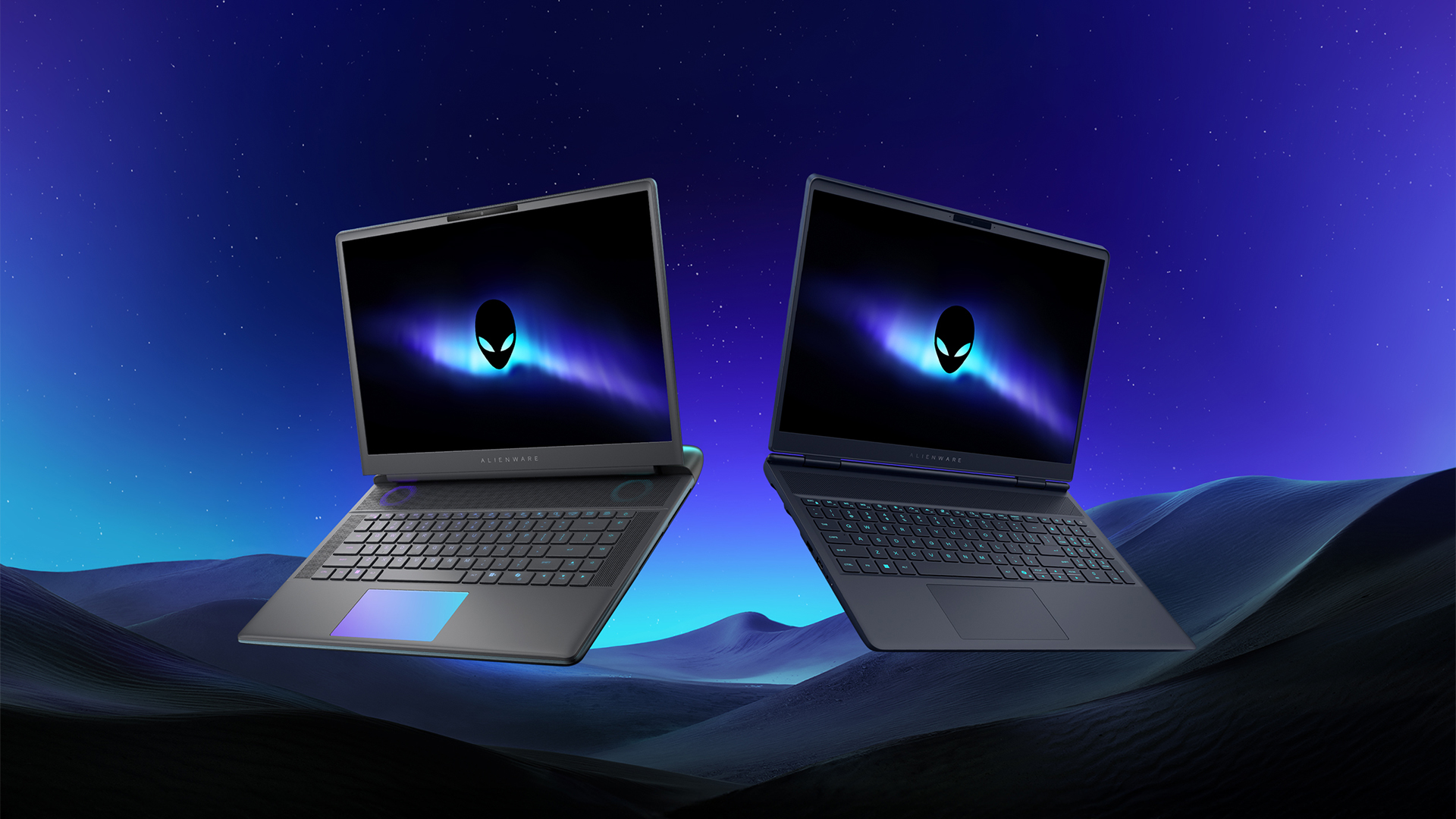
Despite the rise of more gaming brands, Alienware is still one of the most recognizable names for gamers who want dedicated hardware. This year, the brand is celebrating its 30th anniversary. To commemorate the milestone, Alienware has launched the new Area-51 and Aurora notebooks.
Alienware Area-51
Alienware’s Area-51 lineup is the brand’s flagship line of notebooks, packing in the best of the best from the industry. This time is no different.
First of all, the new series will rock Alienware 30, a new design philosophy made especially for the 30th anniversary. On the outside, the laptops have fluid contours, emphasizing curves opposed to the industry’s more angular contemporaries. It also has a Zero Hinge, which hides the laptop’s hinge from view. Finally, it has pillowed palm rests to make usage easy for long gaming sessions.
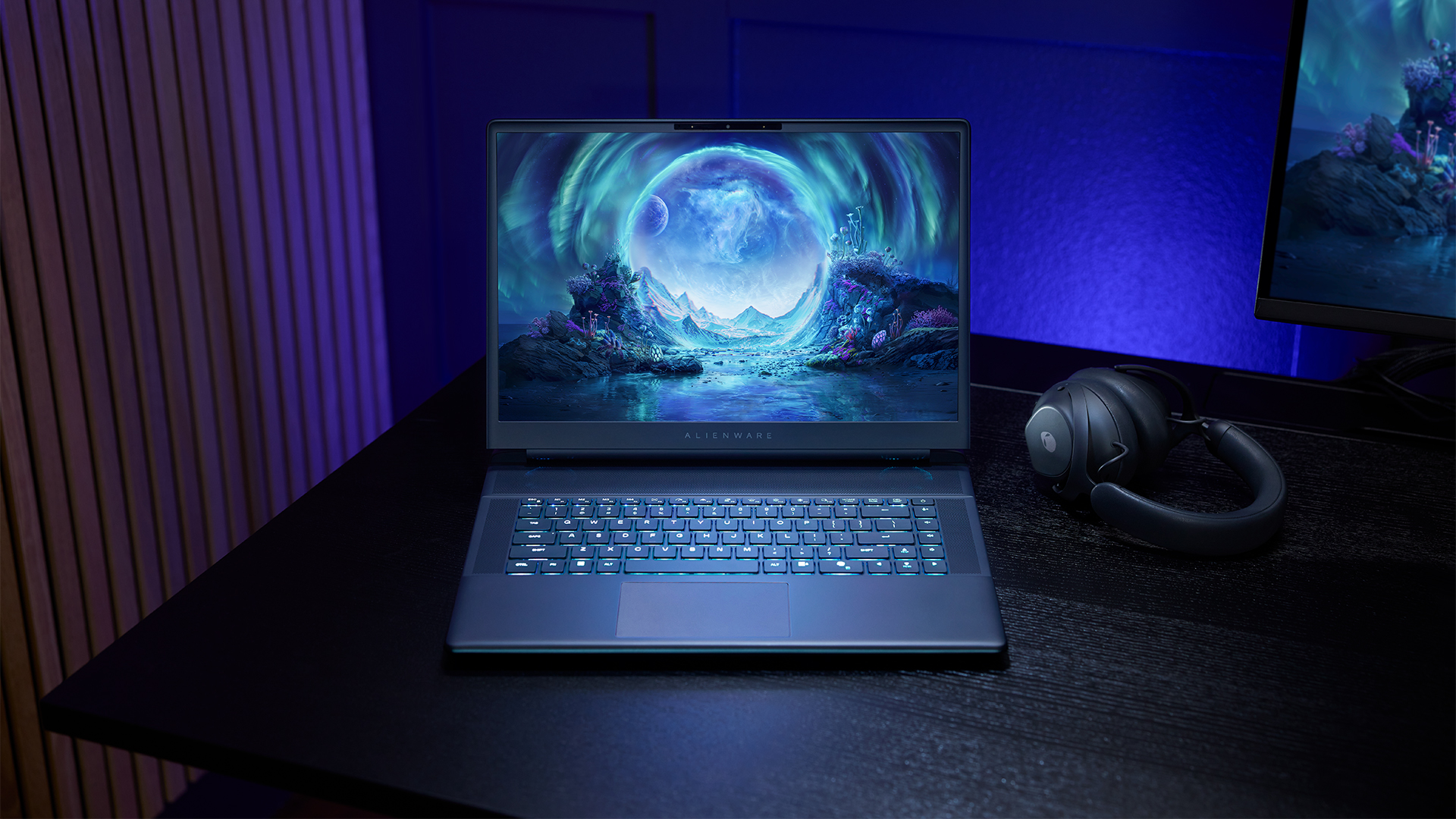
The 16-inch model can rock up to a WQXGA Anti-Glare OLED screen, featuring 240Hz refresh rate and 620 peak HDR nits. It will also have an LCD option. Alternatively, the 18-inch model has a WQXGA screen, featuring 300Hz refresh rate and 500 nits of brightness.
Inside, the Alienware Area-51 boasts up to an Intel Core Ultra 9 290HX processor and up to an NVIDIA GeForce RTX 5090 24GB GPU. For memory, gamers can enjoy up to 64GB Dual-Channel DDR5. Finally, for storage, the series can rock up to 2TB SSD natively but can support up to 3 slots, allowing for up to 12TB of internal storage.
The series will have a sizable 96Whr battery. This is complemented by a 280W adapter and the brand’s largest fans by volume to keep things cool.
Alienware 16X Aurora
For those who portability over raw power, the new Alienware 16X Aurora fits inside any day-to-day kit. For example, it ditches the thermal shelf typical of most gaming notebooks today to increase portability. It has rounded edges to make it easier to grasp and to create a slightly pillowed palm rest, similar to its flagship counterpart.
The 16-inch WQXGA OLED panel touts 240Hz refresh rate, 0.2ms response time, and 620 nits HDR peak brightness.
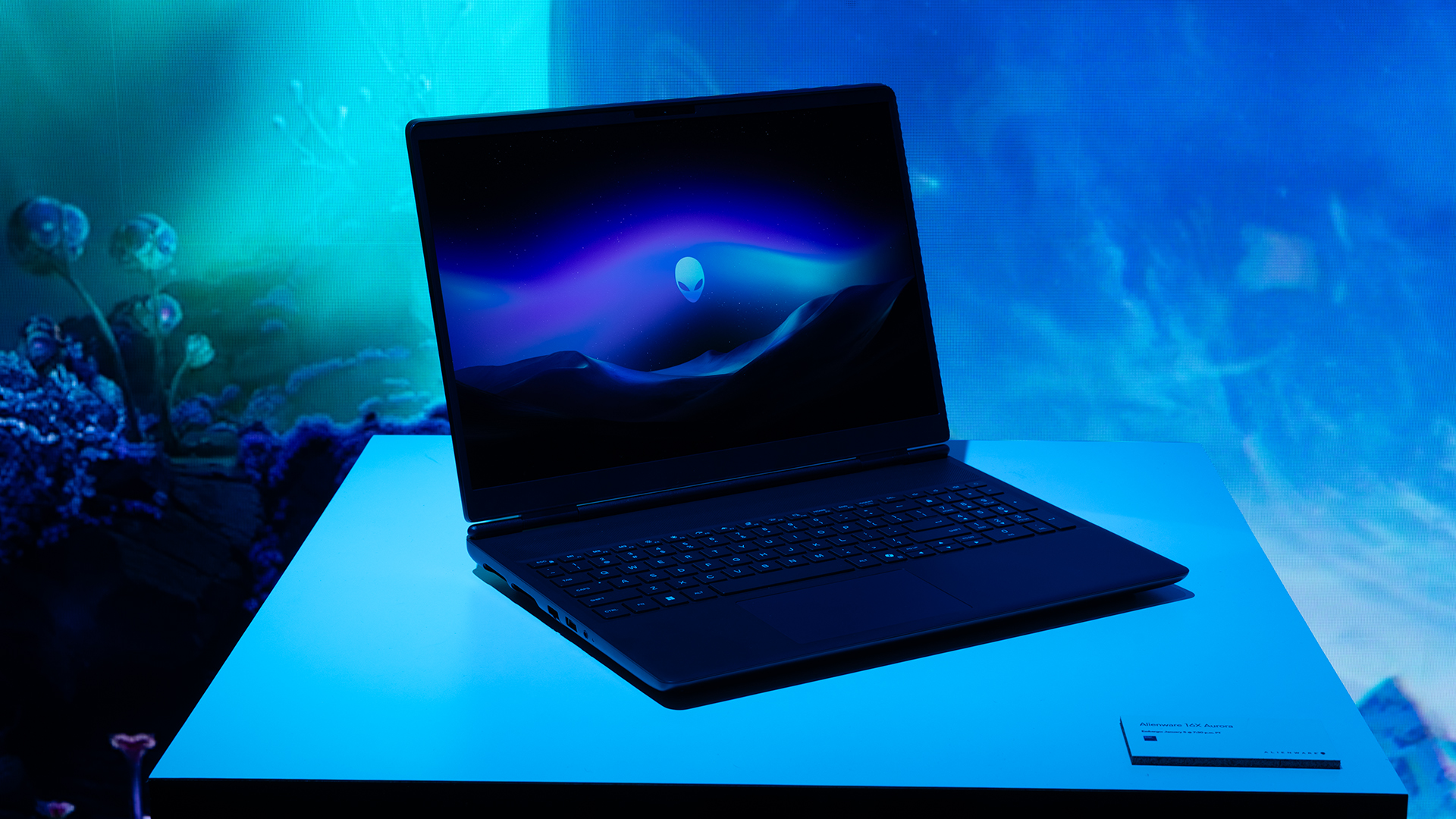
Inside, the notebook has up to an Intel Core Ultra 9 275HX processor and up to an NVIDIA GeForce RTX 5070 Ti GPU. These specs are paired with up to 64GB Dual-Channel DDR5 memory and up to 2TB SSD.
Finally, the Alienware 16X Aurora will have a 90Whr battery. This is supported by up to a 280W charger (for the RTX 5070 variant).
Price, availability
Both series are available starting today, March 17.

Apple disrupts the industry with their latest MacBook — an affordable to say the very least.
If you’re a student, a first-time Mac owner, someone who’s been priced out of this ecosystem their whole life, someone who just needs a laptop for basic tasks but one that looks great, without slowing them down, this is it!
Or maybe you’re torn choosing between the MacBook Neo and the more powerful M5 MacBook Air?
Well, that’s what we’re here for. Here’s our review with the all-new MacBook Neo.
Laptops
Hands-on: NEW iPhone 17e, iPad Air, MacBooks, Studio Displays
What Apple has announced other than the MacBook Neo


The MacBook Neo was the star of yesterday’s Apple event, and it has every right to be but it’s been a big week for Apple.
So as promised, we also went hands-on with every other device announced this week: iPhone 17e, M4 iPad Air, M5 MacBook Air, MacBook Pro with M5 Pro and M5 Max chips, and the new Studio Displays.





Jackery SolarSaga series: Free power for small devices

UGREEN adds new Nexode Pro power bank, charger to lineup

nubia to launch new Neo 5 series gaming phones on March 28

SHINOBI: Art of Vengeance’s SEGA Villains Stage out on April 3

AMD poised to lead agentic AI era with high-performance CPUs


-

 Reviews5 days ago
POCO X8 Pro Max review: A new beast from the far east
-

 News5 days ago
POCO X8 Pro Series: Price, availability in the Philippines
-

 Laptops1 week ago
Apple MacBook Neo Review
-

 Computers2 weeks ago
GIGABYTE collaborates with Capcom for RE Requiem custom PC
-

 Apps1 week ago
Google Maps is finally getting a 3D mode
-

 Entertainment1 week ago
The internet is thirsting over the One Piece Season 2 cast
-

 Features1 week ago
Galaxy AI on the Samsung Galaxy S26 Ultra
-

 Automotive2 weeks ago
BYD is reportedly considering an F1 team