


Computers
How to use your smartphone’s camera as a laptop webcam
It’s time to level up your webcam game!

We’ve all been there, especially with most of us working remotely at home. You prepared and even dressed well for a Zoom meeting, only to be disappointed by the grainy image when it’s your turn to present. Your laptop’s webcam could be the one to blame — but fret not, there are remedies for that.
Most webcams built into laptops have grainy images because they are of low-resolution types. Going into settings, you’ll realize that most laptop webcams have resolutions of 2MP or less built-in, which is a magnitude worse than your average smartphone selfie camera. There’s only so much that you can do to improve the grainy situation due to the hardware limitation.
Sure, you can buy a dedicated webcam. However, quality dedicated webcams can be costly. Not to mention, they can be hard to find considering the pandemic. Luckily, you don’t have to spend in order to up your webcam game — you can use your smartphone as a webcam instead! For this, you’ll need your smartphone (of course), an app, and a lot of patience.
There are three note-worthy app options for turning your smartphone into a portable webcam. Here are those:
XSplit VCam and Connect Webcam: free, but with caveats
One of the more reputable options out there is XSplit VCam and Connect Webcam. Both are free-to-download software from the reputable maker XSplit. You need to download and install both to get up and running: XSplit VCam is for the desktop, while XSplit Connect Webcam is for mobile. Both the desktop software and mobile app have a nice, no-frills interface which would really get you up and running in minutes.
An option to sign in to XSplit displays upon opening the desktop software, but you can skip this easily. The mobile app presents you with the view of your smartphone’s camera instantly, and there’s an indicator of whether you’re connected with your PC.
To get started, you just need to connect your smartphone and your PC to the same Wi-Fi network and choose your smartphone from the list of cameras. That’s it, basically.
The video quality is good for the most part. You will really notice the “upgrade” from your PC webcam if you’re long used to it. After all, the app streams your video in HD resolution.
However, take note that you may encounter occasional lags and hiccups from time to time. So if you want a more stable connection, make sure to connect your smartphone via USB.
Like they say, every good thing comes with a price. It’s the same here on XSplit VCam: you have to cough up for a recurring fee of US$ 70/year to remove the watermark it puts on your video stream. The one-time, lifetime fee costs US$ 230. So, those who are averse to paying up should look elsewhere.
Finally, a major caveat: XSplit VCam is only available for Windows. Fortunately, a macOS version is now in beta. Both Android and iOS support the Connect Webcam app, so you’ve got no problem there.
DroidCam: light but packed with features
DroidCam is another great option to turn your smartphone into a portable webcam. Just like the XSplit VCam, you download the mobile and desktop apps for it to work. Unlike it, though, it is much lighter in file size and doesn’t require any sign-ins. It’s easy to get around the app’s interface — there are only a few buttons to click for you to get going.
To get started, you must connect your phone to the same Wi-Fi network as your PC. Then, you have to enter your smartphone’s IP address and also make sure that the DroidCam port address is one and the same as your smartphone. If all goes well, you’ll see the video feed from your smartphone camera.
Take note, though, that the app doesn’t let you switch cameras once you established a connection with your smartphone. To switch cameras, you have to disconnect first then choose the camera-like icon in the upper right corner of the mobile app.
For a more reliable video feed, you can opt for a USB connection. Here, the process is as simple as selecting your smartphone from a dropdown menu. Once you’ve set it up completely, you will now see your smartphone’s video feed.
There’s also a paid DroidCamX Pro for those who want more features. Pro features include the option for HD mode, which is a bummer since the default resolution maxes out at 480p, though that resolution is still perfectly fine for most.
Some video adjustments such as brightness adjustment and rotation are also pro features. Buying the pro version also removes the ads on mobile apps. Luckily, you only have to pay a one-time fee to access these pro features.
What’s not so great is the lack of macOS support. The desktop app is only available for Windows and Linux. Meanwhile, the mobile app is available for both Android and iOS.
Works well for macOS and iPhone: Reincubate Camo
If you’ve noticed by now, those two apps don’t offer an app for macOS. This is where Reincubate Camo comes in the picture. Reincubate Camo has a macOS client and a good one too. It offers an extensive set of features for controlling the appearance of your video feed. Plus, it works well on major videoconferencing apps.
That said, this app is should be your go-to if you’re invested in the Apple ecosystem. The app has tons of settings to control your video feed and tweak everything that comes from an iPhone. The mobile app is only available for iOS — iPads included.
Windows users, fortunately, can take advantage of the desktop app. Overall, Reincubate Camo should be the perfect solution for a portable webcam especially if you have an iPhone (or an iPad).
By default, the app settles for 720p HD resolution. However, you can also pay a bit more to unlock 1080p video feeds, which should help with making you look sharper and detailed on video calls. Paying for the pro version of the app also removes the watermark, and gives you extra controls too.
Download Reincubate Camo here.
Other alternatives: using a spare camera, or using the mobile app
Have a spare camera lying around? You can use your camera as a portable webcam, depending on your camera’s manufacturer. Canon and Sony both offer a solution so users can utilize their DSLRs and mirrorless cameras as portable webcams. All you have to do is to download their own software into your PC and follow the given instructions.
If you have a camera that is supported, it might be much better to actually use it as a portable webcam than your smartphone. After all, the quality of most dedicated cameras is still better than smartphones. Some cameras even support up to 4K streaming, which is a big boost for Zoom call quality.
One of the best and easiest ways to upgrade your webcam game is to use your videoconferencing’s mobile apps instead. Zoom, Google Meet, Microsoft Teams, and more are readily downloadable on Android and iOS and offer almost the same set of features found on the desktop app.
You just download the apps, sign in, and viola. However, this setup may not work for some who want all their work apps on the desktop. People have varying workflows, after all.
SEE ALSO: Guide to the best videoconferencing service
In the end, leveling up your webcam game is also a matter of finding what works best for you. There are apps to make your smartphone a portable webcam, apps that let you use your DSLR or mirrorless camera, or just mobile videoconferencing apps.
Just remember that you don’t have to suffer from poor video call quality anymore — an important point to stress out especially today when video calls are now just facts of life.


Computers
AMD expands Ryzen AI Embedded P100 series lineup
Scalable, efficient AI compute for industrial, edge solutions

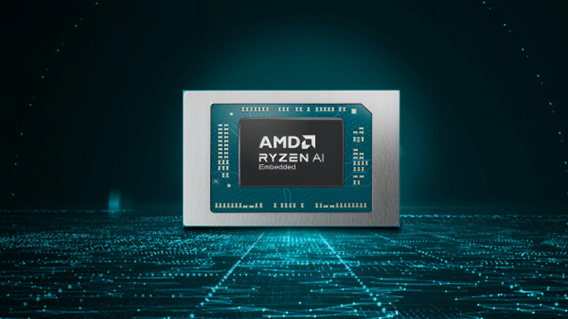
AMD has recently announced the expansion of its AMD Ryzen AI Embedded P100 Series processor lineup.
This enables scalable and power-efficient AI compute tailor-built for industrial and AI edge systems. Scenarios include factory automation, physical AI in mobile robotics, and other AI-driven edge applications.
With eight to 12 high-performance Zen 5 cores, AMD ROCm support, and up to 80 total system TOPS, the new x86 embedded APUs deliver up to:
- 2x more CPU core counts
- 8x higher GPU compute
- 36% higher system TOPS
This way, developers and system designers get an expanded and scalable portfolio of power-efficient edge computing solutions. These processors support real-time AI from vision to control and reasoning, as well as offer advanced graphics capabilities.
On a single chip, clients get up to 80 TOPS physical AI acceleration, AMD RDNA 3.5 graphics for real-time visualization, and an NPU based on the AMD XDNA 2 architecture.
Moreover, the processors can withstand industrial temperature ranges (-40° C to 105° C) and can support continuous 24/7 operations for up to 10-year life cycles. That’s along with low-latency and power-efficient AI inference.
Real-life applications include intelligent factories, autonomous robots, and medical imaging devices. For instance, the processors can deliver CPU performance required for real-time inspection and process optimization.
For mobile robots, meanwhile, processors can manage navigation, motion, control, and route planning while the GPU processes multi-camera feeds for spatial awareness.
Furthermore, for 3D health imaging, the processors can enable the powering of 3D imaging for ultrasounds, endoscopes, tissue classification, and tumor detection at the edge. This is done with models like U-Net, nnU-Net, and MONAI.
The processors then accelerate image-to-report workflows with MedSigLIP and support clinical reasoning and Q&A with Med-PaLM 2.

GIGABYTE and Capcom have collaborated for a limited time Resident Evil Requiem-inspired custom PC giveaway.
The setup is inspired by the title, which recently released, and includes an exclusive monitor game bundle to bring players closer to the experience.
Headlining the collaboration is the Umbrella Corporation — Level 3 Access custom rig giveaway. It is one of a kind, fully-built desktop featuring a Z890M AORUS ELITE WIFI7 ICE motherboard and RTX 5080 AERO OC SFF graphics.
Of course, it draws inspiration from the visual identity and atmosphere of Resident Evil Requiem. It also features a GIGABYTE C102 GLASS ICE chassis design and custom GIGABYTE MO27Q28G gaming monitor to complete the setup.

The giveaway runs from March 2 to March 31 via the official campaign website. Fans can enter for a chance to win the custom rig, with no purchase necessary. The only caveat is that they have to be a United States or Canada resident.
Such experience is designed to invite players and PC enthusiasts alike to engage with the collaboration while highlighting GIGABYTE’s premium hardware craftmanship and attention to detail.
In addition to the giveaway, GIGABYTE is also offering a Resident Evil Requiem game bundle with select gaming monitors. Included are AORUS brand monitors, ranging from 27 to 55 inches in size.
This bundle is available until March 31. Customers who purchase eligible models can redeem a digital game code through GIGABYTE’s official redemption platform.
The featured monitor is the MO27Q28G, which has fourth generation WOLED panel with 280Hz refresh rate and 0.03ms response time. It is an ideal monitor to experience the spine-chilling terror and death-defying action of the title.
Computers
AMD announces Ryzen AI 400, AI 400 PRO series at MWC 2026
Offering support for next-gen AI PCs, Copilot+ experiences
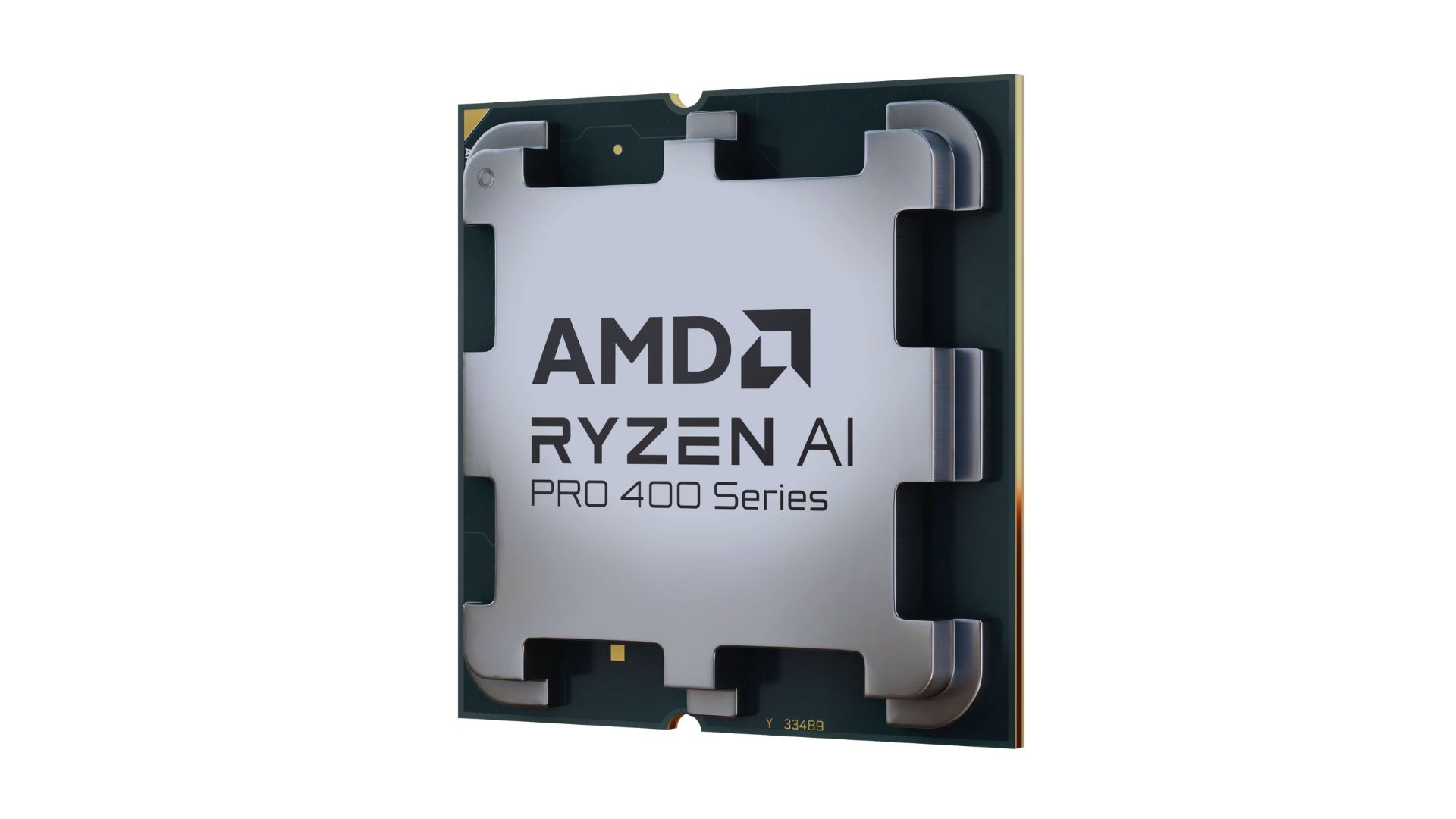
AMD announced new products and initiatives at MWC 2026 Barcelona, headlined by their newest Ryzen AI 400 and Ryzen AI PRO 400 series processors.
These latest processors are built on the AM5 platform and advanced Zen 5 architecture, delivering next-generation experiences for both consumer and commercial scenarios.
The additions enable original equipment manufacturers (OEMs) to offer next-gen AI PCs across high-performance desktops, laptops, and mobile workstations optimized for modern workloads.
Along with dedicated AMD XDNA 2 NPUs and AMD RDNA 3.5 graphics, both series offer up to 60 TOPS of NPU AI compute, exceeding the requirements of Copilot+ PCs.
As such, these enable powerful on-device AI performance, including running LLMs locally and tackling compute-intensive applications for design and engineering.
The Ryzen AI 400 series processors are also the first for next-gen desktop AI PCs to support Copilot+ PC experiences. Featuring an NPU providing up to 50 TOPS of AI compute, these processors enable running AI assistants and productivity tools locally.
In addition, AMD is expanding the Ryzen AI 400 series mobile portfolio to include workstations. Some that are expected to release in Q2 2026 include products from Dell, HP, and Lenovo.
AMD PRO initiative
Furthermore, AMD announced AMD PRO for enterprise-grade security, manageability, and reliability.
This is done through foundational hardware and software designed to simplify IT operations and protect investments over time.
AMD says it will continue to evolve the AMD PRO platform by strengthening both its silicon foundation and software stack.
This will support enterprise IT teams managing distributed AI-enabled PC fleets. Meanwhile, expanded remote management features improve visibility, recovery, and control.



Disney+ launches a TikTok-coded vertical feed called Verts

Google Maps is finally getting a 3D mode

KPop Demon Hunters is officially getting a sequel

Bringing Care-a-Lot to my daily carry

Galaxy AI on the Samsung Galaxy S26 Ultra


-
 Reviews2 weeks ago
TECNO CAMON 50 Ultra review: End of an era?
-
 MWC 20261 week ago
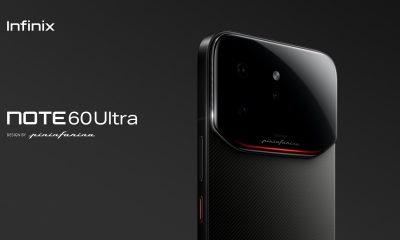
Infinix NOTE 60 Ultra makes a motorsport-inspired debut
-
 MWC 20262 weeks ago
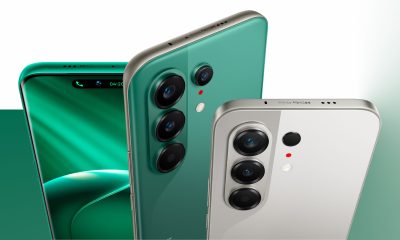
TECNO launches the all-new CAMON 50 series
-
 MWC 20262 weeks ago
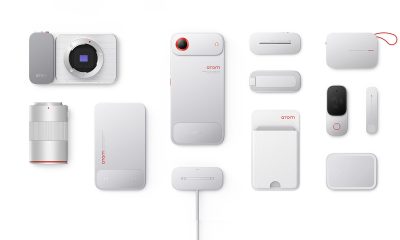
TECNO showcases cool concepts at MWC 2026
-
 MWC 20262 weeks ago
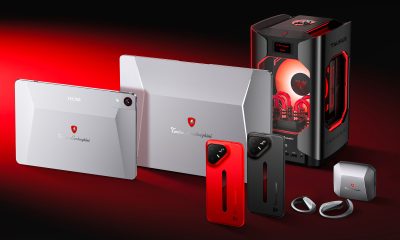
TECNO unleashes Tonino Lamborghini collection
-
 Computers2 weeks ago
AMD announces Ryzen AI 400, AI 400 PRO series at MWC 2026
-
 MWC 20262 weeks ago
HONOR unveils Robot Phone concept at MWC 2026
-
 MWC 20262 weeks ago
TECNO debuts latest devices, HiOS 16, upgraded Ella at MWC 2026