


There’s a sea of laptops available in the market right now. Deciding which one to buy can be truly overwhelming. It also doesn’t help that some of the names are confusing.
Enter the Huawei Matebook D 15. There’s something about this laptop that just feels sleek and clean. And it’s not just the exterior. Everything about it just works.
To give you a better idea, allow us to run down the reasons why this is a seamless, no fuss, everyday workhorse of a laptop.
A premium, modern look
Whether we admit it or not, we care about how our things look. And the Huawei Matebook D 15, well, it looks good. There’s something about its unibody design that just screams premium.
Anyone who sees you carrying this around will think it probably cost you an arm and a leg. Which isn’t the case but unless they ask, I’m sure it’s fine to let them keep thinking that.
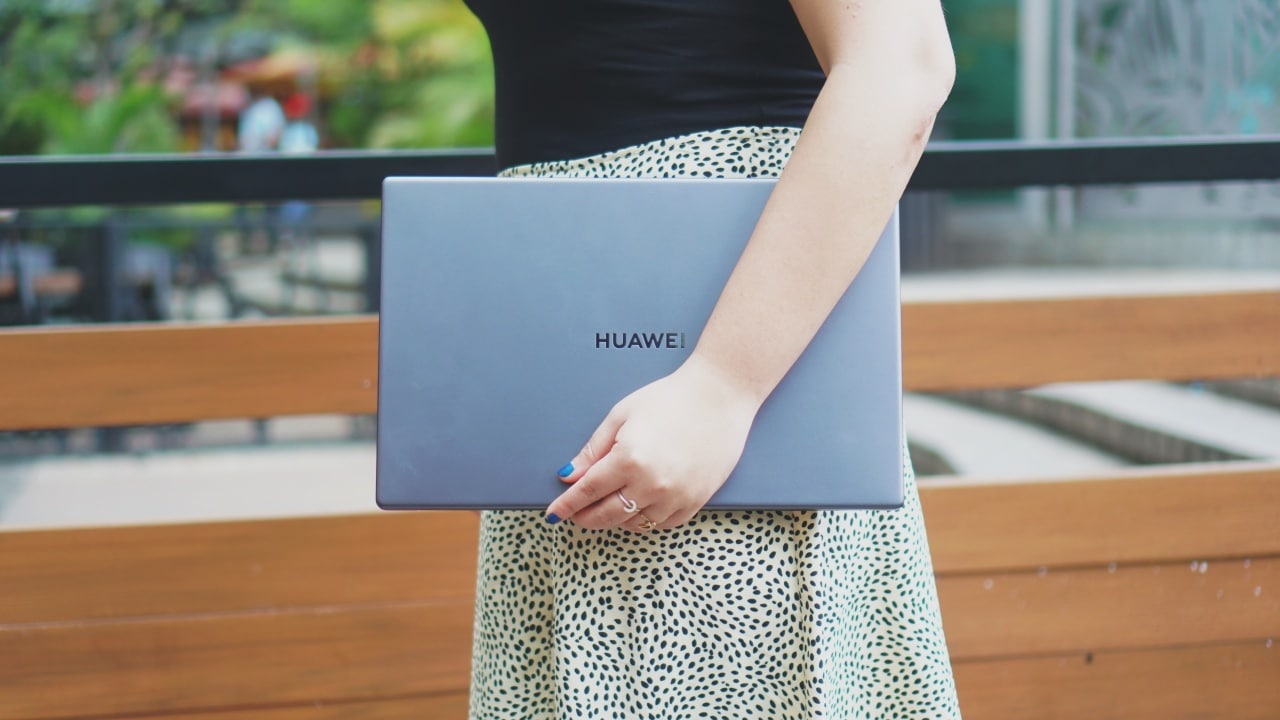
In case you’re wondering, yes that’s a metallic body but not the type that’s heavy. Despite being a 15-inch notebook, it weighs only 1.53kg and is pretty slim at only 16.9mm thick.
Speaking of 15-inches, it’s actually a 15.6-inch FullView display. The 87 percent screen-to-body ratio is another testament to the premium look and feel of this notebook.
It really feels like you see more and the whole display real estate is maximized. That display, by the way, has been certified to reduce the light effect that puts strains on our eyes. That means you can go straight from working to Netflix and chillin’ without worrying too much about harming the windows to your soul.

Seamless access to your phone
There’s this one feature that has kept Apple users in their ecosystem — it’s called AirDrop. It’s basically a seamless way to transfer files from your phone to your laptop and vice versa. It’s one of the most convenient things to ever exist.
The feature hasn’t been rivaled. At least, not until Huawei Share came along. Huawei Share gets the concept of the AirDrop and takes it a step further.

Turn on NFC and Bluetooth on your Huawei or Honor phone, and simply place it on top of the Huawei Share sticker on the right hand area of the Matebook D 15. This will instantly sync your phone to the laptop.
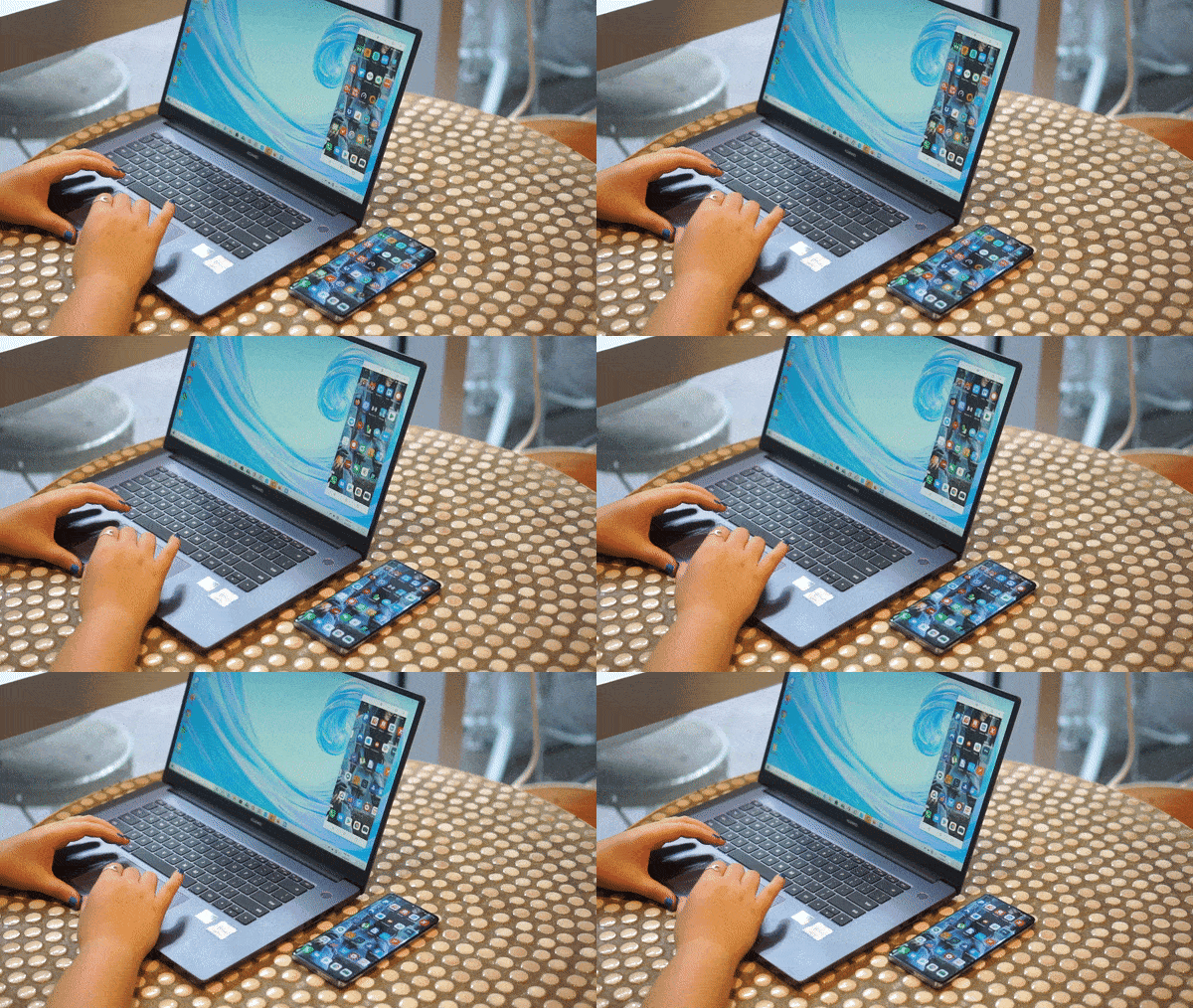
You’ll have a floating screen that will let you access everything on your phone through the notebook. This means you can quickly get to all your messaging and chat apps in just one window and not worry about downloading PC versions of those apps.
Yes, you also have access to the phone’s cameras in this mode. Can you imagine the possibilities?

Fast and secure fingerprint power button
This feature seemed like an obvious decision with phones bearing fingerprint sensors, it made sense to bring it over to laptops.
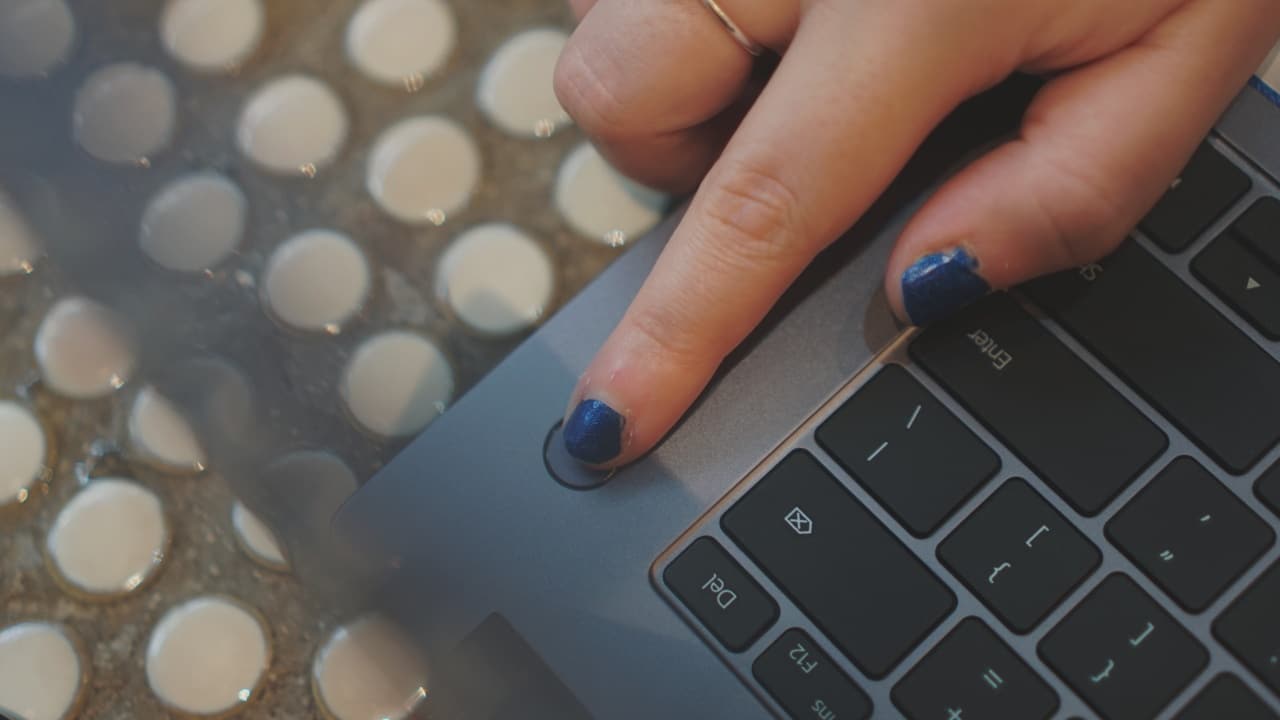
The fingerprint power button on the Huawei Matebook D 15 does exactly what its name suggests. It powers the notebook while simultaneously authenticating its users’ identity. This whole process takes just a few seconds, it doesn’t even feel like it’s doing two things at once.
Speaking of security, you will be happy to know that this notebook’s webcam won’t be able to “accidentally” capture you. With security concerns about webcams being accessed remotely, Huawei employed a recessed camera system.

The camera is hidden under a key that sits in between the function keys. Press down on it to reveal the camera when you actually need to use it. It’s a simple solution but one that lets you rest easy.
2-in-1 in three ways
The first two ways we’ve actually talked about already. First is with Huawei Share. The new function gives you a Mobile phone PC experience — that’s something that feels new and truly groundbreaking.
Next is the fingerprint power button. You not only power the device, it also makes sure that the person turning it on is supposed to be able to access it. Two things happening at the same time.
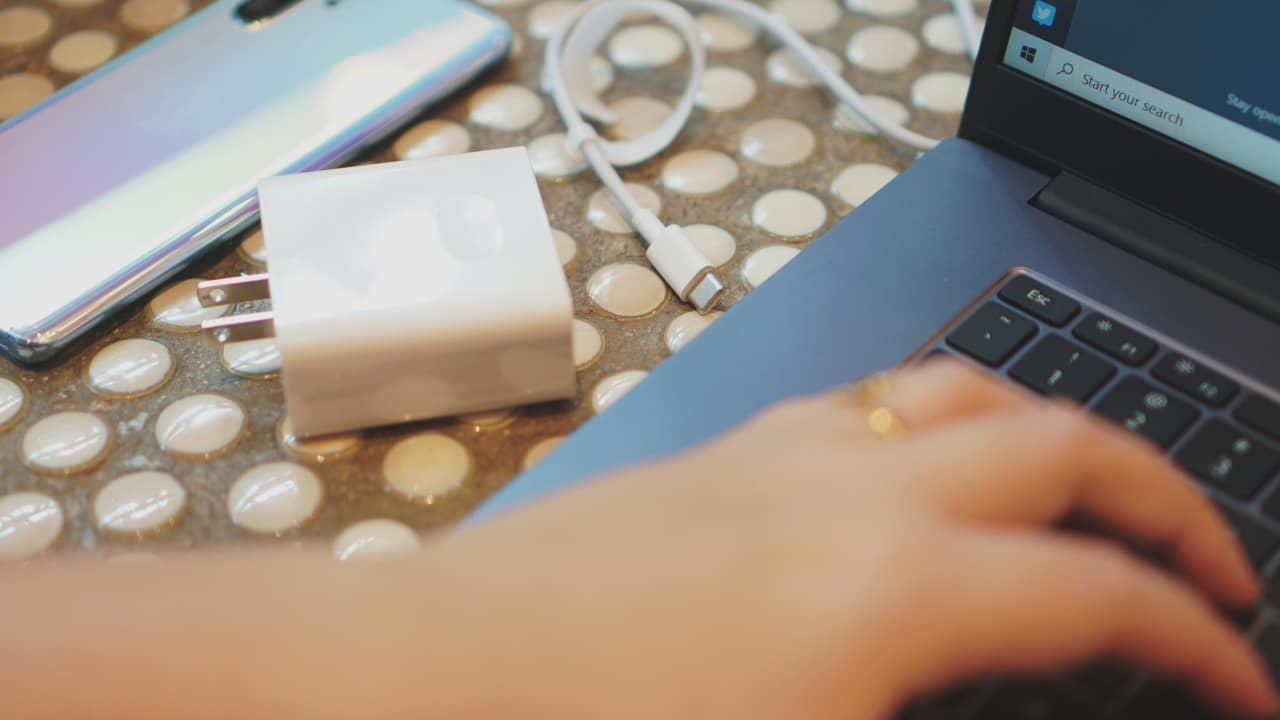
Lastly there’s the charger. The Huawei Matebook D 15 uses a type-c interface charger. Thanks to the usb-c’s power negotiating tech, you can charge not only the notebook but also your phone using the same light and compact power brick. Again, 2-in-1 and absolutely efficient and convenient.
Ready to deliver where it matters
At this point, you’re probably wondering, “Yes, those are all great features but can it actually get work done?”
The short answer is yes. It’s a laptop equipped with the AMD Ryzen 3500U processor. If you’re unfamiliar, it’s a processor that’s often been compared to the Intel Core i5 8250u. What that means is that this laptop is more than capable of handling everything you do on a browser along with the usual Microsoft office suite.
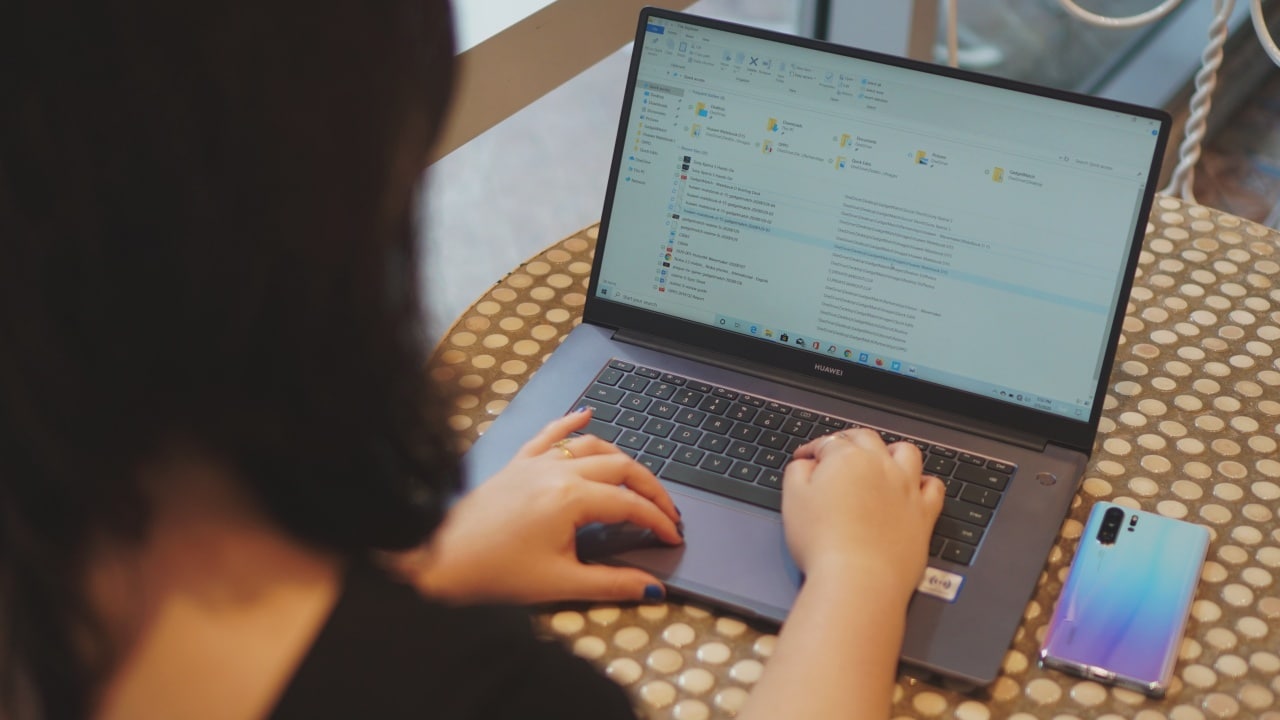
It’s also good enough to handle some Photoshop work. If you feel like pushing it, this machine can also handle some light video editing thanks to its 8GB of RAM and a 256GB SSD storage that’s paired with 1TB HDD storage.
Premium portable performance
As far as the basic to intermediate stuff that you have to do on a laptop, the Huawei Matebook D 15 can more than handle it.
The fact that it comes in a light and thin form-factor means it won’t break your back even if you carry it around all day — a boon for the young workforce today who thrive in working remotely.

The sleek look means you wouldn’t be ashamed to whip this out during a meeting or a presentation. There probably aren’t too many notebooks at this price point that look nearly as elegant.
So if you’re looking to purchase your first laptop, it’s almost a no brainer — the Huawei Matebook D 15 is an easy buy.
Pricing and availability
The Huawei Matebook D 15 comes in Space Grey. It retails for PhP 37,990. Pre-order period is from February 8 to 14, 2020. Those who pre-order will also get a hold of PhP 9,990 worth of freebies including a Huawei T3 8″ tablet, a Huawei Bluetooth mouse, and a Huawei backpack. The freebies are on a first come, first serve basis.
This feature is a collaboration between GadgetMatch and Huawei Philippines.




Features
Inside Infinix’s first global concept store in Bali
Infinix’s first global concept store pairs gadgets with a coffee bar and a robotic arm.

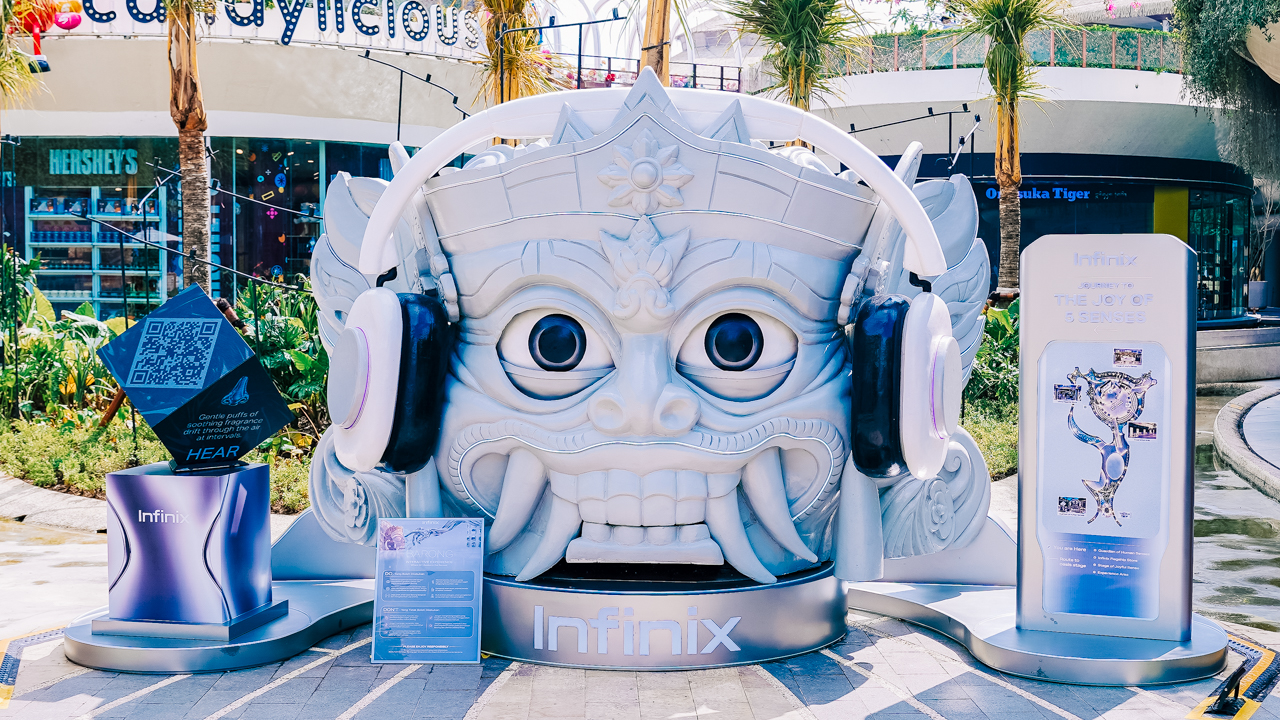
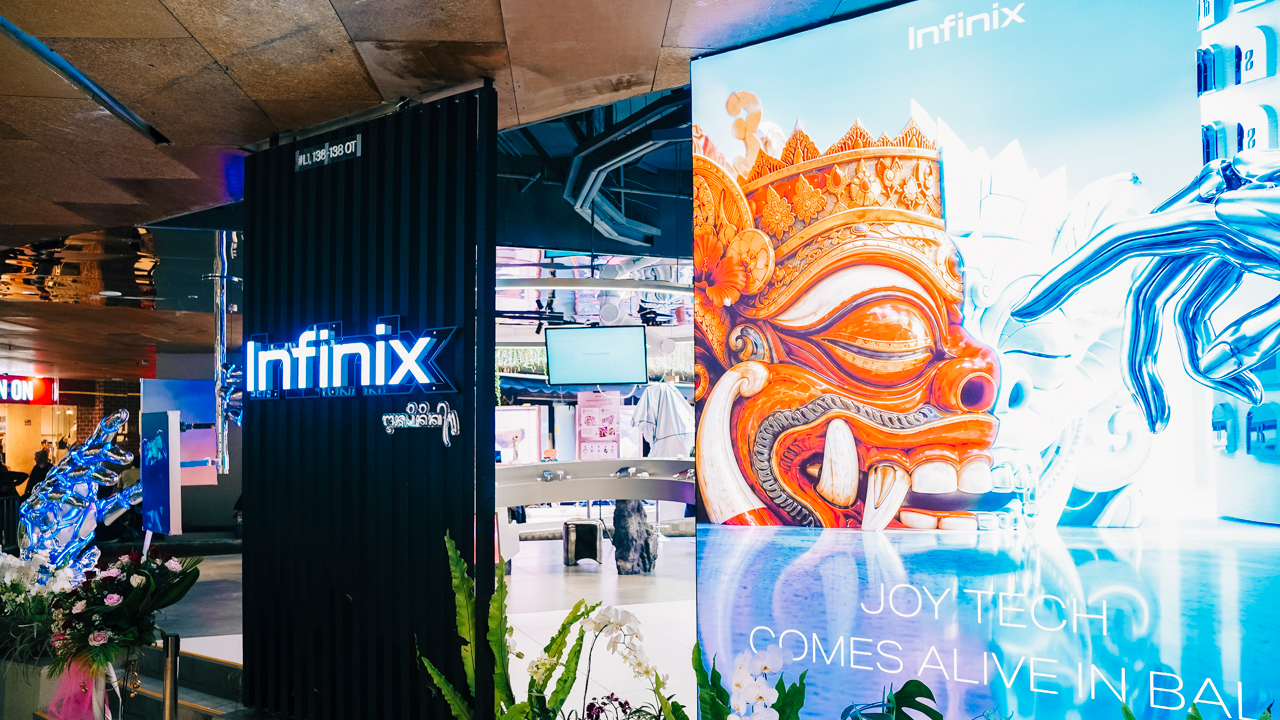
Bali is an island people visit to slow down. It makes sense that Infinix picked it for a store that wants you to stay awhile.
The brand unveiled its first global Flagship Concept Store there. It’s also the first store of this format within parent company Transsion Holdings’ brand portfolio.
Coffee break, Infinix style
The experience begins before you step inside. The store’s futuristic design and digital visuals are meant to catch your eye from the outside.
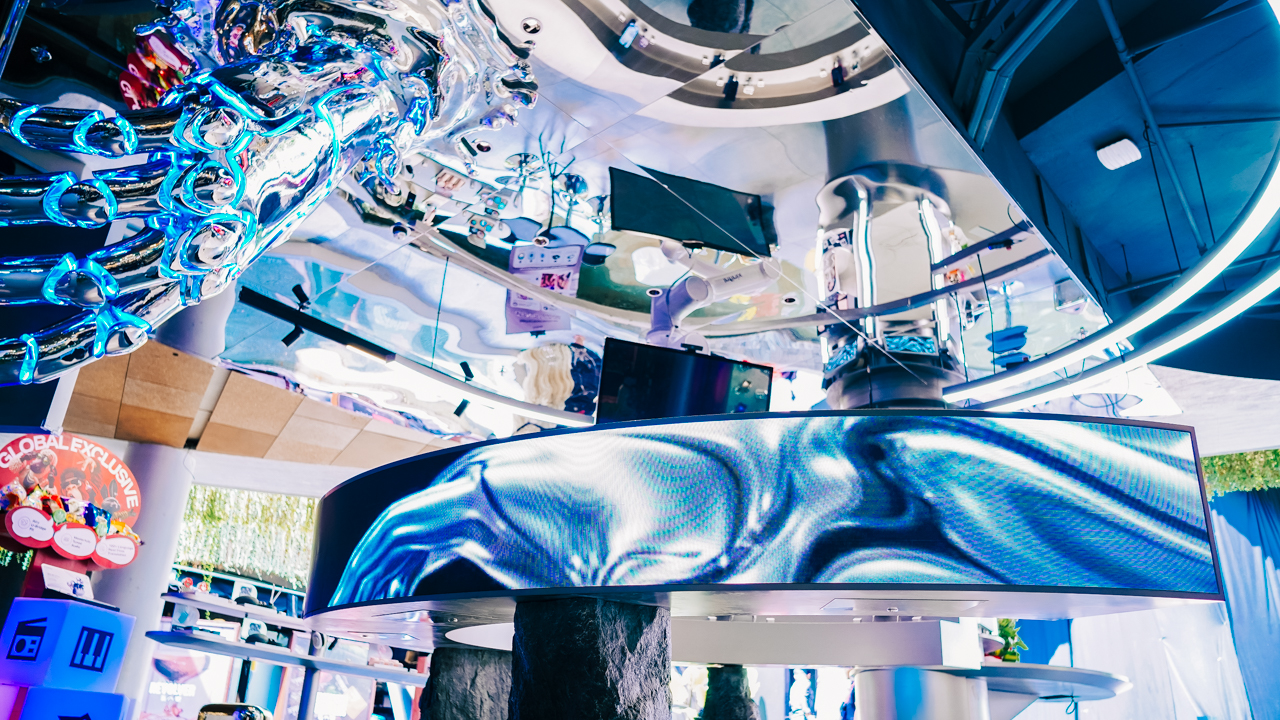
Once you’re in, a robotic-arm installation anchors the space, which looks like a technological imagination turned into a bold visual statement.
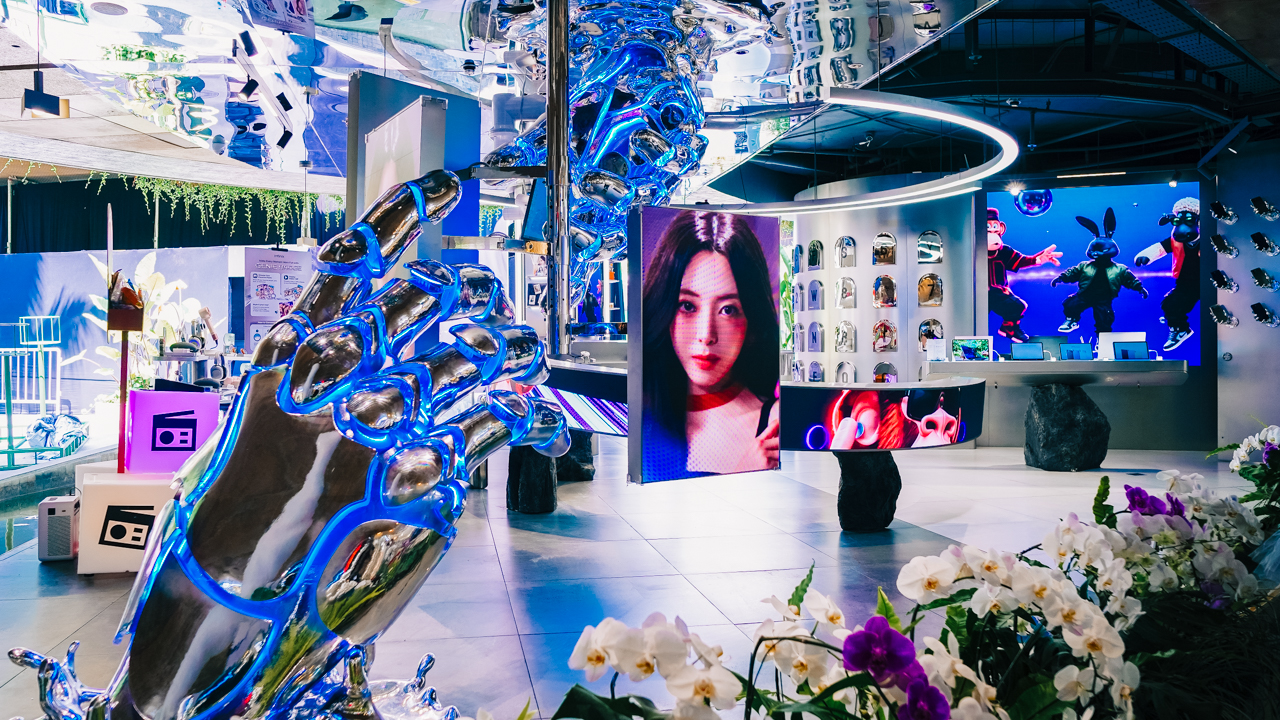
The store’s other signature element is n_x, Infinix’s locally developed coffee brand. For Infinix, a simple coffee break here is an invitation to slow down and enjoy a laid-back moment in the middle of a busy day.
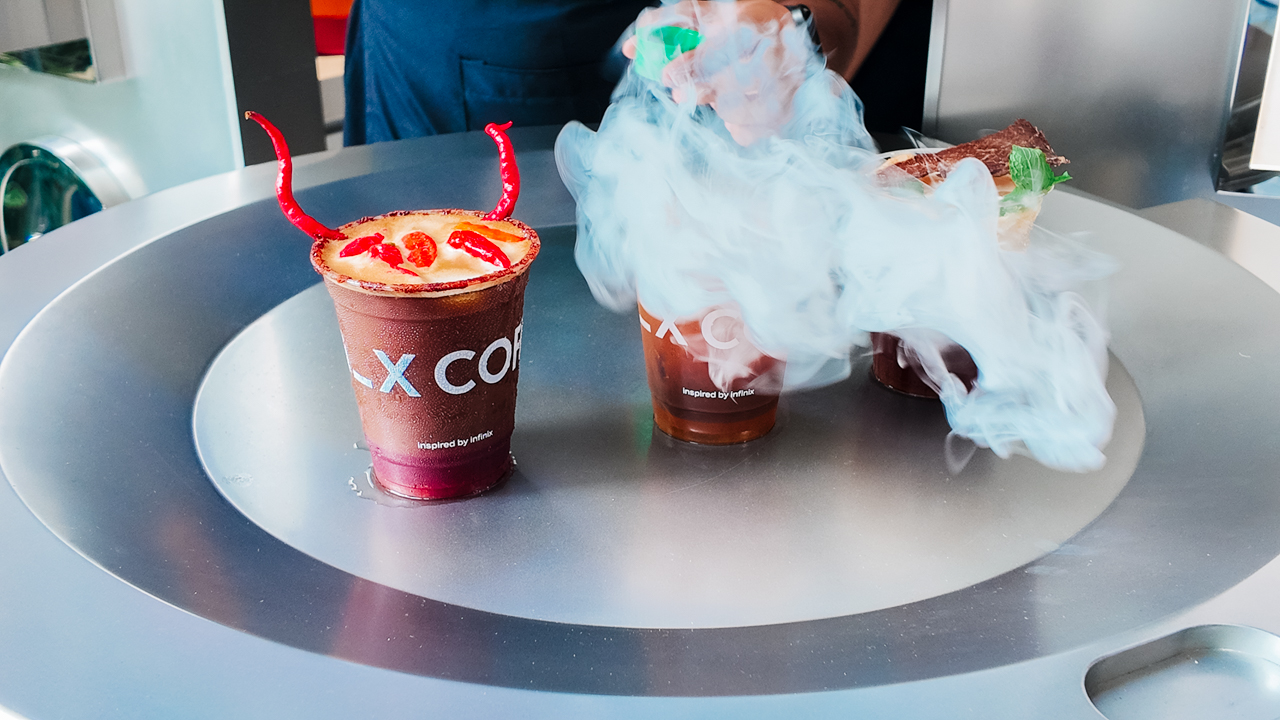
You can catch up with a friend over a cup or take a few minutes for yourself. Together with the robotic arm, n_x gives the store a more relaxed and imaginative side.
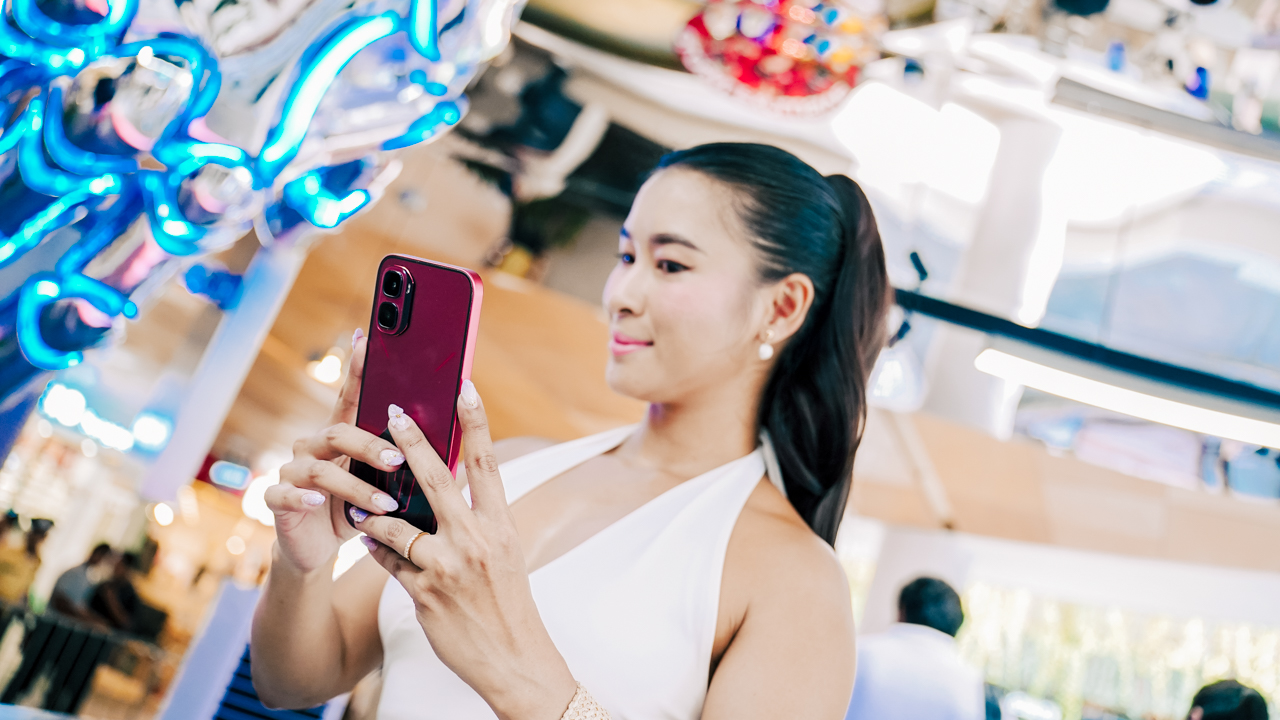
The tech hasn’t gone anywhere, though. The smartphone lineup includes the NOTE 60 and HOT 70 series along with the GT 50 Pro.
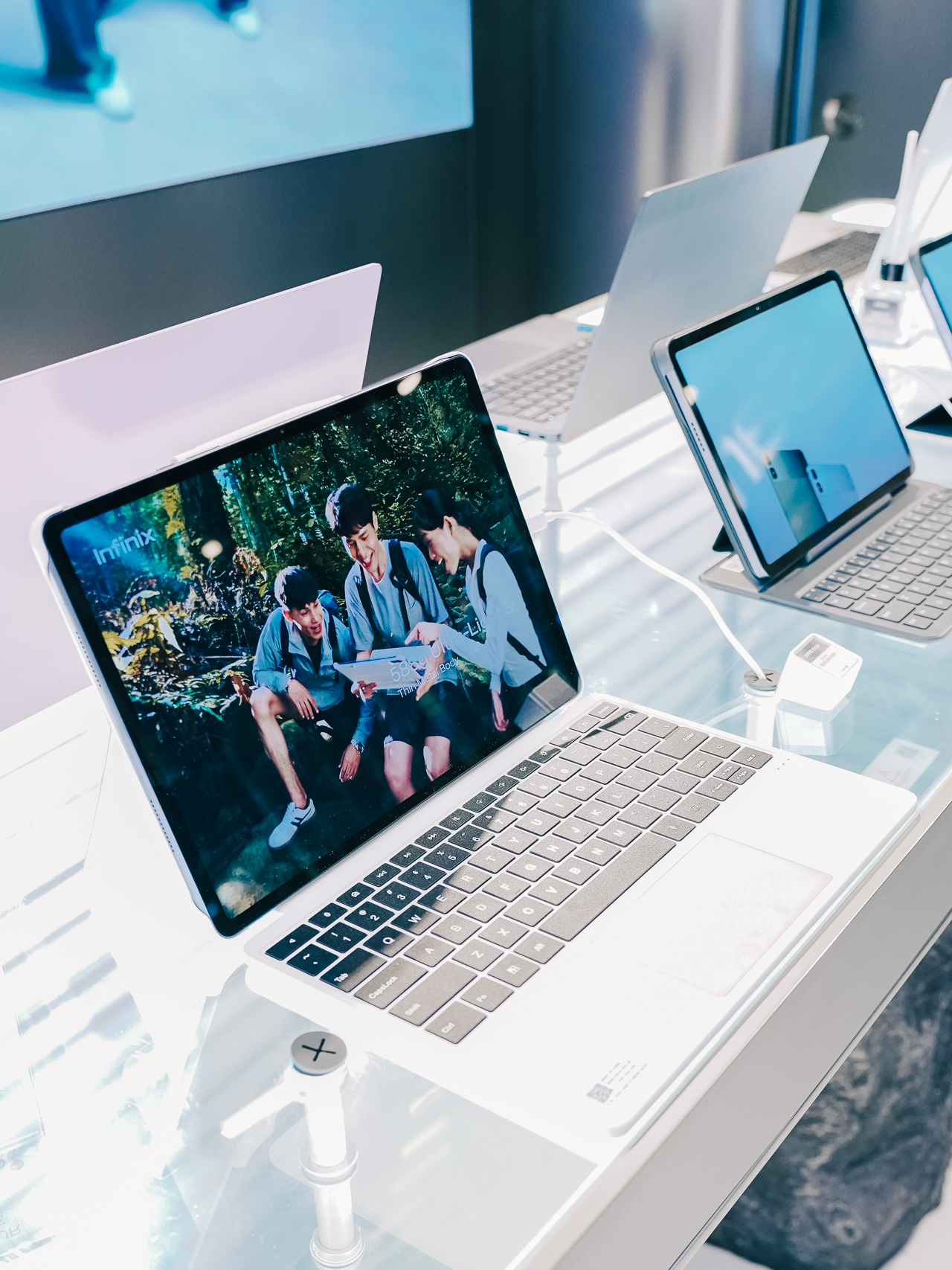
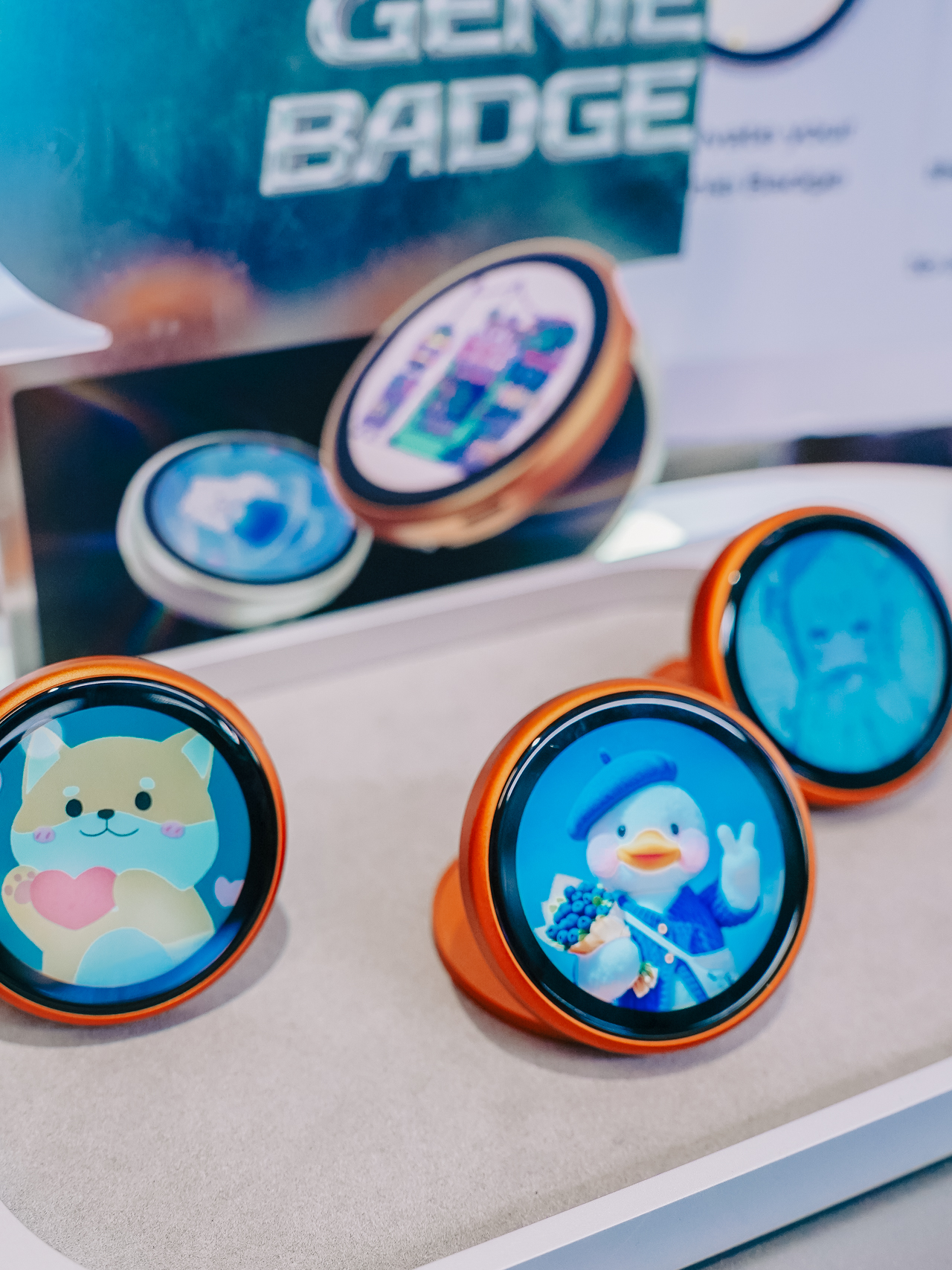

Infinix’s broader AIoT ecosystem is on display as well, with recent products like the ZCLIP 2 Pro clip-on earbuds and SPACE Max wireless headphones.
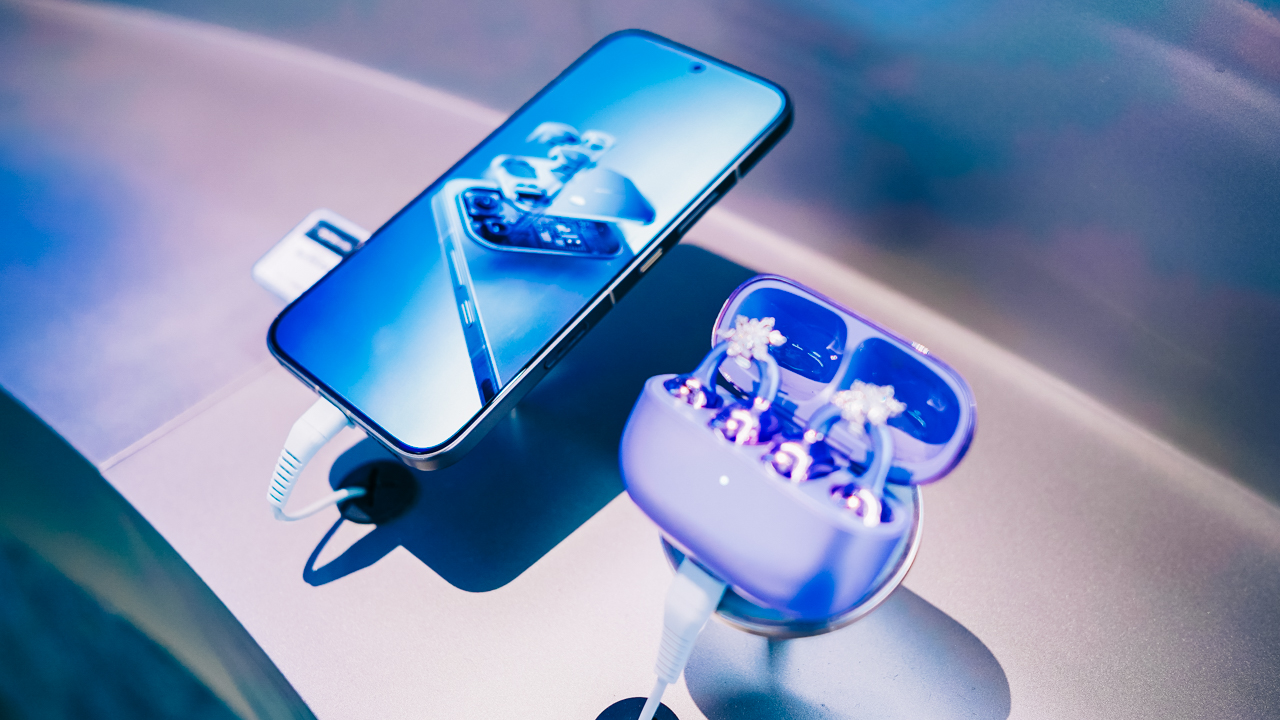
The XEnergy portable power stations are also part of the lineup.
Making Sense of “1+2+X”
Infinix calls the format its “1+2+X” retail concept. The “1” is the full technology experience, and the “2” refers to the two signature elements, n_x and the robotic arm.
The “X” is the open-ended part. Infinix plans on bringing gaming, music, sports, creative partnerships, interactive content, and community activities over time.
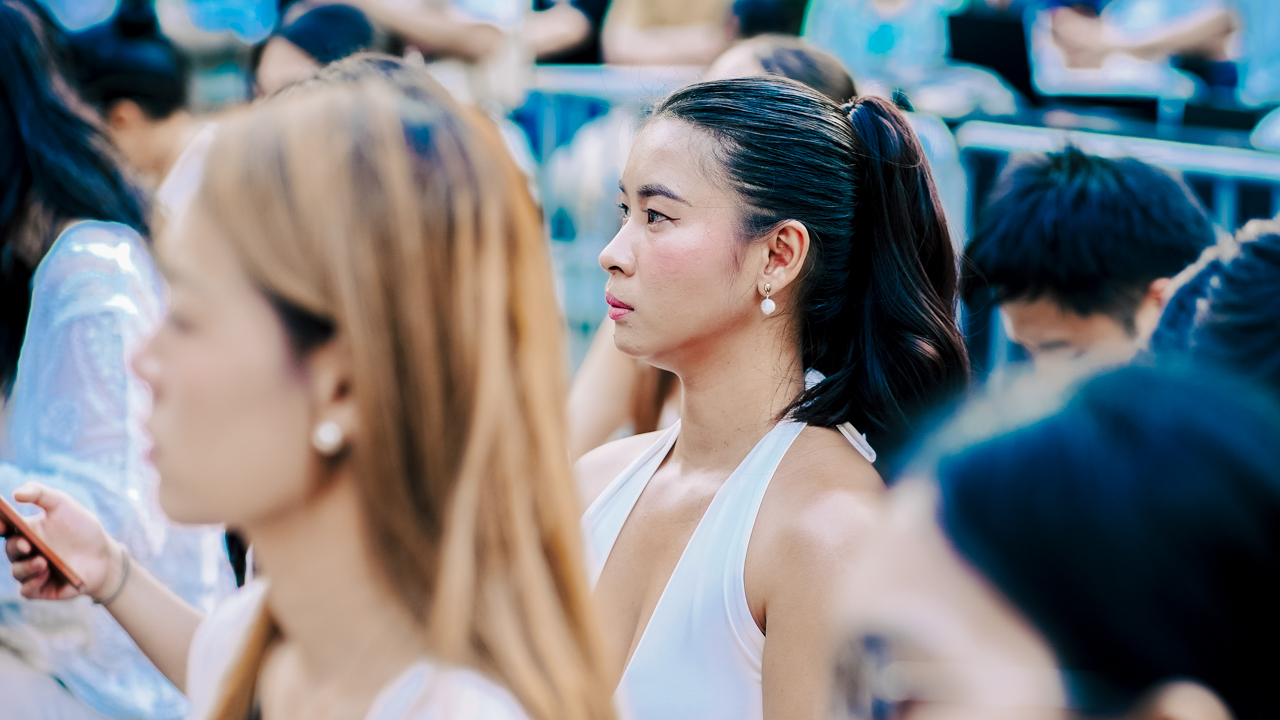
The brand wants to work with artists, musicians, and other creative talents on original content and experiences, rather than only featuring established names or one-off partnerships.
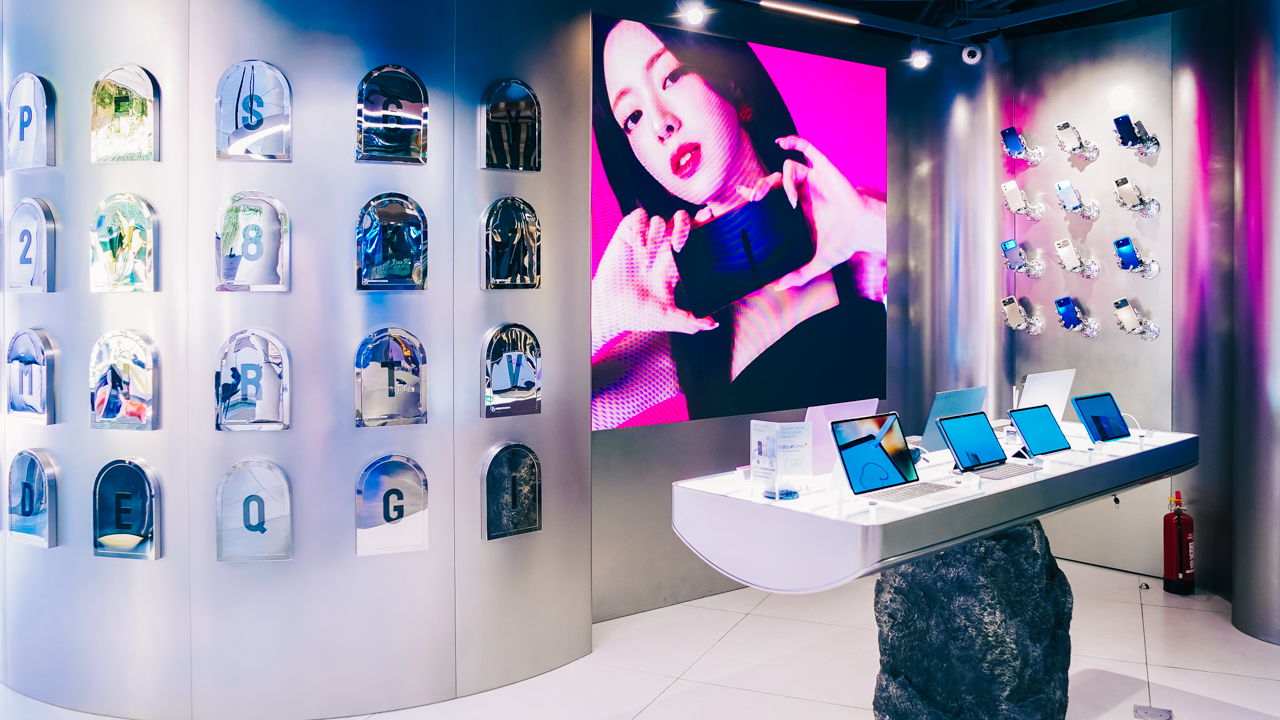
Visitors can also take part through shared experiences, content creation, and feedback. The plan is for the store to keep introducing new collaborations, creative displays, and lifestyle activities after opening, so regulars have fresh reasons to return.

Beyond Bali
Looking ahead, Infinix hopes the Bali store develops a recognizable identity of its own and becomes a destination people return to for its atmosphere and community as much as its products.
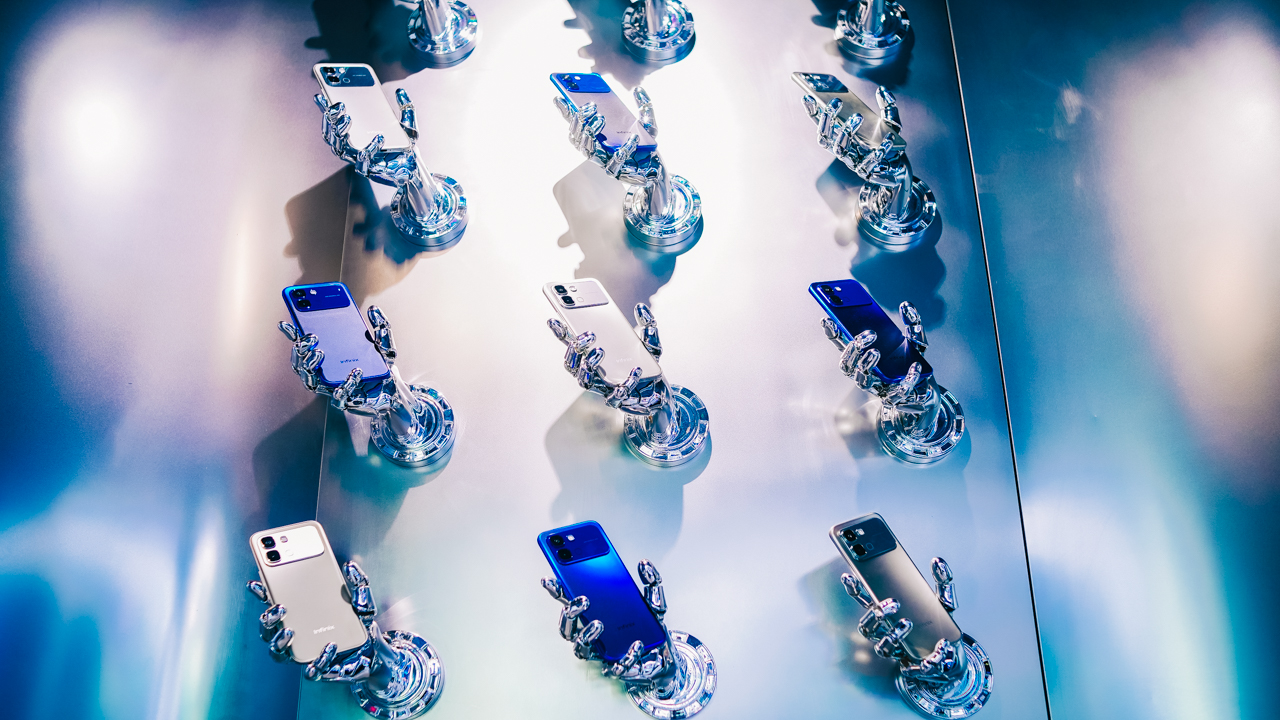
The brand also says this opening is the start of a broader retail push, with five more flagship stores planned across Indonesia this year.
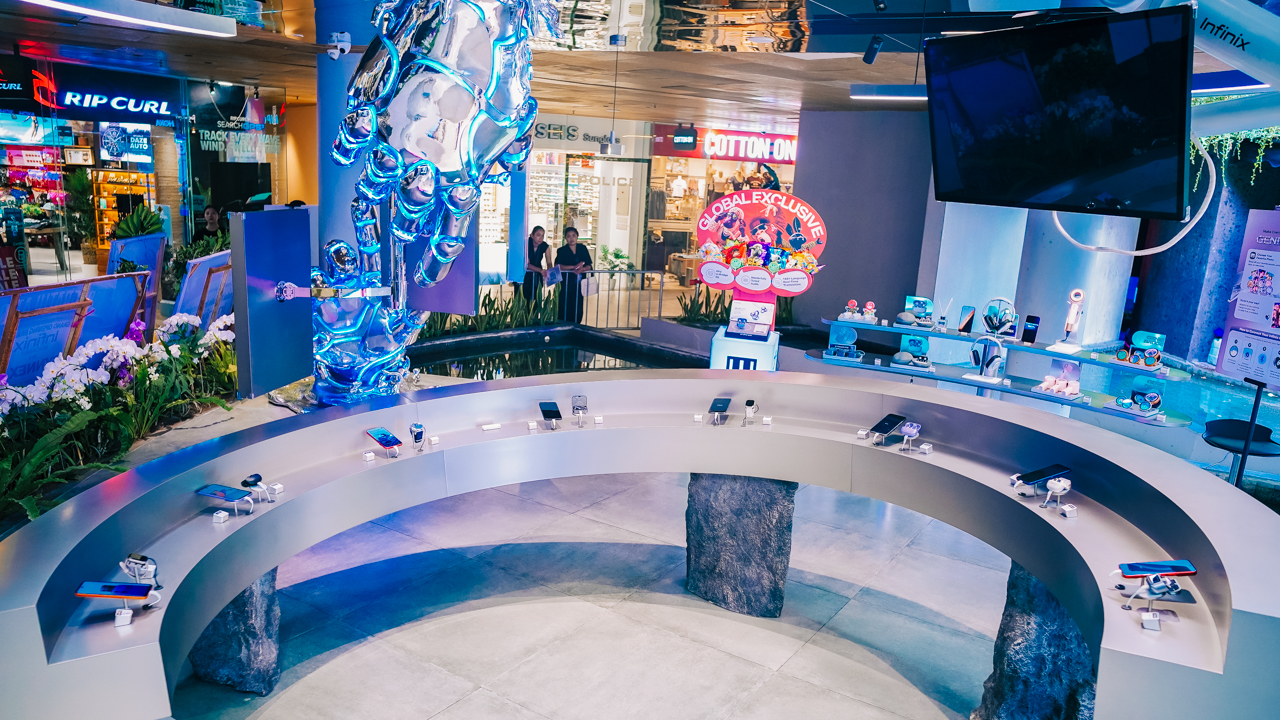
Similar concept-led stores are also being explored in other markets. Infinix states that future locations won’t copy the Bali format and will be adapted to local cultures and lifestyles.

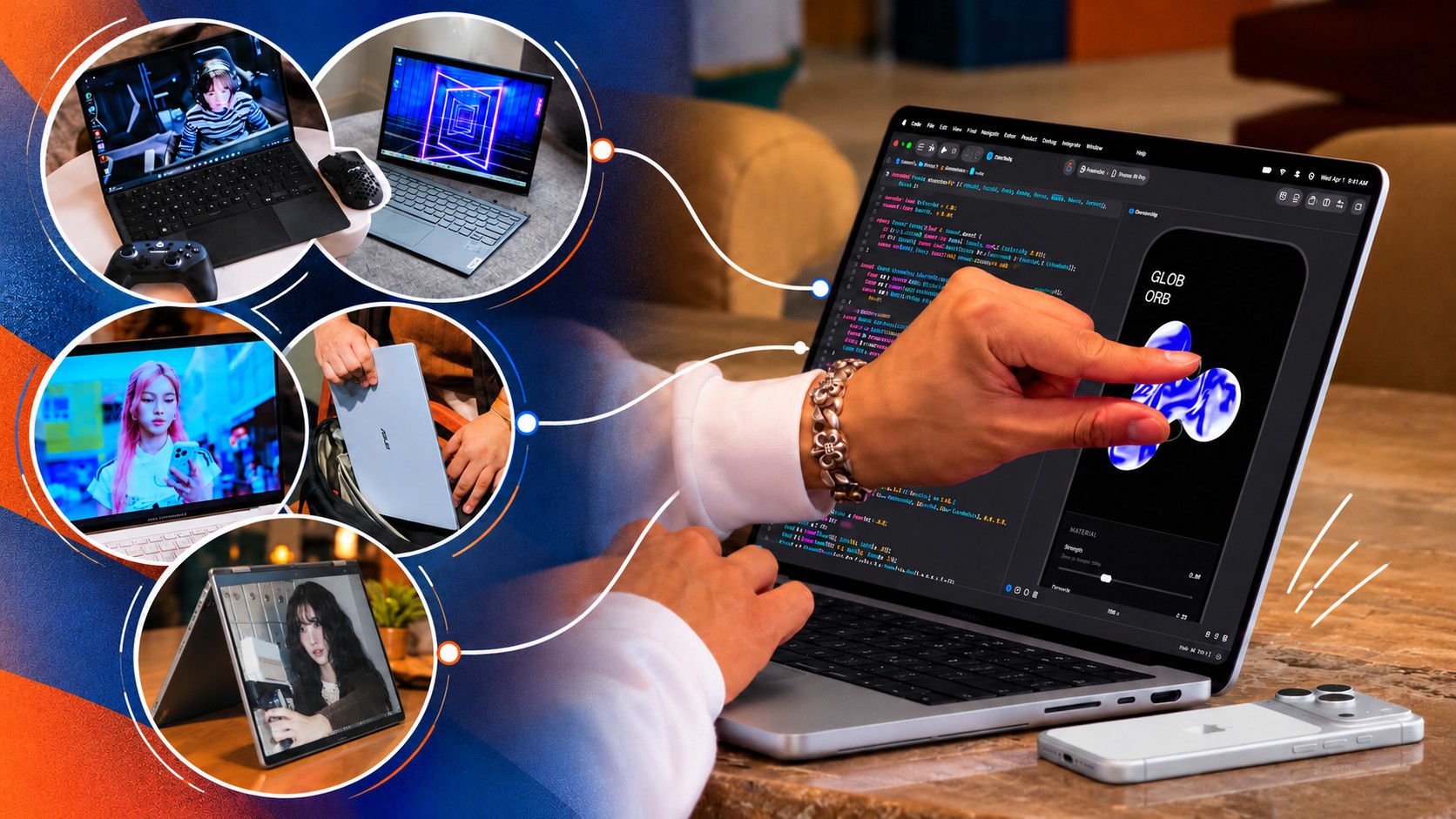
Apple just unveiled their brand spanking new MacBook Pro, now with a touchscreen. That’s fine and all, but something about it lacks… imagination.
Apple broke tech and cultural barriers with the iPhone and the iPad. The MacBook, meanwhile, has been a standard-bearer of personal computing for years. Yet Apple’s latest attempt at innovation doesn’t inspire the same sense of possibility.
Tech creators and publications present at the event have shared their thoughts. While they didn’t necessarily say it verbatim, there’s a “Who asked for this?” or “Who needs this?” energy going around.
The argument for the company in Cupertino has always been that while it might join the party late, it arrives with something refined and ready for the spotlight. That feels less certain in 2026.
I digress.
That’s a whole other topic to unpack, so before I go any further, let me shift back to what I wanted to write about in the first place: the innovations I want to see from Apple. Ones that capture the imagination and inspire possibilities.
MacPad or MacPad Pro
Yes, I’m starting with a haymaker.
For years, users have been asking Apple to make the iPad run some hybrid of iPadOS and macOS.
The MacBook Neo and iPad Pro are proof that this isn’t too farfetched. The former runs macOS on an iPhone/iPad chip (A-series) while the latter runs iPadOS on a MacBook chip (M-series). Computing power doesn’t seem to be the issue. Apple is just likely afraid that one device category will cannibalize the other. That’s pure speculation on my part so let’s just continue with the thought exercise.
Assuming we get that macOS and iPadOS hybrid, what will the hardware look like?
Some disclaimer before the fun part. This whole article is a thought exercise and I am inviting all of you to imagine with me. But to make things feel a little more grounded, I will name models from other brands that Apple can take some inspiration from. Just, you know, Apple-fy it.
For the MacPad or MacPad Pro, I’m thinking something like a 2-in-1. The main body is a slab with a display and kickstand. Think Nintendo Switch 2. But instead of provisions for Joycons on the side, you get some form of cooling and the ports.
Let it have an M-series chip for maximum computing power. But to differentiate it from the iPad, have it come with a foldable keyboard and trackpad folio of some sort.
The ROG Flow Z13 but Apple-fied
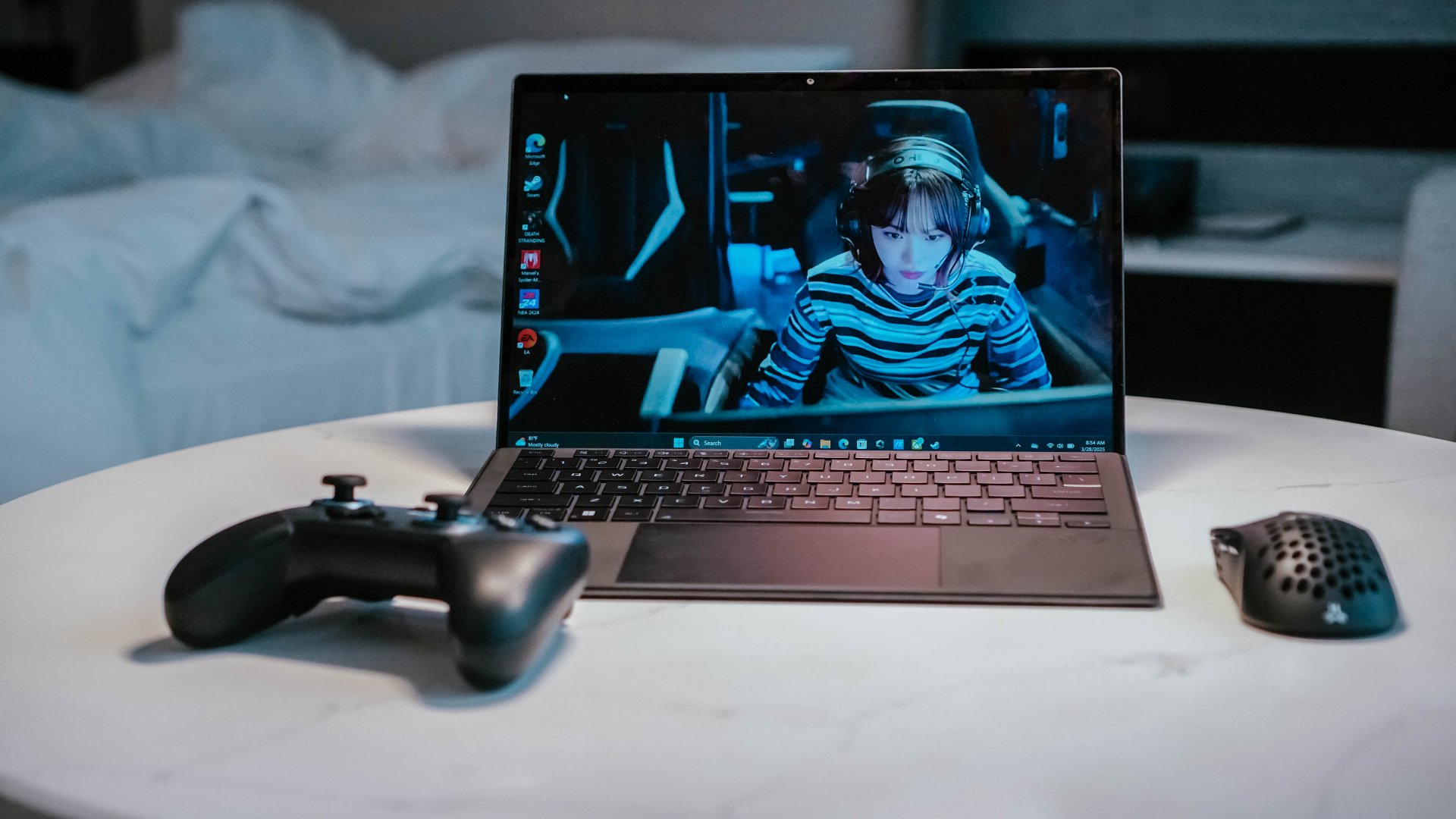
Now that I think about it, what I’m describing is likely closer to the ROG Flow Z13. But instead of a gaming aesthetic, make it closer to how sleek and streamlined the look of MacBooks and iPads.
Having spent time with the ROG Flow Z13 (2025), I know there’s something genuinely compelling about this form factor. It’s a tablet with the brains of a full-fledged PC, with the keyboard becoming an accessory rather than a permanent fixture.
I traveled with the Flow Z13 and loved how it could serve as my work machine, gaming console, and entertainment device. Detach the keyboard and you have a screen for watching videos. Prop it up and you have a surprisingly capable gaming machine. Connect it to a TV and you have another way to play. It simplified my travel loadout in ways I didn’t expect.
Now imagine that same flexibility with macOS. A MacPad Pro could be a tablet when you want to browse, read, or watch something, then become a proper Mac when it’s time to get serious about work. You wouldn’t need to choose between carrying a MacBook and an iPad because one device could cover both roles.
A detachable design, done right
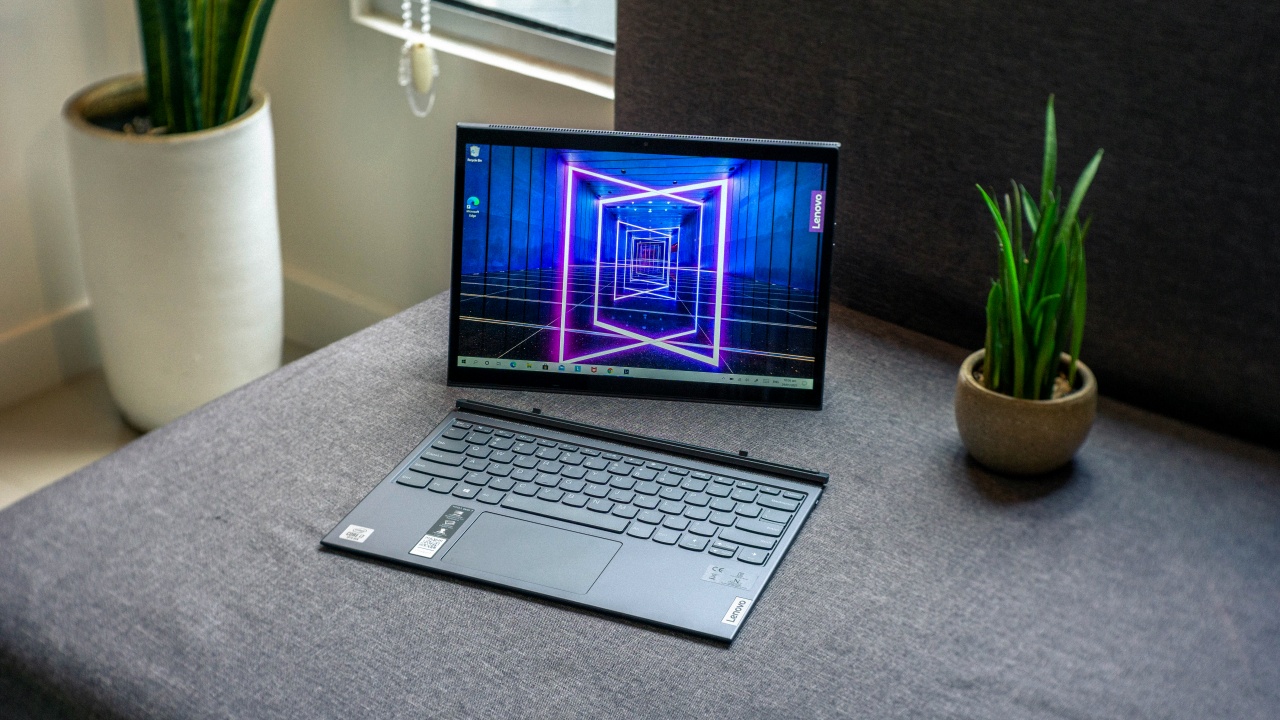
There’s already a precedent for this, too. The Lenovo Yoga Duet 7i showed how a detachable tablet and keyboard could work together without either feeling like an afterthought. Its Bluetooth keyboard meant you weren’t necessarily tied to the tablet in the same way you would be with a conventional laptop.
That’s the part I’d want Apple to get right. Give the MacPad Pro a proper kickstand, a keyboard that doesn’t feel like a compromise, and enough ports to make it useful beyond the desk. Let people use it as a tablet, a laptop, or a makeshift desktop without having to fight the hardware.
And because this is Apple, I’d expect the accessories to be ridiculously good. If the company can make the Magic Keyboard for iPad feel like a convincing laptop keyboard, imagine what it could do if it built the entire experience around macOS from the start.
Heck, they can even go full Apple and do away with the kickstand and just include a flimsy folio in the original packaging. And then sell a Magic Keyboard and Trackpad folio separately for maximum profit. Now that’s truly the Apple way.
Refined MacBook Pro
Look, I love the MacBook Pro. And I’ll take macOS over Windows any day. But every now and again I come upon a Windows machine that has immaculate hardware.
This year, to me, that’s the ASUS ExpertBook Ultra. In terms of overall build, materials, display, and size it’s my favorite work machine that I personally spent significant time with.
Premium finish

It already has that sleek MacBook look. But on top of that, the Nano Ceramic finish elevates it in a way that only experiencing it firsthand can make you understand.
I wrote about this in my original review, but it’s worth repeating: the Nano Ceramic finish is one of those things that sounds like marketing fluff until you actually touch it. It gives the laptop a distinct texture that makes picking it up feel like an experience in itself.
What’s more surprising is that the feeling doesn’t wear off. I got the ExpertBook Ultra back for another stretch of use after ASUS had already collected it, and I still found myself running my hand across the lid before opening it. Thirty days later, I hadn’t outgrown the novelty.
That might sound trivial, but I don’t think it is. We interact with our laptops for hours every day. The materials, textures, weight, and little physical details all contribute to how much we enjoy using them. If a manufacturer can make something as ordinary as opening a laptop feel special, that’s a kind of refinement worth pursuing.
OLED all day

It doesn’t hurt to have STAYC Isa on screen.
The OLED display with matte coating is a feast for the eyes. I regularly worked in cafés beside large windows, and the matte coating helped keep the OLED panel looking magnificent even with all that ambient light.
Deep blacks, crisp colors, and fewer distracting reflections made it a pleasure to work on and an even bigger pleasure to take breaks with.
Tantalizing typing

And the chiclet-style feeling keyboard will have you waxing poetic about an intimate connection found and faded. The spacing is excellent, the travel feels satisfying, and I found myself typing without that awkward adjustment period you sometimes get with a new machine.
Neither feature is revolutionary on its own. That’s precisely the point. The ExpertBook Ultra brings together a collection of thoughtful hardware decisions that make the whole experience feel a little more special. I want that same attention to detail from Apple, even if the MacBook Pro is already one of my favorite laptops.
Imagine that hardware running macOS. One can dream.
Yoga MacBook
I don’t know how Apple will do this without Lenovo suing but for the love of the game, please indulge me.
Imagine the aforementioned macOS and iPadOS hybrid running on a machine that morphs from a regular laptop to one that’s display-facing. That’d make a touchscreen MacBook more compelling to more users.
They’re definitely gonna have to call it something else, but a flexible MacBook is more appealing than the same old clamshell but now with a touchscreen. It has more practical uses that extend beyond developers and heavy-duty multimedia professionals and creatives.
Bend it like Lenovo
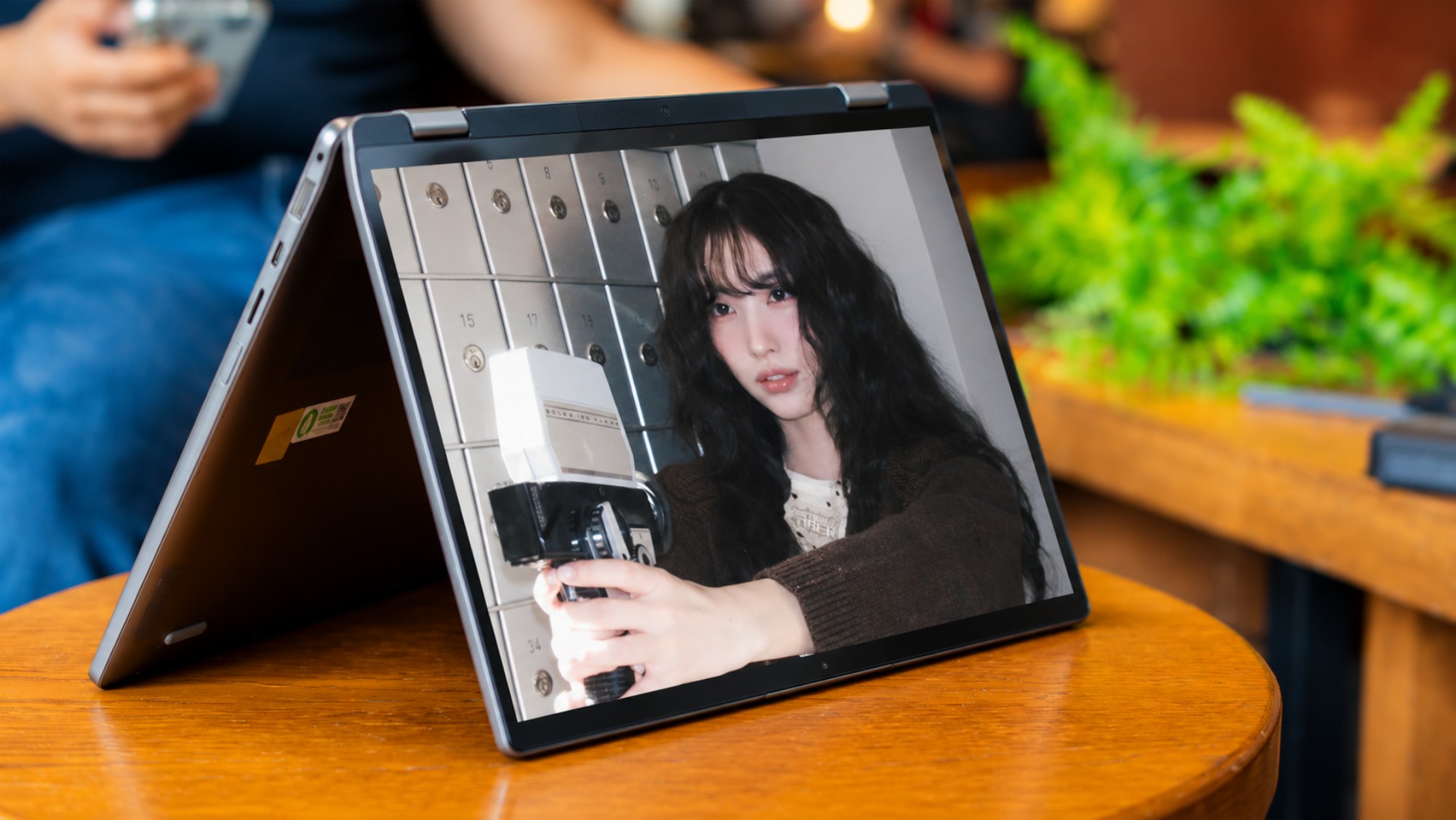
Lenovo has been doing this for years with its Yoga series, and there’s a reason it has stuck around for ten generations. A good convertible isn’t just a laptop with a screen that folds backward. It’s a device that can adapt to what you’re doing without requiring you to change devices.
In laptop mode, you have a proper keyboard for writing and getting work done. Fold the display into tent mode and you have a convenient screen for watching videos or following a presentation. Flip it into stand mode and you can use it for video calls or put it in front of you while working with someone else. Fold it all the way back and you have a tablet for reading, browsing, or sketching.
I’ve seen how useful these different configurations can be in practice. They’re not just party tricks for product demonstrations. They offer different ways to use the same machine throughout the day, depending on what you’re doing and where you’re doing it.
Software that adapts
Of course, the hardware is only half the equation. macOS would need to adapt to these different configurations, too. Touch targets should be easier to hit when the laptop is folded into tablet mode, while creative applications should make better use of direct interaction with the display. The interface shouldn’t feel like a desktop operating system that reluctantly tolerates fingers.
This is where a hybrid of macOS and iPadOS could become particularly interesting. Apple wouldn’t have to abandon what makes the Mac good at getting work done. It would simply need to make that experience more adaptable when the keyboard and trackpad aren’t the most convenient ways to interact with the machine.
That’s the kind of touchscreen MacBook I’d get excited about. Not just a MacBook that lets me poke at the screen, but one that gives me a reason to use it differently.

Dream bigger, refine better
To be clear, I’m not asking Apple to reinvent every product in its lineup every year. That would be ridiculous, and not every new idea needs to become a commercial product. But I’d love to see the company take more chances on what its products could become, rather than simply adding another feature to what already exists.
I just miss the Apple that truly turns heads when it enters a room. Right now, it feels to me like the company is banking on the cultural cachet it earned decades ago.
The iPhone Duo and touchscreen MacBook show that Apple is still willing to experiment. Now I’d love to see it push those experiments further. It might as well go all in and Think Different.
Accessories
CASETiFY Match: Finding the right case for your Galaxy Z8 Series phone
Cases that match your personality
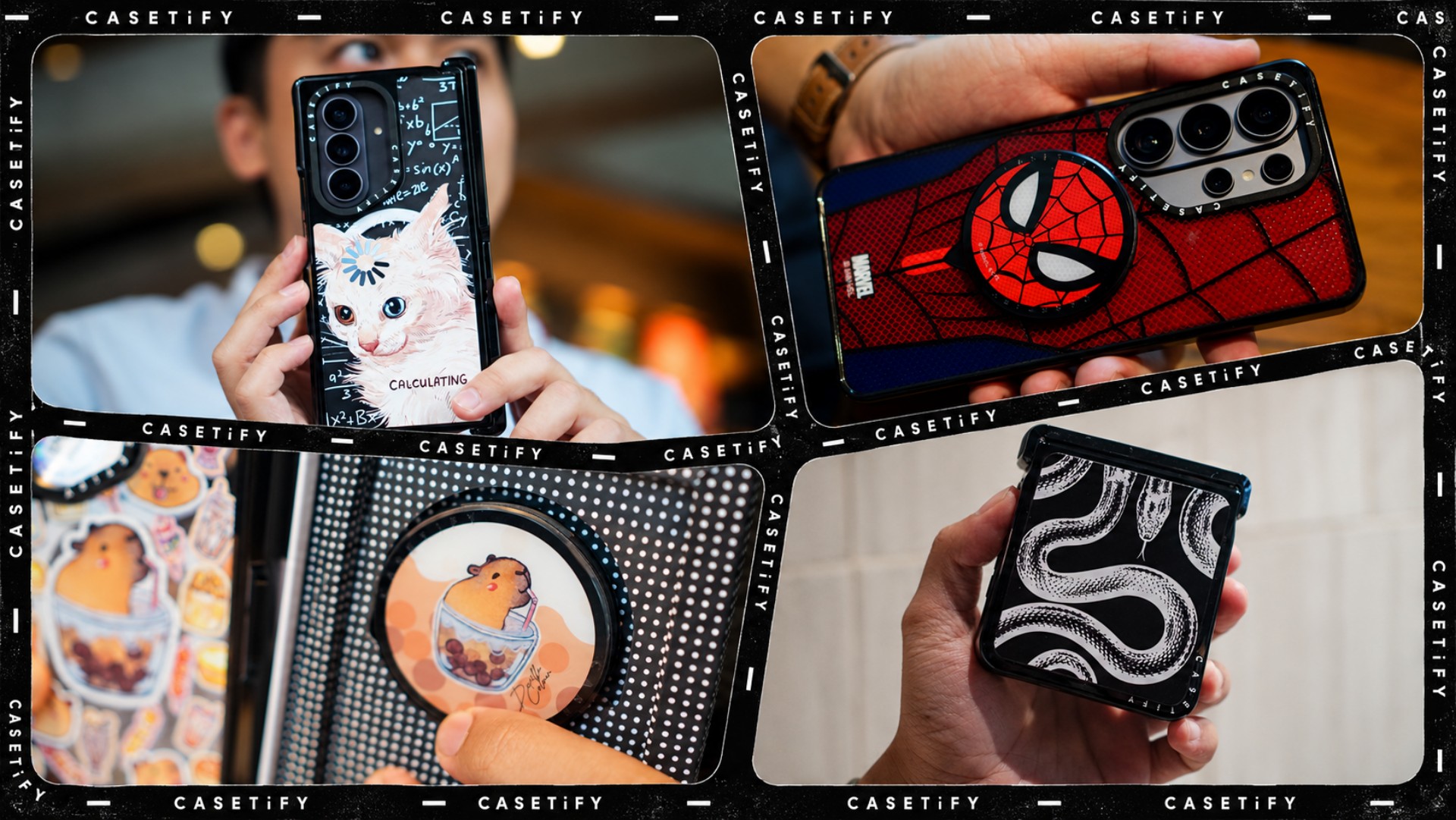
A phone case can be more than protection. It can also be a way to show off your interests, personality, and the little things that make you, well, you.
For our CASETiFY Match for the Galaxy Z8 Series, we asked the team one question: Why was this CASETiFY design your Match?
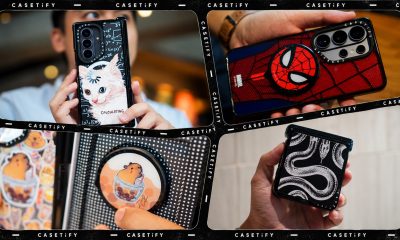
From Spider-Man fandom and capybara obsession to feline-inspired art and snake motifs, here are the designs that found their way into our team’s everyday carry, plus a couple of bonus picks worth checking out.
Rodneil: A little New York energy for a certified web-head
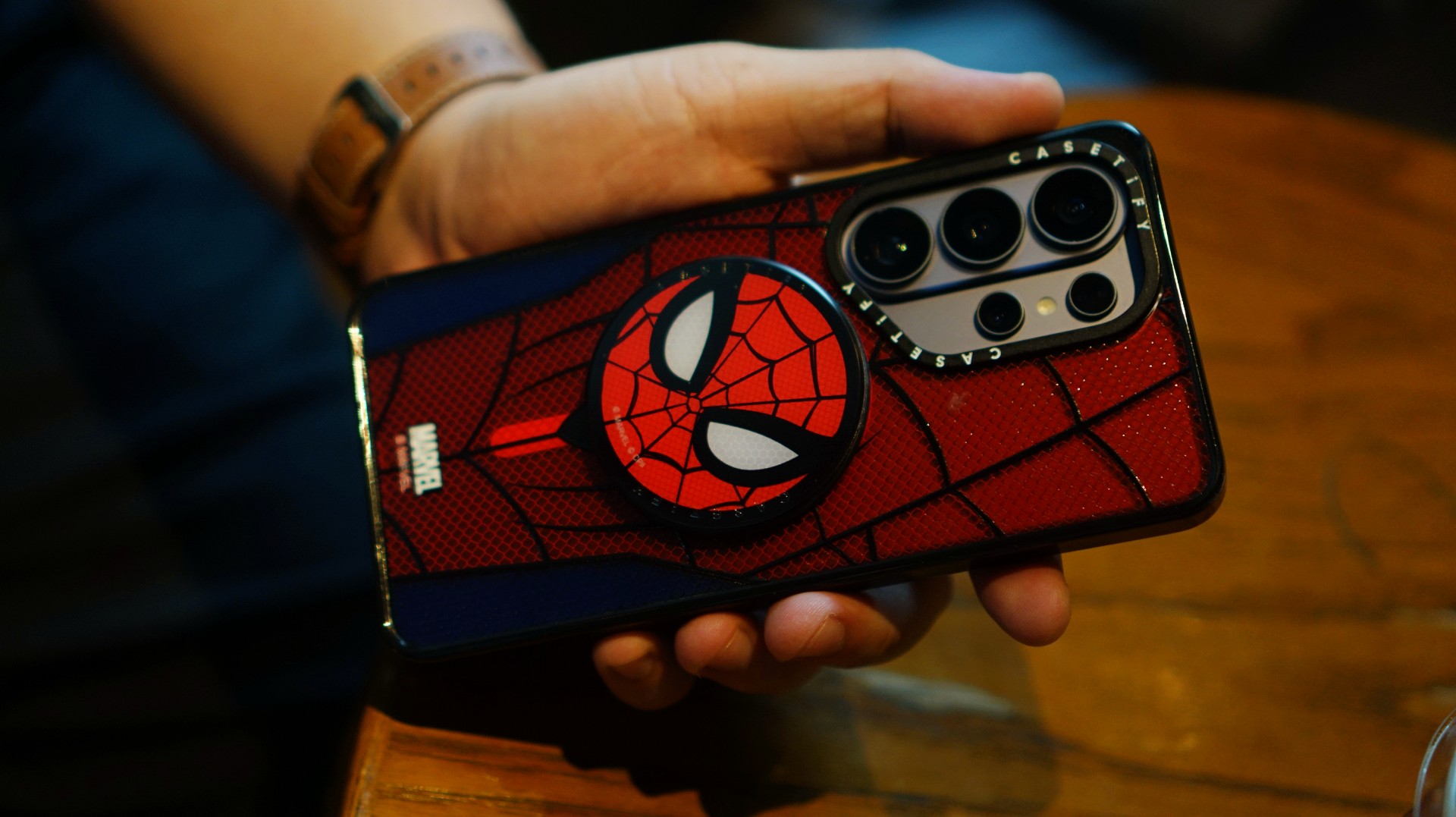
If it wasn’t obvious enough, I’m a certified web-head. I love anything and everything Spider-Man, especially the iconic red-and-blue motif. Though, if we’re being honest, I’m more partial to the red.

I had my eyes on the Spider-Man suit design for the Galaxy Z Fold8 Ultra and the Spider-Man Mask Snappy Grip Stand. Unfortunately, those designs aren’t available for the Galaxy Z Fold8.
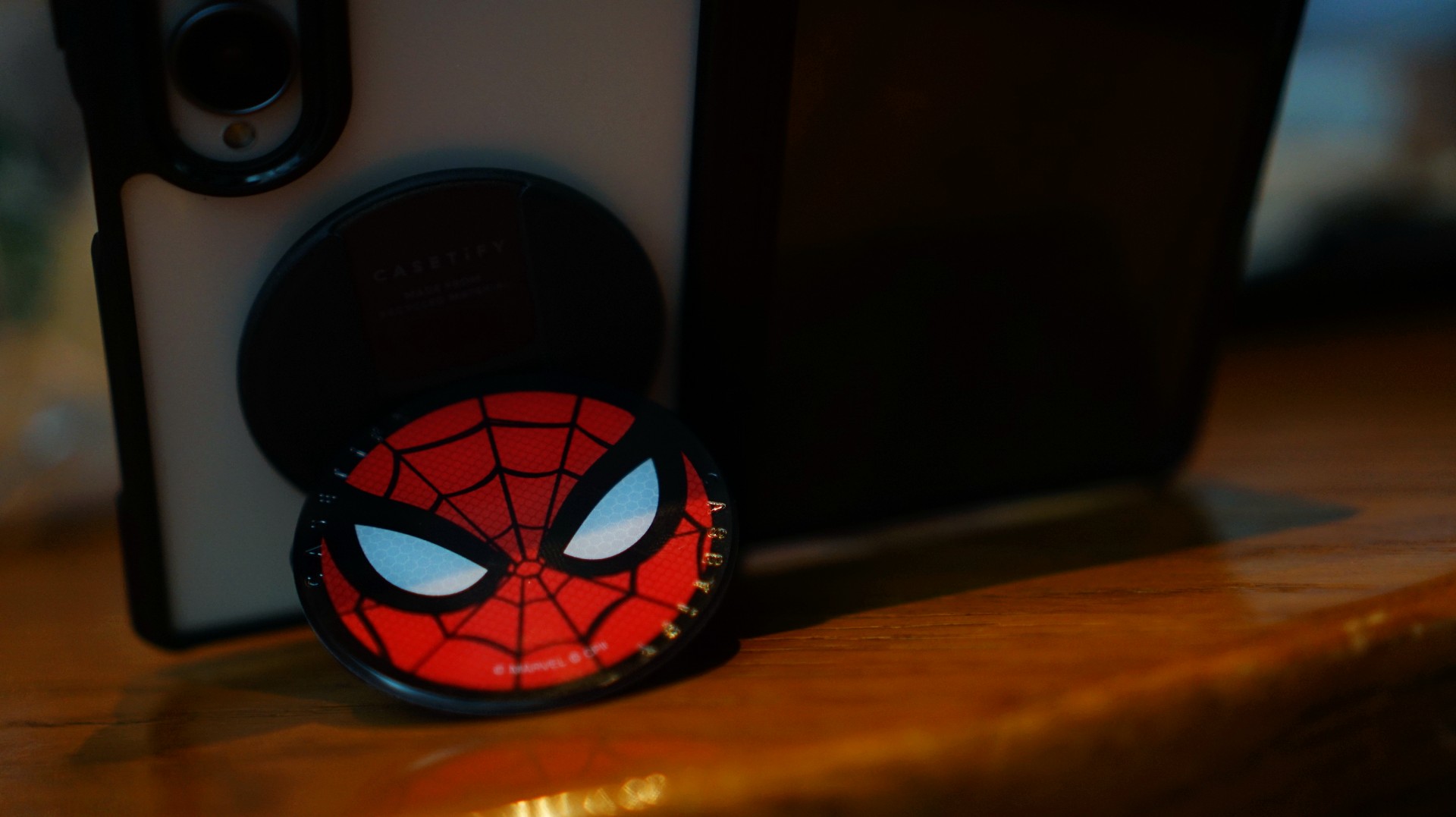
So, I went with a design that gives off a bit of New York energy instead. It still pairs nicely with the Spidey Snappy Grip Stand, letting me bring a little of that Spider-Man vibe to my everyday setup.
V: Keeping it cool with capybaras
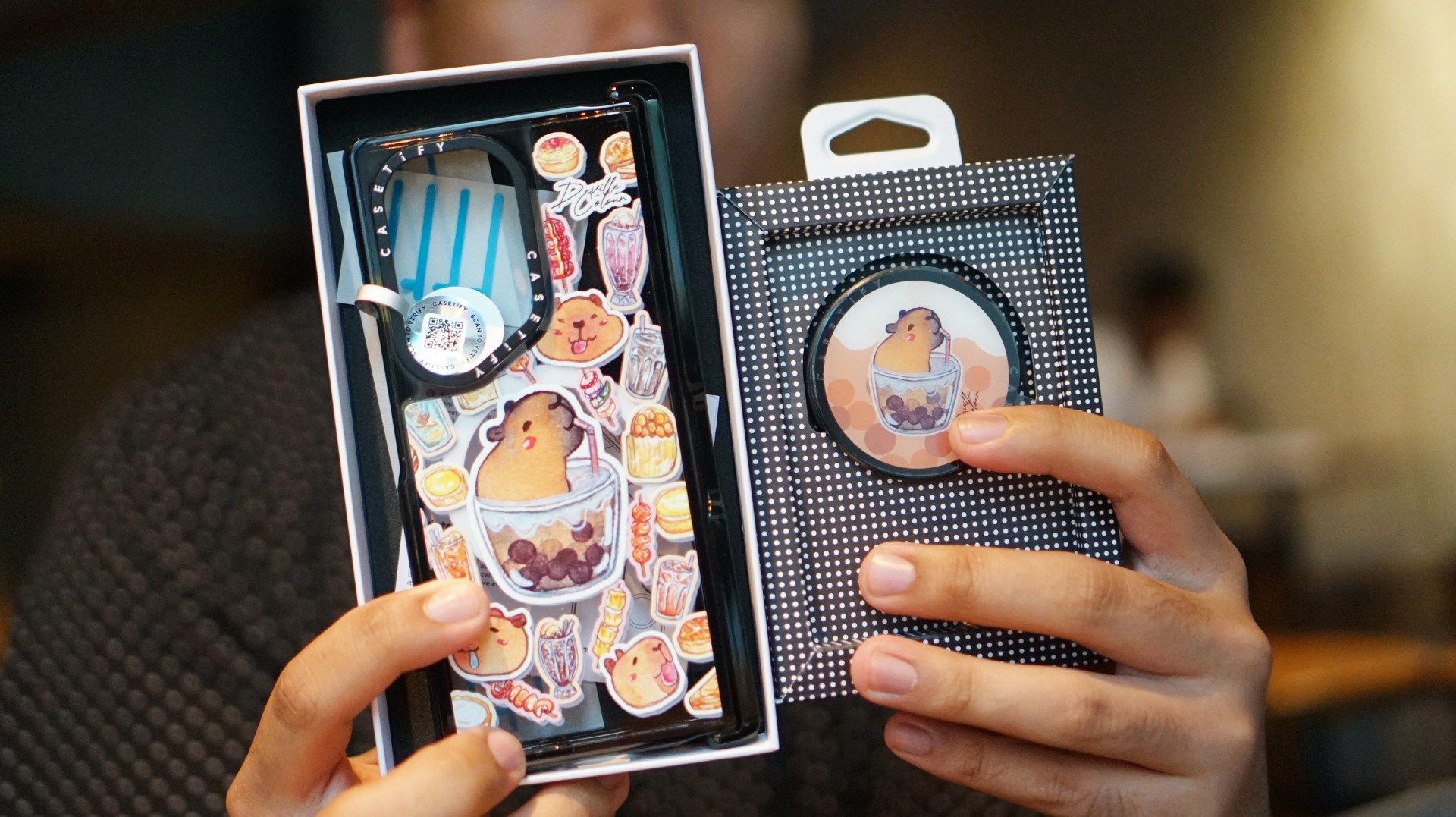
I’ve been a capybara stan since 2020, long before the world finally caught up with just how cute and chill these animals are. Seeing them get the recognition they deserve has been a source of much excitement.
Finding cool and cute capybara cases and accessories for the phones I use every day, however, hasn’t always been easy.
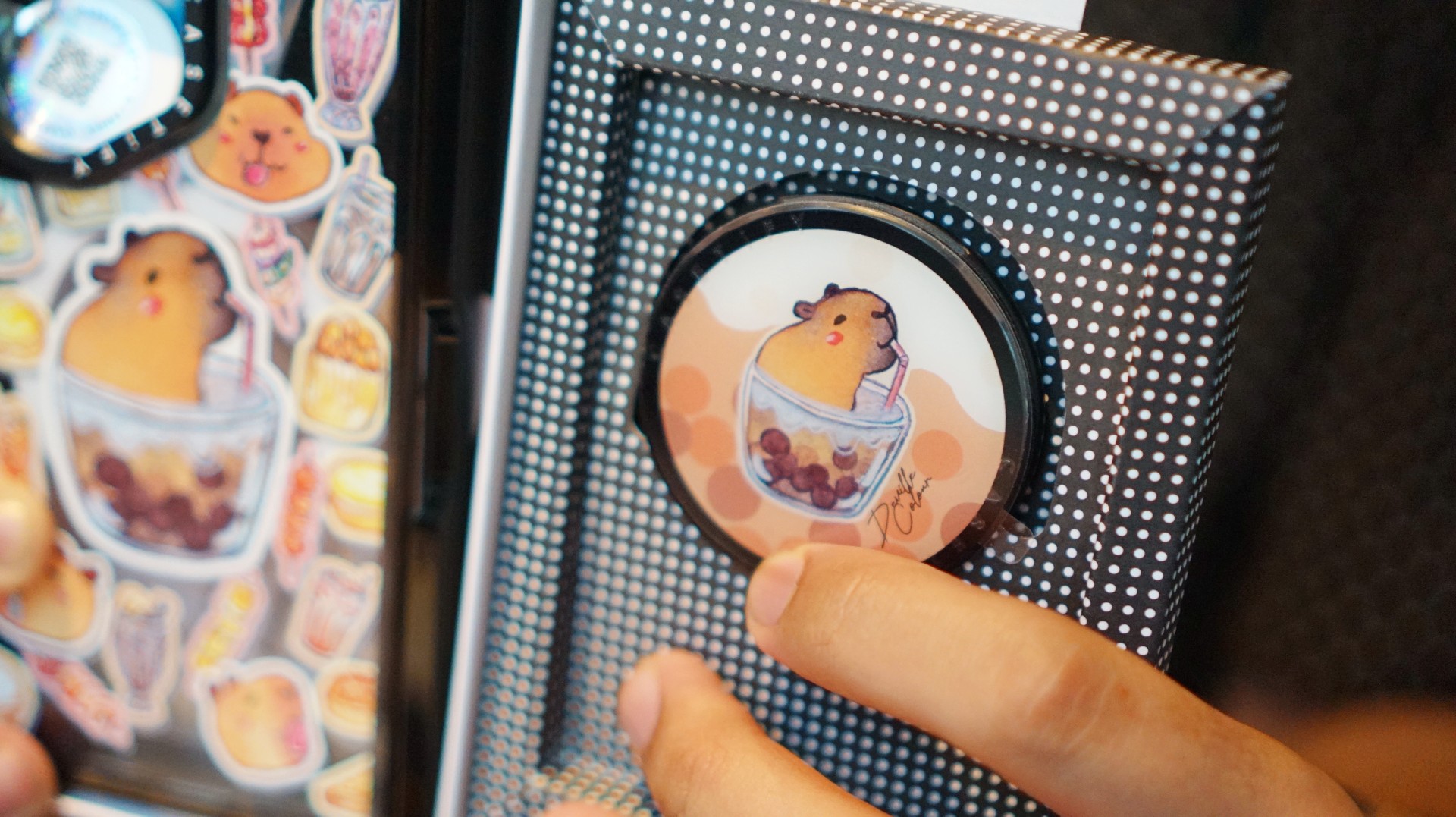
That’s where Deville Dewil’s capybara collection comes in. It fills that gap while making my Galaxy Z Fold8 feel like an even more personal accessory.
At this point, I’d like to identify as a capy/bara.
Luigi: A cat design that’s playful without being too loud
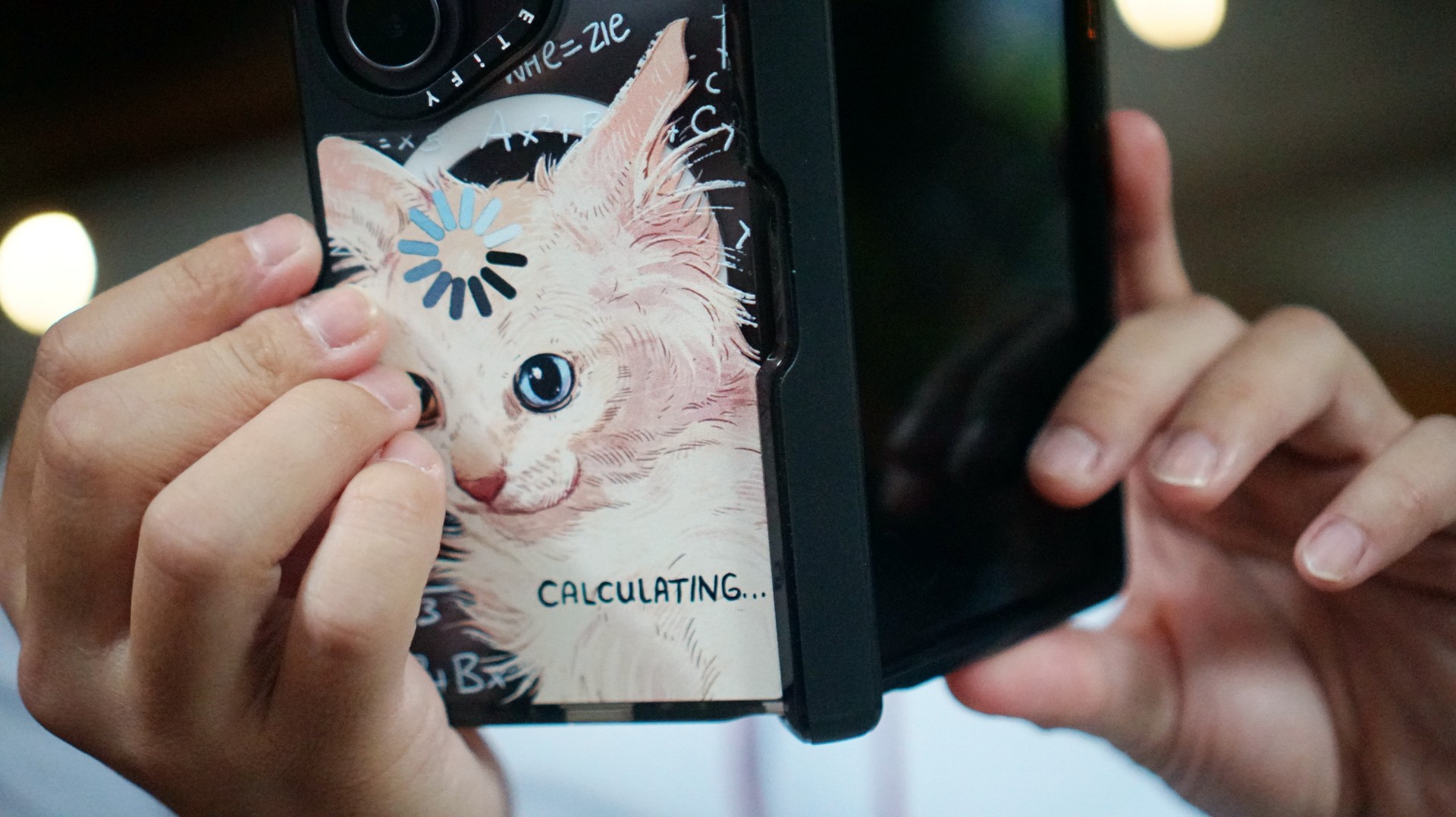
There’s no shortage of cat-themed cases out there. If you’re a cat lover like me, chances are you’ve considered one at some point.
The tricky part is finding a design that isn’t too whimsical or loud. I love the little furballs, but I still want something sleek and clean.
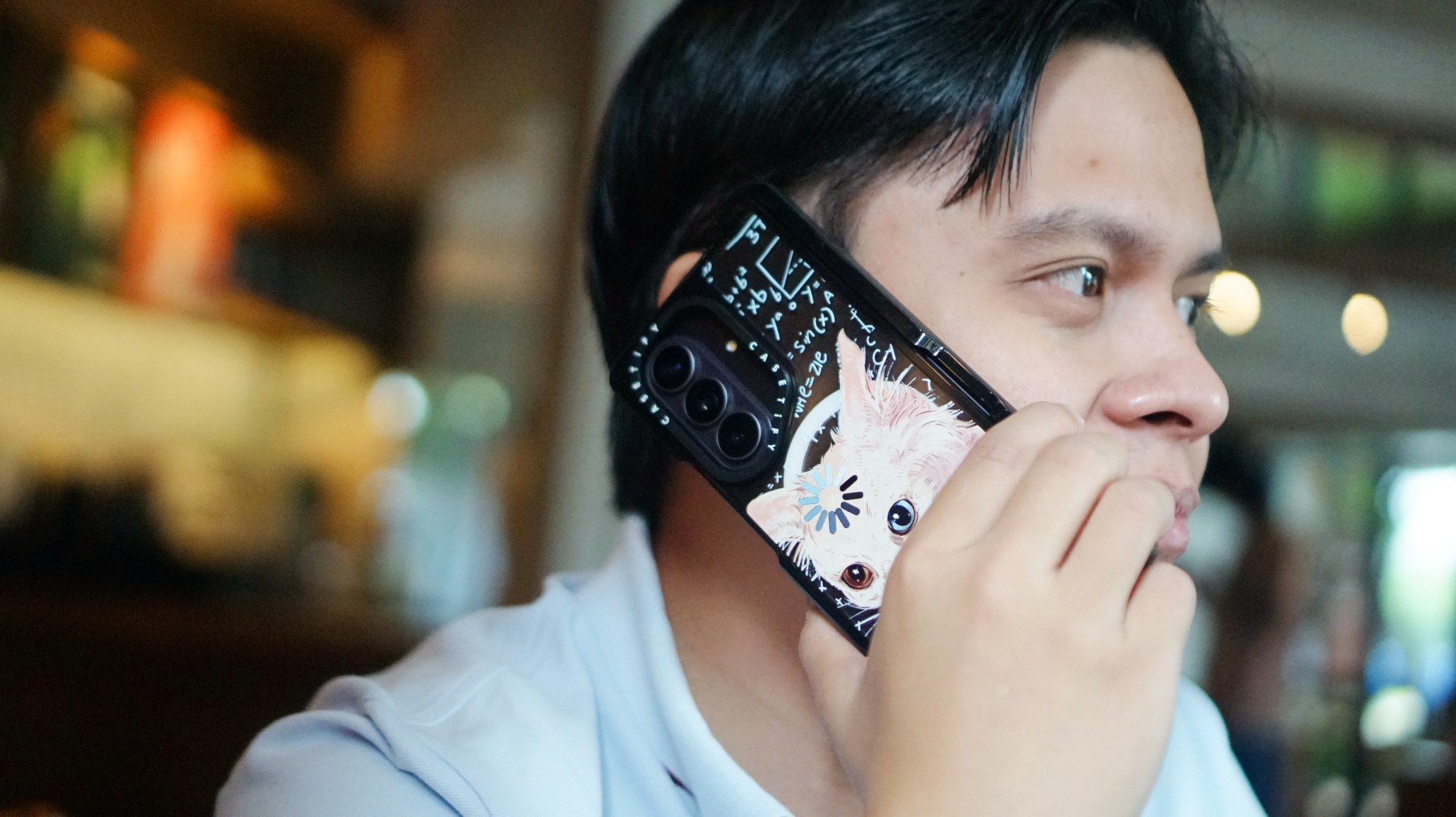
CASETiFY’s cat collection speaks to that balance. In particular, this design by Catwheezie blends artistry with a touch of whimsy. It lets me show off my personality without being too flashy.
MJ: A little reputation energy
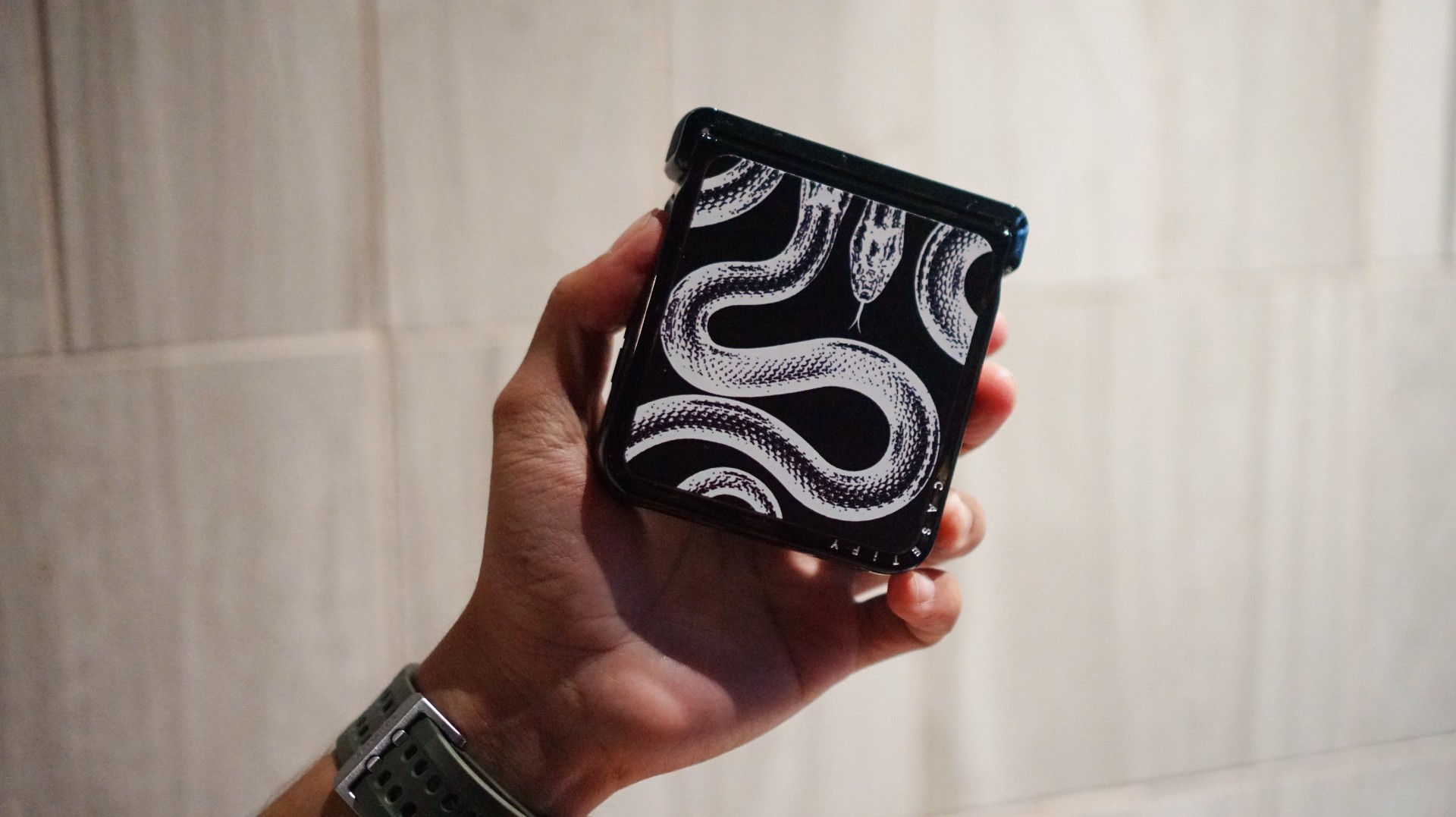
I’ve always had a soft spot for snake motifs, and CASETiFY’s Transparent Kingsnake case gives me Taylor Swift’s reputation era energy.
I love how snakes symbolize transformation. As someone who’s always evolving and never afraid to reinvent himself, that meaning feels personal.
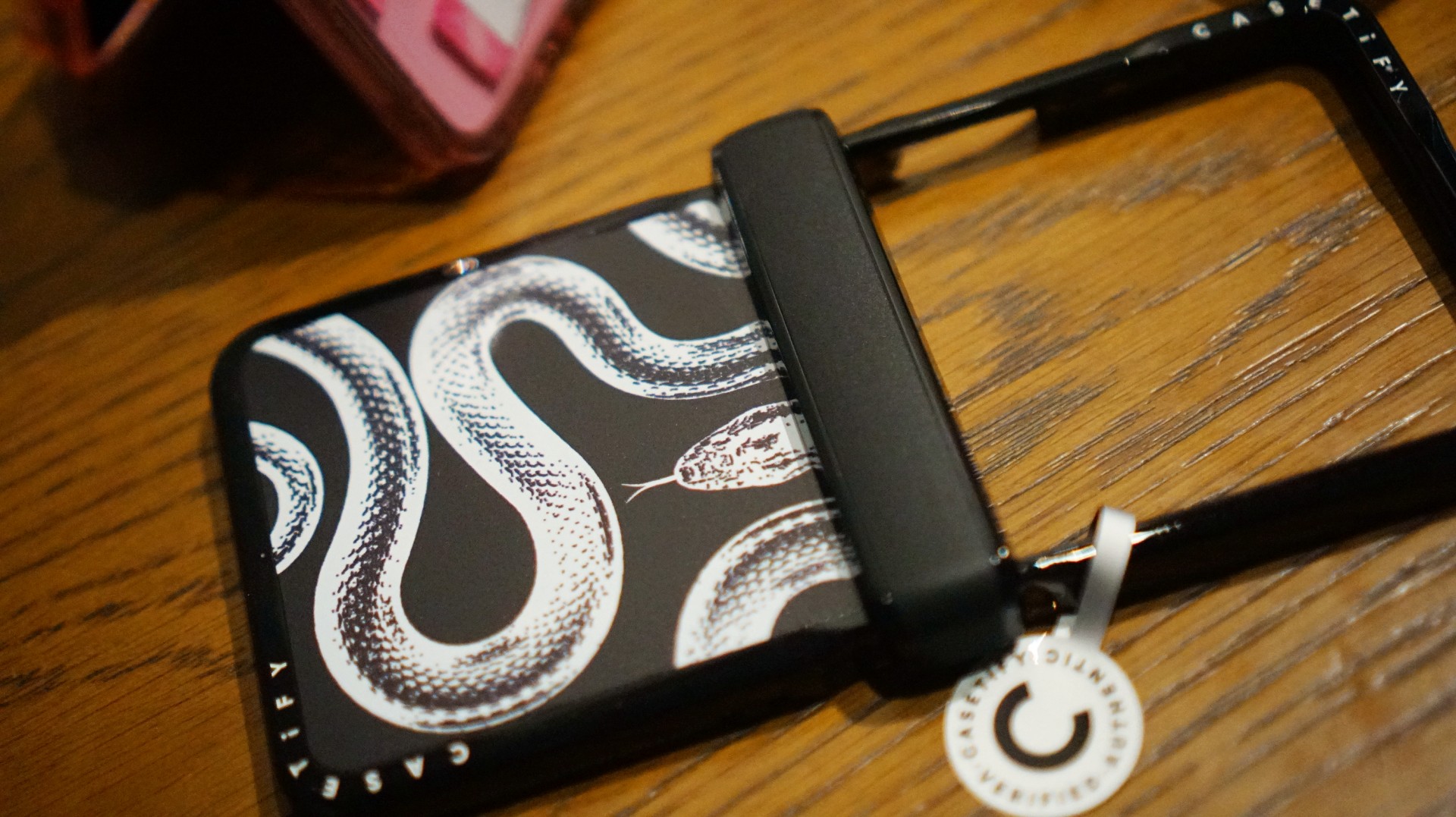
The black-and-white design also brings a sleek, rebellious edge. Paired with my Galaxy Z Flip8, it’s giving statement accessory with a little bite.
Bonus Match: Sunglasses at Night

Sometimes, keeping it simple is the way to go. The Sunglasses at Night design is tasteful and understated, letting me show off the actual color of my phone without competing with it.
Bonus Match: Pink Weekly Planner
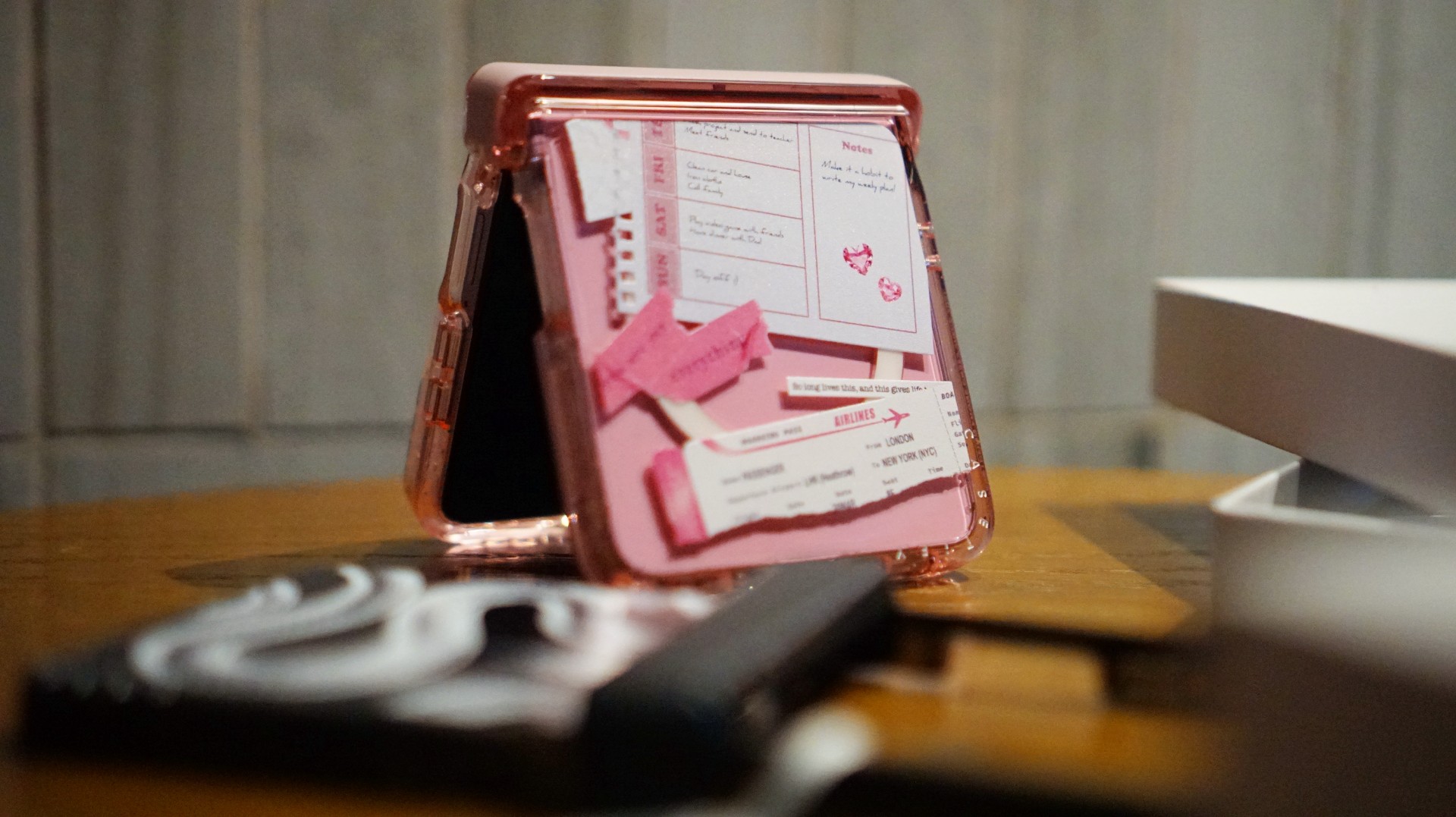
For the girls (and gaes) who plan their days–and life–ahead. And of course, for when they need to keep their Wednesdays pink.
Find your Match
There’s no single way to find a phone case that feels right. It might be a favorite character, an animal you’ve loved for years, a piece of art, or a symbol that means something to you.
For our team, the right CASETiFY design is the one that brings a little more personality to a device we carry every day.
So, which design would be your Match?


Apple iPad mini OLED review
Has the mini gone PRO?!


ROG G700 review: The best prebuilt PC you can get off the shelf
This PC will make you stop worrying about specs.

HP OMEN Max 16 review: Gamer-maxxing in deep black
Peripherals deemed necessary to max this out
Apple iPad mini OLED review

Spotlight: eufy Robot Vacuum Omni E35

UGREEN ClipBuds Pro 2 feature AI translation

Lazada kicks off 11.11 Biggest Sale of the Year ahead of holiday rush

Dune and Dune: Part Two return to cinemas ahead of Dune: Part Three

OPPO Find X10 Series launches globally October 21

vivo V80 debuts with ZEISS cameras

Garmin Enduro 4 promises up to 320 hours of battery life

Your coffee nook is getting a makeover with Starbucks’ holiday collections

Dragon’s Dogma 2: Dark Arisen launches with new Official Pawns


-
 Lifestyle4 days ago
Your coffee nook is getting a makeover with Starbucks’ holiday collections
-
Gaming2 weeks ago
HP OMEN Max 16 review: Gamer-maxxing in deep black
-

 Lifestyle6 days ago
Sticker season is back, and so is the planner your ~friends~ might fill in for you
-

 Gaming4 days ago
Wild Rift Patch 7.3, celebrates K/DA comeback
-
Gaming1 week ago
ROG G700 review: The best prebuilt PC you can get off the shelf
-

 Gaming1 week ago
PlayStation unveils Prism Collection
-
 News1 week ago
Apple unveils its biggest iPad mini update yet
-
 Accessories2 weeks ago
CASETiFY Match: Finding the right case for your Galaxy Z8 Series phone