


Features
Google Pixel 3 announcement roundup: All the great things they unveiled
Google is the gift that keeps on giving

This year’s Made by Google event just wrapped up and in case you missed it, here’s a quick wrap-up of everything that went on and all the announcements that were made. Enjoy!
7 magazine covers were shot with Google’s new phone
Why? Because they can. Eager to prove that their new smartphones can shoot even better than their previous release, they put the Pixel 3 to the test.
Publisher @CondeNast shot all of these magazine covers using the new @Google Pixel 3! Coming to newsstands in the next few weeks. #madebygoogle pic.twitter.com/4KRlNq5DXu
— Michael Josh (@michaeljosh) October 9, 2018
A partnership with legendary photographer Annie Leibovitz was announced so expect to see more stunning photographs from these new phones.
The Google Pixel 3 is here
The notched successor to the Pixel 2 has been unveiled and it now comes in another color, Not Pink. Spoiler: It sort of looks like it really is pink (which makes me want it since I like all things pink).
Introducing the new Pixel 3 and Pixel 3XL: designed from the inside out to be the smartest, most helpful device in your life. #madebygoogle pic.twitter.com/GpZTkvCGHA
— Google (@Google) October 9, 2018
It comes with three cameras in all, with the phone still heavily relying on software for their impressive photography. Of course, there are now new photo features such as Top Shot which allows you to go back and pick the best shot, and the Group Selfie cam which gives your selfies wide-angled capabilities.
So long, selfie sticks. There’s more in the shot with Pixel 3 and Group Selfie—more friends, more details, more scenery. You get the picture. #madebygoogle pic.twitter.com/8FGBjIStsv
— Google (@Google) October 9, 2018
Capture smiles, not blinks. With Top Shot, Pixel 3’s camera is smart enough to know a good photo when it sees it. #madebygoogle pic.twitter.com/WeVI1yojDZ
— Google (@Google) October 9, 2018
It also features a full glass back and wireless charging capabilities. And speaking of charging…
READ MORE: Google Pixel 3 and Pixel 3 XL retain single rear camera, add wireless charging
Introducing the Pixel Stand
This new nifty device is basically a wireless charging stand for your Pixel 3. But, of course, it does a lot more. Plugging your phone in changes the screen to a mode which better allows you to see what’s on the phone even from across the screen. It also turns your phone into the best smart photo frame ever!
More than just a wireless charger, the Pixel Stand transforms your Pixel 3, giving you a more visual, helpful experience powered by the Google Assistant. #madebygoogle pic.twitter.com/lTxayL608i
— Google (@Google) October 9, 2018
Google Home Hub is more than just a smart speaker
It also has a screen! Designed to be easily integrated into your home, this smart device is intuitive, even more capable, and is less intrusive. The Google Home Hub can recognize everyone in the family and will tailor actions and responses to the person. Its Ambient EQ feature adjusts colors throughout the day so that it’s easier on the eyes and the screen turns off at night when you sleep.
There’s a new Home View feature which allows you to control your home easier and it also turns into the best picture frame ever when not in use. How? It can make you an album slideshow from your Google Photos, or you can make Live Albums which will curate your photo album depending on which person you choose to see. The best part? Machine learning will filter out the bad photos — the dark, blurry, and the duplicates — so you’ll never see a crappy photo on your high-tech frame.
What do you want to know about the new Google Home Hub? We’re answering your questions right here in the comments. #madebygoogle pic.twitter.com/ltH6wKtqRX
— Made by Google (@madebygoogle) October 9, 2018
The Pixel Slate is Google’s newest tablet
Google wants the best of both worlds and they’ve vowed to have taken all the best things from a smartphone and desktop, and put it on this new tablet. The Pixel Slate has an amazing display and dual-front facing speakers for the ultimate movie experience. Handling will significantly improve with this tablet because its UI is optimized for the touchscreen. And, the power button is a fingerprint sensor! There’s also a Pixel Slate keyboard that connects to the Pixel Slate in a snap — no pairing or connecting necessary.
More than a tablet. More than a laptop. It’s our new Pixel Slate. What do you want to know? Ask us in the comments. #PixelSlate #madebygoogle pic.twitter.com/xGBOPgmlb0
— Made by Google (@madebygoogle) October 9, 2018
SEE ALSO: The Pixel Slate is Google’s first tablet to run Chrome OS







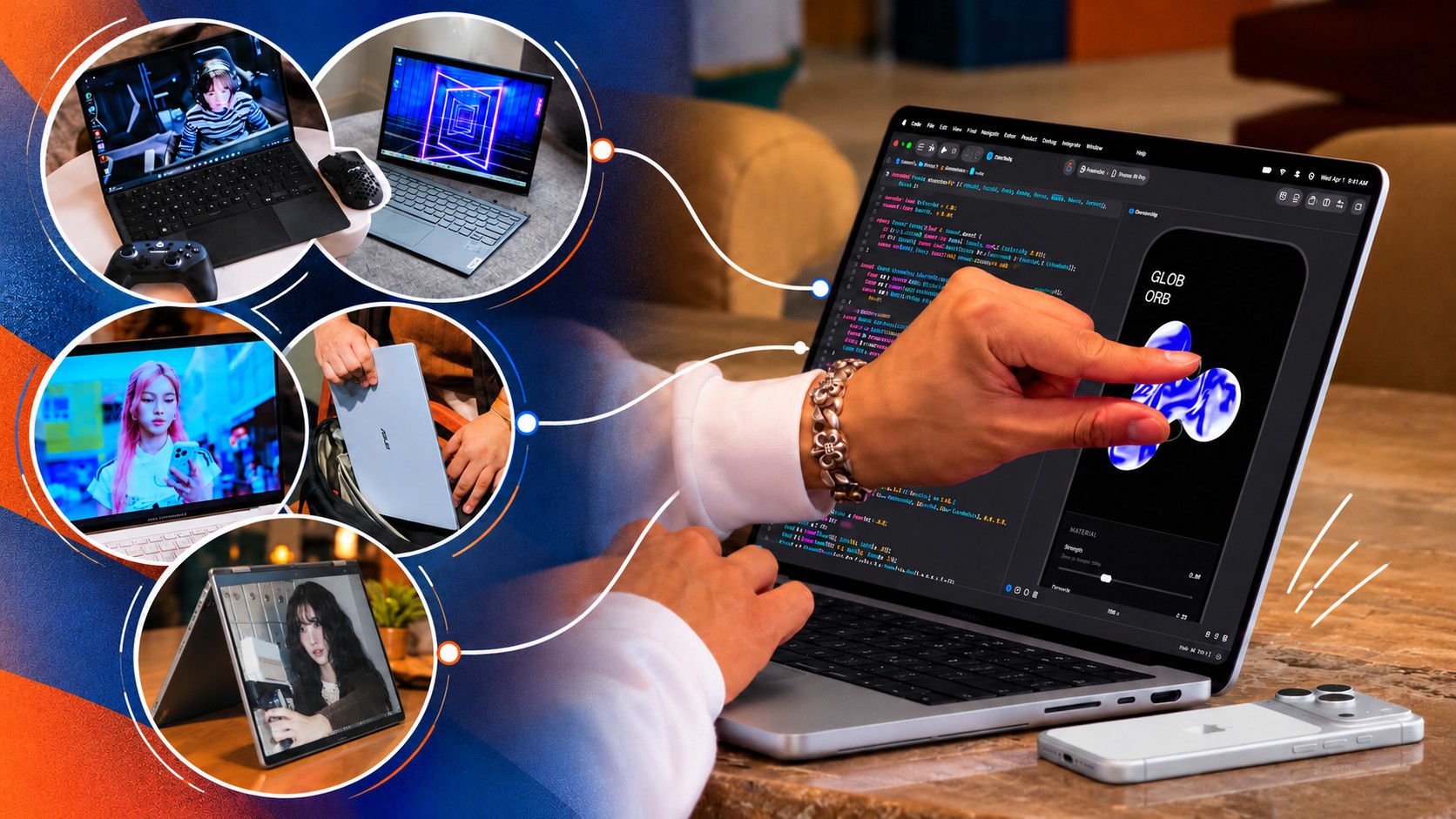
Apple just unveiled their brand spanking new MacBook Pro, now with a touchscreen. That’s fine and all, but something about it lacks… imagination.
Apple broke tech and cultural barriers with the iPhone and the iPad. The MacBook, meanwhile, has been a standard-bearer of personal computing for years. Yet Apple’s latest attempt at innovation doesn’t inspire the same sense of possibility.
Tech creators and publications present at the event have shared their thoughts. While they didn’t necessarily say it verbatim, there’s a “Who asked for this?” or “Who needs this?” energy going around.
The argument for the company in Cupertino has always been that while it might join the party late, it arrives with something refined and ready for the spotlight. That feels less certain in 2026.
I digress.
That’s a whole other topic to unpack, so before I go any further, let me shift back to what I wanted to write about in the first place: the innovations I want to see from Apple. Ones that capture the imagination and inspire possibilities.
MacPad or MacPad Pro
Yes, I’m starting with a haymaker.
For years, users have been asking Apple to make the iPad run some hybrid of iPadOS and macOS.
The MacBook Neo and iPad Pro are proof that this isn’t too farfetched. The former runs macOS on an iPhone/iPad chip (A-series) while the latter runs iPadOS on a MacBook chip (M-series). Computing power doesn’t seem to be the issue. Apple is just likely afraid that one device category will cannibalize the other. That’s pure speculation on my part so let’s just continue with the thought exercise.
Assuming we get that macOS and iPadOS hybrid, what will the hardware look like?
Some disclaimer before the fun part. This whole article is a thought exercise and I am inviting all of you to imagine with me. But to make things feel a little more grounded, I will name models from other brands that Apple can take some inspiration from. Just, you know, Apple-fy it.
For the MacPad or MacPad Pro, I’m thinking something like a 2-in-1. The main body is a slab with a display and kickstand. Think Nintendo Switch 2. But instead of provisions for Joycons on the side, you get some form of cooling and the ports.
Let it have an M-series chip for maximum computing power. But to differentiate it from the iPad, have it come with a foldable keyboard and trackpad folio of some sort.
The ROG Flow Z13 but Apple-fied
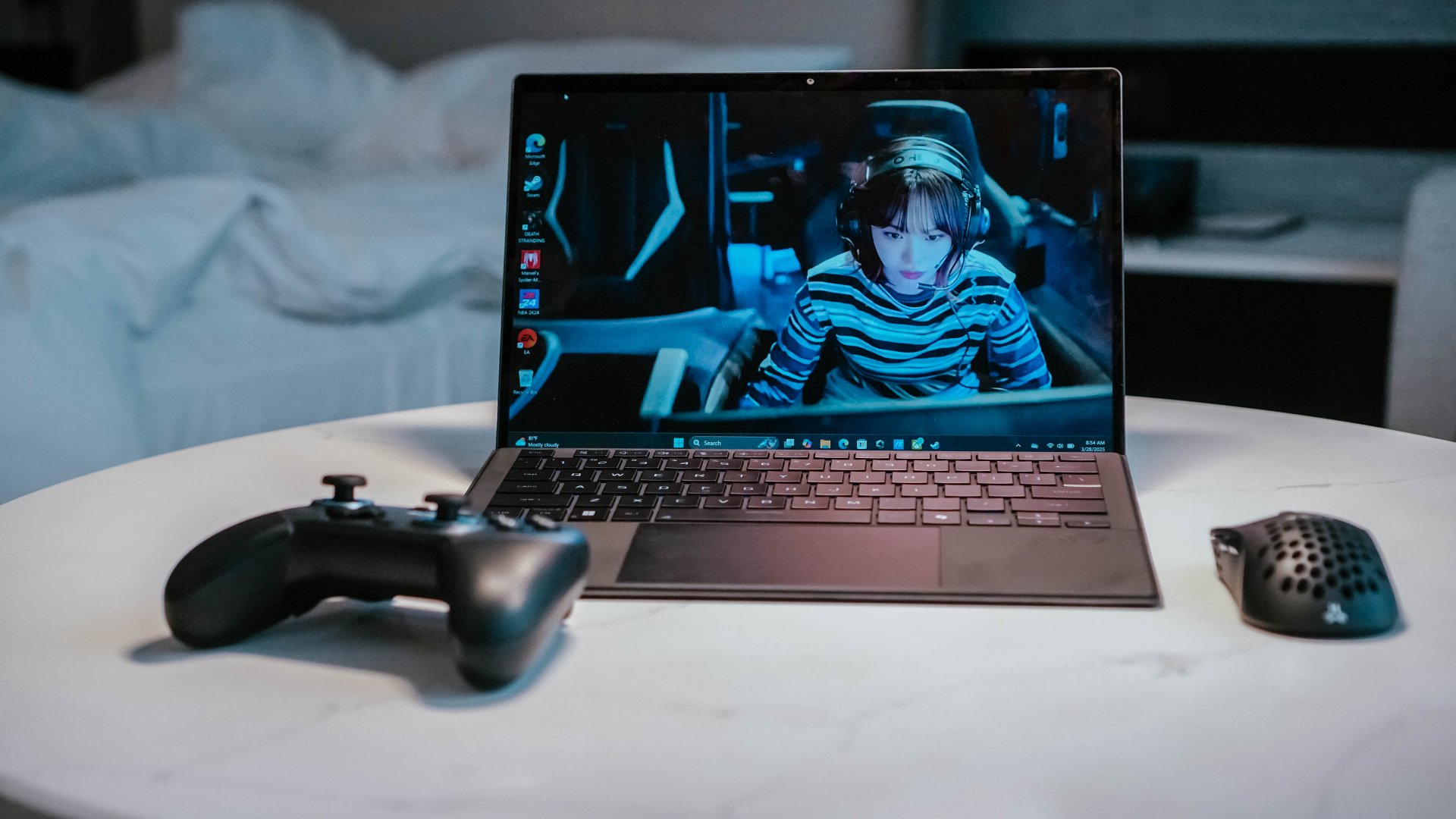
Now that I think about it, what I’m describing is likely closer to the ROG Flow Z13. But instead of a gaming aesthetic, make it closer to how sleek and streamlined the look of MacBooks and iPads.
Having spent time with the ROG Flow Z13 (2025), I know there’s something genuinely compelling about this form factor. It’s a tablet with the brains of a full-fledged PC, with the keyboard becoming an accessory rather than a permanent fixture.
I traveled with the Flow Z13 and loved how it could serve as my work machine, gaming console, and entertainment device. Detach the keyboard and you have a screen for watching videos. Prop it up and you have a surprisingly capable gaming machine. Connect it to a TV and you have another way to play. It simplified my travel loadout in ways I didn’t expect.
Now imagine that same flexibility with macOS. A MacPad Pro could be a tablet when you want to browse, read, or watch something, then become a proper Mac when it’s time to get serious about work. You wouldn’t need to choose between carrying a MacBook and an iPad because one device could cover both roles.
A detachable design, done right
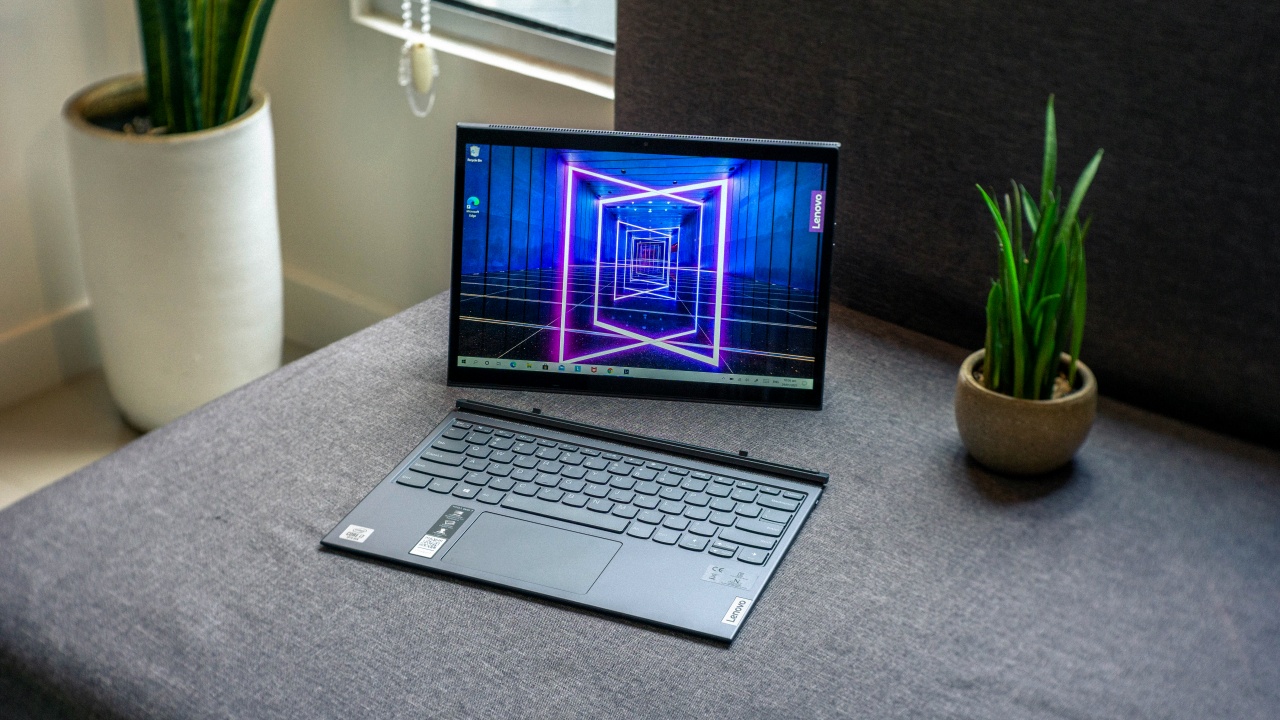
There’s already a precedent for this, too. The Lenovo Yoga Duet 7i showed how a detachable tablet and keyboard could work together without either feeling like an afterthought. Its Bluetooth keyboard meant you weren’t necessarily tied to the tablet in the same way you would be with a conventional laptop.
That’s the part I’d want Apple to get right. Give the MacPad Pro a proper kickstand, a keyboard that doesn’t feel like a compromise, and enough ports to make it useful beyond the desk. Let people use it as a tablet, a laptop, or a makeshift desktop without having to fight the hardware.
And because this is Apple, I’d expect the accessories to be ridiculously good. If the company can make the Magic Keyboard for iPad feel like a convincing laptop keyboard, imagine what it could do if it built the entire experience around macOS from the start.
Heck, they can even go full Apple and do away with the kickstand and just include a flimsy folio in the original packaging. And then sell a Magic Keyboard and Trackpad folio separately for maximum profit. Now that’s truly the Apple way.
Refined MacBook Pro
Look, I love the MacBook Pro. And I’ll take macOS over Windows any day. But every now and again I come upon a Windows machine that has immaculate hardware.
This year, to me, that’s the ASUS ExpertBook Ultra. In terms of overall build, materials, display, and size it’s my favorite work machine that I personally spent significant time with.
Premium finish

It already has that sleek MacBook look. But on top of that, the Nano Ceramic finish elevates it in a way that only experiencing it firsthand can make you understand.
I wrote about this in my original review, but it’s worth repeating: the Nano Ceramic finish is one of those things that sounds like marketing fluff until you actually touch it. It gives the laptop a distinct texture that makes picking it up feel like an experience in itself.
What’s more surprising is that the feeling doesn’t wear off. I got the ExpertBook Ultra back for another stretch of use after ASUS had already collected it, and I still found myself running my hand across the lid before opening it. Thirty days later, I hadn’t outgrown the novelty.
That might sound trivial, but I don’t think it is. We interact with our laptops for hours every day. The materials, textures, weight, and little physical details all contribute to how much we enjoy using them. If a manufacturer can make something as ordinary as opening a laptop feel special, that’s a kind of refinement worth pursuing.
OLED all day

It doesn’t hurt to have STAYC Isa on screen.
The OLED display with matte coating is a feast for the eyes. I regularly worked in cafés beside large windows, and the matte coating helped keep the OLED panel looking magnificent even with all that ambient light.
Deep blacks, crisp colors, and fewer distracting reflections made it a pleasure to work on and an even bigger pleasure to take breaks with.
Tantalizing typing

And the chiclet-style feeling keyboard will have you waxing poetic about an intimate connection found and faded. The spacing is excellent, the travel feels satisfying, and I found myself typing without that awkward adjustment period you sometimes get with a new machine.
Neither feature is revolutionary on its own. That’s precisely the point. The ExpertBook Ultra brings together a collection of thoughtful hardware decisions that make the whole experience feel a little more special. I want that same attention to detail from Apple, even if the MacBook Pro is already one of my favorite laptops.
Imagine that hardware running macOS. One can dream.
Yoga MacBook
I don’t know how Apple will do this without Lenovo suing but for the love of the game, please indulge me.
Imagine the aforementioned macOS and iPadOS hybrid running on a machine that morphs from a regular laptop to one that’s display-facing. That’d make a touchscreen MacBook more compelling to more users.
They’re definitely gonna have to call it something else, but a flexible MacBook is more appealing than the same old clamshell but now with a touchscreen. It has more practical uses that extend beyond developers and heavy-duty multimedia professionals and creatives.
Bend it like Lenovo
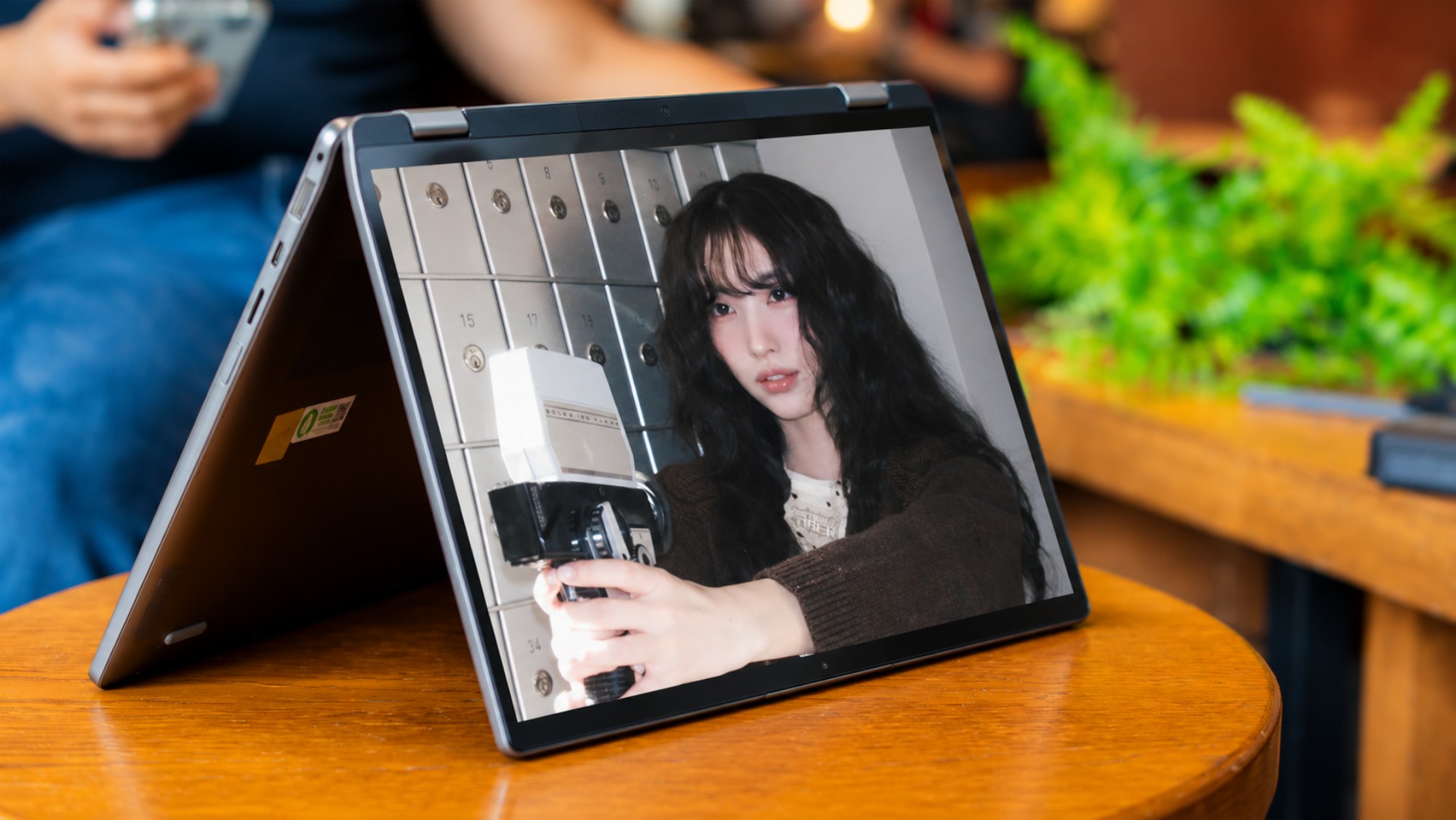
Lenovo has been doing this for years with its Yoga series, and there’s a reason it has stuck around for ten generations. A good convertible isn’t just a laptop with a screen that folds backward. It’s a device that can adapt to what you’re doing without requiring you to change devices.
In laptop mode, you have a proper keyboard for writing and getting work done. Fold the display into tent mode and you have a convenient screen for watching videos or following a presentation. Flip it into stand mode and you can use it for video calls or put it in front of you while working with someone else. Fold it all the way back and you have a tablet for reading, browsing, or sketching.
I’ve seen how useful these different configurations can be in practice. They’re not just party tricks for product demonstrations. They offer different ways to use the same machine throughout the day, depending on what you’re doing and where you’re doing it.
Software that adapts
Of course, the hardware is only half the equation. macOS would need to adapt to these different configurations, too. Touch targets should be easier to hit when the laptop is folded into tablet mode, while creative applications should make better use of direct interaction with the display. The interface shouldn’t feel like a desktop operating system that reluctantly tolerates fingers.
This is where a hybrid of macOS and iPadOS could become particularly interesting. Apple wouldn’t have to abandon what makes the Mac good at getting work done. It would simply need to make that experience more adaptable when the keyboard and trackpad aren’t the most convenient ways to interact with the machine.
That’s the kind of touchscreen MacBook I’d get excited about. Not just a MacBook that lets me poke at the screen, but one that gives me a reason to use it differently.

Dream bigger, refine better
To be clear, I’m not asking Apple to reinvent every product in its lineup every year. That would be ridiculous, and not every new idea needs to become a commercial product. But I’d love to see the company take more chances on what its products could become, rather than simply adding another feature to what already exists.
I just miss the Apple that truly turns heads when it enters a room. Right now, it feels to me like the company is banking on the cultural cachet it earned decades ago.
The iPhone Duo and touchscreen MacBook show that Apple is still willing to experiment. Now I’d love to see it push those experiments further. It might as well go all in and Think Different.
Accessories
CASETiFY Match: Finding the right case for your Galaxy Z8 Series phone
Cases that match your personality

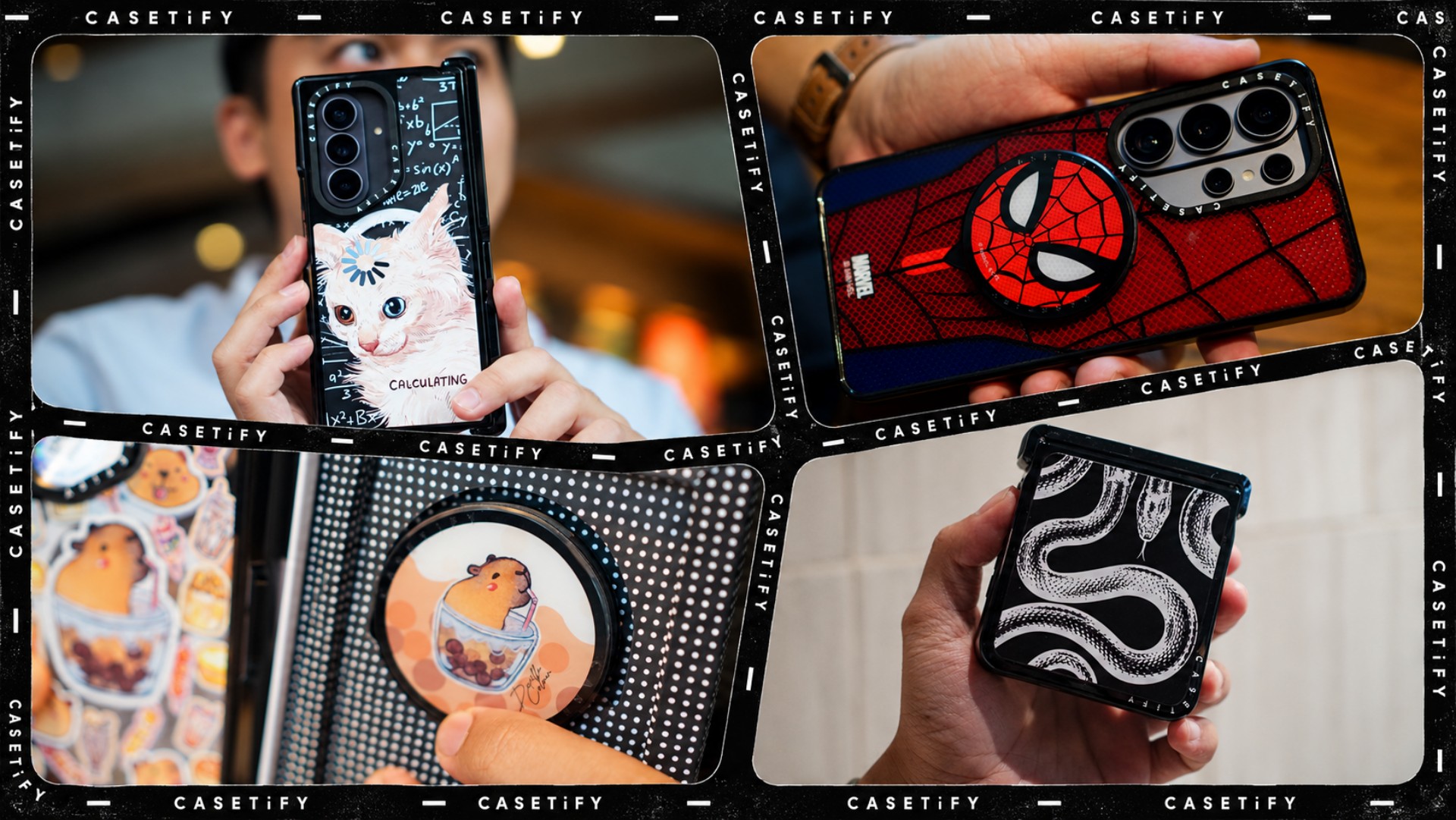
A phone case can be more than protection. It can also be a way to show off your interests, personality, and the little things that make you, well, you.
For our CASETiFY Match for the Galaxy Z8 Series, we asked the team one question: Why was this CASETiFY design your Match?
From Spider-Man fandom and capybara obsession to feline-inspired art and snake motifs, here are the designs that found their way into our team’s everyday carry, plus a couple of bonus picks worth checking out.
Rodneil: A little New York energy for a certified web-head
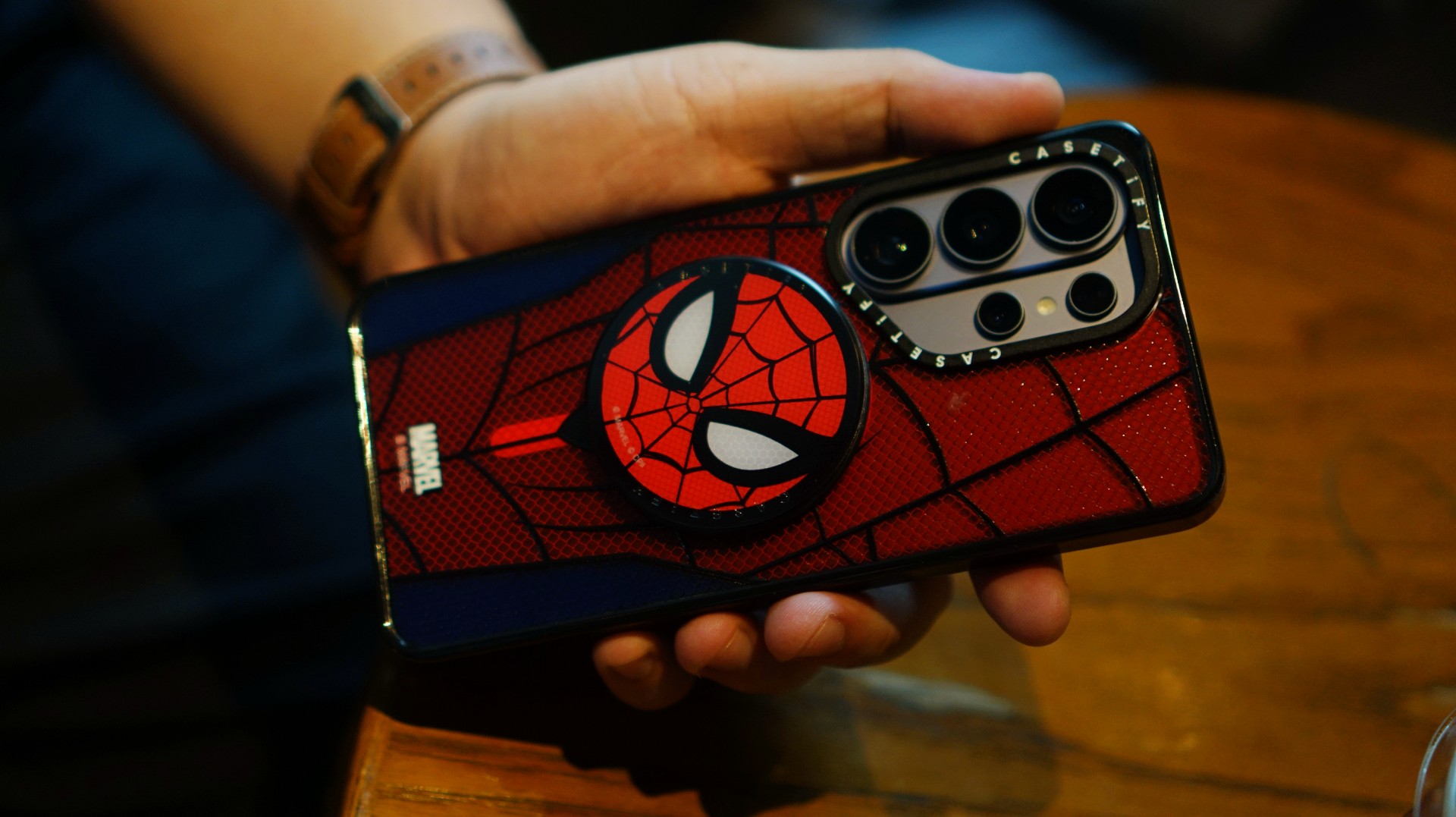
If it wasn’t obvious enough, I’m a certified web-head. I love anything and everything Spider-Man, especially the iconic red-and-blue motif. Though, if we’re being honest, I’m more partial to the red.

I had my eyes on the Spider-Man suit design for the Galaxy Z Fold8 Ultra and the Spider-Man Mask Snappy Grip Stand. Unfortunately, those designs aren’t available for the Galaxy Z Fold8.
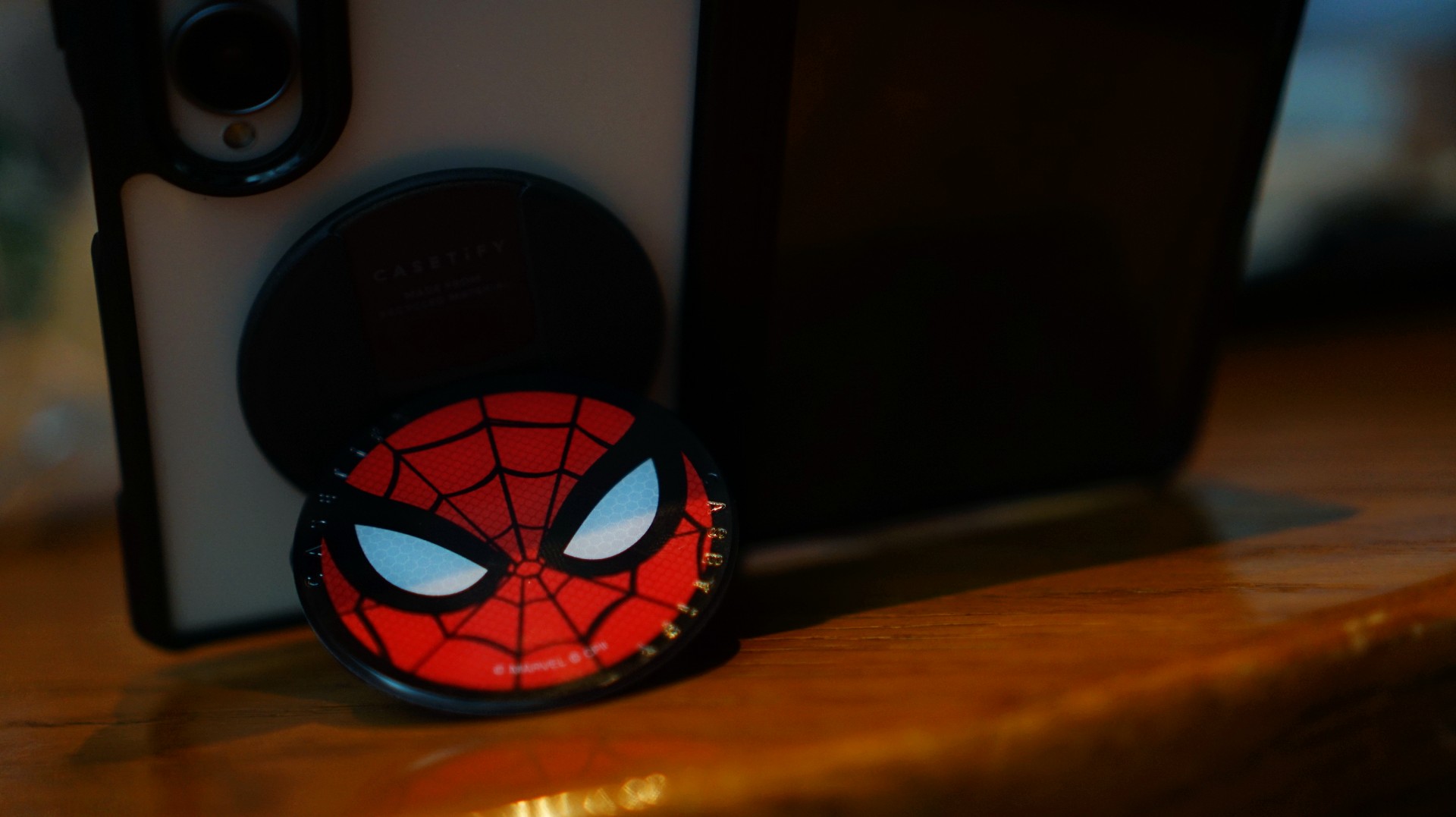
So, I went with a design that gives off a bit of New York energy instead. It still pairs nicely with the Spidey Snappy Grip Stand, letting me bring a little of that Spider-Man vibe to my everyday setup.
V: Keeping it cool with capybaras
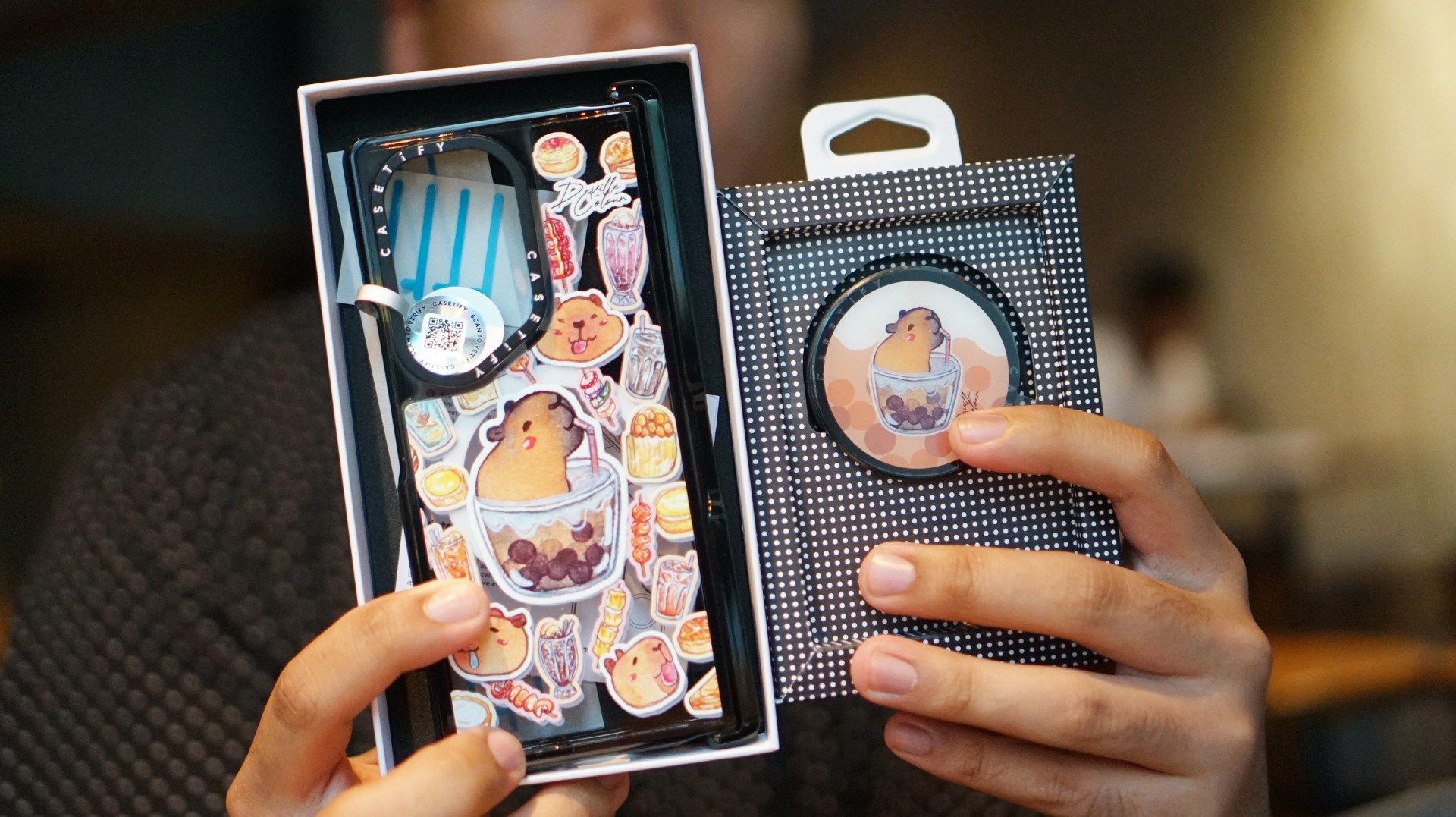
I’ve been a capybara stan since 2020, long before the world finally caught up with just how cute and chill these animals are. Seeing them get the recognition they deserve has been a source of much excitement.
Finding cool and cute capybara cases and accessories for the phones I use every day, however, hasn’t always been easy.
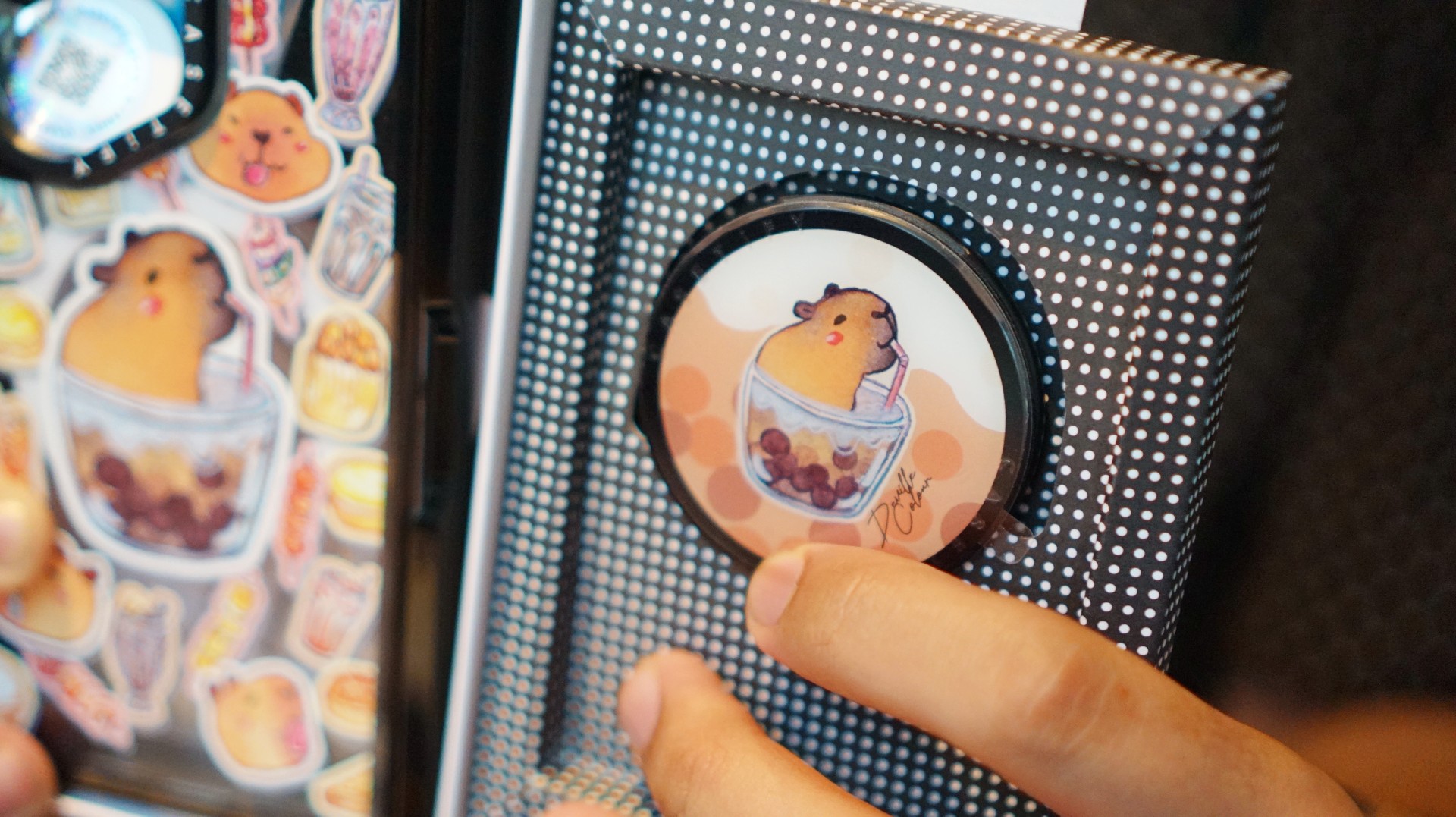
That’s where Deville Dewil’s capybara collection comes in. It fills that gap while making my Galaxy Z Fold8 feel like an even more personal accessory.
At this point, I’d like to identify as a capy/bara.
Luigi: A cat design that’s playful without being too loud
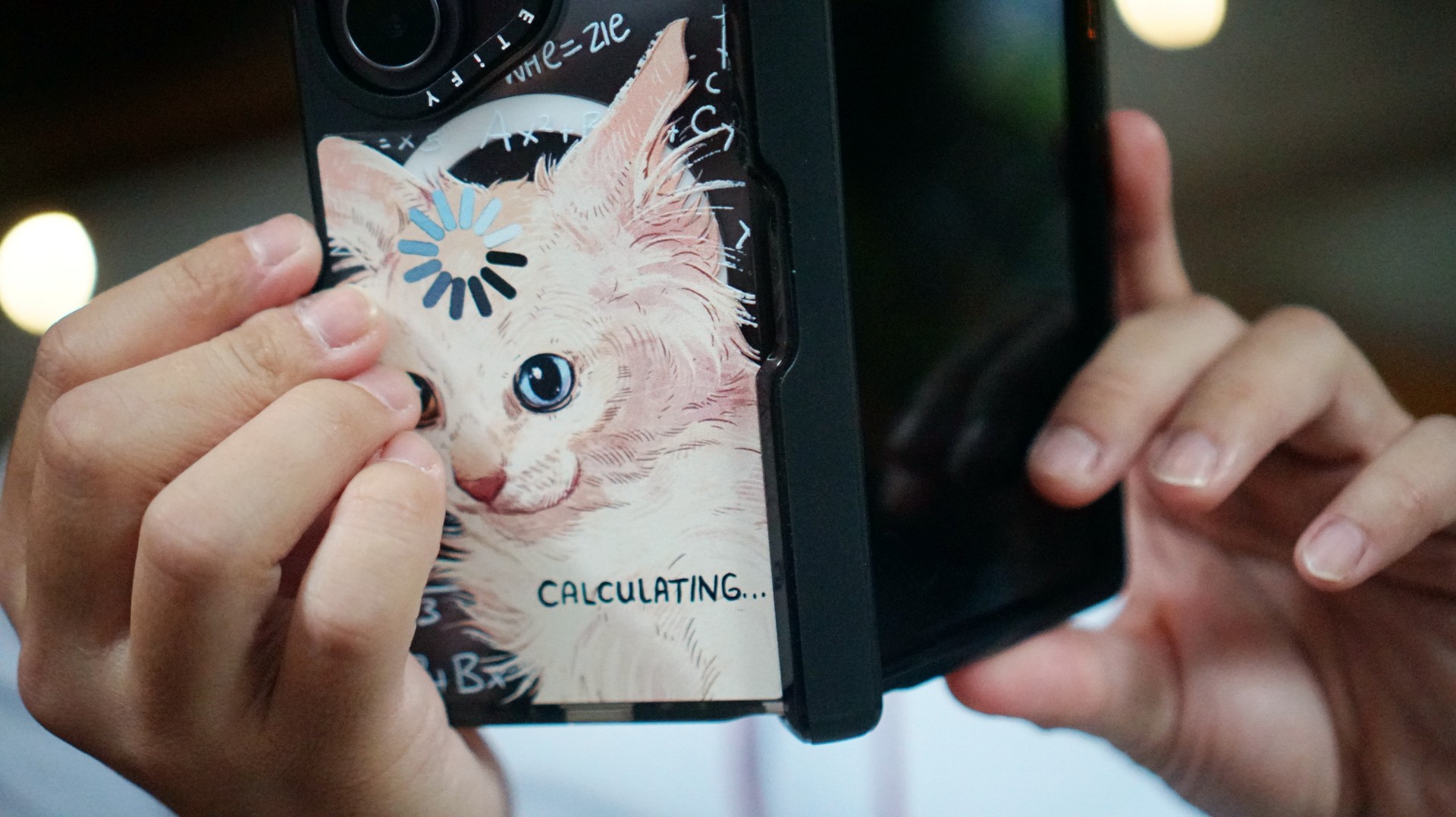
There’s no shortage of cat-themed cases out there. If you’re a cat lover like me, chances are you’ve considered one at some point.
The tricky part is finding a design that isn’t too whimsical or loud. I love the little furballs, but I still want something sleek and clean.
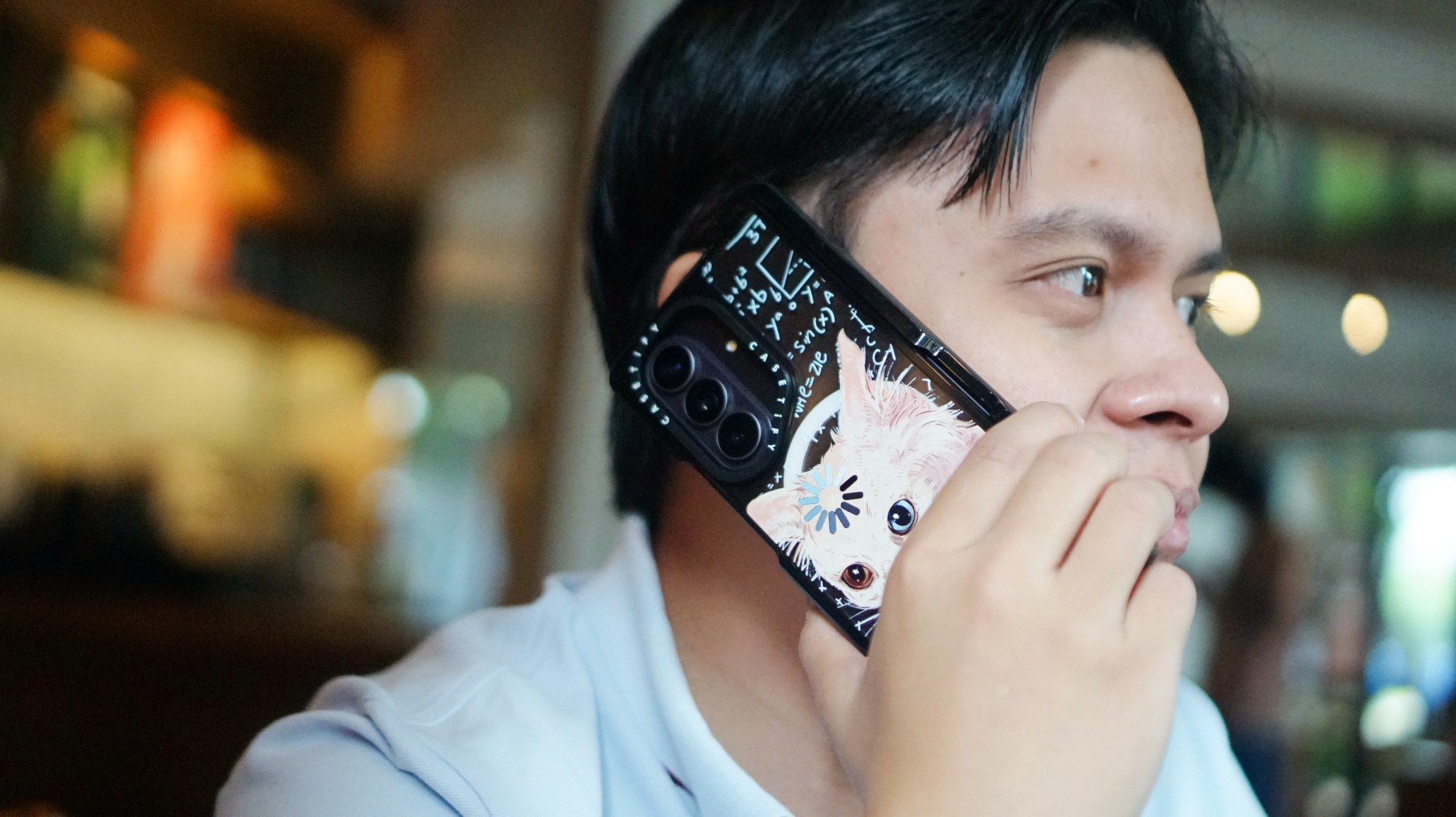
CASETiFY’s cat collection speaks to that balance. In particular, this design by Catwheezie blends artistry with a touch of whimsy. It lets me show off my personality without being too flashy.
MJ: A little reputation energy
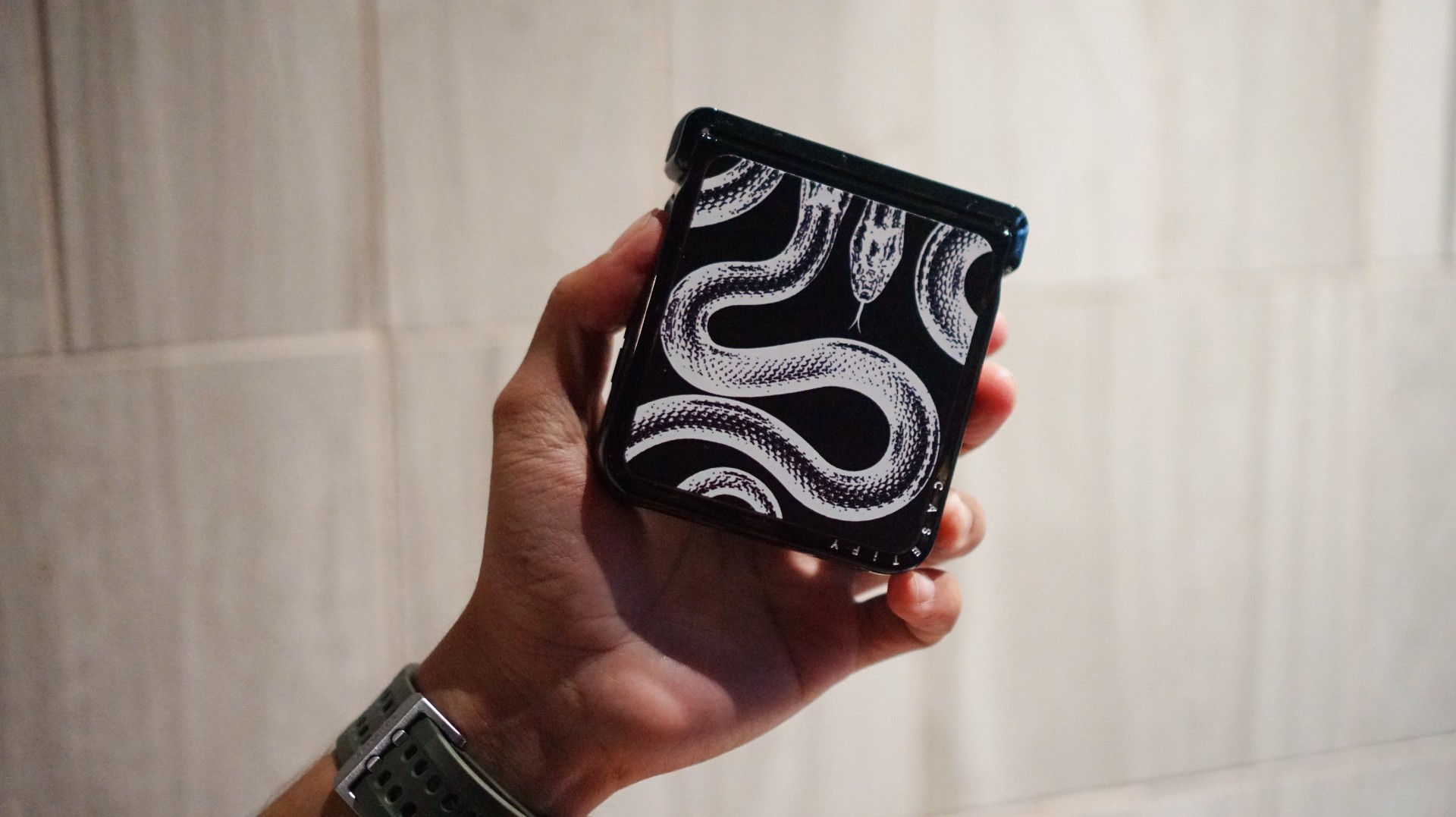
I’ve always had a soft spot for snake motifs, and CASETiFY’s Transparent Kingsnake case gives me Taylor Swift’s reputation era energy.
I love how snakes symbolize transformation. As someone who’s always evolving and never afraid to reinvent himself, that meaning feels personal.
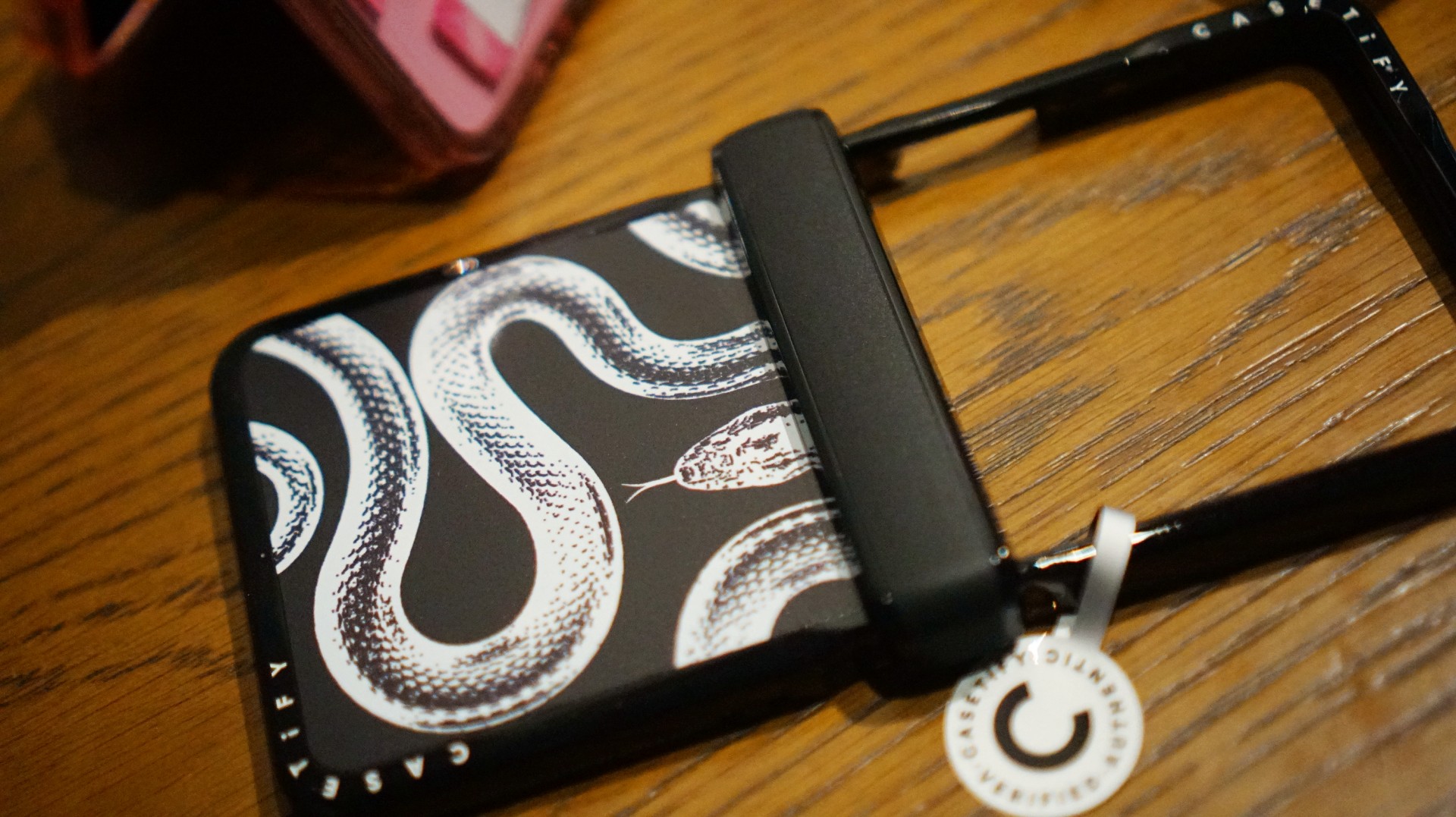
The black-and-white design also brings a sleek, rebellious edge. Paired with my Galaxy Z Flip8, it’s giving statement accessory with a little bite.
Bonus Match: Sunglasses at Night

Sometimes, keeping it simple is the way to go. The Sunglasses at Night design is tasteful and understated, letting me show off the actual color of my phone without competing with it.
Bonus Match: Pink Weekly Planner
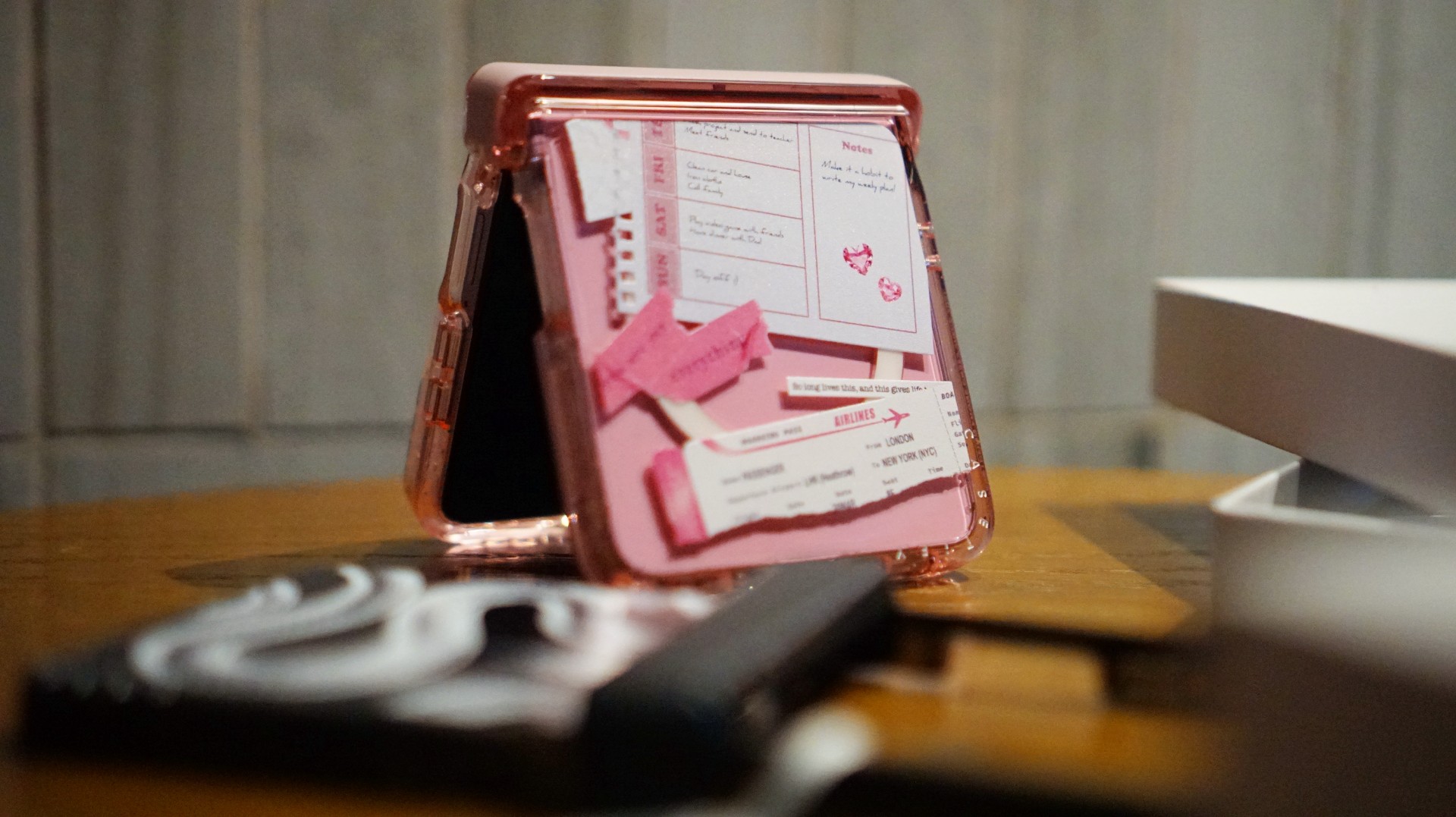
For the girls (and gaes) who plan their days–and life–ahead. And of course, for when they need to keep their Wednesdays pink.
Find your Match
There’s no single way to find a phone case that feels right. It might be a favorite character, an animal you’ve loved for years, a piece of art, or a symbol that means something to you.
For our team, the right CASETiFY design is the one that brings a little more personality to a device we carry every day.
So, which design would be your Match?
Hands-On
Apple iPhone Duo Unboxing and Hands-on
Supported apps, crease, cameras, and MagSafe all tested
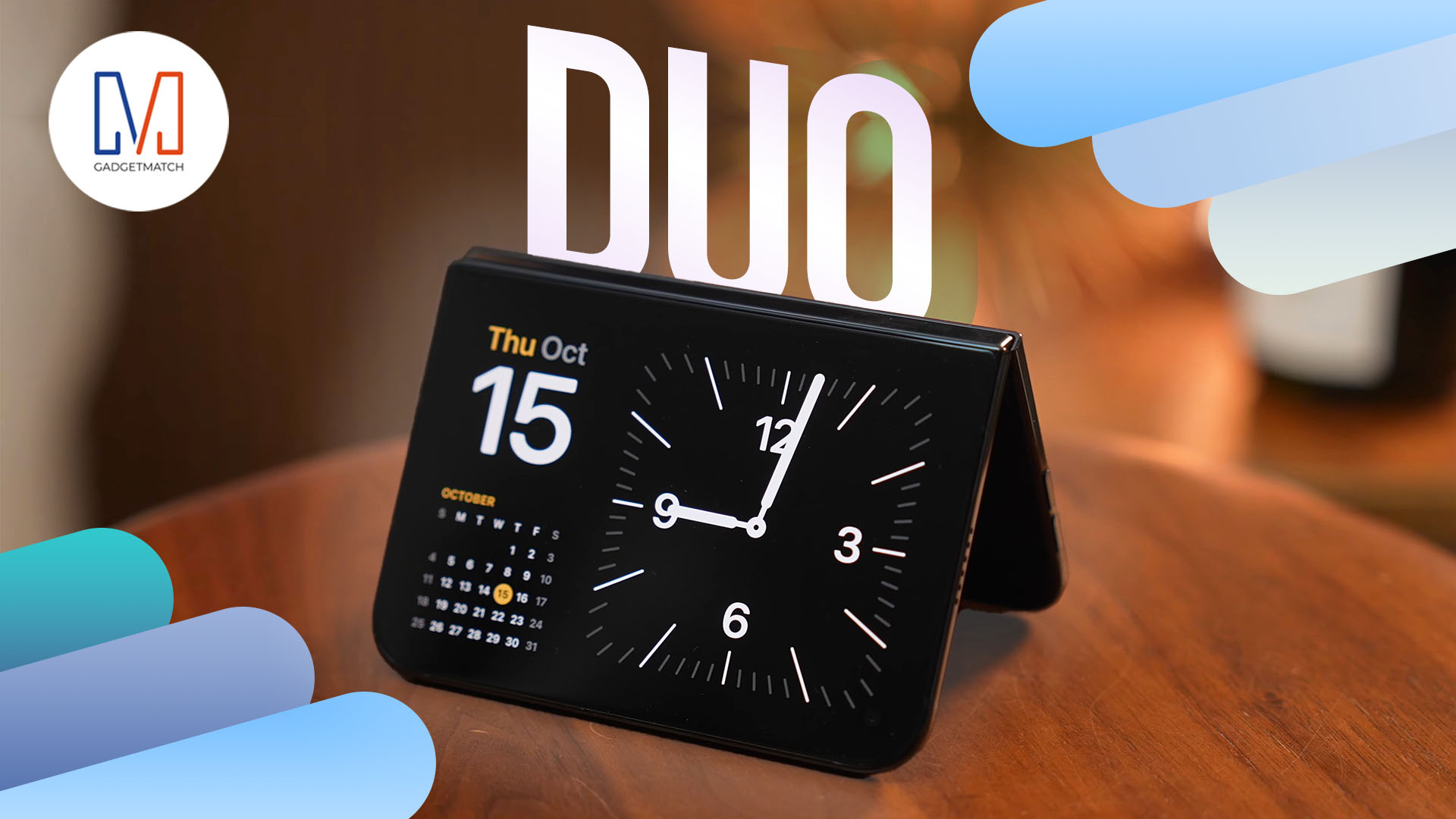
Apple’s iPhone Duo is finally here!
Aside from unboxing the all-new iPhone-dable in Night Sky, we take a closer look at the display crease, check out the under-display camera quality, see which MagSafe accessories work with it.
Most of all, which apps support it (or not).
But how well does the dual-screen experience on an iPhone actually work? Watch our Apple iPhone Duo unboxing and hands-on to know more!


ROG G700 review: The best prebuilt PC you can get off the shelf
This PC will make you stop worrying about specs.


HP OMEN Max 16 review: Gamer-maxxing in deep black
Peripherals deemed necessary to max this out
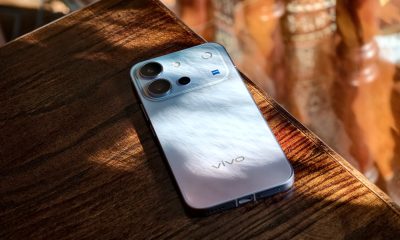

vivo V80 review: Good phone, tough sell
A capable travel companion

FromSoftware’s The Duskbloods delayed to 2027

Yes, you can turn off the MacBook Pro’s touchscreen display

Demon Slayer: The Hinokami Chronicles 2 launches on Switch 2

What the MacBook should touch on instead

realme 16 Pro 5G Harry Potter Edition: Price, availability in the Philippines


-
Reviews2 weeks ago
vivo V80 review: Good phone, tough sell
-
![KINGDOM HEARTS Collection [I-III]](https://www.gadgetmatch.com/wp-content/uploads/2026/10/kingdom-hearts-colletion-I-III-202610-400x240.png)
![KINGDOM HEARTS Collection [I-III]](https://www.gadgetmatch.com/wp-content/uploads/2026/10/kingdom-hearts-colletion-I-III-202610-80x80.png) Gaming2 weeks ago
Gaming2 weeks agoKINGDOM HEARTS Collection [I–III] now available on PS5, Switch 2
-
 News1 week ago
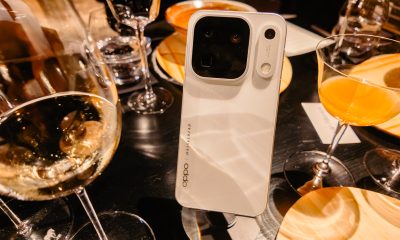
OPPO Find X10 Series: Price, availability in the Philippines
-
 Buyer's Guide2 weeks ago
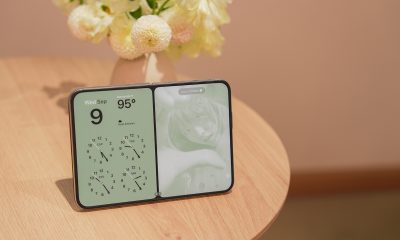
iPhone Duo Philippines: Prices, installments, and where to buy
-

 Cameras1 week ago
DJI Osmo Pocket 4P Pearl White now available globally
-

 News1 week ago
OPPO Find X10 Series: Price, availability
-
 News2 weeks ago
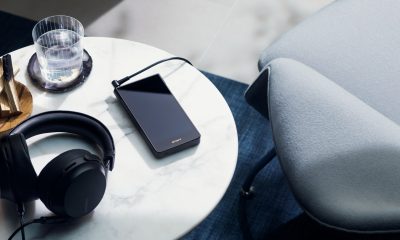
Sony unveils three premium Walkman music players
-

 Entertainment1 week ago
Cyberpunk: Edgerunners 2 now streaming, Cyberpunk 2077 update coming