

People I know would describe me as an ultimate “techie” for knowing bits and pieces of both software and hardware. Ever since the pandemic started, almost all of them ask me the same question: “what’s the best budget laptop I can buy?” — either for their Zoom-powered online classes or basic WFH (Work From Home) setup. I always respond with “how much is your budget?” and that already gives me an idea what’s the closest laptop model I can recommend for them.
But here’s what I’ve observed. Most of them can only afford laptops that are priced below US$ 500 (around PhP 25,000 or INR 38,000). The problem is clear. Despite the need for it, not everyone has the resources to spend on a shiny new laptop.
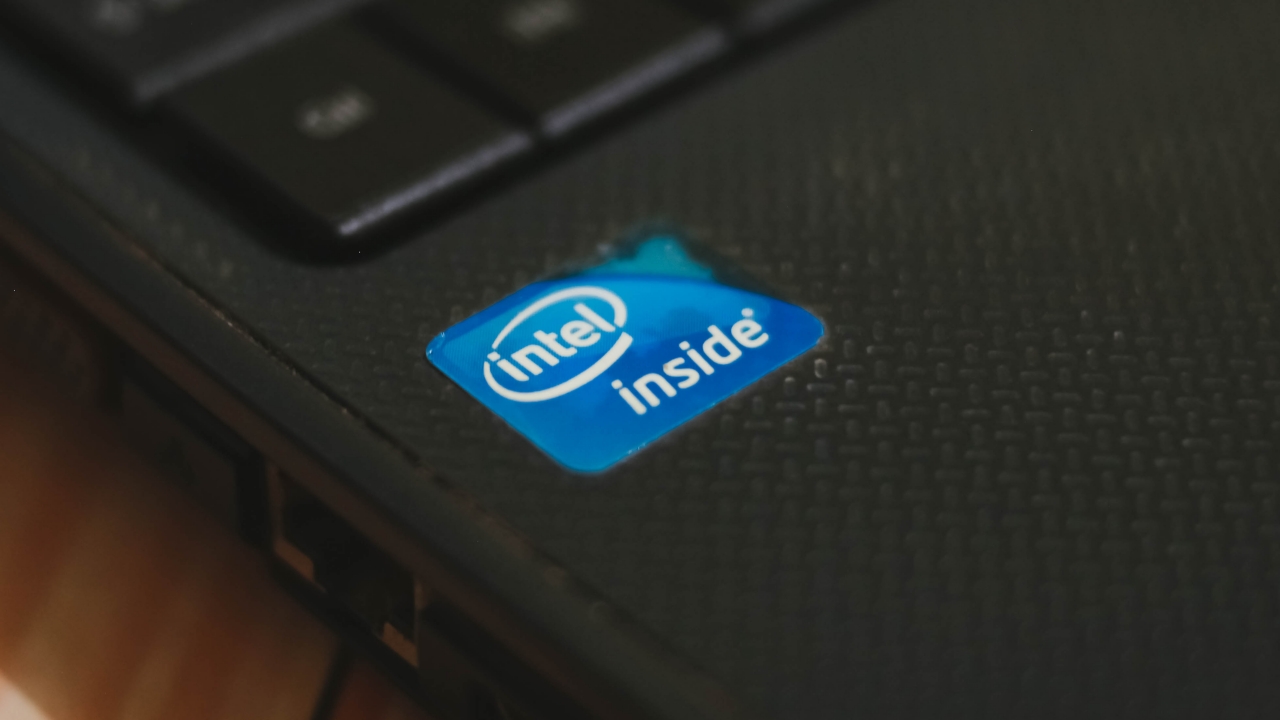
An Acer laptop I upgraded running an old Intel chipset
In certain Facebook groups, Twitter threads, and comments sections, I’ve been seeing a lot of people posting “minimum laptop specifications” as a handy buyer’s guide for those who need it. But the thing is, buying a lower-end 10th Generation Intel Core i3 or the latest AMD Ryzen chipset would still cost an arm and a leg for most consumers.
Others even refer to high-spec professional and/or gaming laptops — which most people don’t even need since they’re only going to do basic tasks. The thought of helping is there but those who are not particularly into tech still wouldn’t understand the differences between these chipset models, as well as how RAM and storage devices are different from one another.
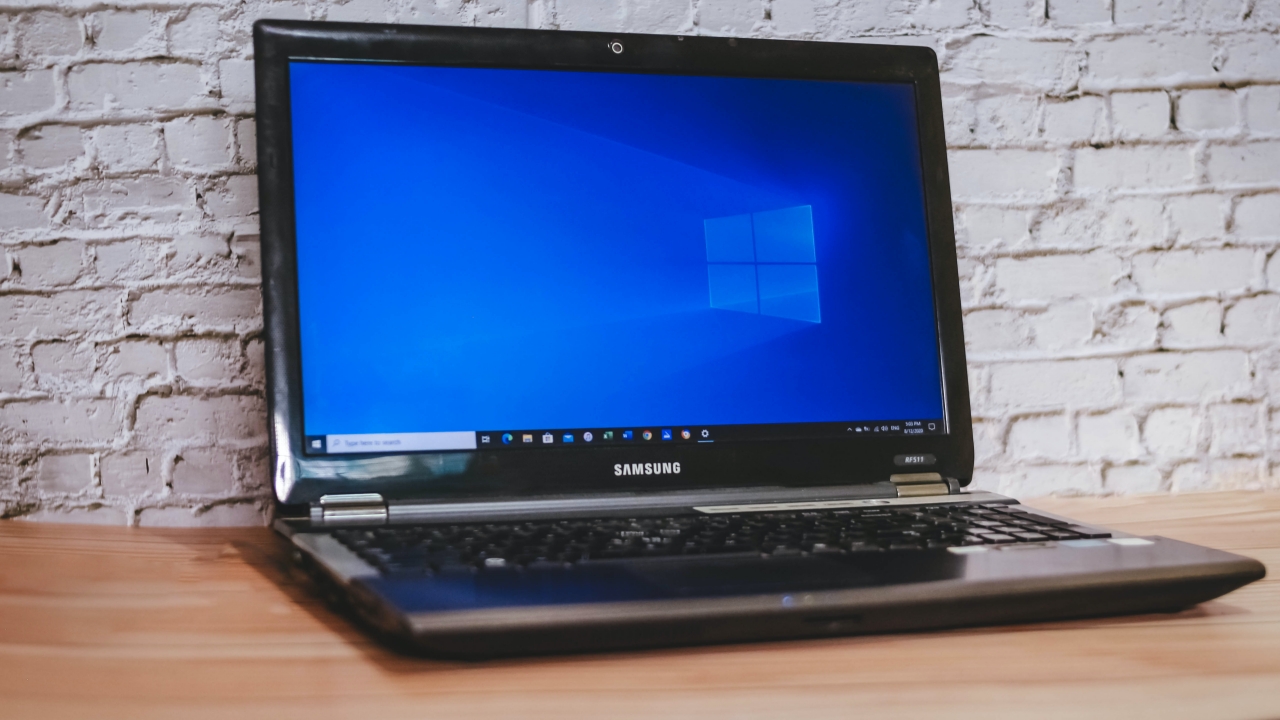
Fortunately, laptops (and PCs) are not like smartphones that need to be replaced once the performance degrades. If you have a laptop that still works even if it’s already sluggish, this article might help you in saving money instead of buying a completely new one. In my case, I decided to upgrade our 2011 Samsung RF511 that’s become as slow as a snail over the years.
SSD is the key
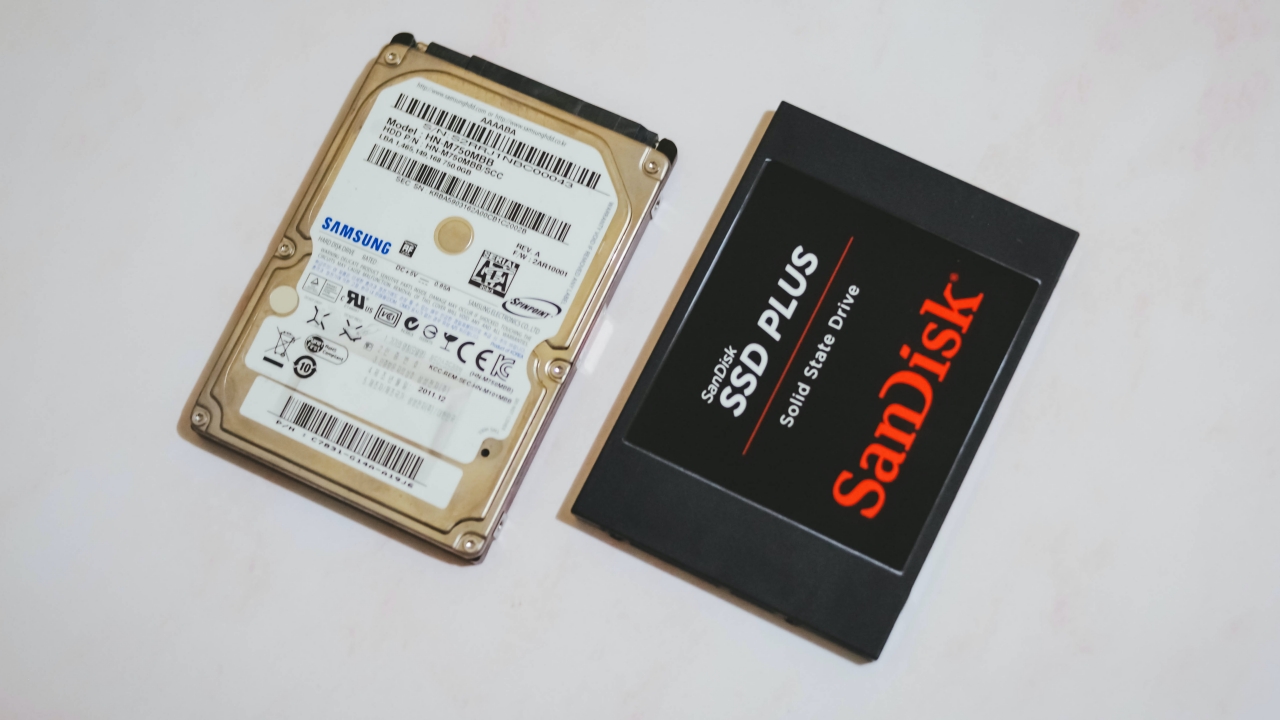
Difference between 2.5″ SATA HDD vs 2.5″ SATA SSD (HDD already faulty)
Upgrading to SSD (Solid State Drive) is a big factor in making your ultra-slow laptop run faster. Most laptops are still equipped with old Hard Disk Drives (HDDs). Here’s our SSD vs HDD explainer if you really want to dive into the specifics of it.
Basically, SSD is a better option since the Operating System (OS) directly runs in that drive. A high-capacity 512GB SSD might cost more than a 1TB HDD — which sums up the logic that essential OS files and apps should be stored in lower-capacity SSDs while most of your files should still be in a larger HDD capacity since they don’t need to be run as frequent as the OS and apps.
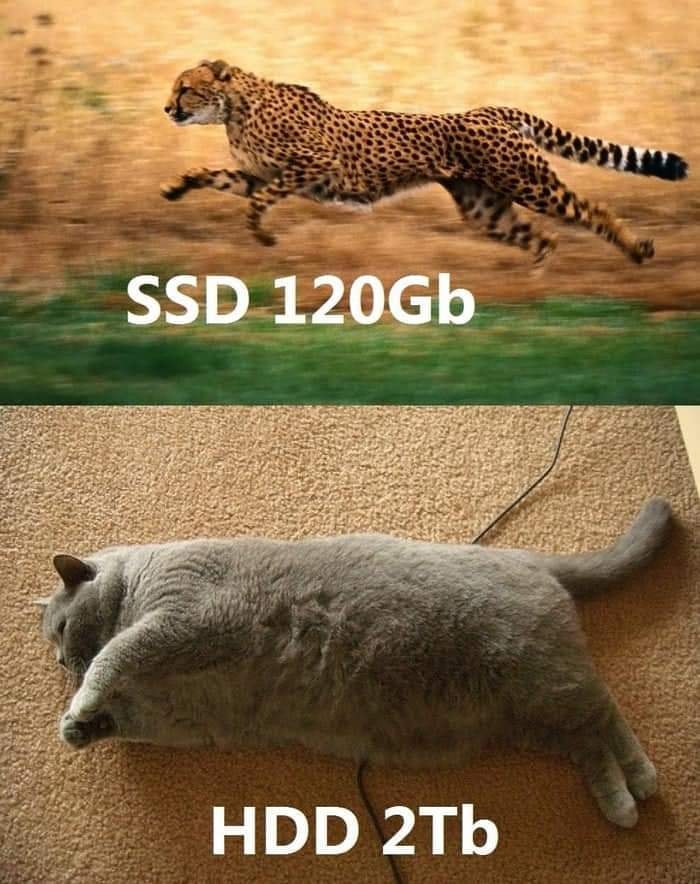
A meme that sums it up: Fast SSD cheemtah or a chonky HDD catto
Also, SSD is a lot slimmer and lighter, runs cooler, and is quieter than the thick and heavy HDDs that always rely on spinning disks instead of a non-volatile set of chips.
With the ongoing demand for SSDs, a 120GB SSD can now be bought for as low as US$ 20 / PhP 1,300 / INR 2290 — particularly a SanDisk SSD. It’s the pure nature of commerce that the bigger capacity you get, the more you need to pay for it.
There are other cheaper brand options out there like Kingston, Silicon Power, PNY, ADATA, while the likes of WD/Western Digital (SanDisk’s mother brand) and Samsung lean more into the pricier side. Buying a more expensive drive might mean you’ll get better disk speeds (especially if you’re a gamer or a power user) but for an everyday consumer, the cheapest options will just be alright for the basic tasks you do.
Not all SSDs are made equal
I’m not talking about unequal storage size options. In our explainer, it wasn’t mentioned that there are several types of SSD connectors — but most of the common ones are either SATA and m.2 SSDs. So what’s the difference?
In layman’s term, 2.5″ SATA SSDs are those that are shaped like regular hard disk drives — that’s why it can still be used on older laptops and PCs. There’s even a smaller version called mSATA that runs on the same SATA interface.
For newer laptops, motherboards, and gaming rigs, they use a smaller, thinner, and more space-efficient m.2 SSD (almost the same size as a chewing gum stick) that runs even faster than a regular SATA SSD. But here’s the catch! There are two subtypes of m.2 SSDs that are different in the shape of connectors:
- m.2 SATA SSD has both B and M connectors; while
- m.2 NVMe SSD only has an M connector at the end

Graphics by Vincenz Lee | GadgetMatch
Since this is an article meant for people who have slow laptops, I wouldn’t dive deeper into the nitty-gritty of these types of SSDs. But for visual comparison, here’s how you can differentiate them in different sizes and connector shapes.
RAM upgrade is an essential but not a requirement

During the quarantine period, I received several laptop repairs by replacing their old disk drives and upgrading their laptops’ memory sticks. In one instance, I ordered both SSD and RAM upgrades. The SSD was delivered ahead of time and just by replacing the hard disk drive alone did a lot in speeding up the laptop — even with just 2GB of RAM.
That being said, RAM is still essential, especially when opening multiple apps at once without totally closing other apps that are minimized/in idle. If you’re the type of power user who always multitasks, you will gain more with a RAM upgrade. The higher the capacity, the more apps you can open at once — of course with the help of your laptop’s processor.
Just like SSDs, not all RAM modules are the same
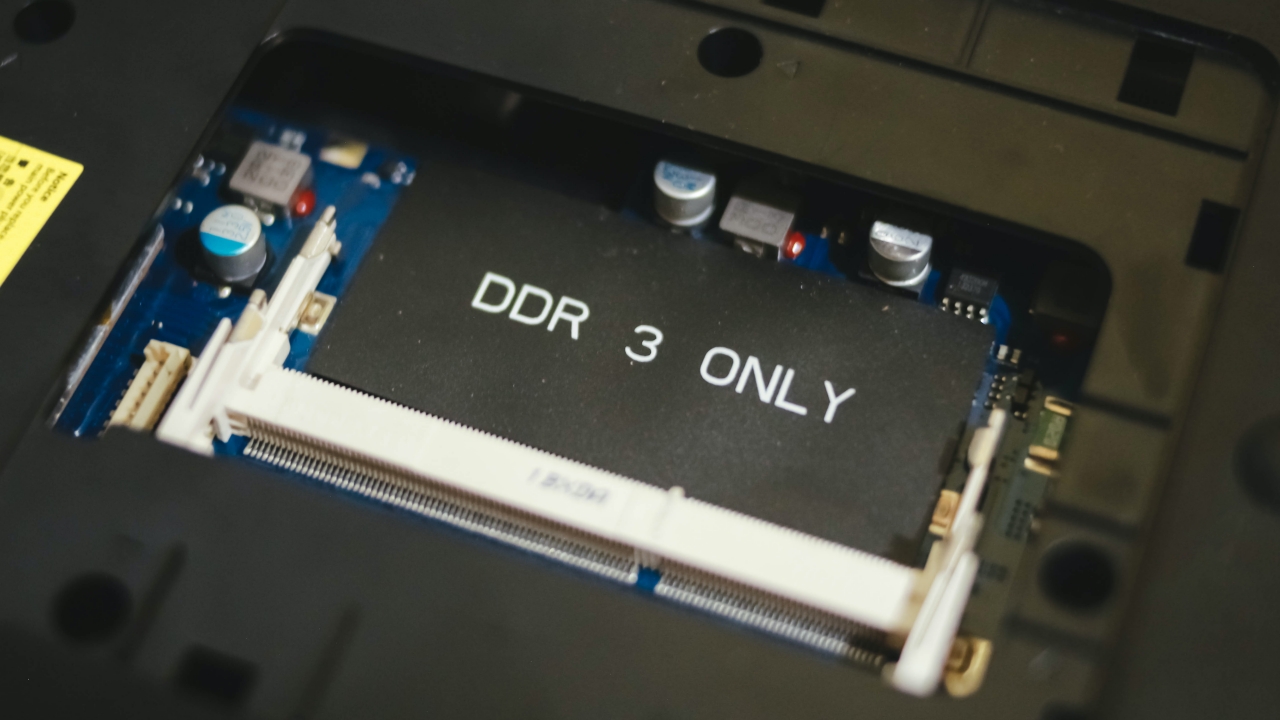
In the case of SSDs, it’s easy to tell which is which just by looking at the size and connector type. For RAM modules, it’s different. These RAM sticks all have similar connectors, but it doesn’t mean all of them will work on older machines. In my case, the old Samsung laptop I have indicates that it runs “DDR3 ONLY”. There are even different types of RAM bandwidth ranging from the slow 1600MHz all the way to a maximum of 3200MHz. Here’s a quick summary:
- DDR2 configuration runs on older laptops manufactured 2007 (or earlier)
- DDR3 configuration runs on older laptops manufactured 2013 (or earlier)
- DDR3L configuration is a re-configured DDR3 module that’s found on newer low-end laptops but can still run on older laptops with DDR3 slots (but not vice versa);
- and DDR4 configuration runs on most latest laptops manufactured 2014 onwards.
You can further check the configuration based on the labels on the module.
Know your laptop’s specific requirements before buying
I have to mention this for the nth time: NOT all laptops are created equal. Just because there’s an 8GB or 16GB memory available around, it doesn’t mean you can immediately buy it for your aging laptop.
There aren’t many restrictions when upgrading storage capacities aside from the type of hard drive connector your laptop (or PC build) has. I even cautioned about not all RAM modules being alike — and that also means not all laptops support higher RAM capacities.
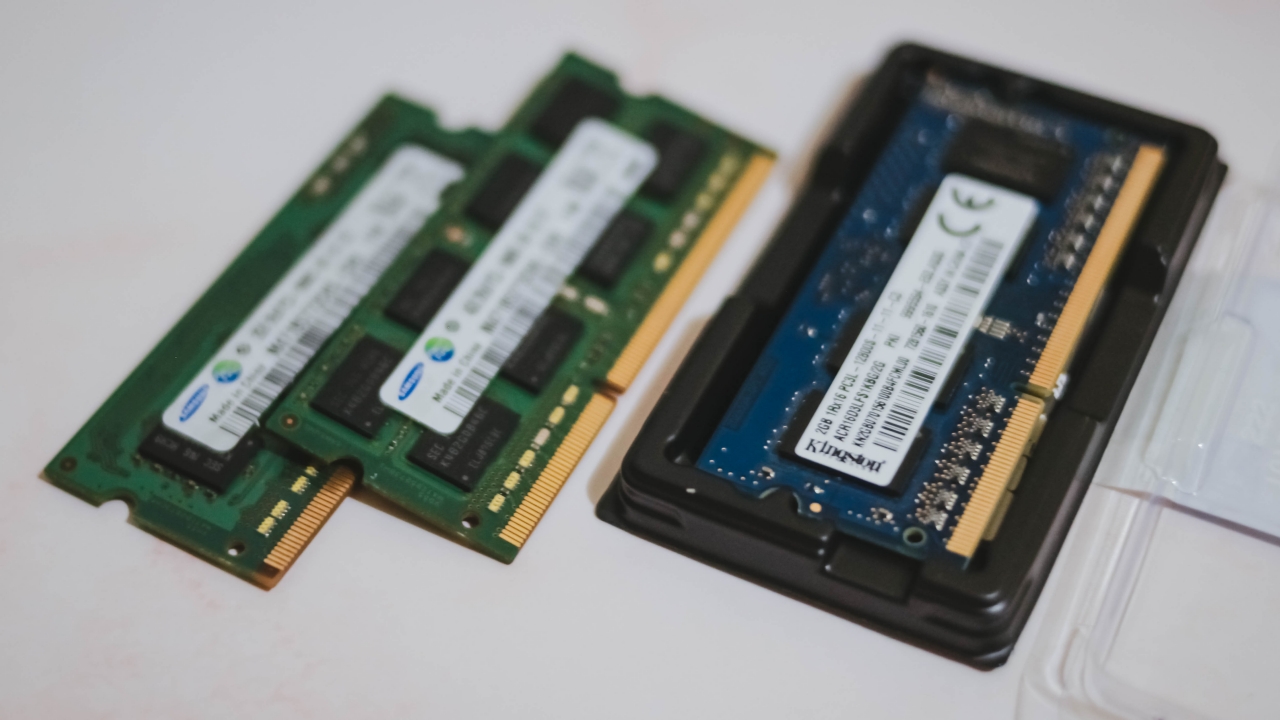
No one can really tell the difference between a DDR3 and a DDR3L RAM just by looking at them from afar. Labels really matter 🥺👉🏼👈🏼
I recently upgraded an acquaintance’s laptop. It may look new but the thing is, it only supports a maximum RAM capacity of 8GB. Most newer laptops support higher than that, which means it’s not totally based on the year of release. This is also why it’s crucial to know your laptop’s specifications.
Speaking of, the quickest workaround I can think of is by visiting Crucial’s website where you can search your laptop’s exact model and it will give you the closest and most compatible types of RAM and storage options which can be your source of reference.
From there, you can quickly go ahead and find a cheaper alternative to an online shopping app that’s closest to your heart — whether that may be Lazada, Shopee, Amazon, or AliExpress, as long as they sell legit PC parts. And oh! Don’t forget to see product reviews before adding it to your cart and checking out.
I bought the right parts, so what now?
Option 1: DIY upgrade
With the ongoing COVID-19 crisis, it’s hard to go out of your home just to go to the nearest repair shop in your area. If you’ve read my DIY iPhone repair before, upgrading laptop parts isn’t as complex as that one which requires a lot of tools just to open one.
When opening laptops, I just use a single, regular-sized Phillips screwdriver (the ones you can see in your dad’s toolbox) — not the smaller ones and not the bigger screw head for furniture. If you can’t find one, you can just buy a toolset in online shops and hardware stores.

What I’ve encountered when fixing laptops is that there are differences in the way they are opened. Most laptop screws are found at the bottom part of the laptop — and it’s the easiest way to replace hard drives and RAM modules.

But in another example, we also have an old Dell Inspiron N4050 laptop. I was able to add more RAM sticks by completely pulling and opening it up through a tedious keyboard removal. To make it harder, I removed the laptop’s outer shell and several flex cables just to get access to the hard drive itself found beneath the metal enclosure.
Anyhow, when you’ve decided to do the upgrade by yourself, just make sure you know how to completely unscrew and disassemble your laptop. Tutorials online (particularly in YouTube) are always helpful.
Option 2: Hire a repairman / family member / friend / acquaintance who knows how to fix laptops
If DIY isn’t workable, you can still look for people who’ll do it for you. Just remember to pay appropriately. Most upgrades shouldn’t be as expensive as buying a new 128GB SSD.
Why is it not turning on? Is it defective?
Just like any other fresh storage device, it needs a fresh OS installation. If you know how to install a fresh copy of Windows 10 (which can be directly downloaded from Microsoft’s website), rest assured it will work — and even install faster. Don’t worry, older laptops with low specifications are still supported.
To start the installation process, you just need an 8GB flash drive (or higher) where you can store the needed OS files. To not over-extend this article, watch this step-by-step YouTube tutorial.
For those who are still not capable of doing so, ask someone who can do it for you for a fee (or maybe free for those who are eager to help).
Real-world usage

There are a lot of speed tests and benchmarks out there but most wouldn’t care about specific read and write speeds as they value real-life experiences more. With my usage, the time it takes me to turn it on from clicking the power button going to the Login screen was massively cut from a minute and a half to just around fifteen (15) seconds.
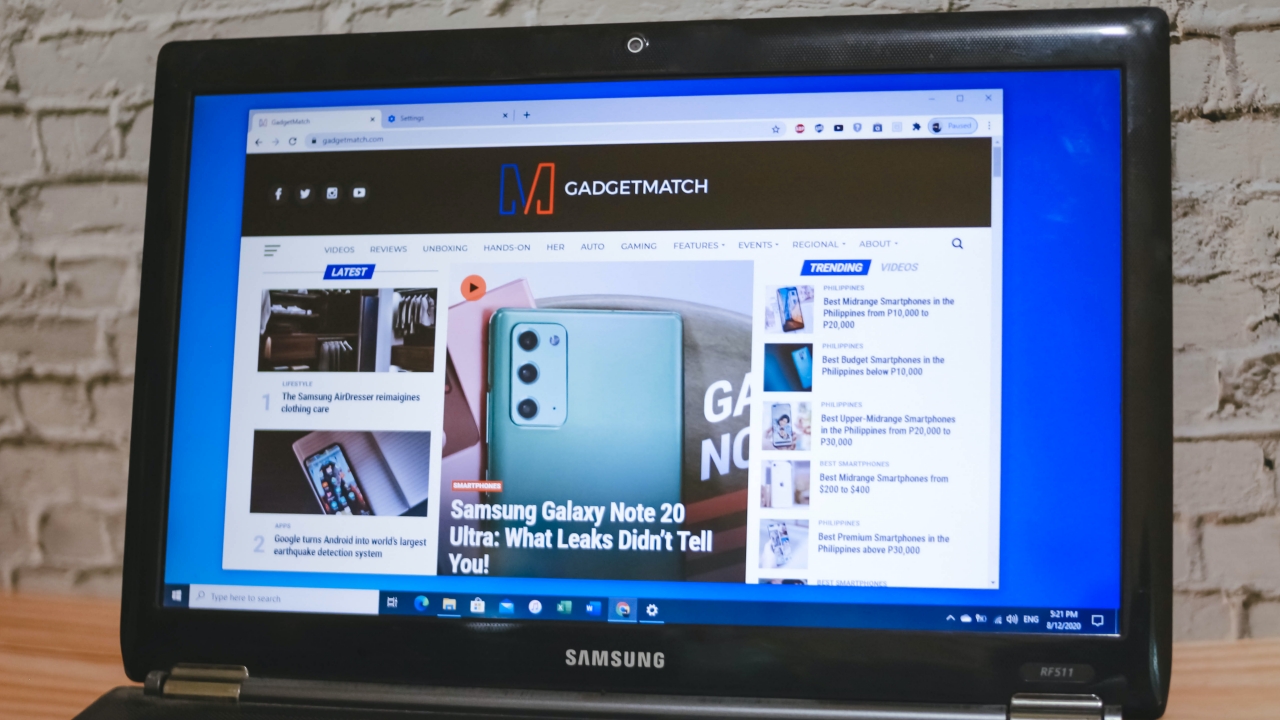
Other than that, there’s little to no lag and freezing when opening apps. In my case, I was able to open apps in a breeze. As this old Samsung laptop runs with an aging second-generation Intel Core i7 chipset, it’s surprising to see that Adobe Photoshop, Lightroom, Illustrator, and Premiere Pro are all running well.
Another testimony to how SSD improves a slow laptop’s performance is when one acquaintance told me how the SSD replacement totally helped him get over with his laggy online class and work setup due to a slower HDD paired with a low-tier Intel Pentium processor.
But where are the Office apps when I need them the most?

Online classes and work tasks require Microsoft Office services. If you can’t find an original copy (since piracy shouldn’t be tolerated), you can sign up for a one (1)-month trial of Office 365 instead. Other options are the freeware OpenOffice or real-time, online-based Google alternatives like Docs (Word), Slides (Powerpoint), and Sheets (Excel).
Older MacBooks can also be upgraded

Although newer MacBooks (Air, Pro, and Retina) cannot be upgraded anymore, older MacBook Pros (2012 or earlier) with non-Retina Display and CD drives can still be upgraded. You have options to replace your clunky HDD with a SATA SSD or even upgrade RAM sticks up to 16GB.
Just like any Windows laptop, be sure to check your Mac’s specific model/manufacturing year before purchasing essential parts. For more help, you can check out this old MacBook Pro list and their max upgradeable options.
Also, macOS / OS X installation is a little different than that of Windows. Here’s a workaround.







Apple disrupts the industry with their latest MacBook — an affordable to say the very least.
If you’re a student, a first-time Mac owner, someone who’s been priced out of this ecosystem their whole life, someone who just needs a laptop for basic tasks but one that looks great, without slowing them down, this is it!
Or maybe you’re torn choosing between the MacBook Neo and the more powerful M5 MacBook Air?
Well, that’s what we’re here for. Here’s our review with the all-new MacBook Neo.
Laptops
Hands-on: NEW iPhone 17e, iPad Air, MacBooks, Studio Displays
What Apple has announced other than the MacBook Neo


The MacBook Neo was the star of yesterday’s Apple event, and it has every right to be but it’s been a big week for Apple.
So as promised, we also went hands-on with every other device announced this week: iPhone 17e, M4 iPad Air, M5 MacBook Air, MacBook Pro with M5 Pro and M5 Max chips, and the new Studio Displays.

Apple finally has a MacBook for the budget-conscious!
In this video, we take a look at the latest MacBook Neo — Apple’s most affordable laptop at $599.
It’s the perfect first computer for students, families, and anyone who’s always wanted a Mac but couldn’t justify the price.
Here’s our exclusive hands-on with the all-new MacBook Neo for you to check out.


Apple MacBook Neo Review

Logitech expands G3 series with G325 LIGHTSPEED

LG announces new Top Load Washing Machines

AMD expands Ryzen AI Embedded P100 series lineup

The internet is thirsting over the One Piece Season 2 cast


-

 News2 weeks ago
Xiaomi 17 Ultra is now available outside China
-

 MWC 20262 weeks ago
TECNO showcases cool concepts at MWC 2026
-

 MWC 20261 week ago
Infinix NOTE 60 Ultra makes a motorsport-inspired debut
-

 MWC 20261 week ago
TECNO launches the all-new CAMON 50 series
-

 Reviews1 week ago
TECNO CAMON 50 Ultra review: End of an era?
-

 Reviews2 weeks ago
Xiaomi Pad 8 review: Slab that slaps!
-

 Reviews2 weeks ago
Forget the Phone: Xiaomi 17 Ultra Is A CAMERA!
-

 MWC 20261 week ago
TECNO unleashes Tonino Lamborghini collection