
Features
This is what using a Nokia 3310 in 2017 is like

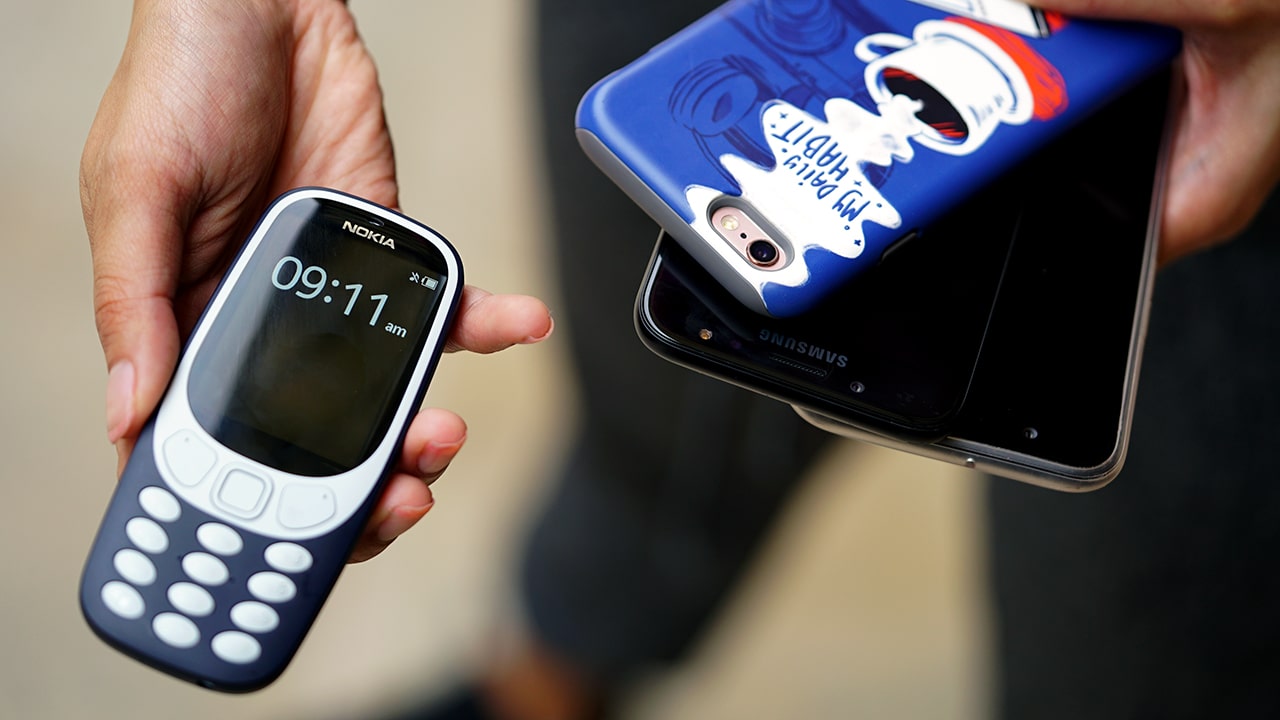
The Nokia 3310 was a great phone… in the year 2000.
Now, almost 20 years after its original release and hundreds of high-tech smartphone releases later, a rehash of the iconic cellphone has been launched.

Me with the 3310 — very happy and naive
So, I decided to give the phone a shot. In true #throwback fashion, I used the new Nokia 3310 — and only the Nokia 3310 — for 24 hours.
Getting started
I used the 3310 when I was in high school, and admittedly, I was one of those millennials who gasped in excited anticipation as I learned about the phone’s re-release. I traded in my smartphones (yes, multiple, because I do write about tech for a living) for my new daily driver.
First hurdle: Assembly. The 3310 comes with a detached battery you have to set up on your own. I am reminded of the many XPress-on covers I used on my old 3310, plus the fact that I never had to do this on any of my 2017 smartphones.

Cellphone and wallet fit in one hand — what a feat!
I also had to set up the time and date manually — something I hadn’t needed to do in forever — because the phone doesn’t automatically do that. My contacts, too, were lost for the day because this phone can’t sync to Google Contacts.
The Nokia 3310 doesn’t support Google apps nor is it capable of connecting to Wi-Fi. The only way you can connect to the internet is through cellular data, but only on 2G. For those youngins unacquainted with what 2G is, it was basically the fastest mobile data connection — in the 90s. Since then we’ve evolved to 3G and LTE.
The first hour
It seemed like a good idea at the start, but soon enough, 2017 reality came crashing in. Even before hour one ended (more like 15 minutes after the initial turnover), I realized I wouldn’t have access to social media via my phone throughout the day (like I said, no apps). Facebook is accessible through the phone’s built-in Opera browser but when it loads — if it does at all — it does so at a snail’s pace. My messaging apps were gone, too. I was left with only one inbox and good old text messaging.

All this would’ve been fine (well, okay, not really) except I work on the internet. All of a sudden, I had to bust out my laptop for every work-related thing. Even our team communication that’s done on Slack, a productivity messaging app where all our serious worky-work conversations are done, had to be done on the big screen (which, in this context, is my laptop).

Obviously, editing documents on my phone was out of the question. The good news? I still had a calendar and notes function. More bad news: They didn’t sync with my Google account (again, the 2G and app compatibility issue).
Hour 12
At this point, I’d already spent most of my time on my laptop for things I used to do on smartphones — other than calls and SMS. (I also only got a total of three SMS that day since I’m heavily reliant on my internet-dependent messaging apps.) Alone in the outside world with just the 3310, I was forced to entertain myself with the basics.

My Instagram and selfie game also took a blow. Although equipped with a camera, the 3310’s 2-megapixel image sensor was just ridiculous — basically 10 times fewer pixels than OPPO’s latest selfie smartphone camera.

Actual 2-megapixel Nokia 3310 sample
And even then, there was no way of uploading my shots on Instagram. No Snapchat stories for me that day, either.
Hour 18
The 3310’s alarms were still as reliable as ever but my morning ritual of checking emails, messages, and to-do items on a smartphone was not at all possible.

Taking more selfies because there really isn’t much you can do with this phone
Driving to the GadgetMatch HQ was a feat in itself without my smartphones.

I am very bad with directions and have never really driven without Waze ever since I discovered the app years back. This is impossible with the 3310, because it doesn’t support such features. And even if the feature phone did support apps, it still doesn’t have GPS built in that allows you to navigate offline on your smartphones. This time around, I had to rely on my own navigation skills and do everything without my usual Spotify playlist.
Hour 24: Finish line!
One good thing about the 3310 was that I did not need to plug in to charge in the last 24 hours. The concept of going the whole day without a powerbank is foreign to most these days but it’s certainly possible with this particular phone. While two-day battery life on a smartphone remains a dream, I see now why phones back in the day lasted so long – they really didn’t do as much, at least by today’s standards.

Actual candid shot with the 3310 #real
Many things were realized from this experiment: That I’m pretty spoiled by technology, those beauty filters are useless when you’re working with two measly megapixels, and most importantly, that a feature phone in 2017 is pretty fun but mostly unusable. As cute and nostalgic as this phone is, I’m never going back to a 3310.
Now, can I have my smartphones back?
SEE ALSO: Nokia 3310 Unboxing: Special Clear Box?!
[irp posts=”15899″ name=”Nokia 3310 Unboxing: Special Clear Box?!”]




Hands-On
Apple iPhone 18 Pro Series Hands-on
And everything announced during Apple’s September 2026 Event

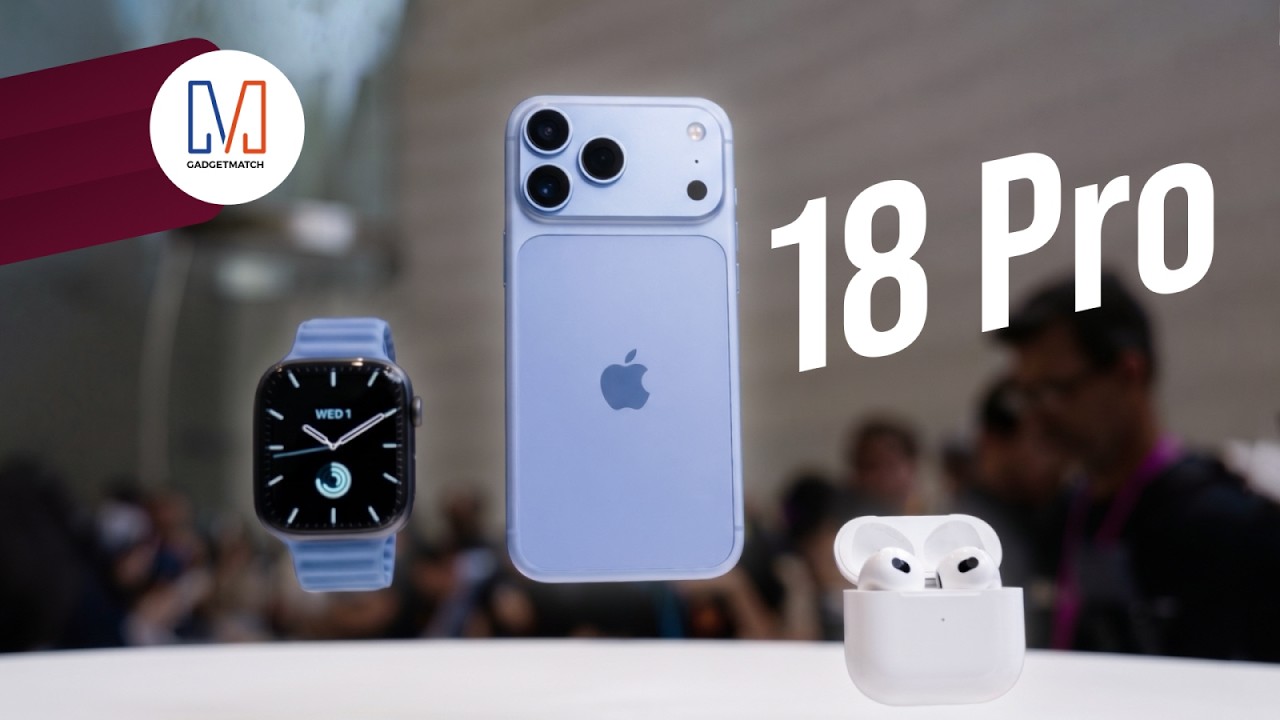
The latest Apple event isn’t just about the shiny new Apple Duo. There’s a lot to talk about!
In this video, we break down everything Apple has announced during their September 2026 keynote.
First, there’s the updated iPhone 18 Pro and 18 Pro Max. That’s alongside their design and color changes, battery and performance improvements. Even that massive camera upgrade.
There’s even the ANC-infused AirPods 5 alongside the newer Apple Watch Series 12 and Apple Watch Ultra 4. Plus, the latest software updates coming to both these wearables.
So, are these worth the upgrade?
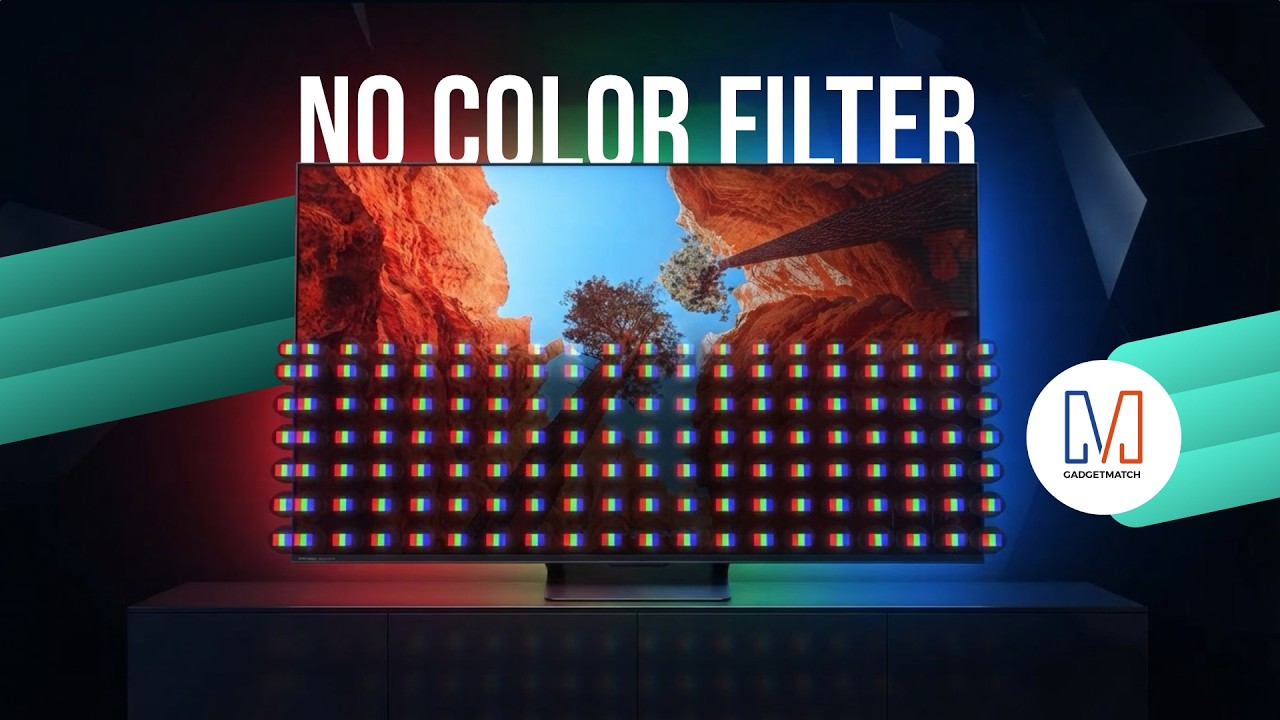
TV technology is changing in a way you can’t see. And it starts with how color itself is made.
Hisense’s new RGB MiniLED technology could change the way we see TVs.
Here’s our spotlight on their latest Hisense UR8 offering.
Check out the Hisense UR8 TV: https://bit.ly/4cxo6xl
Features
How did new CEO John Ternus do for his first Apple event?
Is a new golden age coming for Apple?


For a brief moment, I thought Tim Cook was refusing to step down as Apple’s CEO.
Apple’s “Surprise and shine” event, which heralded the coming of the foldable iPhone Duo, started bombastically with a montage of cinematic moments spanning different genres. The main point was: “what’s the best way to start an opening scene?”
After what felt like an age, the all-too-familiar voice of Tim Cook came on, perhaps for the very last time. But rather than overstaying his exit as the former CEO, he describes that the perfect opener should be classic, as a car that is, quite symbolically, riding off into the sunset. He then explains that he’s not the main character anymore.
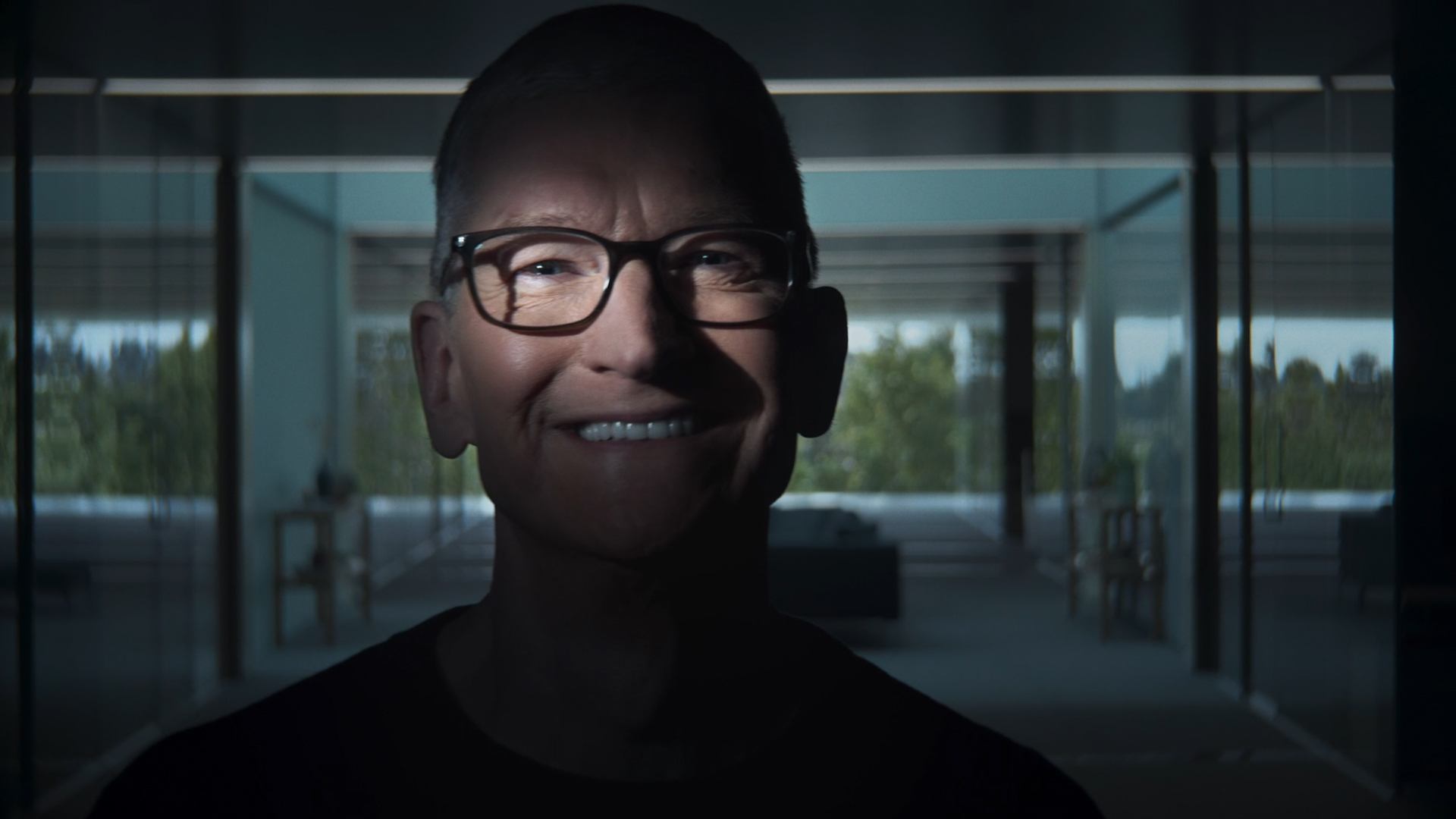
Last shot of Tim Cook at the Surprise and Shine event
“That’s your guy,” he said, before pointing to John Ternus, who steps into frame without an introduction or even a name card. It’s hard to image that this guy is the new face of Apple.
It’s the perfect end to Tim Cook’s tenure and as perfect a start for John Ternus’s.
Moving from an age of crisis to a golden age
After a decade and a half of being the face of the brand, Tim Cook stepped down from his tenure as CEO. He leaves the company in a much better state than when he took over. Thanks to him, the iPhone is now a household item. It’s a ubiquitous phone that draws millions of fans every time a new one comes out every year.
But his tenure didn’t start on a bed of roses. When he took over in 2011, it was in response to Steve Jobs’s failing health, who passed away soon after. He inherited a company constantly threatened by competitors trying to eat into Apple’s slice of the pie.
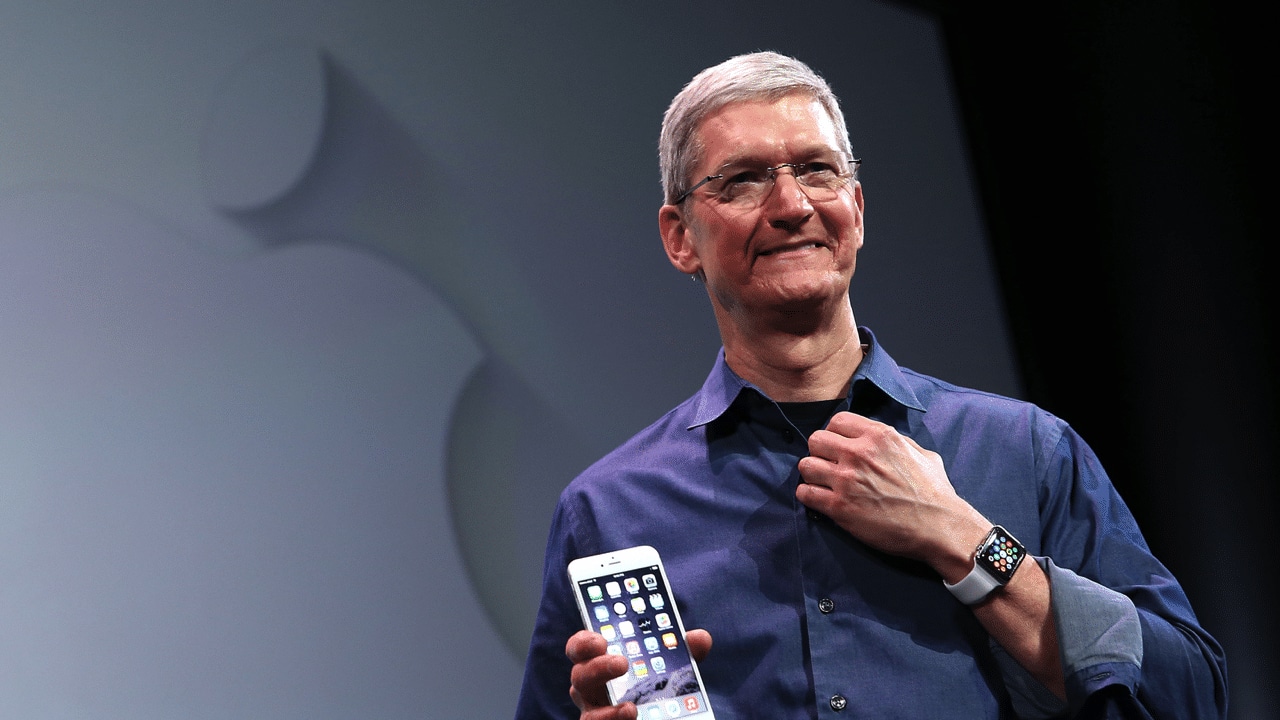
Indeed, Cook’s tenure was peppered with crises. He had to navigate Trump’s first reign, destructive as it was towards relationships in China. He had to figure out survival during the tempestuous pandemic years. Finally, he had to carefully build a strategy for the dawn of AI.
Cook is, first and foremost, a businessman. While the Jobs era was typified by innovation after innovation, Cook built upwards, turning Apple into a trillion-dollar company. Although we didn’t see a lot of new exciting segments introduced, the company built on what it was already good at, delivering a premium and refined experience.
John Ternus comes at an opportune time. Though the brand will always have a healthy share of diehard fans, Apple must now find the next big thing and rediscover the spice of years past.
A time for AI?
After his nonchalant introduction, Ternus immediately goes on the offensive and describes his vision for Apple Intelligence. Rather than dwell on NPUs, TOPS, and other metrics that a regular user can’t make heads or tails of, he described Apple Intelligence and Siri AI as a personal assistant. Usage versus performance, in other words.
If you’re an AI enthusiast, the renewed push towards Apple Intelligence should give you hope that the iPhone won’t just be a receptacle for other AI software. Rather, it’s building its own. Wherever the AI industry is going, Apple looks like it can keep up.
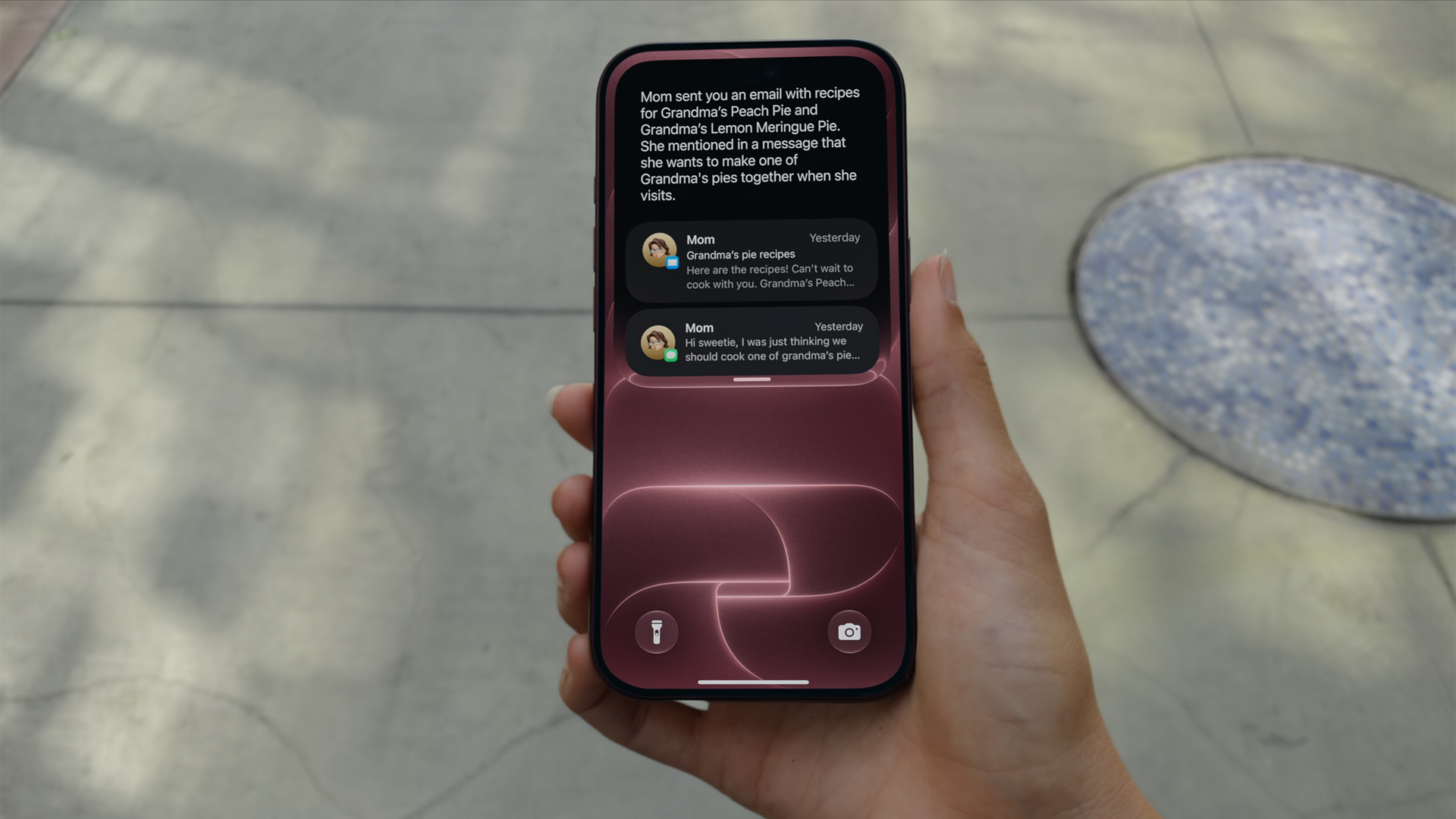
Now, if you don’t like AI at all, that’s fine, too. Ternus isn’t there just for the AI.
Unlike Jobs or Cook, Ternus comes from a strictly engineering background. In today’s world, hardware complements AI. The software must use NPUs after all. But, when the AI bubble finally pops, Ternus isn’t out of a job. In fact, if his track record is any indication, it’s just getting started.
Or a time for new hardware?
This year is absolutely monumental for Apple. Earlier this year, the company launched the MacBook Neo, its first budget-friendly notebook built for everyone. If you were looking to get into the MacBook lifestyle, now is the perfect time to buy in. A lot of users felt a subtle changing of the guard.
From there, you can feel Ternus’s influence already seeping in. And if it wasn’t obvious back then, it’s more than apparent now.
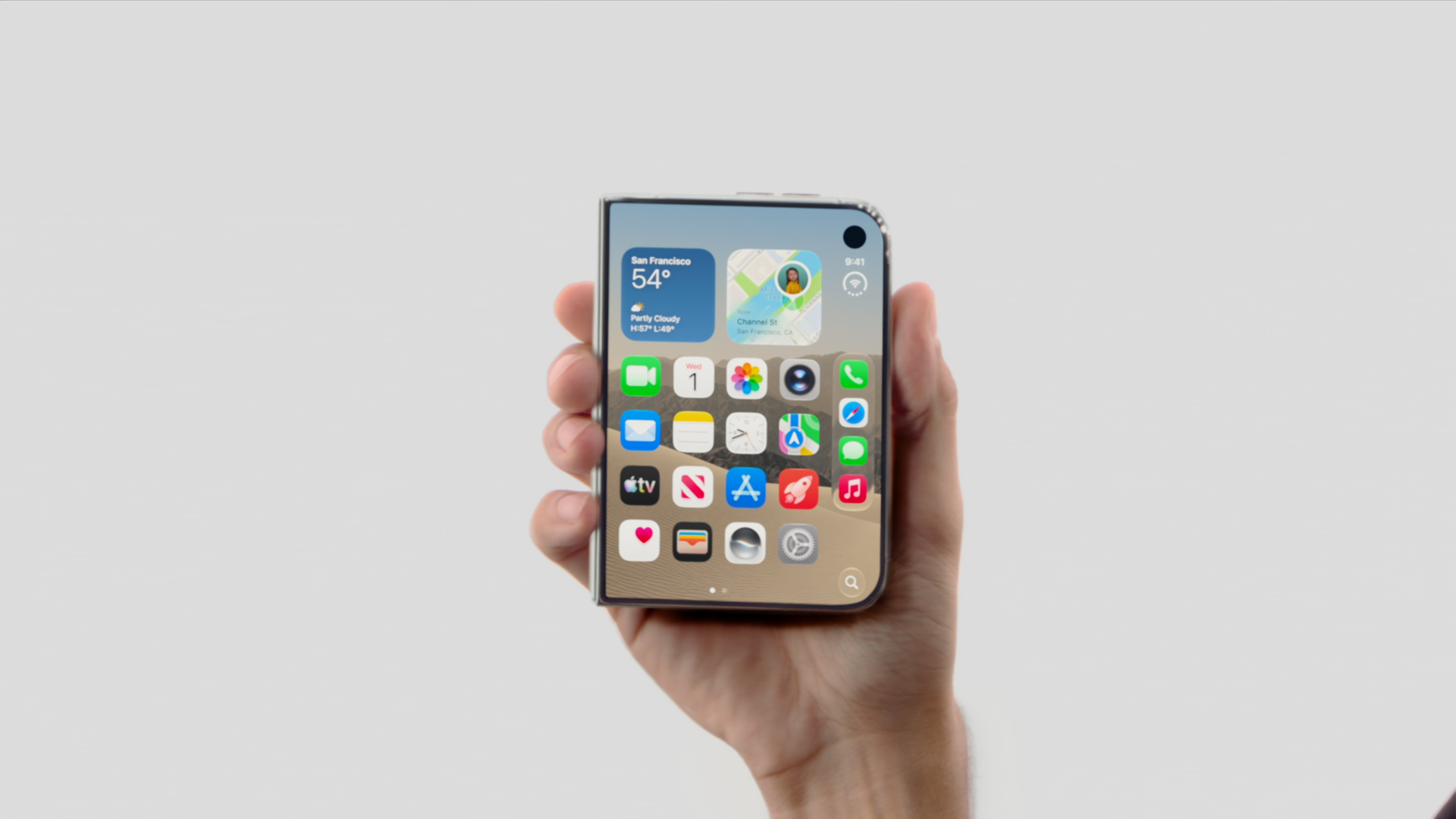
In his first ever “One More Thing,” Ternus started his tenure strong with the introduction of the iPhone Duo. Almost twelve hours since the phone’s announcement, I’ve never seen a more visceral reaction to the launch of a new iPhone.
Whereas most of their annual releases reveled in more incremental improvements that primarily tickled already dedicated fan, the iPhone Duo is something new. Everyone’s talking about it. It’s gotten so crazy that even Samsung, often more nonchalant with its prodding, openly attacked the foldable after teasing the brand to go foldable last year.
Though it’s technically not a new segment, the iPhone Duo is patching up the mistakes of past foldables. Rather than just pasting two screens together, Apple’s take feels like a unified whole, emphasized by an interface that seamlessly changes from folded to unfolded.
Where Tim Cook failed to illicit more than a modest ripple with the Vision Pro, Ternus flew to new heights with the iPhone Duo’s announcement. And the phone isn’t even out yet.
Now, there’s still a chance that the Duo won’t be a hit with sales, especially because of the price. But this is still a strong opener for Ternus.
Who is the main character?
“That’s your guy,” Tim Cook pointed.
I don’t think he was pointing in the right direction. Though the camera cut to Ternus himself, his first outing clearly states that the main character is no longer whoever is handling the reins. His decision to skip an official introduction feels intentional. The main character, after all, is the hardware itself: the iPhone 18 Pro, the iPhone Duo.
The entire event started with a bold declaration that everything was shot with an iPhone. It ended, in fact, with the same declaration. Channeling their inner Marshall McLuhan, Ternus’s Apple wants you to believe in the iPhone again.
Even as someone who doesn’t use Apple products mainly, I’m stoked to see what the new era will bring to the table. This is an exciting time for Apple. We might be in the first year of a new golden age.


Marvel’s Wolverine review: When the claws come out
A brutal, cinematic superhero adventure

Setting your bedsheets ablaze with the Lovense Solace Pro
The closest proxy I could find where I'm guilty as sin


Now Playing: Elden Ring Tarnished Edition
Is the Switch 2 port worth the price?

BlizzCon 2026 announces World of Warcraft: Forever and Diablo V

Apple iPhone 18 Pro Series Hands-on

Spotlight: Hisense UR8 + RGB MiniLED Explained

First Look: Apple iPhone Duo

Xbox saves Kojima’s PHYSINT after PlayStation drops support

TECNO MEGAPAD 2 review: Eyes on the size

realme 16T 5G with 8000mAh battery, IP69 Pro rating launches in PH

HUAWEI Pura X View is 2026’s first WIDE slab-type smartphone

REDMI reveals the refreshed Note 17 and Note 17 Pro series

REDMI Note 17 Series focuses on long-term reliability


-
 News7 days ago
HUAWEI Pura X View is 2026’s first WIDE slab-type smartphone
-

 News7 days ago
The CAMON Slim 5G is TECNO’s latest ultra-slim smartphone
-
 Cameras2 weeks ago
DJI Osmo 360 II review: Going all-in on the ecosystem
-
 IFA 20262 weeks ago
TECNO MEGABOOK T15 360 unveiled at IFA 2026
-

 Gaming1 week ago
NBA 2K27 review: A two-way All-Star
-
 Reviews2 weeks ago
Samsung Galaxy Z Fold8 Ultra review: It’s time to get a foldable
-
 News4 days ago
iPhone 18 Pro series: Price, availability in the Philippines
-

 IFA 20261 week ago
TECNO’s POVA 8 Pro gets a stealthy makeover