

Features
How to use your smartphone camera’s Pro Mode
Taking your photography skills to the next level

I wasn’t blessed with a powerful camera to take high-quality pictures of people and places. It’s not just because standalone cameras are expensive, but also because some of them are pretty bulky. If I’m going out of town with my friends while packing light, the next best thing I have is a smartphone.
Within the past two years, there have been a long list of Android smartphones that sport at least two rear cameras that allow you to maximize the quality of your photos. One key feature that they possess is Pro Mode, complete with adjustable settings to achieve that quality and depth. I’m going to show you how you can use Pro Mode to take your photography game to the next level.
1. Understand the interface
You can access Pro Mode by opening your phone’s default Camera app and going through the list of modes available. Once you have selected Pro Mode, you will be greeted by a screen with several adjustable settings.
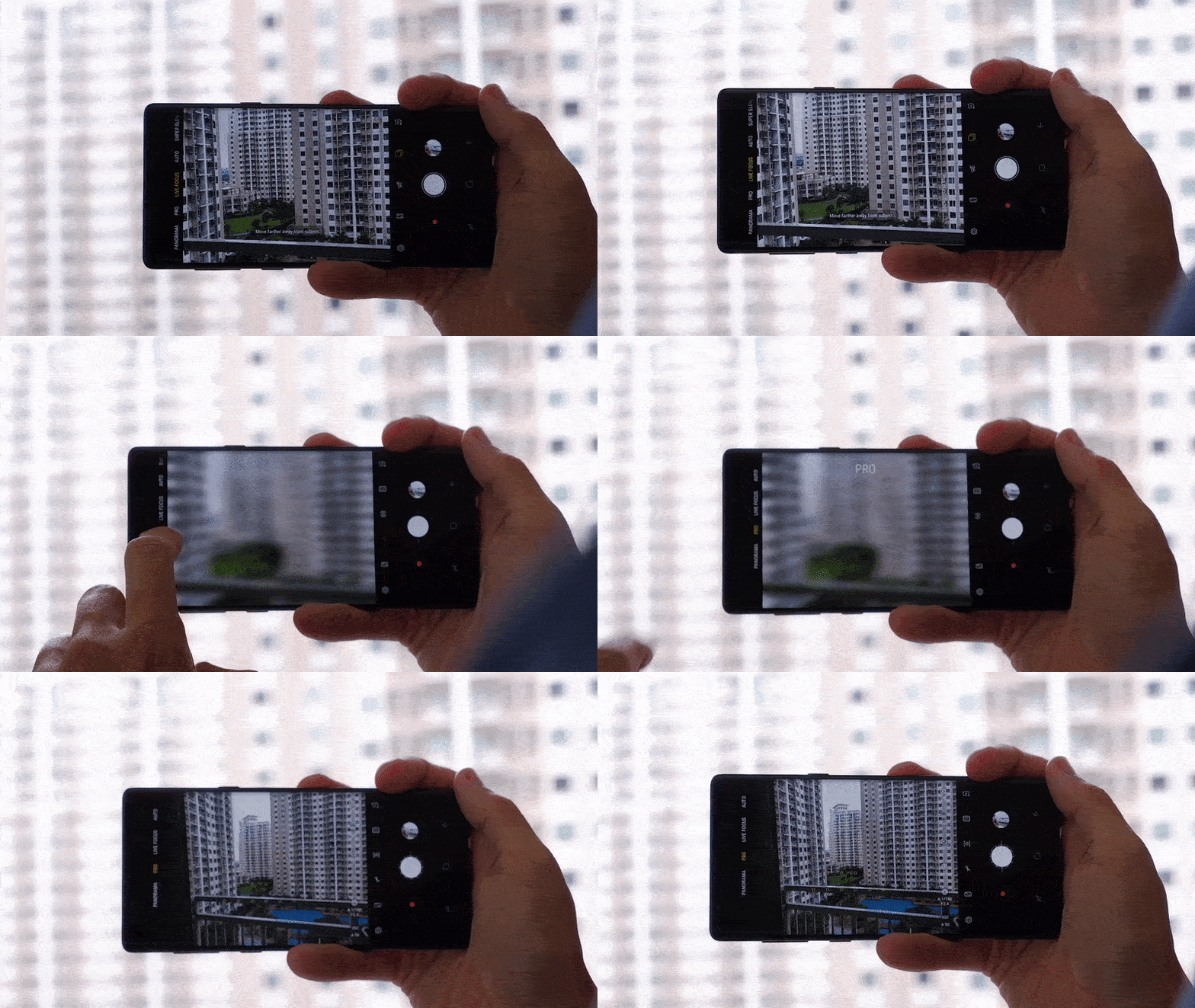
The different settings on the interface include: metering mode, ISO, shutter speed, exposure levels, white balance, and focus. Adjusting these settings is crucial if you want to take photos of any scene, day or night. Another feature on the interface is the horizontal level meter that helps you take steadier images — for people with shaky hands like mine.
In Pro Mode, you have the option to save your images in RAW files for post processing through photo-editing apps like Adobe Lightroom. You can also choose to disable this feature through the camera’s settings while in Pro Mode to save space.
2. Start with your metering
After you have understood how the interface works, it’s time to dive deeper into preparing the photo you want to take. The first setting you should pay attention to is the metering of the image. Metering ultimately determines how your picture will look given the amount of light that the camera detects.

If you want to take a picture of a whole scene, stick with the default Matrix Metering setting. Matrix Metering allows your camera to use the whole scene, and collects data on the highlights and shadows in them. It uses this data to determine how much light is emphasized on the image. Matrix Metering typically works in any scene.
But, let’s say you want to narrow down your subject when you take pictures. There are two other metering modes for you to choose from. One mode is Center Metering, which puts greater focus on the subject as long as it’s in the center of the frame. Another is Spot Metering, which allows you to focus on any specific object within the frame.
3. Adjust all other settings accordingly
Once you have your metering mode set, you can now proceed to tweaking all the other settings to suit your needs. Keep in mind that whatever metering you choose, all these settings are set to Auto, and will display values depending on the environment.
Here are things to keep in mind when adjusting these settings:
If you want brighter images, especially when taking them in the dark, increase your ISO setting. Broad daylight shots, meanwhile often require low ISO values because of natural sunlight. If you want to capture fast moving objects properly, adjust your shutter setting to how fast (freeze motion) or slow (motion blur) you want it.

If you still think that certain parts of the image should stand out (like the beach in the background), adjust the exposure value (EV) to offset the brightness (positive EV) or darkness (negative EV) of the image. Depending also on the environment, it is also good to consider changing the white balance settings for a warmer or cooler tone.
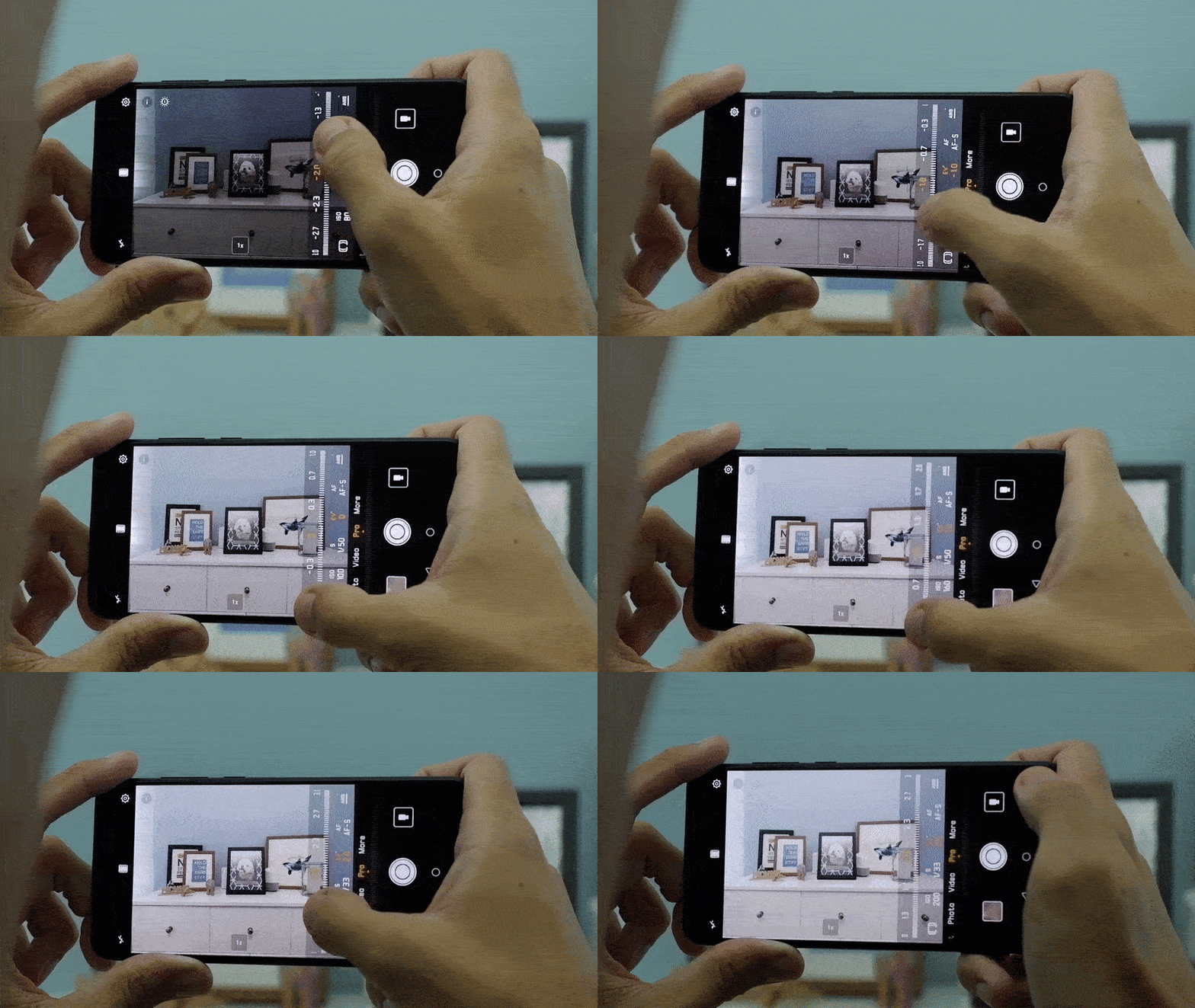
For the focus settings, you can use the default One Shot Autofocus for quick still photos of objects. If you want to take photos of moving objects, it’s best to use the Continuous Autofocus setting. Of course, there is a Manual Focus option if you want to take full control of the camera’s focus points.
Once you have all that down, go ahead and take your wonderful photo! For comparison, take the same photo with Pro Mode turned off and see what you get there.






Features
This is the history of basketball videogames since the ’73 Knicks
Did you know that the first basketball videogame was invented in 1973?

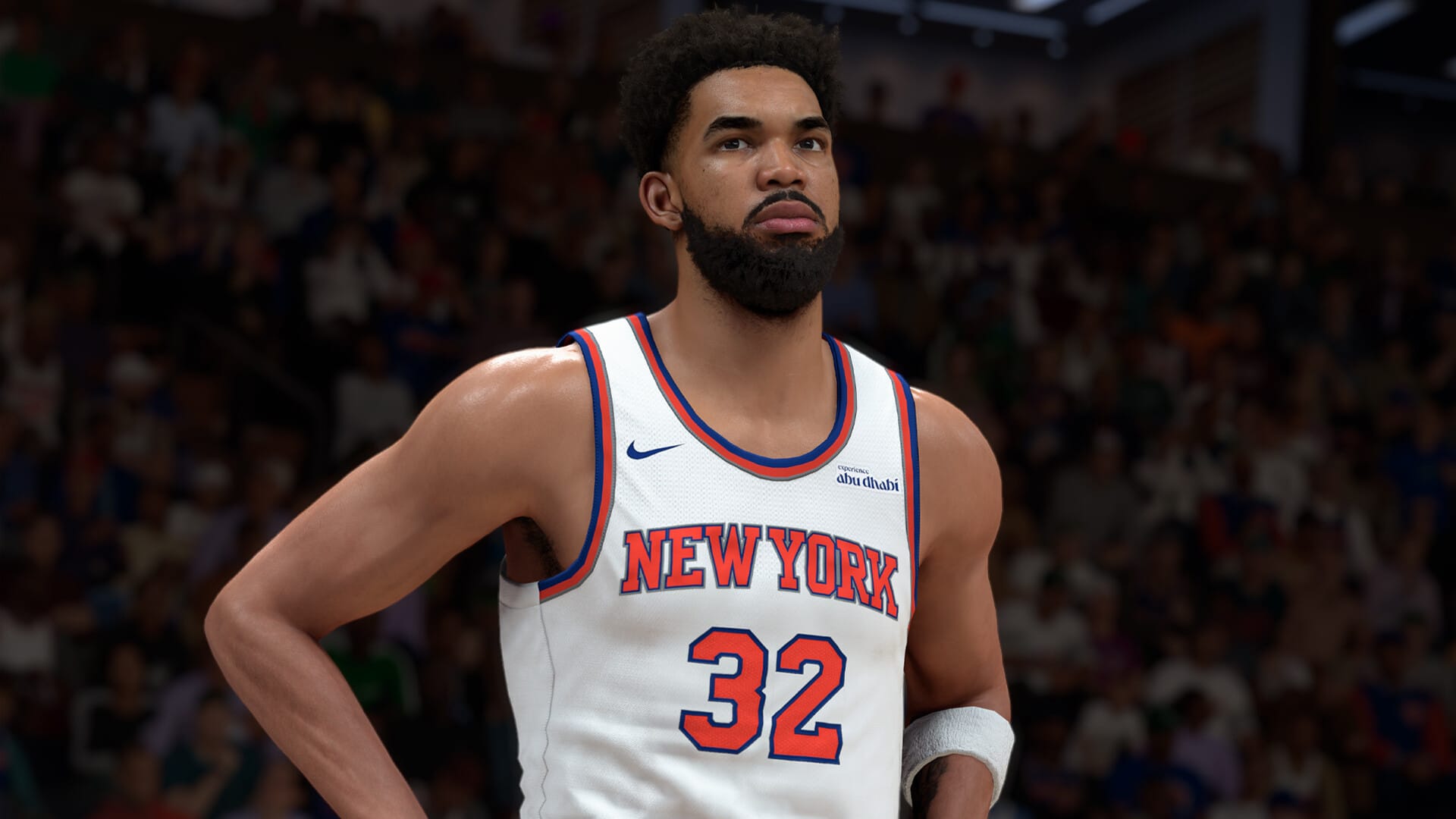
Knicks fans, rejoice; your long, long wait is finally over! The New York Knicks are once again the NBA Champions. As you’ve probably heard so many times by now, the last time that New York’s own was on top of the basketball pyramid was in 1973, 53 years ago.
Here’s a fun fact that you might not know, though: The last Knicks championship is tied to the history of the basketball in videogames. Did you know that the very first basketball video game was invented in 1973, the exact same year that the Knicks won their last championship?
But, of course, a lot of things have happened since then, and a lot of videogames have come and gone. Here are the most notable basketball games you might have played (or missed playing) in history:
NBA 2K
It would be pointless to start a list of basketball games without stating the obvious first. The NBA 2K series is the quintessential hooper sim today. When you think of the sport in videogames today, you can’t spend two seconds without thinking of the long-running franchise.
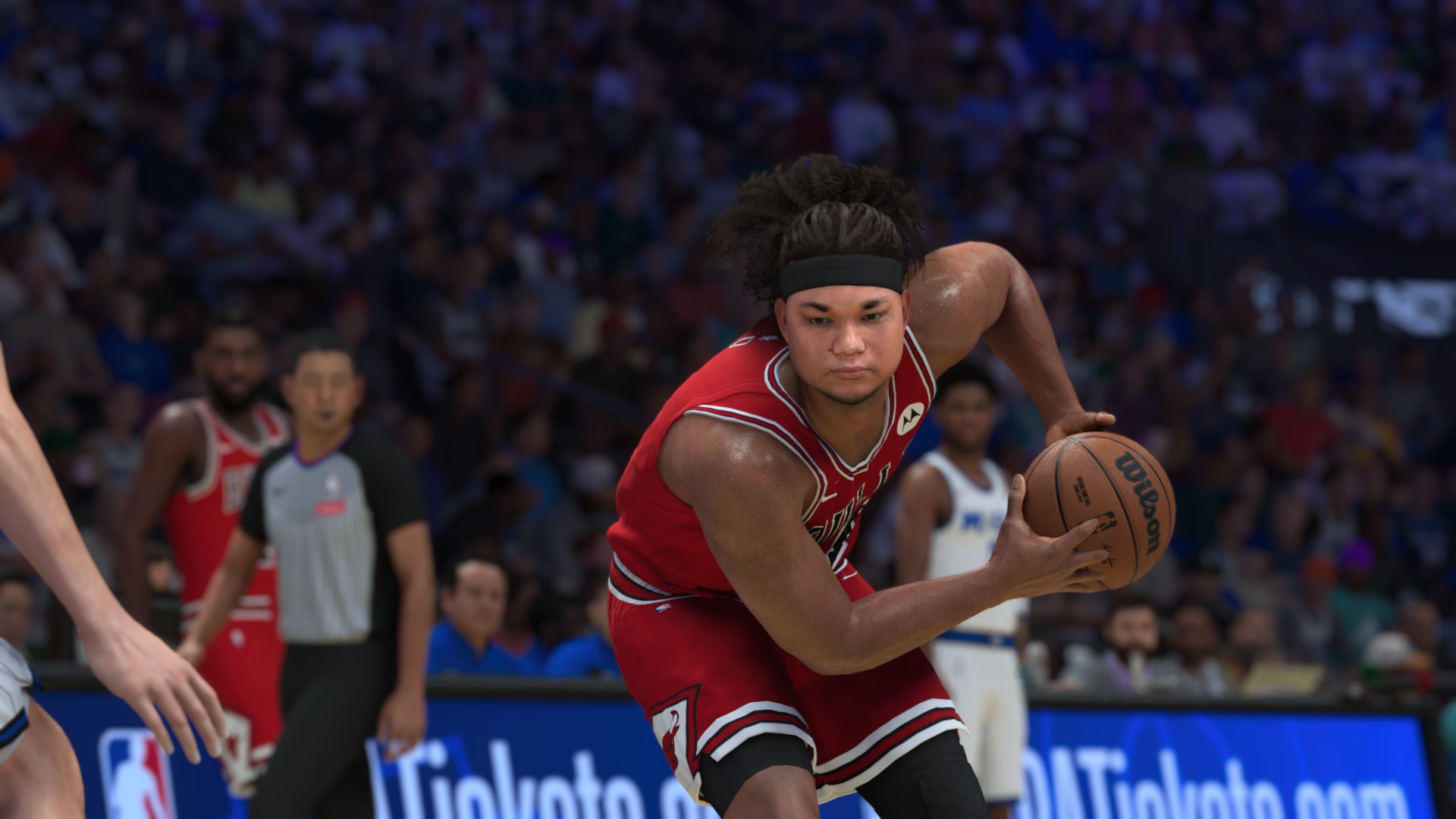
Now an annually releasing series, NBA 2K started in 1999 for the Sega Dreamcast. At the time, it was just another drop in a sea of ‘90s basketball games. Now, it’s an institution with constantly updating graphics and mechanics.
NBA Live
Around the time that NBA 2K first started, NBA Live was the king of the jungle. Up until 2018, it was another annually releasing series going alongside (and against) the behemoth known as 2K.
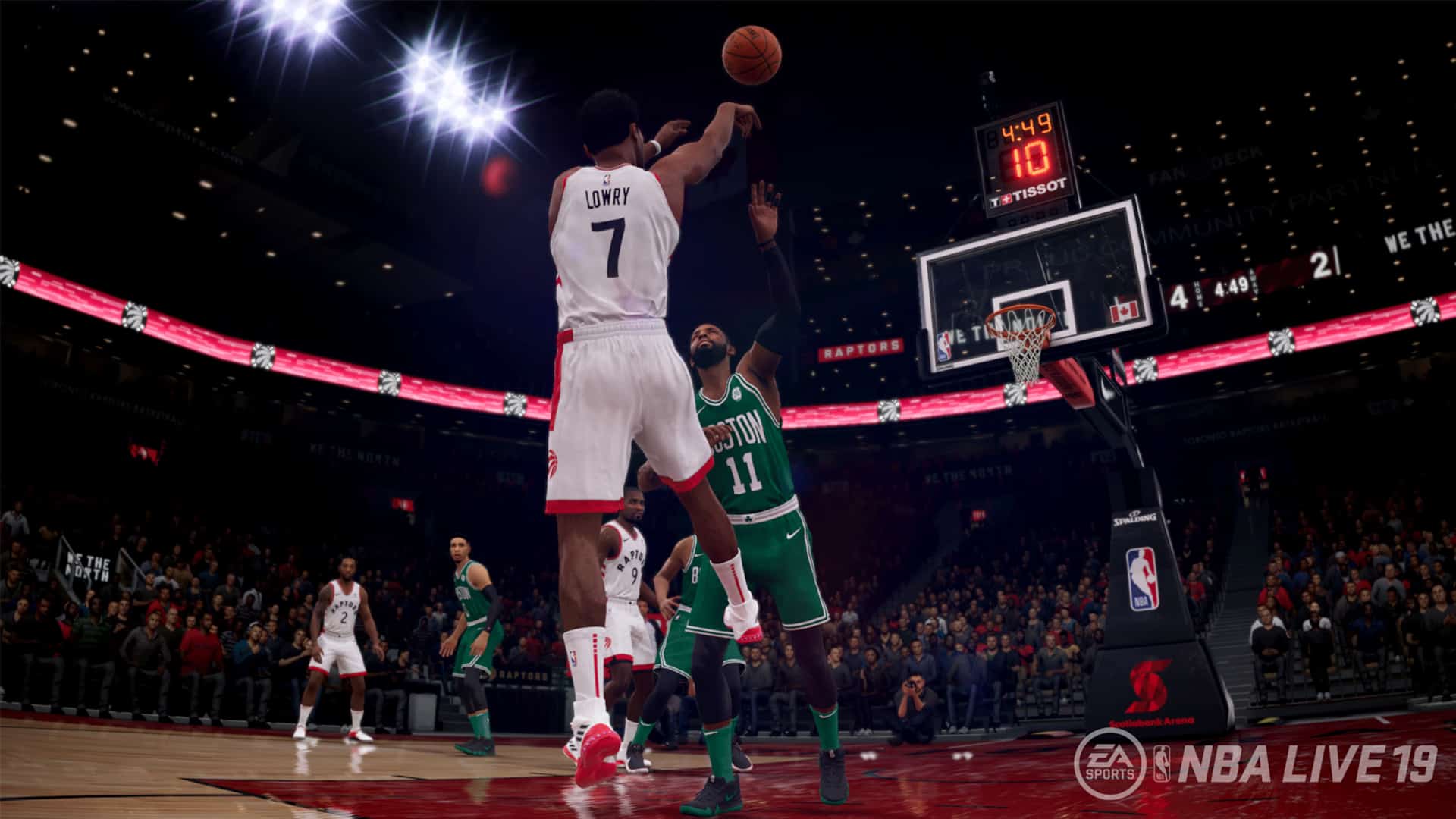
But it’s had a storied history as well. It started off as the NBA Playoffs series. The first one, 1989’s Lakers versus Celtics and the NBA Playoffs, featured eight teams who were part of that year’s playoffs. This went on until 1993 when it evolved into NBA Showdown, one of the first games to feature every NBA team. In 1994, Showdown reinvented itself once again into NBA Live and turned into an annual series before its unfortunate cancellation in 2018.
NBA Street
If sports simulators aren’t your thing, NBA Street is an arcade-style series that has ups the fun with trick shots and streetball rules. It features three-on-three hooping with 29 teams and 5 players from each. Whereas NBA 2K and NBA Live helped gamers live out their dreams to become an NBA superstar, NBA Street was one for the gamers who just wanted a fun time.

The series spawned a few sequels since 2001 but eventually met its end in 2007. Now, however, you can continue the legacy in the recently launched NBA the Run, a spiritual successor created by developers of the original NBA Street games.
NBA Jam
“Boomshakalaka! He’s on fire!”
Even if you’ve never played NBA Jam before, you’ve probably heard its most iconic catchphrase. NBA Jam was so influential that it’s considered one of the most important games of the SNES and the arcade cabinet generation.
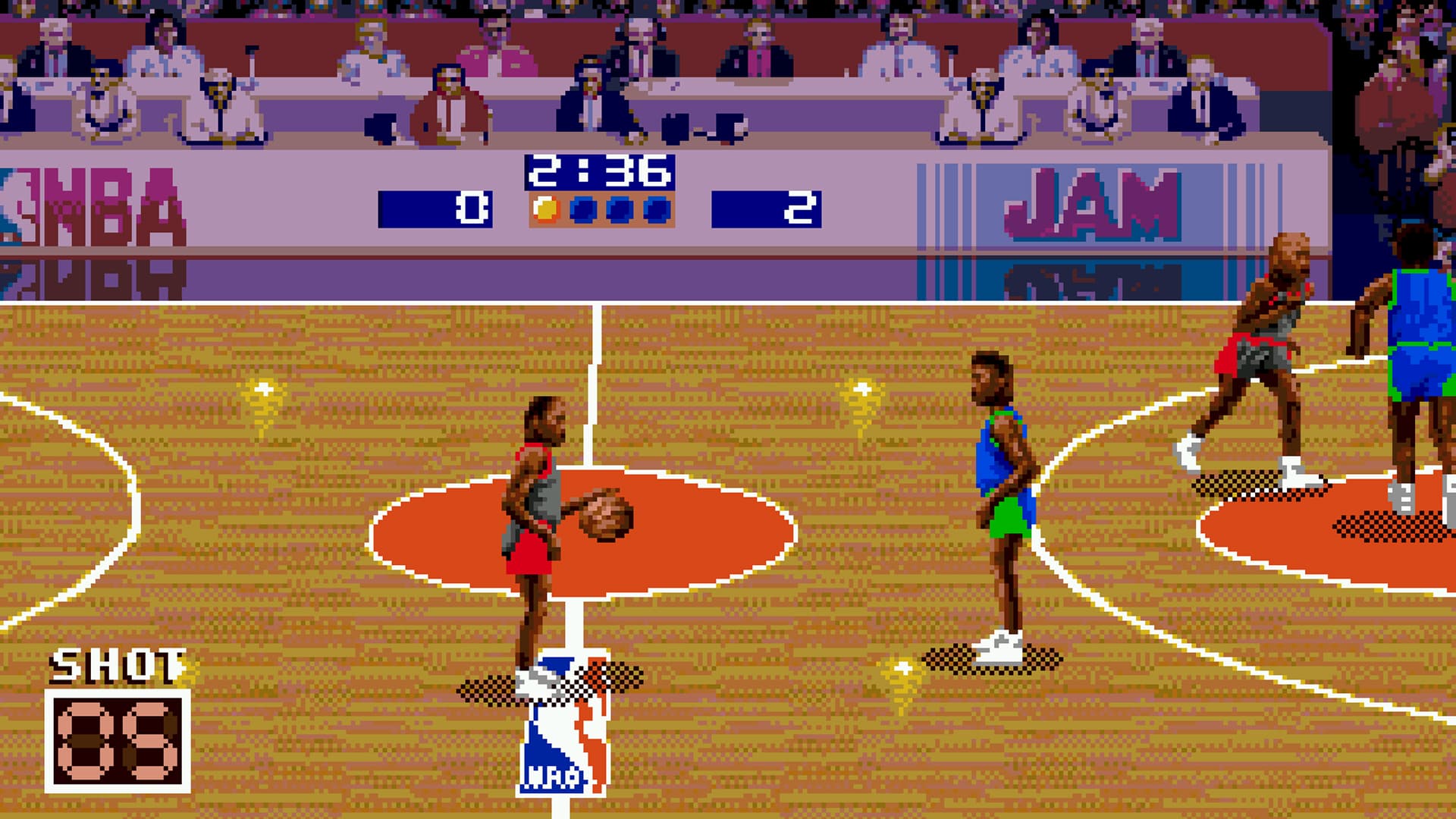
Besides impressive graphics for its time, it was a spectacle. Because it had no fouling system, you can physically bully people out of your way. You can catch fire if you’re too good at shooting, hence the “he’s on fire” line. You can jump to gravity-defying heights to make a dunk. Plus, the game features so many fun Easter eggs, including one that turns you into a literal tank on the court.
Double Dribble
Technically a sequel to Konami’s Super Basketball, 1986’s Double Dribble was a fairly straightforward simulator that attempted to feature realistic gameplay in a very two-dimensional time. For its time, the game was remarkable because it featured highly detailed animations for fancy moves like slam dunks.

However, the game came out before the rise of the NBA’s massive popularity in media. It doesn’t have a license to feature actual teams or players. Then again, haven’t you heard of the Boston Frogs or the New York Eagles?
One on One: Dr. J vs. Larry Bird
Contrasted to the above’s five-versus-five or three-versus-three formats, 1983’s One on One featured, as the title says, a mano-a-mano duel between Julius Erving and Larry Bird. With an isometric half-court layout, either player takes turns dunking or shooting over the other.

While one-versus-one modes are available in today’s games, One on One let players live out their fantasies as two of the biggest basketball stars at the time. It even let you shatter the backboard Though the game isn’t much of a talking point nowadays, it was so popular for its time that it helped establish Electronic Arts as a household name in gaming.
Atari’s Basketball
As the father of modern basketball games, 1978’s Basketball, built for the Atari, was the first game to feature the full-court format so popular today. Like One on One, Basketball features only two players. The game was so rudimentary that the two hoops were represented with two sticks, and the two players were different colored blobs.
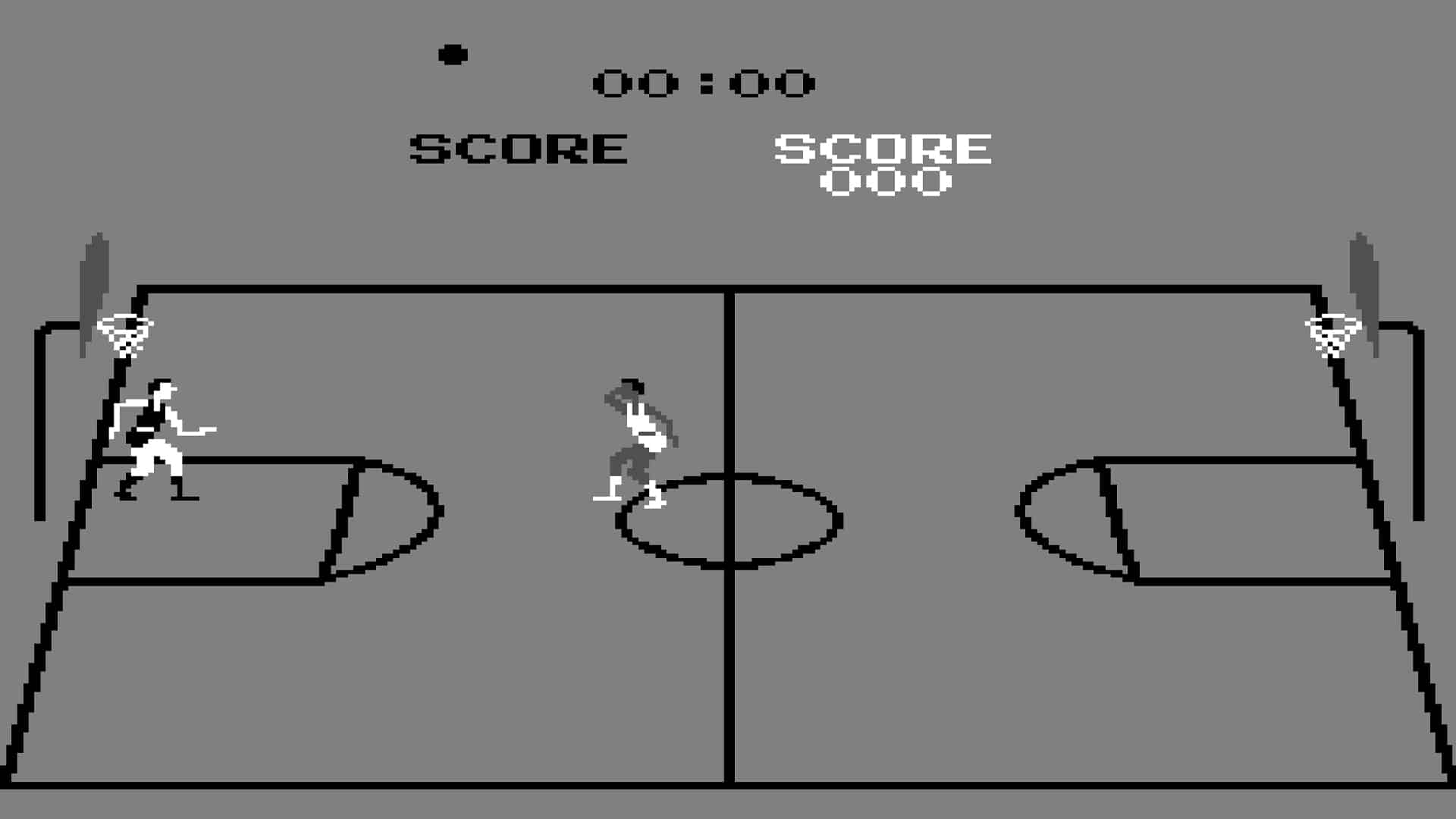
However, in 1979, Atari released an updated version with detailed graphics. It was also controlled with a trackball, the first of its kind to do so. Though it didn’t have named superstars or teams, it’s clearly the predecessor of the games we all know and love.
Basketball!
And now, we’ve come to the beginning. Released on 1973, Basketball! is officially the first basketball video game in history. Since it’s on the Magnavox Odyssey, the very first home gaming console, that comes as no surprise.
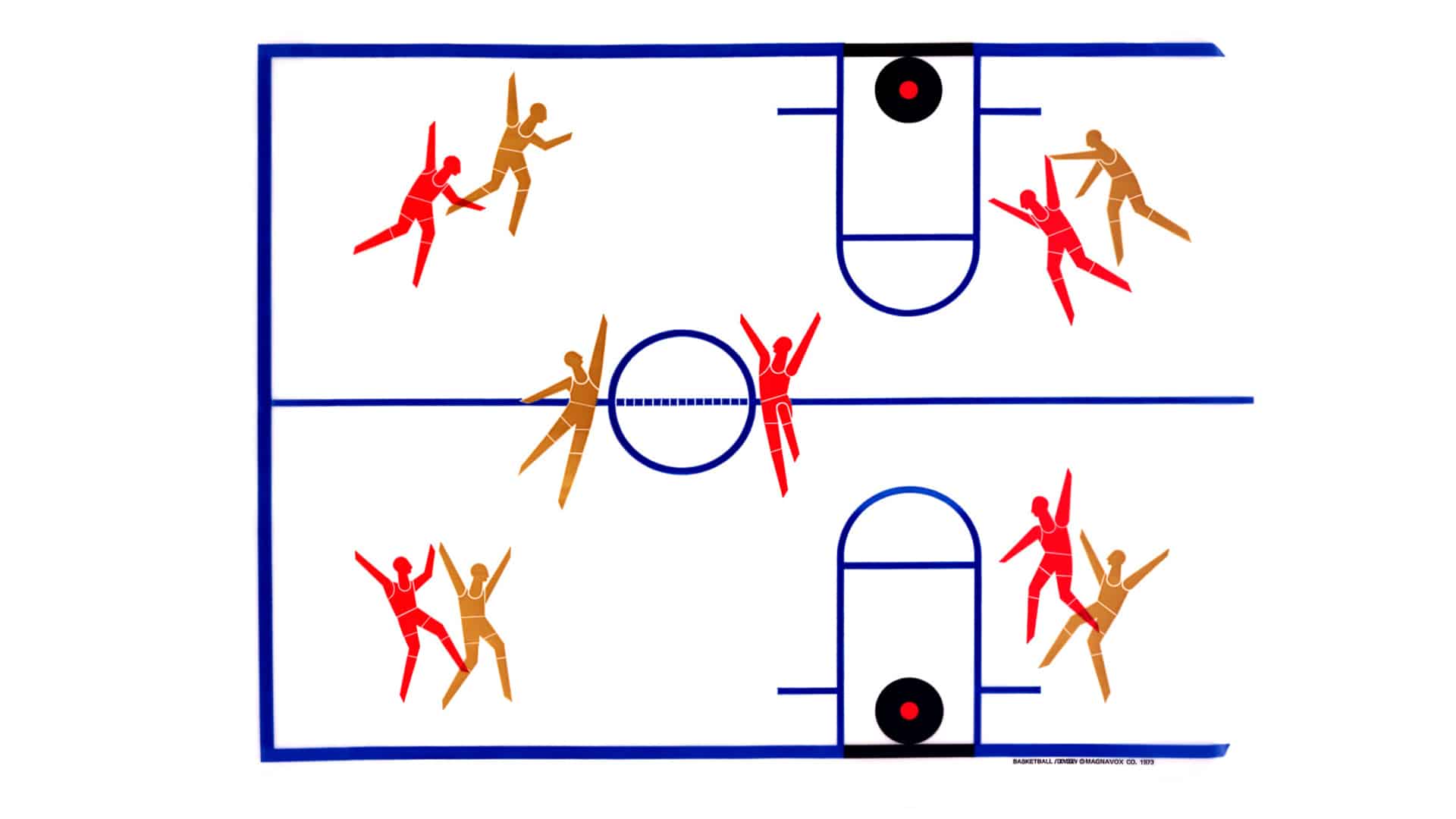
Like Pong, which also found a home in the Magnavox Odyssey, Basketball! features two square dots (the players) bouncing a smaller dot (the ball) into two “hoops” on both sides of a court. The game had a static image laid over the dots to simulate an ongoing basketball game. It was so basic that it didn’t even have a computing system for point. Players had to manually tally scores on their own based on where the small dot lands.
If it’s hard for you to imagine just how long today’s Knicks fans have waited for a championship, this was the state of gaming when they got their last ring.
SEE ALSO: NBA 2K26 review: Pick and pop maestro


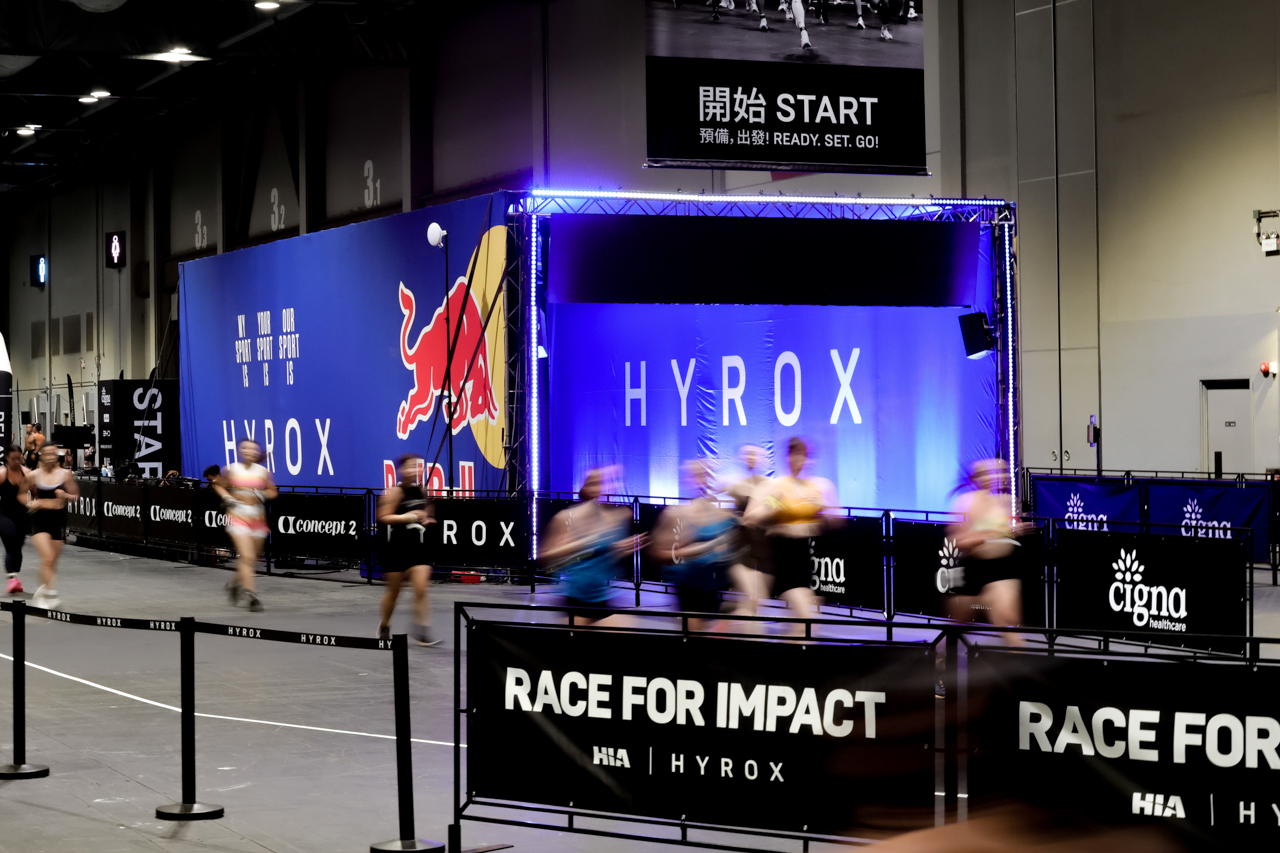
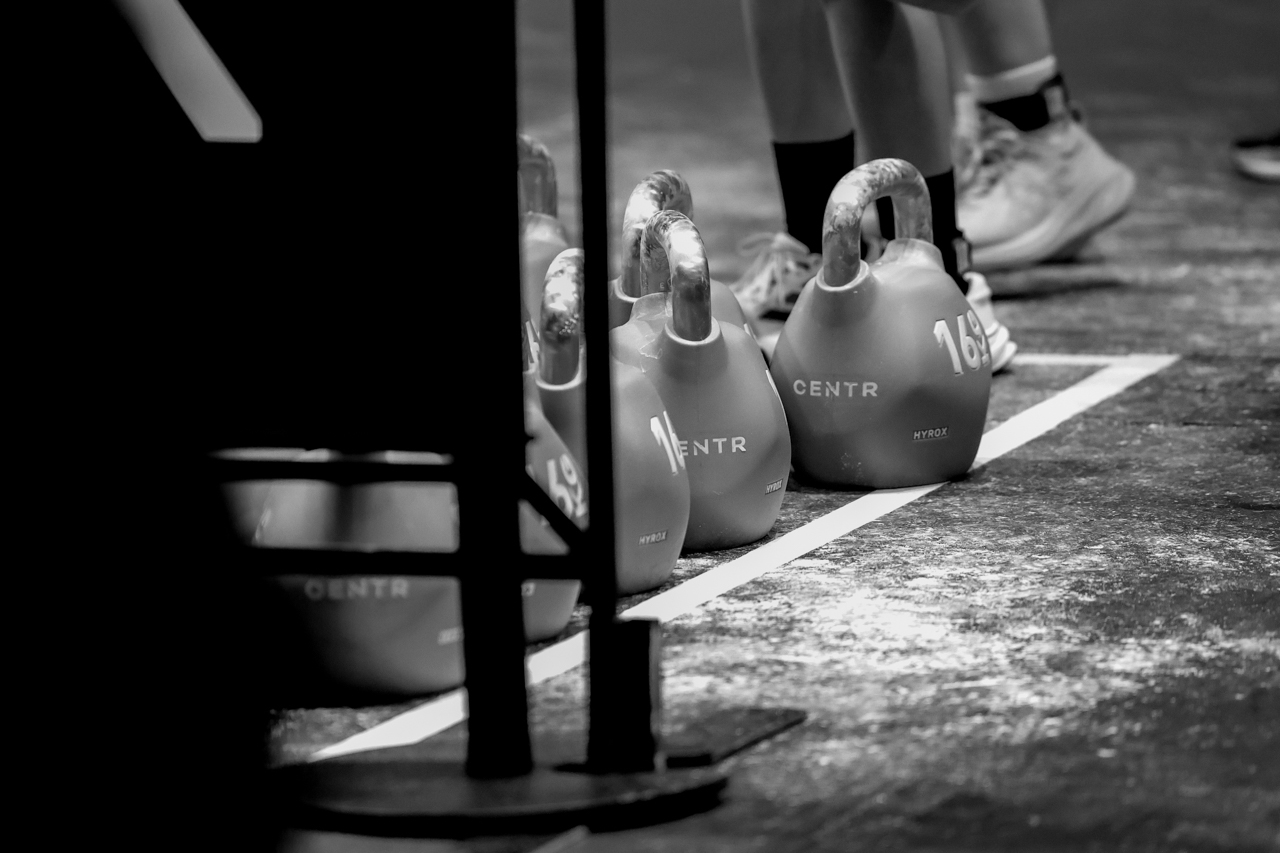
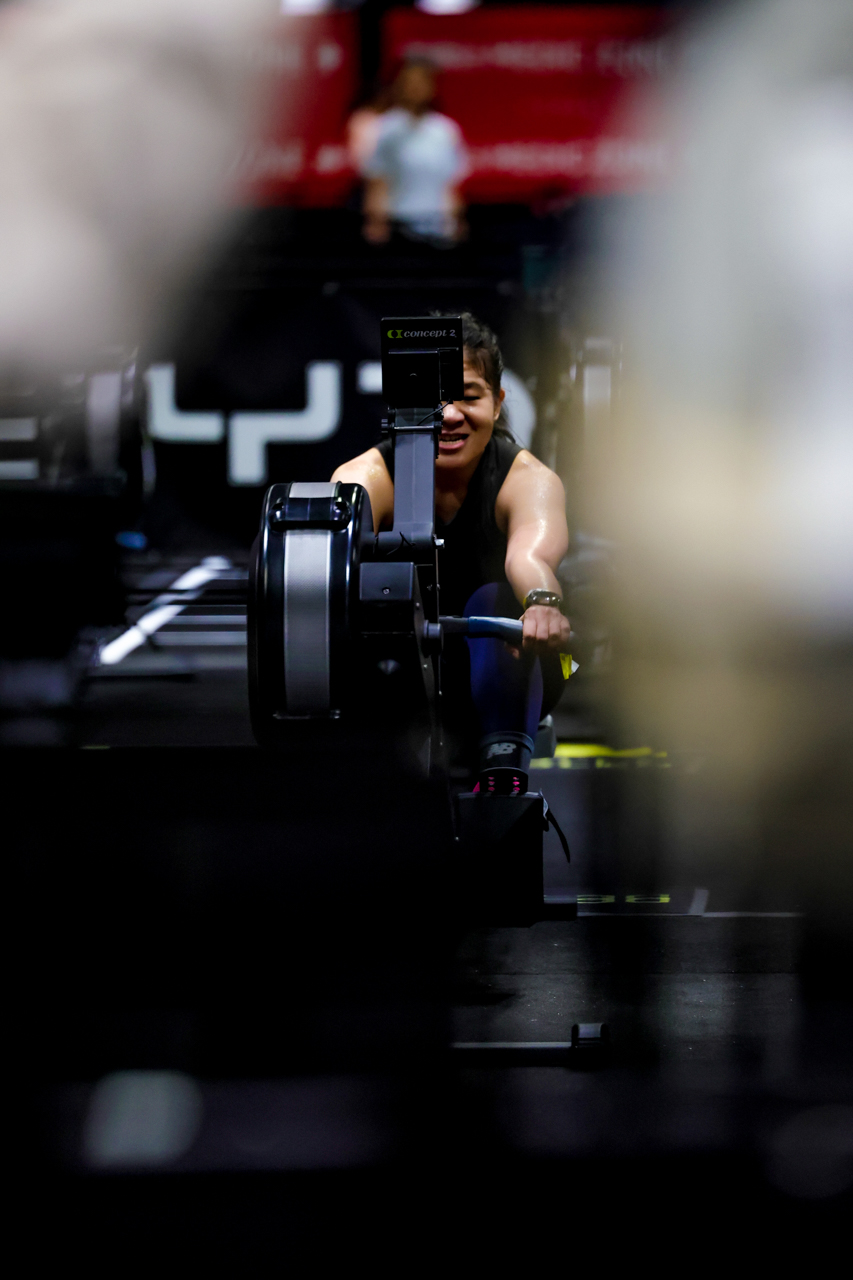
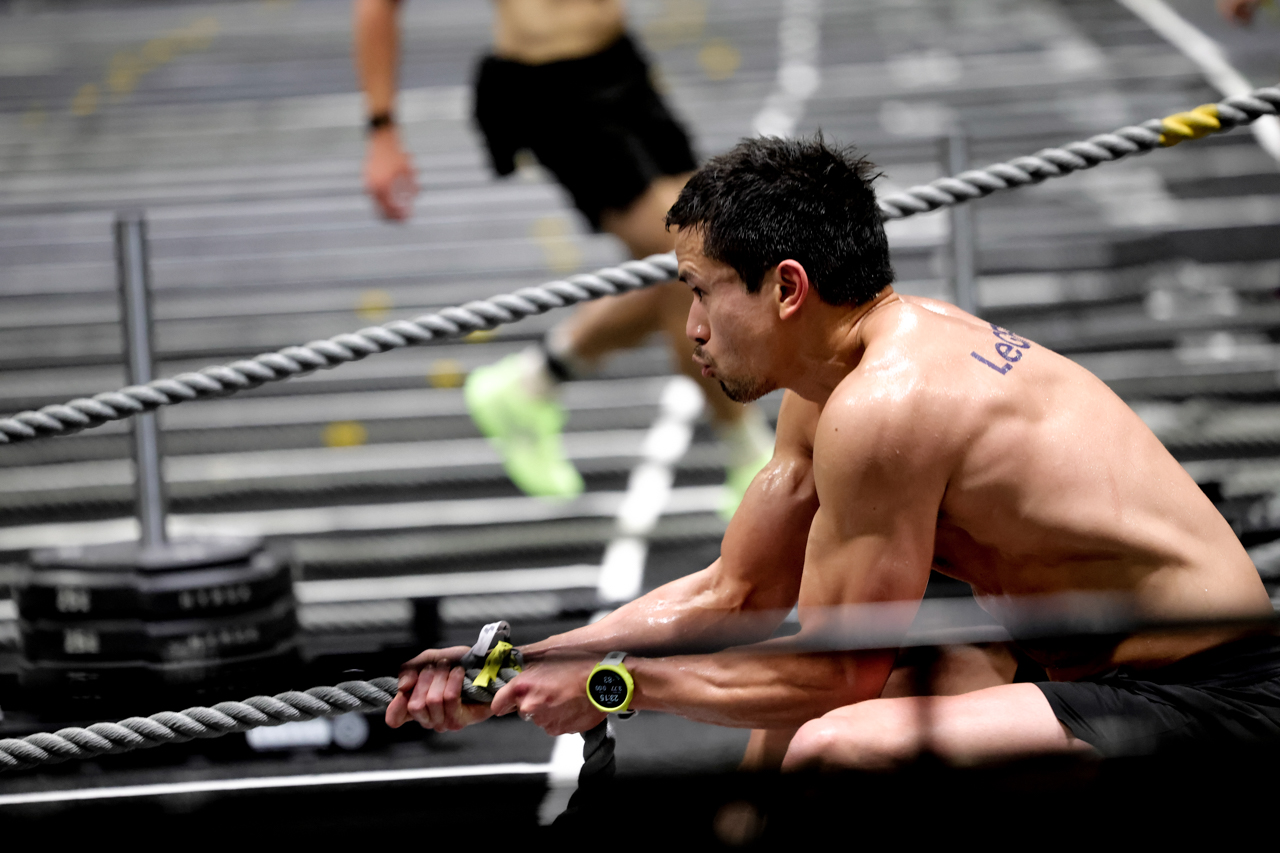
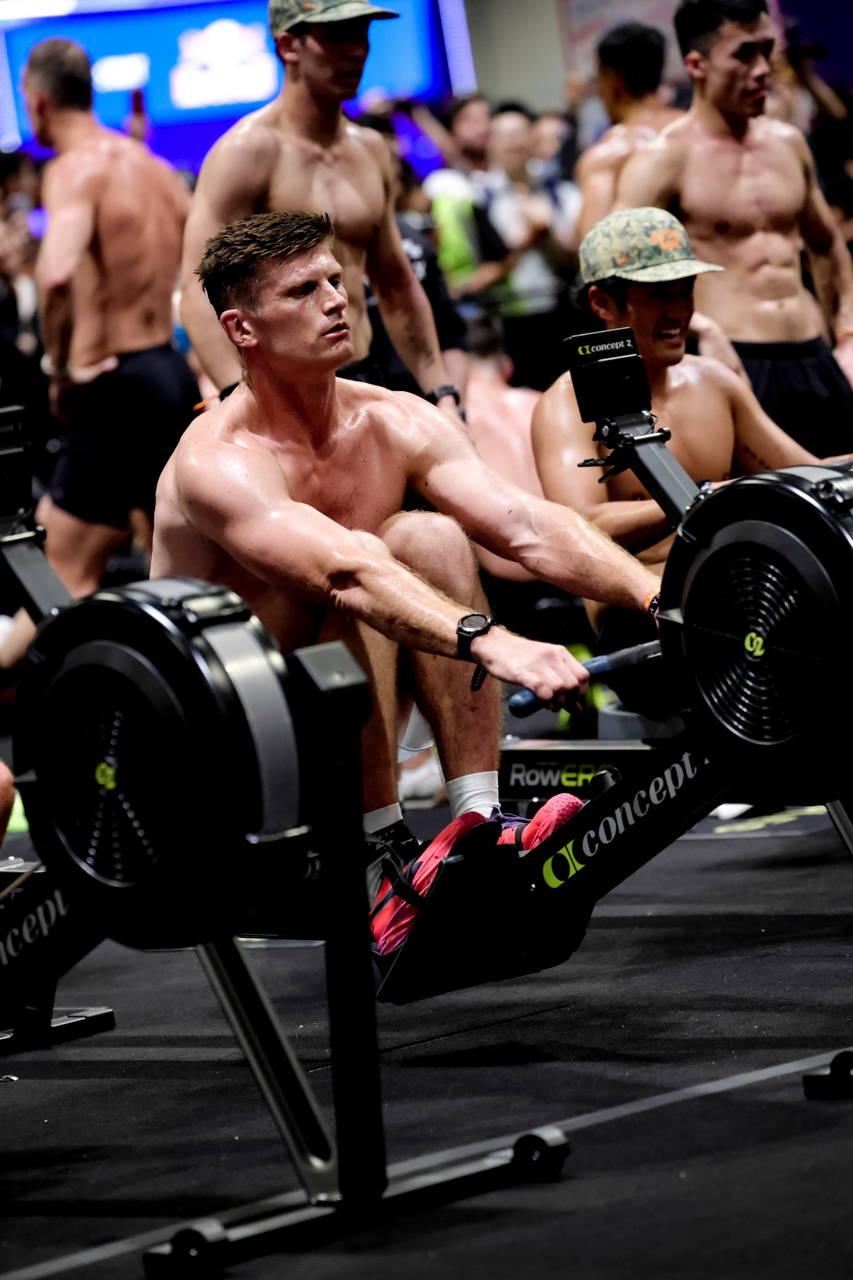
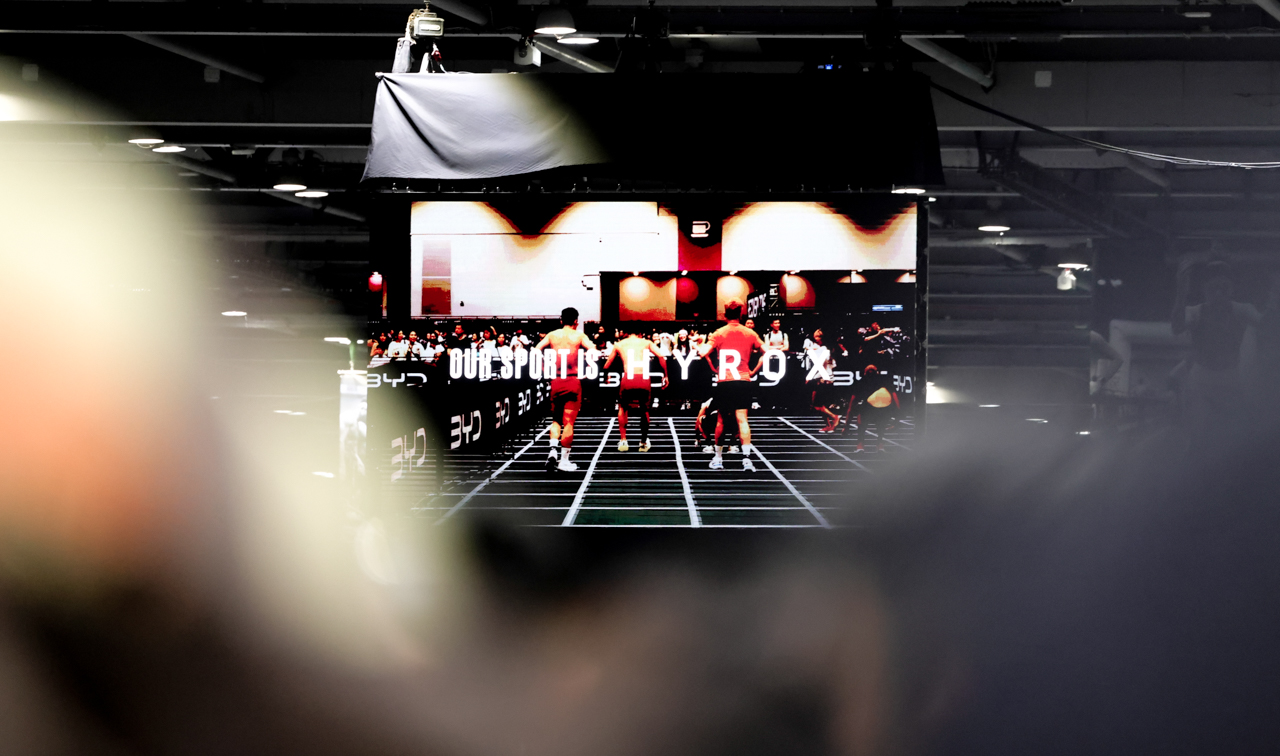
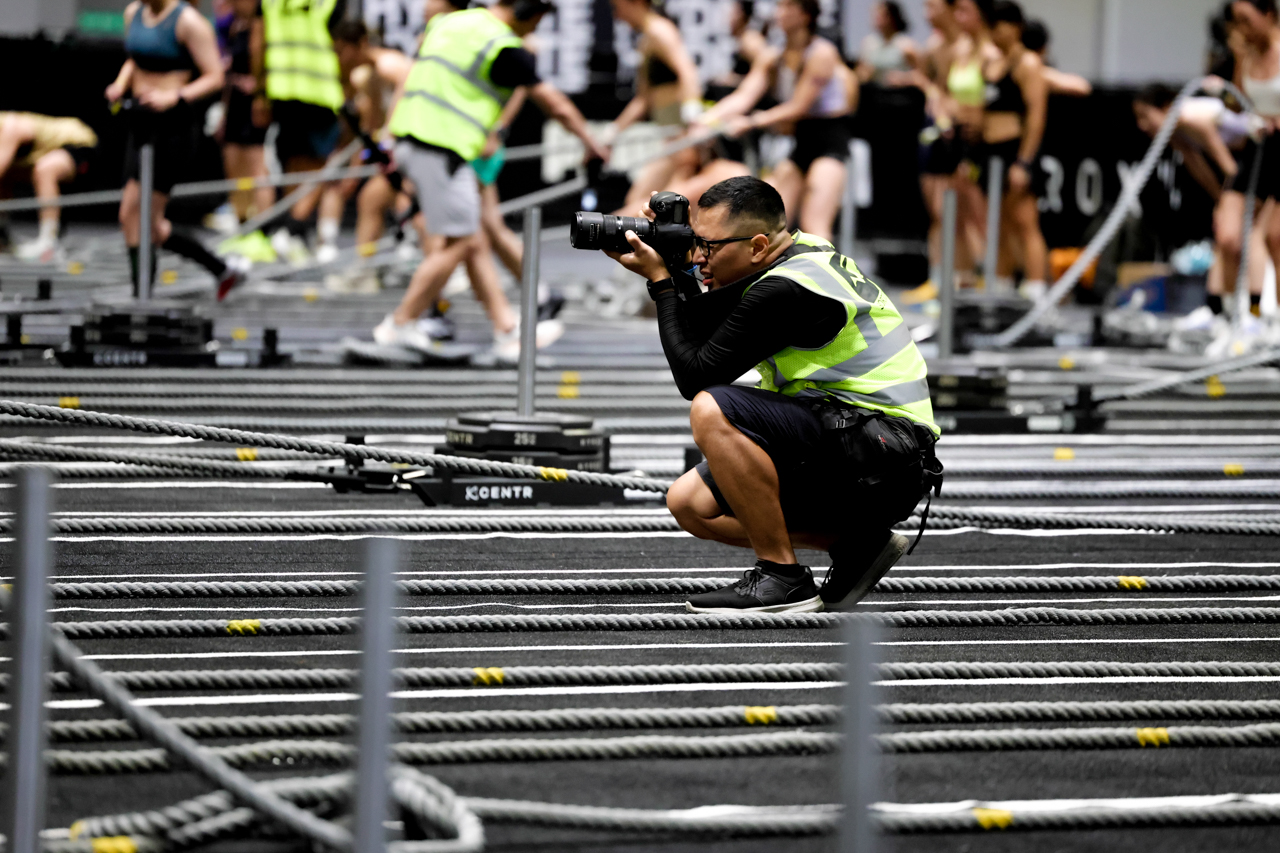
HYROX drew people from all over the world for a single purpose: finish the course. In Hong Kong, athletes showed up at AsiaWorld-Expo ready to run, row, and push through 8 stations of pure functional fitness.
So, we brought the Canon EOS R6 Mark III to capture one of the most demanding fitness races on the planet.
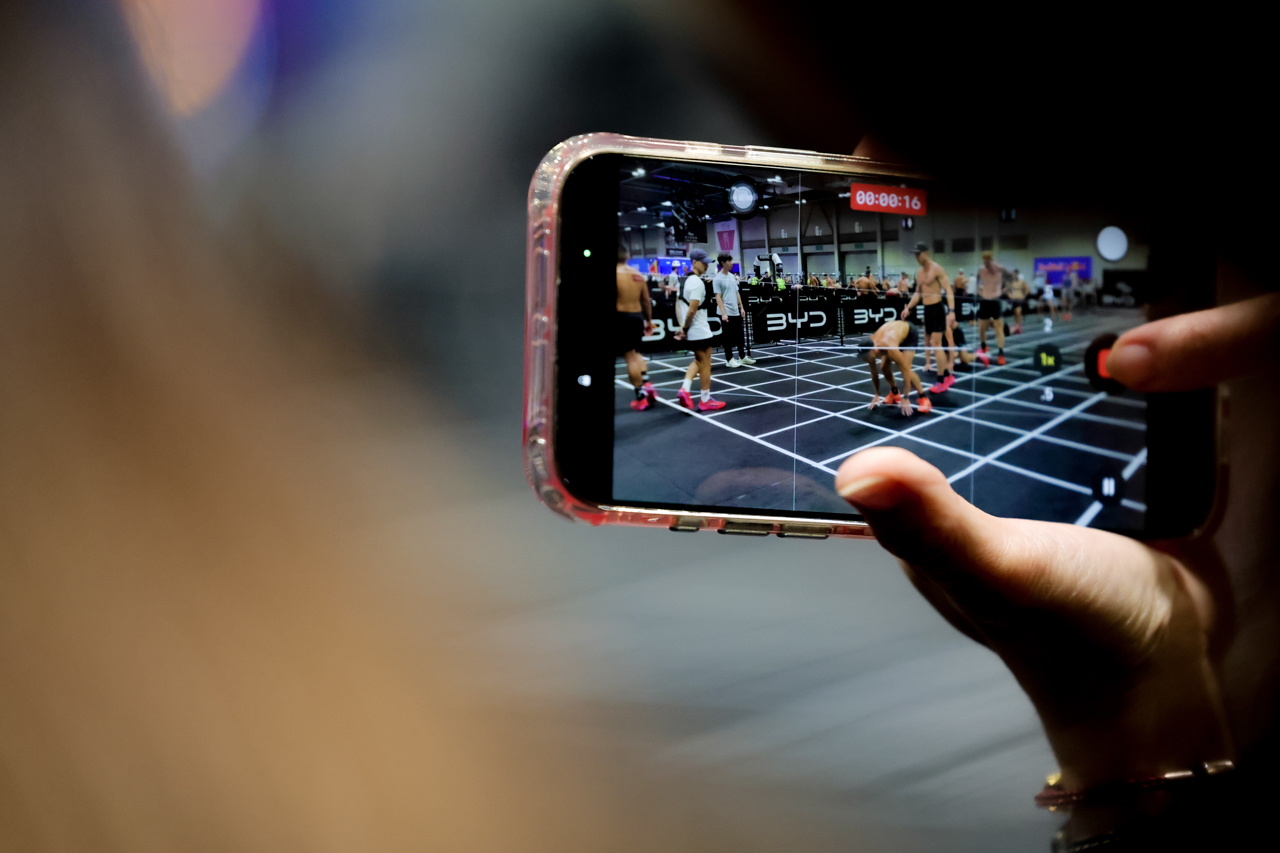
The Expo floor is a lighting nightmare, a mix of harsh overheads and deep shadows, but the 32.5MP sensor handled the contrast without breaking a sweat.
The 40fps electronic shutter and Pre-continuous shooting meant we were already capturing the moment half a second before we consciously decided to press the shutter.
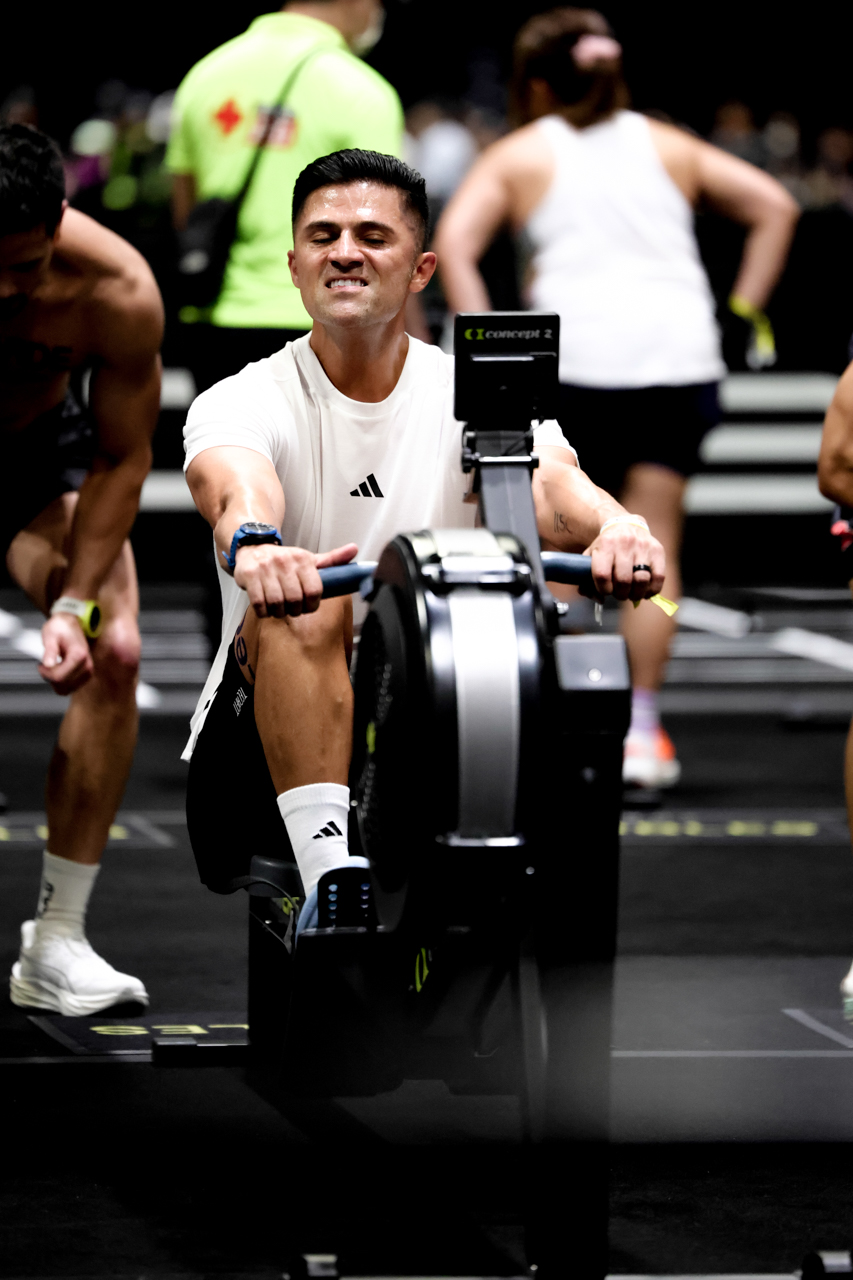
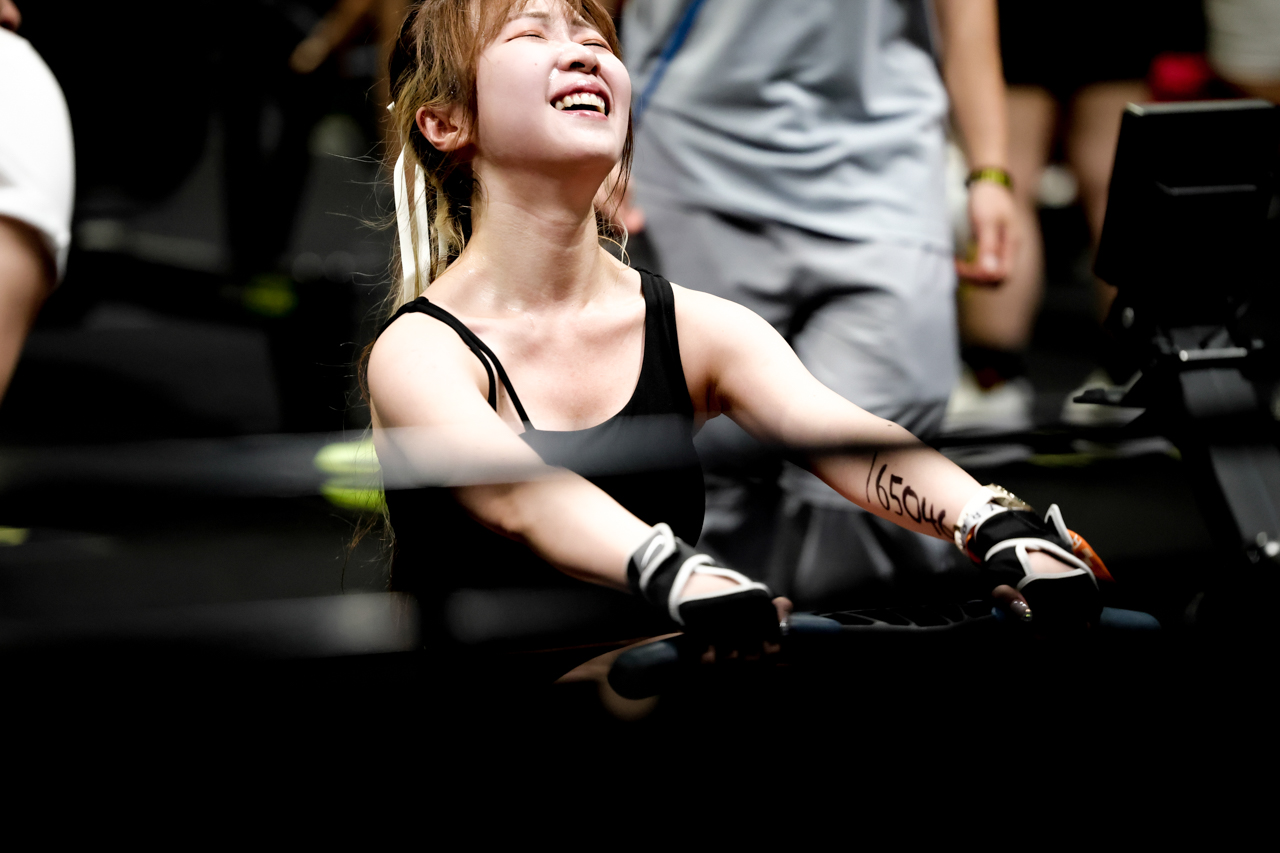
Covering a race means staying mobile, and the 8.5-stop IBIS let us move freely alongside athletes without losing the shot. The Dual Pixel CMOS AF II stayed locked on athletes even when they were squinting through the final stretch.
What came out were stories of triumph and determination. Even when their bodies were screaming, they pushed through anyway.
This is what HYROX Hong Kong looked like from the inside.

























Words by MJ Jucutan. Photos by Sky Rodillas.
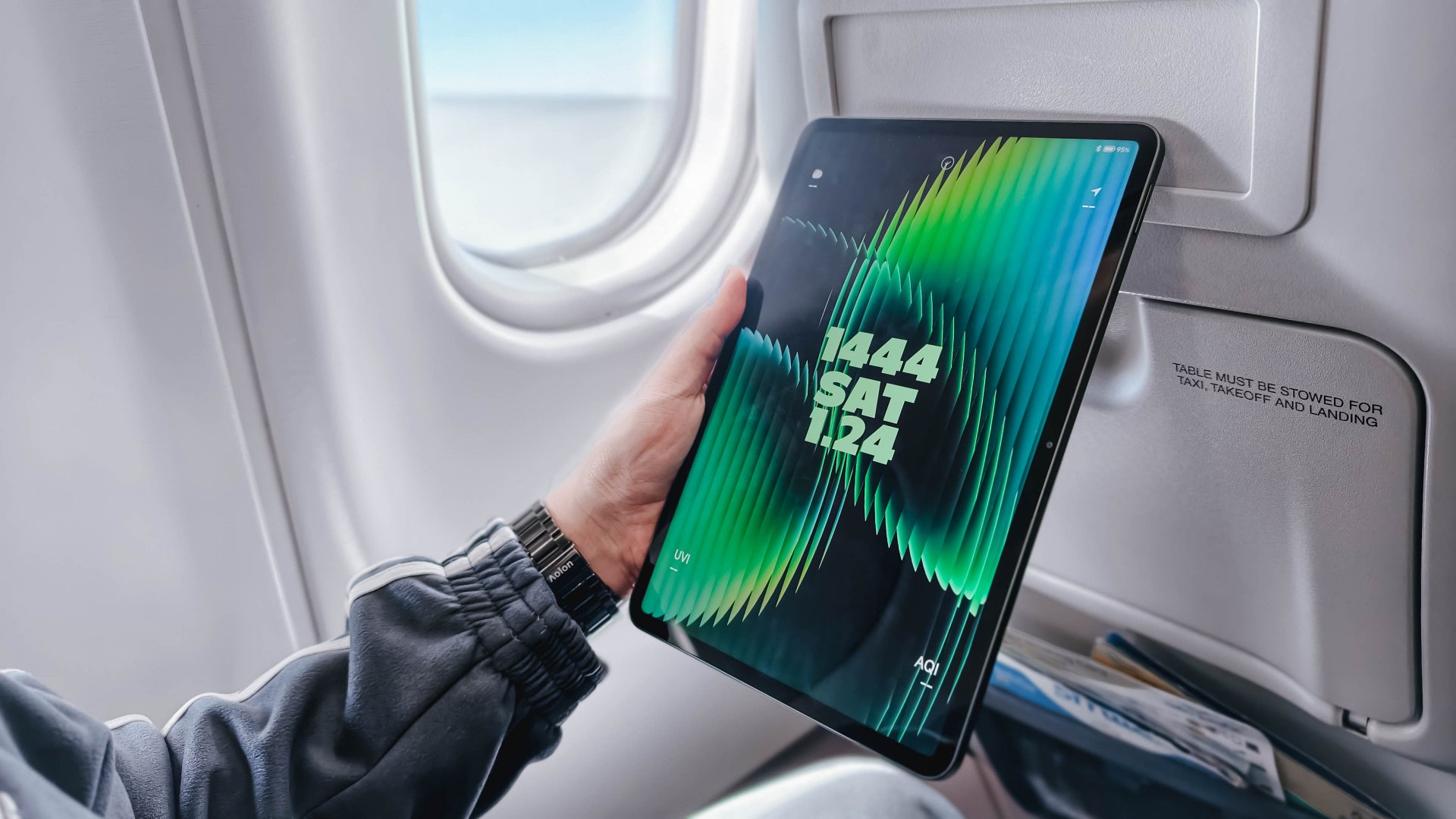
Choosing between the Xiaomi Pad 8 and the Xiaomi Pad 8 Pro feels like picking between a “sweet treat” and a “full-course meal.”
It’s deciding between a reliable travel companion and a specialized workstation. Both tablets rock a slim 5.8mm profile and a manageable 485-gram weight, and a 9200mAh battery.
However, under the hood, they are playing in different leagues. Especially since the “Pro” moniker adds serious muscle to the internals, and a solution for that glossy screen distraction.
Specs at a glance
| Product | Xiaomi Pad 8 | Xiaomi Pad 8 Pro |
| Processor | Snapdragon 8s Gen 4 (4nm) | Snapdragon 8 Elite (3nm) |
| Display | 11.2″ 3.2K IPS LCD (144Hz) | 11.2″ 3.2K IPS LCD (144Hz) |
| Surface | Ultra-Glossy Glass | Optional Matte Nano-Texture |
| Storage/RAM | Up to 12GB LPDDR5X / 256GB | Up to 16GB LPDDR5T / 512GB |
| Rear Camera | 13MP | 50MP |
| Front Camera | 8MP | 32MP |
| Charging | 45W Turbo Charge | 67W HyperCharge |
| Pricing | Starts at PhP 20,999 | Starts at PhP 38,999 |
Why you should pick the Xiaomi Pad 8
The standard Pad 8 is that “Goldilocks” device, hitting that sweet spot between price and premium hardware.
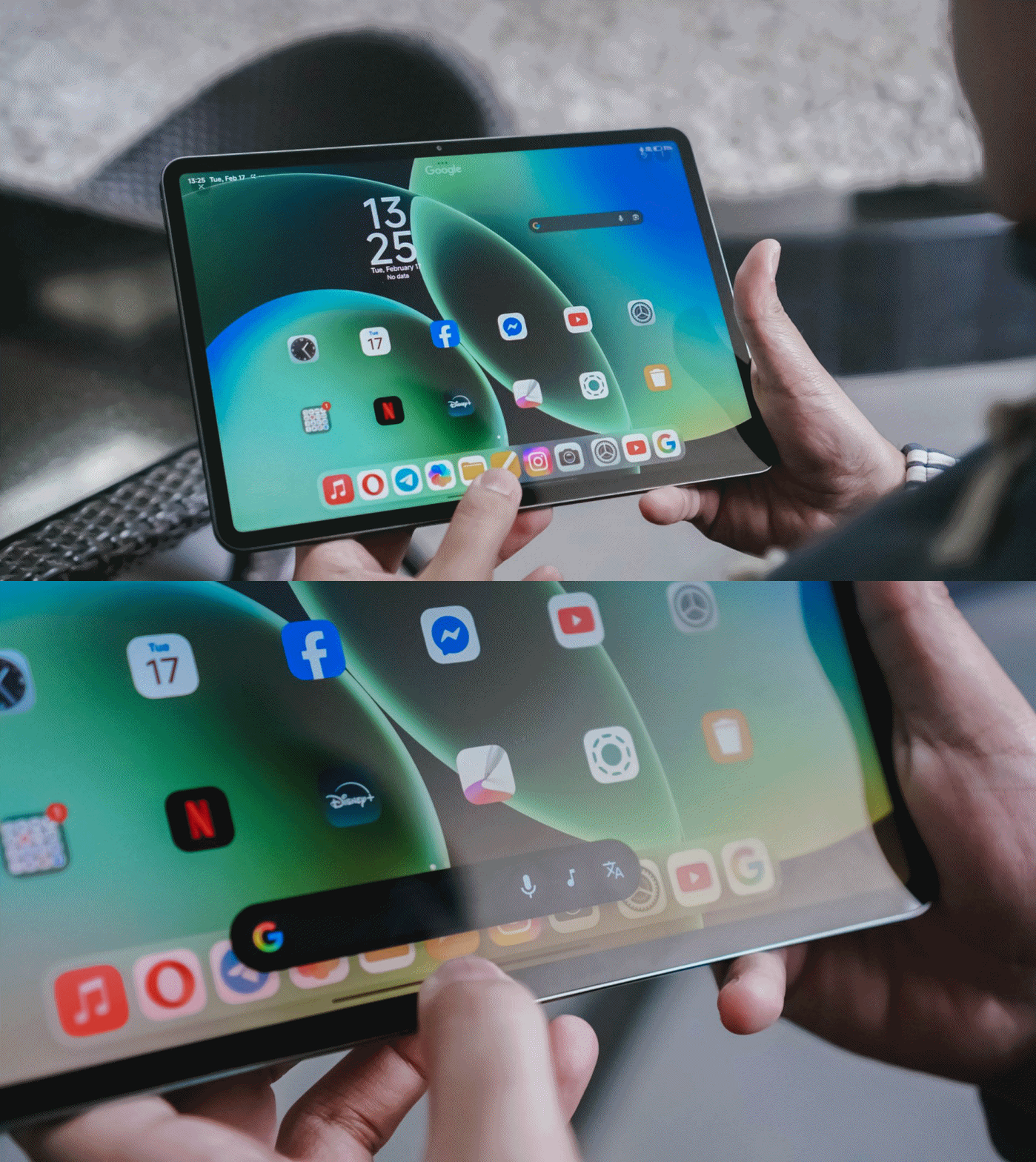
It’s ideal if your tablet usage is centered on media consumption and light productivity. Since it shares the same 11.2-inch screen size as the Pro, it fits perfectly on an airplane tray table, making it a dream for frequent flyers.
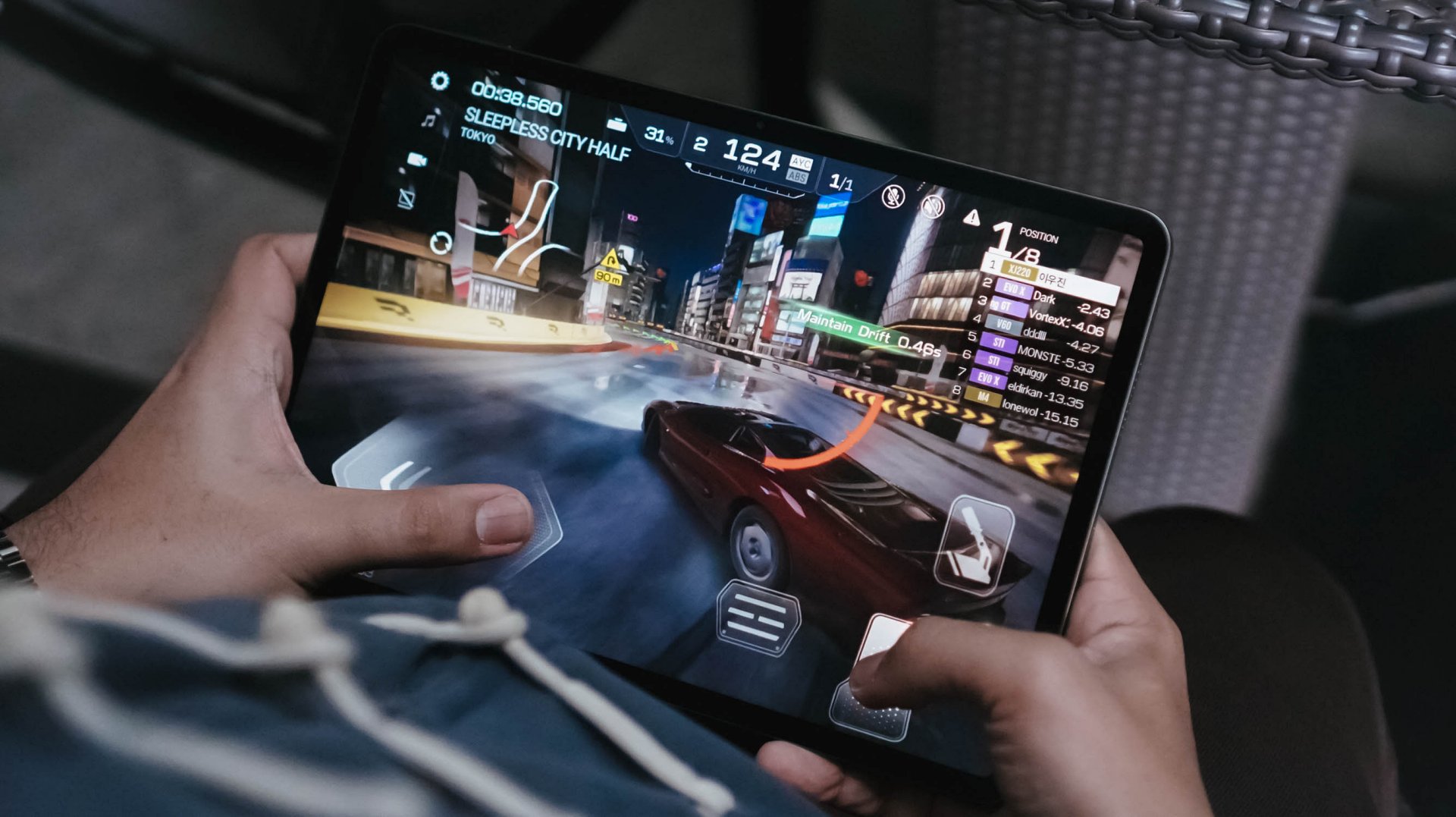
The Snapdragon 8s Gen 4 is no slouch; it still runs titles like Racing Master at 60fps on Ultra-High settings. If you’re a fan of XG or KiiiKiii, you’ll appreciate the quad-speaker setup and Hi-Res Audio support without needing to pay the “Pro” tax.
It’s the smart choice for those who want a capable second screen to complement their main laptop.
Why you should level up to the Xiaomi Pad 8 Pro
The “Pro” is for those who found the standard model’s limitations — like the glossy screen reflections or the 128GB storage ceiling — to be a dealbreaker.
The biggest upgrade is the Snapdragon 8 Elite, a powerhouse chip that turns the tablet into a legitimate workstation for video editing in CapCut or heavy multitasking in HyperOS 3.0.

Beyond power, the Pro version offers a Matte Glass Edition, which completely solves the “reflection” issue that can ruin your movie sessions or drawing time under bright lights.
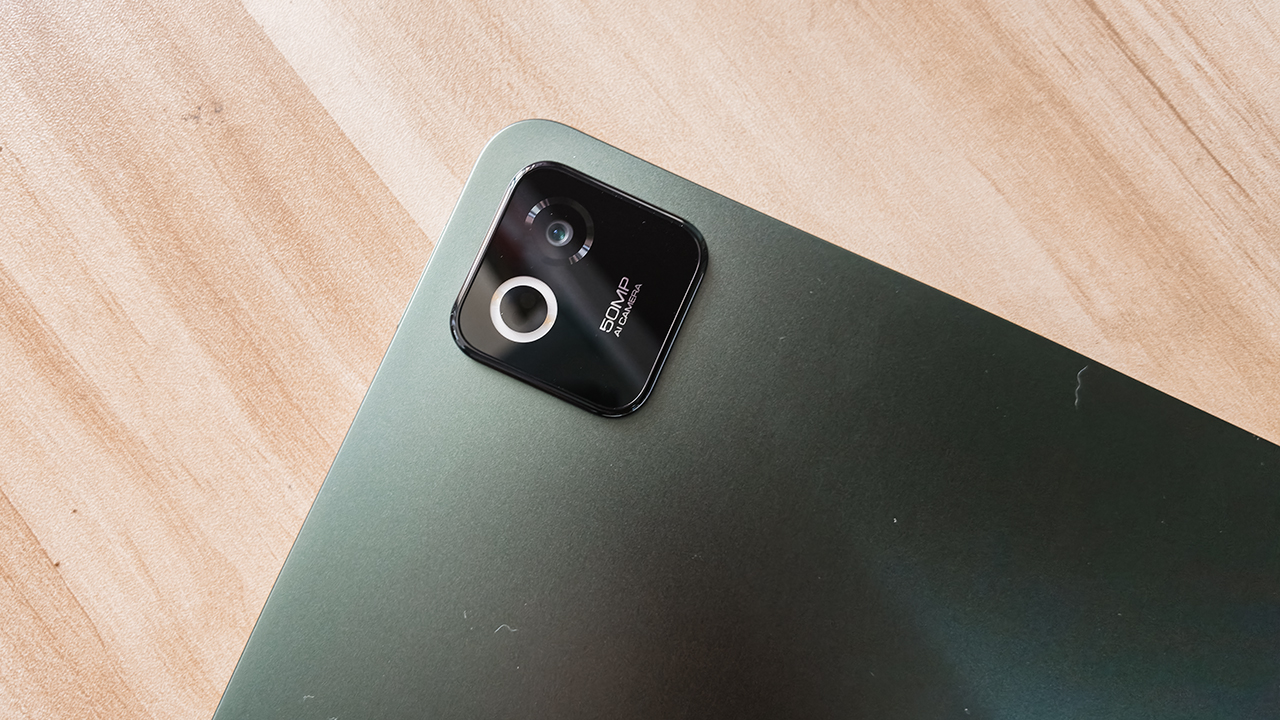
You also get significantly better cameras, such as a 32-megapixel front sensor for professional-looking video calls. There’s also a 50-megapixel rear camera for high-res document scanning.
Finally, the 67W HyperCharge means you spend less time tethered to a wall and more time being productive.
Which Xiaomi Pad is your GadgetMatch?
Swipe Right on the Xiaomi Pad 8 if you want the best value for your money.
It’s thin, light, and powerful enough for 90% of users. It handles gaming, writing, and music playback with ease, making it a worthy recipient of a seal of approval for anyone on a budget.
Just be sure to skip the 128GB entry model and go for the 256GB version to ensure you get those faster storage speeds.

Swipe Right on the Xiaomi Pad 8 Pro if you are a “power user” who hates screen glare. If you plan to use the Focus Pen Pro for serious creative work or need 512GB of space for a massive game library, the Pro is worth the extra investment.
It’s a high-speed machine that charges faster, captures better photos, and runs every app with flagship-level fluidness.
The Xiaomi Pad 8 starts at PhP 20,999 with Normal Keyboard while the Xiaomi Pad 8 Pro starts at PhP 38,999 with Touch Keyboard. Both tablets come with free Focus Pen Pro.


HONOR Magic V6 review: The best version of a book-style foldable?
Little left to sacrifice


Close without crossing: A Xiaomi 17T Pro photo essay
Distance and closeness are not always opposites.


Spring reset: Growing more at home with Auk Mini
From kitchen counter experiment to everyday habit

Lenovo introduces the immersive Referee View for the World Cup

Kodak Charmera gets seven Y2K-inspired designs

Gundam Rogue Orbit coming to consoles, PC in 2027

Turn conversations into completed work: Zoom launches ZoomMate

K-pop Idol Stories: Road to Debut lets you become a K-pop group’s manager

The Infinix GT 50 Pro has the most inspired design for a gaming phone

TECNO’s POVA 8 5G is both futuristic and future-ready
Spring reset: Growing more at home with Auk Mini

UGREEN MagFlow Air review: Airy Yet Mighty
Close without crossing: A Xiaomi 17T Pro photo essay


-
 India7 days ago
TECNO’s POVA 8 5G is both futuristic and future-ready
-

 News2 weeks ago
realme launches P4 Series 5G, including Power with 10,001mAh battery
-

 Buyer's Guide1 week ago
Buyer’s Guide: Xiaomi Pad 8 Series
-
Reviews1 week ago
HONOR Magic V6 review: The best version of a book-style foldable?
-

 Gaming7 days ago
Kingdom Hearts IV gets new trailer, confirms Switch 2 release
-

 Gaming2 weeks ago
Final Fantasy VII Revelation arrives in Spring 2027
-

 Gaming7 days ago
Final Fantasy fans have two big reasons to look forward to 2026
-

 Smartphones1 week ago
Upcoming realme C100 series to feature 8,000mAh battery